 UPDF
UPDF
 UPDF for Windows
 UPDF for Mac
 UPDF for iPhone/iPad
 UPDF for Android
 Nomostar
 UPDF AI Online
 UPDF Sign
 IvyCraft
 Edit PDF
 Annotate PDF
 Create PDF
 PDF Form
 Edit links
 Convert PDF
 OCR
OCR PDF to Word
 PDF to Image
 PDF to Excel
 Organize PDF
 Merge PDF
 Split PDF
 Crop PDF
 Rotate PDF
 Protect PDF
 Sign PDF
 Redact PDF
 Sanitize PDF
 Remove Security
 Read PDF
 UPDF Cloud
 Compress PDF
 Print PDF
 Batch Process
 About UPDF AI
 UPDF AI Solutions
 AI User Guide
 FAQ about UPDF AI
 Summarize PDF
 Translate PDF
 Chat with PDF
 Chat with AI
 Chat with image
 PDF to Mind Map
 Explain PDF
 PDF AI Tools
 Image AI Tools
 AI Chat Tools
 AI Writing Tools
 AI Study Tools
 AI Working Tools
 Other AI Tools
 AI Bookmark Generation
 AI Bookmark Summary
 AI Watermark Generation
 AI Background Generation
 AI Sticker Generation
 AI Stamp Generation
 AI Editing Suite
 UPDF Copilot
 AI Page Management
 AI Semantic Search
 PDF to Word
 PDF to Excel
 PDF to PowerPoint
 Enterprise Solution
 Enterprise Sign
 Enterprise AI
 Enterprise Plan
 Enterprise User Guide
 Enterprise Webinar
 IT
IT Education
 Construction
 Financial Service
 Healthcare
 Insurance
 Legal
Legal Manufacturing
 Government
 Researchers & PhDs
 Solopreneurs & Freelancers
 Lawyers & Legal Professionals
 Real Estate Agents & Brokers
 Education Solution
 Customer Stories
 User Guide
 UPDF Tricks
 FAQs
FAQs UPDF Reviews
 Download Center
 Blog
Blog Newsroom
 Tech Spec
 Updates
 UPDF vs. Adobe Acrobat
 UPDF vs. Foxit
 UPDF vs. PDF Expert

How to extract a signature from PDF depends on the signature type: handwritten marks and image-based signatures need different workflows. In this guide, I'll show you both methods using UPDF — copy-paste handwritten signatures directly between PDFs, or extract image-based signatures as PNG files for reuse in contracts, forms, and documents. Both work on Windows, Mac, iOS, and Android without losing quality.
Windows • macOS • iOS • Android 100% secure
Part 1. Why Extract a Signature From a PDF?
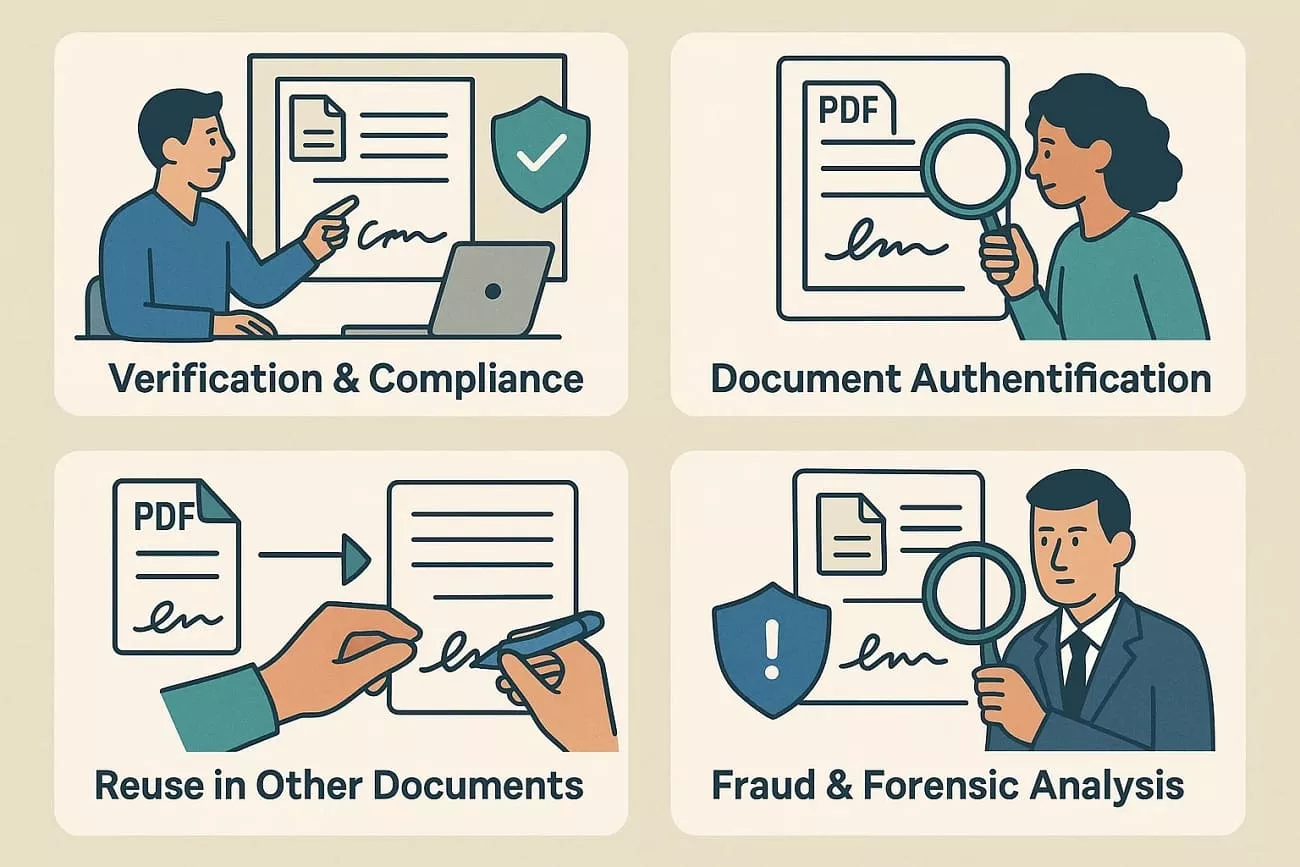
Before learning how to extract a signature from PDF files, here are the most common reasons:
1. Reuse in Contracts & Forms
Pull a signature once and paste it into multiple agreements, onboarding docs, or templates without asking the signer to re-sign every time.
2. Document Verification
Legal and compliance teams extract signatures to verify authenticity against official records during audits or dispute resolution.
3. Workflow Automation
Isolated signature images can be fed into automated form-processing tools, digital approval chains, or database storage systems.
4. Fraud & Forensic Analysis
Security teams extract signatures to analyze patterns, detect forgery, or confirm genuine authorization in high-risk transactions.
Part 2. Types of Signatures & Extraction Challenges
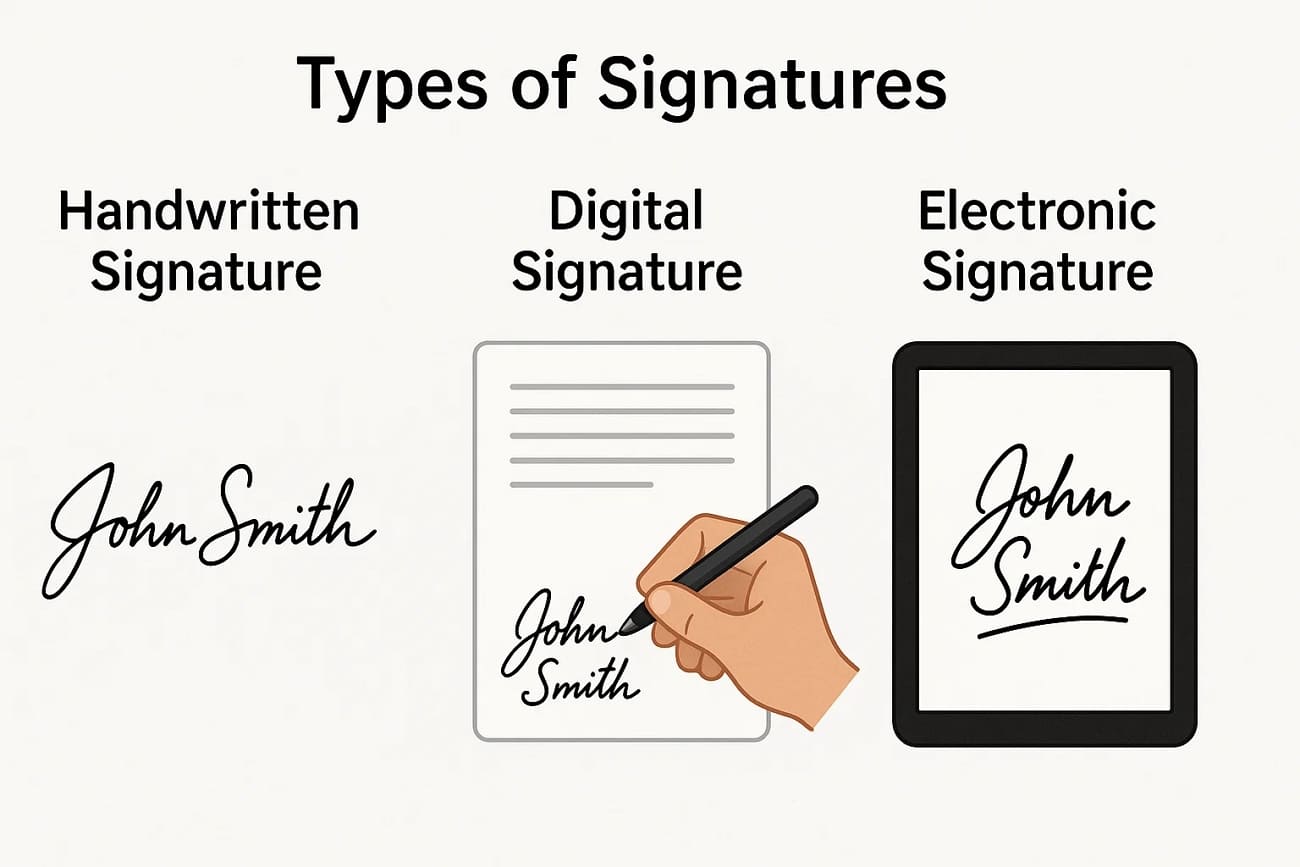
PDFs contain three main signature formats, and each requires a different extraction approach:
| Signature Type | What It Is | Extraction Method |
|---|---|---|
| Handwritten Signature | Signature written on paper | Scan, crop, or remove background |
| Digital Signature | Certificate-based encrypted signature | Extract or verify the certificate |
| Electronic Signature | Typed or drawn electronic signature | Copy the object or extract the image |
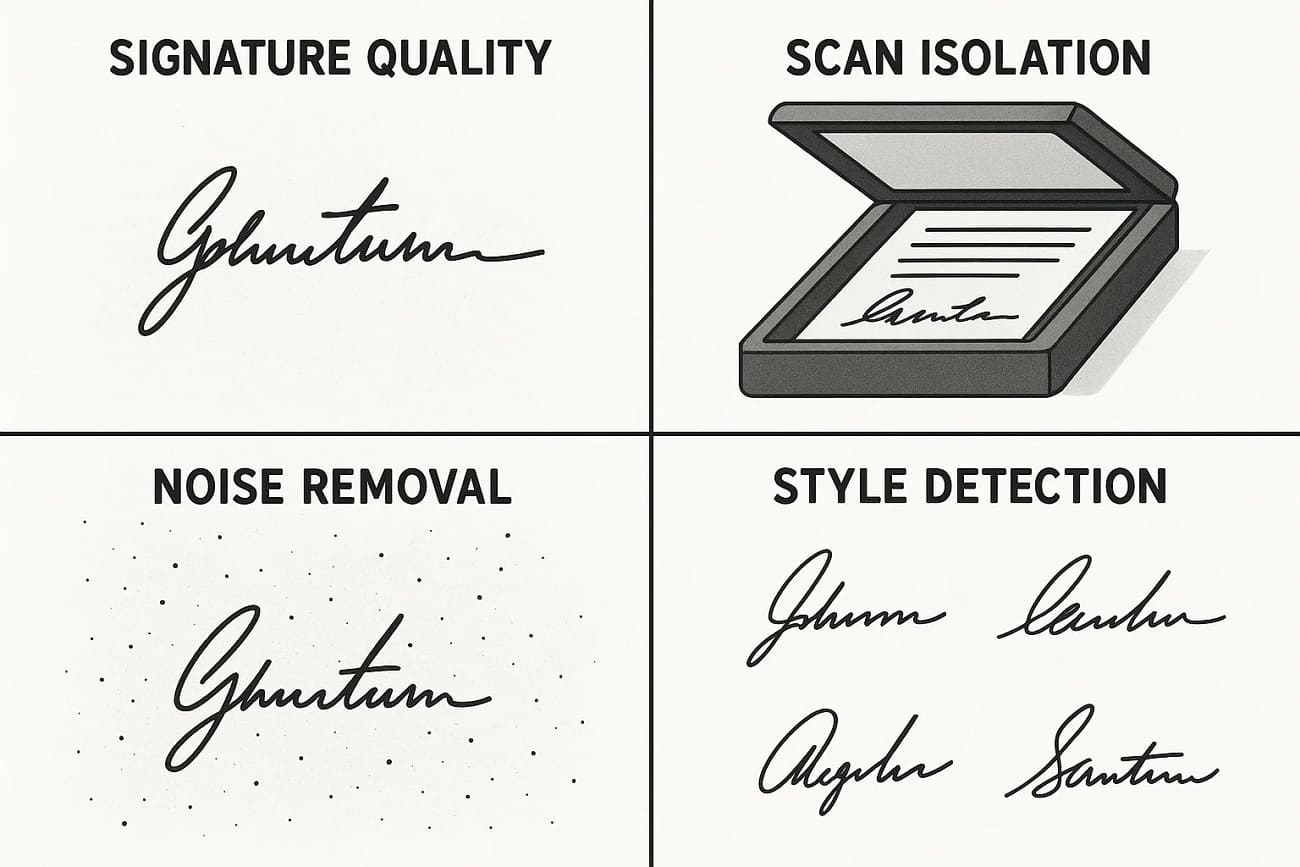
Common challenges: Handwritten signatures may blend into noisy backgrounds or lose thin strokes; electronic signatures can be compressed, low-resolution, or difficult to isolate; digital signatures cannot be extracted as images because they are certificate-based.
Part 3. How to Extract a Handwritten-based Signature from PDF
After I was unsure how to extract signature from PDF, I found that the process differs for handwritten and image signatures. Fortunately, with the help of UPDF, this task becomes straightforward and easy due to its simple interface. It allows me to select and save signatures without losing quality on a desktop or mobile device.
Unlike other tools, UPDF lets me copy and extract signature layers from PDFs without flattening to preserve the original quality. Signatures can be saved as separate files and reused across multiple documents
Now, we’ll explore how you can extract a handwritten signature using the UPDF Desktop and its Mobile application.
Extracting Handwritten Signature with UPDF Desktop
Follow the steps below to extract a handwritten signature on your desktop device using UPDF:
Windows • macOS • iOS • Android 100% secure
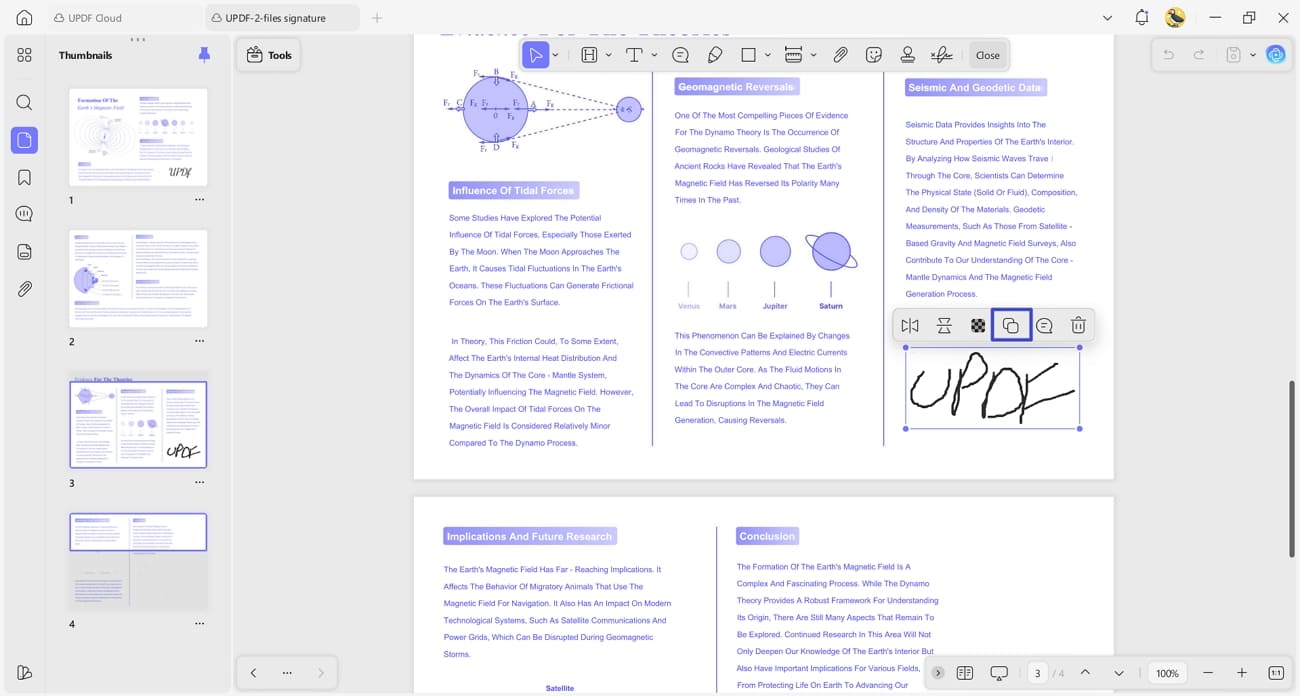
Step 1. Open Signature File and Copy Handwritten Signature
Once you open the document with a handwritten signature, select the signature and hit the “Copy” icon in the floating pop-up.
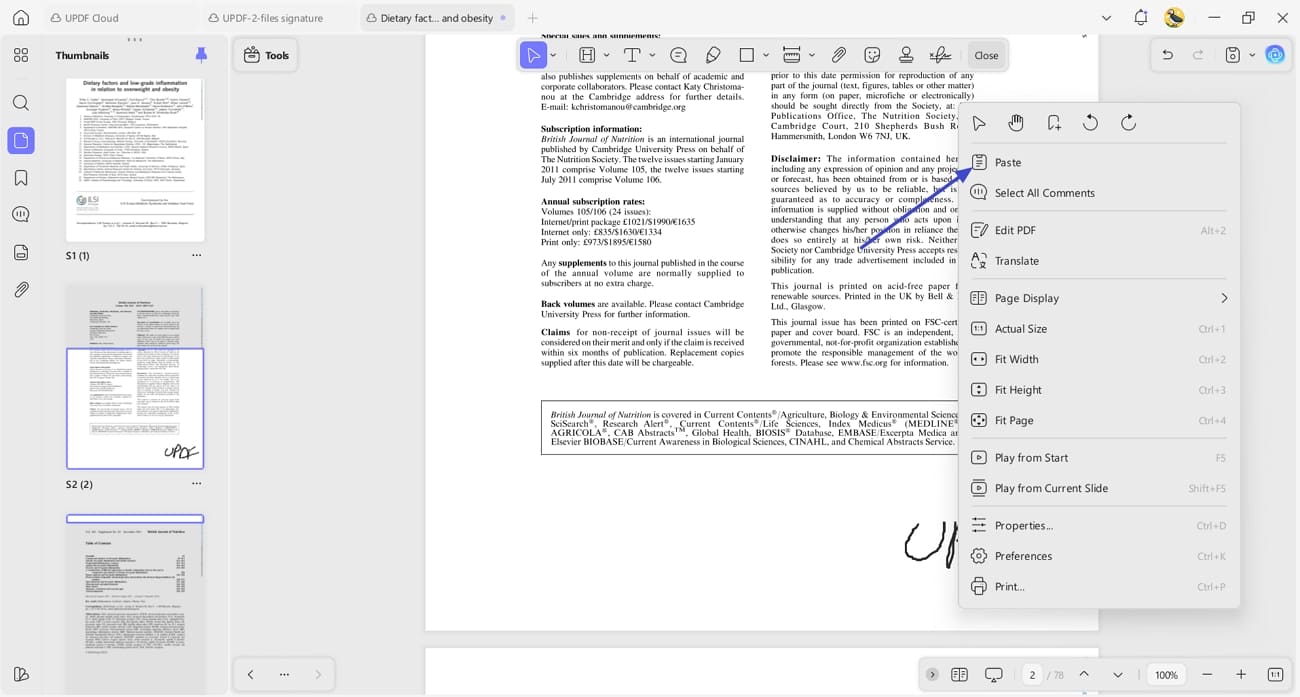
Step 2. Paste The Signature in Another PDF
Next, open another PDF and right-click the file to press the “Paste” option to paste the copied signature. You can also press the “Ctrl + V” keys to directly paste the signature via keyboard.
Extracting Handwritten Signature with UPDF Mobile
Adhere to the steps below to learn how to extract a signature from PDF using the UPDF Mobile app:
Windows • macOS • iOS • Android 100% secure
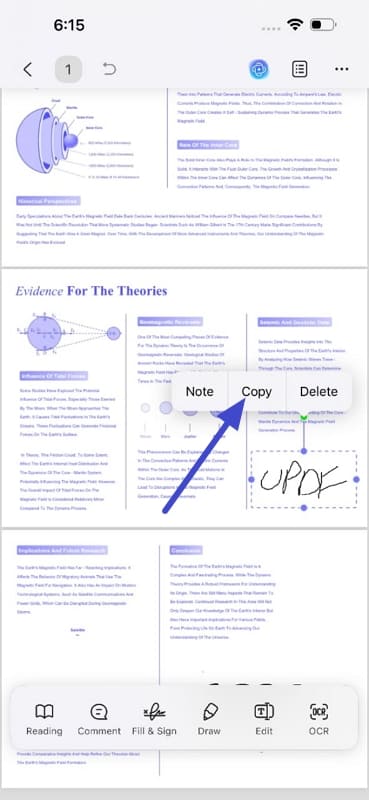
Step 1. Access Signature PDF and Copy Signature
Once you open a PDF with handwritten signatures, tap on the signature and hit the “Copy” option in the pop-up.
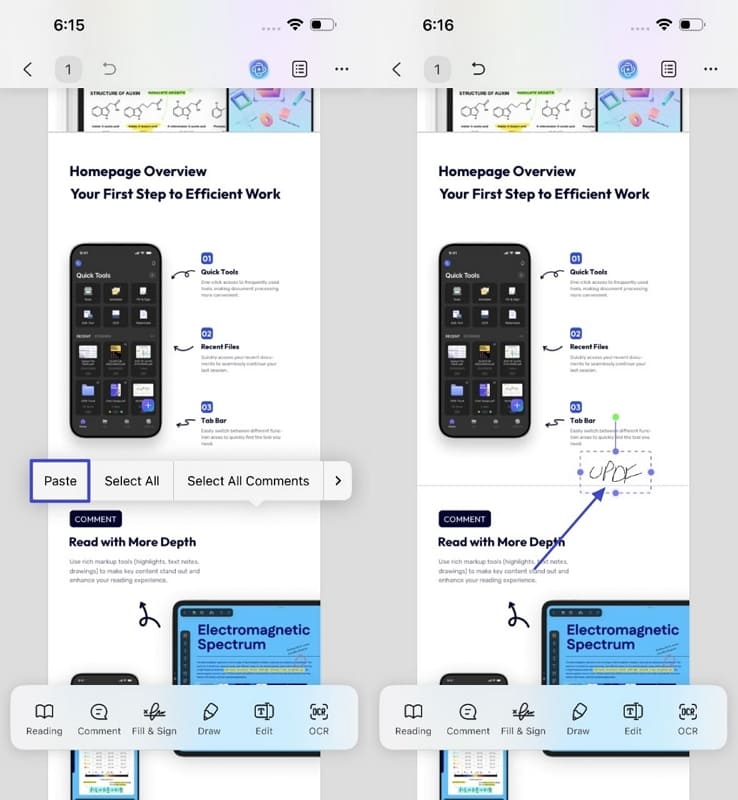
Step 2. Paste Signature into Another PDF
Now, open another PDF file and tap anywhere to view a pop-up menu and use the “Paste” option to paste the signature on the current PDF.
Part 4. How to Extract an Image-Based Signature with UPDF
Next, in this guide, we’ll learn how you can extract an image-based signature using the UPDF desktop and mobile application. We’ll explore various ways to save, upload, and reuse signature images while preserving their original quality.
Extracting an Image-Based Signature Using UPDF Desktop
Now, on the UPDF Desktop application, let’s explore different ways to extract an image-based signature while keeping its quality intact.
Way 1: Save Selectable Signature
Before extracting, make sure the signature layer is selectable, then follow the steps below on how to extract signature from PDF:
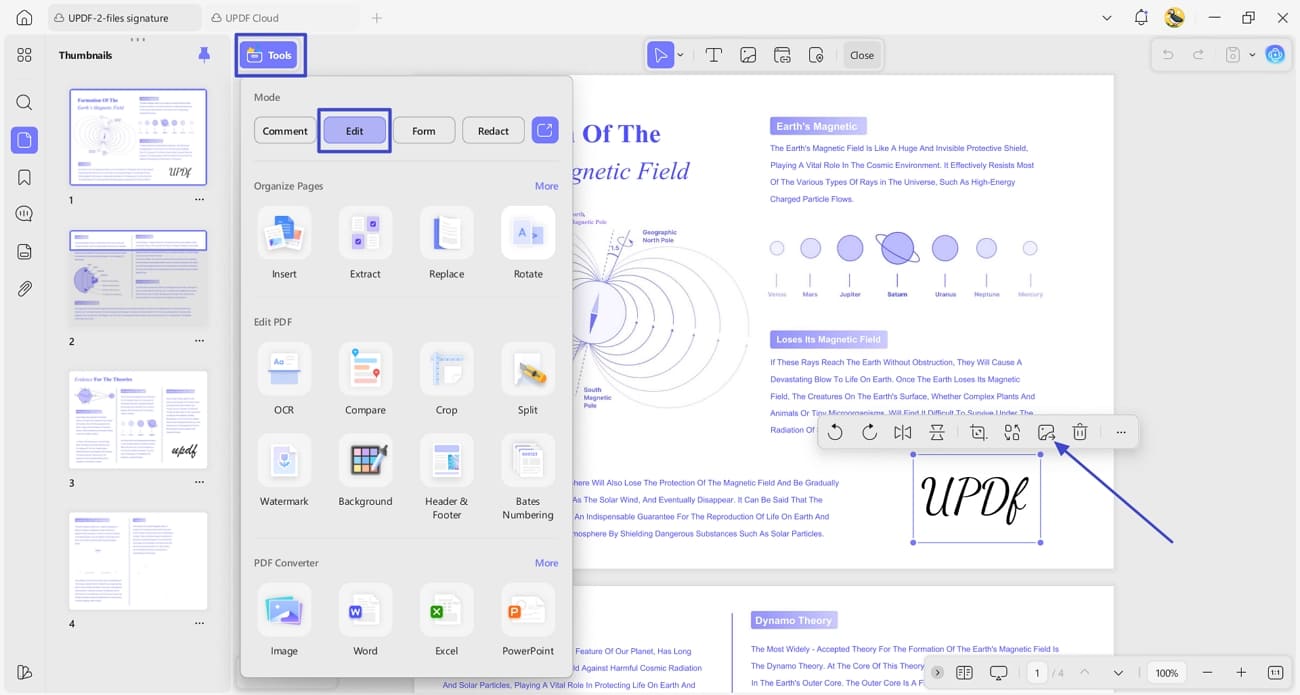
Step 1. Access Edit PDF
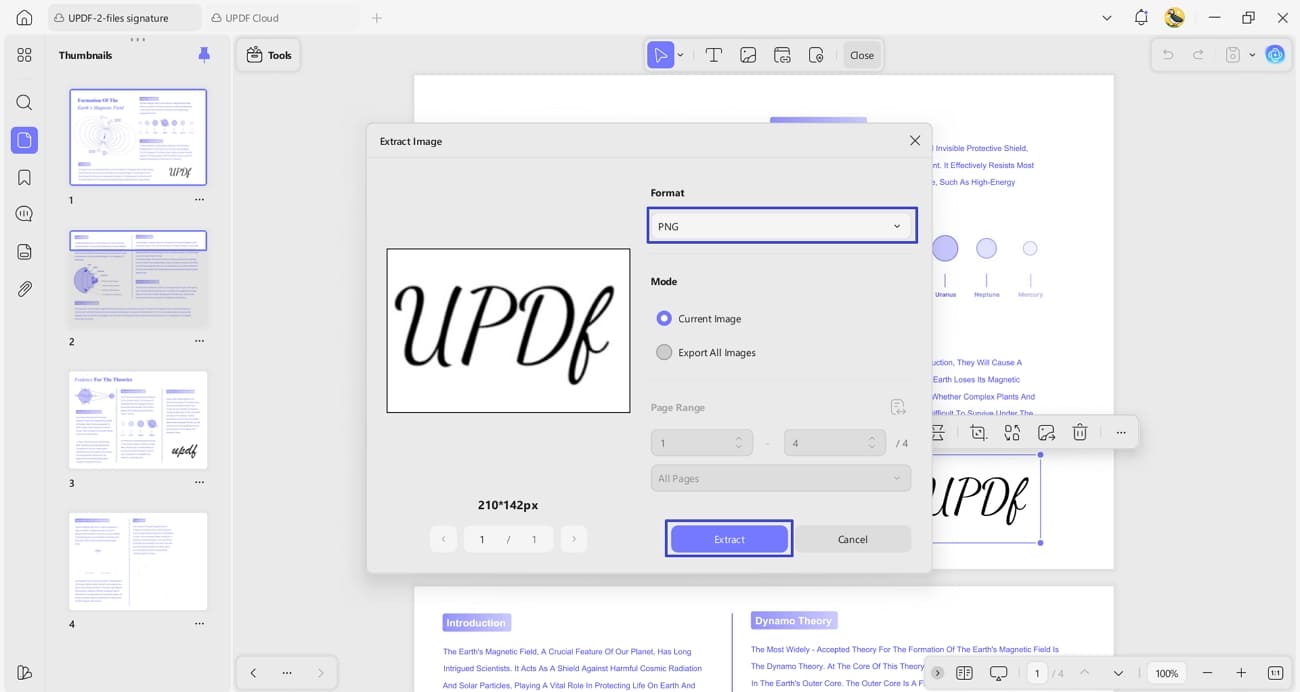
After you open the PDF, hit the “Tools” option and press the “Edit” option to access the editing interface. Next, select the image-based signature and hit the “Extract” icon from the floating pop-up.
Windows • macOS • iOS • Android 100% secure
Step 2. Extract the Image-Based Signature
Now, you’ll see a new pop-up window where you need to choose a desired format under the “Format” option and hit the “Extract” button to extract the signature.
Step 3. Add Signatures to Other PDF
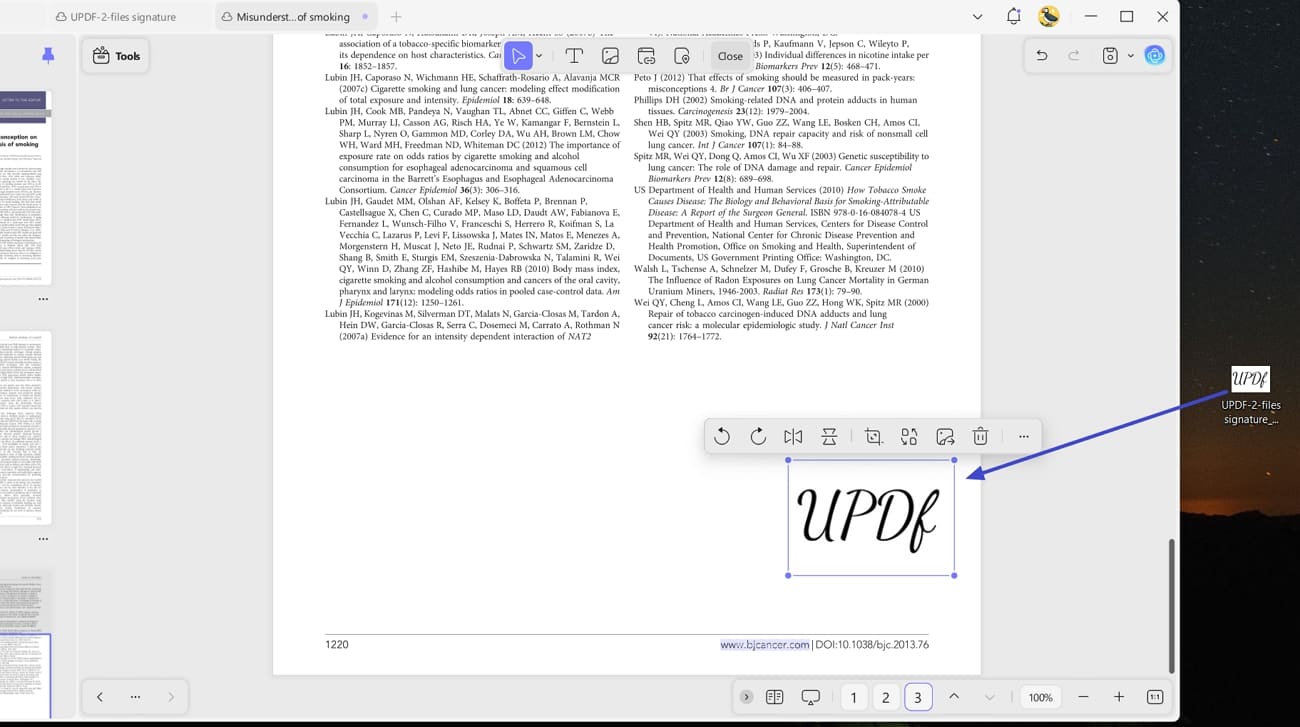
Next, drag and drop the extracted image file into another PDF file.
Way 2: Upload Existing Signature
In case you already have a saved signature, go through the guide below to upload and extract it for reuse:
Step 1. Access Signature Feature
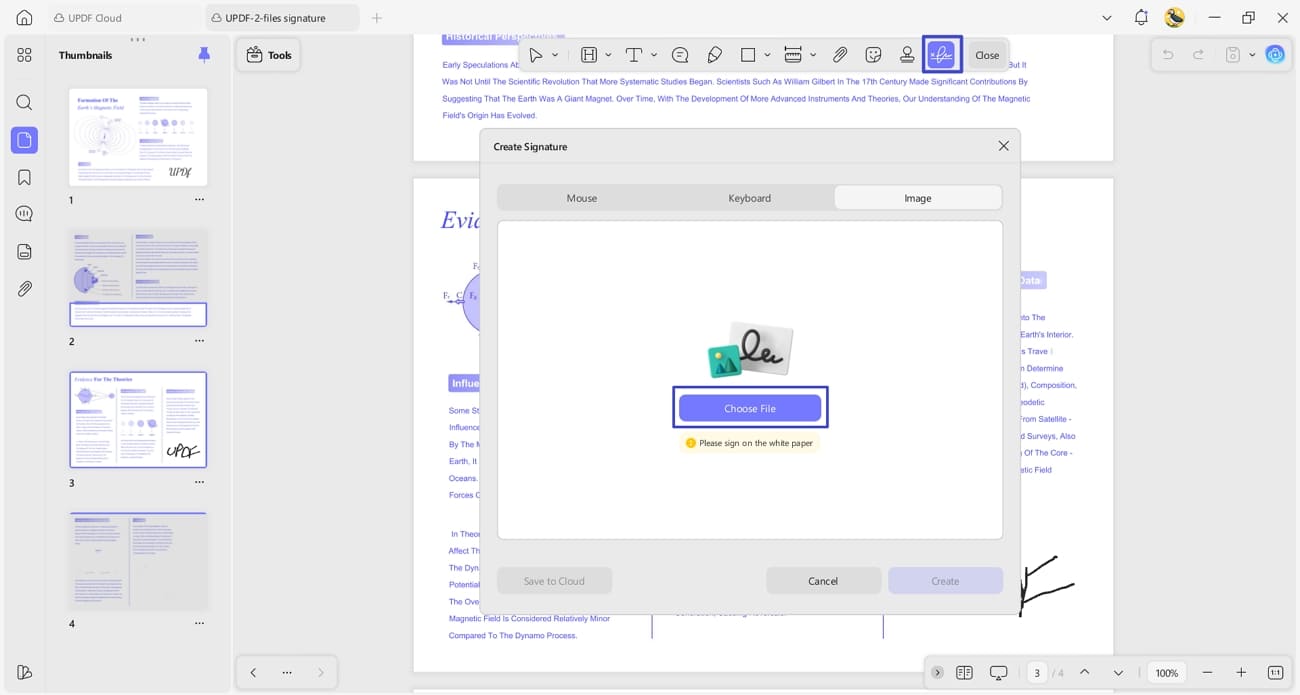
Once you upload the PDF, access the “Comment” tool and hit the “Signature” icon at the top. Next, hit the “Image” tab and press the “Choose File” option to import the image-based signature.
Step 2. Create Image-Based Signatures
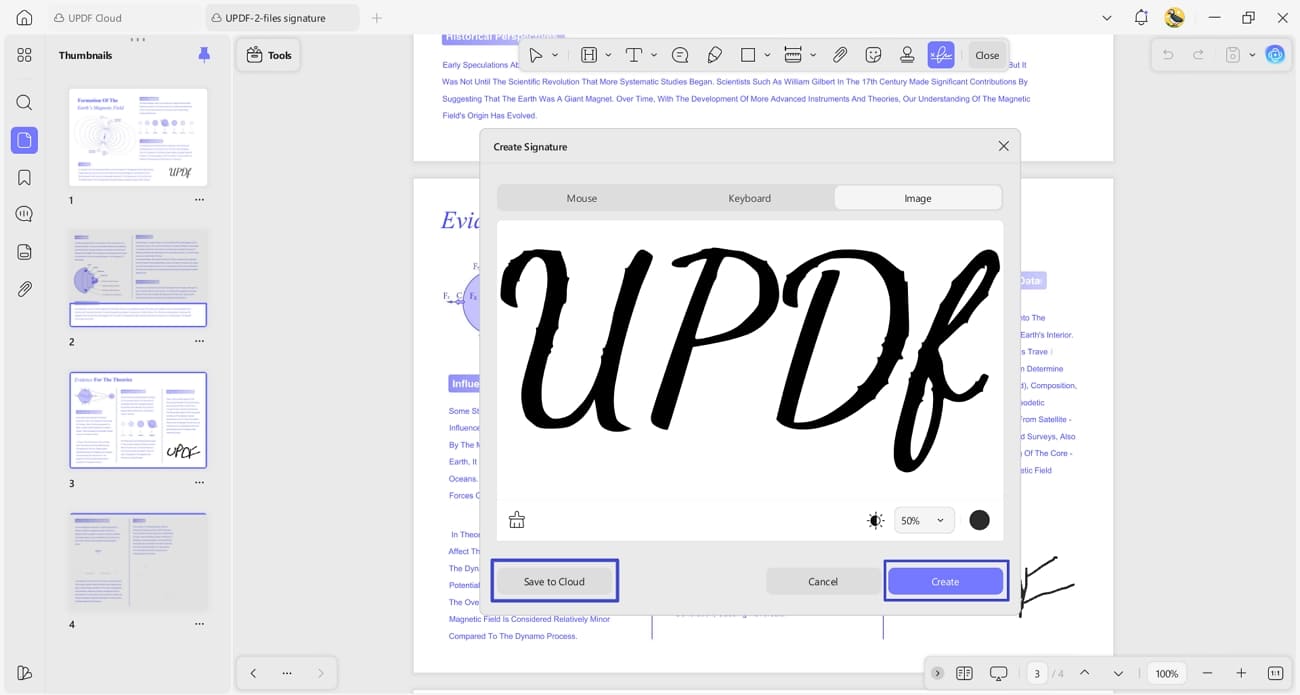
Next, hit the “Create” option to create the signature or hit the “Save to Cloud” option to save it to the cloud for future use.
Tip: Create and Save Your Signature
To simplify future work, follow the steps below to create a new signature in UPDF and save it for easy access:
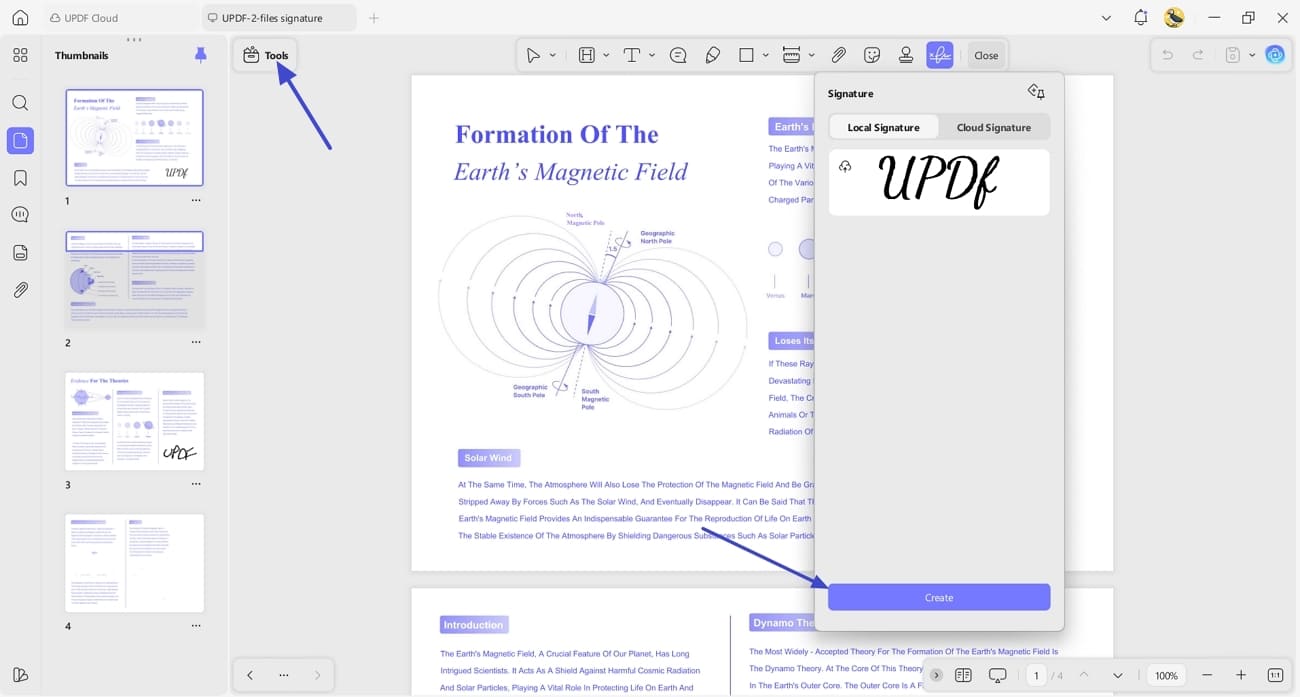
Step 1. Create New Signature
After accessing the Signature feature from the “Tools” option, hit the “Create” option and generate a new signature.
Windows • macOS • iOS • Android 100% secure
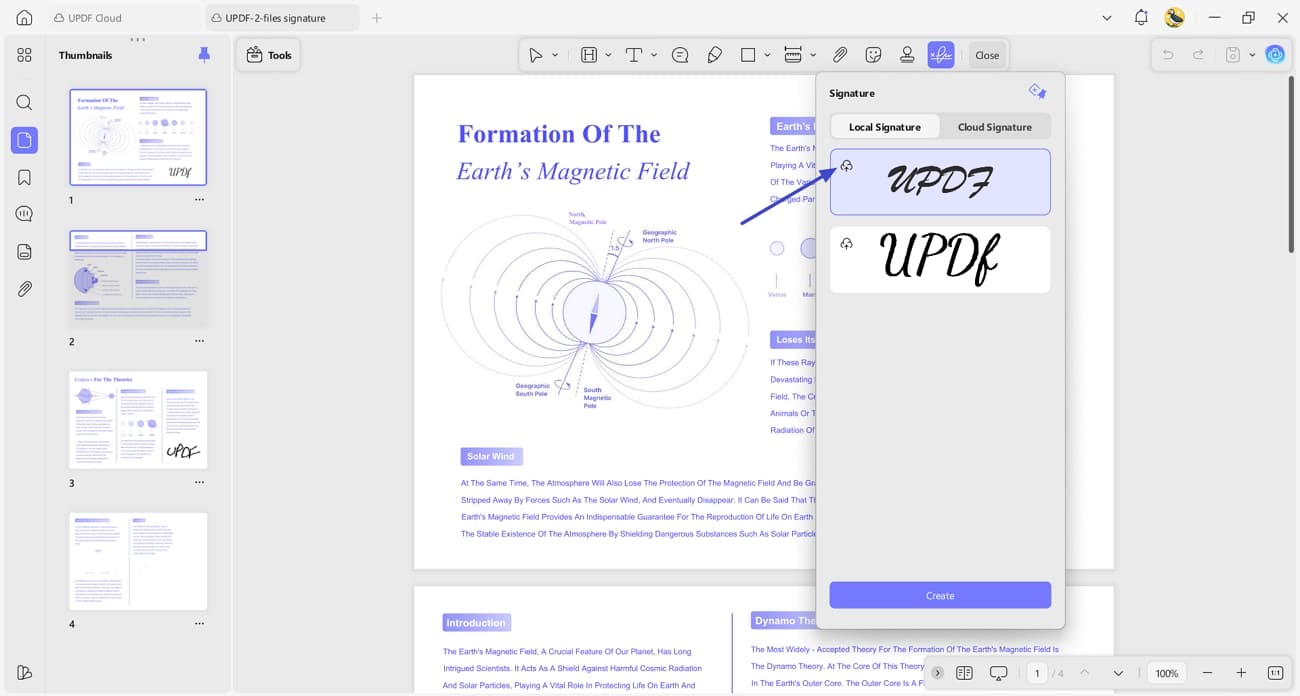
Step 2. Save New Signature to Cloud
Once done, hit the “Save to Cloud” icon to save the signature for future use.
Extracting an Image-Based Signature Using UPDF Mobile
Once you know how to extract a signature from PDF using UPDF desktop, let’s look at the mobile methods.
Way 1. Save The Image Signature With UPDF Mobile
Follow the steps below to save your image-based signature and make it ready for reuse:
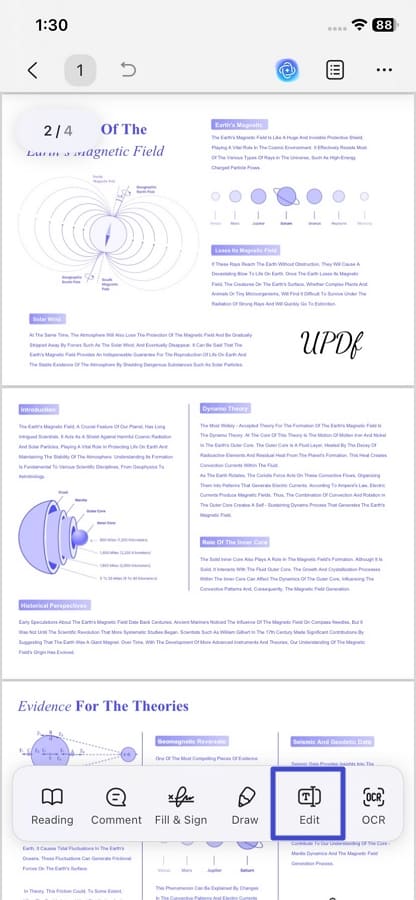
Step 1. Access Edit Tool
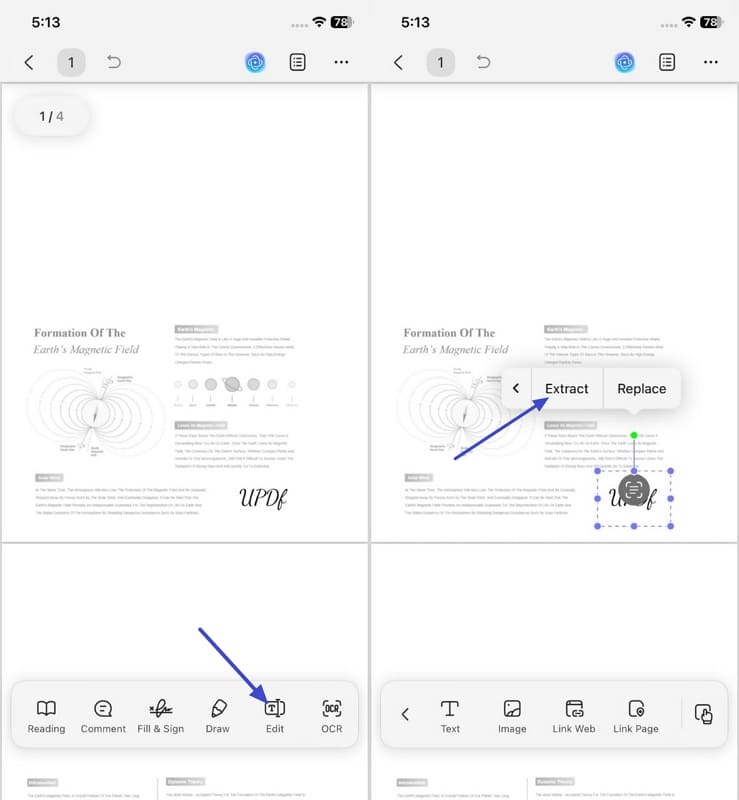
Once you open the PDF in UPDF, tap on the “Edit” option to access the editing interface.
Windows • macOS • iOS • Android 100% secure
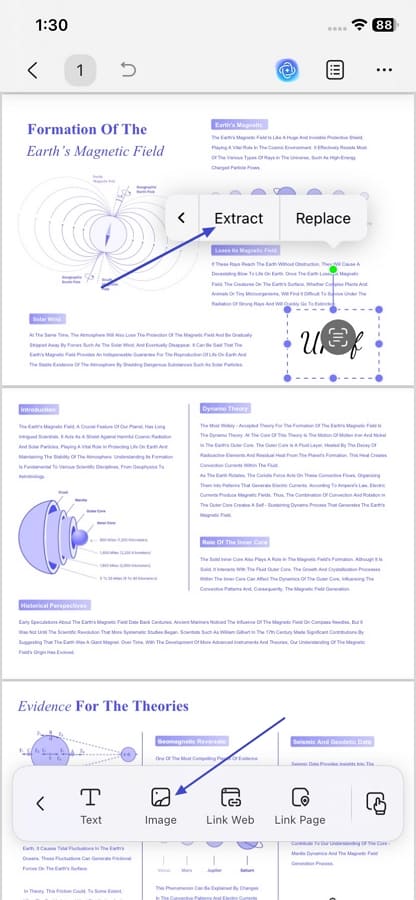
Step 2. Extract Image-Based Signature
Next, hit the “Image” option from the bar below and tap on the image-based signature. Next, hit the “Extract” option from the floating pop-up menu to extract the signature as an image or PDF.
Way 2. Scan The Image Signature With UPDF Mobile
In case the signature is not directly selectable, then use the steps below to scan and extract it:
Windows • macOS • iOS • Android 100% secure
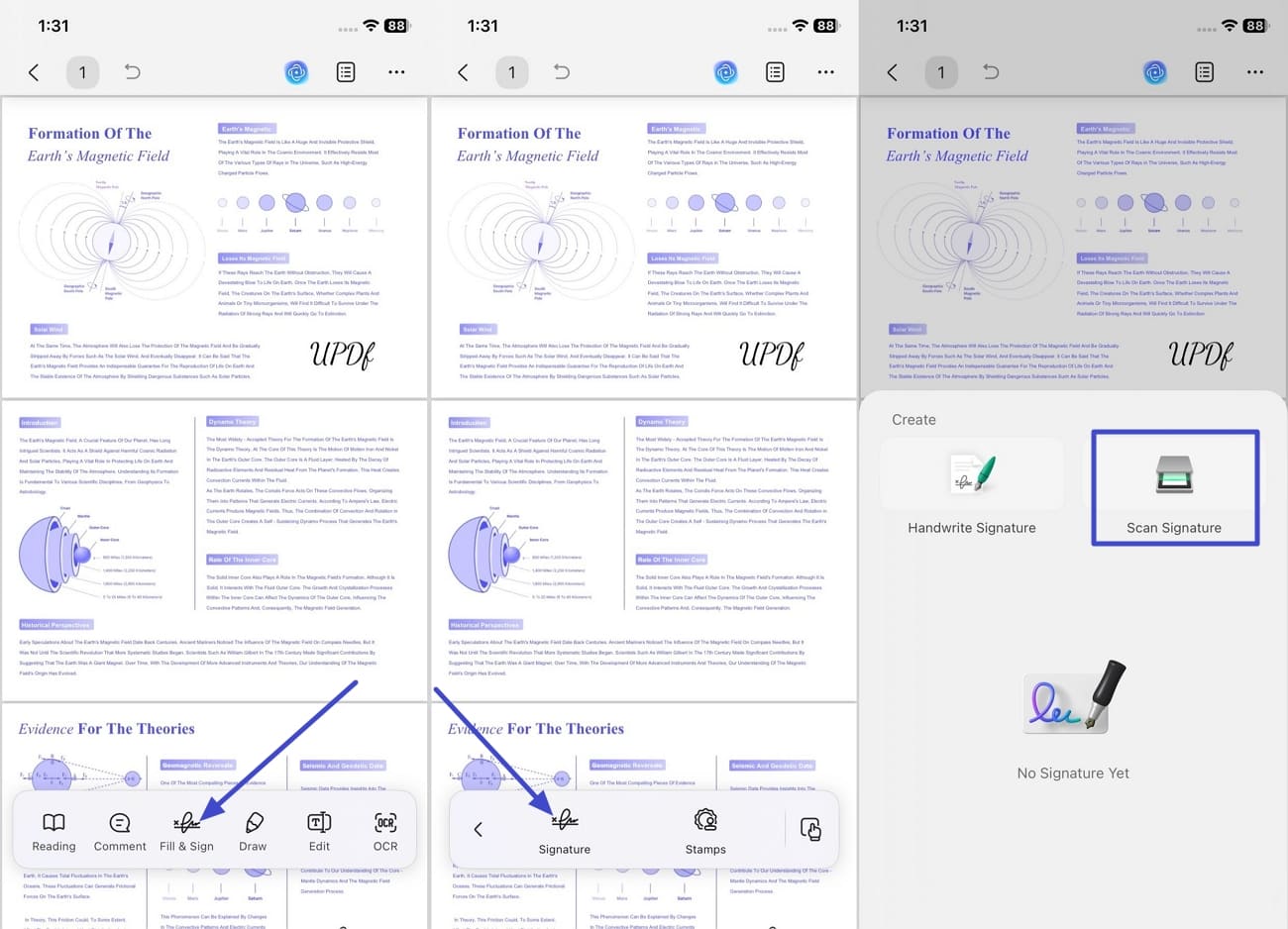
Step 1. Access Signature Feature and Scan Image
Once you open the PDF, tap on the “Fill & Sign” option and use the “Signature” option to proceed further. Next, tap on the “Scan Document” option to open the camera interface.
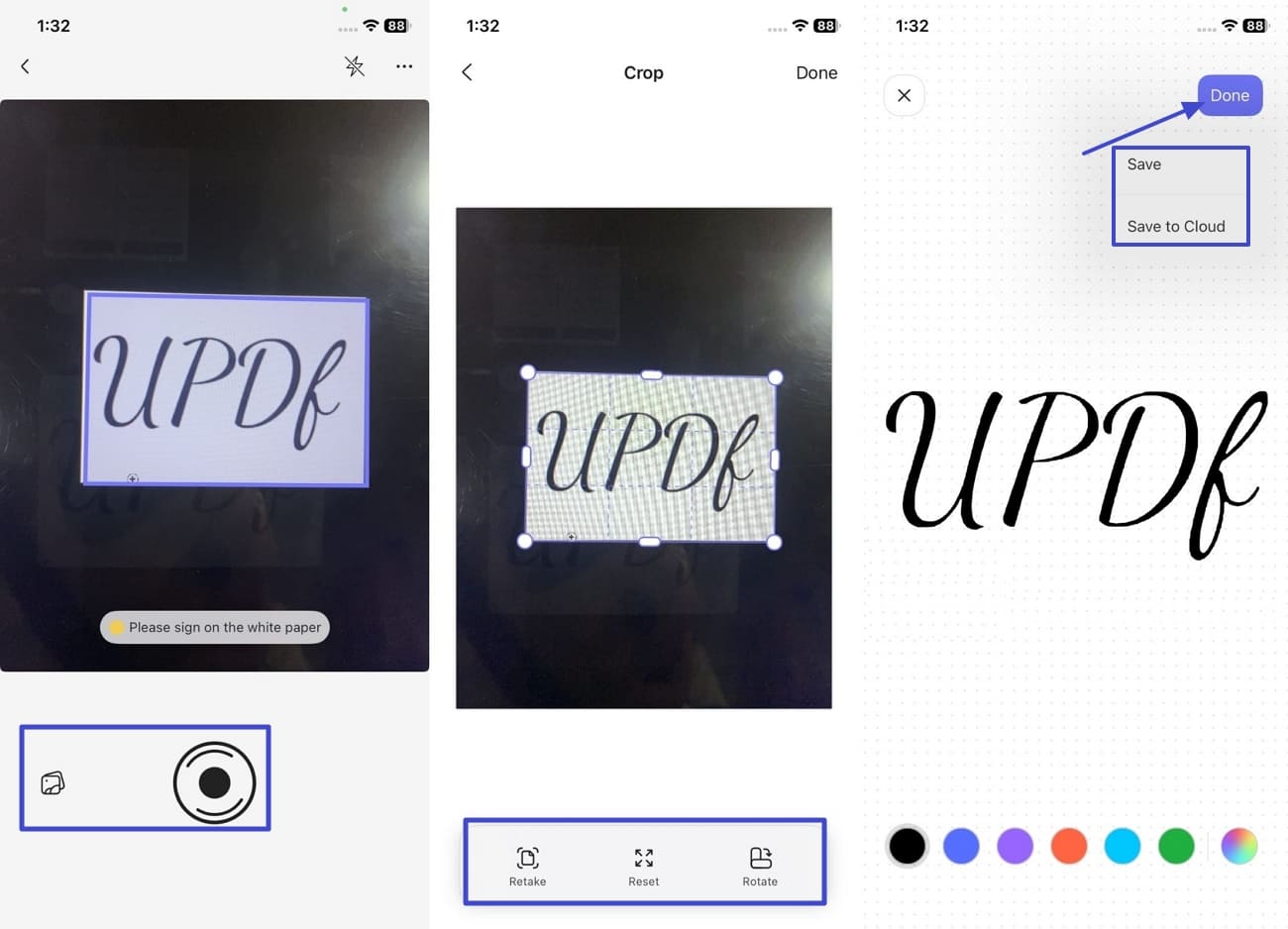
Step 2. Scan Save Signature
After the camera is opened, tap on the “Capture” option or “Gallery” option to import the image. Next, use the controls below to further edit the image and hit the “Save” or “Save to Cloud” option after pressing the “Done” button.
After extracting your signature, here's what you can do next with UPDF:
- Reuse across documents: Paste the copied or extracted signature into any number of PDFs — contracts, invoices, approval forms — without re-scanning.
- Create a signature library: Save frequently used signatures as custom stamps in UPDF's Comment tool, then insert them with one click on any page.
- Protect the document: After adding the signature to a new file, apply password protection or redaction to secure sensitive content before sharing.
- Export & share: Save the final document as PDF/A for archiving, flatten it to lock the signature in place, or generate a shareable link via UPDF Cloud.
Part 5. How to Extract Digital Signatures from PDF
Having discussed signature extraction from PDF, you might be thinking about how to extract digital signature from PDF files. Now, we’ll see how you do this using UPDF desktop and mobile versions.
Extract Digital Signatures from PDF Using UPDF Desktop
Now, follow the steps below to see how you can save digital signatures in image form and place them on other PDFs:
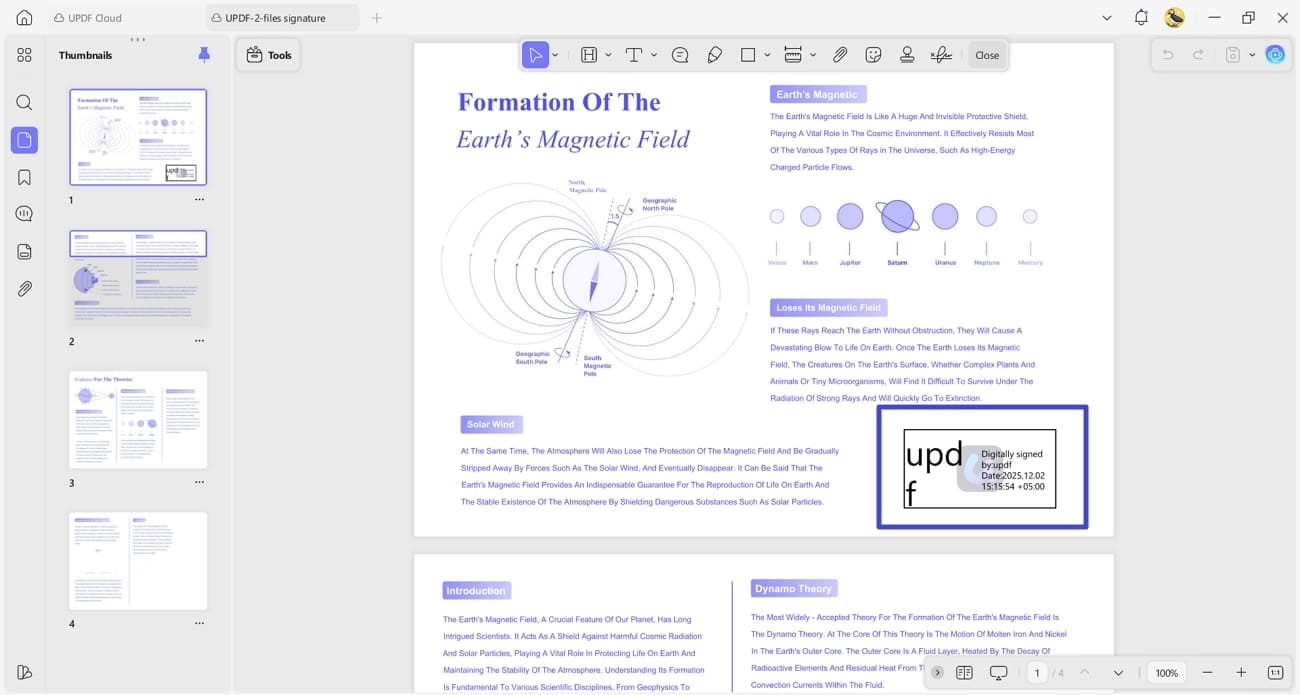
Step 1. Open PDF and Take a Screenshot
Once you open the PDF with digital signatures, take a screenshot of the part where the digital signature is placed. If needed, use an image-editing tool to remove the background of the signature image.
Windows • macOS • iOS • Android 100% secure
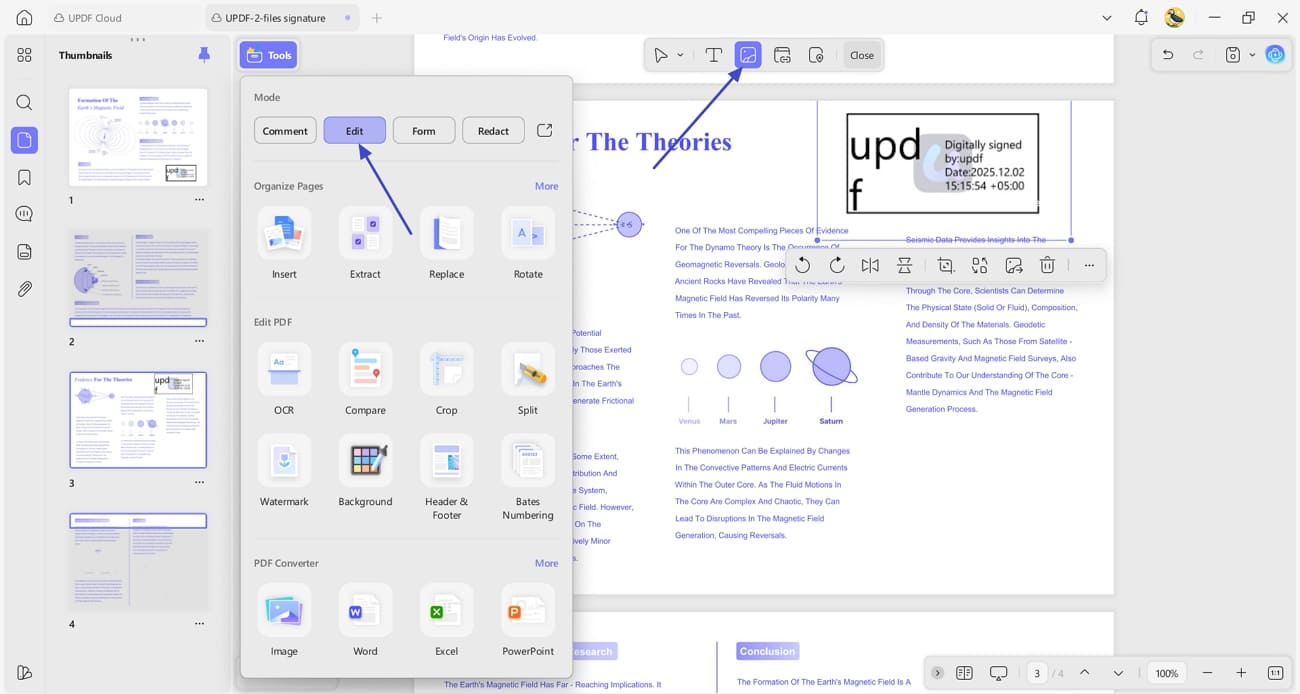
Step 2. Access Edit Tool and Insert Image
Next, hit the “Tools” option and press the “Edit” option to access the editing interface. Next, hit the “Insert & Edit Image” icon to add the digital signatures.
Extract Digital Signatures from PDF Using UPDF Mobile
After learning about how to extract a signature from PDF for digital signatures on a desktop, adhere to the steps below to do this on mobile:
Step 1. Open Digital Signature PDF and Take a Screenshot
Once you open a PDF with digital signatures, zoom in on the area of signatures and take a screenshot.
Windows • macOS • iOS • Android 100% secure
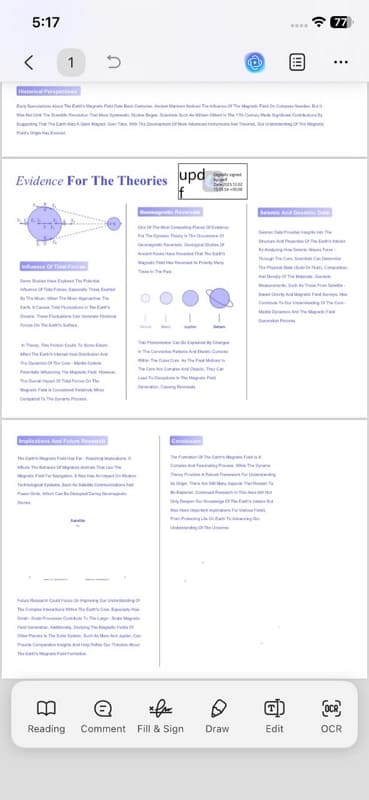
Step 2. Access Edit Tool and Add Image
Next, open another PDF and tap on the “Edit” option. Use the “Add Image” option, import the screenshot, and crop the area of the signature if needed.
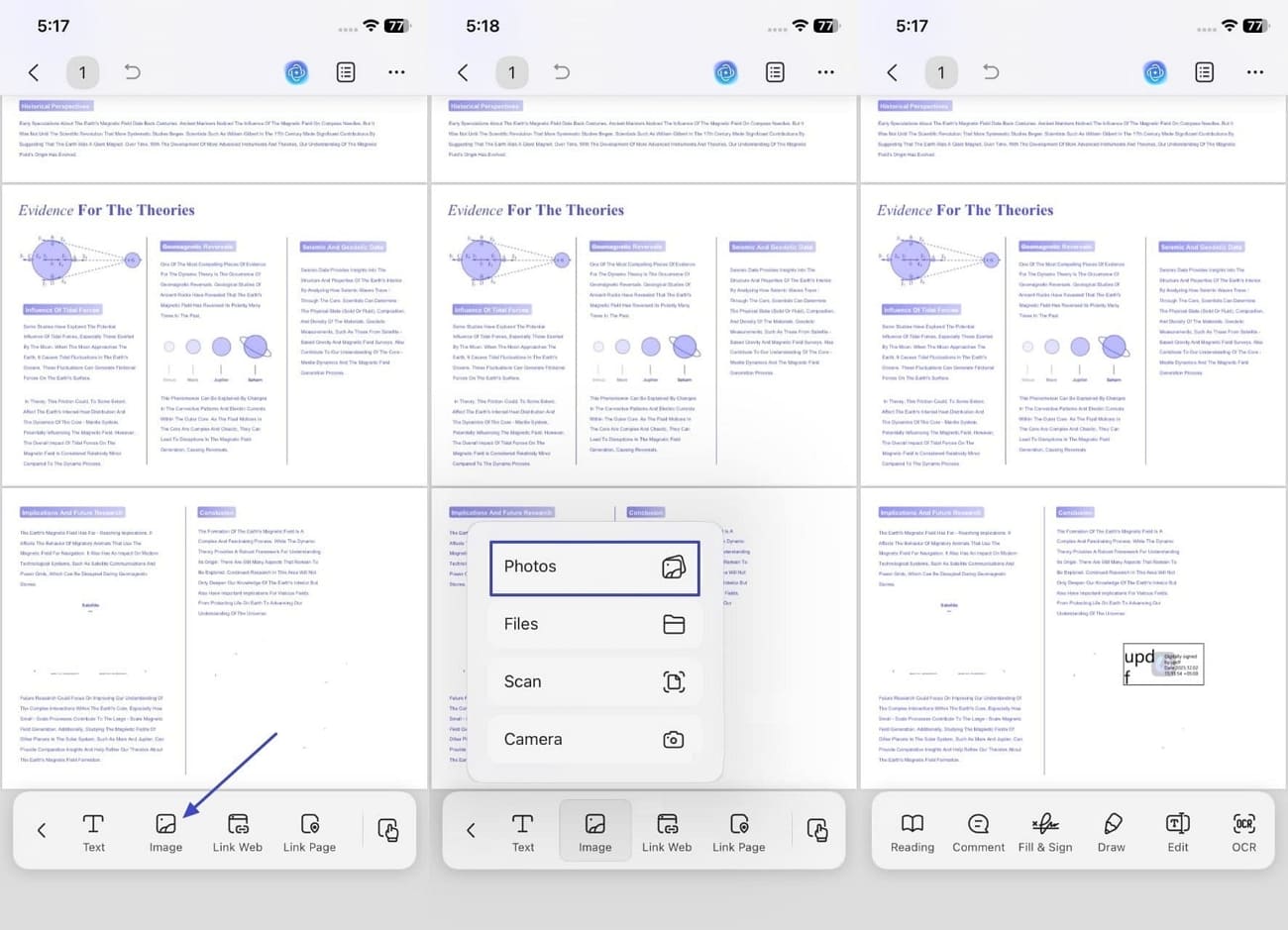
Extra Tip: Create and Save Digital Signatures
Follow the steps below to create a new digital signature in UPDF and keep it ready for future use.
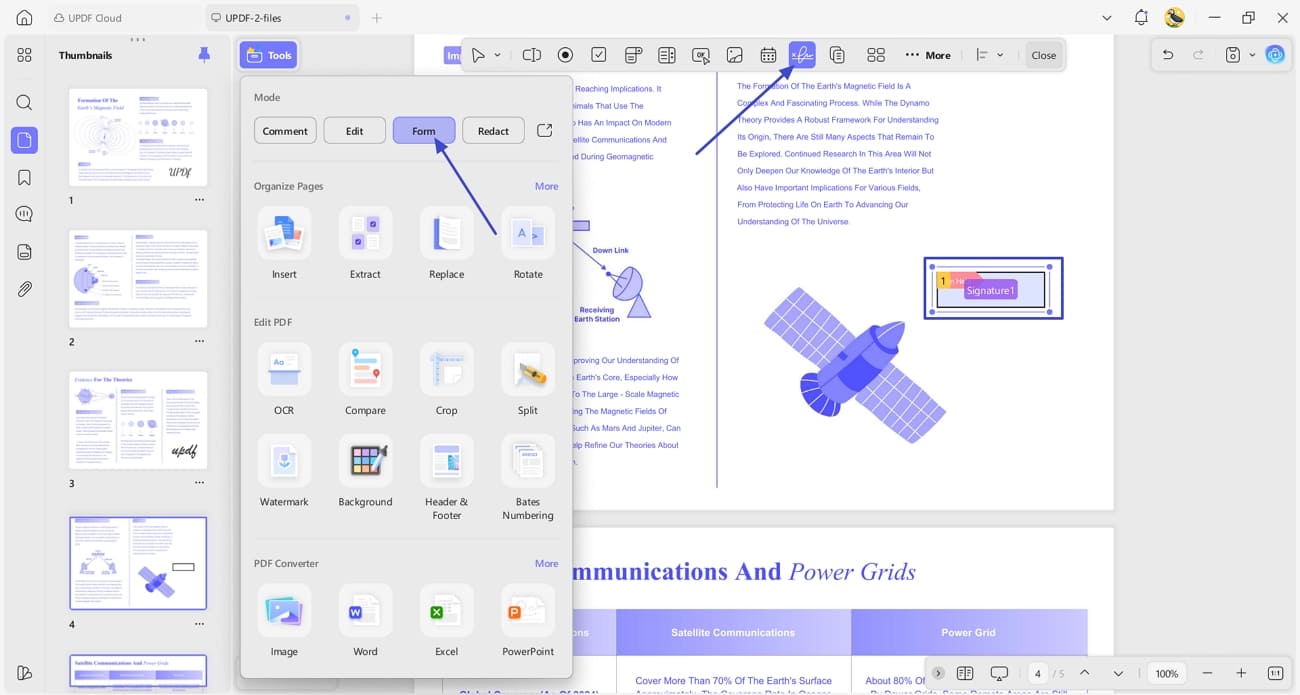
Step 1. Create a Digital Signature Field
First, access the “Forms” tool and hit the “Digital Signatures” icon to access the digital signature interface. Next, click the area you want signatures to create a digital signature field.
Windows • macOS • iOS • Android 100% secure
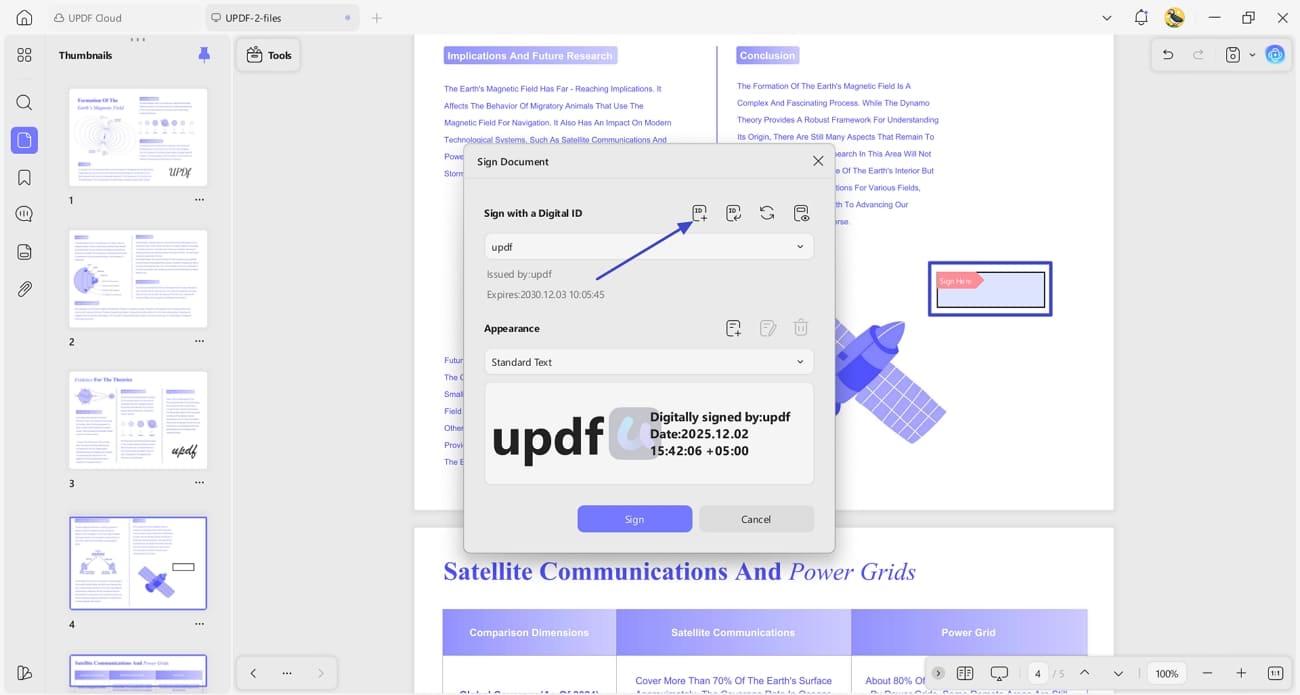
Step 2. Generate a Digital ID
Switch to the “Preview” mode and click on the “Digital Signature Field” to view a pop-up window. Next, hit the “Create” option and enter your name to create your digital ID. Your signature will be saved automatically, and whenever you press any signature field, you can use your own digital signature.
Part 6. How to Extract a Signature from a Scanned PDF
Some users encounter scanned PDFs and face difficulty in extracting signatures from them. In this section, we’ll see how you can extract signatures from scanned PDFs. However, the digital signatures in these files are not recommended for this method, as they may lose their original clarity.
Extracting a Signature from a Scanned PDF Using UPDF Desktop
Follow the guide below to learn how to extract signature from scanned PDF files using UPDF Desktop tools:
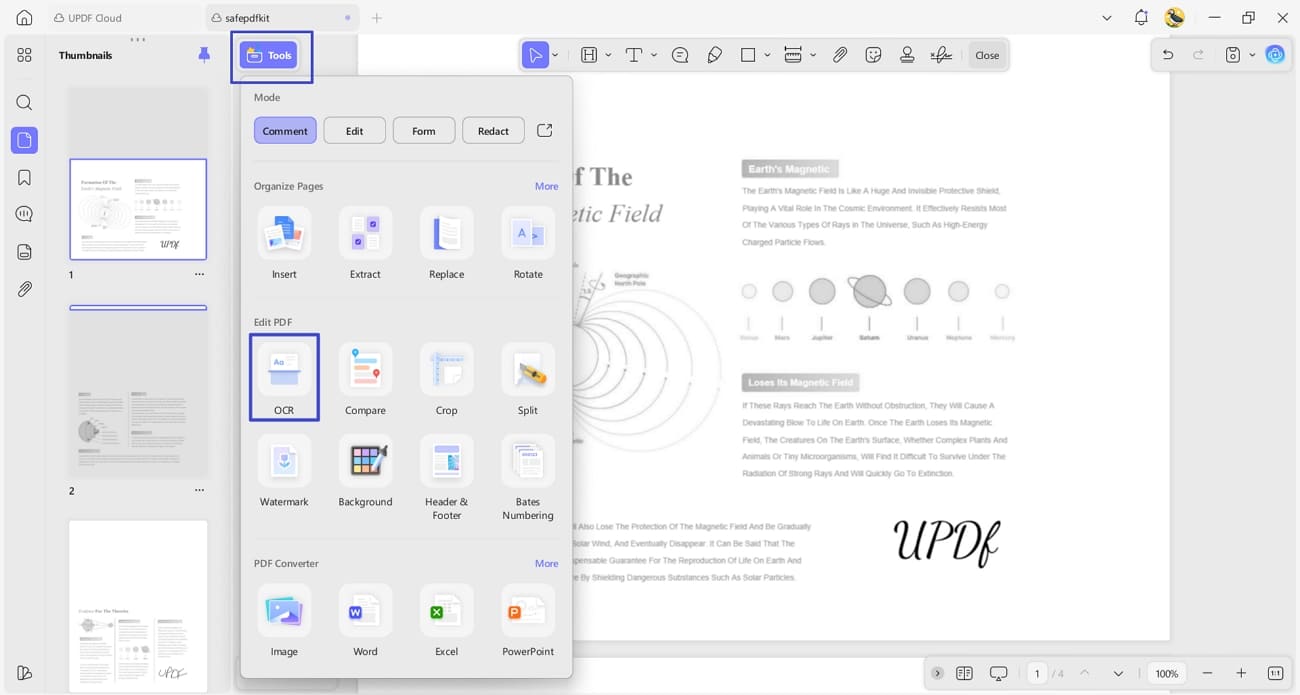
Step 1. Access OCR Tool
Once you open the scanned PDF, hit the “Tools” option and press the “OCR” tool to perform it.
Windows • macOS • iOS • Android 100% secure
Step 2. Extract Signature Image
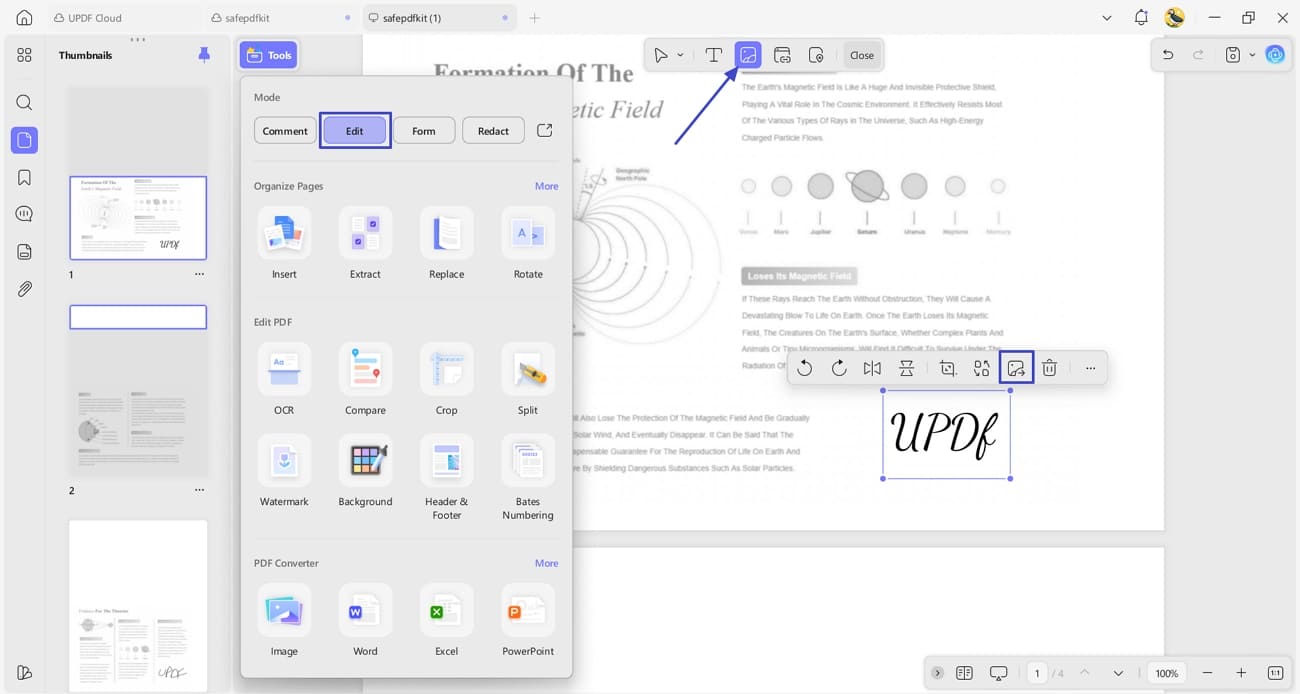
After you perform OCR, open the new PDF and click the “Edit” option. Next, hit the “Insert & Edit Image” icon and press the “Extract Image” option to save the image.
Step 3. Place Signature Image in Another PDF
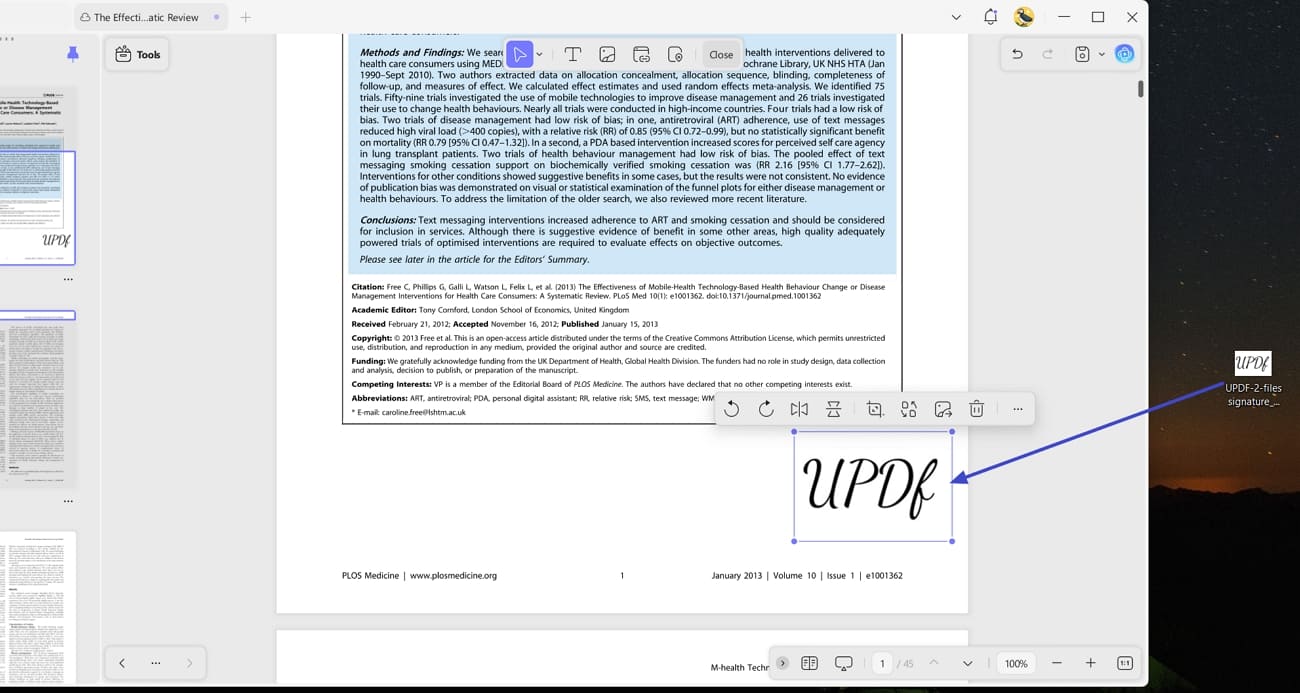
Next, open another PDF file and drag and drop the extracted image file onto another PDF.
Extracting a Signature from a Scanned PDF Using UPDF Mobile
Having learned how to extract signature from PDF that is scanned on the UPDF desktop, follow the steps below to see how to do this on the mobile app.
Windows • macOS • iOS • Android 100% secure
Step 1. Perform OCR of Scanned PDF
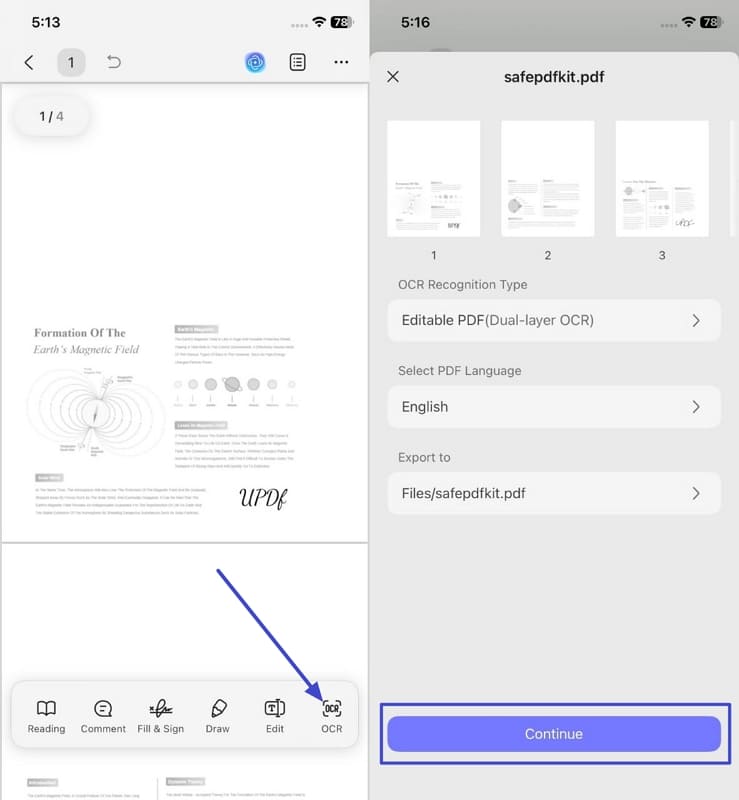
After opening the scanned PDF, hit the “OCR” option from the bar below and tap on the “Continue” option to perform OCR.
Step 2. Extract Signature Image
Once OCR is performed, choose the signature and hit the “Extract” option to extract the image.
Part 7. Frequently Asked Questions
1. How do I extract a handwritten signature without losing quality?
Use UPDF's copy-paste method (Part 3). It preserves the original vector or raster quality of the mark. Avoid screenshot tools, which compress the image and reduce clarity.
2. Can I extract a digital certificate signature as an image?
No. Digital signatures are encrypted certificates tied to the signer's identity, not visual images. They cannot be copied or extracted as pictures — only verified for authenticity.
3. What format should I save an extracted signature in?
PNG is best for signatures because it supports transparent backgrounds, letting you place the signature on any document color without a white box around it. UPDF extracts image-based signatures directly as PNG.
Conclusion
In summary, this guide explored the different types of signatures and the methods for extracting them from PDFs. After trying various approaches, I found that UPDF offers the smoothest and most reliable experience for how to extract a signature from PDF files. If your work involves handling contracts, templates, or scanned documents, I recommend using UPDF to simplify and streamline your signature management tasks.
Windows • macOS • iOS • Android 100% secure







 Enrica Taylor
 Enid Brown