UPDF
UPDF
 UPDF for Windows
 UPDF for Mac
 UPDF for iPhone/iPad
 UPDF for Android
 UPDF AI Online
 UPDF Sign
 Edit PDF
 Annotate PDF
 Create PDF
 PDF Form
 Edit links
 Convert PDF
 OCR
OCR PDF to Word
 PDF to Image
 PDF to Excel
 Organize PDF
 Merge PDF
 Split PDF
 Crop PDF
 Rotate PDF
 Protect PDF
 Sign PDF
 Redact PDF
 Sanitize PDF
 Remove Security
 Read PDF
 UPDF Cloud
 Compress PDF
 Print PDF
 Batch Process
 About UPDF AI
 UPDF AI Solutions
 AI User Guide
 FAQ about UPDF AI
 Summarize PDF
 Translate PDF
 Chat with PDF
 Chat with AI
 Chat with image
 PDF to Mind Map
 Explain PDF
 PDF AI Tools
 Image AI Tools
 AI Chat Tools
 AI Writing Tools
 AI Study Tools
 AI Working Tools
 Other AI Tools
 PDF to Word
 PDF to Excel
 PDF to PowerPoint
 Enterprise Solution
 Enterprise Sign
 Enterprise AI
 Enterprise Plan
 Enterprise User Guide
 Enterprise Webinar
 Banking
 Healthcare
 Insurance
 Legal
Legal Manufacturing
 Government
 Education Solution
 Customer Stories
 User Guide
 UPDF Tricks
 FAQs
FAQs UPDF Reviews
 Download Center
 Blog
Blog Newsroom
 Tech Spec
 Updates
 UPDF vs. Adobe Acrobat
 UPDF vs. Foxit
 UPDF vs. PDF Expert

CliffsNotes has long been a trusted study companion for students who want quick explanations of complex subjects, literature summaries, and exam preparation materials. However, one of the biggest challenges learners face is downloading and saving these guides for offline use. While CliffsNotes provides an official option, it often comes at a high cost and with certain limitations.
That’s where the need for best CliffsNotes downloaders comes in. In this article, I’ll walk you through the official method to download CliffsNotes files, explain why many students need alternatives, and introduce the best tools you can use. By the end, you’ll know practical ways to read and summarize CliffsNotes anytime, even without an internet connection with UPDF. Interested readers can click the button below to download UPDF on your computer and mobile.
Windows • macOS • iOS • Android 100% secure
Part 1. How Do I Download Files from CliffsNotes? (Official Method)
The official method to download files directly from CliffsNotes requires payment. After purchasing its Monthly or Yearly plan, you can log into your account and download the file as a PDF. Follow the provided steps to download guides from this platform.
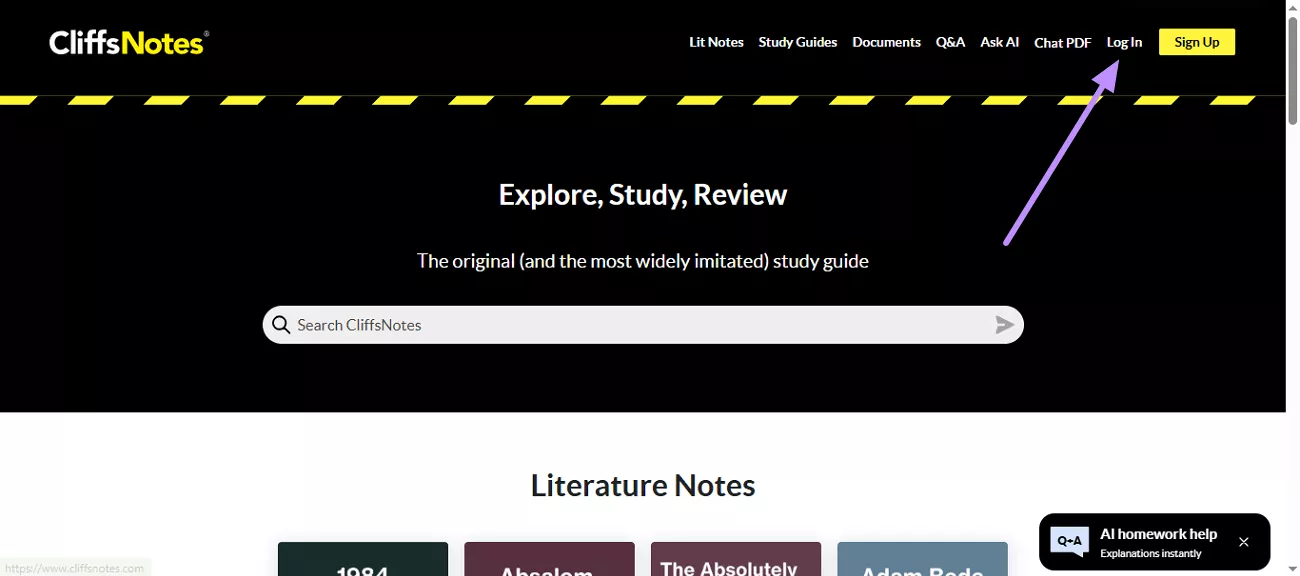
Step 1. You need to access the official website of CliffsNotes on your browser. Then, click on the Log In button on its main interface and enter your account credentials.
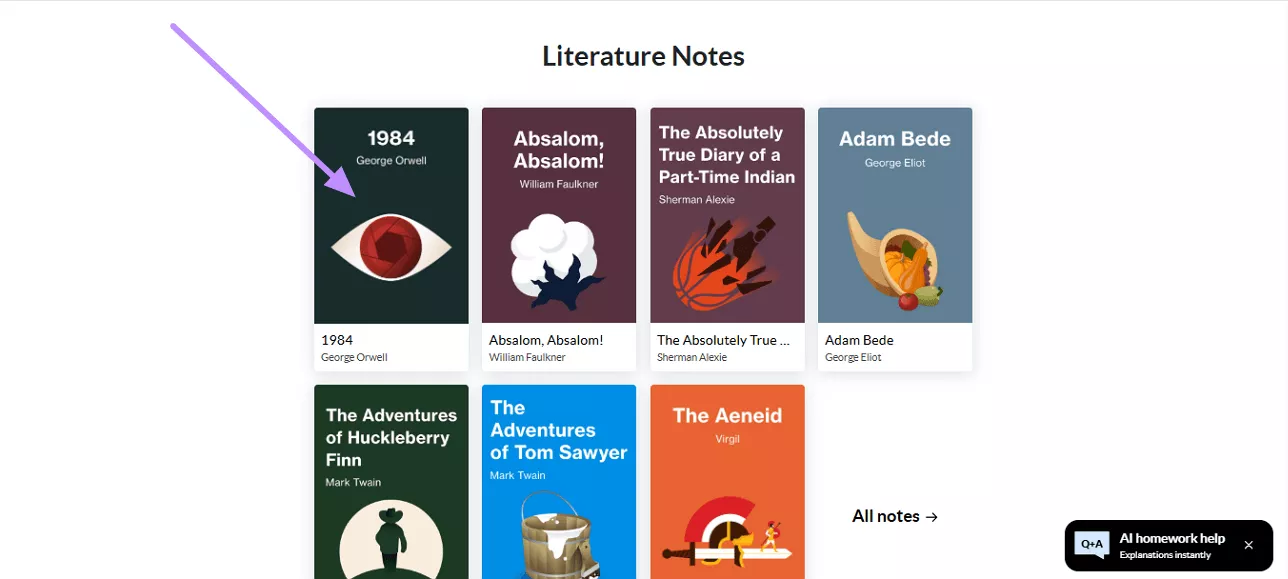
Step 2. After you login, browse through the categories to find your desired guide that you want to download and tap on it.
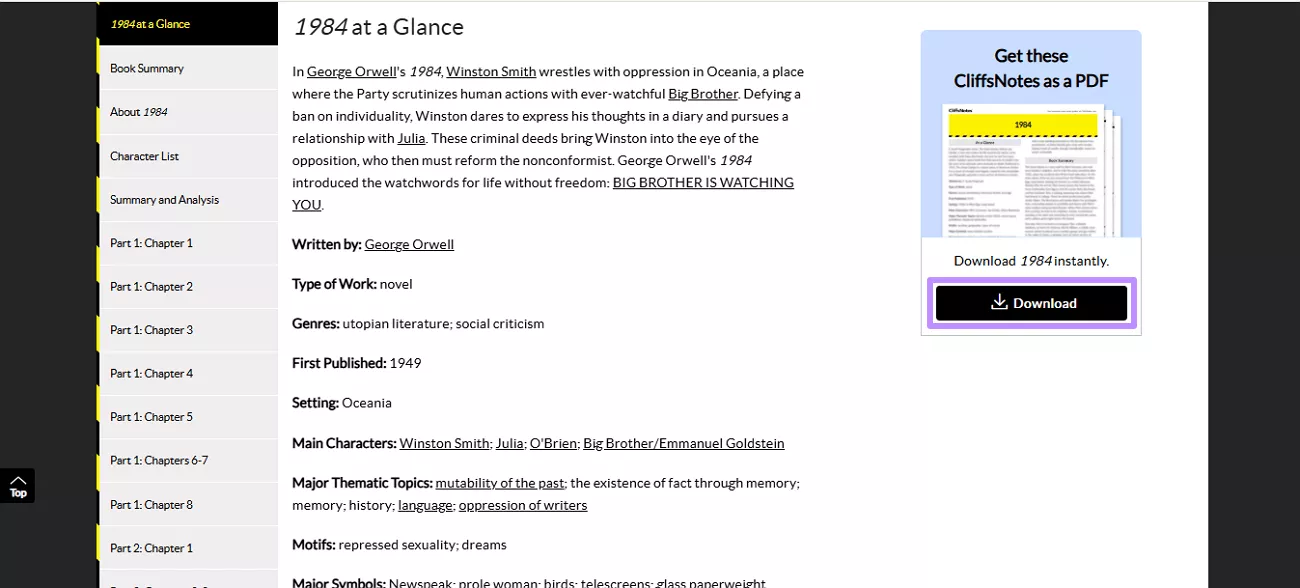
Step 3. Now, click on the Download button available on the right-side. Once you do that, the notes will automatically be saved within your Downloads folder.
Also Read: How to Download Nook Books? Effective Ways
Part 2. Why Do You Need a CliffsNotes Downloader?
Though CliffsNotes is an excellent source for studying, one major drawback is its cost. Premium guides can be very expensive, especially for students who need multiple subjects or ongoing access. Buying several guides often isn't realistic for learners on a tight budget.
There are also other problems readers may face when trying to download CliffsNotes files:
- Limited Access: Some materials are only available online, making offline study difficult.
- Format Restrictions: Official downloads may not always come in user-friendly formats for editing or summarizing.
- Download limits: You can only download 10 PDFs if you’ve subscribed to the Yearly version and 5 files with Monthly subscription.
- Ads: The reading experience is often disrupted by constant advertisements that makes it difficult to focus on learning
Because of these problems, many students look for the best CliffsNotes downloaders to save, summarize, or reformat the content for personal study. In Part 3, I’ll share the best options I’ve tested.
Also Read: 4 Best Free Comic PDF Download Websites (100% Workable)
Part 3. 2 Best CliffsNotes Downloaders
As discussed above, downloading guides from Cliffsnotes requires you to buy a paid subscription. Even though this is the official method, the cost and restrictions often cause students to search for alternatives. Below, I’ll introduce the two best methods I’ve found:
Tool 1. Print to PDF
A simple way to save CliffsNotes content is by using the Print to PDF option available in most browsers. This method doesn’t require additional software and works directly from your browser window. You just need to use the print function on the CliffsNotes page, and save the page as a PDF on your computer. Take help from the provided steps to use this best CliffsNotes downloader.
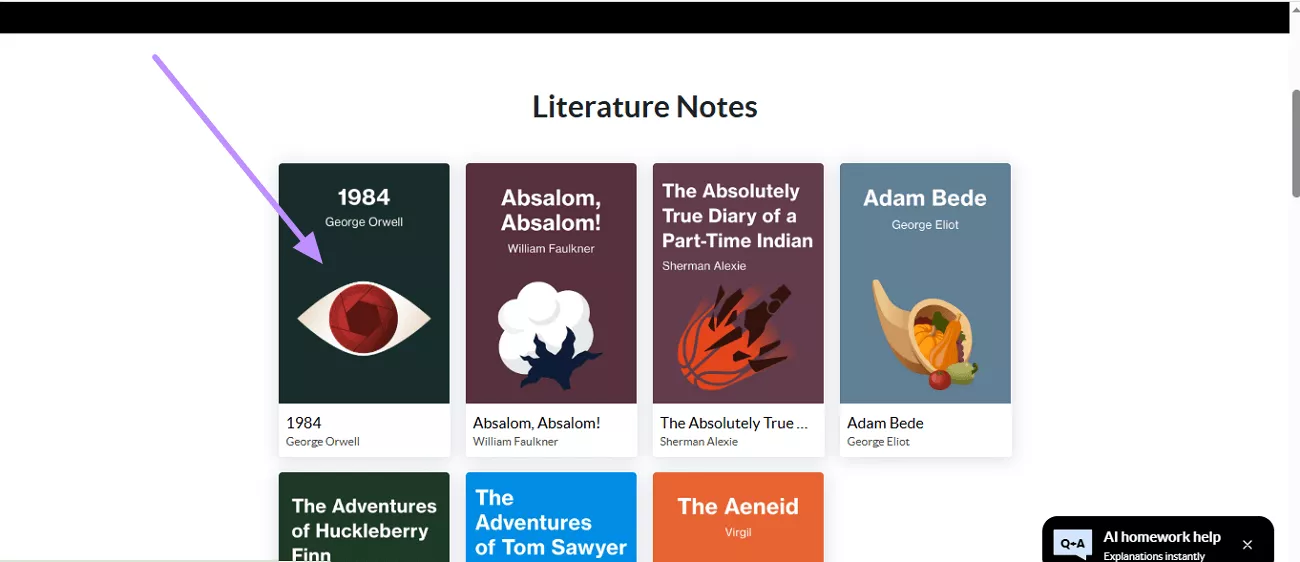
Step 1. Open CliffsNotes website on your browser and tap on the CliffNotes you want to save.
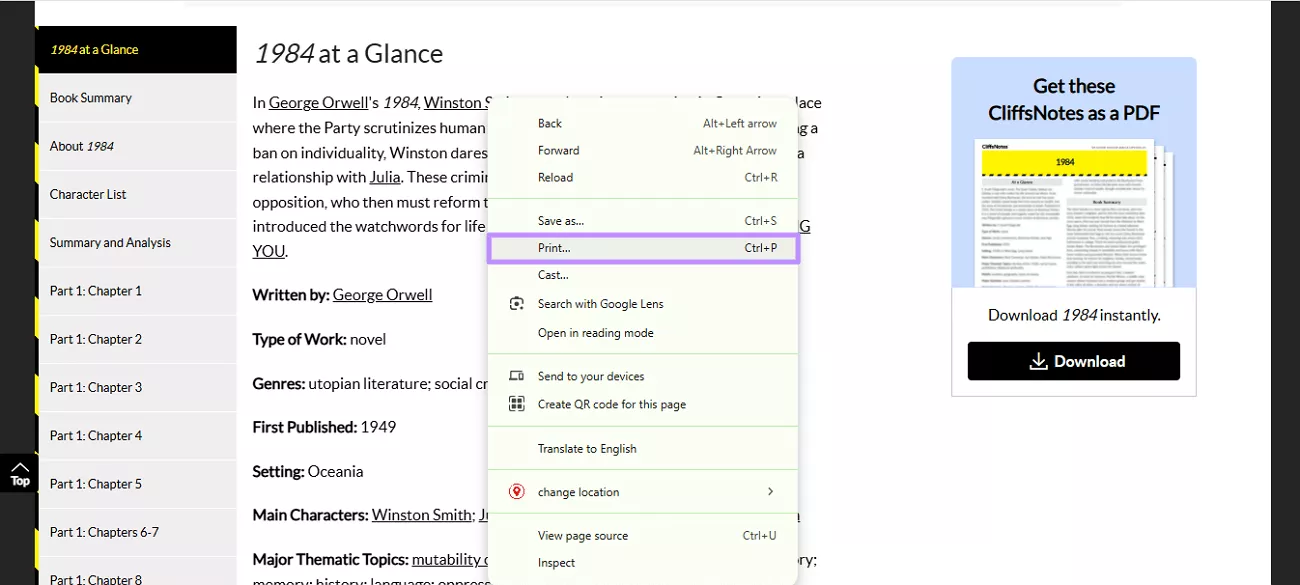
Step 2. After opening the CliffNotes page, right-click on it and select the Print option from the pop-up menu.
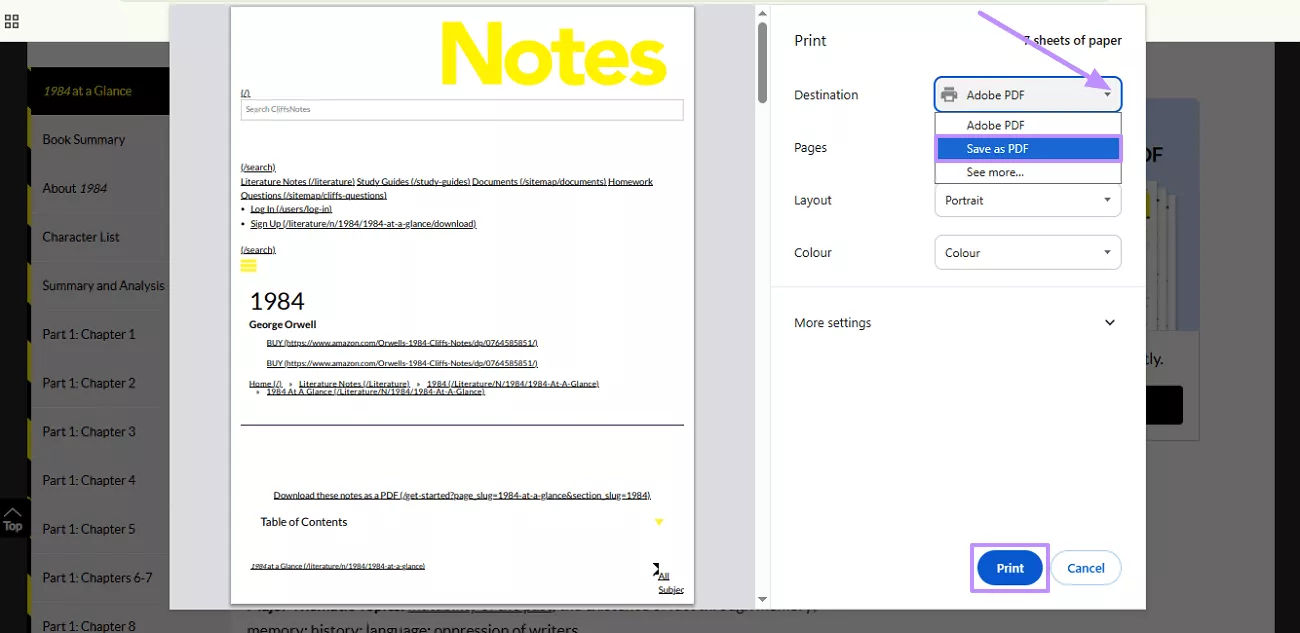
Step 3. You’ll now be directed to the Print dialogue box. In that box, expand the Destination drop-down menu and choose Save as PDF option. Once you do that, hit the Print button to save the CliffsNotes as PDF in your desired folder.
Limitations of this Method:
The saved PDF often includes ads, navigation menus, and unnecessary clutter. This makes the reading experience distracting. Moreover, the content formatting is usually not preserved correctly, which can result in broken layouts and missing elements.
Tool 2. Screenshot and Combine
If you don’t want to rely on CliffsNotes’ subscription model, another workaround is to use screenshots. You can make the webpage smaller on your screen, then capture each section one by one using a screenshot tool.
After saving all the screenshots as image files, you can use UPDF on your computer to combine them into a single PDF. UPDF is a powerful and easy-to-use PDF editor and converter. It supports editing text and images, annotating pages, merging files, and much more across Windows, Mac, iOS, and Android, making it a versatile tool for creating study materials from screenshots.
Windows • macOS • iOS • Android 100% secure

Here are the steps that you can follow to save CliffsNotes using the screenshot tool and UPDF to combine them together as a PDF.
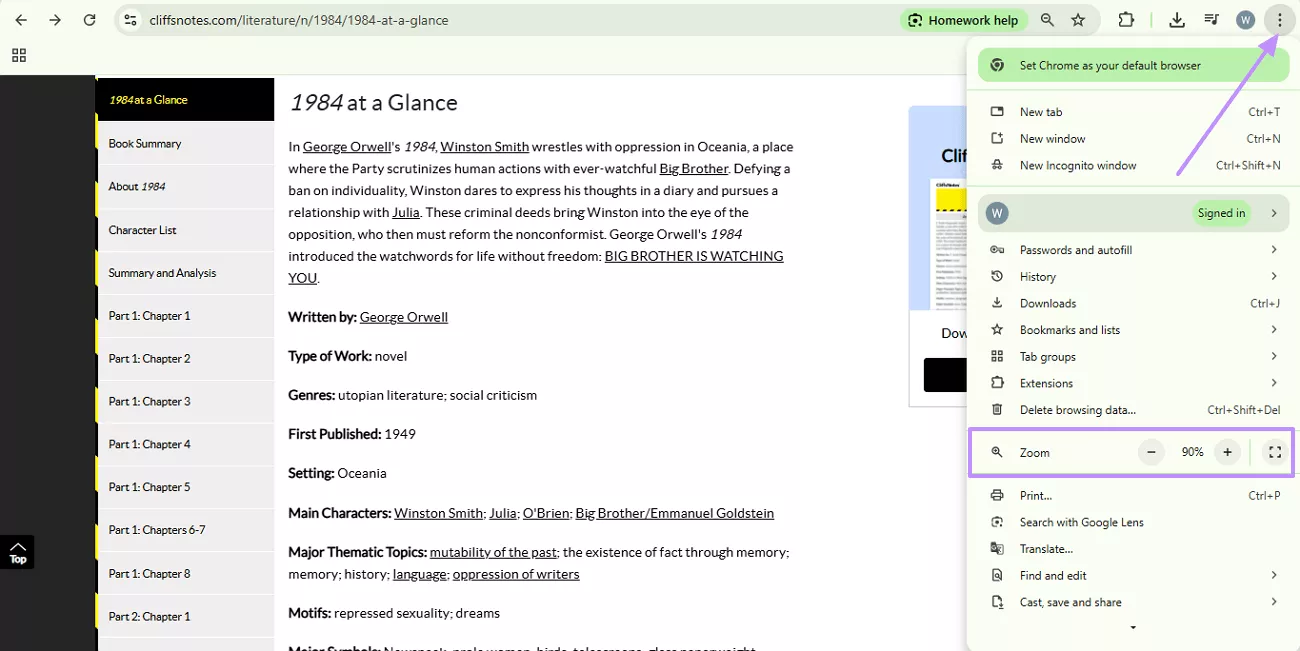
Step 1. After opening the CliffsNotes website, head to the notes you want to save. Then, click on the Three-Dotted Icon at the top-right corner of the screen and adjust the Zoom level to make the content fit better.
Step 2. Now, use the built-in Windows screenshot key Windows+Shift+S to capture the page. With the same technique, take screenshots of the entire CliffsNotes page. After that, save all the images in JPG or PNG format in a folder.
Step 3. Launch UPDF on your PC and access the Tools tab on its main interface.
Windows • macOS • iOS • Android 100% secure
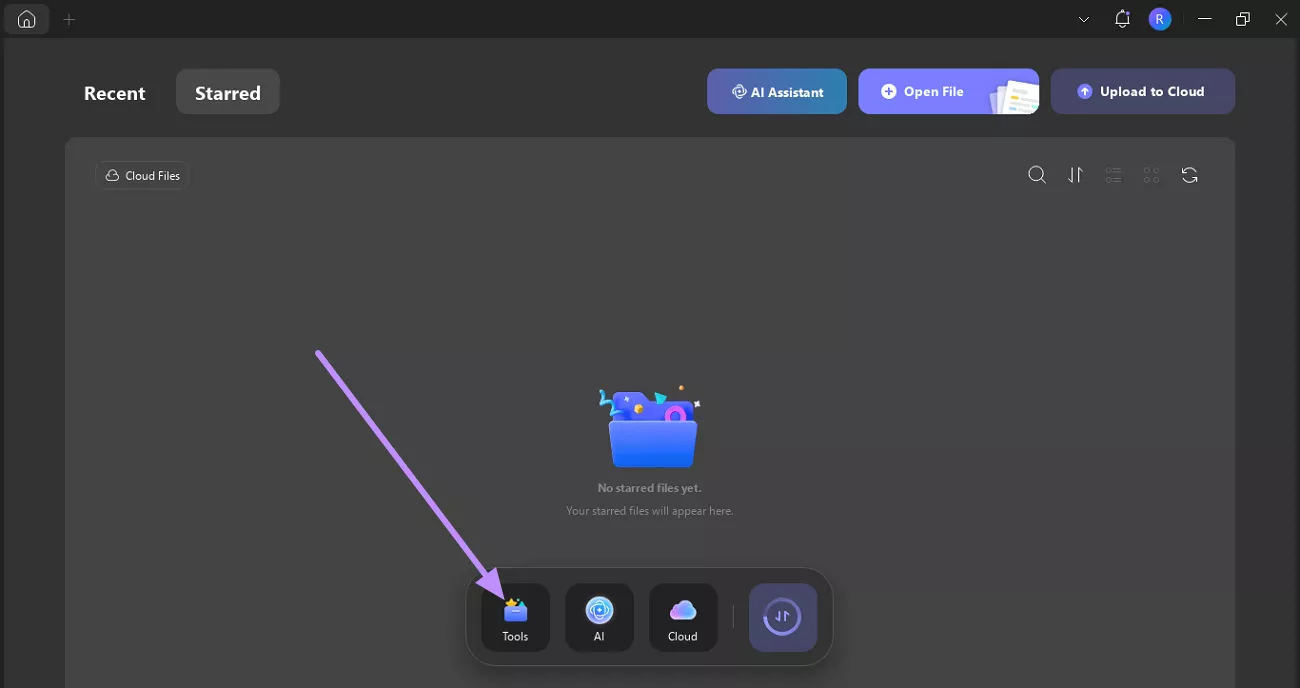
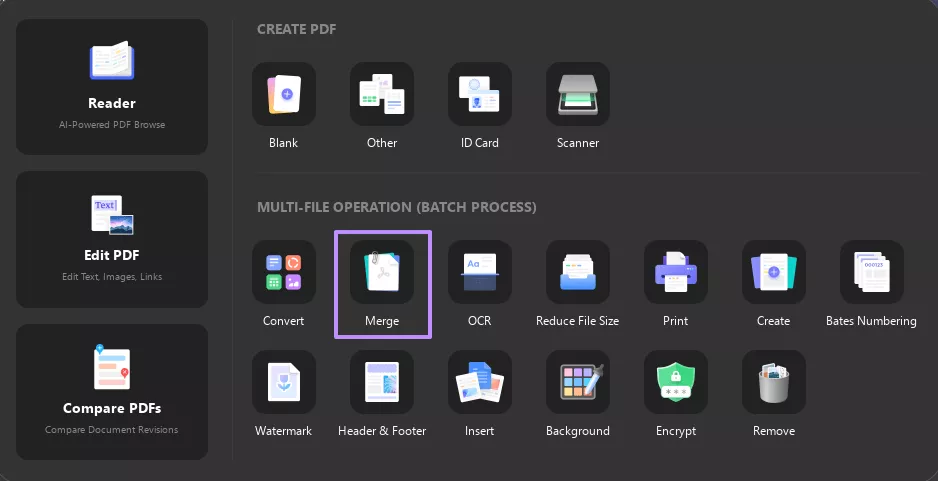
Step 4. In the available Tools option, select the Merge feature to open a new window.
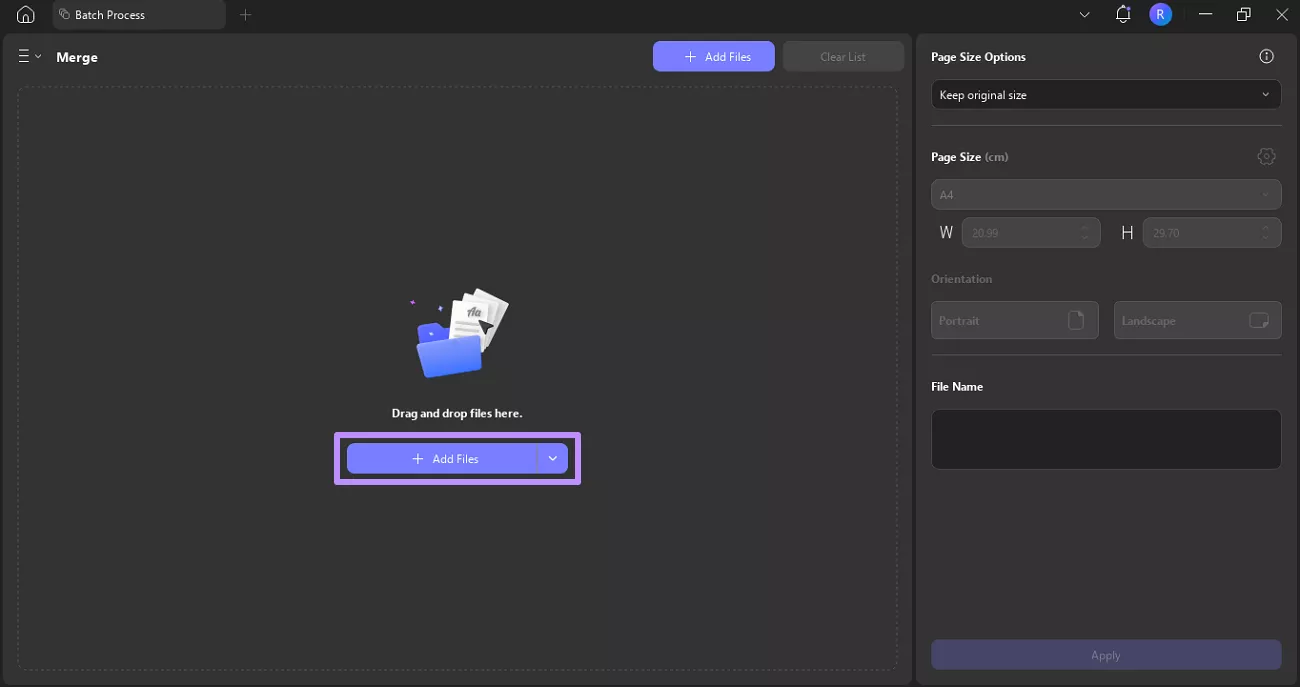
Step 5. Afterward, hit the +Add Files button and add all your screenshots from your device.
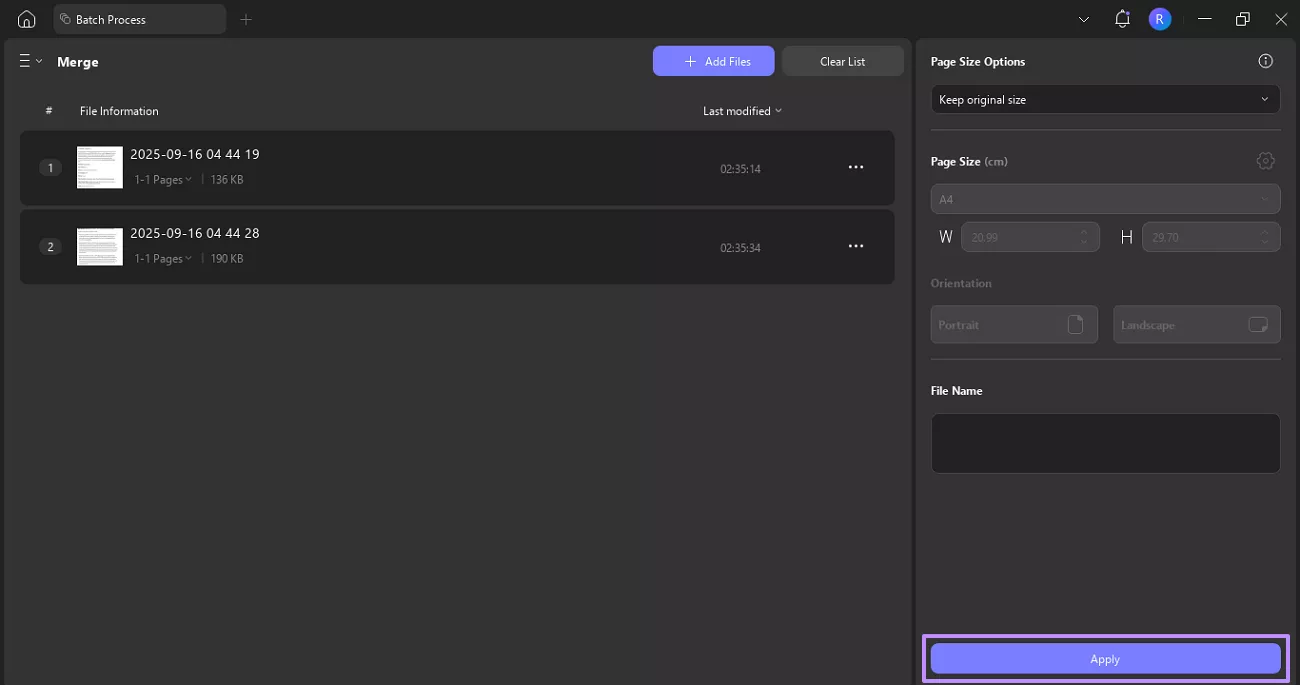
Step 6. After choosing your desired page settings, hit the Apply button and specify a destination folder where you want to save the merged PDF. As you do this, your screenshots will be combined into a single PDF file.
Part 4. Bonus Tips: Study Smarter — Summarize CliffsNotes with UPDF AI
UPDF stands out as the best tool for summarizing study materials like CliffsNotes content — not because it can directly download files from the CliffsNotes website, but because it lets you open and edit your own CliffsNotes files and quickly extract the core ideas with UPDF AI. You can then export the results as text or Markdown for easier study and review.
Windows • macOS • iOS • Android 100% secure
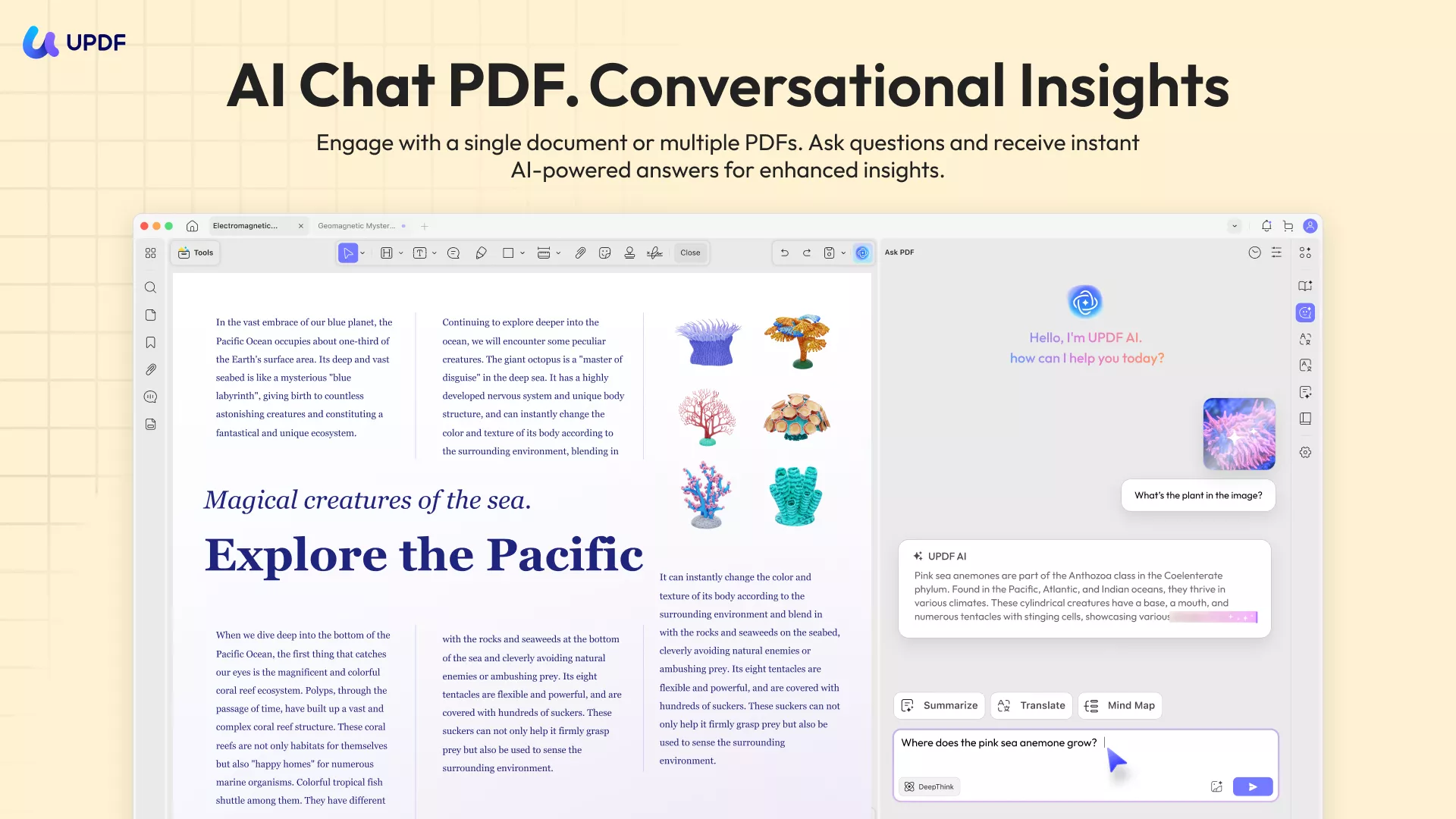
The best part is UPDF AI works across multiple platforms, including Windows, Mac, iOS, Android, and the web, so you can access intelligent summarization tools wherever you are. The UPDF AI Online version includes advanced tools like Paper Search and Scholar Research. These tools are perfect for finding research papers, analyzing them, and even creating literature reviews.
Try UPDF AI today by downloading the app or visiting UPDF AI Online to simplify your study process.
Windows • macOS • iOS • Android 100% secure
In the following detailed step guide, I’ll show how readers can use UPDF AI to generate summaries of their CliffsNotes content to make their study sessions more organized on desktop.
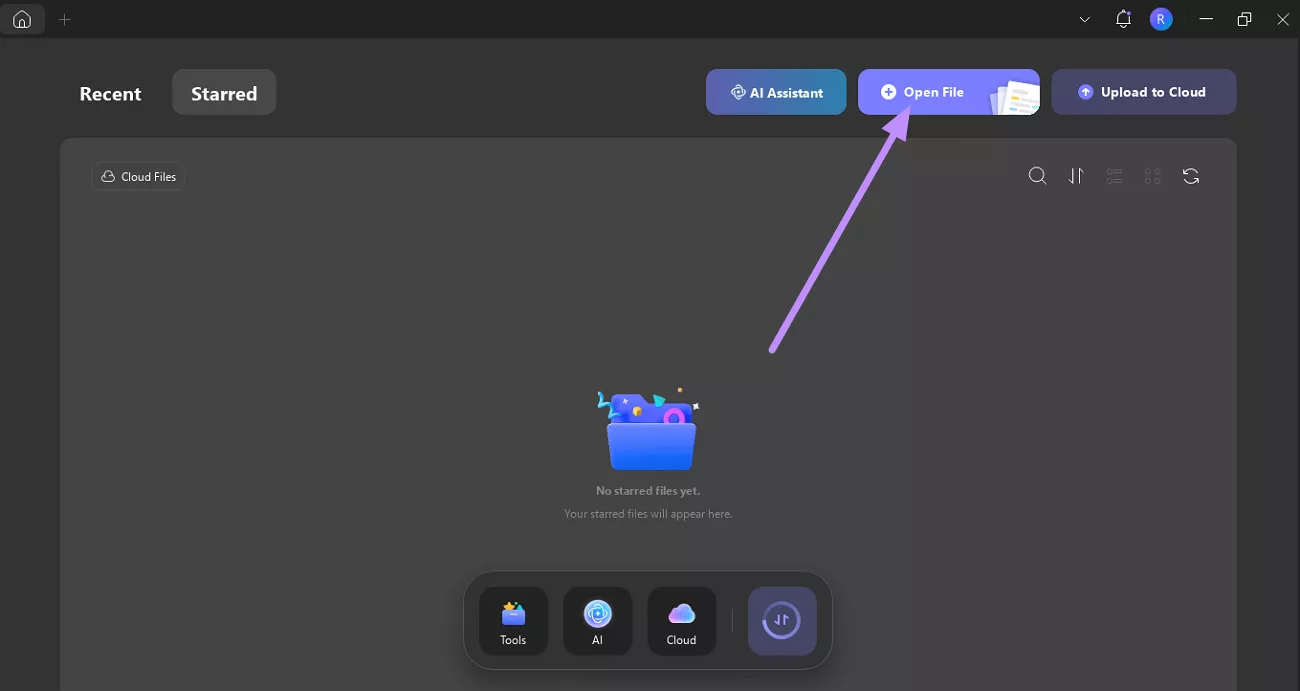
Step 1. Launch UPDF and Import PDF
After opening the latest version of UPDF on your PC, hit the Open File button and import the original PDF books or other materials you want to study with summaries or study guides.
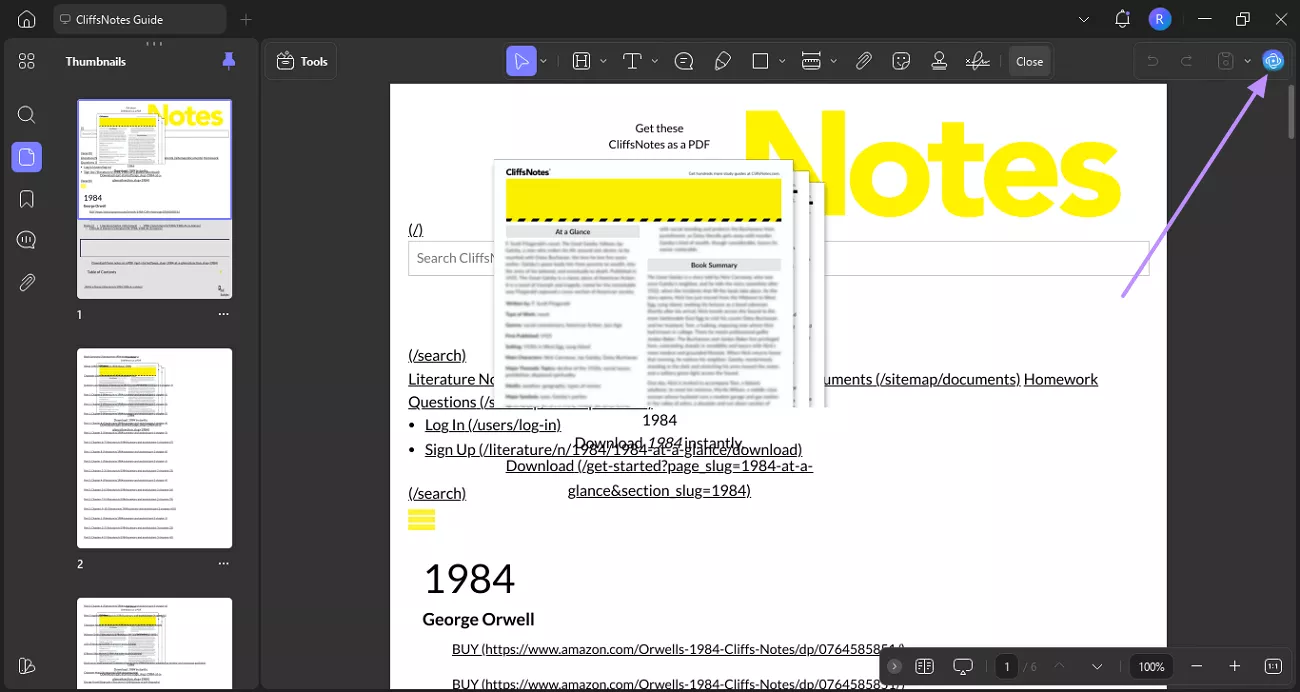
Step 2. Access the UPDF AI Feature
When you open the notes, head to the UPDF AI icon at the top-right corner of the interface. Doing so will lead you to a panel where you can access all AI tools.
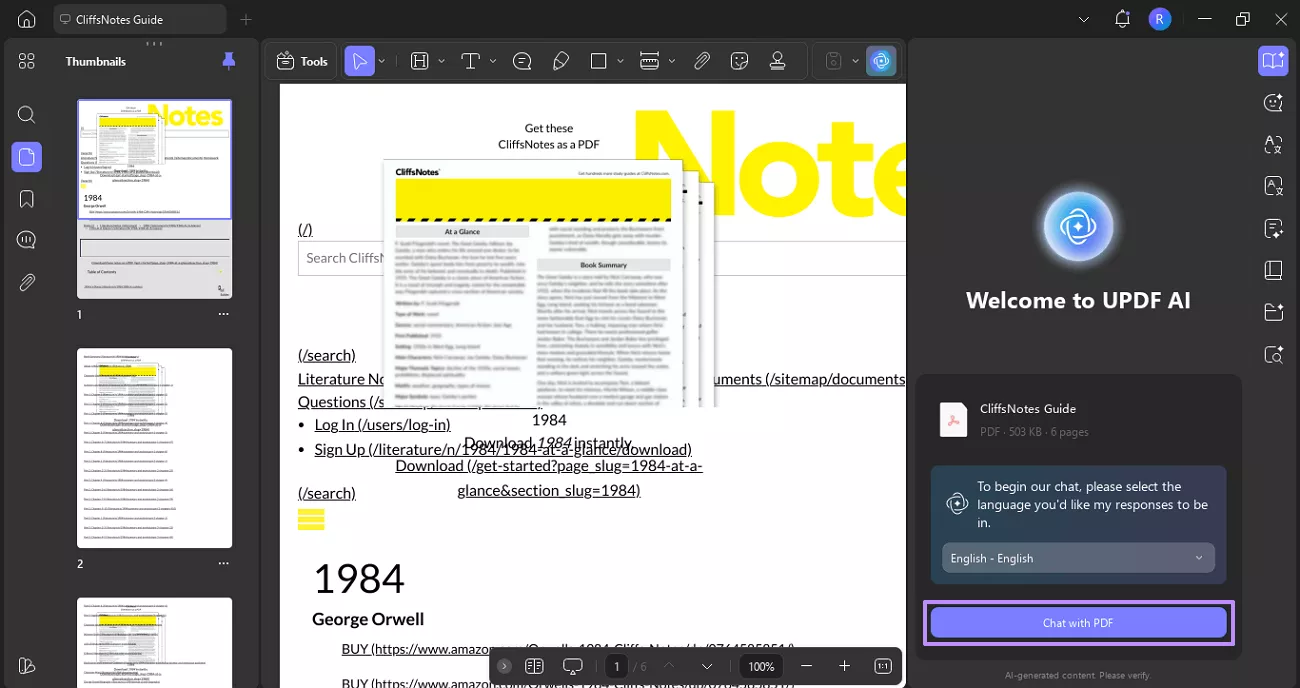
Step 3. Open Chat with PDF
Next, tap on the Chat with PDF option to open your guide inside UPDF AI.
Step 4. Choose the Summarize Feature
Upon opening the PDF, hit Summarize button to access a small dialogue box where you can adjust the page range.
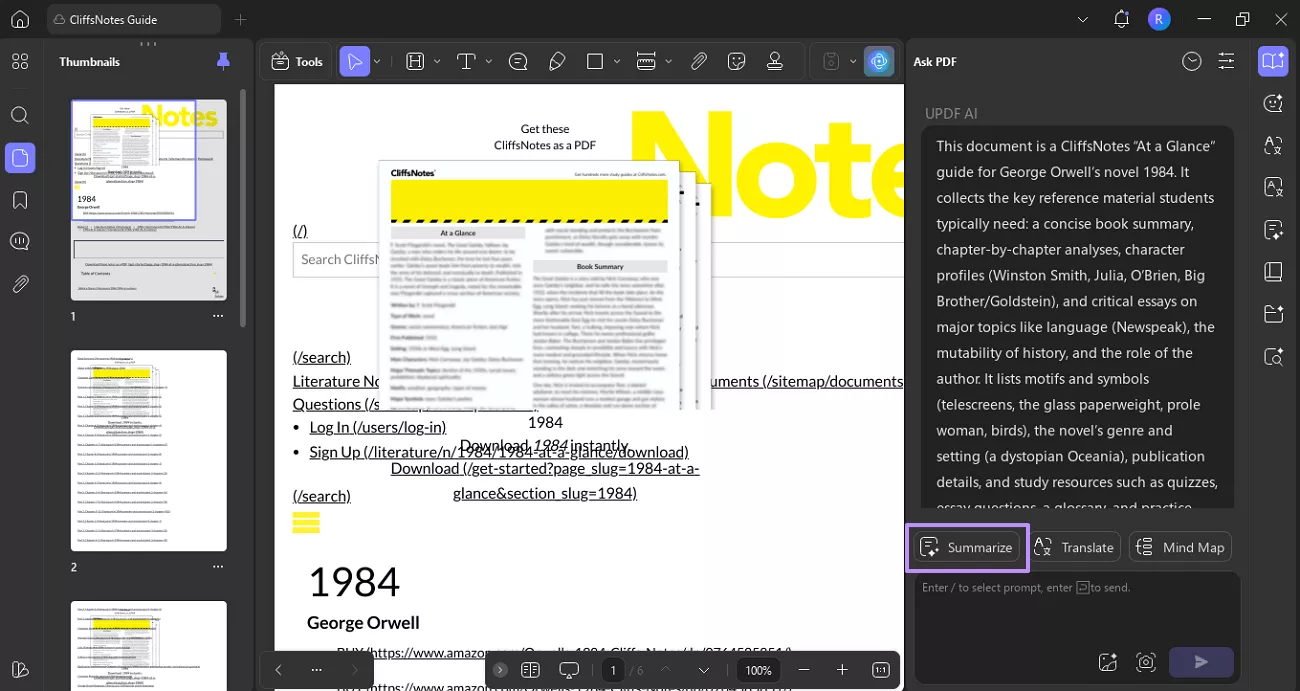
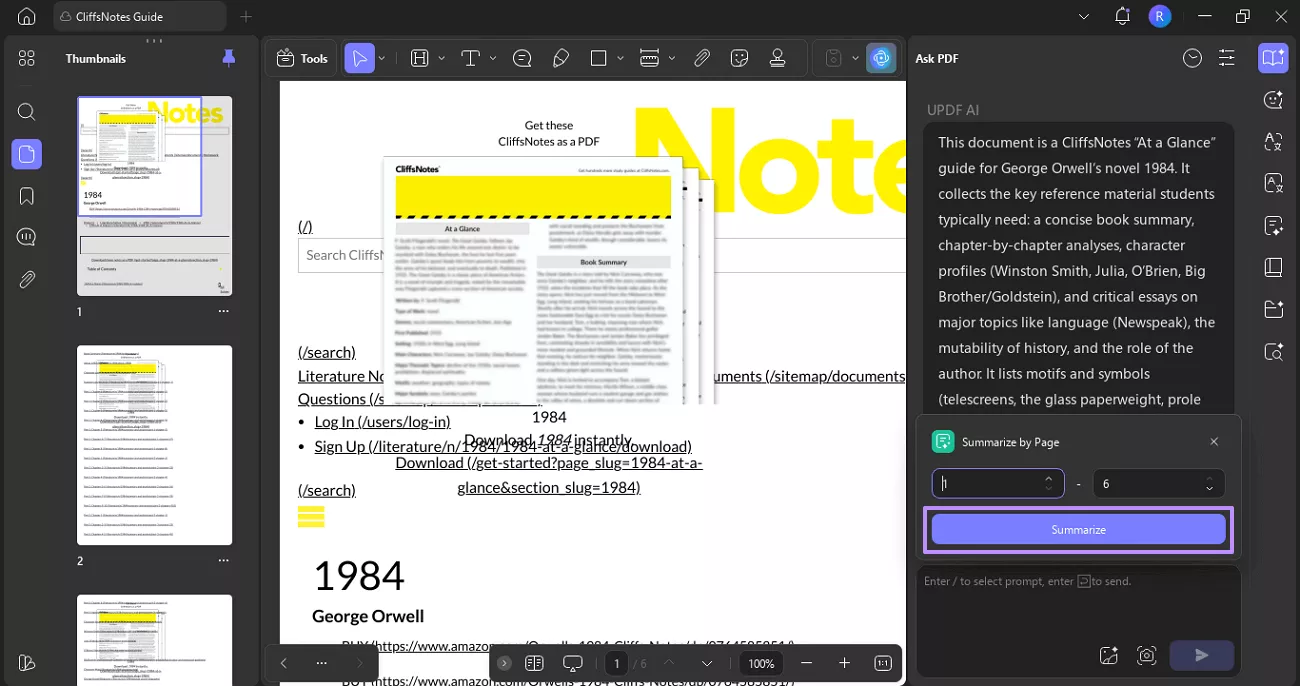
Step 5. Summarize to get CliffsNotes
Here, select the Page Range for which you want to generate a summary and hit the Summarize button. Now, UPDF will automatically start summarizing the content for you.
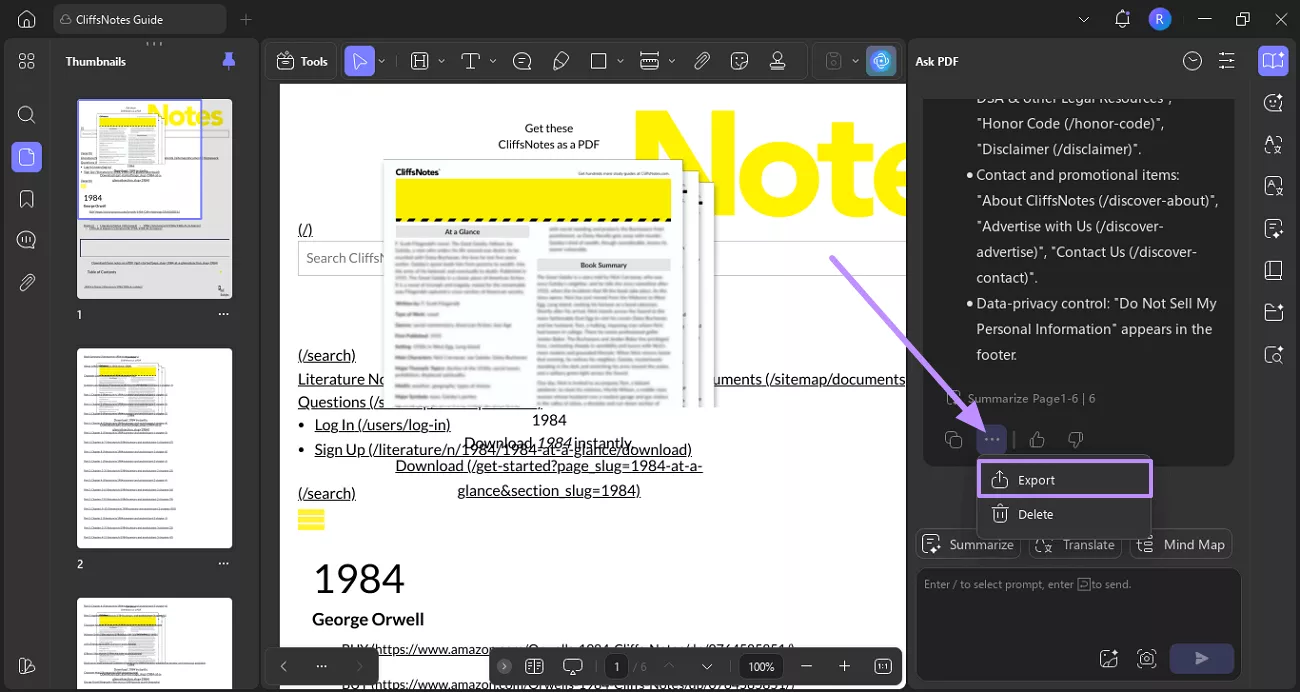
Step 6. Export the Summary
As the summary is displayed, click on the Horizontal Three-Dotted Icon and select the Export option.
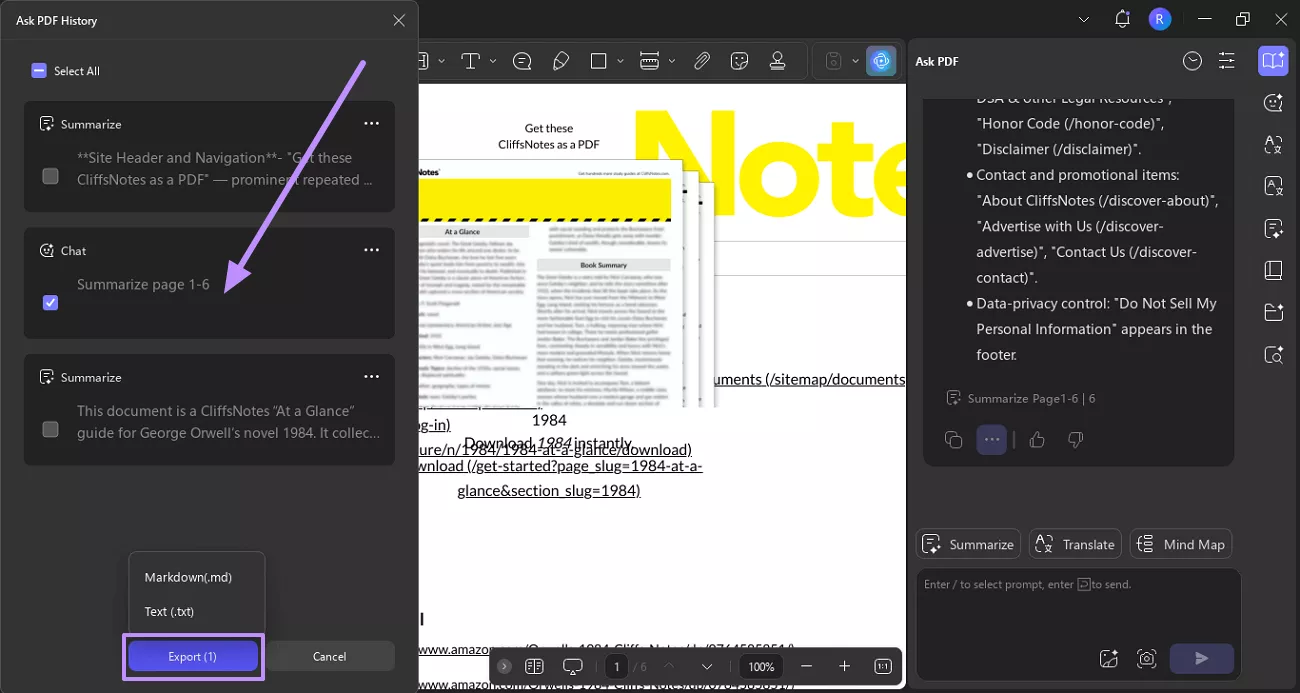
Step 7. Choose an Export Format
An Ask PDF History panel will be opened in front of you. From there, choose the summary you want to save and hit Export. Then, select your desired export format from the pop-up menu and choose a folder where you want to store the summary.
Windows • macOS • iOS • Android 100% secure
Apart from the above-discussed features, UPDF AI has many other applications:
- Translate: Instantly translate your entire PDFs into multiple languages. UPDF AI Online also lets you translate your PDF side by side.
- Chat with PDF/Image: Ask questions and get quick answers directly from your PDF content or image. You could also chat with multiple PDFs/images simultaneously with UPDF AI Online.
- PDF to Mind Map: Convert PDFs into clear and structured visual mind maps.
- Chat with AI: Get instant help, explanations, and analysis from AI. UPDF AI is powered by advanced large language models like GPT-5 (the default for most tasks) and DeepSeek R1 (a logic-focused model for deep analysis), giving you both creative natural language understanding and rigorous reasoning in one tool.
- Explain PDF: Simplify and break down complex PDF content for easier understanding.
- Paper Search: lets you instantly find and explore relevant academic papers from a huge database using keywords or research questions. In AI (DeepThink) Mode, UPDF AI analyzes your query, finds relevant studies, and gives you concise, citation-backed answers — no need to read every paper yourself. You can filter results, explore citation networks, download papers (when available), and even view abstracts and metadata all in one place.
- Scholar Research: goes a step further by automating the workflow from basic searches to structured insights and literature reviews. You simply enter your topic, choose a response mode (such as Standard or High Quality), and UPDF AI will comb through papers, extract key findings, and help you organize the results into a clear, research-ready format. This is especially helpful for essays, theses, reports, or professional analyses where you need both breadth and depth of information quickly.

Ready to try it yourself? You can click the button below use UPDF AI Online now. You can upload up to 5 PDFs and ask up to 100 questions with the free version — see how AI can simplify your workflow before upgrading for unlimited access.
Conclusion
Readers often search for the best CliffsNotes downloaders to save the guides or notes for offline reading. This article explored the best methods for downloading CliffsNotes content. Moreover, I introduced a bonus tool UPDF AI that you can use to summarize, translate, and analyze content. So, without wasting a moment, download UPDF or explore UPDF AI online version today.
Windows • macOS • iOS • Android 100% secure





 Enola Davis
 Enid Brown
 Lizzy Lozano
 Engelbert White