 UPDF
UPDF
 UPDF for Windows
 UPDF for Mac
 UPDF for iPhone/iPad
 UPDF for Android
 UPDF AI Online
 UPDF Sign
 Edit PDF
 Annotate PDF
 Create PDF
 PDF Form
 Edit links
 Convert PDF
 OCR
OCR PDF to Word
 PDF to Image
 PDF to Excel
 Organize PDF
 Merge PDF
 Split PDF
 Crop PDF
 Rotate PDF
 Protect PDF
 Sign PDF
 Redact PDF
 Sanitize PDF
 Remove Security
 Read PDF
 UPDF Cloud
 Compress PDF
 Print PDF
 Batch Process
 About UPDF AI
 UPDF AI Solutions
 AI User Guide
 FAQ about UPDF AI
 Summarize PDF
 Translate PDF
 Chat with PDF
 Chat with AI
 Chat with image
 PDF to Mind Map
 Explain PDF
 PDF AI Tools
 Image AI Tools
 AI Chat Tools
 AI Writing Tools
 AI Study Tools
 AI Working Tools
 Other AI Tools
 AI Bookmark Generation
 AI Bookmark Summary
 AI Watermark Generation
 AI Background Generation
 AI Sticker Generation
 AI Stamp Generation
 AI Editing Suite
 UPDF Copilot
 AI Page Management
 AI Semantic Search
 PDF to Word
 PDF to Excel
 PDF to PowerPoint
 Enterprise Solution
 Enterprise Sign
 Enterprise AI
 Enterprise Plan
 Enterprise User Guide
 Enterprise Webinar
 Banking
 Healthcare
 Insurance
 Legal
Legal Manufacturing
 Government
 Education Solution
 Customer Stories
 User Guide
 UPDF Tricks
 FAQs
FAQs UPDF Reviews
 Download Center
 Blog
Blog Newsroom
 Tech Spec
 Updates
 UPDF vs. Adobe Acrobat
 UPDF vs. Foxit
 UPDF vs. PDF Expert

Bookmark Google Docs is indeed a good feature and method helping organize lengthy documents, but many users find creating or linking bookmarks confusing, not to mention creating internal links or organizing bookmarks, especially in large files.
In this case, why not try downloading Google Docs and converting it into PDF? UPDF as a one-stop PDF bookmark tool that helps you auto-bookmark and summarize bookmarks with one click using its AI function. But still let’s see how to create a bookmark in Google Docs and link text to it on both desktop and mobile first.
Windows • macOS • iOS • Android 100% secure
How to Use Bookmarks in Google Docs?
The Bookmark feature in Google Docs allows you to mark and jump to specific sections of your document easily. It helps readers or collaborators skip directly to important headings without scrolling through the whole file. Overall, this feature is useful for manuals, reports, research papers, and collaborative documents.
For example, after adding a bookmark, you can create a link that jumps directly to that section from anywhere in the document. In the following steps, we cover how to create bookmarks on devices and how to link to them for quick navigation.
Adding or Creating a Bookmark in Google Docs
To learn how to bookmark in Google Docs on Chrome, follow these steps on your device:
For Mobile
Google Docs on Android does not support bookmarks, view and use existing bookmarks created on a desktop. However, iPhone users can add a bookmark as follows:
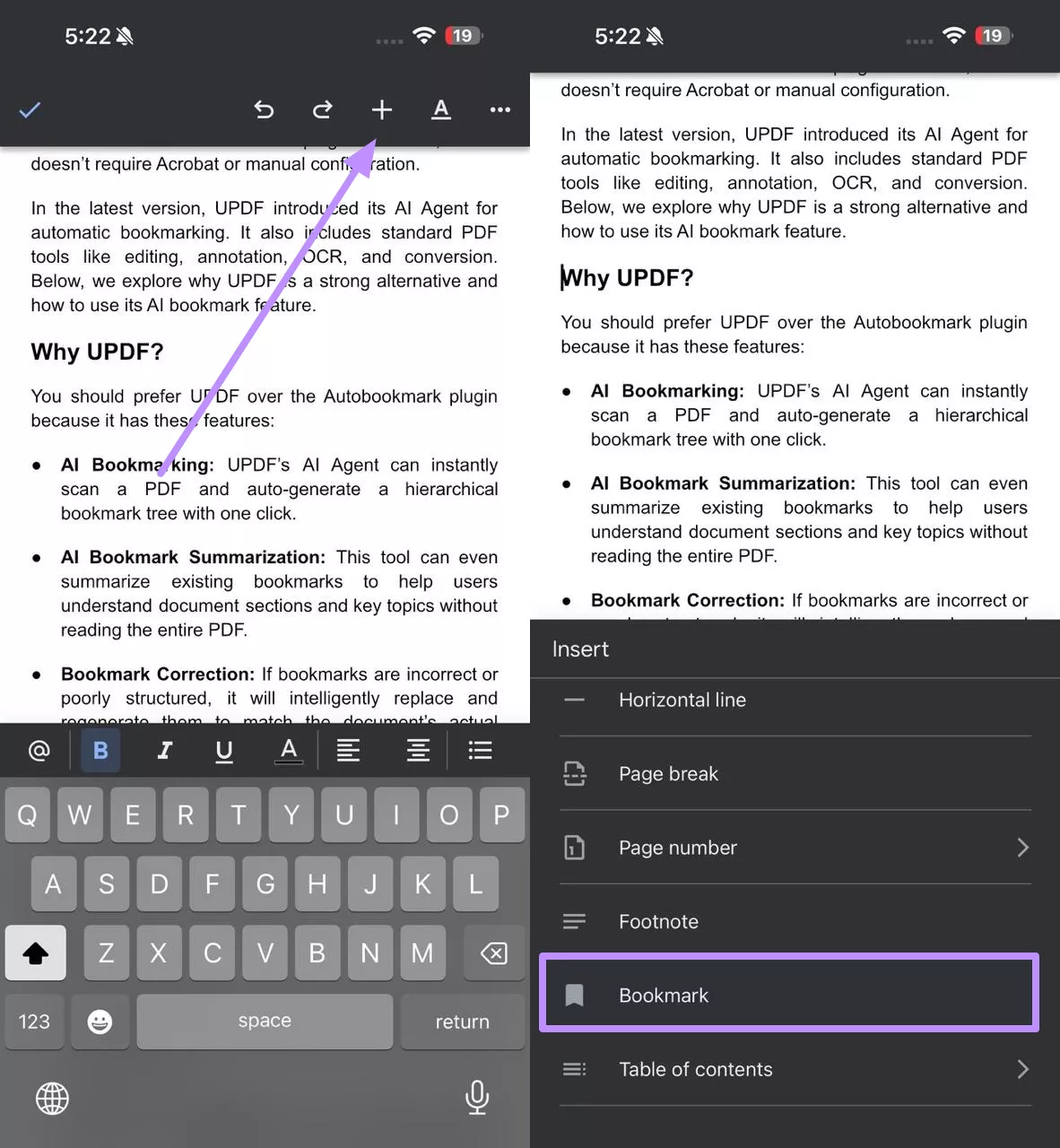
- After opening the Google Docs app and your document, tap the Edit icon at the bottom-right of your screen.
- Then tap the spot where you want the bookmark. Within the top toolbar, hit the Insert icon and choose Bookmark from the bottom-up menu. Google Docs will insert a small blue ribbon icon at that location. You can tap the ribbon icon to Copy link or Remove the bookmark if needed.
For Desktop
On a computer browser, adding bookmarks is simple as follow:
- Start by opening your document in Google Docs and scroll to the section you want to mark. Now, click at the exact spot for the bookmark. On the top menu, click Insert and then the Bookmark option.
- A blue bookmark icon appears next to the text, indicating the bookmark has been created. To manage a bookmark, click its blue icon and choose Delete or Copy.
Linking to Bookmark in Google Docs
Once you create a bookmark in Google Docs, the next step is linking text to that bookmark. This allows readers to click a phrase or section title and jump directly to the bookmarked location. To create such a bookmark linking on Google Docs, follow these steps:
For Mobile
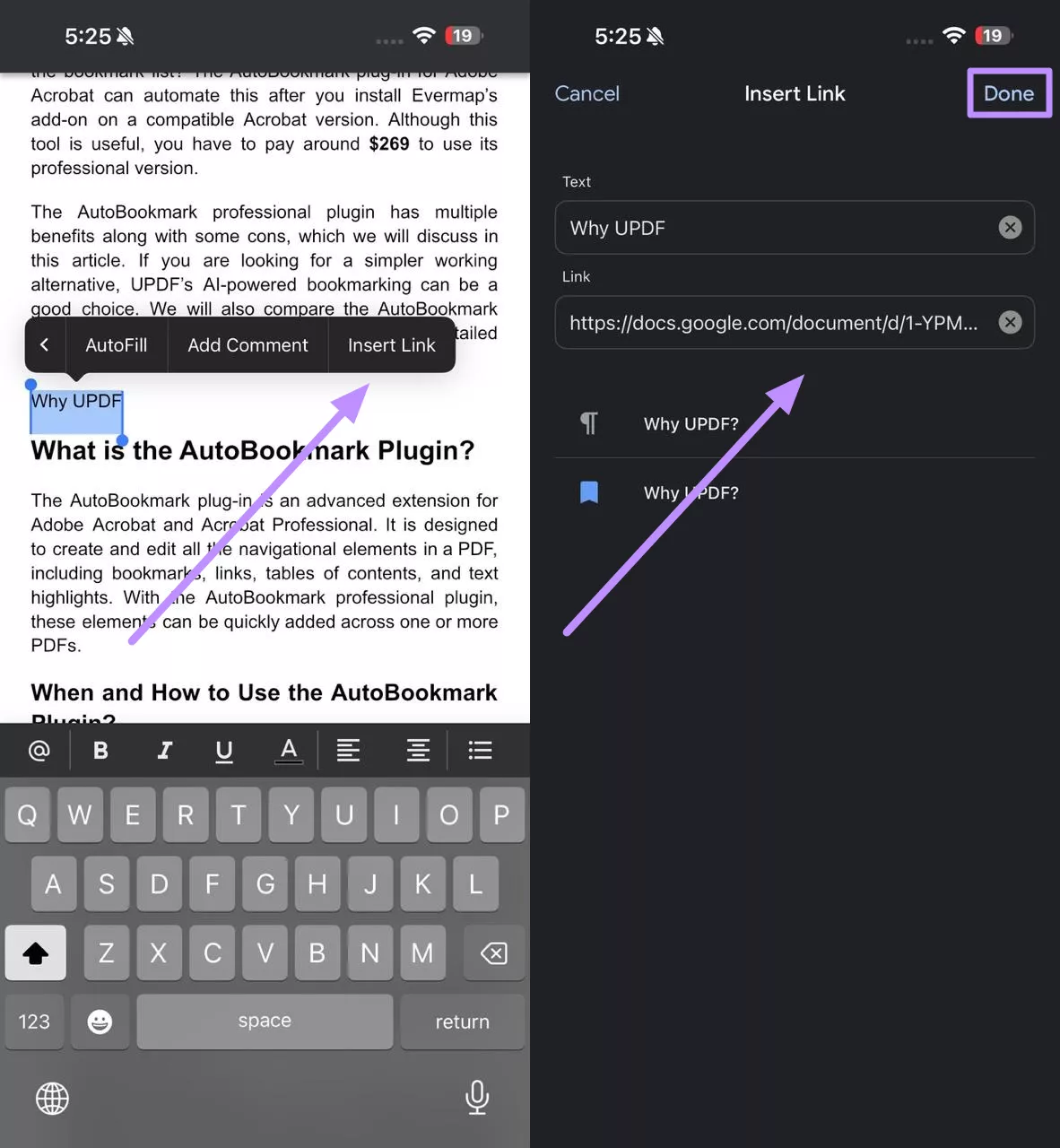
- Upon adding the bookmark, tap on its blue icon and hit the Copy Link option within the button-up menu to proceed.
- Now, proceed to select the text to which you want to link the bookmark. Then, choose the Insert Link option from the pop-up menu. Finally, paste the link in the next screen and hit the Done button to complete this process.
For Desktop
- After adding the bookmark, tap on the Blue Ribbon icon and hit Copy.
- Moving forward, select the text to which you want to link the bookmark. Now, right-click on the selected text and hit Insert Link on the pop-up menu.
- Afterwards, paste the URL of the bookmark in the given text box and tap Apply to link the copied bookmark to the text.
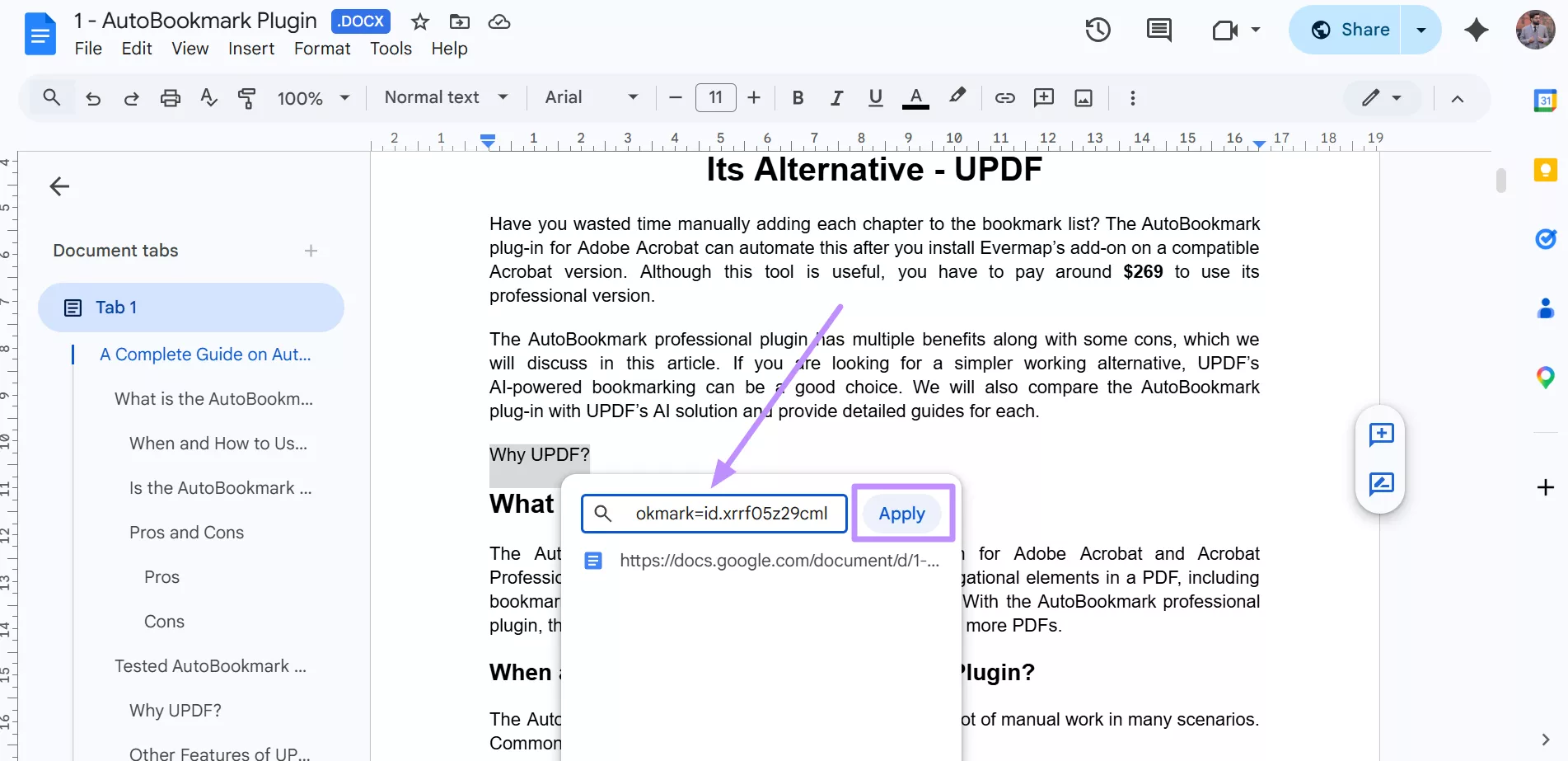
Now, the selected text is a hyperlink that jumps to the bookmarked section when clicked.
It is relatively simple to process smaller documents, for large and long documents, it is still recommended to export and convert them to PDF. UPDF maintains the original layout when converting files, automatically generating bookmarks and summarize bookmarks is a piece of cake for you.
Windows • macOS • iOS • Android 100% secure
Advanced Tips: How to Auto-bookmark PDF?
Just like in Docs, bookmarks in PDFs help you navigate long documents. A good PDF tool lets you add, edit, and auto-generate bookmarks. UPDF stands out as a powerful PDF editor with rich bookmarking features. In this regard, UPDF allows you to add bookmarks and even child bookmarks effortlessly.
You can reorder, rename, or delete them with simple drag-and-drop and right-click actions. Now, UPDF also offers an AI Auto-Bookmark feature, which automatically scans your PDF and creates a well-structured bookmark tree for you.
UPDF serves as a full PDF bookmark manager that works beyond simple bookmarking. Follow these steps to manage bookmarks in your PDF.
1. Begin by downloading and opening UPDF on your computer. Then, click the Open File button to import the document where you want to insert bookmarks.
2. Now, click the Bookmark icon in the left sidebar to open the bookmark panel. Then, click the Add Bookmark icon in the panel to create a new bookmark at your desired position.
3. Moving forward, double-click on the added bookmark to rename it based on your needs. To reorder bookmarks, simply drag and drop them to a new position.
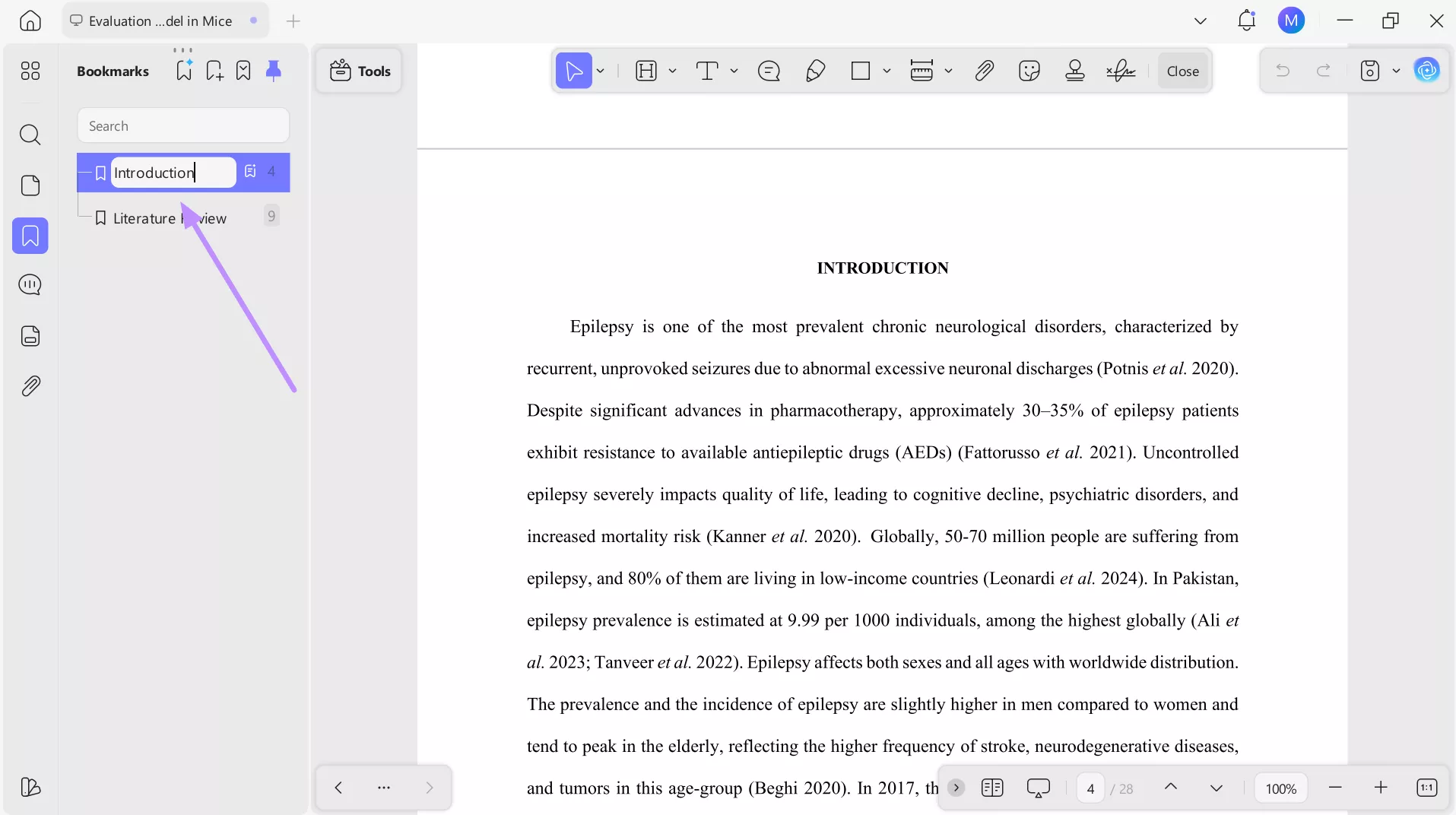
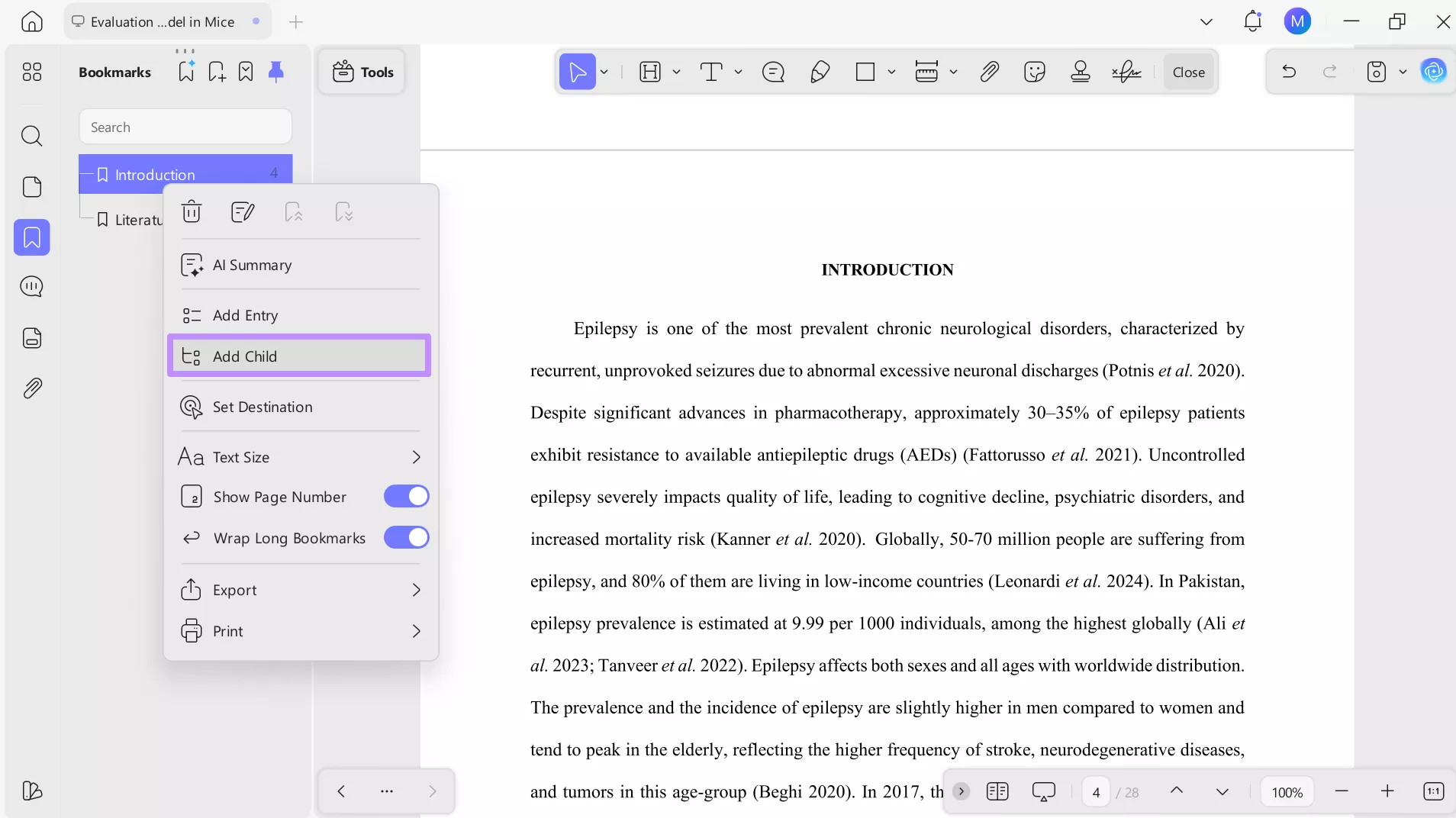
4. To add a child to your bookmark, go to the desired page and right-click on the bookmark. Now, hit the Add Child option within the newly-appeared menu.
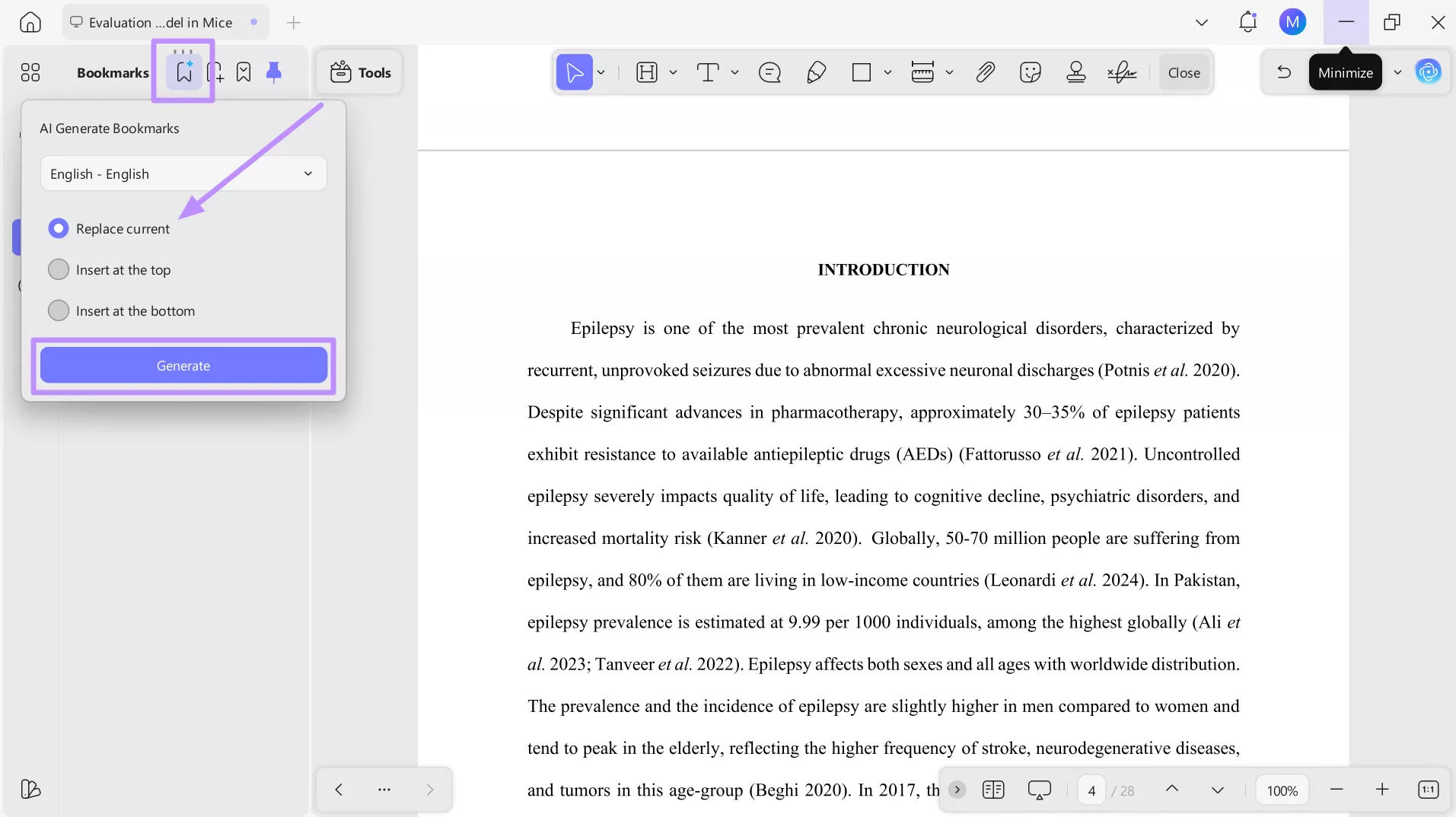
5. Alternatively, tap the AI Generate Bookmarks icon and pick the target language. Then, pick Replace Current and hit the Generate button to let UPDF create bookmarks.
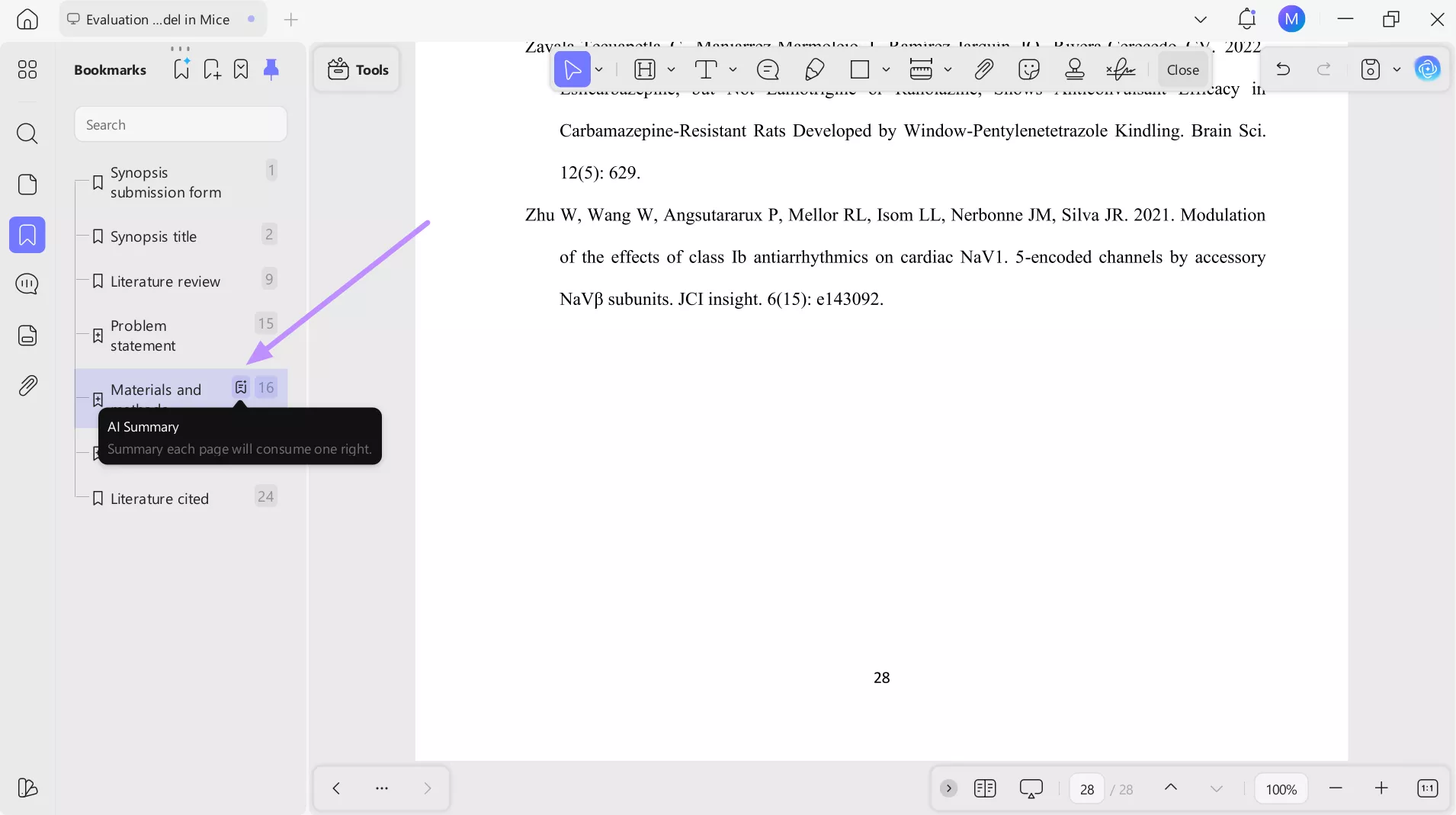
6. After generating bookmarks, simply tap on the AI Summary icon besides each bookmark. It will give you a quick summary of the bookmarked content.
These steps make UPDF’s bookmark manager easy and flexible. You can create multi-level outlines, reorganize sections, and even search through bookmarks. Try its AI Bookmark tool to auto-create an entire navigation tree with one click.
[Bonus] Alternative Ways to Bookmark in Google Docs
Besides creating bookmarks in Google Docs, you can use built-in tools (tables of contents and document tabs) to structure content. A Table of Contents links headings to sections automatically, which functions as a linked bookmark.
To add one, place your cursor where you want it and select Insert and then Page Elements. Moving forward, tap on the Table of Contents option on the extended menu and choose your desired style.
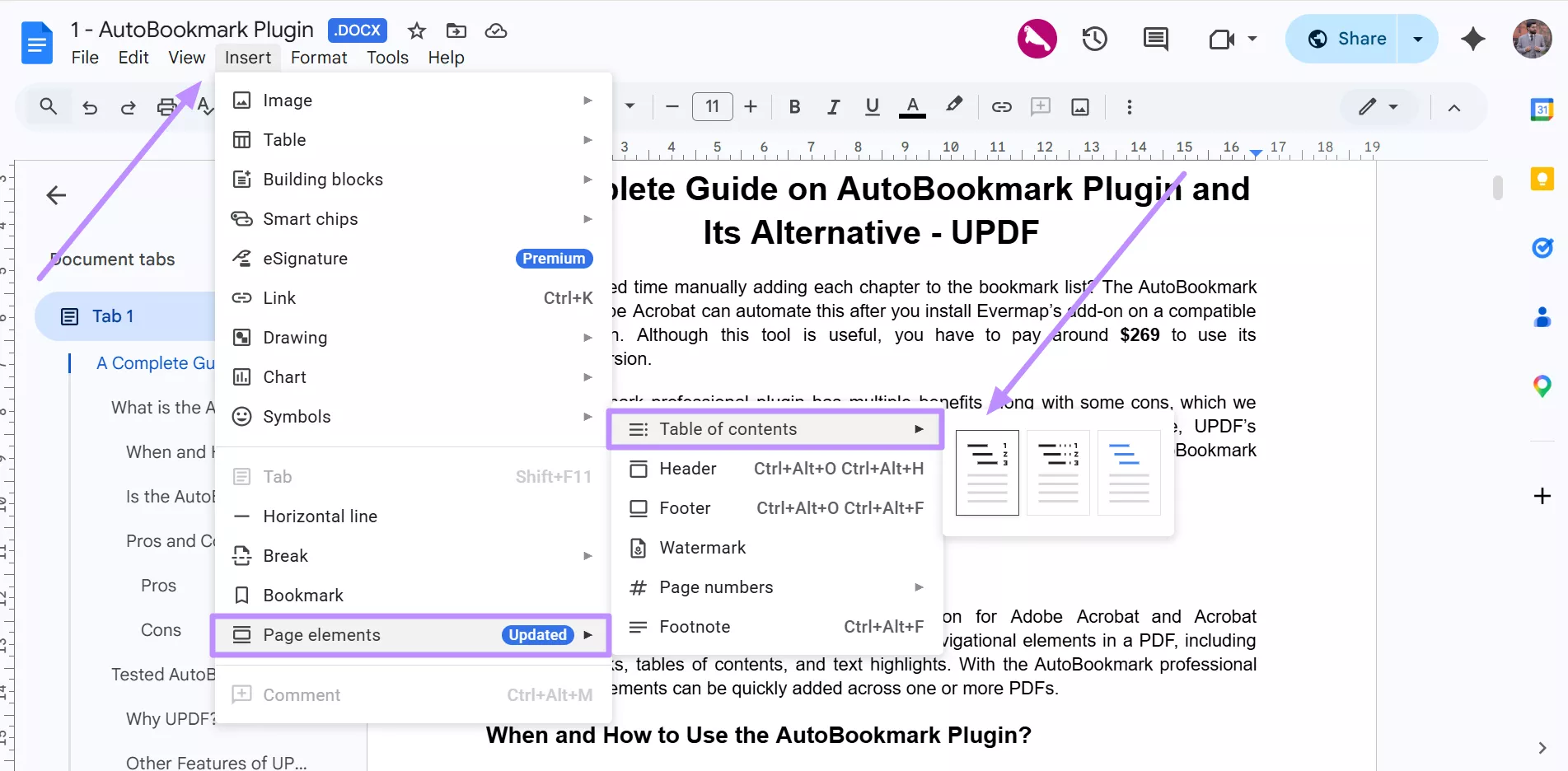
The TOC will display the titles of each heading with links to jump there. Format your section titles using the normal text dropdown so they appear in the TOC.
The new Document Tabs feature can also organize a document into sections. On the desktop, click View and then Expand Tabs and Outlines Sidebar to open the left panel.
Then, click Add Tab to create a new tab (section) in the document. You can name tabs and even nest subtabs by dragging one onto another. Each tab can have its own outline of headings, which acts like a custom navigation menu.
Final Words
Using bookmarks in Google Docs and PDFs greatly improves document navigation. This guide showed how to add and link bookmarks in Google Docs on desktop and mobile. Apart from that, you have learned how to organize documents using tables of content and tabs.
Converting Google Docs to PDF and managing bookmarks without effort will enhance your workflow whether for study or working, UPDF - Auto Bookmark and Summarize Bookmark is your indispensable tool.
Windows • macOS • iOS • Android 100% secure






 Engelbert White
 Enola Davis
