 UPDF
UPDF
 UPDF for Windows
 UPDF for Mac
 UPDF for iPhone/iPad
 UPDF for Android
 Nomostar
 UPDF AI Online
 UPDF Sign
 IvyCraft
 Edit PDF
 Annotate PDF
 Create PDF
 PDF Form
 Edit links
 Convert PDF
 OCR
OCR PDF to Word
 PDF to Image
 PDF to Excel
 Organize PDF
 Merge PDF
 Split PDF
 Crop PDF
 Rotate PDF
 Protect PDF
 Sign PDF
 Redact PDF
 Sanitize PDF
 Remove Security
 Read PDF
 UPDF Cloud
 Compress PDF
 Print PDF
 Batch Process
 About UPDF AI
 UPDF AI Solutions
 AI User Guide
 FAQ about UPDF AI
 Summarize PDF
 Translate PDF
 Chat with PDF
 Chat with AI
 Chat with image
 PDF to Mind Map
 Explain PDF
 PDF AI Tools
 Image AI Tools
 AI Chat Tools
 AI Writing Tools
 AI Study Tools
 AI Working Tools
 Other AI Tools
 AI Bookmark Generation
 AI Bookmark Summary
 AI Watermark Generation
 AI Background Generation
 AI Sticker Generation
 AI Stamp Generation
 AI Editing Suite
 UPDF Copilot
 AI Page Management
 AI Semantic Search
 PDF to Word
 PDF to Excel
 PDF to PowerPoint
 Enterprise Solution
 Enterprise Sign
 Enterprise AI
 Enterprise Plan
 Enterprise User Guide
 Enterprise Webinar
 Banking
 Healthcare
 Insurance
 Legal
Legal Manufacturing
 Government
 Education Solution
 Customer Stories
 User Guide
 UPDF Tricks
 FAQs
FAQs UPDF Reviews
 Download Center
 Blog
Blog Newsroom
 Tech Spec
 Updates
 UPDF vs. Adobe Acrobat
 UPDF vs. Foxit
 UPDF vs. PDF Expert

Quick answer:
Last winter I tried to reprint a mortgage statement I had saved two years earlier, and the file demanded a password I had completely forgotten. Before downloading the first "PDF unlocker" that Google offered, I learned the one thing that actually decides whether a forgotten PDF password is fixable: which of the two passwords you lost. That single distinction is the difference between a two-minute fix and a file you may never open again — and most guides skip straight past it.
Below I will walk through how to tell which password you forgot, the legitimate ways to get back in, and how to use UPDF to reset the password once you are inside, across Windows, Mac, iOS, and Android.
A quick legal note before any tool:
Only recover or remove a password on a PDF you own or are clearly authorized to access. Bypassing protection on someone else's confidential file can breach copyright or data-protection rules such as GDPR.
Part 1. First, Figure Out Which Password You Forgot
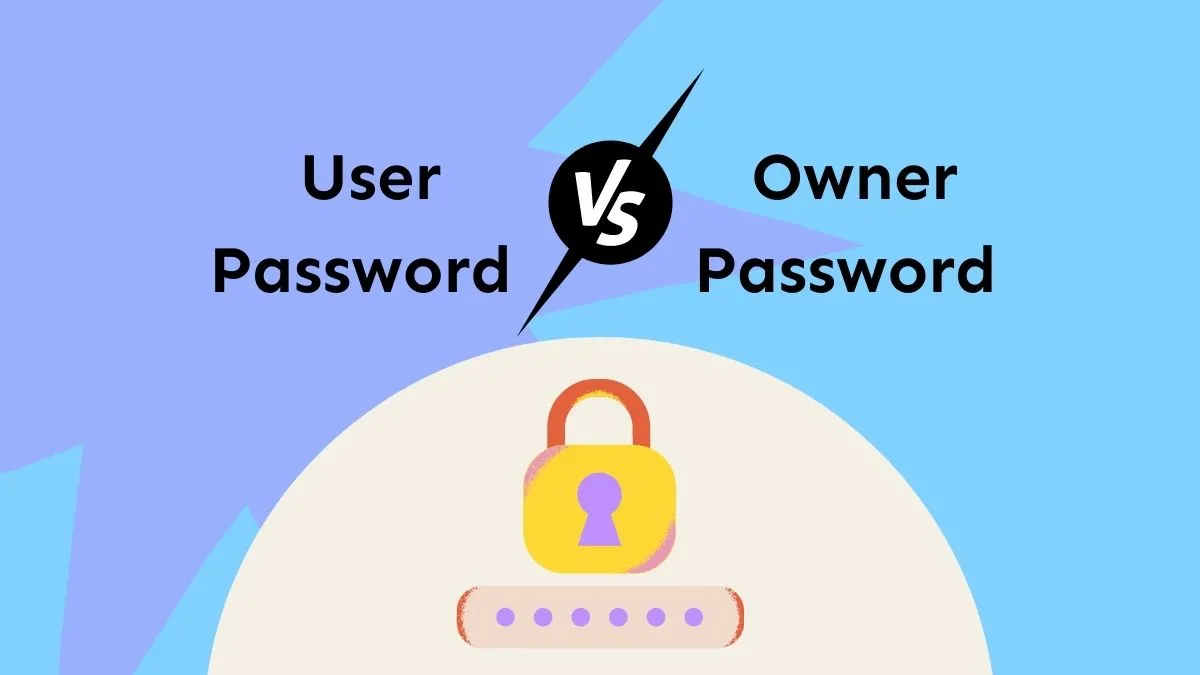
PDFs are protected by two completely different passwords, and your chances of getting back in depend entirely on which one you lost. Before trying anything, open the file (or try to) and watch what happens.
| What happens when you open the file | Password you forgot | Can you get back in? |
|---|---|---|
| The PDF refuses to open until you type a password | Open (user) password | Hard — the password must be recovered, not deleted |
| The PDF opens and displays normally, but you can't edit, copy, or print | Permission (owner) password | Easy — the restriction can be removed if you own the file |
An open password (also called a user password) encrypts the whole document. Without it, no page is readable, and no honest tool can "remove" it — the data is locked at the binary level, so the only route is to recover the password itself.
A permission password (also called an owner or master password) leaves the file viewable but blocks actions like editing, copying, and printing. That restriction is far easier to lift, because the file is already decrypted on screen.
If your file opens fine and you only forgot the permission password, jump to Part 3 — the restriction can be stripped directly. If the file won't open at all, start with Part 2. (If you also want to understand the full set of protection options so this doesn't happen again, see UPDF's guide on how to protect PDF.)
Part 2. Recover a Forgotten Open Password (Try These in Order)
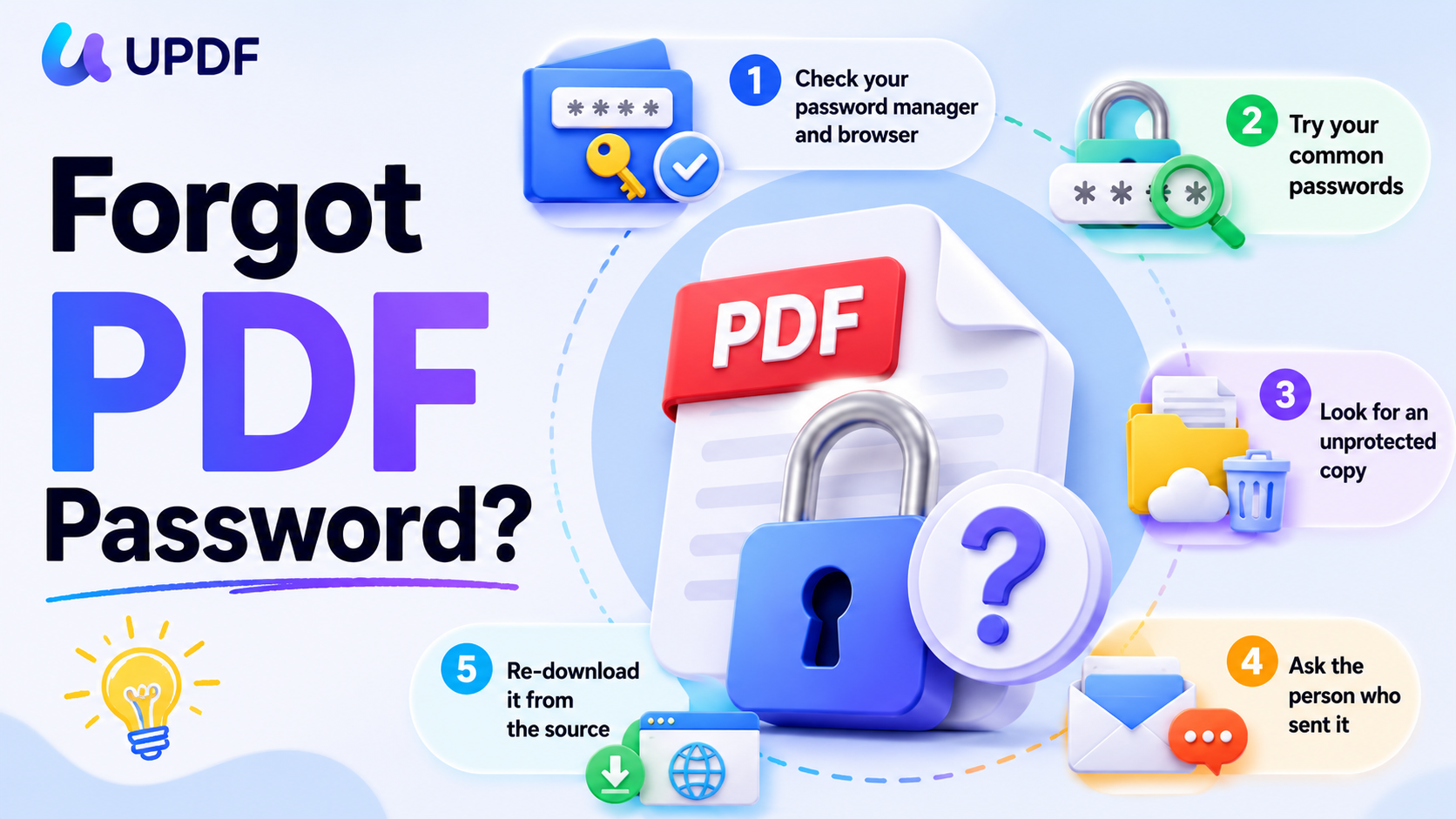
When the PDF won't open, your goal is to find or recover the original password. Work down this list from easiest to last resort:
- 1. Check your password manager and browser. If you ever opened the file before, your password manager (or the browser that displayed it) may have saved the entry. Search it for the file name or the sender.
- 2. Try your common passwords. There is no limit on PDF password attempts, so type every variation you tend to use — names, birthdays, recurring phrases. Open the file in any PDF reader and keep trying.
- 3. Look for an unprotected copy. The same document often exists somewhere without the lock: an earlier draft in your Downloads or Recycle Bin, the original email attachment, or a version in cloud storage before protection was applied.
- 4. Ask the person who sent it. If the PDF came from someone else, the original owner almost certainly has the password — or can simply resend the file unprotected. This is usually faster than any software.
- 5. Re-download it from the source. If the file came from a website or portal, downloading it again sometimes returns an unprotected copy, especially for statements and invoices that are generated on demand.
Best for:
- files you created yourself or received from a known sender, where the password is findable.
Not for:
- documents where every trace of the password is gone — in that case, recovery software (Part 3) is the only remaining option.
Edge case: what if none of these work?
If you have exhausted every recovery route and still cannot open the file, the honest answer is that a strong open password may be unrecoverable. A 256-bit AES open password with a long passphrase is, by design, extremely hard to break. This is exactly why keeping an unprotected master copy of important documents matters more than any recovery trick.
Part 3. Remove Restrictions or Attempt Recovery with Dedicated Software
This part covers two situations: removing a permission password (the easy case — the file already opens) and, as a last resort, attempting to recover an open password you can't remember.
For a permission lock, a dedicated remover strips the editing, copying, and printing restrictions directly. For a forgotten open password, recovery software can only attempt to recover it by testing large numbers of candidates (dictionary and brute-force methods) — success is never guaranteed and depends entirely on how strong the password was.
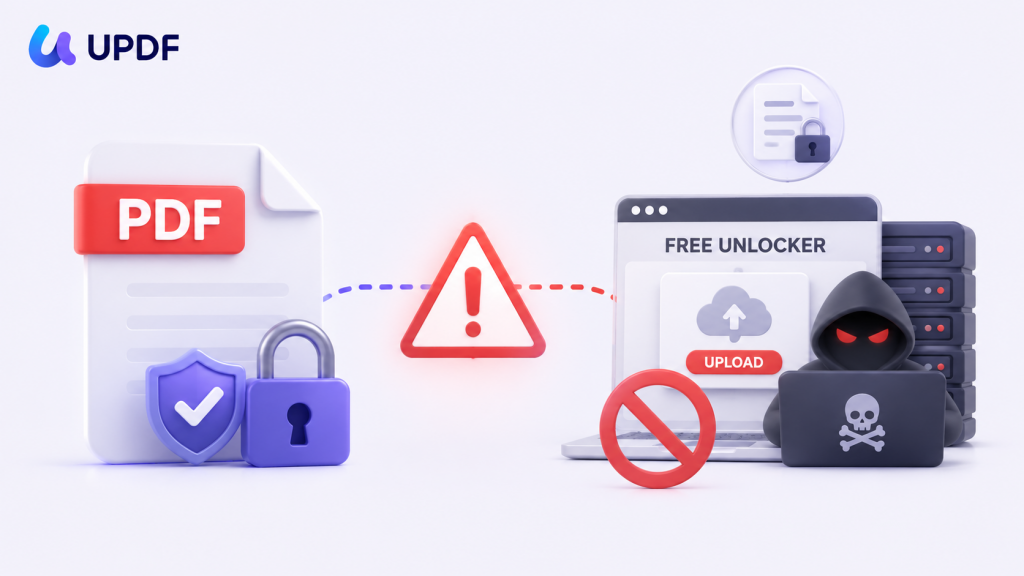
⚠️ Choose recovery tools carefully
For a tool from a known publisher, Ajoysoft PDF Password Remover is made by Superace Software, the same company behind UPDF. It is most reliable at removing permission passwords — it strips those restrictions automatically even when you don't know the password. For an open password, note the honest limitation: Ajoysoft can unlock the file only once you enter the correct open password, so it is a removal tool for restrictions, not a guaranteed cracker for a forgotten open password.
Ajoysoft isn't sold on its own. It comes as a lifetime benefit with a UPDF Pro purchase — specifically UPDF Pro Annual, UPDF Pro Lifetime, or either of the Pro + AI bundles (annual or lifetime). If you have one of these plans, email the address you used to purchase to [email protected], and the support team will send you a redemption code.
Step 1: First, add as many PDFs as you'd want to decrypt in bulk by dragging them into the "Add Files" box or clicking the button.
Step 2: Click Remove Password. If the file carries only a permission password, the restrictions are stripped immediately; if it has an open password, enter it when prompted to unlock the file.
Step 3: Now choose a destination for the saved files.

Best for:
- permission-locked files you own, or bulk-removing restrictions from many PDFs at once.
Not for:
- recovering an open password you genuinely don't remember — no tool can promise that.
Part 4. Once You're In: Reset the Password with UPDF (So This Never Happens Again)
The moment you regain access — whether you remembered the password, found an unprotected copy, or removed a permission lock — the smart move is to reset or remove the password and save a clean copy you control. UPDF is the after-tool for exactly this: it opens password-protected PDFs, lets you enter the password once, and then removes or changes it in a couple of clicks. Everything runs locally on your device, so your file is never uploaded to a server.
This is also the answer to the deeper problem behind "I forgot my PDF password" — keep an unlocked master copy, and set a new password you actually record.
How to Remove or Reset a PDF Password in UPDF on Windows and Mac
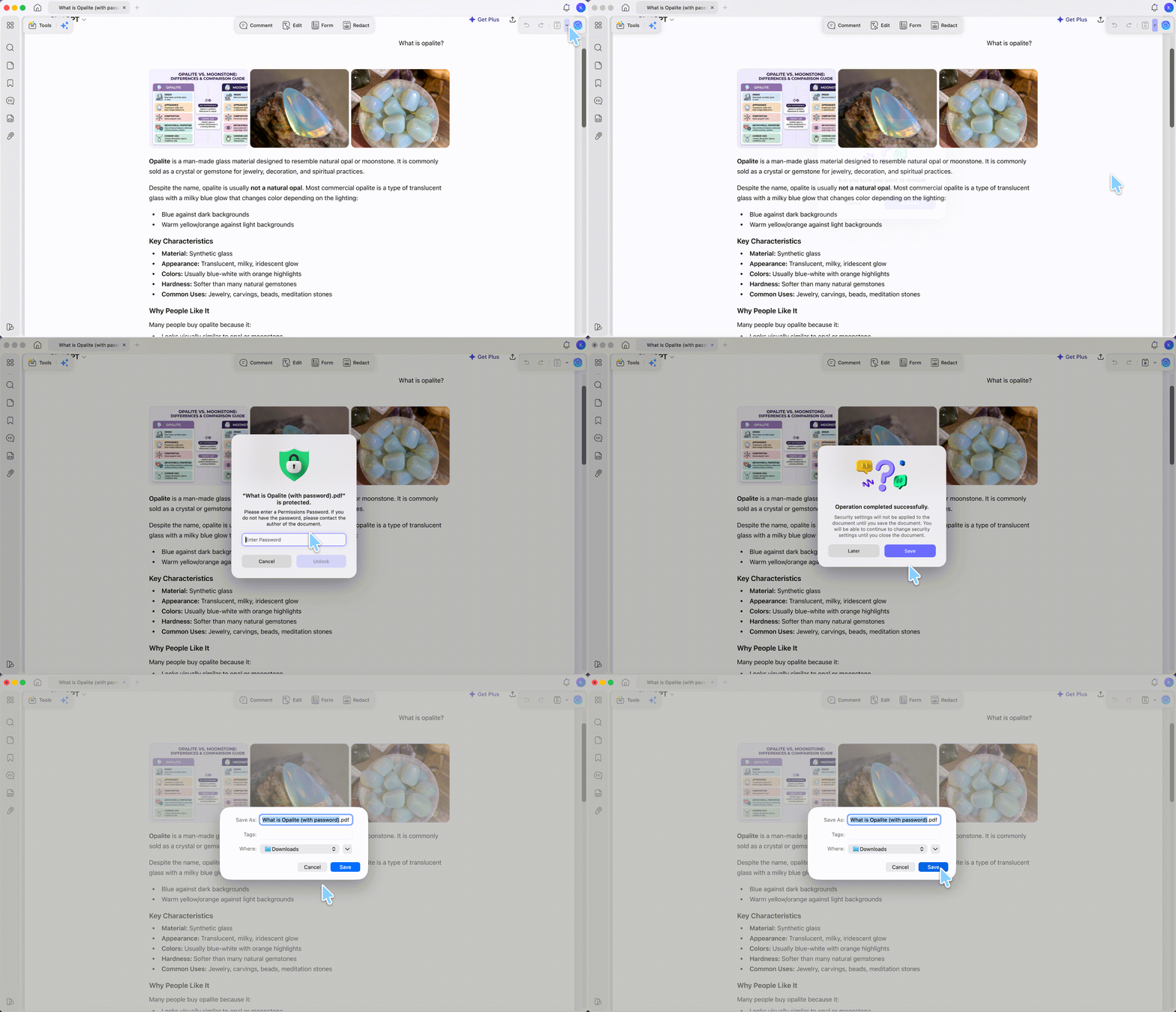
Step 1. Open the PDF in UPDF and type the password when prompted. (If you don't have UPDF yet, download UPDF for free and install it in under a minute, then open the file.)
Windows • macOS • iOS • Android 100% secure
Step 2. Click the dropdown arrow (▼) next to Save, then select Remove Password. From here you can remove the password entirely or set a new one you'll remember.
Step 3. Click Save to save a clean copy of the unlocked or re-secured PDF.
How to Remove or Reset a PDF Password on iPhone, iPad, and Android
The steps are identical on iOS and Android, which is handy when the locked file is sitting on your phone and your computer isn't nearby.
Step 1. Open the protected PDF in the UPDF iOS or Android app and enter the password.
Step 2. Tap the Three-Dots icon, then tap Password. Choose to remove the existing password, or enter a new open password and tap Confirm.
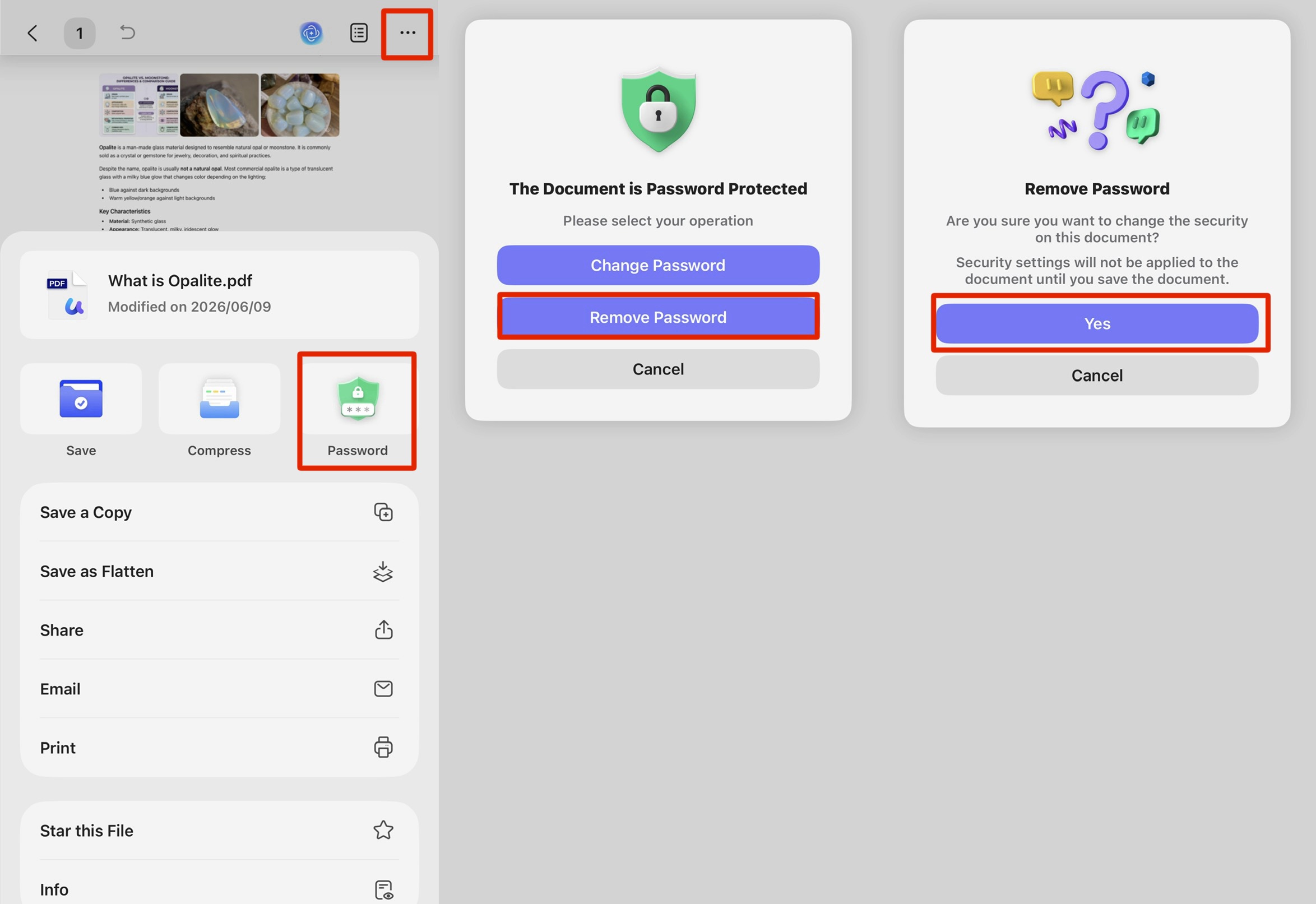
Step 3. Save the file to keep your unlocked or newly secured copy.
Download UPDF for free to remove or reset the password on a file you own — installation is free, and Pro removes the trial watermark when you export or save your final copy.
Windows • macOS • iOS • Android 100% secure
Part 5. If Recovery Fails: Rebuild the Document
If the contents are simple and recovery truly isn't possible, recreating the document can be faster than fighting the lock. With UPDF you can start a blank PDF and rebuild the file, sidestepping the forgotten password entirely.
Step 1. In UPDF, go to Tools → Blank and choose your page options to open a new document.
Step 2. Click Edit in the top toolbar to enter editing mode.
Step 3. Add text, images, and other elements with UPDF's editing tools to reconstruct the content.
This obviously only works for documents you can recreate yourself — not for statements, certificates, or signed files you don't control.
Part 6. FAQs
1. Is it legal to remove a PDF password?
Only on files you own or are authorized to access. Removing protection on someone else's confidential document can violate copyright or data-protection laws.
2. Why can I open the file but not edit or print it?
That's a permission (owner) password, not an open password. The file is already decrypted, so the restriction can be removed without recovering anything.
3. Are online PDF unlock tools safe for sensitive files?
No. They upload your document to a third-party server, often alongside the password. Use local software like UPDF for anything private.
4. How do I make sure I never lose a PDF password again?
Store passwords in a password manager and keep one unprotected master copy of important files in secure storage, separate from the locked version.
Conclusion
Recovering a forgotten PDF password comes down to one decision made early: if the file opens but won't let you edit or print, it's a permission lock you can remove; if it won't open at all, you're recovering an open password, and a strong one may be gone for good. Once you regain access by any route, UPDF lets you remove or reset the password locally and save a clean master copy across Windows, Mac, iOS, and Android — so a forgotten password never locks you out twice.
Download UPDF for free to reset the password on a PDF you own — installation is free, and Pro removes the trial watermark when you save or export your clean copy. Purchase UPDF today and get Ajoysoft for free!
Windows • macOS • iOS • Android 100% secure



 Enrica Taylor
 Enid Brown
 Engelbert White
 franck Petit