 UPDF
UPDF
 UPDF for Windows
 UPDF for Mac
 UPDF for iPhone/iPad
 UPDF for Android
 UPDF AI Online
 UPDF Sign
 Edit PDF
 Annotate PDF
 Create PDF
 PDF Form
 Edit links
 Convert PDF
 OCR
OCR PDF to Word
 PDF to Image
 PDF to Excel
 Organize PDF
 Merge PDF
 Split PDF
 Crop PDF
 Rotate PDF
 Protect PDF
 Sign PDF
 Redact PDF
 Sanitize PDF
 Remove Security
 Read PDF
 UPDF Cloud
 Compress PDF
 Print PDF
 Batch Process
 About UPDF AI
 UPDF AI Solutions
 AI User Guide
 FAQ about UPDF AI
 Summarize PDF
 Translate PDF
 Chat with PDF
 Chat with AI
 Chat with image
 PDF to Mind Map
 Explain PDF
 Scholar Research
 Paper Search
 AI Proofreader
 AI Writer
 AI Homework Helper
 AI Quiz Generator
 AI Math Solver
 PDF to Word
 PDF to Excel
 PDF to PowerPoint
 Enterprise Solution
 Enterprise Sign
 Enterprise AI
 Enterprise Plan
 Enterprise User Guide
 Enterprise Webinar
 Banking
 Healthcare
 Insurance
 Legal
Legal Manufacturing
 Government
 Education Solution
 Customer Stories
 User Guide
 UPDF Tricks
 FAQs
FAQs UPDF Reviews
 Download Center
 Blog
Blog Newsroom
 Tech Spec
 Updates
 UPDF vs. Adobe Acrobat
 UPDF vs. Foxit
 UPDF vs. PDF Expert

With the increasing requirements for sharing files with others, you often would like to compress multiple files, an entire folder, or a specific file, so you can email or upload easily.
If you are using an iPhone or iPad, you may wonder how to compress a file on an iPhone or iPad. Thankfully, we have simple and easy ways here to compress files on iPhones and iPads.
The Best App to Compress Files on iPhone
If you are looking to compress files on iPhone and iPad, the full featured file management app called UPDF for iOS is your best option. The UPDF file management app is a complete file manager that can be downloaded from the Apple Store on your iPhone or iPad. Or you can click the below button to download UPDF.
Windows • macOS • iOS • Android 100% secure
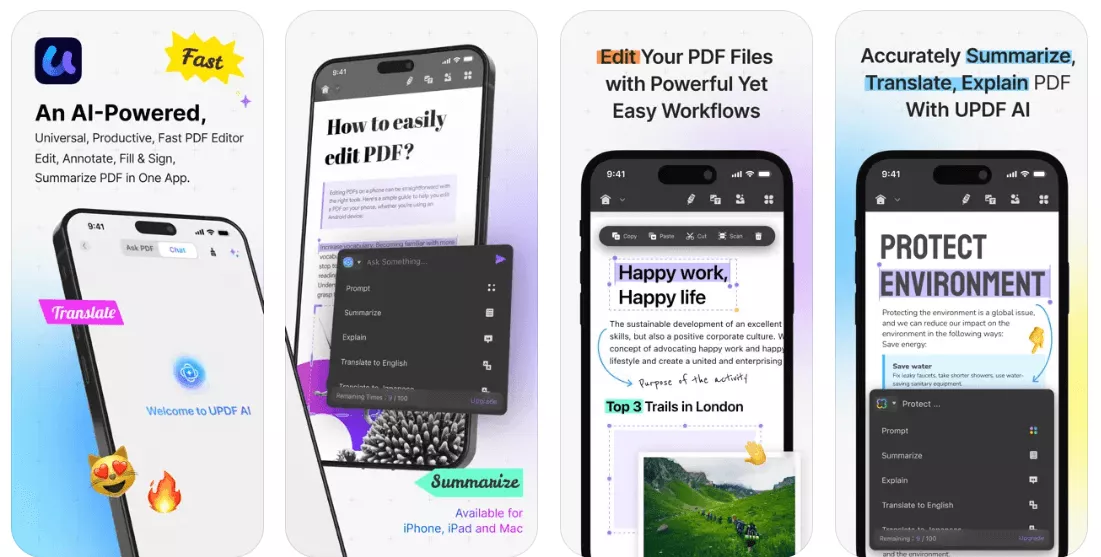
The UPDF app supports compressing one file or multiple files into one zip file and compressing PDF files into smaller PDF sizes.
Moreover, it allows you to manage files including opening, viewing, searching, deleting, renaming, compressing, decompressing, moving, uploading and downloading, and sharing of documents from iPhone and iPad.
UPDF app lets you manage all types and formats of files seamlessly, quickly, and in a very secure manner. The UPDF compressor app is extremely intuitive and user friendly. Therefore, there is no learning curve.
Just follow the below three guides to learn how to use it.
How to Compress a File on iPhone and iPad
To get started with compressing a file into a zip file on iPhone or iPad, you can follow the below set of simple instructions -
1. To start compressing a file, you will first need to import the desired file into the UPDF app.
2. Choose the File you want to compress.
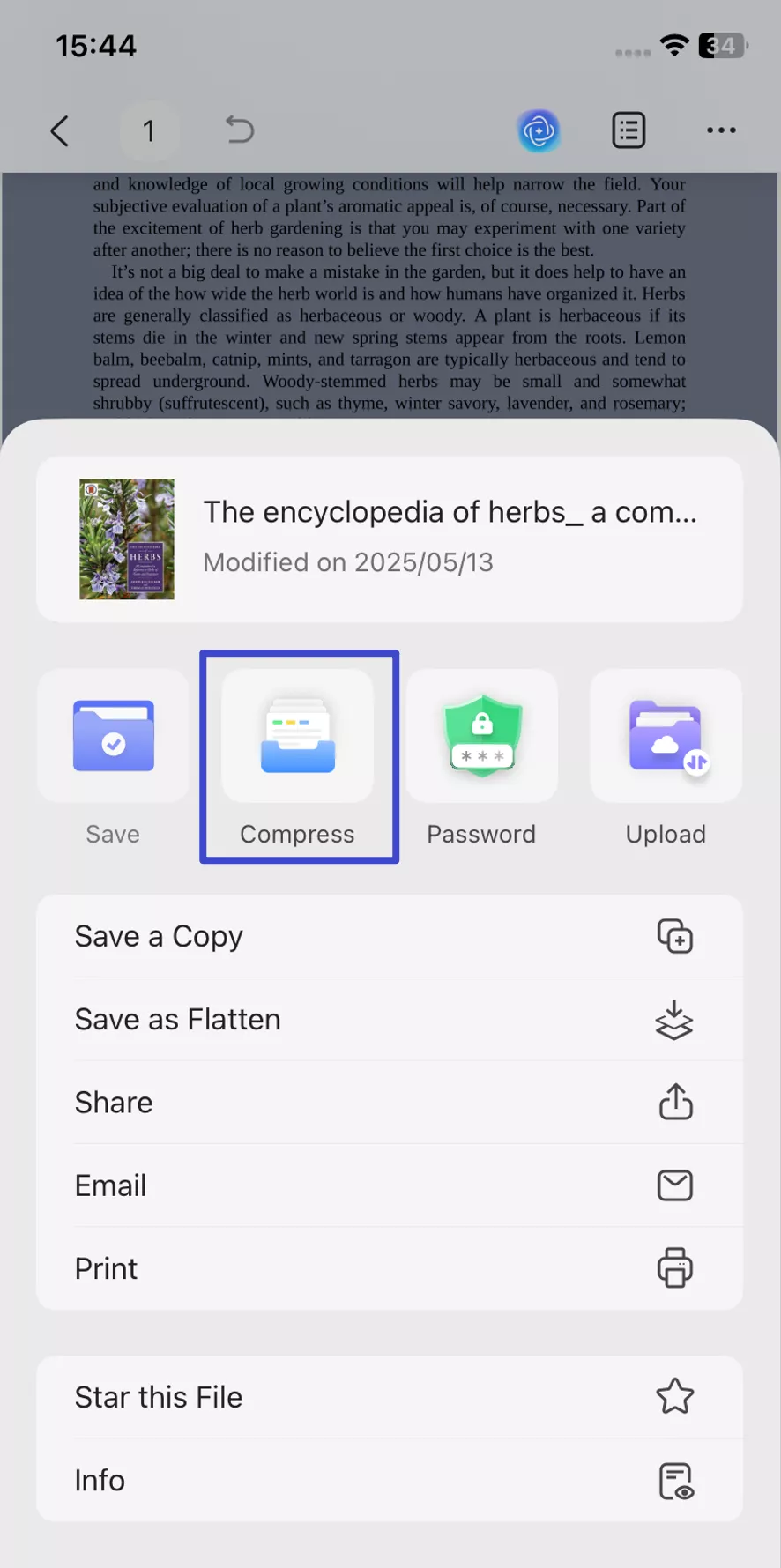
3. Finally tap on the "Compress" option to start the compression and save the zip file.
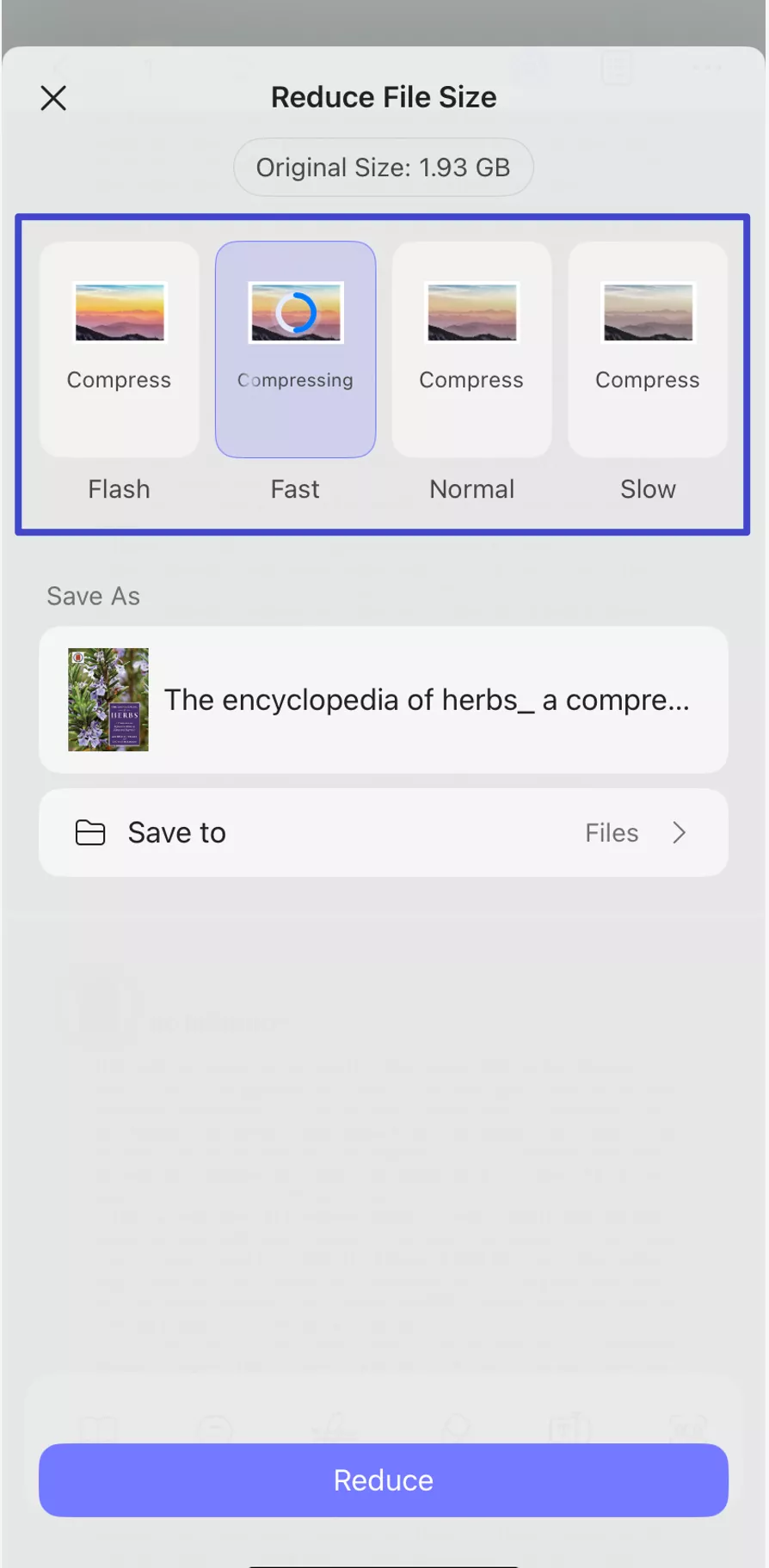
4. Select the speed to reduce the file size, choose where you need to save the compressed PDF and rename it, then, tap on the "Reduce" to reduce the PDF file size.
That's it. It is so simple to compress a file with UPDF. Just click the below button to download UPDF for iOS and try it now.
Windows • macOS • iOS • Android 100% secure
Also Read: How to Zip a Video on iPhone and iPad
How to Compress Multiple Files on iPhone and iPad
If you wish to compress multiple files into a single ZIP folder, this can easily be done using the UPDF app. The steps are very similar to compressing a single file. The steps are as follows -
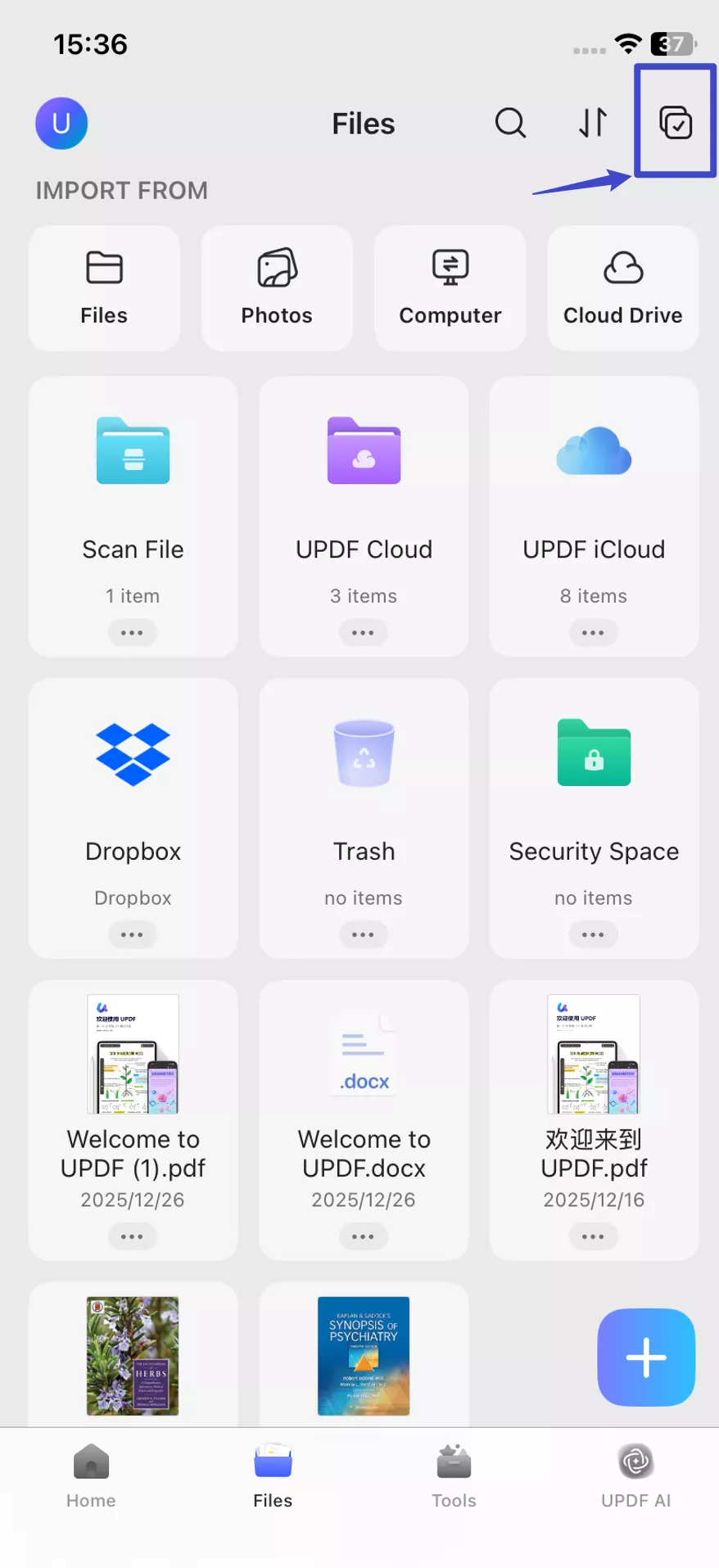
- In the UPDF app, tap on the checkbox on the top right corner of the Files page. Tap to select all the files you wish to compress.
2. Select the "More" icon from the bottom menu.
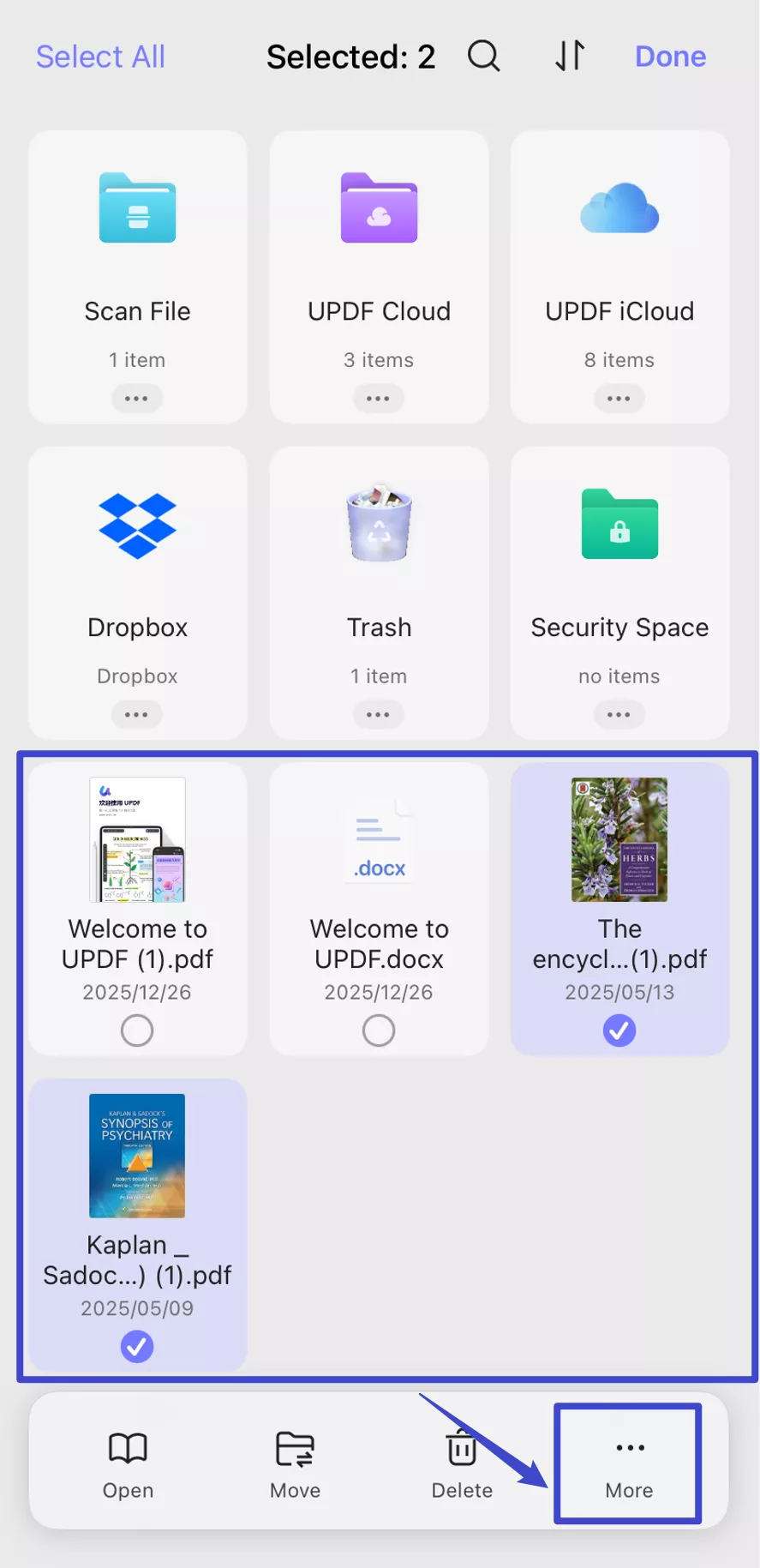
3. Tap on the "Compress" option to generate a ZIP file of the selected files.
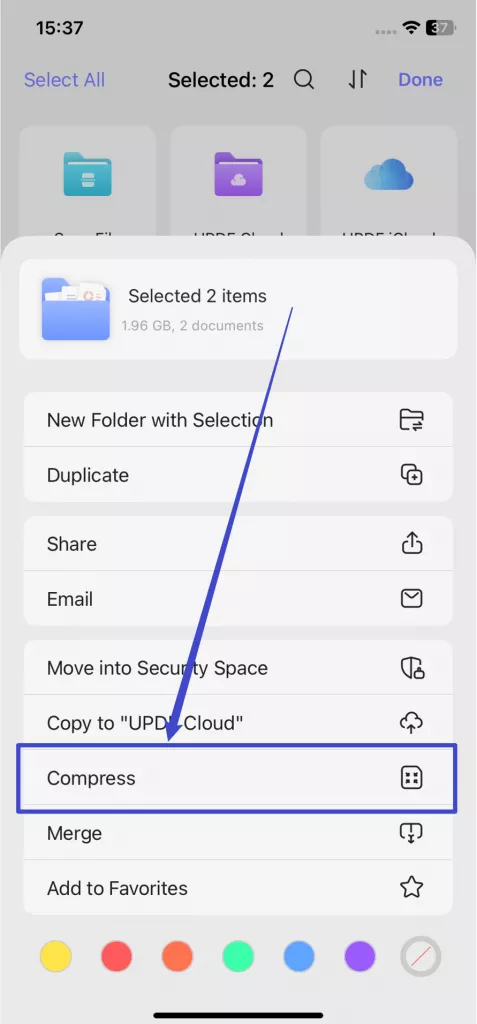
4. The ZIP file is now generated for you. You can rename the file or share it with friends as requisite. You can also perform various other file actions.
Want to Uncompress a ZIP File?💡
Except for compressing a file, UPDF for iOS has many other features, you can read this review article to learn more. To enjoy all these features without any limitations, you can upgrade to the pro version at a very low price.
Polish Your PDF before Compressing Them!
Before I compress any PDF, I always make a habit of revising and polishing it thoroughly — and that’s when UPDF comes in handy. Beyond its compression feature, UPDF offers a wide range of advanced PDF tools that make document handling much easier.
In the following, I’ll share some of the features that I’ve personally found impressive and enjoyable to use.
- View PDF (⭐⭐⭐): It provides an enhanced reading experience with single/two-page scrolling, split screen, and light/dark mode. I can also change the background color to "Eye Protection Mode".
- Annotate PDFs (⭐⭐⭐⭐): Highlight content, drop a comment, draw a shape, and mark up your PDF however you like.
- Fill & Sign PDF (⭐⭐⭐⭐): I can't believe that I can fill PDF forms and sign PDFs digitally or electronically.
- UPDF AI (⭐⭐⭐⭐⭐): It comes with a ChatGPT-powered AI assistance that can assist me in reading and consuming PDF content by providing summaries, translations, explanations, or chat-based questions.
Due to space limitations, my introduction can only cover so much. UPDF has many more powerful features to explore. If you are interested, feel free to watch the video below for a deeper insight into what it can do.
Also, you can read this review article to learn more.
Want to Improve your Productivity?🚀
Conclusion
In this article, we have learned a comprehensive technique to compress a file on an iOS device. While staying on an iPhone or iPad, you can execute such diverse tasks without feeling any difficulty. This has been made possible by UPDF, a cognitive PDF editor designed to provide different functionalities. With this unique tool, you can easily compress your required files in an instance. Just click the below button to download UPDF and give it a try now.
Windows • macOS • iOS • Android 100% secure





 Enola Miller


