 UPDF
UPDF
 UPDF for Windows
 UPDF for Mac
 UPDF for iPhone/iPad
 UPDF for Android
 UPDF AI Online
 UPDF Sign
 Edit PDF
 Annotate PDF
 Create PDF
 PDF Form
 Edit links
 Convert PDF
 OCR
OCR PDF to Word
 PDF to Image
 PDF to Excel
 Organize PDF
 Merge PDF
 Split PDF
 Crop PDF
 Rotate PDF
 Protect PDF
 Sign PDF
 Redact PDF
 Sanitize PDF
 Remove Security
 Read PDF
 UPDF Cloud
 Compress PDF
 Print PDF
 Batch Process
 About UPDF AI
 UPDF AI Solutions
 AI User Guide
 FAQ about UPDF AI
 Summarize PDF
 Translate PDF
 Chat with PDF
 Chat with AI
 Chat with image
 PDF to Mind Map
 Explain PDF
 PDF AI Tools
 Image AI Tools
 AI Chat Tools
 AI Writing Tools
 AI Study Tools
 AI Working Tools
 Other AI Tools
 PDF to Word
 PDF to Excel
 PDF to PowerPoint
 Enterprise Solution
 Enterprise Sign
 Enterprise AI
 Enterprise Plan
 Enterprise User Guide
 Enterprise Webinar
 Banking
 Healthcare
 Insurance
 Legal
Legal Manufacturing
 Government
 Education Solution
 Customer Stories
 User Guide
 UPDF Tricks
 FAQs
FAQs UPDF Reviews
 Download Center
 Blog
Blog Newsroom
 Tech Spec
 Updates
 UPDF vs. Adobe Acrobat
 UPDF vs. Foxit
 UPDF vs. PDF Expert

When trying to delete a blank page in Word, do you find the header has been removed? Can't delete the last page? Or perhaps deleting a blank page affects the content of subsequent pages? You are not alone!
In this article, let's walk through a fast and easy method and some other attempts but success is not guaranteed to remove blank pages in Word. If deleting blank page shortcut key doesn't work or finding blank or missing pages among numerous pages is too difficult, UPDF comes to help with just a few simple clicks!
Windows • macOS • iOS • Android 100% secure
Part 1. Why Blank Pages Appear and Are Difficult to Delete?
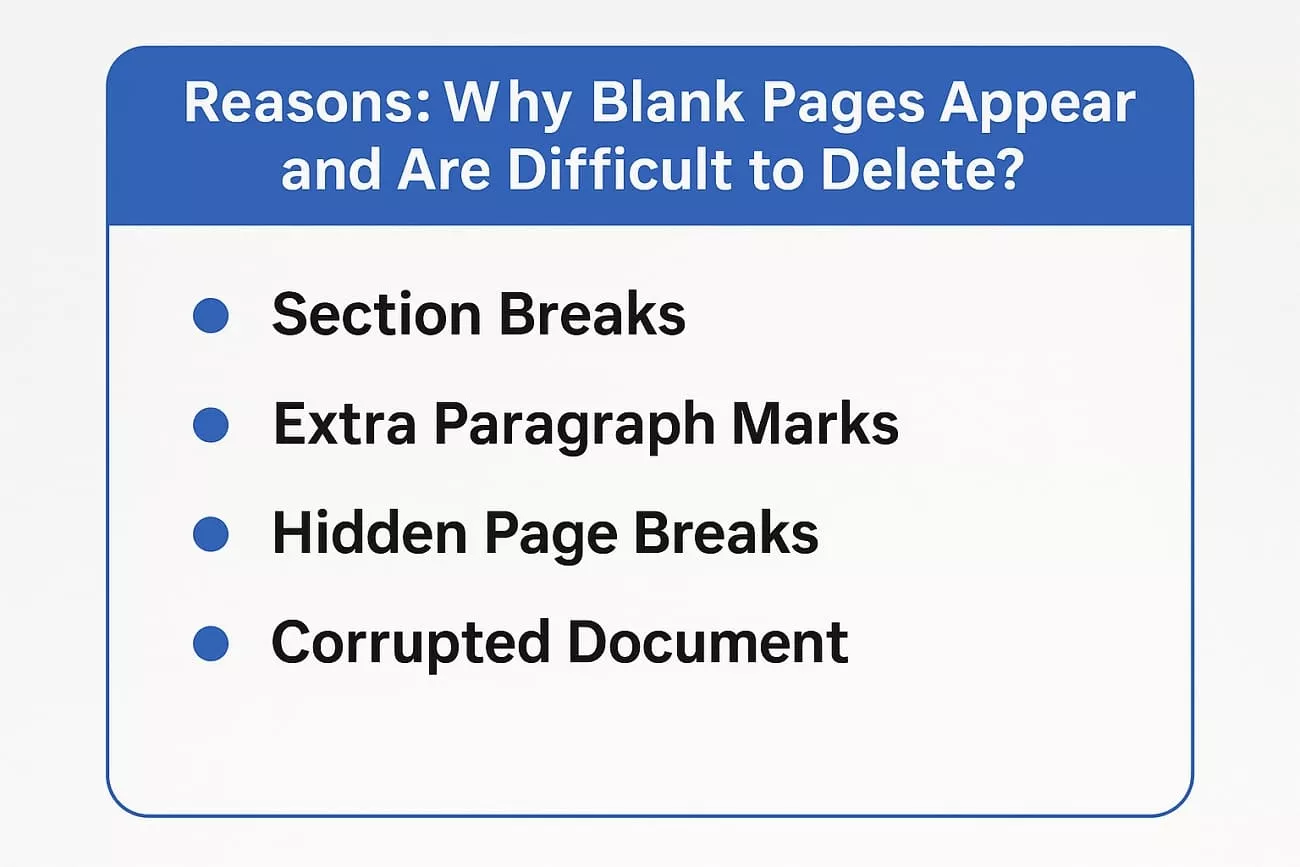
Before showing you how to remove blank page in Word, let me explain why they appear and why they can be so stubborn.
- Section Breaks: When I insert a section break in Word, it sometimes adds a blank page that does not go away with normal deletion methods.
- Extra Paragraph Marks: Pressing “Enter” too many times can leave hidden paragraph markers at the end that create lingering blank pages in my document.
- Hidden Page Breaks: I often miss manual page breaks since they hide easily, which makes unwanted blank pages appear in the middle or end of my file.
- Hidden End Paragraphs: Word automatically puts a final paragraph marker at the end and if it fills the last page, an extra blank page appears.
- Corrupted Document or Glitch: Sometimes my document gets corrupted or glitched, and I notice mysterious blank pages even after regular delete steps fail.
Part 2. How to Delete Empty Page in Word with a Simple Click? (100% Working❗)
After you pinpoint the reason for empty pages in Word, you can easily remove them. To answer the question, How can I delete blank page in Word, let me share the fast and time-saving method using AI.
UPDF’s Convert PDF feature allows me to convert a Word document into a PDF before making any changes. Then, we can easily remove the blank pages in UPDF without worrying about damaging the layout or formatting. This approach helps prevent common Word issues, such as shifting fonts and broken margins, to keep everything on point. Follow these simple steps given below:
Windows • macOS • iOS • Android 100% secure
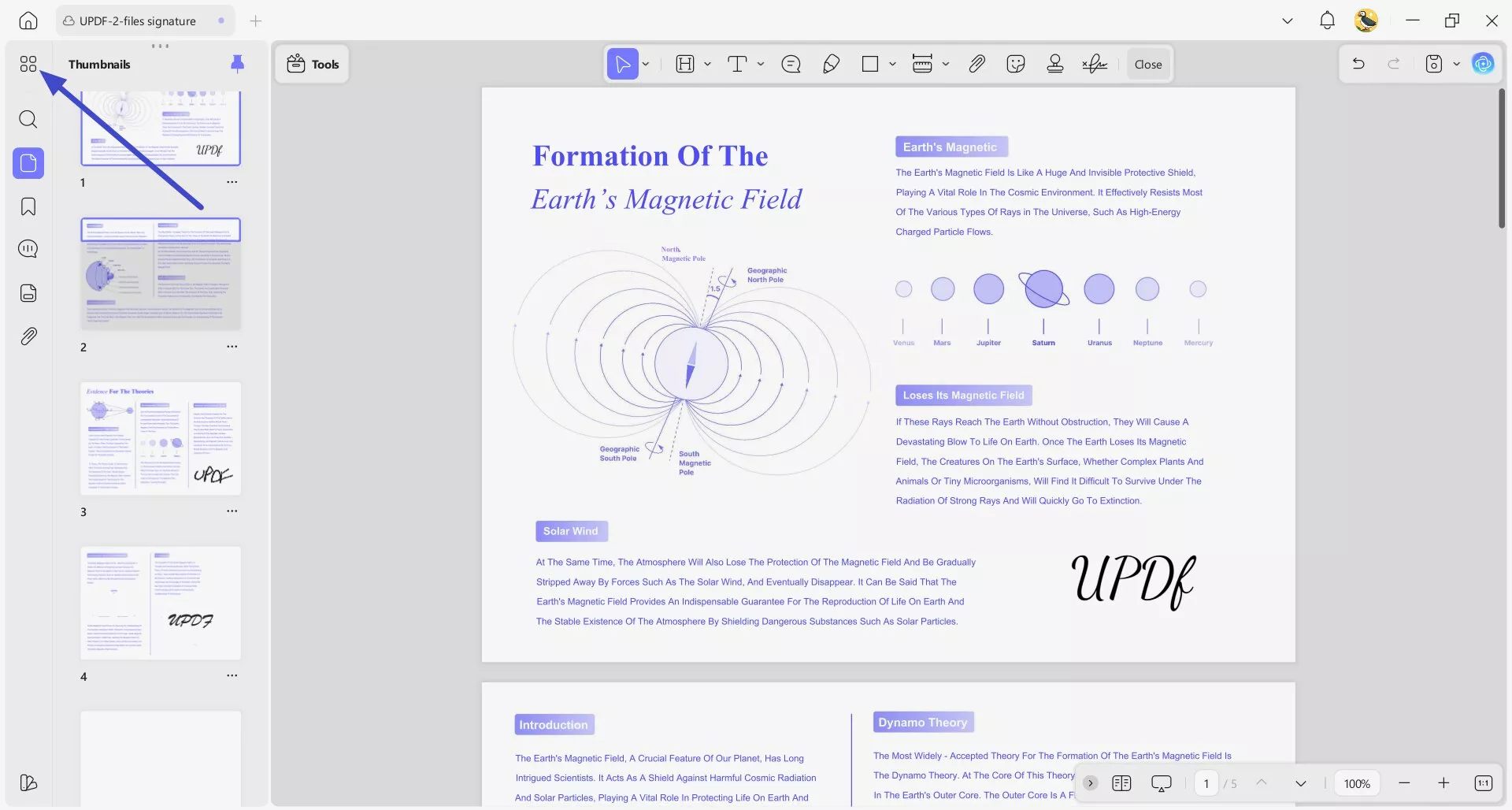
Step 1. Access Organize Pages in UPDF
First off, press the “Open File” button on the main interface to import a Word file or drag and drop the file into the home page. This will automatically convert a Word file into a PDF. Once you import a PDF with blank pages, click the “Organize Pages” tool in the top left corner.
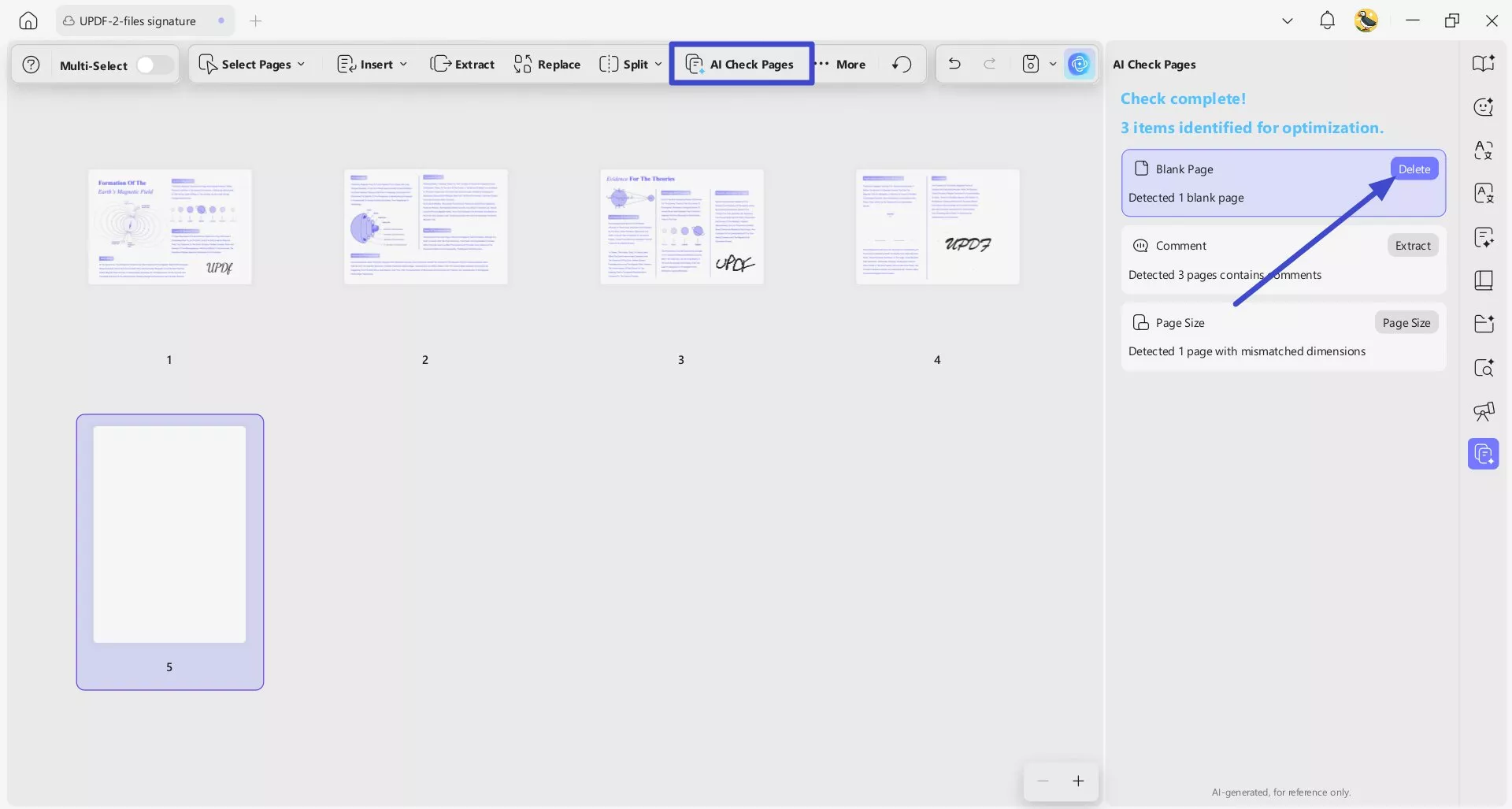
Step 2. Choose AI Check Pages
Next, press the “AI Check Pages” button in the upper bar. It will scan your PDF and highlight items for optimization. Afterwards, press the “Delete” button in front of Blank pages to remove the pages.
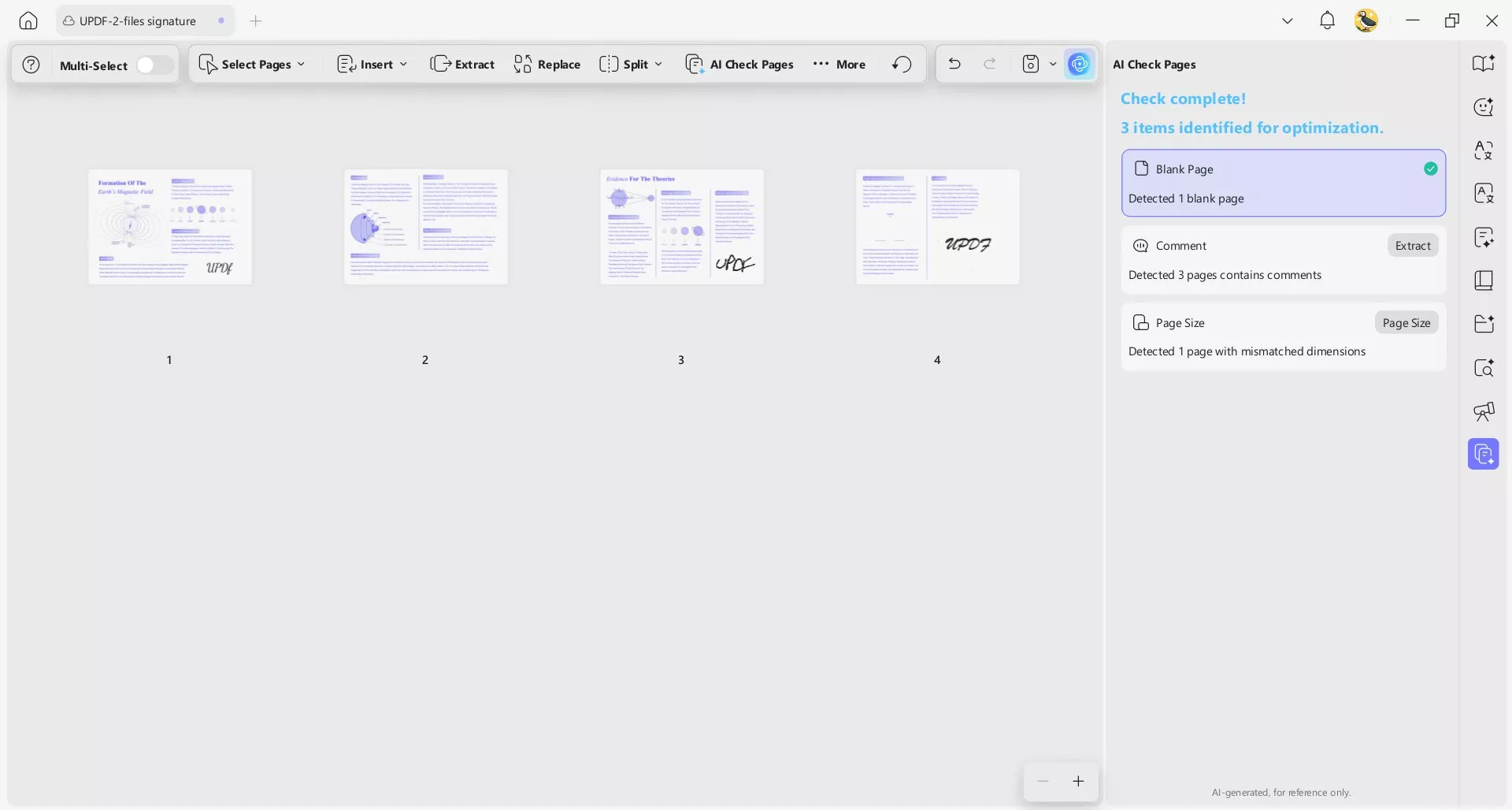
Step 3. Verify Removed Blank Page
Lastly, check if the blank pages are removed from the PDF.
Except using UPDF AI function, you can also delete them by yourself.
Step 4. Delete Blank Pages
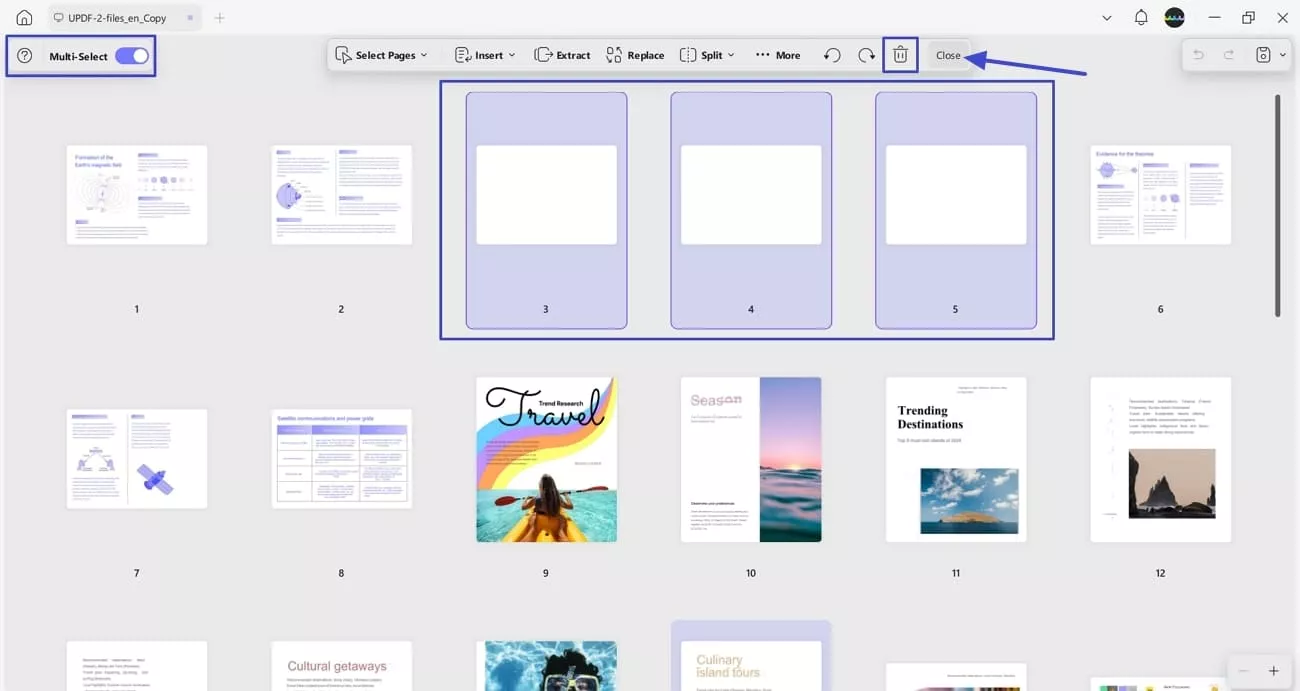
Turn on the “Multi-Select” mode and click on the blank pages to select them. Next, hit the “Delete” button to delete the empty pages and press the “Close” button to exit the organize mode.
Step 5. Convert PDF to Word Again
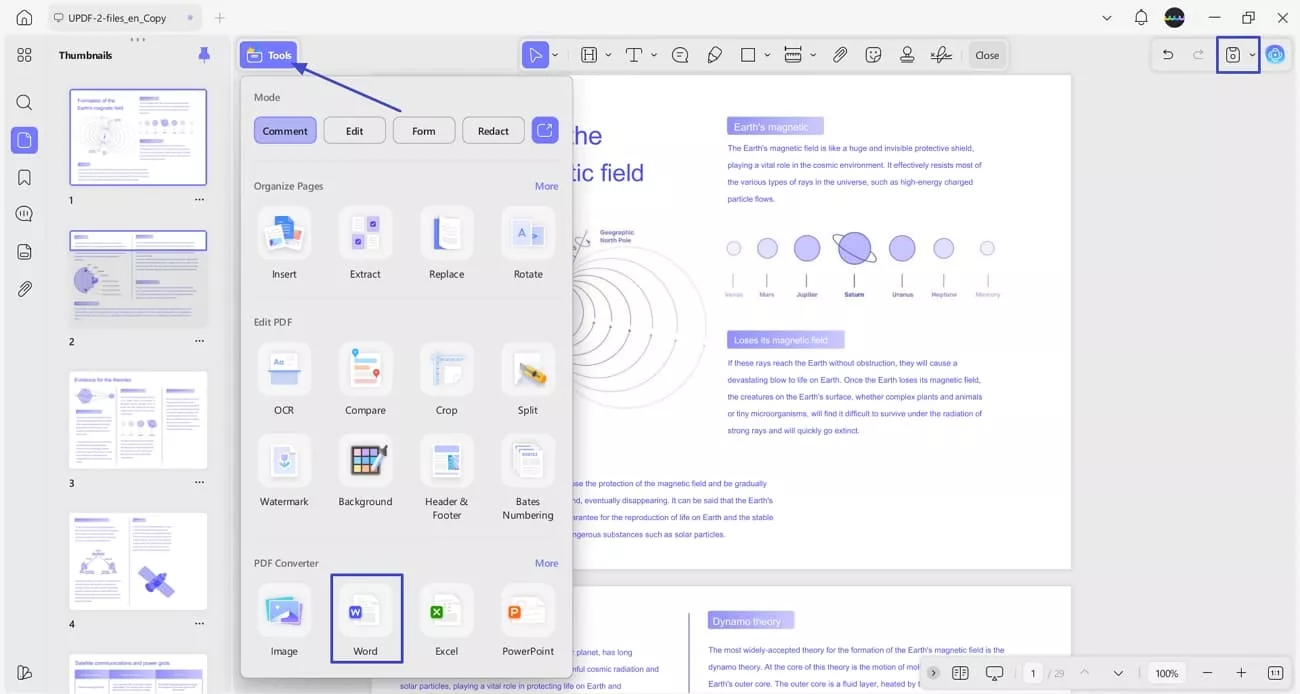
Lastly, hit the “Tools” button and press the “Word” option under the “PDF Converter” section to convert into Word again. Click on the “Save” button to save the Word file without empty pages.
Windows • macOS • iOS • Android 100% secure
Part 3: How to Delete Blank Pages in Word Manually
When users wanted to know how to remove blank page in Word without any third-party tool, we can try doing it manually within Word. However, this method can accidentally remove important content if you don’t focus on the data stored in a Word file. Go through the instructions below.
1: Delete Blank Pages Directly in Word
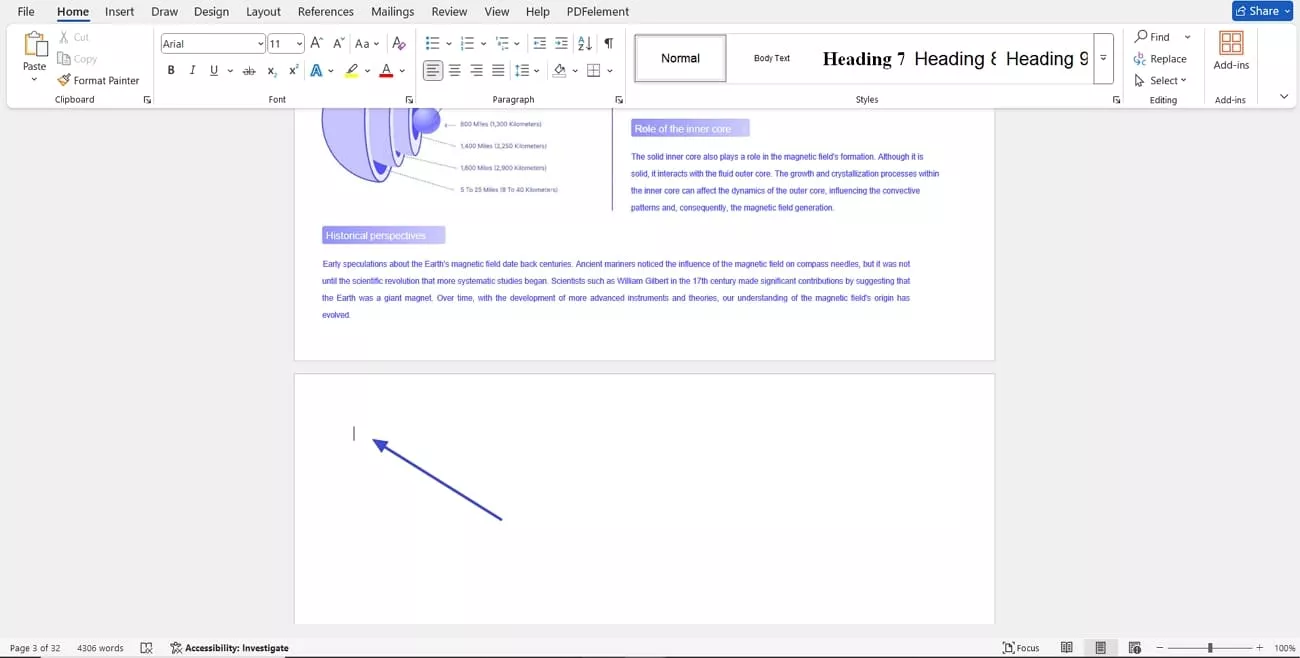
Instructions. Open the file with blank pages in Word and click on the empty page. Next, keep pressing the “Delete” key on your keyboard until all the blank spaces are filled. Make sure to stop pressing the key once the data comes on top.
2: Use Paragraph Marks in Word
If you want to use another method to delete blank pages in your Word document, follow the instructions below to see how you can use Paragraph Marks:
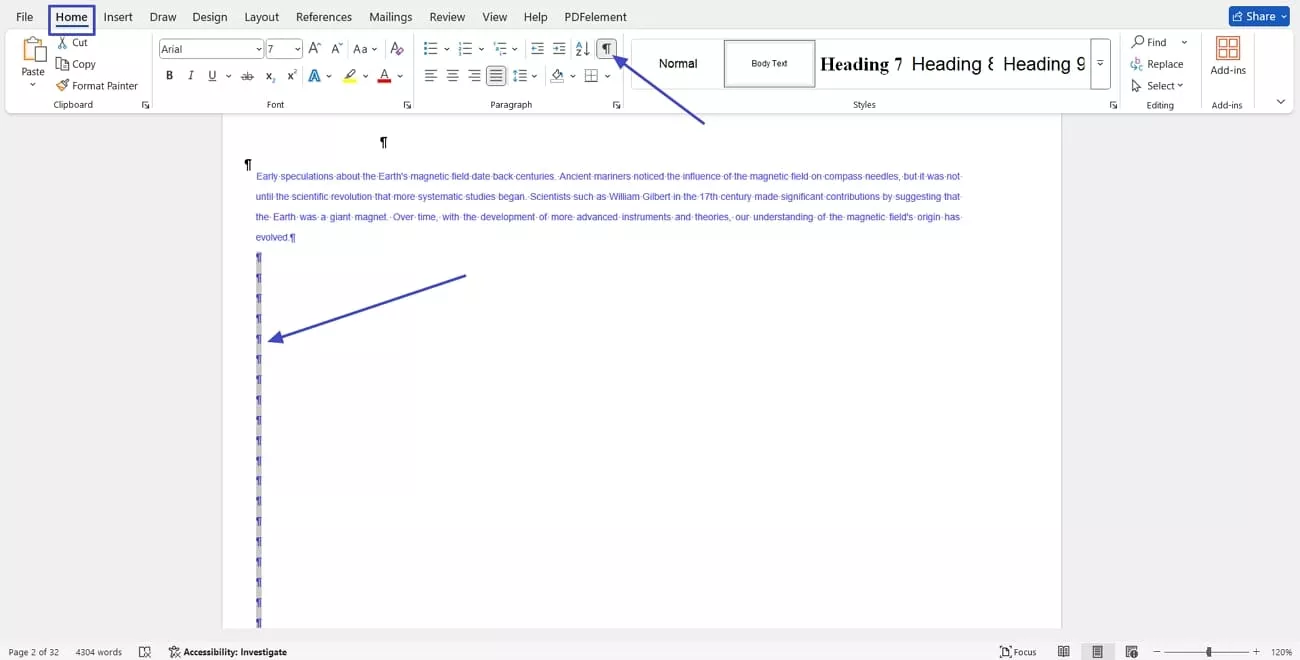
Instructions. After you open Word document, click on the “Home” tab and press the “Paragraph Marks” option. This will show the hidden symbols like paragraph marks and page breaks. Highlight the paragraph marks and hit the “Delete” key to remove empty pages.
3: Use the Navigation Pane
If you prefer a visual approach, adhere to the instructions below to learn how to remove blank page in Word using the Navigation Pane:
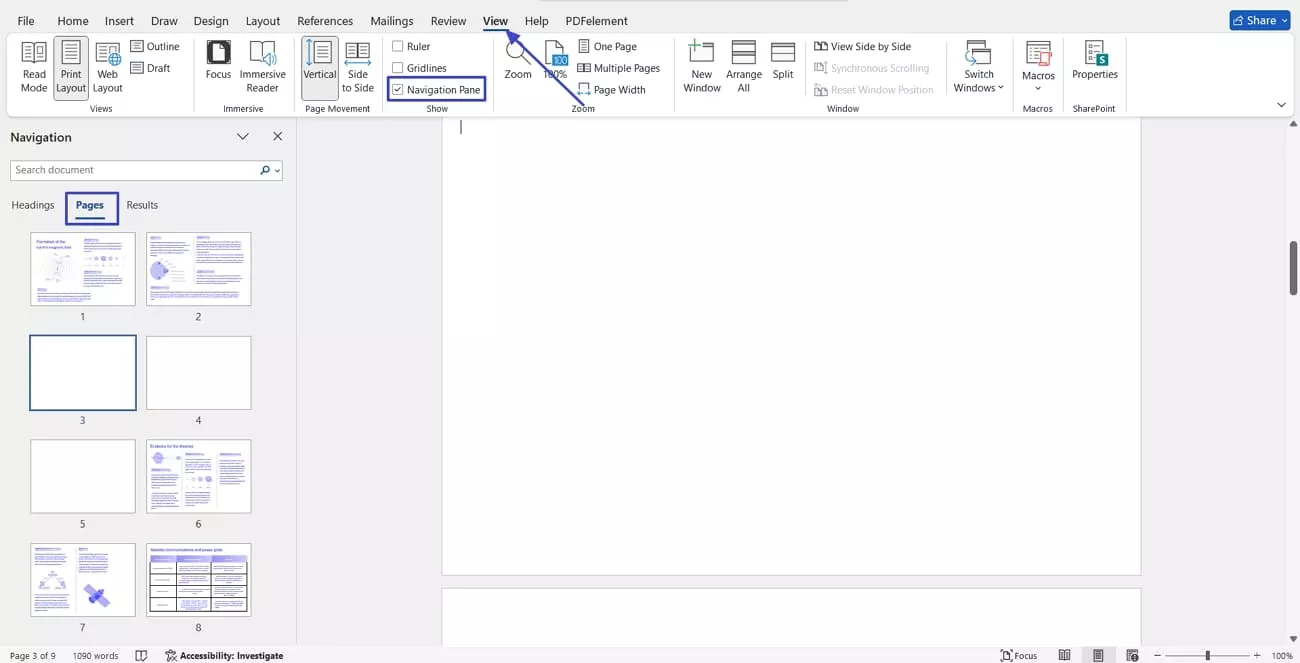
Instructions. First off, hit the “View” tab and tick the “Navigation Pane” option on the “Show” section to view a navigation panel. Next, click on the “Pages” tab and select the empty page. Press the “Delete” key to delete it and repeat this method for every blank page.
4: Use Ctrl + Backspace Shortcuts
For users who like using keyboard shortcuts, go through the instructions below to see how Ctrl + Backspace can remove blank pages quickly:
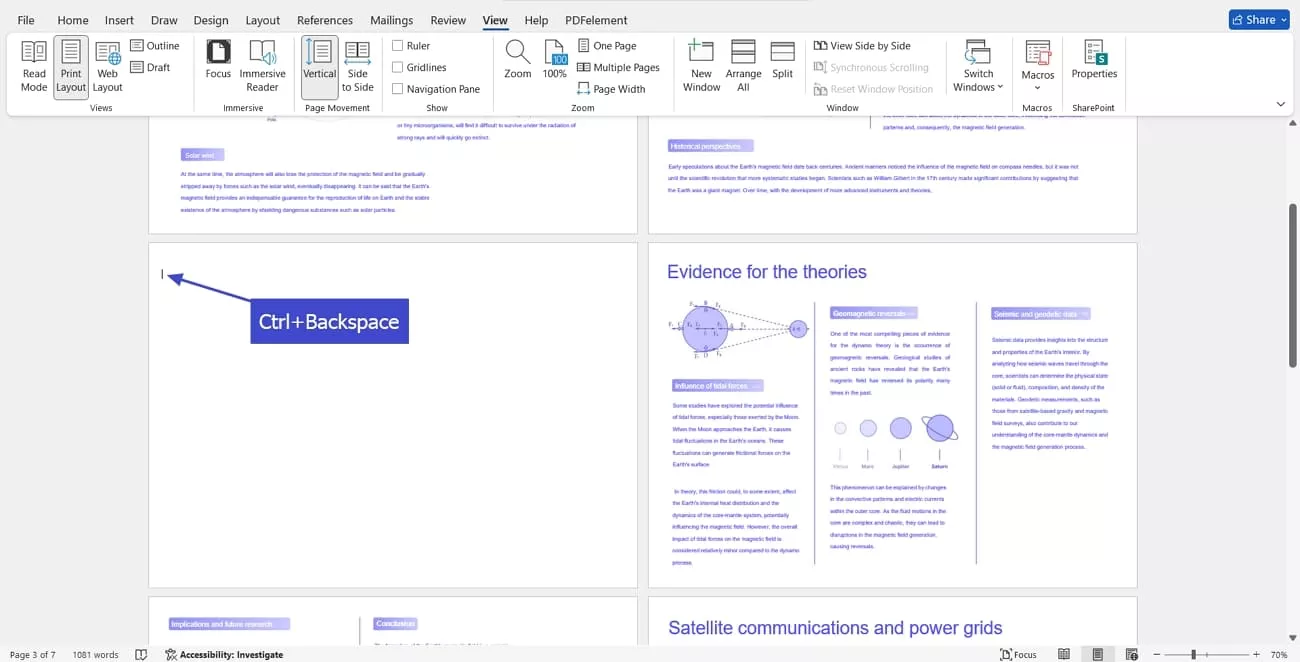
Instructions. Click on the empty page in your Word document and press the “Ctrl+Backspace” keys together. This method will delete the whole blank page at once but make sure to press the keys once to avoid deletion of important data.
5: Use Line Spacing
Sometimes, incorrect spacing creates unwanted pages in your Word file. Adhere to the steps below to learn how to delete empty page in Word with line spacing adjustment.
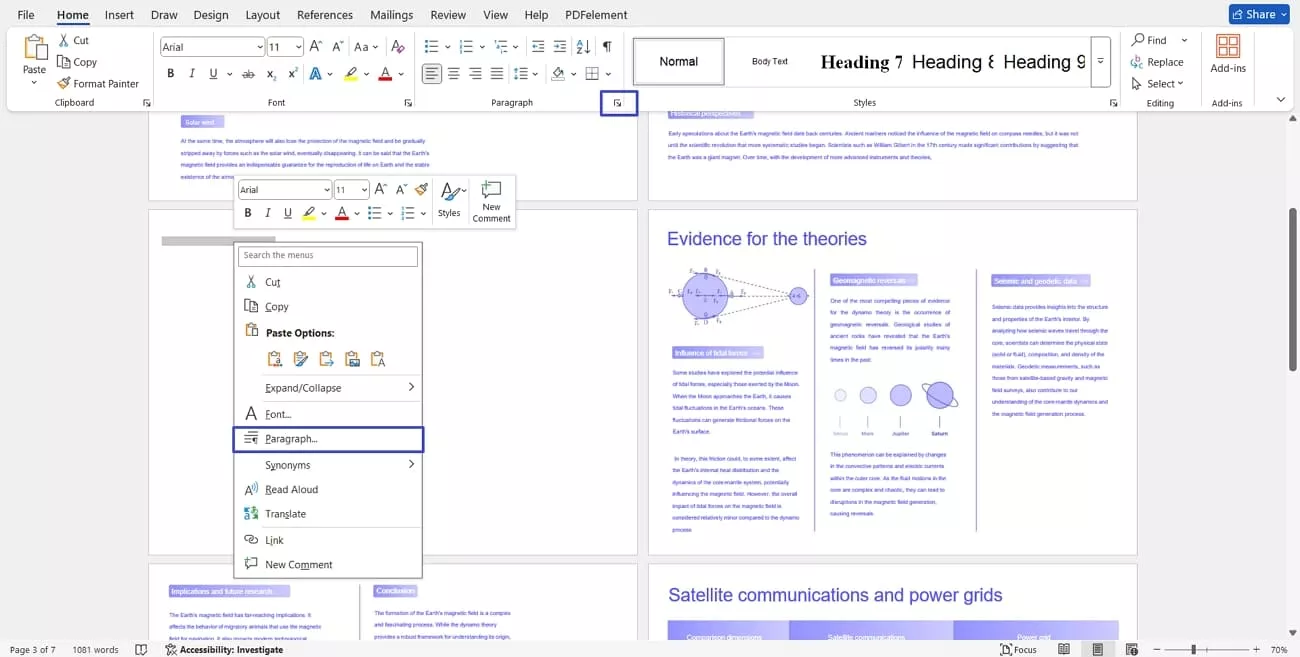
Step 1. Double-click the blank space at the beginning of the blank page and “Right-Click” to open a context menu. Next, hit the “Paragraph” option or press the “Paragraph Settings” button to open a pop-up window.
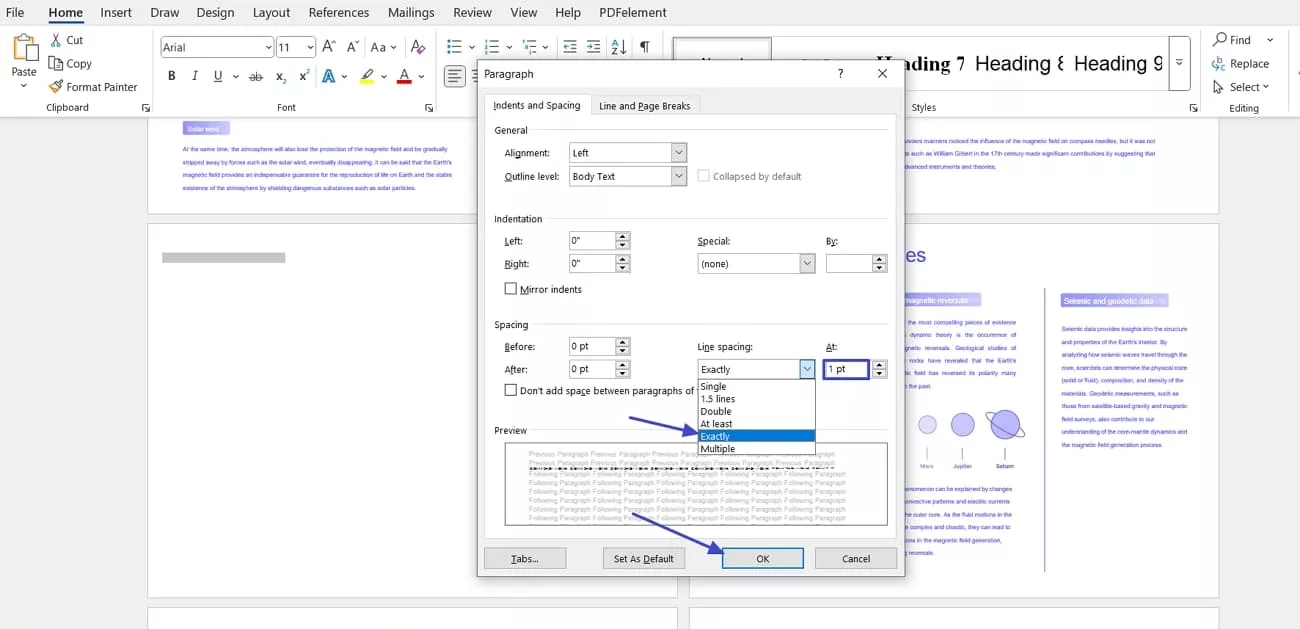
Step 2. Next, choose the “Exactly” option from the “Line Spacing” drop-down menu and set the spacing to “1 pt.” Hit the “OK” button to apply the setting and remove the blank page.
6: Use Ctrl + G
To use the Ctrl + G trick to jump to a certain blank page and delete it immediately, follow the steps below:
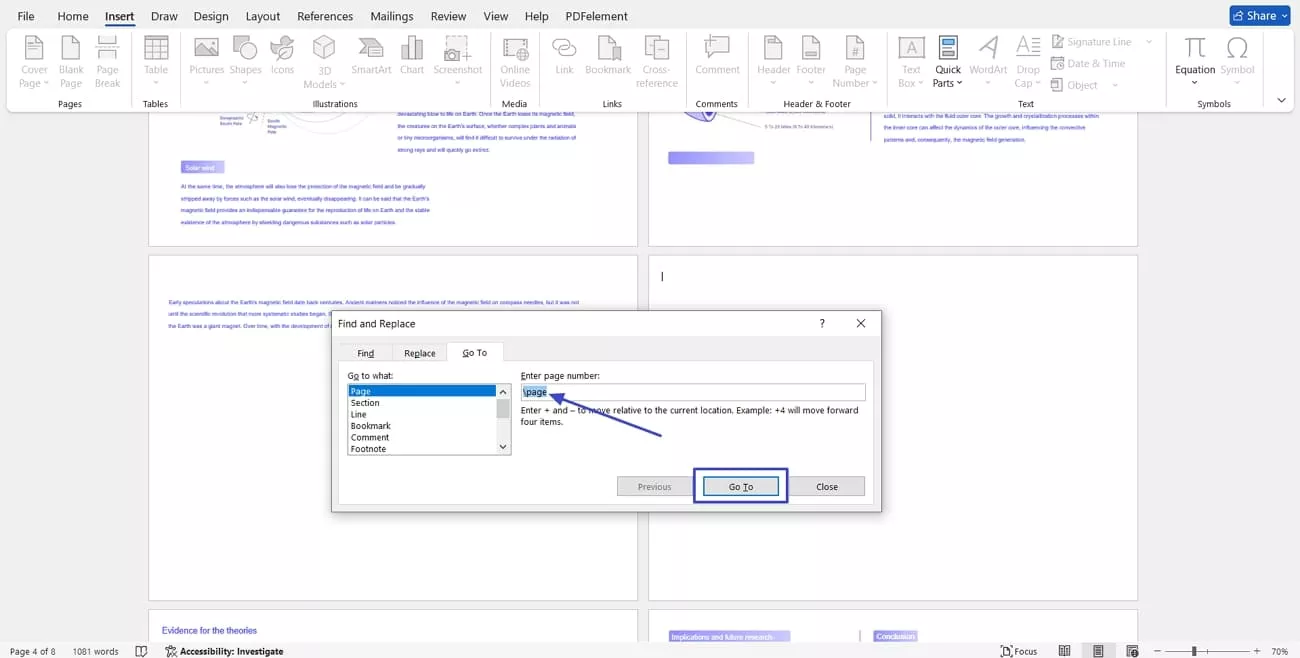
Instructions. Once you open your Word file, put your cursor at the beginning of the blank page and press the “Ctrl+G” keys together to open a pop-up window. Type “\page” in the text box and press the “Go To” option. Next, close the pop-up and press the “Delete” key to delete the empty page.
7: Use Outline View
When you need a clearer overview of your document’s structure, follow the steps below to use the Outline View method:
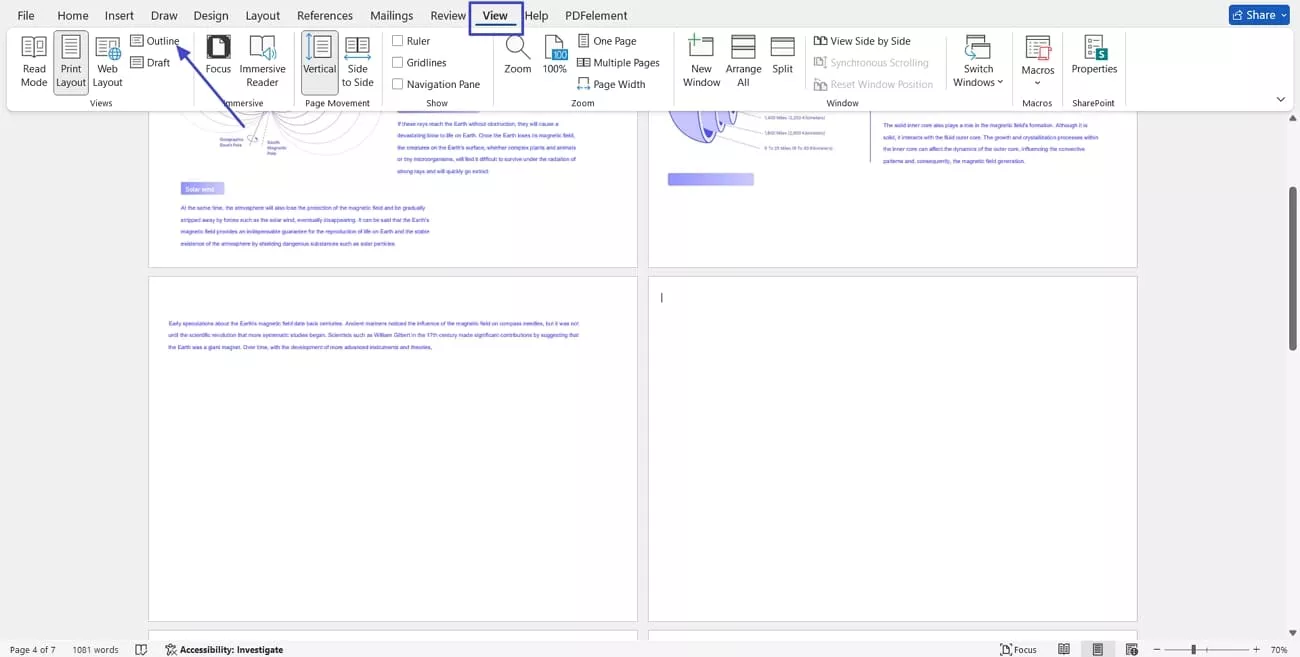
Step 1. First, click on the “View” tab and hit the “Outline” option to view the outline of your document.
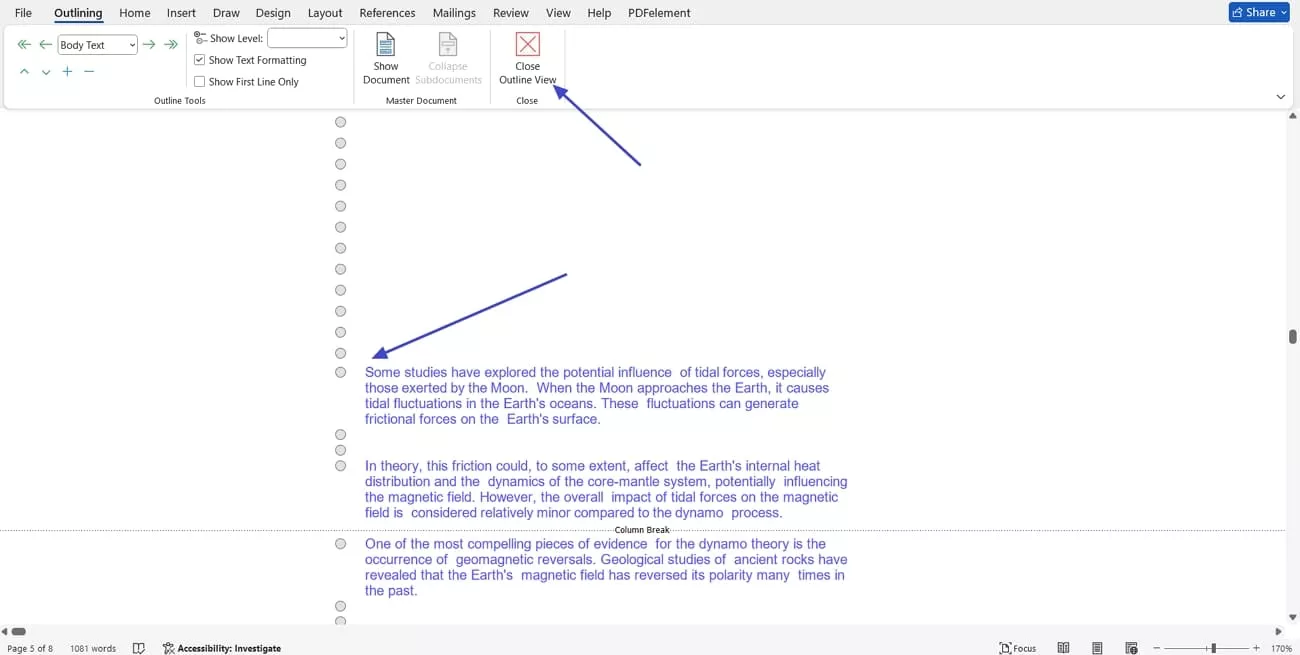
Step 2. Put the cursor at the end of the blank space and hold the “Backspace” key until the empty space is deleted. Press the “Close Outline View” button to get back to normal view.
Bonus Tip: Use UPDF to Further Edit Your Word Documents
After trying multiple ways to answer the “how can I delete blank page in Word” query, using UPDF is the most convenient way. This is because you don’t need to worry about damaging the layout or formatting after deleting pages in UPDF. But mishandling page deletion in Word can ruin the layout or content. UPDF is a PDF document manager that converts any format into PDF automatically after it is uploaded.
It offers advanced PDF editing and management features, which helped me improve my documents’ layout, add annotations, and reorganize pages after removing the blank ones.
Windows • macOS • iOS • Android 100% secure
Key Features
- Editing PDF: We can easily edit the PDF text to make any amendments to the content. UPDF also allows me to change the size, color, and adjust the spacing of the text in PDF.
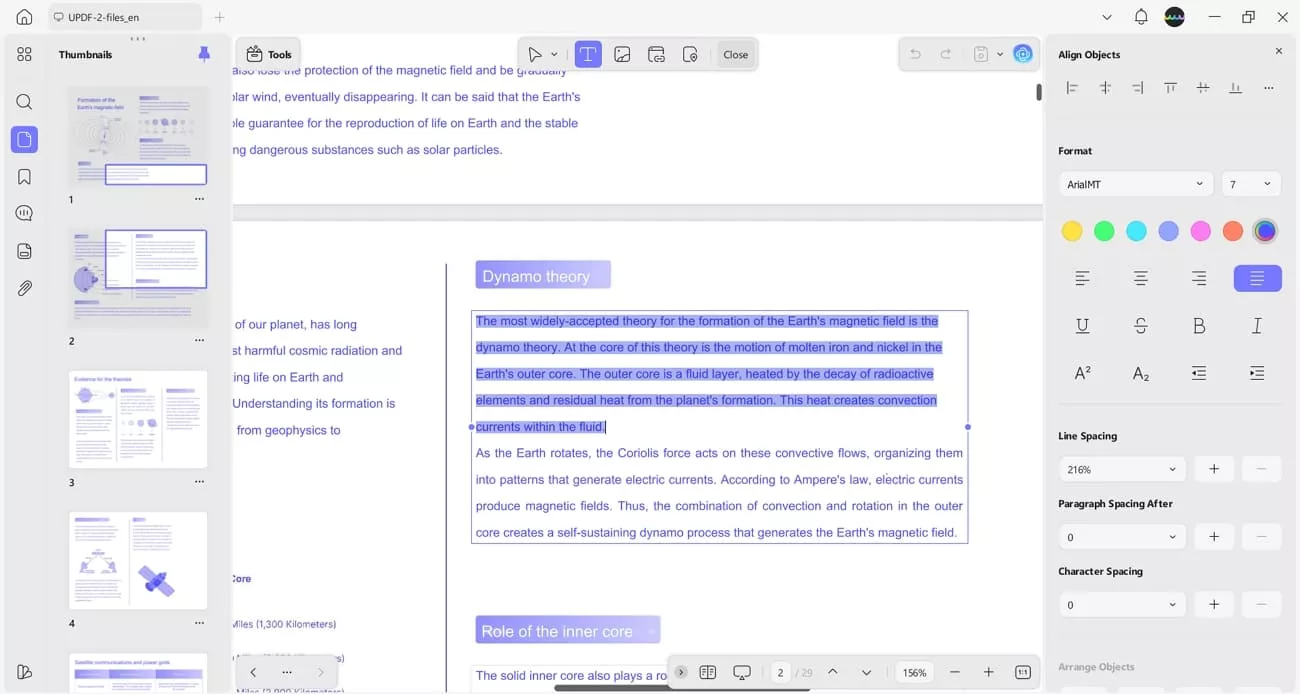
It allows me to adjust the size and crop the image in my PDF document.
- Annotate the PDF: UPDF allows me to annotate PDF documents by highlighting the text and adding comments or sticky notes for instructions.
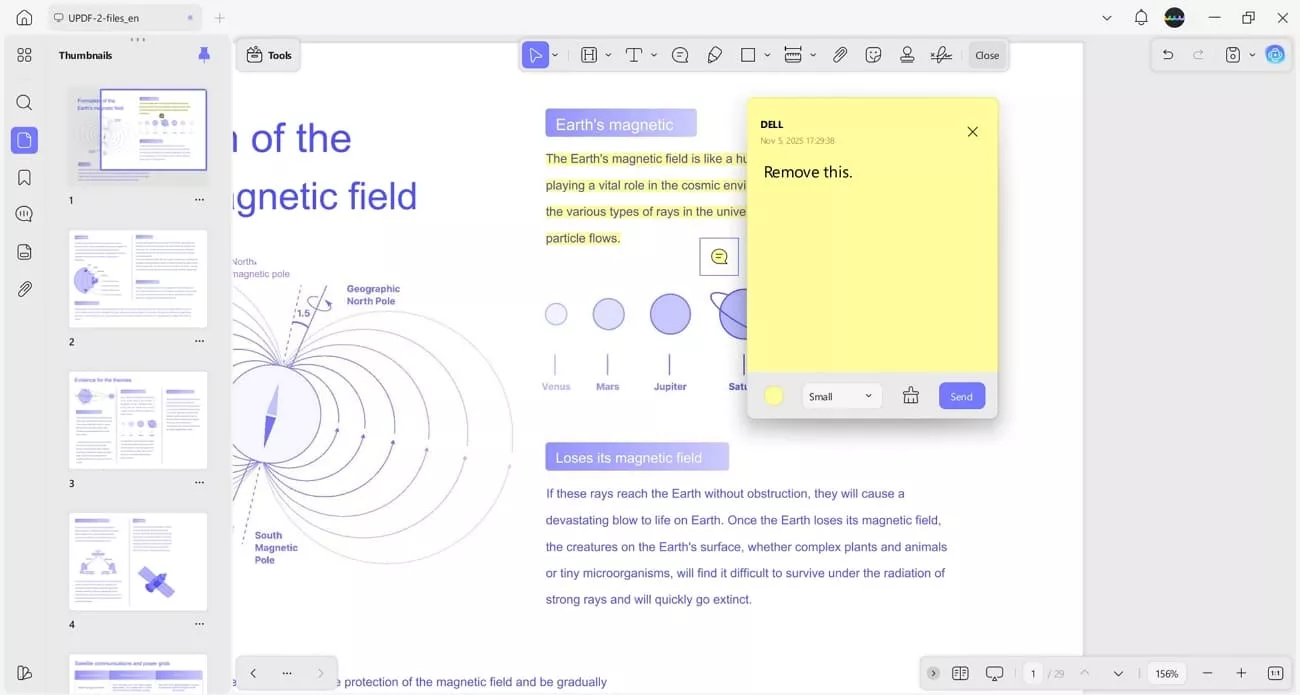
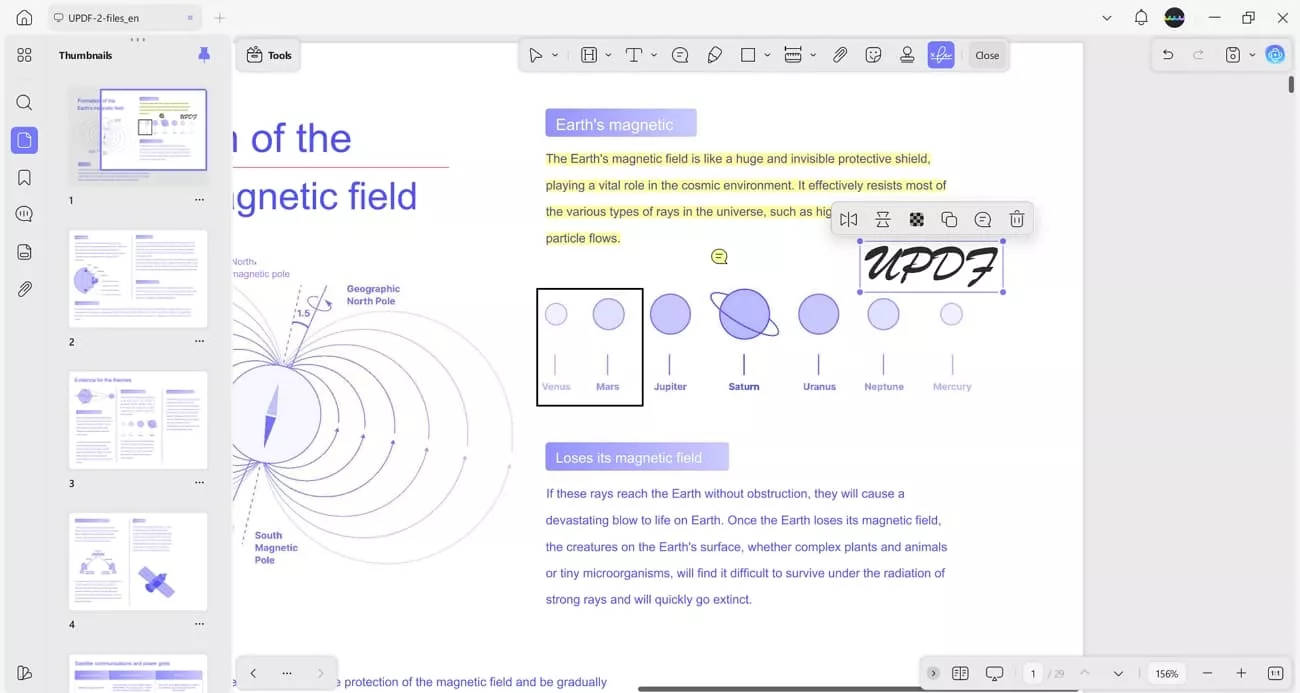
Further, it allows me to add markups in shape form and insert signatures to give a personalized touch to my PDFs.
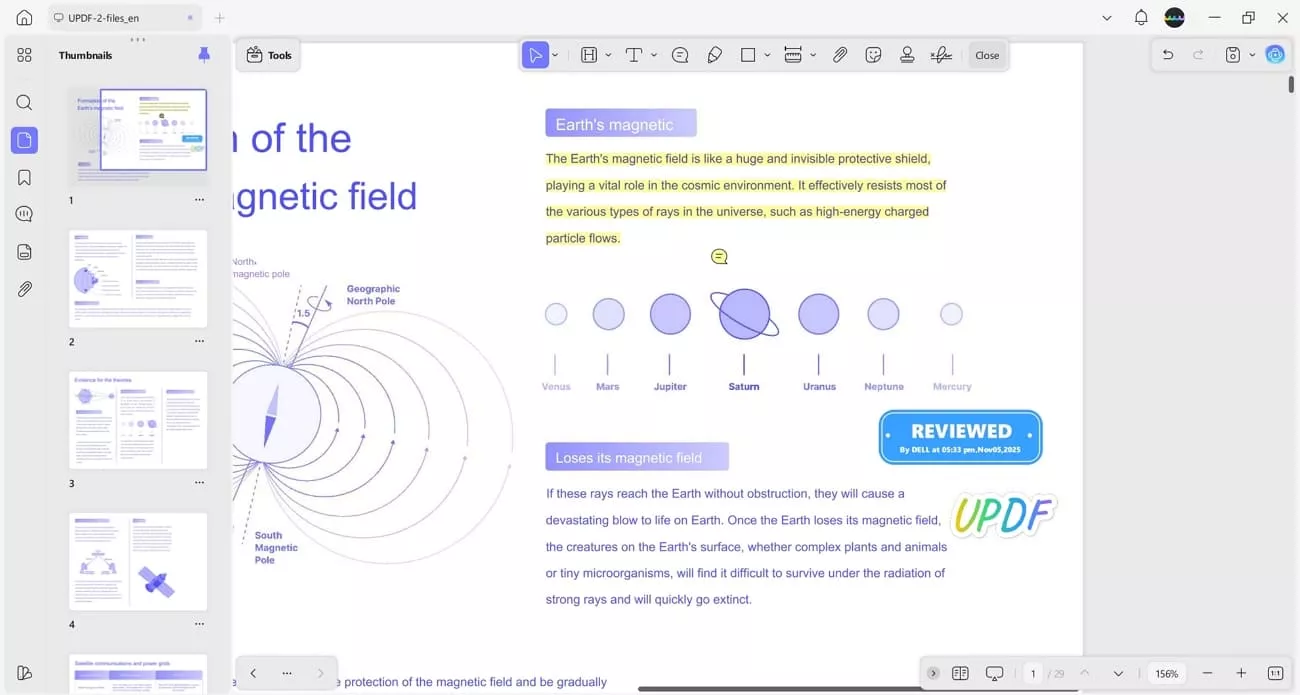
I can also add custom stamps and stickers with UPDF.
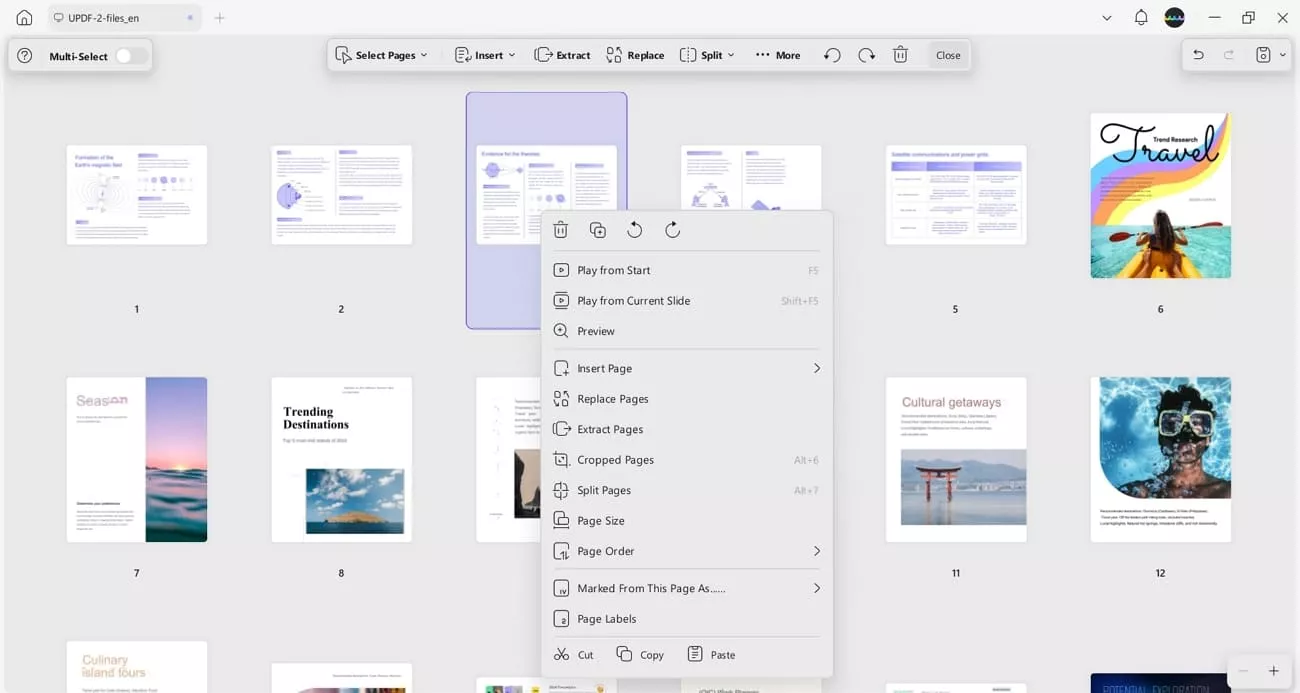
- Organize PDF: It allows me to crop, rotate, split, extract, and merge pages to give me complete control over the structure and flow of my PDFs.
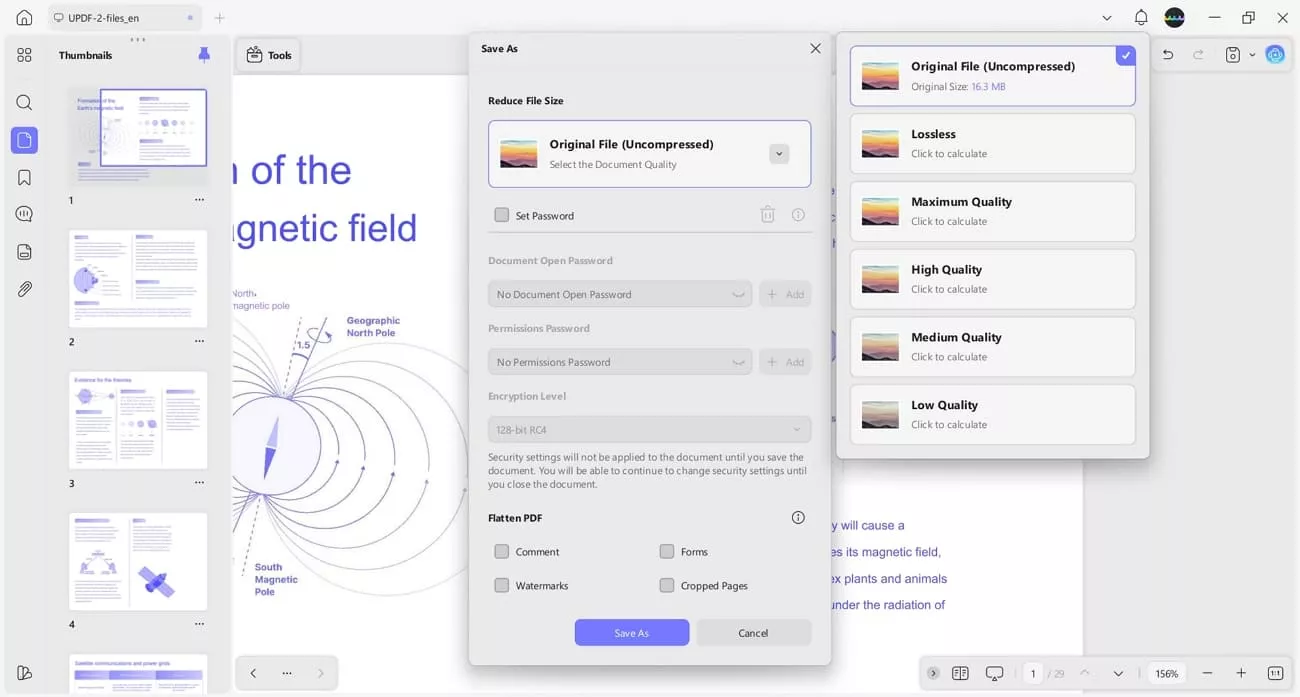
- Compress PDF: I can reduce the size of large PDF files to a manageable size without altering the text and images with the compress PDF feature.
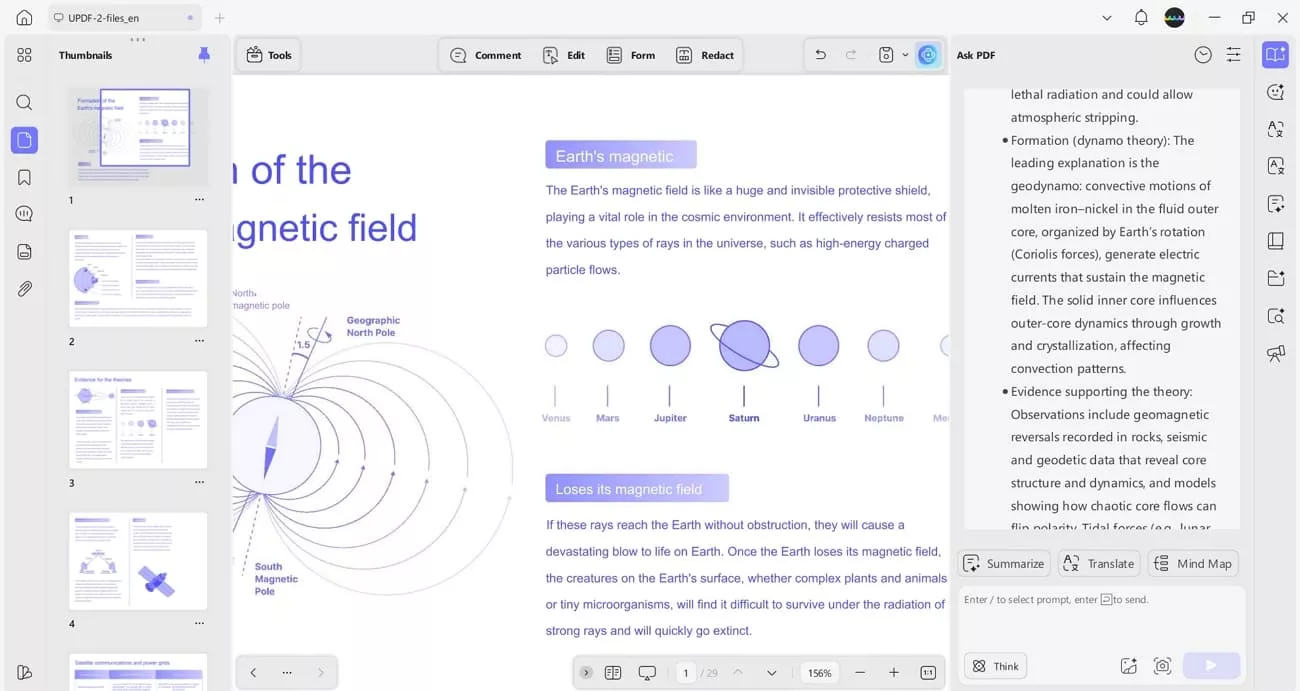
- Chat with PDF (UPDF AI): UPDF AI allows me to chat with a PDF and summarize the whole PDF in summarized content.
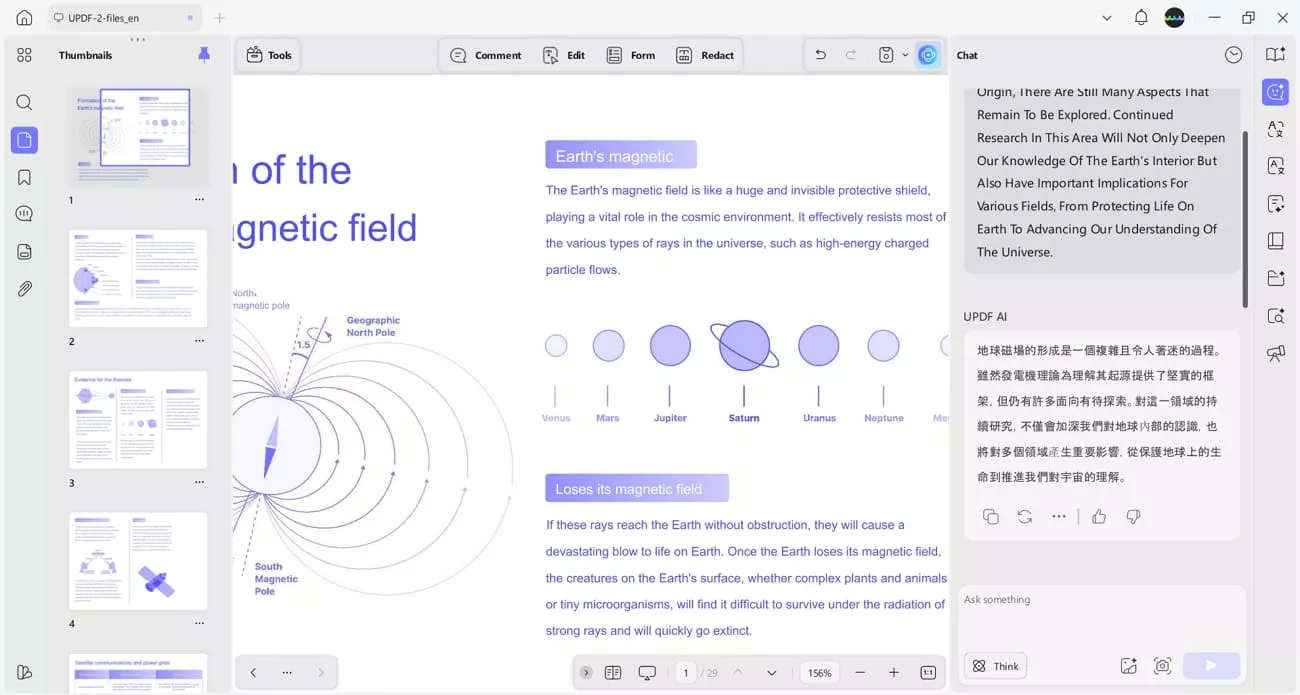
I can also translate my PDFs into 12+ languages with the sample chat feature.
Windows • macOS • iOS • Android 100% secure
Conclusion
In this article, we've explored several practical methods on how to delete empty page in Word while keeping the document’s formatting perfectly intact. While Word offers multiple manual options, they can sometimes be time-consuming or unreliable. If you also face these limitations in Word, UPDF is the one-stop solution to remove blank pages and continue editing your files.
Windows • macOS • iOS • Android 100% secure







 Engelbert White
 Lizzy Lozano


 Enya Moore