 UPDF
UPDF
 UPDF for Windows
 UPDF for Mac
 UPDF for iPhone/iPad
 UPDF for Android
 UPDF AI Online
 UPDF Sign
 Edit PDF
 Annotate PDF
 Create PDF
 PDF Form
 Edit links
 Convert PDF
 OCR
OCR PDF to Word
 PDF to Image
 PDF to Excel
 Organize PDF
 Merge PDF
 Split PDF
 Crop PDF
 Rotate PDF
 Protect PDF
 Sign PDF
 Redact PDF
 Sanitize PDF
 Remove Security
 Read PDF
 UPDF Cloud
 Compress PDF
 Print PDF
 Batch Process
 About UPDF AI
 UPDF AI Solutions
 AI User Guide
 FAQ about UPDF AI
 Summarize PDF
 Translate PDF
 Chat with PDF
 Chat with AI
 Chat with image
 PDF to Mind Map
 Explain PDF
 PDF AI Tools
 Image AI Tools
 AI Chat Tools
 AI Writing Tools
 AI Study Tools
 AI Working Tools
 Other AI Tools
 AI Bookmark Generation
 AI Bookmark Summary
 AI Watermark Generation
 AI Background Generation
 AI Sticker Generation
 AI Stamp Generation
 AI Editing Suite
 UPDF Copilot
 AI Page Management
 AI Semantic Search
 PDF to Word
 PDF to Excel
 PDF to PowerPoint
 Enterprise Solution
 Enterprise Sign
 Enterprise AI
 Enterprise Plan
 Enterprise User Guide
 Enterprise Webinar
 Banking
 Healthcare
 Insurance
 Legal
Legal Manufacturing
 Government
 Education Solution
 Customer Stories
 User Guide
 UPDF Tricks
 FAQs
FAQs UPDF Reviews
 Download Center
 Blog
Blog Newsroom
 Tech Spec
 Updates
 UPDF vs. Adobe Acrobat
 UPDF vs. Foxit
 UPDF vs. PDF Expert

As a researcher, you must know the struggle of spending hours searching for academic papers, only to find that they don't match the quality you need. Web of Science solves this problem by providing peer-reviewed, high-quality papers with advanced filtering options.
But given its range of features, many users find it a bit overwhelming at first. Therefore, in this guide, I will explain how the Web of Science paper search works with a complete step-by-step guide.
You will also learn about UPDF AI Online, an advanced AI platform that helps you find, compare, and analyze papers more productively. Visit it now to get started with a free trial!
Part 1. What Is Web of Science
Web of Science is a subscription-based search platform from Clarivate that allows you to find research papers from online scholarly databases. It indexes over 22,000 peer-reviewed journals across the sciences, arts, humanities, and more.
The platform offers two primary search methods, including Smart Search and Advanced Search. Smart Search uses AI to understand natural-language queries and find relevant results beyond exact keyword matches. Meanwhile, Advanced Search offers more controls to help you search more precisely. You can search by field tags such as author, title, and topic.
Advanced Search also allows you to use Boolean operators and set combinations for building more complex queries. After searching, you can refine results with dedicated filters and view the full text if available. You can also download the paper in PDF format for deeper study.
Part 2. How to Search for Papers in Web of Science
The workflow of the Web of Science paper search is pretty simple if you are already familiar with academic search platforms. Simply, go to the Web of Science page on the Clarivate website. Alternatively, you can access it through your university's digital library.Then, follow these steps to understand how to search papers in Web of Science.
1. Using the Smart Search Tool
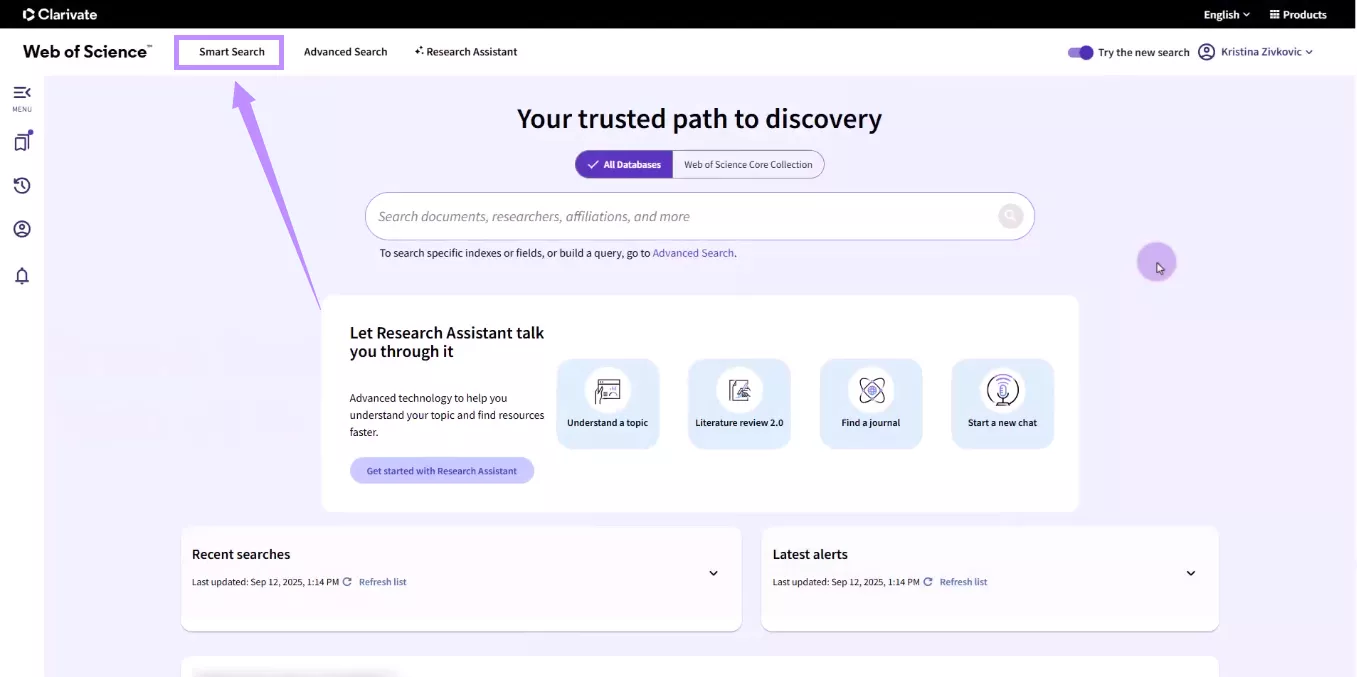
Step 1. Once you're in the platform, select "Smart Search" from the top
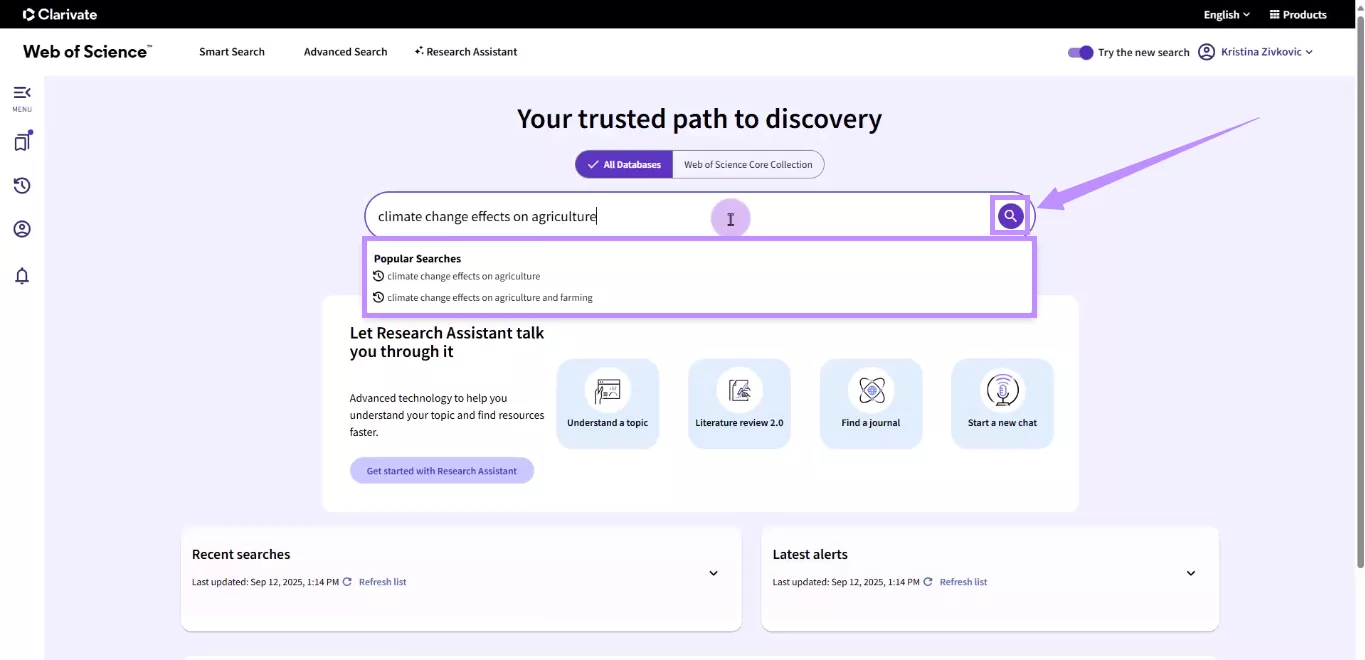
Step 2. Type in your search query in the prompt box and press the "Search" icon to send it. Alternatively, you can choose from popular searches suggested by the AI.
2. Finding Papers with Advanced Search
Step 1. If you want more control over the search, select "Advanced Search" from the top. Then, choose the "Documents" tab to find papers.
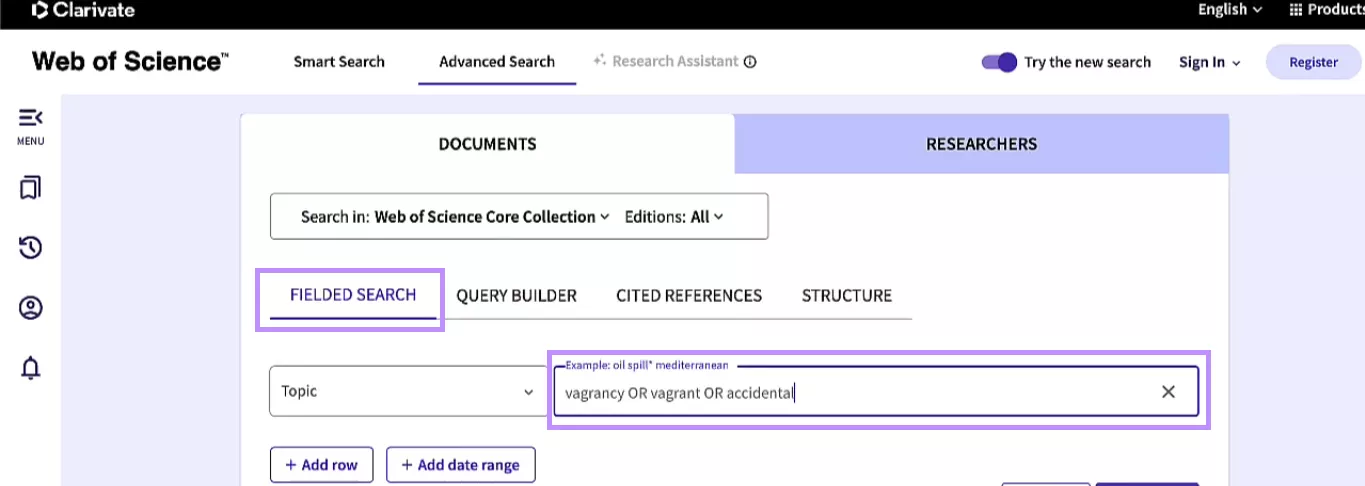
Step 2. Select the "Fielded Search" option. Then, type the keywords related to your search query. You can add multiple related keywords separated by Boolean operators such as "OR."
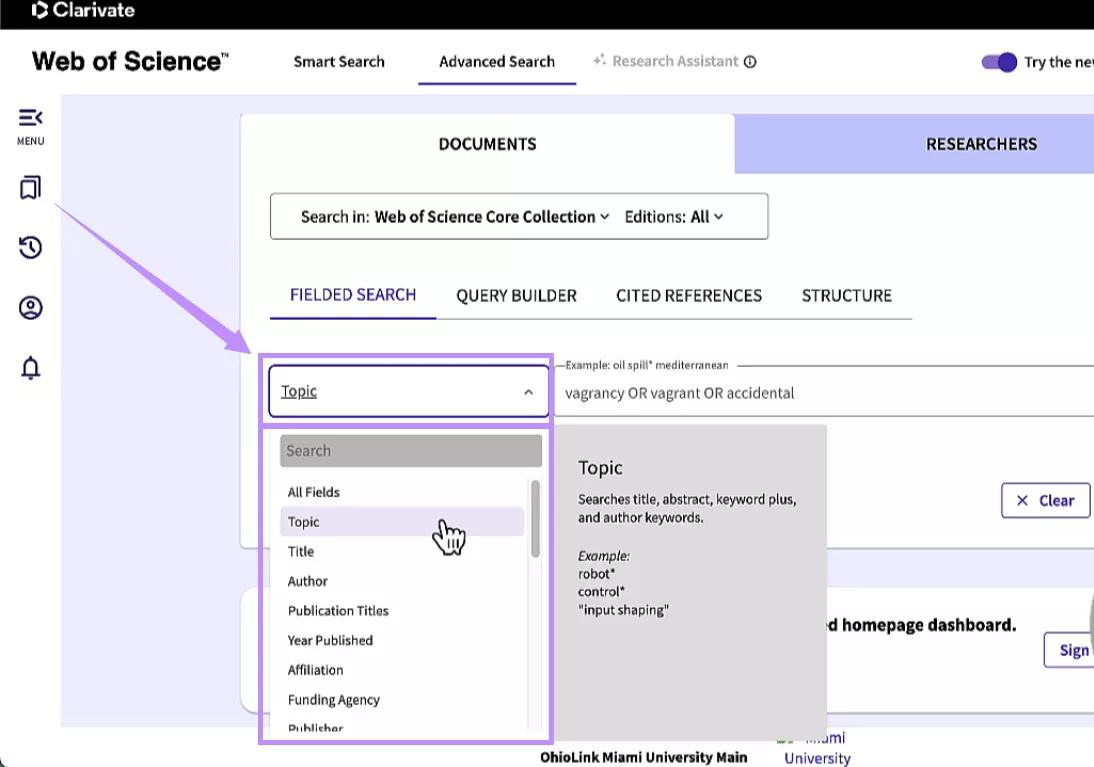
Step 3. Click the dropdown menu to select the type of fields you want to search. You can choose between topic, title, author, year of publication, and more. Once done, click the "Search" button.
3. Managing Paper Search Results
Now that you know how to search for paper in Web of Science, here's how you can sort these results to find the paper you need.
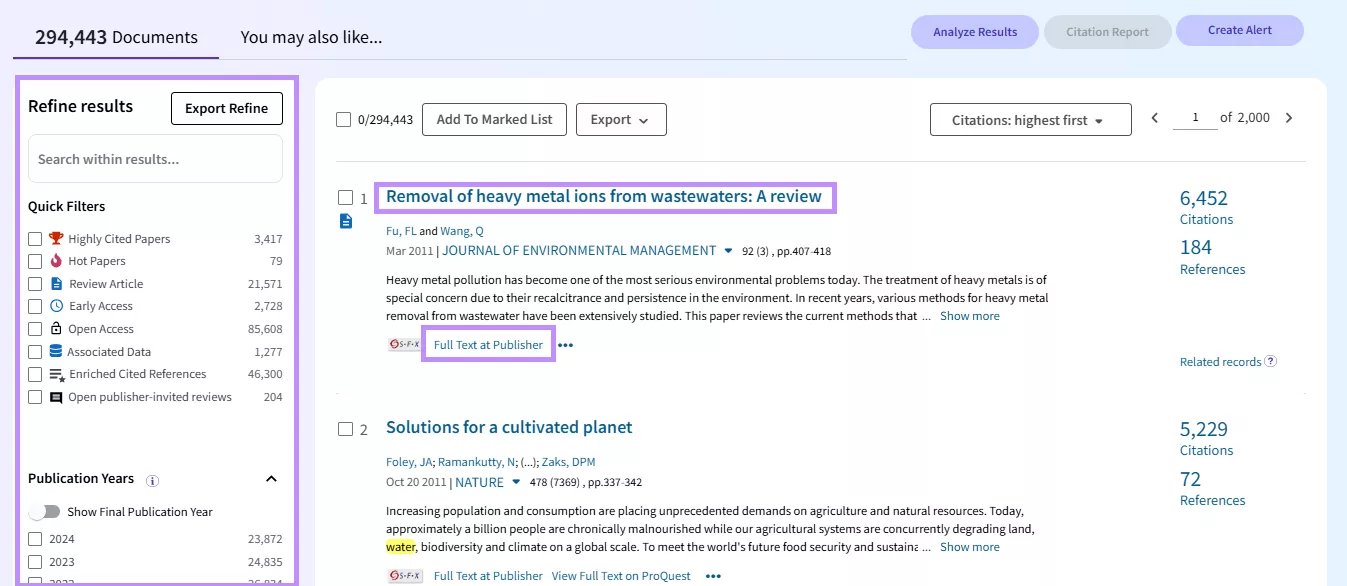
Step 1. Go to the left panel on the results page. Check the boxes for relevant filters. Then, click "Refine" to show only matching results. Otherwise, click "Exclude" to remove those items from the list.
Step 2. After applying filters, you can view the articles by clicking "Free Full Text from Publisher" or "Full Text at Publisher."
Step 3. Alternatively, click the article's title to view the article's abstract, author details, DOI, etc.
Part 3. The Challenge After Searching in Web of Science
Searching is only the first step in the research process. After downloading papers as PDFs, you must analyze them carefully to extract the exact information you need.
However, academic PDFs can be densely written with complex technical terminology. Moreover, the insights you're looking for are likely scattered across many pages. Therefore, reading them manually can be time-consuming.
It gets even more challenging if you're working with multiple papers. You will need to compare key findings and identify the latest trends. This requires constant switching between PDFs and creating detailed notes from scratch.
All this can significantly slow down your literature review process. That's why you will need a tool that can help you make this much faster and productive. The following section introduces one such tool.
Also Read: 2 Best Academia Downloaders >>
Part 4. Using UPDF AI Online After Web of Science Paper Search
If you're looking for a better way to handle your PDF papers, UPDF AI Online is one of the best options. It offers features similar to Web of Science, but makes them better with more functionality.
Using its dedicated Paper Search tool, you can find scholarly papers from a massive online database. From there, you can analyze papers directly with AI, generate detailed summaries, compare findings, create mind maps, and more. Overall, it's an excellent tool to make your literature review process more manageable and less stressful.
Key Features of UPDF AI Online
Here's a look at how UPDF AI Online can help you research smarter.
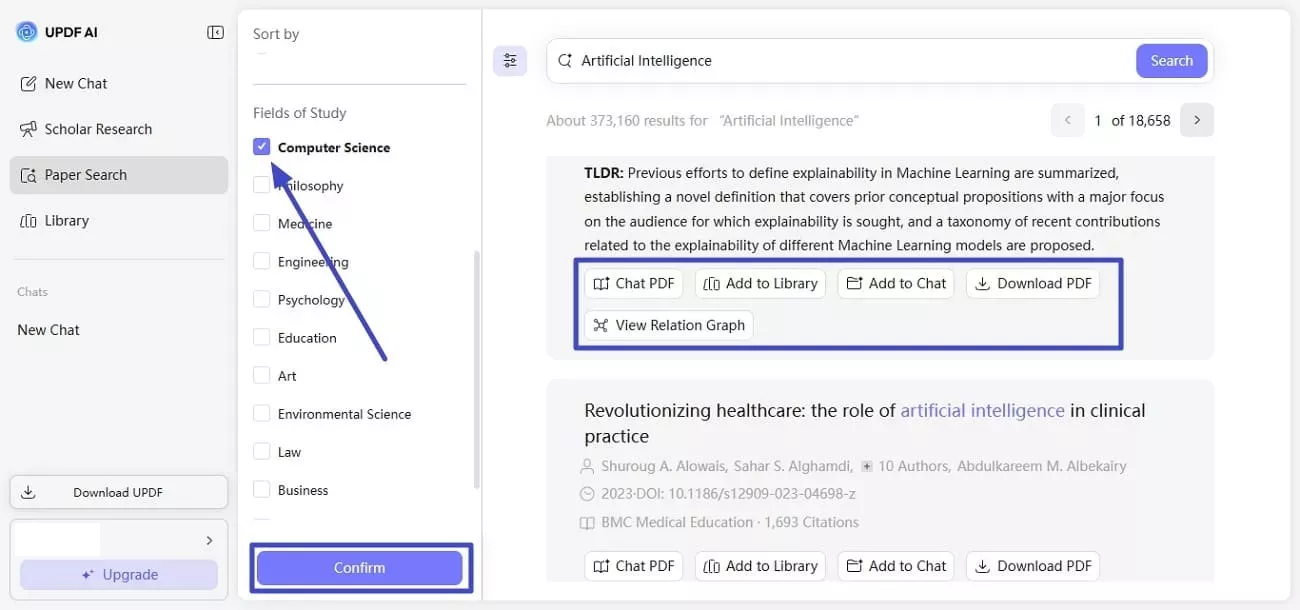
- Search for Papers Smartly: It lets you filter by publication year, fields of study, availability of PDF, and more to organize your results.
- AI Chat with Research Papers: It lets you open an AI chatbot to directly ask questions and get instant answers from any paper.
- Structured Paper Summaries: It allows you to generate detailed summaries that extract key findings and core arguments without reading the full text.
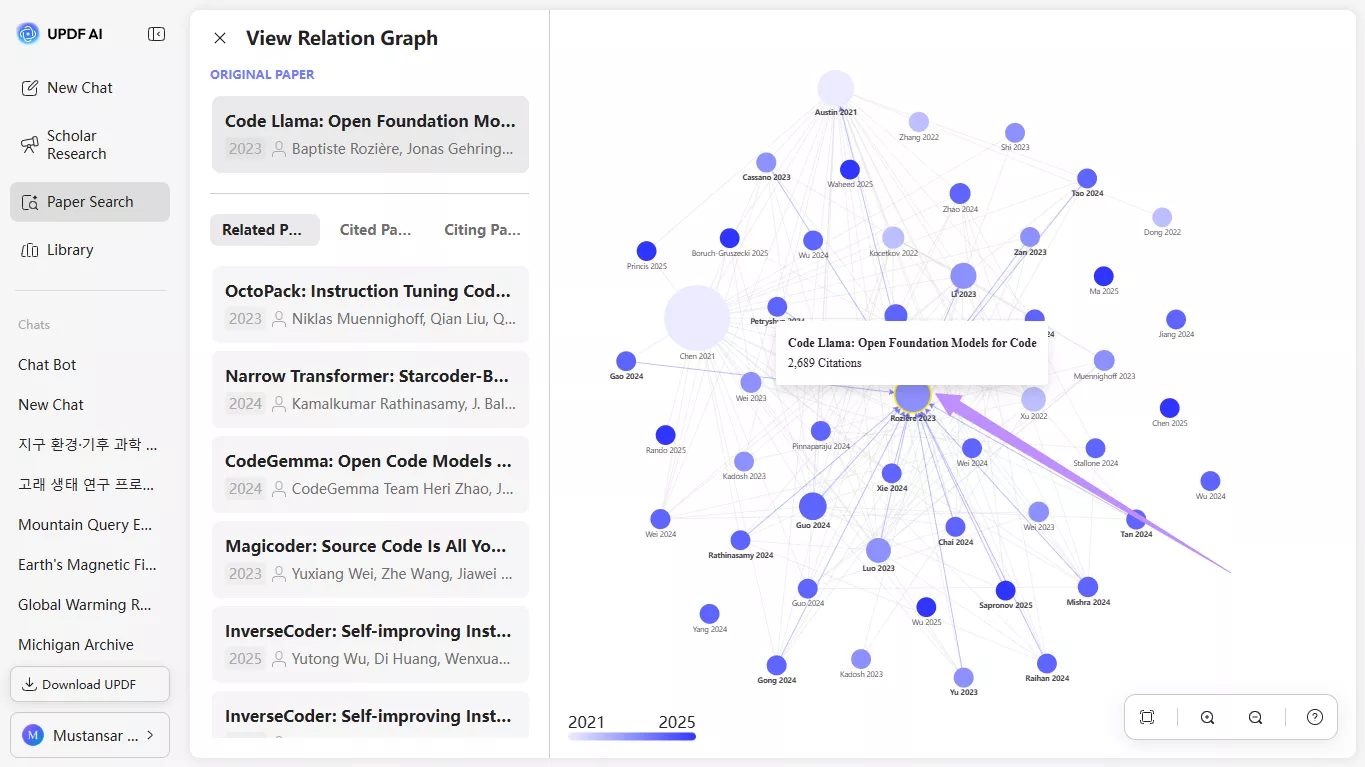
- Compare Papers Across Studies: Use relation graphs to see how papers connect through citations, shared topics, and references.
- Create Mind Maps: It allows you to convert the PDF content into clear mind maps. So, you can organize the flow of information and understand key ideas much faster.
- Handle Multiple Papers: You can select multiple papers to add to the library, create a project, or generate summaries for all.
Steps to Use UPDF AI Online
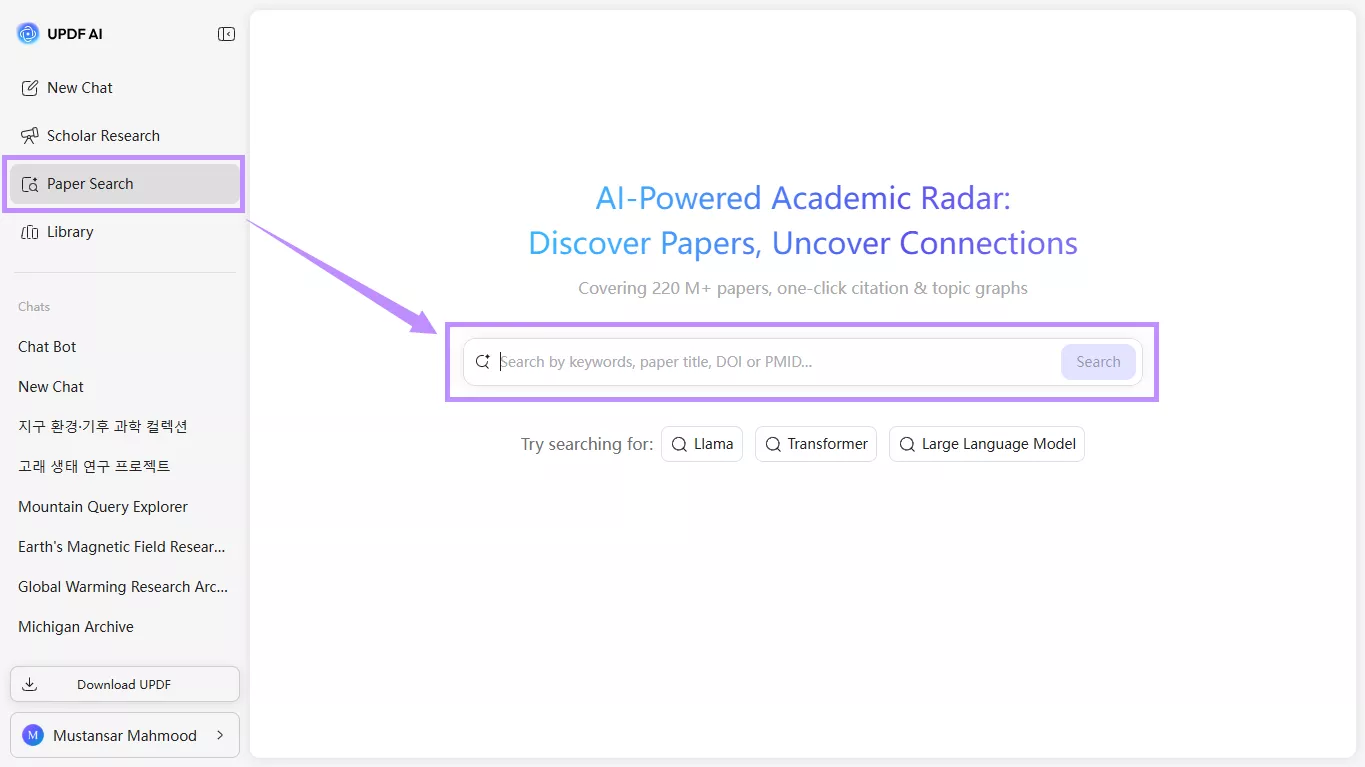
Step 1. Visit UPDF AI Online and log in or create an account. Once you're in, select "Paper Search" from the left panel.
Step 2. Type the keyword or title you want to search for. You can also enter the paper's DOI or PMID to find it directly. Then, click the "Search" icon to proceed.
Step 3. UPDF AI will show you a list of results. Here, you can view the paper's title, author details, DOI, journal, and citations. You can click on the paper title to view more details.
Step 4. Below the paper details, you will see several options. From here:
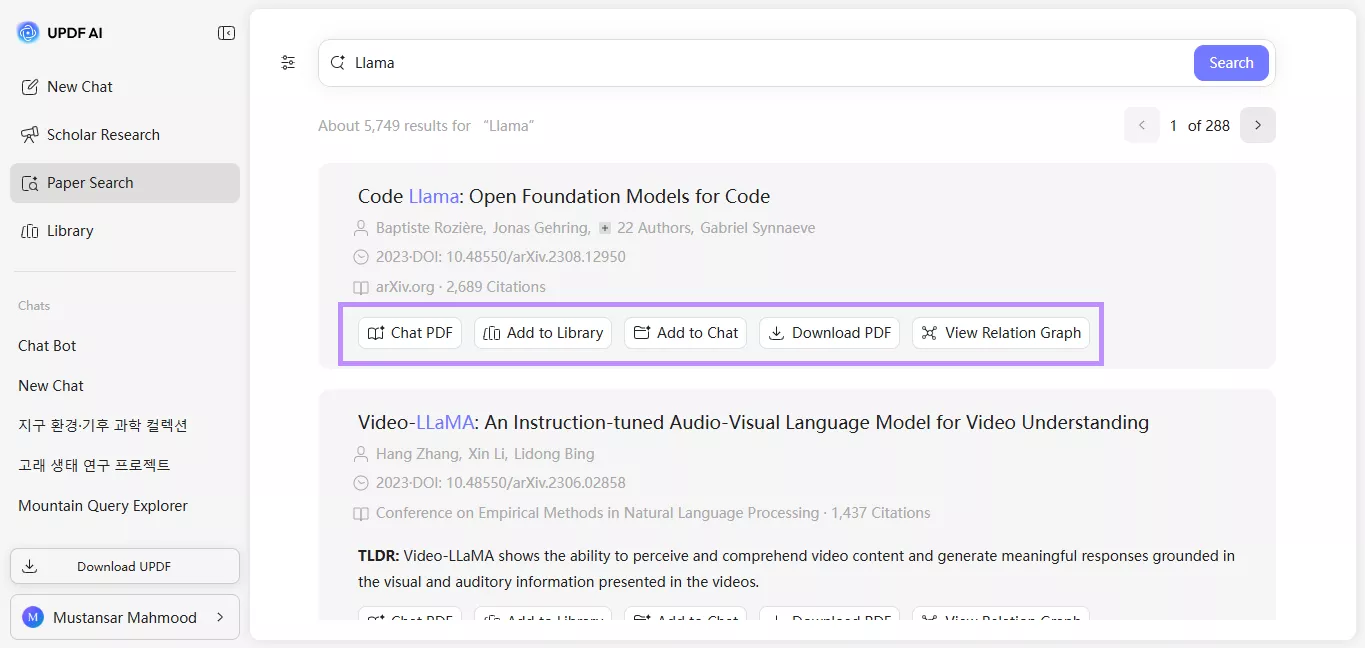
- Click "Chat PDF." The paper will open in UPDF AI's chat. Click "Get Started" on the right. UPDF AI will generate a quick summary. Then, you can ask questions about the document.

- Click Add to Library to upload and save the document to UPDF Cloud.
- Choose "Add to Chat" to add the paper to a project that lets you interact with multiple files in one chat.
- Select "Download PDF" to save the paper on your device.
- Click "View Relation Graph" and hover over the circles to understand their connections.
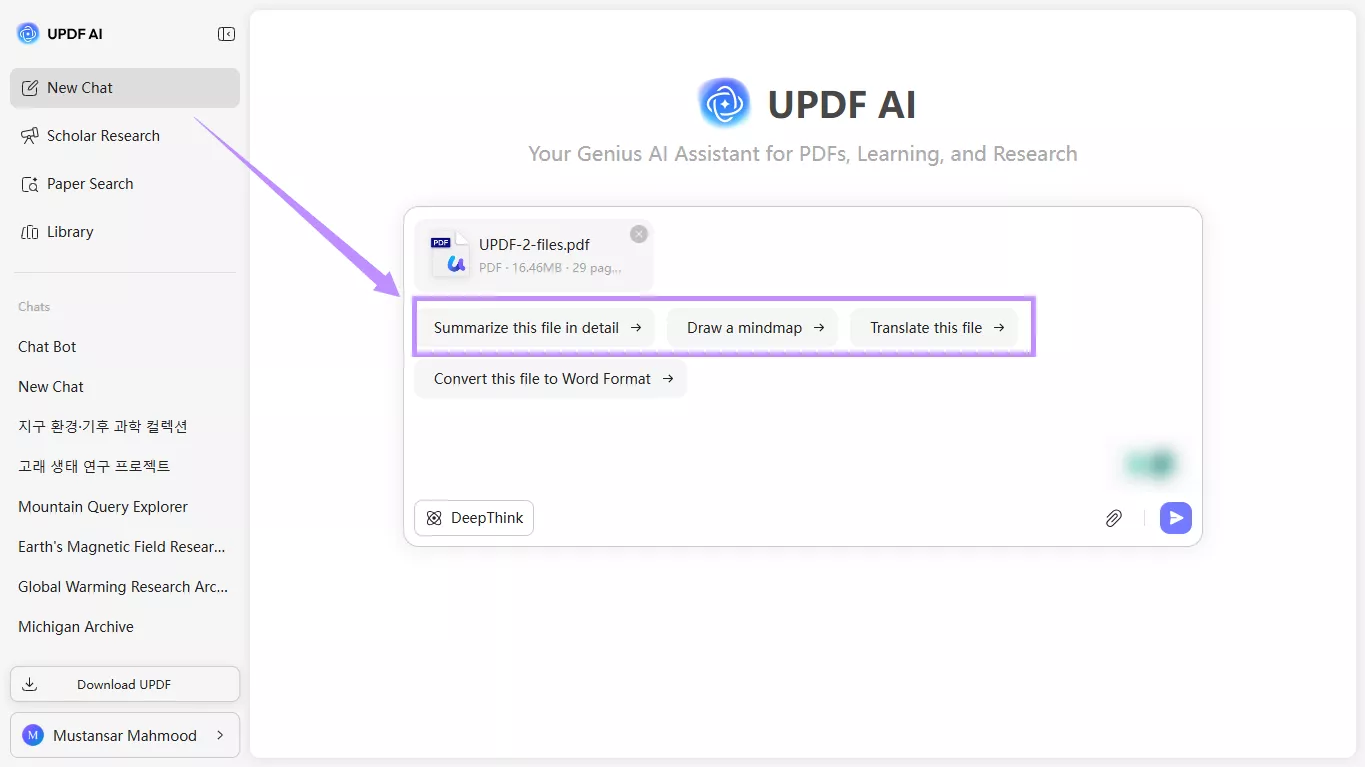
Tip: If you've already downloaded a PDF paper, you can go to "New Chat" from the left. Then upload the PDF file to chat with it, summarize or translate its content, create a mind map, analyze trends, extract findings, and more.
Part 5. FAQs About Web of Science
Q1. Is Web of Science search free?
No. Web of Science is a paid research platform. However, students can access it through their university or institution's digital library. In addition, you can create a researcher profile and search for other authors for free. But full paper searches require a paid subscription.
Q2. Which website is best for searching research papers?
For more precise and high-quality results, Web of Science and UPDF AI Online are the best options. These platforms use AI-driven tools to filter searches and improve the relevance of results. Moreover, UPDF AI allows you to summarize and analyze papers all in one platform.
Q3. What is the difference between Google Scholar and Web of Science?
Google Scholar is a free and broad search engine that indexes most scholarly content available online. In comparison, Web of Science is a paid platform that indexes selected peer-reviewed journals. As a result, it offers better quality control and more advanced search filters.
Conclusion
To sum up, Web of Science paper search allows you to find high-quality papers, researchers, and journals from various databases. And after searching and downloading PDF papers, you can use UPDF AI Online to analyze them for better understanding. It also offers a dedicated Paper Search tool with the ability to create clear mind maps, generate detailed summaries, and more. So, try it today. Visit UPDF AI Online now!







 Enola Miller

 Enya Moore
 Engelbert White
 Enrica Taylor