 UPDF
UPDF
 UPDF for Windows
 UPDF for Mac
 UPDF for iPhone/iPad
 UPDF for Android
 Nomostar
 UPDF AI Online
 UPDF Sign
 IvyCraft
 Edit PDF
 Annotate PDF
 Create PDF
 PDF Form
 Edit links
 Convert PDF
 OCR
OCR PDF to Word
 PDF to Image
 PDF to Excel
 Organize PDF
 Merge PDF
 Split PDF
 Crop PDF
 Rotate PDF
 Protect PDF
 Sign PDF
 Redact PDF
 Sanitize PDF
 Remove Security
 Read PDF
 UPDF Cloud
 Compress PDF
 Print PDF
 Batch Process
 About UPDF AI
 UPDF AI Solutions
 AI User Guide
 FAQ about UPDF AI
 Summarize PDF
 Translate PDF
 Chat with PDF
 Chat with AI
 Chat with image
 PDF to Mind Map
 Explain PDF
 PDF AI Tools
 Image AI Tools
 AI Chat Tools
 AI Writing Tools
 AI Study Tools
 AI Working Tools
 Other AI Tools
 AI Bookmark Generation
 AI Bookmark Summary
 AI Watermark Generation
 AI Background Generation
 AI Sticker Generation
 AI Stamp Generation
 AI Editing Suite
 UPDF Copilot
 AI Page Management
 AI Semantic Search
 PDF to Word
 PDF to Excel
 PDF to PowerPoint
 Enterprise Solution
 Enterprise Sign
 Enterprise AI
 Enterprise Plan
 Enterprise User Guide
 Enterprise Webinar
 Banking
 Healthcare
 Insurance
 Legal
Legal Manufacturing
 Government
 Education Solution
 Customer Stories
 User Guide
 UPDF Tricks
 FAQs
FAQs UPDF Reviews
 Download Center
 Blog
Blog Newsroom
 Tech Spec
 Updates
 UPDF vs. Adobe Acrobat
 UPDF vs. Foxit
 UPDF vs. PDF Expert

You finished a vector-based PDF drawing, and your client now wants you to merge in an older floor plan — or you need to trace a scanned blueprint as the base layer for a new design. Either way, the first step is the same: open PDF in AutoCAD without losing geometry or scale.
This guide covers both common scenarios — importing the entire PDF file and importing only a specific area. Before the steps, one quick note: if your source PDF needs cropping, rotation, or text cleanup before import, the section on UPDF below shows how to prep it in minutes.
Without much ado, let's delve into the details.
Windows • macOS • iOS • Android 100% secure
Table of Contents
How to Open a PDF in AutoCAD [Step-by-Step Guide]
Okay, so let's start with the basics. AutoCAD is schematic designing software that is popular among architects, engineers, and constructors. It is a platform to design layouts and models. With PDFs being an essential mode of sharing, AutoCAD is also supportive of the format.
Here is how to open a PDF in AutoCAD:
A. How to Attach a PDF as an Underlay with AutoCAD
- Step 1. Open AutoCAD and open the DWG file you want to work in. Make sure you are in the correct drawing, because the PDF will be attached to the current file.
- Step 2. At the command line, type
PDFATTACHand press Enter.
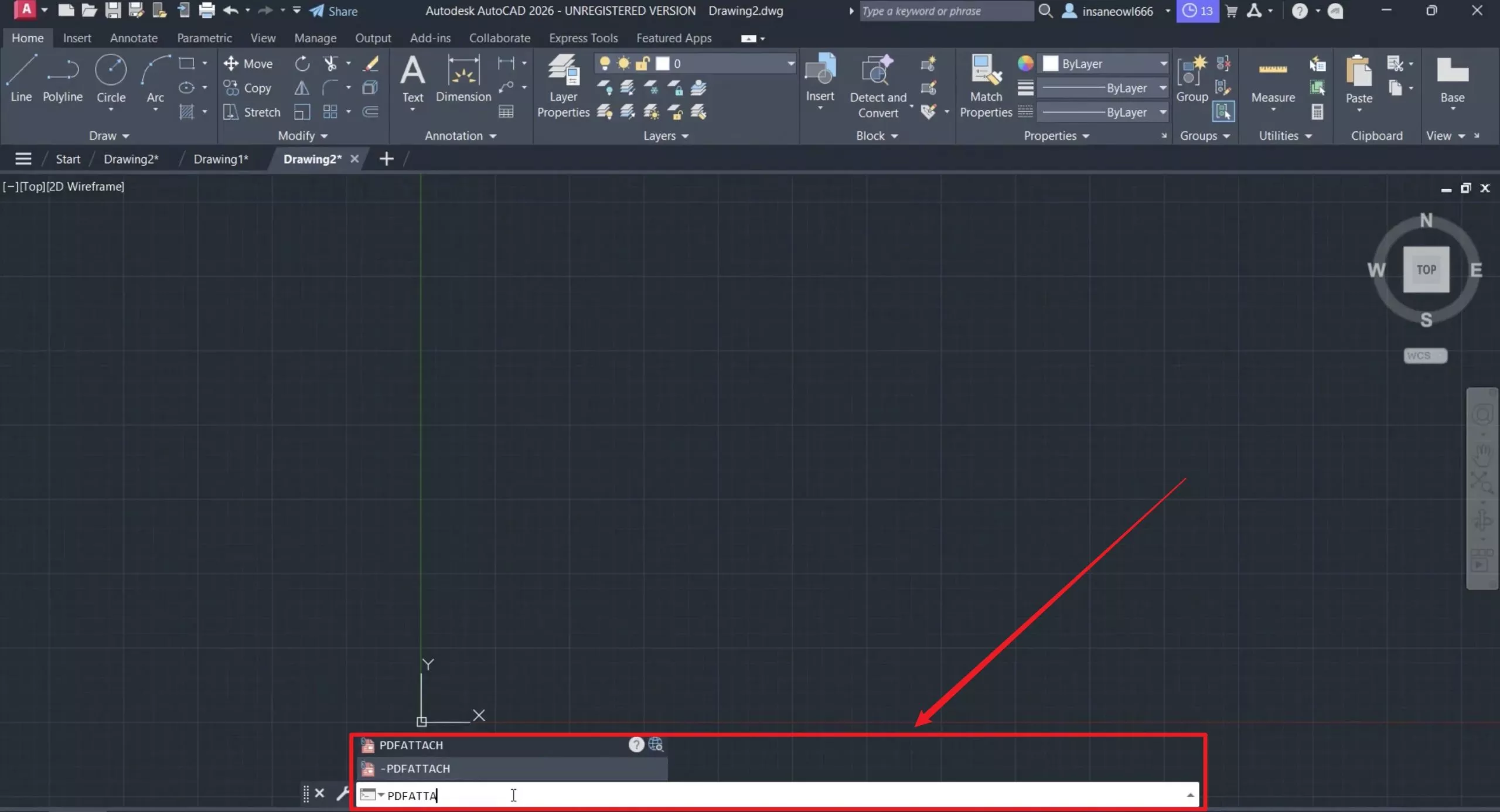
- Step 3. In the file browser, find and select your PDF file. Click Open.
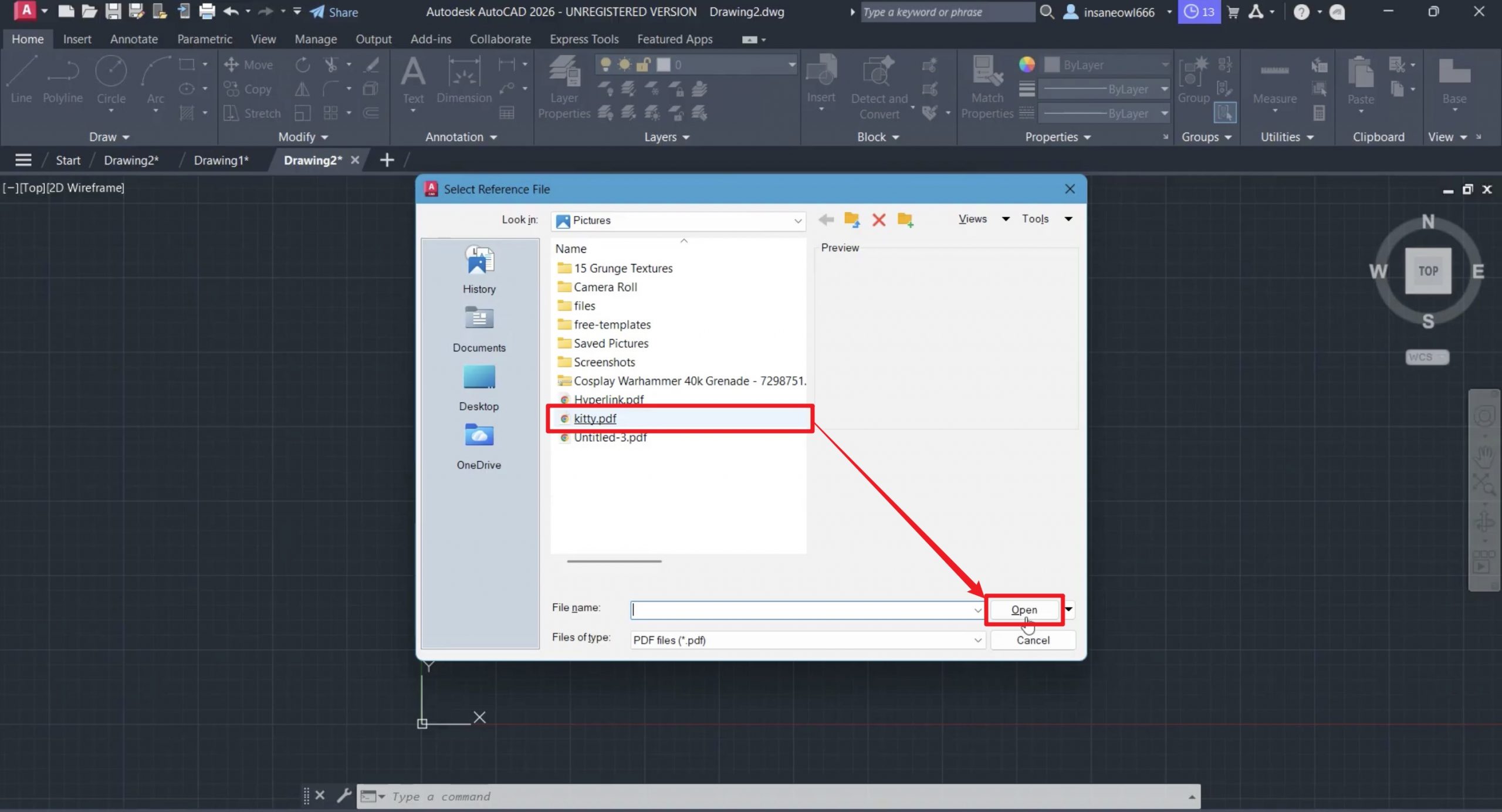
- Step 4. Select the page and click OK.
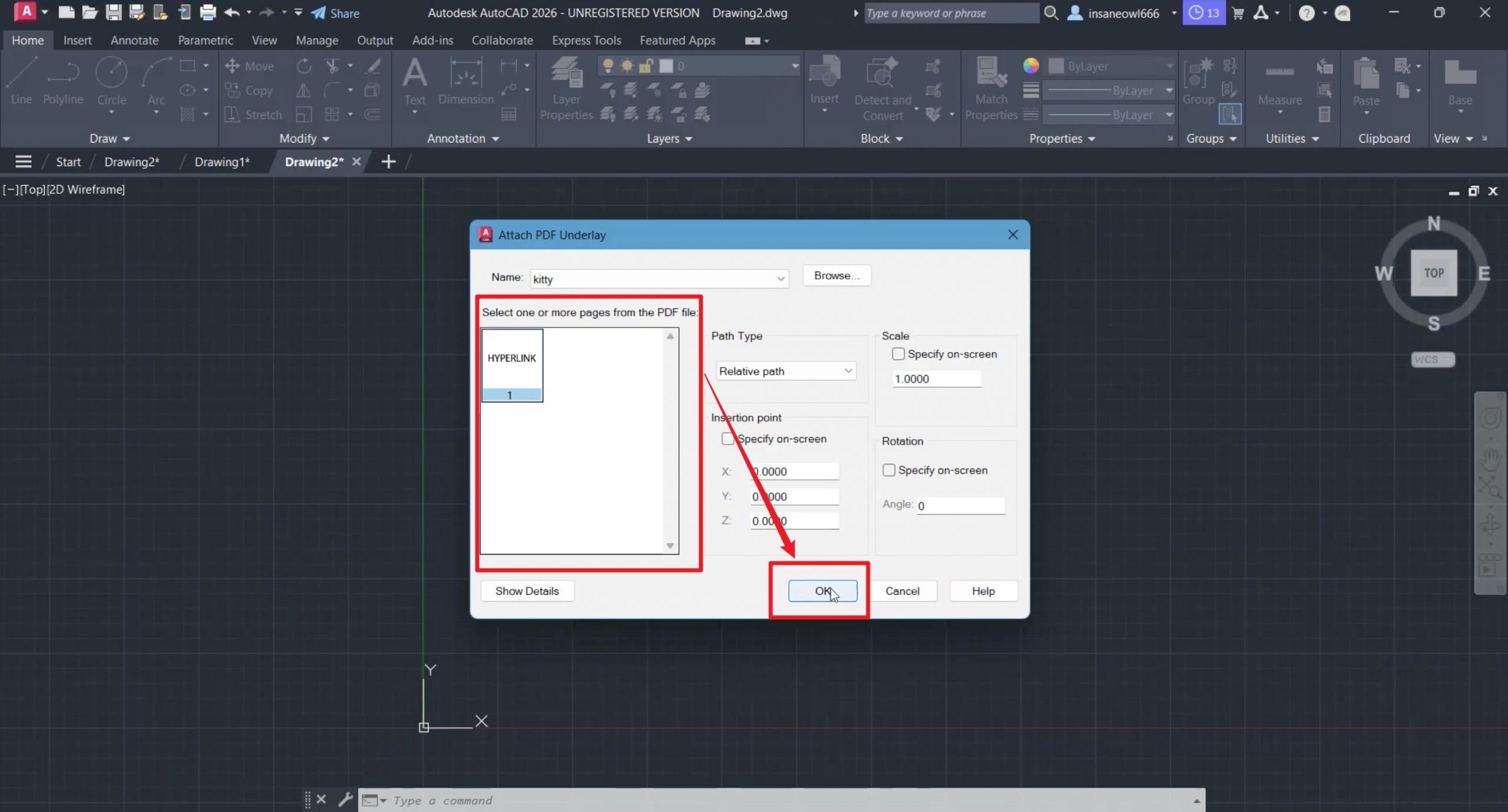
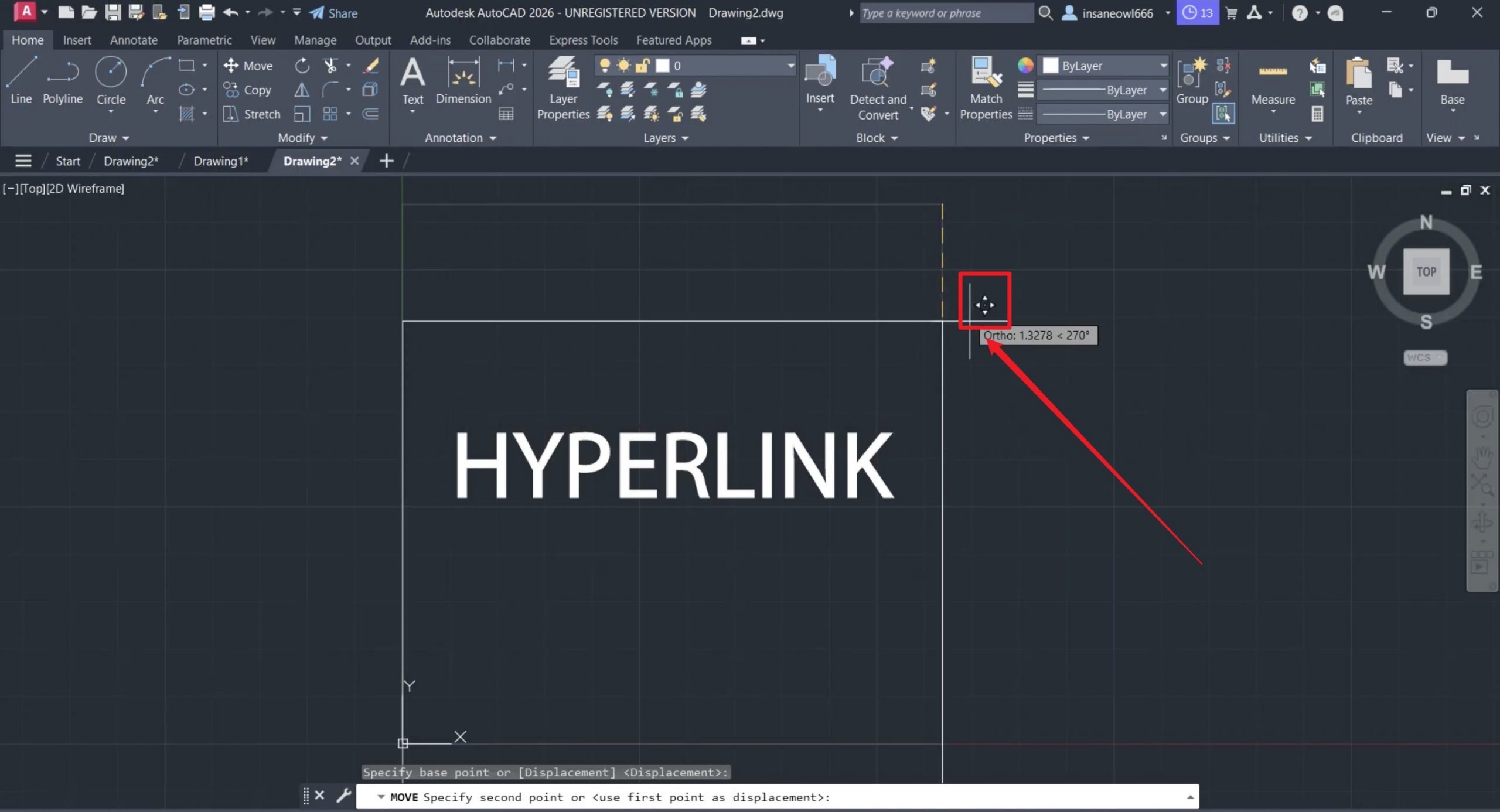
- Step 5. Back in the drawing area, AutoCAD will prompt you to place the PDF.
- Step 6. Click a point in the drawing to set the insertion point. The PDF should now appear as a PDF underlay.
If the PDF is not visible
- Zoom out and check whether it was inserted far from your current view.
- Select the PDF and adjust its scale.
- Move it to a better location if necessary
B. How to Clip the PDF to a Specific Region with AutoCAD
Use this if you want only part of the PDF visible for tracing.
- Step 1. First attach the PDF using
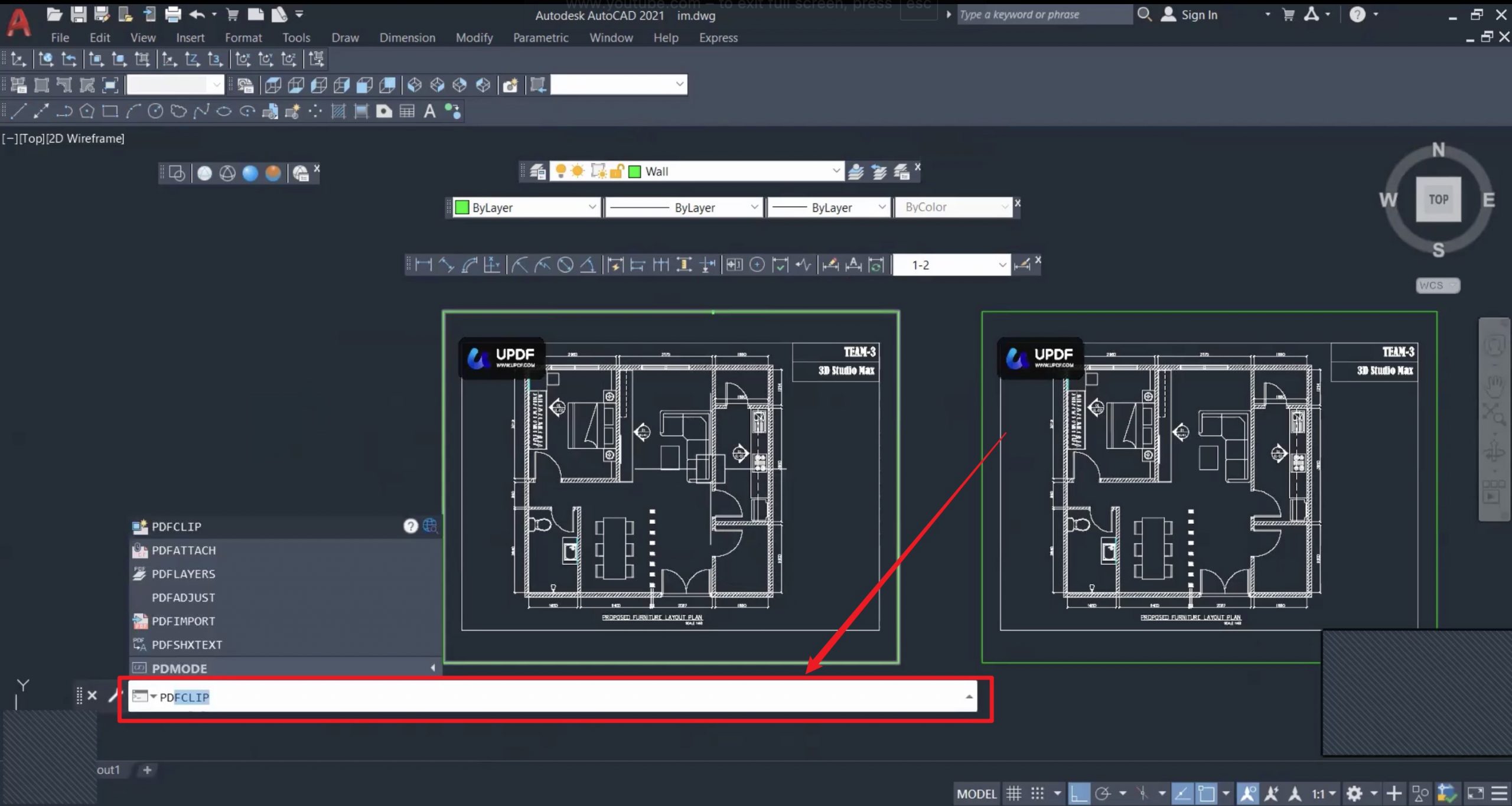
PDFATTACH. - Step 2. Type
PDFCLIPand press Enter.
- Step 3. Select the attached PDF underlay.
- Step 4. Create a rectangular or polygonal clipping boundary around the area you want.
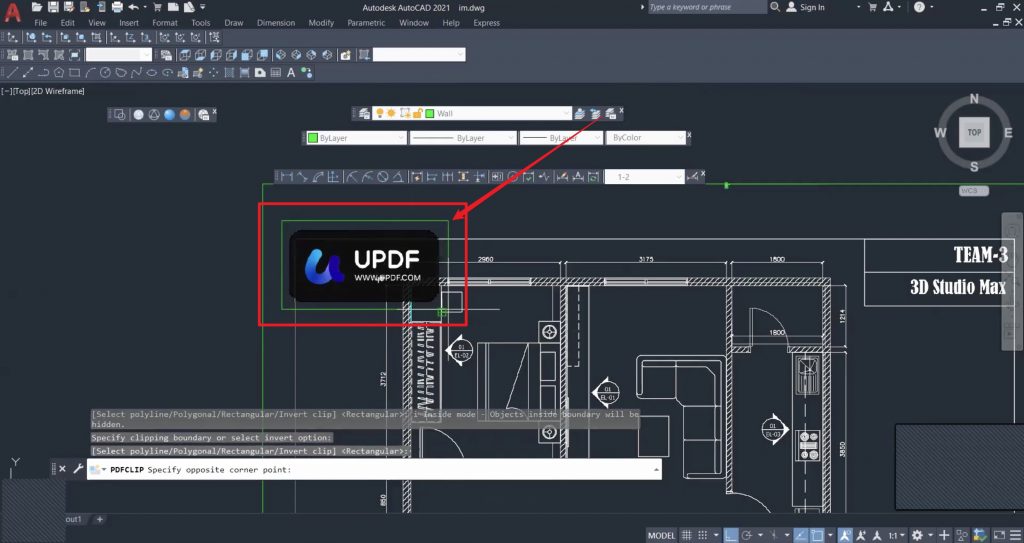
- Step 5. Press Enter to finish. AutoCAD will hide the parts of the PDF.
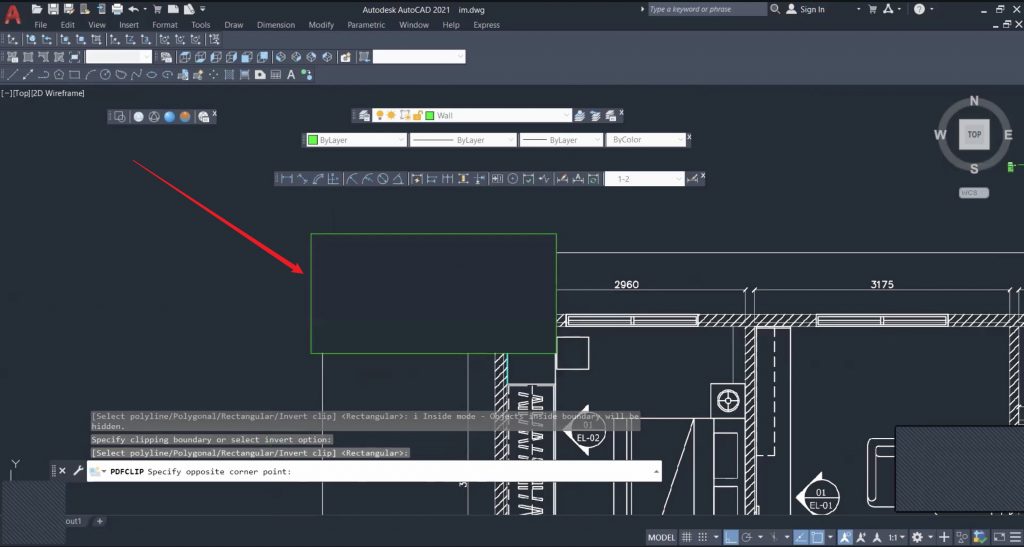
Important: this method clips the display of the PDF underlay. It does not truly convert only that area into editable AutoCAD objects.
C. How to Import the Attached PDF as AutoCAD Objects
If you want only part of the PDF converted into objects, use this order:
- Step 1. Attach the PDF with
PDFATTACHand select the PDF underlay. - Step 2. A PDF Underlay contextual tab should appear in the ribbon. Click Import as Objects.
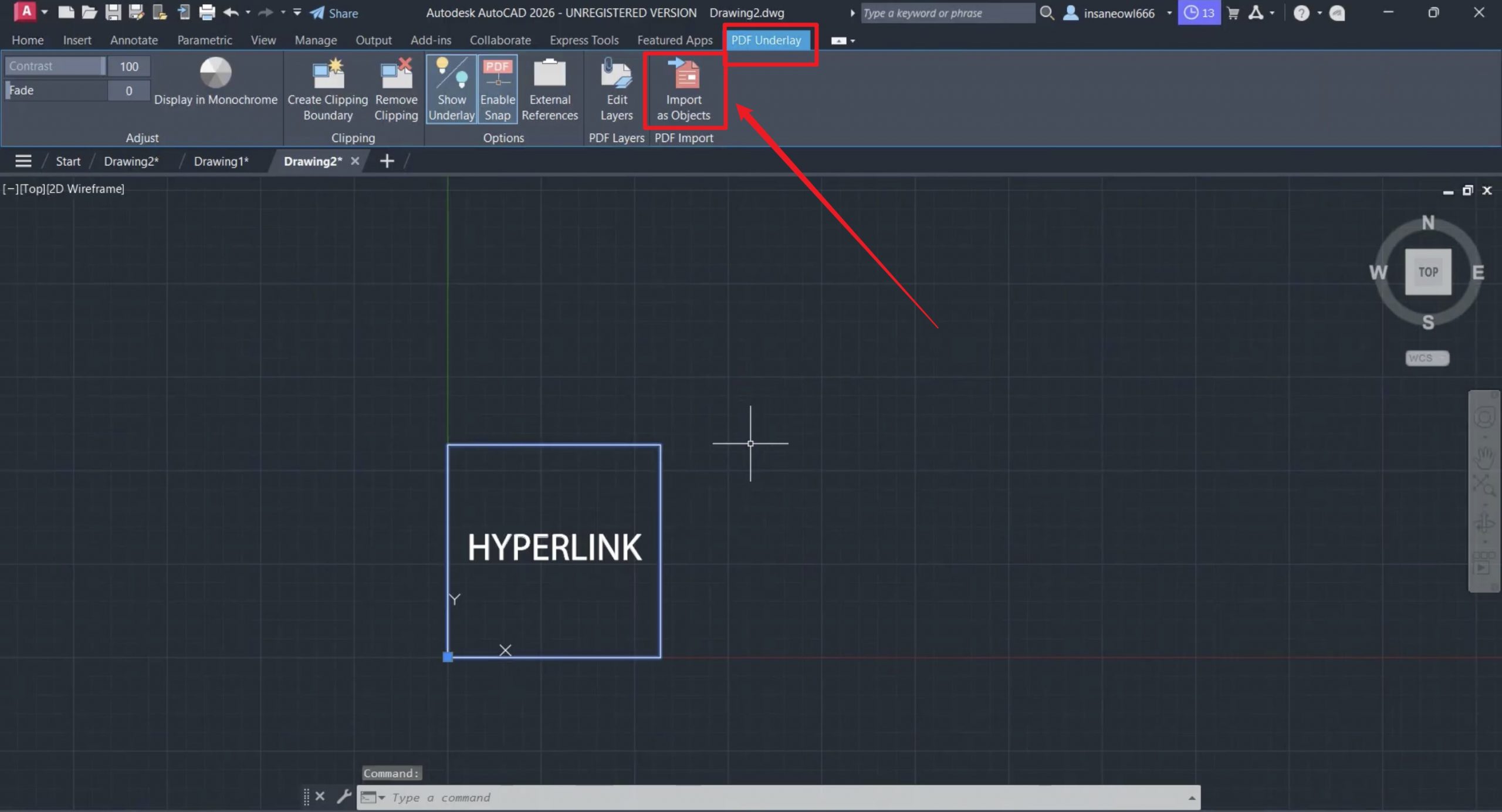
- Step 3. The Import PDF dialog box will open. With the prompt, select the specific area for importing. In the Settings option, you can choose the type of objects to be imported, how object layers are placed, and much more. Confirm the options and click OK.
- Step 4. AutoCAD will convert the PDF content into editable objects.
Prep Your PDF for AutoCAD Import with UPDF
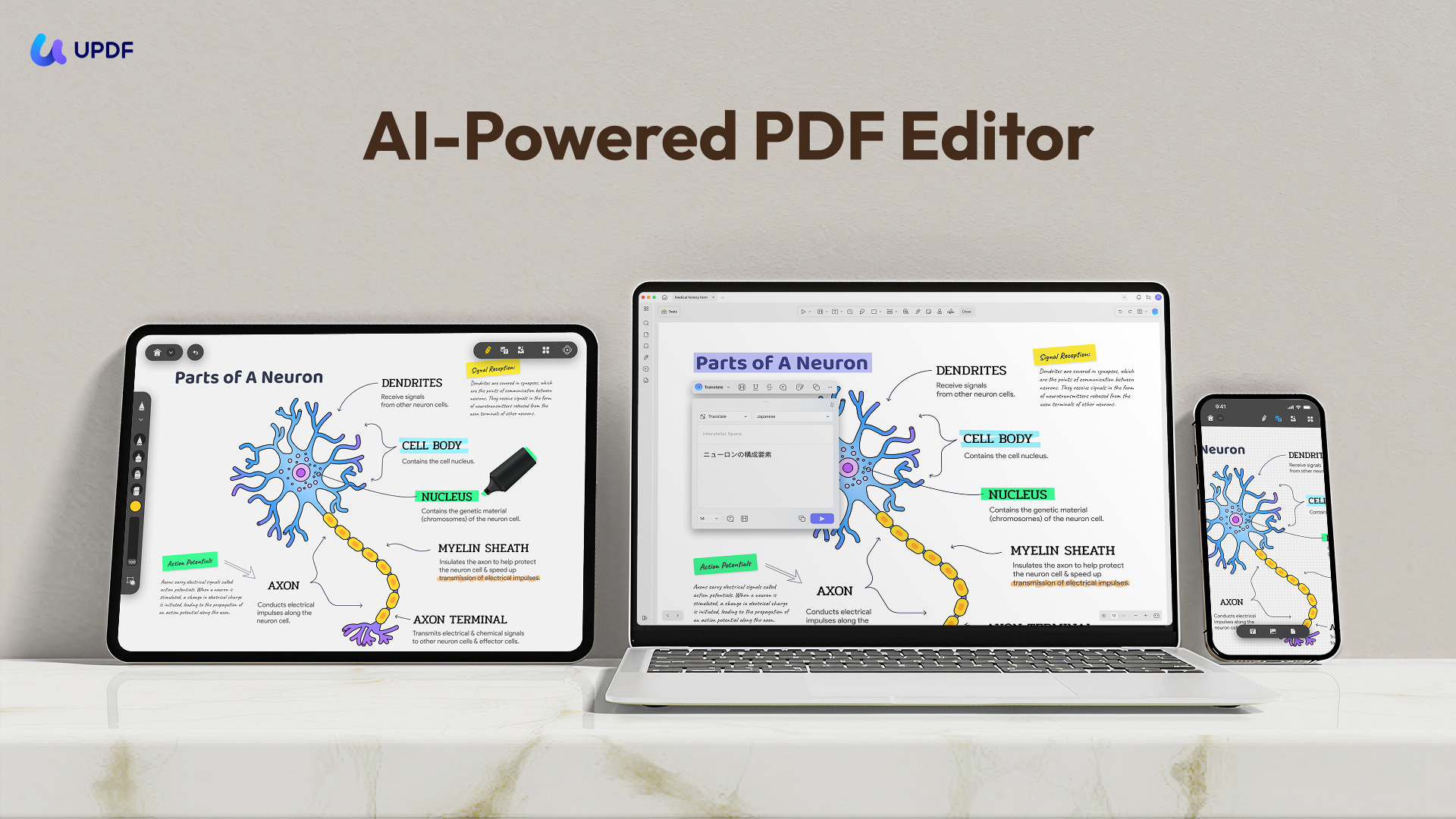
AutoCAD's PDF Import works best when the source file is clean: cropped to the drawing area, scans rotated correctly, blank pages removed, and any text labels finalized. UPDF handles that prep — and it's where three specific AI Agents save the most time for CAD work.
Windows • macOS • iOS • Android 100% secure
Crop, Rotate, and Organize Pages Before Import
If your source is a scanned drawing set or a multi-page PDF from a contractor, you usually only need one or two pages — and AutoCAD will choke on reversed scans, blank dividers, or pages that aren't the actual drawing. In UPDF, open the file and click Organize Pages on the left toolbar to crop, rotate, extract, or delete pages manually.
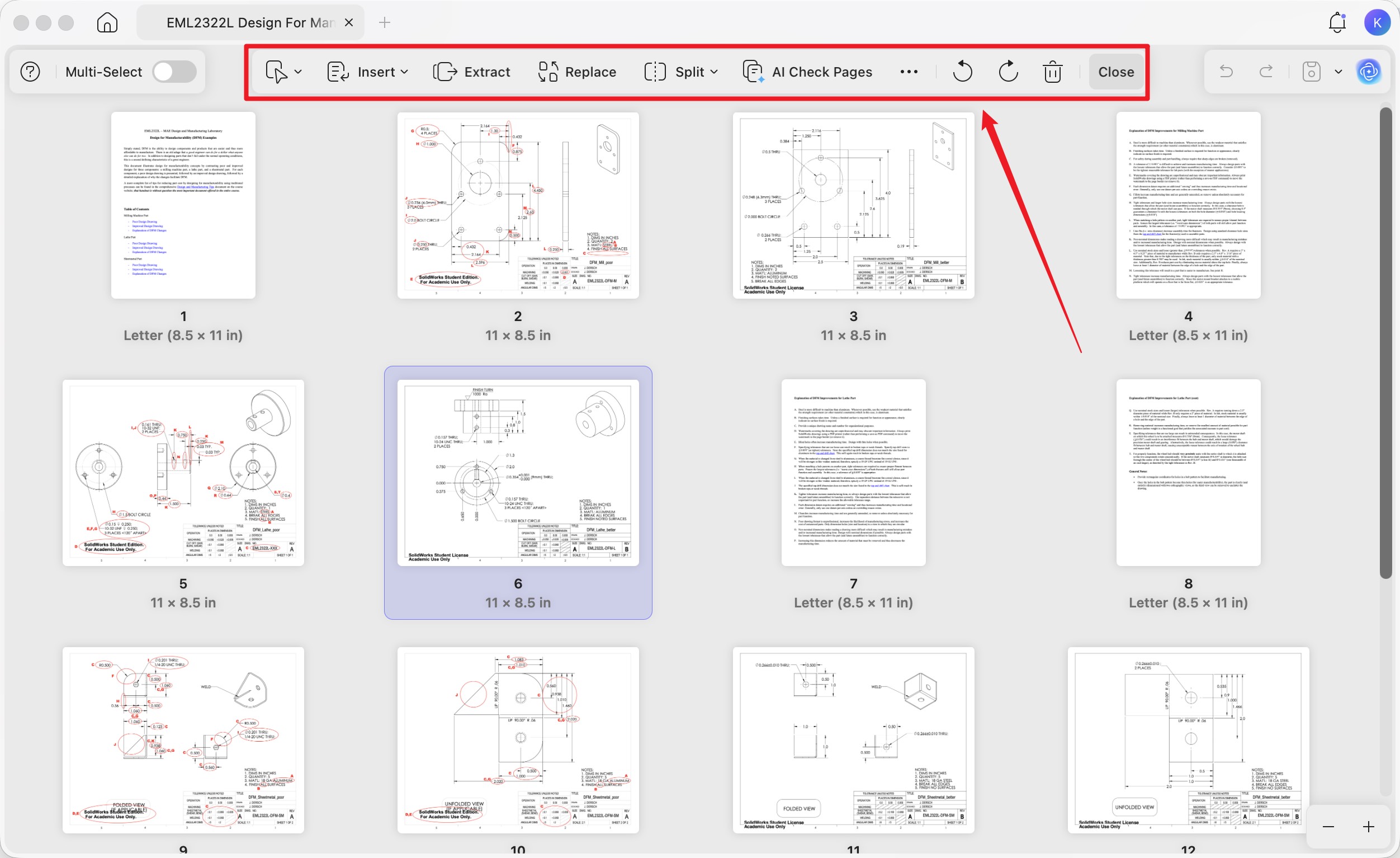
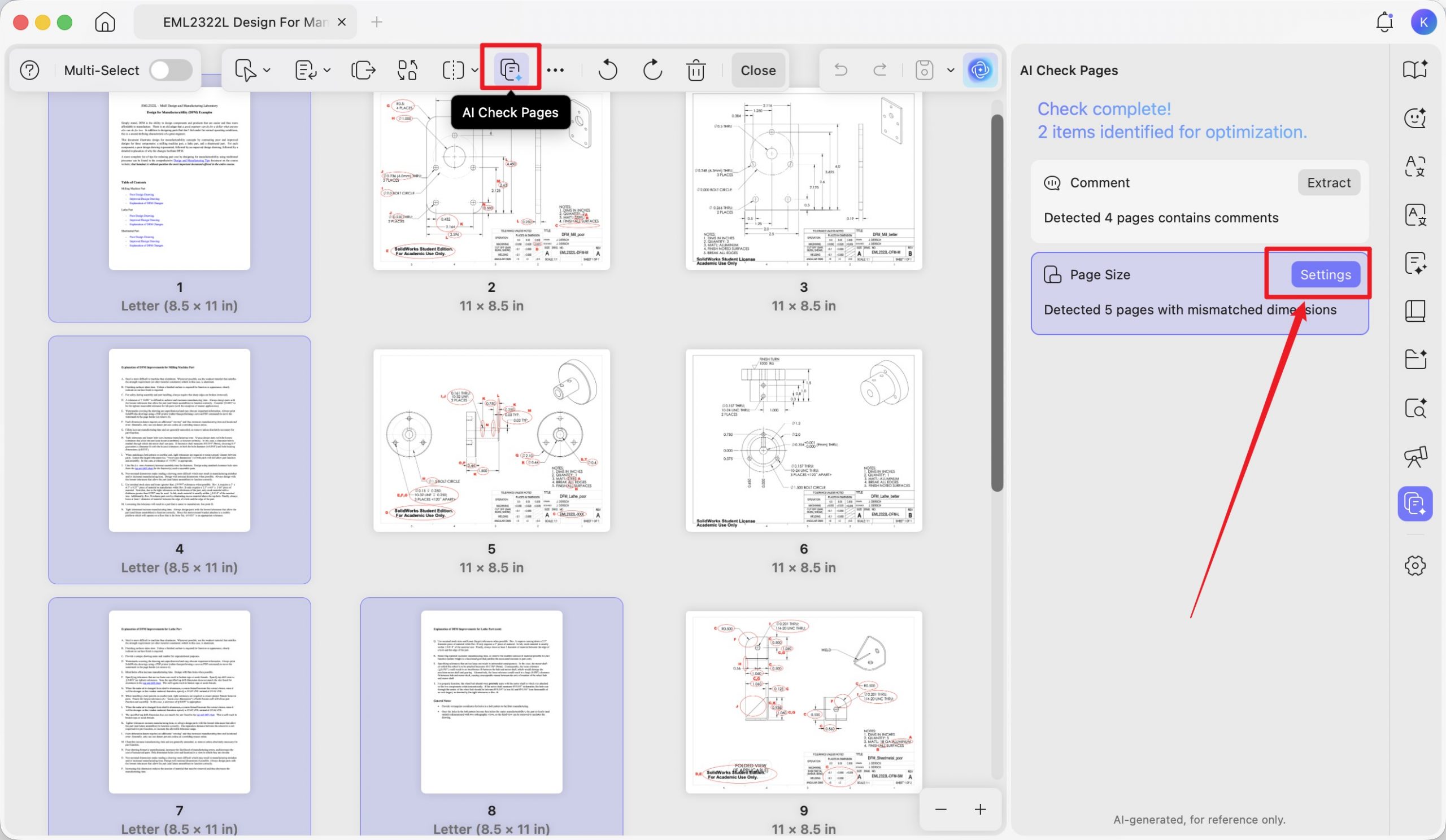
For larger batches, AI Page Organizer scans the document and flags reversed pages and blank pages automatically, then lets you fix them with one click.
Edit Labels Before They Become Polylines
Once AutoCAD imports a PDF, text converts to polylines and can't be edited as text afterward. So typos, outdated revision dates, or unclear callouts need to be fixed in the PDF first. UPDF lets you change text, dimensions, and stamps directly in the file.
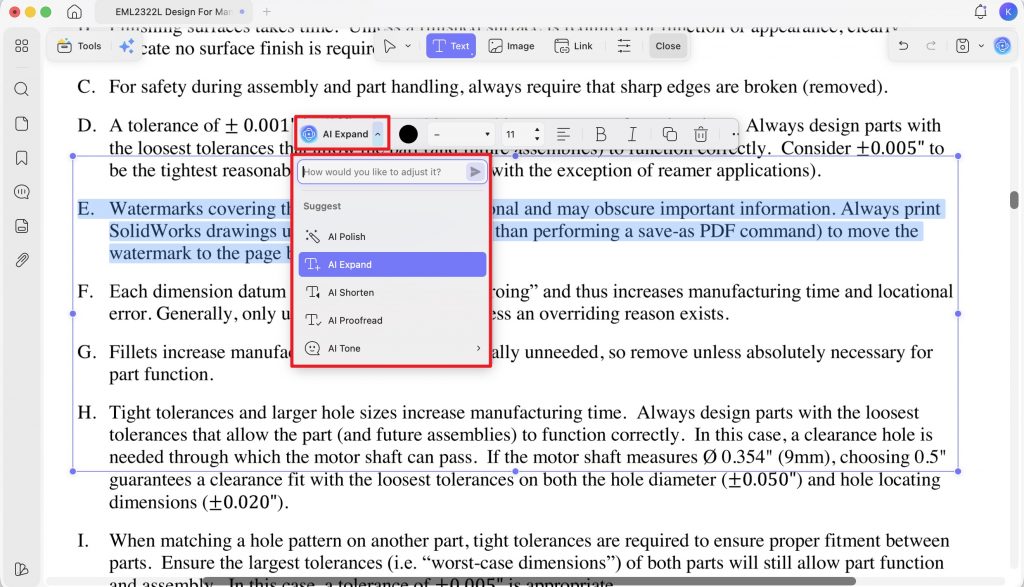
When you have longer notes blocks to rewrite — revision comments, specification paragraphs, drawing legends — the AI Editing Suite rewrites and polishes text in place, so you don't have to export to Word, edit, and reimport.
Find the Right Spec in 200-Page Reference PDFs
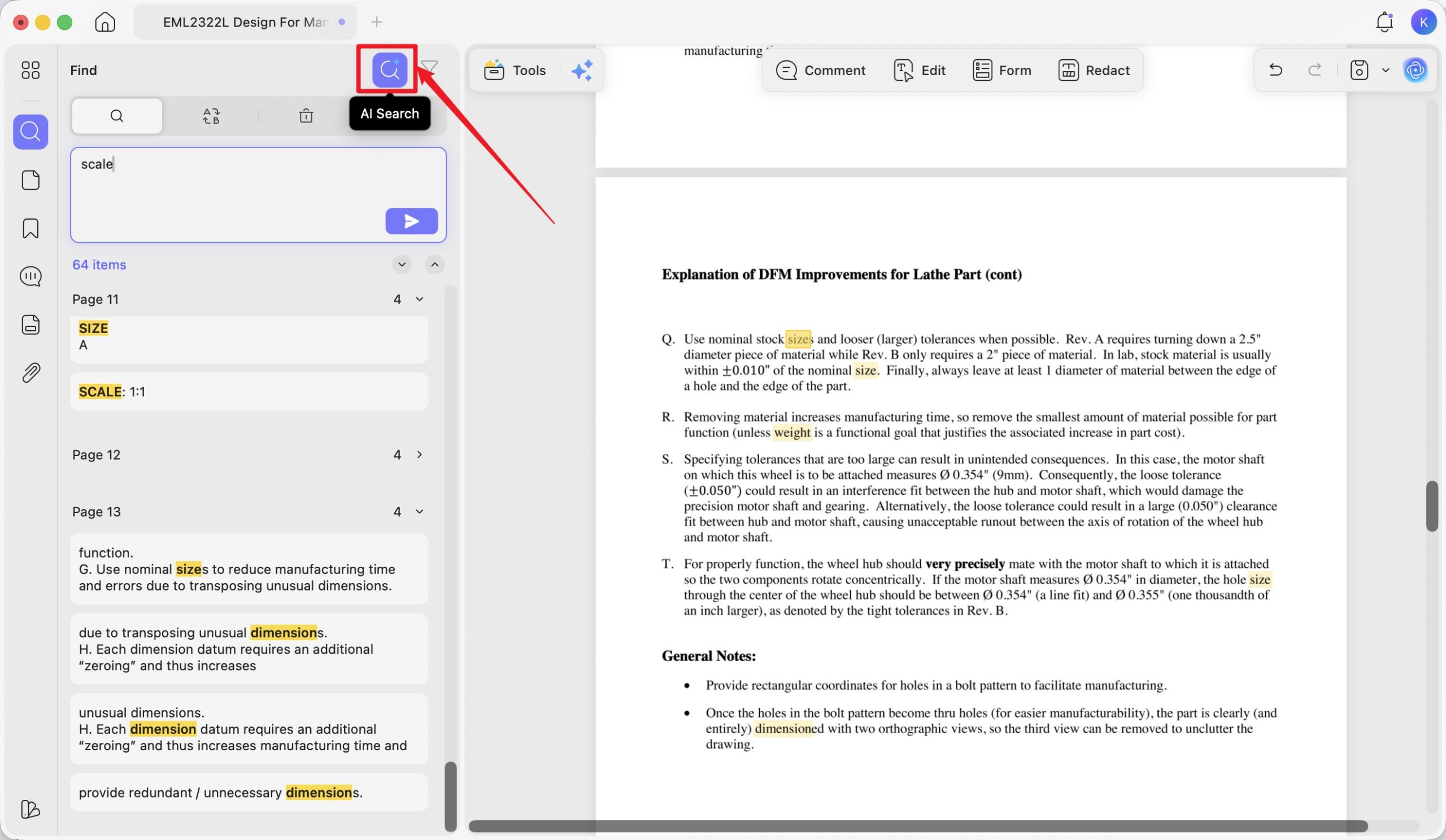
Engineering standards, product cut sheets, and material spec PDFs are often hundreds of pages. When you can't remember the exact term — load-bearing capacity vs structural rating vs design load — UPDF's AI Semantic Search surfaces synonyms when you search, so results include not just exact matches but also related terms. It's faster than scrolling through a 200-page architectural standards PDF looking for one bracket spec.
Fix the "No Objects Were Imported" Error
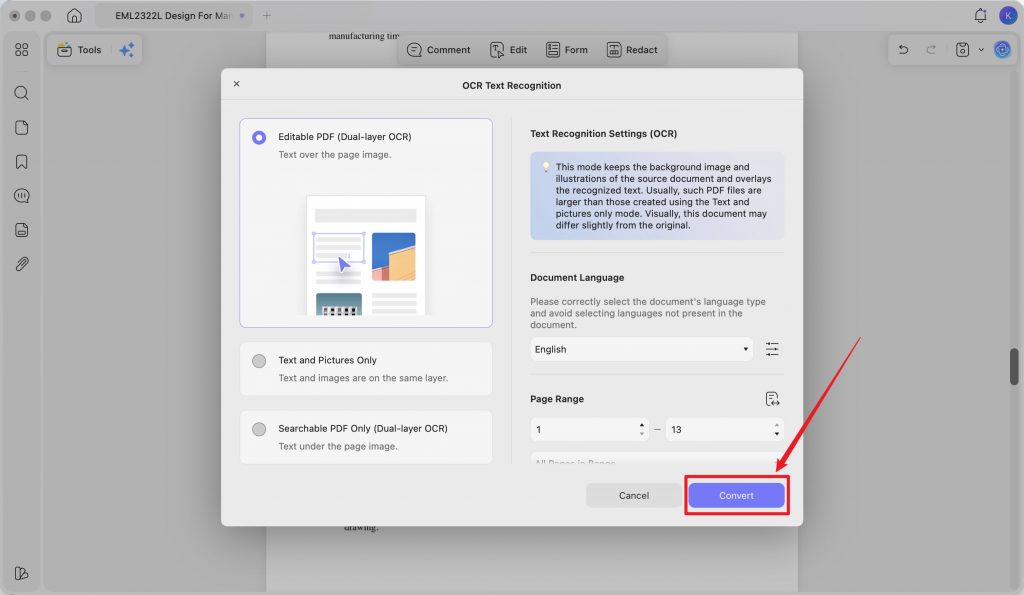
If AutoCAD throws "No Objects Were Imported", the PDF is raster-based (a scan) rather than vector. UPDF's OCR converts scanned PDFs into searchable, editable files across 38 languages, so you can re-export a clean vector version that AutoCAD will actually read.
To know more about UPDF, you can watch the below video:
Download UPDF for free and prep your next AutoCAD import in a few clicks — no subscription required to get started.
Windows • macOS • iOS • Android 100% secure
Why Do You Need to Open PDF in AutoCAD
Beyond the import workflow itself, here are four reasons opening a PDF directly in AutoCAD is usually worth it instead of redrawing from scratch.
1. Extract Accurate Measurements
If you need to design and build, AutoCAD can extract data like area, dimensions, and quantities. Converting a PDF design to AutoCAD is beneficial to evaluate the planning and costing. It expedites the vendor-merchant negotiations beforehand.
2. Build 3D Models from 2D Plans
PDFs only offer a 2D view for a layout. Visualize your design by converting it to a 3D model with AutoCAD. A 3D design plan offers a wider view and thoughtful analysis of the blueprint.
3. Integrate Client-Provided Drawings
Clients or collaborators have different demands. Opening a PDF into AutoCAD lends a hand in seamlessly integrating their demands into your existing project. The collaborative work becomes a breeze and it is easier to rectify errors.
4. Work with Layers Independently
PDF Import preserves layer structure when present in the source file, so each imported element can be manipulated independently — useful for tracing components, modifying specific systems, or testing alternate design variations without rebuilding the base.
FAQs on Opening PDFs in AutoCAD
Q1: Does AutoCAD support PDF?
Yes. AutoCAD supports PDF as both a publishing output and an import source. You can attach a PDF as an underlay (referenced, non-editable) or convert it to native AutoCAD objects using PDF Import.
Q3: Can I retain the original formatting after opening the PDF in AutoCAD?
Partially. Geometry and scale can be retained by matching the drawing scale to the PDF during import. However, text is converted to polylines and stops being editable as text — which is why fixing labels in the PDF first (using a tool like UPDF) saves a lot of cleanup time afterward.
Q4: Can AutoCAD LT import PDF files?
Yes, AutoCAD LT supports PDF Import as of the 2017 release. Layer separation and vector object recognition are identical.
Conclusion
Importing a PDF into AutoCAD is straightforward once you know whether you need the full file or just a specific area. What separates a smooth import from an hour of cleanup is the state of the source PDF — cropped, oriented correctly, with text labels already finalized.
UPDF handles that prep through three AI Agents that actually fit CAD work: AI Page Organizer for organising drawing sets, AI Editing Suite for last-minute label edits, and AI Semantic Search for finding the right spec across long reference PDFs.
Download UPDF for free and prep your next AutoCAD import in minutes — no subscription required to get started.
Windows • macOS • iOS • Android 100% secure








 Engelbert White

 Enrica Taylor
 Lizzy Lozano