 UPDF
UPDF
 UPDF for Windows
 UPDF for Mac
 UPDF for iPhone/iPad
 UPDF for Android
 Nomostar
 UPDF AI Online
 UPDF Sign
 IvyCraft
 Edit PDF
 Annotate PDF
 Create PDF
 PDF Form
 Edit links
 Convert PDF
 OCR
OCR PDF to Word
 PDF to Image
 PDF to Excel
 Organize PDF
 Merge PDF
 Split PDF
 Crop PDF
 Rotate PDF
 Protect PDF
 Sign PDF
 Redact PDF
 Sanitize PDF
 Remove Security
 Read PDF
 UPDF Cloud
 Compress PDF
 Print PDF
 Batch Process
 About UPDF AI
 UPDF AI Solutions
 AI User Guide
 FAQ about UPDF AI
 Summarize PDF
 Translate PDF
 Chat with PDF
 Chat with AI
 Chat with image
 PDF to Mind Map
 Explain PDF
 PDF AI Tools
 Image AI Tools
 AI Chat Tools
 AI Writing Tools
 AI Study Tools
 AI Working Tools
 Other AI Tools
 AI Bookmark Generation
 AI Bookmark Summary
 AI Watermark Generation
 AI Background Generation
 AI Sticker Generation
 AI Stamp Generation
 AI Editing Suite
 UPDF Copilot
 AI Page Management
 AI Semantic Search
 PDF to Word
 PDF to Excel
 PDF to PowerPoint
 Enterprise Solution
 Enterprise Sign
 Enterprise AI
 Enterprise Plan
 Enterprise User Guide
 Enterprise Webinar
 Banking
 Healthcare
 Insurance
 Legal
Legal Manufacturing
 Government
 Education Solution
 Customer Stories
 User Guide
 UPDF Tricks
 FAQs
FAQs UPDF Reviews
 Download Center
 Blog
Blog Newsroom
 Tech Spec
 Updates
 UPDF vs. Adobe Acrobat
 UPDF vs. Foxit
 UPDF vs. PDF Expert

Imagine you and your team are working on a project and several people have to give their input on a particular document for the project to finish on time. Conventionally the workflow will be in one direction, comments and edits made by one person will go to the next and then circle back time and again to get to the final state.
However, Adobe Collab Sync is a solution to this problem. It is a tool where people can simultaneously work on a file and updates from each one of them will be synced in real time. In this article, we will answer some common questions about Adobe Collab Sync.
⚠️ Is Your PC Lagging Right Now?
Windows • macOS • iOS • Android 100% secure
Part 1. What is Adobe Collab Sync?
In most simple terms, Adobe Collab Sync lets several people work simultaneously on one document. When several people work on one document, everyone has their own copy. If their computers are connected through the internet, Adobe Collab Sync will let their computers communicate with each other, and update the document on everyone's computer without manual intervention. Everyone can see the changes made by others in real-time and have the most updated version.
Part 2. What does Adobe Collab Sync Do?
Adobe Collab Sync can do the following functions.
- Real-time collaboration: Allows multiple users to work on the same document simultaneously.
- Comments and feedback: Users can leave comments and feedback for others without separate messaging or emails.
- Version control: It can save the version history so that if needed document can be reverted to a previous version.
- Cloud-based storage: The documents are stored on Adobe Cloud which allows access from anywhere once connected to the internet.
- Integration with Adobe Creative Cloud: It is integrated with other Adobe applications like Photoshop, Illustrator, and InDesign, which enhances workflow efficiency.
- Notification and Alerts: Users get notifications and alerts about the edits and comments made by other users which keeps everyone up to date.
- Security and Permissions: Access level can be adjusted for different users to protect any sensitive information.
Also Read: How to Add Comments in PDF in a Few Minutes
Part 3. Is Acrobat Collaboration Synchronizer Safe?
Adobe has several built-in security measures and practices that make Adobe Collab sync safe. For example:
- Encryption: The files are end-to-end encrypted, and the saved files are also encrypted to keep the data secure and safe. Transport Layer Security (TLS) and Secure Sockets Layer (SSL) are used by Adobe to protect data and prevent unauthorized access.
- Access control: The access to documents can be controlled between different collaborators which ensures only authorized access to the file content. Besides this, two-factor authentication can be added to provide an extra layer of protection.
- Regular Updates: The software is updated regularly to fix and patch any security issues, which improves protection.
- Compliance: Adobe complies with various international regulations and standards for data security and privacy like GDPR, SOC 2, and ISO/IEC 27001, which ensures that Adobe meets stringent security practices.
Part 4. What Problems Does It Have to Use Adobe Collab Sync?
Despite all the convenience and security measures, Adobe Collab Sync has some issues that may lead you to disable it.
- Performance issue: Real-time collaboration slows down the application. Sometimes there is a lag in synchronization especially when working on a large document with multiple users simultaneously.
- Connectivity dependence: Since it is a cloud-based service, a continuous internet connection is required for precise functioning. Sync errors may appear if the connectivity is poor.
- Compatibility issue: Collaborators may not have the same version of Adobe Acrobat and may not be using the same platform for example Windows. Mac or Mobile. Some features may not be compatible across different versions and platforms which may lead to inconsistencies.
- Security concerns: Despite best security measures, super sensitive information can still be at risk if proper measures are not taken or access permission is not managed properly.
- Complexity for new users: Using the collaboration features can be a learning curve for new users and may need more time than usual. Regular software updates even though may work in everyone’s favor can be taxing for even experienced users.
- Dependence: The whole system depends on the health of Adobe services. If there is an outage in Adobe’s services, the entire system will halt, delaying the work progress.
- File size limitation: Handling large files can be problematic. Due to increased load time, performance can slow down.
- Limited offline functionality: Due to the requirement of an active internet connection, the functionality can be limited offline.
Part 5. How to Disable Adobe Collab Sync?
Any of the reasons above may have led you to the need to disable Adobe Collab Sync. Most probably it is the slowed-down speed and document loading issues. Whatever the case, you can follow these steps to disable Adobe Collab Sync.
Step-1. Open creative cloud desktop and login using your credential if you are nor already logged in.
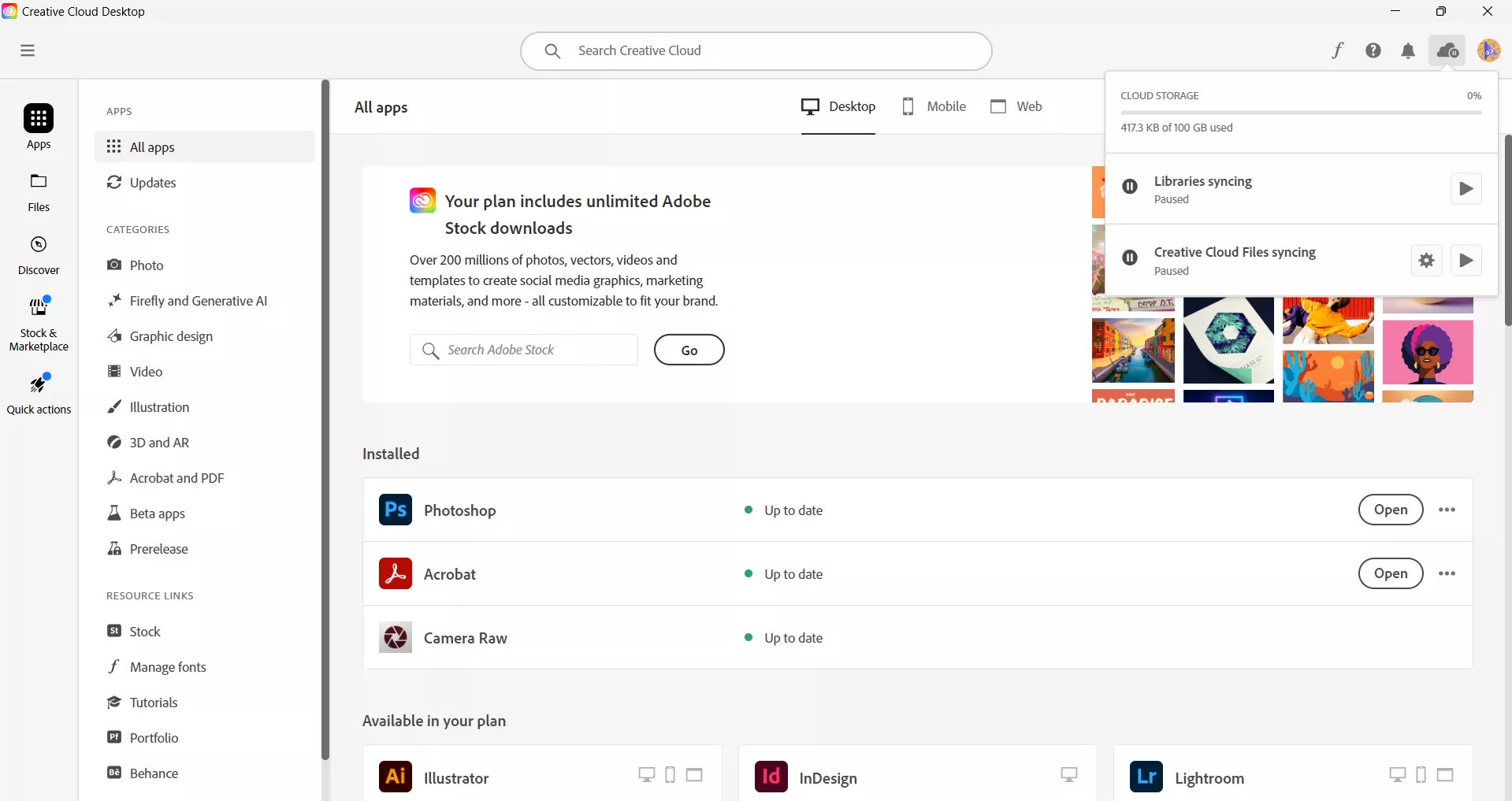
Step-2. Click in the “Cloud” icon in the top right corner. You will see a pop-up window. Click the “Pause” icon right next to “Creative Cloud Files Syncing”, which will pause any file syncing.
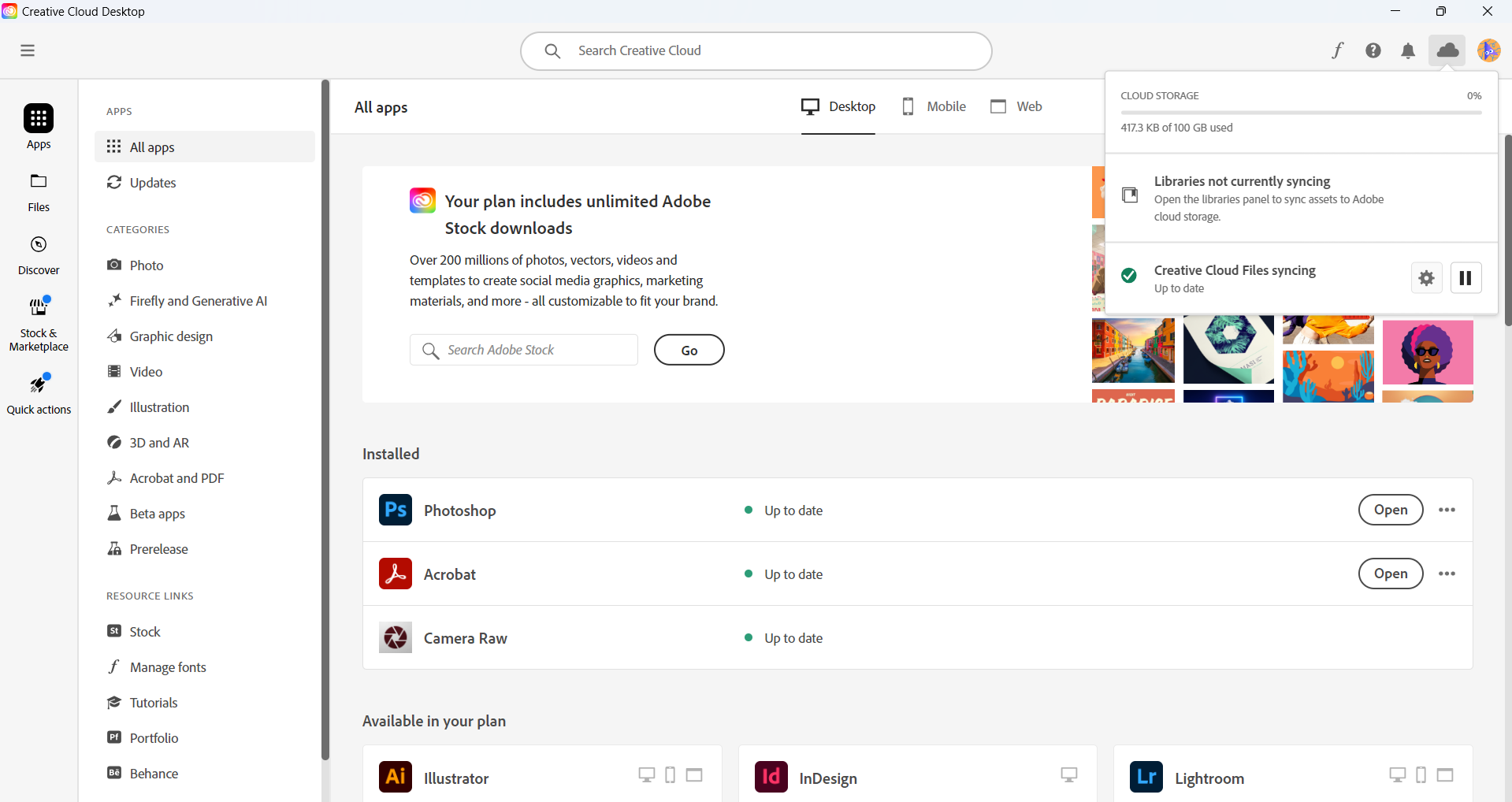
If you ever want to turn it on again, just click the “Cloud” icon and click on the “Start” icon next to “Creative Cloud Files Syncing”.
Part 6. UPDF: The Ultra-Lightweight, Lag-Free Alternative to Adobe Acrobat
If you have decided to disable Adobe Collab Sync because of slowed-down speeds and endless document loading issues, you still need a smart way to access your PDFs across your laptop, tablet, and phone.
This is exactly where UPDF shines. Unlike Adobe Acrobat, which forces dozens of heavy, automated tracking and syncing processes (AdobeCollabSync.exe) to run silently in your Windows background and drain your CPU, UPDF is built from the ground up to be lean, lightning-fast, and completely under your control.
- Zero Invisible Background Processes: UPDF never forces automatic, non-stop background syncing that freezes your computer. It features a dedicated, secure UPDF Cloud environment. You retain total privacy and system performance by manually dragging files into the cloud only when you want to sync them across your Windows, Mac, iOS, or Android screens.
- Zero Lag Real-Time AI Cross-Examination: Adobe Collab Sync slows down significantly when multiple users or heavy files are involved. UPDF handles 1,000+ page textbooks and heavy corporate briefs instantly. With its fully integrated UPDF AI, you can instantly summarize entire documents, translate technical jargon into 38+ languages, or explain complex data strings directly in the sidebar without a single millisecond of system stuttering.
- Instant Text & Image Editing on the Fly: Once your document is uploaded to your UPDF Cloud, you unlock a full-suite creative desktop tool. Modify text fonts directly, swap images, embed active links, or digitally sign contracts without needing to convert your layout to another format first.
- Flawless AI OCR Scanning for Image Layouts: Ripped or scanned documents that usually crash Adobe’s sync engine are handled effortlessly by UPDF. Its built-in OCR engine extracts high-fidelity text from flat pictures or photocopies, turning unsearchable files into active, interactive data sheets in seconds.
Click the button below to download UPDF for free and experience a PDF editor that won't freeze your PC!
Windows • macOS • iOS • Android 100% secure
To learn more about why UPDF is better than Adobe Acrobat, you can watch the YouTube video below.
🚀Boost Your Productivity
FAQs About Adobe Collab Sync and Background Lag Fixes
Why is AdobeCollabSync.exe running in my Windows task manager if I never use collaboration features?
Adobe Acrobat automatically installs and activates the Acrobat Collaboration Synchronizer as a native system startup service. Even if you only open local PDFs to read them by yourself, this background process runs continuously, checking for cloud updates and frequently eating up massive amounts of CPU and memory. To stop this performance drain completely, you must follow the steps to pause syncing or switch to a lightweight, independent editor like UPDF that leaves no active background footprint.
Will disabling Adobe Collab Sync delete my local PDF files?
No. Disabling or pausing the Creative Cloud file synchronization only stops Adobe from constantly broadcasting and cross-referencing your documents with the Adobe Cloud servers. Your local files will remain completely intact on your hard drive. However, if you still want a secure way to access your files on your phone or tablet without risking system slowdowns, uploading files manually to UPDF Cloud gives you total control over when your computer uses its processing power.
Why does Adobe Acrobat freeze or show sync errors when opening large documents?
This is a known architectural limitation of Adobe Collab Sync. When multiple background permission checks, version control tracks, and dynamic comments try to update simultaneously across different user platforms (Windows, Mac, or Mobile), the application lags severely or crashes due to connectivity dependency. Shifting your heavy workflows to UPDF eliminates this problem entirely because its core engine is optimized for high-speed local processing and clean, manual cloud backups.
Conclusion
Adobe Collab Sync is a tool from Adobe that is used by multiple users to simultaneously work on a document with real-time document updates happening automatically for all end users. This is useful and safe but can stall the speed.
UPDF is a great alternative if you are looking for a cloud-based service that is safe and doesn’t slow down your work. Plus, it has many more features which will help work on the document itself. Download UPDF right now and you can testify it yourself.






 Enola Davis
 Enola Miller
 Italo Rossi
  Engelbert White