 UPDF
UPDF
 UPDF for Windows
 UPDF for Mac
 UPDF for iPhone/iPad
 UPDF for Android
 UPDF AI Online
 UPDF Sign
 IvyCraft
 Edit PDF
 Annotate PDF
 Create PDF
 PDF Form
 Edit links
 Convert PDF
 OCR
OCR PDF to Word
 PDF to Image
 PDF to Excel
 Organize PDF
 Merge PDF
 Split PDF
 Crop PDF
 Rotate PDF
 Protect PDF
 Sign PDF
 Redact PDF
 Sanitize PDF
 Remove Security
 Read PDF
 UPDF Cloud
 Compress PDF
 Print PDF
 Batch Process
 About UPDF AI
 UPDF AI Solutions
 AI User Guide
 FAQ about UPDF AI
 Summarize PDF
 Translate PDF
 Chat with PDF
 Chat with AI
 Chat with image
 PDF to Mind Map
 Explain PDF
 PDF AI Tools
 Image AI Tools
 AI Chat Tools
 AI Writing Tools
 AI Study Tools
 AI Working Tools
 Other AI Tools
 AI Bookmark Generation
 AI Bookmark Summary
 AI Watermark Generation
 AI Background Generation
 AI Sticker Generation
 AI Stamp Generation
 AI Editing Suite
 UPDF Copilot
 AI Page Management
 AI Semantic Search
 PDF to Word
 PDF to Excel
 PDF to PowerPoint
 Enterprise Solution
 Enterprise Sign
 Enterprise AI
 Enterprise Plan
 Enterprise User Guide
 Enterprise Webinar
 Banking
 Healthcare
 Insurance
 Legal
Legal Manufacturing
 Government
 Education Solution
 Customer Stories
 User Guide
 UPDF Tricks
 FAQs
FAQs UPDF Reviews
 Download Center
 Blog
Blog Newsroom
 Tech Spec
 Updates
 UPDF vs. Adobe Acrobat
 UPDF vs. Foxit
 UPDF vs. PDF Expert

Apple Wallet accepts only .pkpass files — a standard PDF boarding pass or event ticket won't go in directly. The most reliable workaround is Pass2U Wallet, a free iOS app that reads the barcode from your PDF and converts it into a wallet-compatible pass in a few steps.
If you're working with a physical paper ticket, Part 2 also covers how to scan and archive the full ticket in UPDF before you process the barcode with Pass2U — so you end up with both a functional wallet pass and a complete visual record of the original ticket.
Windows • macOS • iOS • Android 100% secure
Part 1. How to Add a PDF to Apple Wallet Using Pass2U
You can't add a PDF to Apple Wallet directly since the app supports only .pkpass files. Pass2U Wallet, available free on the App Store, solves this by reading the barcode from your PDF and creating a compatible wallet pass.
Let’s see how you can do it in easy steps.
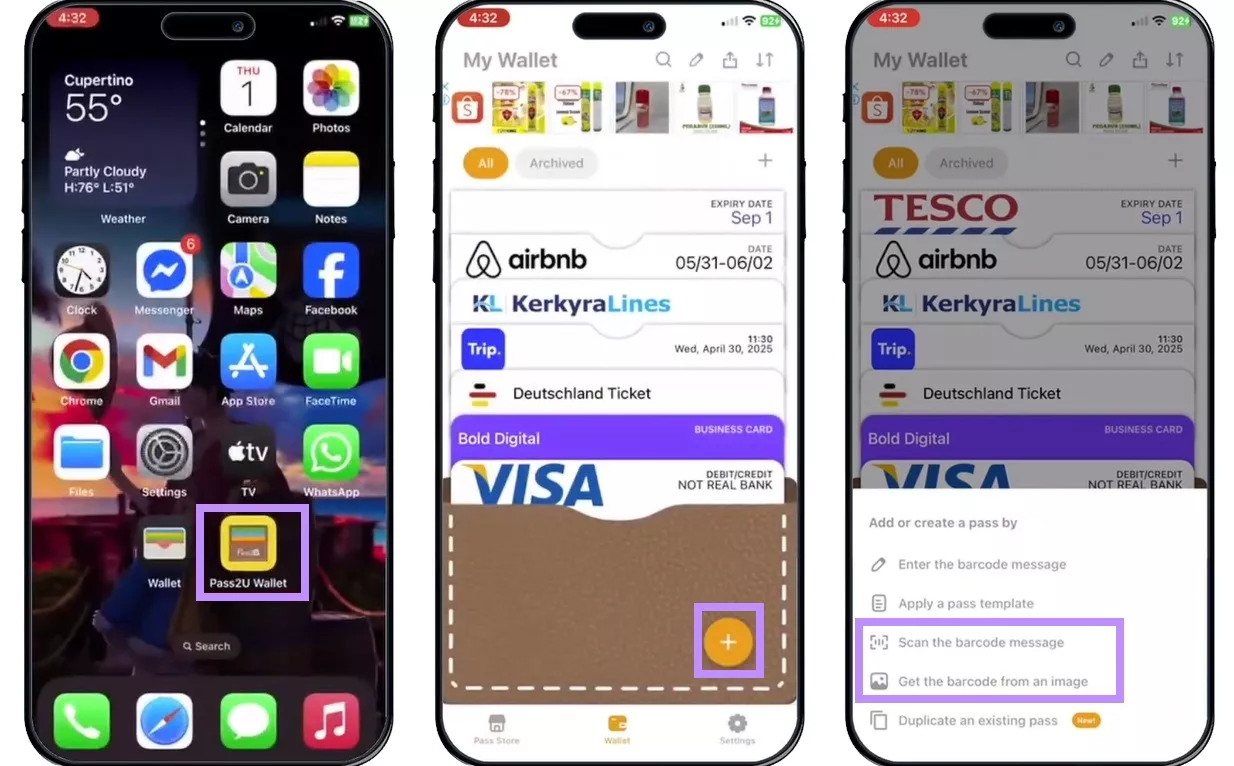
Step 1: Download and install the Pass2U app from the App Store. Open the Pass2U app and click the “+” sign. Click on “Scan the barcode message” or “Get the barcode from the image” option.
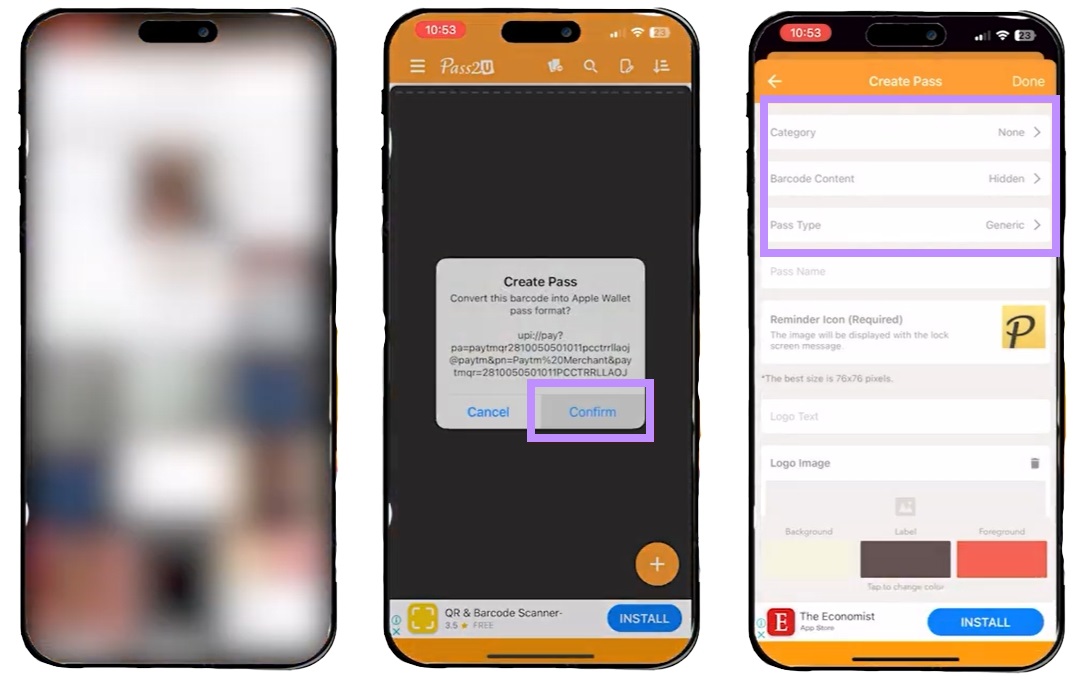
Step 2: Select the PDF you want to add to the Apple Wallet and choose the image with the pass. You'll see a prompt to convert this pass to Apple Wallet format. Click "Confirm."
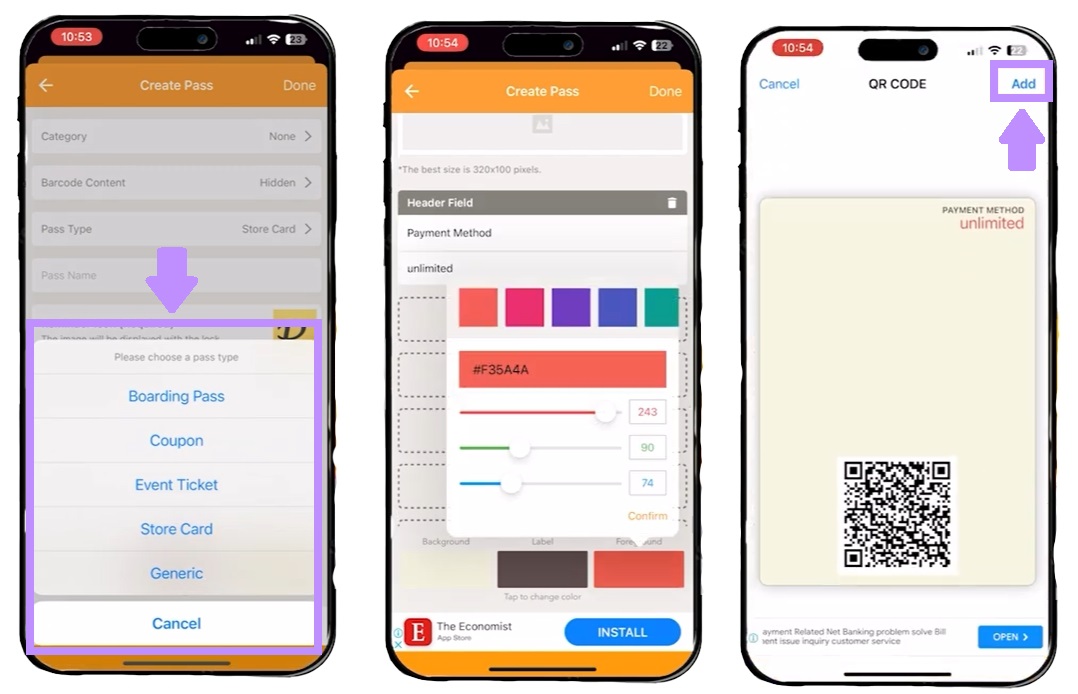
Step 3: Choose the details like Category, Barcode content, pass type, etc. Click on “Done” to set the details. Then review your pass and click “Add” to add it to Apple Wallet.
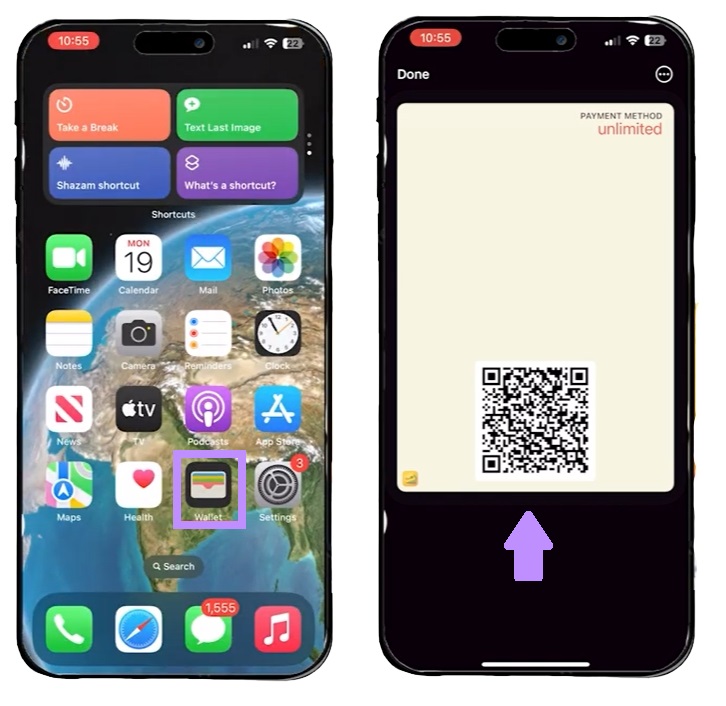
Step 4: Open the Apple Wallet and check your newly added pass.
Part 2. How to Open and Archive Your PDF Tickets with UPDF
UPDF covers two different situations depending on whether your ticket is digital or physical.
1. For Digital PDF Tickets
Before running Pass2U, open your PDF ticket in UPDF to confirm the details — flight number, event date, seat number — and check that the barcode area is clearly visible. UPDF runs on Windows, Mac, iOS, and Android, so you can open the ticket on whichever device is at hand.
1.1 Steps to View PDF Tickets On PC:
Step 1: Open UPDF on your computer and click “Open Files.”
Windows • macOS • iOS • Android 100% secure
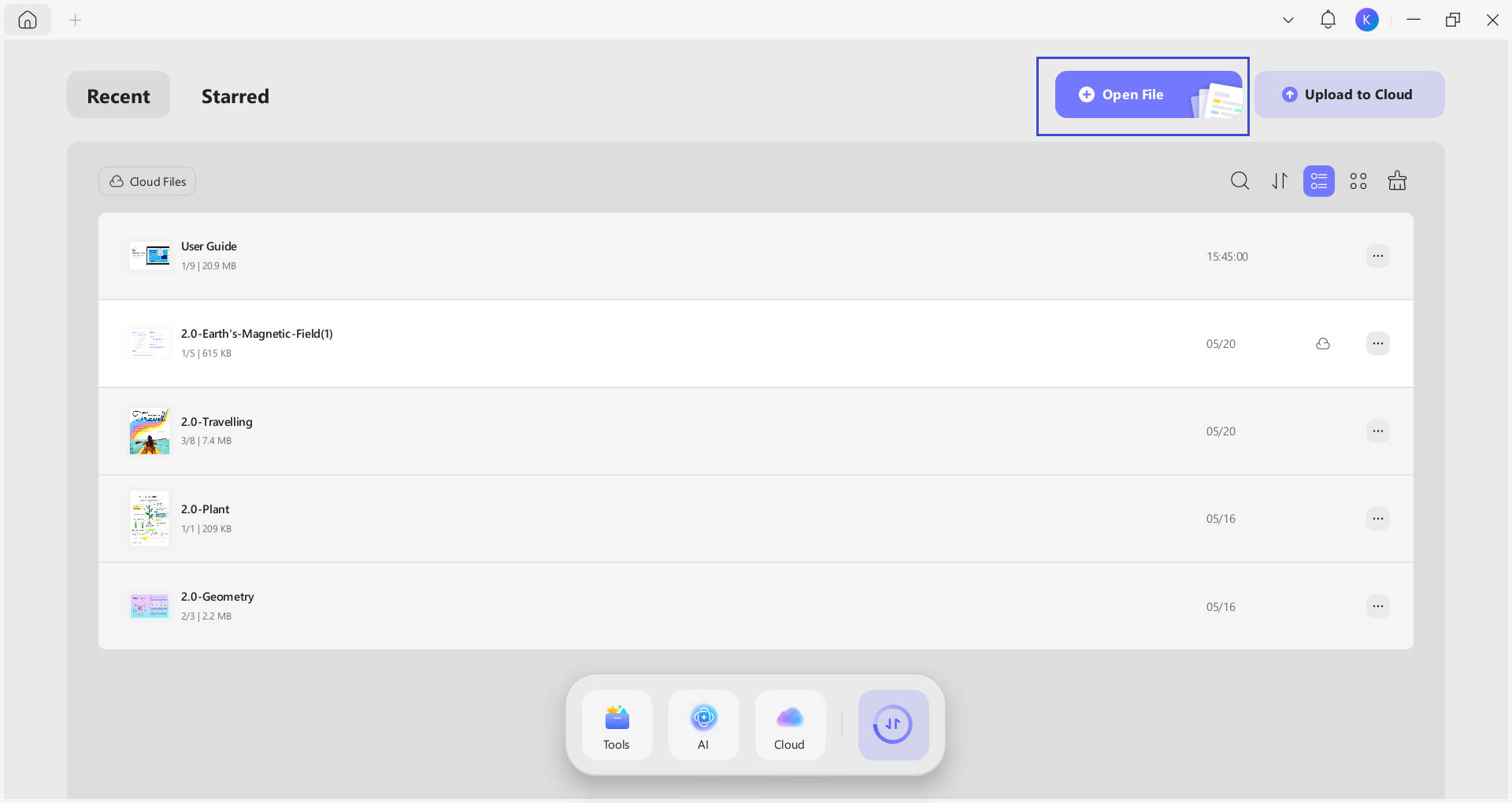
Step 2. Select your PDF ticket file to import it.
Step 3. Review the ticket, e.g. check dates, names, seat numbers, and confirm the barcode is undistorted and fully visible before proceeding to Pass2U.
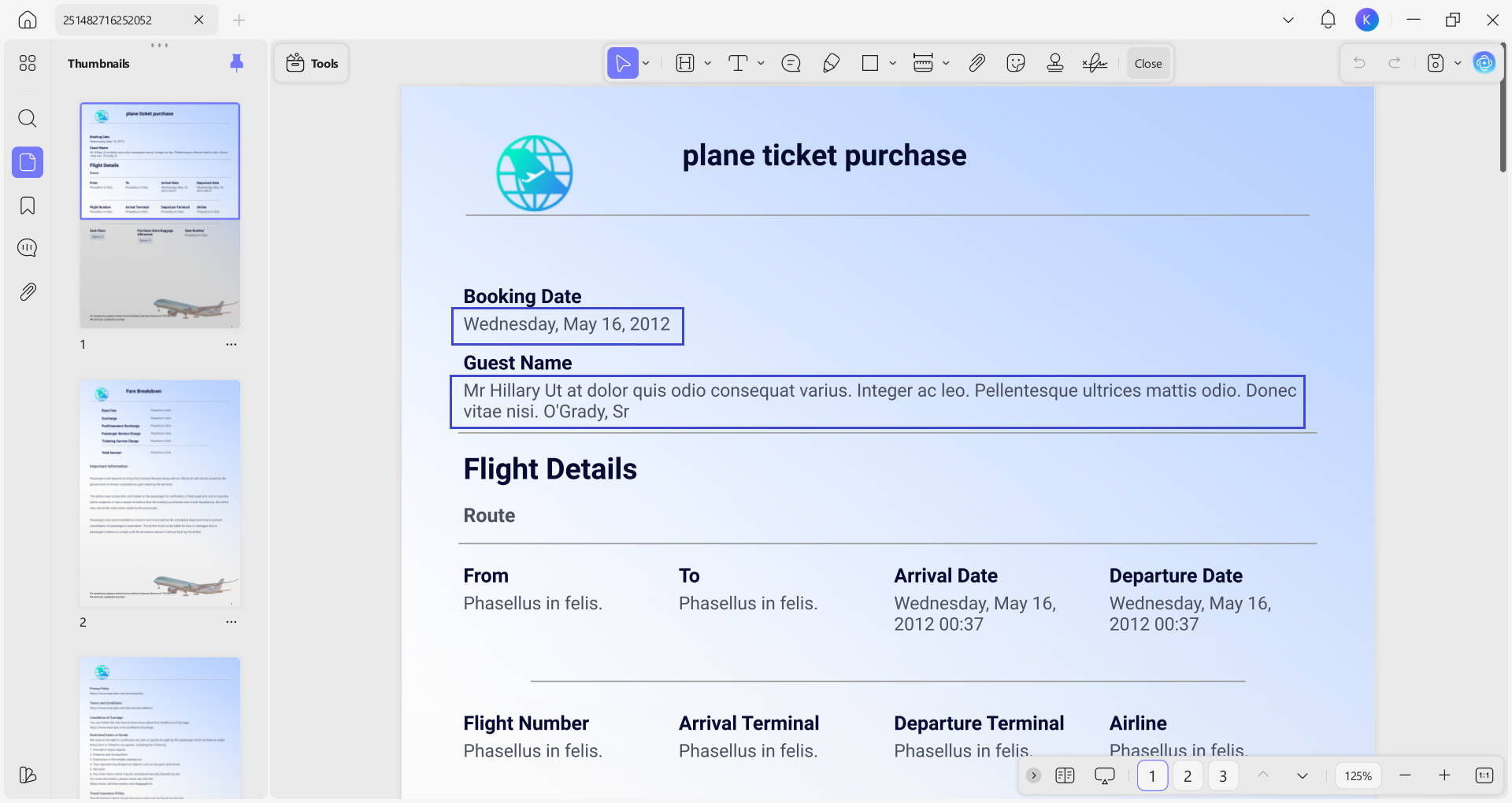
1.2 Steps to View PDF Tickets On Mobile:
Step 1: Install UPDF from the App Store/Play Store and open it.
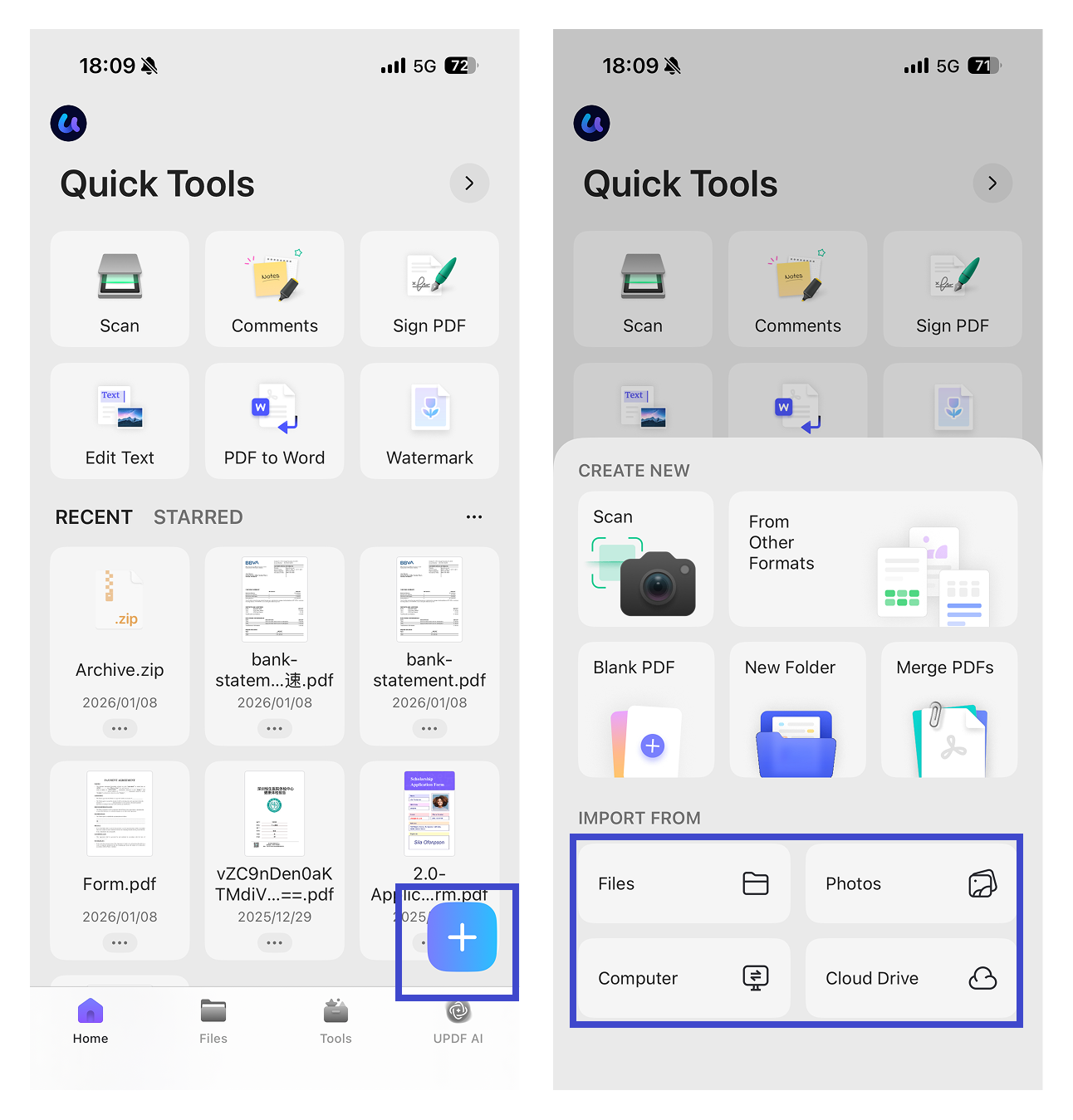
Step 2: Click the “+” icon and import the PDF ticket to UPDF from your local files, Photo gallary, computer, or Cloud Drive.
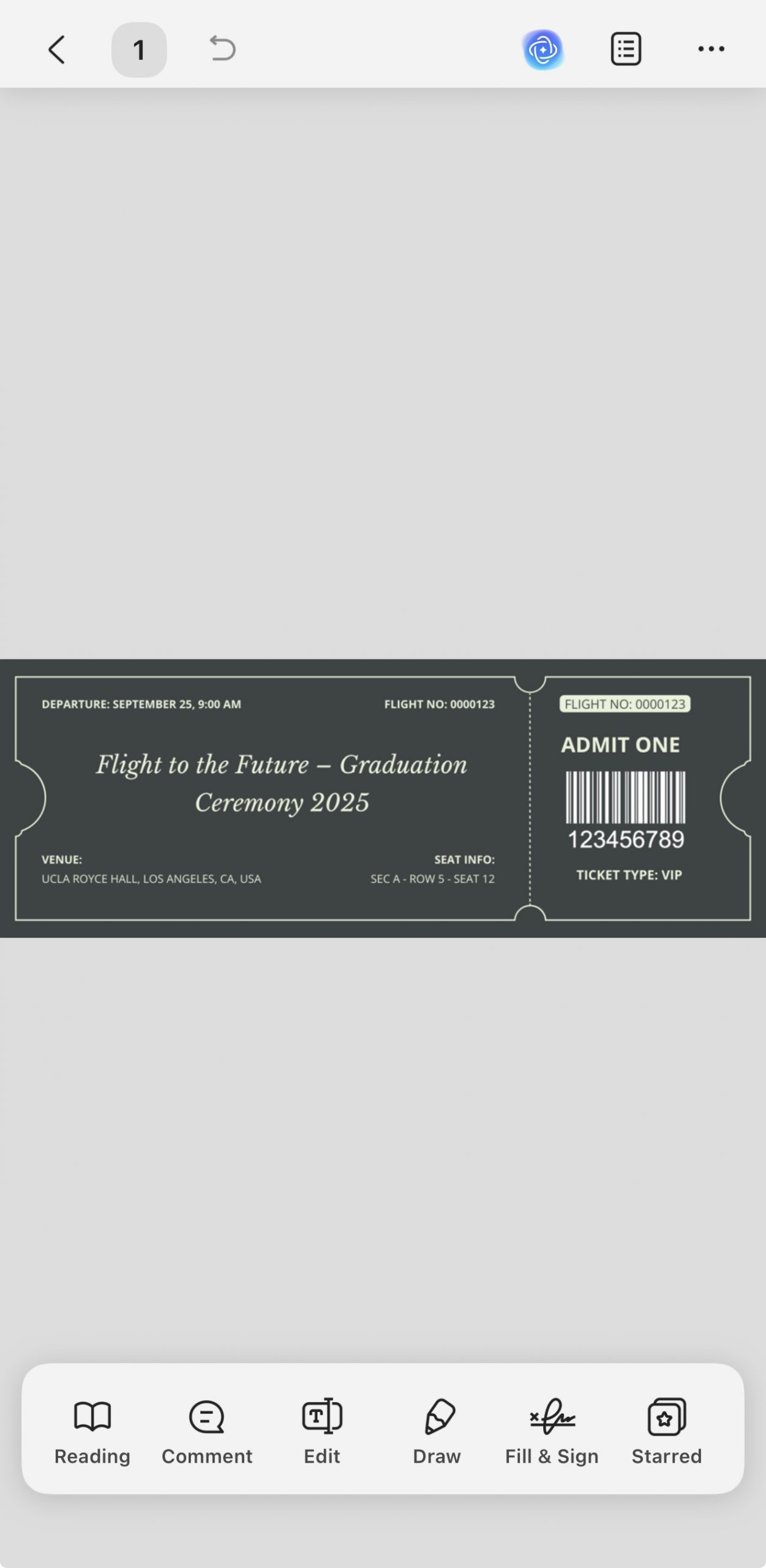
Step 3: Pinch to zoom in on the barcode area and confirm it's sharp and complete — Pass2U needs a clear barcode to generate your wallet pass correctly.
2. For Physical Paper Tickets
Pass2U scans only the barcode from a physical ticket — enough to create the wallet pass, but the ticket's full design, artwork, and layout are not preserved. For tickets with sentimental or archival value — festival passes, concert stubs, sports event tickets — scan the complete ticket with UPDF first to keep a permanent visual record.
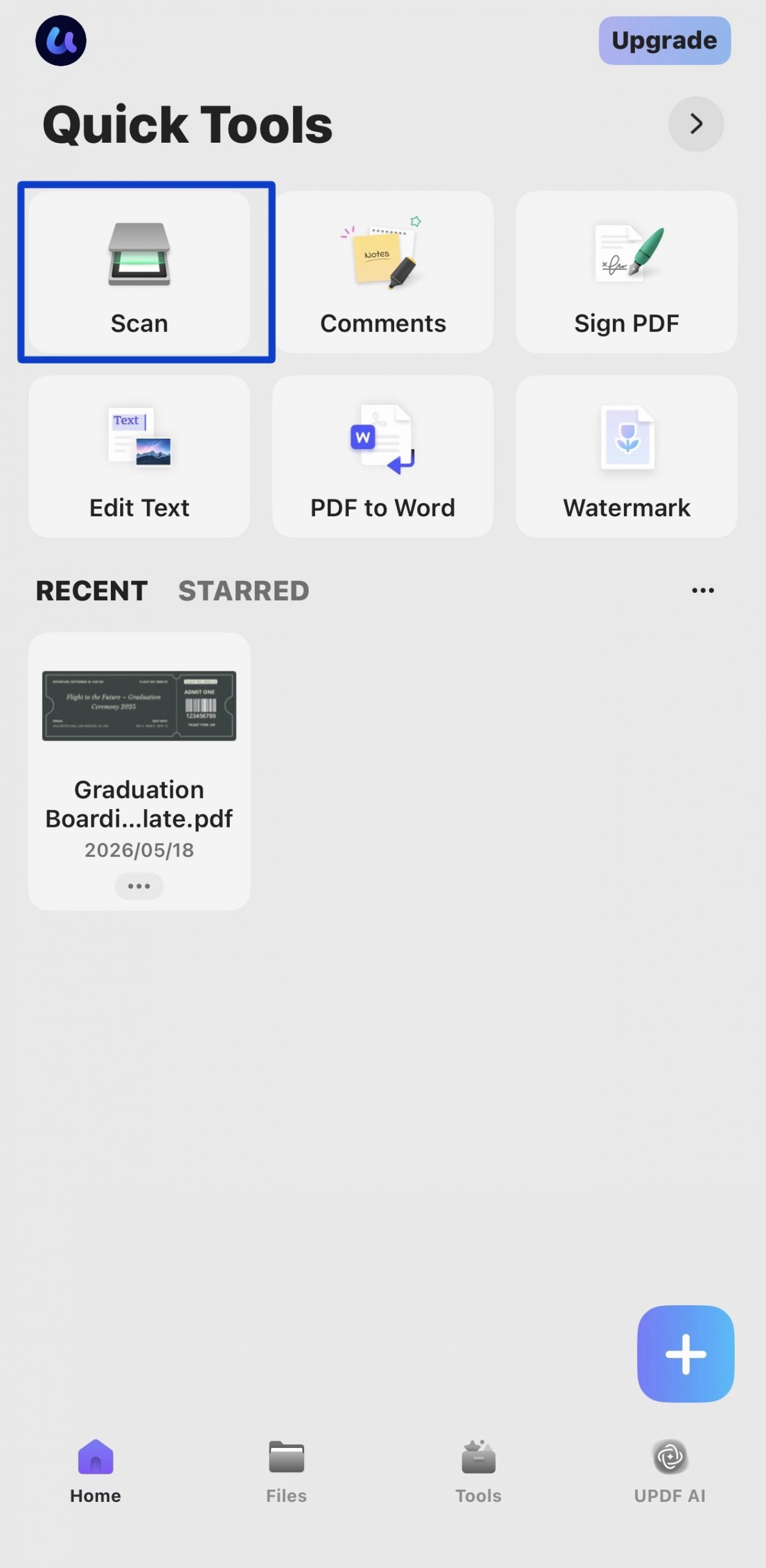
Step 1. Open UPDF on your mobile device and tap the scan icon on the home screen.
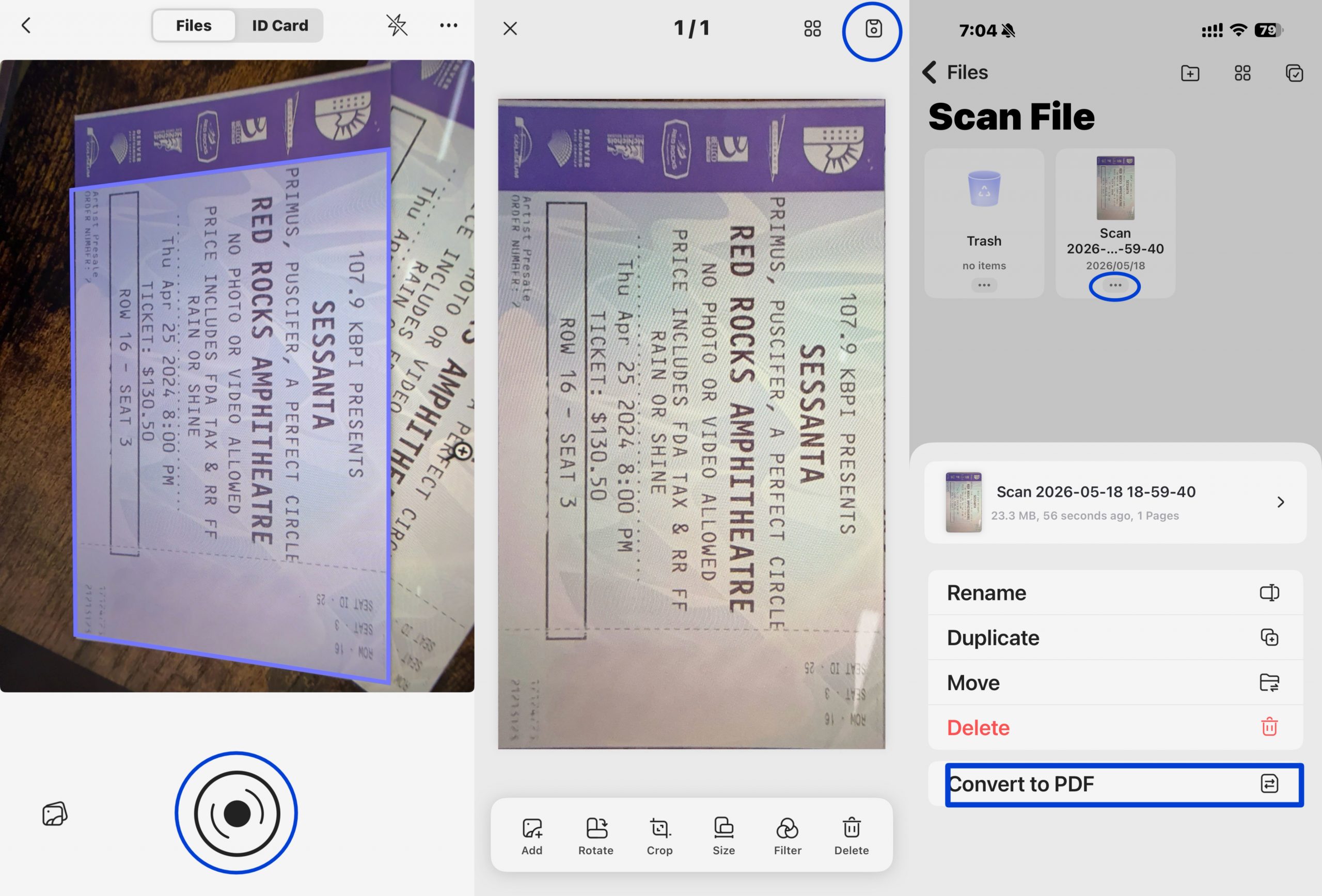
Step 2. Position the physical ticket flat and capture it. Then, save the scan as a PDF with the full ticket design intact.
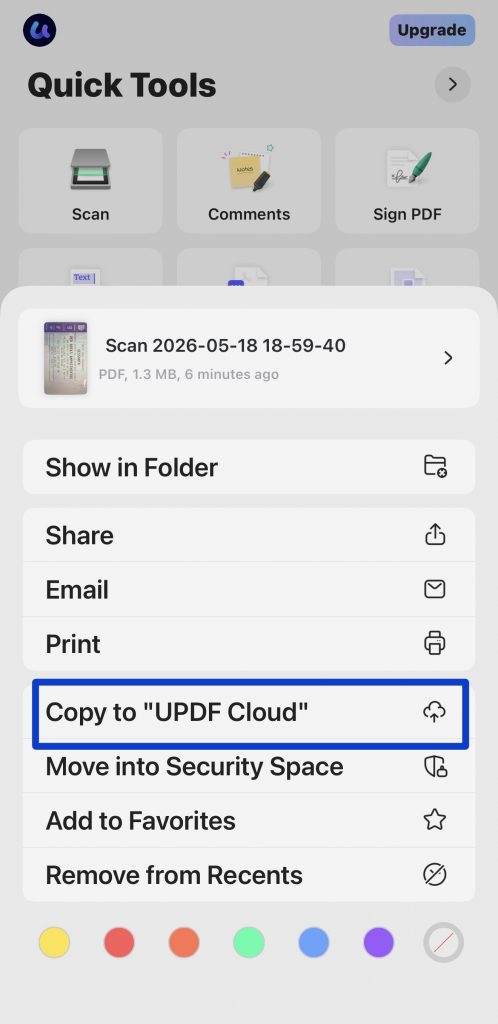
Step 3. Go to the "Home" page, click the three-dot option of the PDF file, and select "Copy to 'UPDF Cloud'" to sync automatically via UPDF Cloud. This makes the file accessible on your Mac, Windows PC, or any other device whenever needed.
Part 3. Benefits of Adding PDF Tickets to Apple Wallet
Adding a PDF to Apple Wallet has several benefits that can simplify your life and reduce stress. It helps in better organization and centralized storage for your tickets. Let's see some advantages of that:
1. Centralized Storage of Tickets
All of your tickets are held in one easy place with an Apple Wallet. You don't need to go through email or apps to get to them.
2. Better Organization
Apple Wallet sorts out your passes by date, so you can readily access the required ones. Apple Wallet also provides timely reminders and notifications for near-future events or flights. So, you can better keep up with your schedule.
3. Peace of Mind
Physical tickets are easily lost, damaged, or forgotten. You can eliminate this risk by holding them in an Apple Wallet. Your digital tickets are always safe and readily available.
4. Quick and Easy Access
Apple Wallet works perfectly with your device, making it easy to access your tickets quickly. This is especially helpful in busy places like airports or concerts.
5. Eco-Friendly Solution
Storing tickets digitally removes the need for printed copies — a straightforward step toward reducing paper waste across dozens of events and trips.
Part 4. FAQs
1. How Do I Add Documents to My Apple Wallet?
If the document is supported, look for an "Add to Apple Wallet" button in your email, app, or notification and tap it. If no such button appears, contact the issuer or use Pass2U Wallet to manually create a compatible pass from the barcode.
2. Can Anything be Added to Apple Wallet?
You can add boarding passes, event tickets, vouchers, rewards cards, transit cards, loyalty cards, and some government-issued IDs depending on your region.
3. How do I Add a QR Code to My Apple Wallet?
You can add a QR code to the Apple Wallet if supported. The QR code is present on a boarding pass or a ticket. Look for the "Add to Wallet” icon. It will simply add it to your wallet.
If that doesn’t work, use the Pass2U Wallet App to scan the QR code and make a pass for Apple Wallet.
Conclusion
Apple Wallet's .pkpass requirement means PDFs need an extra conversion step — Pass2U handles that cleanly by reading the barcode from your PDF. For physical tickets, you can use UPDF to scan and archive the full ticket design for your records. The scanned PDF syncs across your devices via UPDF Cloud, so your ticket collection stays accessible wherever you are.
Download UPDF for free and start archiving your tickets across all your devices — no subscription required to get started.
Windows • macOS • iOS • Android 100% secure







 Enrica Taylor
 Bruna Almeida
 Enya Moore
 Enola Miller