 UPDF
UPDF
 UPDF for Windows
 UPDF for Mac
 UPDF for iPhone/iPad
 UPDF for Android
 Nomostar
 UPDF AI Online
 UPDF Sign
 IvyCraft
 Edit PDF
 Annotate PDF
 Create PDF
 PDF Form
 Edit links
 Convert PDF
 OCR
OCR PDF to Word
 PDF to Image
 PDF to Excel
 Organize PDF
 Merge PDF
 Split PDF
 Crop PDF
 Rotate PDF
 Protect PDF
 Sign PDF
 Redact PDF
 Sanitize PDF
 Remove Security
 Read PDF
 UPDF Cloud
 Compress PDF
 Print PDF
 Batch Process
 About UPDF AI
 UPDF AI Solutions
 AI User Guide
 FAQ about UPDF AI
 Summarize PDF
 Translate PDF
 Chat with PDF
 Chat with AI
 Chat with image
 PDF to Mind Map
 Explain PDF
 PDF AI Tools
 Image AI Tools
 AI Chat Tools
 AI Writing Tools
 AI Study Tools
 AI Working Tools
 Other AI Tools
 AI Bookmark Generation
 AI Bookmark Summary
 AI Watermark Generation
 AI Background Generation
 AI Sticker Generation
 AI Stamp Generation
 AI Editing Suite
 UPDF Copilot
 AI Page Management
 AI Semantic Search
 PDF to Word
 PDF to Excel
 PDF to PowerPoint
 Enterprise Solution
 Enterprise Sign
 Enterprise AI
 Enterprise Plan
 Enterprise User Guide
 Enterprise Webinar
 Banking
 Healthcare
 Insurance
 Legal
Legal Manufacturing
 Government
 Education Solution
 Customer Stories
 User Guide
 UPDF Tricks
 FAQs
FAQs UPDF Reviews
 Download Center
 Blog
Blog Newsroom
 Tech Spec
 Updates
 UPDF vs. Adobe Acrobat
 UPDF vs. Foxit
 UPDF vs. PDF Expert

You double-click a PDF, and instead of opening it, Adobe Acrobat shows "A running instance of Acrobat caused an error." Often the program is already frozen in the background, leaving you unable to open or edit anything.
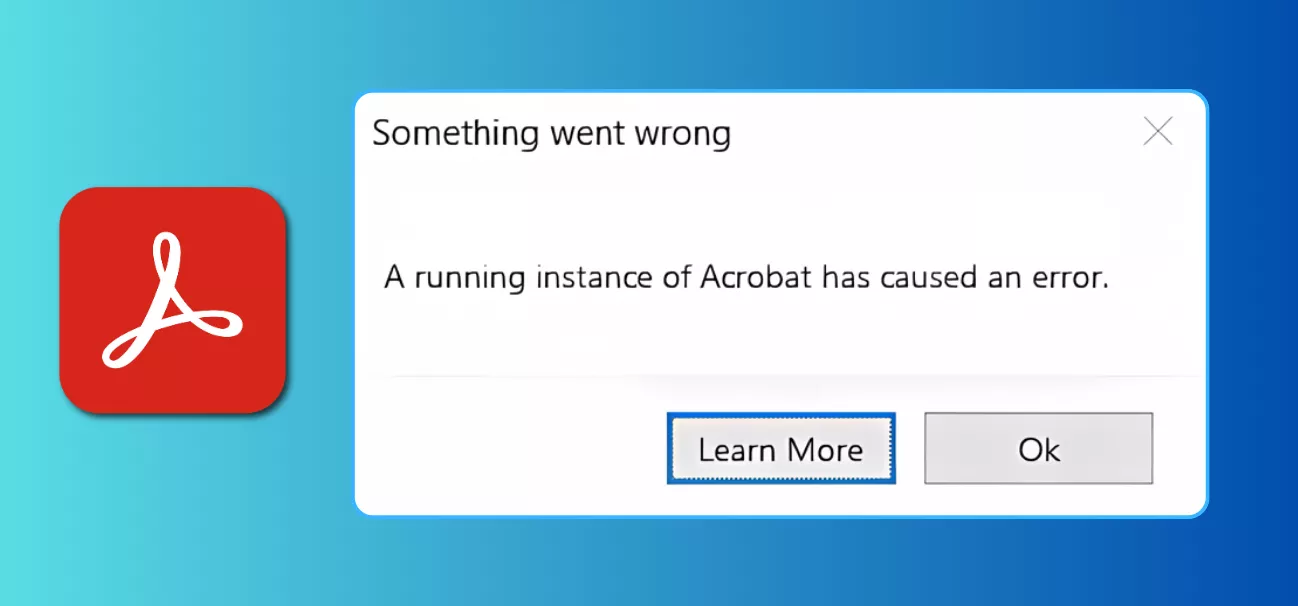
This usually happens when Acrobat is already running, when its installation files are damaged, or when the system needs an update. Below are seven fixes — covering both Windows and Mac — ordered from the quickest to the most thorough. Fix 1 also shows how a lighter editor, UPDF, lets you keep working on the PDF right away, including an AI Editing Suite that rewrites text directly inside the file.
Windows • macOS • iOS • Android 100% secure
Table of Contents
Part 1. Why A Running Instance of Acrobat has Caused an Error
Several factors are responsible for the “a running instance of Acrobat has caused an error” message. Let’s break these down to some essential reasons below.
- Multiple Instances Running: You may have clicked several times to launch Acrobat. This results in several Acrobat windows running in the background, causing the error.
- Corrupted Installation: Damaged installation files can prevent the program from starting correctly. This can lead to “a running instance of Acrobat caused an error” message.
- Outdated Software: An outdated system software can cause compatibility issues with Acrobat. This results in random errors and an unresponsive program during use.
- Conflicting Background Apps: Sometimes, the fault may lie with something other than Acrobat. Instead, some applications running in the background may interfere and cause performance issues.
- Lack of System Resources: Your computer may need more resources to run the program smoothly. For instance, a low RAM or unreliable processing power can cause errors.
With the causes identified, here's how to resolve each one.
Part 2. 7 Effective Ways to Fix “A Running Instance of Acrobat Caused an Error”
Here are seven fixes, with step-by-step instructions for both Windows and Mac. Start with Fix 1 if you need to keep working immediately; the rest repair Acrobat itself.
Let's explore these solutions one by one!
Way 1. Use Acrobat Alternative to Open and Edit PDF
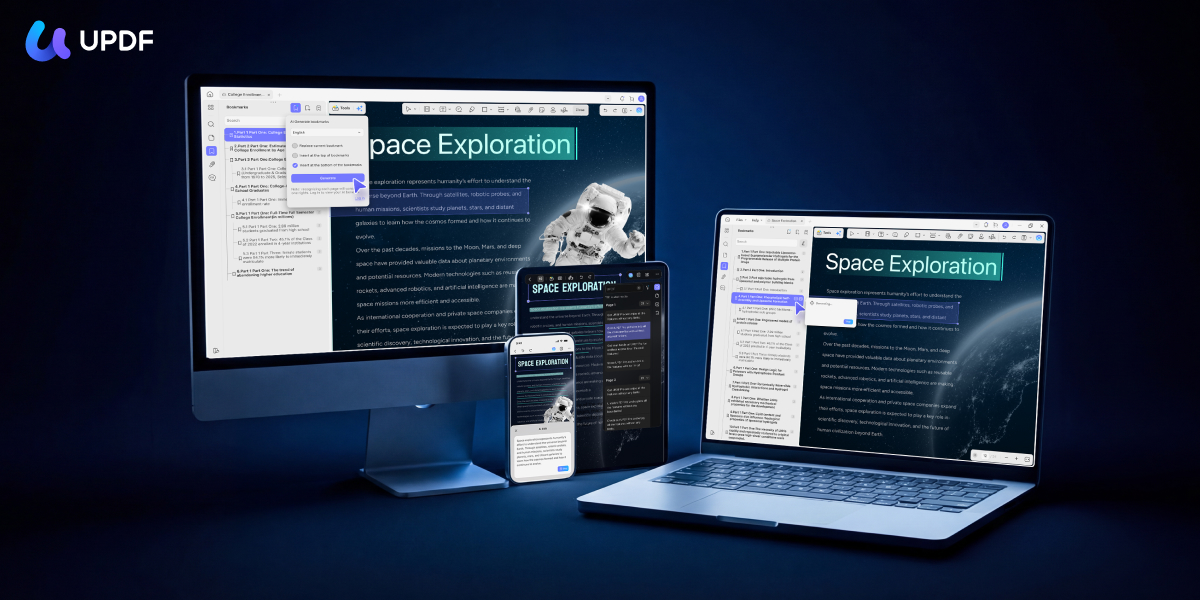
Random crashes and errors with Acrobat can be annoying, especially when working on urgent PDF tasks. But don’t worry! You can use UPDF to view and edit your files seamlessly.
Windows • macOS • iOS • Android 100% secure
UPDF is the best Acrobat alternative that offers most of the Acrobat features. It has everything from editing, creating, converting, and batch-processing PDFs to running OCR and chatting with an AI assistant.
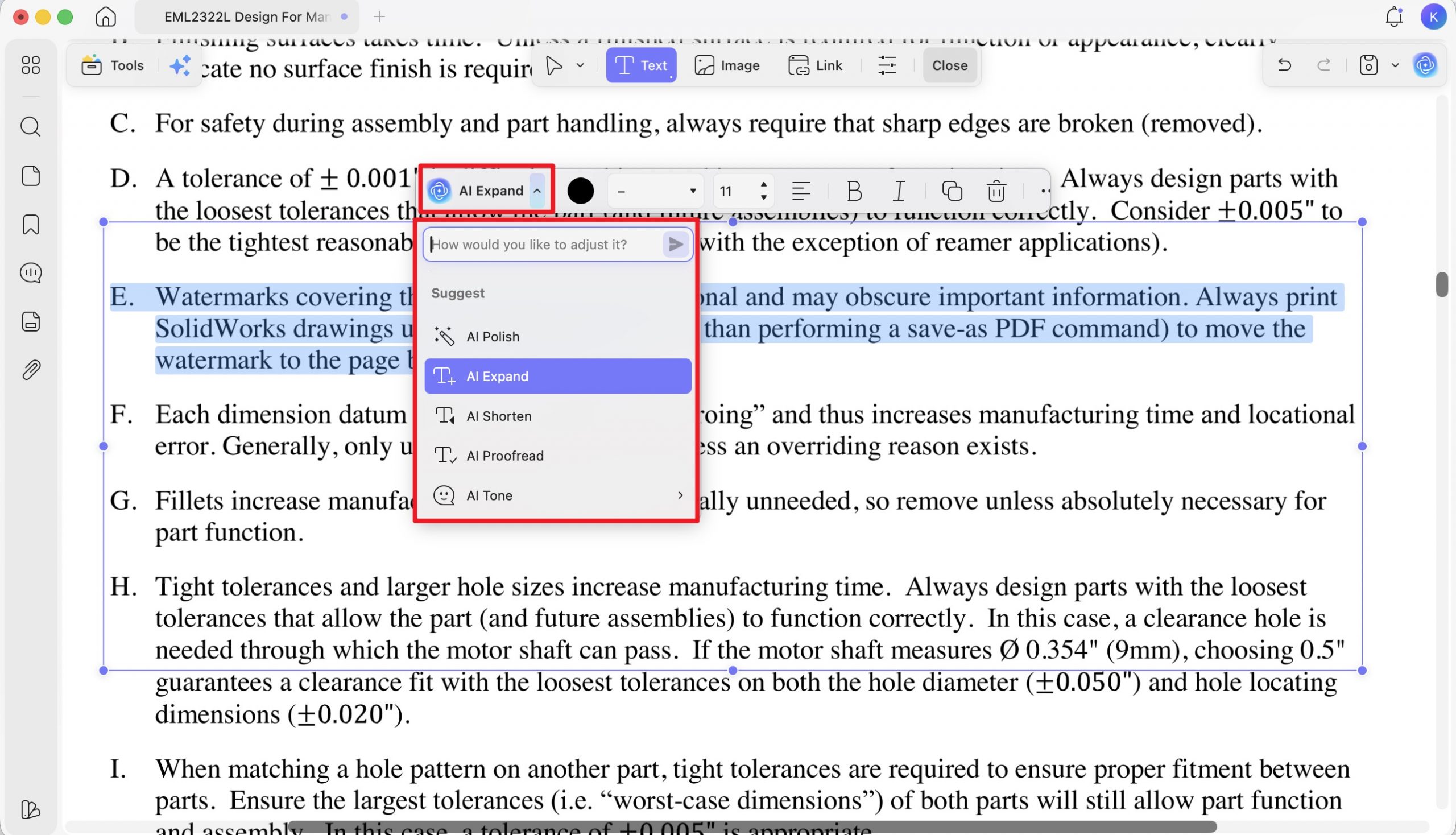
If the PDF you were stuck on needs real rewriting — not just a typo fix — UPDF's AI Editing Suite lets you rephrase a sentence, change the tone, or correct grammar inside the text box itself. There's no need to export to Word, edit, and re-import, which is the usual detour when Acrobat won't cooperate.
UPDF also costs far less than Acrobat. Adobe Acrobat Pro runs $239.88/year, and Adobe no longer sells a true perpetual license. UPDF Pro is $49.99/year or a $79.99 one-time payment that works across Windows, Mac, iOS, and Android.
Plus, you can use one license on all platforms, whether Windows, Mac, iOS or Android. So, why settle for less? Download UPDF now and start editing your documents more productively.
Now, let’s see how to open and edit your documents using it and bypass Adobe’s "a running instance of Acrobat has caused an error" issue.
Step 1: Launch UPDF and click “Open File” to import the PDF you need to edit.
Windows • macOS • iOS • Android 100% secure
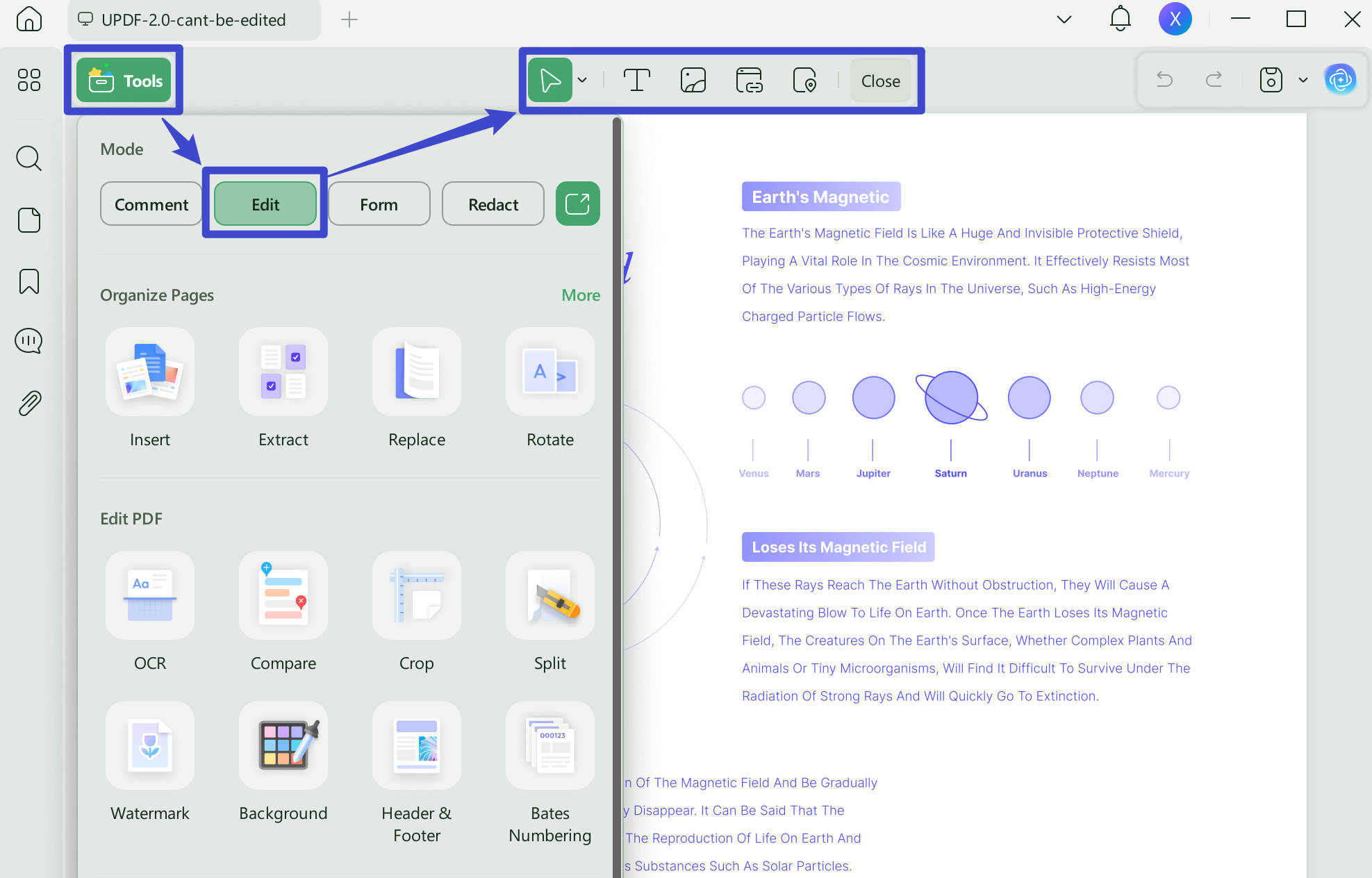
Step 2: Click "Edit" on the top toolbar or go to “Edit” in "Tools" from the left. Double-click the text you want to change — you can retype it, delete it, or adjust the font, size, and color.
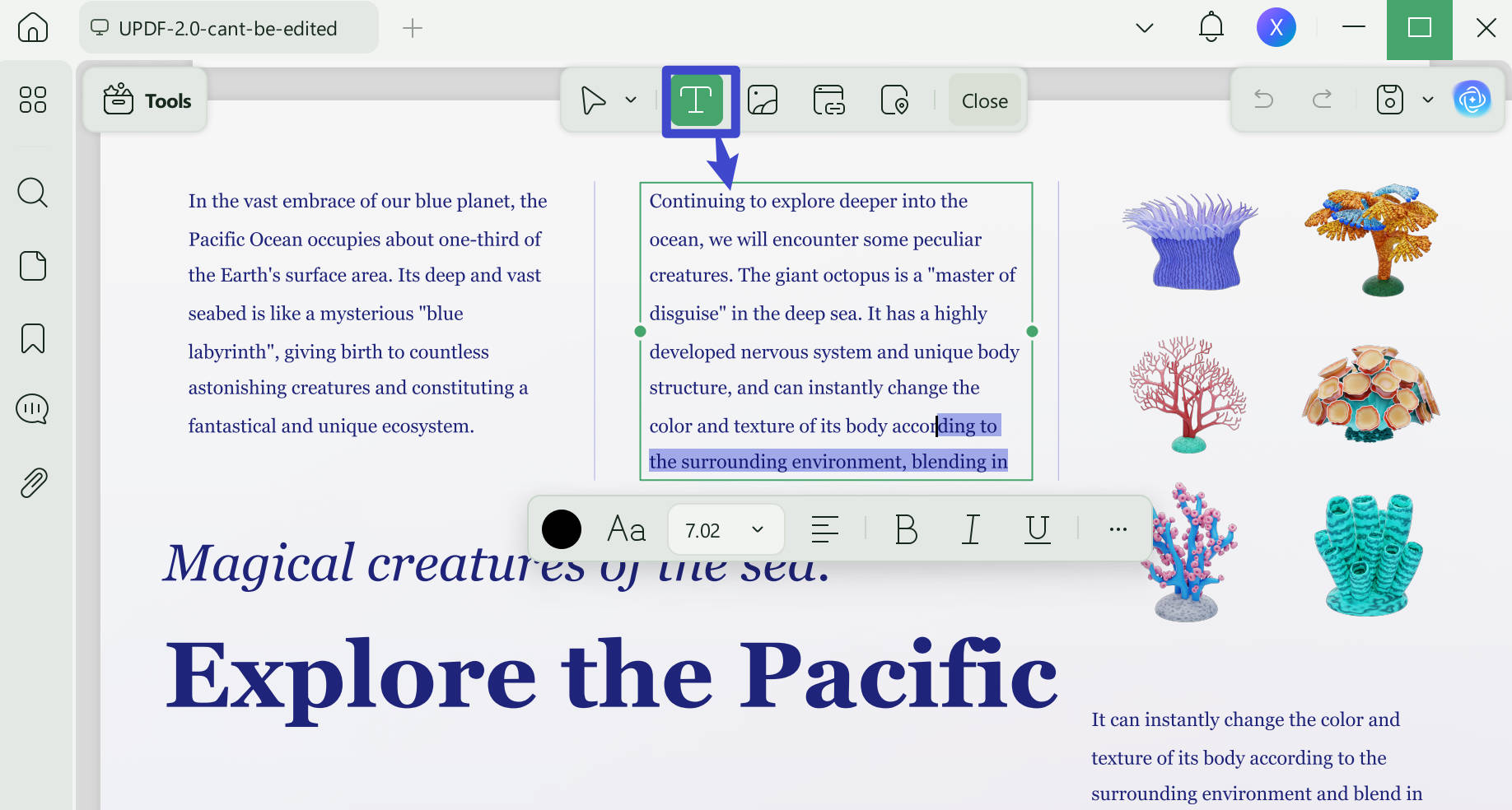
Step 3: Click the image you want to edit and choose your desired tool from the revealed toolbar. You can crop, extract, rotate images, and more.
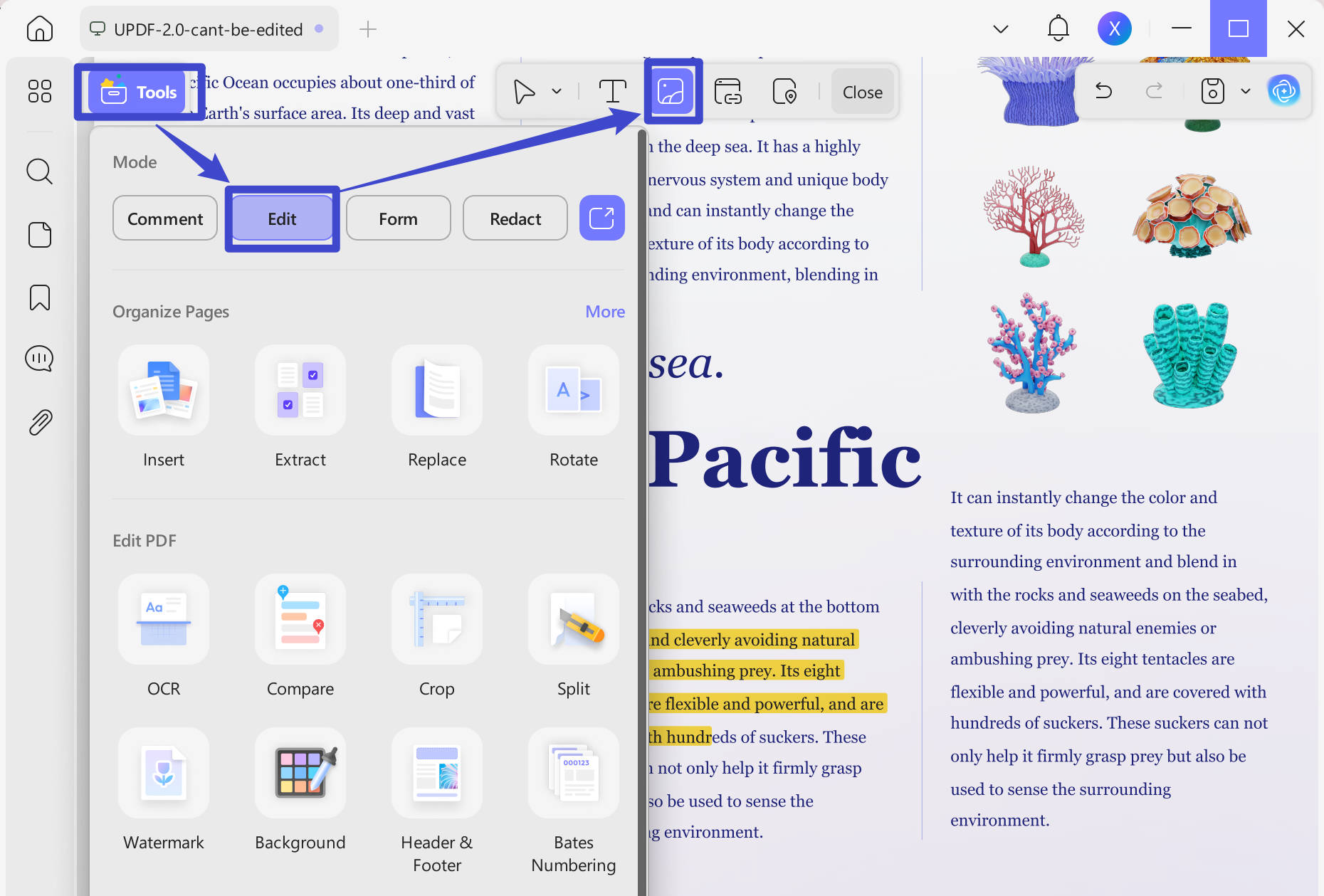
Step 4: You can also insert new text, images, or links to PDFs. To do this, go to the top toolbar and select the relevant tool from here. Then, click the page area where you need to add it.
That was easy, right? UPDF offers an advanced yet effortless solution to edit PDFs! Download UPDF for free and edit the PDF Acrobat couldn't open — no subscription required to get started (trial watermark on export).
Watch the video below to learn more about what makes UPDF the best Acrobat alternative!
Let’s move forward now and explore more ways to resolve this error.
Way 2. Restart Acrobat
One way to fix the “a running instance of Acrobat has caused an error” issue is to end the Acrobat using Task Manager and restart it. This will close all the background instances of the Acrobat and relaunch the program without any issues.
Here’s how to do it.
On Windows:
Step 1: Search for “Task Manager” using the Start menu search bar and open it.
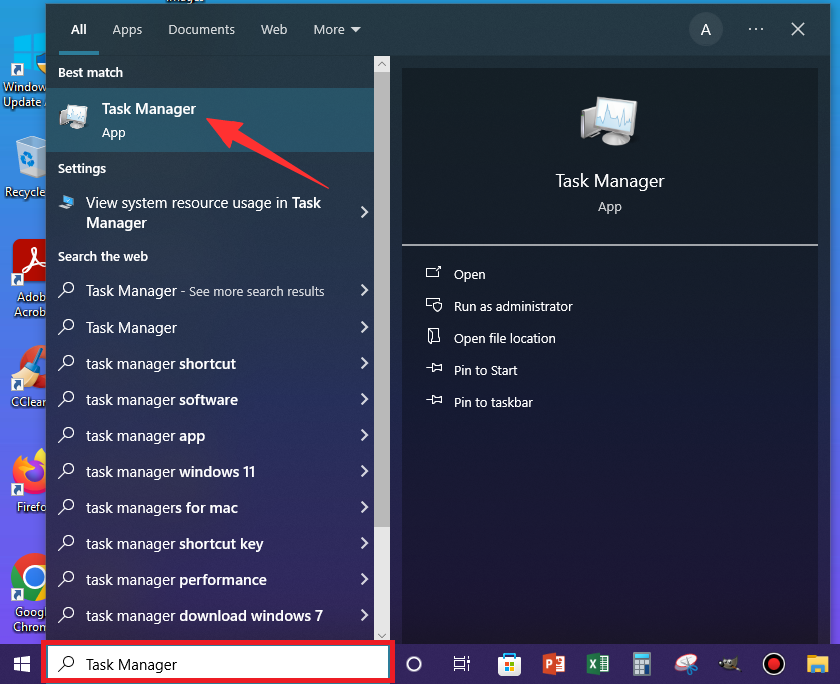
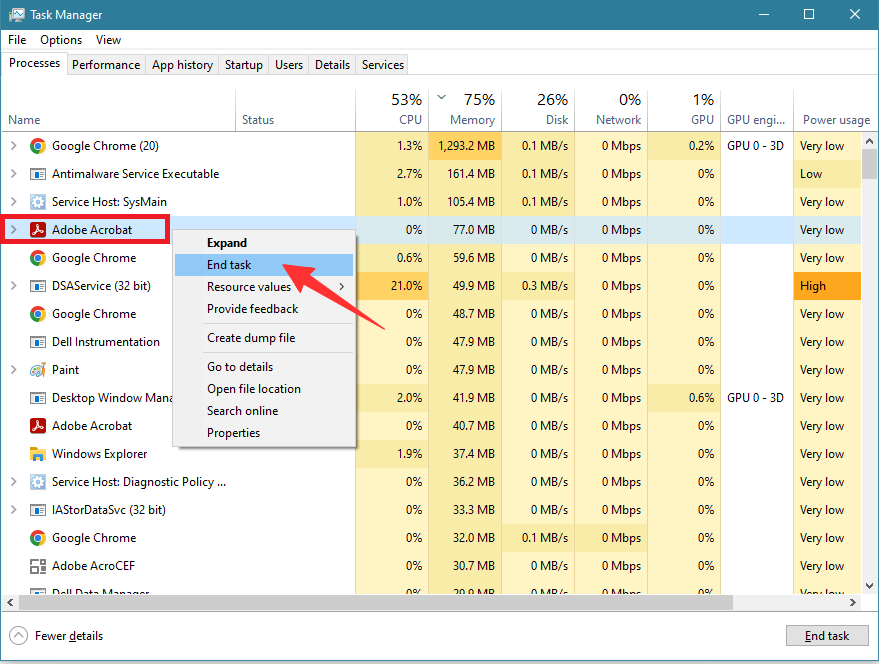
Step 2: Look for Adobe Acrobat under the “Name” section in the “Processes” tab.
Step 3: Right-click on the Adobe Acrobat and select “End task”. Similarly, close the additional Acrobat processes.
On Mac:
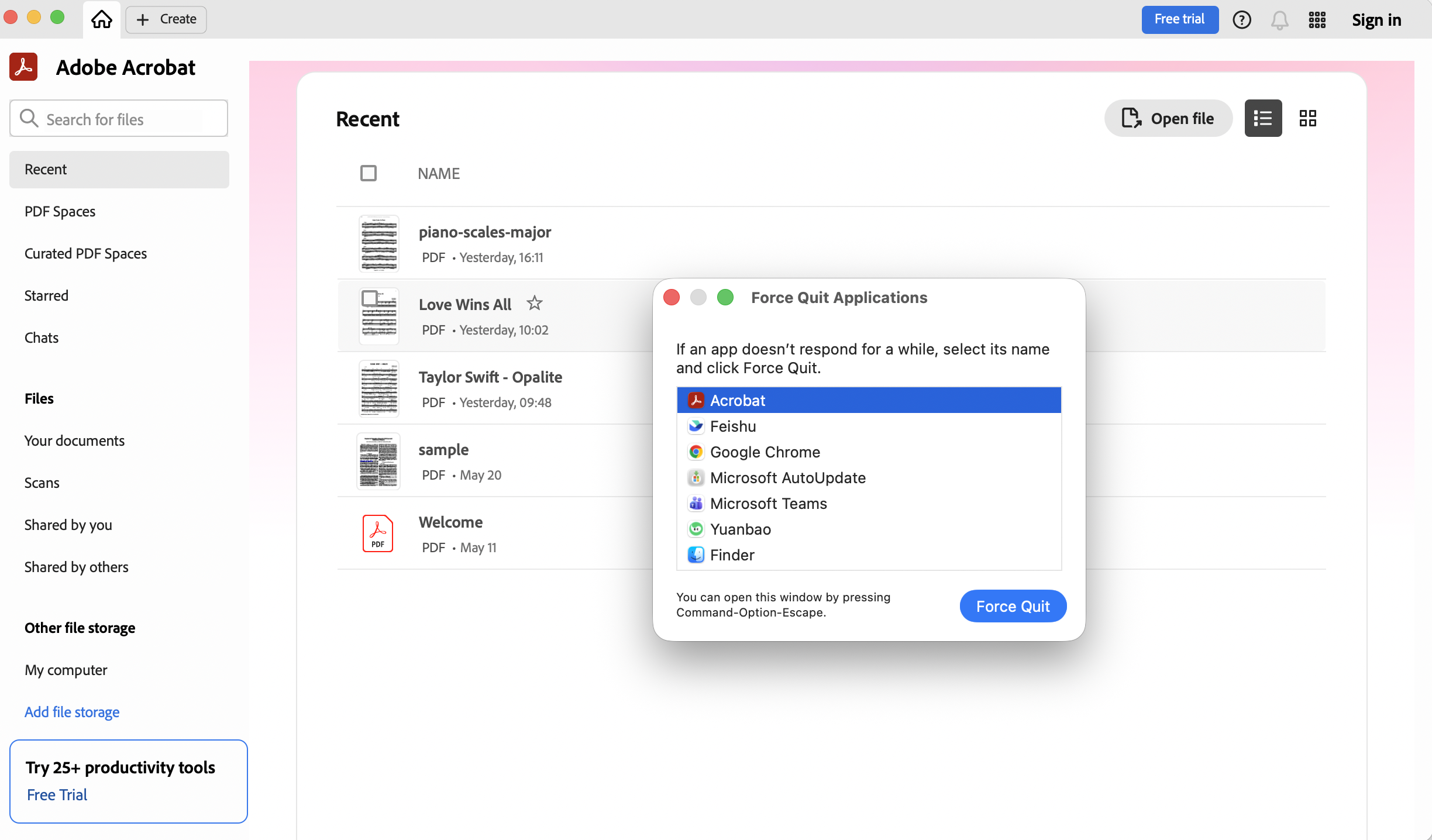
Step 1: Press Command + Option + Esc to open Force Quit, select Adobe Acrobat, and click Force Quit.
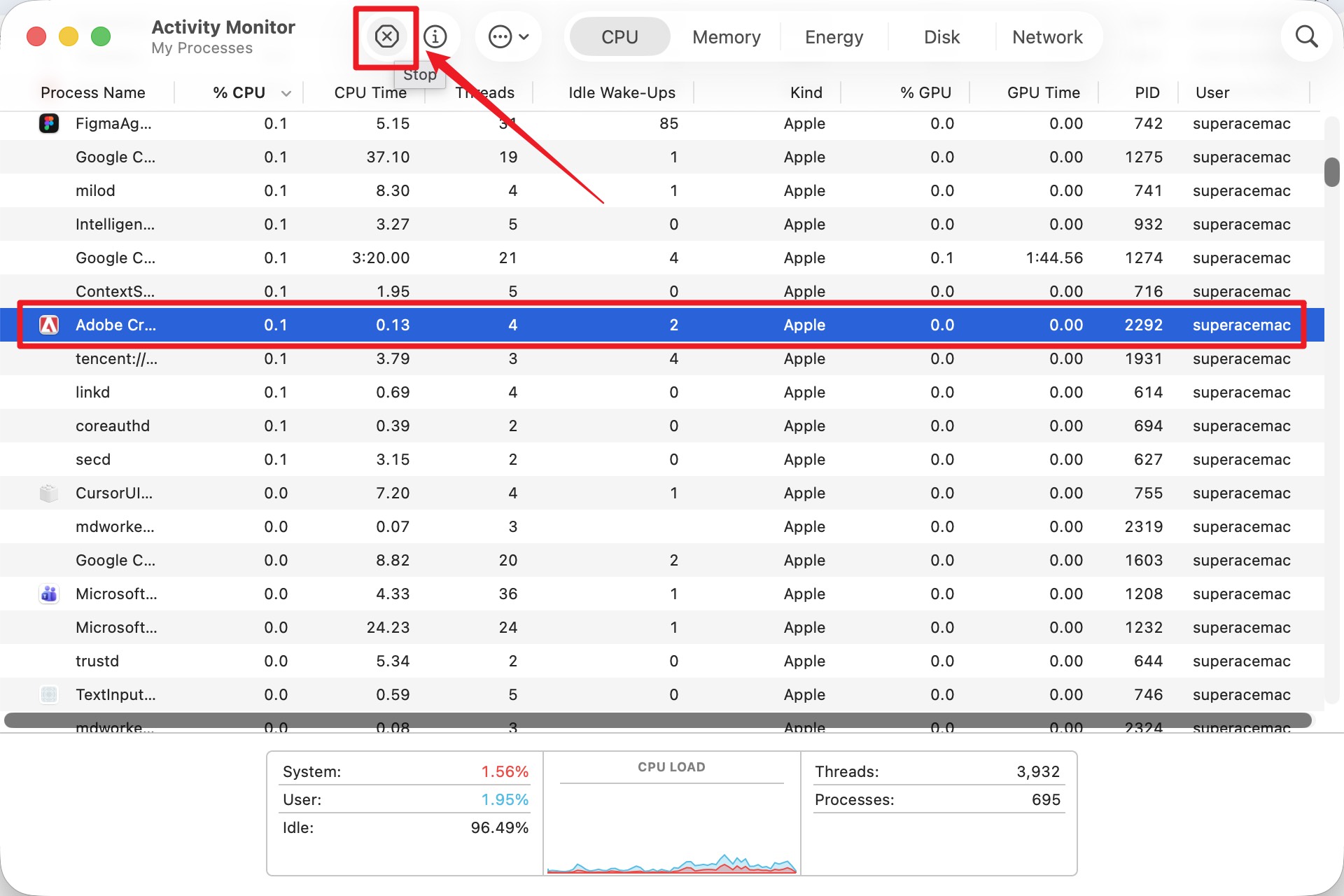
Step 2: For background processes, press Command (⌘) + Spacebar to open Spotlight, type "Activity Monitor," and press Return, select any Acrobat entry, and click the Stop (✕) button.
Launch Acrobat and see if the error is gone. If not, you can try our next fix!
Way 3. Repair Installation (Windows-only feature)
“A running instance of Acrobat caused an error” message can also result from corrupted installation files. You can use Acrobat to repair these files and fix the error quickly. Let’s see how!
Step 1: Open Acrobat and click "Menu" from the top left.
Step 2: Hover over "Help" from the list and select "Repair Installation".
Note:
"Repair Installation" appears only in the Acrobat Help menu on Windows. On Mac, Acrobat has no repair option — skip to Fix 5 and reinstall instead.
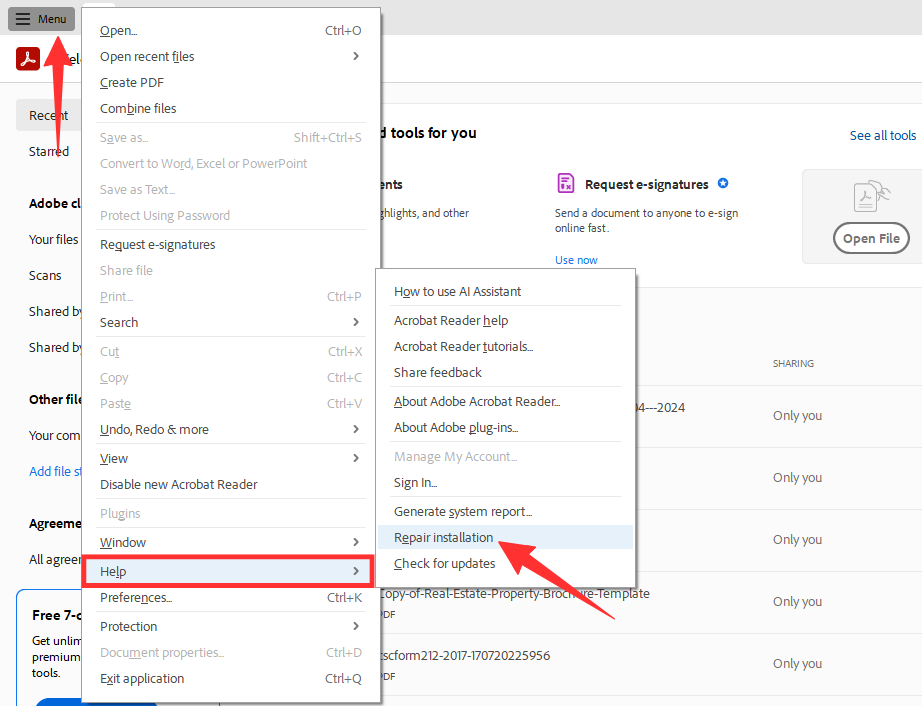
This should fix the error caused by the damaged installation. If you cannot open Acrobat, use the following method to repair it.
Way 4. Repair Acrobat via Windows Settings (Windows-only)
You can also use the Windows Settings to repair Acrobat. This will help you remove the corrupted installation files if the Acrobat is not responsive. You can then reinstall the program to fix the error.
Here are the steps to do it.
On Windows 11:
Step 1: Open Settings using the Start menu search box → Apps → Installed apps, click the ⋯ menu next to Adobe Acrobat, choose Modify, then select Repair in the setup wizard.
Step 2: Windows setup wizard will open. Click “Next” and choose “Repair”. Then, follow the instructions on your screen to complete the installation process.
Note
Still facing the “A running instance of Acrobat caused an error” message? Here’s another way to fix it.
Way 5. Reinstall Acrobat
An outdated Acrobat tends to hang often and can cause unexpected errors. If you’re using an older program version, reinstalling the latest version should resolve the error.
Let’s see how to reinstall Acrobat using the following guide.
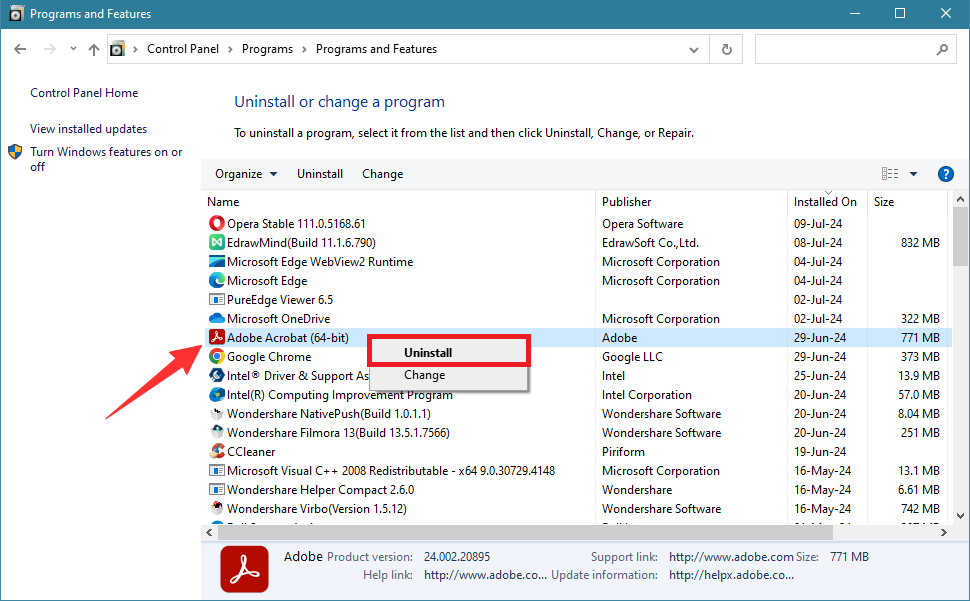
On Windows:
Step 1: Look for Control Panel using the Start menu search box and open it.
Step 2: Select Uninstall a program from the many options available.
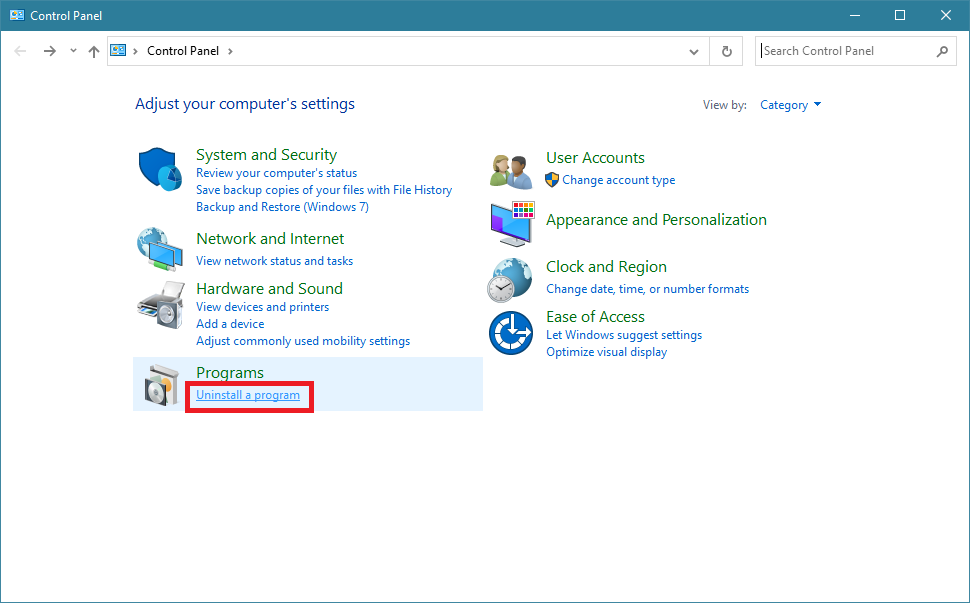
Step 3: Right-click Adobe Acrobat and select Uninstall.
Step 4: Reinstall Acrobat from Adobe’s site and see if the error is gone.
On Mac:
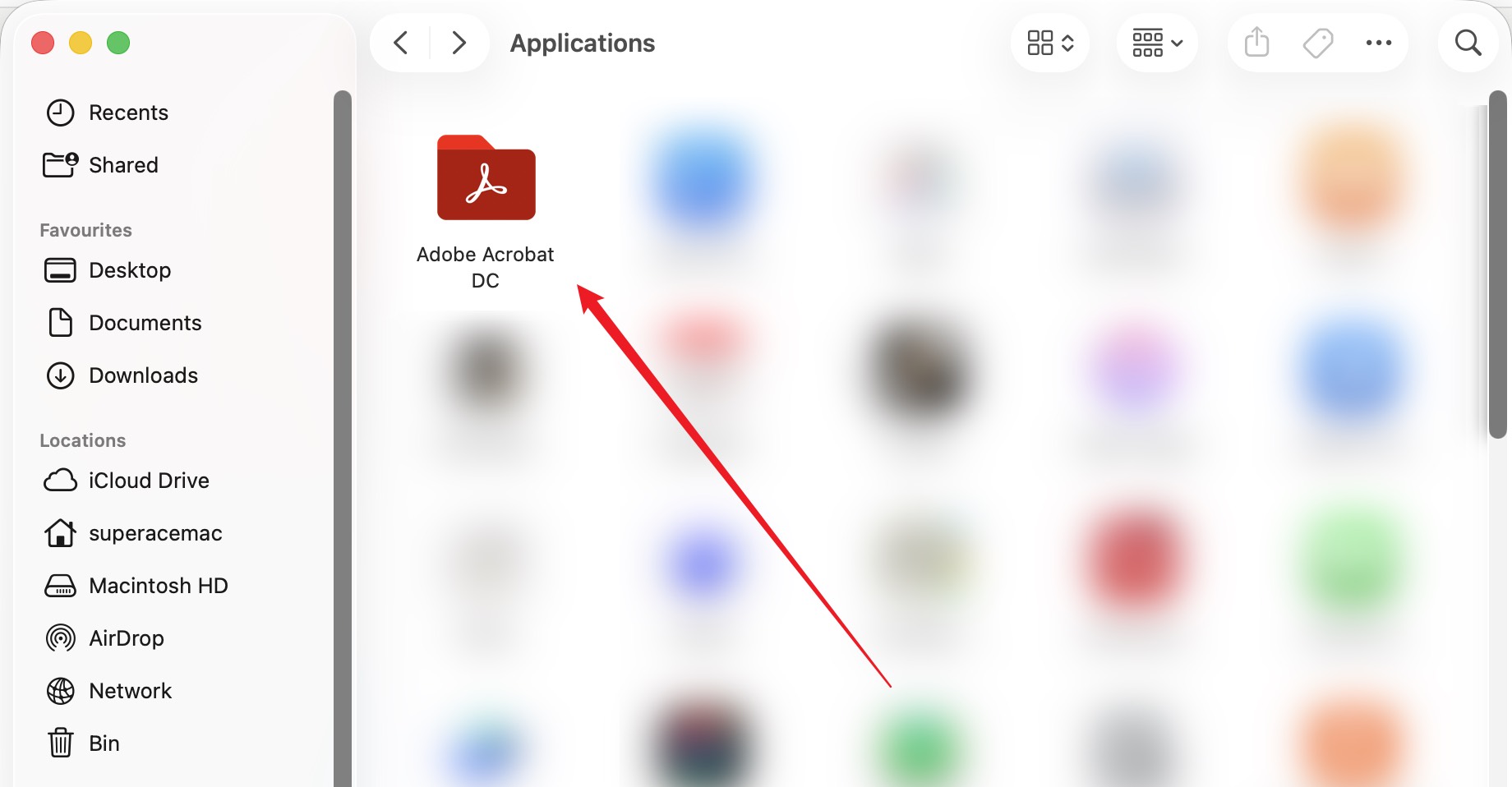
Step 1: Open Finder, go to Applications, and open the Adobe Acrobat DC folder.
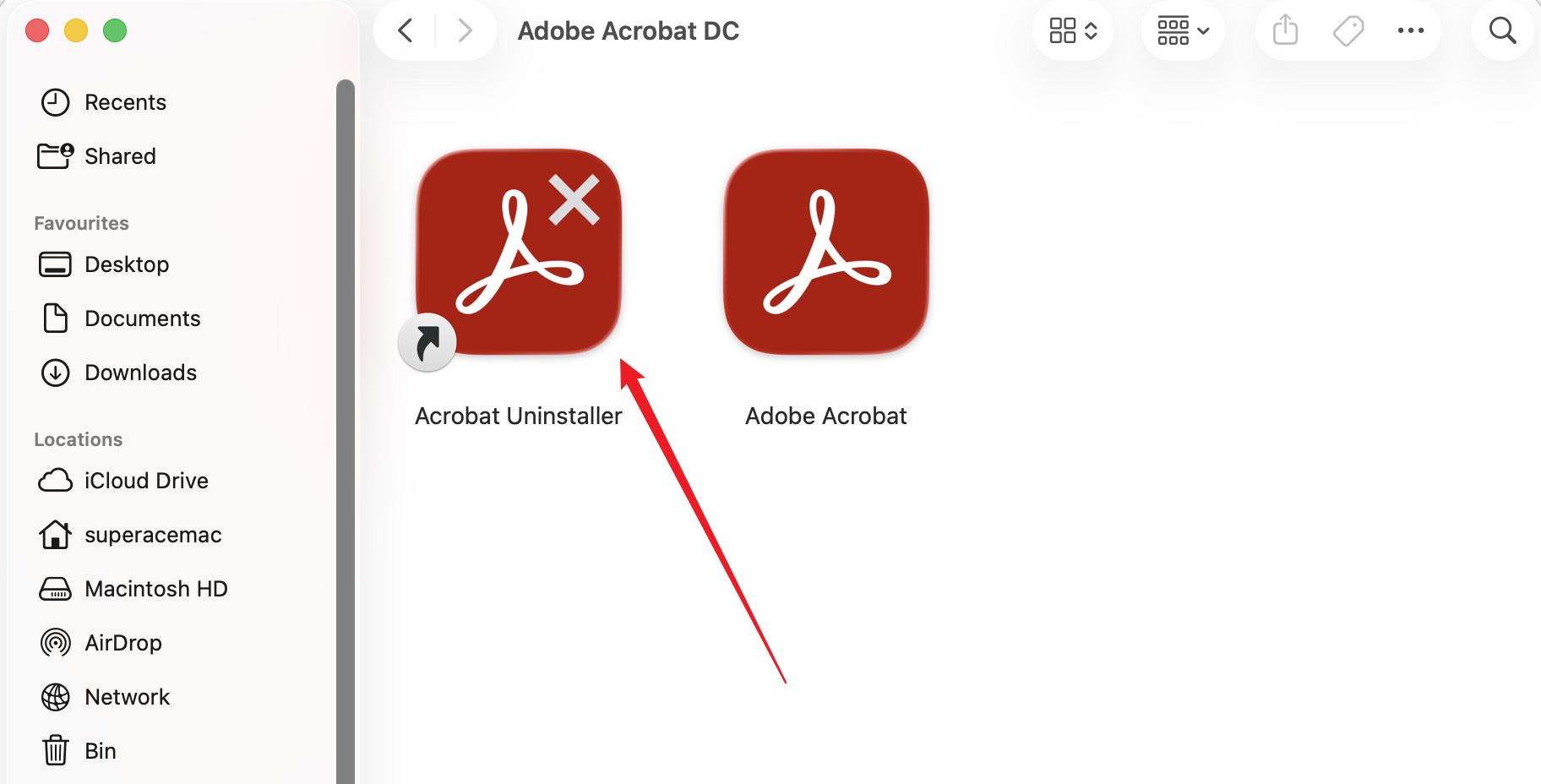
Step 2: Double-click the Acrobat Uninstaller file, enter your Mac’s administrator password, and follow the on-screen prompts to complete the removal, or remove it through the Creative Cloud desktop app.
Step 3. Reinstall the current version afterward.
If the error still persists, don’t worry! Let’s move ahead and explore another solution to fix it!
Way 6. Restart Computer
Sometimes, the easiest solution is to restart your device. This is because the error message may result from random glitches with your device’s software. A quick restart will help reset the system and resolve any software issues.
Here’s how you can restart your device.
On Windows:
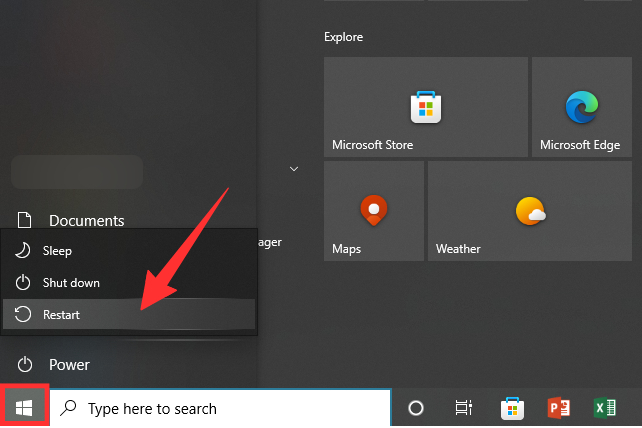
Step 1: Click the Windows icon from the lower left to open the “Start” menu.
Step 2: Select “Power” and click the “Restart” option.
Step 3: Wait till your device restarts. Then, launch Acrobat to check if the error is gone.
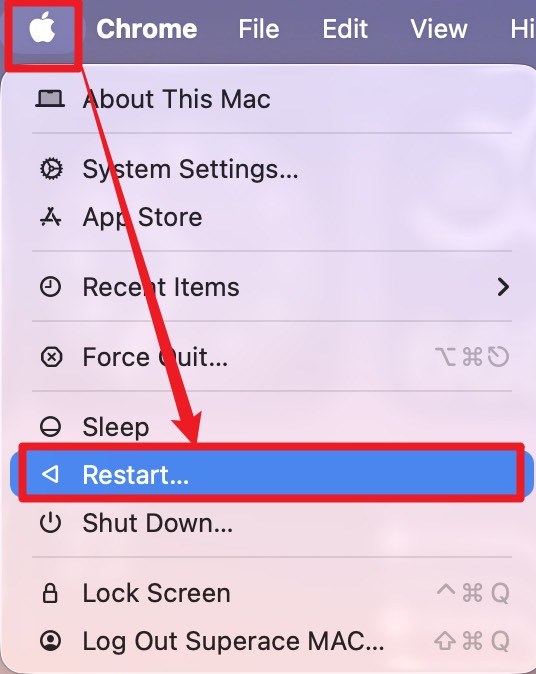
On Mac: Click the Apple menu in the top-left corner and choose Restart.
Now, let’s move on to the last fix on our list!
Way 7. Update Computer System
If restarting does not work, you can try updating your computer’s software. An outdated system can cause compatibility issues, resulting in random errors. Installing the latest system updates can help fix the “a running instance of Acrobat caused an error” issue.
Here’s how you can update your device.
On Windows:
Step 1: Open the “Start” menu and click “Settings”.
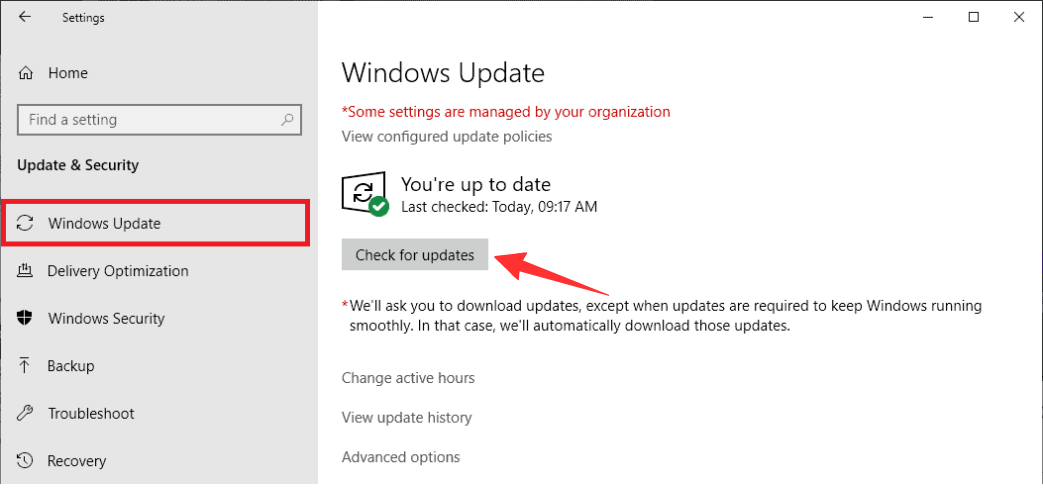
Step 2: Select “Windows Update” from the left panel. Click the “Check for Updates” button.
Step 3: Click “Download and install” if an update is available.
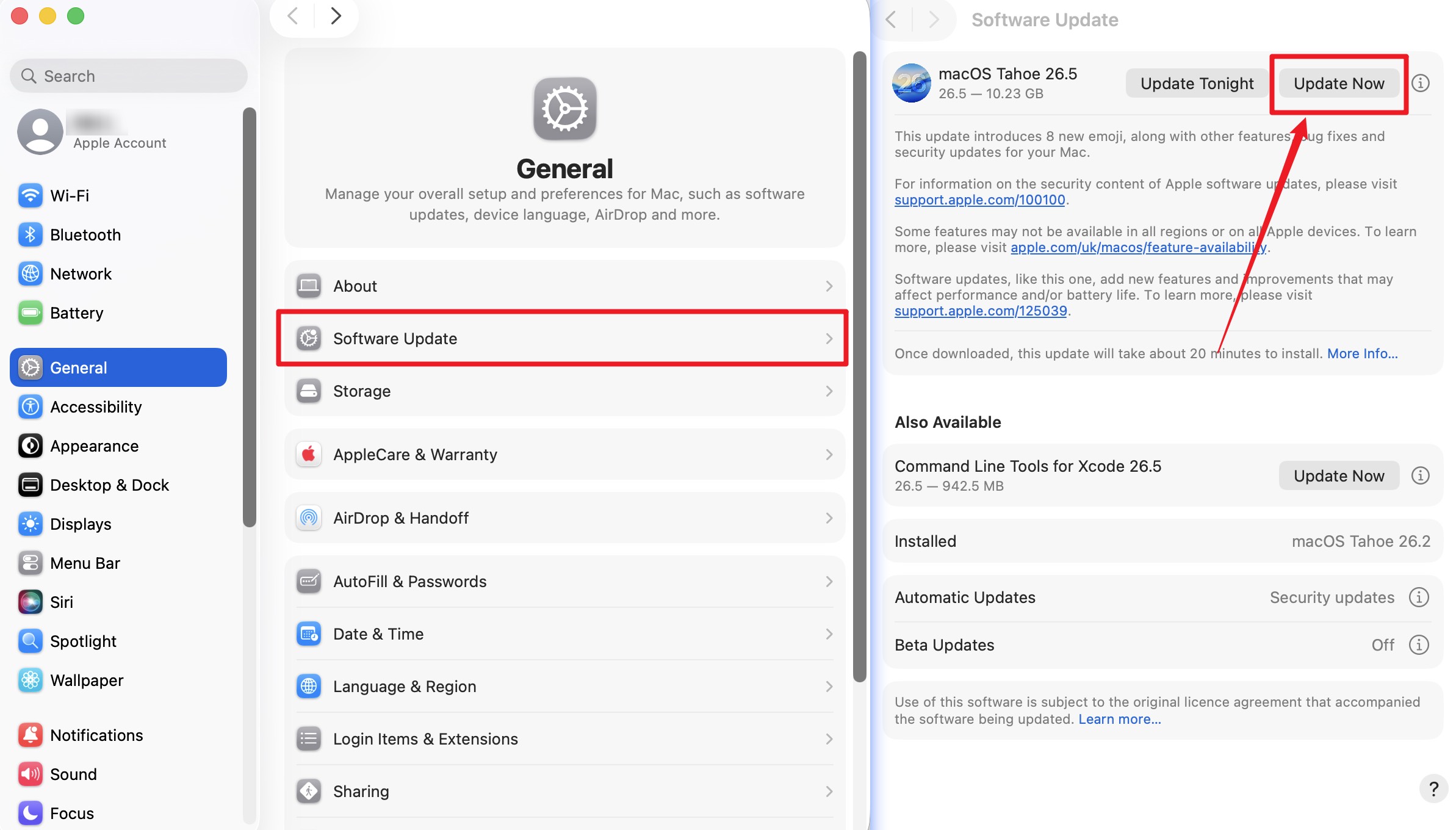
On Mac: Open System Settings → General → Software Update and install any available macOS update.
After the updates are installed, launch Acrobat. And there won’t be any errors now!
Final Words
The "A running instance of Acrobat caused an error" message almost always traces back to a stuck process, damaged files, or an outdated system — and the seven fixes above cover both Windows and Mac. If you'd rather not troubleshoot Acrobat at all, UPDF opens and edits the same PDF straight away, and its AI Editing Suite handles in-place rewriting and grammar fixes without the Word export-and-reimport cycle.
Download UPDF for free and open the PDF that Acrobat couldn't — no subscription required to get started.
Windows • macOS • iOS • Android 100% secure







 Enrica Taylor
 Enola Davis
 Enola Miller
 Enid Brown
 Enya Moore