UPDF
UPDF
 UPDF for Windows
 UPDF for Mac
 UPDF for iPhone/iPad
 UPDF for Android
 Nomostar
 UPDF AI Online
 UPDF Sign
 IvyCraft
 Edit PDF
 Annotate PDF
 Create PDF
 PDF Form
 Edit links
 Convert PDF
 OCR
OCR PDF to Word
 PDF to Image
 PDF to Excel
 Organize PDF
 Merge PDF
 Split PDF
 Crop PDF
 Rotate PDF
 Protect PDF
 Sign PDF
 Redact PDF
 Sanitize PDF
 Remove Security
 Read PDF
 UPDF Cloud
 Compress PDF
 Print PDF
 Batch Process
 About UPDF AI
 UPDF AI Solutions
 AI User Guide
 FAQ about UPDF AI
 Summarize PDF
 Translate PDF
 Chat with PDF
 Chat with AI
 Chat with image
 PDF to Mind Map
 Explain PDF
 PDF AI Tools
 Image AI Tools
 AI Chat Tools
 AI Writing Tools
 AI Study Tools
 AI Working Tools
 Other AI Tools
 AI Bookmark Generation
 AI Bookmark Summary
 AI Watermark Generation
 AI Background Generation
 AI Sticker Generation
 AI Stamp Generation
 AI Editing Suite
 UPDF Copilot
 AI Page Management
 AI Semantic Search
 PDF to Word
 PDF to Excel
 PDF to PowerPoint
 Enterprise Solution
 Enterprise Sign
 Enterprise AI
 Enterprise Plan
 Enterprise User Guide
 Enterprise Webinar
 IT
IT Education
 Construction
 Financial Service
 Healthcare
 Insurance
 Legal
Legal Manufacturing
 Government
 Researchers & PhDs
 Solopreneurs & Freelancers
 Lawyers & Legal Professionals
 Real Estate Agents & Brokers
 Education Solution
 Customer Stories
 User Guide
 UPDF Tricks
 FAQs
FAQs UPDF Reviews
 Download Center
 Blog
Blog Newsroom
 Tech Spec
 Updates
 UPDF vs. Adobe Acrobat
 UPDF vs. Foxit
 UPDF vs. PDF Expert

Quick answer:
A quick expert reminder before you start: the resume an AI writes for you still has to survive an Applicant Tracking System (ATS). Around 98% of Fortune 500 companies parse every resume into plain text before a recruiter ever opens it, and multi-column layouts, text boxes, and graphics are the most common reason a qualified candidate's resume scores low. A good-looking AI resume that the parser can't read is worse than a plain one it can.
This guide shows how to use an AI resume builder to draft fast and keep the file ATS-safe — drafting each section with UPDF AI, editing it in place, and exporting a clean single-column PDF.
Part 1. How an AI Resume Builder Actually Helps (and Where It Stops)
An AI resume builder does one job well: it turns your raw work history into tailored, keyword-aware bullet points far faster than writing from scratch. You give it your role, your experience, and the job you're targeting; it returns phrasing that mirrors the job description's language — which is exactly what an ATS scores against.
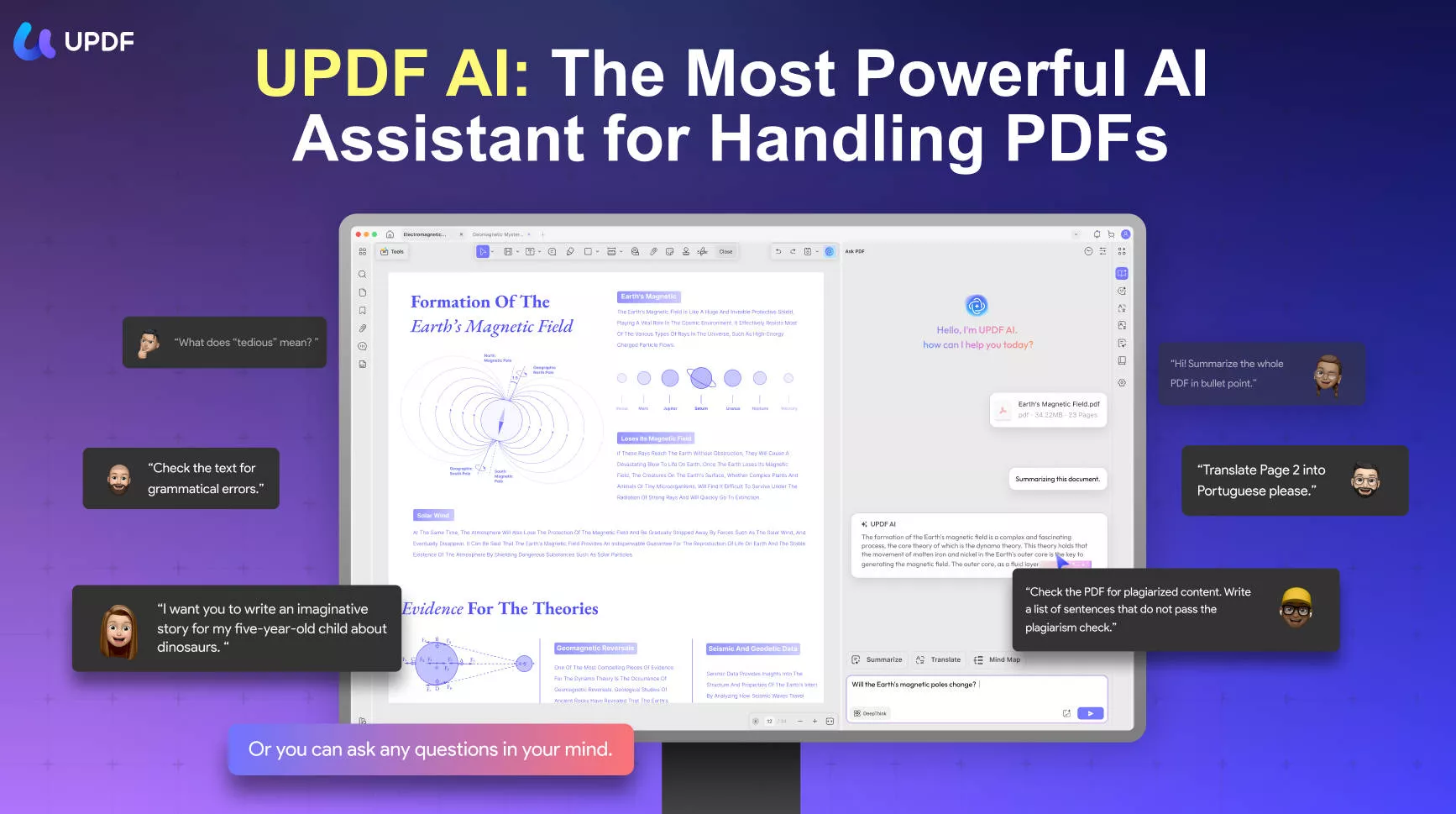
What it does not do is guarantee the file parses cleanly. That depends on layout and export, not on the words. So the reliable workflow is two-part: let AI write the content, then control the formatting and export yourself. UPDF AI handles the first part inside the same PDF where you do the second, so you never copy text between a chatbot, a Word file, and a separate editor.
The split most resume articles miss:
Part 2. How to Build a Resume with UPDF AI
This is the full workflow — draft, customize, and export — using UPDF AI on Windows and Mac.
Step 1. Download Resume from UPDF
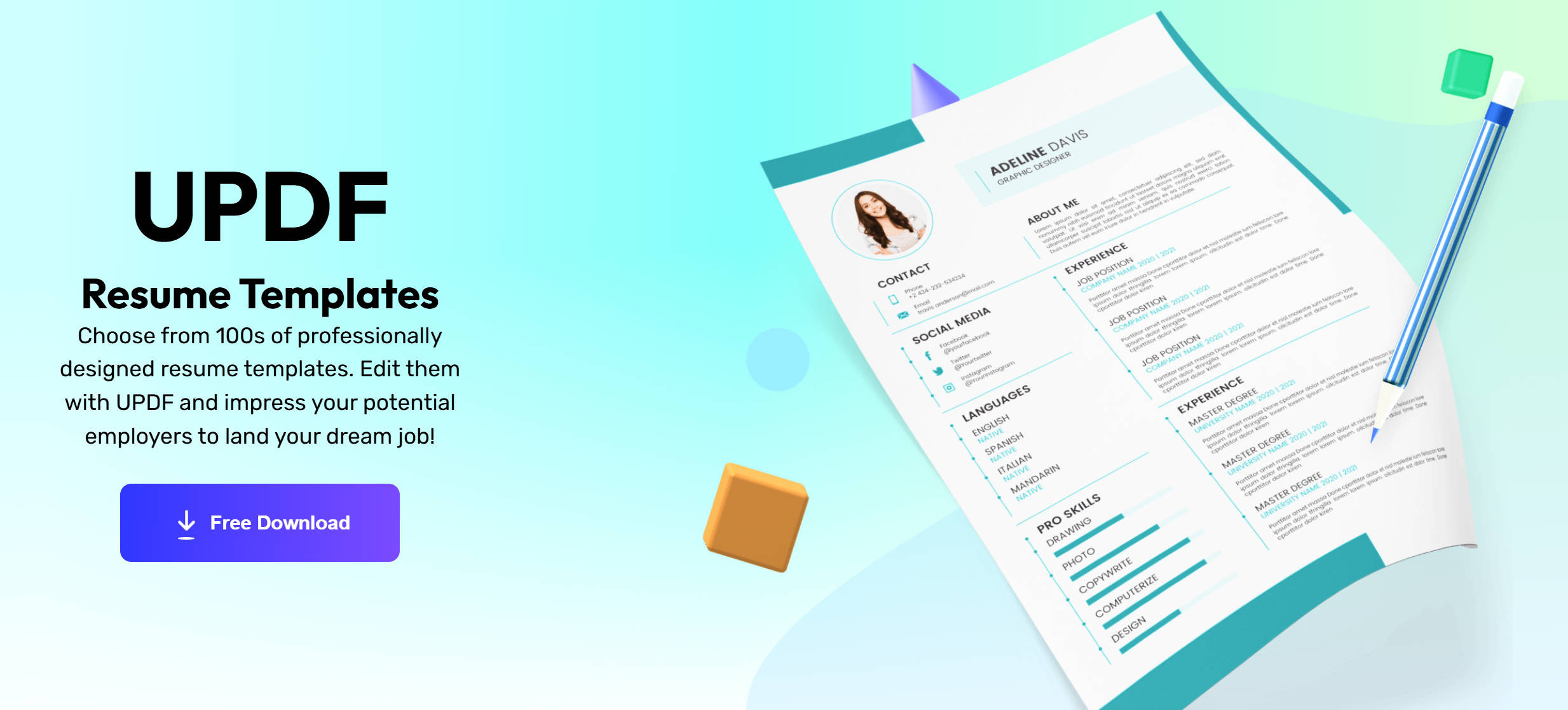
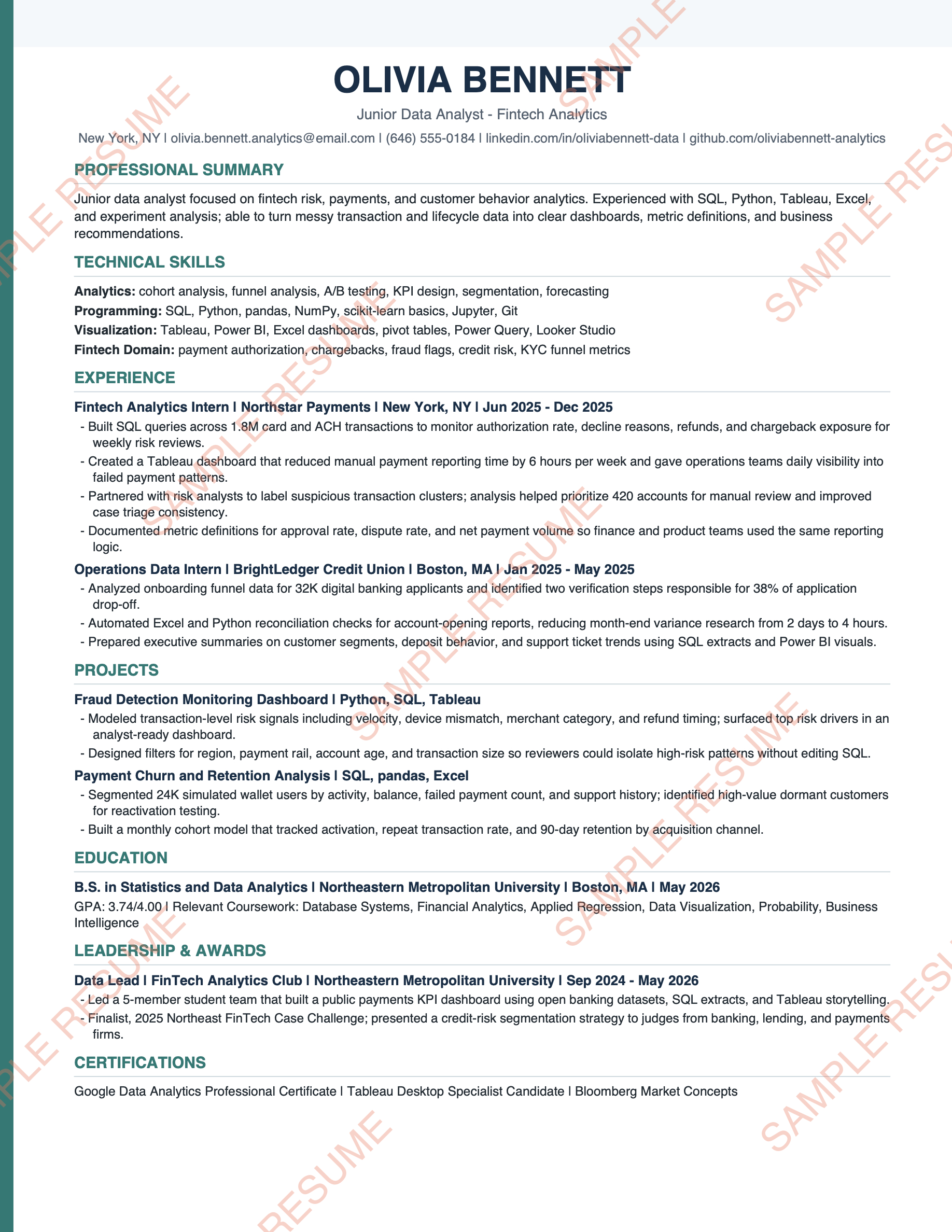
To get started with UPDF AI, you need to follow a few simple steps. First, you download the resume templates from UPDF (all the templates are free to use). There are various templates that can help you find the one that fits your needs.
Step 2. Open a resume template in UPDF
Pick a free resume template and open it in UPDF — if you don't have UPDF yet, download UPDF for free and install it in under a minute.
Windows • macOS • iOS • Android 100% secure
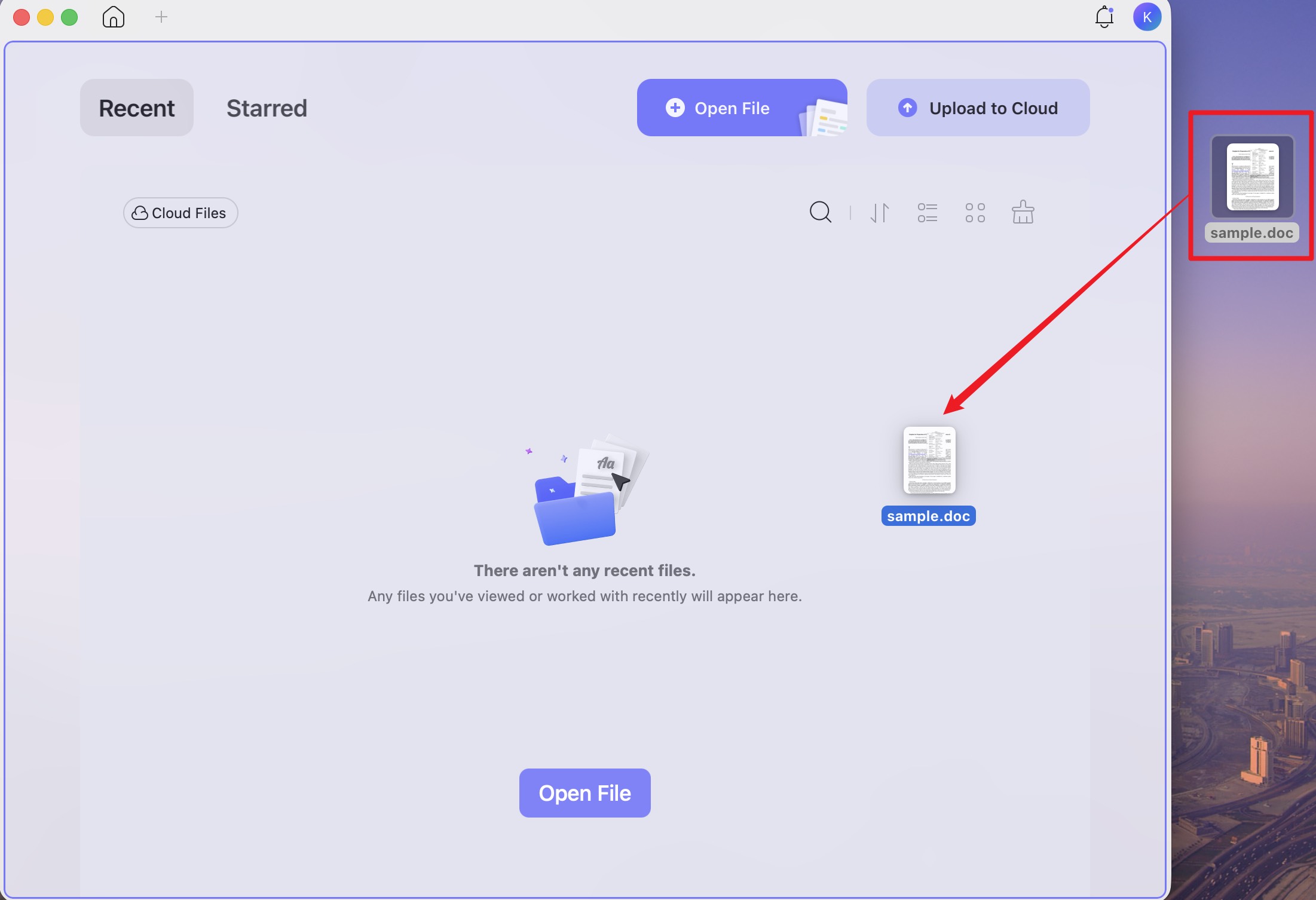
You can also drag a Word, PowerPoint, or image version of an existing resume straight into the UPDF desktop window — it converts to PDF automatically, so you can edit any starting file in one place.
Step 3. Prompt UPDF AI for each section
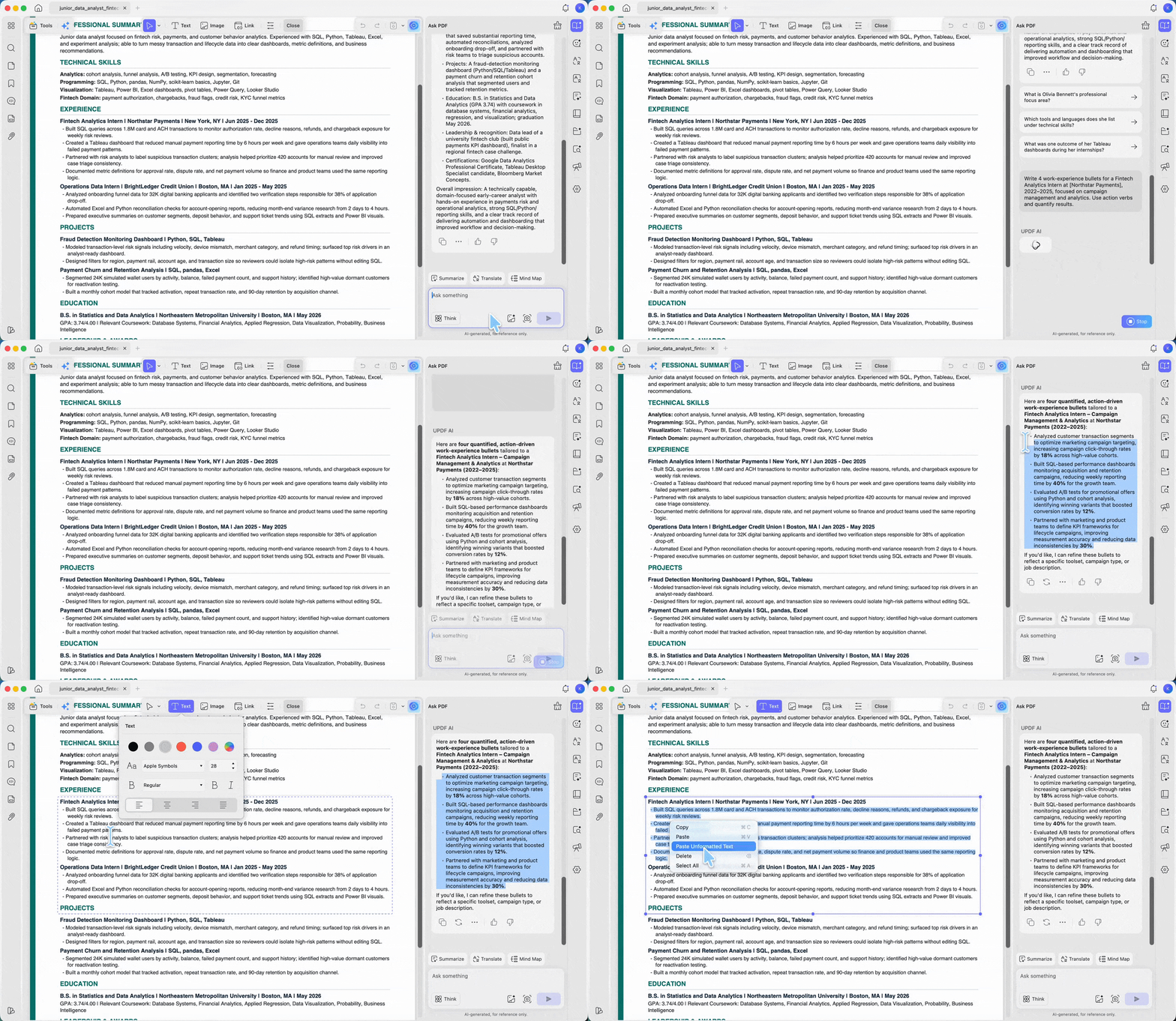
Click the UPDF AI button in the top-right corner to open the AI panel, select the Ask PDF tab, then click Chat with PDF so the AI analyzes the resume you have open. Ask PDF mode works against the current file specifically, so its suggestions stay tied to your actual resume rather than generic advice.
Instead of asking it to "write a resume," feed it one section at a time with your real details — it produces sharper, more tailored output that way. For example:
- "Write 4 work-experience bullets for a Fintech Analytics Intern at [company], 2022–2025, focused on campaign management and analytics. Use action verbs and quantify results."
- "Write a 2-sentence professional summary for a junior data analyst applying to fintech roles."
Copy the reply into your resume, then move to the next section. You can also adjust the tone — ask for "more concise" or "more senior" phrasing and re-run.
Step 3. Tailor the wording to the job description
Paste the target job description into UPDF AI and ask: "Which keywords from this posting am I missing in my resume?" Modern ATS platforms use NLP to weigh skills and context, but exact-match keywords from the posting still carry the most weight. This step is what moves a resume up the recruiter's ranked list.
Keep edits truthful — mirror the posting's language only where it genuinely matches your experience. The goal is to make real qualifications readable, not to game the parser.
Step 4. Polish each line in place with AI Edit
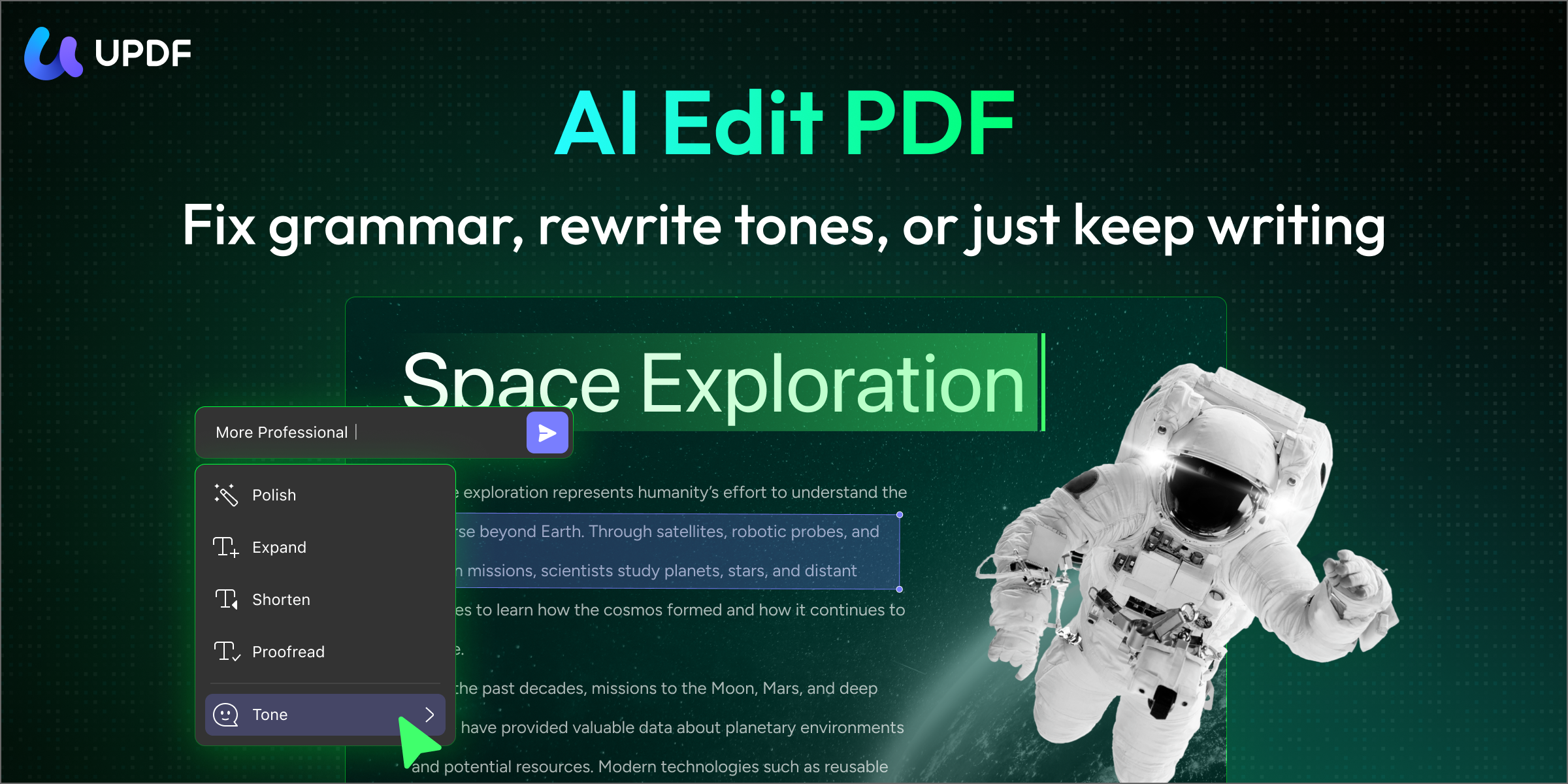
Go to Tools → Edit mode to change text, fonts, and images right on the page — no Word round-trip. This is also where AI rewrites individual lines for you: select a bullet or sentence, and an AI Edit floating toolbar appears above it.
UPDF's AI editing agent rewrites the text you've selected and lets you swap it in with one click — you don't copy anything out to a chatbot and back. The dropdown gives you five presets:
- AI Polish — clean up clunky phrasing so a bullet reads sharper.
- AI Shorten — condense a wordy bullet so the resume fits on one page.
- AI Proofread — catch grammar and spelling slips before a recruiter does.
- AI Tone → Professional — unify the voice across sections that read inconsistently.
- AI Expand — adds detail and length; use it sparingly on a resume, since most bullets need trimming, not padding. It's more useful for fleshing out a cover letter.
Or skip the presets and type your own, e.g. "rewrite this bullet to lead with a measurable result."
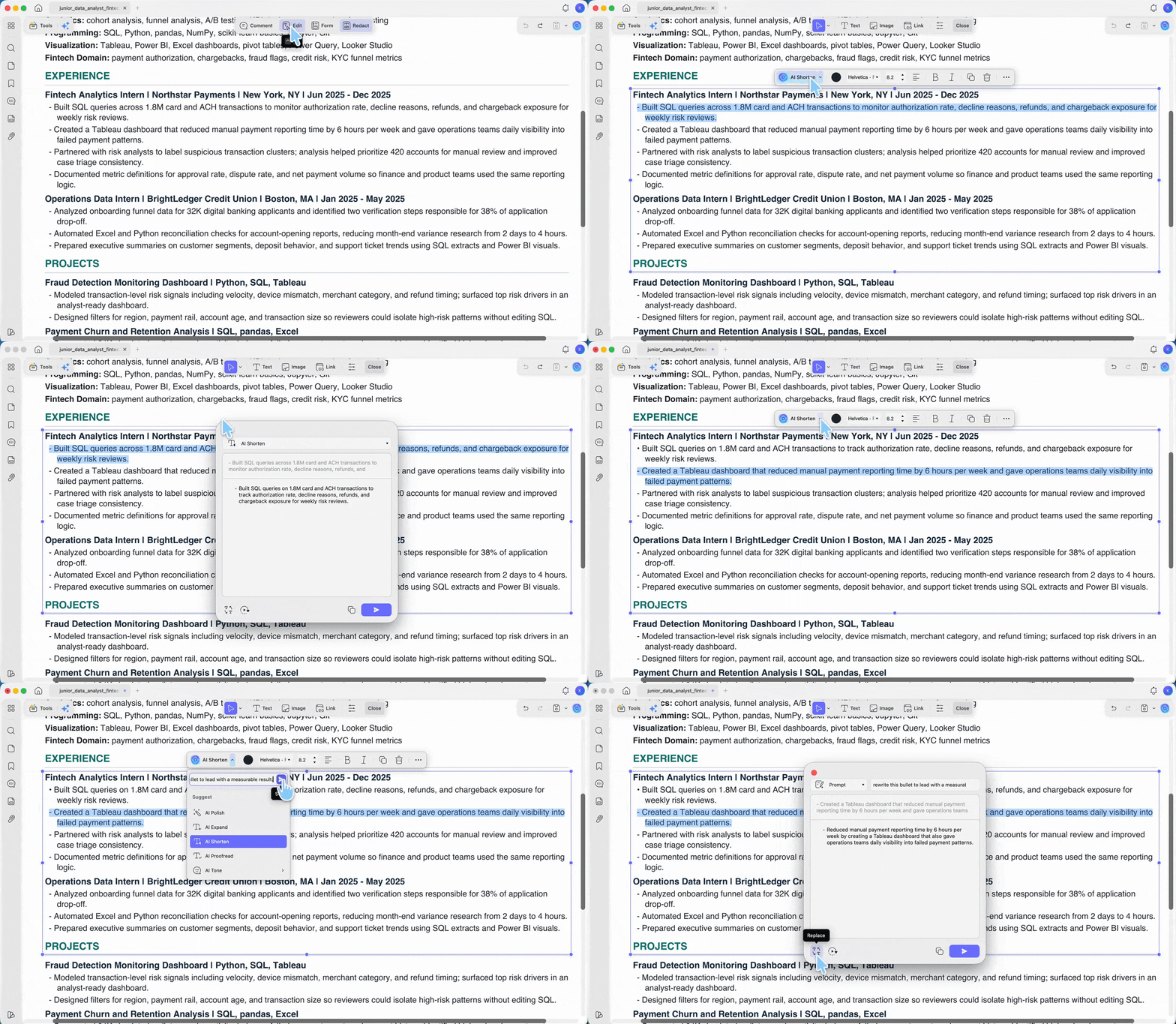
Review the suggestion in the response window, then click Replace to drop it straight into the resume. Keep section headings standard (Work Experience, Education, Skills) so the ATS still maps each block correctly after editing.
The same prompt box also generates new text — type an instruction like "add a bullet about leading a 5-person team" and AI Edit writes it for you to drop in, not just rewrites what's selected. So you can both tighten existing lines and fill gaps without leaving Edit mode. Keep what it generates truthful to your real history, and review every line before you keep it.
Step 5. Save and share your resume
Press Ctrl + S (Windows) or Command + S (Mac) to save. To send a link instead of an attachment, click the dropdown arrow (▼) next to Save and choose UPDF Share to copy a shareable URL.
Free vs. Pro:
Part 3. ATS-Safe vs. Designer-Pretty: What's the Difference?
Two resumes can contain the same words and score completely differently — because the ATS reads structure, not looks.
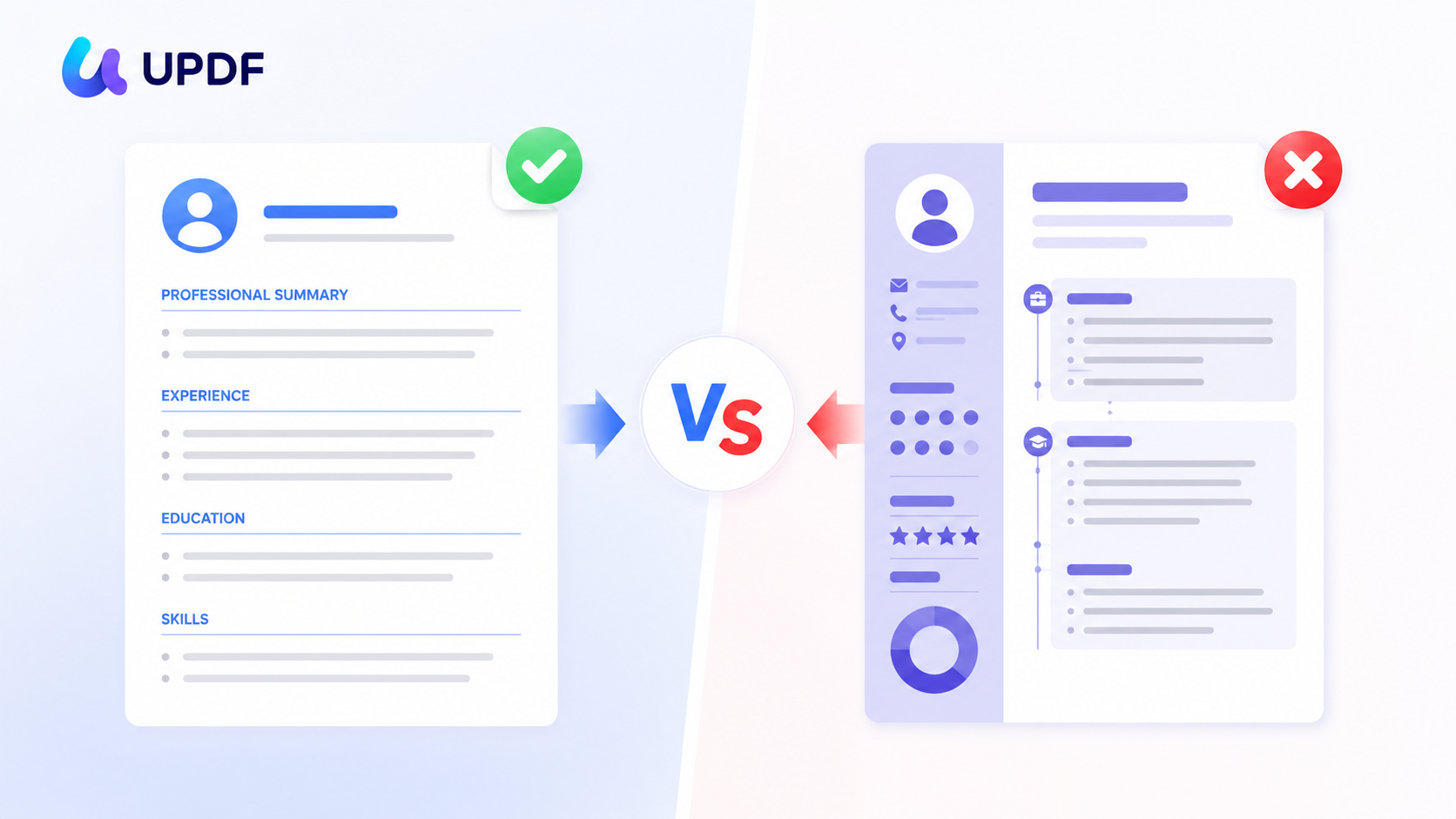
- ATS-safe: single column, standard headings, no text boxes or tables, a parseable PDF or .docx. The parser extracts every field cleanly.
- Designer-pretty: multi-column, sidebars, icons, graphics. Looks impressive to a human, but the parser drops or scrambles data trapped in columns and boxes.
Think of the ATS as a scanner that flattens your resume into a single plain-text stream: anything that isn't in reading order, top-to-bottom, risks landing in the wrong field or vanishing. Build for the parser first; a clean single-column layout reads well to humans too.
Part 4. Good Prompts to Give an AI Resume Builder
Specific prompts beat "write my resume." Try these with UPDF AI:
- Keywords: "Analyze this job posting and list the top 10 skills and keywords I should include."
- Stand out: "Rewrite these 3 bullets to lead with a measurable result."
- Tailoring: "Compare my experience to this job description and tell me where I'm misaligned."
- Concision: "Trim this section so the whole resume fits on one page without losing impact."
- Summary: "Write a 2-line professional summary for a [role] targeting [industry]."
Part 5. What to Include in a Resume
Keep the sections standard so an ATS can map each one:
- Professional summary — 2–3 lines tailored to the specific job, leading with your strongest fit.
- Work experience — reverse chronological; company, title, dates, then quantified achievements.
- Education — institution, degree, dates; relevant certifications and licenses.
- Skills — job-relevant technical and soft skills, drawn from the posting's language.
- Volunteer / extracurricular — only if it adds relevant signal.
Part 6. Edge Cases: When the AI Resume Still Fails
The standard workflow covers most cases. Here's what to do when it doesn't:
- "The layout looks great but I'm getting no callbacks." Your template is likely multi-column or table-based. Rebuild on a single-column template and re-export — the words may be fine; the structure isn't parsing.
- "I exported and there's a watermark on my resume." You exported on the free tier. UPDF Pro removes the trial watermark; never send a watermarked file to a recruiter.
- "The job posting says no PDFs." Most ATS platforms parse PDFs, but some legacy systems prefer .docx. When a posting specifies a format, follow it — in UPDF, use Tools → Word to export to Word.
- "My scanned/old resume won't let me edit the text." It's an image, not live text. Run OCR first (Tools → OCR) to make the text editable, then edit.
- "AI keeps inventing details I didn't give it." Feed it only your real history one section at a time, and review every line. AI fills gaps with plausible-sounding filler if you ask for a whole resume at once.
Part 7. FAQs on Using the Best AI resume writer
1. Is an AI resume builder free?
UPDF's free tier includes 100 free AI uses — enough to draft and tailor a resume. Both UPDF Pro plans (US$49.99/year or US$79.99 one-time) add a 7-day unlimited-AI trial on top. For ongoing unlimited AI after that, the AI Assistant plan is US$79/year.
2. Will a recruiter know my resume was written by AI?
Not if you edit it. AI drafts read generic out of the box; the Step 4 pass with Edit — adding real metrics, tightening tone, and putting things in your own words — is what makes it yours. Treat AI output as a first draft, not a final file.
3. Can an AI resume builder guarantee I pass the ATS?
No tool can guarantee it. AI helps with keywords and phrasing, but ATS pass rates depend mostly on layout and file format — single column, standard headings, a clean export. Content and structure are separate jobs.
4. Does the same resume work for every job?
No. The advantage of an AI builder is speed of tailoring — re-prompt UPDF AI with each new job description so the keywords match that specific posting. A generic resume ranks lower than a targeted one.
Conclusion
An AI resume builder gets you a tailored first draft in minutes — but the resume only works if it parses cleanly through an ATS, which comes down to layout and export, not wording. UPDF AI keeps both in one place: draft each section with the AI panel, tailor the keywords to the job, polish each line in place with the AI Editing Suite, and export a clean single-column PDF without bouncing between apps.
Download UPDF for free to try building and tailoring your resume on your own file — installation is free, and Pro features are available when you need a watermark-free export or unlimited AI.
Windows • macOS • iOS • Android 100% secure






 Enrica Taylor

 Enola Miller