 UPDF
UPDF
 UPDF for Windows
 UPDF for Mac
 UPDF for iPhone/iPad
 UPDF for Android
 UPDF AI Online
 UPDF Sign
 Edit PDF
 Annotate PDF
 Create PDF
 PDF Form
 Edit links
 Convert PDF
 OCR
OCR PDF to Word
 PDF to Image
 PDF to Excel
 Organize PDF
 Merge PDF
 Split PDF
 Crop PDF
 Rotate PDF
 Protect PDF
 Sign PDF
 Redact PDF
 Sanitize PDF
 Remove Security
 Read PDF
 UPDF Cloud
 Compress PDF
 Print PDF
 Batch Process
 About UPDF AI
 UPDF AI Solutions
 AI User Guide
 FAQ about UPDF AI
 Summarize PDF
 Translate PDF
 Chat with PDF
 Chat with AI
 Chat with image
 PDF to Mind Map
 Explain PDF
 PDF AI Tools
 Image AI Tools
 AI Chat Tools
 AI Writing Tools
 AI Study Tools
 AI Working Tools
 Other AI Tools
 AI Bookmark Generation
 AI Bookmark Summary
 AI Watermark Generation
 AI Background Generation
 AI Sticker Generation
 AI Stamp Generation
 AI Editing Suite
 UPDF Copilot
 AI Page Management
 AI Semantic Search
 PDF to Word
 PDF to Excel
 PDF to PowerPoint
 Enterprise Solution
 Enterprise Sign
 Enterprise AI
 Enterprise Plan
 Enterprise User Guide
 Enterprise Webinar
 Banking
 Healthcare
 Insurance
 Legal
Legal Manufacturing
 Government
 Education Solution
 Customer Stories
 User Guide
 UPDF Tricks
 FAQs
FAQs UPDF Reviews
 Download Center
 Blog
Blog Newsroom
 Tech Spec
 Updates
 UPDF vs. Adobe Acrobat
 UPDF vs. Foxit
 UPDF vs. PDF Expert

The Google team has changed the location of the watermark button. This took me by surprise yesterday when I was working on an important document and couldn't find it anywhere. I wasted a good chunk of time clicking through menus before I tracked it down. If you are in the same boat, don't worry.
I have created this quick guide to walk you through how to add a watermark in Google Docs the new way. And if you need more than what Google Docs offers, like AI-generated watermarks or batch processing, I will also introduce you to UPDF AI Watermark Creator, a powerful alternative to generate/add watermarks. Read to the end, as it's worth it.
Windows • macOS • iOS • Android 100% secure
Part 1. How to Add a Text Watermark in Google Docs
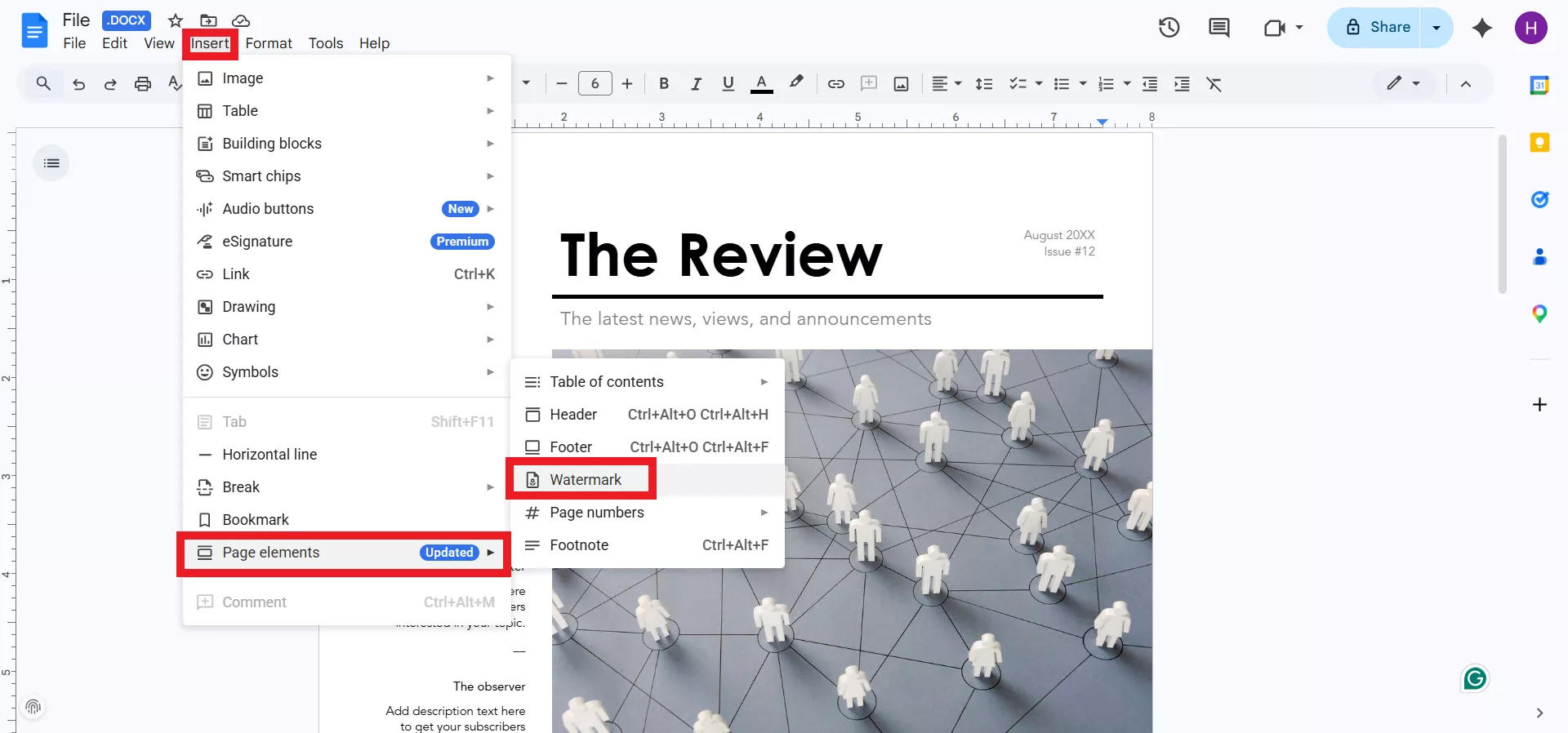
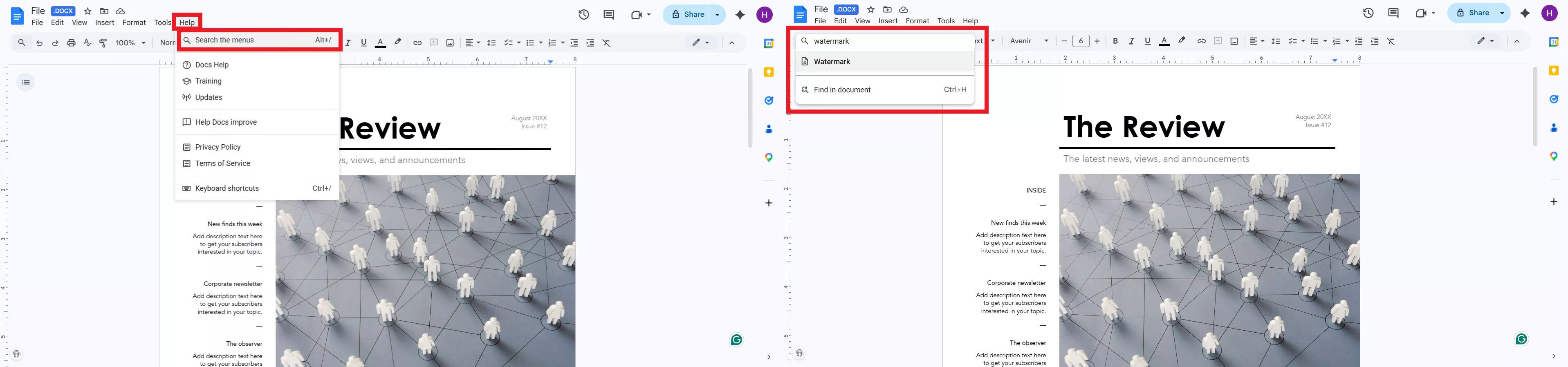
There are now two ways to add a watermark in Google Docs. You can either use the "Help" option and search for "watermark" or directly access it from the "Insert" menu.
Follow these steps to learn how to add a text watermark on Google Docs from both ways:
Step 1a. Open Google Docs and tap Insert > Page elements > Watermark.
Step 1b. Open Google Docs and tap Help > Search the menus > type "watermark".
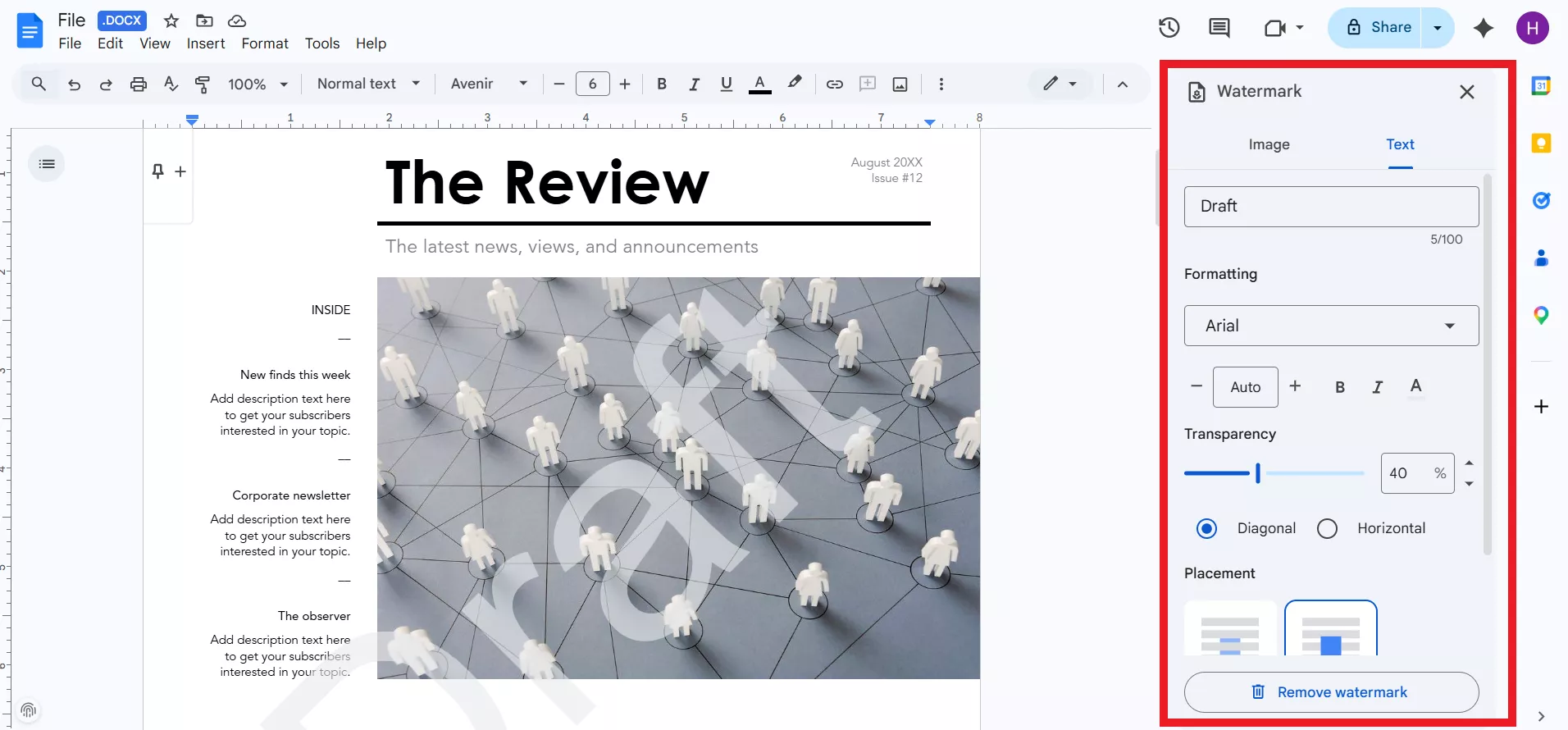
Step 2. Once the watermark window opens in the sidebar, select the "Text" tab and insert the text. Adjust the formatting, transparency, placement, and other details. Once everything is set, click "Done".
That's how to insert a watermark in Google Docs in seconds without any complications.
Pro Tips:
- Use short text - long sentences look cluttered
- Keep transparency above 50% for readability
- Choose a light gray color for subtle branding
- Test print to ensure the watermark doesn't interfere with document readability
Part 2. How to Add an Image Watermark in Google Docs
Adding an image watermark is almost the same as adding a text watermark. We have to click the same buttons and just choose the "Image" tab in the watermark window.
Check these quick steps on how to add an image watermark in Google Docs:
Step 1a. Open Google Docs and tap Insert > Page elements > Watermark.
Step 1b. Open Google Docs and tap Help > Search the menus > type "watermark".Step 2. Once the watermark window opens in the sidebar, select the "Image" tab. Now, drag-and-drop the image or tap "Select image" to upload it. Adjust the scaling and other image settings, and then click "Done" to apply the image watermark.
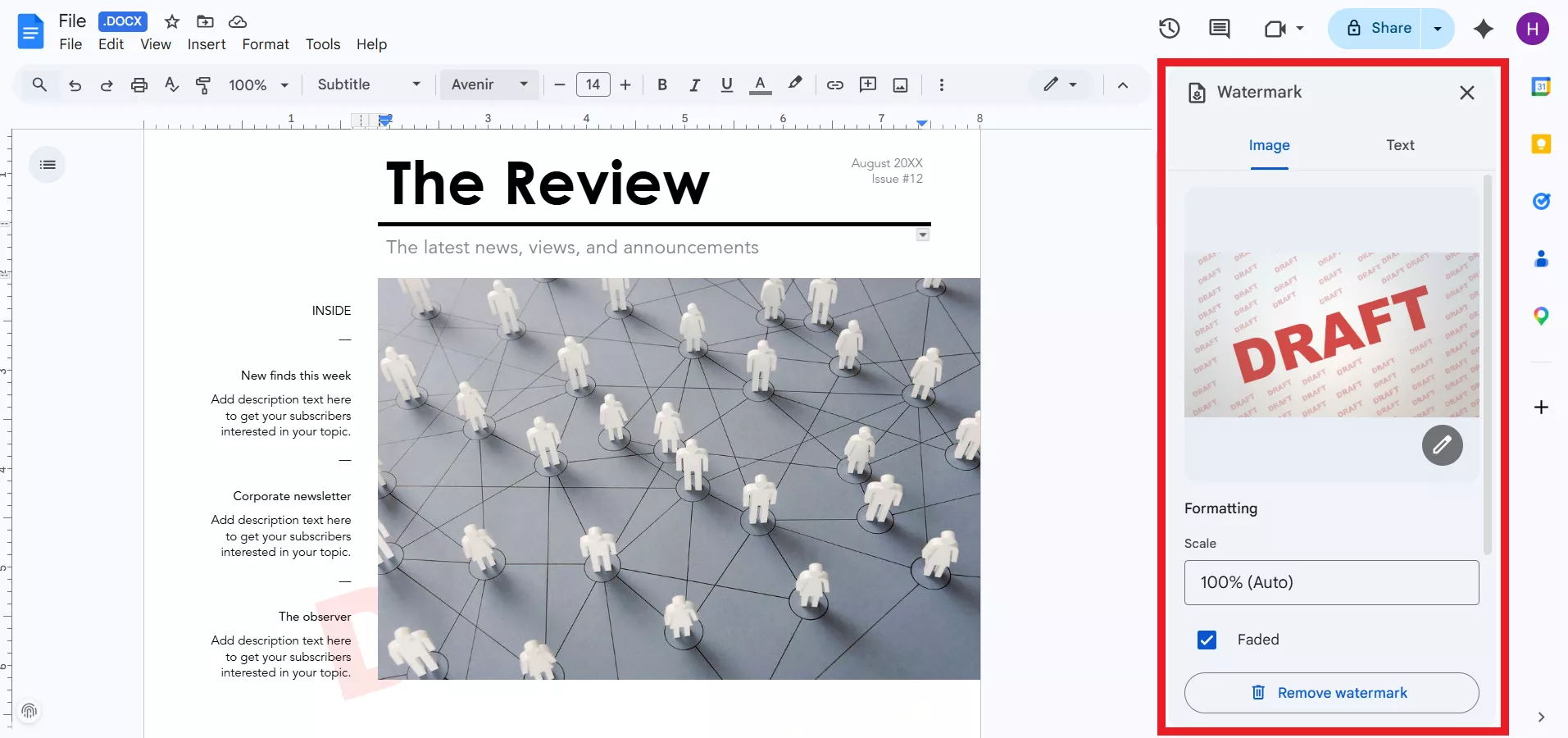
Image Requirements:
- Recommended formats: PNG, JPG
- The logo should be simple and recognizable
- High resolution for crisp printing
- Transparent background works best
- Avoid busy/complex images that distract from content
Although Google Docs watermark feature provides a decent experience, I believe it lacks many advanced options that the modern era demands.
What Google Docs Can't Do:
❌ Limited customization options
❌ No batch watermarking - must apply to each document individually
❌ No flatten watermark option - watermark can be removed
❌ Limited to Google Docs - can't watermark existing PDFs
❌ No AI-powered watermark generation
Interestingly, I have recently found an ideal Google Docs alternative for watermarks that ticks all the boxes that Google Docs cannot. Head to the next part to learn all about it.
Part 4. AI-Powered Alternative: Create Watermarks Instantly with UPDF
After hitting Google Docs' limitations too many times, I switched to UPDF AI Watermark Creator, and the difference was immediately clear.
First things first, UPDF is an AI-powered PDF editor that provides an all-in-one tool to manage all PDF-related activities, including adding watermarks, securing documents, annotating, and more.
[Download Button]
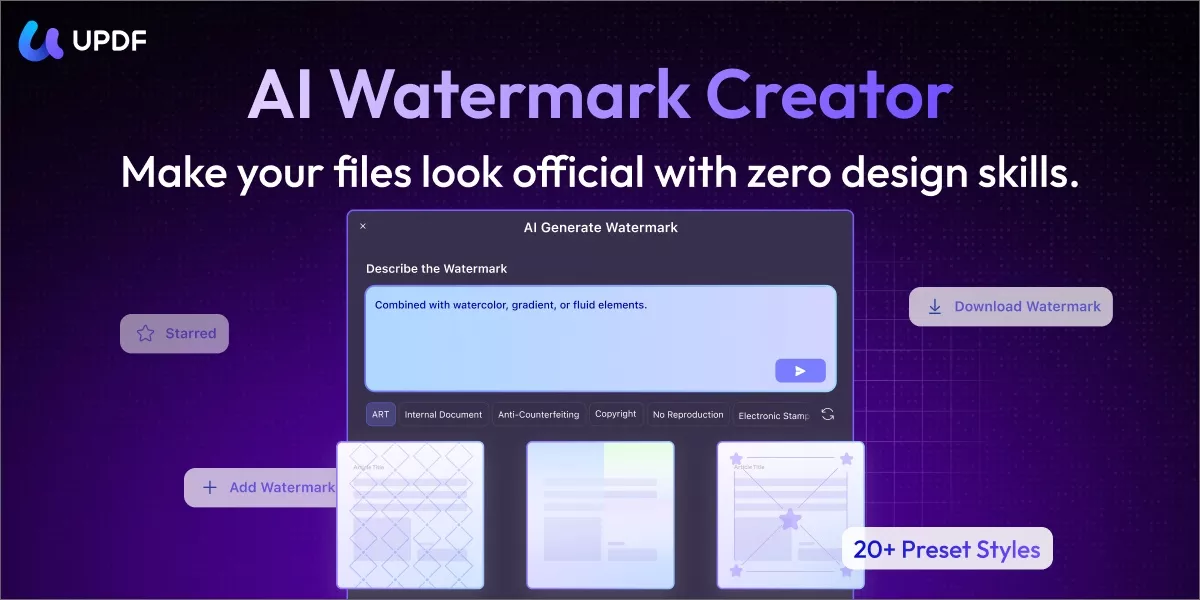
Talking about UPDF AI Watermark Creator, I am very impressed. I can use AI to generate professional watermarks from a simple text prompt, I can flatten them to make them permanent, apply them to multiple documents at once through batch watermarking, and save my favorite designs as templates for future use.
Why Choose UPDF to Create Watermarks?
- Zero Design Skills: Describe your watermark in plain text, and UPDF's AI generates it instantly. It also comes with multiple preset templates if you want to skip the prompting.
- Works with PDFs: No need to export anything. Drag and drop your PDF into UPDF and start watermarking.
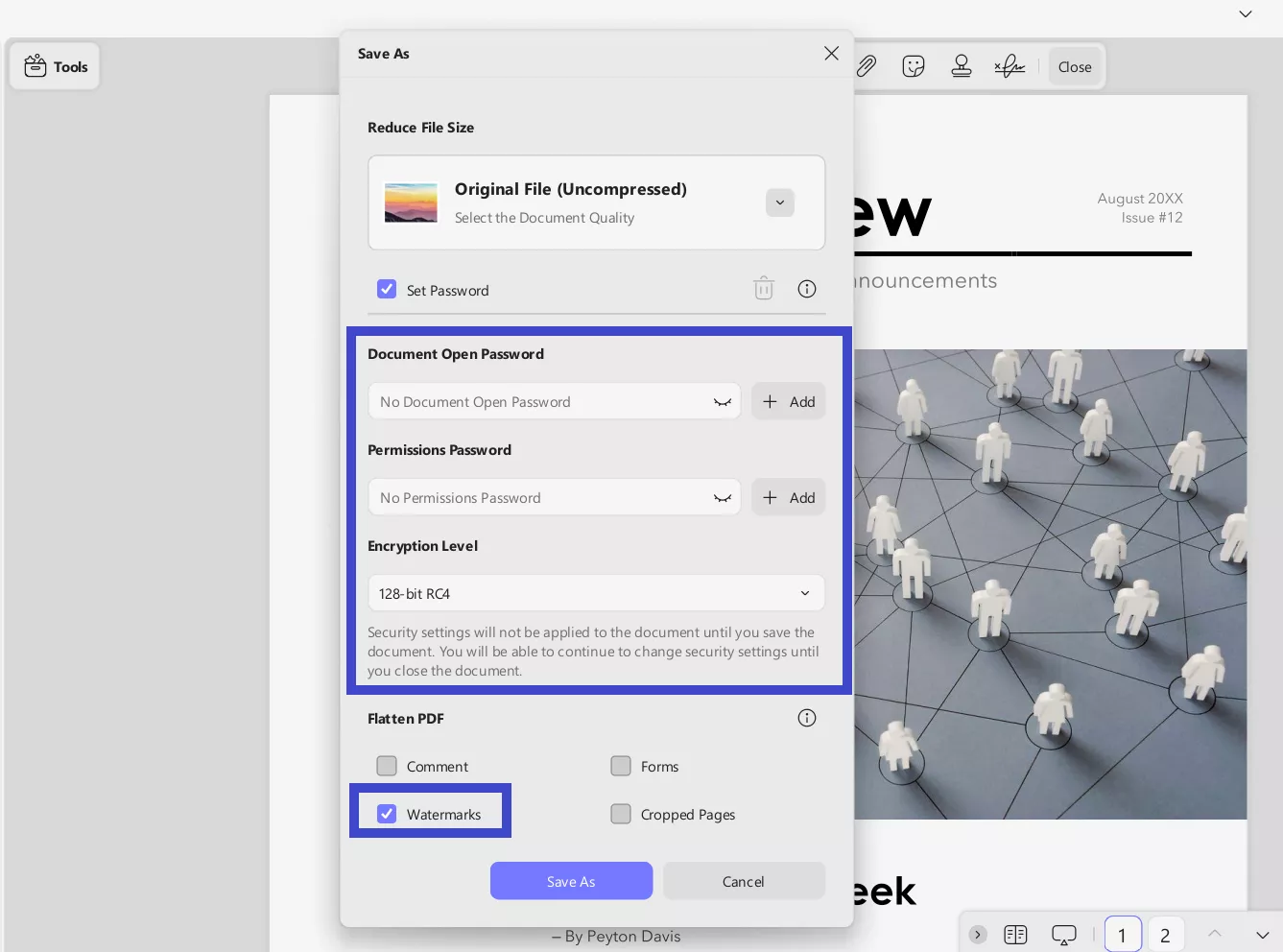
- Flatten Option: Flatten watermarks into the document to make them permanent and unremovable.
- Security Features: Password-protect your watermarked documents for an extra layer of control.
- Batch Watermarking: Apply watermarks to multiple documents at once.
- Template Saving: Save favorite AI-generated watermarks for reuse.
- Cross-Platform: Runs on Windows, Mac, iOS, and Android.
How to Create AI Watermarks with UPDF
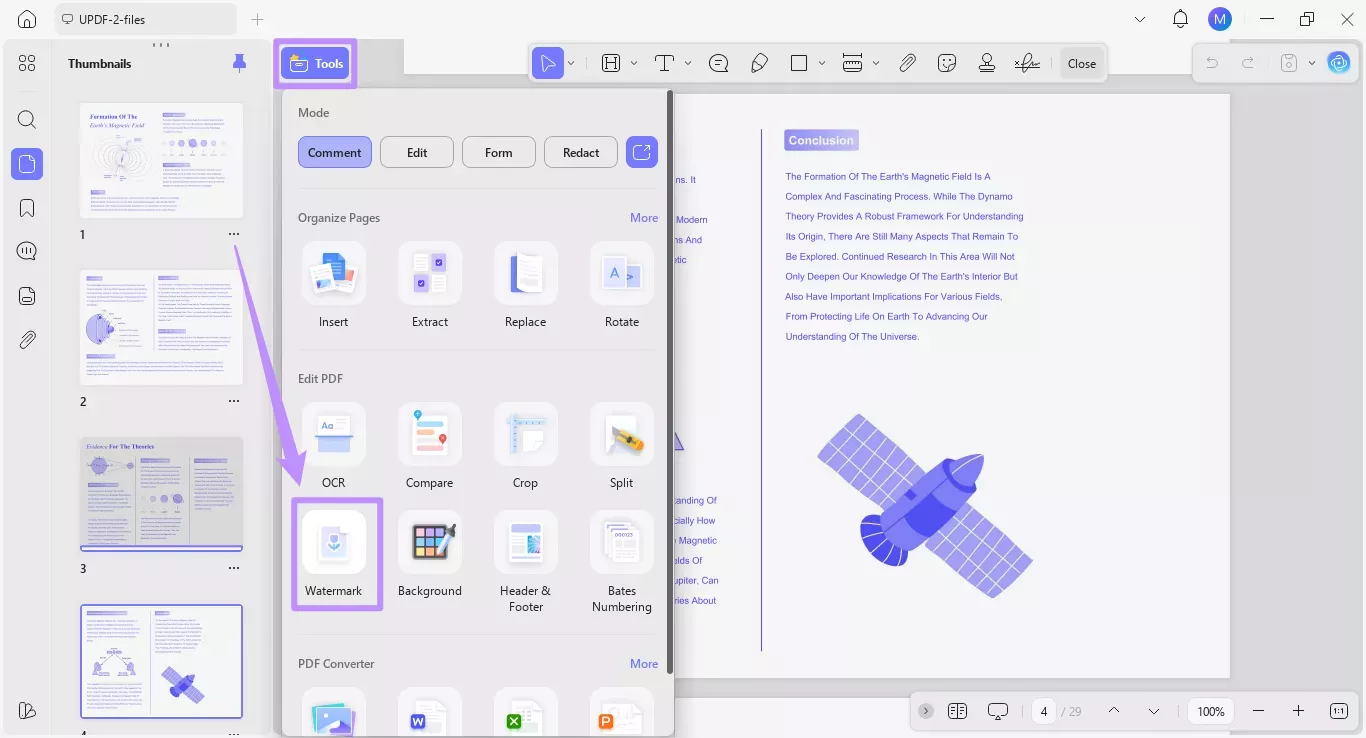
Step 1. Download and launch UPDF on your device. Drag and drop your PDF (or your exported Google Doc) into UPDF. Click "Tools" and tap "Watermark" under the "Edit PDF" section.
Windows • macOS • iOS • Android 100% secure
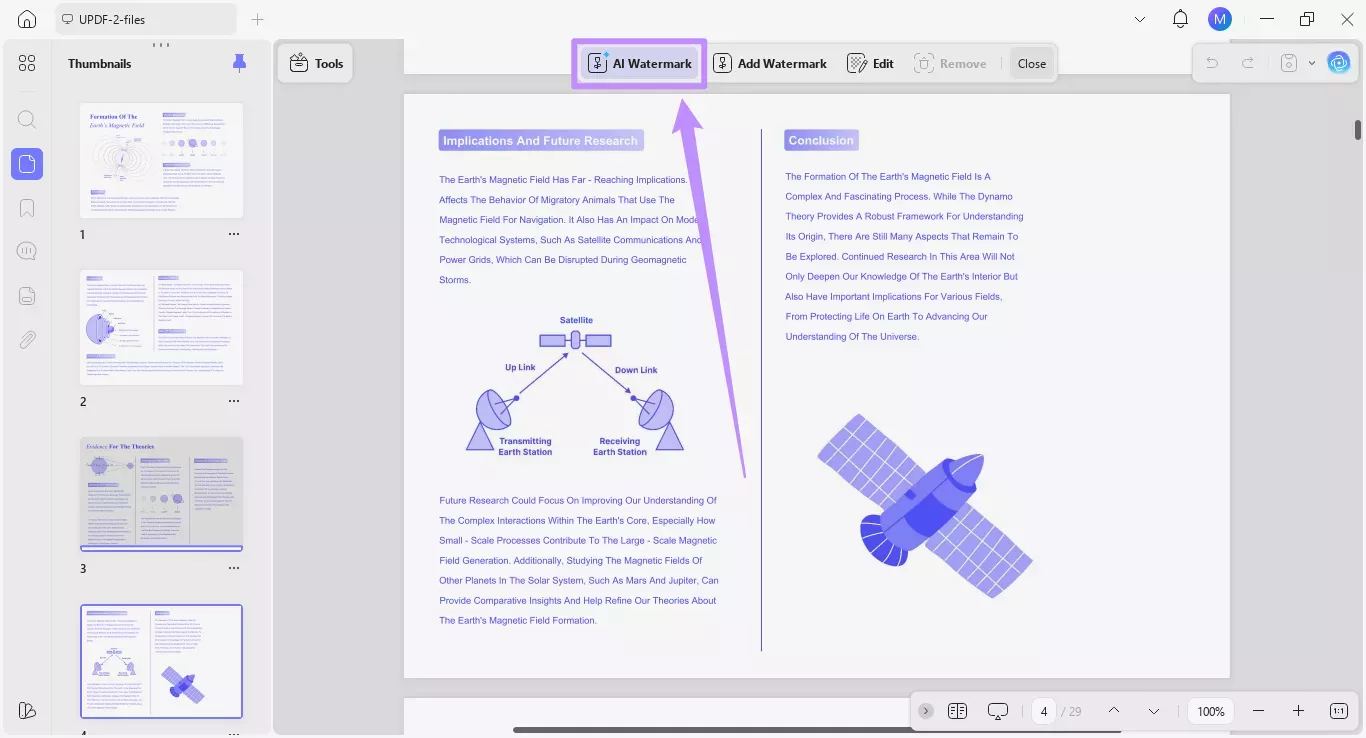
Step 2. Select the "AI Watermark" option. It will open the AI-generated watermark interface.
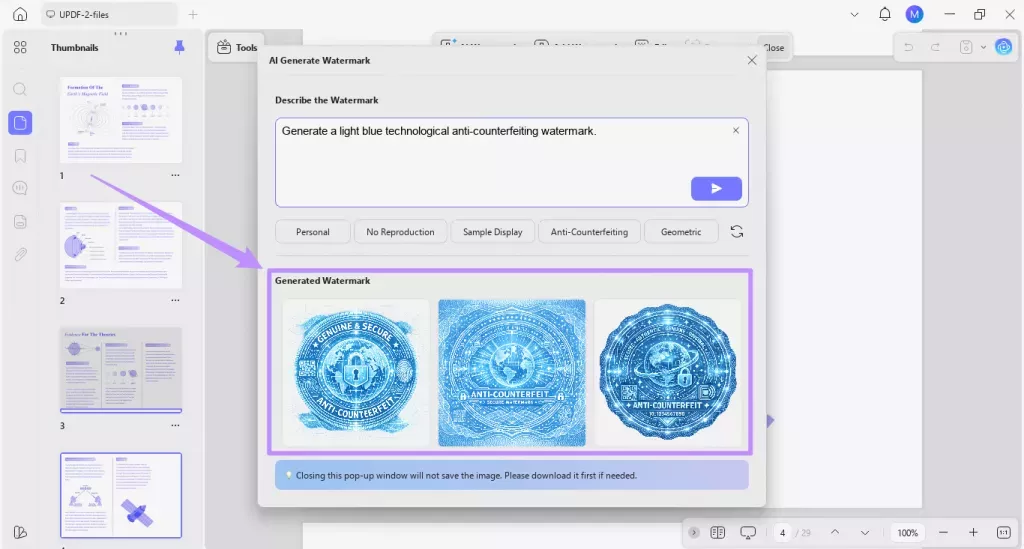
Step 3. Type the prompt under the "Describe the Watermark" checkbox. Some of the AI prompt examples you can use are:
- "Create a professional confidential stamp in dark red"
- "Generate a draft watermark with diagonal text in light gray"
- "Design an elegant company logo watermark with transparency"
- "Make a sample watermark that looks official and professional"
Hit the "Send" button and watch UPDF AI generate multiple high-resolution PNG watermark images.
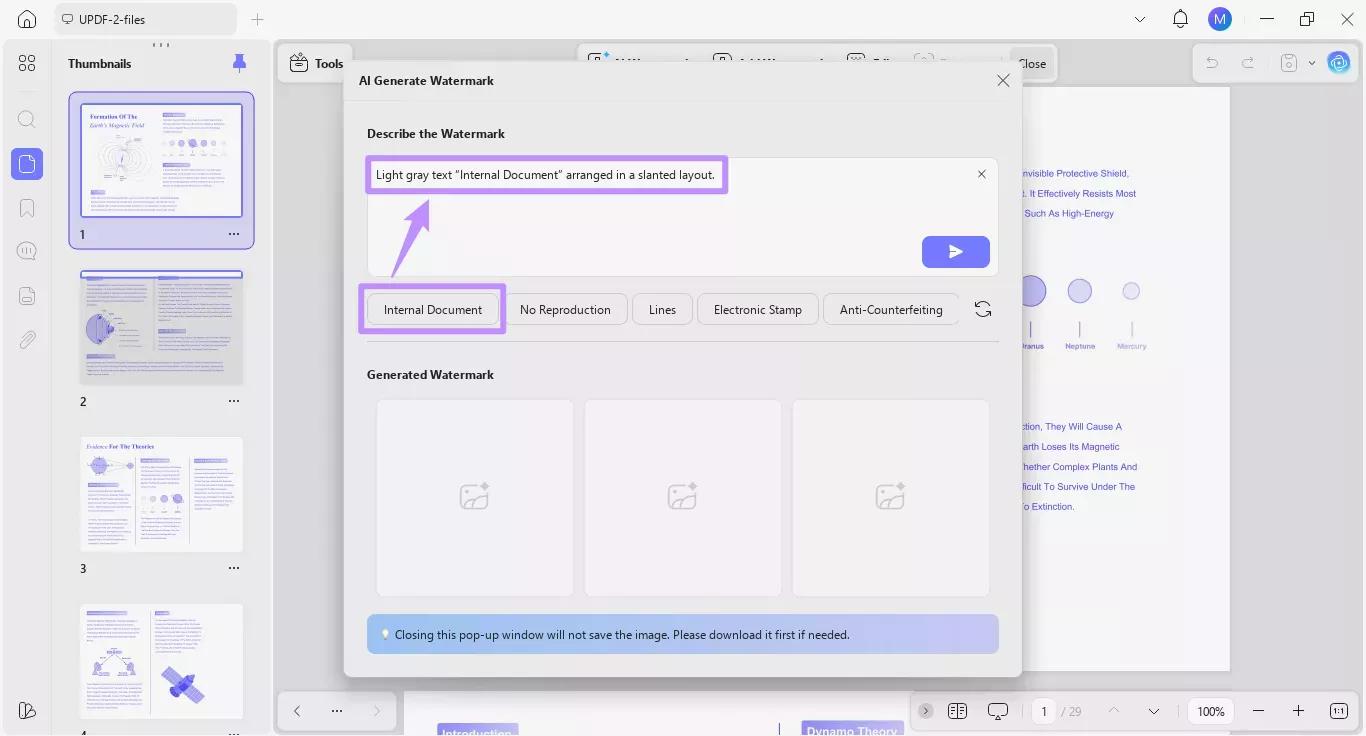
Step 4. You can also use the preset templates. For example, tap the "Internal Document" preset, and it will add the prompt to create an internal document text watermark with a specific layout.
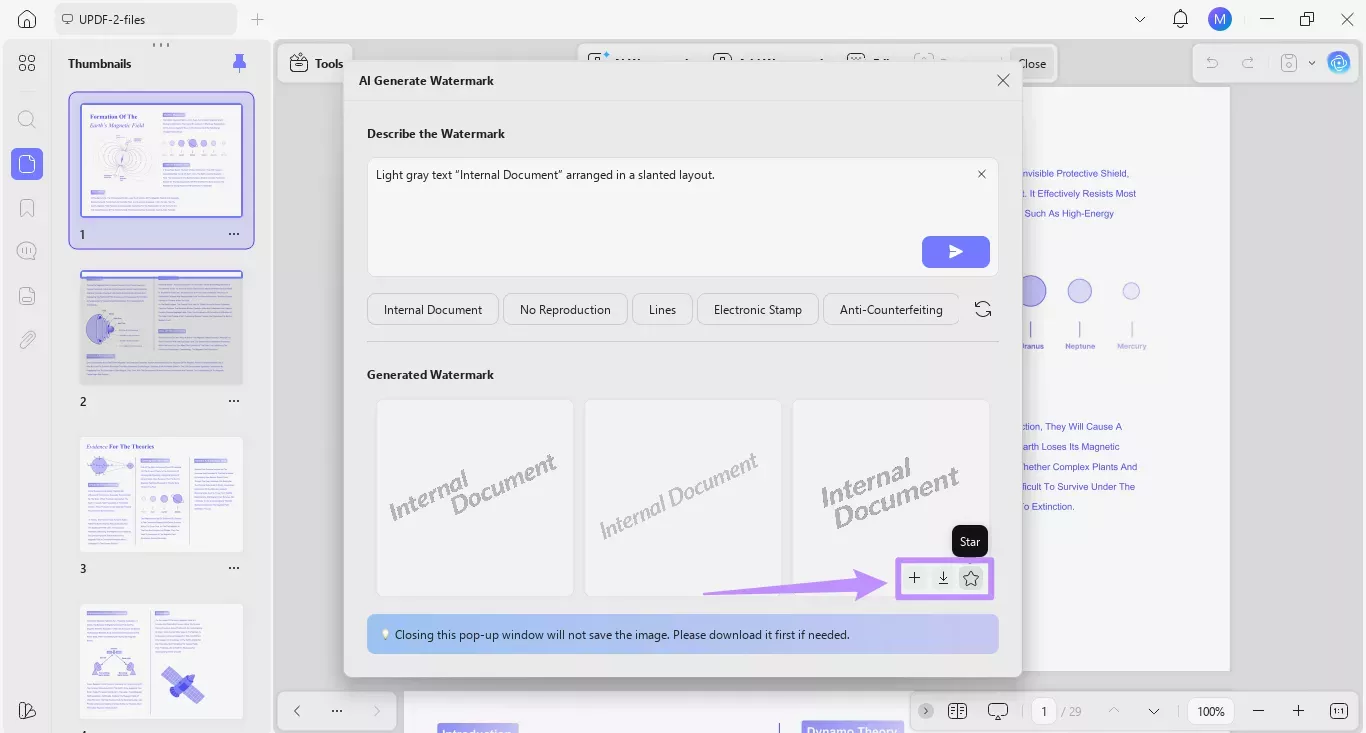
Step 5. After generating the watermark, you can click the "Download" icon to save the watermark, click the "Star" icon to save it for later reuse, or click the "+" button to place the watermark in the PDF.
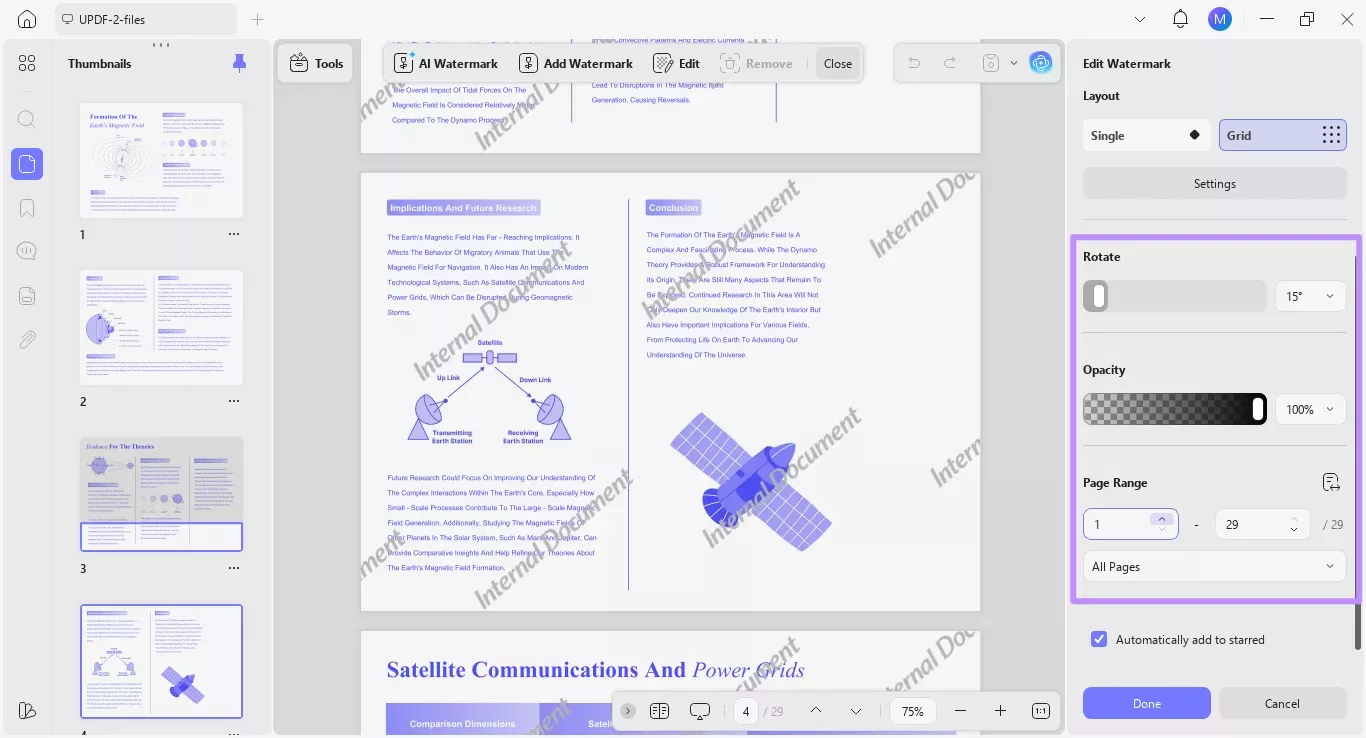
Step 6. After the watermark is added to the PDF, you will see the "Edit Watermark" panel on the right, from where you can adjust the layout, rotation, opacity, and other settings.
UPDF Additional Features
- Adding Traditional Watermark
Other than an AI-generated watermark, UPDF also lets us add traditional text and image watermarks . You can download the Google Docs file and drag and drop it into UPDF. Afterward, tap the watermark option and add the text/image watermark to the PDF. Follow the steps below for better clarity:
Step 1. Launch UPDF and drag and drop the Google Docs file. It will convert and open it as a PDF.
Step 2. Click Tools > Watermark and tap "Add Watermark". You can use the existing templates or tap Create > Text Watermark or File Watermark (Image/PDF) to insert a new one.
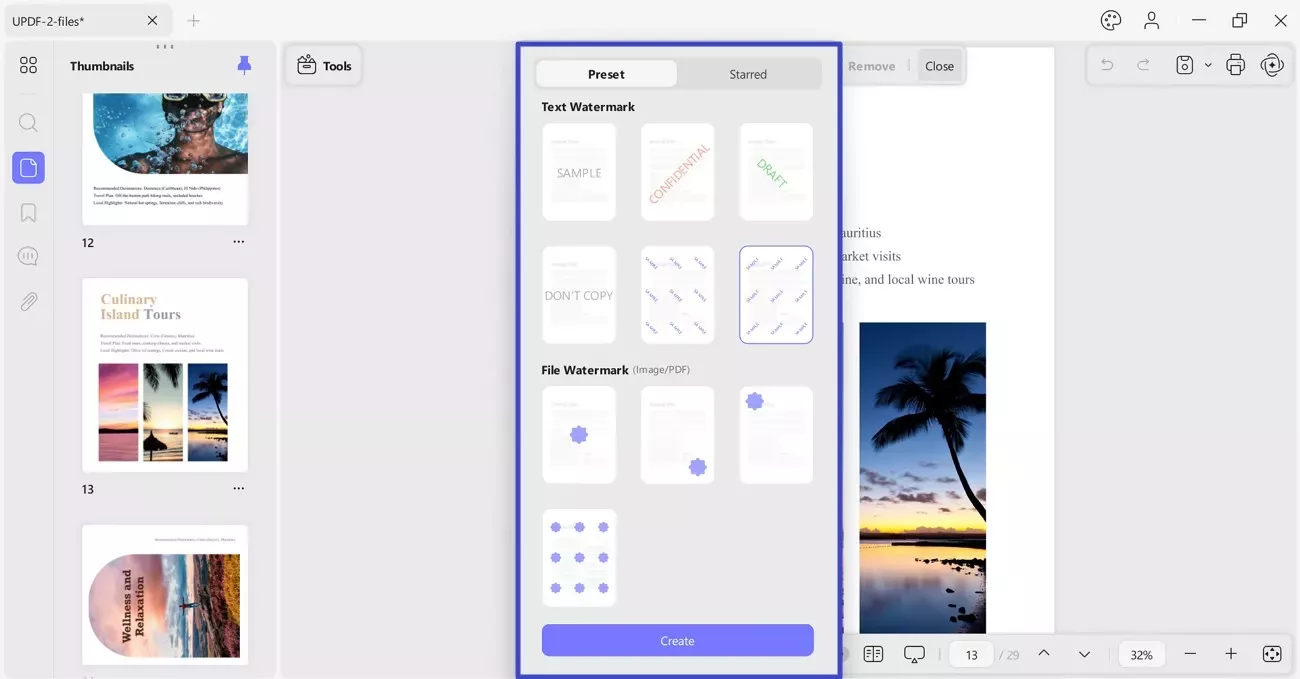
Step 3. Next, add the text or image, adjust the watermark settings, and click "Done".
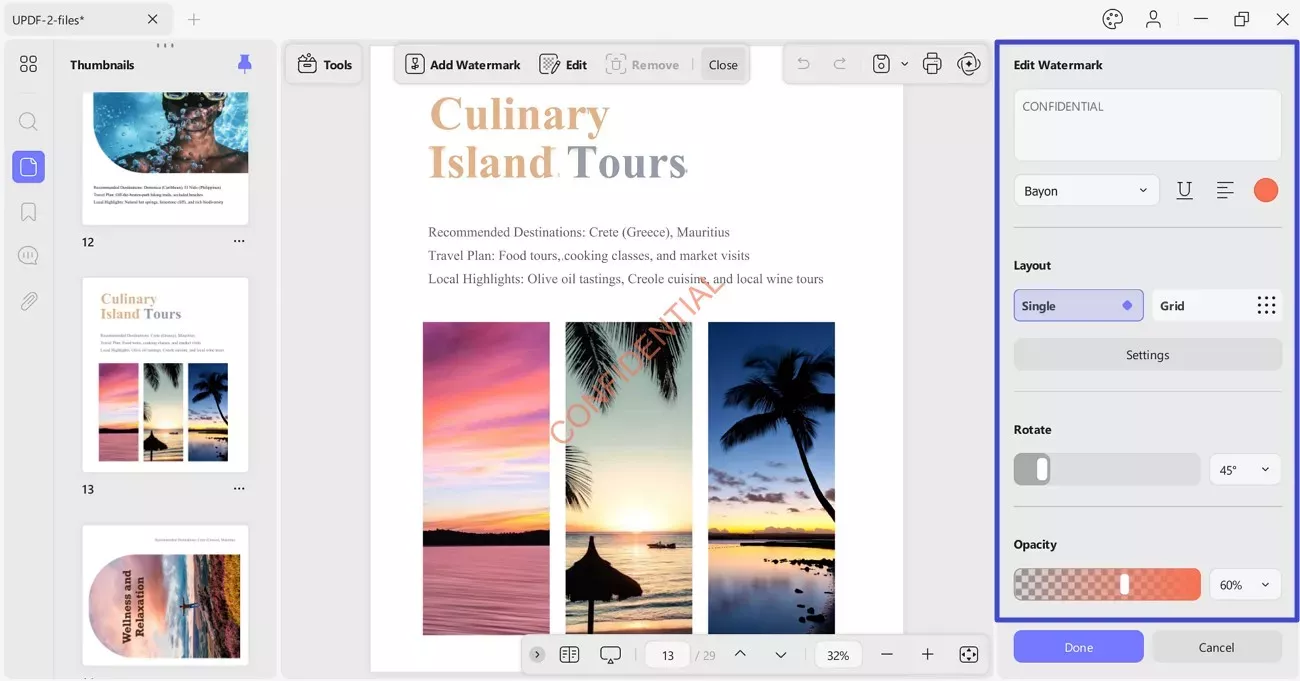
That's how you can add a traditional watermark using UPDF.
- Batch Watermark Multiple Files
As mentioned above, UPDF supports batch PDF watermarking so that you can apply the watermark to all PDFs at once. Here are the steps you need to follow:
Step 1. Launch UPDF and click Tools > Watermark.
Windows • macOS • iOS • Android 100% secure
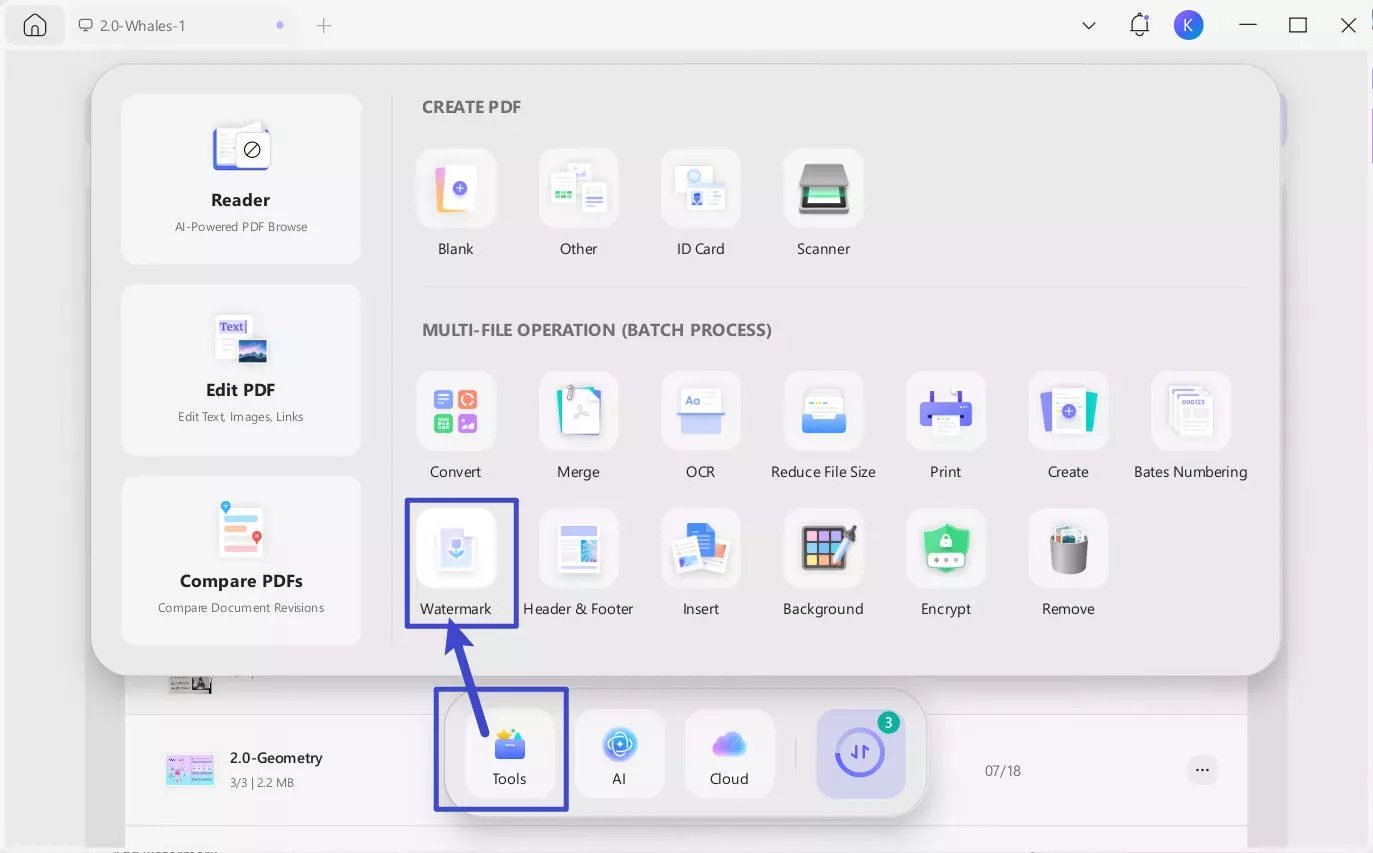
Step 2. Click "Add Files" and upload all the PDFs.
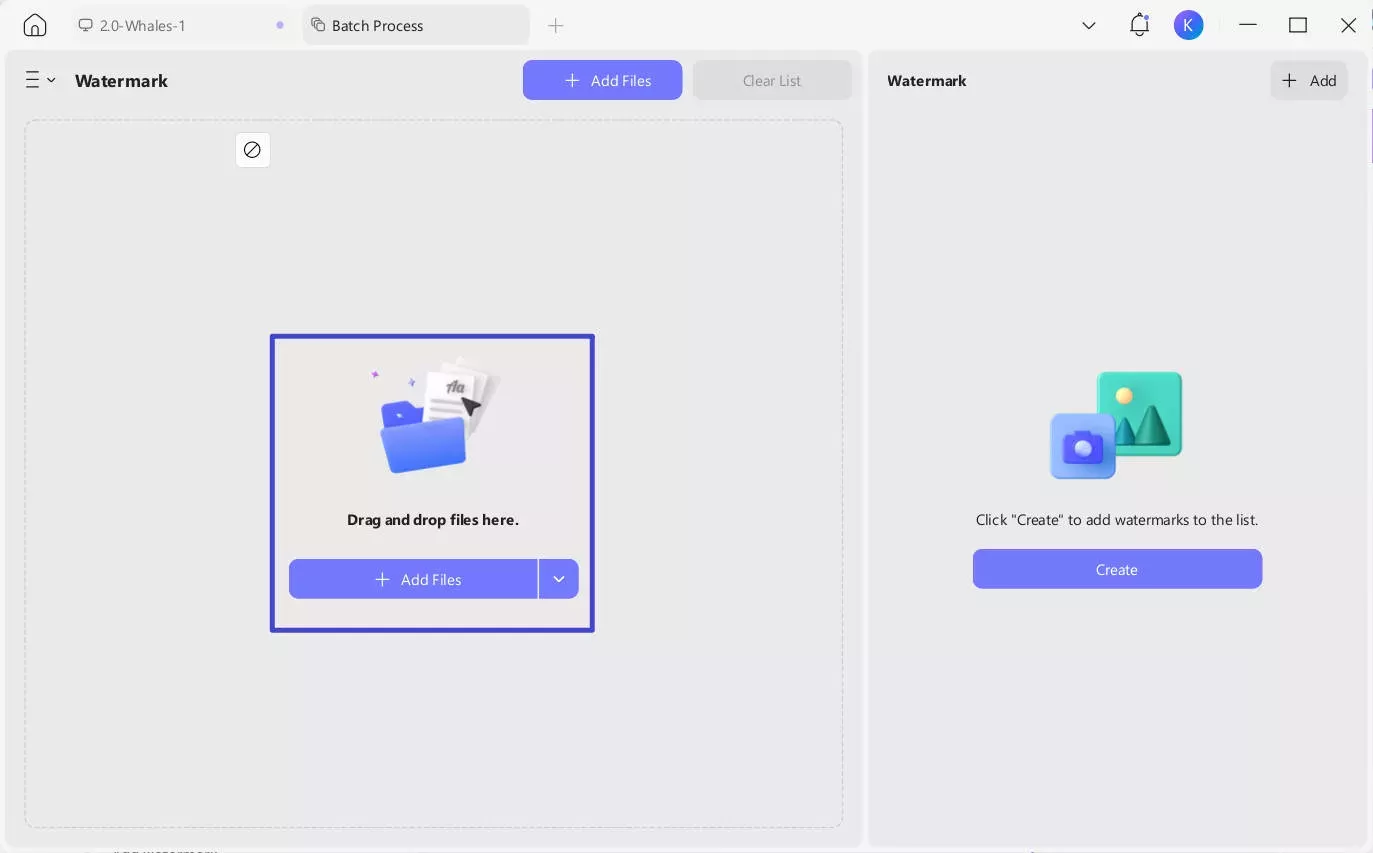
Step 3. Click "Create" and choose between Text Watermark or File Watermark (Image/PDF).
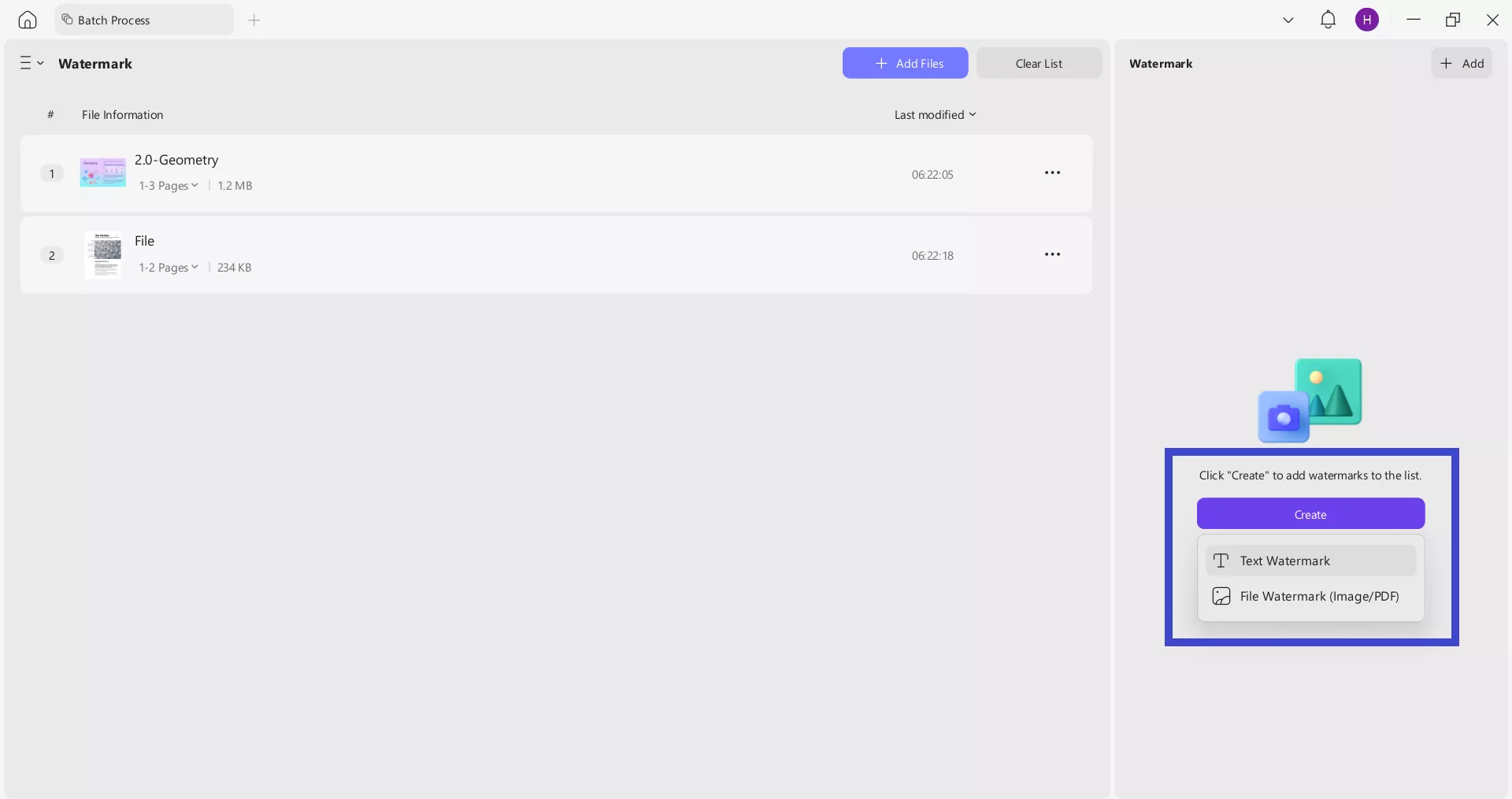
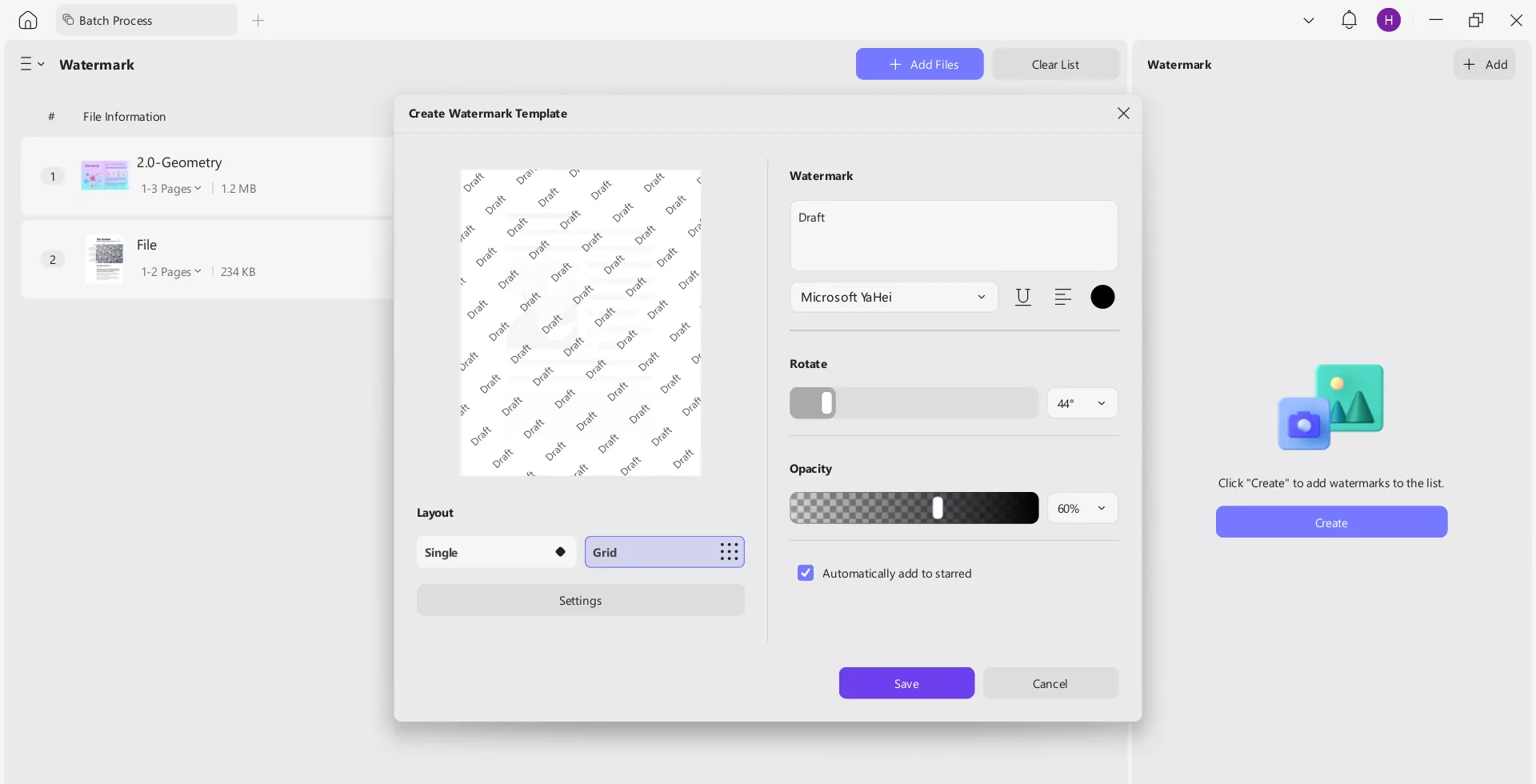
Step 4. Add the text or image, adjust the watermark settings, and click "Save".
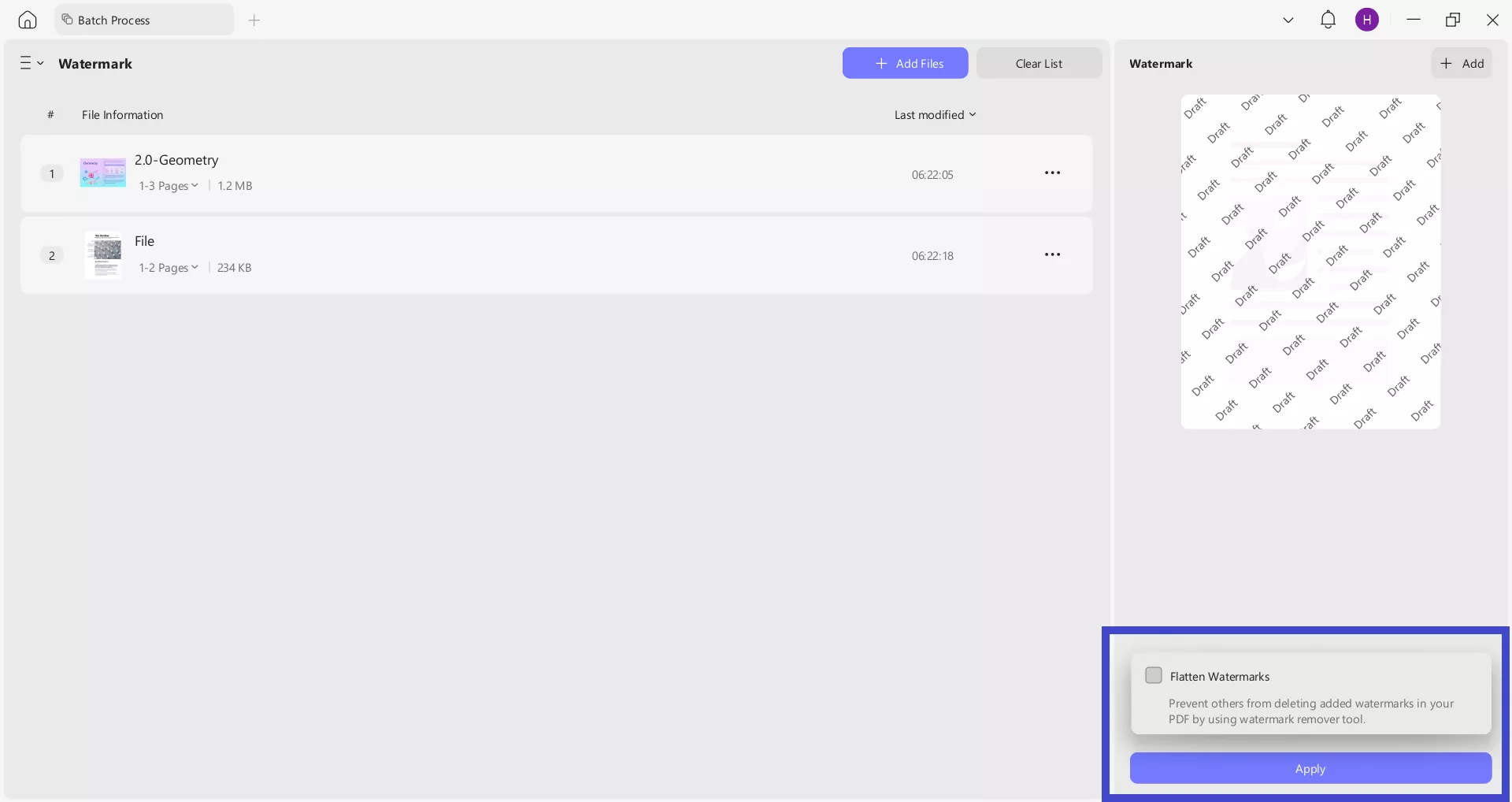
Step 5. Click the "Apply" button to insert the watermark into all uploaded PDFs. You can also tick the "Flatten Watermarks" checkbox to make the watermark flatten and unchangeable.
Feel impressed? Hit the download button below to get UPDF and start benefiting from its advanced watermark feature.
Windows • macOS • iOS • Android 100% secure
Part 5. Google Docs vs UPDF AI: Watermark Feature Comparison
| Feature | Google Docs | UPDF AI |
| Text Watermark | ✅ Basic manual | ✅ AI-generated + manual |
| Image Watermark | ✅ Upload only | ✅ AI-generated + manual upload |
| PDF Watermark | ❌ | ✅ |
| AI Generation | ❌ | ✅ |
| Batch Watermarking | ❌ | ✅ |
| PDF Support | ❌ Export only | ✅ Full PDF editing |
| Password Protection | ❌ | ✅ |
| Design Quality | Basic | Professional AI designs |
| Best For | Quick drafts | Professional documents |
Part 6. FAQs
Can I add a watermark to Google Docs on mobile?
No, the watermark feature in Google Docs is only available on the desktop. You have to open the file on your computer to add a watermark. There is no built-in watermark feature available in Google Docs' Android or iPhone app.
Why is my watermark not showing when I print?
The printer settings may be configured to skip background images to save ink, or the watermark may be too faint/transparent. You can fix that by enabling "Print Background Colors and Images" in your print dialog settings and ensuring the watermark's transparency (washout) setting is adjusted or disabled.
Can I remove someone else's watermark from a Google Doc?
Only if you have edit access to the document. If yes, go to Insert > Page elements > Watermark, then click "Remove watermark" at the bottom of the panel. If you don't have edit access, you cannot remove it.
Is UPDF AI Watermark Creator free to use?
Yes, UPDF AI Watermark Creator is free to use for new users. They get 100 free AI credits upon registration, which they can use to generate AI watermarks. For extensive use, users can get unlimited access through the paid AI subscription.
Windows • macOS • iOS • Android 100% secure
Conclusion
In our guide on how to add a watermark in Google Docs, we have seen that Google Docs offers basic watermarking for simple needs. Adding the text and image watermarks in Google Docs is easy. For professional results without design work, UPDF AI Watermark Creator is the smarter choice. Its AI-powered watermarking saves time and produces better results.
Download UPDF for free and see the difference for yourself.
Windows • macOS • iOS • Android 100% secure









 Enrica Taylor
 Enola Davis