 UPDF
UPDF
 UPDF for Windows
 UPDF for Mac
 UPDF for iPhone/iPad
 UPDF for Android
 Nomostar
 UPDF AI Online
 UPDF Sign
 IvyCraft
 Edit PDF
 Annotate PDF
 Create PDF
 PDF Form
 Edit links
 Convert PDF
 OCR
OCR PDF to Word
 PDF to Image
 PDF to Excel
 Organize PDF
 Merge PDF
 Split PDF
 Crop PDF
 Rotate PDF
 Protect PDF
 Sign PDF
 Redact PDF
 Sanitize PDF
 Remove Security
 Read PDF
 UPDF Cloud
 Compress PDF
 Print PDF
 Batch Process
 About UPDF AI
 UPDF AI Solutions
 AI User Guide
 FAQ about UPDF AI
 Summarize PDF
 Translate PDF
 Chat with PDF
 Chat with AI
 Chat with image
 PDF to Mind Map
 Explain PDF
 PDF AI Tools
 Image AI Tools
 AI Chat Tools
 AI Writing Tools
 AI Study Tools
 AI Working Tools
 Other AI Tools
 AI Bookmark Generation
 AI Bookmark Summary
 AI Watermark Generation
 AI Background Generation
 AI Sticker Generation
 AI Stamp Generation
 AI Editing Suite
 UPDF Copilot
 AI Page Management
 AI Semantic Search
 PDF to Word
 PDF to Excel
 PDF to PowerPoint
 Enterprise Solution
 Enterprise Sign
 Enterprise AI
 Enterprise Plan
 Enterprise User Guide
 Enterprise Webinar
 IT
IT Education
 Construction
 Financial Service
 Healthcare
 Insurance
 Legal
Legal Manufacturing
 Government
 Researchers & PhDs
 Solopreneurs & Freelancers
 Lawyers & Legal Professionals
 Real Estate Agents & Brokers
 Education Solution
 Customer Stories
 User Guide
 UPDF Tricks
 FAQs
FAQs UPDF Reviews
 Download Center
 Blog
Blog Newsroom
 Tech Spec
 Updates
 UPDF vs. Adobe Acrobat
 UPDF vs. Foxit
 UPDF vs. PDF Expert

Quick Answer:
The best method depends on where the PDF is now and whether you only need a copy or want to keep working on the same document. AirDrop creates a separate copy. A PDF kept in UPDF Cloud or iCloud Drive remains in a cloud location that your devices can access.
This guide starts with that decision, then shows the exact workflow for each source device. You do not need iTunes for any of the main methods.
Part 1. Choose the Right Way to Transfer a PDF to Your iPad
| Where the PDF starts | Recommended method | Best for | Main limitation |
|---|---|---|---|
| Android phone | UPDF Cloud | A direct Android-to-iPad workflow and continued PDF work | Requires internet access and the same UPDF account |
| iPhone | AirDrop for one copy; UPDF Cloud for continued work | Nearby Apple devices or one cloud-backed PDF | AirDrop does not keep two copies synchronized |
| Mac | AirDrop for one copy; UPDF Cloud or iCloud Drive for ongoing access | Fast local transfer or longer-term access | AirDrop requires nearby compatible Apple devices |
| Windows PC | UPDF Cloud | The simplest consistent Windows-to-iPad workflow | Requires UPDF on both devices and an internet connection |
| Windows PC with iCloud configured | iCloud Drive | People who already use Apple's Files ecosystem | Initial iCloud setup on Windows may take longer |
| Already in iPad Files, Safari, Mail, or another app | Open or import the PDF into UPDF | Adding a PDF to an iPad PDF workspace | Importing may create another copy, depending on the source and action |
If the document will move among more than two platforms, start with UPDF Cloud. If you only need to send one PDF from a nearby iPhone or Mac, AirDrop is usually the shorter path.
Part 2. How to Send PDF to iPad from Android?
This method is ideal when you regularly deal with PDFs across your Android and iPad. Whether you plan to continue your work where you left off on another device, or you have to open and edit your PDFs on your iPad, you can do all that using UPDF.
This method is fast and effective. You can send your PDFs from your Android to iPad without needing any cables or iTunes,
Follow these simple steps to transfer PDF files to iPad:
Step 1: If you don't have the UPDF app on your Android phone, install it via the below button or from the Play Store.
Step 2: Once the installation is completed, open the UPDF app and log in with your UPDF account. If you don’t have any, create one.
Step 3: After logging in, click the "UPDF Cloud" button. Then, click the "Upload" button.
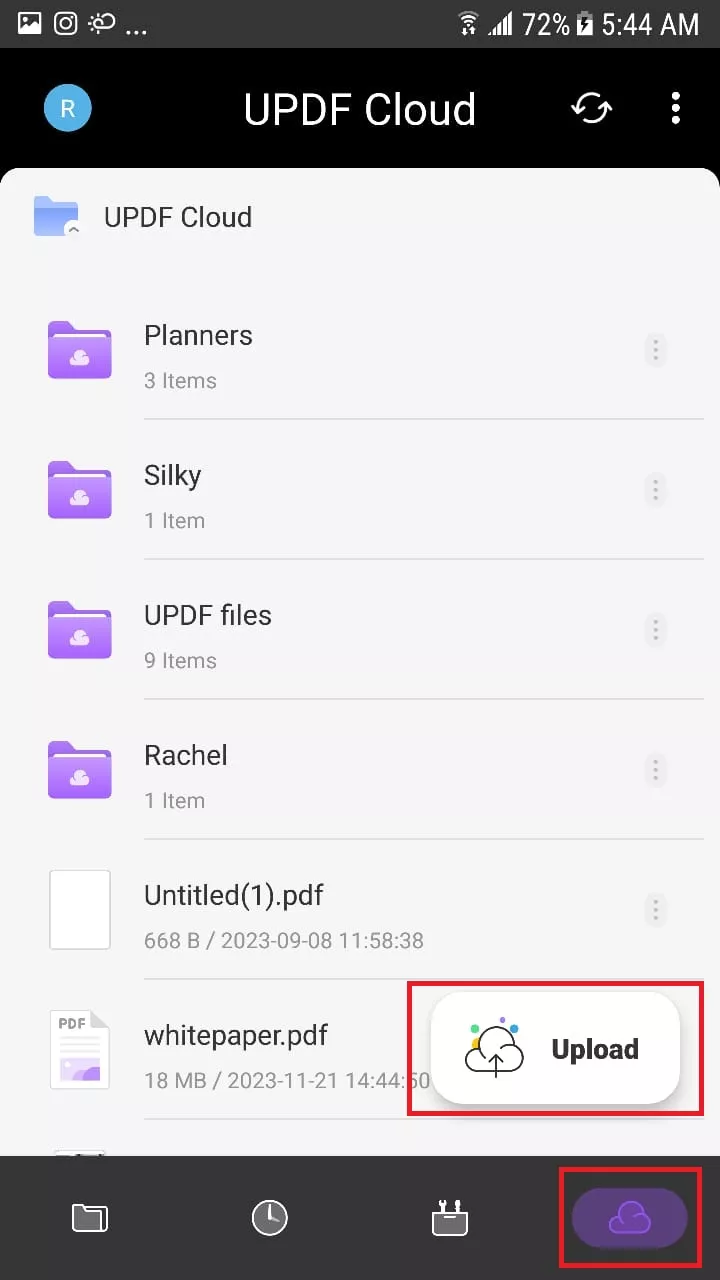
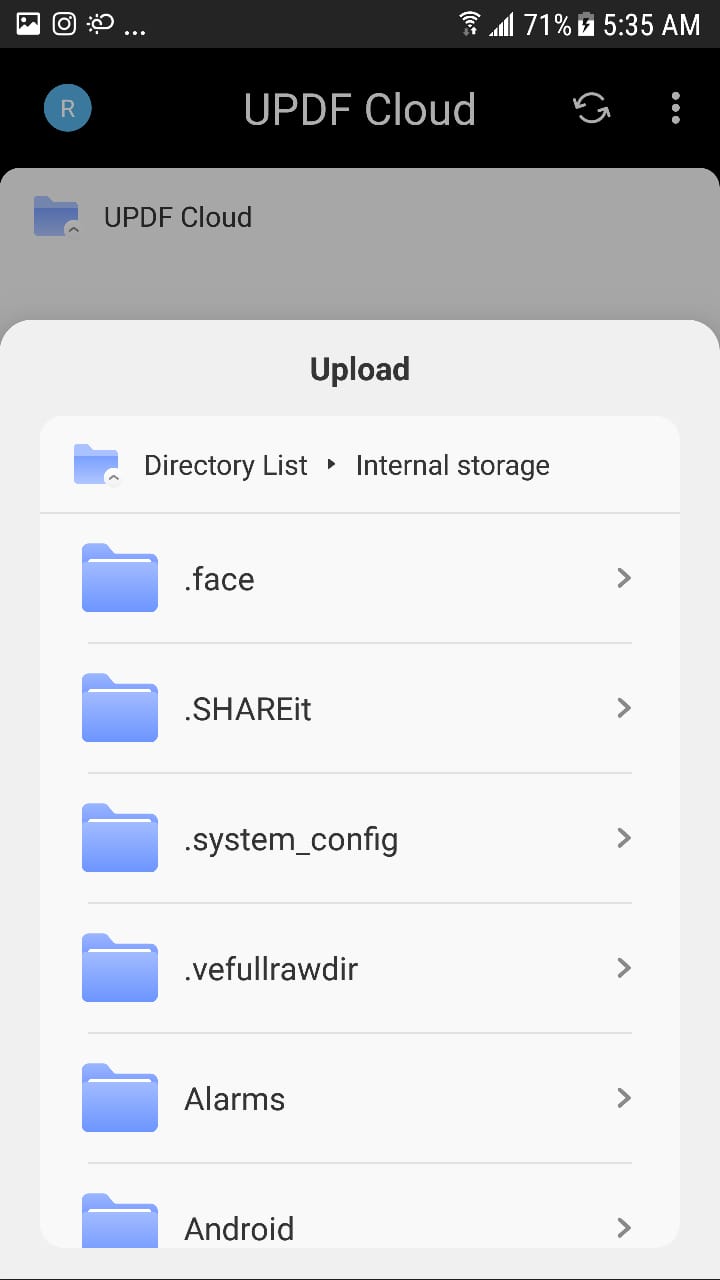
Step 4: Find and select the PDF file that you want to upload. It will be uploaded to UPDF within seconds.
Step 5: Next, install UPDF on your iPad from the App Store, and log in with the same credentials.
Step 6: After logging in to UPDF on your iPad, click "UPDF Cloud" to find your PDF document here. Click the three dots and "Download" to save it on your iPad.
So, this is how to transfer PDF files to iPad from your Android phone. Let’s move forward and explore how to transfer it from iPhone to iPad.
Part 3. How to Transfer PDF from iPhone to iPad?
An iPhone gives you three practical choices. Use AirDrop for one nearby transfer, Files/iCloud Drive for Apple-native file access, or UPDF Cloud when the PDF will continue moving between Apple and non-Apple devices.
Method 1. Using UPDF
When you need to transfer PDFs from iPhone to iPad, you can still use UPDF. It makes the process simpler than any other method. With UPDF Cloud, you can easily access your PDF documents from any Apple device you have. The best thing is that there will be no more fumbling with the wire or USB cable.
You can follow these simple steps to transfer PDF files from iPhone to iPad:
Step 1: After installing UPDF on your iPhone, open it and log in with your UPDF account.
Step 2: Now, click the "UPDF Cloud" button on the home screen.
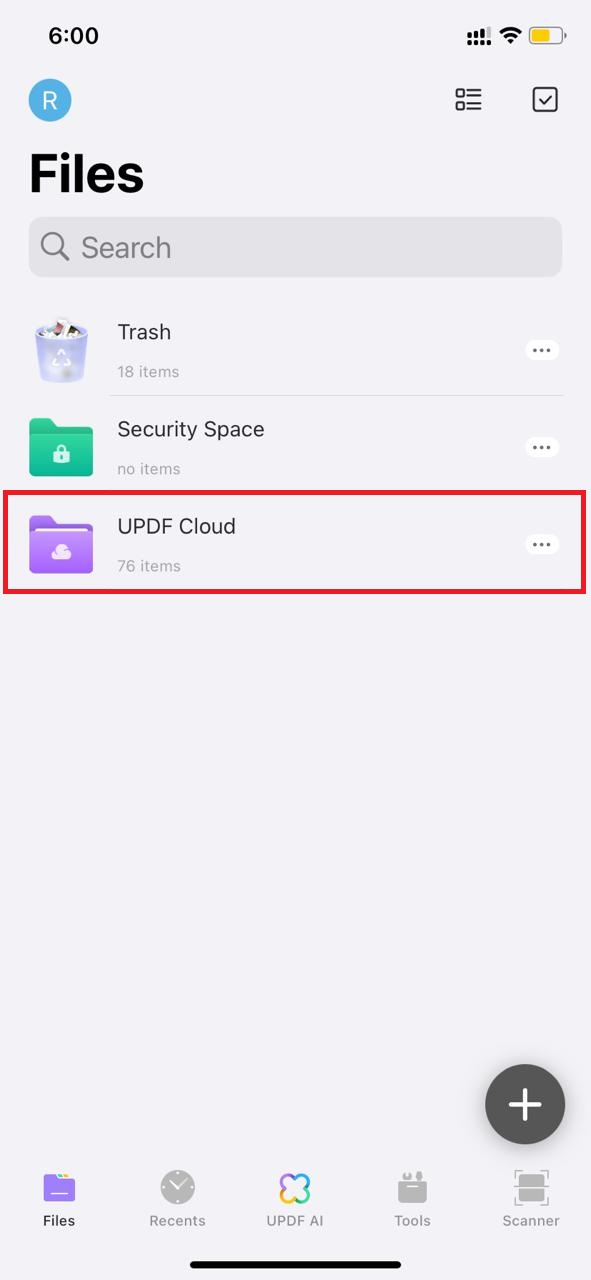
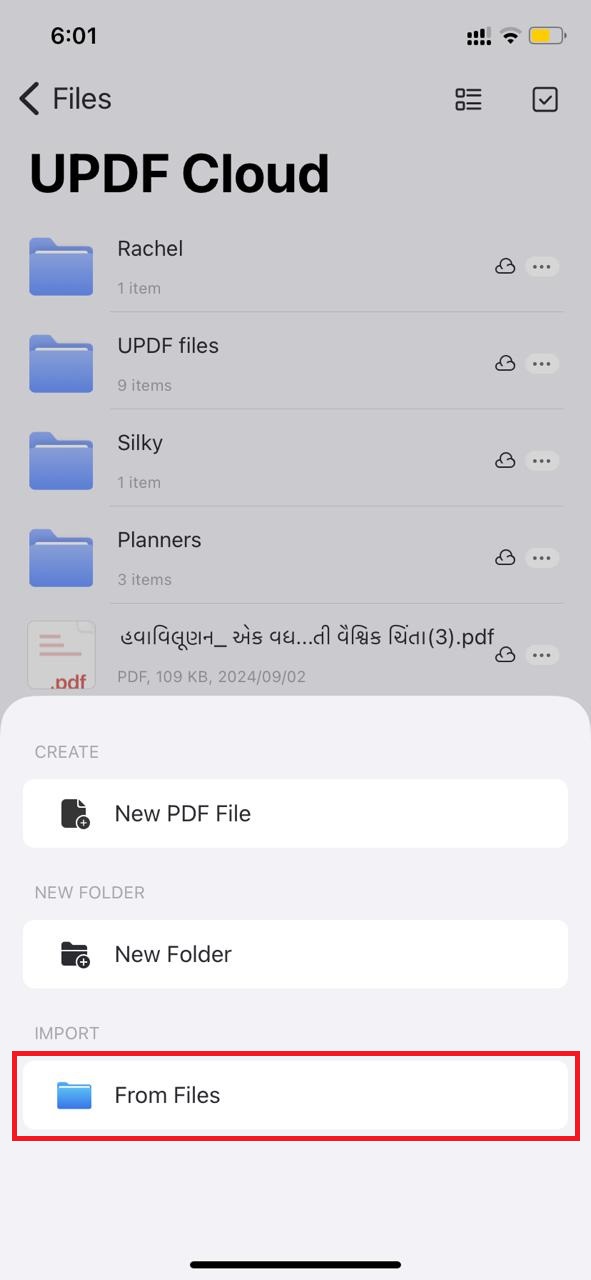
Step 3: Next, click the "+" button and select "From Files" under the import heading. Then, select the PDF file that you want to transfer.
Step 4: Open UPDF on your iPad and log in with the same account. Then, go to UPDF Cloud, click the three dots next to your PDF, and click "Download."
Method 2. Using iCloud
You can transfer PDFs to your iPad using iCloud, a secure cloud storage service that safeguards your photos, videos, and documents. As long as you’re signed in with your Apple ID on any device, you can access your files from anywhere.
Step 1. Open Settings on your device and navigate to iCloud > Saved to iCloud. Choose where you have already stored your PDFs (e.g., iCloud Drive) and keep the "Sync this iPhone" option for this location turned "On".
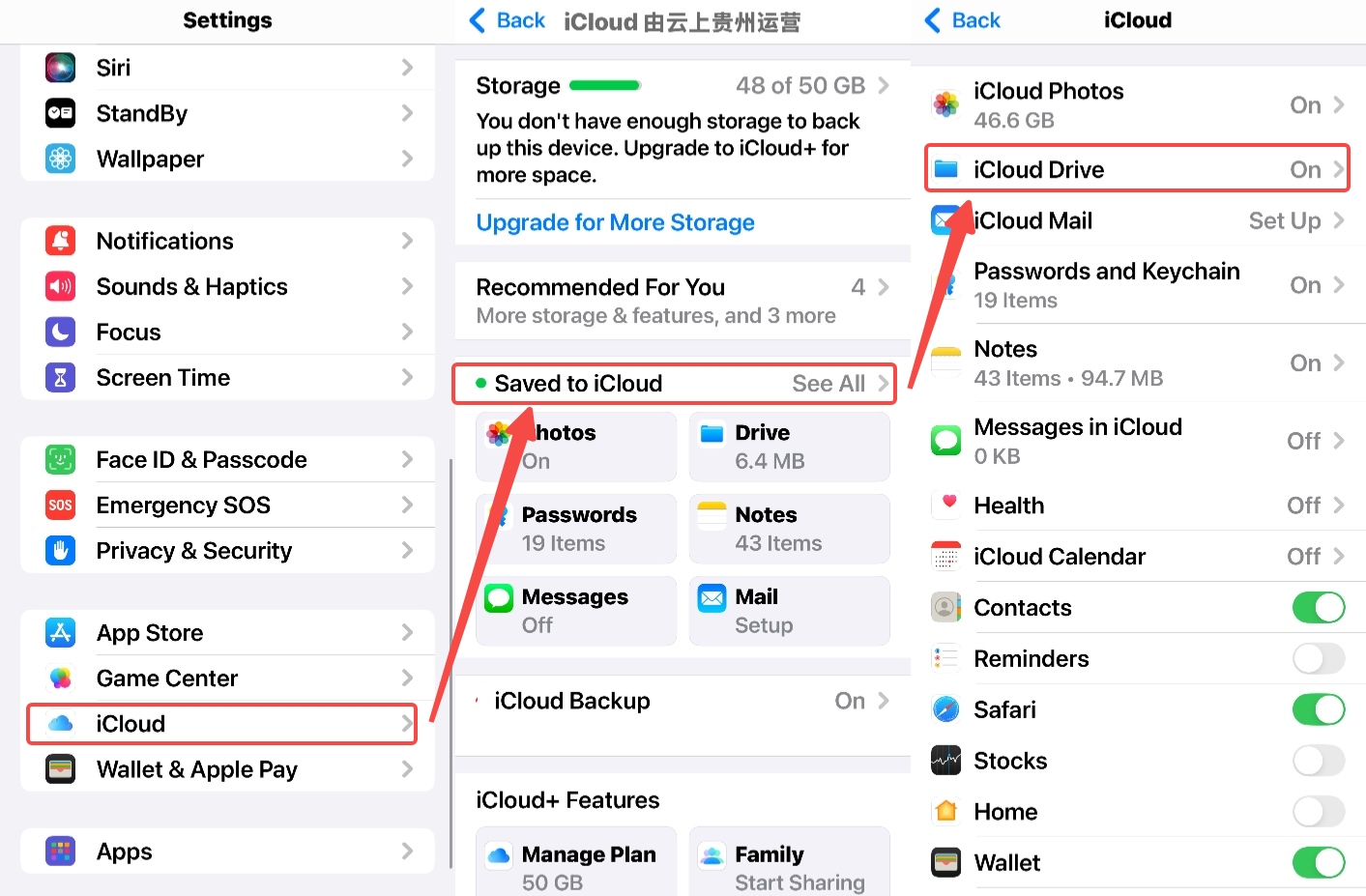
Step 2. Return to the main iCloud menu by tapping the "Back" arrow in the top-left corner. Tap iCloud Backup > Back Up Now and ensure your device stays connected to Wi-Fi until the backup completes.
Step 3. On your iPad, open iCloud and download the synchronized PDF files.
Method 3. Using AirDrop
Another more convenient way is to use AirDrop to transfer your PDF files. However, this method only works when both your phone and iPad are nearby. It also requires both devices to be within Bluetooth and Wi-Fi range.
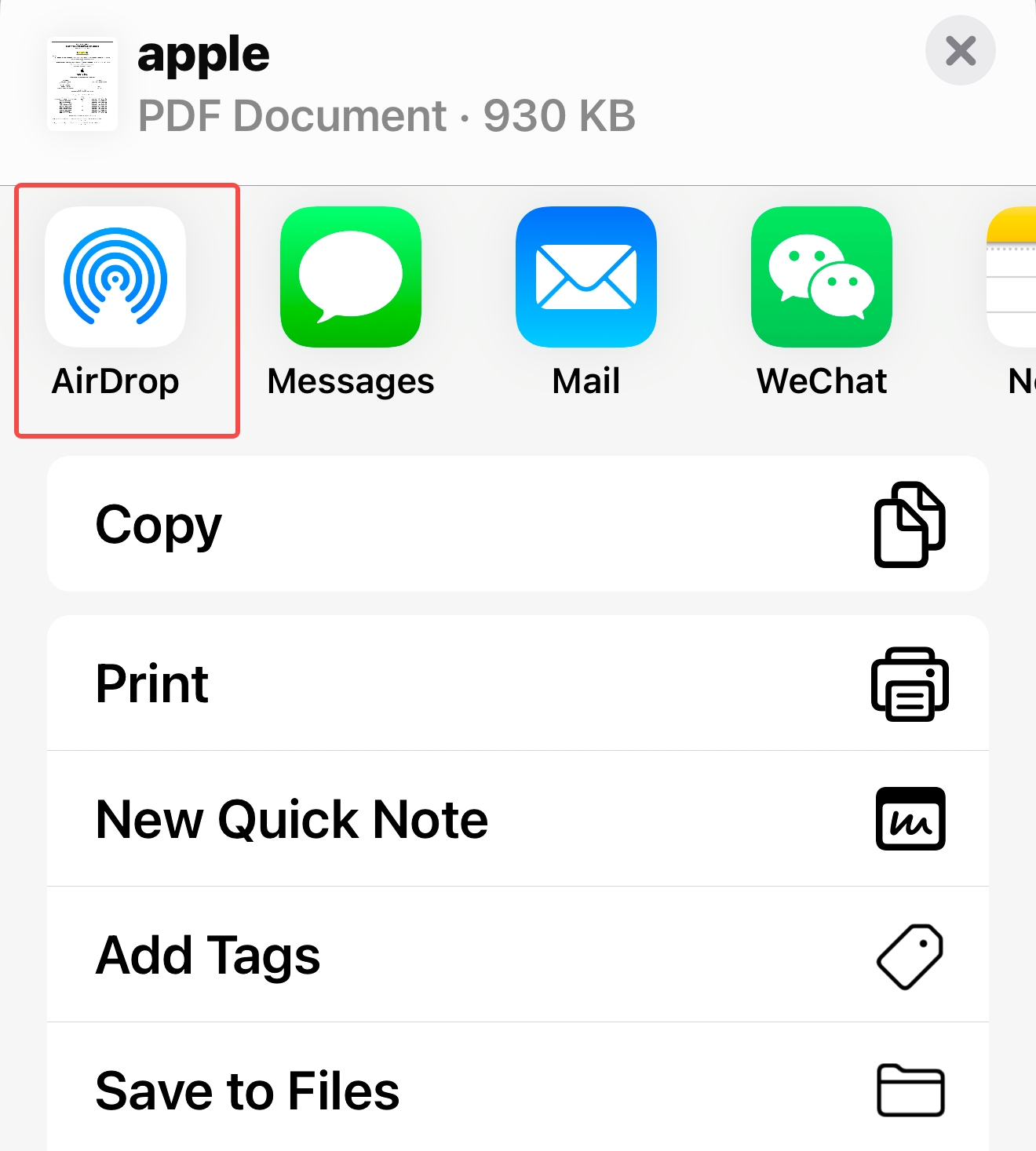
Step 1. Open the app where the file is stored. Tap Share > AirDrop.

Step 2. Select the recipient you wish to share with. Alternatively, hold the top of your iPhone close to the top of your iPad (available on compatible models running iOS 17 or newer).
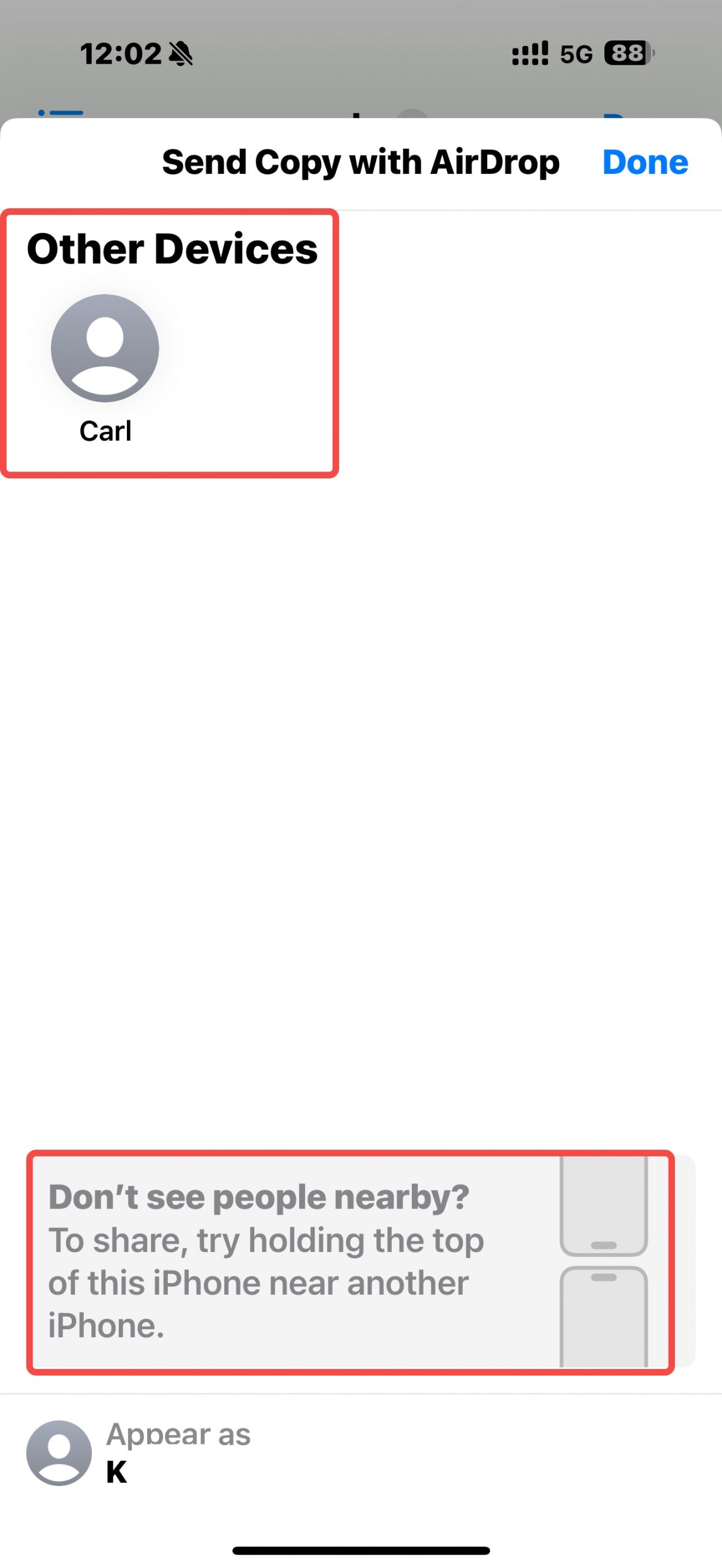
Step 3. On your iPad, tap or click "Accept" on the AirDrop notification. Now you can view this PDF file on your iPad.
Note
These are how to transfer PDF to iPad from iPhone. Let's move ahead and explore another scenario.
Part 4. How to Transfer PDF to iPad from PC/Mac?
Sending PDFs from a PC/Mac to an iPad is helpful if you have your files on your computer and need to move them to an iPad for ease. This usually happens with professionals who need to switch devices at work. Or the students who often use PDFs during classes.
Follow these instructions to see how to transfer PDFs from PC to iPad:
Step 1: First, you need to download and install the UPDF software on your PC. If you already have it, launch it.
Windows • macOS • iOS • Android 100% secure
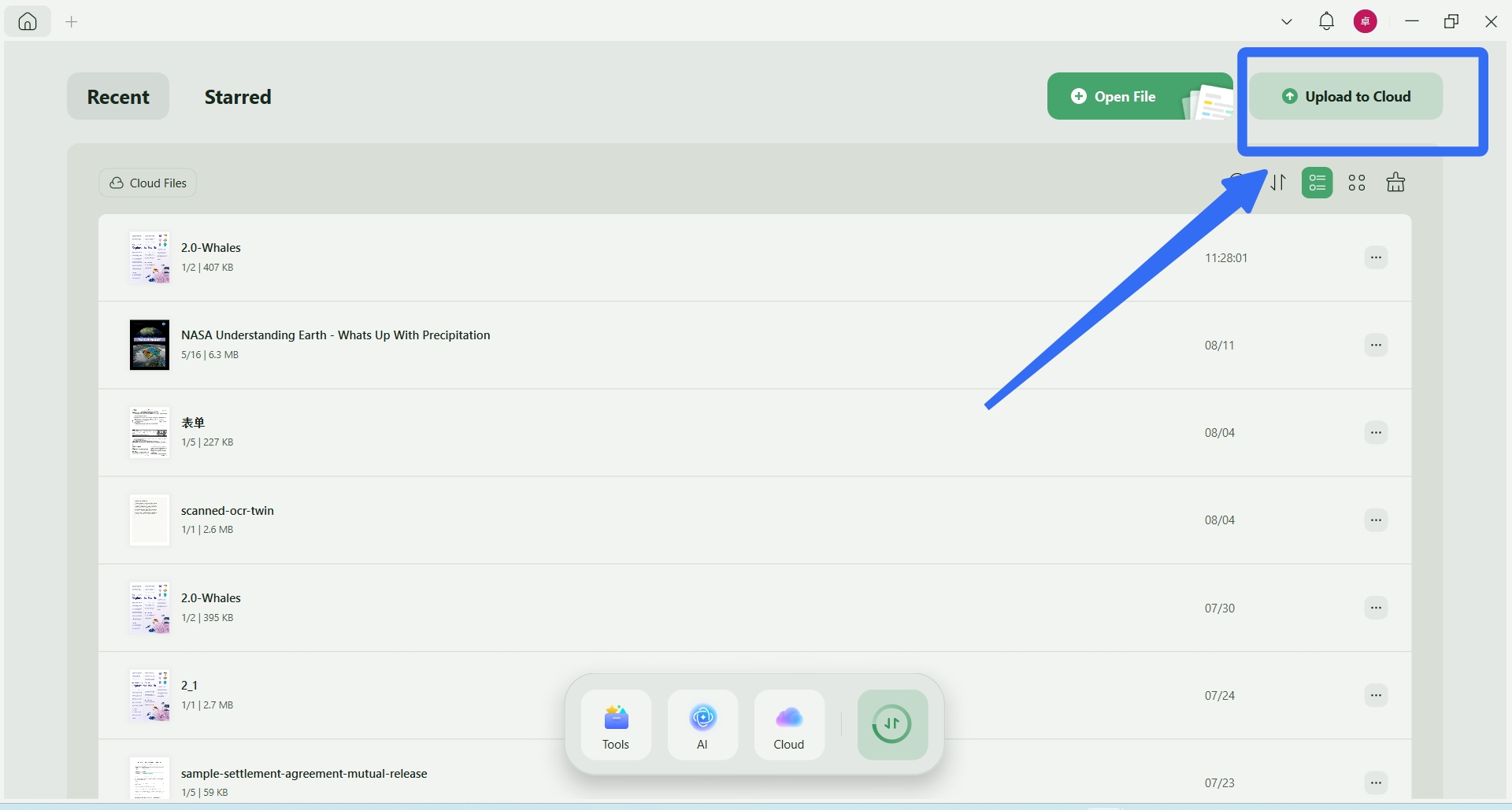
Step 2: After opening UPDF on your computer, click the "UPDF Cloud" button on the left side panel.
Step 3:Next, click the "Upload Cloud" button and select the PDF file you want to upload. You can also drag and drop it here.
Step 4: Now open UPDF on iPad. Make sure that you have logged in with the same account. Go to UPDF Cloud, click the three dots next to the uploaded PDF, and click "Download."
Thats it! This is how to transfer PDF to iPad from pc.
For more detailed instructions on using UPDF Cloud, watch the video below:
Part 5. Which PDF-to-iPad Method Should You Use?
| Method | Source devices | One-time transfer | Continued access across devices | Works without nearby devices | Main drawback |
|---|---|---|---|---|---|
| UPDF Cloud | Windows, Mac, iPhone, iPad, Android | Yes | Yes, when you keep working from the cloud file | Yes | Requires an account and internet access for cloud updates |
| AirDrop | iPhone, iPad, Mac | Yes | No | No | Apple devices must be nearby, and the result is a separate copy |
| iCloud Drive + Files | iPhone, iPad, Mac, configured Windows PC | Yes | Yes, for the file stored in iCloud Drive | Yes | Requires iCloud Drive setup and the same Apple Account |
| UPDF same-Wi-Fi computer import | Windows or Mac browser to iPad | Yes | No | No | Both devices must remain on the same network during import |
For a one-off Apple transfer, use AirDrop. For an Apple-centered file library, use iCloud Drive. For PDFs that start on Android or Windows—or that need to remain available inside one PDF workflow across platforms—use UPDF Cloud.
FAQs
Q1: Where are downloaded PDFs stored on an iPad?
Usually in the Files app. Safari downloads commonly appear in the Downloads folder, but the exact location depends on the download setting and the folder selected when the PDF was saved. Search the filename in Files if the document is not visible in Recents.
Q2: Does transferring a PDF reduce its quality?
A direct file transfer should not. UPDF Cloud, AirDrop, and iCloud Drive move the PDF file rather than recreating its pages. Quality can change only if another app compresses, converts, scans, or exports the document during the workflow.
Q3: Can I read a transferred PDF on an iPad without internet access?
Yes, after saving it locally. Download the PDF to the iPad or save it under On My iPad before going offline. A cloud-only placeholder may still require internet access the first time you open it.
Conclusion
The right way to transfer PDFs to an iPad depends on the source device and what happens after the transfer. AirDrop is ideal for one nearby iPhone or Mac. Files and iCloud Drive suit an Apple-centered document library. UPDF Cloud provides one consistent route from Android, Windows, iPhone, or Mac and is the stronger choice when PDF work continues across platforms.
To transfer, open, annotate, and organize PDFs in the same cross-platform workspace, download UPDF for free and add your document to UPDF Cloud—installation is free, and Pro removes the trial watermark from exported files.
Windows • macOS • iOS • Android 100% secure







 Enola Davis
 Enola Miller


 Engelbert White