 UPDF
UPDF
 UPDF for Windows
 UPDF for Mac
 UPDF for iPhone/iPad
 UPDF for Android
 Nomostar
 UPDF AI Online
 UPDF Sign
 IvyCraft
 Edit PDF
 Annotate PDF
 Create PDF
 PDF Form
 Edit links
 Convert PDF
 OCR
OCR PDF to Word
 PDF to Image
 PDF to Excel
 Organize PDF
 Merge PDF
 Split PDF
 Crop PDF
 Rotate PDF
 Protect PDF
 Sign PDF
 Redact PDF
 Sanitize PDF
 Remove Security
 Read PDF
 UPDF Cloud
 Compress PDF
 Print PDF
 Batch Process
 About UPDF AI
 UPDF AI Solutions
 AI User Guide
 FAQ about UPDF AI
 Summarize PDF
 Translate PDF
 Chat with PDF
 Chat with AI
 Chat with image
 PDF to Mind Map
 Explain PDF
 PDF AI Tools
 Image AI Tools
 AI Chat Tools
 AI Writing Tools
 AI Study Tools
 AI Working Tools
 Other AI Tools
 AI Bookmark Generation
 AI Bookmark Summary
 AI Watermark Generation
 AI Background Generation
 AI Sticker Generation
 AI Stamp Generation
 AI Editing Suite
 UPDF Copilot
 AI Page Management
 AI Semantic Search
 PDF to Word
 PDF to Excel
 PDF to PowerPoint
 Enterprise Solution
 Enterprise Sign
 Enterprise AI
 Enterprise Plan
 Enterprise User Guide
 Enterprise Webinar
 Banking
 Healthcare
 Insurance
 Legal
Legal Manufacturing
 Government
 Education Solution
 Customer Stories
 User Guide
 UPDF Tricks
 FAQs
FAQs UPDF Reviews
 Download Center
 Blog
Blog Newsroom
 Tech Spec
 Updates
 UPDF vs. Adobe Acrobat
 UPDF vs. Foxit
 UPDF vs. PDF Expert

Google Translate is a go-to free tool for PDF translation, boasting support for over 100 languages and fast processing. That said, it frequently underperforms with scanned files, large documents and multi-column layouts, leading to upload errors, blank results and distorted formatting. Privacy risks are also a notable concern for sensitive content.
In this guide, we cover how to use Google Translate for PDFs and troubleshoot its most common issues. When its built-in limitations hold you back, UPDF AI serves as a reliable all-in-one alternative. Equipped with powerful OCR and layout retention features, it handles all types of PDFs while protecting your file data. You will easily find the right solution for your translation tasks here.
Part 1: How to Translate PDFs Using Google Translate?
Google Translate PDF files for free, but how do you actually use this feature? Let's take a look at these steps for using Google Translate.
- In your browser, go to Google Translate.
- At the top, click Documents.
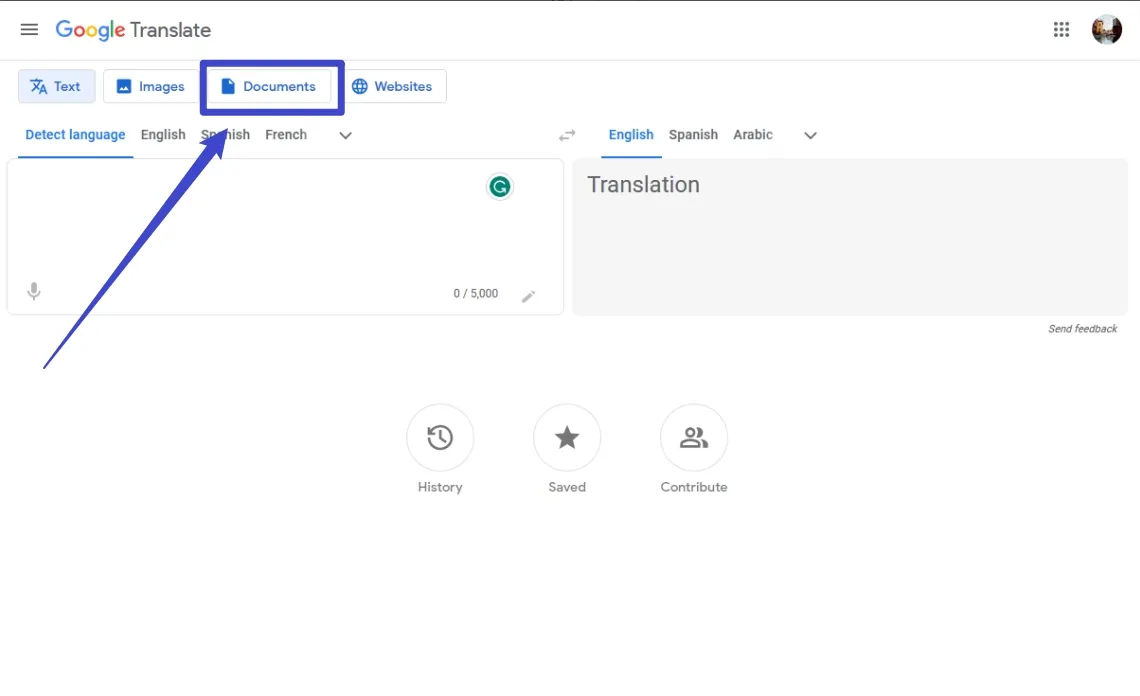
- Choose the languages to translate to and from.
- To automatically set the original language of a document, click Detect language.

- Click Browse your computer.

- Select the file you want to translate.

- Click Translate and wait for the document to finish translating.
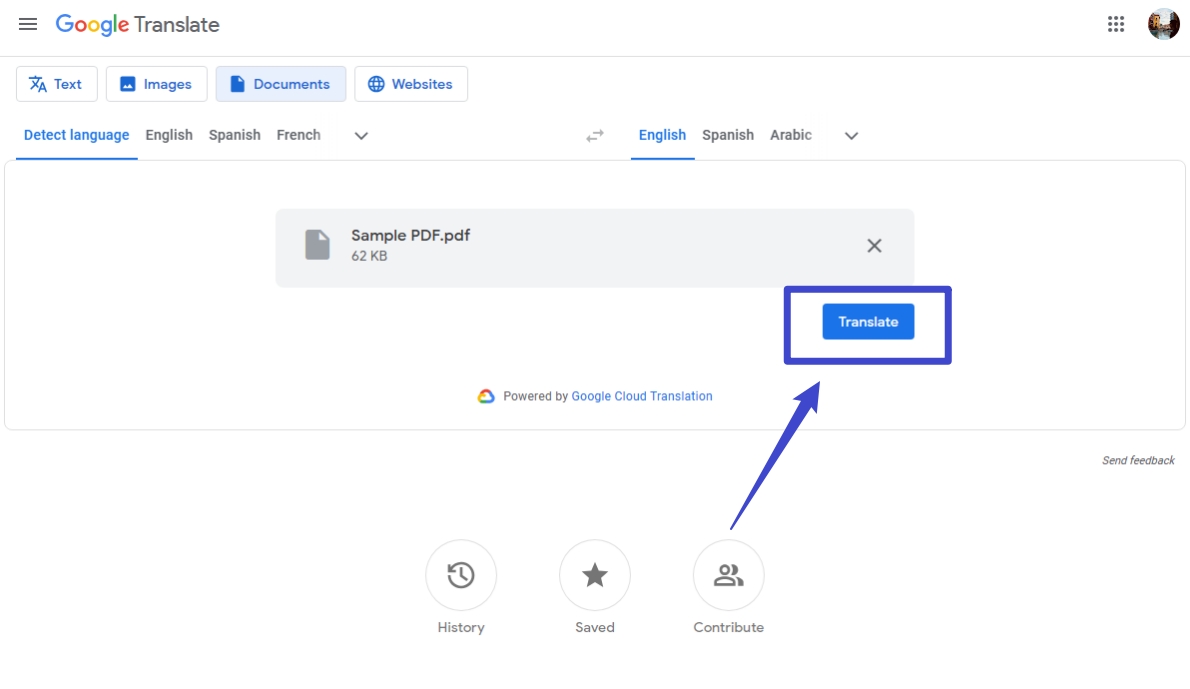
- Click Download translation to download your translated document.

The instructions for Google Translate state that files with the .docx,.pdf,.pptx, and.xlsx file extensions up to 10 MB in size can be easily translated. Please keep in mind, though, that PDF files longer than 300 pages would require additional customer service since the free version of Google Translate might not be able to handle them.
Google Translate is available both as a web version and as mobile apps for iOS and Android. While the core translation engine is the same, each platform has distinct strengths and limitations depending on your use case – such as file size limits, offline support, or the ability to translate text from paper documents. The table below highlights the key differences to help you choose the right version for your needs.
| Comparison | Web Version | Mobile App (iOS/Android) |
|---|---|---|
| File size limit | ≤10MB | ≤10MB |
| Page limit | ≤300 pages | ≤300 pages |
| Ease of use | Mouse & keyboard, optimized for desktop | Touch‑friendly, ideal for mobile scenarios |
| Offline translation | ❌ Not supported | ✅ Supported (language pack must be downloaded first) |
| Camera/scan translation | ❌ Not supported | ✅ Supported (great for printed text) |
Part 2: How to Fix Google Translate PDF Not Working?
Why do the results you get from Google Translate often fall short of expectations? Google Translate PDF is a popular free tool, but it comes with several hard limitations that often lead to failed uploads, blank outputs, or messy results. Below is a combined overview of the most common issues users face, why they happen, and how to resolve them.
| Issue | Why It Happens | How to Fix |
|---|---|---|
| Upload failed | File >10MB or >300 pages | Compress or split the PDF, or use desktop software (e.g., UPDF) |
| Blank result / no text | PDF is a scanned image (no text layer) | Use OCR first (UPDF, Adobe Acrobat, or online OCR tools) |
| Messy layout (tables, columns, images broken) | Google Translate extracts text without preserving layout | Use a layout‑preserving tool like UPDF, DeepL Pro, or Adobe Acrobat |
| Garbled or misaligned text | Unusual font or encoding | Save the PDF as Word (.docx) before translating |
| Stuck / loading forever | Network issue or server overload | Refresh page, clear browser cache, or try a different browser |
| Inaccurate technical terms | Generic translation model, not specialized for legal/medical content | Switch to a tool with better domain models (DeepL Pro, UPDF AI, or human translation) |
| Privacy concern (sensitive files) | Files are uploaded to Google’s cloud | Stuck/loading forever |
Google Translate works well for basic text-only PDFs, but struggles with scanned files, complex layouts, large documents, technical terms, and confidential content. Manual fixes like compression, splitting, OCR and reformatting are tedious and rarely deliver consistent quality.
UPDF solves these issues seamlessly. Combining built-in OCR, AI translation and full layout retention, it streamlines the entire process.
👉 Try UPDF for free and enjoy reliable, professional PDF translation.
Windows • macOS • iOS • Android 100% secure
Part 3: Comparison of the Best Alternatives to Google Translate
Google Translate works for small, simple text‑based PDFs, but when you need layout retention, scanned document support, data privacy, or professional translation quality, you need a more capable tool. The table below helps you quickly find the best solution based on your core need, while also comparing key technical features side by side.
| Your Core Need | Recommended Tool(s) | Layout Retention | Scanned PDF Support | Local Processing | File Limits | Pricing |
|---|---|---|---|---|---|---|
| Preserve original layout | UPDF / DeepL Pro / Adobe Acrobat | UPDF✅/Acrobat✅/DeepL✅ | UPDF✅/Acrobat✅/DeepL❌ | UPDF✅/Acrobat✅/DeepL❌ | Unlimited | UPDF: $79.99 perpetual / $49.99 yearly; DeepL: $10.99/mo; Adobe: $19.99/mo |
| Handle scanned PDFs | UPDF (all‑in‑one) / Adobe Acrobat | ✅ | ✅ | ✅ | Unlimited | See above |
| Sensitive / confidential documents | UPDF (local processing) | ✅ | ✅ | ✅ | Unlimited | $79.99 perpetual |
| Highest translation quality | DeepL Pro | ✅ | ❌ | ❌ | Unlimited (paid) | $10.99/mo |
| Completely free (basic) | Google Translate + online OCR combo | ❌ | ⚠️ (via OCR) | ❌ | ≤10MB / 300 pages | Free |
| Long‑term value / best all‑rounder | UPDF (perpetual license) | ✅ | ✅ | ✅ | Unlimited | Sensitive/confidential documents |
- For free, basic, small‑file translation with no layout requirements, Google Translate (possibly combined with a free online OCR) is acceptable.
- When layout, scanned documents, privacy, or large files matter, a professional desktop tool is necessary.
- UPDF offers the best balance: it preserves layout, handles scanned PDFs via built‑in OCR, works offline, has no file/page limits, and comes with a perpetual license – making it the most cost‑effective long‑term solution.
- DeepL Pro provides the highest translation quality for short, text‑only documents.
- Adobe Acrobat Pro is a robust option, but its subscription‑only model is significantly more expensive over time.
👉 Recommendation: For most users who regularly translate PDFs (especially scanned or complex documents), UPDF is the recommended all‑in‑one choice.
Windows • macOS • iOS • Android 100% secure
Tip
How to Translate PDF with UPDF?
While Google Translate has unquestionably been a popular and reliable tool for PDF translation, there are some problems with Google Translate. For example, you cannot translate scanned PDFs and get accurate results for document translation.
No worries, one powerful alternative tool - UPDF can solve all these issues. With the new AI feature, UPDF AI, you can translate scanned PDFs, translate images, translate whole PDFs, translate by page, and more. It is integrated with ChatGPT to accurately provide translated outputs.
Way 1. Translate Normal PDF
If your PDF files are not scanned or image-only, you can follow this guide to translate a PDF.
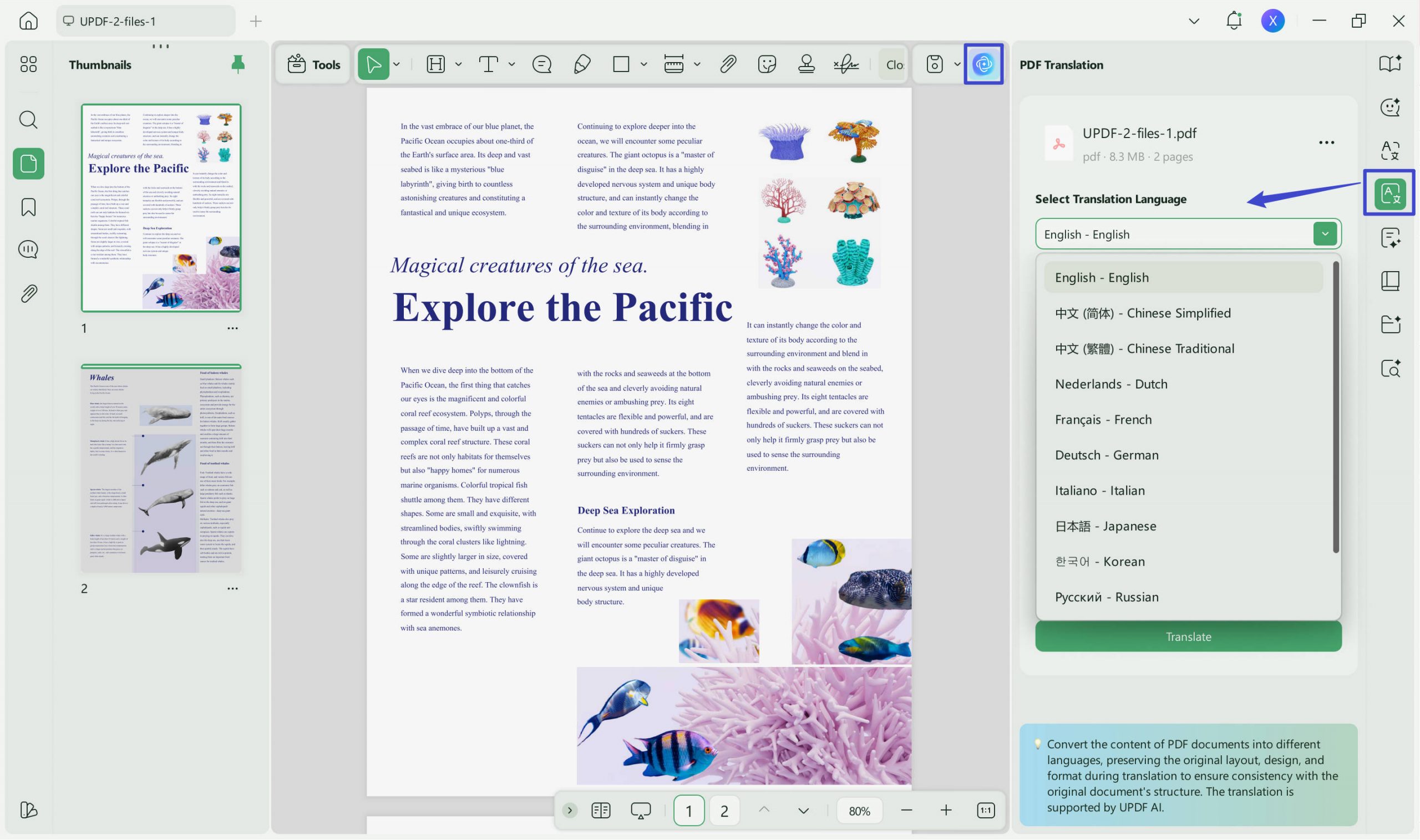
To translate the whole PDF, open the PDF with UPDF, click on "PDF Translation". Select the language, and click on the "Translate" icon.
In a few seconds, you will get the translated PDF opened in UPDF.
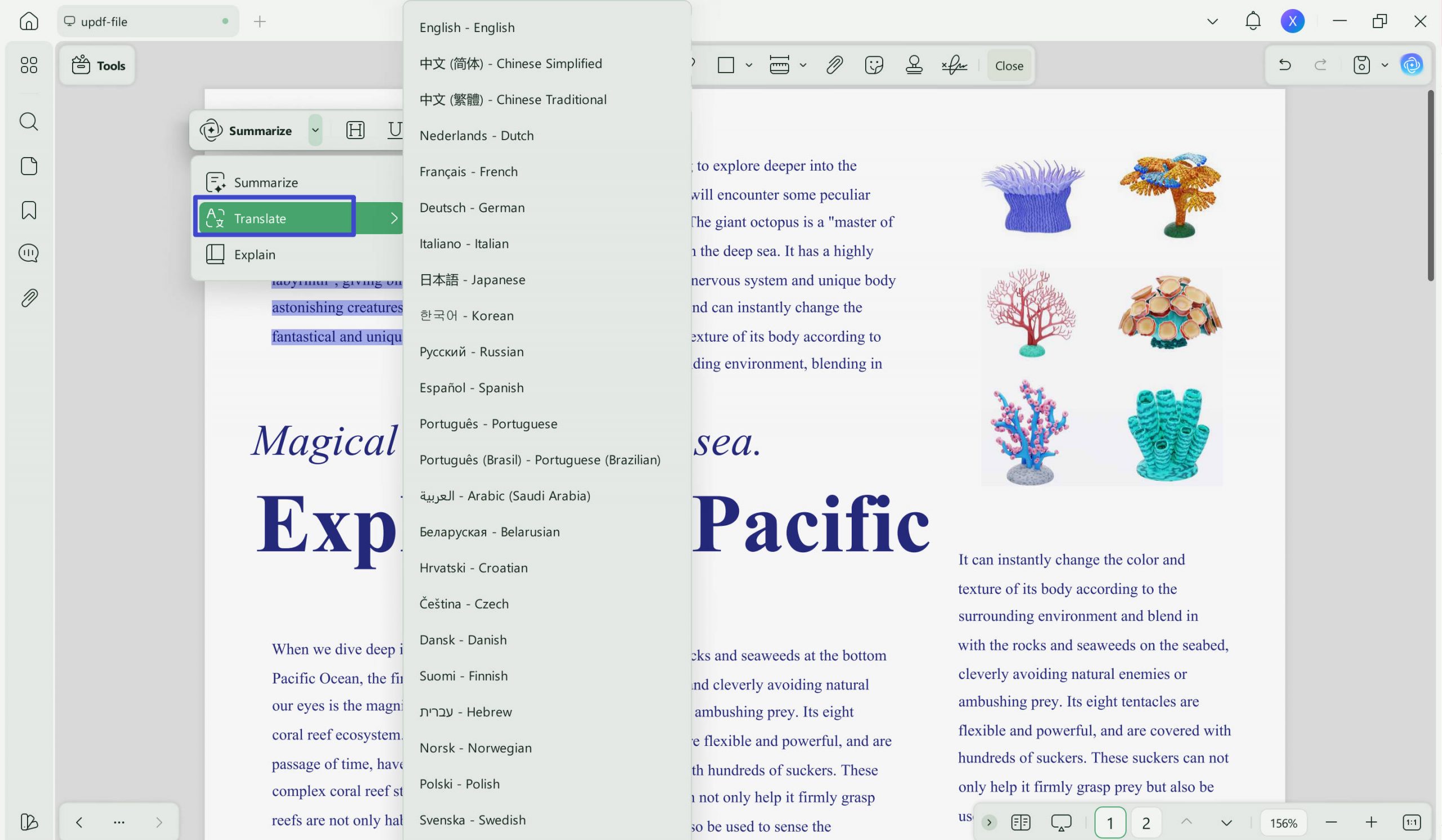
You can also highlight the content in the PDF and click on the "Arrow down" icon in the pop-up menu, select "Translate," and choose the language you need to translate.
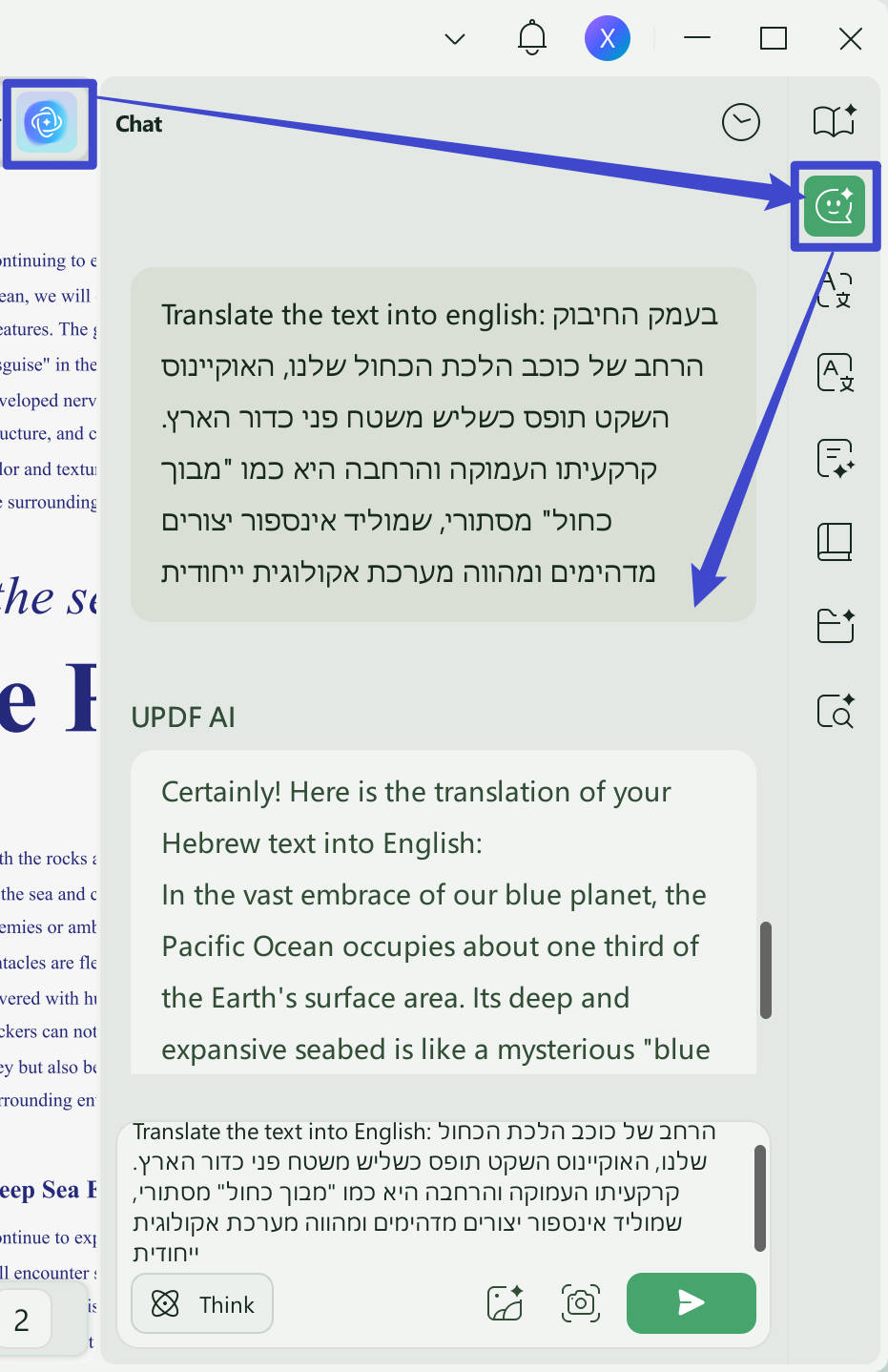
If you cannot find the target language you need in this method, you can copy the content, then click on the "UPDF AI" icon on the left-side button, go to "Chat", enter the prompt like Translate the content to Czech, paste the copied content, then press Enter. You can get your translated content.
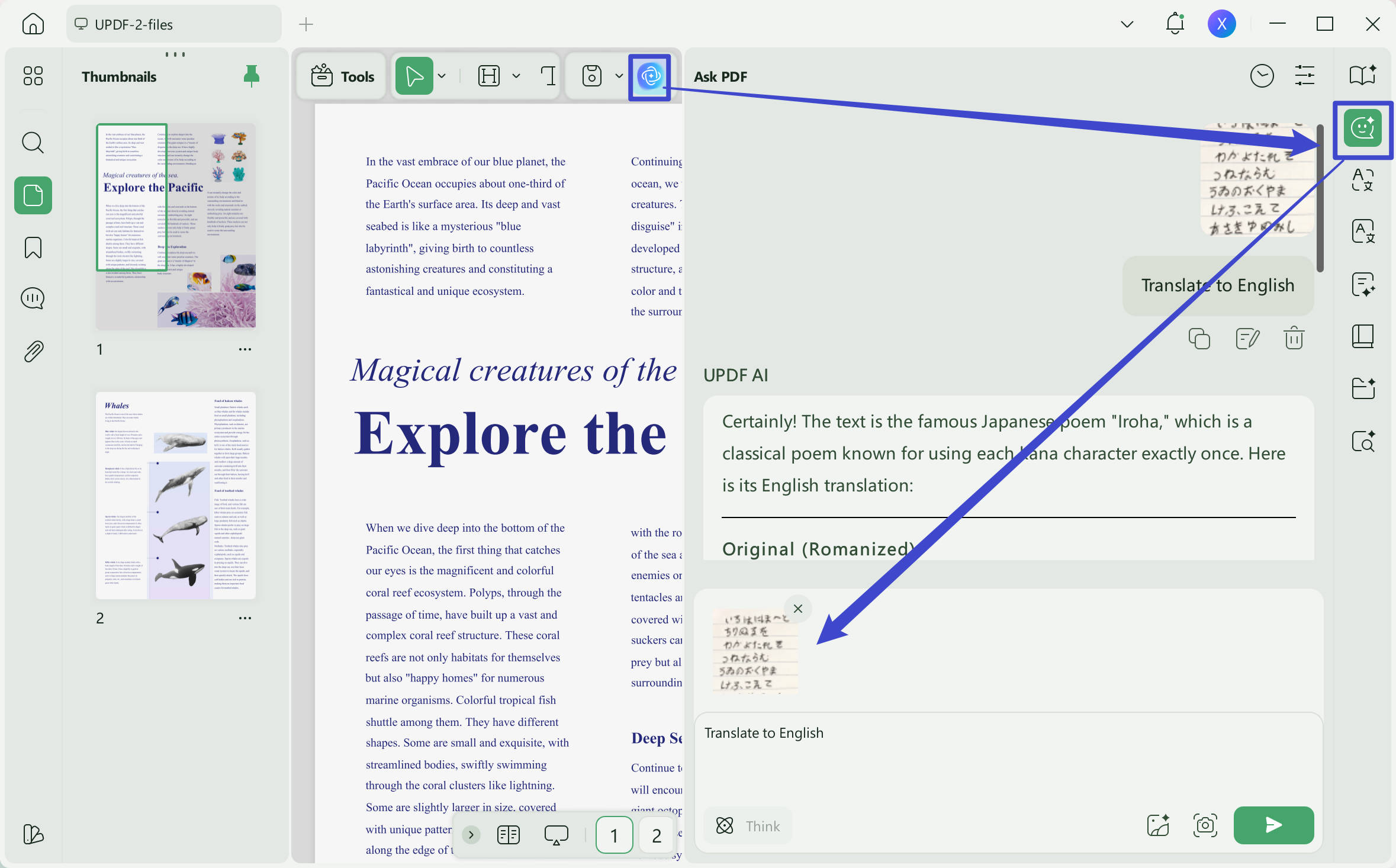
If you feel it is not convenient to copy the text, you can click on the "Screenshot" icon, select the content, enter the prompt "Translate to English", and press Enter to translate.
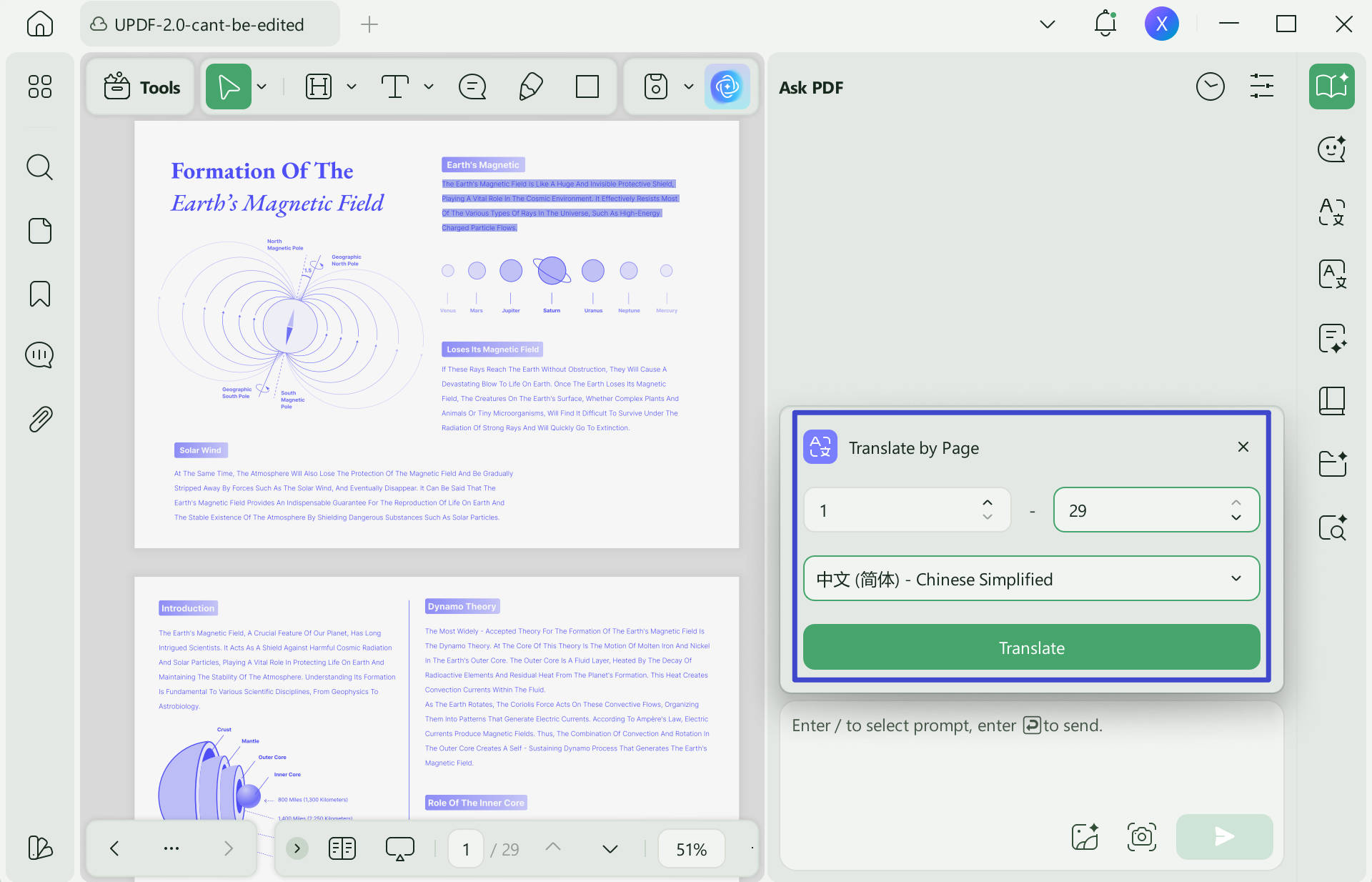
Want to translate by page? UPDF can also help you. Click on the "Ask PDF" > "Chat with PDF" in UPDF AI, click on "Translate", select the language and page range, and press "GO" to translate.
Way 2. Translate Scanned PDF
Google Translate cannot translate scanned PDFs, but UPDF can. Here is the guide. Just download UPDF via the button below if you still do not have it.
Windows • macOS • iOS • Android 100% secure
Step 1. Open the scanned PDF with UPDF, then click on the "OCR" in the "Tools" icon, select the document language, then click on "Convert" to save the OCRed PDF on your computer.
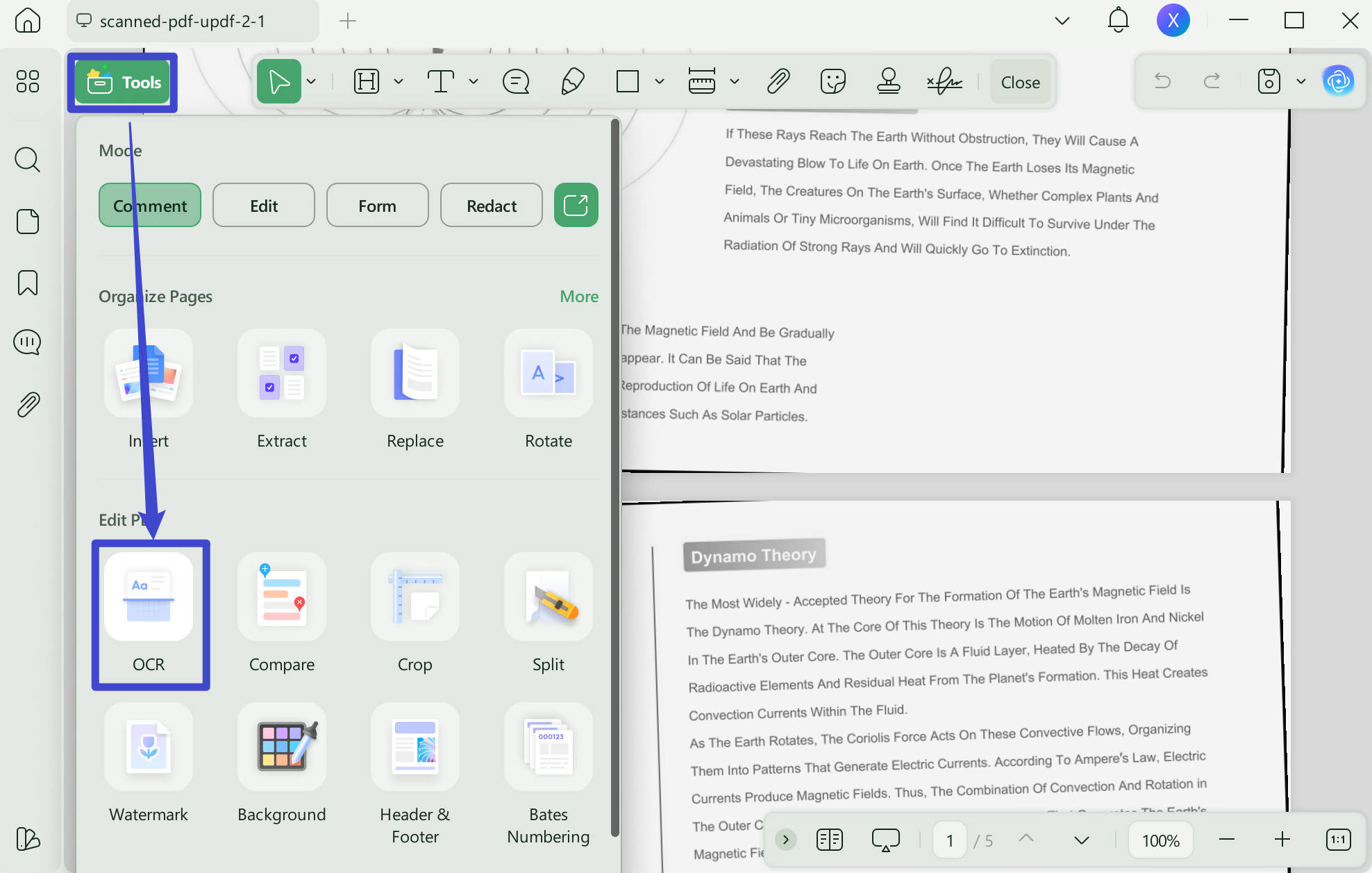
Step 2. When the OCR process is done, the PDF will open in UPDF automatically. Now, you can use the methods introduced before to translate directly.
UPDF AI is a great solution for your document translation needs because it is better than Google Translate in many ways.
- Its integration with GPT, a top language processing technique, is responsible for its outstanding accuracy.
- It improves user ease through different ways to translate.
- It allows you to translate scanned PDFs.
- Enable users to insert translated material in place of original content straight within the document. Users are spared the stress of making manual edits thanks to this streamlined edit feature, which guarantees a smooth translation process.
- It allows users to translate PDFs on both computers and mobile phones, as it has a software version for Windows, Mac, Android, and IOS, and a web version for any device. Do not want to download software? Just click the button below to visit UPDF AI Online.
Want to unlock the full features of UPDF and its AI assistant? Seize this opportunity to upgrade your plan at a discounted price!
Conclusion
A huge step forward in enhancing intercultural communication and removing linguistic barriers is being made with the inclusion of PDF translation in Google Translate. Regardless of language barriers, users may now access information and work with people anywhere in the world. While Google Translate continues to be a popular option, substitutes like UPDF AI offer more advanced features that can work for particular translation requirements, like translating scanned PDFs. So download UPDF via the button below to give it a try now.
For a complete document workflow – from accurate translation to intelligent Q&A – UPDF provides both AI‑powered translation and a dedicated PDF AI Chat feature. Upload any PDF and start a conversation to extract insights in seconds.
Windows • macOS • iOS • Android 100% secure






 Enrica Taylor
 Delia Meyer

 Engelbert White