UPDF
UPDF
 UPDF for Windows
 UPDF for Mac
 UPDF for iPhone/iPad
 UPDF for Android
 Nomostar
 UPDF AI Online
 UPDF Sign
 IvyCraft
 Edit PDF
 Annotate PDF
 Create PDF
 PDF Form
 Edit links
 Convert PDF
 OCR
OCR PDF to Word
 PDF to Image
 PDF to Excel
 Organize PDF
 Merge PDF
 Split PDF
 Crop PDF
 Rotate PDF
 Protect PDF
 Sign PDF
 Redact PDF
 Sanitize PDF
 Remove Security
 Read PDF
 UPDF Cloud
 Compress PDF
 Print PDF
 Batch Process
 About UPDF AI
 UPDF AI Solutions
 AI User Guide
 FAQ about UPDF AI
 Summarize PDF
 Translate PDF
 Chat with PDF
 Chat with AI
 Chat with image
 PDF to Mind Map
 Explain PDF
 PDF AI Tools
 Image AI Tools
 AI Chat Tools
 AI Writing Tools
 AI Study Tools
 AI Working Tools
 Other AI Tools
 AI Bookmark Generation
 AI Bookmark Summary
 AI Watermark Generation
 AI Background Generation
 AI Sticker Generation
 AI Stamp Generation
 AI Editing Suite
 UPDF Copilot
 AI Page Management
 AI Semantic Search
 PDF to Word
 PDF to Excel
 PDF to PowerPoint
 Enterprise Solution
 Enterprise Sign
 Enterprise AI
 Enterprise Plan
 Enterprise User Guide
 Enterprise Webinar
 Banking
 Healthcare
 Insurance
 Legal
Legal Manufacturing
 Government
 Education Solution
 Customer Stories
 User Guide
 UPDF Tricks
 FAQs
FAQs UPDF Reviews
 Download Center
 Blog
Blog Newsroom
 Tech Spec
 Updates
 UPDF vs. Adobe Acrobat
 UPDF vs. Foxit
 UPDF vs. PDF Expert

Before the end of 2023, ChatGPT has wowed users once again with their latest update. Now, users can also upload images to ChatGPT. If you are new to this feature and don't know how to upload images to ChatGPT, we have got you covered. In this up-to-date 2026 blog, we will guide you through the step-by-step process of uploading images to ChatGPT smoothly, alongside quick fixes for common upload errors.
⚠️ The "Multi-Image" Efficiency Trap
Windows • macOS • iOS • Android 100% secure
Part 1. Can You Upload a Picture to ChatGPT in 2026?
Yes, ChatGPT fully supports native multimodal image processing. You can upload photos to your conversations directly to ask for explanations, solve complex math formulas from screenshots, or summarize text hidden within diagrams.
However, heavy image users frequently run into three platform limitations on ChatGPT:
- Image Format Crashing: ChatGPT often rejects specialized smartphone formats like Apple’s HEIC, raw camera RAW files, or large high-resolution WebP graphics.
- Zero Annotation Capabilities: Once an image is posted in ChatGPT, you cannot draw, highlight, or add sticky notes directly onto the image canvas to guide the AI's eye.
- Bulk Processing Clutter: Trying to analyze 20 different receipts or survey photos requires 20 separate prompts, leading to chaotic chat histories.
If your daily routine involves heavy visual workflows, UPDF’s AI Ecosystem offers a highly cost-effective and hyper-efficient alternative. Available both as a secure desktop application and a zero-installation UPDF AI Online Tool, it lets you convert images of any format into streamlined, interactive document assets instantly.
Click the following button to Try UPDF AI for Free and experience lag-free image intelligence!
Part 2. How to Upload Images to ChatGPT
In this section, we will walk you through the steps to upload images to ChatGPT. Users who want to upload and analyze images with a ChatGPT alternative—UPDF's AI—can refer to Part 3 for a detailed guide.
Q1. What Are the Image Inputs of ChatGPT?
There are two ways you can input images to ChatGPT.
You can input image in two ways:
- By uploading images from your device to ChatGPT.
- By copying and pasting.
Q2. How Can You Upload Images to ChatGPT 4.1?
As we discussed, there are two methods for inputting images to ChatGPT 4.1. Here are they:
Method 1: Uploading Images to ChatGPT Directly From Your Device
Here is how you can upload images to ChatGPT-4.1:
- Go to ChatGPT-4.1 on your device.
- As you open ChatGPT, you will see the prompt area. Here, on the left side, you will see a small attachment icon. Click on it to upload an image.
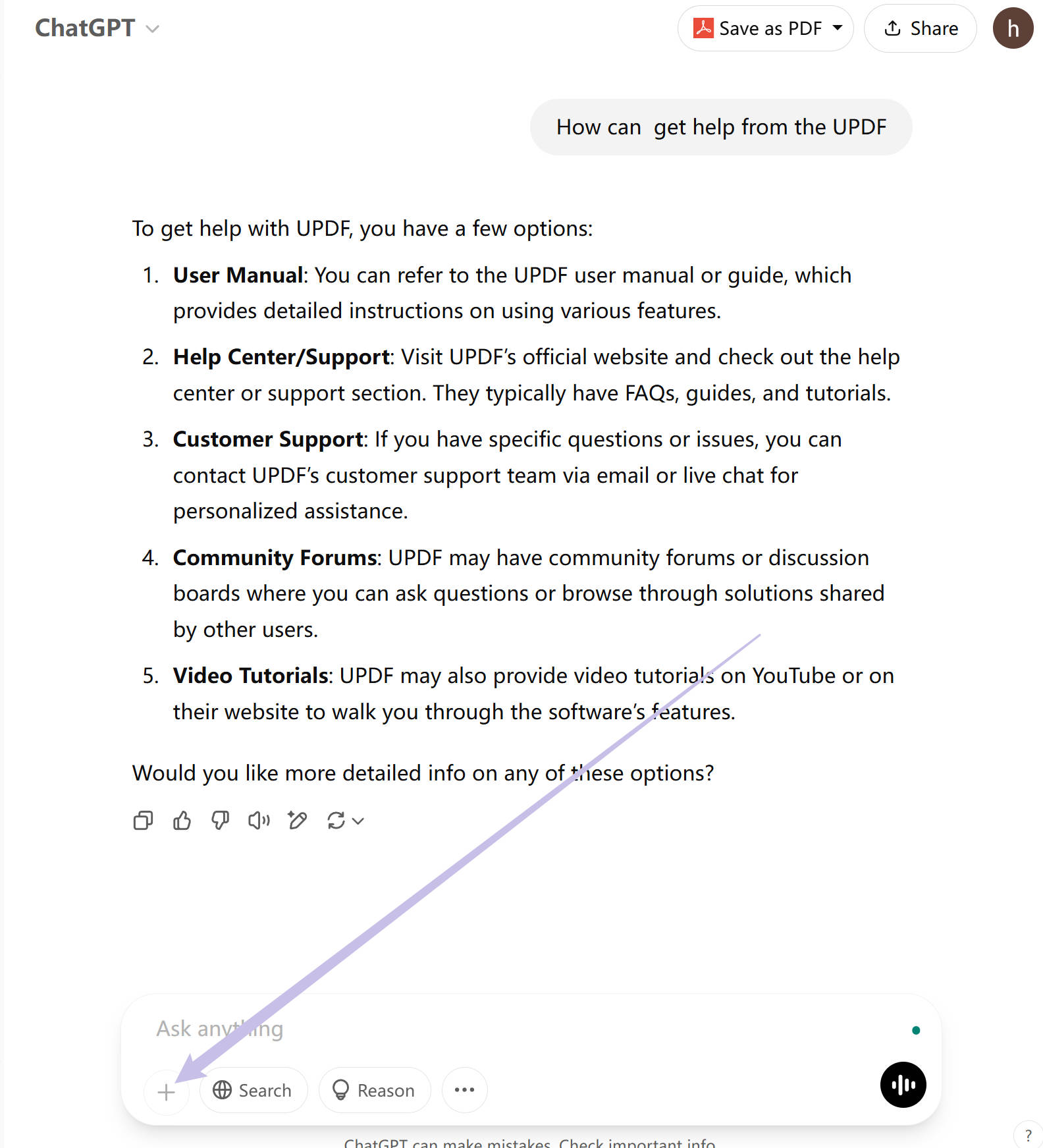
- Upload the image and let it load completely. Now, you can just press "enter" for ChatGPT to describe the image or prompt a question with the image if you need ChatGPT to answer any specific question. For example, "is this image good for my Facebook campaign?"
Method 2: Copying and Pasting Images Into ChatGPT
- Find the images on your computer or website, and copy them. Go to ChatGPT.
- Click on the prompt box and hold on "Ctrl+V" to paste the image.
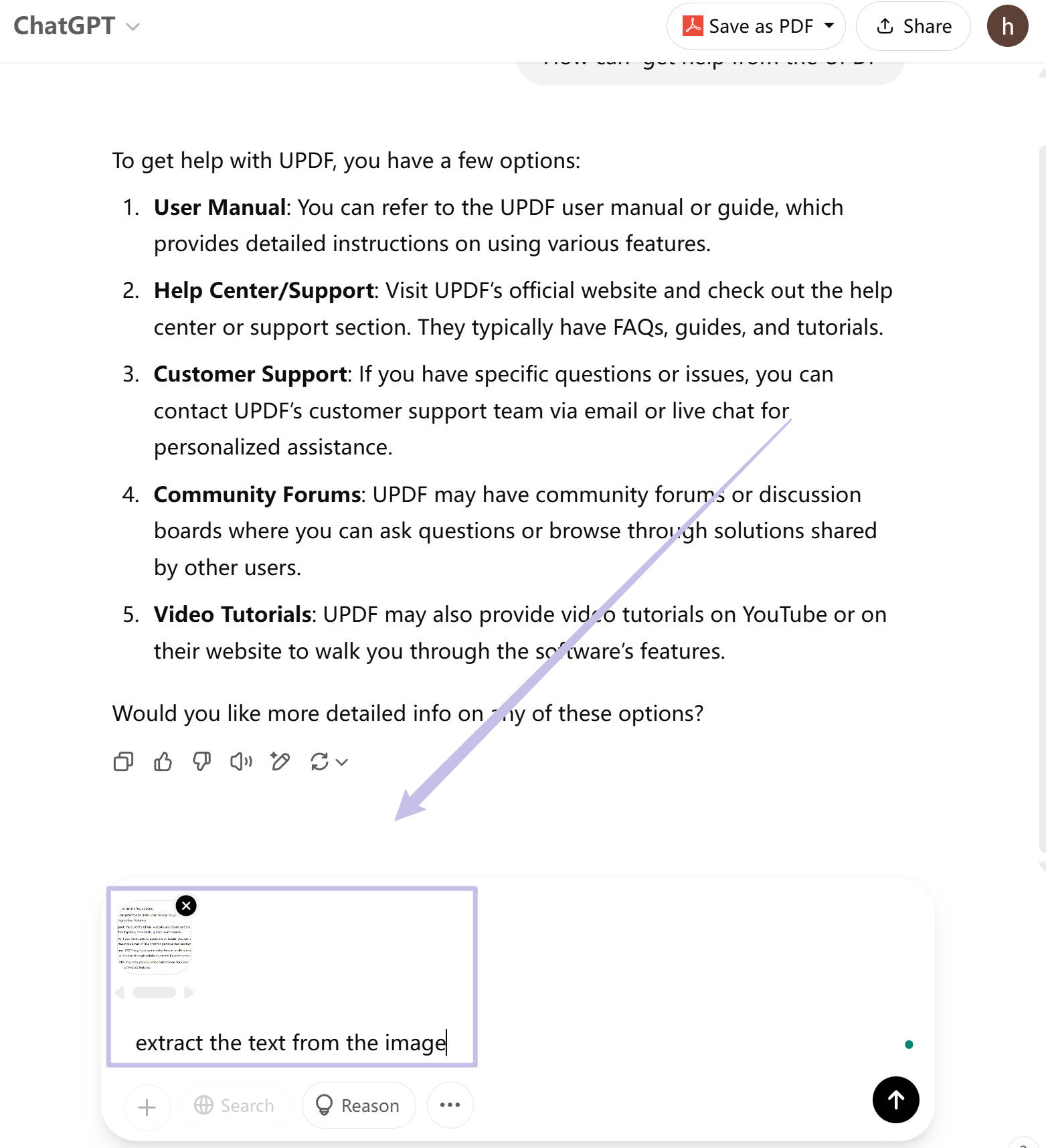
Now, you can enter any prompt to ask the ChatGPT to answer your question or perform the task per your prompt.
That's it.
Part 3. An Alternative Way to Upload Images to AI Conversation
ChatGPT is not the only way you can chat with your images. There is a more fun and cool tool available that can analyze text in your images, annotate your images, and even let you edit images: UPDF's AI.
UPDF is an all-in-one PDF that also lets you upload images. The AI assistant within it can analyze your images, and other tools it provides allow you to crop, replace, and rotate them. It is a more cost-effective tool and has many more features which make it outshine. Click on the button below to start a free trial.
Let's go over how to upload images to the ChatGPT alternative—UPDF AI.
Step 1. Ensure you have registered for a UPDF account. Free account users can ask up to 100 questions.
Step 2. Download UPDF on a computer or smartphone, or access the AI online without any installation. In the following section, we'll demonstrate the steps using UPDF AI online.
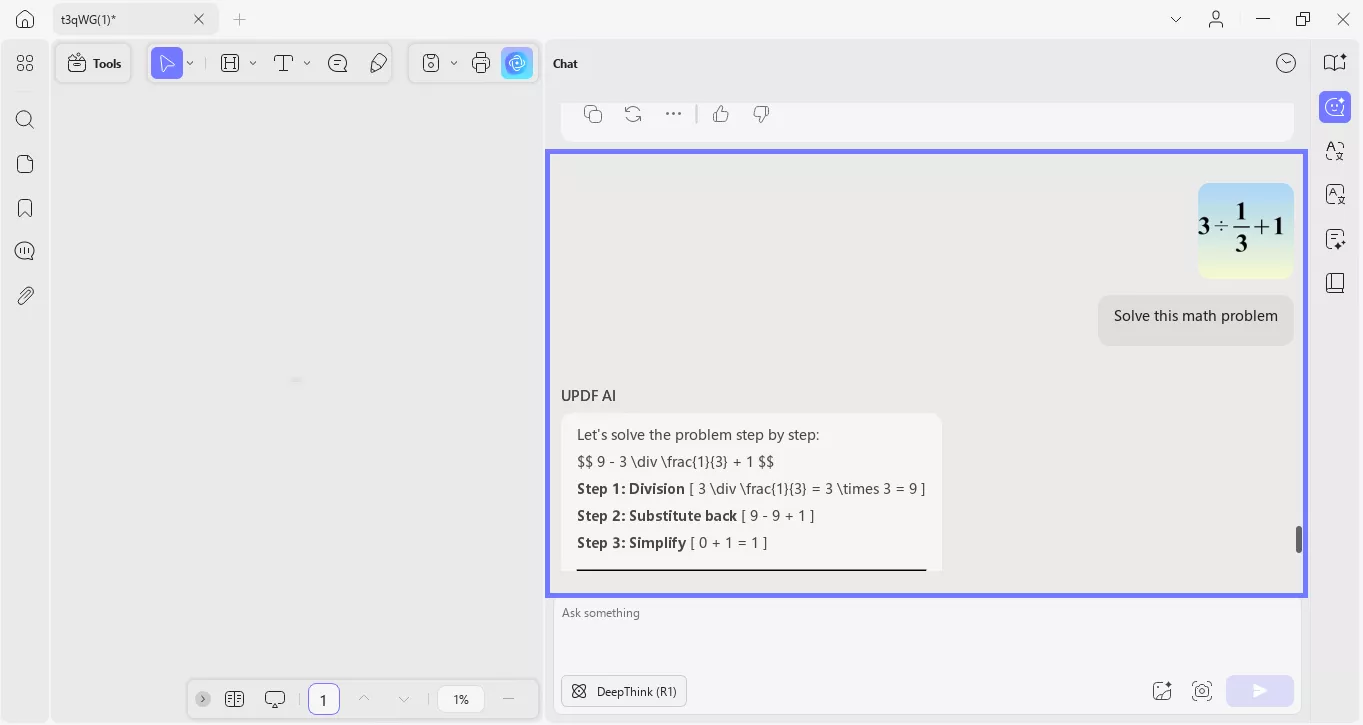
Step 3. If you've taken a screenshot, simply paste it into the chatbox and enter your prompt. If you want to upload an image from your local storage, click on the "Image" icon.

Step 4. If you upload an image related to studying, simply enter your prompt to receive an accurate response. For example, you might ask:
"How do I calculate the perimeter of a rectangle?"
Alternatively, if you upload an image of architecture, you can ask for an opinion. For example:
"What are some notable design elements in this building?"
The AI can answer questions about any kind of image.
That's it! If you find UPDF's AI helpful, give it a try. You can also watch the video below to learn more about UPDF AI.
Part 4. FAQs About ChatGPT Image Feature
Can ChatGPT generate images?
Yes, ChatGPT can now generate images.
What is the best AI image generator?
There is no one best AI image generator tool out there. But based on customer satisfaction and recommendations, Midjourney can be recommended as the best AI image generator.
Is AI image generator legal?
AI image generators are legal, and there have been no rules or laws created for such tools.
Why does ChatGPT give me an error message when I try to upload my iPhone photos?
This usually happens because modern iPhones capture photos in Apple's proprietary HEIC format to save storage space. ChatGPT's web client natively prefers standard JPG or PNG web formats and will frequently drop or reject HEIC extensions. To bypass this error without manually changing your phone settings, simply drop your HEIC photos directly into UPDF. It automatically flattens and converts them into universally readable, high-fidelity PDFs that are instantly compatible with its built-in AI assistant.
Is it safe to upload images containing confidential corporate data or private IDs to ChatGPT?
Public web-based generative AI chatboxes use user conversations and uploaded image histories to continuously train their public models unless you manually dig into advanced settings to opt-out. If your images contain sensitive financial statements, proprietary source code, or legal IDs, routing them through a secure, localized desktop tool like UPDF ensures your private files are processed within a highly encrypted, sandbox environment.
Can I convert a textbook chart image into an interactive, editable mind map?
Yes. While ChatGPT can only output a text description of a chart, you can upload the image directly into UPDF's AI assistant. By leveraging its deep semantic parsing and OCR engines, UPDF AI extracts the underlying logical connections from the graphic layout and instantly structures them into a clean, fully interactive Mind Map for rapid study review.
Conclusion
So there you have it, answer your questions about how to upload images to ChatGPT and how to make the most out of this feature. Without a doubt, it's quite a useful addition to ChatGPT features and makes it more suitable for a person who likes to get image descriptions, help with analyzing uncomplex images, and so on.
But, if you are looking for an inclusive tool with AI features that not only analyzes your images but PDF and lets you chat with your files, annotate, and share with your team, then you should try UPDF's AI.




 Enola Miller
  Enid Brown
 Engelbert White