 UPDF
UPDF
 UPDF for Windows
 UPDF for Mac
 UPDF for iPhone/iPad
 UPDF for Android
 Nomostar
 UPDF AI Online
 UPDF Sign
 IvyCraft
 Edit PDF
 Annotate PDF
 Create PDF
 PDF Form
 Edit links
 Convert PDF
 OCR
OCR PDF to Word
 PDF to Image
 PDF to Excel
 Organize PDF
 Merge PDF
 Split PDF
 Crop PDF
 Rotate PDF
 Protect PDF
 Sign PDF
 Redact PDF
 Sanitize PDF
 Remove Security
 Read PDF
 UPDF Cloud
 Compress PDF
 Print PDF
 Batch Process
 About UPDF AI
 UPDF AI Solutions
 AI User Guide
 FAQ about UPDF AI
 Summarize PDF
 Translate PDF
 Chat with PDF
 Chat with AI
 Chat with image
 PDF to Mind Map
 Explain PDF
 PDF AI Tools
 Image AI Tools
 AI Chat Tools
 AI Writing Tools
 AI Study Tools
 AI Working Tools
 Other AI Tools
 AI Bookmark Generation
 AI Bookmark Summary
 AI Watermark Generation
 AI Background Generation
 AI Sticker Generation
 AI Stamp Generation
 AI Editing Suite
 UPDF Copilot
 AI Page Management
 AI Semantic Search
 PDF to Word
 PDF to Excel
 PDF to PowerPoint
 Enterprise Solution
 Enterprise Sign
 Enterprise AI
 Enterprise Plan
 Enterprise User Guide
 Enterprise Webinar
 IT
IT Education
 Construction
 Financial Service
 Healthcare
 Insurance
 Legal
Legal Manufacturing
 Government
 Researchers & PhDs
 Solopreneurs & Freelancers
 Lawyers & Legal Professionals
 Real Estate Agents & Brokers
 Education Solution
 Customer Stories
 User Guide
 UPDF Tricks
 FAQs
FAQs UPDF Reviews
 Download Center
 Blog
Blog Newsroom
 Tech Spec
 Updates
 UPDF vs. Adobe Acrobat
 UPDF vs. Foxit
 UPDF vs. PDF Expert

Quick answer:
That distinction matters because the wrong method gives a false sense of security. A typed name or drawn signature does not by itself verify the signer or reveal later changes. A permissions password restricts access or editing in compliant readers. A certificate-based digital signature lets recipients check the signer's certificate and detect subsequent changes; a certifying signature also sets which changes remain permitted.
For a contract or submission file, the recipient may need to verify that the copy they received matches the signed version. Below I explain what certification really is, who actually needs it, and three concrete ways to achieve tamper-evidence and document control in UPDF on Windows and Mac — plus an honest note on where Adobe Acrobat's literal "Certify" button fits in.
Part 1. Certify vs. Sign vs. Password-Protect — What's the Difference?
These three get blended together constantly, and choosing the wrong one is the most common mistake. Here is the clean distinction:
- Certifying signature (author seal): a certificate-based signature applied once, by the document's author, before any other signature. It locks the whole document's integrity and defines which actions (form fill, comments, more signatures) are still permitted. Any unauthorized change invalidates it. This is "certification" in the strict, PDF-spec sense.
- Approval / digital signature: a certificate-based signature that confirms a specific person reviewed or agreed to the document. A file can carry many of these. It proves identity and seals the content at the moment of signing, but it isn't the author's one-time "this is the official version" seal.
- Permissions password: encryption that restricts opening, editing, copying, or printing. It controls access and actions — it does not create a verifiable tamper-evidence trail and is not certification.
One-line summary: a permissions password = who can do what; a digital signature = who signed and that content is sealed; a certifying signature = the author's one-time master seal on the official version.
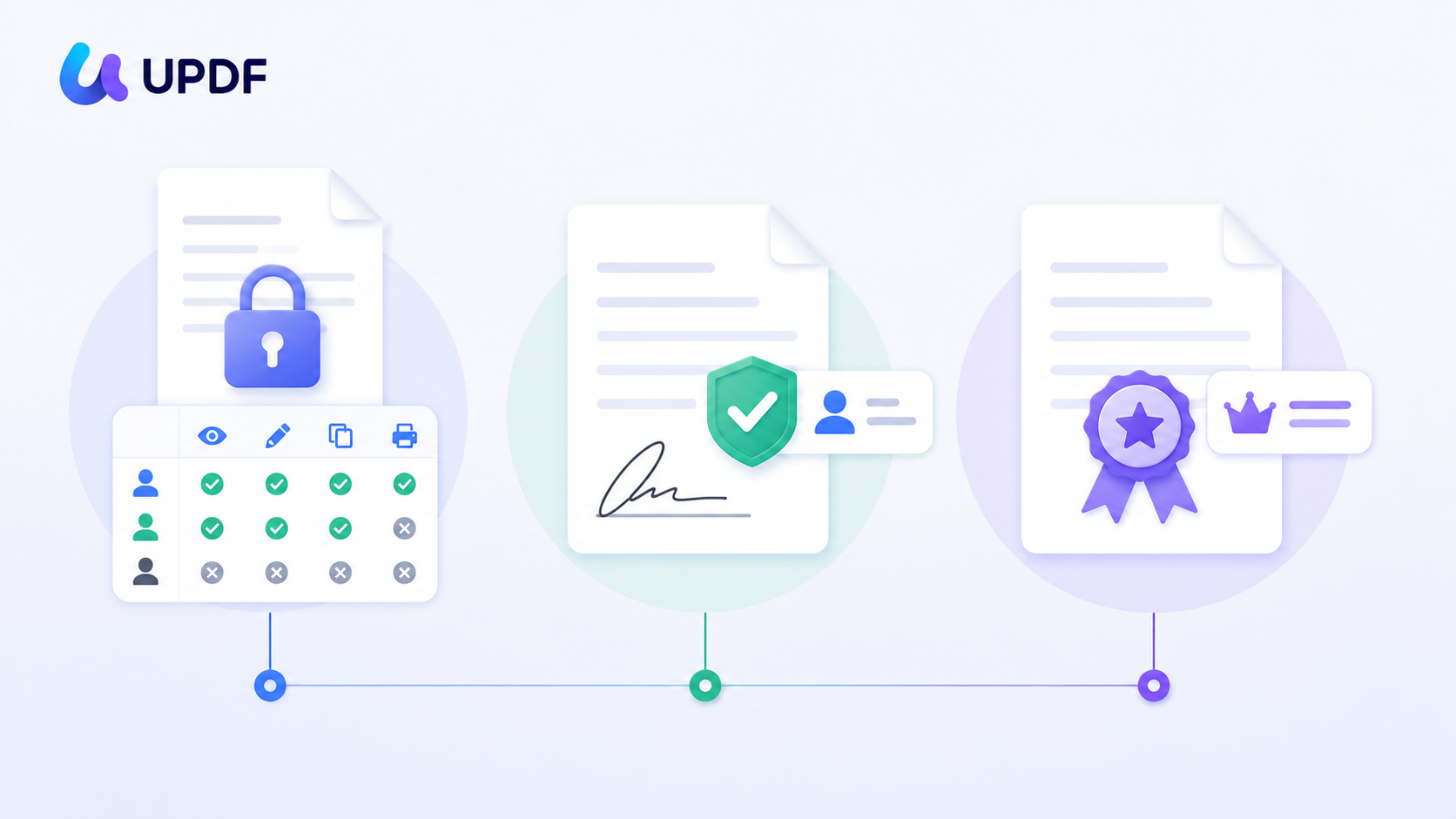
Think of it physically. A permissions password is the lock on the filing cabinet. A digital signature is each person's initials on a page. A certifying signature is the wax seal the author presses across the envelope flap before sending — break it, and everyone can see it was opened.
Certification carries legal weight because certificate-based signatures are recognized as legally binding under the U.S. ESIGN Act and the EU's eIDAS Regulation, provided the parties agree to transact electronically and the record is reliably stored. This is why certified PDFs are standard for government filings, regulated submissions, and compliance records.
Part 2. Who Actually Needs to Certify a PDF?
Most people who search "certify a PDF" actually need one of two outcomes: a recipient who can verify the file wasn't altered, or a document that can't be edited after the fact. Match your situation before picking a method:
| Your situation | What you actually need | Method to use |
|---|---|---|
| Sending a contract or proposal a client must trust as final | Certificate-based digital signature (identity + tamper-evidence) | Method 1 — Digital signature in UPDF |
| Collecting legally binding signatures from others, with an audit trail | Online certified e-signature workflow (AATL-backed) | Method 2 — UPDF Sign |
| Stopping recipients from editing, copying, or printing the file | Permissions password (access control, not certification) | Method 3 — Permissions password |
| A strict, single author "Certify" seal that defines post-seal edit rules | The literal PDF-spec certifying signature | See the Adobe note in Part 6 |
The honest framing up front: UPDF gives you certificate-based digital signatures, a legally binding e-signature platform, and granular permission control — covering what the vast majority of "certify a PDF" searches actually require. It does not have a dedicated one-click "Certify" button that writes the PDF-spec author certifying signature; a few desktop tools do (Adobe Acrobat, Foxit, PDF-XChange), and that's covered in Part 6 — but most people searching this don't actually need that exact mechanism.
Part 3. Method 1 — Certify a PDF With a Certificate-Based Digital Signature in UPDF
This is the closest practical equivalent to certification for everyday use: you attach a digital signature backed by a digital ID (certificate), which seals the content and lets a recipient verify it hasn't been altered. Editing the file after signing invalidates the signature — which is exactly the tamper-evidence you want.
Open the document in UPDF — if you don't have it yet, download UPDF for free and install it in under a minute — then follow the steps below.
Windows • macOS • iOS • Android 100% secure
Step 1. Open your PDF in UPDF by clicking Open File on the homepage (or drag and drop the file into the window).
Step 2. Select Form on the top. Then, click the Digital Signature icon, then drag a box where the signature should sit.
Step 3. Switch to Comment mode, then click the signature box you just placed. In the pop-up, click Create to make a new digital ID — enter your name and email — or click Import to load an existing digital ID file.
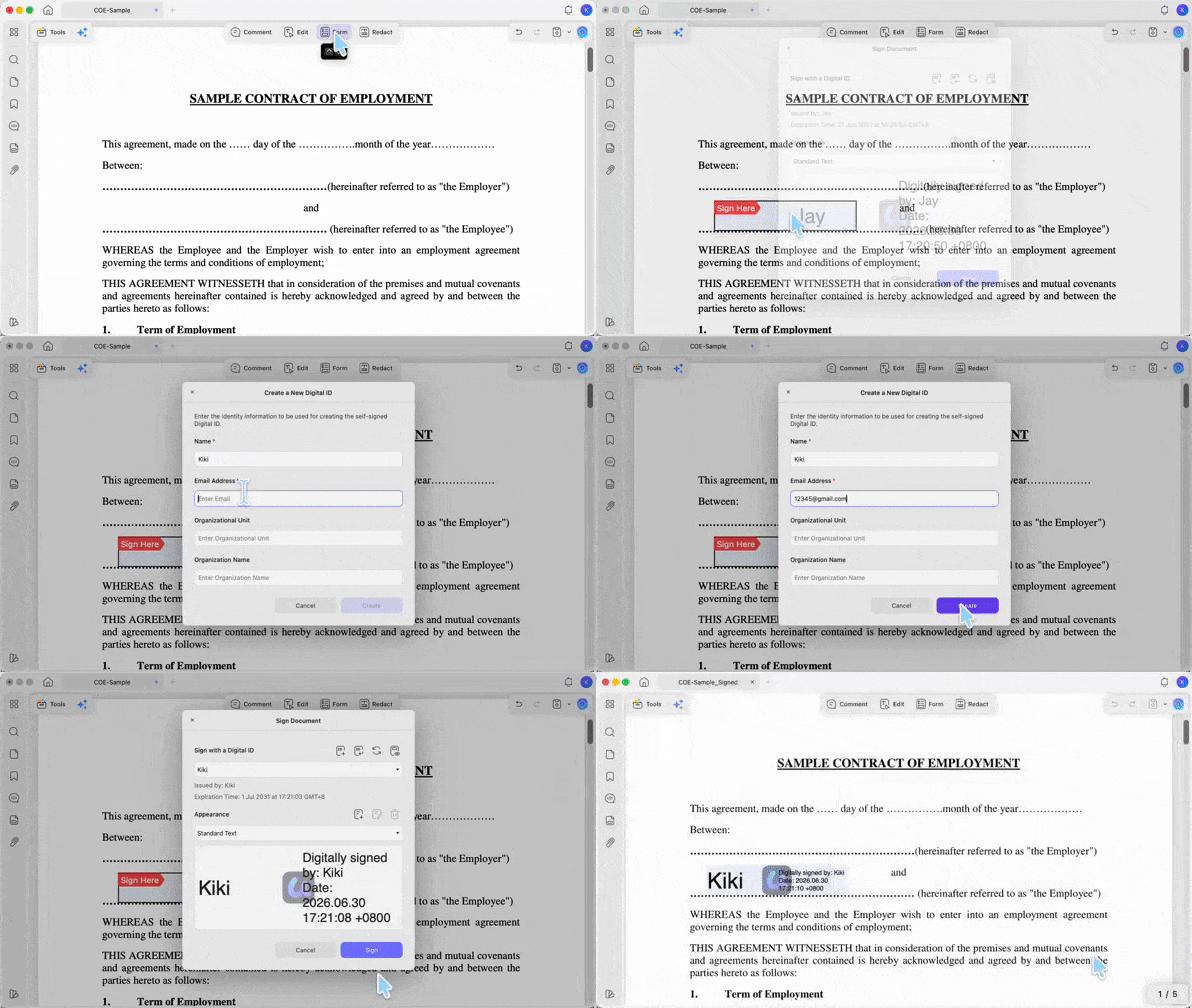
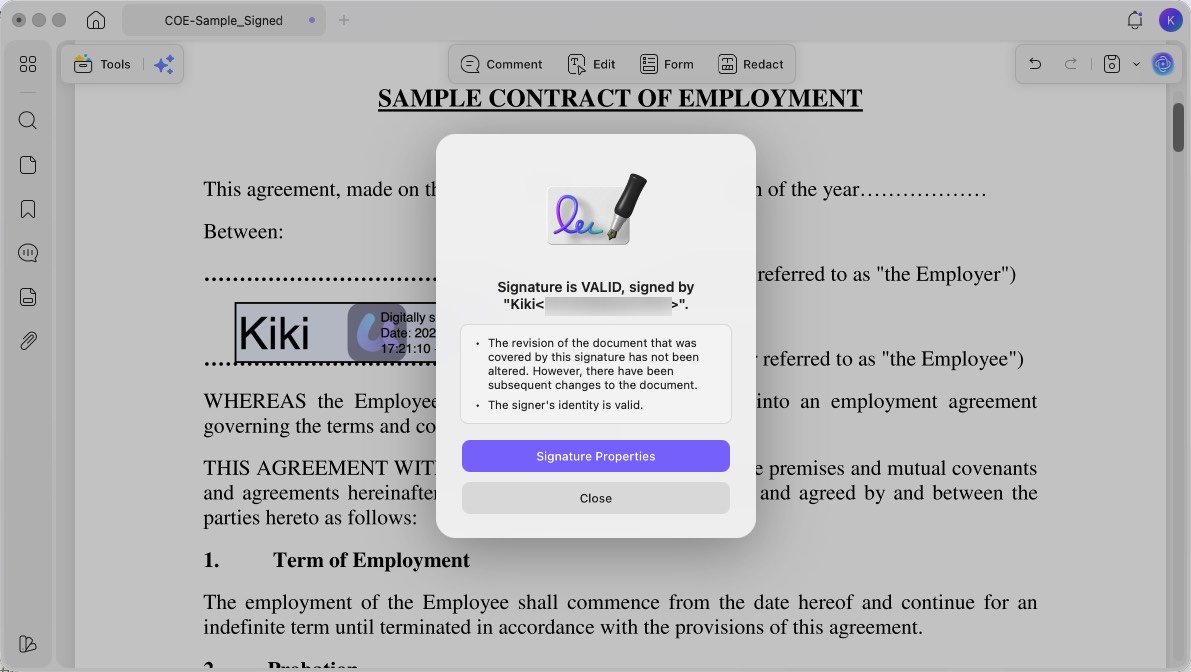
Step 4. Click Sign to apply the certificate-based signature. Choose a save location to finalize. The document is now sealed: any later edit will break the signature's validity, which a recipient can confirm by validating the signature.
Pros:
- contracts, proposals, and official files where the recipient needs to verify both your identity and that the content is unchanged.
Cons:
- a strict PDF-spec author "Certify" seal that sets document-wide post-seal edit rules — a standard digital signature confirms identity and seals content, but it is not the one-time certifying signature Adobe writes (see Part 6).
A recipient checks the seal by opening the file and clicking the signature. If the certificate is trusted and the content is untouched, it shows as valid; if anything changed, validation fails — that failure is the tamper alert.
Download UPDF for free to try adding a certificate-based digital signature to one of your own files — installation is free, and Pro features are available when you need watermark-free export or advanced tools.
Windows • macOS • iOS • Android 100% secure
Part 4. Method 2 — Get a Legally Binding Certified Signature With UPDF Sign
When you need others to sign and you want a court-ready audit trail, the desktop digital-signature route isn't the most practical — you'd have to manage everyone's digital IDs yourself. UPDF Sign is the online workflow built for this. It uses certificate-based signatures, which are recognized as legally binding under the ESIGN Act (US) and eIDAS (EU) when the usual conditions are met — the parties agree to transact electronically and the signed record is reliably stored.
Step 1. Go to the UPDF Sign platform and log in with your UPDF account (the same account works — no separate sign-up).
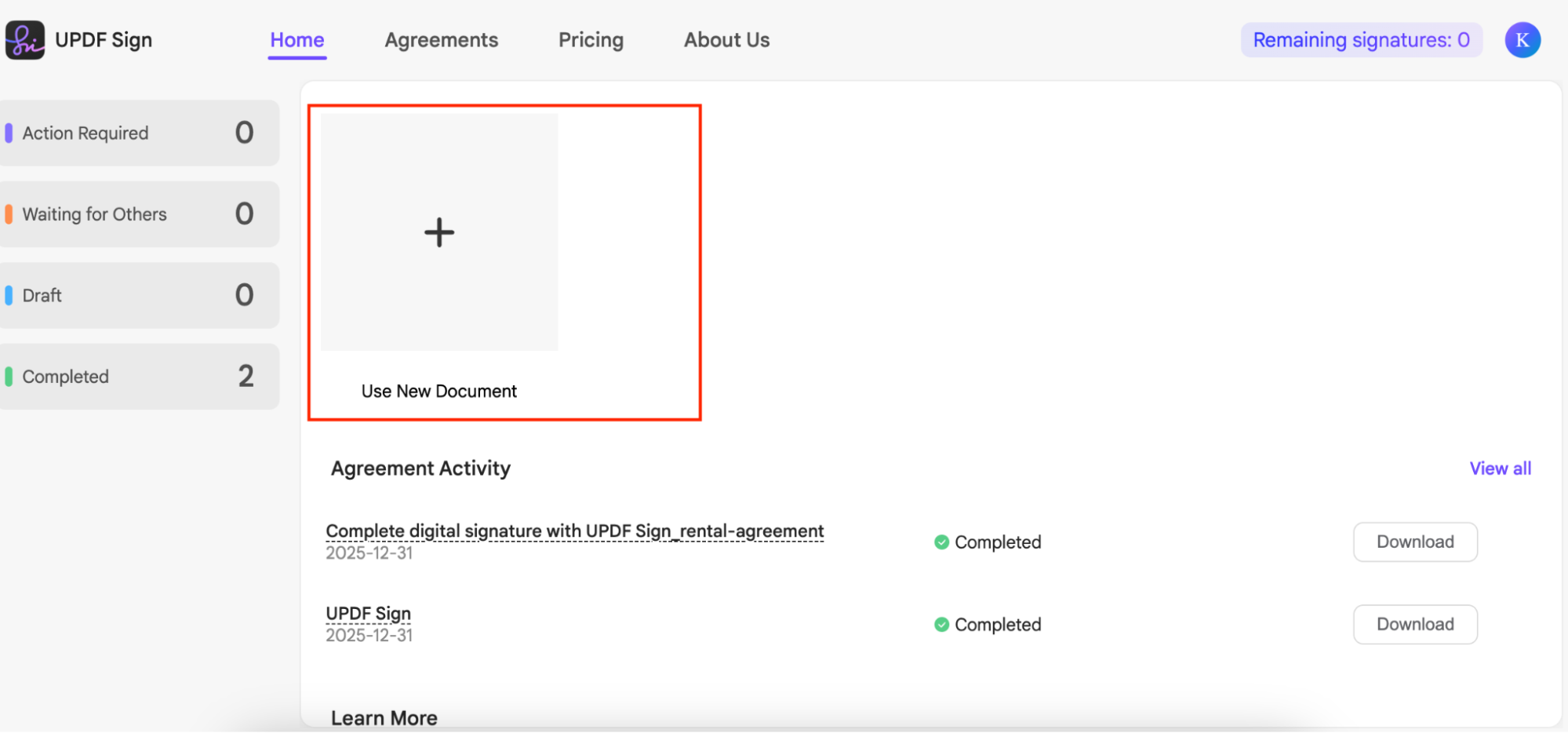
Step 2. Once you are on the dashboard, click the “ Use New Document” option.
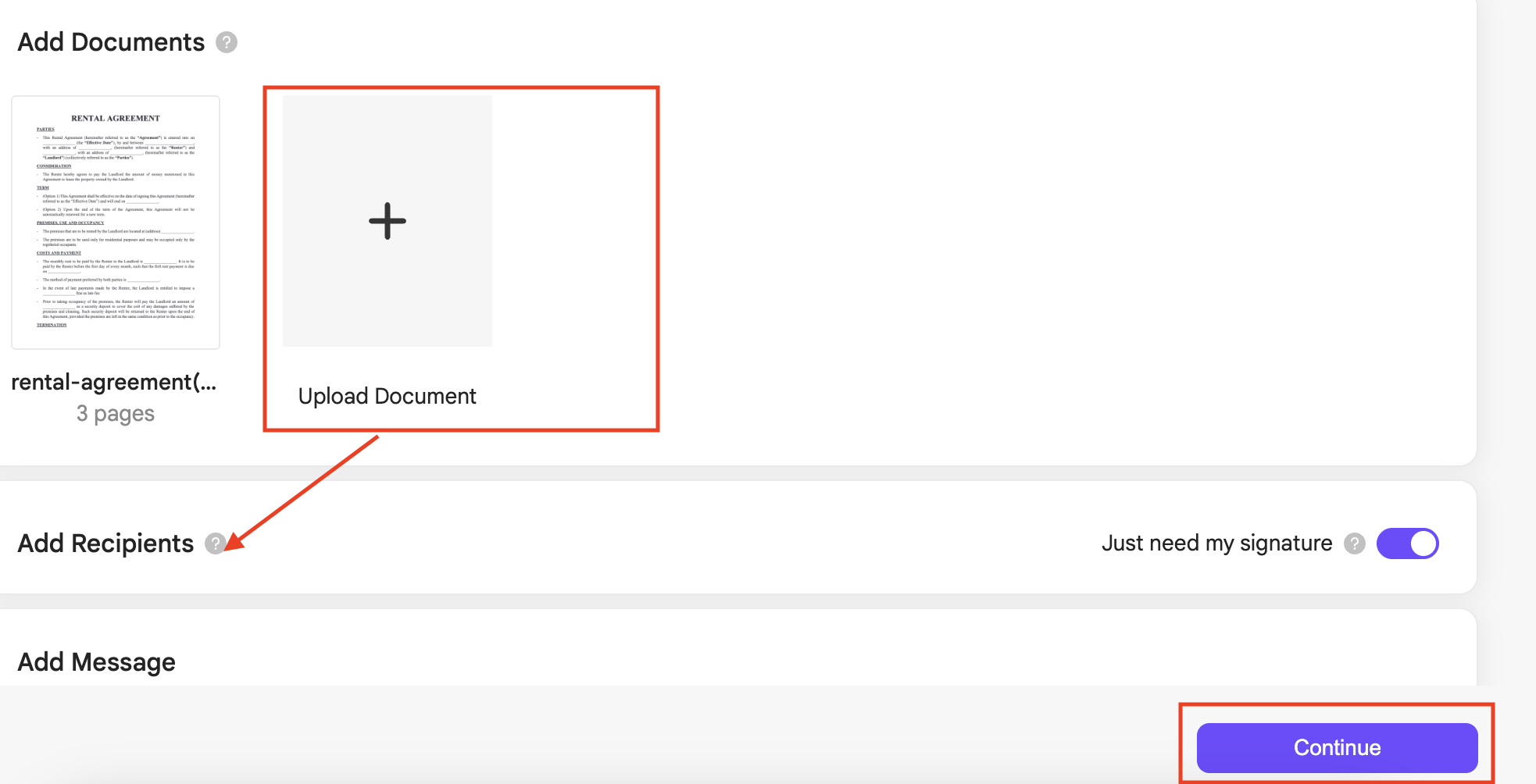
Step 3. Next, click the “Upload Document” option to upload your PDF where you need the sign. Once done, click the “Continue” option.
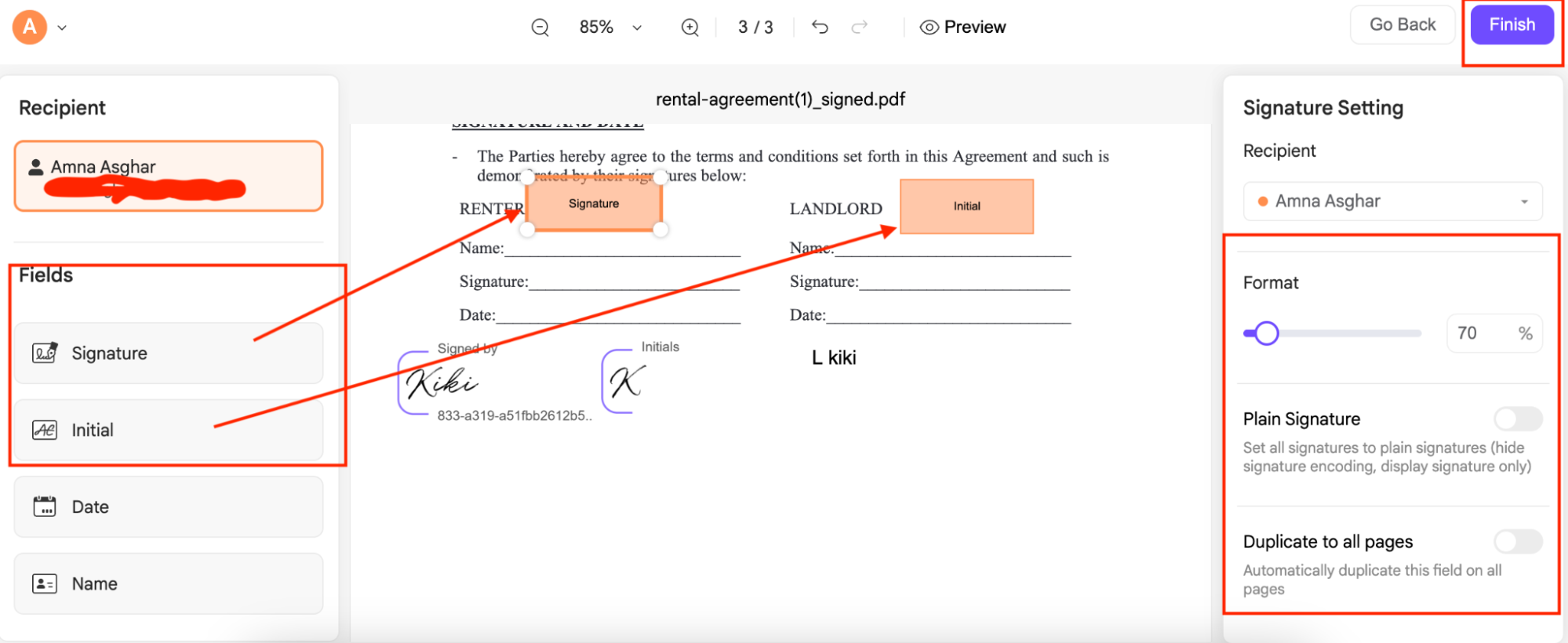
Step 4. Enter the names and email addresses of each recipient who needs to sign. Then, place signature fields where each person should sign, then send the document. Once you are done with the settings, click the “Finish” button to start the sending document process.
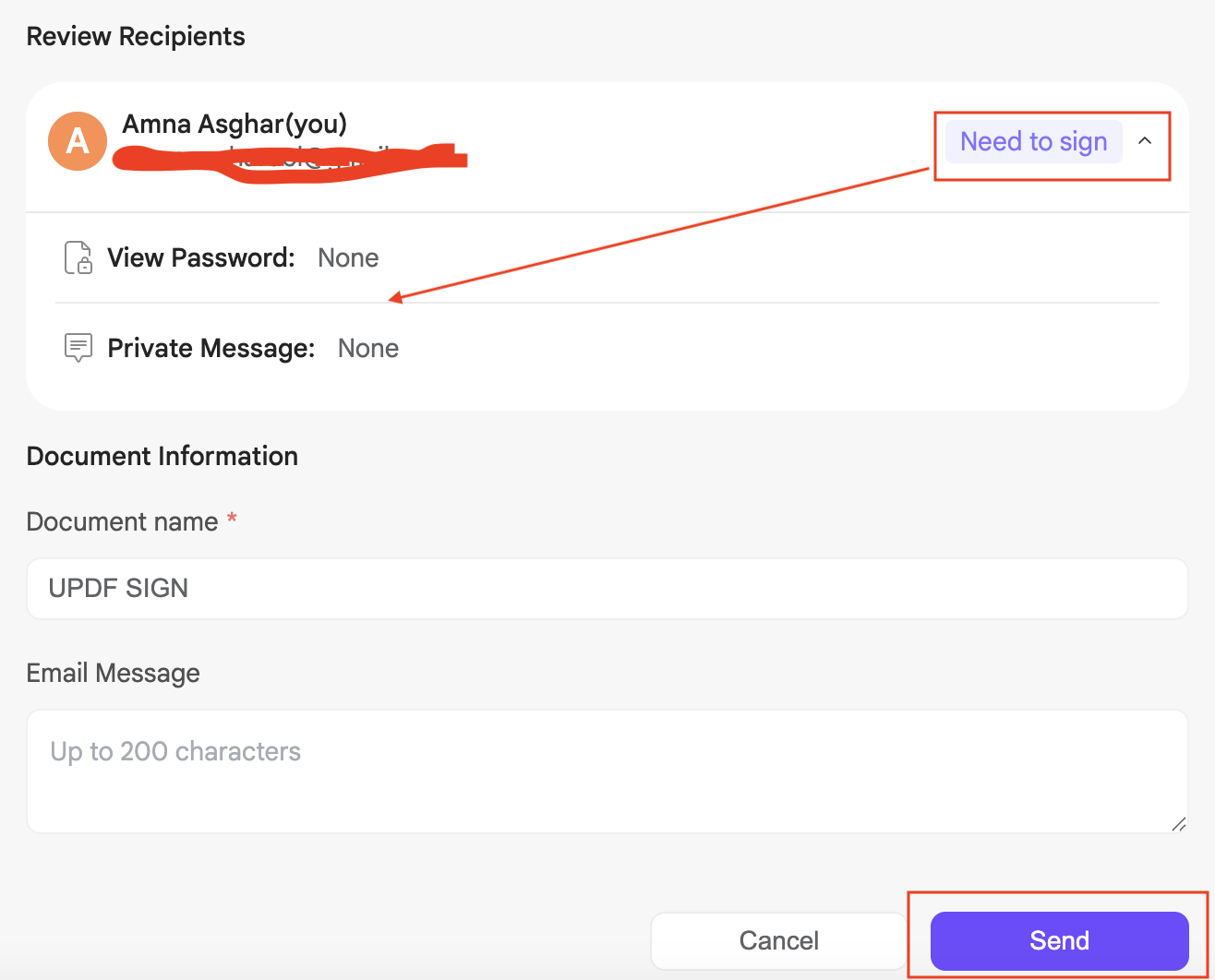
Step 5. Choose the “Need to Sign” option to verify the document's privacy. Also, don’t forget to check your Document Name and Email message. Next, click “Send” to successfully send the Signature request.
Step 6. Recipients sign from any device. You're notified as each signature comes in, and the platform keeps an audit trail of who signed and when.
Pros:
- multi-party contracts, offer letters, and agreements that need legally binding signatures plus a verifiable audit trail, with no software install for the signers.
Cons:
- sealing a file you author alone and never send out for signatures — for that, the desktop digital signature in Method 1 is simpler.
UPDF Sign is a separate product from the UPDF editor; check current inclusions and request limits on the official pricing page before relying on it for volume work.
Part 5. Method 3 — Lock a PDF From Editing With a Permissions Password
If your real goal is just "no one should be able to change, copy, or print this," you don't need a signature at all — you need a permissions password. Be clear on what this is: it's access control, not certification. It prevents unauthorized actions, but it does not create a verifiable record proving the content was never altered. Use it when control matters more than legal tamper-evidence — or alongside Method 1 for both.
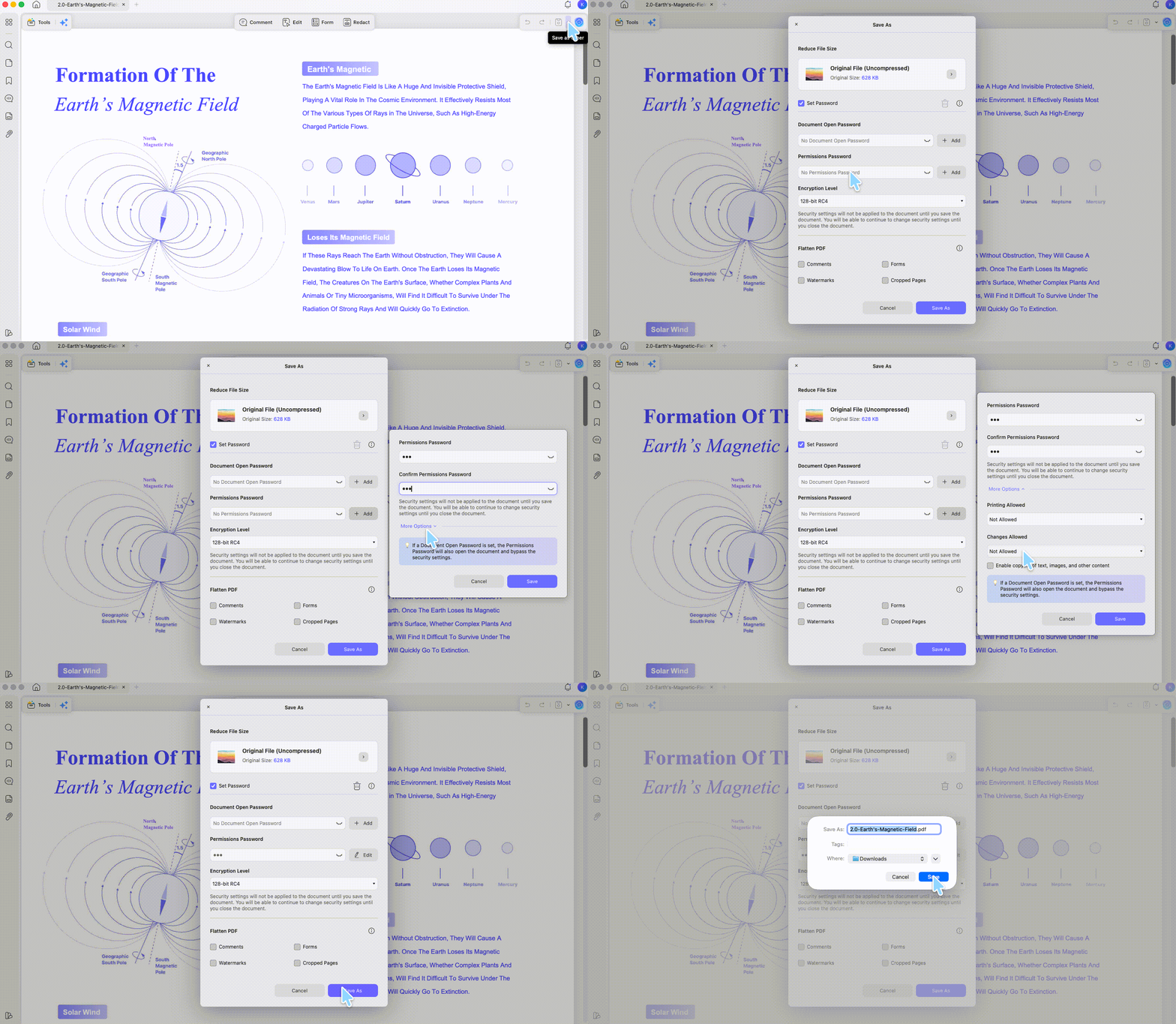
Step 1. Open the PDF in UPDF. On the right-side toolbar, select Protect Using Password, then open the Permissions tab.
Step 2. Enter a permissions password and retype it to confirm. Expand More Options to set what's restricted — printing, copying, editing, and encryption level.
Step 3. Click Save > Save as, then save the file. Recipients can open and read it, but the actions you locked are blocked without the password.
Pros:
- read-only distribution, price lists, or internal documents you don't want edited, copied, or printed.
Cons:
- proving to a court or auditor that the content is unchanged — a password restricts actions but isn't a tamper-evidence seal. Pair it with Method 1 if you need both.
Only apply restrictions and signatures to PDFs you own or are authorized to edit.
Windows • macOS • iOS • Android 100% secure
Part 6. What About Adobe Acrobat's "Certify" Button?
First, the honest framing: most "certify a PDF" needs come down to three things — tamper-evidence, legal validity, and locking the file from edits — and all three are covered by Methods 1–3 above at a fraction of the cost. You only need a tool's literal Certify function when a specific rule names the PDF-spec author certifying signature (for example, certain regulated submissions).
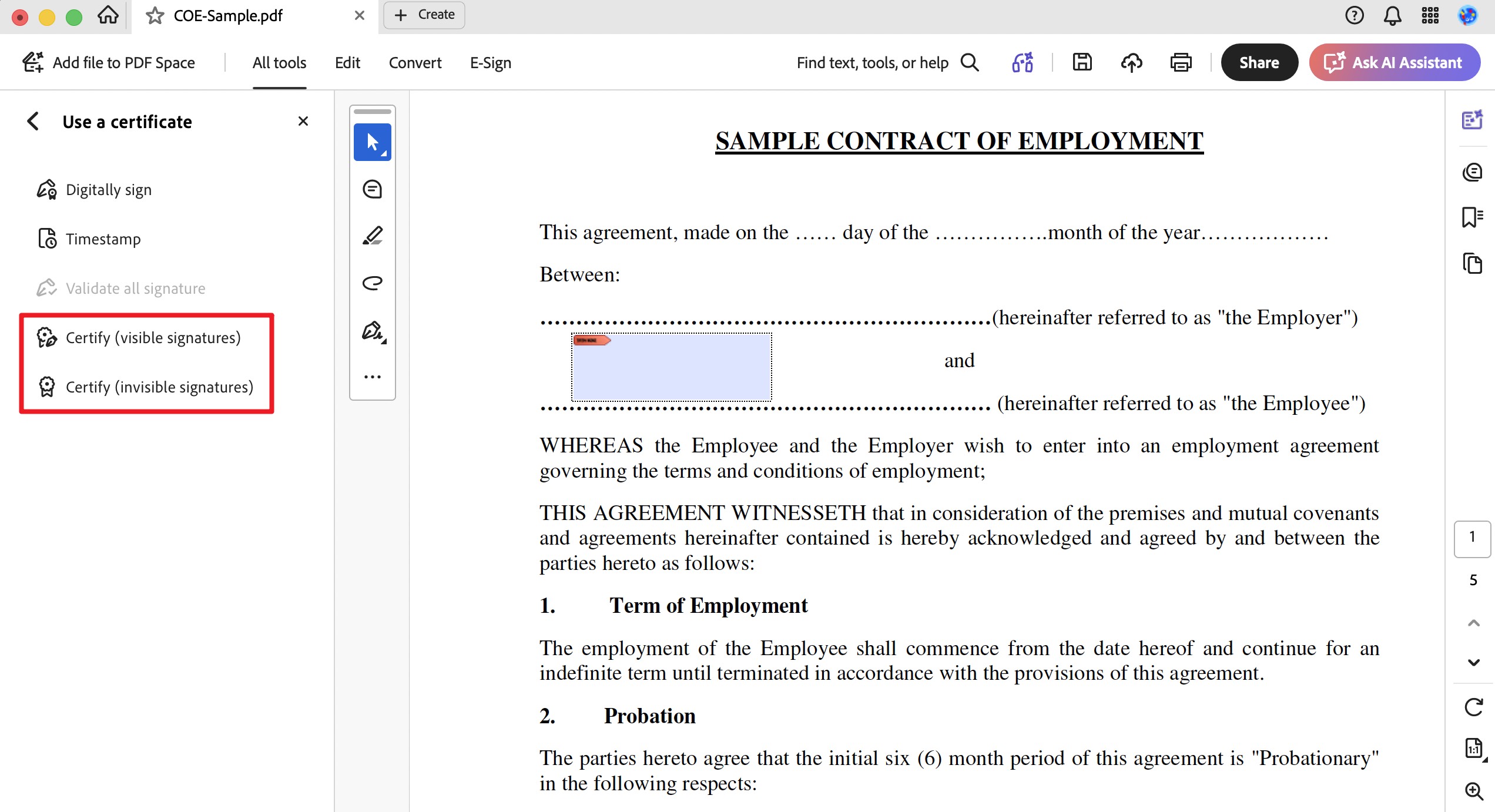
If that's your case, a few desktop tools write that exact signature — Adobe Acrobat, Foxit PDF Editor, and PDF-XChange among them. Adobe's is the most widely recognized: its Certify (Visible Signature) / Certify (Invisible Signature) applies the single author seal that sets document-wide rules for what can change afterward. Per Adobe, certifying requires a Digital ID, lets you specify which changes are allowed after certification (such as form fill-in or commenting), and can only be applied to a PDF that has no other signatures yet.
The trade-off is cost and licensing. Adobe Acrobat Pro runs US$19.99/month (individual, annual plan billed monthly — about $239.88/year), and Adobe no longer sells a traditional perpetual license. Its one-time option, Acrobat Pro 2024, is a single purchase but grants only 3 years of desktop access — when the term ends, access ends. For most people whose actual need is "seal the file so tampering is detectable" or "make it legally binding and uneditable," a certificate-based digital signature plus permission control delivers that outcome.
By comparison, UPDF is $49.99/year or $79.99 one-time (lifetime), covering 2 desktops + 2 mobiles, with the digital signature, permission control, and legally binding UPDF Sign workflow described above.
And if your need is a signature that meets a stricter technical-compliance bar — for example PAdES levels required for some government or EU filings — that's a different requirement from the literal Certify seal, and UPDF Sign supports it. See how to create a PAdES-compliant PDF signature for the specifics.
| Capability | UPDF | Adobe Acrobat Pro |
|---|---|---|
| Certificate-based digital signature (tamper-evident) | ✓ | ✓ |
| Literal PDF-spec author "Certify" signature | No dedicated button | ✓ |
| Legally binding online e-signature workflow | ✓ (UPDF Sign) | ✓ (Acrobat Sign) |
| Permissions password / access control | ✓ | ✓ |
| Lifetime license | ✓ ($$79.99 one-time) | No true perpetual (Pro 2024 = 3-year desktop access) |
| Individual price | $$49.99/year | $19.99/mo (~$239.88/year) |
The right pick is about the exact mechanism you need: if a rule specifically demands the literal author certifying signature, reach for a tool that writes it (Acrobat, Foxit, or PDF-XChange); if what you actually need is verifiable integrity, legal validity, and editing lockdown at a fraction of the cost, UPDF covers it.
Part 7. Edge Cases — When Certification Doesn't Behave as Expected
A few real situations trip people up after they think the file is sealed:
- "I signed it, then fixed one typo — now it says the signature is invalid." That's working as intended. A certificate-based signature seals the content; any edit after signing breaks validity. Make all your edits first, then sign last.
- "The recipient sees 'Validity unknown' or 'Signature not verified.'" This usually means the signer's certificate (or its root certificate) isn't on the recipient's trusted list, not that the file was tampered with. They can click the signature to validate signature; for organization-wide trust, the certificate's root needs to be trusted.
- "I want to certify a file that's already been signed by someone else." A true certifying signature must be the first signature on a clean document — you can't certify after approval signatures exist. If certification order matters, certify (or seal) before sending for other signatures.
- "My permissions password didn't stop them from editing." Permission passwords can be stripped by some tools and don't prove integrity. If you need true tamper-evidence, use a certificate-based signature (Method 1), not just a password.
- "It's a scanned image, and signing it didn't make it tamper-proof in a useful way." Signing seals the file as-is, but a flat scan has no verifiable text layer; for searchable, verifiable records, OCR the scan first, then sign.
FAQ
1. Is a certified PDF the same as a signed PDF?
No. A signed PDF confirms someone signed it; a certified PDF is the author's one-time seal applied first, before any other signature, that locks document integrity and defines which edits are still allowed.
2. Does certification stop all editing?
Not always — the author can permit limited actions like form fill-in. But any change outside what's allowed invalidates the certification, which is the point: unauthorized edits become detectable.
Conclusion
Certifying a PDF isn't about adding a scribble or a password — it's about sealing the file so any tampering is detectable and the document carries legal weight. For most people, a certificate-based digital signature in UPDF (Method 1), a legally binding UPDF Sign workflow (Method 2), or a permissions password for pure access control (Method 3) delivers exactly the integrity and control they were really after — and only when a rule demands the literal author certifying signature do you specifically need Adobe's "Certify" button.
Download UPDF for free to try sealing one of your own documents with a digital signature — installation is free, and Pro features are available when you need export or advanced tools.
Windows • macOS • iOS • Android 100% secure



 Enola Davis
 Enrica Taylor
 Lizzy Lozano
 Delia Meyer