 UPDF
UPDF
 UPDF for Windows
 UPDF for Mac
 UPDF for iPhone/iPad
 UPDF for Android
 Nomostar
 UPDF AI Online
 UPDF Sign
 IvyCraft
 Edit PDF
 Annotate PDF
 Create PDF
 PDF Form
 Edit links
 Convert PDF
 OCR
OCR PDF to Word
 PDF to Image
 PDF to Excel
 Organize PDF
 Merge PDF
 Split PDF
 Crop PDF
 Rotate PDF
 Protect PDF
 Sign PDF
 Redact PDF
 Sanitize PDF
 Remove Security
 Read PDF
 UPDF Cloud
 Compress PDF
 Print PDF
 Batch Process
 About UPDF AI
 UPDF AI Solutions
 AI User Guide
 FAQ about UPDF AI
 Summarize PDF
 Translate PDF
 Chat with PDF
 Chat with AI
 Chat with image
 PDF to Mind Map
 Explain PDF
 PDF AI Tools
 Image AI Tools
 AI Chat Tools
 AI Writing Tools
 AI Study Tools
 AI Working Tools
 Other AI Tools
 AI Bookmark Generation
 AI Bookmark Summary
 AI Watermark Generation
 AI Background Generation
 AI Sticker Generation
 AI Stamp Generation
 AI Editing Suite
 UPDF Copilot
 AI Page Management
 AI Semantic Search
 PDF to Word
 PDF to Excel
 PDF to PowerPoint
 Enterprise Solution
 Enterprise Sign
 Enterprise AI
 Enterprise Plan
 Enterprise User Guide
 Enterprise Webinar
 Banking
 Healthcare
 Insurance
 Legal
Legal Manufacturing
 Government
 Researchers & PhDs
 Solopreneurs & Freelancers
 Lawyers & Legal Professionals
 Real Estate Agents & Brokers
 Education Solution
 Customer Stories
 User Guide
 UPDF Tricks
 FAQs
FAQs UPDF Reviews
 Download Center
 Blog
Blog Newsroom
 Tech Spec
 Updates
 UPDF vs. Adobe Acrobat
 UPDF vs. Foxit
 UPDF vs. PDF Expert

The first time a print shop returned my PDF, the pages looked unexpectedly fuzzy. Back at my desk, I opened that same file, zoomed into a scanned report, and everything blurred. That moment made me feel I needed to understand what was hurting my PDF’s clarity.
Around that time, I discovered UPDF while searching for a tool that could rescue blurry contracts. In this guide, I explain what is wrong with your PDF and show how to increase the resolution of a PDF. You will also see how I use UPDF to repair scanned text and make PDF pages readable.
Windows • macOS • iOS • Android 100% secure
Part 1. Why You Can't Always Just “Increase” a PDF's Resolution?
Sometimes a PDF is built from crisp vector text and lines that stay sharp at any zoom level. Other times, that same PDF hides raster scans and photos made of pixels that simply fall apart when enlarged. Now, I’ll share the types of content inside a PDF that decide what I can fix.
Vector Content In PDFs
Text, fonts, and line drawings in my PDFs are usually vector content in PDFs that scales cleanly without losing sharpness. When I zoom in on this vector content, letters and lines stay smooth and never turn into chunky squares.
Raster Content In PDFs
Scanned pages and photos in my PDFs are raster content, built from a fixed grid of colored pixels. As I zoom into these raster areas, pixels stretch, details disappear, and the image quickly looks rough and blurry.
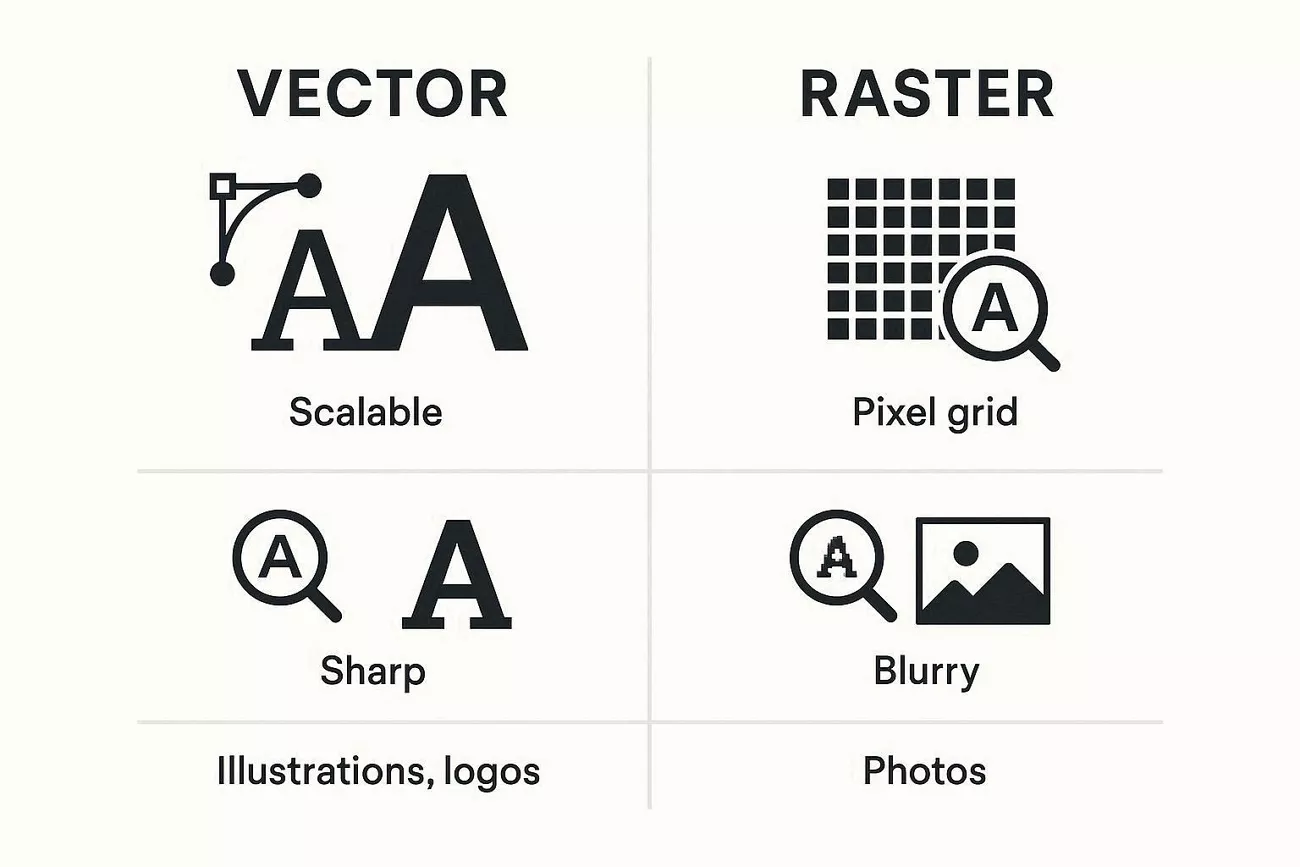
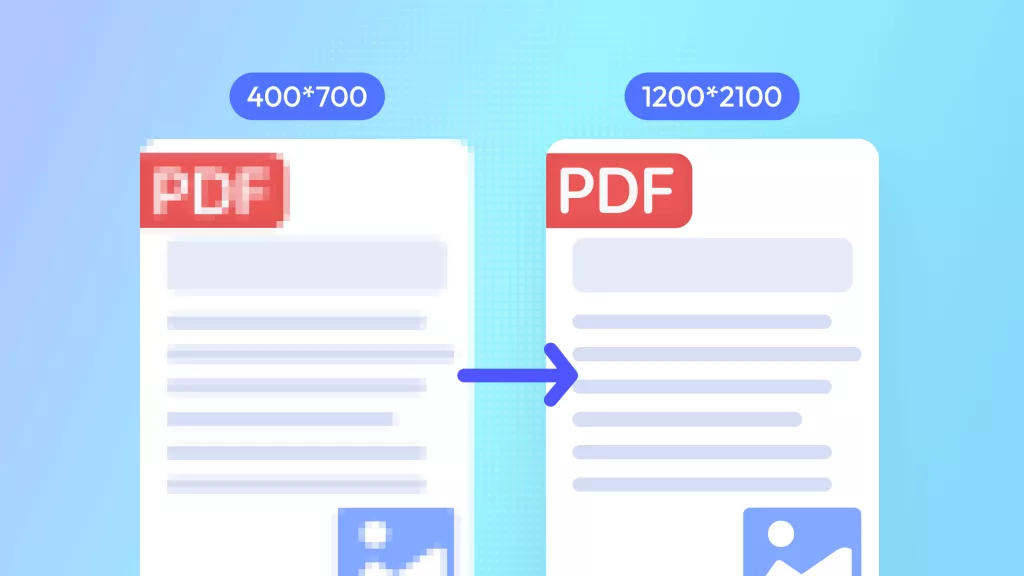
When I think about how to increase the resolution of a PDF, I focus on two realistic options only. Either I re‑render pages at a higher pixel density or replace fuzzy scanned text with a recognized text layer.
Before changing anything, I always check whether my blurry pages come from vector content or low‑resolution scans. Only after I know the real problem do I decide which fixing method actually makes sense for that file.
Part 2. Diagnose Your PDF First — the Zoom Test
Lately, I rely on a quick Zoom check whenever a PDF looks strangely blurry or low quality. Zooming in close shows me how the text and images change, which reveals the real issue clearly. Next, I’ll share the steps below that I use to run this simple Zoom test on any PDF:
Step 1. First, open your PDF file in any PDF viewer like UPDF and zoom it to 300 to 400%.
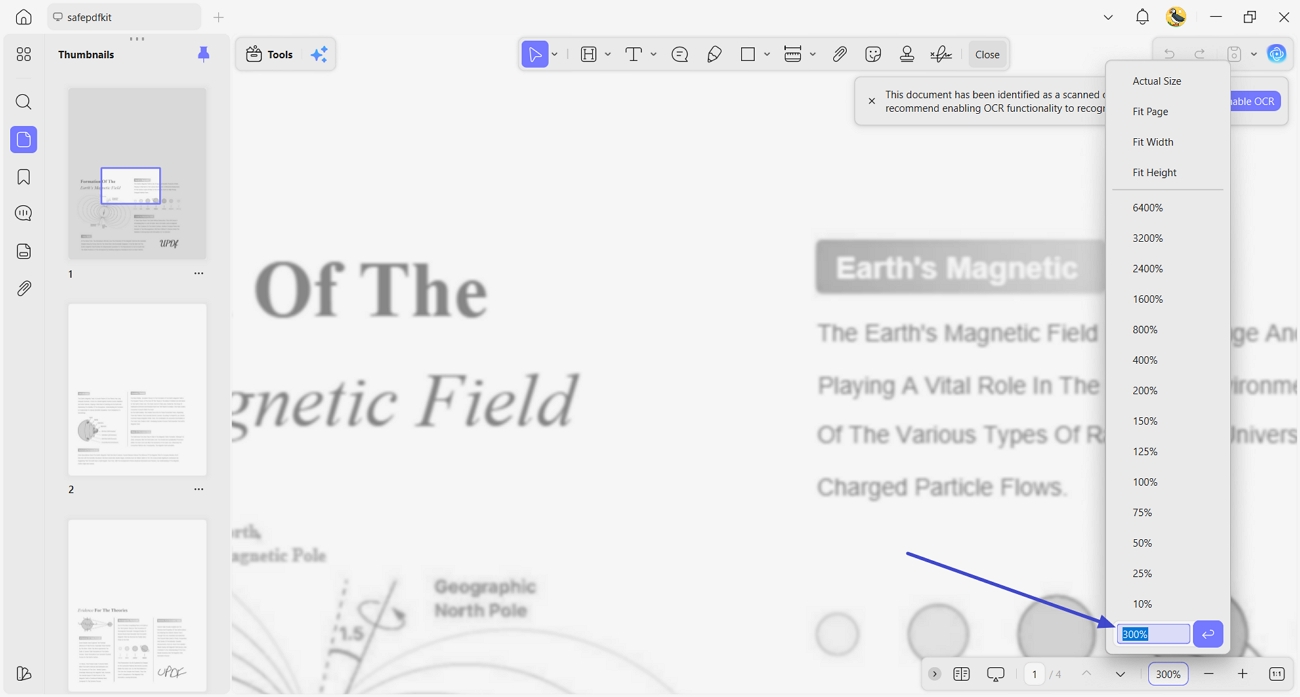
Step 2. Next, check the resolution of the images. If the text stays sharp and the images look blurry, the text is vector and only the embedded images are low‑resolution.
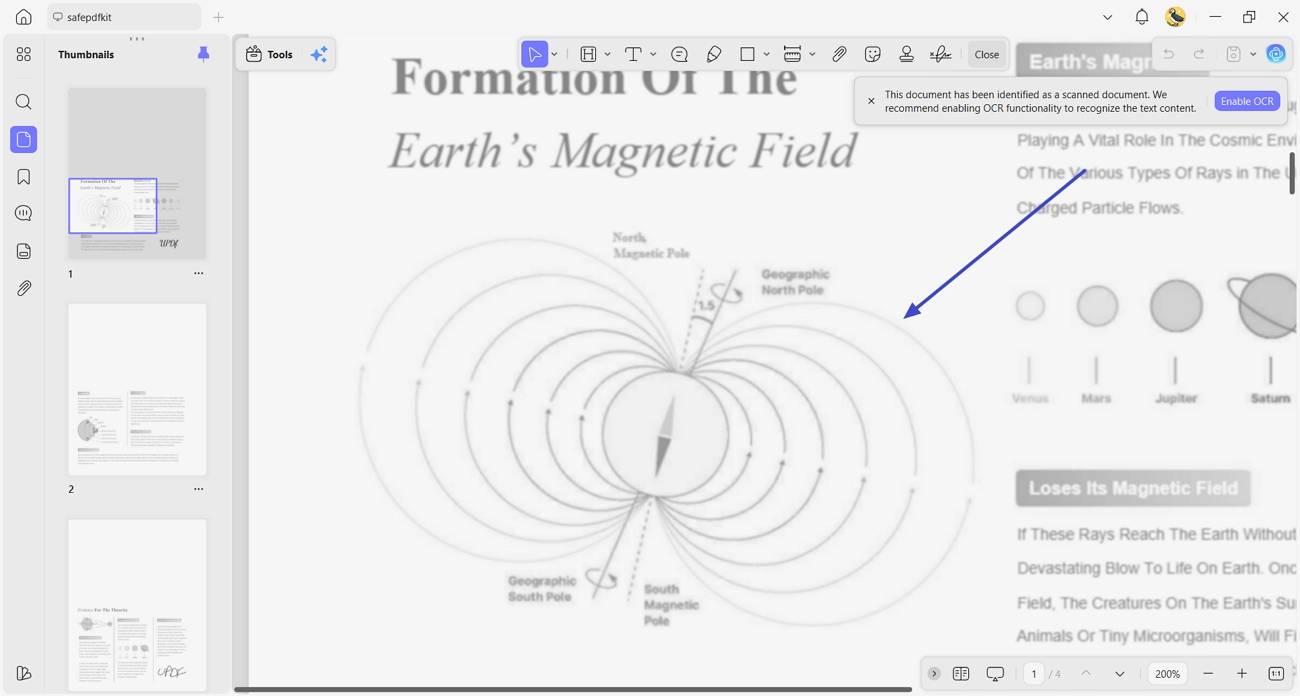
Step 3. If both text and images blur together as you zoom, you are probably dealing with a scanned or image‑based PDF.
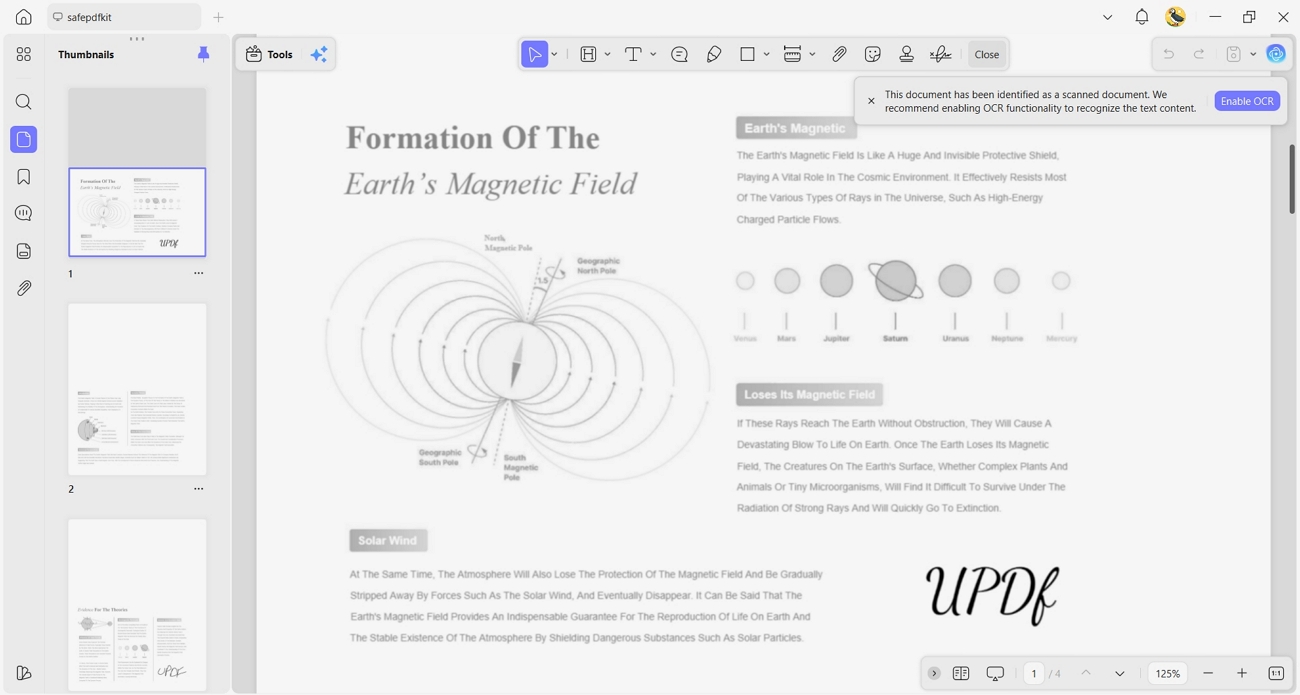
Step 4. Lastly, review the printed page carefully to see whether it still looks soft or washed out. Blurry results at this stage usually mean a print‑DPI or export problem, not the PDF content itself.
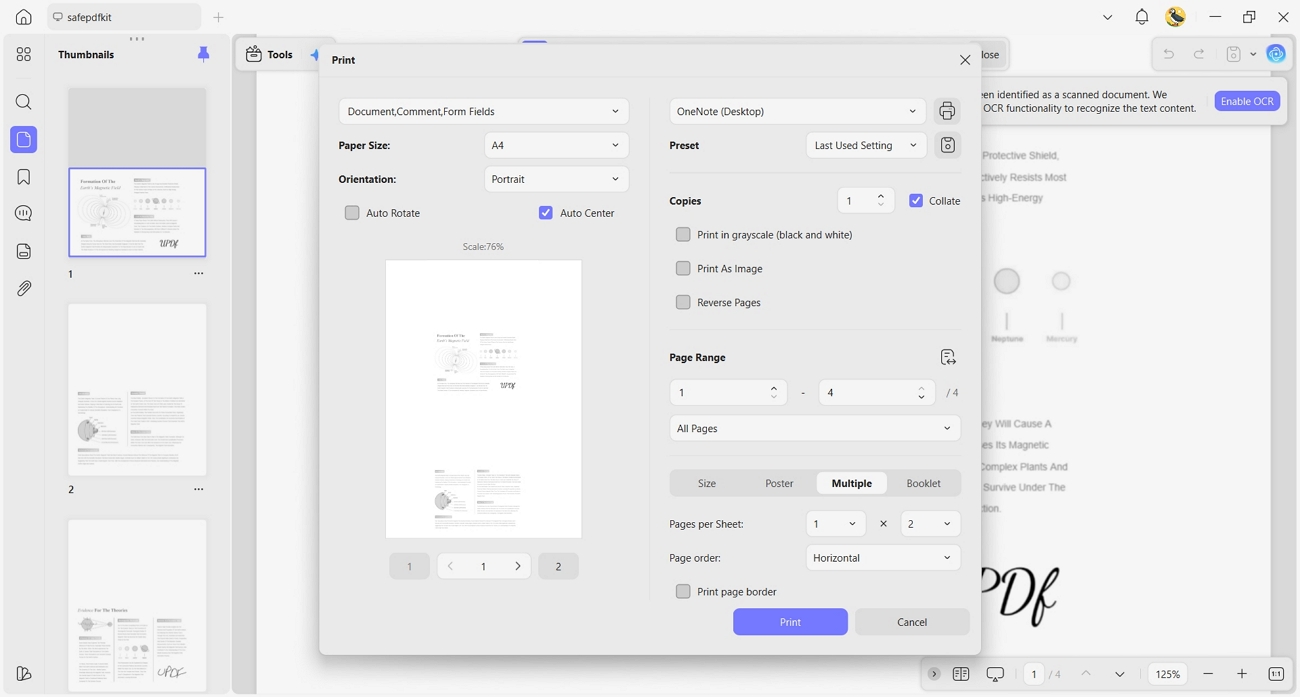
Part 3. How to Increase PDF Resolution with UPDF?
Some of my PDFs started as blurry scans or low‑quality exports that looked awful when I zoomed or printed. This is where UPDF comes in, giving me tools that actually help clean and rebuild those weak files. Using the UPDF OCR feature, I can turn fuzzy scanned text into real, sharp characters that stay clear at any size.
When I need better print quality, I re‑export pages from UPDF at higher settings instead of guessing how to increase the resolution of a PDF. On both desktop and mobile, UPDF keeps the process simple, so I spend less time wrestling with messy documents. Now, I’ll walk you through two ways I actually boost PDF clarity with UPDF.
Method A — Sharpen a Blurry Scanned PDF with OCR
One scanned contract in my inbox looked like a faded photocopy and turned unreadable the moment I zoomed in. This is where UPDF’s OCR helped, by recognizing those fuzzy letters and turning them into real, selectable text. After running OCR, the contract was rendered as a clean font at any size, even though the underlying scan stayed rough.
Clean Up Blurry Scans With UPDF Desktop
Go through the steps below to sharpen your scanned PDF using UPDF Desktop:
Step 1. Access OCR PDF
Once you open a PDF in UPDF, click the “Tools” option and press the “OCR” option in the Edit PDF section.
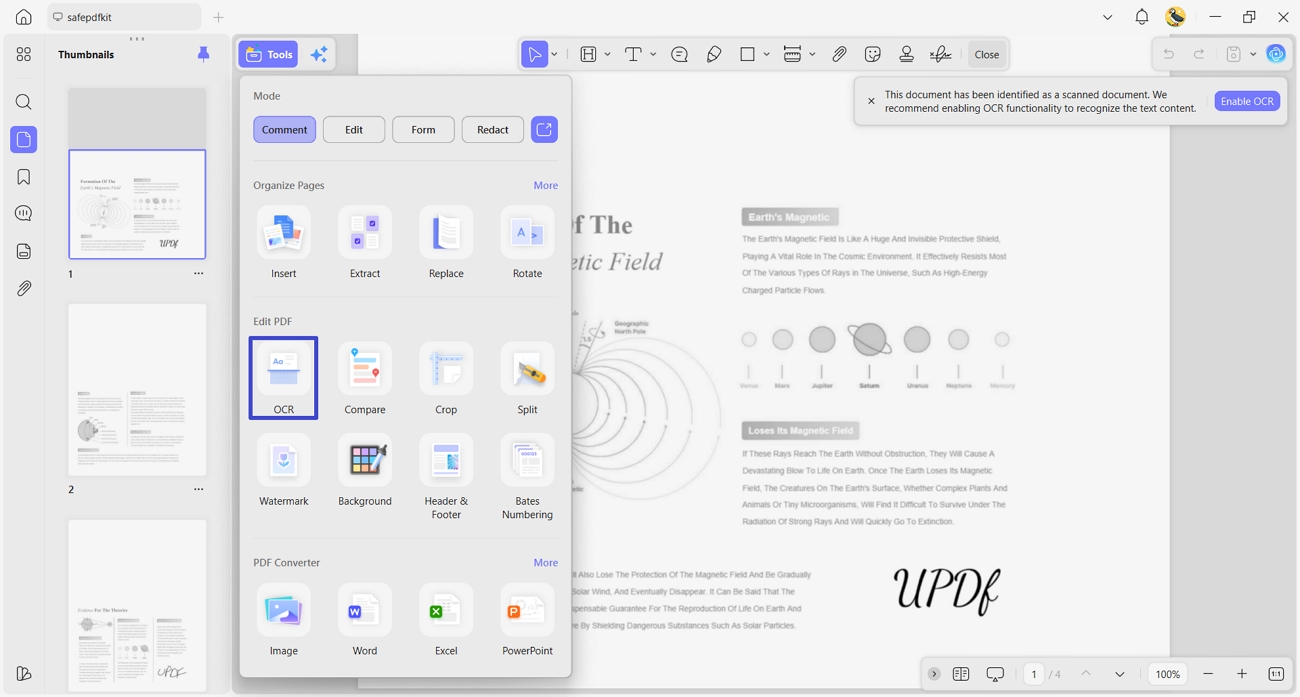
Step 2. Perform OCR
Next, choose the “Editable OCR” type and select the languages used in the PDF. Afterward, choose an appropriate page range and click the “Convert” button.
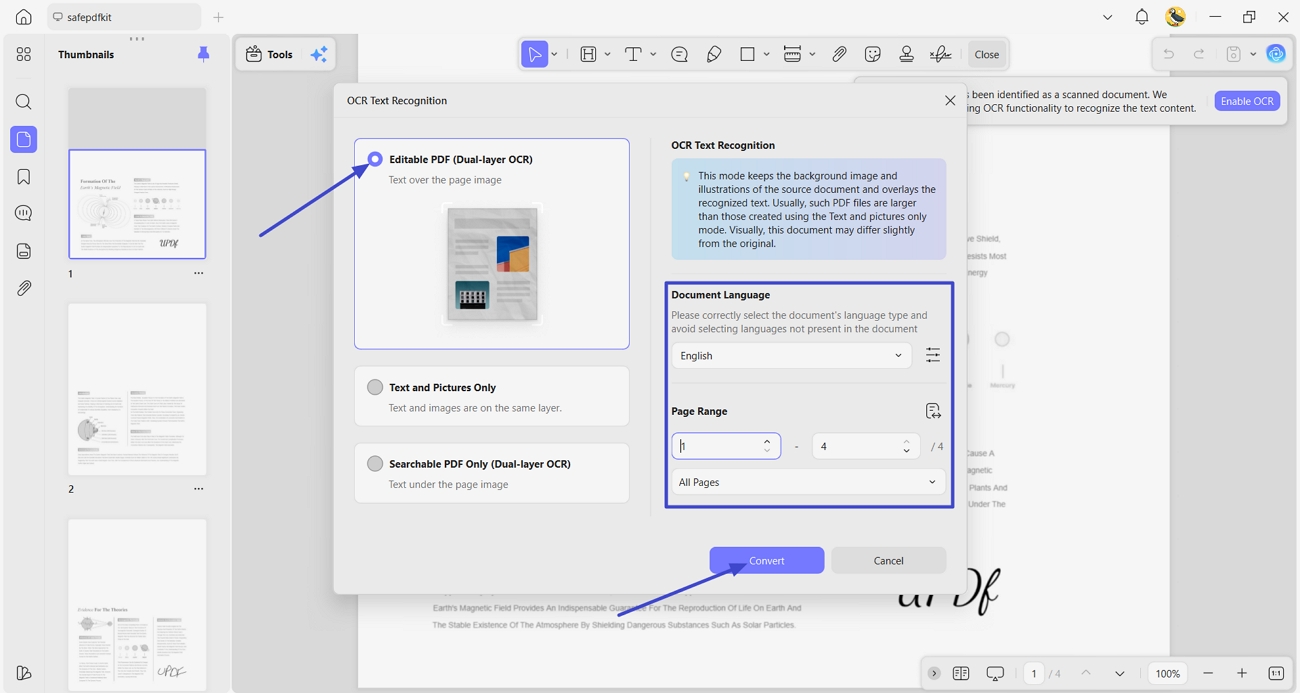
Step 3. Check OCRed PDF
Once the PDF is converted, it will open automatically. Review the OCRed PDF text and image quality.
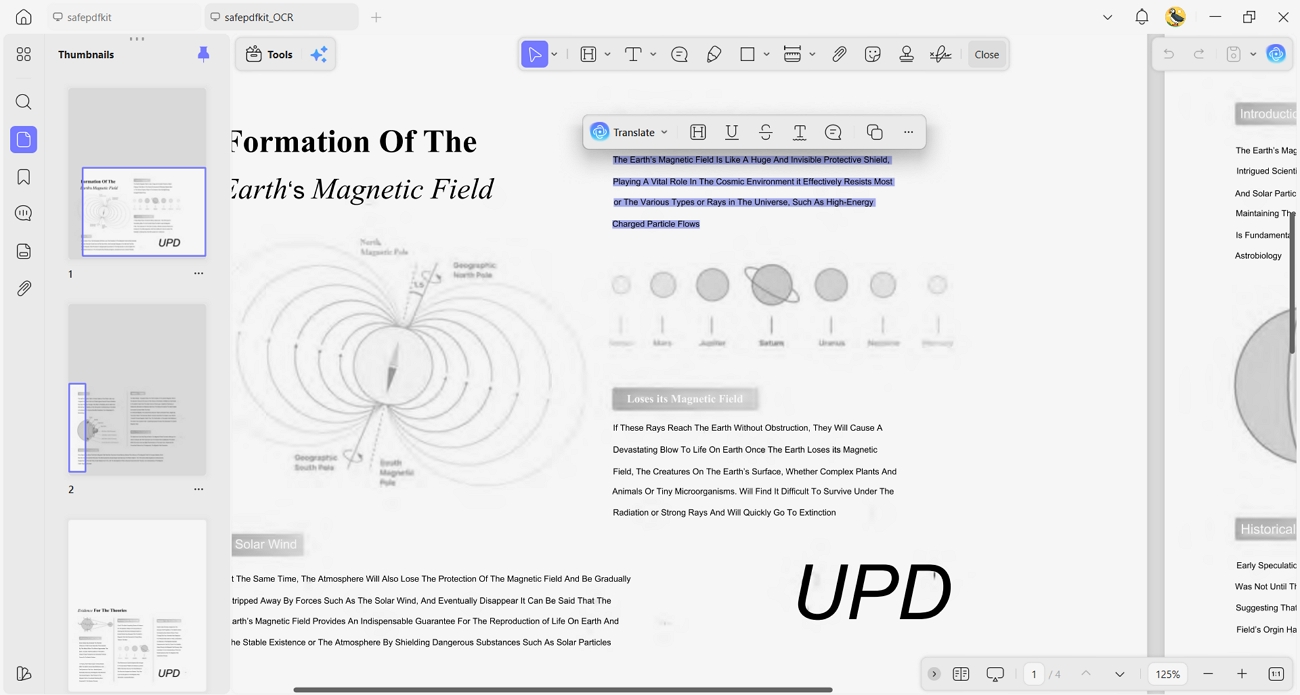
How to Perform OCR on UPDF Mobile
Follow the steps below to learn how to increase the resolution of a PDF using UPDF:
Step 1. OCR PDF with UPDF
First, open a PDF on UPDF mobile and tap on the “OCR” option in the toolbar below. Next, choose the “OCR Recognition Type” and the “Language” option. Afterward, press the “Continue” option.
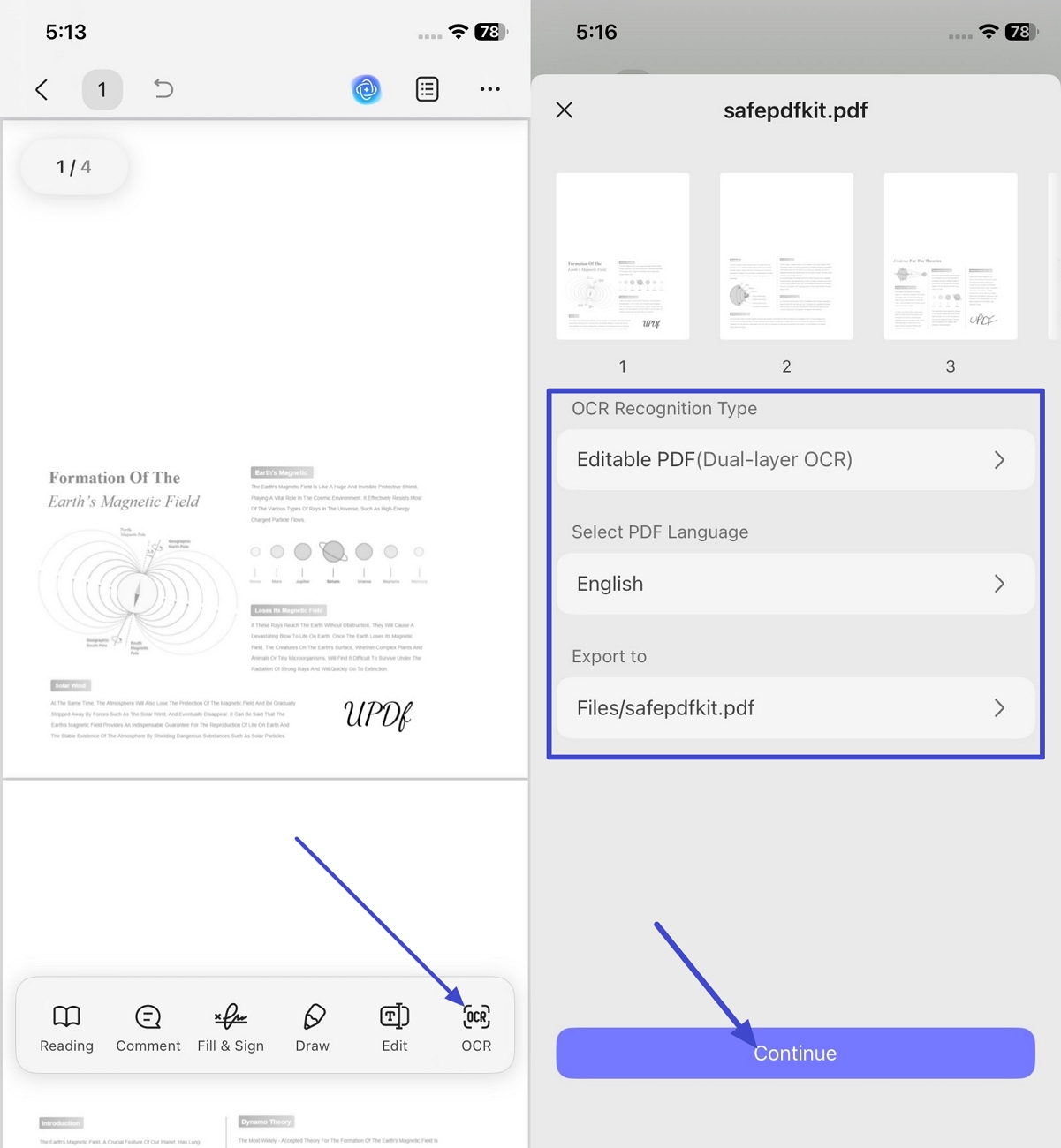
Step 2. Review OCRed PDF
After that, open the OCRed PDF and zoom in to confirm the text now looks readable. OCR sharpened the text but cannot restore missing details in low‑quality photos.
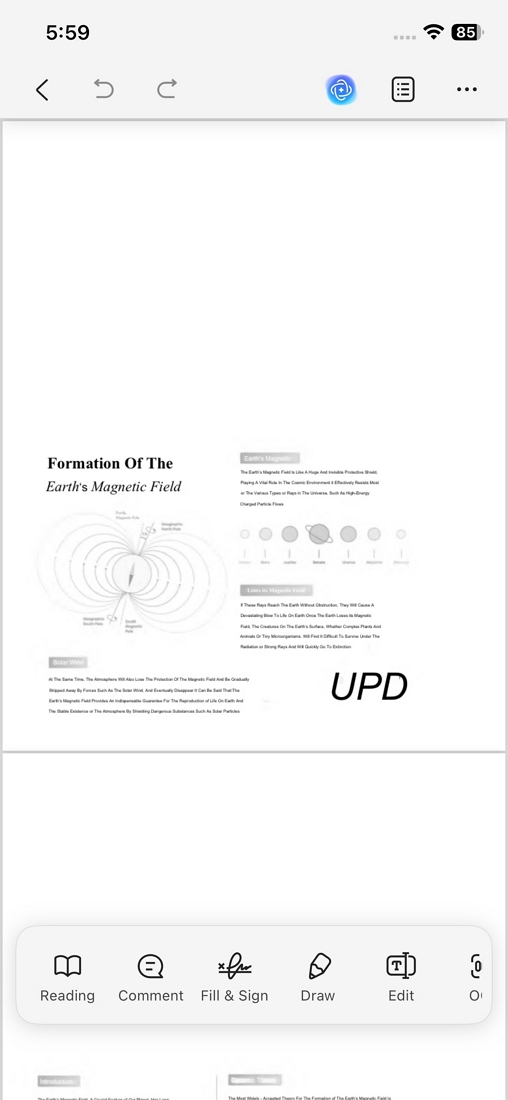
Method B — Re-render the Whole PDF at a Higher Resolution
When I need a PDF that prints well, I re-export it at a higher resolution. I turn it into an image-based PDF with more pixel density for sharper detail. A higher resolution makes pages look sharper but also increases file size; see steps below:
Step 1. Save The PDF as an Image PDF
After opening the blurred PDF, click the “Save” menu and press the “Image PDF” option.
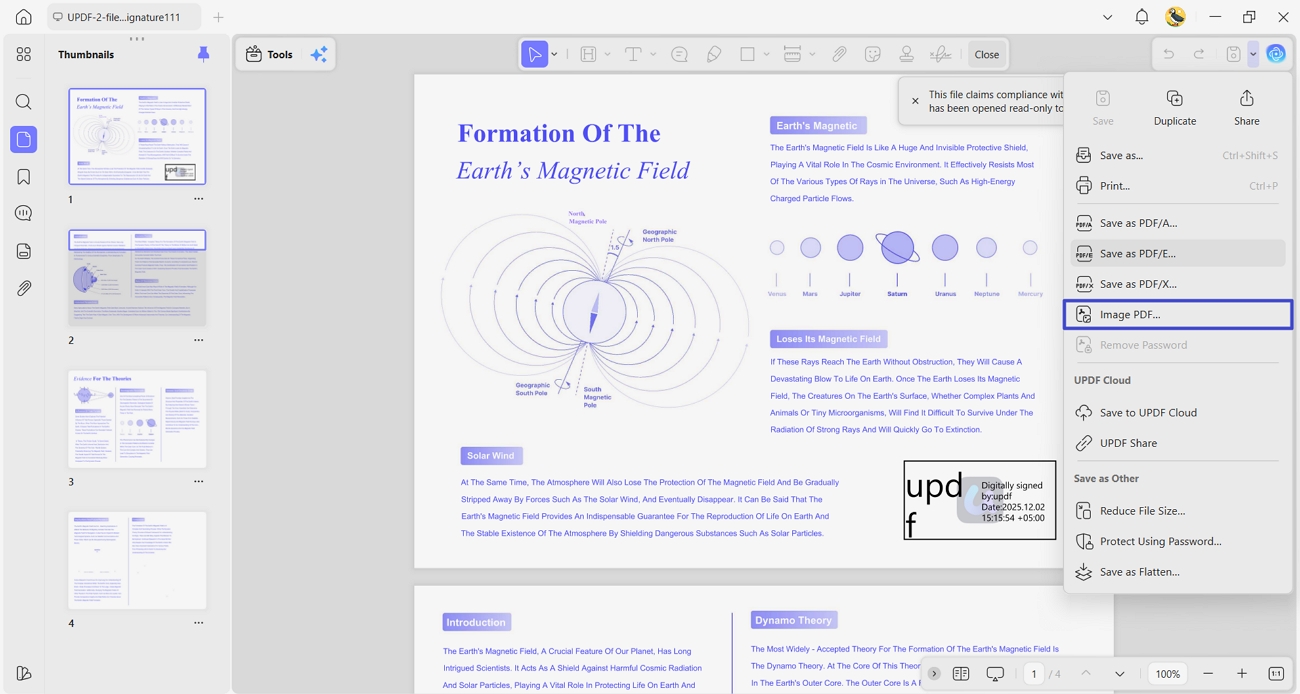
Step 2. Adjust The Brightness, Contrast, and Resolution
Next, set an appropriate brightness and contrast by moving the sliders. After that, select an appropriate resolution and click the “Save” button. This will create a sharper image PDF from your blurred document.
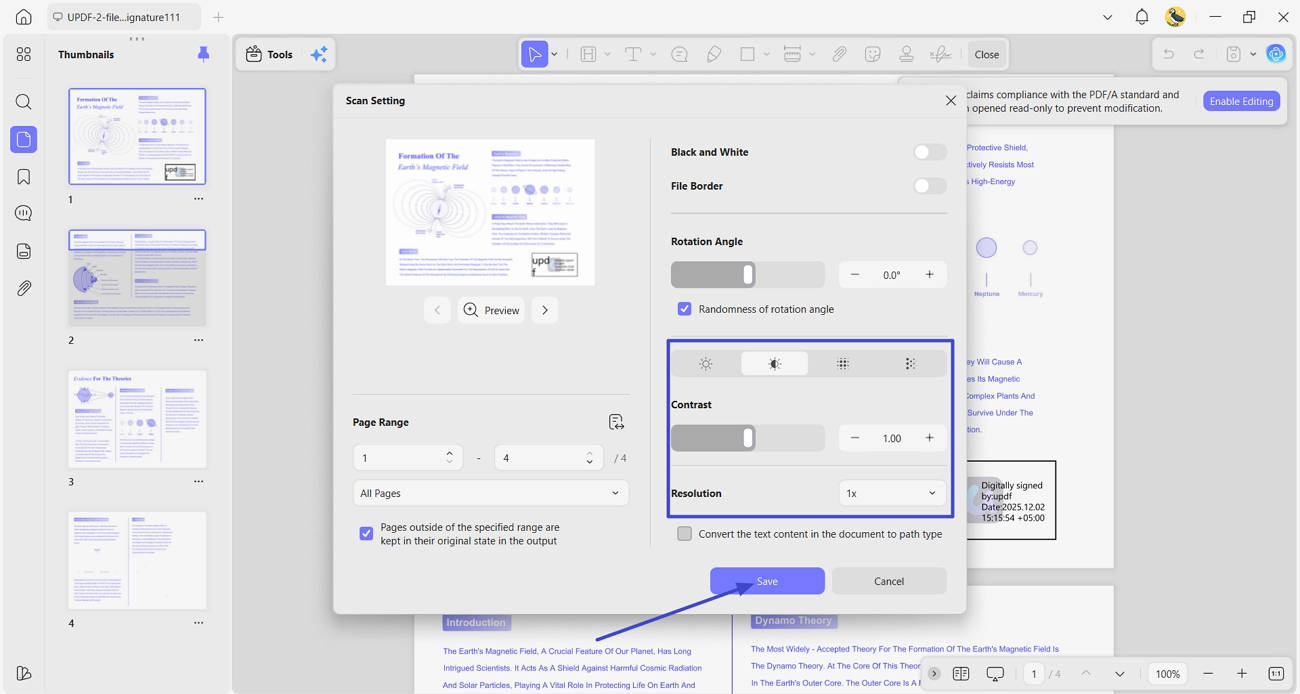
On my phone, I can mostly just view the file or re-scan pages. Real resolution tweaks work best on a computer, so I capture the cleanest scan.
UPDF Free vs. Paid Plans
The free plan gives me 5 OCR runs and adds a trial watermark. So, look at the table to see which paid option removes those limits:
| Paid Plan | Pricing |
| UPDF Pro | $49.99/year |
| UPDF Pro Perpetual | $79.99/one-time |
| AI Assistant Add-on | $79.00/year |
Choose the UPDF plan that best matches how often you use OCR.
Part 4. FAQs
Why does my PDF look blurry on screen but print fine?
Some viewers show low-resolution previews to save memory, but the original PDF remains high quality. Try another viewer, update settings, or use UPDF to view pages at full resolution.
Can I increase the resolution of just one image inside a PDF?
Yes, you can increase the resolution of the image using UPDF if the PDF is editable. To adjust a single picture, look at the steps below:
Instructions. Access the editing interface and click the “Insert & Edit Image” option. Right-click the image and press the “Replace Image” option to replace the image with a high-resolution version.
What resolution should a PDF be for printing?
Aim for about 300 dpi on most documents to balance sharpness and file size. When you print very detailed graphics, 600 dpi or higher keeps lines and tiny text clear.
Conclusion
In conclusion, I showed how to increase the resolution of a PDF when scans look fuzzy or exports look weak. Now I know when to clean a bad scan and when to re-render for print. For sharpening and exporting cleaner PDFs without much hassle, I recommend using UPDF on your next file.
Windows • macOS • iOS • Android 100% secure






 Enrica Taylor
 Enid Brown
  Enola Davis

- next_mile