UPDF
UPDF
 UPDF for Windows
 UPDF for Mac
 UPDF for iPhone/iPad
 UPDF for Android
 Nomostar
 UPDF AI Online
 UPDF Sign
 IvyCraft
 Edit PDF
 Annotate PDF
 Create PDF
 PDF Form
 Edit links
 Convert PDF
 OCR
OCR PDF to Word
 PDF to Image
 PDF to Excel
 Organize PDF
 Merge PDF
 Split PDF
 Crop PDF
 Rotate PDF
 Protect PDF
 Sign PDF
 Redact PDF
 Sanitize PDF
 Remove Security
 Read PDF
 UPDF Cloud
 Compress PDF
 Print PDF
 Batch Process
 About UPDF AI
 UPDF AI Solutions
 AI User Guide
 FAQ about UPDF AI
 Summarize PDF
 Translate PDF
 Chat with PDF
 Chat with AI
 Chat with image
 PDF to Mind Map
 Explain PDF
 PDF AI Tools
 Image AI Tools
 AI Chat Tools
 AI Writing Tools
 AI Study Tools
 AI Working Tools
 Other AI Tools
 AI Bookmark Generation
 AI Bookmark Summary
 AI Watermark Generation
 AI Background Generation
 AI Sticker Generation
 AI Stamp Generation
 AI Editing Suite
 UPDF Copilot
 AI Page Management
 AI Semantic Search
 PDF to Word
 PDF to Excel
 PDF to PowerPoint
 Enterprise Solution
 Enterprise Sign
 Enterprise AI
 Enterprise Plan
 Enterprise User Guide
 Enterprise Webinar
 Banking
 Healthcare
 Insurance
 Legal
Legal Manufacturing
 Government
 Researchers & PhDs
 Solopreneurs & Freelancers
 Lawyers & Legal Professionals
 Real Estate Agents & Brokers
 Education Solution
 Customer Stories
 User Guide
 UPDF Tricks
 FAQs
FAQs UPDF Reviews
 Download Center
 Blog
Blog Newsroom
 Tech Spec
 Updates
 UPDF vs. Adobe Acrobat
 UPDF vs. Foxit
 UPDF vs. PDF Expert

Every time I upload a photo to my Instagram Stories, I run into the same situation where the app automatically creates a blurred and color-sampled background that I can’t really control. In fact, there’s no proper background change option that I can use to customize the background image for an Instagram Story the way I want. This problem often makes my stories look repetitive and not aligned with my aesthetic.
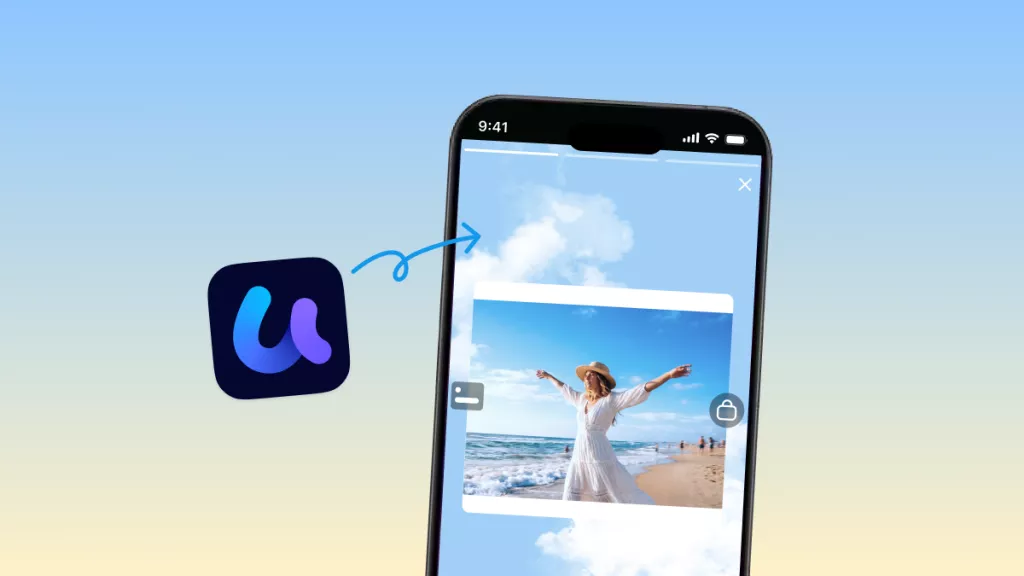
If you are in the same situation where you can’t change or personalize your Instagram Story background to match your style or branding, you’re not alone. Many users struggle with this problem. But the good news is that there are many third-party apps available that allow you to customize Insta story background images. I am talking about UPDF's AI Background Generator that helps you create custom and prompt-based visuals with one-click. Once the image is created, you can easily upload it to your Instagram with a unique and attractive background.
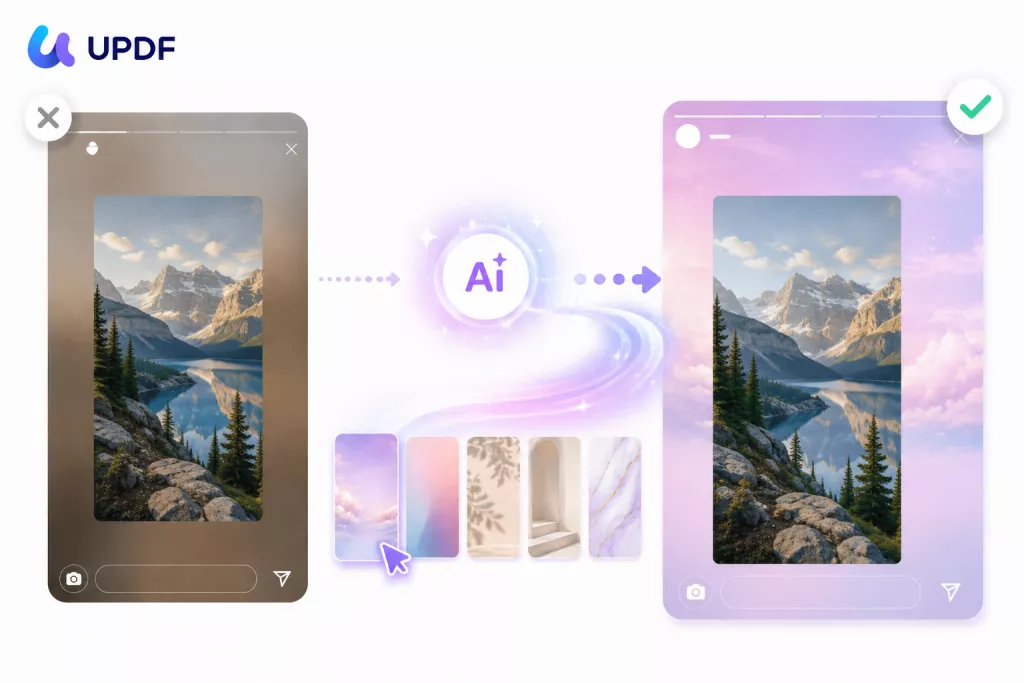
Continue reading this article as I will tell you how to use UPDF’s AI Background Generator for creating attractive background photos for Instagram stories.
Windows • macOS • iOS • Android 100% secure
Part 1. The Instagram Background Problem — And What Your Options Actually Are
When you upload a photo or video to Instagram Stories, the app automatically generates a background for you, which isn’t something you actively choose. Yes, Instagram selects backgrounds from random templates that include a soft and blurred gradient to fill the empty space. It is the fastest way to get a background for your image, but you can’t alter it according to your requirements.
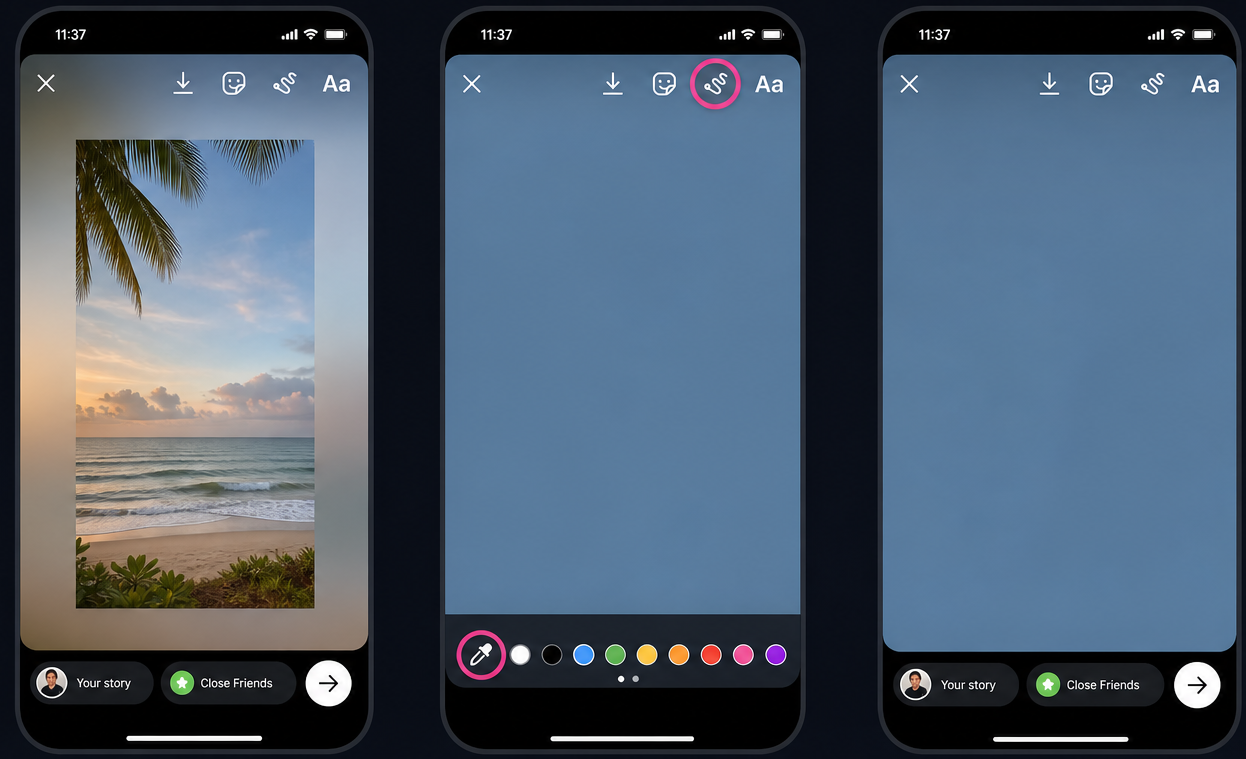
Unfortunately, Instagram does not offer powerful tools to add a background. However, using the Draw tool, you can tap a color then press and hold on the screen to add the entire background with that color. But this option is not available on all devices.
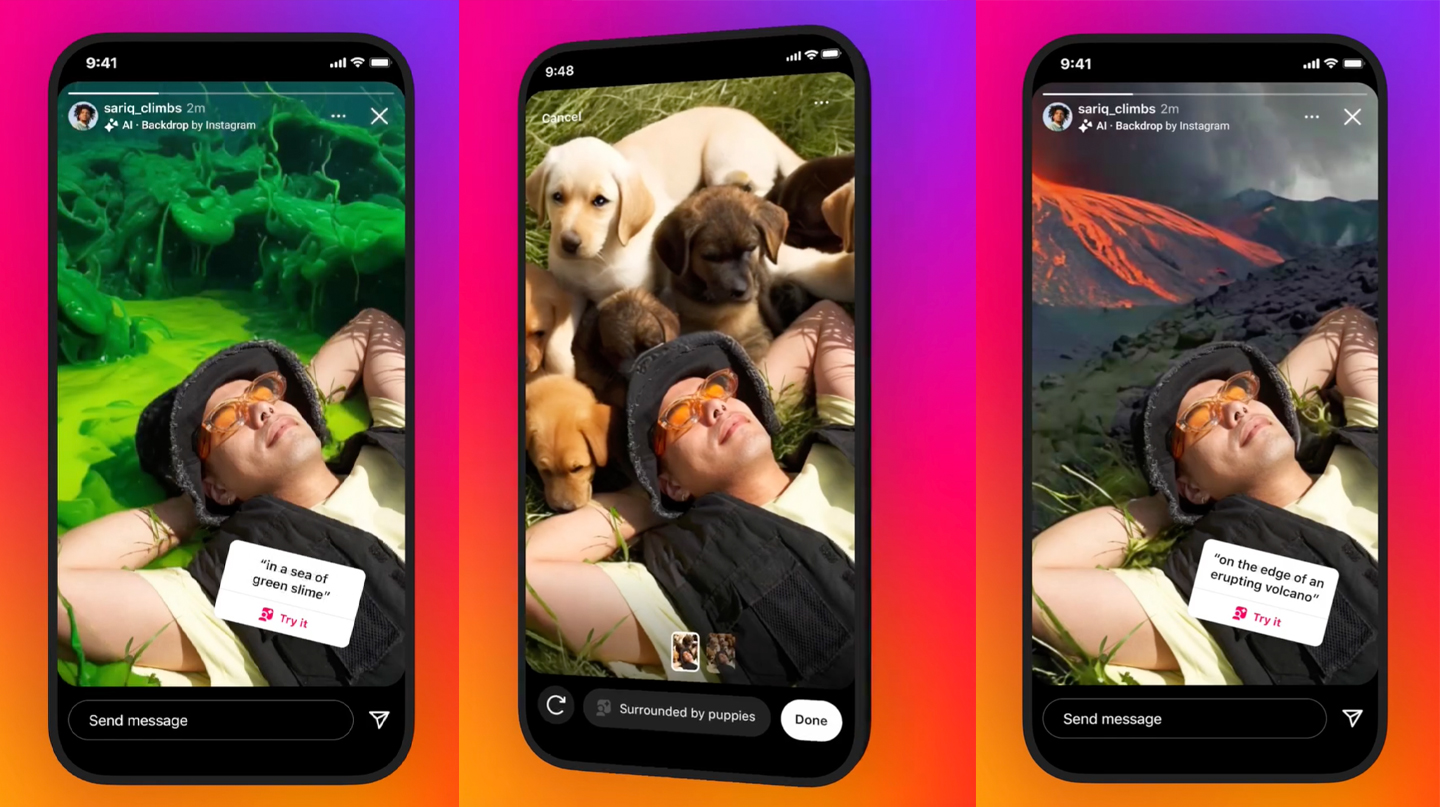
According to some users on Reddit, Instagram also launched an AI-generated backdrop feature to resolve background issues. Using this feature, you can type a prompt to create a story background. However, this feature is no longer available to most users.
The Reality is: Instagram doesn’t offer any option to add backgrounds that match your specific brand, mood, and requirements. As a result, users often turn to more powerful third-party apps like UPDF.
Part 2. What Most Creators Do Instead
As mentioned above, Instagram doesn’t offer real background customization which means you have to use third party apps such as Canva to make your own Instagram background images for stories. To do that, you can follow the steps below:
Step 1. Go to Canva and open your design by searching “Instagram Story Size.”
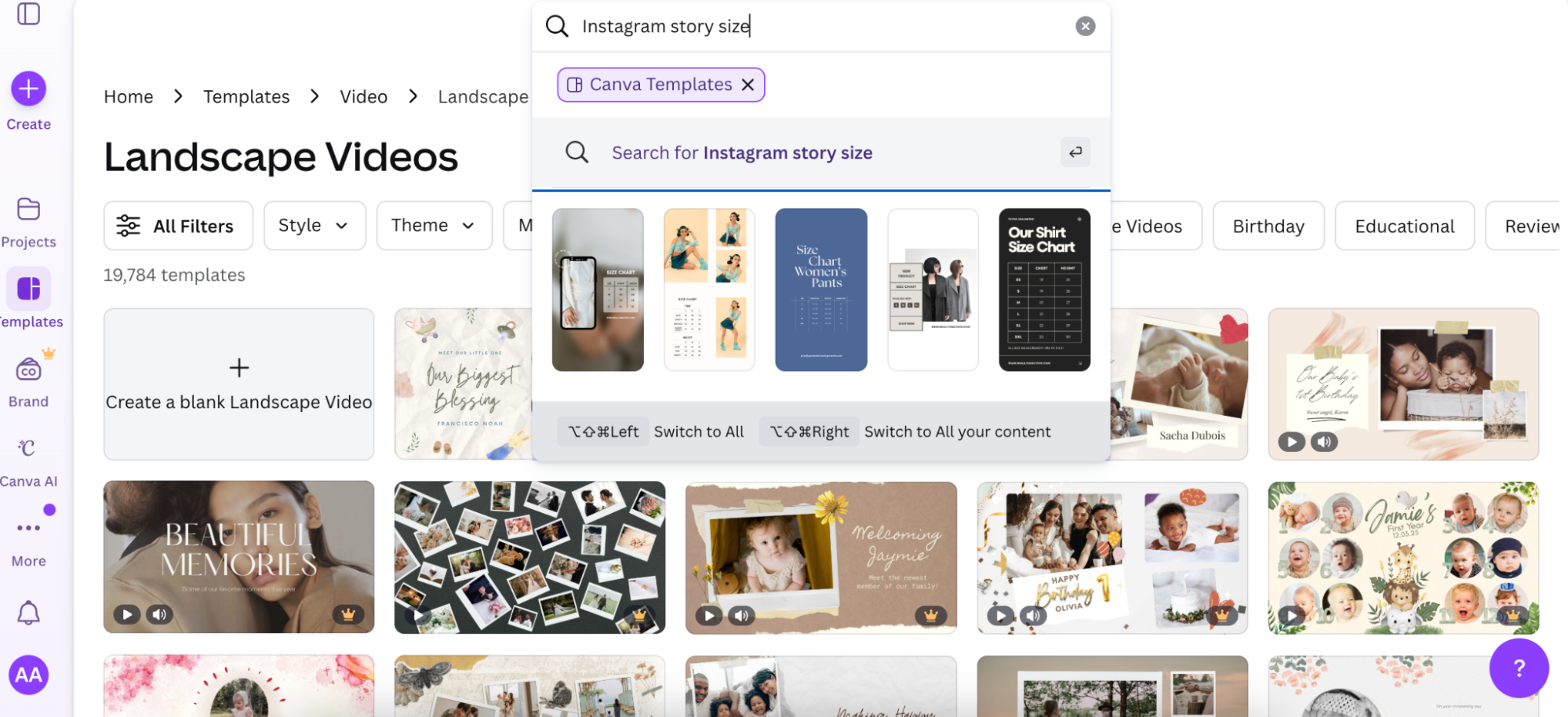
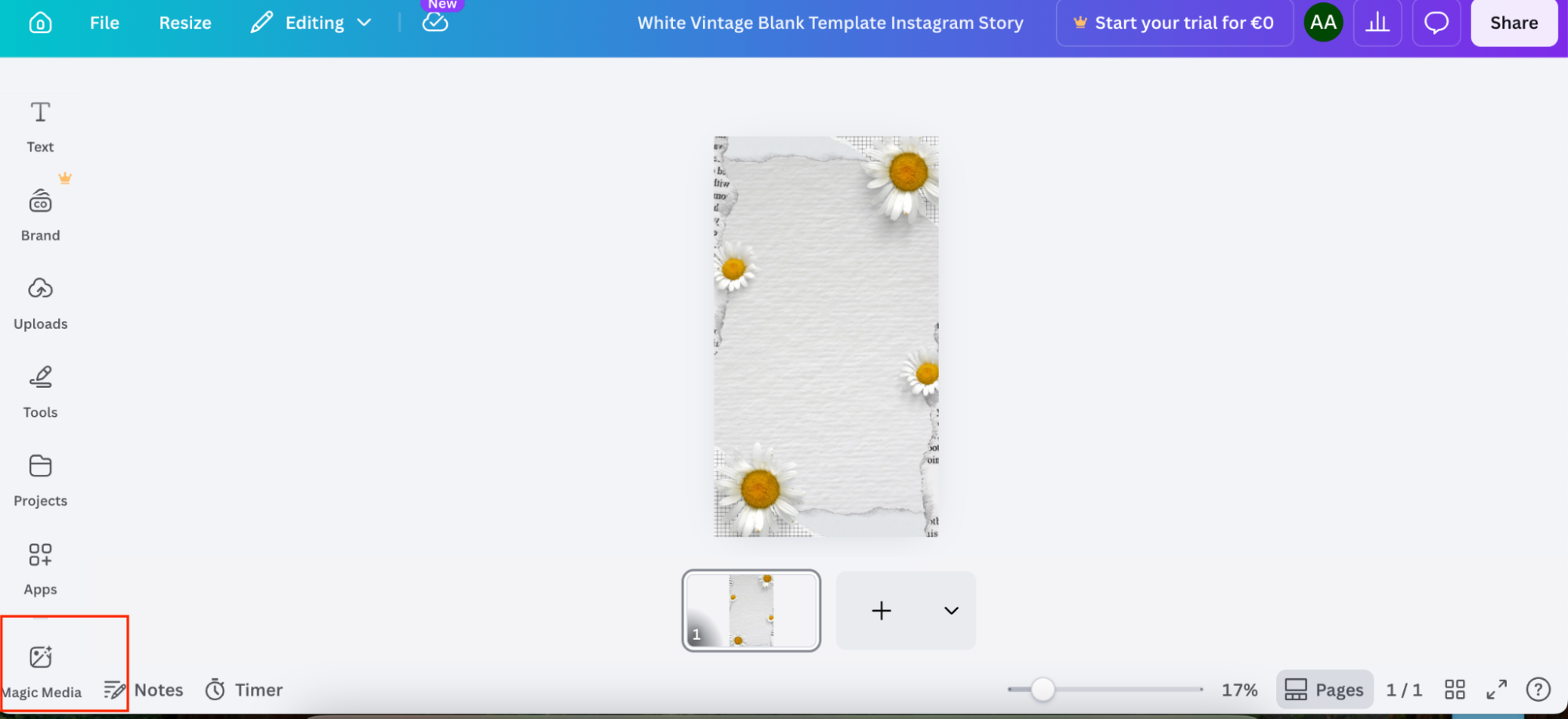
Step 2. On the left side bar, click the “Magic Media” option.
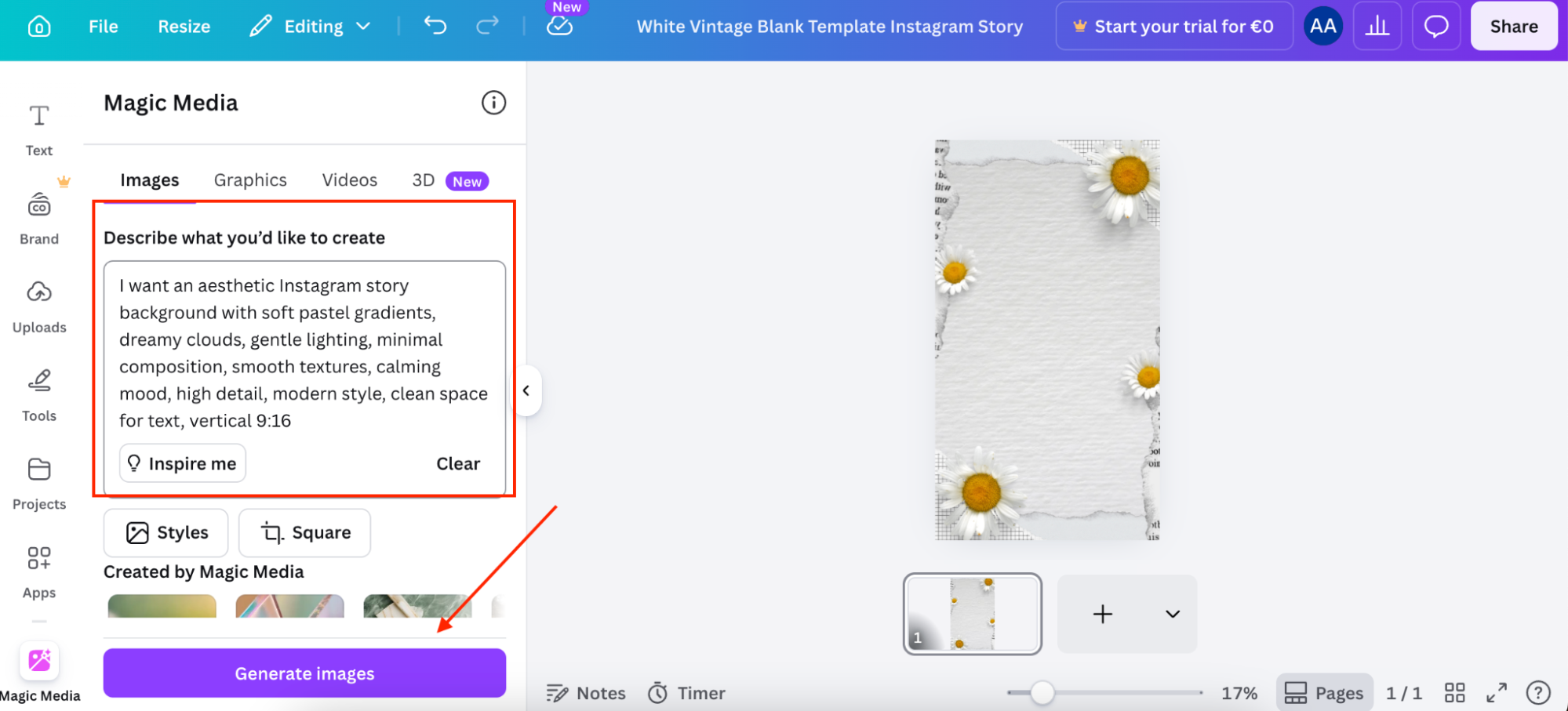
Step 3. Now, enter your prompt and click the “Generate Images” option.
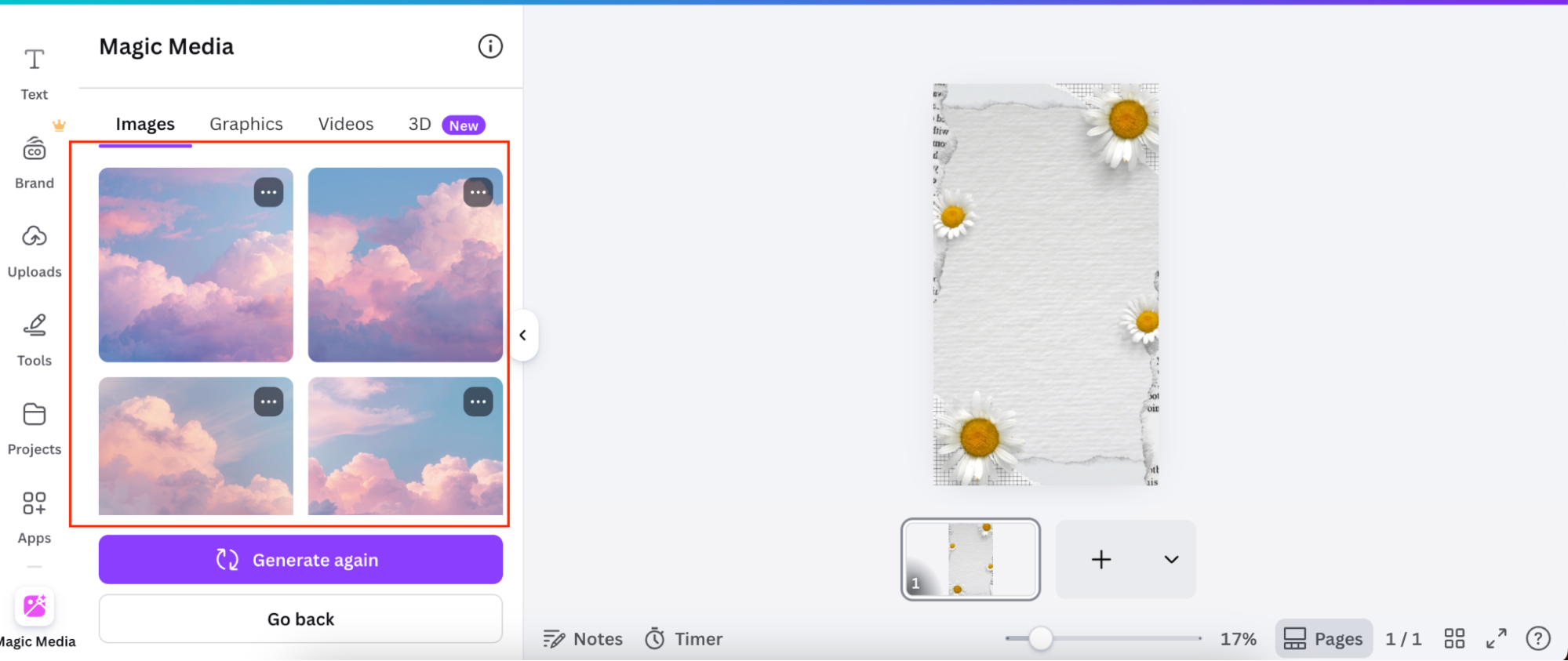
Step 4. Soon, the app will generate multiple backgrounds for your Instagram.
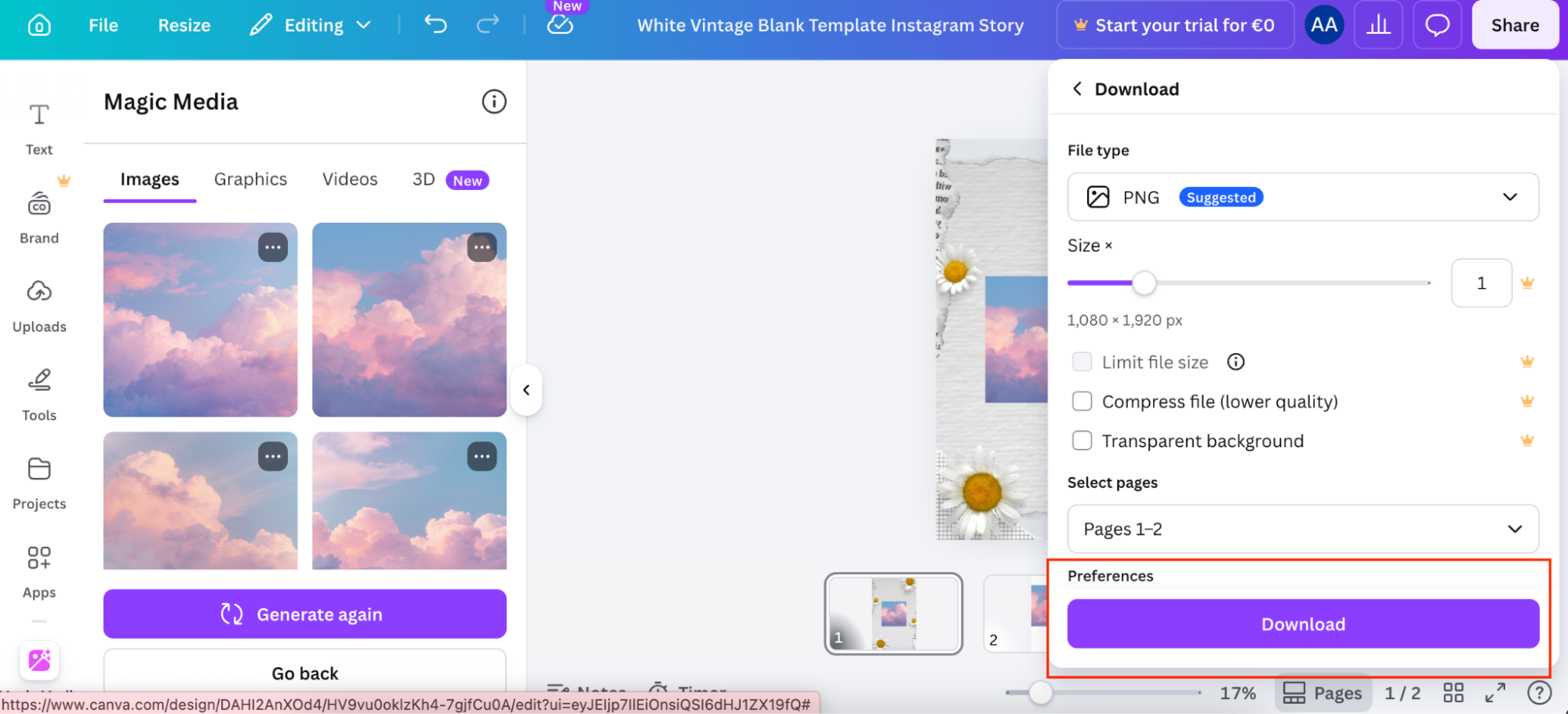
Step 5. Add your favorite background to your image and click the “Download” option.
Step 6. Now, transfer the image to your phone and upload it to your Instagram stories.
Important Note:
Comparison Table
| Tool | How Backgrounds Are Created | Story-Ready Size? | Download Background Separately |
| Instagram Native | Color Fill / Gradient Only (AI Backdrop Removed) | ✅ | ❌ |
| Canva | Template-based, Manual Design | ✅ (with IG Template) | No direct downloading available. You must add the image to the canvas and download the entire Canva design. |
| UPDF AI Background Generator | Text Prompt → 3 AI-Generated Images | ✅ — 1024×1536 PNG Exactly | ✅ |
Part 3. How to Generate Instagram Story Backgrounds with UPDF
If you are planning to use third party apps to generate background photos for Instagram stories, you should use UPDF. With this software, you can create Insta story background images just by typing a simple description. Moreover, it creates no-watermark images and gives you three different options per prompt. Moreover, it automatically generates images in 1024×1536 pixels, which is the ideal 9:16 size for Instagram Stories. That means you don’t need to worry about resizing and cropping issues. Here is how you can use UPDF to create the perfect Instagram background images for stories.
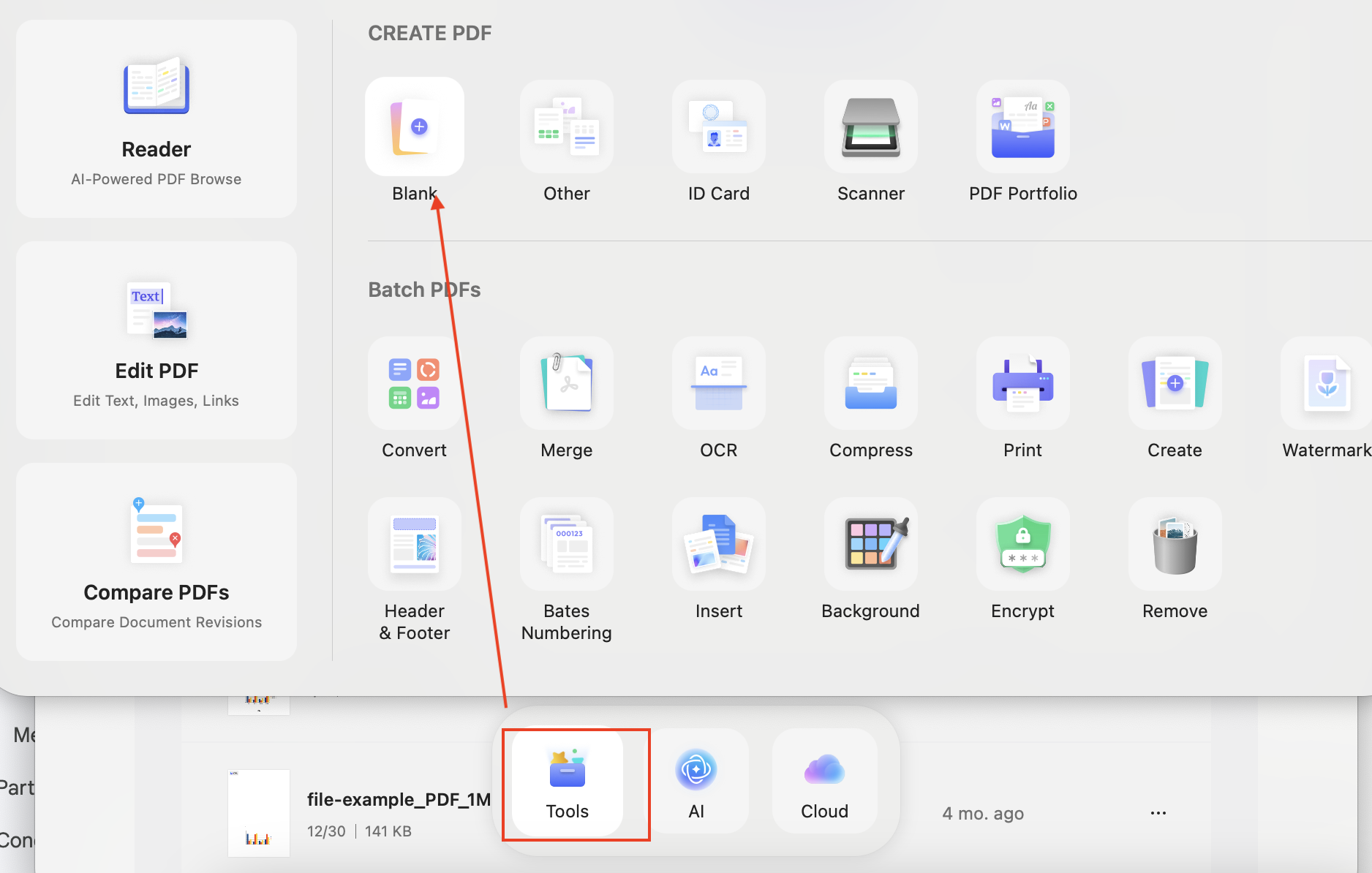
Step 1. Open UPDF app on your device and click “Tools” to create a blank document.
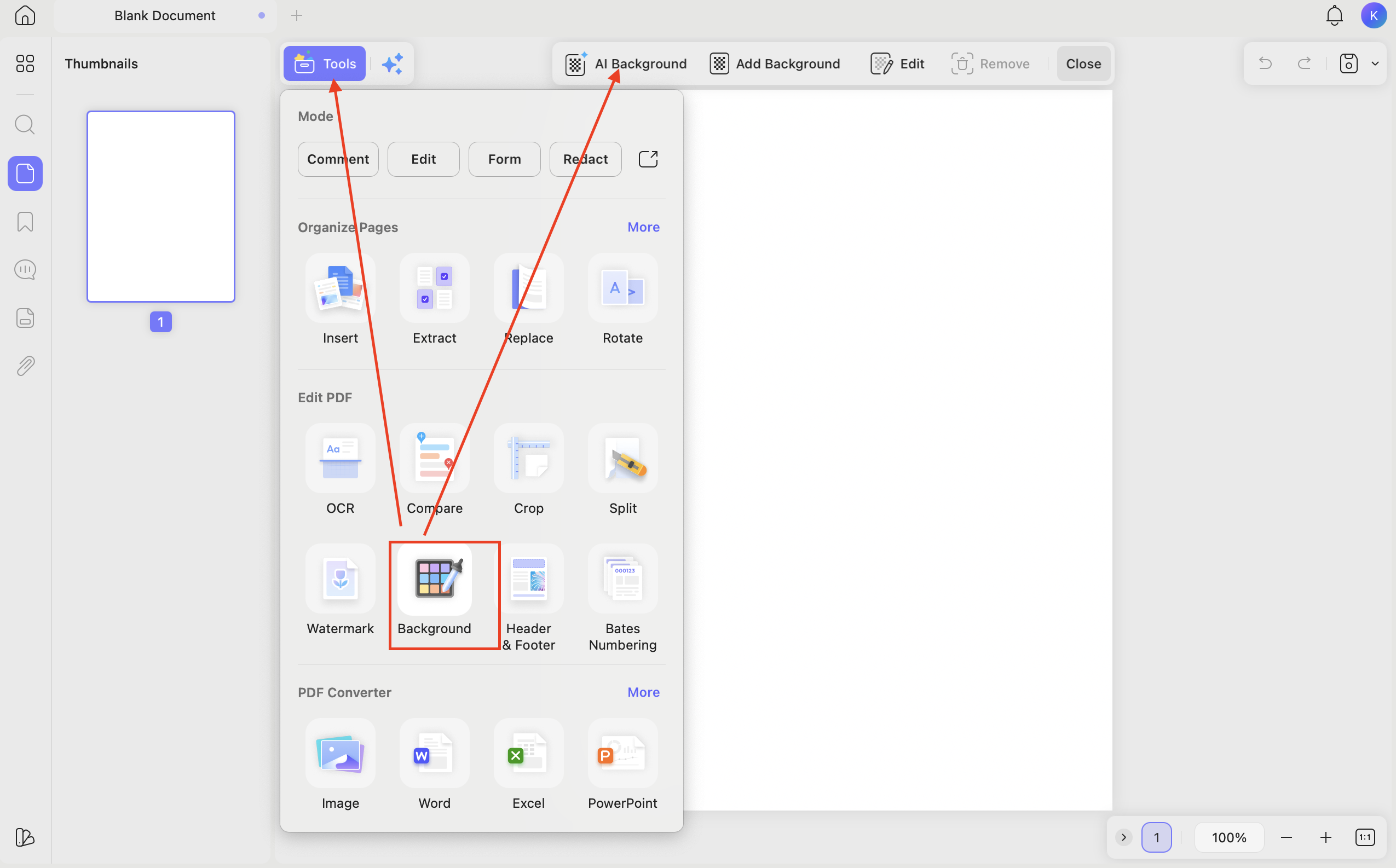
Step 2. From the top menu, select “Tools,” then under “Edit PDF,” click “Background” to open the AI Background Generator.
Step 3. Next, enter your prompt to describe the background and click the “Send” icon to begin the process. You can try the following prompts for creating your background.
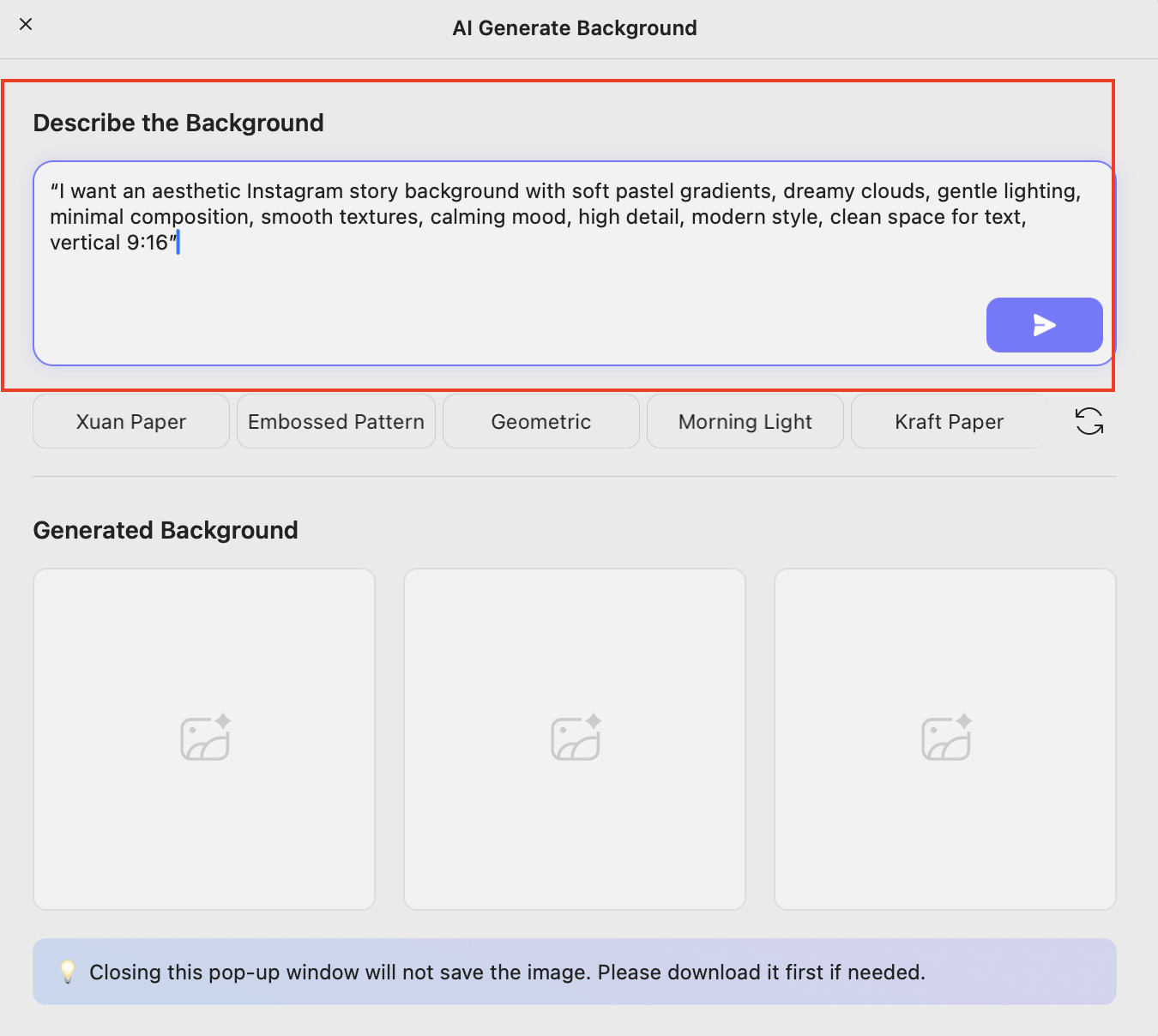
“I want an aesthetic Instagram story background with soft pastel gradients, dreamy clouds, gentle lighting, minimal composition, smooth textures, calming mood, high detail, modern style, clean space for text, vertical 9:16”
“Create a warm cozy Instagram story background with soft beige tones, sunlight shadows, minimal decor style, calm atmosphere, gentle textures, aesthetic lifestyle vibe, clean layout, subtle depth, vertical 9:16.”
“Generate an elegant luxury Instagram story background with black and gold colors, soft glowing highlights, premium texture, minimal composition, high contrast, rich aesthetic, clean space for text, vertical 9:16.”
Step 4. Within a few seconds, you will see different background images on your screen.
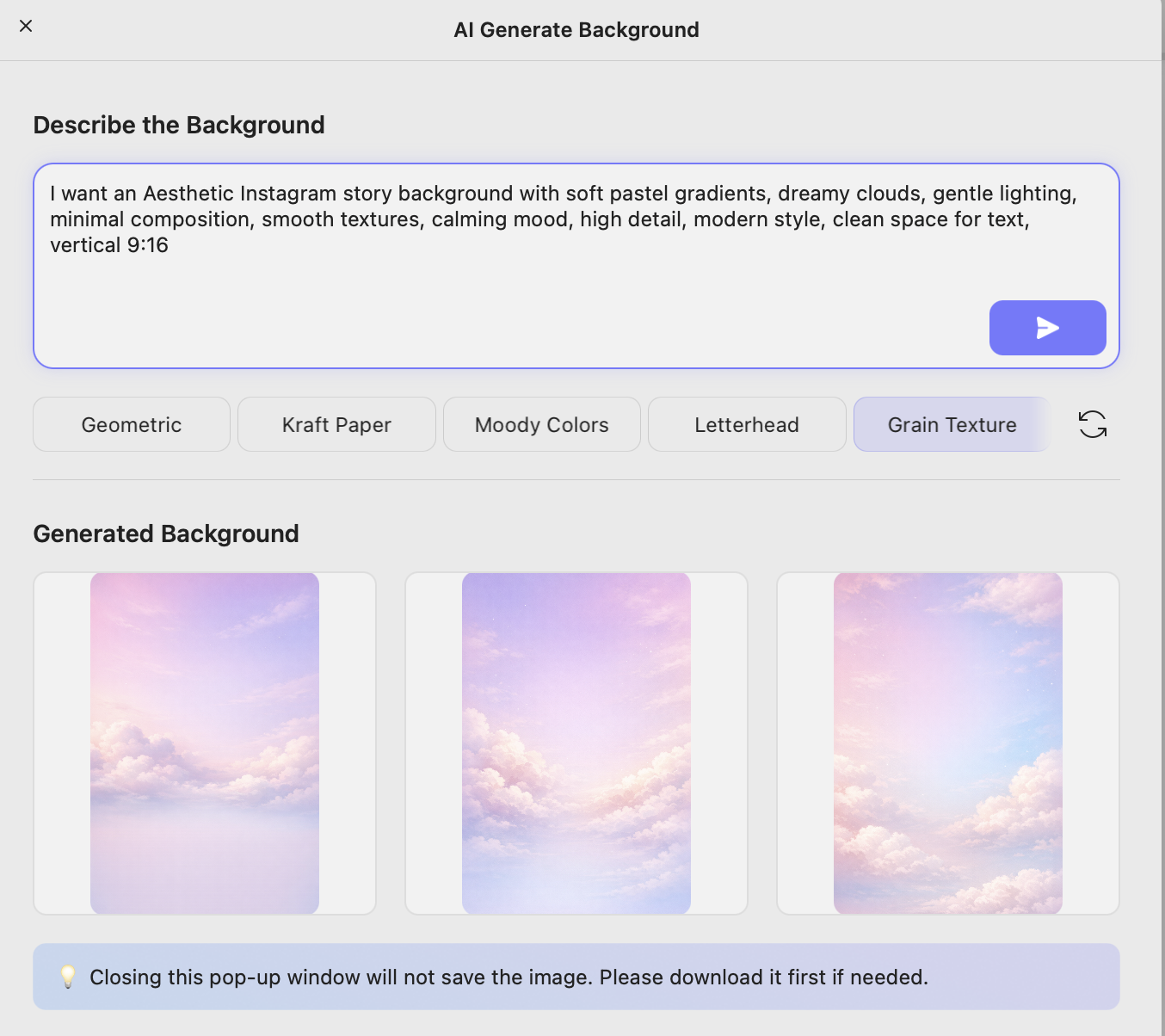
Step 5. Now, download the one which you want to add to your Instagram story.
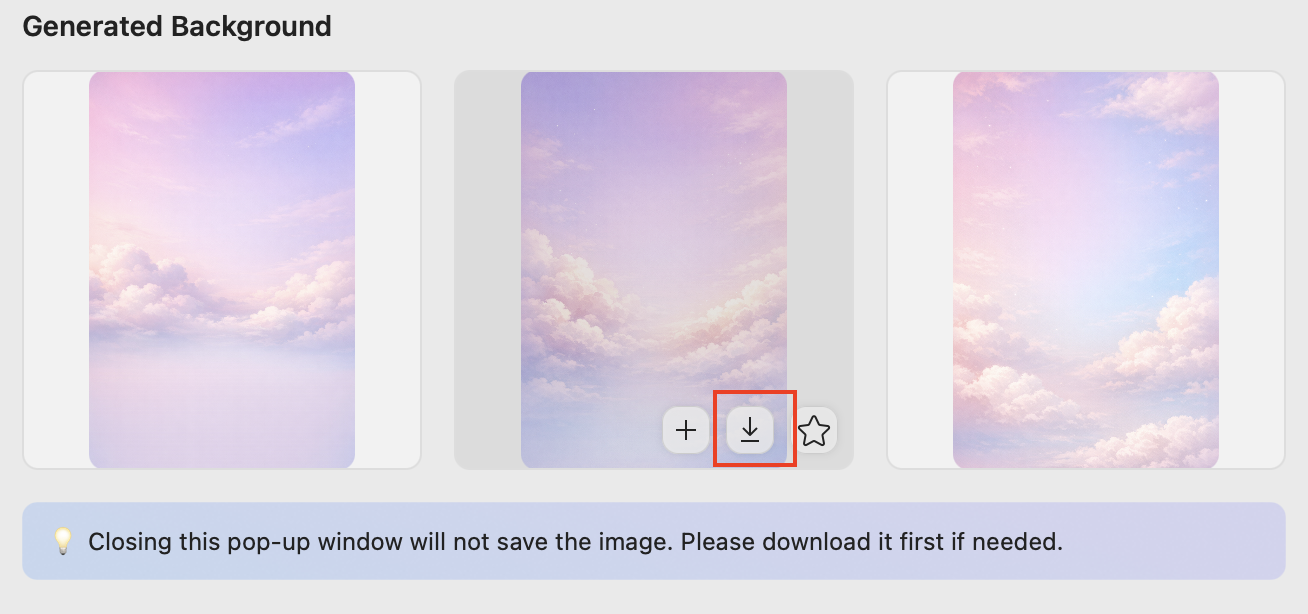
Step 6. Once you have downloaded the background, transfer it to your phone and post it.
Don’t know what to type? No problem. UPDF also gives you built-in prompts, so you can just click and generate the results accordingly.
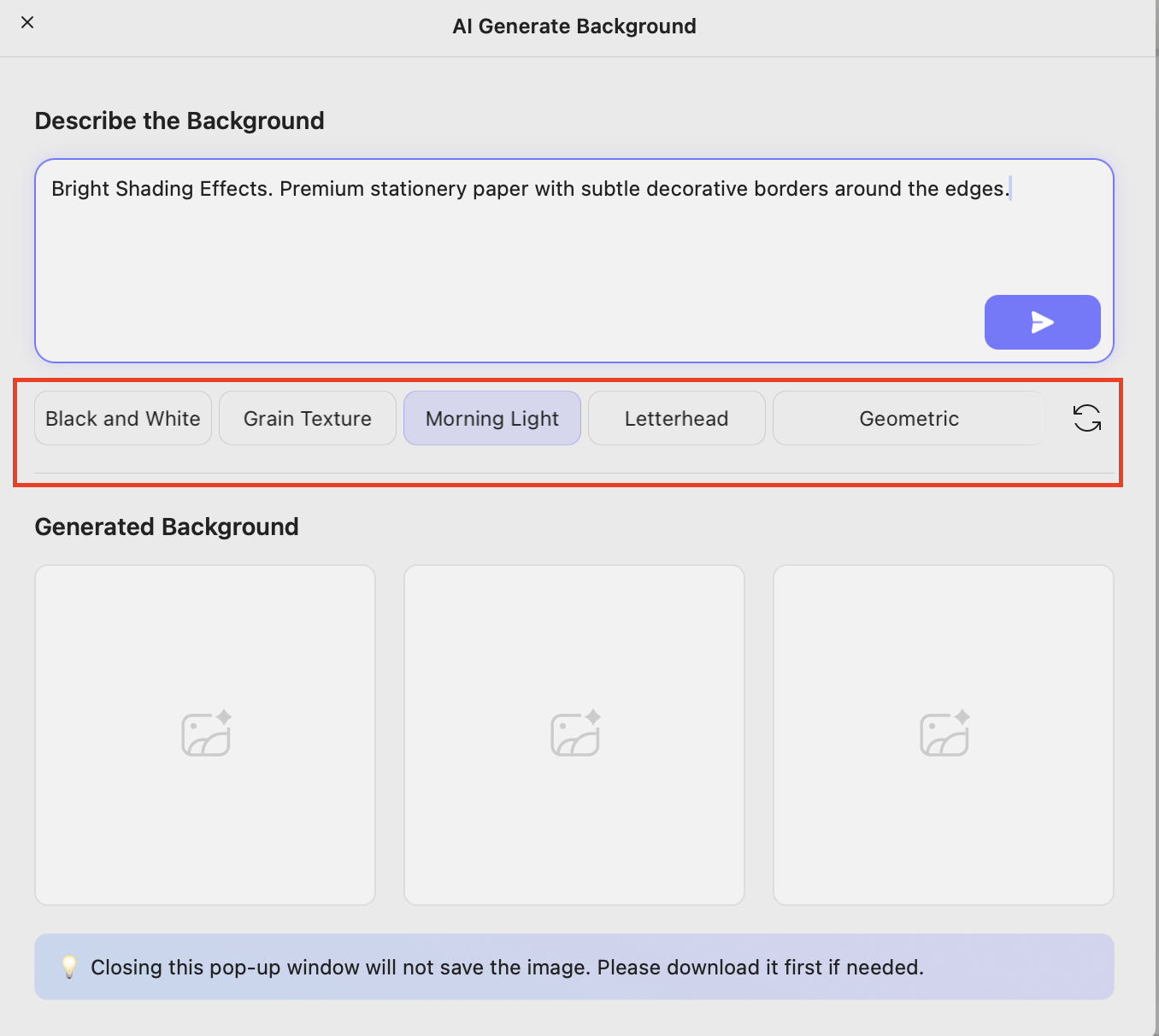
Part 4. Apply Your Generated Background to Instagram Story
Now that you’ve created your custom background, here’s how to use it in Instagram Stories.
Method A - For Image Story
- Step 1. Open Instagram and tap “Your Story.”
- Step 2. Now, choose the background image that you generated from your phone.
- Step 3. It will automatically fill the entire screen.
- Step 4. Click the “Sticker” icon and choose Photo.
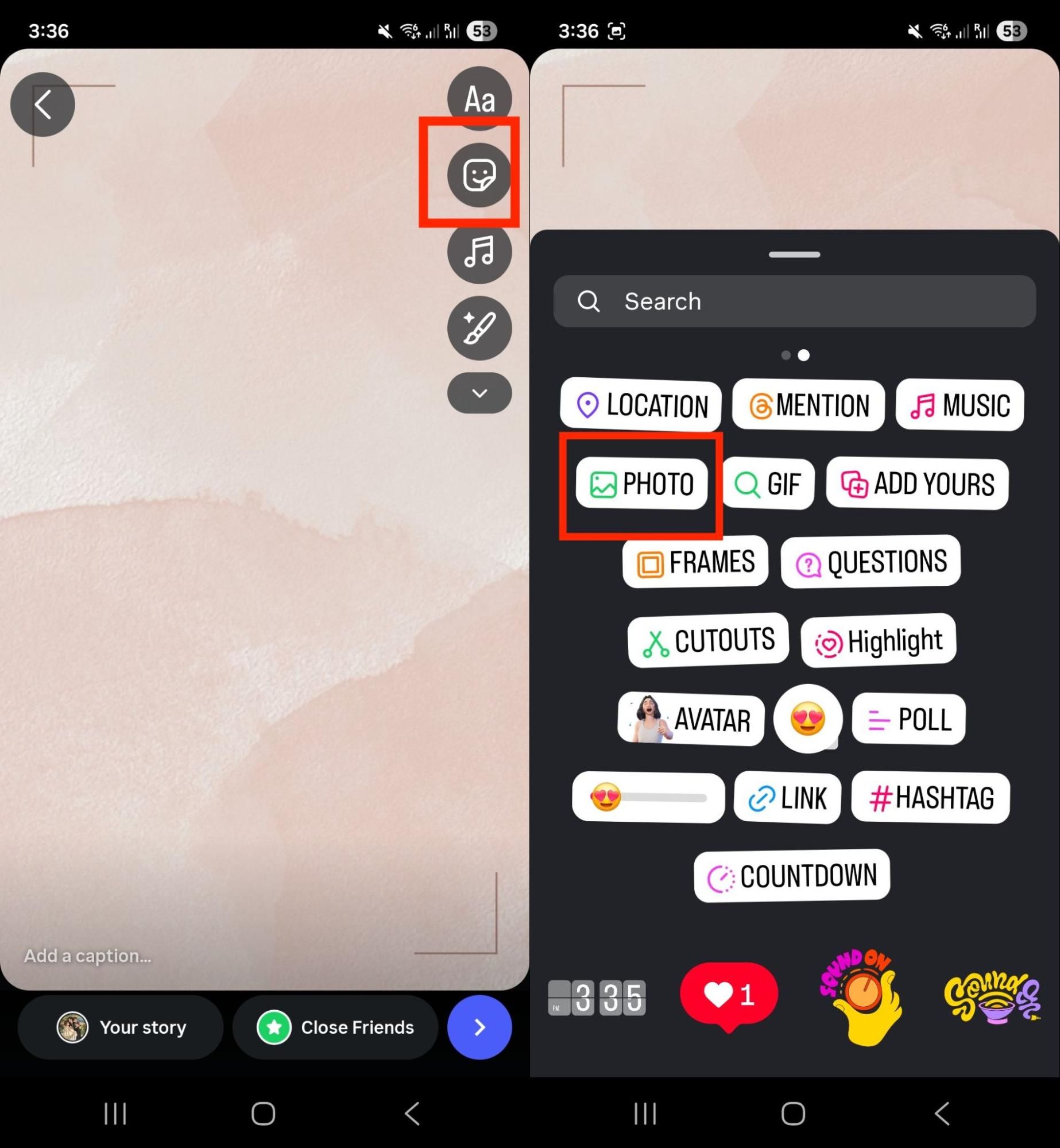
- Step 5. Next, add your main image on top and adjust its size accordingly.
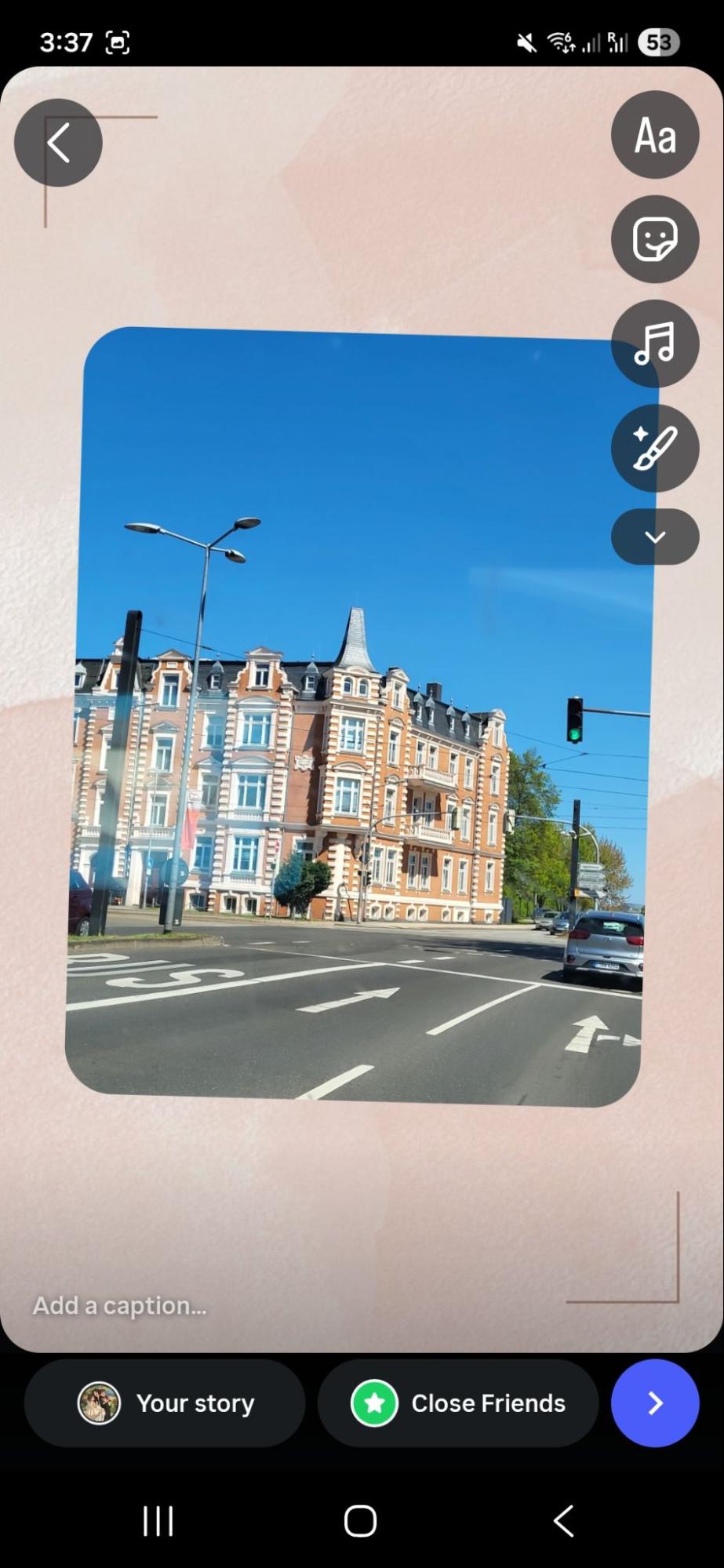
Method B – For Reel or Feed Post Story
You can use this method when you want to repost a Reel or feed post with a custom background behind it. Here is how you can apply the generated background to your Instagram story.
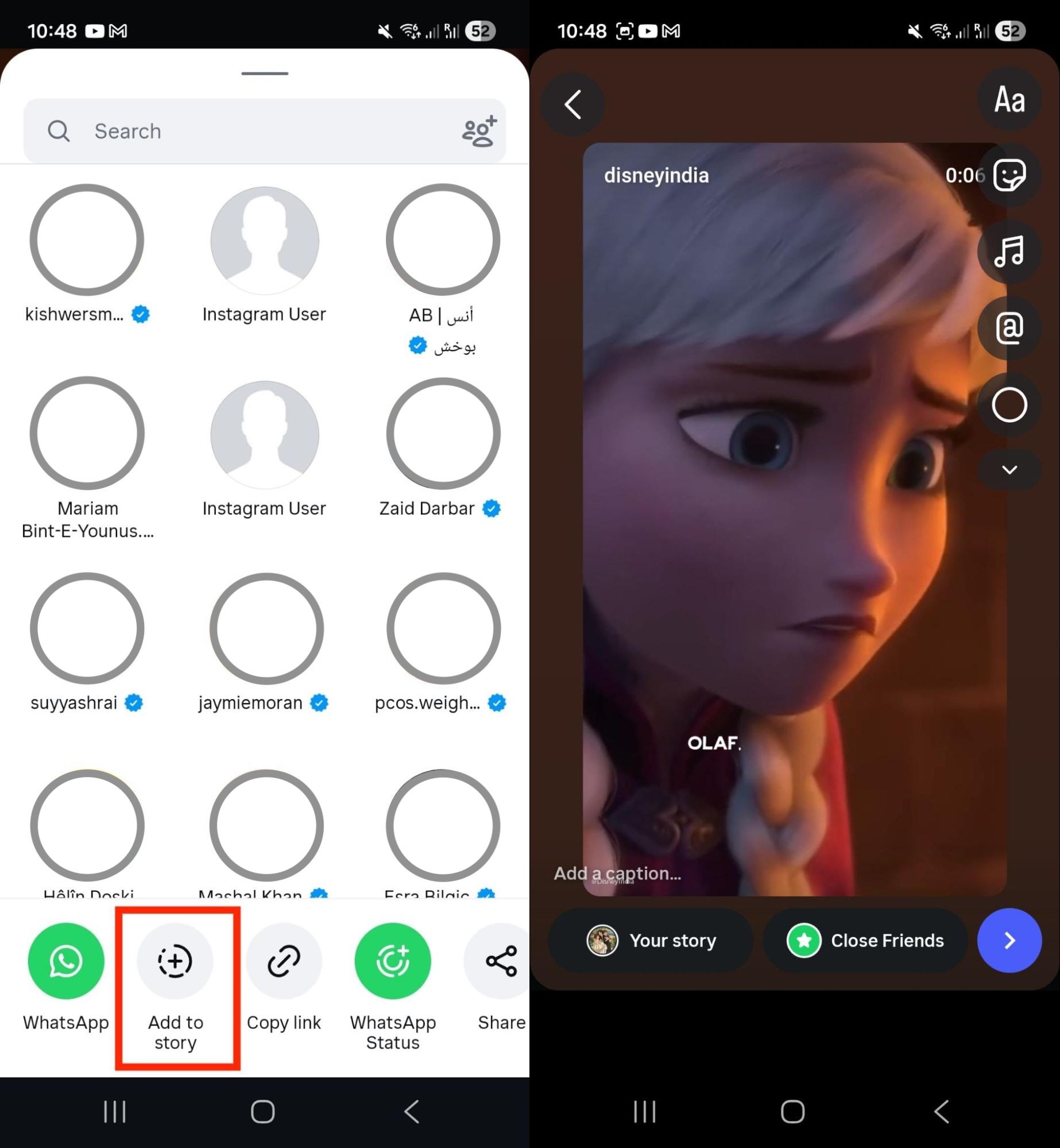
- Step 1. First, share a random Reel or post to your story by clicking the “Add to Story” option and adjust its settings, such as size.
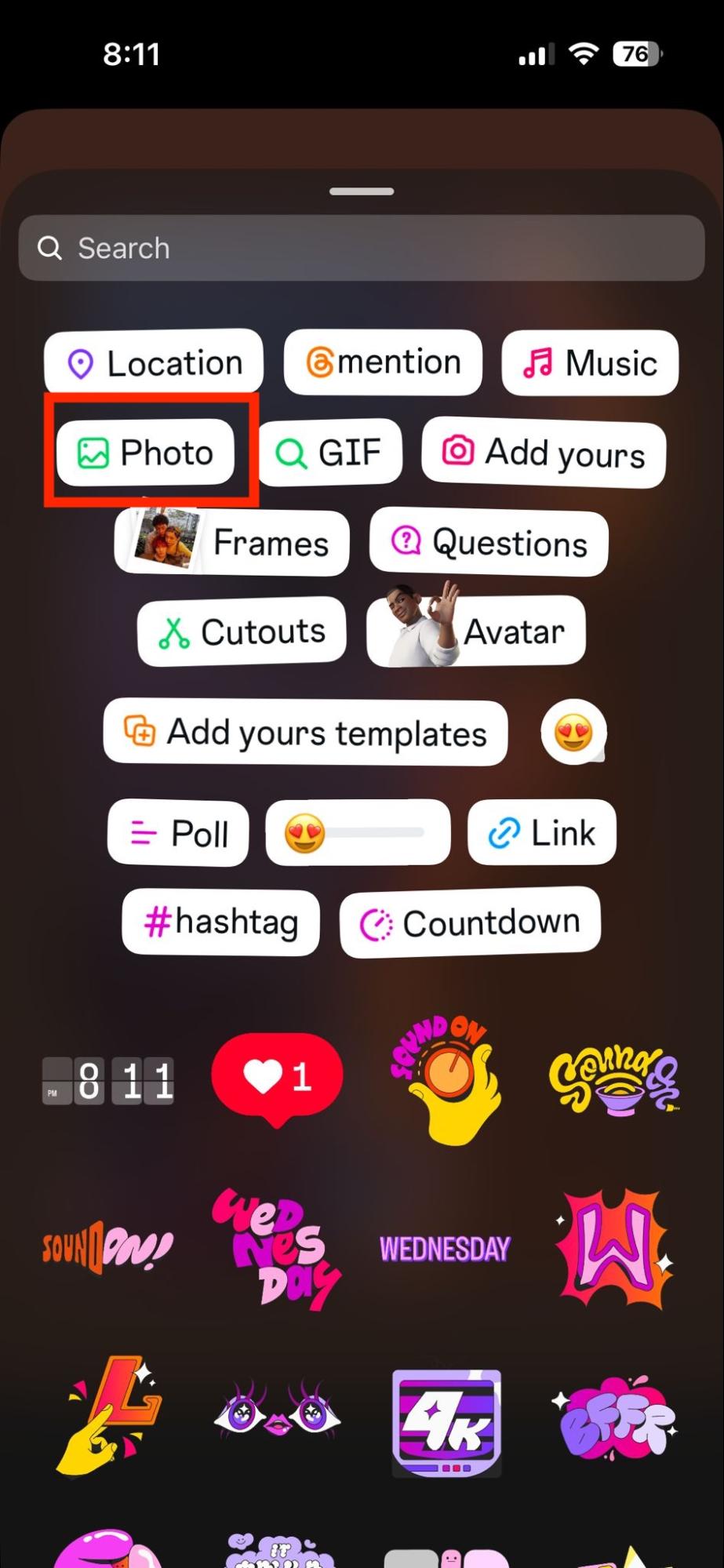
- Step 2. Once done, tap the “Sticker” option and click “Photos.”
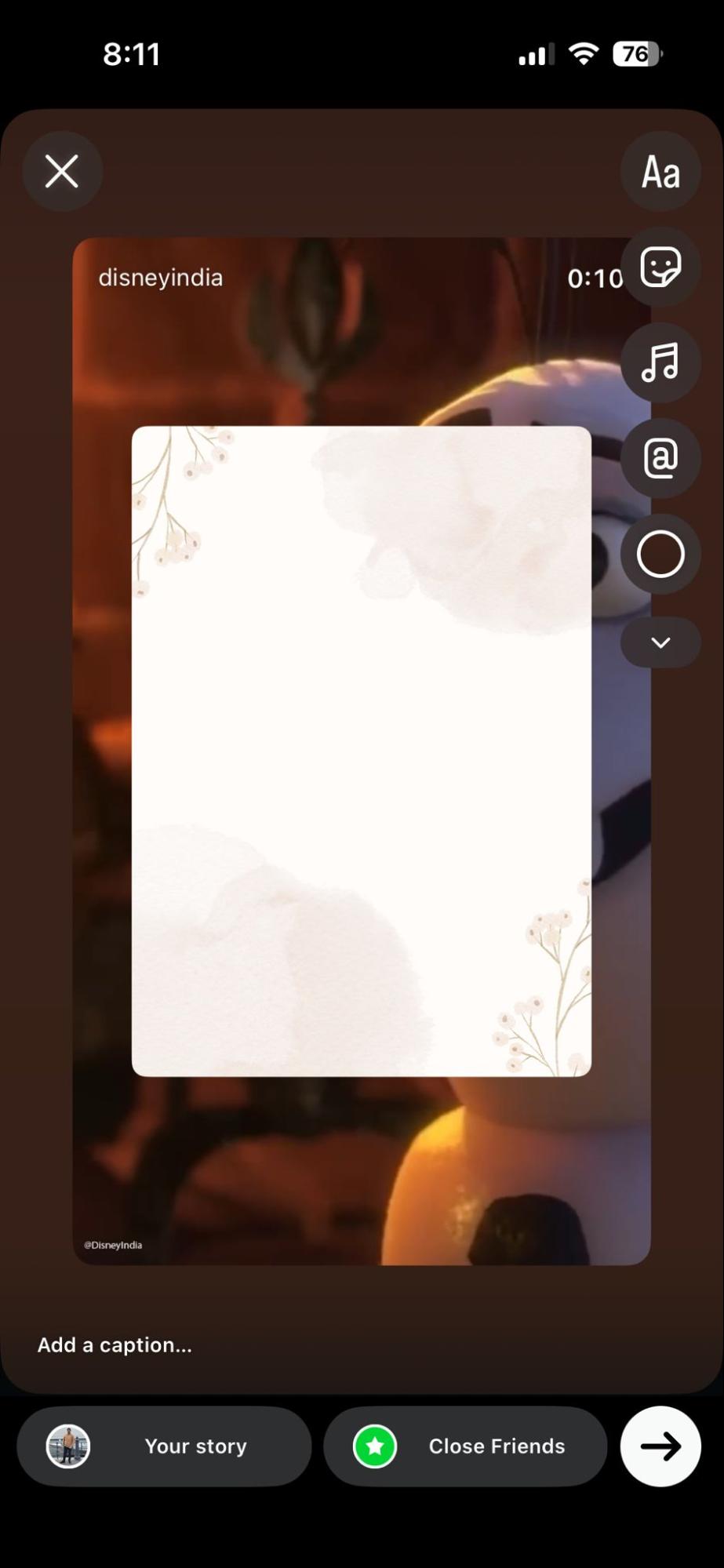
- Step 3. Next, pick your generated background image and expand it to cover the full screen.
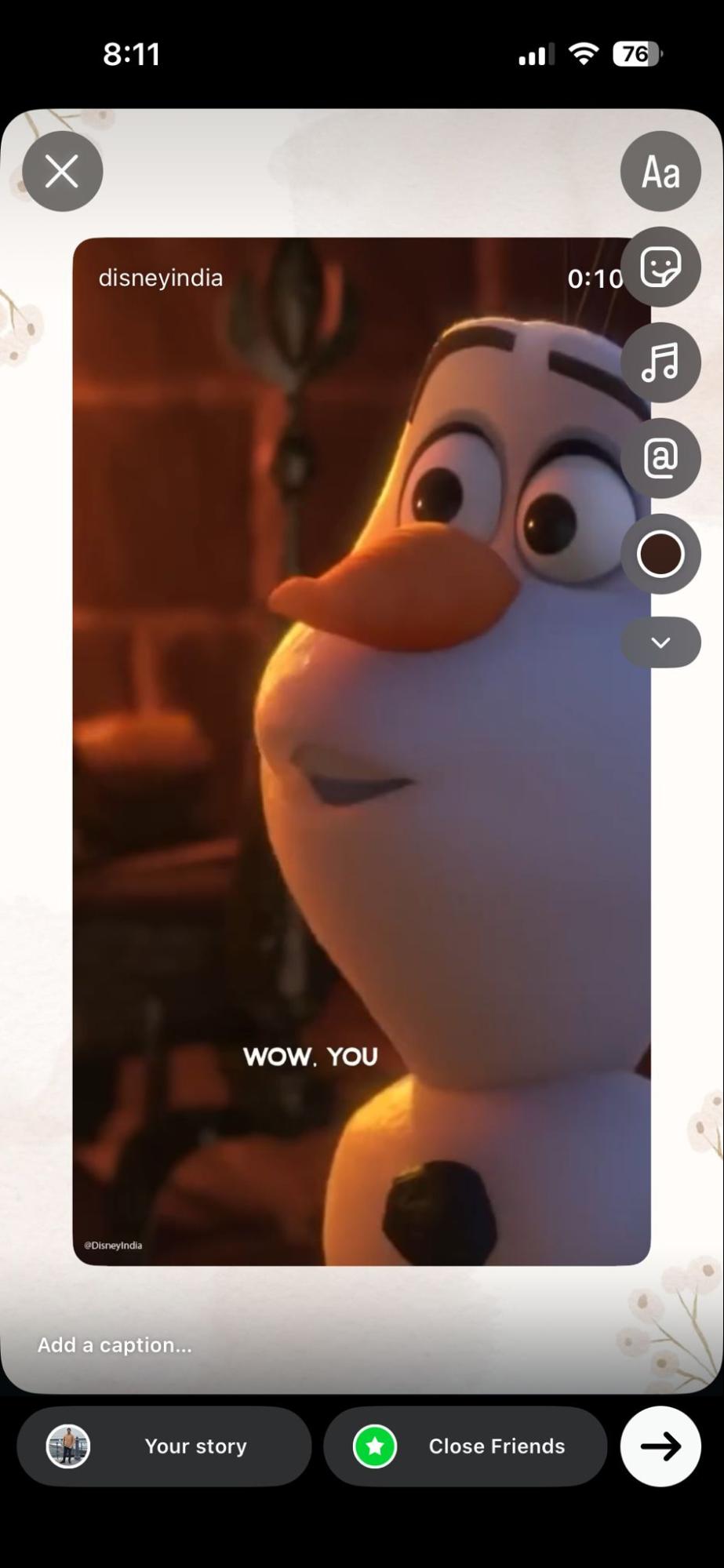
- Step 4. Then hold it for a few seconds to add background to your reel or post.
Part 5. Bonus — Complete Your Story with AI-Generated Stickers from UPDF
Once you have your background ready and want to add more than just Instagram’s default stickers, you can use UPDF to create your own. Yes, this tool offers an AI Sticker Maker that helps you create custom sticker-style images within seconds. It works the same as an AI Background Generator, just type a prompt, adjust settings, and you are good to go. Moreover, the stickers are created in PNG format, so you can easily download them and place them directly onto your Story as overlays. Here is how you can use AI-Generated Stickers from UPDF.
Windows • macOS • iOS • Android 100% secure
Step 1. Open your PDF and click the “Tools” option.
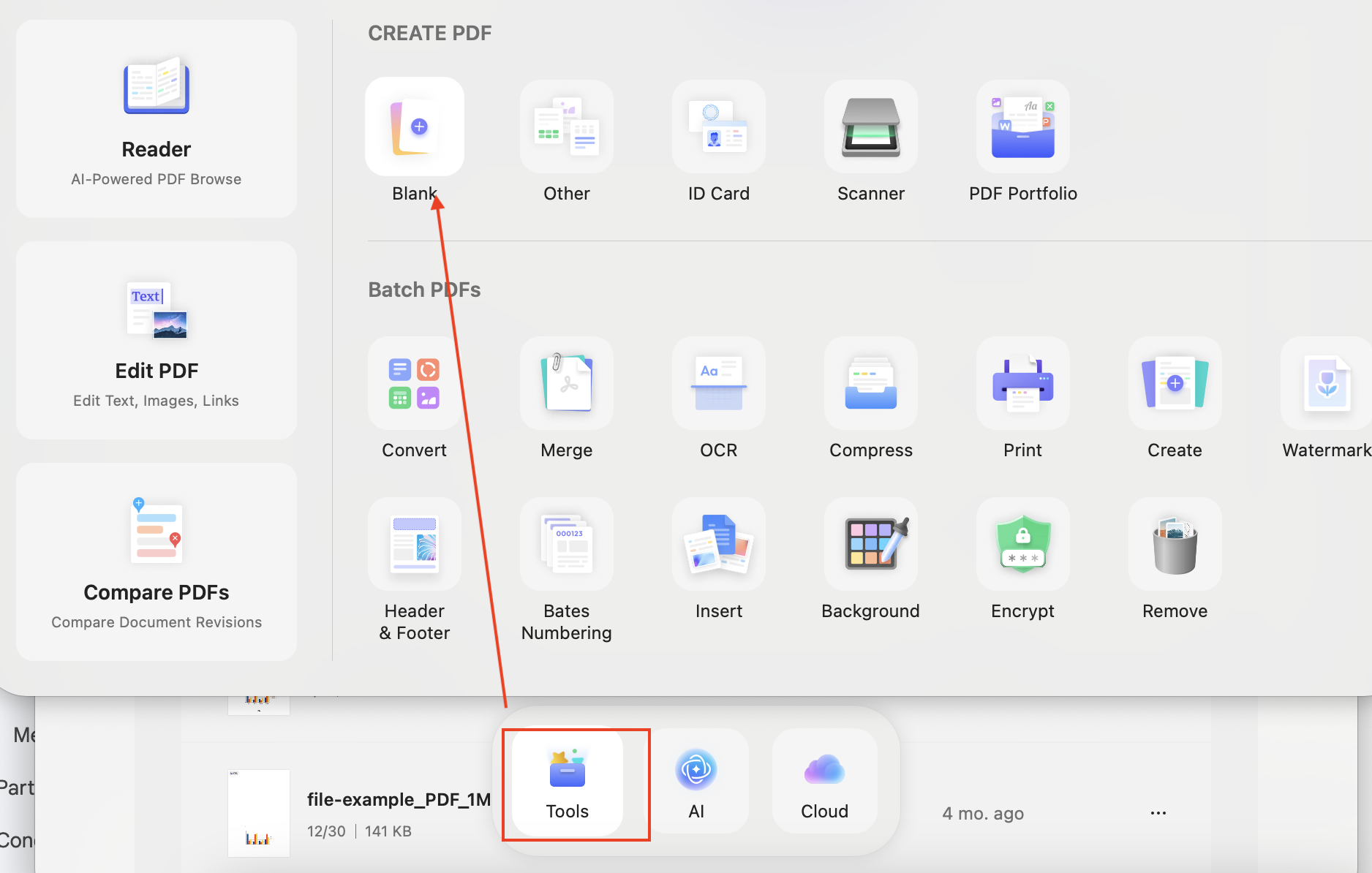
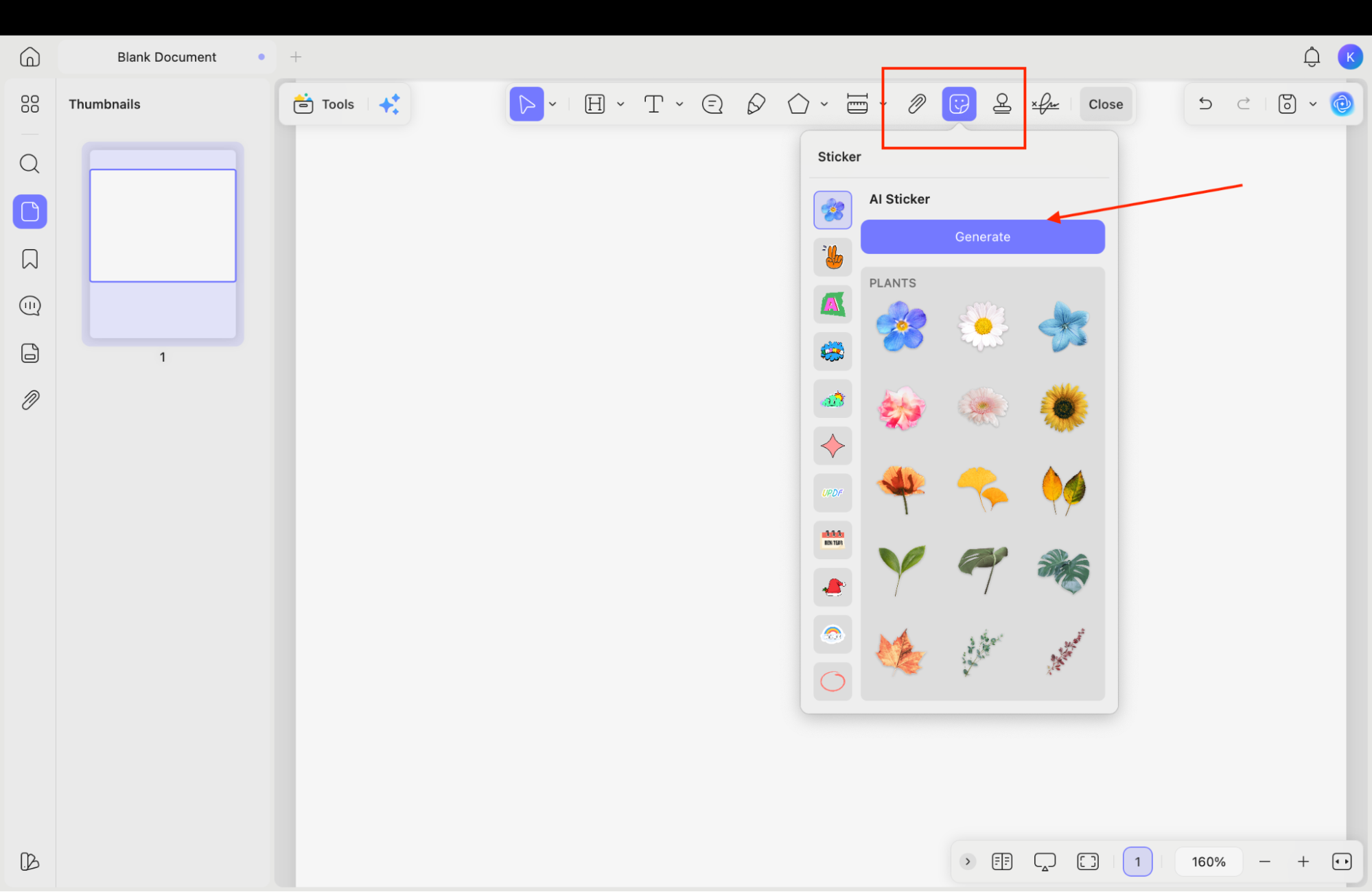
Step 2. Now, click the “Comments” option and choose "Stickers." To start creating the stickers, click the“Generate” option.
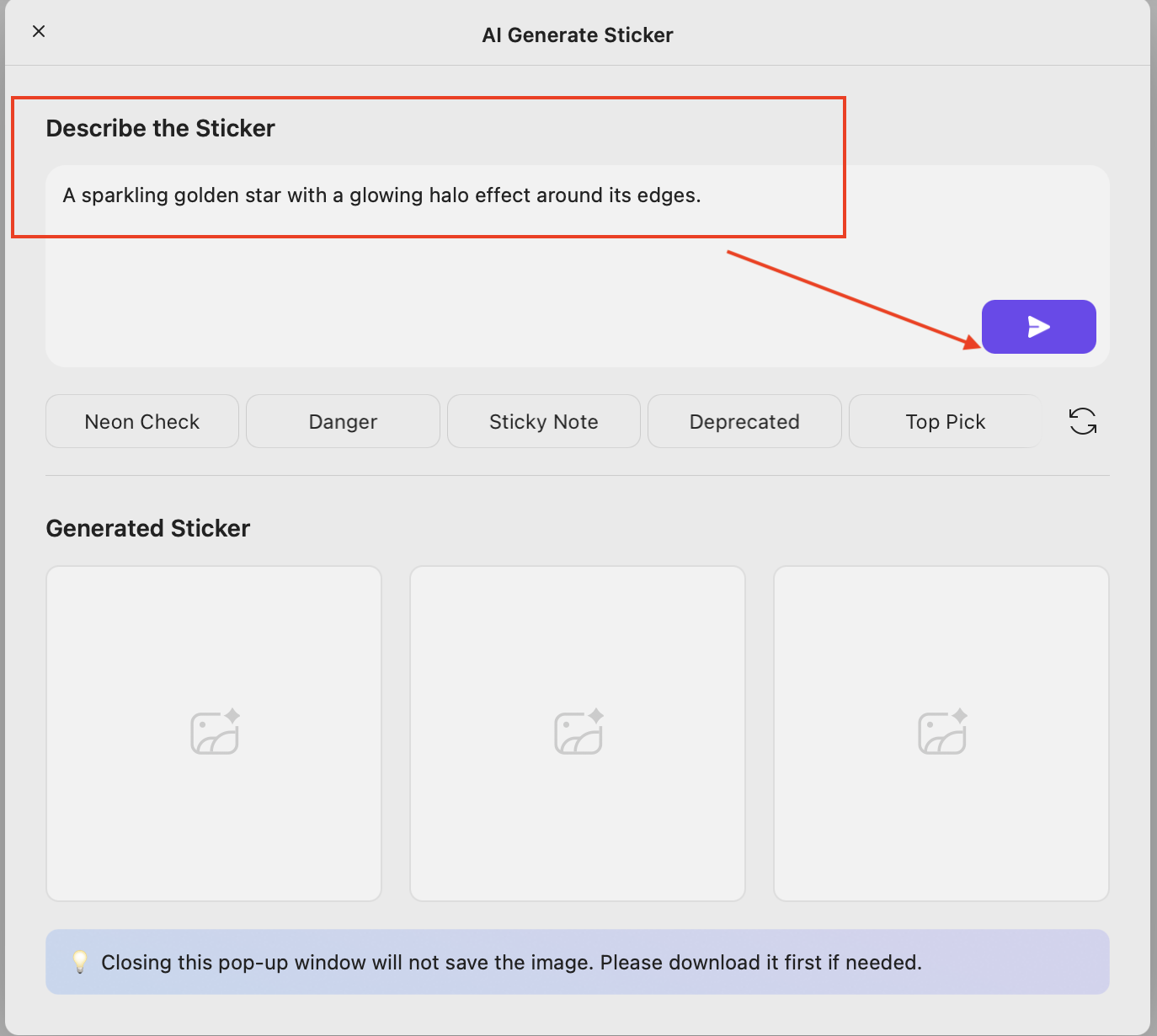
Step 3. In the text box, write a prompt to describe your sticker and click the “Send” icon.
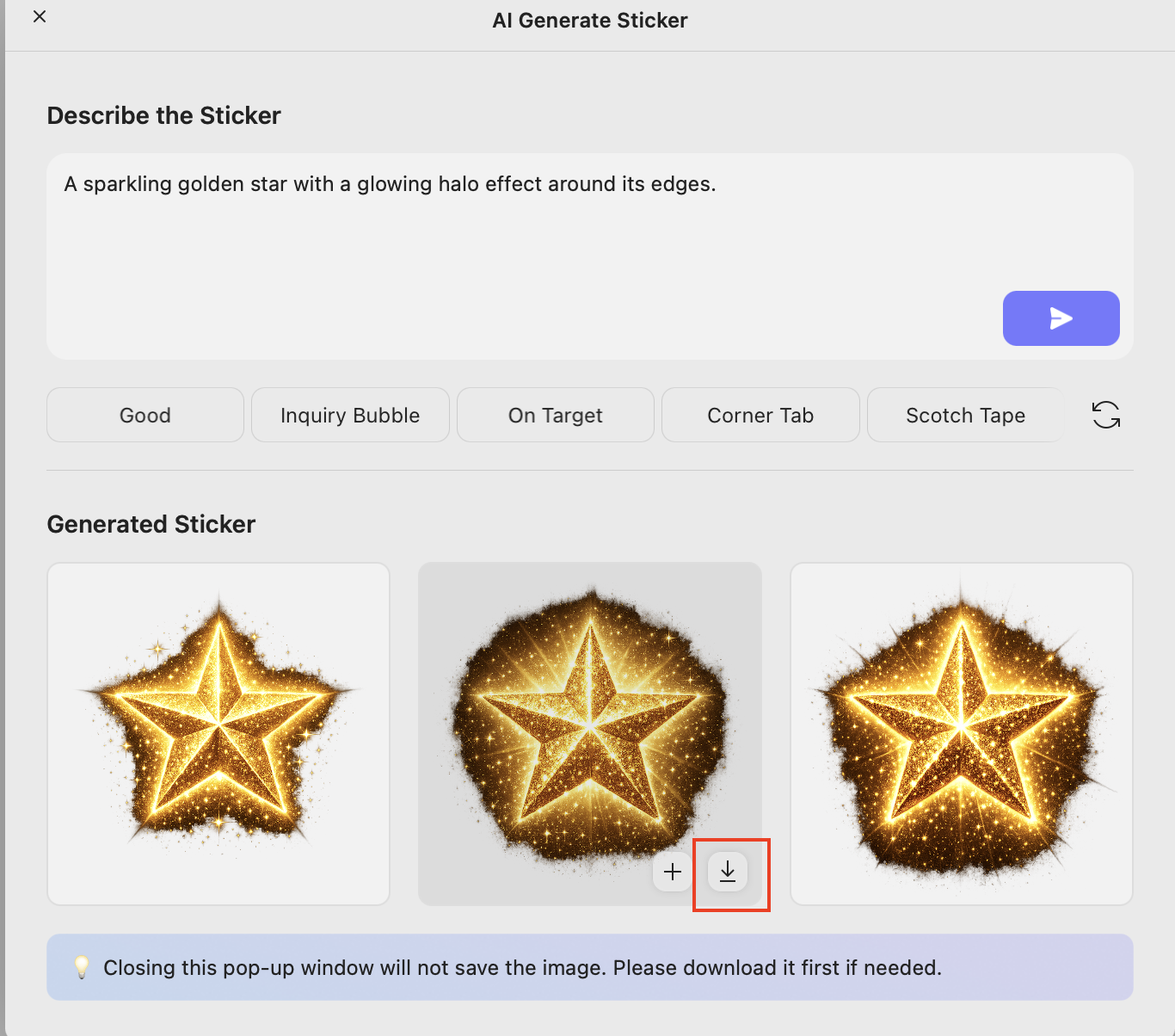
Step 4. You’ll get three high-quality PNG sticker images, each with a resolution of 1024 × 1024. Simply download your favorite and use it in your Instagram Story.
Note: You’ll need to transfer the sticker to your phone before using it on Instagram.
Windows • macOS • iOS • Android 100% secure
Conclusion
Instagram offers only limited background customization and stickers that means you can’t change the background or add stickers according to your requirements. As a result, you have to use different third-party tools to create attractive Insta story background images for your followers. I would recommend using UPDF because it provides both AI Background Generator and AI Sticker Generator to create appealing background images and stickers. You can export images in JPG and PNG formats, making them easy to download and use across mobile devices.
Windows • macOS • iOS • Android 100% secure






 Enrica Taylor