 UPDF
UPDF
 UPDF for Windows
 UPDF for Mac
 UPDF for iPhone/iPad
 UPDF for Android
 Nomostar
 UPDF AI Online
 UPDF Sign
 IvyCraft
 Edit PDF
 Annotate PDF
 Create PDF
 PDF Form
 Edit links
 Convert PDF
 OCR
OCR PDF to Word
 PDF to Image
 PDF to Excel
 Organize PDF
 Merge PDF
 Split PDF
 Crop PDF
 Rotate PDF
 Protect PDF
 Sign PDF
 Redact PDF
 Sanitize PDF
 Remove Security
 Read PDF
 UPDF Cloud
 Compress PDF
 Print PDF
 Batch Process
 About UPDF AI
 UPDF AI Solutions
 AI User Guide
 FAQ about UPDF AI
 Summarize PDF
 Translate PDF
 Chat with PDF
 Chat with AI
 Chat with image
 PDF to Mind Map
 Explain PDF
 PDF AI Tools
 Image AI Tools
 AI Chat Tools
 AI Writing Tools
 AI Study Tools
 AI Working Tools
 Other AI Tools
 AI Bookmark Generation
 AI Bookmark Summary
 AI Watermark Generation
 AI Background Generation
 AI Sticker Generation
 AI Stamp Generation
 AI Editing Suite
 UPDF Copilot
 AI Page Management
 AI Semantic Search
 PDF to Word
 PDF to Excel
 PDF to PowerPoint
 Enterprise Solution
 Enterprise Sign
 Enterprise AI
 Enterprise Plan
 Enterprise User Guide
 Enterprise Webinar
 Banking
 Healthcare
 Insurance
 Legal
Legal Manufacturing
 Government
 Researchers & PhDs
 Solopreneurs & Freelancers
 Lawyers & Legal Professionals
 Real Estate Agents & Brokers
 Education Solution
 Customer Stories
 User Guide
 UPDF Tricks
 FAQs
FAQs UPDF Reviews
 Download Center
 Blog
Blog Newsroom
 Tech Spec
 Updates
 UPDF vs. Adobe Acrobat
 UPDF vs. Foxit
 UPDF vs. PDF Expert

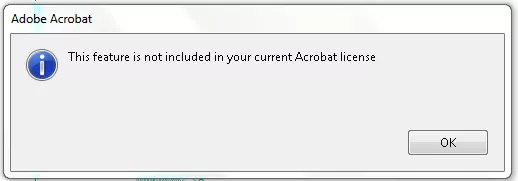
Quick Answer: This message usually appears when Acrobat cannot verify that your Adobe account includes the requested feature. First, confirm that you are signed in with the Adobe ID used to purchase the plan, then sign out, restart Acrobat, and sign in again. If you use a work or school license, ask your administrator to confirm that an Acrobat entitlement is assigned to your account.
If you’ve recently installed Acrobat Pro DC on a Mac or PC and encountered “this feature is not included in your current Acrobat license,” the problem is usually related to the plan, signed-in account, device activation, or installation—not the PDF itself. The fixes below start with the safest checks and cover both personal and organization-managed licenses.
If you need to finish a PDF task immediately while troubleshooting Acrobat, you can also try UPDF for editing, conversion, OCR, annotation, forms, and page organization. Download it free to test the workflow with your own file.
Windows • macOS • iOS • Android 100% secure
Part 1. Why Do You Get “This Feature Is Not Included in Your Current Acrobat License”?
Why does Acrobat show “this feature is not included in your current Acrobat license”? The most common causes are listed below, together with the fix that should be tried first.
| Possible cause | What it means | Recommended fix |
|---|---|---|
| Expired plan or missing feature entitlement | Your subscription has ended, or the selected Acrobat plan does not include the tool. | Check the plan and feature entitlement |
| Wrong Adobe ID or profile | Acrobat is signed in with a different personal, company, or school account. | Sign out and sign in again |
| Device activation limit | The license is already activated on the maximum number of computers. | Deactivate an old device |
| Outdated or damaged installation | Acrobat cannot correctly validate or load the licensed tools. | Update or repair Acrobat |
| Organization-managed license | Your employer or school has not assigned the correct Acrobat entitlement. | Reinstall or contact the administrator |
Adobe currently allows Acrobat to be activated on up to two computers, but the app may be used on only one computer at a time. Reaching that limit normally causes an activation or sign-in problem rather than selectively removing random tools.
Part 2. 5 Ways to Fix “This Feature Is Not Included in Your Current Acrobat License”
Now that the likely causes are clear, try the following fixes in order. Start by checking the plan and account, then move to device activation and installation troubleshooting only if the message remains.
Way 1. Check If Your Account is Expired Or Not
The first thing you should do is check if your Adobe Acrobat Pro DC subscription has expired. If it’s expired, some features will be locked, and you won’t be able to use them until you renew your subscription. Here’s how to check it:
- Open your web browser and go to the Adobe Acrobat Pro DC account login page and sign in with your Adobe ID and password.

- Once logged in, go to the “Plans and Payment” section. Check the status of your subscription by clicking on “Plans.”

- If it says your subscription is expired, you’ll need to renew it to get back full access to Adobe Acrobat Pro.
If the required feature is genuinely excluded from your plan—or you prefer not to renew a recurring Acrobat subscription—UPDF provides a practical alternative for editing, OCR, conversion, annotation, forms, redaction, compression, and batch PDF work. Its individual Lifetime plan is a one-time purchase that includes future UPDF Pro updates and upgrades, so it is worth comparing with a recurring license for long-term use. Moreover, one UPDF license can be used on 4 devices across Windows, macOS, iOS, and Android simultaneously.
Read the detailed UPDF Lifetime license guide, compare UPDF vs. Adobe Acrobat, or check the current options on the UPDF pricing page. You can download UPDF first and test it with your own PDFs before deciding.
Windows • macOS • iOS • Android 100% secure
Way 2. Sign Out and Sign In With the Correct Adobe ID
Acrobat may be signed in with an Adobe ID or account profile that does not own the subscription. This is especially common when the same email address has both a personal profile and a company or school profile.
- In Acrobat, select Help > Sign Out, then close Acrobat completely.
- Reopen Acrobat and select Sign In.
- Use the Adobe ID associated with the purchase. If prompted, choose the correct Personal or Company or School profile.
- Wait about 30 seconds, close Acrobat, and launch it again so the entitlement can refresh.

If the message remains on a work or school account, ask the administrator to confirm that the Acrobat license—not only free Acrobat Reader—has been assigned to your profile.
Way 3. Update and Repair Acrobat
An outdated or damaged installation can prevent Acrobat from validating licensed features correctly. Before changing system settings, update and repair the application.
- Open Acrobat and select Help > Check for Updates. Install all available updates and restart the computer.
- Confirm that the computer is online and that its date, time, and time zone are correct.
- On Windows, select Menu > Help > Repair Installation, allow the repair to finish, and reopen Acrobat.
Avoid editing the Windows Registry as a routine fix. Old registry workarounds can affect activation settings and may create additional licensing problems.
Way 4. Deactivate Some Devices
Adobe allows Acrobat to be activated on up to two computers, while active use is limited to one computer at a time. If you reach the activation limit, deactivate an old computer before signing in on a new one.
Here’s how to deactivate devices:
- Open Adobe Acrobat on your computer.
- Go to the Help menu and choose Sign Out.
- Log into your Adobe account on the Adobe website.
- Go to the “Account and Security.” Scroll down to “Active Sessions.”

- Find the devices you want to deactivate and click on “End Session” next to them.

Way 5. Reinstall Acrobat or Contact Your Administrator
If updating and repairing Acrobat does not restore the entitlement, uninstall Acrobat, restart the computer, and download a fresh installer from Adobe. Windows users with a persistently damaged installation can use Adobe’s Cleaner Tool before reinstalling.
For a company or school account, do not purchase another plan before checking with the administrator. Ask them to verify that the correct product profile is assigned and that the license has not expired or been removed. Switching to the classic Acrobat interface may help when a tool has merely moved, but it does not add a feature that is absent from the license.
How to Fix the Acrobat License Error on Mac
On a Mac, first verify the Adobe ID and plan, sign out of Acrobat, restart the Mac, and sign in again. Then update or reinstall Acrobat if the message remains. Windows Registry instructions do not apply to macOS. If the Mac is managed by a company or school, contact the administrator to confirm that an Acrobat entitlement is assigned to your account.
Final Words
When Acrobat says “this feature is not included in your current license,” first verify the plan, Adobe ID, account profile, and activated devices. Updating or repairing Acrobat resolves many installation-related cases, while company and school users may need an administrator to reassign the entitlement.
If the feature is truly not part of your Acrobat plan and you would rather avoid another recurring subscription, UPDF is a flexible alternative for everyday PDF work. You can try it free, then review the individual pricing options if the Lifetime plan—with future UPDF Pro updates and upgrades included—better suits your long-term needs.







 Enya Moore
 Enola Davis
 Enola Miller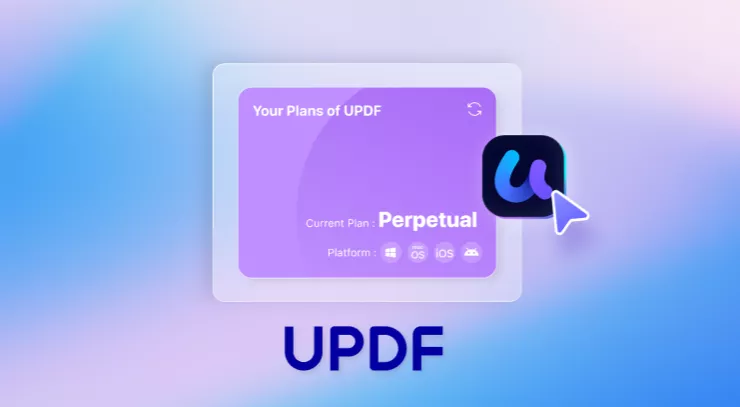
Adobe Community