 UPDF
UPDF
 UPDF for Windows
 UPDF for Mac
 UPDF for iPhone/iPad
 UPDF for Android
 UPDF AI Online
 UPDF Sign
 Edit PDF
 Annotate PDF
 Create PDF
 PDF Form
 Edit links
 Convert PDF
 OCR
OCR PDF to Word
 PDF to Image
 PDF to Excel
 Organize PDF
 Merge PDF
 Split PDF
 Crop PDF
 Rotate PDF
 Protect PDF
 Sign PDF
 Redact PDF
 Sanitize PDF
 Remove Security
 Read PDF
 UPDF Cloud
 Compress PDF
 Print PDF
 Batch Process
 About UPDF AI
 UPDF AI Solutions
 AI User Guide
 FAQ about UPDF AI
 Summarize PDF
 Translate PDF
 Chat with PDF
 Chat with AI
 Chat with image
 PDF to Mind Map
 Explain PDF
 PDF AI Tools
 Image AI Tools
 AI Chat Tools
 AI Writing Tools
 AI Study Tools
 AI Working Tools
 Other AI Tools
 AI Bookmark Generation
 AI Bookmark Summary
 AI Watermark Generation
 AI Background Generation
 AI Sticker Generation
 AI Stamp Generation
 AI Editing Suite
 UPDF Copilot
 AI Page Management
 AI Semantic Search
 PDF to Word
 PDF to Excel
 PDF to PowerPoint
 Enterprise Solution
 Enterprise Sign
 Enterprise AI
 Enterprise Plan
 Enterprise User Guide
 Enterprise Webinar
 Banking
 Healthcare
 Insurance
 Legal
Legal Manufacturing
 Government
 Education Solution
 Customer Stories
 User Guide
 UPDF Tricks
 FAQs
FAQs UPDF Reviews
 Download Center
 Blog
Blog Newsroom
 Tech Spec
 Updates
 UPDF vs. Adobe Acrobat
 UPDF vs. Foxit
 UPDF vs. PDF Expert

OpenClaw is one of the hottest free AI open source projects in 2026, shocking everyone. It even beats React in GitHub stars, with around 247,191 stars compared to React’s 243,438 today. The project started as Clawdbot, then became Moltbot, and took its current name, OpenClaw.
As an OpenClaw agent, it works like a 24/7 personal assistant that never gets tired. You can ask it to handle everyday digital tasks, from messages to files, automatically for you. But for PDFs, UPDF offers a similar AI agent experience, summarizing, translating, and organizing documents with ease. Let's explore them further in this article.
Windows • macOS • iOS • Android 100% secure
Part 1. What Is OpenClaw Agent?
A self‑hosted AI assistant that runs on your own devices and services. It connects to your chats and tools, then uses AI to plan and act for you. The project was created to give people more control, privacy, and customization than closed AI platforms allow. Its goal is to make automation feel personal and flexible, instead of locked inside a single company’s ecosystem.
Key Ideas Behind OpenClaw
- You can design your own workflows, so the AI follows your rules and preferences.
- Over time, the agent keeps context, notes, and tasks, so it becomes smarter with you.
- Different tools and models are supported, so your OpenClaw agent setup can grow as your needs change.
- Everyday people and small teams can run a real personal agent, not just developers or experts.
- Allows you to connect it with many apps and platforms to handle everyday work in one smooth place.
Part 2. What Makes OpenClaw Agent Stand Out?
OpenClaw stands out because it does not just chat, but it also performs actions across your digital life. Now, you know what an OpenClaw agent is, let’s see what it offers and how it works.
Key Features of OpenClaw
- Runs on your own machine and keeps your data local for better privacy and control.
- Connects to chat apps, files, and tools, and can actually perform tasks instead of only replying.
- Uses OpenClaw Skills to extend abilities and handle things like browsing, automation, and different work scenarios.
- Supports many AI models and lets you switch providers based on price, speed, and preference.
How OpenClaw Differs from Traditional AI
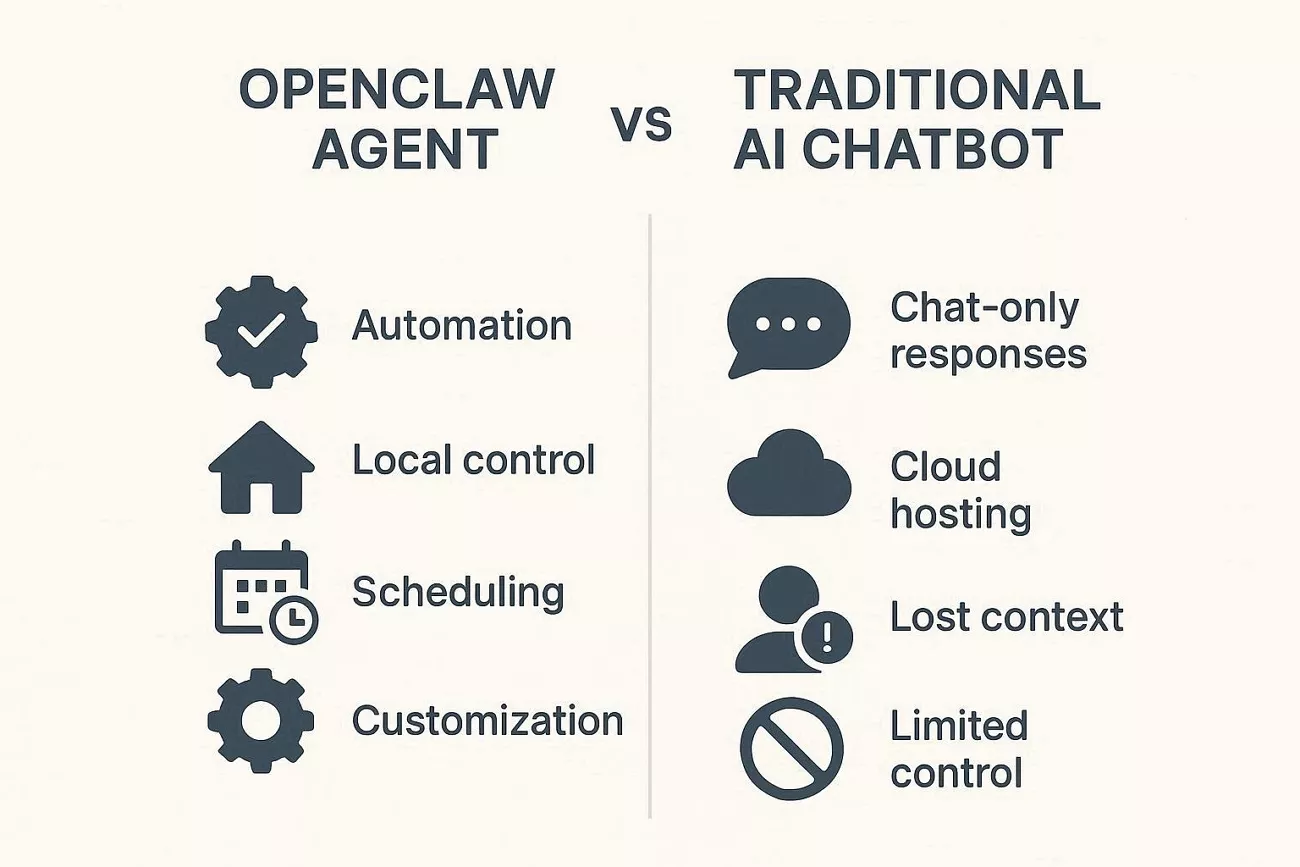
OpenClaw works like an active digital assistant that can plan tasks and execute real actions. Now, let’s compare it with normal AI tools that only answer messages when your prompt them:
| Point | OpenClaw Agent | Traditional AI Chatbot |
| Main Role | Completes tasks and workflows for you. | Answers questions and gives suggestions. |
| How it Works | Uses tools to act on your apps and data. | Stays inside chat and only returns text. |
| Computer Access | Can handle files, commands, browser, and emails. | Has no real control over your system. |
| Memory and Follow‑up | Keeps context and can run on a schedule. | Often forgets the context between chats. |
| Control and Setup | Self‑hosted with skills and permissions you configure. | Hosted by a provider with limited control. |
As a personal AI agent, OpenClaw reads your messages and files, then decides useful next actions. It can open your inbox, draft replies, and update your calendar without constant manual prompts. The system keeps learning your patterns and adjusts how it handles tasks over time.
How It Helps You in Real Life
- It checks your email, drafts replies and leaves them ready for your quick review.
- On busy days, it watches your calendar and reminds you before meetings and due dates.
- The agent opens your browser, fills simple forms, and collects information you usually search manually.
- In the background, it organizes files and keeps your digital workspace clean automatically.
Part 3. How to Deploy OpenClaw Agent on Your Device?
Before starting the OpenClaw agent setup, you need to understand its security risks and system requirements clearly. Now, let’s walk through the key things to know and how to set it up.
What to Know Before You Install OpenClaw
Next, let’s review the essential safety checks before you run this powerful agent on your device:
- System and Updates: Check your computer is strong enough, has enough space, has Node.js installed, and stays updated.
- Isolation and Permissions: Use a separate machine or virtual machine and give OpenClaw only limited access to files.
- Skills and APIs: Install only trusted skills, read them carefully, and keep your API keys safe and limited.
- Network and Monitoring: Protect with a firewall, keep dashboards private, and check logs regularly for any strange activity.
- Approval and Backups: Request manual confirmation of risky procedures and take regular backups to be able to restore all of them.
How to Install OpenClaw on Windows
To install and start using the OpenClaw AI agent on your Windows device, follow the steps below:
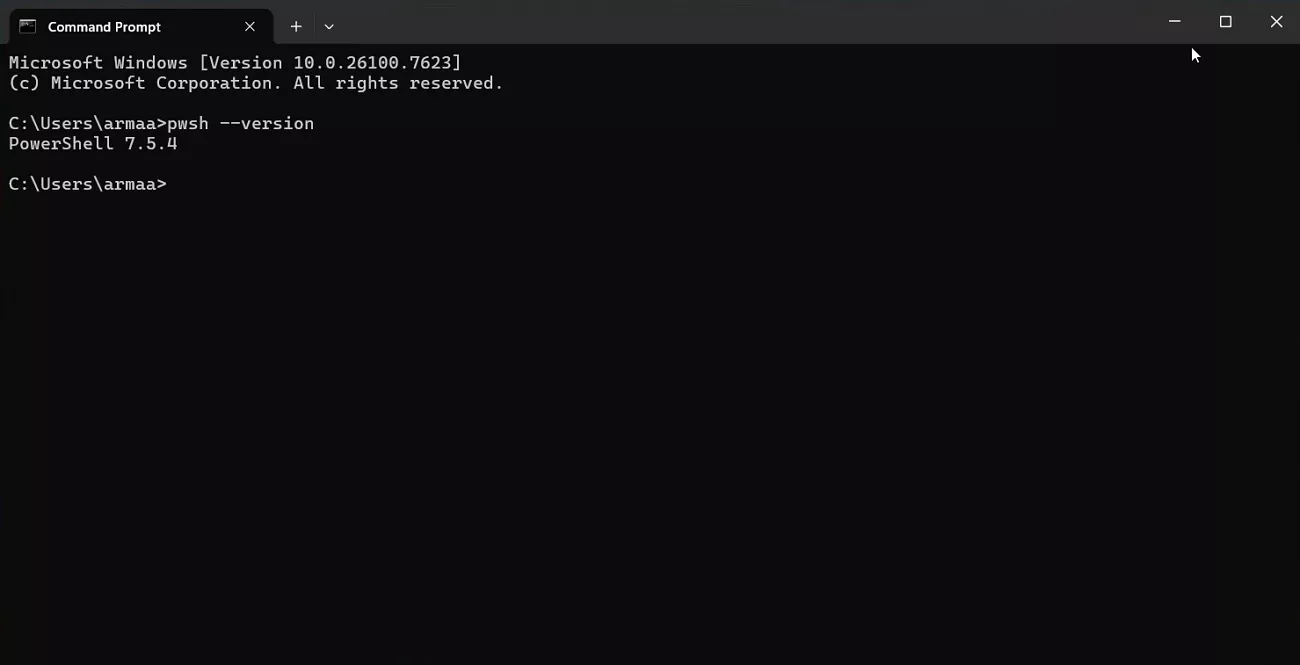
Step 1. First, open CMD and check the PowerShell version using the “pwsh –version” command.
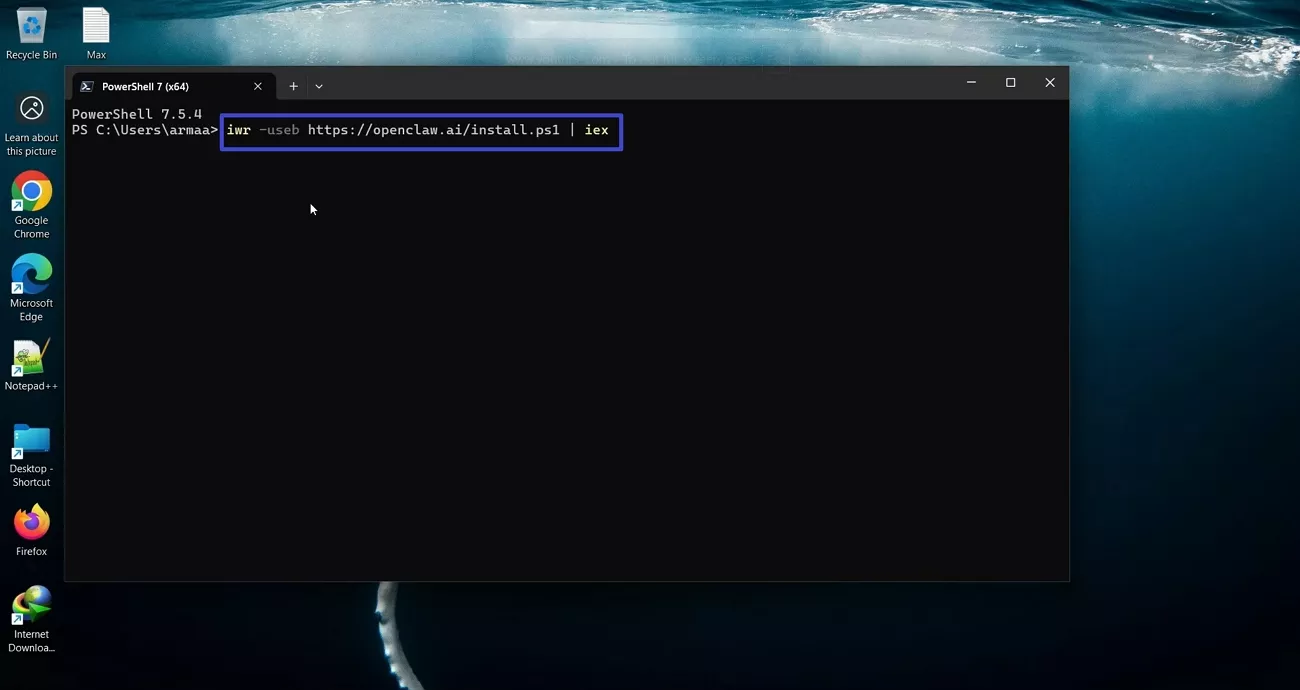
Step 2. Take the Quick Start command from the OpenClaw site, open PowerShell, and paste the command. This will install OpenClaw on your system.
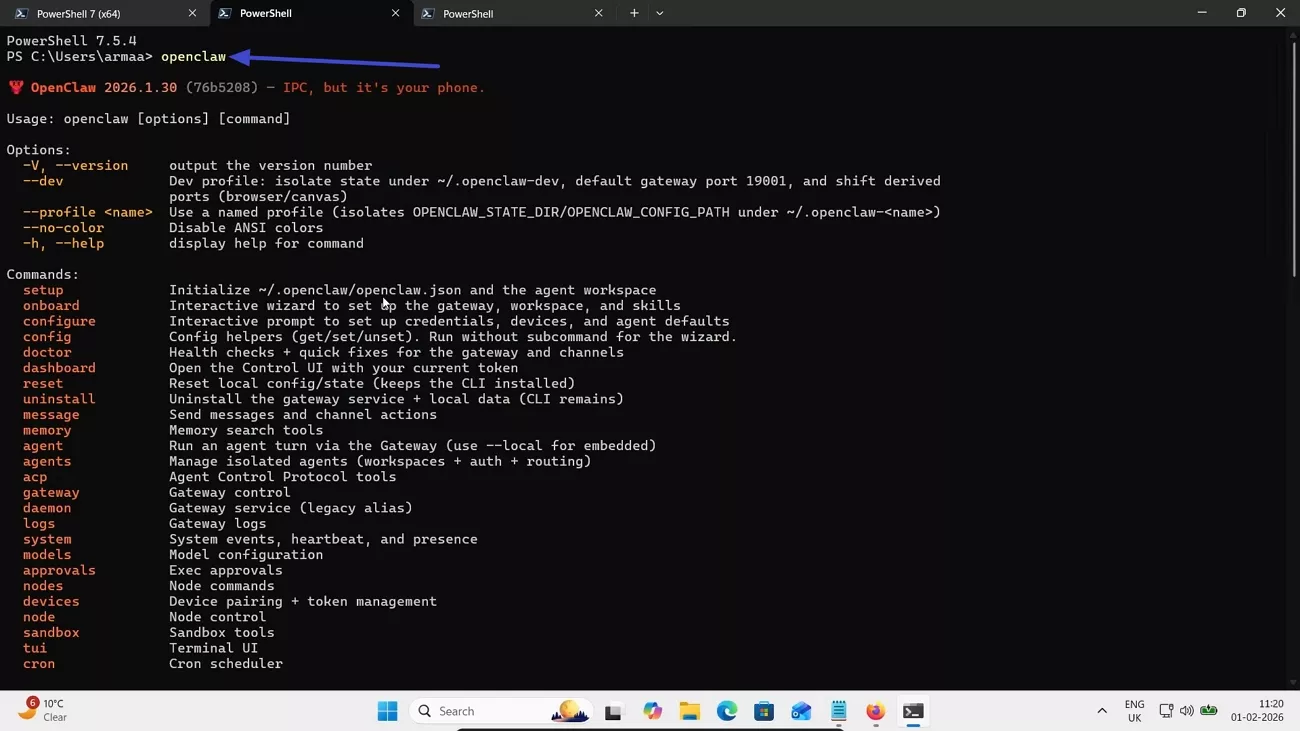
Step 3. Next, open a new PowerShell tab and enter the prompt “openclaw” to display all commands.
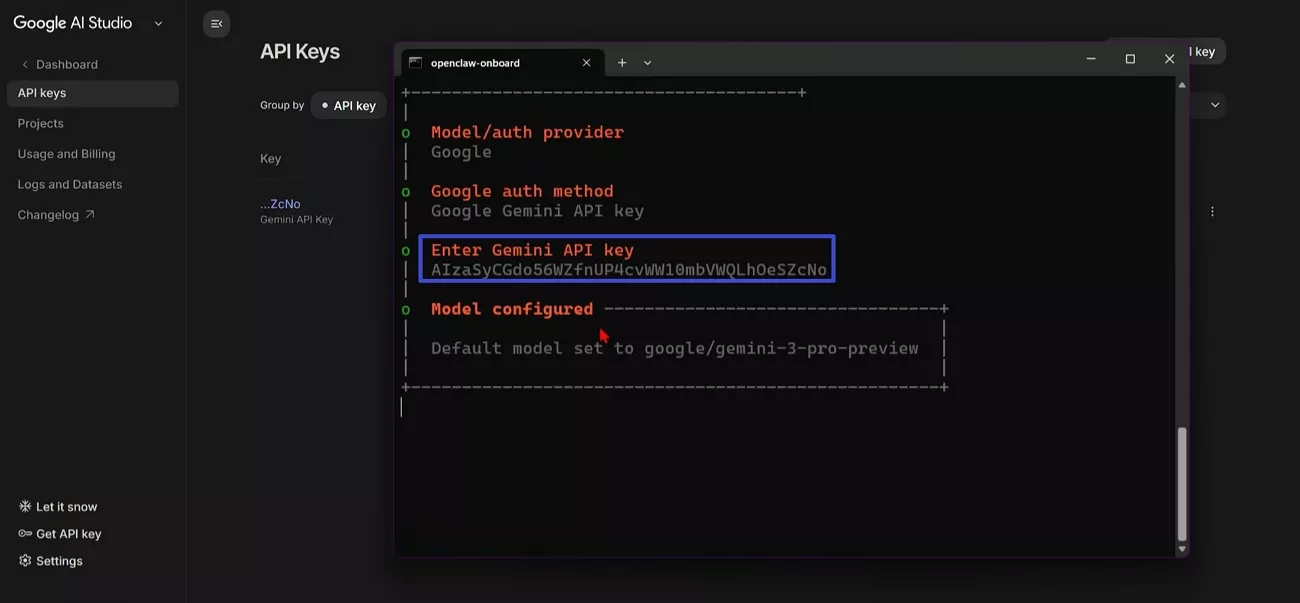
Step 4. Afterwards, open CMD again and enter the prompt “openclaw onboard.” Here, you’ll see different tools, select a tool, and enter its API key by taking it from the official website.
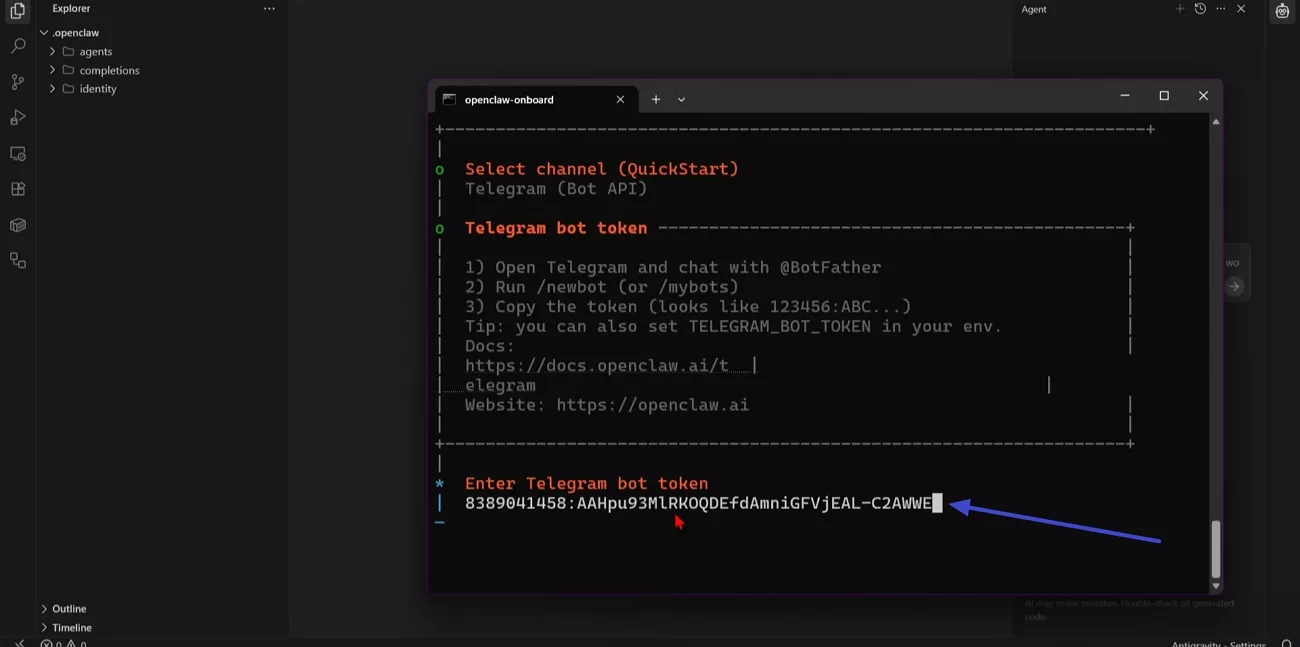
Step 5. To install a chat app agent like Telegram, select the Telegram channel and enter the bot token.
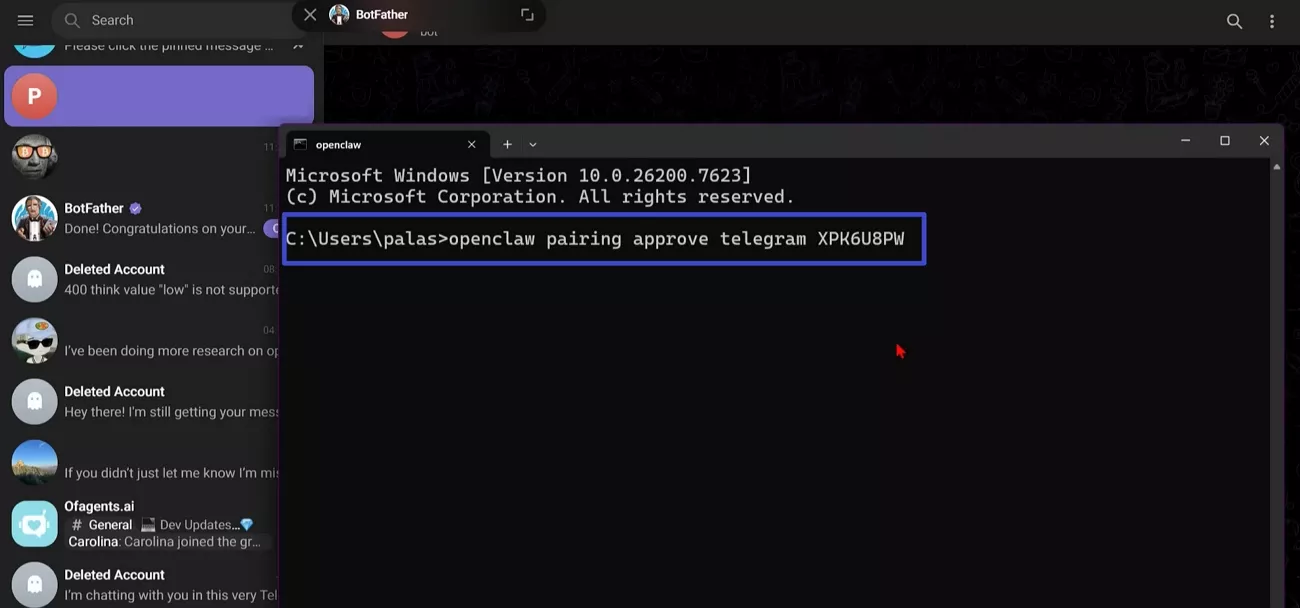
Step 6. After getting an OpenClaw user ID on Telegram, open CMD and request approval of the Telegram bot. It will deploy the OpenClaw agent on your Windows manually.
If you want to learn in depth how to deploy an OpenClaw agent on Windows, check out the step‑by‑step video tutorial here.
How to Install OpenClaw on Mac
After learning the setup on Windows, follow these steps to install the OpenClaw agent on your Mac:
Step 1. First, open Terminal, copy the Quick Start code from OpenClaw’s site, and paste it into the Terminal.
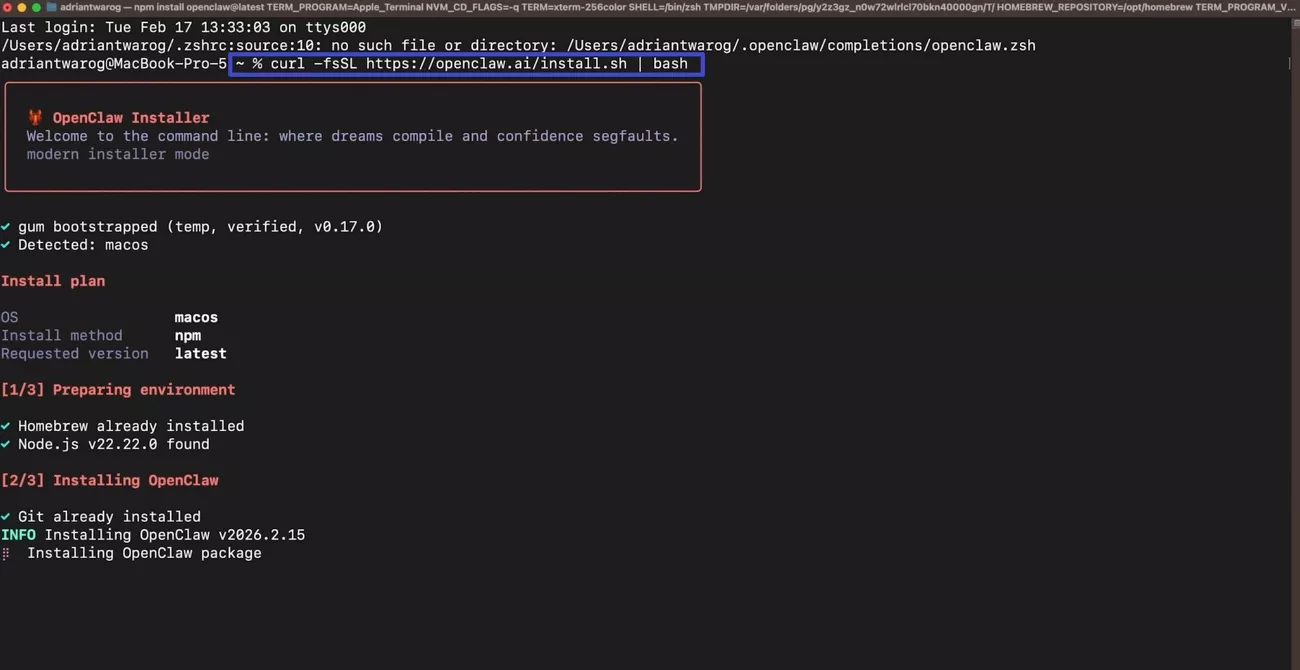
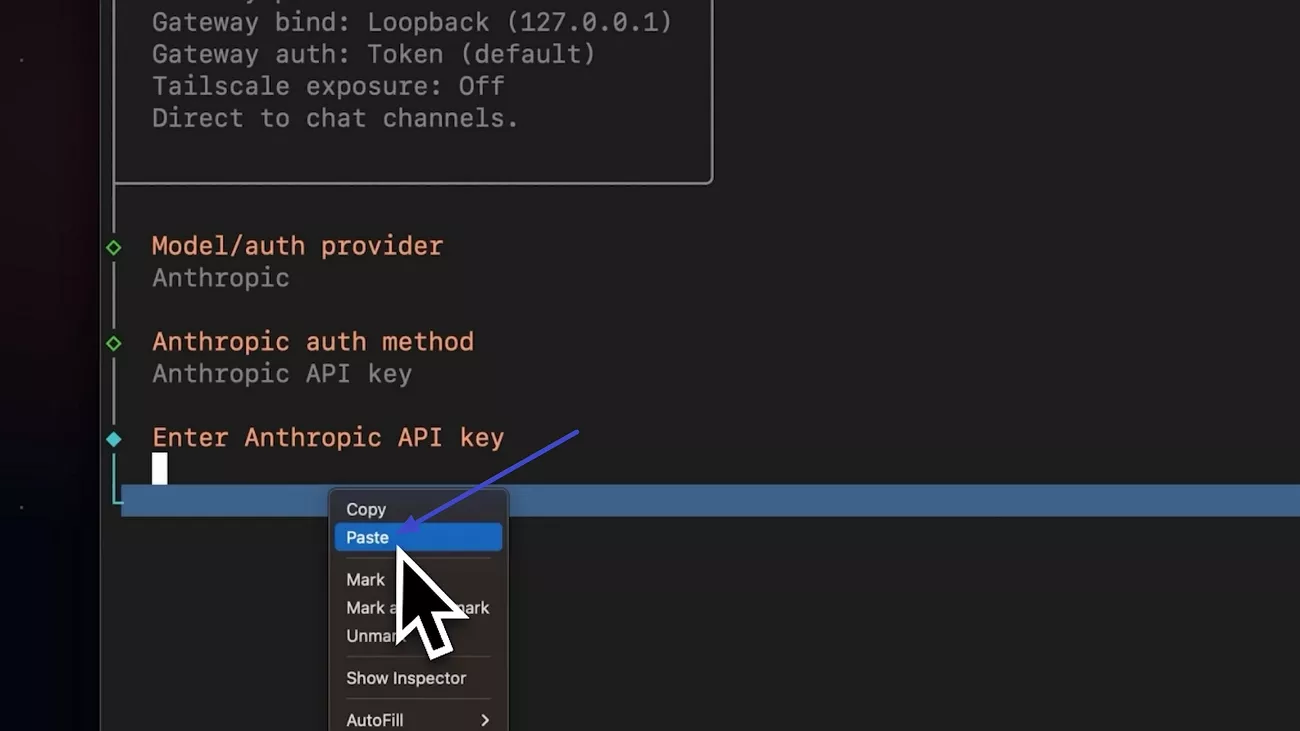
Step 2. After onboarding, to connect OpenClaw with an AI model, get the tool’s API key and paste the key under the API key section.
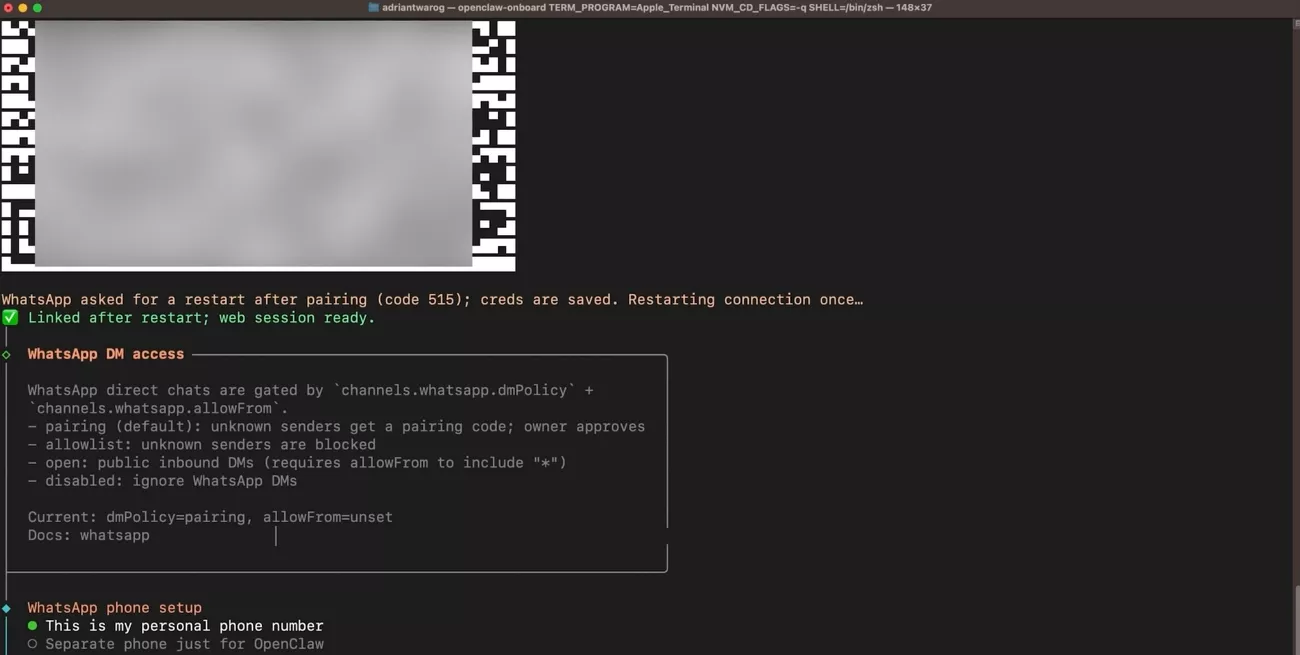
Step 3. Next, access the Channel list and select the messaging channel you want to connect to. For instance, if you choose WhatsApp, it will show a QR code that you have to scan via your phone camera.
Step 4. To connect OpenClaw to a tool like Zapier MCP, just create a New MCP Server of the Other type. Next, select the apps you want to include. Once done, press the “Generate Token” button in the “Connect” tab.
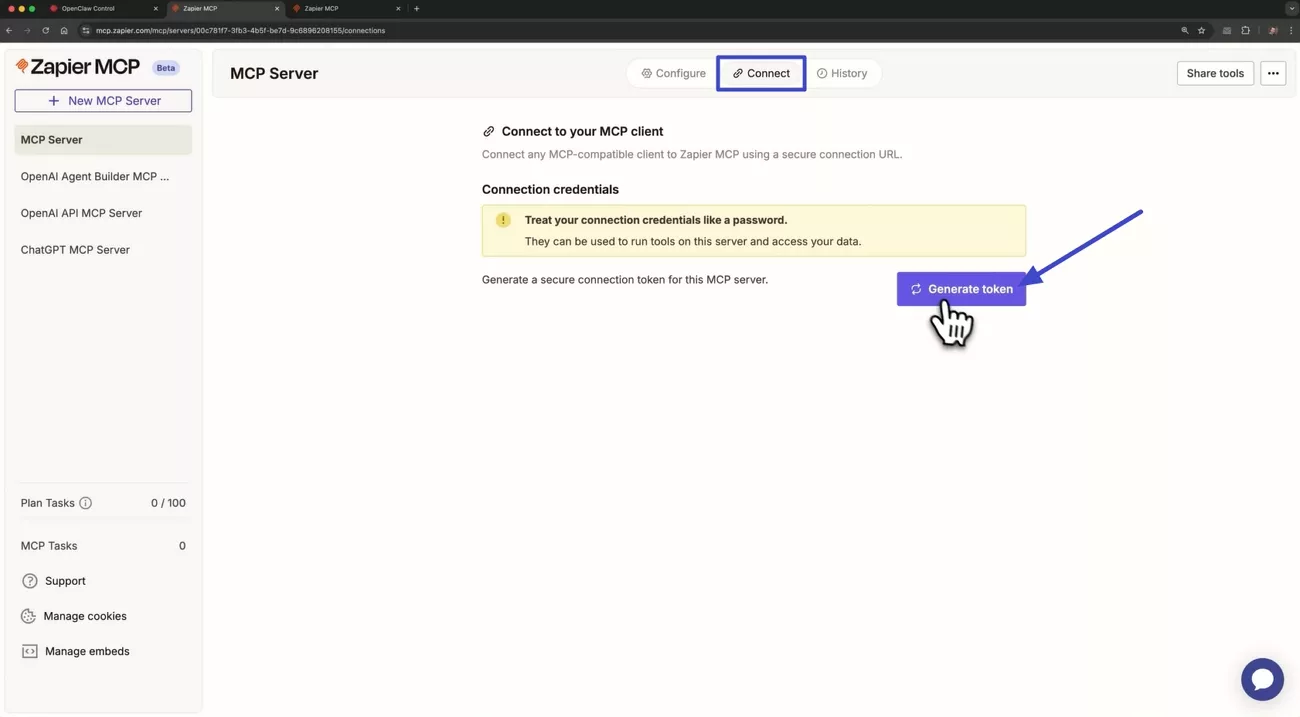
Step 5. Next, copy the token and provide it to the OpenClaw Chat. It will automatically connect your Zapier MCP Server with OpenClaw.
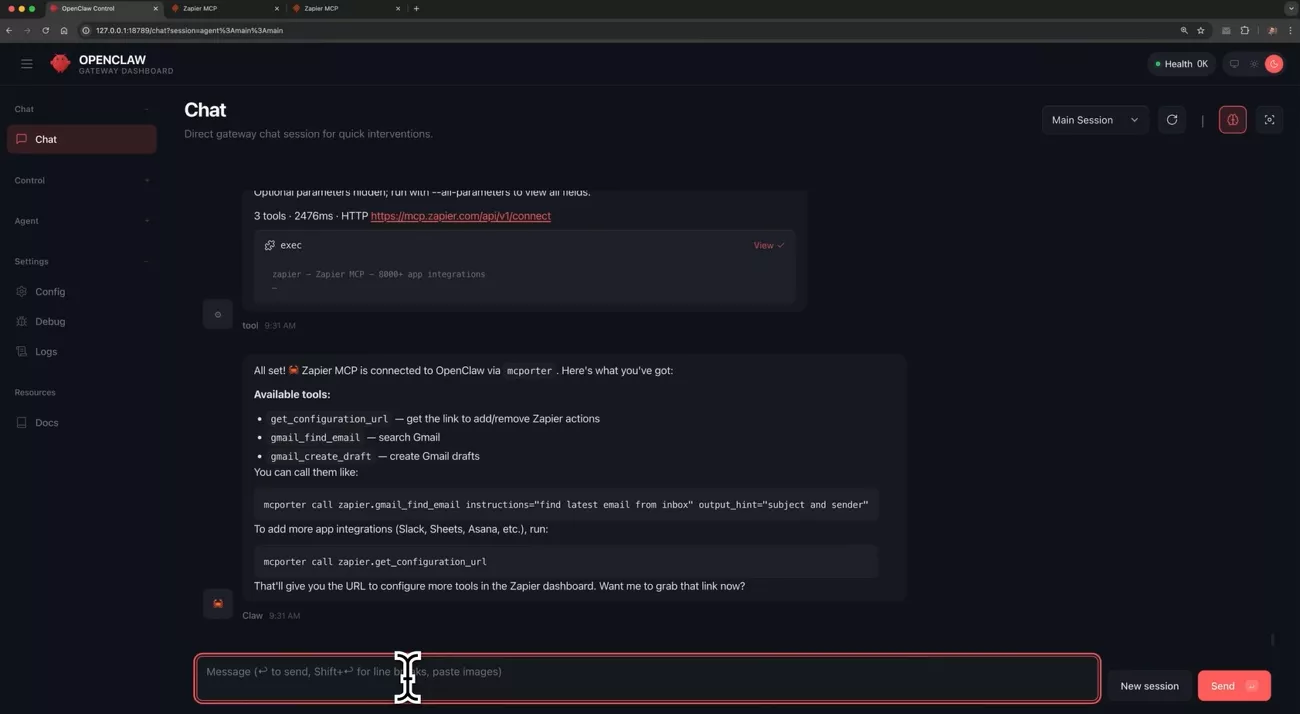
For a deeper, step‑by‑step walkthrough of deploying an OpenClaw agent on Mac, watch the detailed video guide here.
Bonus Tip: PDF AI Agent
However, managing PDFs across different tools often feels messy, slow, and hard to control. This is where UPDF steps in, giving you one clear place to handle documents easily. Many users feel more relaxed when they do not switch apps for simple PDF tasks. Even people who know the OpenClaw agents list can still enjoy this focused workspace.
With UPDF, users keep all their important PDFs in one tidy and trusted space. It reduces small daily hassles, like hunting for files or repeating the same clicks. Over time, this routine helps people stay focused longer and finish their document work faster.
Windows • macOS • iOS • Android 100% secure
Complicated PDF Tasks UPDF Makes Easier
Next, we will walk through real PDF scenes where UPDF’s AI does the work:
1. Auto-Bookmarking Long PDFs: It adds clear AI bookmarks for chapters and sections to help users move around documents faster.

2. Summarizing Big Documents: Long reports become short highlights that help users save time and keep a better focus.
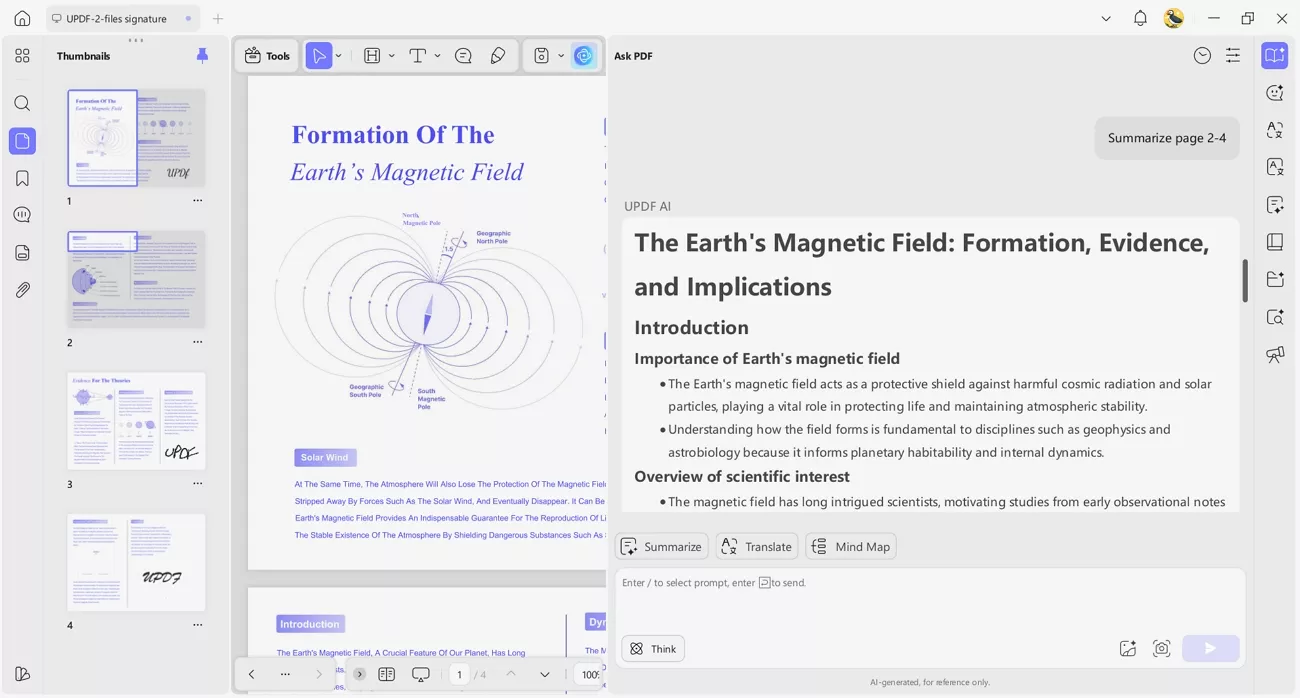
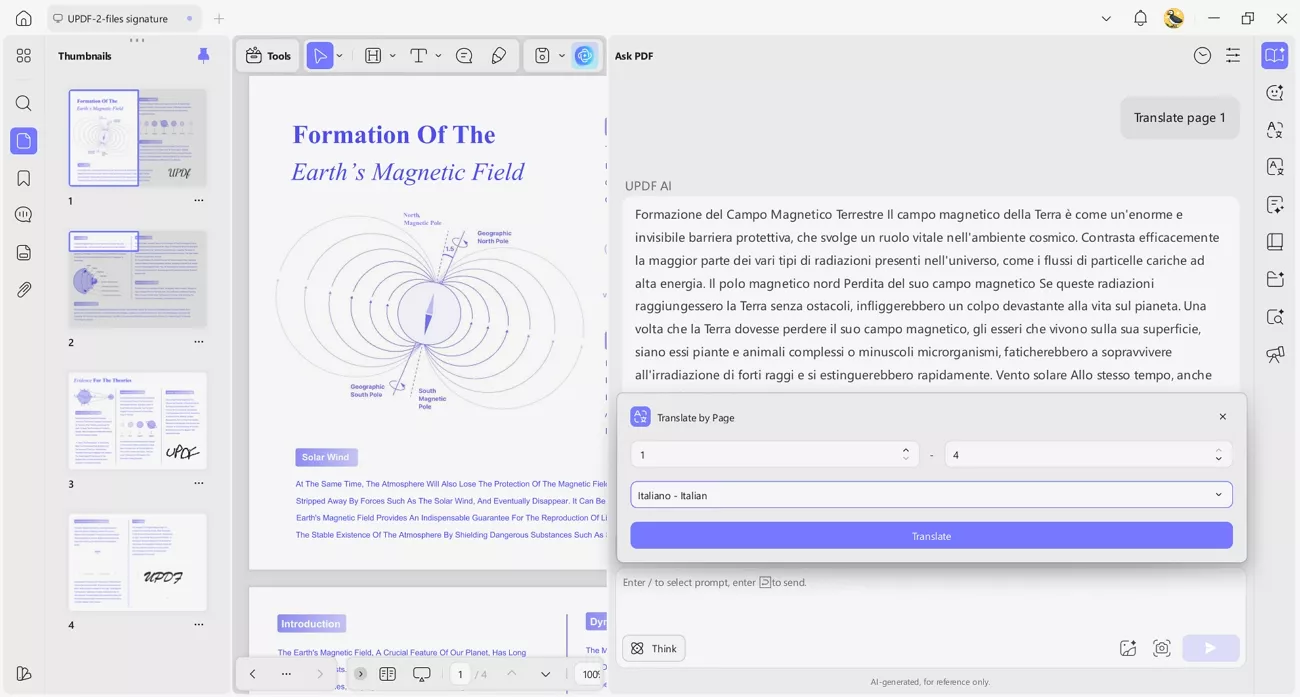
3. Translating PDF Content: UPDF translates text into 27 languages so users can understand foreign PDFs with confidence.
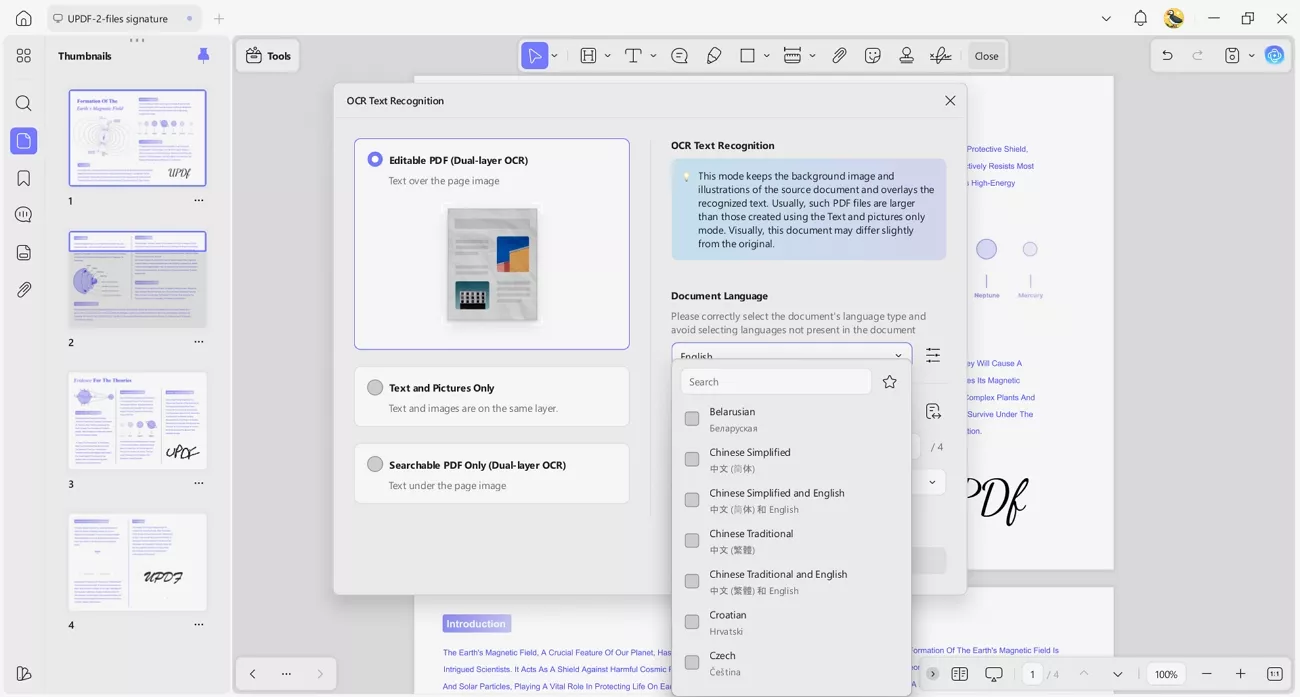
4. OCR for Scanned PDFs: The OCR engine recognizes 38 languages and turns scanned pages into searchable, editable text.
Conclusion
The OpenClaw agent makes everyday automation feel personal and under your control. It handles messages, tasks, and tools so normal people save time without learning complex systems. At the same time, UPDF works as a one‑stop home for reading and managing all your PDFs. When your work involves serious PDF reading and organization, UPDF is the smart upgrade to rely on.
Windows • macOS • iOS • Android 100% secure








 Engelbert White
 Enola Davis
 Grace Curry
- Longjumping-Elk7744