 UPDF
UPDF
 UPDF for Windows
 UPDF for Mac
 UPDF for iPhone/iPad
 UPDF for Android
 Nomostar
 UPDF AI Online
 UPDF Sign
 IvyCraft
 Edit PDF
 Annotate PDF
 Create PDF
 PDF Form
 Edit links
 Convert PDF
 OCR
OCR PDF to Word
 PDF to Image
 PDF to Excel
 Organize PDF
 Merge PDF
 Split PDF
 Crop PDF
 Rotate PDF
 Protect PDF
 Sign PDF
 Redact PDF
 Sanitize PDF
 Remove Security
 Read PDF
 UPDF Cloud
 Compress PDF
 Print PDF
 Batch Process
 About UPDF AI
 UPDF AI Solutions
 AI User Guide
 FAQ about UPDF AI
 Summarize PDF
 Translate PDF
 Chat with PDF
 Chat with AI
 Chat with image
 PDF to Mind Map
 Explain PDF
 PDF AI Tools
 Image AI Tools
 AI Chat Tools
 AI Writing Tools
 AI Study Tools
 AI Working Tools
 Other AI Tools
 AI Bookmark Generation
 AI Bookmark Summary
 AI Watermark Generation
 AI Background Generation
 AI Sticker Generation
 AI Stamp Generation
 AI Editing Suite
 UPDF Copilot
 AI Page Management
 AI Semantic Search
 PDF to Word
 PDF to Excel
 PDF to PowerPoint
 Enterprise Solution
 Enterprise Sign
 Enterprise AI
 Enterprise Plan
 Enterprise User Guide
 Enterprise Webinar
 IT
IT Education
 Construction
 Financial Service
 Healthcare
 Insurance
 Legal
Legal Manufacturing
 Government
 Researchers & PhDs
 Solopreneurs & Freelancers
 Lawyers & Legal Professionals
 Real Estate Agents & Brokers
 Education Solution
 Customer Stories
 User Guide
 UPDF Tricks
 FAQs
FAQs UPDF Reviews
 Download Center
 Blog
Blog Newsroom
 Tech Spec
 Updates
 UPDF vs. Adobe Acrobat
 UPDF vs. Foxit
 UPDF vs. PDF Expert

AI can help lawyers work faster, but it should never be treated as a legal authority. In legal work, an AI-generated answer may sound confident while still being wrong. It may invent case names, citations, court decisions, judges, quotations, or contract interpretations.
That is why lawyers should not use AI answers in isolation. A safer approach is to start with the real legal document, use AI to accelerate review, and verify important points against the source before using them in legal advice, filings, negotiations, or client communications.
UPDF AI laywer supports this document-first workflow by combining a PDF editor with built-in AI. Lawyers can open legal PDFs, OCR scanned files, search clauses, annotate key language, ask AI questions about the document, redact sensitive information, sign files, and organize case materials in one workspace.
Part 1. Can AI Replace Lawyers in the Future?
No. AI cannot replace lawyers, and lawyers should not rely on AI as an independent legal authority.
AI can assist with time-consuming tasks such as summarizing long documents, explaining complex clauses, translating legal excerpts, organizing research questions, and preparing first drafts of client-friendly explanations. But legal analysis, professional judgment, ethical responsibility, and final verification remain with the lawyer.
This distinction is especially important because AI tools may produce confident but incorrect answers. In legal contexts, AI may invent case names, court names, judges, citations, quotations, or holdings. It may also summarize a contract clause incorrectly or overlook important conditions.
A practical rule for lawyers is:
AI can assist and accelerate. The lawyer verifies and decides.
This is where a PDF-first workflow matters. Instead of asking a chatbot broad legal questions in isolation, lawyers can work from the actual legal PDF and use AI as a support tool inside the document review process.
UPDF is designed for this kind of workflow. It is not just an AI chat window. It is a PDF editor with AI built in, helping lawyers stay connected to the source document while they read, annotate, summarize, explain, translate, sign, redact, and organize legal files.
Windows • macOS • iOS • Android 100% secure
You can also watch the video guide below to learn how to use AI as a lawyer.
Part 2. How to Use AI to Summarize Legal Documents and Contracts
Lawyers often need to understand long legal documents quickly: contracts, settlement agreements, pleadings, judgments, case files, discovery materials, and client documents. AI can help create a first-pass summary, but the summary should always be checked against the source.
With UPDF, the lawyer can open the agreement as a PDF and ask UPDF AI to summarize the document.
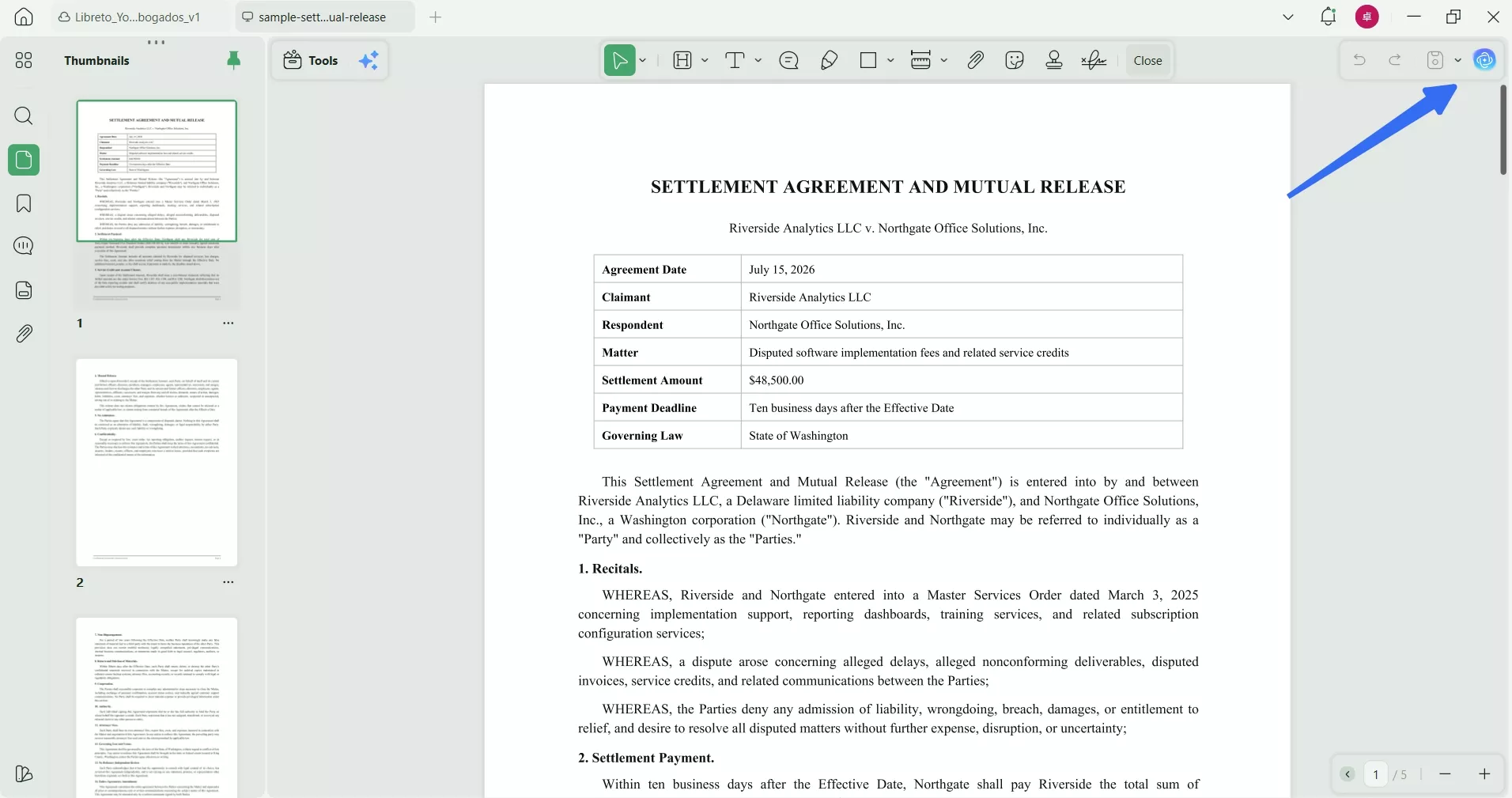
Example prompt:
“Summarize this Settlement Agreement and Mutual Release in 10 bullet points. Include the settlement amount, payment deadline, governing law, release scope, confidentiality, non-disparagement, attorneys’ fees, and signature requirements.”
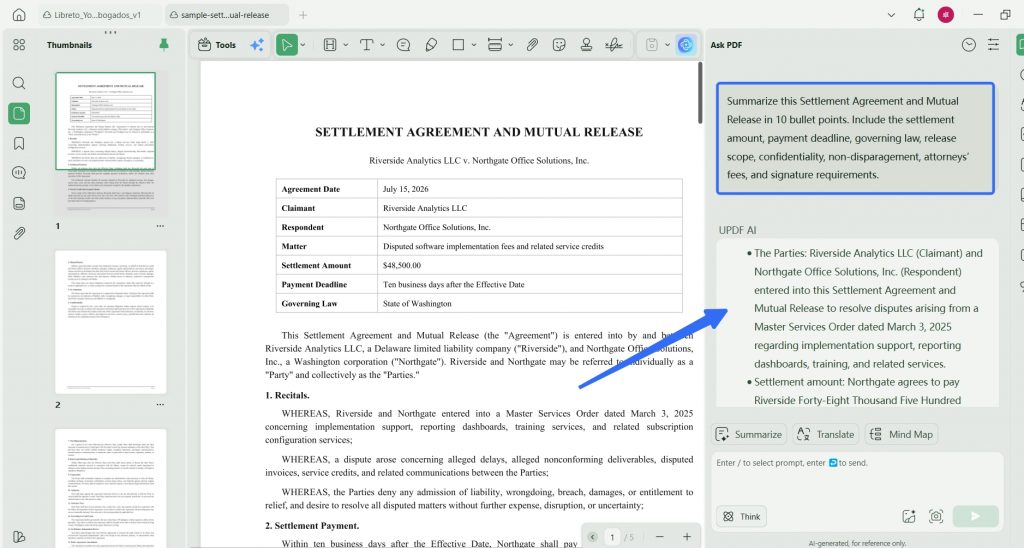
UPDF AI can help summarize the PDF, explain legal language, translate selected clauses, chat with the document, and generate a mind map of the agreement structure. This can help the lawyer understand the document faster before doing a deeper review.
However, the lawyer should still verify important details. If the AI summary says the settlement amount is $48,500, the lawyer should search the PDF and confirm the amount in the original text. If the AI says payment is due within ten business days after the Effective Date, the lawyer should confirm the exact payment clause.
Try UPDF AI to summarize long legal PDFs, then verify key terms directly in the original document.
Windows • macOS • iOS • Android 100% secure
Part 3. How to Use AI to Review Contracts
Contract review is where UPDF can become especially useful for lawyers. A safer review workflow is not simply “ask AI what the contract means.” It should combine reading, searching, annotating, asking AI, and verifying.
A practical contract review workflow in UPDF may look like this:
- Open the contract or settlement agreement in UPDF.
- Use OCR if the PDF is scanned.
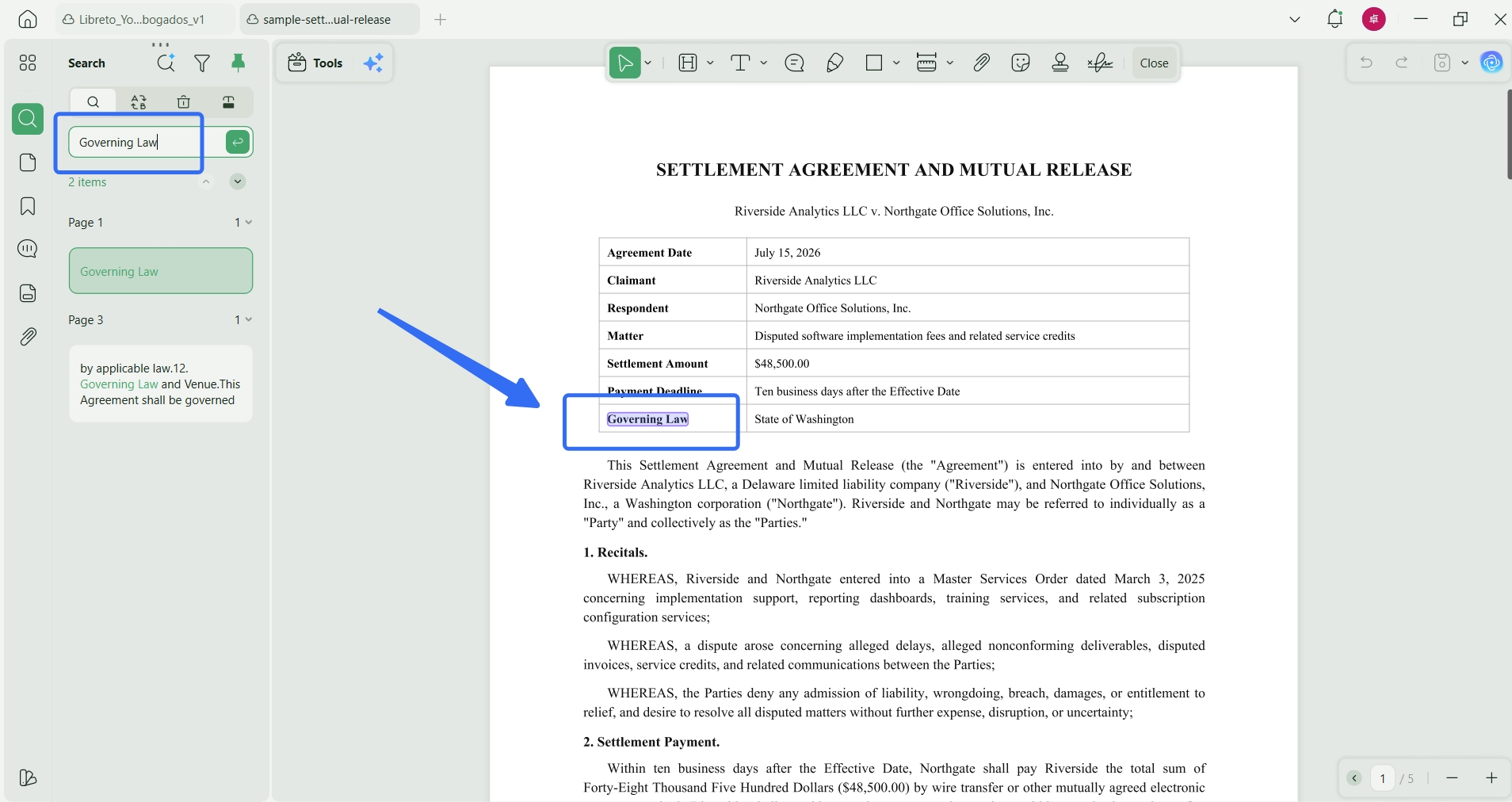
- Search for key terms such as “payment,” “release,” “confidentiality,” “non-disparagement,” “governing law,” and “attorneys’ fees.”
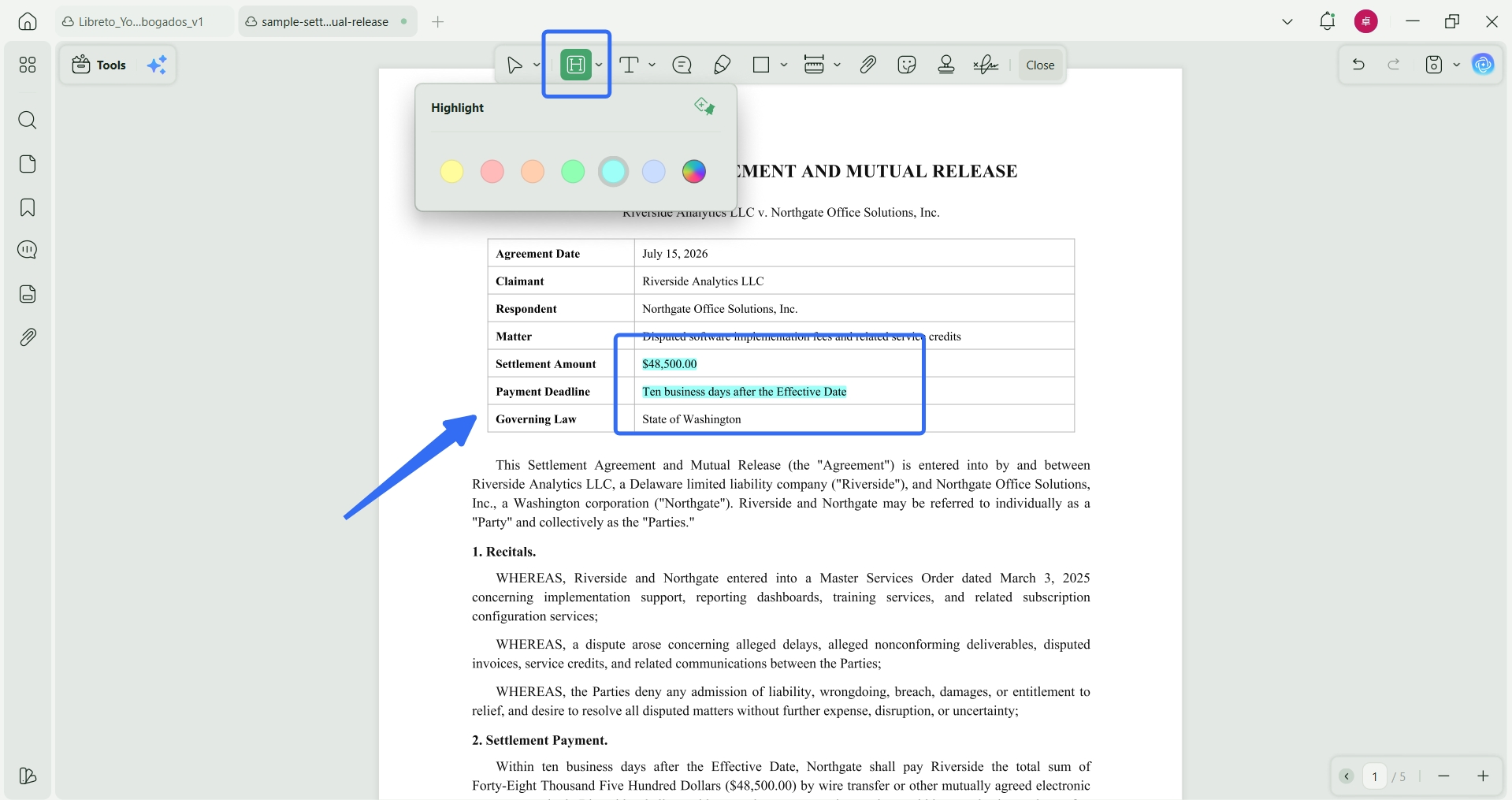
- Highlight important clauses.
- Add comments and notes for legal issues or client questions.
- Ask UPDF AI to summarize, explain, or identify obligations.
- Verify AI answers against the PDF.
- Redact sensitive information before sharing.
- Sign, organize, convert, or archive the file.
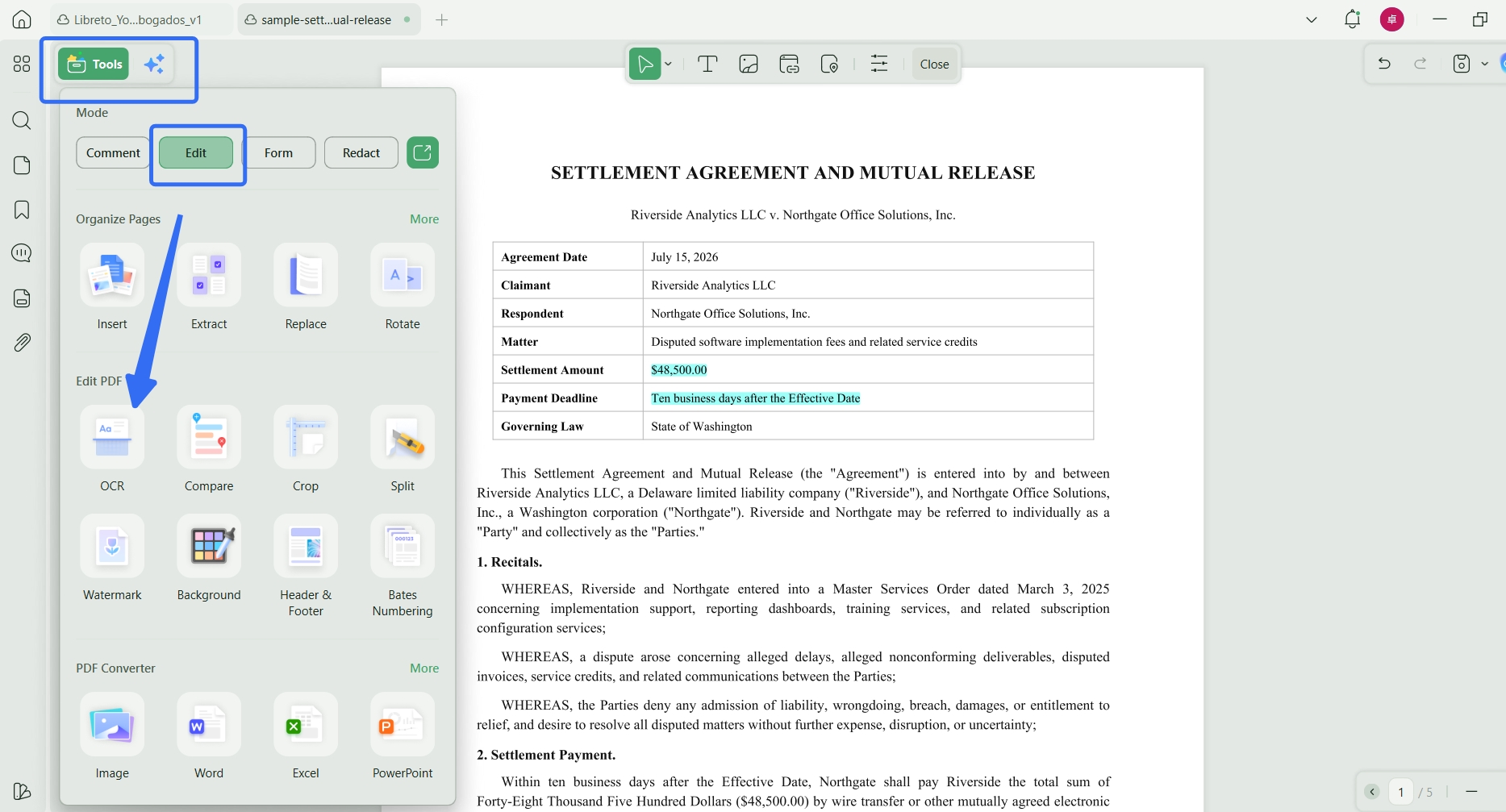
For the settlement agreement example, a lawyer might search for “Governing Law” and confirm that the agreement is governed by the State of Washington. The lawyer might highlight the payment deadline and add a note asking whether the client understands the timing. The lawyer may also mark the Confidentiality and Non-Disparagement clauses for client discussion.
UPDF supports highlights, comments, notes, stamps, attachments, and signatures. This helps turn a PDF into a working legal file, where the source document, lawyer notes, reference materials, review status, and signatures can stay together.
UPDF also supports OCR, which is important for scanned legal documents. Many lawyers work with scanned judgments, executed contracts, signed settlement agreements, exhibits, and case bundles. OCR can make these documents searchable, copyable, and easier to review.
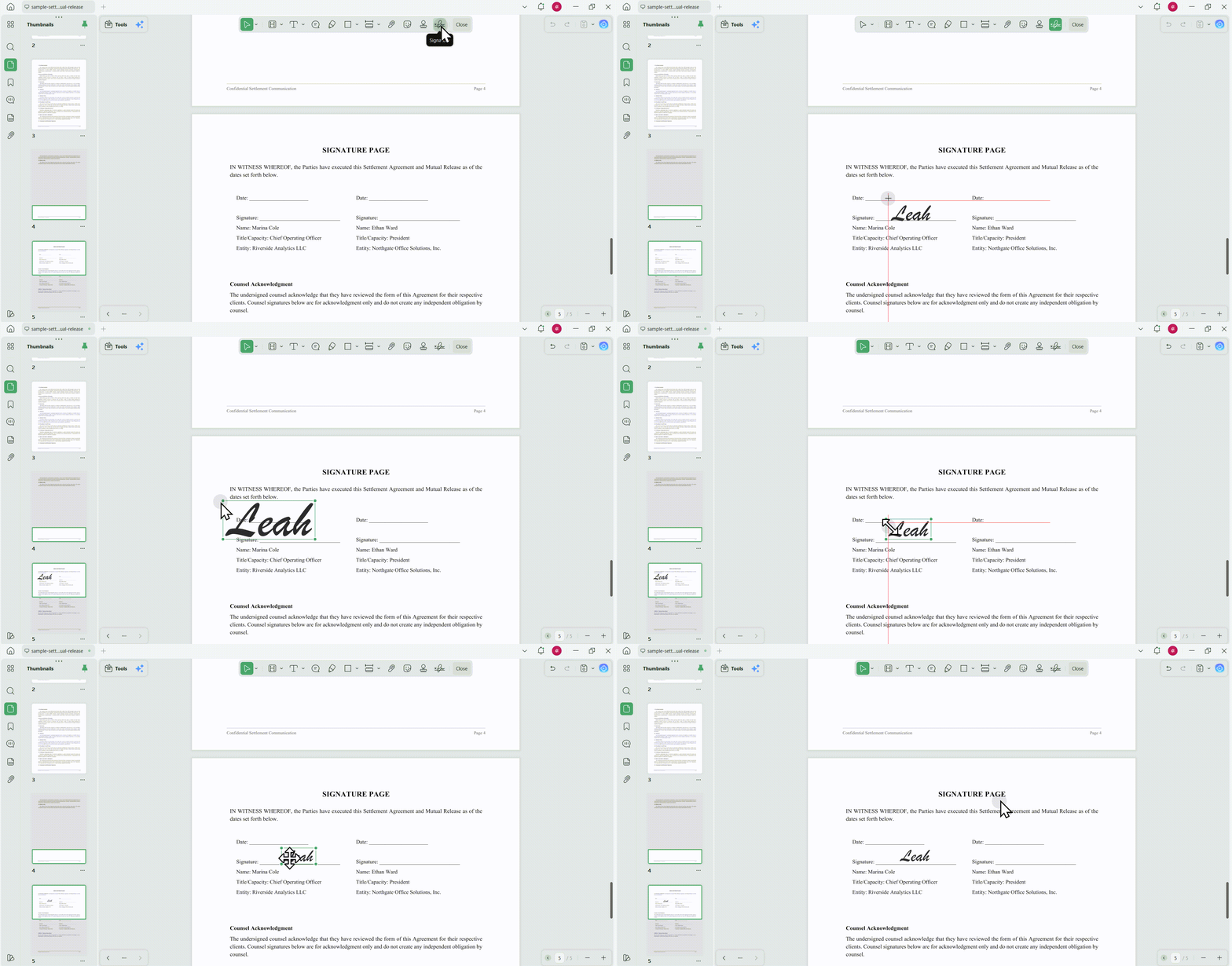
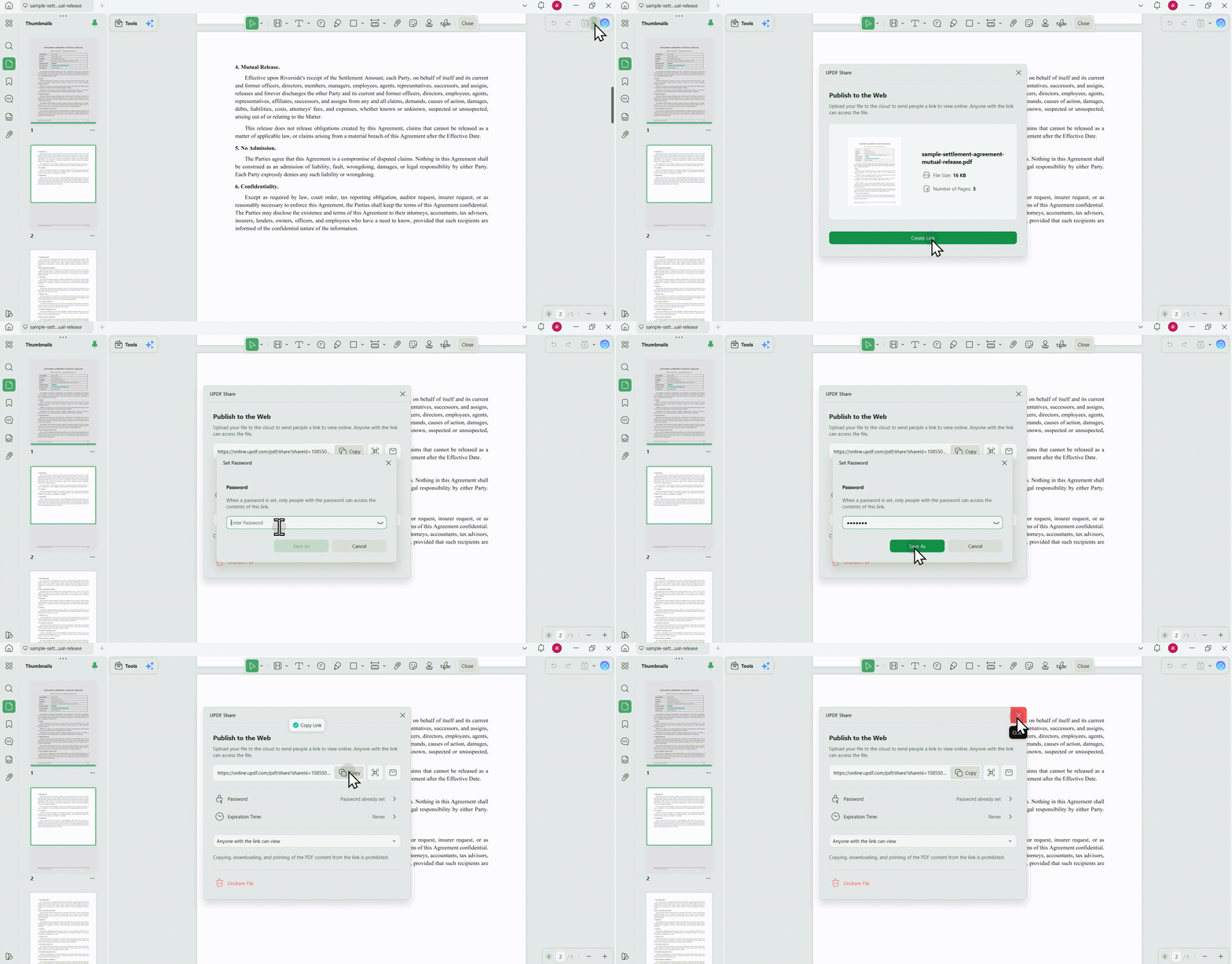
After the review is complete, lawyers can continue the workflow in UPDF. They can add signatures to the agreement, prepare the final version for the client, and share or send the PDF securely. When sharing a sensitive legal document, lawyers can set a password so that only recipients with the password can open the file.
This is useful when sending settlement agreements, signed contracts, client packets, or confidential review copies. Instead of separating review, signing, and delivery across multiple tools, lawyers can keep the document workflow connected from analysis to final sharing.
Windows • macOS • iOS • Android 100% secure
Part 4. How to Use AI for Legal Research Without Hallucination Risk
AI can be useful in legal research, but this is also one of the highest-risk areas for lawyers.
AI may invent cases, citations, court decisions, judges, quotations, or holdings. It may also describe a legal rule in a way that sounds plausible but is not accurate for the relevant jurisdiction. For this reason, lawyers should not treat AI-generated case law or citations as verified authority.
Windows • macOS • iOS • Android 100% secure
A safer way to use AI for legal research is to treat it as a research assistant, not a source of truth. For example, AI can help:
Organize research questions
- Summarize uploaded legal PDFs
- Explain the structure of a judgment or statute excerpt
- Identify issues to verify
- Create a research checklist
- Draft questions for further review
But if the output includes a case name, citation, quotation, holding, statute, or legal conclusion, the lawyer should verify it using authoritative legal sources.
With UPDF, lawyers can use AI more safely by working with actual source documents. For example, if a lawyer has a judgment or court order in PDF format, they can open it in UPDF, use OCR if needed, ask AI to summarize the document, and then check the relevant passages in the PDF.
Example prompts:
“Summarize the legal issue and outcome in this judgment. Quote the key passages from the document.”
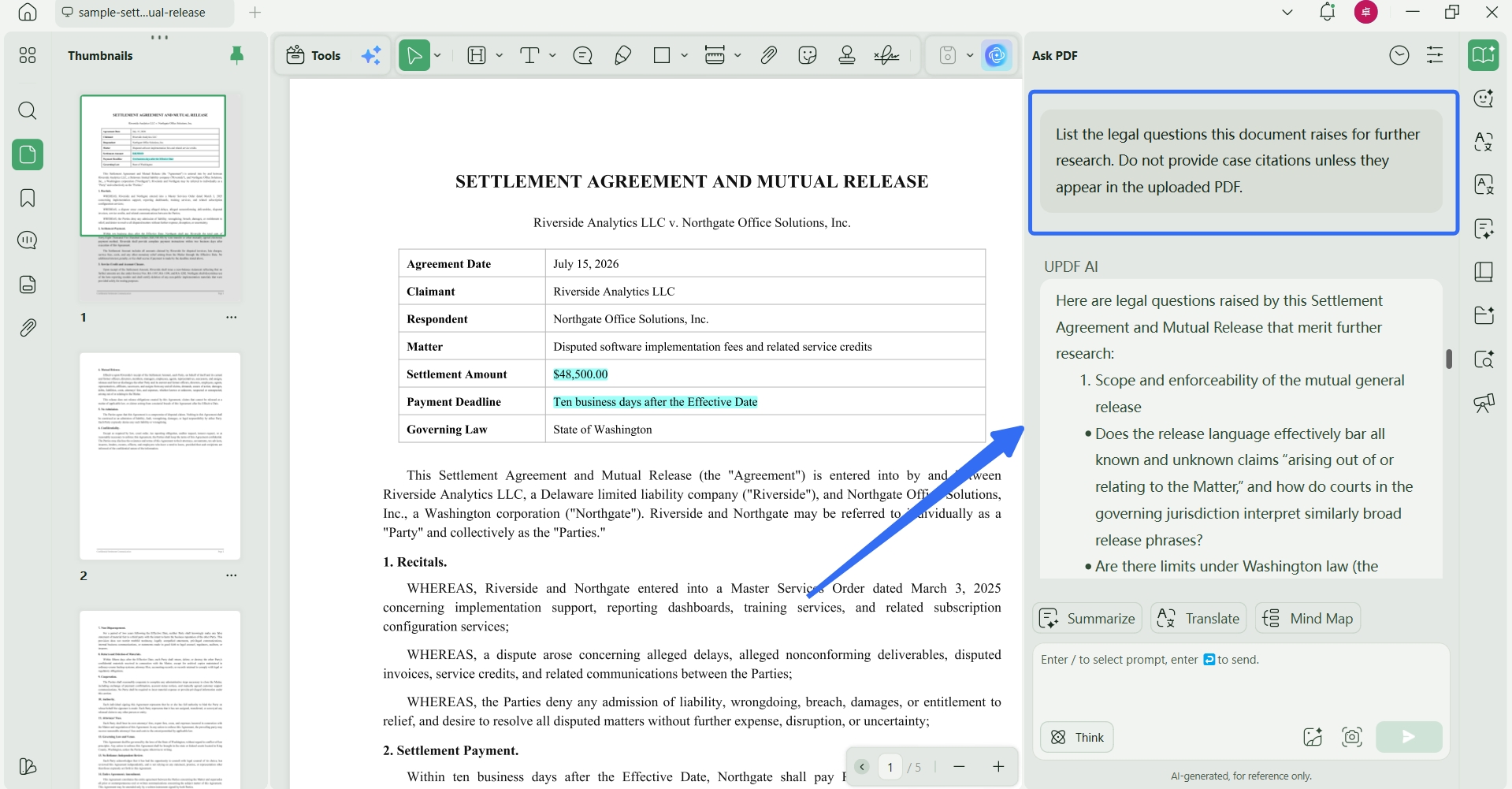
“List the legal questions this document raises for further research. Do not provide case citations unless they appear in the uploaded PDF.”
“Explain this section in plain language, but only based on the text of this PDF.”
This keeps AI tied to the source document and reduces the risk of relying on unsupported answers.
Part 5. How to Use AI for Client Communication
Lawyers often need to explain complex legal language to clients. AI can help prepare a first draft of a client update, plain-language summary, or translated excerpt. But the lawyer should review and revise the output before sending it.
In UPDF, a lawyer reviewing the settlement agreement could ask:
“Explain the Mutual Release clause in plain English for a client. Do not add legal advice beyond what appears in the document.”
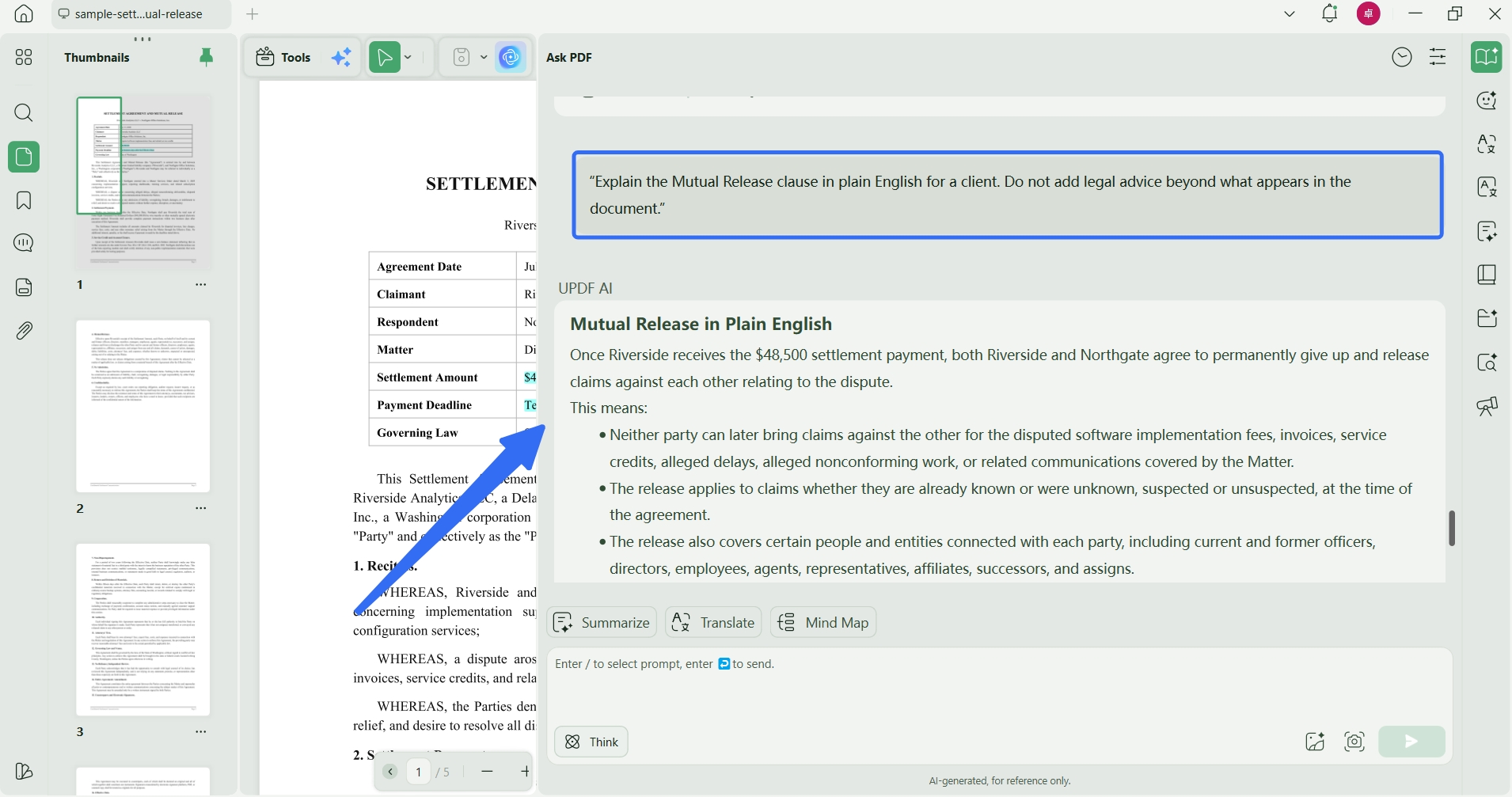
“Create a client review checklist for this agreement. Separate payment obligations, confidentiality obligations, release risks, and signature requirements.”
“Translate the Confidentiality clause into Spanish and keep a bilingual layout so the client can compare the original English text with the translated version. ”
“Summarize what the client must do after signing this agreement.”
These prompts can help lawyers communicate more efficiently, especially when handling long or technical documents. UPDF AI can assist with summarization, explanation, translation, and document-based Q&A, while the lawyer remains responsible for accuracy, tone, and legal advice.
This workflow is also useful for internal communication. A lawyer can prepare a short summary for a partner, paralegal, client team, or legal operations colleague while keeping the PDF source available for verification.
Part6. UPDF Desktop vs. UPDF Web for Legal Work
UPDF desktop is better for serious legal document workflows. It is suitable for lawyers who need to edit PDFs, OCR scanned files, annotate agreements, organize pages, convert documents, redact sensitive information, add signatures, and manage complete PDF files.
UPDF web is useful for browser-based AI access. It can help lawyers use AI from a browser when they want quick access across devices. The online AI does not have PDF-related functions. However, the desktop version of UPDF supports PDF features and all AI functions.
For legal professionals, the practical distinction is simple:
- Use UPDF desktop for complete legal PDF work.
- Use UPDF web for flexible AI access from a browser.
Part 7. Security and Enterprise for Law Firms
Legal documents often contain confidential client information, personal data, settlement terms, signatures, privileged materials, and sensitive business records. For lawyers and law firms, security and access management are important considerations.
UPDF is certified by ISO 27001, which provides a useful trust signal for legal users evaluating information security practices.
UPDF also offers an Enterprise version for law firms, legal departments, and professional teams. With the Enterprise admin console, administrators can manage team licenses more efficiently. They can assign licenses to employees, revoke access when someone leaves, and reassign licenses to new team members.
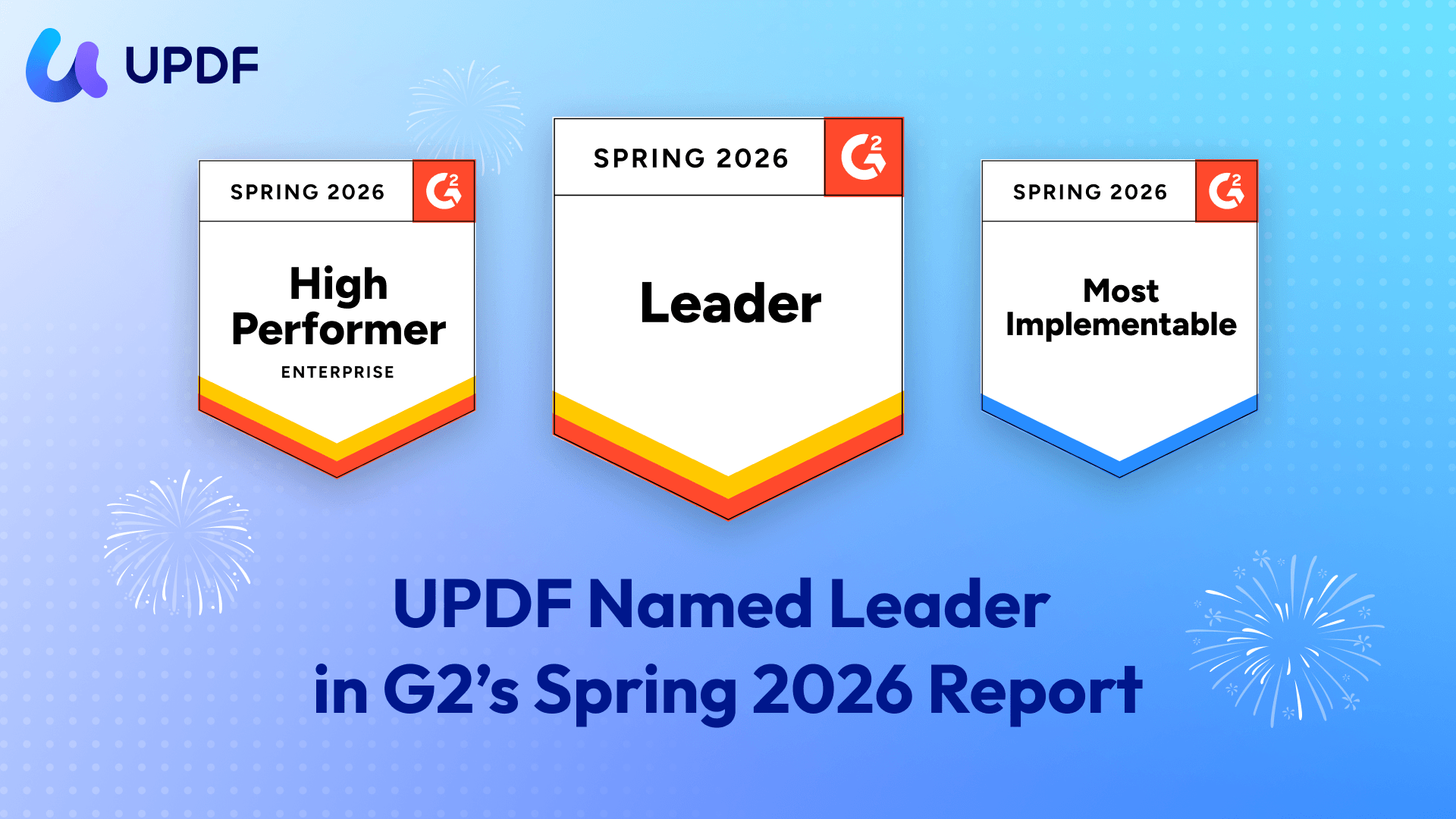
This helps firms manage PDF tools more efficiently across lawyers, paralegals, legal assistants, and administrative staff. UPDF has also received G2 badges and recognition, offering additional social proof for teams evaluating PDF solutions.
FAQs
1. How can UPDF help lawyers use AI more safely?
UPDF helps lawyers work directly with real legal PDFs. Lawyers can ask AI to summarize or explain a document, then use search, page navigation, highlights, and annotations to check the answer against the source PDF.
2. Is UPDF useful for scanned legal documents?
Yes. UPDF supports OCR, which can make scanned judgments, contracts, agreements, exhibits, and case files searchable and easier to review.
3. Should lawyers use UPDF desktop or UPDF web?
UPDF desktop is better for serious legal PDF work such as OCR, editing, annotation, redaction, page organization, conversion, and signing. UPDF web is useful for browser-based AI access.
4. Can AI hallucinate legal cases or citations?
Yes. AI may generate incorrect or nonexistent cases, citations, court names, judges, quotations, or legal conclusions. Lawyers should verify case law and citations through authoritative legal sources before relying on them.
Conclusion
AI can support legal work, but it should not be used as an unchecked authority. It can help lawyers summarize long PDFs, explain complex clauses, translate excerpts, generate mind maps, and prepare client-friendly drafts. But every important answer should be reviewed against the original legal source.
For lawyers, the safer workflow is to start with the real document: open the PDF, OCR it if needed, search key terms, annotate important clauses, ask AI targeted questions, and verify the result before relying on it.
UPDF helps support this verification-first workflow by combining PDF editing, OCR, annotation, AI chat with PDFs, translation, summarization, mind maps, redaction, signatures, conversion, and page organization in one workspace.
AI proposes and accelerates. The lawyer verifies, advises, and decides.
Windows • macOS • iOS • Android 100% secure








 Lizzy Lozano
 Enola Miller

 Enrica Taylor
 Delia Meyer