 UPDF
UPDF
 UPDF for Windows
 UPDF for Mac
 UPDF for iPhone/iPad
 UPDF for Android
 Nomostar
 UPDF AI Online
 UPDF Sign
 IvyCraft
 Edit PDF
 Annotate PDF
 Create PDF
 PDF Form
 Edit links
 Convert PDF
 OCR
OCR PDF to Word
 PDF to Image
 PDF to Excel
 Organize PDF
 Merge PDF
 Split PDF
 Crop PDF
 Rotate PDF
 Protect PDF
 Sign PDF
 Redact PDF
 Sanitize PDF
 Remove Security
 Read PDF
 UPDF Cloud
 Compress PDF
 Print PDF
 Batch Process
 About UPDF AI
 UPDF AI Solutions
 AI User Guide
 FAQ about UPDF AI
 Summarize PDF
 Translate PDF
 Chat with PDF
 Chat with AI
 Chat with image
 PDF to Mind Map
 Explain PDF
 PDF AI Tools
 Image AI Tools
 AI Chat Tools
 AI Writing Tools
 AI Study Tools
 AI Working Tools
 Other AI Tools
 AI Bookmark Generation
 AI Bookmark Summary
 AI Watermark Generation
 AI Background Generation
 AI Sticker Generation
 AI Stamp Generation
 AI Editing Suite
 UPDF Copilot
 AI Page Management
 AI Semantic Search
 PDF to Word
 PDF to Excel
 PDF to PowerPoint
 Enterprise Solution
 Enterprise Sign
 Enterprise AI
 Enterprise Plan
 Enterprise User Guide
 Enterprise Webinar
 Banking
 Healthcare
 Insurance
 Legal
Legal Manufacturing
 Government
 Education Solution
 Customer Stories
 User Guide
 UPDF Tricks
 FAQs
FAQs UPDF Reviews
 Download Center
 Blog
Blog Newsroom
 Tech Spec
 Updates
 UPDF vs. Adobe Acrobat
 UPDF vs. Foxit
 UPDF vs. PDF Expert

Whether you are a student, a teacher, or a working professional, one problem you will commonly find is that the desktop screen on your Windows computer is cluttered with different icons and files. Even when all those files are important for your use case, the whole thing becomes very inefficient since finding the right one takes a lot of time. That’s why you need to try Windows desktop organizers.
Using desktop organizers organizes the desktop screen for you and makes the process easier. Hence, you don’t have to spend hours organizing your desktop screen repetitively. This article will share our top picks for the best desktop organizer tools for Windows users, covering both free and premium options, so you can keep your workspace sleek and highly productive.
💡 Reclaim Your Screen Instantly: While layout fences and icon docks are fantastic for grouping your software shortcuts, they don't solve the core problem of heavy project files, scattered Word documents, and loose PDFs eating up your actual screen space. If your real nightmare is a chaotic sea of random paperwork on your screen, Download UPDF for Free right now.
Windows • macOS • iOS • Android 100% secure
By moving your loose clutter into its dedicated digital environment, you can clear your grid layout instantly. Want to see how it works? [Jump straight to Part 2] of this guide to learn how to utilize the groundbreaking PDF Portfolio feature to bundle, organize, and deliver your multi-format project files like a pro.
Part 1. 6 Best Ways to Organize Windows Desktop
Windows desktop organization can be a critical factor affecting your productivity. It is because you won't face many distractions on the desktop screen. If you want the perfect organizer, here are our top 6 picks for a better experience.
1. Stardock Fences - No. 1 Desktop Organizer for Windows 10/11
Although it is a paid app, it is the best on this list, and there is a free trial available for 30 days, so you can check if the experience is worth it for you or not. It packs many customization features that will improve your organized desktop. However, the best thing of all is the easy user experience. It makes hiding and showing your icon clusters simple with a double click.

Features:
- Over 10 apps included
- Early access to software and updates
- In-depth customization of GUI
Customer Rating:
4.5/5 with 12 votes on G2.
How to Organize Desktop on Windows 11/10 Using Fences?
- Place all the icons that you want to organize together in groups after downloading the software on your Windows. Drag the cursor over a group and click on the Fence creation option.
- Now edit the title of the fence you just created.
Repeat the same steps for all groups. Once you are done, you can try some customizations as well.
2. iTop Easy Desktop - The Easiest Windows Desktop Organization Tool
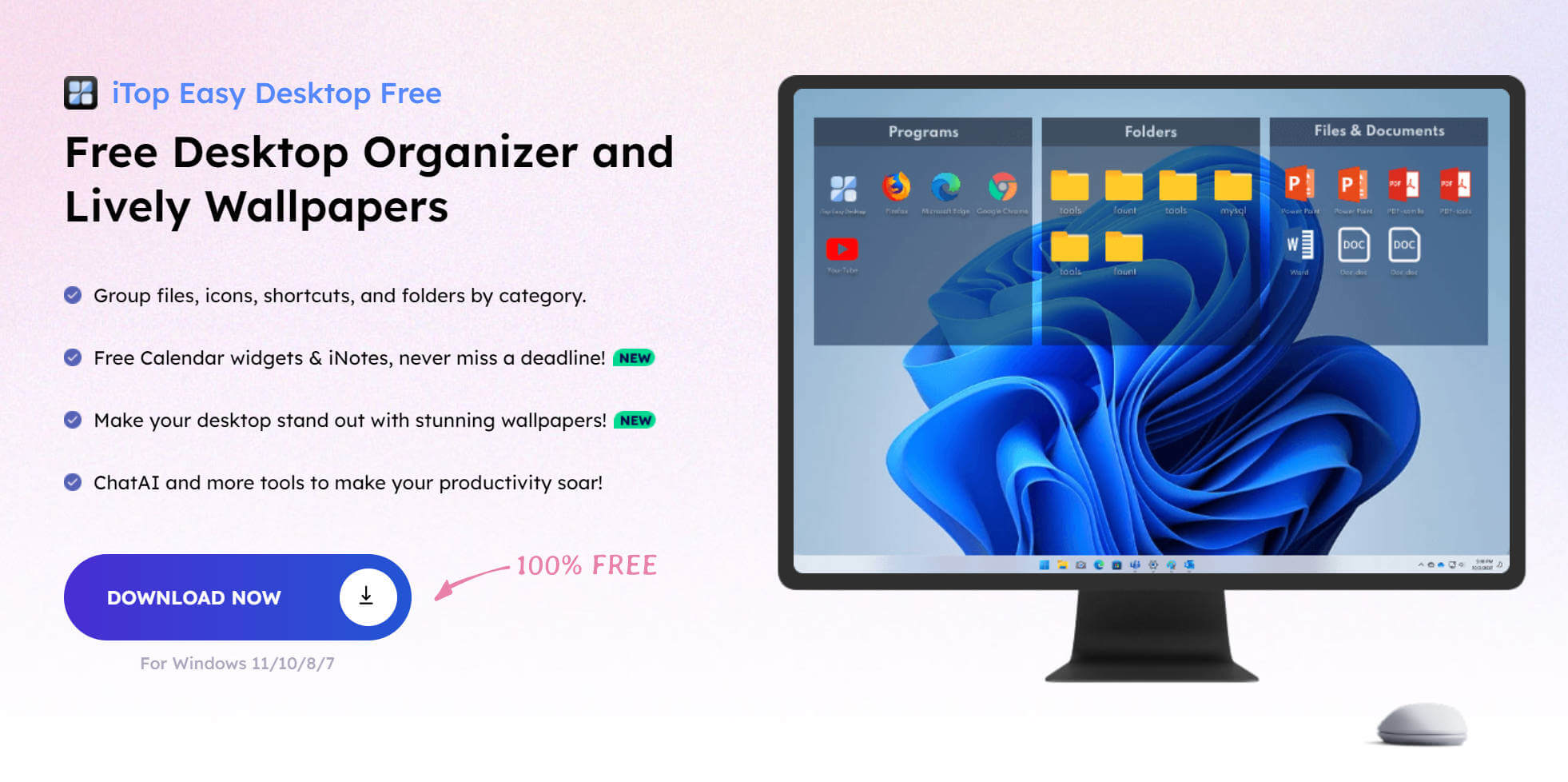
iTop Easy Desktop is a desktop organization tool with a modern user experience where you can enjoy straightforward desktop organization and many customizations. It helps you organize your desktop and adds the option of mouse move controls, hotkeys, gestures, etc., for quickly accessing the files and folders.
Additionally, it makes things easier for you with custom organization and the QuickStart option. With all the customization options, your desktop will look clean and attractive according to the theme.
Features:
- Quick hide features
- Custom Hotkeys
- Auto Icon Arrangement
Customer Rating:
2.8/5 with 4 votes on Microsoft Store.
How to Organize Desktop on Windows 11/10?
- Open iTop Easy Desktop and select QuickStart.
- Edit anything you want to customize from all options in the left menu and save.
3. SideSlide
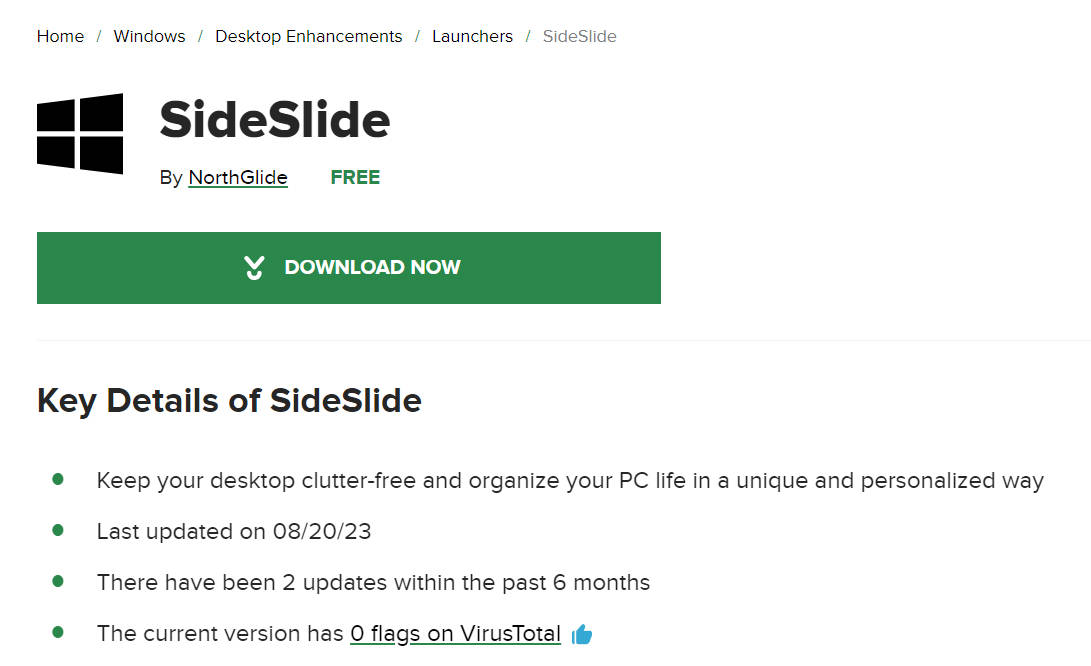
It is an advanced tool for organizing all the desktop elements. Apart from making collections of application icons, it also supports adding different boxes, icons, lists, etc., to your desktop. All of its organization and customization capabilities are backed with smart features, making it highly configurable and easy.
It packs innovative functionalities like dynamic containers that allow you to instantly access anything on your computer without looking in the files for its icon. Hence, with SideSlide, you can efficiently use your time and space.
Features:
- Multiple customization options
- Floating notes
- App docking features
Customer Rating:
4.5/5 with 11 votes on CNET.
How to Organize Desktop on Windows 11/10?
- Use SideSlide to create boxes on the desktop and add the existing icons in those boxes by dragging them in.
- You can edit the positioning of the boxes or desktop elements with the SideSlide user interface elements.
- Go to customization settings to change appearance elements like style, color, buttons, etc.
4. Rambox
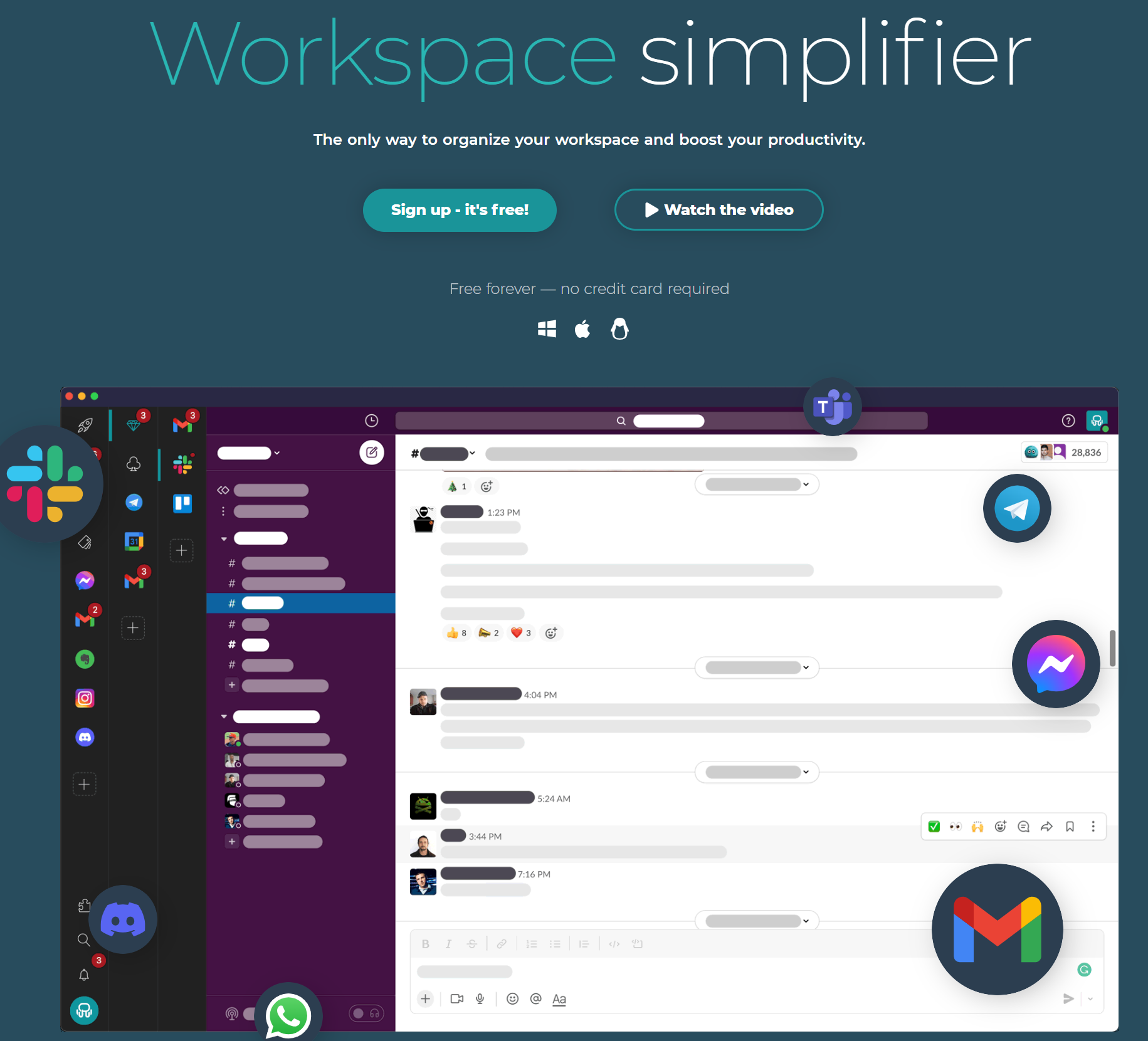
Rambox is a brilliant Windows desktop organizer. It can create dedicated spaces based on different user needs, such as a workspace and a personal space. This allows Slack messages, Gmail, and project tools to be neatly organized together, while personal chats and social apps are placed in a separate work area. In addition, it can also personalize and adjust the layout to fit your workflow.
Features:
- Flexible layout
- Clear messages notification
- Focus mode
Customer Rating:
4.7/5 with 75 vote on G2
How to Organize Desktop on Windows 11/10?
- Open the Rambox on your pc and customize the top dropdown menu elements. You can edit all the available details about them.
- Drag and drop your apps to place them exactly where you want, and then personalize your layout. In addition, you can customize all notifications to prioritize receiving the most important content.
5. OpenClaw AI — The Smartest One-Click AI Desktop Agent (2026 Choice)
If you are tired of dragging files into boxes manually, OpenClaw represents the next generation of desktop management. As an autonomous AI agent framework, OpenClaw runs silently in your background or via your terminal. With a simple hotkey or voice command, it triggers an instant, one-click automatic desktop cleanup.
- How it Works: OpenClaw doesn't just put files into generic folders. It uses advanced semantic vision and file reading to understand what your files are. It automatically categorizes receipts into expense folders, logs code snippets into development directories, and clusters active project files together based on your current workflow context—giving you a fully automated, hands-free organizer experience.
How to Auto-Organize via OpenClaw:
- Launch OpenClaw via your terminal or background application interface.
- Execute the organization command (e.g., type
openclaw --tidy --desktopor use a pre-configured hotkey). - The AI agent will scan the file metadata and contents on your desktop screen, immediately clustering them into context-based folders like 'PDF Reports', 'Receipts', and 'Active Project Assets'.

6. Microsoft Copilot File Companion
For Windows 11 power users, the native integration of Copilot now extends heavily into local file system management. It acts as an intelligent file concierge that dynamically organizes your desktop grid based on your calendar events and active tasks.
- How it Works: If you have an upcoming client meeting, Copilot will temporarily surface all relevant desktop PDFs and spreadsheets into a clean, floating taskbar module, then automatically archive them back to the cloud once the meeting ends to keep your desktop pristine.
How to Access and Manage Desktop Files via Copilot Companion:
- Open the lightweight Files Companion app directly from your Windows 11 taskbar.
- Use the search bar or input a prompt like: "Show me all client brief PDFs scattered on my desktop right now."
- Copilot will dynamically surface those documents, letting you preview, tag, or instantly back them up to OneDrive without opening File Explorer.

Image from: Microsoft
Part 2. The Ultimate Fix for Document Clutter: UPDF PDF Portfoli
Grid fences and icon docks are great for organizing your software shortcuts, but they fail when your desktop becomes a graveyard for loose project files. If you are a professional or student working on a specific project, you often find your desktop cluttered with an overwhelming mix of Word briefs, Excel spreadsheets, PowerPoint slides, and PDF reports.
Leaving them scattered on your screen makes your workspace chaotic, but burning them into a zip file makes them impossible to preview. This is where UPDF’s PDF Portfolio feature becomes the perfect desktop savior:
Windows • macOS • iOS • Android 100% secure
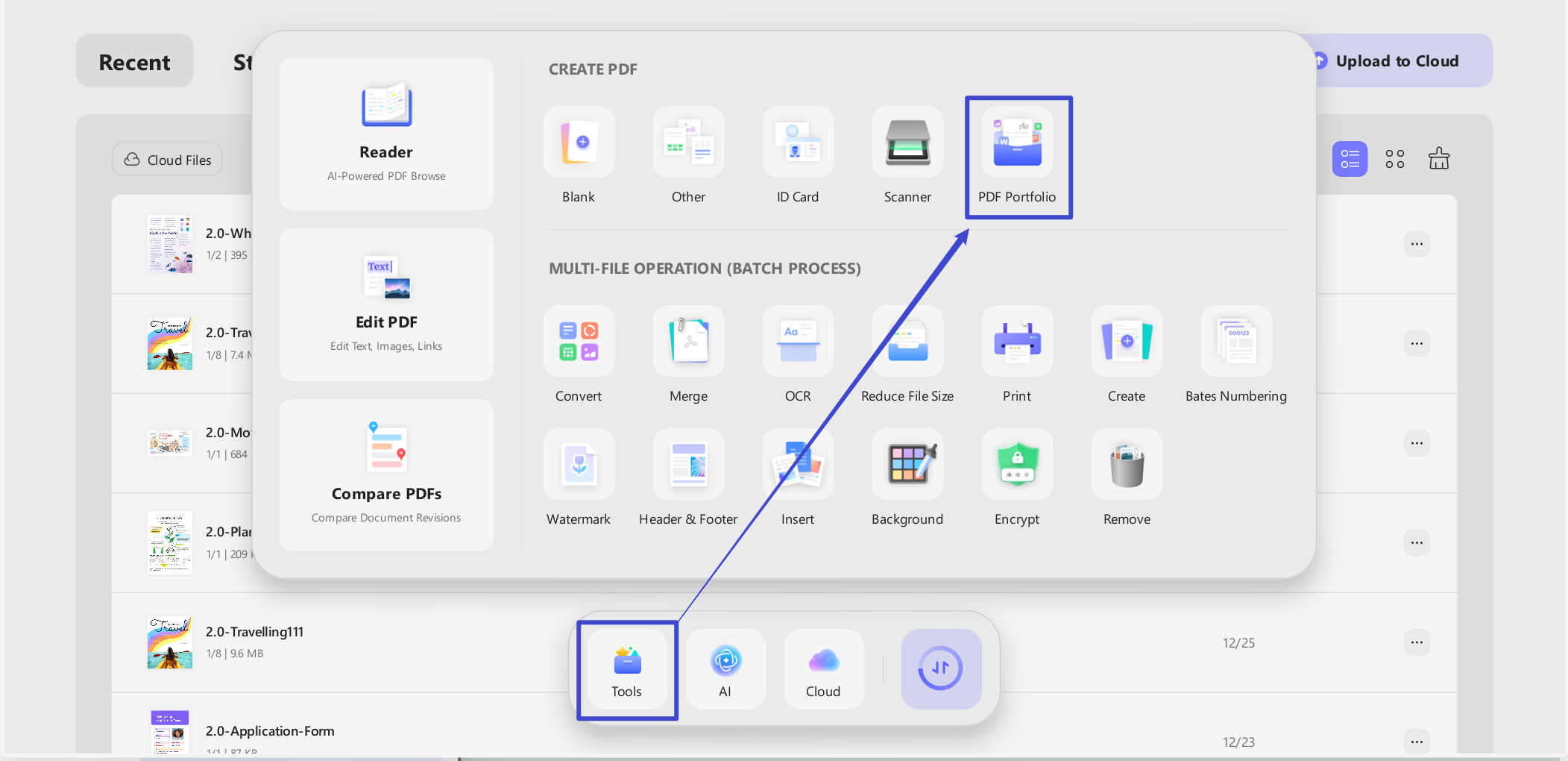
- Consolidate Multi-Format Files into One Elegant Vault: Instead of keeping 20 loose files on your desktop, UPDF lets you create a standard PDF Portfolio. You can seamlessly package PDFs, Word docs, Excel sheets, and images together into a single, beautifully organized master file.
- The Perfect Scenario—Project Deliverables: This feature is a game-changer when you need to hand over final project deliverables to a client or manager. Instead of sending a confusing folder of scattered attachments, you can deliver one cohesive PDF Portfolio. Recipients can instantly view, read, and navigate through the structured files via an elegant side menu, without messy decompression.
- Instant AI Cross-Examination: Once your project files are neatly bound within the Portfolio, UPDF’s built-in AI Assistant allows you to analyze them all at once. You can highlight dense content, ask for rapid cross-document summaries, or translate technical jargon into over 38 languages instantly without leaving your unified workspace.
Moreover, as an all-in-one PDF editor, UPDF also offers PDF editing, annotating, signing, and chatting features. To better understand UPDF, you can read the review article for UPDF from Big Media: wccftech.
✨Unleash Unlimited Potential
FAQs
Can AI agents automatically organize my Windows desktop files?
Yes. In 2026, tools like OpenClaw allow for automated, hands-free file sorting. By utilizing localized AI processing, these agents read file contents and contextually sort your scattered desktop clutter into structured directories with a single click.
What is the difference between a ZIP file and a UPDF PDF Portfolio?
A ZIP file compresses your loose desktop documents into a closed package, forcing you to unzip it every time you want to check a single document. A UPDF PDF Portfolio binds multiple file formats (Excel, Word, PDF, Images) into a single master file, allowing users to instantly preview, read, and use AI to summarize individual documents through a clean, interactive sidebar menu.
Is Stardock Fences still the best local desktop shortcut organizer?
Stardock Fences remains a top tier paid option for visually locking application shortcuts into shaded desktop boxes. However, if your desktop is cluttered with actual project content and loose files, pairing a layout tool with a dedicated document vault like UPDF provides a much higher level of real-world productivity.
Closing End
The Windows PC desktop screen is the most critical part of your computer when you consider productivity, effectiveness, and focus. You will look for the right icon, folder, or file if you have not organized things. Meanwhile, finding the required item will be instant if you have organized things. You need a Windows desktop organizer to organize all the desktop elements.
If you want to take your productivity to the next level, try a PDF organizer. UPDF is the best option among all PDF organizers since it comes with organizing, editing, and several other functionalities, including UPDF Cloud, which helps organize your files across different devices. Download UPDF via the below button to test all the features here.
Windows • macOS • iOS • Android 100% secure






 Enola Miller
 Enola Davis

 Enrica Taylor