 UPDF
UPDF
 UPDF for Windows
 UPDF for Mac
 UPDF for iPhone/iPad
 UPDF for Android
 Nomostar
 UPDF AI Online
 UPDF Sign
 IvyCraft
 Edit PDF
 Annotate PDF
 Create PDF
 PDF Form
 Edit links
 Convert PDF
 OCR
OCR PDF to Word
 PDF to Image
 PDF to Excel
 Organize PDF
 Merge PDF
 Split PDF
 Crop PDF
 Rotate PDF
 Protect PDF
 Sign PDF
 Redact PDF
 Sanitize PDF
 Remove Security
 Read PDF
 UPDF Cloud
 Compress PDF
 Print PDF
 Batch Process
 About UPDF AI
 UPDF AI Solutions
 AI User Guide
 FAQ about UPDF AI
 Summarize PDF
 Translate PDF
 Chat with PDF
 Chat with AI
 Chat with image
 PDF to Mind Map
 Explain PDF
 PDF AI Tools
 Image AI Tools
 AI Chat Tools
 AI Writing Tools
 AI Study Tools
 AI Working Tools
 Other AI Tools
 AI Bookmark Generation
 AI Bookmark Summary
 AI Watermark Generation
 AI Background Generation
 AI Sticker Generation
 AI Stamp Generation
 AI Editing Suite
 UPDF Copilot
 AI Page Management
 AI Semantic Search
 PDF to Word
 PDF to Excel
 PDF to PowerPoint
 Enterprise Solution
 Enterprise Sign
 Enterprise AI
 Enterprise Plan
 Enterprise User Guide
 Enterprise Webinar
 Banking
 Healthcare
 Insurance
 Legal
Legal Manufacturing
 Government
 Education Solution
 Customer Stories
 User Guide
 UPDF Tricks
 FAQs
FAQs UPDF Reviews
 Download Center
 Blog
Blog Newsroom
 Tech Spec
 Updates
 UPDF vs. Adobe Acrobat
 UPDF vs. Foxit
 UPDF vs. PDF Expert

You searched for a title on Google Books, opened the book page — and instead of a download button, all you got was a preview window. That's not a bug: Google Books is a search-and-preview catalog, not a download store, so most copyrighted titles only ever expose a few sample pages.
This guide covers the two cases where you can legally save a Google Book as PDF — public-domain titles from books.google.com, and books you've already purchased on Google Play Books — and then shows how to turn that long, often un-bookmarked PDF into something you can actually read. Part 2 walks through how UPDF's AI Bookmark Generator and AI Semantic Search make even a 400-page classic instantly navigable.
Windows • macOS • iOS • Android 100% secure
Part 1. How to Download a Book from Google Books as PDF?
Before you pick a method, you need to know which Google platform actually holds the book — Google Books and Google Play Books look similar but work very differently:
Google Books: A free digital library. It offers book previews and metadata search capabilities; most copyrighted books display only a limited number of pages (preview mode), while public domain books are available for free download as complete PDFs.
Google Play Books: A paid ebook store. Upon purchase, users can download ebooks in EPUB or PDF format; however, these files are typically protected by DRM (Digital Rights Management).
Note: "If you have already paid for a book, you should go to Google Play Books, not Google Books."
Let's see how to use these two different ways to download Google Books as PDF:
Method 1. Use the Google Books Website
If you intend to search for a specific book on Google and want to download it, then this method will work for you:
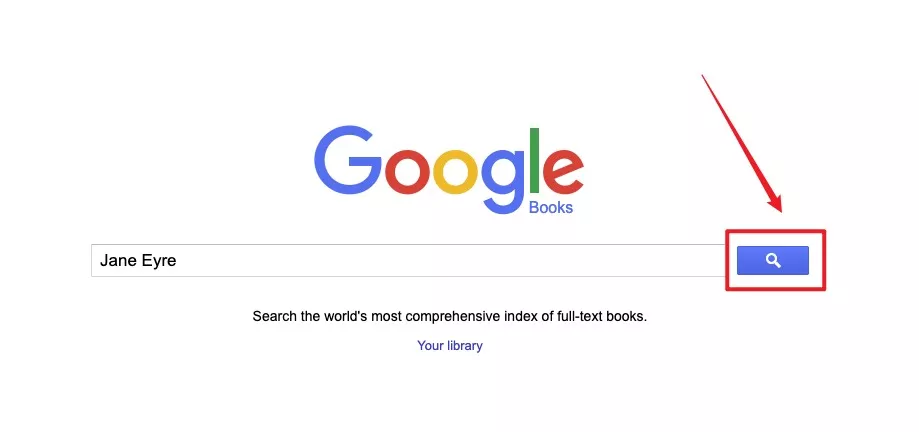
Step 1. Launch your browser and head over to the official Google Books website. Type the name of the book you're looking for into the search bar and hit the search icon.
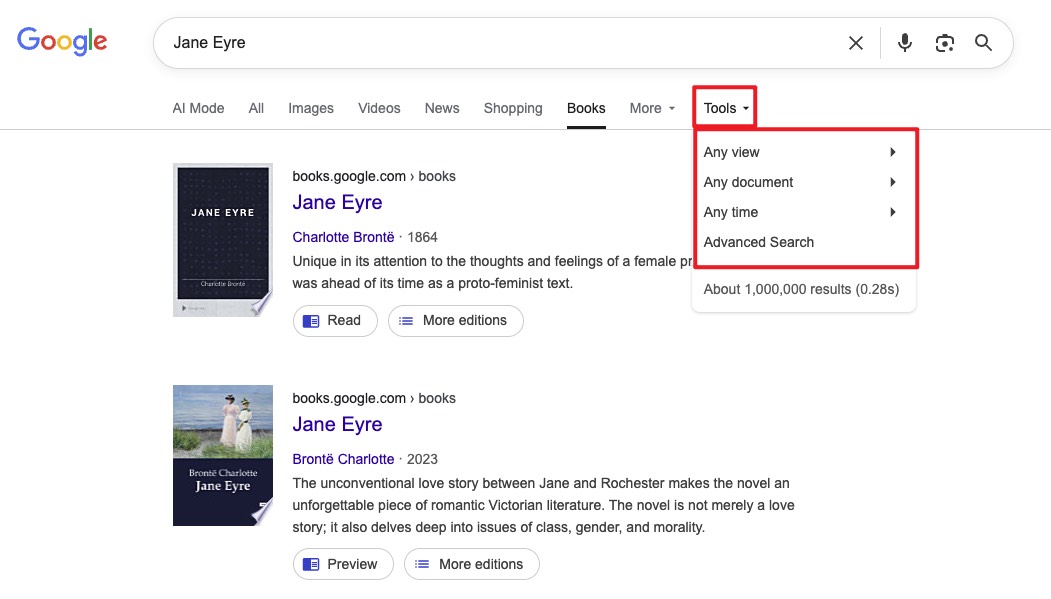
Step 2. You'll now see a list of search results. Click "Tools" to open the dropdown menu, then select your desired filter criteria.
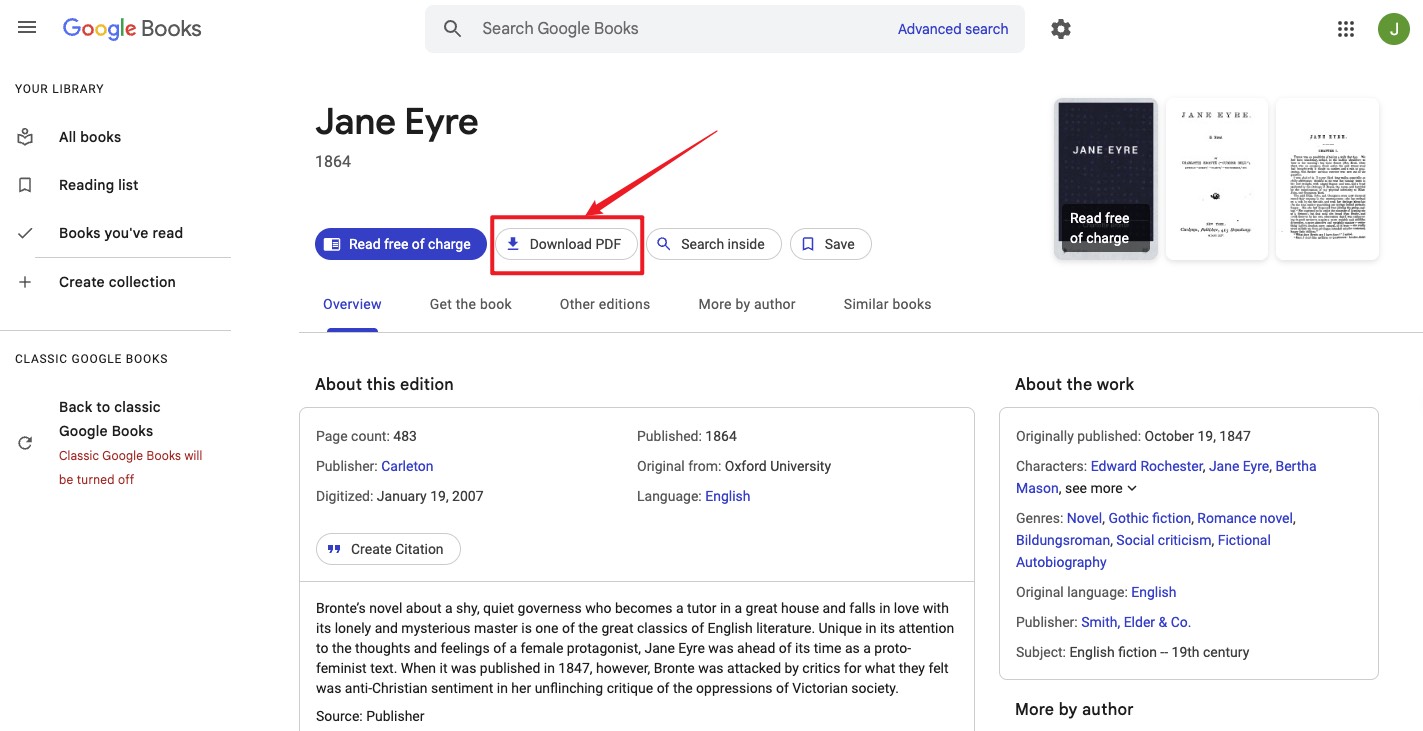
Step 3. Browse through the search results and click on the book you wish to download. Click the "Download PDF" button to download the book.
Method 2. From Google Play Store
You can also download any book present on Google Play Books in PDF format on your device:
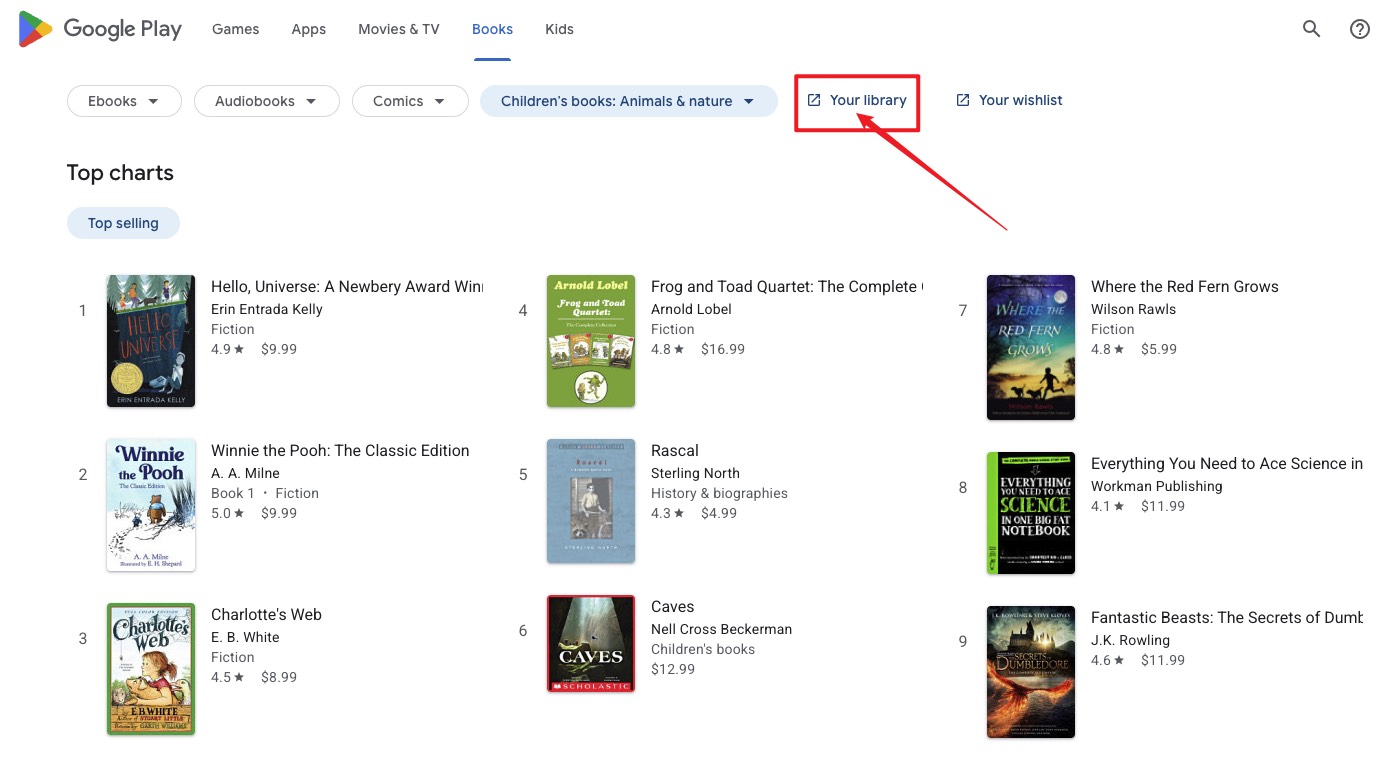
Step 1: You will start by opening a browser on your computer and heading to the Google Play Books website by following this link "Books on Google Play" and signing in with your Google Books account to get your book library.
Step 2: Click on "Your Library," and all books added to your library will show up.
Step 3: Choose a book to click on the "3-dots options" button and select "Export".
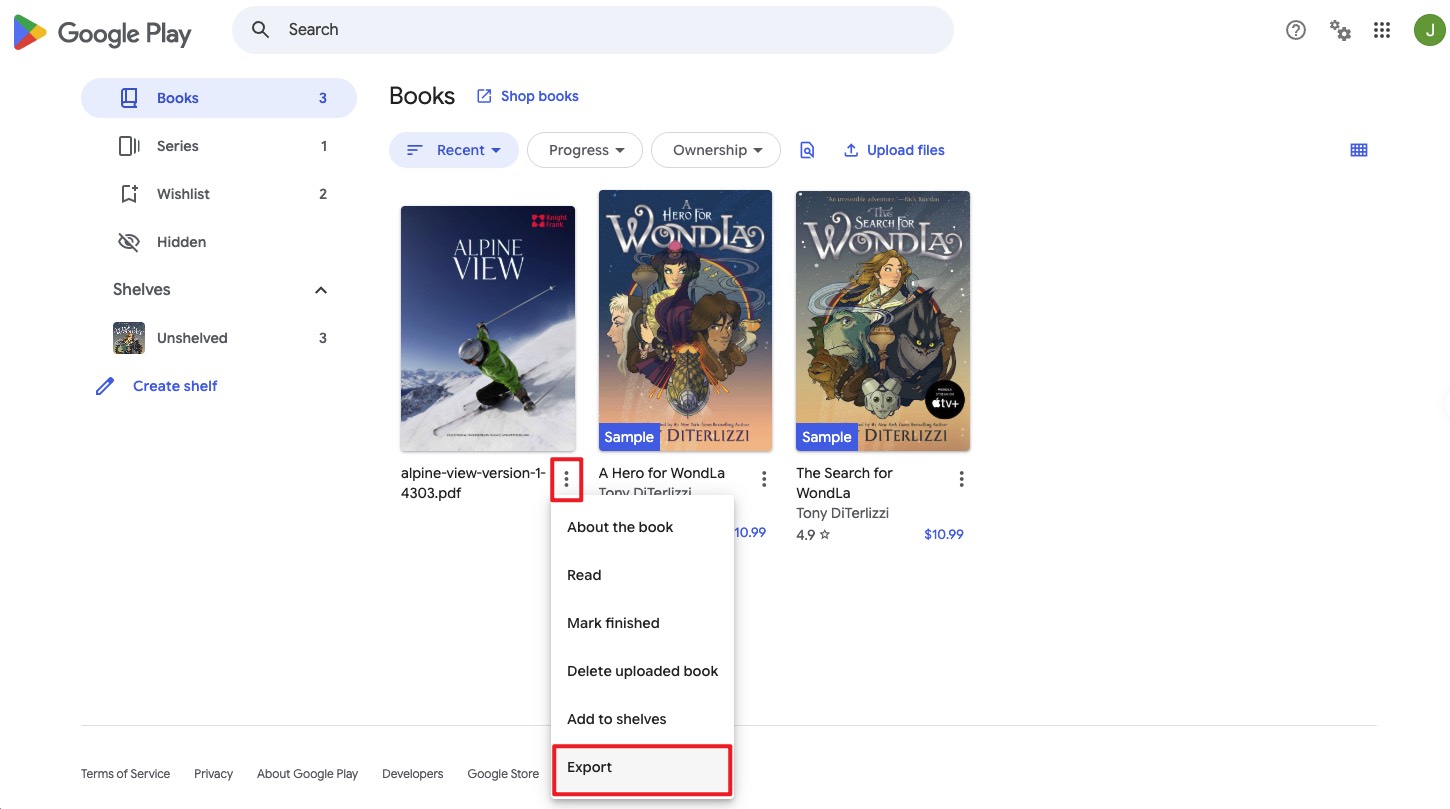
Step 4: Now you will get 2 different options to download that book. One is exported as EPUB while the other is for PDF, and you must click "Export as PDF."
Once your download is complete, ensure to recheck if the downloaded file has downloaded the book completely and there are no missing pages, especially at the end. You may encounter this issue, especially if you have a network connectivity issue. Also note that the downloading time may vary according to book size and connectivity strength.
Part 2. Read, Navigate, and Annotate Google Books PDFs with UPDF
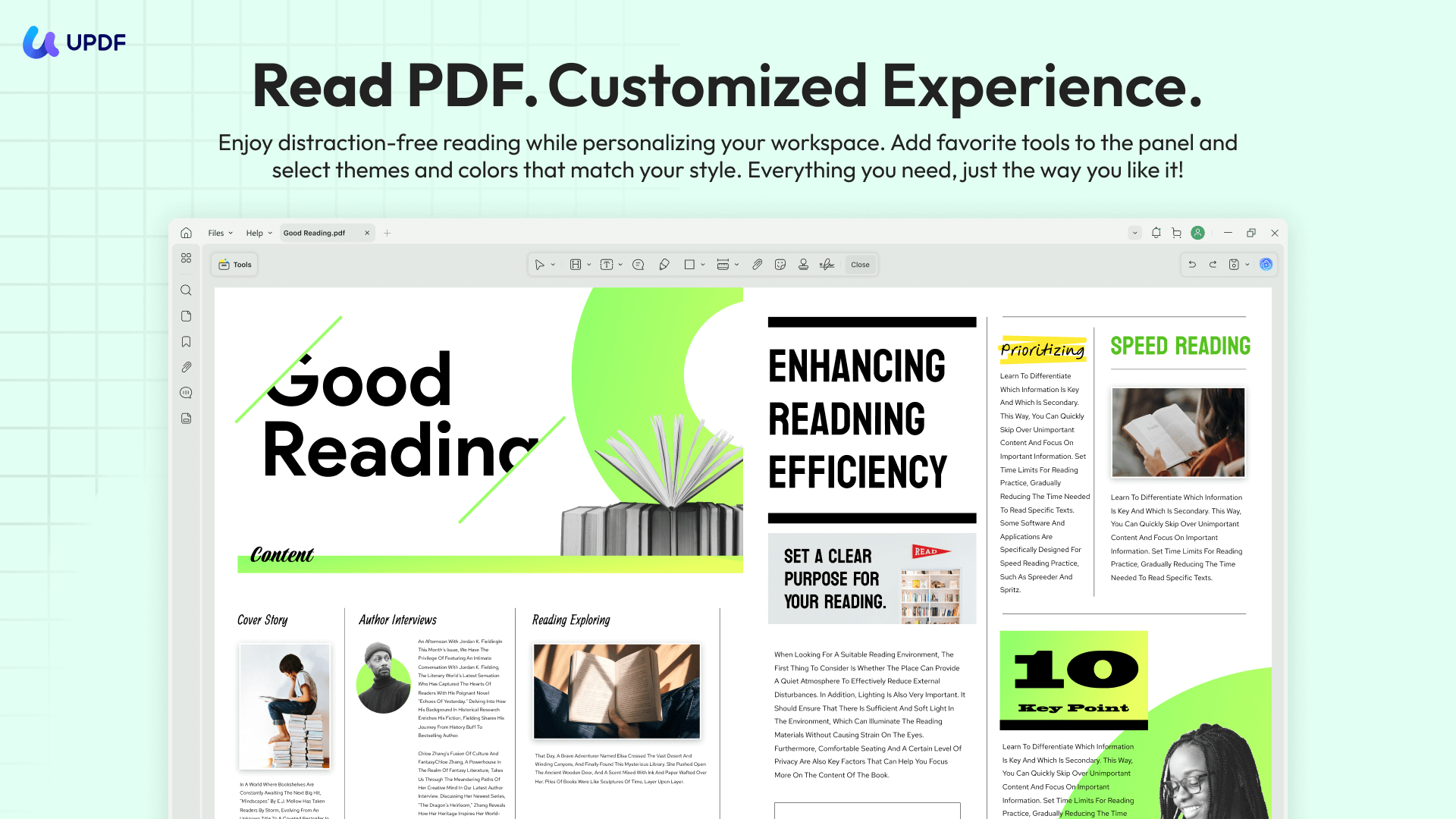
Getting the PDF is only half the job. Most books downloaded from Google Books — especially the public-domain classics — arrive as long files with no bookmarks, no clickable chapters, and sometimes no searchable text at all (because they're scanned page images). That's where UPDF takes over.
Windows • macOS • iOS • Android 100% secure
Build a chapter outline with AI Bookmark Generator
Public-domain Google Books almost never come with a table of contents. The AI Bookmark Generator scans the document and creates a full, hierarchical bookmark tree in one click — so a 400-page Victorian novel or academic monograph becomes instantly navigable from the sidebar, without you typing a single bookmark by hand.
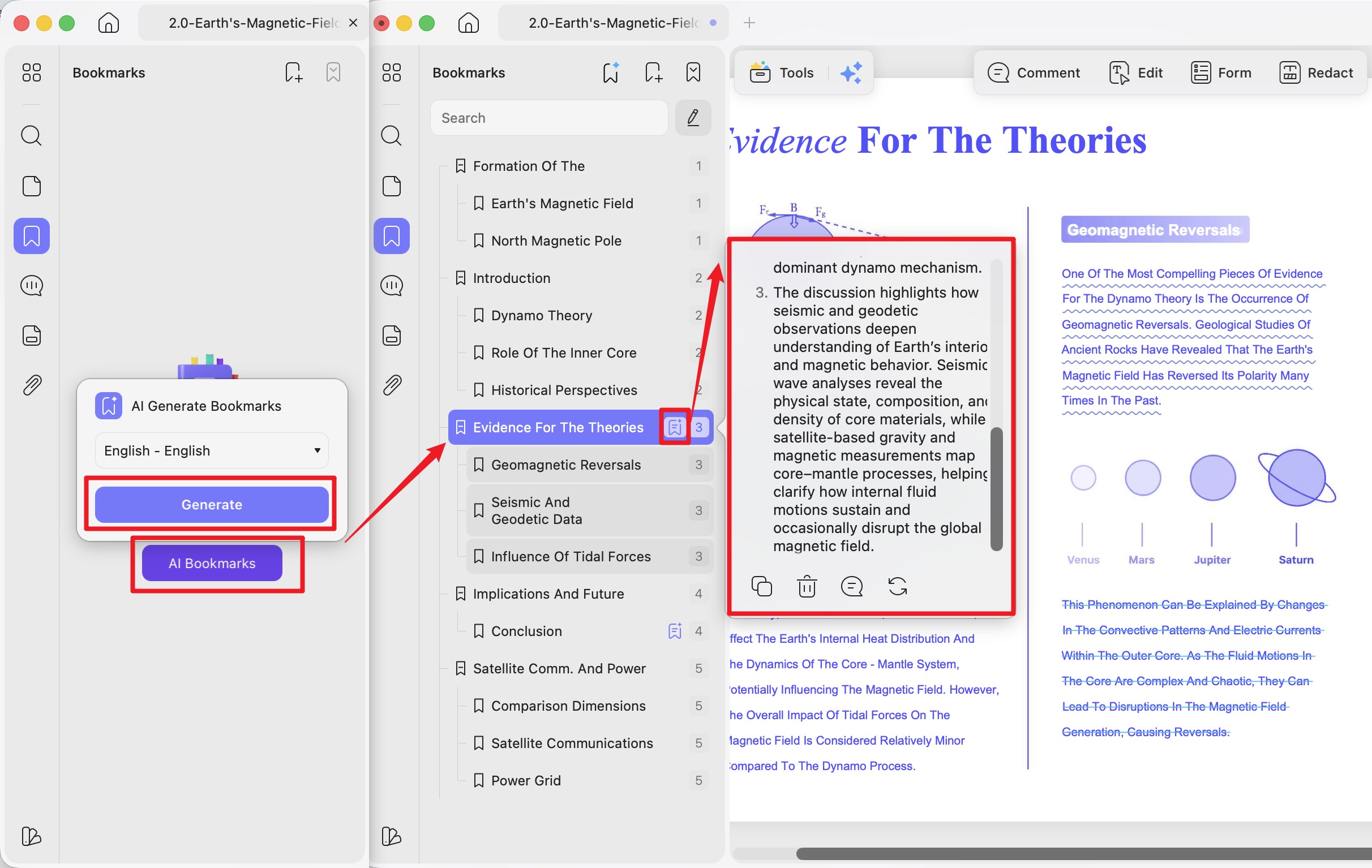
Preview every chapter with AI Bookmark Summarizer
Once the chapters exist, the AI Bookmark Summarizer writes a concise summary for each one. Useful when you grabbed a dense 19th-century legal text or a long historical work and want to know which chapters are worth deep-reading before committing the afternoon.
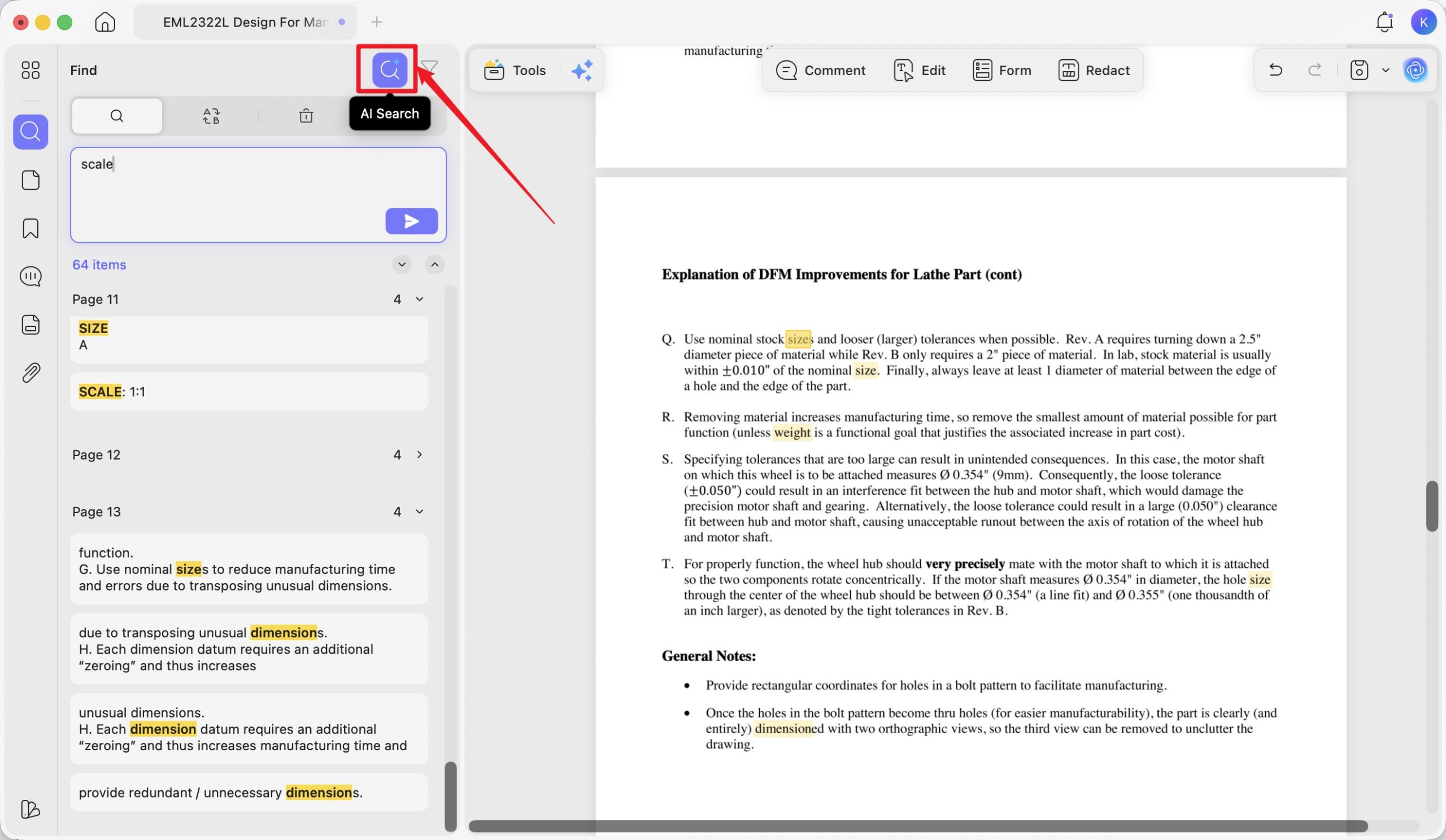
Find concepts (not just exact words) with AI Semantic Search
Older Google Books often use inconsistent terminology — "automobile," "motor car," and "horseless carriage" can all appear in the same volume. UPDF's AI Semantic Search also surfaces synonyms when you search, so results include not just exact matches but also related terms. That alone removes the most painful part of researching from old public-domain scans.
Annotate as you read
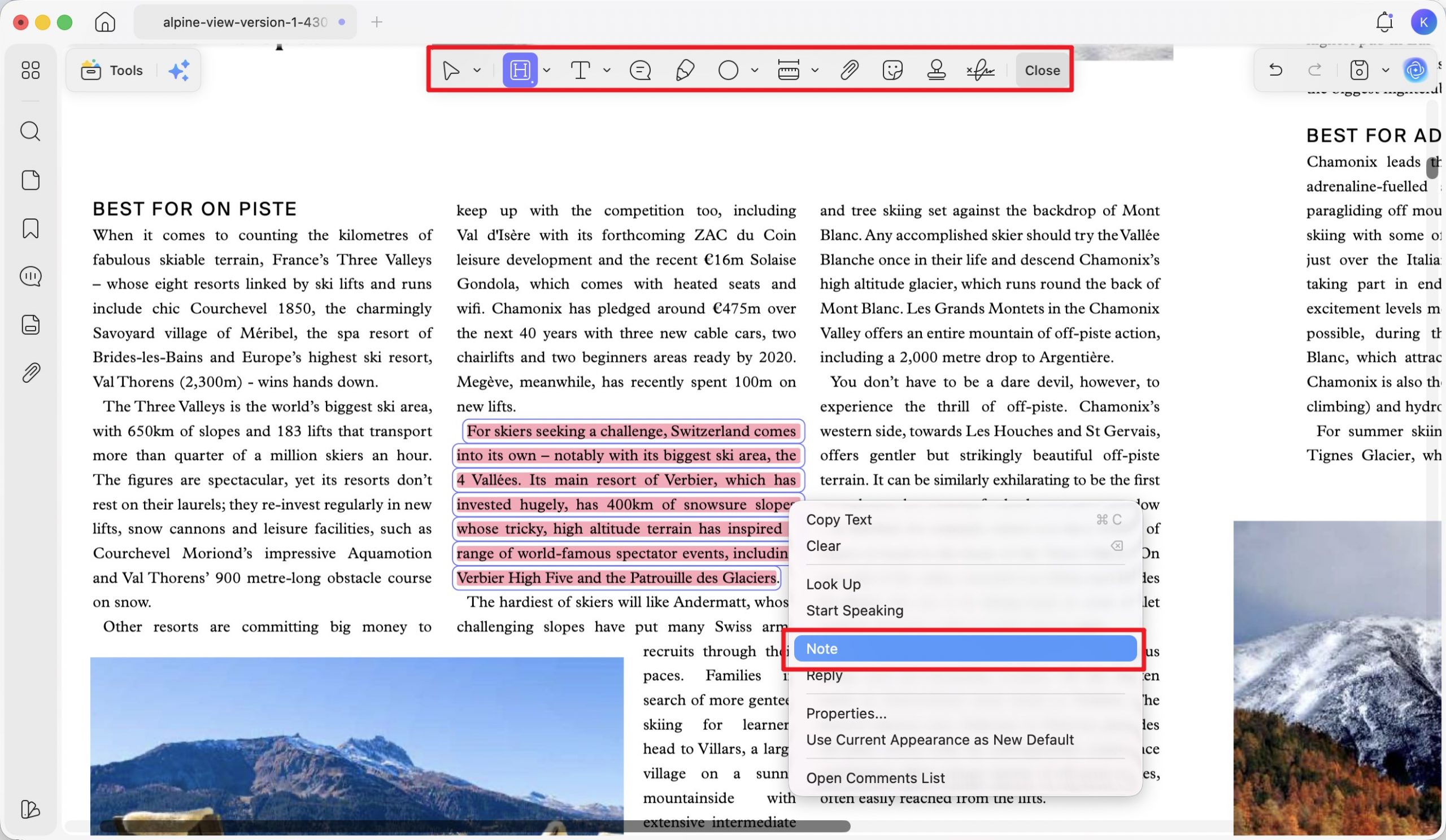
Step 1. Open UPDF and click Open File to load your downloaded Google Books PDF.

Step 2. Click Comment in the top toolbar to open the annotation tools.
Step 3. Select your desired annotation tool. Click and drag to highlight a passage, then right-click the highlight to attach a sticky note. You can also underline, add text callouts, or use the pencil tool for freehand notes from the top annotation toolbar — and every annotation syncs across Windows, Mac, iOS, and Android via UPDF Cloud.
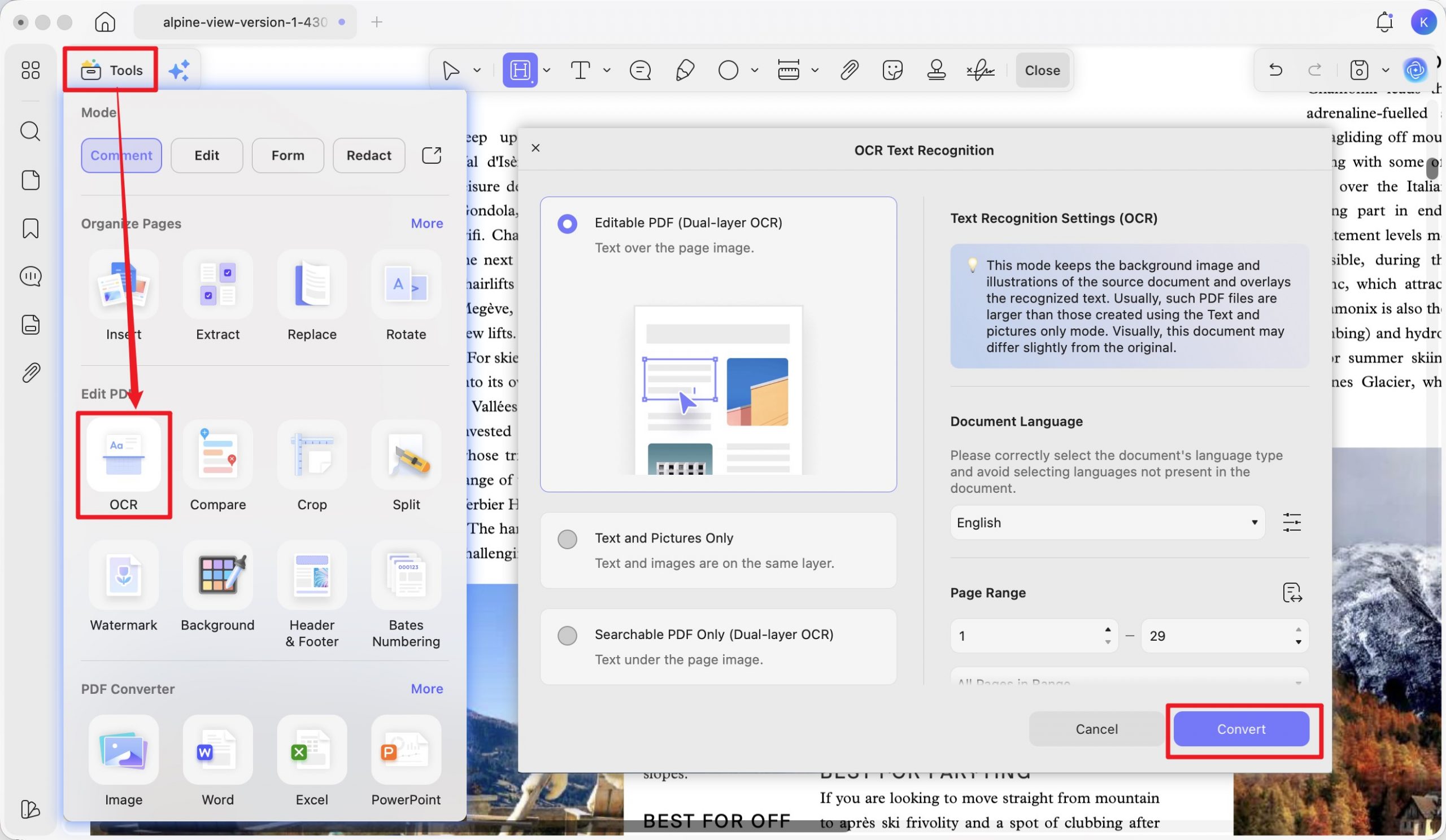
A note on scanned Google Books
In addition, UPDF AI allows you to work on books with other languages or complex wording and helps you understand the whole book by summarizing and translating it, or you can ask it to explain a specific section of the book only.
Download UPDF for free and start reading your Google Books PDFs with auto-generated bookmarks, chapter summaries, and semantic search — no subscription required to get started. If you find UPDF helpful, consider upgrading to UPDF Pro ($49.99 per year, $79.99 for lifetime) to access its premium features and get the best experience of working on PDFs.
Windows • macOS • iOS • Android 100% secure
Read the How-To Geek review of UPDF to learn more about what it can do on your devices or get a detailed AI agents introduction to UPDF by watching the video below. Here is the review video of UPDF:
Part 3. FAQS About Google Books to PDF
Q1. Why can't I find a download button on most Google Books titles?
Because most modern titles on Google Books are copyright-protected, and Google only has rights to show preview pages — not distribute the full file. A download option (PDF or EPUB) only appears for books in the public domain (in the US, generally works published before 1929) or for titles where the publisher has explicitly opted in to free distribution. If you only see a preview window, that book legally can't be downloaded from Google Books itself.
Q2. How do I save Google Books preview pages as a PDF?
Google doesn't provide a built-in way to export preview pages. Workarounds people use include browser extensions that capture visible pages as you scroll, the open-source GBPPD script run through Chrome DevTools, or manual screenshots. None of these are officially supported, and reproducing more than a few pages of a copyrighted preview can violate Google's terms and the publisher's copyright — so keep captures to short excerpts (fair-use research, quoting) rather than full books.
Q3. Can I read my Google Play Books PDF on a Kindle or another reader?
Not directly. Books exported from Google Play Books are usually wrapped in Adobe DRM, which locks them to Adobe Digital Editions and Google's own apps. Kindle doesn't read ADE-protected files, so the PDF won't open even though it's the right format. Some publishers do release DRM-free titles on Google Play (check the "DRM-free" tag on the book's detail page) — those will transfer to any reader, including via UPDF on iOS/Android.
Q4. My downloaded Google Books PDF is image-only and I can't search or copy text. What now?
Older public-domain books on Google Books are scans of physical pages, not text-layer PDFs — that's why Ctrl+F returns nothing. Run the file through UPDF's OCR (leftside Tools → OCR) to convert the page images into a searchable, selectable text layer in 38 languages.
Final Words
Whether you grabbed a public-domain classic from books.google.com or exported a purchase from Google Play Books, the download itself is only the start — a long PDF with no bookmarks, no summaries, and no real search isn't a book you'll actually finish. UPDF closes that gap with the AI Bookmark Generator, AI Bookmark Summarizer, and AI Semantic Search, plus OCR and annotation that sync across Windows, Mac, iOS, and Android.
Download UPDF for free and turn any Google Books PDF into a readable, navigable book — no subscription required to get started.
Windows • macOS • iOS • Android 100% secure







 Delia Meyer
 Enid Brown
 Enola Miller
 Bruna Almeida