 UPDF
UPDF
 UPDF for Windows
 UPDF for Mac
 UPDF for iPhone/iPad
 UPDF for Android
 UPDF AI Online
 UPDF Sign
 Edit PDF
 Annotate PDF
 Create PDF
 PDF Form
 Edit links
 Convert PDF
 OCR
OCR PDF to Word
 PDF to Image
 PDF to Excel
 Organize PDF
 Merge PDF
 Split PDF
 Crop PDF
 Rotate PDF
 Protect PDF
 Sign PDF
 Redact PDF
 Sanitize PDF
 Remove Security
 Read PDF
 UPDF Cloud
 Compress PDF
 Print PDF
 Batch Process
 About UPDF AI
 UPDF AI Solutions
 AI User Guide
 FAQ about UPDF AI
 Summarize PDF
 Translate PDF
 Chat with PDF
 Chat with AI
 Chat with image
 PDF to Mind Map
 Explain PDF
 Scholar Research
 Paper Search
 AI Proofreader
 AI Writer
 AI Homework Helper
 AI Quiz Generator
 AI Math Solver
 PDF to Word
 PDF to Excel
 PDF to PowerPoint
 Enterprise Solution
 Enterprise Sign
 Enterprise AI
 Enterprise Plan
 Enterprise User Guide
 Enterprise Webinar
 Banking
 Healthcare
 Insurance
 Legal
Legal Manufacturing
 Government
 Education Solution
 Customer Stories
 User Guide
 UPDF Tricks
 FAQs
FAQs UPDF Reviews
 Download Center
 Blog
Blog Newsroom
 Tech Spec
 Updates
 UPDF vs. Adobe Acrobat
 UPDF vs. Foxit
 UPDF vs. PDF Expert

Many websites embed PDF files directly into a page so you can read them without downloading. That’s convenient — until you actually want to save the PDF. If there’s no obvious download button, you might wonder how to get the file.
This guide explains simple and reliable methods to download embedded PDF on your device. Besides, we will also introduced a powerful PDF reader, editor, annotator, converter, chatter - UPDF, interested users can click the button to get a free trial.
Windows • macOS • iOS • Android 100% secure
Part 1. What Is an Embedded PDF?
An embedded PDF is a PDF that loads inside a webpage viewer instead of being offered as a direct link. Web pages often use HTML or PDF viewers to show the content, but don’t always expose a download button or link. Modern browsers can display the PDF in a viewer because they have built‑in PDF support, but the site may not show a clear way to save it.
Part 2. How to Download Embedded PDFs from the Internet
We know that PDF sharing is an essential part of online contracts and research. To make the documents accessible across a vast number of platforms, it is necessary to download them. The following section discusses the methods of downloading an embedded PDF on your device:
1. Print to PDF (Best for Any Browser)
When you do not have access to the internet and need to download a PDF file urgently, you can simply use the printing options. In times when you need a quick solution to download an embedded PDF download, you can use the Microsoft Print to PDF service to save time. Let's take a look at the steps to see how this method helps you get the document into your device:
Step 1. To begin the download, open the desired PDF file and press the "Ctrl + P" keys simultaneously to open a new window. To save the file as PDF on your device, consult the new window, go to the "Destination" menu, and select "Microsoft Print to PDF."
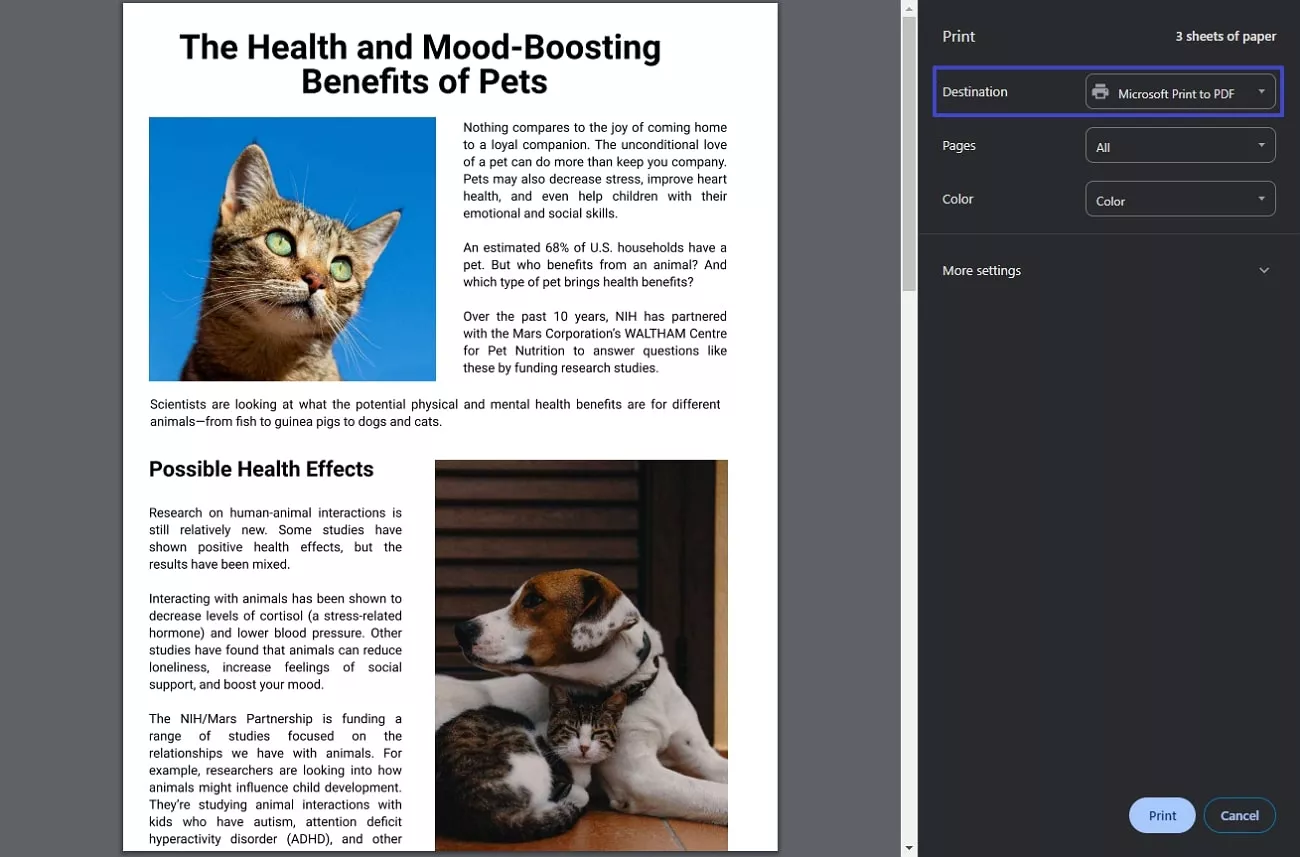
Step 2. If needed, enter more settings, such as paper size and margins, and click the "Save" button at the bottom to save the file as a PDF on your device.
2. Use the Browser's Developer Tools
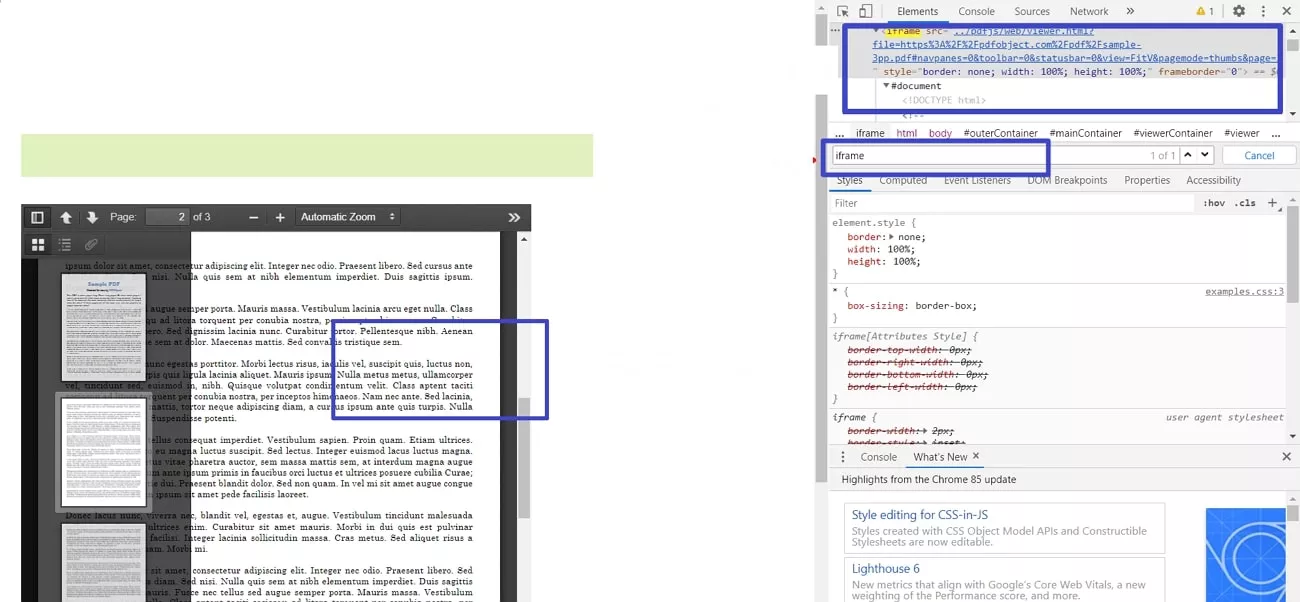
In cases where you need to verify the authenticity of the file source while downloading it, this is the most recommended method. For researchers who need to add citations for their articles, the inspect element method ensures authenticity. Refer to the following discussion to learn how you can download embedded PDF files using this perfect fix:
Step 1. Start the process by opening the PDF file you need to save, right-click over it to select the "Inspect" option from the menu. Find the "iframe" option with the "SRC" attribute containing the file's URL from the browser's developer tools.
Step 2. Here, copy the file URL and paste it directly on the web browser to access the file. Now, use the built-in PDF viewer of the browser and right-click to save the file on your device.
3. Right-Click and Save (If Available)
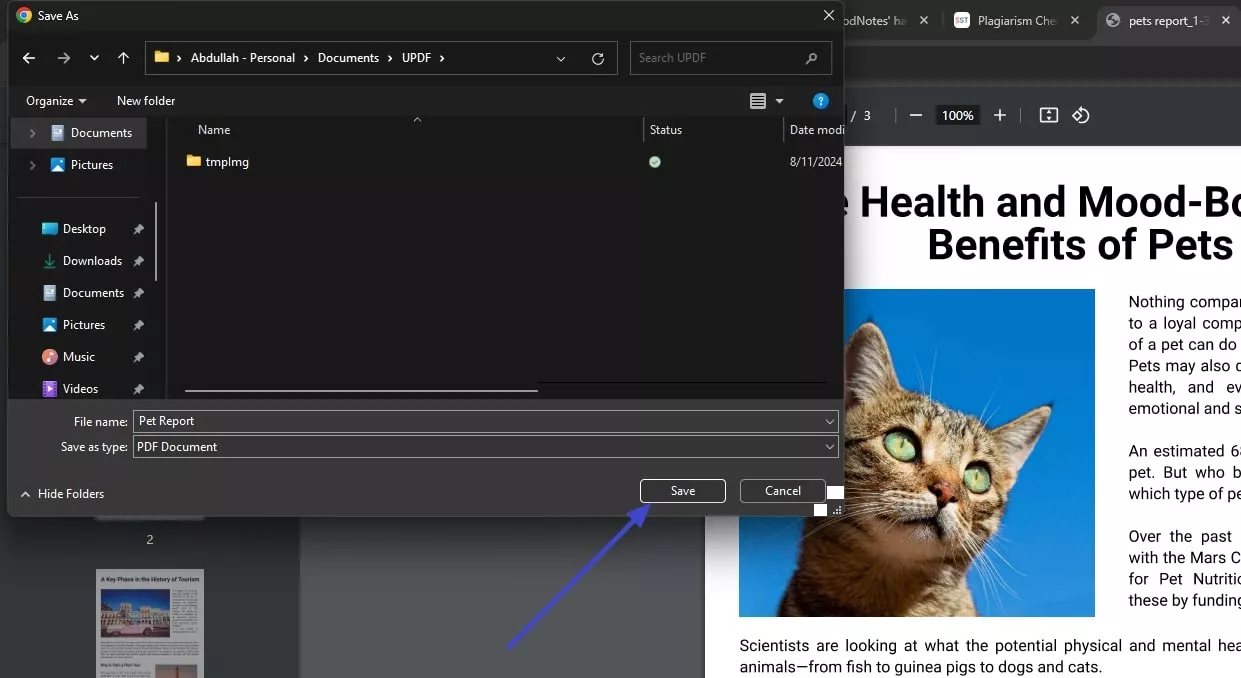
Some embedded viewers still allow you to save the file directly. This short fix is the best solution for researchers who need to access the file source. While saving time, it ensures that the file is saved in your selected location. If you download the file to the device using this method, you do not need an internet connection to access it. The following section guides you through using this method to download embedded PDF:
Instructions. First, open the desired PDF file on the web and right-click over it to open a small pop-up menu. From the menu, click the "Save As" button to open the File Explorer Window. Here, select the file location, then save the file on your device.
4. Browser Extensions
When all techniques fail, use various browser extensions to download the PDFs. These extensions will provide your browser with the elements that will automatically save the embedded file. As these options provide a download button for files, you will not have to manually find the file URL. The recommended browser extensions that can be used to download an embedded PDF file are Download All PDFs, Save as PDF and DownThemAll!.
Part 3. Why Can't You Download PDFs From a Particular Website?
Before we start looking into options for downloading a PDF, we must know the reason why we are unable to download it in the first place. Understanding the underlying issues causing this could help you resolve the problem. To download a PDF from a website, always look into things discussed below:
- Access Restrictions: You might not be able to download a PDF, as some sites only allow subscribers access to download. Some platforms have a policy that prevents unauthorized file downloads from their platform.
- Broken URLs: When the file has been moved to another location or the URL is incorrect, you might be unable to locate its whereabouts. A broken link means it is no longer valid, and you have lost access to the file.
- Security Issues: If a file is encrypted or password protected, you might not be able to access it, let alone downloading. As unauthorized file sharing could cause data breach, many sites take security measures to protect it.
- Browser Issues: Many websites do not support specific browsers, which could hinder the embedded PDF download. Modern websites need an advanced browser to work with, so an up-to-date browser might be a quick fix.
Bonus Part. Make Your PDF Reading Experience Exceptional With UPDF
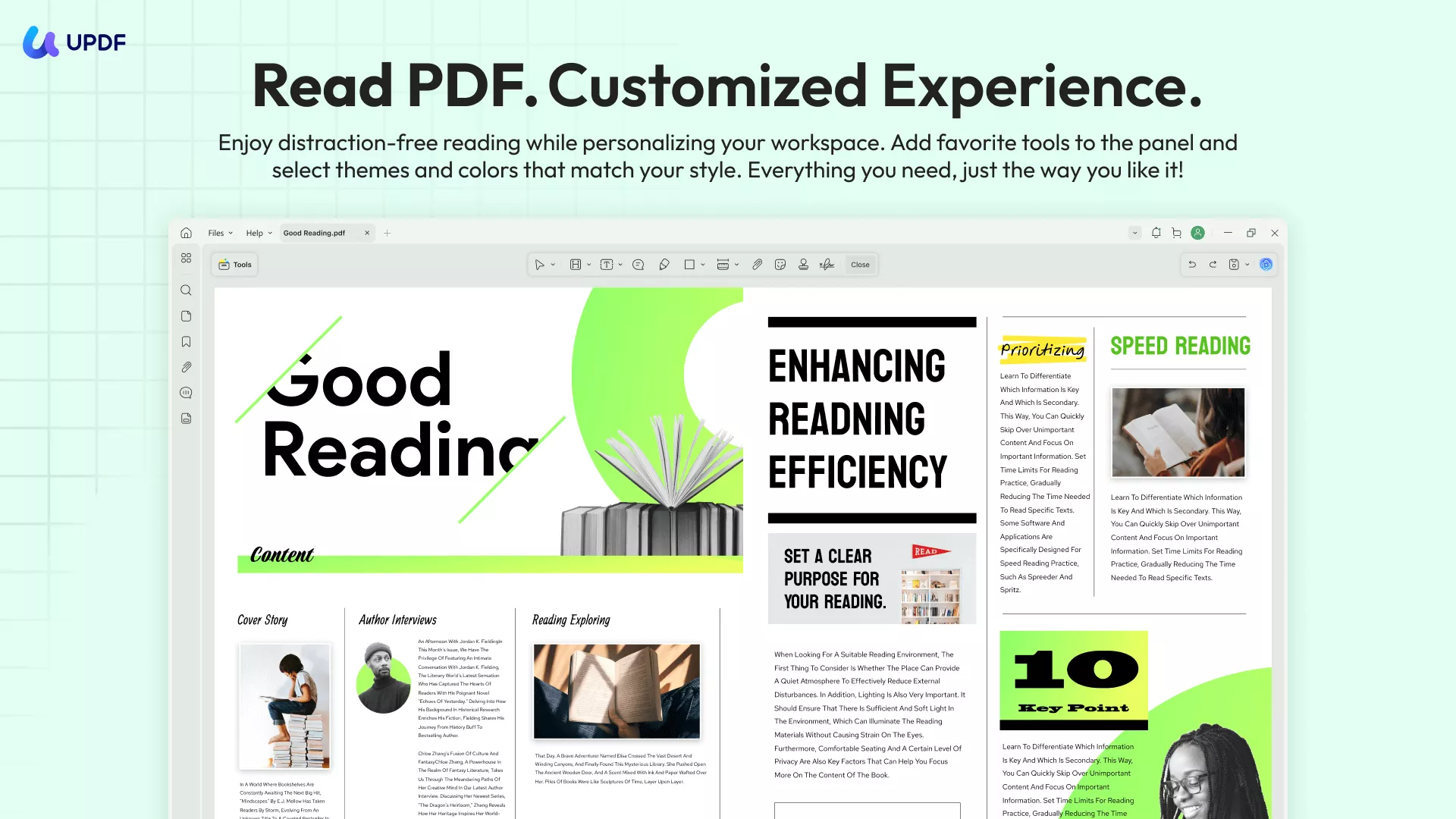
As PDF is a complex format that needs to be accessed and shared, you need a PDF reader that provides various other utilities as well. UPDF is a viable option for reading and splitting a file by page number and size, allowing convenient reading and file sharing. If you want to compare two Word or PDF documents, you can upload them both and give your analysis. The app offers a free trial, interested users can download it by clicking the button below.
Windows • macOS • iOS • Android 100% secure
Furthermore, the slideshow feature makes skimming easier and quicker, requiring no clicks or taps. To ensure maximum readability, UPDF offers a zoom-in of up to 6400% of the original size. You can switch between single-page and double-page modes and use continuous scrolling for a seamless experience. Moreover, you can get a dedicated dark mode to read PDFs at night without straining your eyes and navigate pages through the bookmarks swiftly. From file reading to many other functionalities, this platform is an all-in-one PDF platform.
Other Features Offered by UPDF
After you download the embedded PDF, you must look into several other cutting-edge features offered by UPDF as follows:
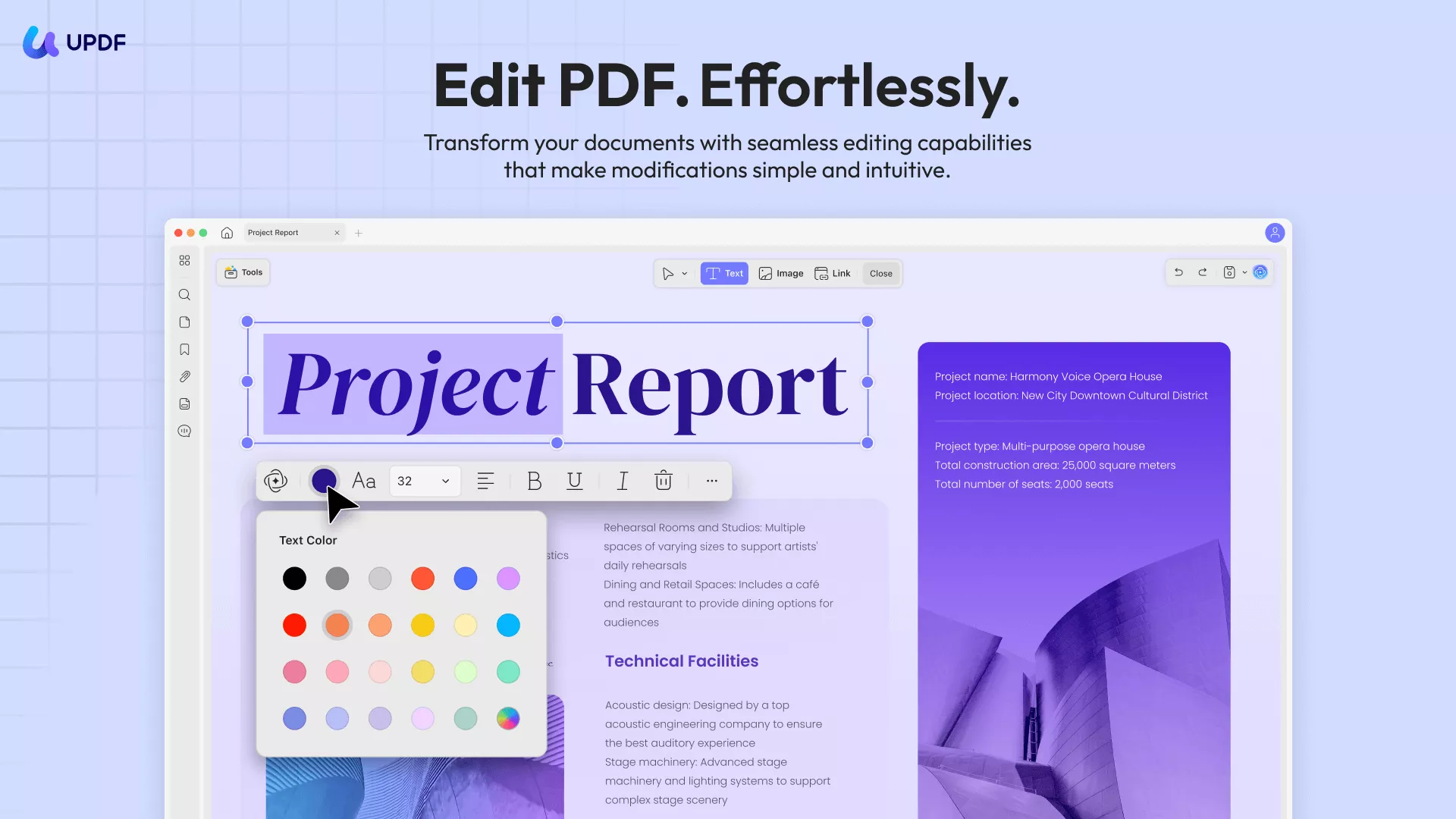
- PDF Editing: Edit your PDF and change the font style, size, and color to make the document look appealing. You can insert a text, image to make the file interactive and add a URL to make your content verifiable.
- Prepare Form: Add checkboxes and radio buttons to enhance the interactivity of the form before you have it filled. From drop-down menus to digital signatures and buttons, UPDF provides every element that must be included in a form.
- Password Protection: Keep the file security on high alert by setting a password for opening your document. Besides, you can also keep your content from being printed, edited, copied, or commented on.
- Redaction: If your PDF document features some sensitive data, you do not need to spend hours editing or rewriting. You can just redact specific text or custom pages in the document, resulting in a blackout of information.
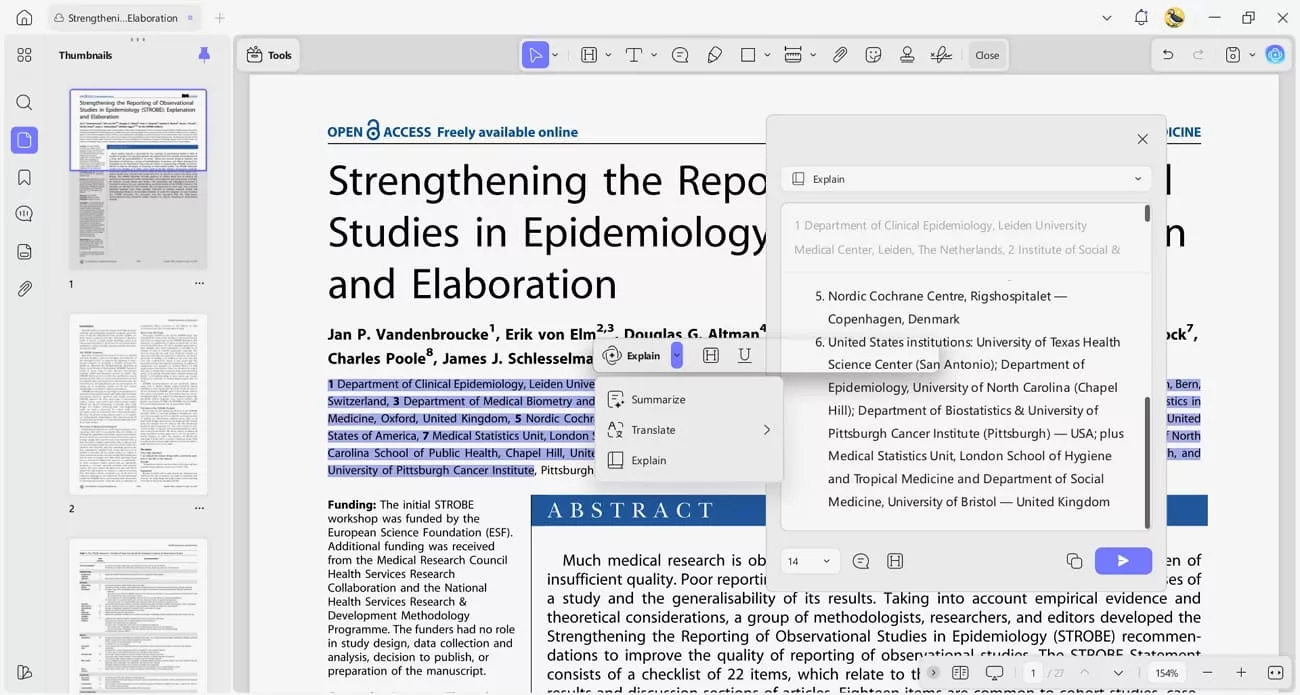
- UPDF AI: It helps you understand and interact with your books more. You can select any text and ask UPDF AI to summarize, explain, or translate it. Afterwards, you can add the explanation as a comment. Additionally, you can use it to chat with the book through a human-like one-to-one conversation., all powered by GPT-5 and DeepSeek R1.
You can also read this review article by PDF association to learn more about UPDF.
Windows • macOS • iOS • Android 100% secure
Conclusion
In essence, embedded PDF files cannot be directly downloaded from the source due to large size and content complexity. You can use UPDF for embedded PDF download and perform many other functions such as editing, redaction, and password protection.
Windows • macOS • iOS • Android 100% secure




 Lizzy Lozano
 Enola Davis
 Enid Brown
 Engelbert White