 UPDF
UPDF
 UPDF for Windows
 UPDF for Mac
 UPDF for iPhone/iPad
 UPDF for Android
 UPDF AI Online
 UPDF Sign
 Edit PDF
 Annotate PDF
 Create PDF
 PDF Form
 Edit links
 Convert PDF
 OCR
OCR PDF to Word
 PDF to Image
 PDF to Excel
 Organize PDF
 Merge PDF
 Split PDF
 Crop PDF
 Rotate PDF
 Protect PDF
 Sign PDF
 Redact PDF
 Sanitize PDF
 Remove Security
 Read PDF
 UPDF Cloud
 Compress PDF
 Print PDF
 Batch Process
 About UPDF AI
 UPDF AI Solutions
 AI User Guide
 FAQ about UPDF AI
 Summarize PDF
 Translate PDF
 Chat with PDF
 Chat with AI
 Chat with image
 PDF to Mind Map
 Explain PDF
 PDF AI Tools
 Image AI Tools
 AI Chat Tools
 AI Writing Tools
 AI Study Tools
 AI Working Tools
 Other AI Tools
 PDF to Word
 PDF to Excel
 PDF to PowerPoint
 Enterprise Solution
 Enterprise Sign
 Enterprise AI
 Enterprise Plan
 Enterprise User Guide
 Enterprise Webinar
 Banking
 Healthcare
 Insurance
 Legal
Legal Manufacturing
 Government
 Education Solution
 Customer Stories
 User Guide
 UPDF Tricks
 FAQs
FAQs UPDF Reviews
 Download Center
 Blog
Blog Newsroom
 Tech Spec
 Updates
 UPDF vs. Adobe Acrobat
 UPDF vs. Foxit
 UPDF vs. PDF Expert

Finding the right books for school or personal reading can be overwhelming, especially when you are juggling reading levels, assignments, and multiple titles at the same time. The ACC Reader Book Finder helps solve this by allowing students and teachers to discover books, track reading progress, and manage reading lists in one place.
At the same time, many readers today rely on digital materials—such as PDF books, study guides, and class handouts—to support their reading. This is where tools like UPDF become useful. Instead of just opening a PDF, readers can highlight key chapters, summarize long texts, and quickly understand what a book is about using UPDF's built-in AI assistant. This makes it easier to decide which books to focus on and how to keep up with reading tasks.
Windows • macOS • iOS • Android 100% secure
Together, ACC Reader Book Finder for discovering and tracking books, and UPDF for reading and understanding digital materials, create a more efficient and less stressful reading workflow.
Part 1. What is ACC Reader Book Finder?
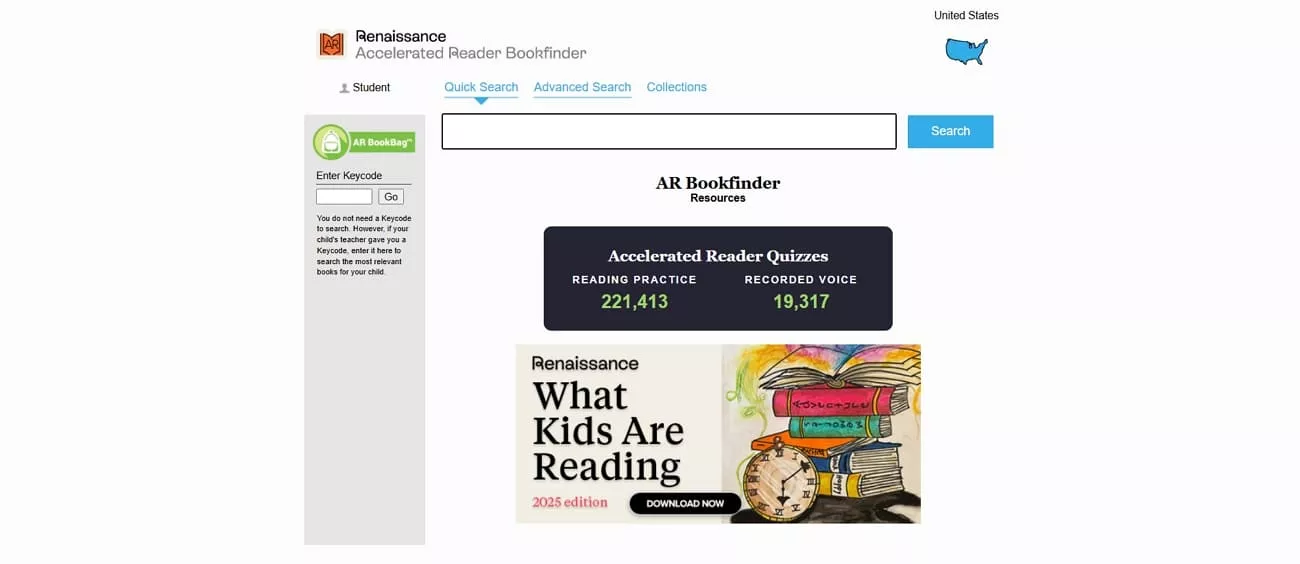
The ACC Reader Book Finder is a tool designed to help readers locate books that match their interests, reading level, or school assignments. Accelerated Reader Book Finder enables users to monitor their reading development and see the titles that they have read throughout the years. Beyond that, it helps organize reading lists so users can plan and track their books.
Typical Use Cases
Now, we'll look at the common ways people use this tool in everyday reading routines.
- Locating Quiz-Ready Titles: Students search by title and ISBN to check if a book has an Accelerated Reader quiz and is acceptable for school reading goals.
- Matching Reading Difficulty: Learners use book level and interest level information to pick books that match their reading ability and age.
- Developing Guided Reading Sets: Librarians and teachers create lists and shelves of books approved by AR in terms of grade and reading level.
- Reading Support at Home: Parents look up books they already own or plan to buy to ensure they fit their child's AR targets.
- Planning Digital Reading: Students who read e-books or PDFs check those titles in Book Finder, so their digital reading still aligns with AR quizzes and point goals.
How to Manage Digital Books
Many readers also have PDF books and e-books that they keep for school or personal reading. They can organize, read, annotate, and manage these digital books easily using the UPDF tool.
Part 2. How ACC Reader Book Finder Helps You Find Books
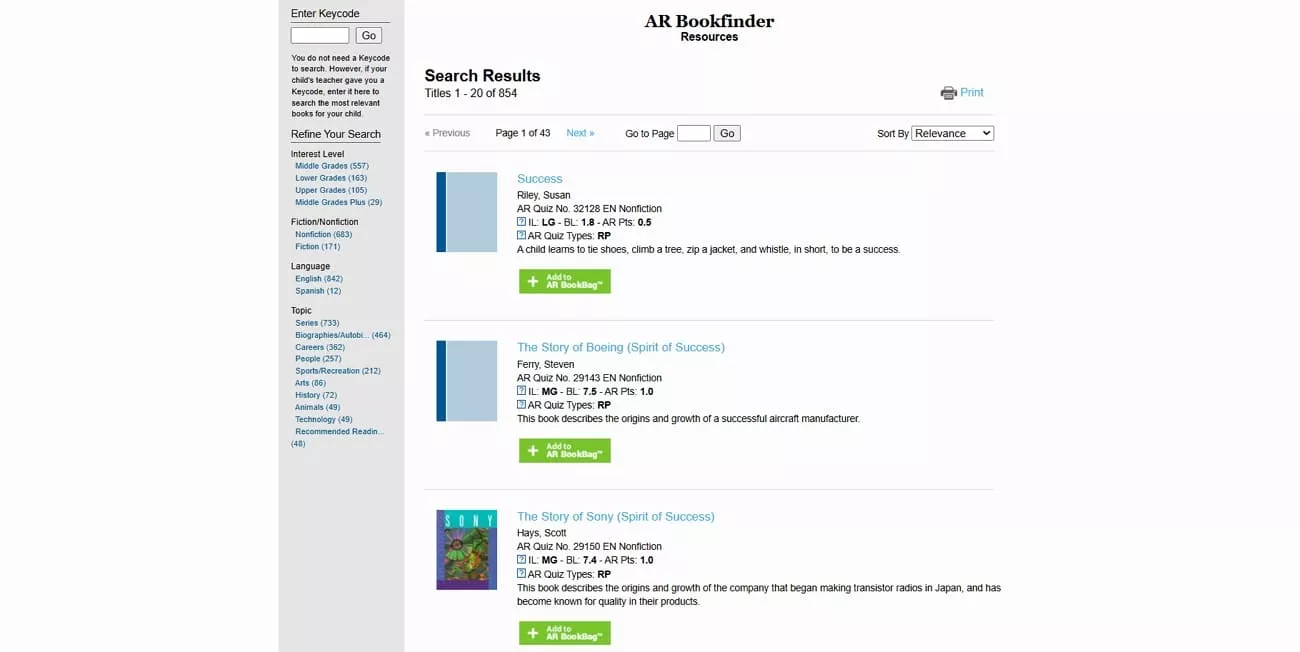
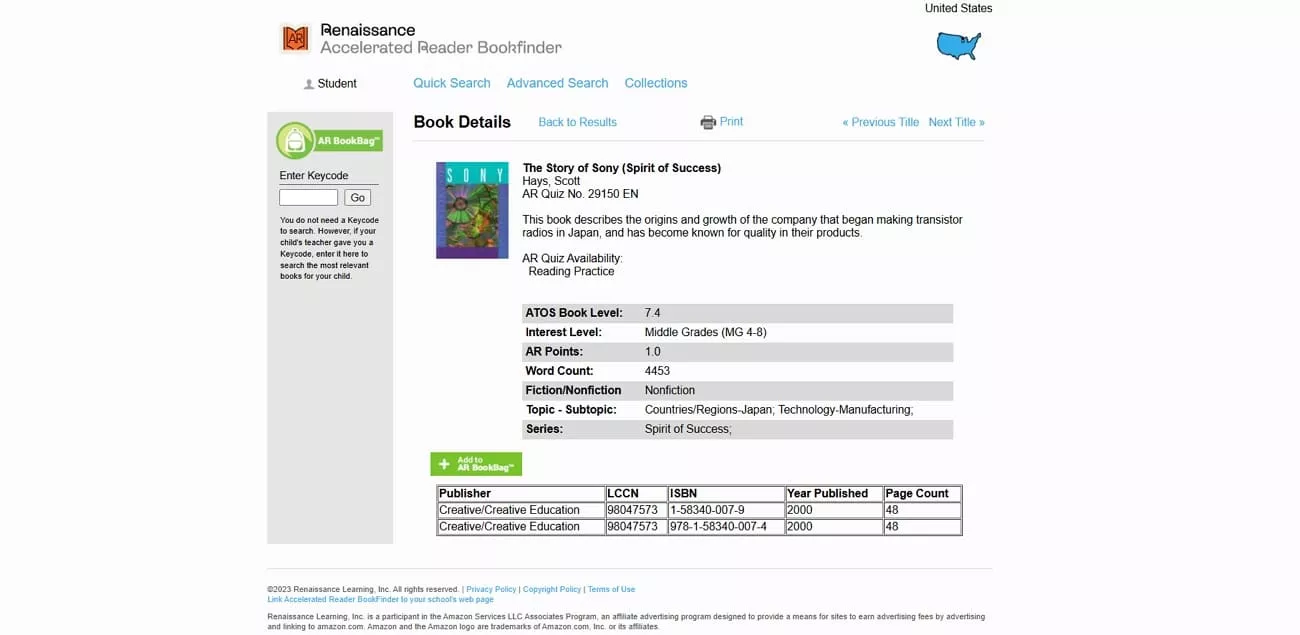
ACC Reader Book Finder helps you see whether a book has an Accelerated Reader quiz, so you do not waste time on titles. In addition, it lets you gather several promising titles into a simple list you can print or save for later. Now we will look at the unique features that make this tool useful.
- Title and Author Search: Type the book's name or writer to quickly confirm if an Accelerated Reader quiz exists.
- Genre and Topic Filters: Search by subject like mystery, animals, or sports to find interesting books that still support Accelerated Reader.
- Reading and Age Matching: Choose books using reading levels and age bands so students always read texts that feel comfortably challenging.
- Collections and Curated Lists: Browse grouped book lists made around themes or recommendations to quickly pick titles for your reading plans.
Tips for Finding and Organizing Books
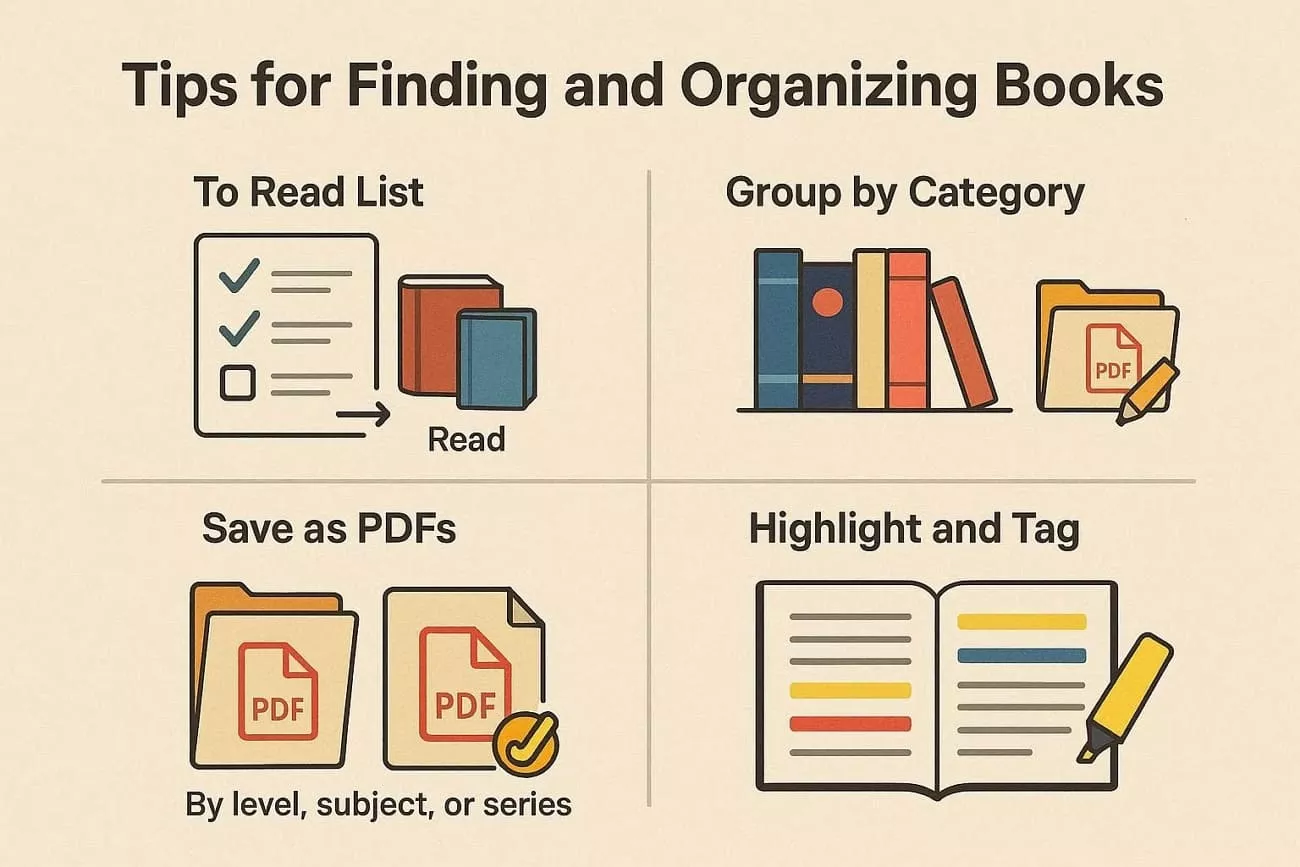
Next, let's look at some practical tips you can use right away to discover new books and organize reading lists.
- Start a simple "To Read" list and regularly move every finished book into a separate "Read" section.
- Group your books by level, subject, or series so choosing the next suitable title becomes easier.
- Save book lists as PDFs in one folder, then use UPDF to highlight, tag, and comment thoughtfully.
- Write short notes after each book about difficulty and enjoyment to guide better reading choices in future.
Many readers keep digital copies of book lists and titles from the Accelerated Reader Book Finder in one place to stay organized. This is where tools like UPDF can help store PDFs, highlight important parts, and add quick notes.
Part 3. Using UPDF and UPDF AI to Enhance Your Reading
Many readers manage digital books in PDF format, yet organizing, annotating, and finding insights can take time. This is where UPDF comes in, a versatile PDF reader, annotator, and organizer that lets users store, access, and manage digital books. It supports easy annotation and highlighting to help readers focus on content rather than struggling with file management or cluttered libraries.
Building on this, UPDF AI offers intelligent assistance within UPDF to enhance the reading experience. It can summarize chapters, extract key points, and suggest related books, creating a more interactive and insightful reading workflow. The AI capabilities are embedded in the UPDF, while the UPDF AI Online offers similar assistance without editing features.
Open your books in UPDF and start reading smarter.
Windows • macOS • iOS • Android 100% secure
Practical UPDF Use Cases With ACC Reader Book Finder
After finding books with ACC Reader Book Finder, you can use UPDF to organize, annotate, and get more from your digital reading materials. Look at the practical use cases that show how UPDF can enhance your reading experience.
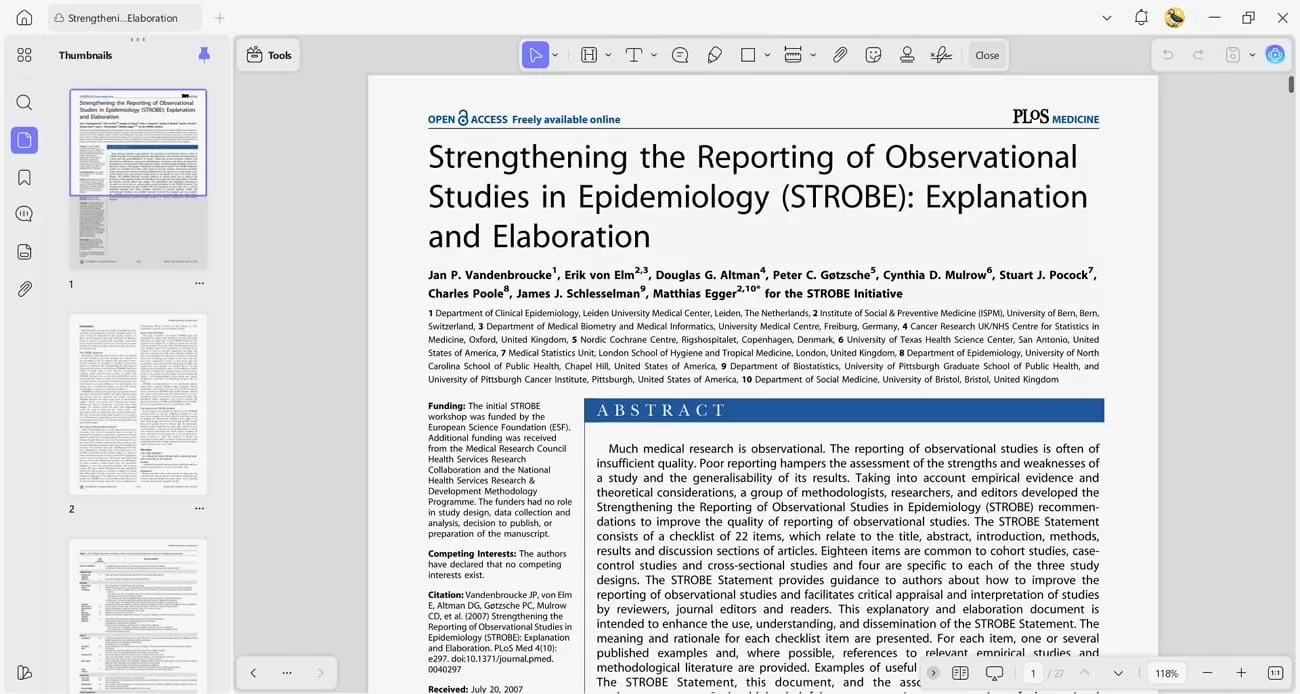
1. Digital Book Upload: Upload digital copies of books found through ACC Reader Book Finder into UPDF for easy access and storage.
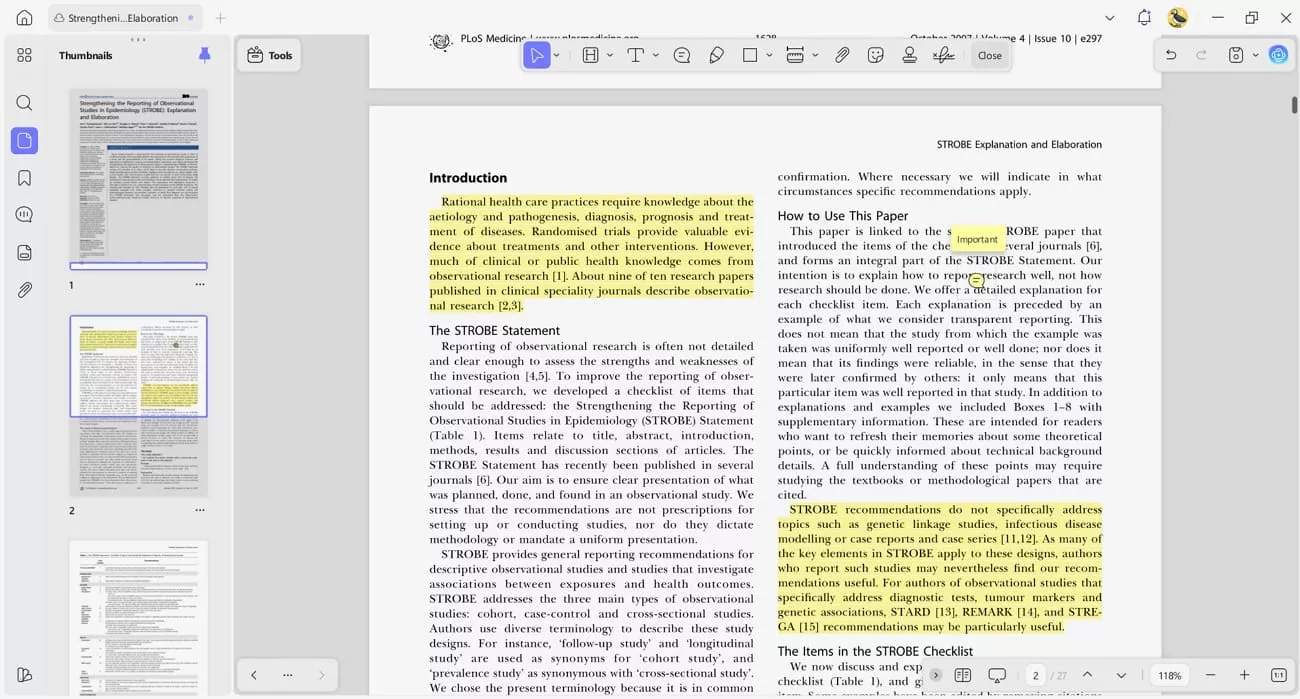
2. Annotation and Note-Taking: Highlight important passages, add notes, and organize your reading materials while studying or reviewing.
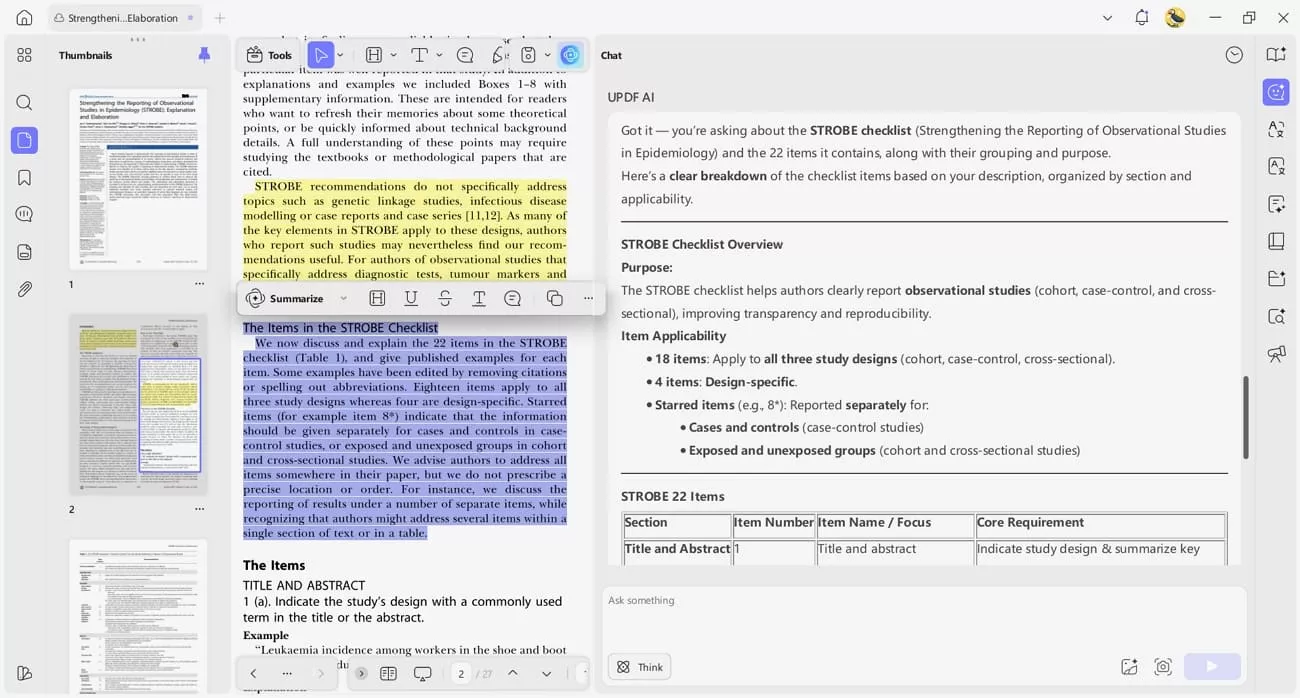
3. Chapter Summaries and Key Points: Use UPDF AI to summarize chapters and extract key points from your digital books.
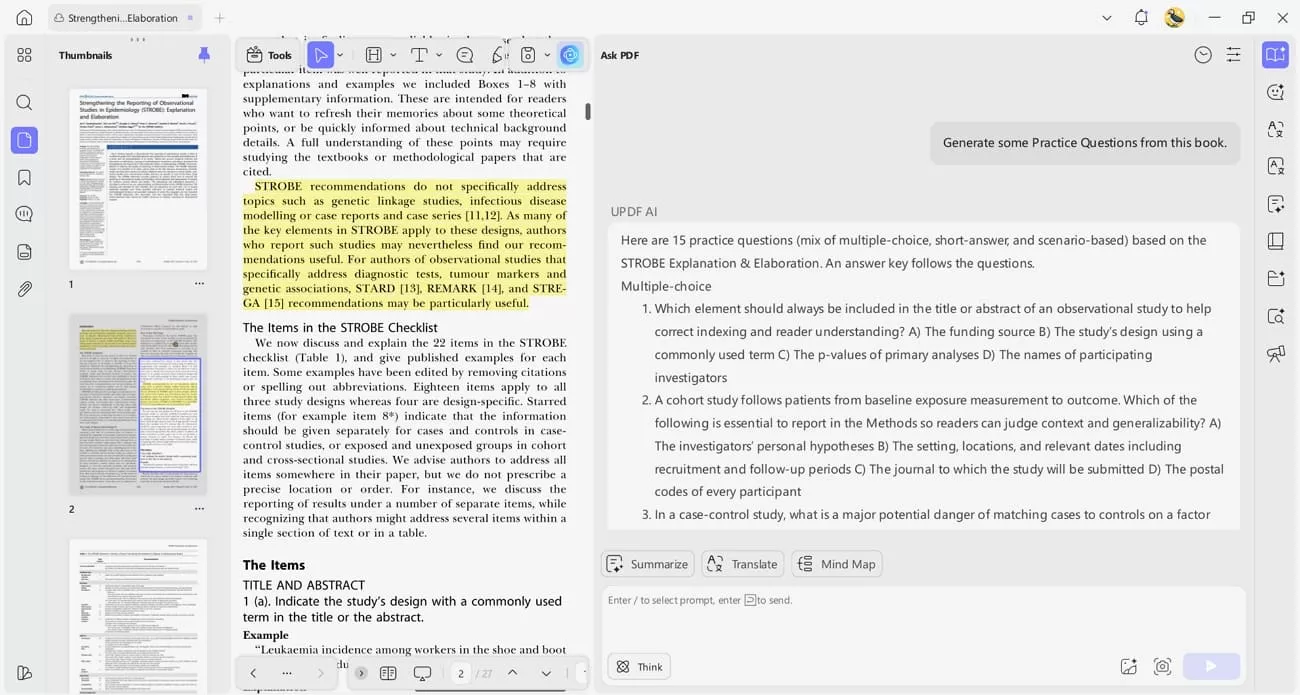
4. Practice Questions: UPDF AI can perform as an AI quiz generator to create practice questions to test your understanding and reinforce learning.
5. Related Books and Reading Paths: With UPDF AI, user can discover related books and reading paths to expand their reading journey.
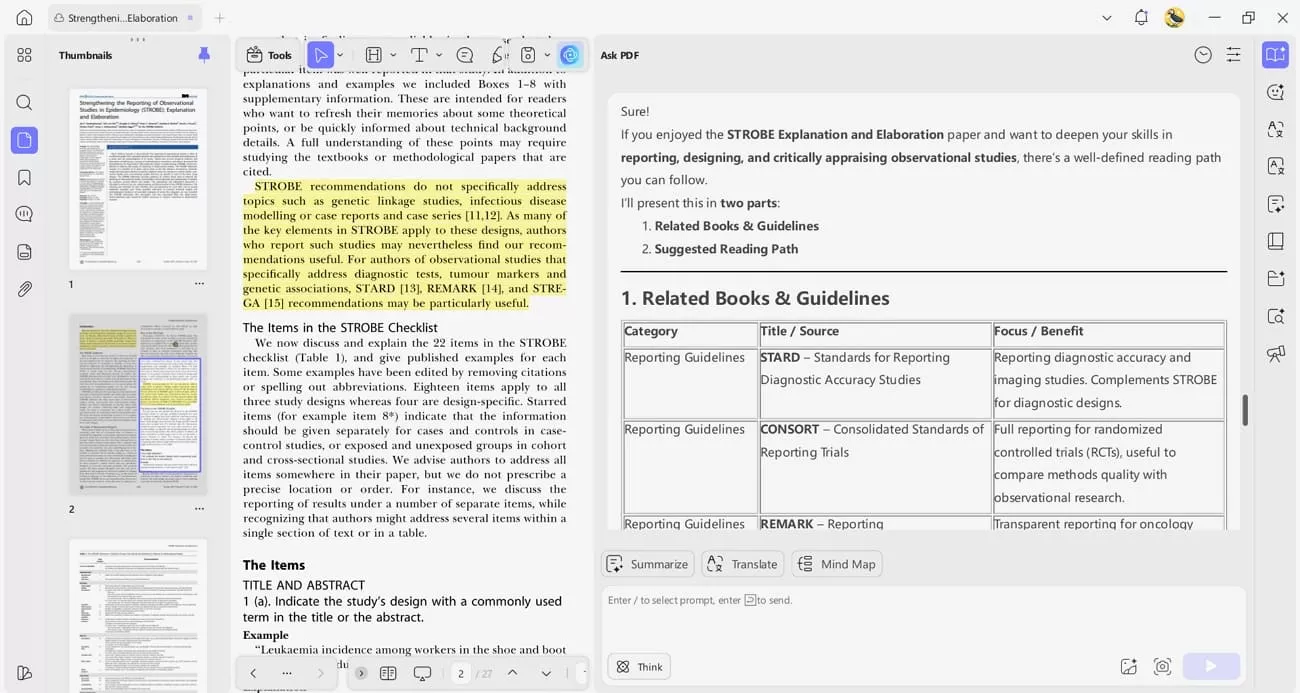
Combine Accelerated Reader Book Finder with UPDF to create a structured digital reading setup. UPDF AI helps you gain insights and plan your next books more easily. Download and access UPDF AI's exclusive ability to make digital reading effective.
Part 4. Tips for Maximizing Your Book Discovery
Now, we'll discuss some simple ways to get even more value from the books you discover.
- Switch Favorites and New: Read a book you already enjoy first, then select a completely new book next to explore something different.
- Follow One Idea: Pick one topic or theme you like, such as adventure or animals, and read several books about it carefully.
- Mix Easy And Hard: Read easy books when tired and select slightly more challenging books when ready to improve skills and understanding.
- Keep a Reading List: Have a list of books to read in the near future, but it is better to update this list with the help of finishing a book to plan better.
- Write One Thought: At the end of each book, write a brief remark on what you thought or learned so that you can refer to it in the future during your reading.
Conclusion
In summary, ACC Reader Book Finder helps readers select suitable books and track reading progress with clarity. This guide explains how users can discover titles, organize reading lists, and plan reading goals effectively. When paired with UPDF, managing digital books and PDFs becomes simpler, more organized, and easier to maintain over time.
Windows • macOS • iOS • Android 100% secure







 Enrica Taylor


 Enola Miller
 Enola Davis