 UPDF
UPDF
 UPDF for Windows
 UPDF for Mac
 UPDF for iPhone/iPad
 UPDF for Android
 Nomostar
 UPDF AI Online
 UPDF Sign
 IvyCraft
 Edit PDF
 Annotate PDF
 Create PDF
 PDF Form
 Edit links
 Convert PDF
 OCR
OCR PDF to Word
 PDF to Image
 PDF to Excel
 Organize PDF
 Merge PDF
 Split PDF
 Crop PDF
 Rotate PDF
 Protect PDF
 Sign PDF
 Redact PDF
 Sanitize PDF
 Remove Security
 Read PDF
 UPDF Cloud
 Compress PDF
 Print PDF
 Batch Process
 About UPDF AI
 UPDF AI Solutions
 AI User Guide
 FAQ about UPDF AI
 Summarize PDF
 Translate PDF
 Chat with PDF
 Chat with AI
 Chat with image
 PDF to Mind Map
 Explain PDF
 PDF AI Tools
 Image AI Tools
 AI Chat Tools
 AI Writing Tools
 AI Study Tools
 AI Working Tools
 Other AI Tools
 AI Bookmark Generation
 AI Bookmark Summary
 AI Watermark Generation
 AI Background Generation
 AI Sticker Generation
 AI Stamp Generation
 AI Editing Suite
 UPDF Copilot
 AI Page Management
 AI Semantic Search
 PDF to Word
 PDF to Excel
 PDF to PowerPoint
 Enterprise Solution
 Enterprise Sign
 Enterprise AI
 Enterprise Plan
 Enterprise User Guide
 Enterprise Webinar
 IT
IT Education
 Construction
 Financial Service
 Healthcare
 Insurance
 Legal
Legal Manufacturing
 Government
 Researchers & PhDs
 Solopreneurs & Freelancers
 Lawyers & Legal Professionals
 Real Estate Agents & Brokers
 Education Solution
 Customer Stories
 User Guide
 UPDF Tricks
 FAQs
FAQs UPDF Reviews
 Download Center
 Blog
Blog Newsroom
 Tech Spec
 Updates
 UPDF vs. Adobe Acrobat
 UPDF vs. Foxit
 UPDF vs. PDF Expert

Quick Answer
An embedded PDF is a PDF that loads inside a webpage viewer instead of being offered as a direct link. Web pages often use HTML or PDF viewers to show the content, but don’t always expose a download button or link. Modern browsers can display the PDF in a viewer because they have built‑in PDF support, but the site may not show a clear way to save it.
This guide shows you exactly how to download an embedded PDF from a website but can't find a download button with the tested four methods across Chrome, Safari, and Edge in the latest 2026, and they all still work: Print to PDF, Inspect Element, Right-Click Save, and Browser Extensions. Below, you'll find step-by-step instructions for each, plus what to do when a site blocks downloads entirely.
Once you've downloaded the file, you can use UPDF to read, edit, annotate, or convert it. Interested users can click the button below to get a free trial.
Windows • macOS • iOS • Android 100% secure
How to Download Embedded PDFs from Any Website (4 Methods Tested)
Below are four reliable ways to download embedded PDF files from websites. We tested each method on Chrome 126, Safari 17, and Edge 126 to confirm they still work. Choose the one that matches your browser and comfort level.
1. Print to PDF (Best for Any Browser)
Note:
- Best for: Quick saves when no download button exists
- Works on: All modern browsers (Chrome, Safari, Edge, Firefox)
- Difficulty: Easy
- Output quality: Good, but may strip interactive elements
When you do not have access to the internet and need to download a PDF file urgently, you can simply use the printing options. In times when you need a quick solution to download an embedded PDF download, you can use the Microsoft Print to PDF service to save time. Let's take a look at the steps to see how this method helps you get the document into your device:
Pro Tip:
Step 1. To begin the download, open the desired PDF file and press the "Ctrl + P" keys simultaneously to open a new window. To save the file as PDF on your device, consult the new window, go to the "Destination" menu, and select "Microsoft Print to PDF."
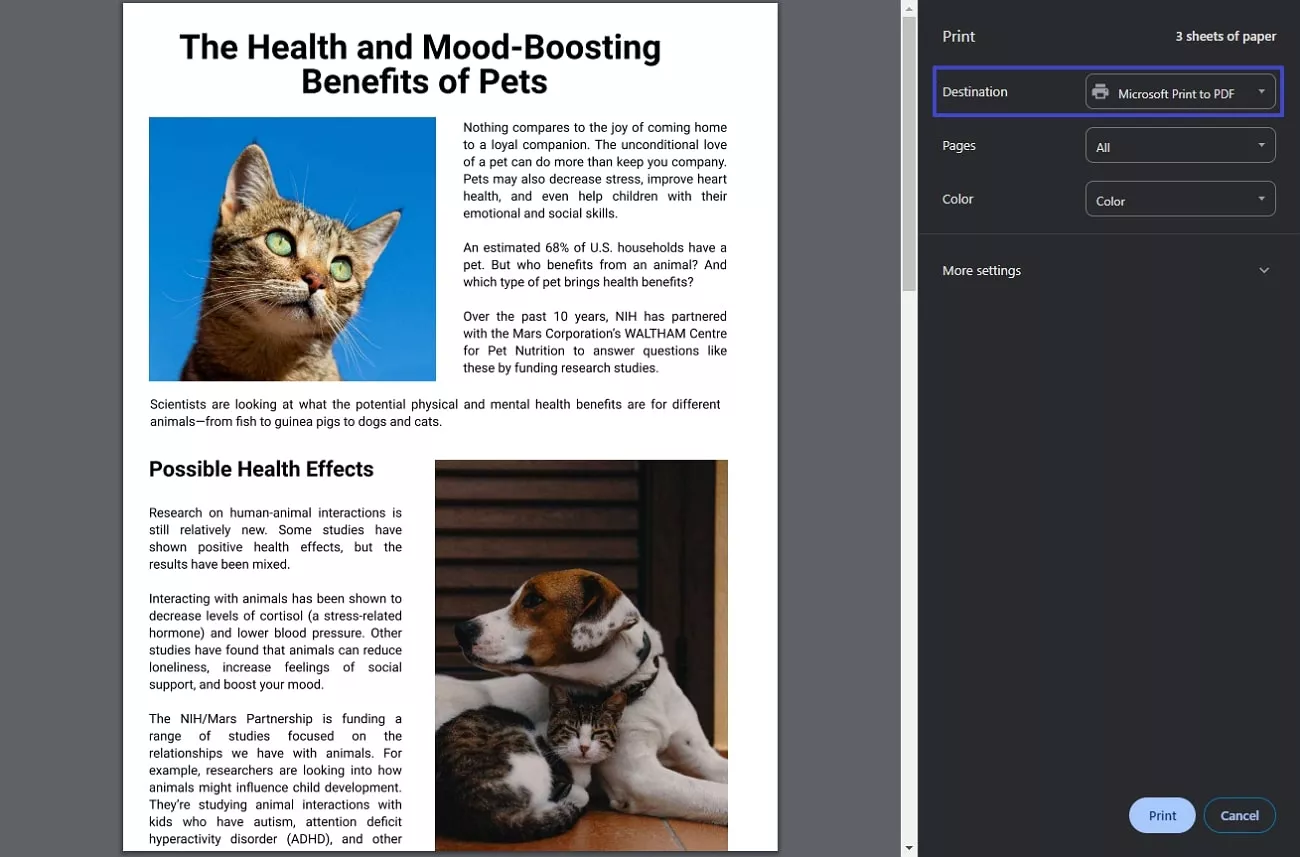
Step 2. If needed, enter more settings, such as paper size and margins, and click the "Save" button at the bottom to save the file as a PDF on your device.
2. Use the Browser's Developer Tools (Inspect Element)
Note:
- Best for: Recovering the original source PDF file
- Works on: Chrome, Edge, Firefox, Safari
- Difficulty: Medium (requires copying a URL)
- Output quality: Original file — highest fidelity
If you want to know how to download PDF using inspect element, this is the most reliable method. It pulls the actual file URL from the page code, giving you the original PDF rather than a printed copy. For researchers who need to cite the exact source file, this ensures authenticity. Refer to the following discussion to learn how you can download embedded PDF files using this perfect fix:
Step 1. Start the process by opening the PDF file you need to save, right-click over it to select the "Inspect" option from the menu. Find the "iframe" option with the "SRC" attribute containing the file's URL from the browser's developer tools.
Warning:
Step 2. Here, copy the file URL and paste it directly on the web browser to access the file. Now, use the built-in PDF viewer of the browser and right-click to save the file on your device.
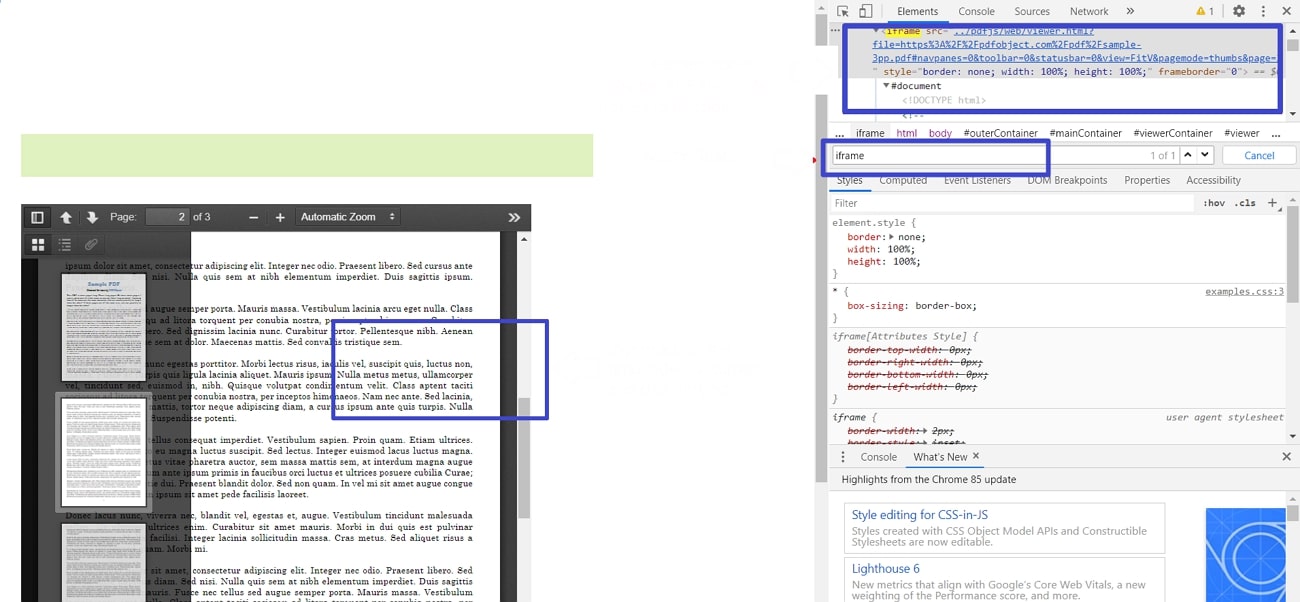
Guide: If you cannot find an "iframe" tag, press Ctrl+F (or Cmd+F on Mac) in the Developer Tools panel and search for ".pdf". This will highlight any PDF links in the page source.
3. Right-Click and Save (If Available)
Note:
- Best for: PDFs displayed in simple browser viewers
- Works on: All browsers
- Difficulty: Easiest
- Output quality: Original file
Some embedded viewers still allow you to save the file directly. This short fix is the best solution for researchers who need to access the file source. While saving time, it ensures that the file is saved in your selected location. If you download the file to the device using this method, you do not need an internet connection to access it. The following section guides you through using this method to download embedded PDF:
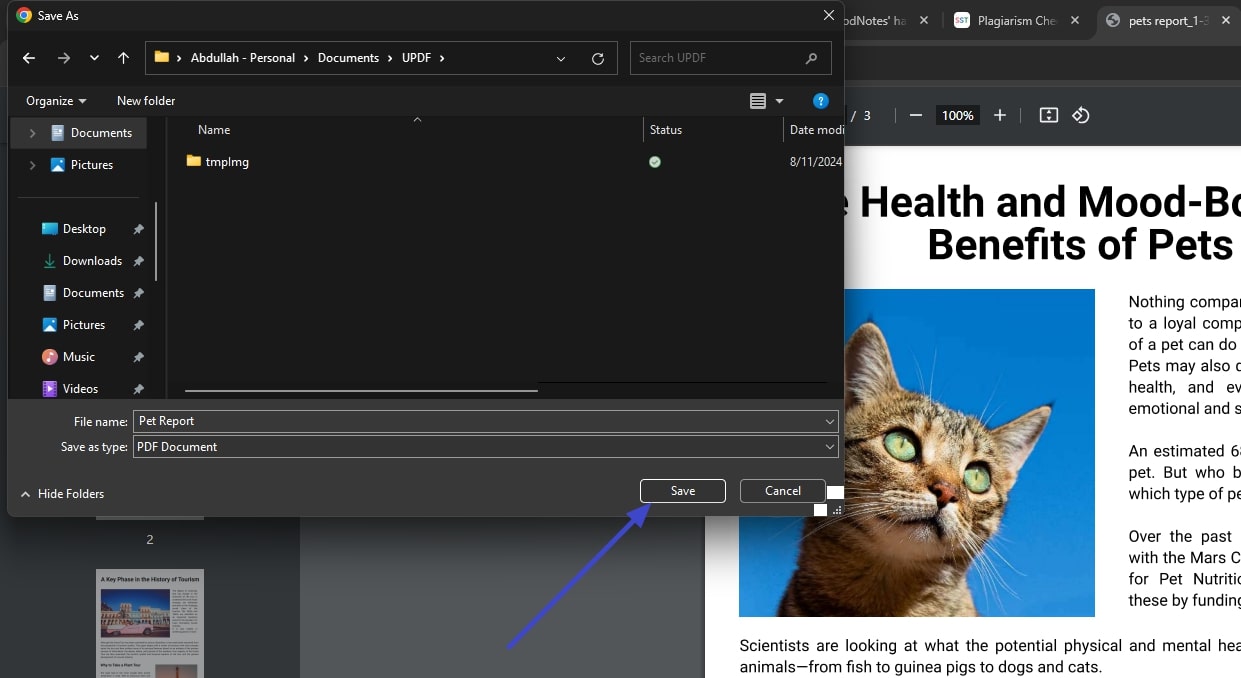
Instructions. First, open the desired PDF file on the web and right-click over it to open a small pop-up menu. From the menu, click the "Save As" button to open the File Explorer Window. Here, select the file location, then save the file on your device.
4. Use a Chrome Extension to Download Embedded PDFs
Note:
- Best for: Frequent downloads or batch saving
- Works on: Chrome, Edge, Brave
- Difficulty: Easy (after initial setup)
- Output quality: Original file
When all manual techniques fail, you can use a download embedded PDF from website Chrome extension to automate the process. These extensions scan the page for PDF files and provide a direct download button, so you do not have to manually find the file URL. The recommended browser extensions that can be used to download an embedded PDF file are Download All PDFs, Save as PDF and DownThemAll!.
Warning:
Why You Can't Download PDFs From Some Websites — And How to Fix It
Before we start looking into options for downloading a PDF, we must know the reason why we are unable to download it in the first place. Understanding the underlying issues causing this could help you resolve the problem. To download a PDF from a website, always look into things discussed below:
- Access Restrictions: You might not be able to download a PDF, as some sites only allow subscribers access to download. Some platforms have a policy that prevents unauthorized file downloads from their platform.
🧩 Workaround: Check if the site offers a "Download" button after logging in. If the PDF is behind a paywall, contact the site administrator or use the Print to PDF method (Method 1) as a fallback for content you have legitimate access to view. - Broken URLs: When the file has been moved to another location or the URL is incorrect, you might be unable to locate its whereabouts. A broken link means it is no longer valid, and you have lost access to the file.
🧩 Workaround: Use the Inspect Element method (Method 2) to see if the page references an alternative URL. Sometimes the embed code contains a backup link. - Security Issues: If a file is encrypted or password protected, you might not be able to access it, let alone downloading. As unauthorized file sharing could cause data breach, many sites take security measures to protect it.
🧩 Workaround: If you own the document, use UPDF to remove the password (with the correct owner password) and then save an unprotected copy. Never attempt to bypass encryption on documents you do not own. - Browser Issues: Many websites do not support specific browsers, which could hinder the embedded PDF download. Modern websites need an advanced browser to work with, so an up-to-date browser might be a quick fix.
🧩 Workaround: Update your browser to the latest version, or switch to Chrome/Edge if the embedded viewer fails in Safari or Firefox.
Once you've successfully downloaded the embedded PDF, you may find that it needs editing, annotation, or format conversion. Instead of searching for separate tools, you can handle everything in one app. See the Bonus Part below for how UPDF streamlines your PDF workflow after downloading.
Bonus Part. Make Your PDF Reading Experience Exceptional With UPDF
As PDF is a complex format that needs to be accessed and shared, you need a PDF reader that provides various other utilities as well. UPDF is an ideal option for reading, especially with its latest AI-powered features. You can use the newest AI bookmark generation and AI bookmark summary to hugely improve your reading experience.
With these two functions, you can simply add your files (even with 1000 pages) into UPDF and get an accurate and smart summary and navigation of your files, even without any manual tagging. Download UPDF today and experience a smarter, faster way to read and manage PDFs.
Windows • macOS • iOS • Android 100% secure
Other Features Offered by UPDF
After you download the embedded PDF, you must look into several other cutting-edge features offered by UPDF as follows:
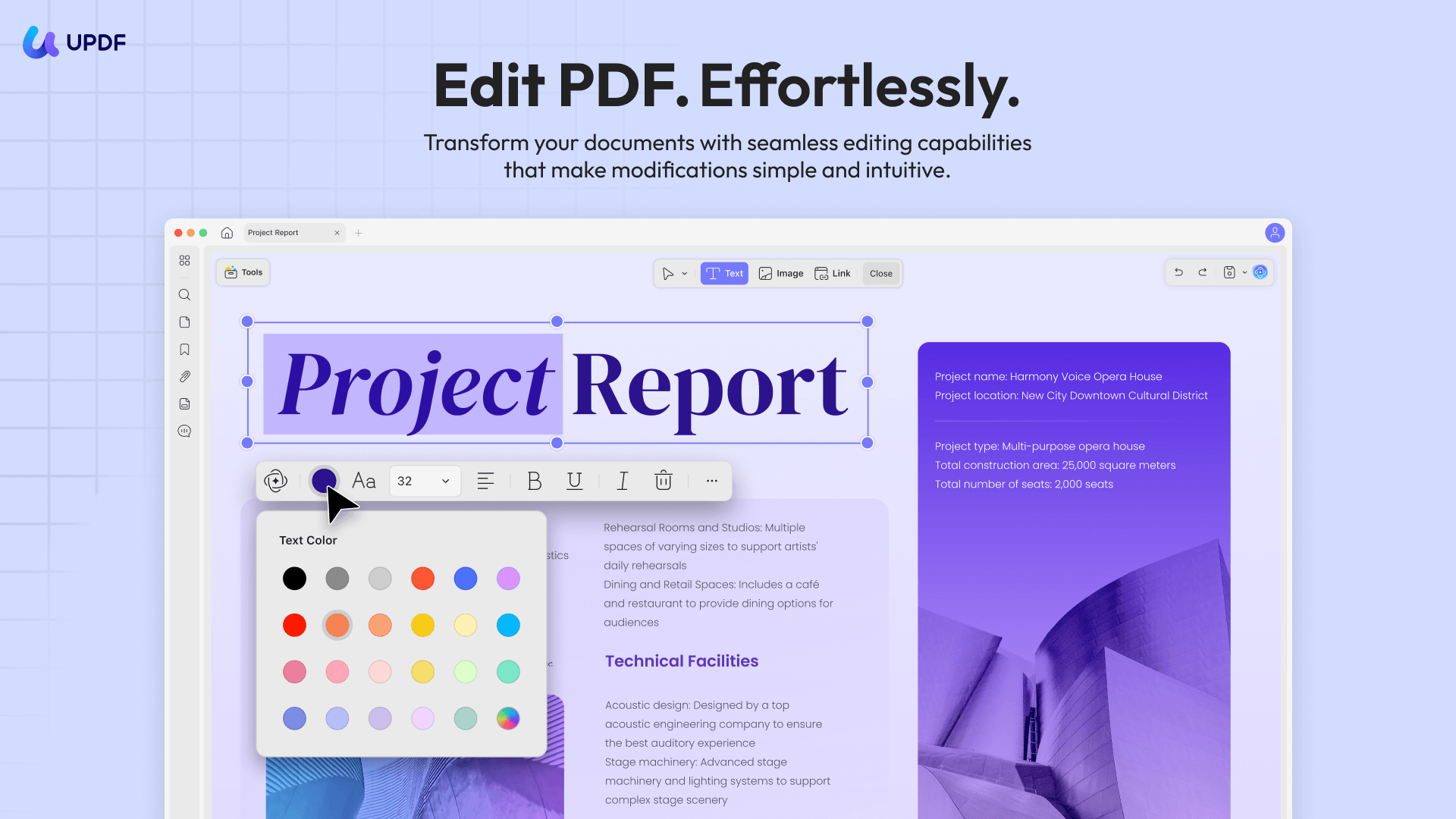
- PDF Editing: Edit your PDF and change the font style, size, and color to make the document look appealing. You can insert a text, image to make the file interactive and add a URL to make your content verifiable.
- Prepare Form: Add checkboxes and radio buttons to enhance the interactivity of the form before you have it filled. From drop-down menus to digital signatures and buttons, UPDF provides every element that must be included in a form.
- Password Protection: Keep the file security on high alert by setting a password for opening your document. Besides, you can also keep your content from being printed, edited, copied, or commented on.
- Redaction: If your PDF document features some sensitive data, you do not need to spend hours editing or rewriting. You can just redact specific text or custom pages in the document, resulting in a blackout of information.
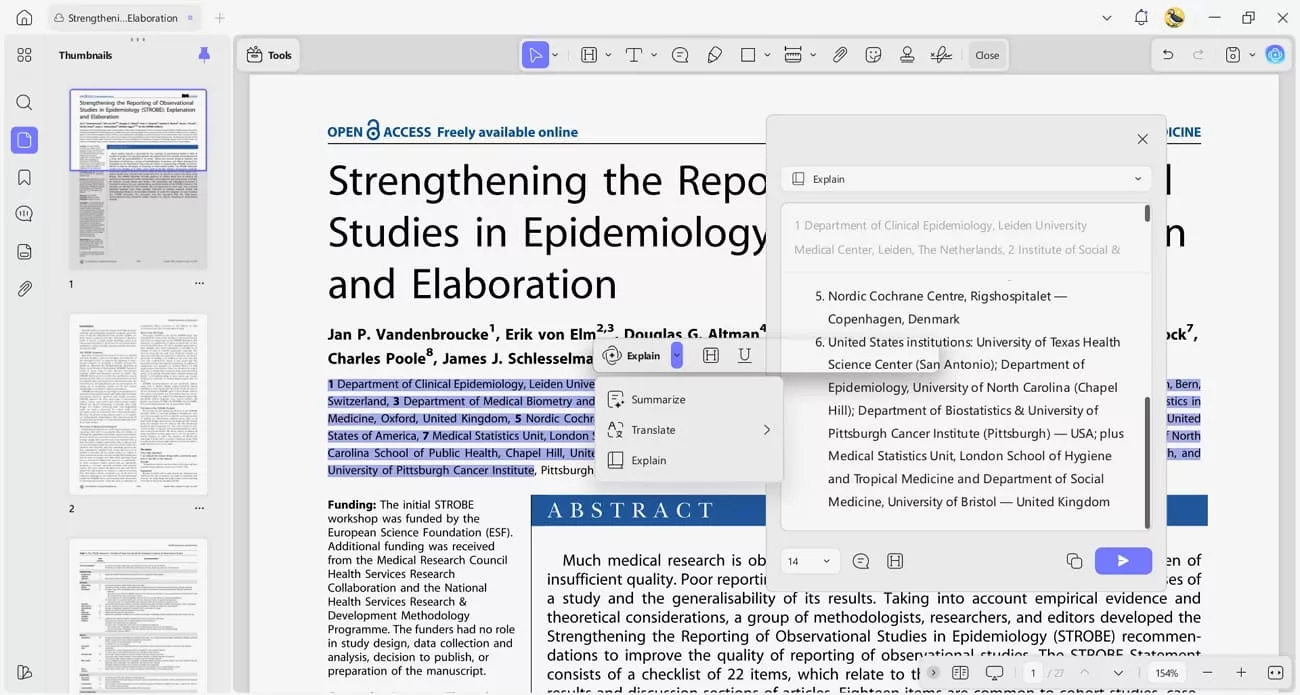
- UPDF AI: Powered by GPT-5 and DeedSeek R1, it helps you understand and interact with your files more. You can select any text and ask UPDF AI to summarize, explain, or translate it. Additionally, you can use our AI to chat with the book through a human-like one-to-one conversation.
Windows • macOS • iOS • Android 100% secure
What You Can Do Immediately After Installing UPDF
After downloading UPDF and opening your embedded PDF, here is the typical workflow:
- Open and read: Use UPDF's clean reader mode or AI-generated bookmarks to navigate large documents.
- Edit if needed: Click any text or image to edit directly — useful for filling in forms downloaded from embedded viewers.
- Convert if needed: Export to Word, Excel, or image formats if you need to reuse the content.
- Secure if needed: Add a password or redaction before sharing the file with others.
The free trial lets you test all features. If you need to save or export without watermarks, upgrading to UPDF Pro unlocks full access at a one-time affordable price.
Conclusion
In essence, embedded PDF files cannot always be directly downloaded from the source due to access restrictions, broken links, or viewer limitations. The four methods above — Print to PDF, Inspect Element, Right-Click Save, and Browser Extensions — cover nearly every scenario you will encounter in 2026.
After downloading, you can use UPDF for embedded PDF download management and perform many other functions such as editing, redaction, password protection, and AI-powered summarization. Download UPDF today to handle your PDFs from download to delivery in one place.
Windows • macOS • iOS • Android 100% secure






 Enola Miller
 Enrica Taylor
 Enola Davis
 Enid Brown