UPDF
UPDF
 UPDF for Windows
 UPDF for Mac
 UPDF for iPhone/iPad
 UPDF for Android
 Nomostar
 UPDF AI Online
 UPDF Sign
 IvyCraft
 Edit PDF
 Annotate PDF
 Create PDF
 PDF Form
 Edit links
 Convert PDF
 OCR
OCR PDF to Word
 PDF to Image
 PDF to Excel
 Organize PDF
 Merge PDF
 Split PDF
 Crop PDF
 Rotate PDF
 Protect PDF
 Sign PDF
 Redact PDF
 Sanitize PDF
 Remove Security
 Read PDF
 UPDF Cloud
 Compress PDF
 Print PDF
 Batch Process
 About UPDF AI
 UPDF AI Solutions
 AI User Guide
 FAQ about UPDF AI
 Summarize PDF
 Translate PDF
 Chat with PDF
 Chat with AI
 Chat with image
 PDF to Mind Map
 Explain PDF
 PDF AI Tools
 Image AI Tools
 AI Chat Tools
 AI Writing Tools
 AI Study Tools
 AI Working Tools
 Other AI Tools
 AI Bookmark Generation
 AI Bookmark Summary
 AI Watermark Generation
 AI Background Generation
 AI Sticker Generation
 AI Stamp Generation
 AI Editing Suite
 UPDF Copilot
 AI Page Management
 AI Semantic Search
 PDF to Word
 PDF to Excel
 PDF to PowerPoint
 Enterprise Solution
 Enterprise Sign
 Enterprise AI
 Enterprise Plan
 Enterprise User Guide
 Enterprise Webinar
 IT
IT Education
 Construction
 Financial Service
 Healthcare
 Insurance
 Legal
Legal Manufacturing
 Government
 Researchers & PhDs
 Solopreneurs & Freelancers
 Lawyers & Legal Professionals
 Real Estate Agents & Brokers
 Education Solution
 Customer Stories
 User Guide
 UPDF Tricks
 FAQs
FAQs UPDF Reviews
 Download Center
 Blog
Blog Newsroom
 Tech Spec
 Updates
 UPDF vs. Adobe Acrobat
 UPDF vs. Foxit
 UPDF vs. PDF Expert

Quick Answer: The best productivity tool depends on the job: UPDF for PDF and document workflows, Vibe Dot for AI-powered meeting notes, Slack for team communication, Microsoft 365 for office documents, ClickUp for projects, UpLead for B2B prospecting, Clockify for time tracking, Grammarly for writing, Forest for focus, Loom for asynchronous video, and Headspace for guided mindfulness. Start with the bottleneck you need to remove instead of adopting every app at once.
Productivity tools should reduce repetitive work, make information easier to find, and help you finish tasks with fewer handoffs. This guide compares eleven practical options for different workflows, including document handling, collaboration, planning, writing, focus, and communication. For more workflow ideas beyond this list, visit our productivity resource hub.
If PDFs are a regular part of your day, UPDF's PDF productivity tools combine editing, OCR, conversion, annotation, forms, batch processing, and AI assistance in one app. You can download it first and test it with your own documents while using the comparison below to build the rest of your toolkit.
Windows • macOS • iOS • Android 100% secure
Part 1: 11 Best Productivity Tools in 2026
The tools below solve different problems, so they are not direct substitutes. Use this table to shortlist the category that matches your biggest workflow bottleneck, then read the corresponding section for strengths and trade-offs.
| Tool | Best for | Main productivity value | Limitation to check |
|---|---|---|---|
| UPDF | PDF and document workflows | Edit, OCR, convert, annotate, organize, protect, batch-process, and use AI in one workspace | Some advanced features require a paid plan |
| Vibe Dot | AI-powered meeting notes | Wearable capture, speaker-labelled transcripts, summaries, decisions, and action items | Requires dedicated hardware; connected actions vary by plan and rollout |
| Slack | Team communication | Channels, messages, huddles, and app integrations | Busy workspaces can create notification overload |
| Microsoft 365 | Office documents | Word, Excel, PowerPoint, cloud storage, and collaboration | Subscription and feature availability vary by plan |
| ClickUp | Project management | Tasks, views, goals, dashboards, and automation | Setup can feel complex for small teams |
| UpLead | B2B prospecting | Contact discovery and verification | Data access depends on plan and market coverage |
| Clockify | Time tracking | Timers, timesheets, reports, and scheduling | Advanced controls may require paid tiers |
| Grammarly | Writing assistance | Grammar, clarity, tone, and rewriting suggestions | Suggestions still need human review |
| Forest | Focused work | Gamified focus timer and progress tracking | It does not manage projects or documents |
| Loom | Asynchronous video | Fast screen recording and shareable explanations | Recording and storage limits depend on plan |
| Headspace | Mindfulness routines | Guided meditation, breathing, sleep, and focus content | Not a substitute for professional medical care |
1. UPDF: Best for PDF and Document Workflows
Best for: Professionals, students, and teams that read, edit, convert, review, or reuse PDF content regularly.
UPDF replaces a collection of single-purpose PDF utilities with one cross-platform workspace. You can edit PDF text, images, links, backgrounds, and watermarks; annotate and compare files; create or fill forms; organize pages; redact or protect sensitive content; and convert PDFs to common office and image formats. Its batch tools are useful when the same operation must be applied to many files.
For scanned documents, UPDF OCR can turn image-based pages into searchable or editable content. UPDF AI can summarize, translate, explain, search across long documents, generate bookmarks, and assist with repetitive document tasks. This makes UPDF especially helpful when a workflow moves from reading and reviewing to editing, conversion, and final delivery.
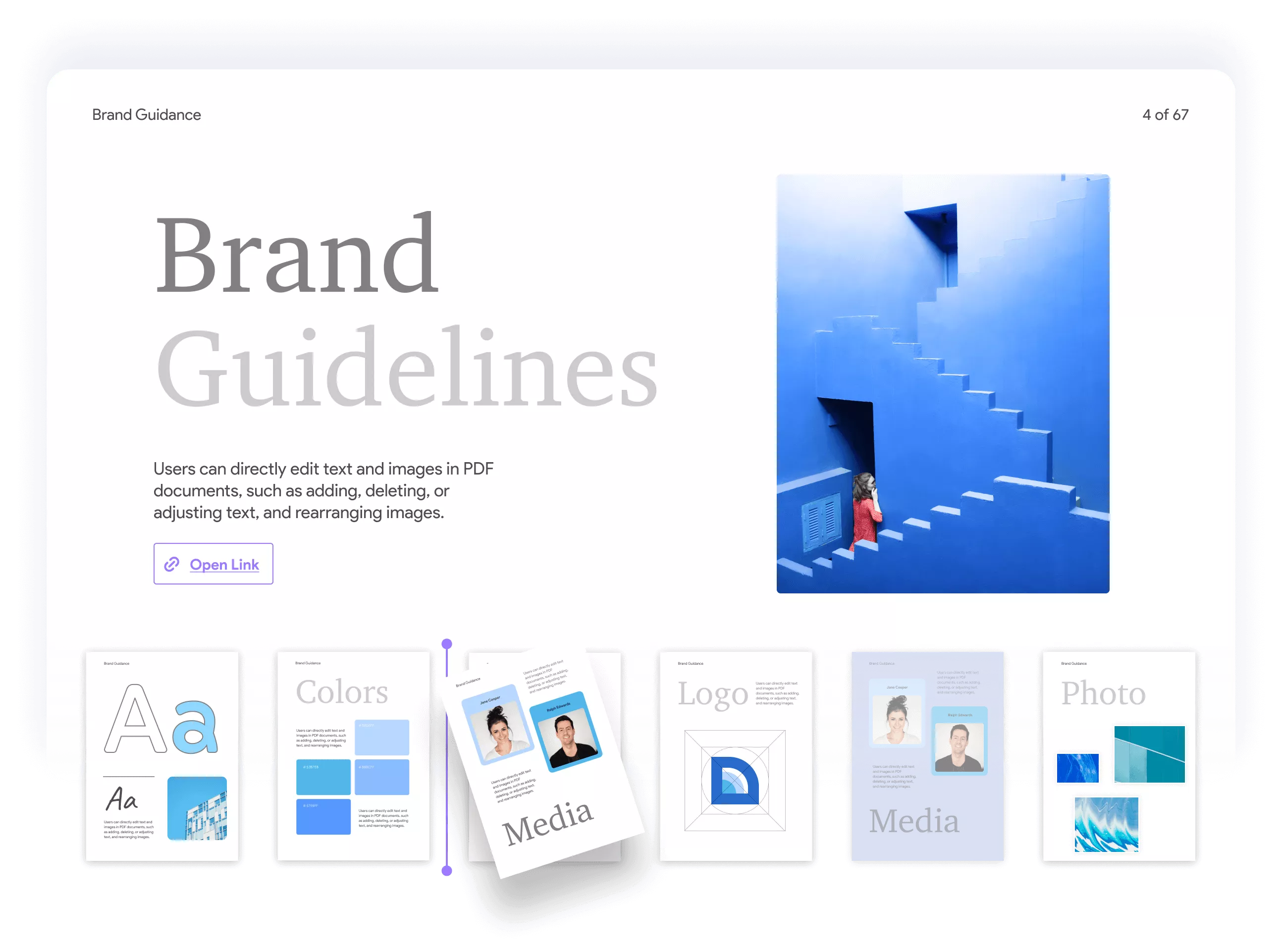
UPDF is available for Windows, macOS, iOS, and Android. One license can support a more consistent document workflow across devices, and users who need unrestricted access can compare the available options on the UPDF pricing page. Download it below to see whether it fits your files and routine.
Windows • macOS • iOS • Android 100% secure
2. Vibe Dot: Best for AI-Powered Meeting Notes
Best for: Professionals and teams that want a dedicated wearable device to capture meetings, calls, and ideas without taking notes manually.
Vibe Dot is a dedicated AI meeting assistant designed to eliminate the manual work of note-taking during meetings and calls. It automatically captures, transcribes, and summarizes conversations in real time, so your team can stay focused on the discussion rather than scrambling to write things down.
One of the standout features of Vibe Dot is its ability to extract action items and key decisions from a meeting and surface them instantly after the call ends. Whether you’re running a team standup, a client presentation, or a brainstorming session, Vibe Dot turns spoken conversations into structured, searchable records your whole team can reference.

Vibe Dot works seamlessly in hybrid and remote work environments, integrating with the video conferencing tools your team already uses. It also connects with platforms like Slack and Notion so meeting summaries are automatically pushed to where your team works. For anyone spending hours in back-to-back meetings, Vibe Dot is the AI productivity tool that gives you that time back.
3. Slack: Best for Team Communication
Best for: Teams that need organized real-time and asynchronous communication.
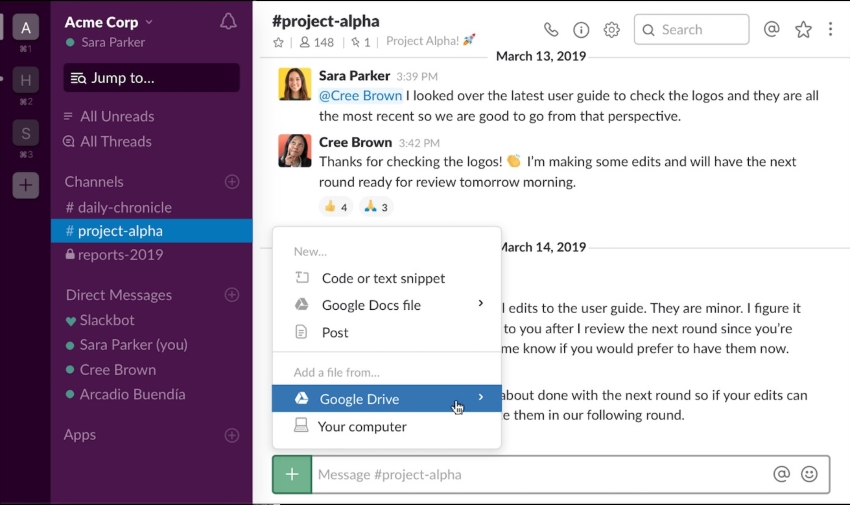
Slack organizes conversations into channels, direct messages, threads, huddles, clips, and searchable history. Integrations can bring notifications and actions from other workplace apps into shared channels, which reduces switching between tools. It works best when teams establish channel conventions and notification rules; otherwise, a high message volume can become another distraction.
4. Microsoft 365: Best for Office Work
Best for: Individuals and organizations that rely on Word, Excel, PowerPoint, Outlook, Teams, and cloud file collaboration.
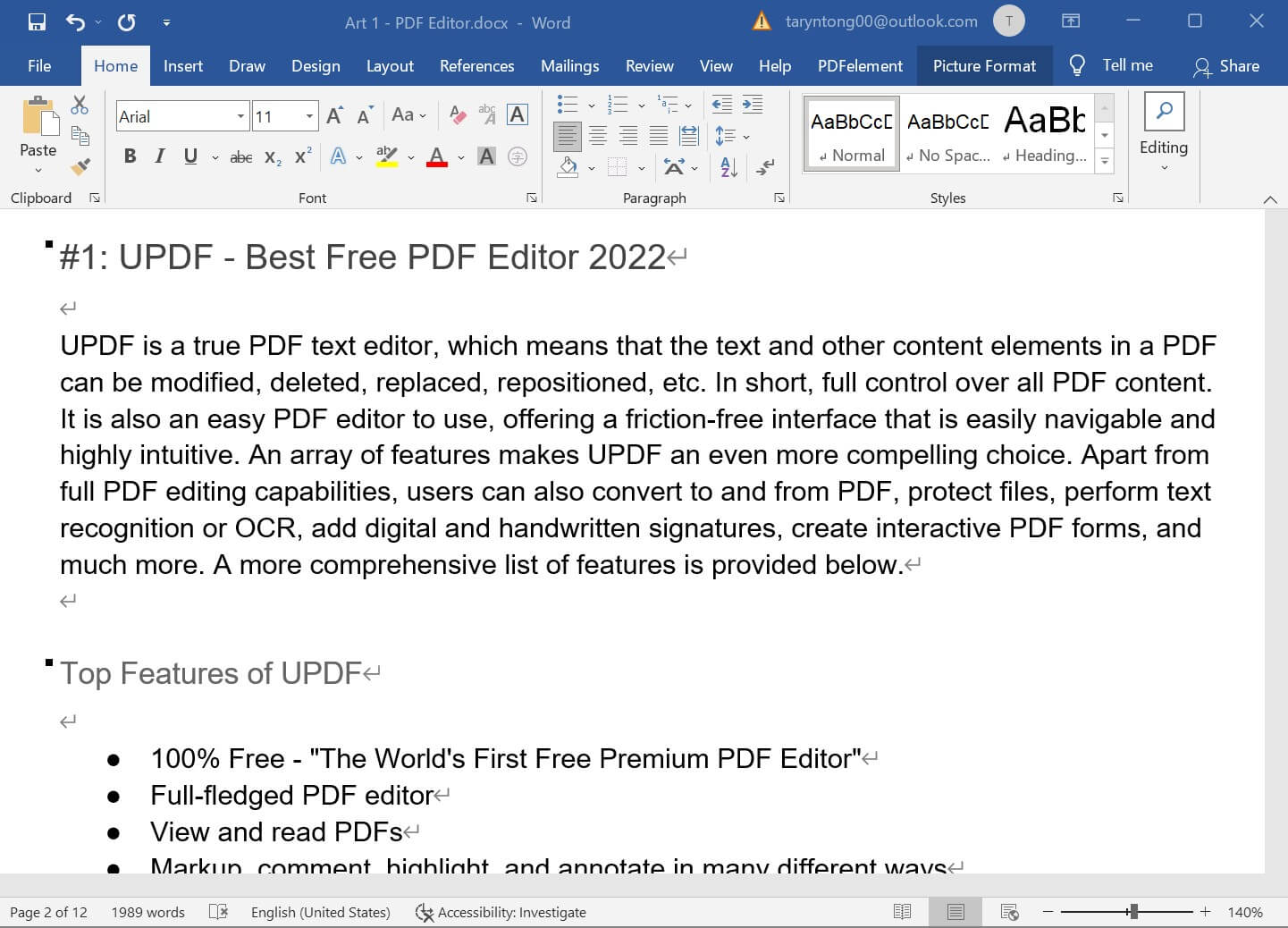
Microsoft 365 is the current subscription suite built around familiar office applications. It supports document creation, spreadsheets, presentations, email, meetings, shared storage, and real-time coauthoring. It is a strong choice for organizations already using Microsoft accounts and file formats, but the best plan depends on whether you need desktop applications, business administration, security, or AI features.
For users with an eligible plan, Microsoft 365 Copilot adds AI assistance across the suite: it can help draft, rewrite, or summarize in Word; analyze and visualize data in Excel; create or refine presentations in PowerPoint; and summarize meetings or email in Teams and Outlook. Exact Copilot features depend on the license, application, tenant settings, and administrator controls.
5. ClickUp: Best for Project Management
Best for: Teams that want tasks, goals, documents, dashboards, and workflow automation in one project system.
ClickUp helps teams break projects into tasks and subtasks, assign owners, set priorities and deadlines, and view work as lists, boards, calendars, or timelines. Dashboards and automations can make progress easier to monitor. The flexibility is valuable for complex workflows, although small teams should begin with a simple structure instead of enabling every feature at once.
6. UpLead: Best for B2B Prospecting
Best for: Sales and marketing teams that need to identify and verify business contacts.
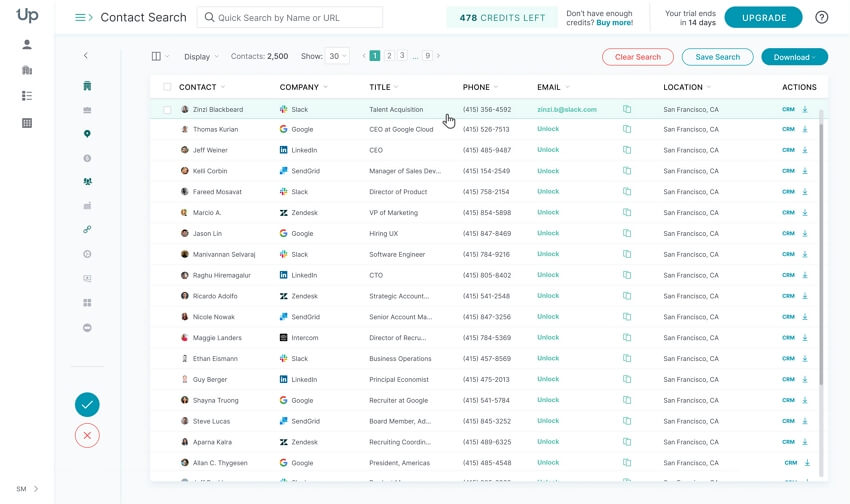
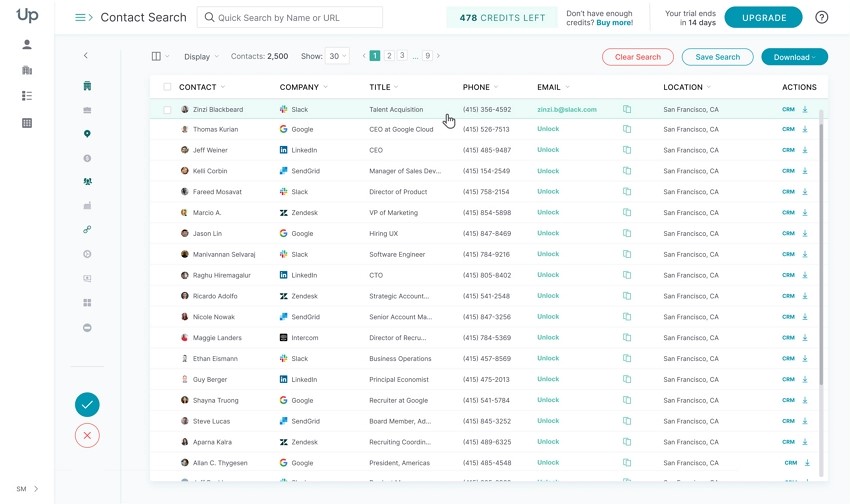
UpLead is designed for B2B lead research. Users can filter companies and contacts, review available firmographic information, and verify work email addresses before outreach. It can reduce manual prospecting time, but teams should still confirm data quality, coverage, pricing, and compliance obligations for their target markets before building campaigns.
7. Clockify: Best for Time Tracking
Best for: Freelancers and teams that need timers, timesheets, scheduling, and time reports.
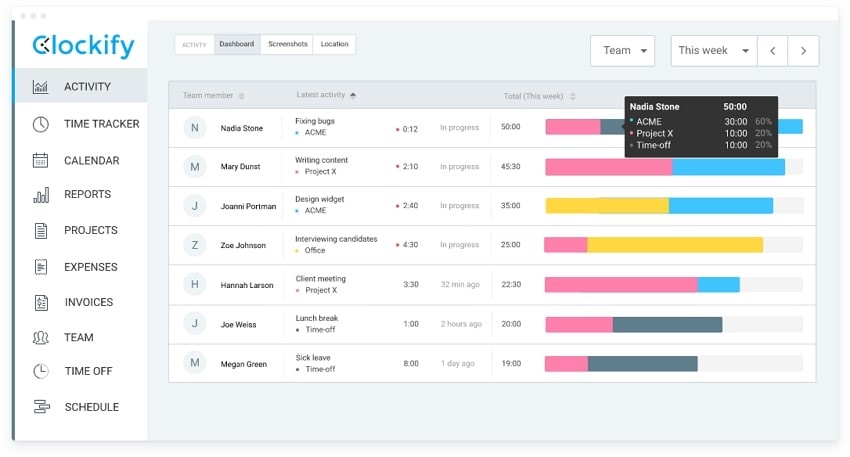
Clockify records time by task, project, or client and turns entries into timesheets and reports. Manual entries help correct missed timers, while calendars and scheduling features can show how planned work compares with actual time. It is useful for billing and workload analysis, but its value depends on consistent tracking habits and a clear project structure.
8. Grammarly: Best for Writing Assistance
Best for: People who want help with grammar, clarity, tone, and rewriting across common writing apps.
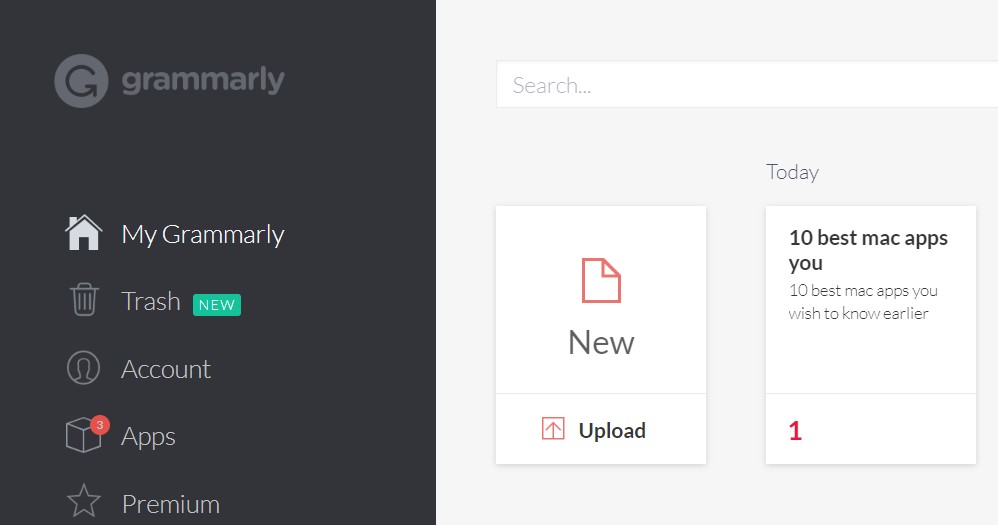
Grammarly reviews writing and suggests corrections or revisions while you work in supported browsers and applications. It can speed up routine emails, reports, and drafts, especially when a team needs a consistent tone. However, suggestions can change nuance or introduce factual errors, so important content still needs a human review.
9. Forest: Best for Focus Sessions
Best for: Students and professionals who respond well to a visual, gamified focus timer.
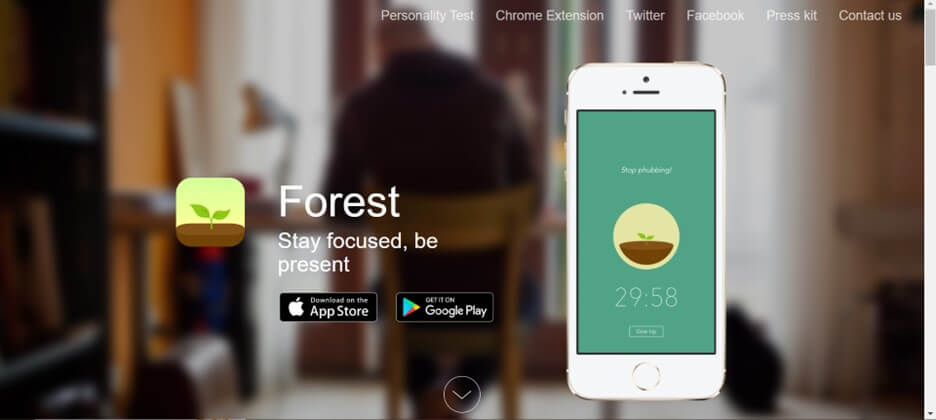
Forest encourages users to stay off distracting apps while a virtual tree grows during a focus session. Completed sessions build a visual forest and make progress easy to see. It is simple and motivating for focused work, but it does not replace a task manager, calendar, or project platform.
10. Loom: Best for Asynchronous Video
Best for: Teams that explain processes, feedback, or updates more clearly with a short screen recording.
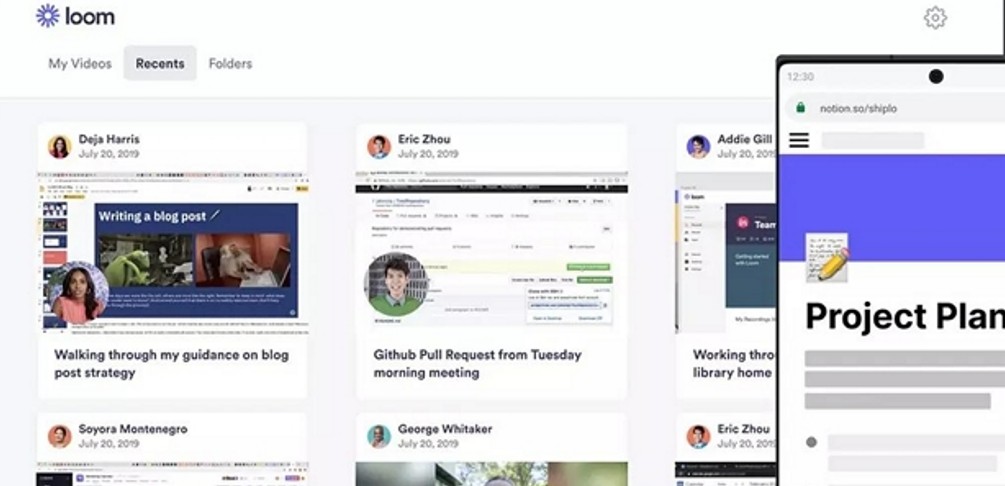
Loom can record a screen, camera, and microphone, then generate a shareable link. Viewers can watch on their own schedule and respond with comments or reactions. This is useful for demonstrations and handoffs that would otherwise require a meeting, although sensitive recordings still need appropriate access controls and retention rules.
11. Headspace: Best for Mindfulness
Best for: People who want structured guided meditation, breathing, sleep, or focus sessions.
Headspace provides guided content that can make short mindfulness breaks easier to add to a routine. It may complement healthy work habits by helping users pause between demanding tasks. It is a wellness tool rather than a work-management platform and is not a substitute for professional medical diagnosis or treatment.
Part 2: How to Choose the Right Productivity Tools
A larger app stack does not automatically create a more productive workflow. Use the following checks before adding another tool:
- Name the bottleneck. Decide whether the problem is document handling, communication, planning, writing, time visibility, or focus.
- Check workflow fit. Confirm that the tool supports your devices, file types, team size, and security requirements.
- Test with real work. Run a representative task instead of judging only from a feature list.
- Count the handoffs. Prefer tools that reduce copying, exporting, and switching between apps.
- Review total cost. Include paid seats, storage, AI allowances, training, and administration.
- Measure the result. Compare time, errors, completion rate, or response time before and after adoption.
For more practical ways to design a sustainable routine, review these productivity tips and learn how to increase document productivity without adding unnecessary steps.
Part 3: FAQs About Productivity Tools
1. What Are Productivity Tools?
Productivity tools are applications or services that help people plan, complete, communicate, automate, review, or measure work more efficiently. Examples include document editors, project managers, writing assistants, time trackers, and collaboration platforms.
2. How Many Productivity Tools Should I Use?
Use the smallest set that covers your essential workflows. Too many overlapping apps create duplicate notifications, scattered files, and extra maintenance. Start with one core tool per major need and add another only when a clear gap remains.
3. Which Productivity Tool Is Best for PDF Work?
UPDF is a strong choice when PDF work involves more than reading. It combines editing, annotation, conversion, OCR, page management, protection, forms, batch processing, and AI-assisted document tasks across desktop and mobile platforms.
4. Are Free Productivity Tools Enough?
Free plans can be enough for light or occasional use. Before standardizing on one, check limits on files, users, history, storage, exports, integrations, AI usage, security controls, and customer support. A paid plan is worthwhile only when it removes a real workflow constraint.
Conclusion
The best productivity tools solve specific problems without creating unnecessary complexity. Choose a communication tool for communication, a project platform for project visibility, and a focused document tool when files are the center of the workflow. If PDFs slow down your work, UPDF brings the major editing, OCR, conversion, organization, protection, and AI-assisted tasks together in one place. Download it free and test it with a real document before deciding whether it belongs in your toolkit.
Windows • macOS • iOS • Android 100% secure
Finally, review your stack every few months. Remove overlapping apps, keep ownership clear, and use a repeatable process to work faster without sacrificing quality.







 Enid Brown