UPDF
UPDF
 UPDF for Windows
 UPDF for Mac
 UPDF for iPhone/iPad
 UPDF for Android
 UPDF AI Online
 UPDF Sign
 Edit PDF
 Annotate PDF
 Create PDF
 PDF Form
 Edit links
 Convert PDF
 OCR
OCR PDF to Word
 PDF to Image
 PDF to Excel
 Organize PDF
 Merge PDF
 Split PDF
 Crop PDF
 Rotate PDF
 Protect PDF
 Sign PDF
 Redact PDF
 Sanitize PDF
 Remove Security
 Read PDF
 UPDF Cloud
 Compress PDF
 Print PDF
 Batch Process
 About UPDF AI
 UPDF AI Solutions
 AI User Guide
 FAQ about UPDF AI
 Summarize PDF
 Translate PDF
 Chat with PDF
 Chat with AI
 Chat with image
 PDF to Mind Map
 Explain PDF
 PDF AI Tools
 Image AI Tools
 AI Chat Tools
 AI Writing Tools
 AI Study Tools
 AI Working Tools
 Other AI Tools
 PDF to Word
 PDF to Excel
 PDF to PowerPoint
 Enterprise Solution
 Enterprise Sign
 Enterprise AI
 Enterprise Plan
 Enterprise User Guide
 Enterprise Webinar
 Banking
 Healthcare
 Insurance
 Legal
Legal Manufacturing
 Government
 Education Solution
 Customer Stories
 User Guide
 UPDF Tricks
 FAQs
FAQs UPDF Reviews
 Download Center
 Blog
Blog Newsroom
 Tech Spec
 Updates
 UPDF vs. Adobe Acrobat
 UPDF vs. Foxit
 UPDF vs. PDF Expert

Utilizing large language models (such as GPT), PDF AI chat tools allow you to upload a PDF and directly ask questions. The AI will provide accurate answers based on the document content, and even summarize, translate, and annotate the original text. Shifting from "reading documents" to "asking about documents" saves over 80% of search time.
This article will delve into the principles behind PDF AI Chat, the criteria for a good PDF AI Chat tool, a top-ranked tool that meets these criteria, and usage steps.
Windows • macOS • iOS • Android 100% secure
Part 1. What is PDF AI Chat?
PDF AI Chat is an interactive document reading tool based on a large language model. After uploading a PDF, users can ask questions in natural language, and AI will analyze the document content in real time and return the answer, along with the source page number.
Differences from traditional PDF readers
| Dimensions | Traditional PDF Readers | PDF AI Chat |
| Interaction methods | Manual page turning, keyword search | Dialogue-style questioning |
| Comprehension ability | Only allows exact keyword matching | Understanding semantics allows us to answer open-ended questions. |
| Summarizing ability | No | Automatically generate summary and key points |
| Multilingual | Manual | Automatical |
| Efficiency | Low | High |
Part 2. What Makes a PDF AI Chat Tool the Best?
If you Google "AI chat with PDF tool", you will come up with a list of many tools, mostly providing online services. These tools mainly include an AI chat box, allowing you to upload PDFs and ask questions to AI online. However, there are some concerns about using online tools to chat with any PDF, as follows:
- Internet dependency
- Privacy and data security concerns
- Lack of clarity about data ownership and usage
- Limited functionality (such as PDF size, pages, the number of questions you can ask, etc.)
Since we are targeting the best AI tool to chat with PDF, below is the list of features a good AI chat tool must have:
- Clear and Concise Outputs: It should provide clear and concise outputs exactly as requested in the prompt.
- Multiple Languages: It should support multiple languages and even translate content into different languages.
- Feature-Rich Functionalities: It should showcase feature-rich performance to fulfill all needs, such as summarization, translation, explanation, rewriting, etc.
- Support Many File Types: Other than PDF, it should also support other file types, like Word, Excel, PowerPoint, etc.
- Ideas Exploring: Along with chatting with PDF, it should also assist in idea-exploring discussions.
- Comprehensive Chart Summarization: It should efficiently summarize simple to complex charts.
- Cost-Friendly: It should offer a free plan, while its paid plan should be cost-friendly.
All the above features in a PDF AI chat tool definitely make it the best AI to chat with PDF. So, how to get all these features in one tool? This is where UPDF AI comes into action.
Windows • macOS • iOS • Android 100% secure
Part 3. The Best PDF AI Chat Tool: UPDF
UPDF AI is a ChatGPT-powered, most intelligent AI assistant for chatting with PDFs. It is designed to thoroughly analyze the content and charts of the PDF and then empower users to ask any kind of questions. Whether the PDF is 100+ pages, large-sized, or includes complex charts, UPDF AI can still provide precise answers to questions instantly with its ChatGPT-similar chat box.
With UPDF AI, you get dual modes of chatting, i.e., Ask PDF and Chat. The Ask PDF mode is meant to do the chat with any PDF online. It analyzes the PDF and can then answer questions, provide a complete summary, explain difficult concepts, and even translate selective text into different languages (supported languages include English, German, Chinese, Japanese, Finnish, Danish, Urdu, Hindi, Spanish, French, and more). The Chat mode is meant to allow you to chat with the AI assistant about other topics outside the PDF. It also allows summarizing, translating, and explaining any kind of text.
Furthermore, the latest AI features, combined with traditional professional PDF reading and editing, make UPDF the best PDF combination. In addition to the features mentioned above, you can also let AI automatically generate bookmarks and summary bookmarks for PDF documents, customize stickers, watermarks, and signatures, automatically detect blank pages, inverted pages, and OCR pages in documents, and find target keywords by searching for synonyms, near-synonyms, hyponyms, and the definition of a specific keyword, making searching more intelligent. It's also more intelligent when editing text; AI can rewrite tone, expand, and simplify without problems. Many more powerful features await your discovery!
Windows • macOS • iOS • Android 100% secure
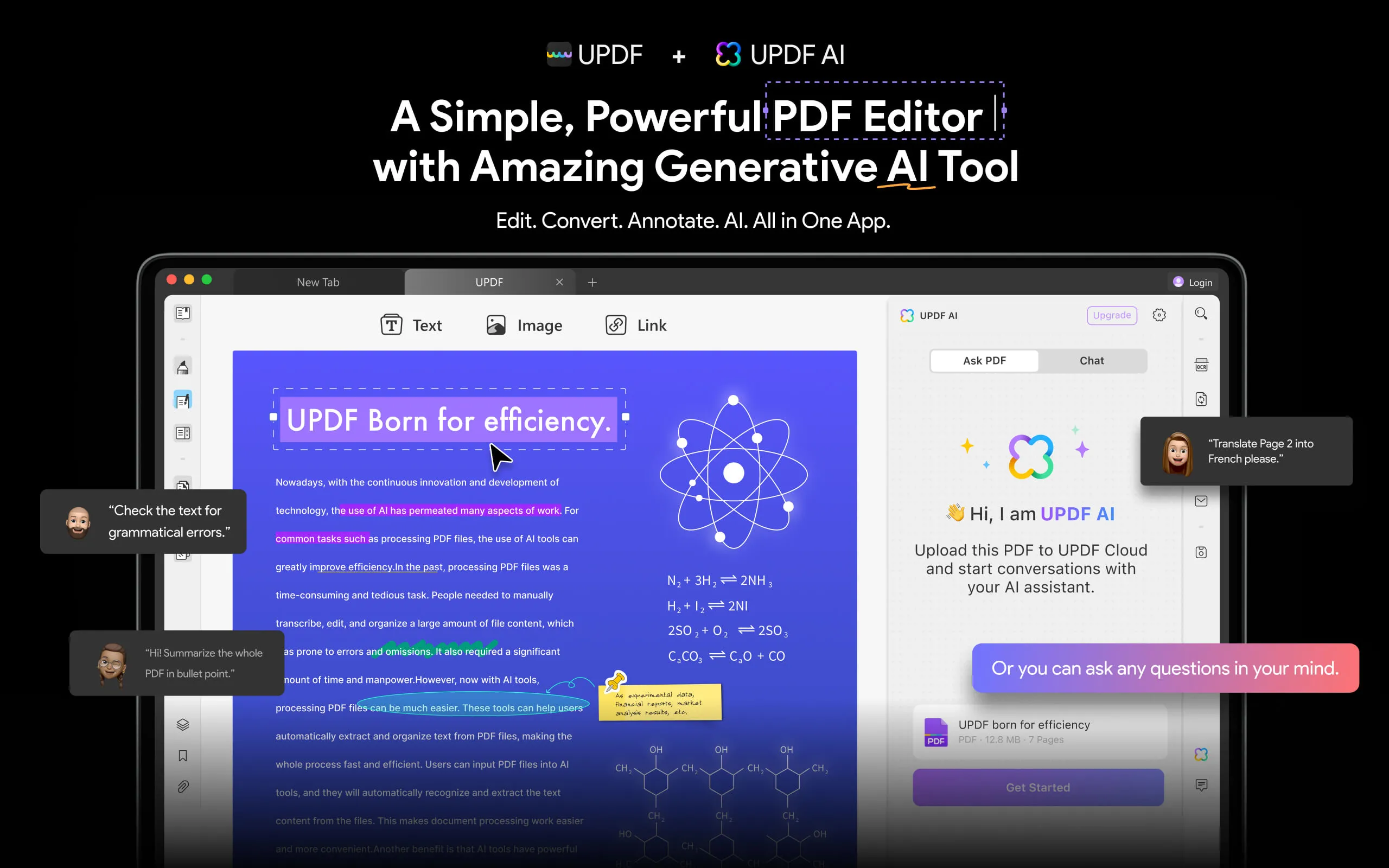
The other key features of UPDF AI are as follows:
- Instant and Concise Results: It always provides instant, accurate, and concise answers to questions. Whether you want the answer in paragraph, bullet, or list form, it delivers accordingly.
- Convenient: Its interface is easy to use, as you can read and chat PDFs at the same time.
- Direct Text Selection: It allows you to select the text in the document and directly summarize/translate/explain the text.
- Support Multiple Formats: Besides PDF, it can also chat with Word, Excel, PowerPoint, Visio, and image file formats. Its "Create" feature can convert these formats to PDF and then allows analysis and chat.
- Compatibility: It is compatible with Windows, Mac, iOS, and Android systems.
- Multiple Languages: It can read and translate into multiple languages, including English, German, Russian, Italian, Japanese, Chinese, and many more.
- Idea Generation & Brainstorming: It helps with idea generation or brainstorming with human-like conversations.
- Cost-Effective: It provides a free plan that allows you to chat with 100-page PDFs, while its paid version is accessible for just $29/quarter (about $9.67 per month).
- Cloud Storage: It provides dedicated cloud storage to store and share documents with others.
In short, UPDF AI is truly a feature-rich and best PDF AI chat tool. The below steps further provide a glimpse into how easy it is to use UPDF AI:
3.1 Chat PDF in UPDF AI on Computers
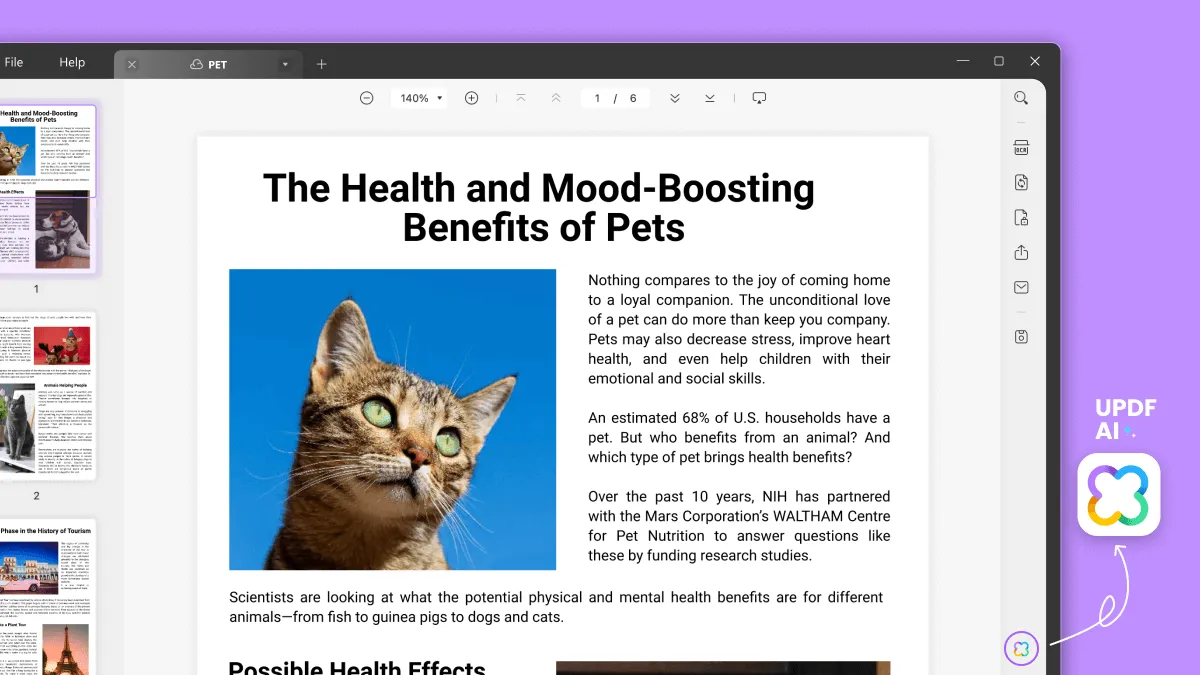
Step 1. Download and launch UPDF on your computer and open the PDF file. Afterward, click the "UPDF AI" icon from the bottom right corner to open the AI chat box.
Windows • macOS • iOS • Android 100% secure
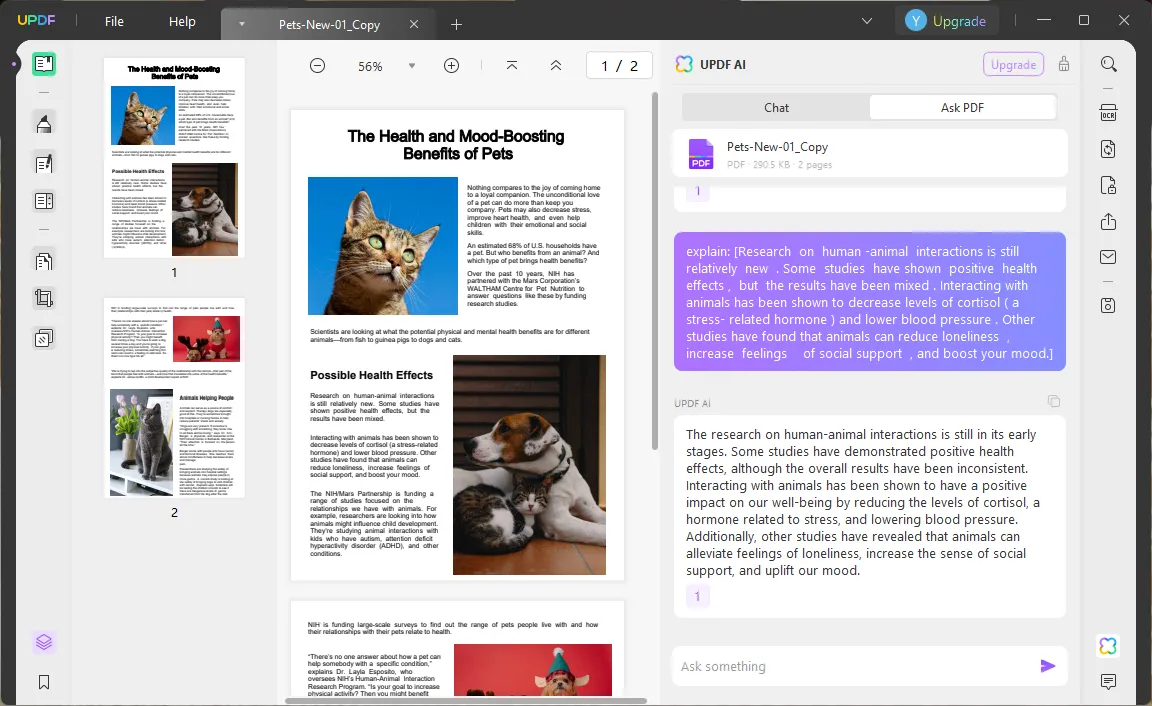
Step 2. Go to the "Ask PDF" option and click "Get Started" to upload and let AI analyze the document. Once done, it will automatically provide the summary of the whole PDF.
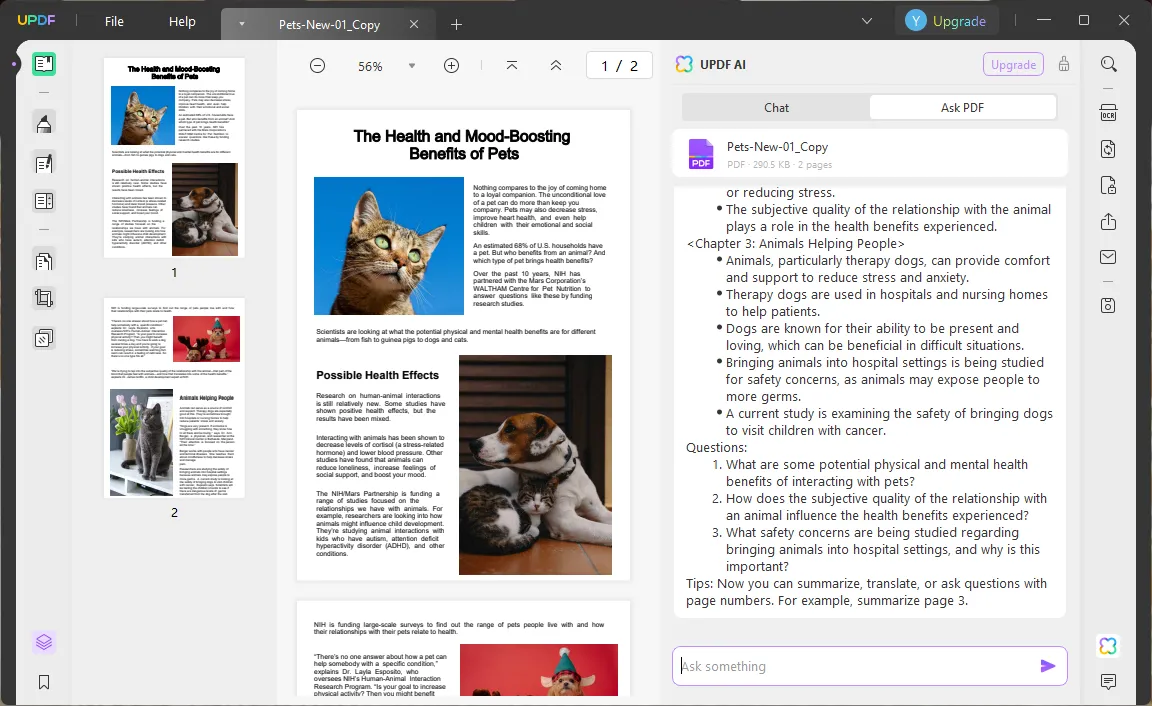
Step 3. Now begin asking questions from the PDF. For instance, if you want it to explain specific PDF text, copy it and type "explain this: [paste the text]" in the chat box.
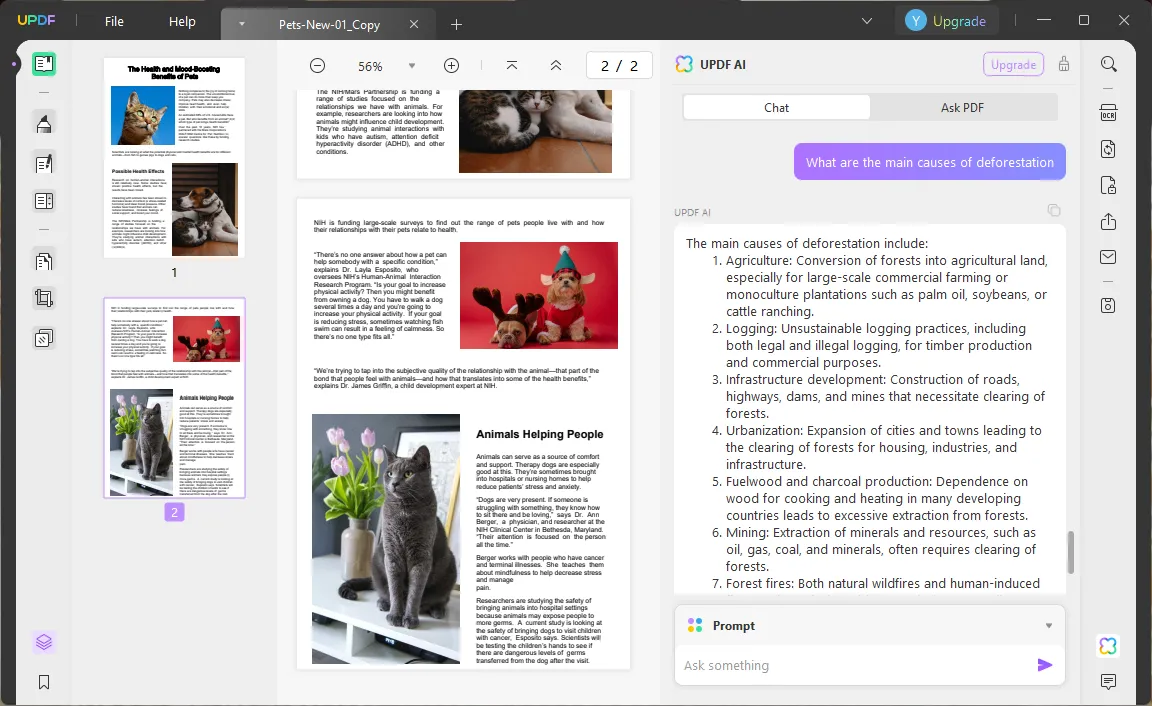
Step 4. To talk about anything outside PDF, go to the "Chat" option and start asking questions. For instance, if you want to know about what the main causes of deforestation are, type the text in the chat box and get the answer right away.
3.2 Chat PDF in UPDF AI on Smartphones
Since UPDF AI is compatible with both iOS and Android smartphones, you have the option to engage in PDF AI chat directly from your mobile device. In this guide, we'll provide step-by-step examples using the iOS version. Follow the steps below to initiate your PDF AI chat:
Step 1. Download and install UPDF on your phone.
Windows • macOS • iOS • Android 100% secure
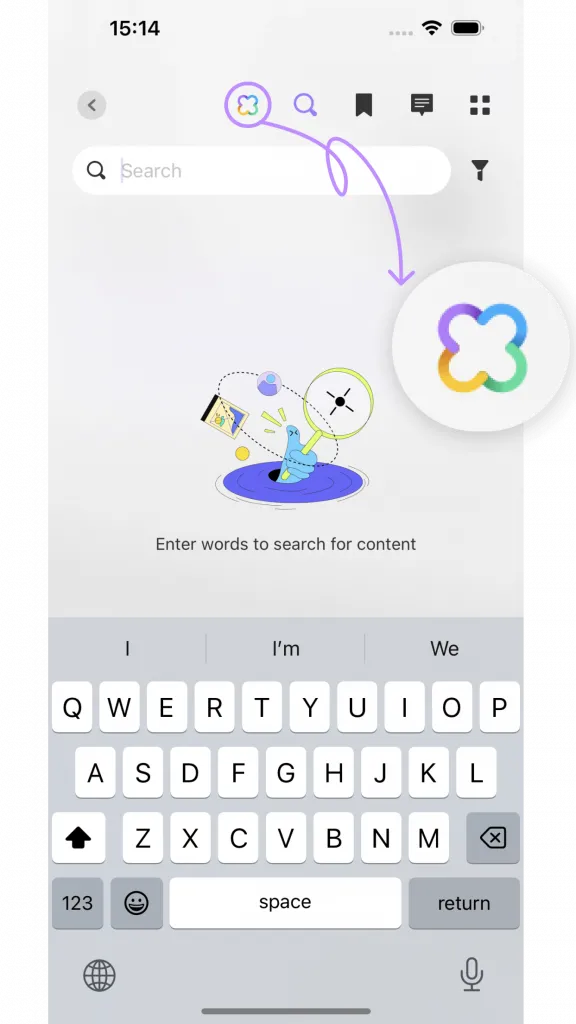
Access any PDF within UPDF and click on the Search icon located on the top menu bar. In the subsequent window, select the UPDF icon at the top and opt for Ask PDF mode.
Step 2. Tap on "Get Started" to initiate the AI assistant's analysis of the PDF file before proceeding with your tasks. Once the analysis is complete, UPDF will provide you with a thorough summary of the entire PDF content.
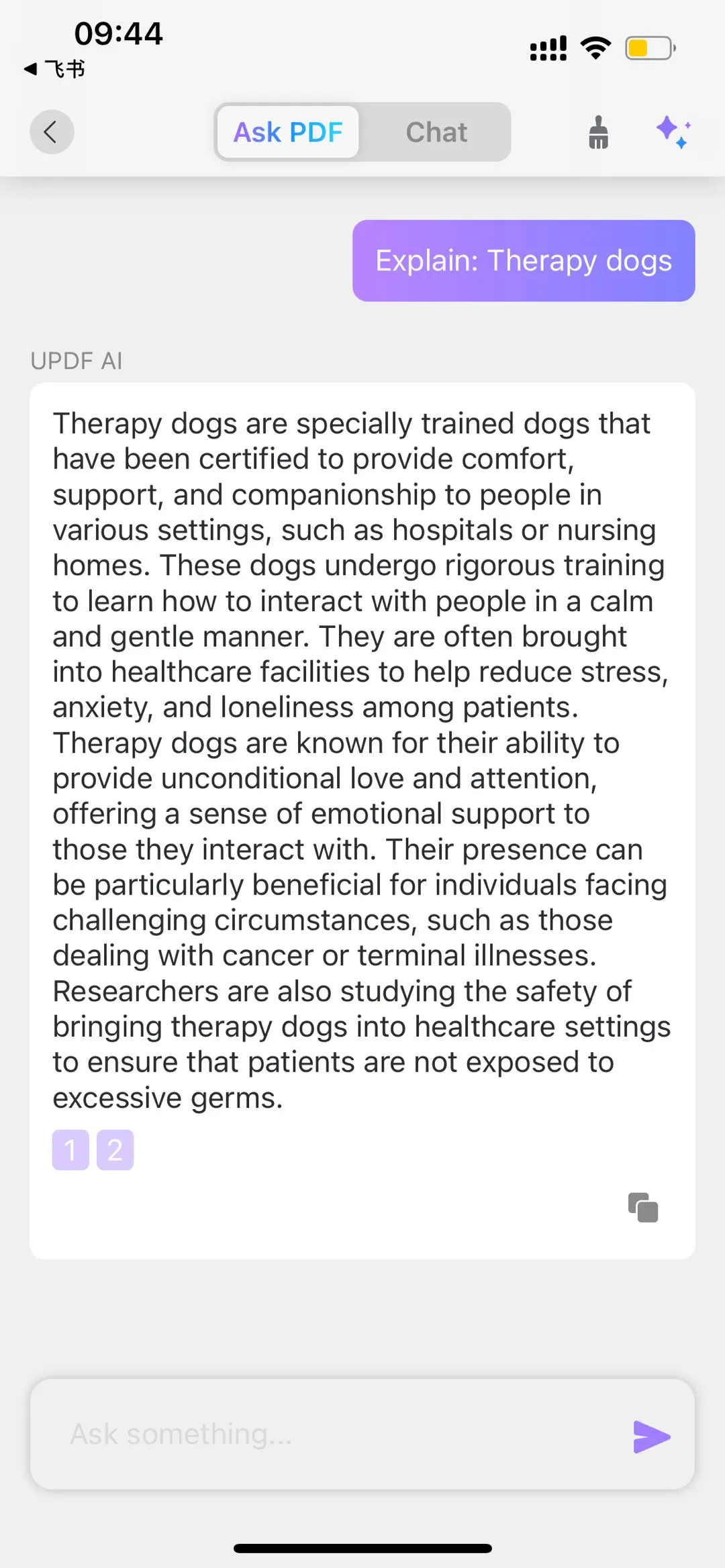
Step 3. If you wish to have UPDF explain, summarize, or translate specific content, simply type and send your command through the chatbox. For instance, if you want an explanation of the content in the PDF, input the following: "Explain: [paste the copied text here]."
Step 4. UPDF AI will promptly provide you with an explanation.
This way, you can use UPDF AI to answer questions instantly from your PDFs.
The best part about UPDF AI is that it is more than an AI-powered chatting tool. UPDF AI is just one feature of the UPDF toolkit, which is a complete PDF editor tool. So, the other features accessible to users with UPDF are as follows:
- Edit: It can edit the text, images, and links in PDF, even making it easy to add UPDF AI-generated text directly into the PDF.
- Annotate: It can annotate PDFs via highlighting, adding comments, inserting text boxes, pasting stamps, adding signatures, and more.
- OCR: Its OCR technology can smartly convert scanned PDFs into editable PDF files.
- Convert: It can convert PDF into other formats, such as Word, Excel, PowerPoint, text, image, etc.
- Organize: It helps to easily organize PDF pages, such as rotate, split, delete, crop, extract, rearrange, and more.
To sum up, UPDF is the most comprehensive and powerful PDF editor and PDF AI chat assistant tool that addresses all matters of PDFs within its extensive features list. Let's chat with PDF documents by purchasing and downloading UPDF now!
Windows • macOS • iOS • Android 100% secure
Part 4. Bonus: Can ChatGPT AI Read PDFs?
Yes, ChatGPT AI can read your PDFs, but this feature is only accessible to GPT 4, which is paid.
For users opting to continue with the free version of ChatGPT, there are alternative methods to engage in PDF AI chat. The methods are as follows:
1. Copy-Paste PDF Content (Least Recommended)
The easiest way to make ChatGPT read PDFs is to copy-paste the whole PDF content into the ChatGPT. However, this approach is not recommended because ChatGPT has a word count limit of 3,000 for the free version and 25,000 for the Plus version. So, you cannot copy-paste lengthy PDF files. Moreover, the copy-paste approach may not preserve the formatting and structure of the PDF, resulting in incorrect output responses.
2. Use Chat with PDF Plugin
There are now many chat with PDF plugins for ChatGPT that you can install and let ChatGPT read PDFs. One of the popular plugins is Ask Your PDF, which allows you to upload the PDF to its server and then use the document ID in ChatGPT to chat with the PDF. However, the downside of this method is that you have to subscribe to ChatGPT's $20/month Plus plan to install plugins.
3. Use ChatGPT-Powered Tool (Most Recommended)
The third and most recommended way is to use a ChatGPT-powered tool specially designed for PDFs. UPDF AI is one such ChatGPT-based tool that allows you to upload the PDF and chat with it instantly. And since its outputs are powered through ChatGPT, the responses are exactly what you want from ChatGPT.
Conclusion
PDF AI chat tools have eradicated the traditional way of spending hours reading and extracting key points from PDFs. Now the process is just left to upload and ask document-related questions. Out of the many available AI chat tools, UPDF AI stands out as the best AI to chat with PDF due to its extensive set of advanced AI chat functionalities. Its dual AI assistant mode, instant and accurate question-answering, powerful summarization, in-depth explanation, and more all aspects make it the most powerful and intelligent AI tool to chat with any PDF.
Windows • macOS • iOS • Android 100% secure






 Enid Brown
 Engelbert White
 Enola Miller