 UPDF
UPDF
 UPDF for Windows
 UPDF for Mac
 UPDF for iPhone/iPad
 UPDF for Android
 UPDF AI Online
 UPDF Sign
 Edit PDF
 Annotate PDF
 Create PDF
 PDF Form
 Edit links
 Convert PDF
 OCR
OCR PDF to Word
 PDF to Image
 PDF to Excel
 Organize PDF
 Merge PDF
 Split PDF
 Crop PDF
 Rotate PDF
 Protect PDF
 Sign PDF
 Redact PDF
 Sanitize PDF
 Remove Security
 Read PDF
 UPDF Cloud
 Compress PDF
 Print PDF
 Batch Process
 About UPDF AI
 UPDF AI Solutions
 AI User Guide
 FAQ about UPDF AI
 Summarize PDF
 Translate PDF
 Chat with PDF
 Chat with AI
 Chat with image
 PDF to Mind Map
 Explain PDF
 PDF AI Tools
 Image AI Tools
 AI Chat Tools
 AI Writing Tools
 AI Study Tools
 AI Working Tools
 Other AI Tools
 AI Bookmark Generation
 AI Bookmark Summary
 AI Watermark Generation
 AI Background Generation
 AI Sticker Generation
 AI Stamp Generation
 AI Editing Suite
 UPDF Copilot
 AI Page Management
 AI Semantic Search
 PDF to Word
 PDF to Excel
 PDF to PowerPoint
 Enterprise Solution
 Enterprise Sign
 Enterprise AI
 Enterprise Plan
 Enterprise User Guide
 Enterprise Webinar
 Banking
 Healthcare
 Insurance
 Legal
Legal Manufacturing
 Government
 Education Solution
 Customer Stories
 User Guide
 UPDF Tricks
 FAQs
FAQs UPDF Reviews
 Download Center
 Blog
Blog Newsroom
 Tech Spec
 Updates
 UPDF vs. Adobe Acrobat
 UPDF vs. Foxit
 UPDF vs. PDF Expert

OpenClaw skills are like apps you install on an AI to give it powerful new abilities and functions. Whatever skills you add become the abilities the AI can use to support you in everyday digital tasks. When you work with PDF files and legal cases, managing and organizing them manually can feel slow. To counter this, you can install UPDF, type a simple prompt, and let it translate, summarize, and bookmark PDFs automatically with a click.
This guide shows what OpenClaw skills are, how to use them correctly, and how to simplify complex PDF work.
Windows • macOS • iOS • Android 100% secure
Part 1. OpenClaw Skills Overview from ClawHub
ClawHub, the OpenClaw skills hub, is a central place where you install and manage powerful OpenClaw skills. It organizes skills into clear categories to help you quickly match your daily tasks with the right tools. Professionals and small teams can all find focused skills that remove routine work and save real time. This overview prepares you to understand how skills fit your workflow before we highlight the OpenClaw skills.

Main Types of OpenClaw Skills
Different types of OpenClaw skills help users shape the AI into a focused assistant for everyday tasks. Now, we will explore the types of top OpenClaw skills that make the biggest difference in real workflows.
- Productivity Skills: Help manage email and basic documents to make busy professionals stay on top of daily work.
- Research Skills: Support students and analysts with fast reading and organizing of long articles and online sources.
- Automation Skills: Run repeated workflows automatically to help small teams handle routine operations and focus on important decisions.
- Communication Skills: Assist sales and remote workers with drafting replies, logging conversations, and keeping client information consistently updated.
- Developer Skills: Give technical users tools for code review, documentation, and integration with their existing development environments.
Part 2. Top 10 Popular OpenClaw Skills in 2026
Top skills connect with your email inbox to summarize threads, draft replies, and clear clutter quickly. They sync with your calendar to propose meeting times, send invites, and prevent double‑booking automatically. Some of the best OpenClaw skills include watching specific websites, capturing updates, and turning them into short daily briefings.
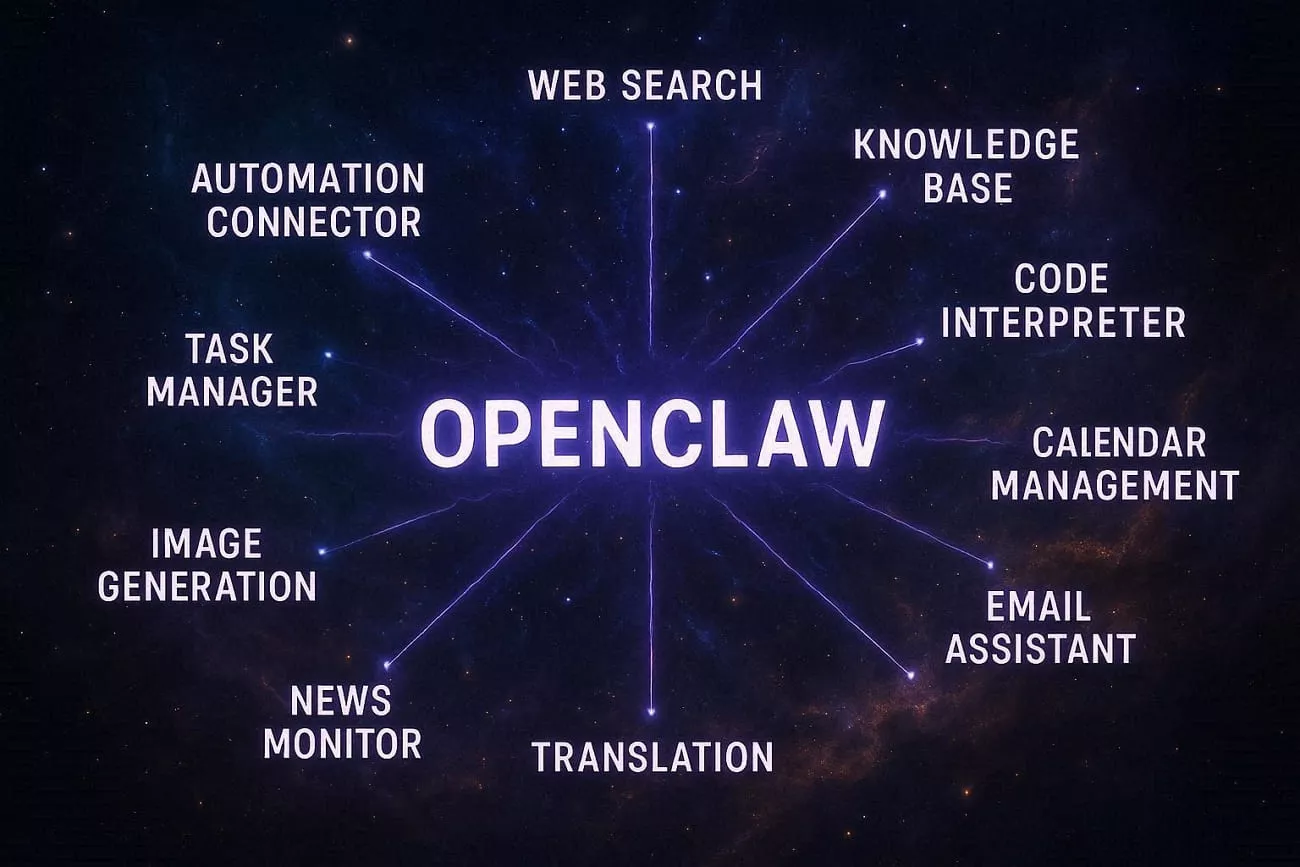
Others organize long PDFs into structured notes and prepare simple explanations for non‑technical readers. Now, look at the table below to understand what each skill does at a glance:
| Rank | Skill Name | Usage Highlights | Best For |
| 1 | Web Search | Live web results, fresh data, quick answers | Research, market checks |
| 2 | Knowledge Base | PDF QA, internal docs search, smart lookup | Teams with many documents |
| 3 | Code Interpreter | Data analysis, charts, file handling | Analysts, developers |
| 4 | Calendar Management | Create events, check slots, avoid clashes | Busy professionals |
| 5 | Email Assistant | Summaries, drafts, bulk cleanup | Inbox-heavy roles |
| 6 | Image Generation | Social graphics, slides, creative visuals | Marketers, content creators |
| 7 | News Monitor | Source tracking, daily briefings, alerts | Execs, researchers |
| 8 | Translation | Multi-language text, natural tone, quick output | Global teams |
| 9 | Task Manager | To-dos, priorities, tool syncing | Project work, small teams |
| 10 | Automation Connector | Triggers, workflows, app integrations | Operations, automation fans |
After exploring these skills, users should start by installing only the few that match their daily pain points. Once those feel comfortable, they can gradually add more specialized skills and adjust settings to keep OpenClaw simple and responsive.
Part 3. 3 Simple Ways to Set Up OpenClaw Skills
OpenClaw skills work like simple plugins, and you first need OpenClaw running, internet access, and a trusted skills source. Next, we will explain three simple OpenClaw skills install methods so you can add the tools you actually need.
1. ClawHub CLI
ClawHub CLI is the command‑line tool for installing and managing OpenClaw skills. It works by running simple commands inside your OpenClaw workspace instead of clicking through a web interface. You need OpenClaw already installed, basic terminal access, and the exact skill name you want to install.
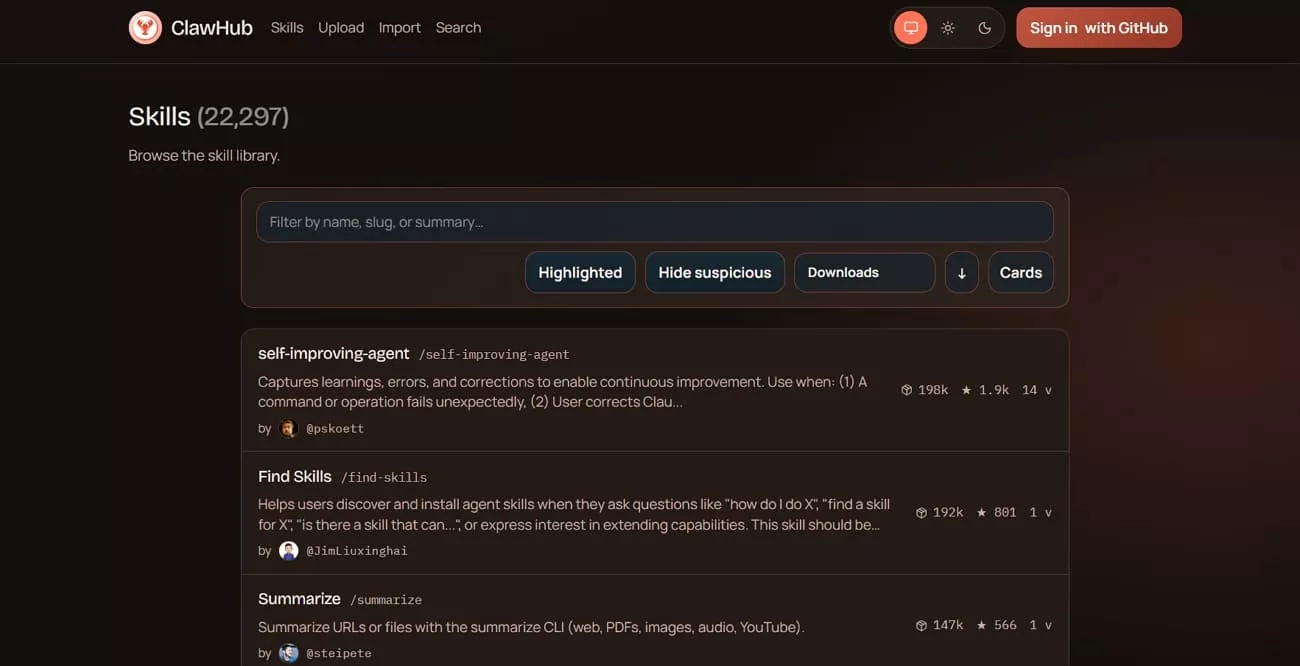
Common Commands
- clawhub list – show available skills you can install.
- clawhub install skill-name – install a specific skill into your workspace.
- clawhub update skill-name – update an installed skill to the latest version.
- clawhub remove skill-name – uninstall a skill you no longer need.
Things to Note: Always double-check the skill name and source before running commands when installing new skills for the first time.
2. Manual Setup
Manual setup means installing a skill by copying its folder yourself instead of using an installer. To set it up, download the skill folder and move it into your OpenClaw skills directory. You only need basic file access, the skill folder, and its SKILL.md instructions. Restart OpenClaw and run a quick test prompt to confirm the new skill works.
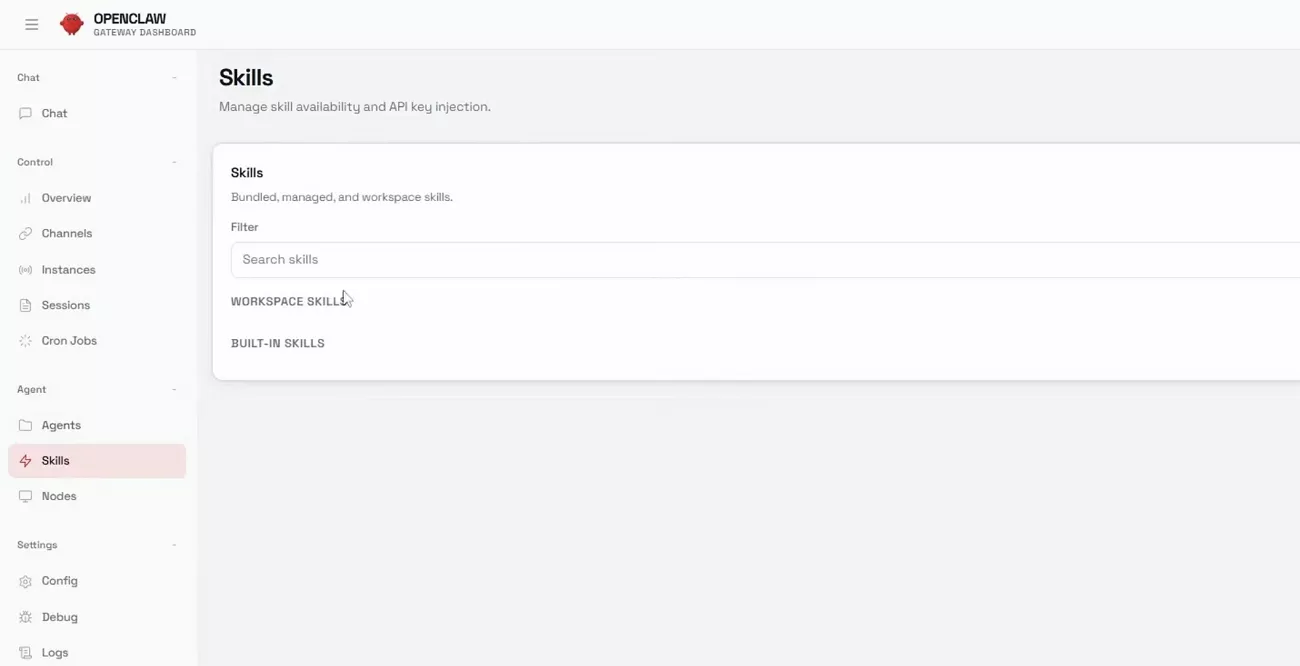
Things to Note: Make sure that the skill was built for your OpenClaw version, or it might not load correctly. Carefully follow SKILL.md setup steps, environment variables, and API keys, to avoid confusing runtime errors later.
3. OpenClaw Chat
This method lets you install and configure skills directly from chat, without touching folders. After connecting a chat channel, you can open a conversation, describe what you want, and let the agent suggest suitable skills. From there, you approve installations, connect accounts, and tweak settings through guided chat prompts. It is easier than browsing the OpenClaw skills hub manually and is ideal for non‑technical users.
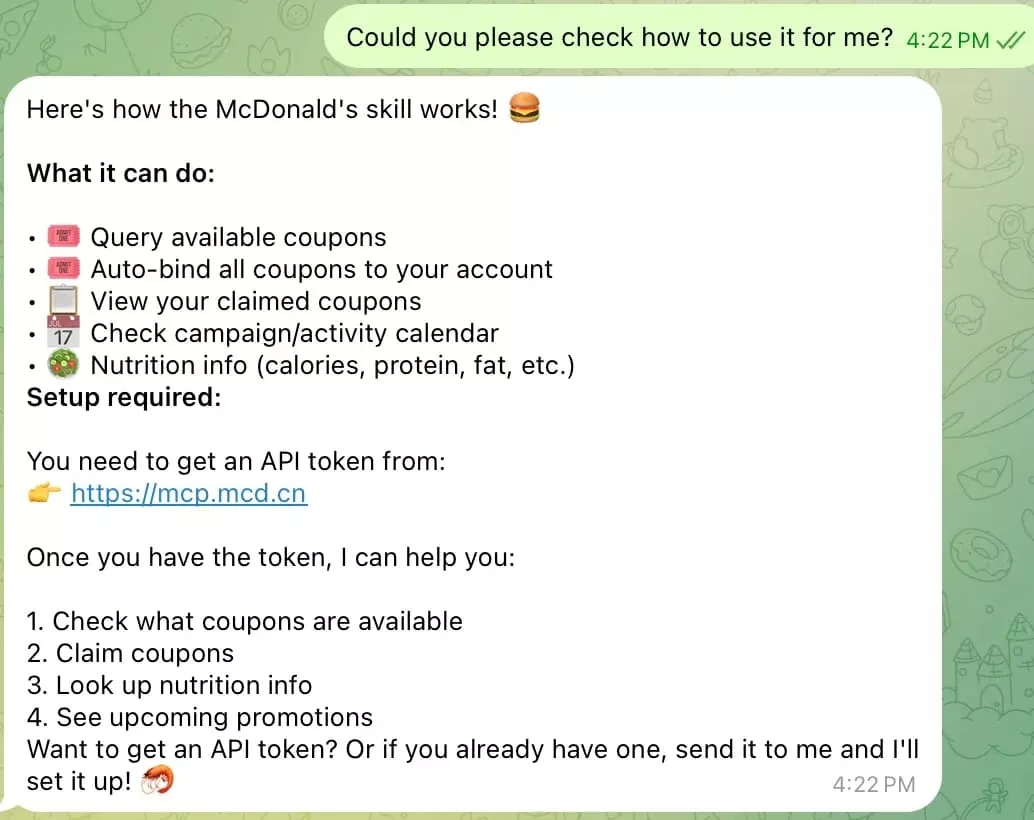
Things to Note: Review which skills the agent enables, what data they access, and who can use that chat.
Part 4. Bonus: PDF Skills You Need to Know
Having many plugins on PDF tools to control PDFs, yet some users still struggle with scattered features. This is where UPDF comes in, offering a one‑stop PDF workspace to manage everything inside one app. With UPDF, users can auto‑bookmark long PDFs, instantly creating a clickable outline for faster navigation, what’s more users can have an AI PDF checker - check pages with annotation, OCR, blank pages and so on, and you can even create custom stickers, more AI functions wait you to find!
It also lets you translate PDF Bookmarks into 26 languages, without exporting text. Moreover, you can summarize each Bookmark with one click to generate clear key points and save reading time. Compared to juggling plugins like OpenClaw skills or Adobe add‑ons, UPDF keeps advanced PDF control simple and centralized.
Windows • macOS • iOS • Android 100% secure
To use UPDF’s Auto Bookmark, Summarize, and Translate features, follow the simple steps below:
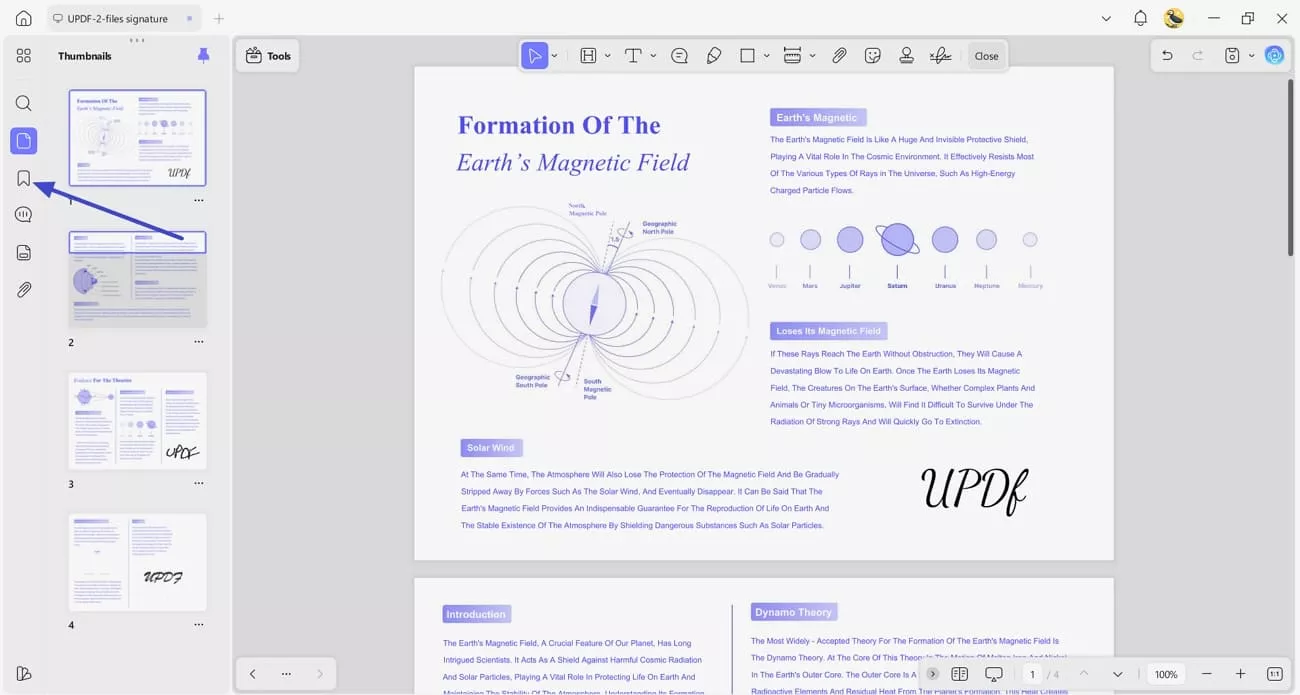
Step 1. Import PDF and Access Bookmarks Panel
Once you import a PDF into UPDF, press the “Bookmarks” option in the left side panel.
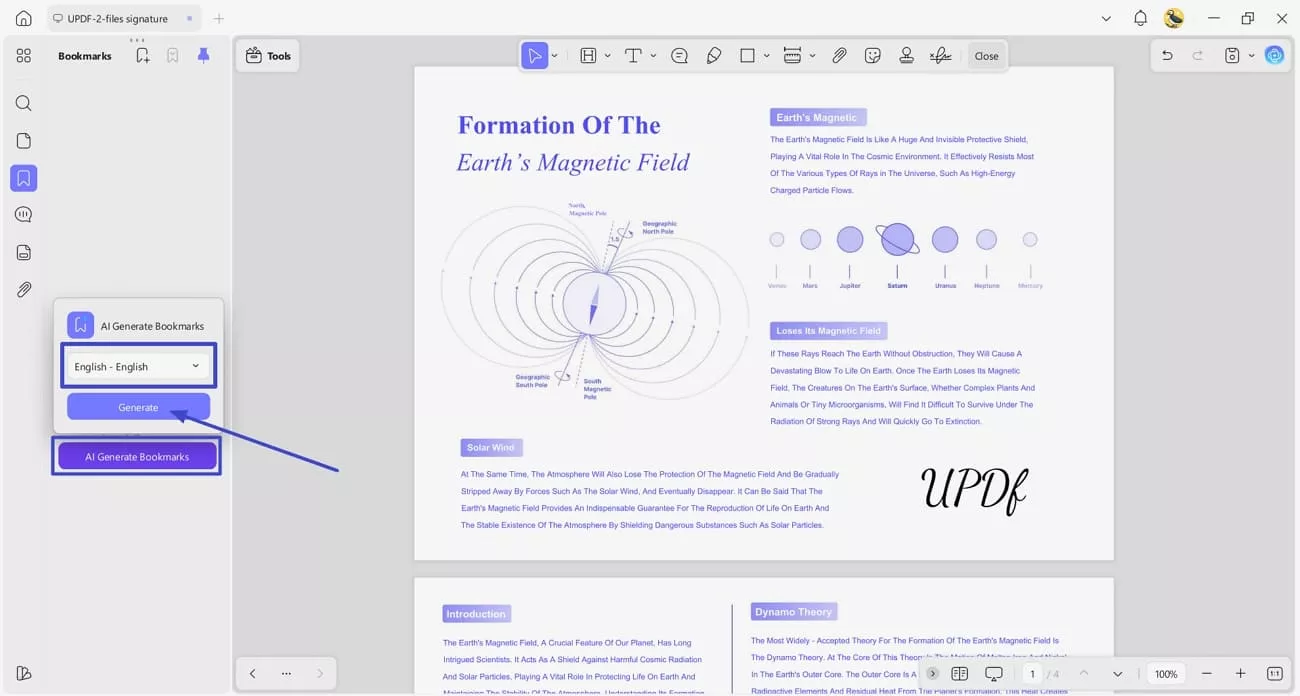
Step 2. Generate Bookmarks Using AI
Next, in the left-side panel, press the “AI Generate Bookmarks” option. Afterwards, choose the language and press the “Generate” button. This will auto-generate bookmarks after analyzing the PDF content.
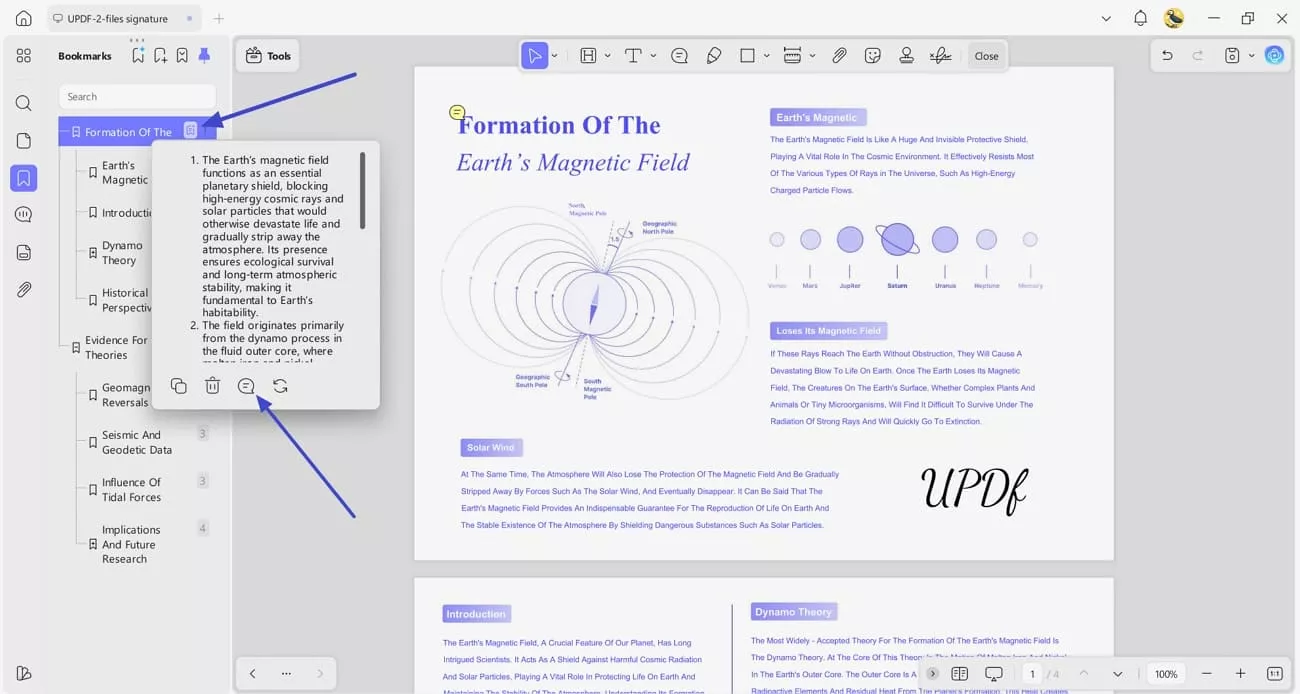
Step 3. Summarize AI Bookmarks
To summarize each created bookmark separately, press the “AI Summary” option on the bookmark. Next, press the “Note” icon to add a note containing a summary on relevant PDF page.
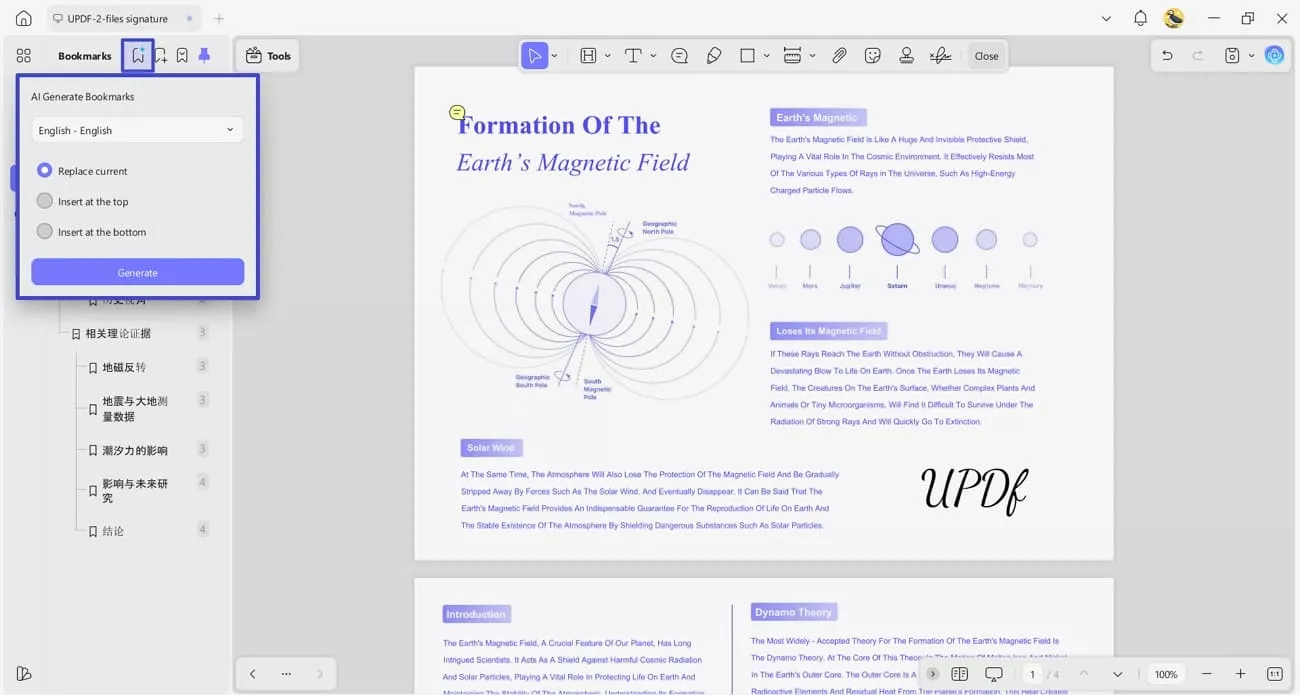
Step 4. Translate Existing Bookmarks
Once done, press the “AI Generate Bookmarks” icon at the top and select the target language from the drop-down menu. Next, choose the “Replace Current” option to replace all with existing versions. Lastly, press the “Generate” button to translate.
Frequently Asked Questions about OpenClaw Skills
Q1. How to Uninstall OpenClaw Skills?
You can remove a skill by deleting its folder or disabling it in your settings. Go through the simple steps below:
Step 1. Open your OpenClaw workspace and find the list of installed skills.
Step 2. Locate the skill you no longer need in the skills list or skills directory.
Step 3. Either toggle it off/disable it or delete its folder from the relevant skills path.
Step 4. Restart OpenClaw so it reloads without that skill, and confirm it no longer appears.
Q2. Why OpenClaw Skills Show “Blocked”?
Skills usually show “Blocked” when permissions, scopes, or security rules prevent them from running in that chat. Sometimes they’re blocked because the admin disabled them or removed access through the OpenClaw skills hub. They can also appear blocked if required API keys, accounts, or environment variables are missing or misconfigured.
Conclusion
In conclusion, OpenClaw skills turn your AI into a focused assistant that automates research, email, documents, and workflows. Start with a few high‑impact skills, then expand as your daily routines become smoother and more automated. For heavy PDF work, try UPDF to instantly bookmark, summarize, and translate complex documents in one place.
Windows • macOS • iOS • Android 100% secure







 Lizzy Lozano
 Engelbert White


 Enola Miller