UPDF
UPDF
 UPDF for Windows
 UPDF for Mac
 UPDF for iPhone/iPad
 UPDF for Android
 UPDF AI Online
 UPDF Sign
 Edit PDF
 Annotate PDF
 Create PDF
 PDF Form
 Edit links
 Convert PDF
 OCR
OCR PDF to Word
 PDF to Image
 PDF to Excel
 Organize PDF
 Merge PDF
 Split PDF
 Crop PDF
 Rotate PDF
 Protect PDF
 Sign PDF
 Redact PDF
 Sanitize PDF
 Remove Security
 Read PDF
 UPDF Cloud
 Compress PDF
 Print PDF
 Batch Process
 About UPDF AI
 UPDF AI Solutions
 AI User Guide
 FAQ about UPDF AI
 Summarize PDF
 Translate PDF
 Chat with PDF
 Chat with AI
 Chat with image
 PDF to Mind Map
 Explain PDF
 PDF AI Tools
 Image AI Tools
 AI Chat Tools
 AI Writing Tools
 AI Study Tools
 AI Working Tools
 Other AI Tools
 AI Bookmark Generation
 AI Bookmark Summary
 AI Watermark Generation
 AI Background Generation
 AI Sticker Generation
 AI Stamp Generation
 AI Editing Suite
 UPDF Copilot
 AI Page Management
 AI Semantic Search
 PDF to Word
 PDF to Excel
 PDF to PowerPoint
 Enterprise Solution
 Enterprise Sign
 Enterprise AI
 Enterprise Plan
 Enterprise User Guide
 Enterprise Webinar
 Banking
 Healthcare
 Insurance
 Legal
Legal Manufacturing
 Government
 Education Solution
 Customer Stories
 User Guide
 UPDF Tricks
 FAQs
FAQs UPDF Reviews
 Download Center
 Blog
Blog Newsroom
 Tech Spec
 Updates
 UPDF vs. Adobe Acrobat
 UPDF vs. Foxit
 UPDF vs. PDF Expert

For years, many CNA candidates have relied on thick PDF manuals and endless highlighting, hoping the information would eventually stick. In reality, this approach often leads to information overload and low confidence.
Passing the CNA exam requires more than reading—it demands judgment, clinical thinking, and hands-on readiness. With both a written test and a skills evaluation to pass, students need study methods that provide clarity, feedback, and structure. That's why CNA preparation in 2026 is shifting toward smarter, AI-supported tools that promote active learning instead of passive review.
To support this kind of focused preparation, many CNA students start by organizing their study materials in UPDF. It allows you to manage skills checklists, annotate PDFs, and keep all your exam documents in one place—so your prep stays structured from day one.
Download UPDF for free here to organize your CNA study materials before you begin.
Windows • macOS • iOS • Android 100% secure
The Interactive Phase: Using Gemini for CNA Practice Tests
While preparing for the CNA exam, you need to think like a CNA under exam conditions. This is where Gemini shines. Instead of passively reviewing notes, candidates can turn their study time into a free CNA Practice Test Online experience.
Gemini functions as an interactive CNA study guide, adapting questions to your weak areas and keeping you mentally engaged. Organizations such as Prometric and Pearson VUE design CNA exams to test judgment, not just memory. Interactive practice mirrors this reality far better than static PDFs.
The Prompting Strategy to Ask Gemini the Right Questions
Gemini responds best to exam-focused prompts. CNA students can guide the AI to generate targeted practice questions aligned with official exam domains.
Example prompts include:
- "Quiz me on Infection Control for the CNA exam."
- "Create a CNA Practice Test 2026 with 10 multiple-choice questions on patient safety."
- "Test me using Red Cross CNA skill standards."
While writing these prompts, you have to be specific about topics and difficulty level. This helps Gemini simulate real CNA exam conditions more accurately. To use Gemini while preparing for the CNA exam, follow these steps:
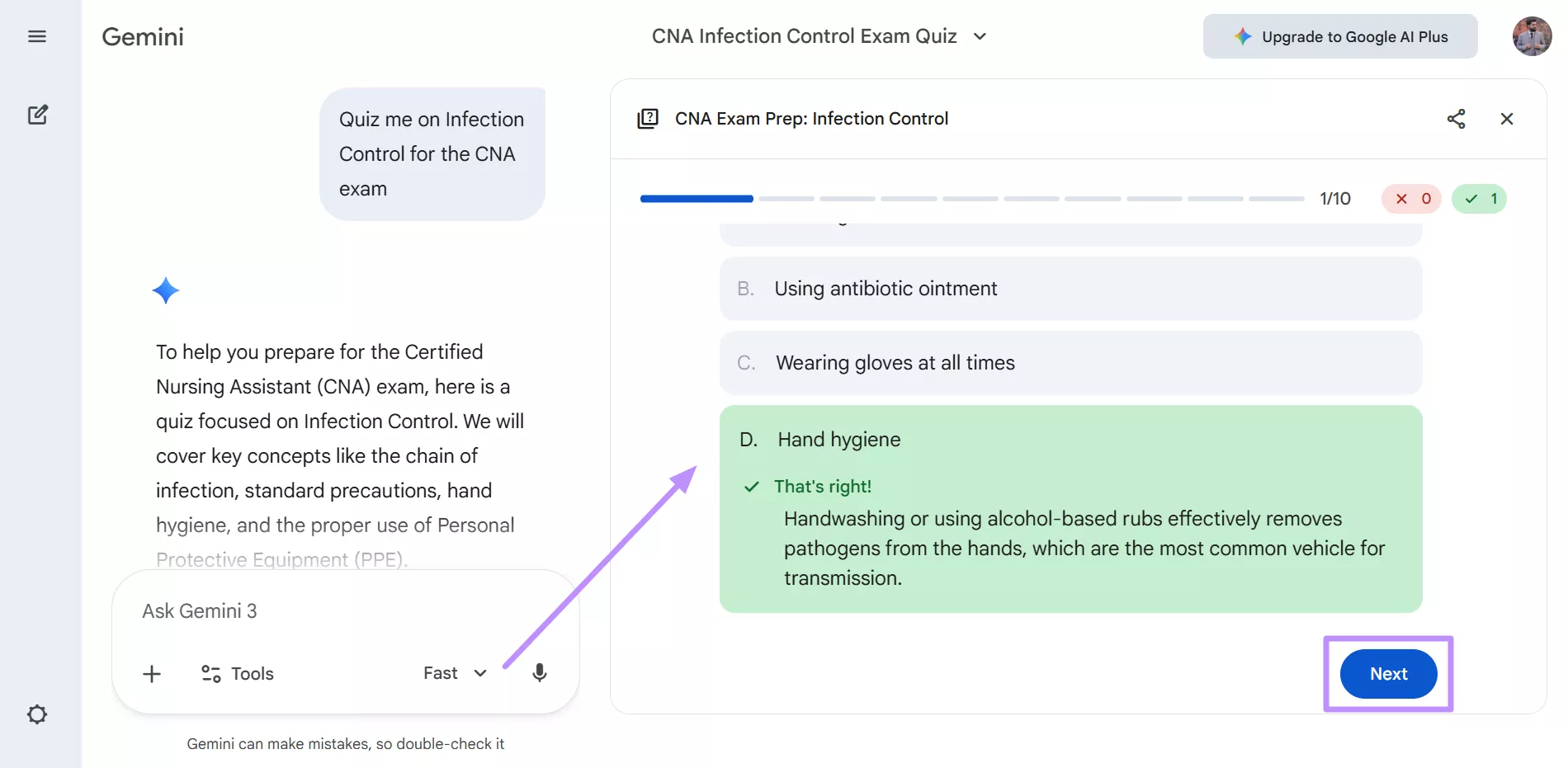
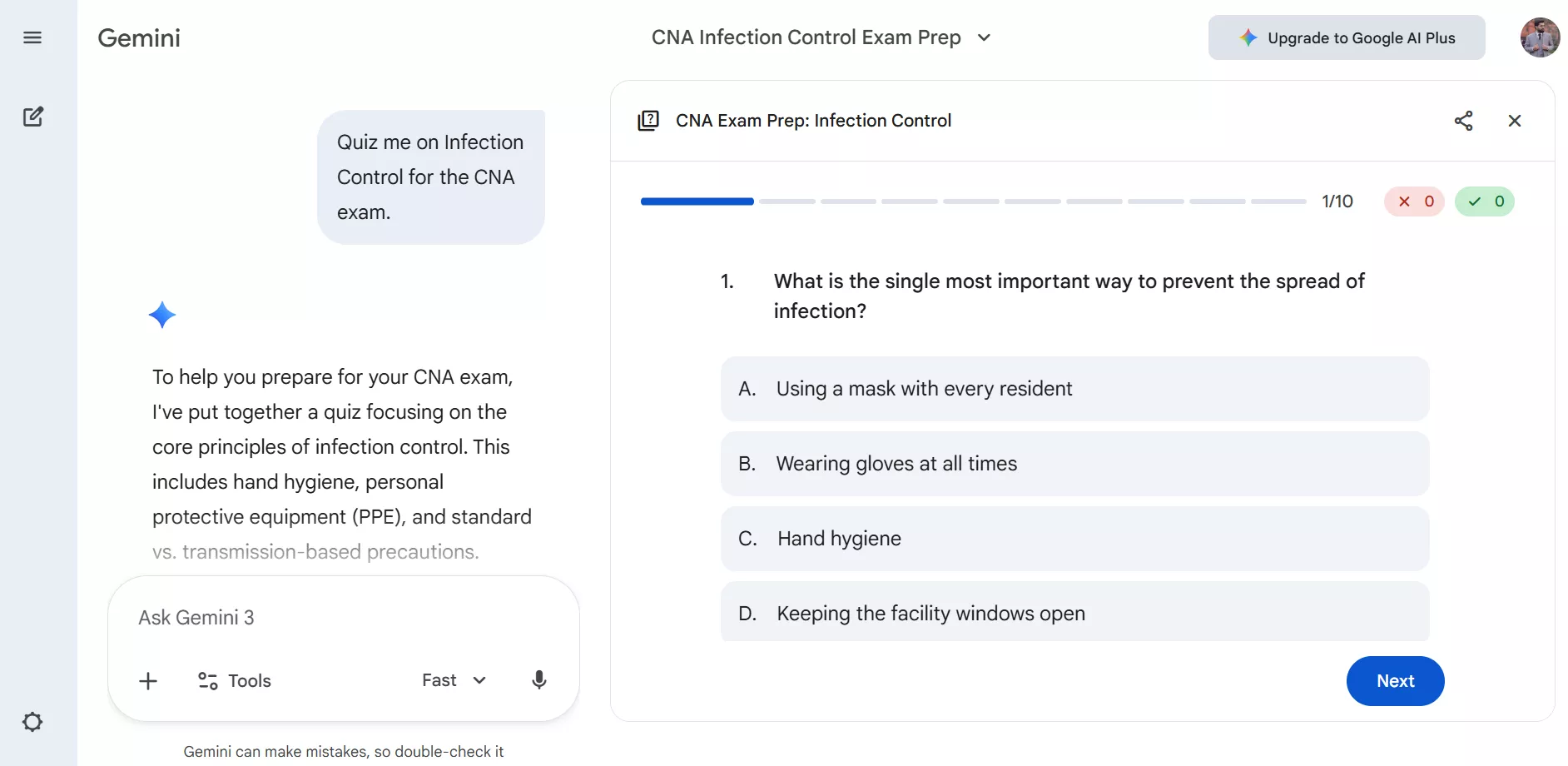
Step 1. Access and log in to your Gemini account on your preferred browser. Now, write a proper prompt, such as "Quiz me on Infection Control for the CNA exam" within the text box and hit the Submit icon.
Step 2. Gemini will give you a fully interactive CNA Practice Test, which you can solve. After choosing the right option, hit the Next button to proceed. Upon picking the answer, Gemini even provides you with the explanation and real-time feedback.
Step 3. Once you are done with the test, you will get a detailed report on your performance. You can even analyze your strengths and weaknesses within this practice test window.
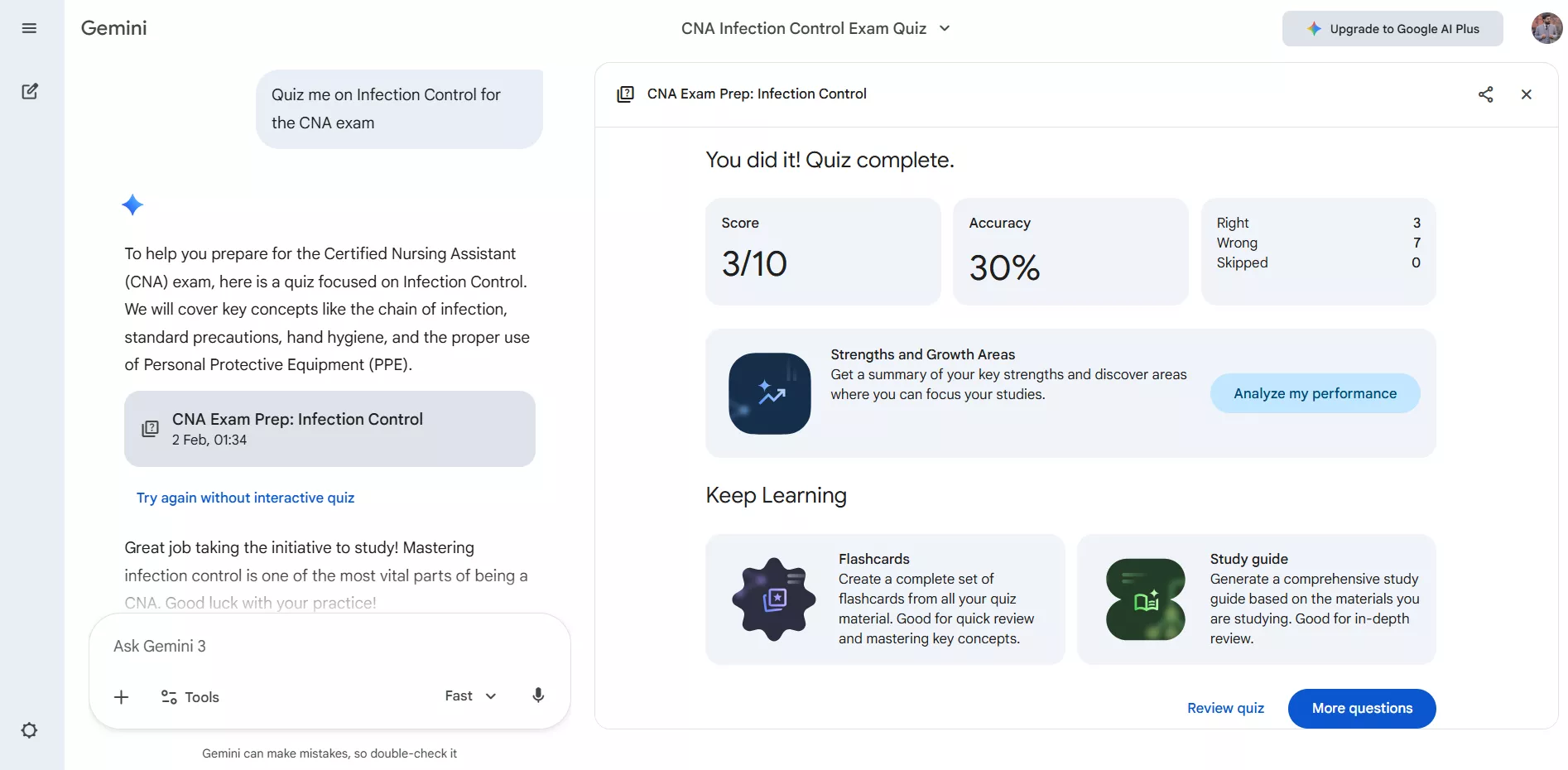
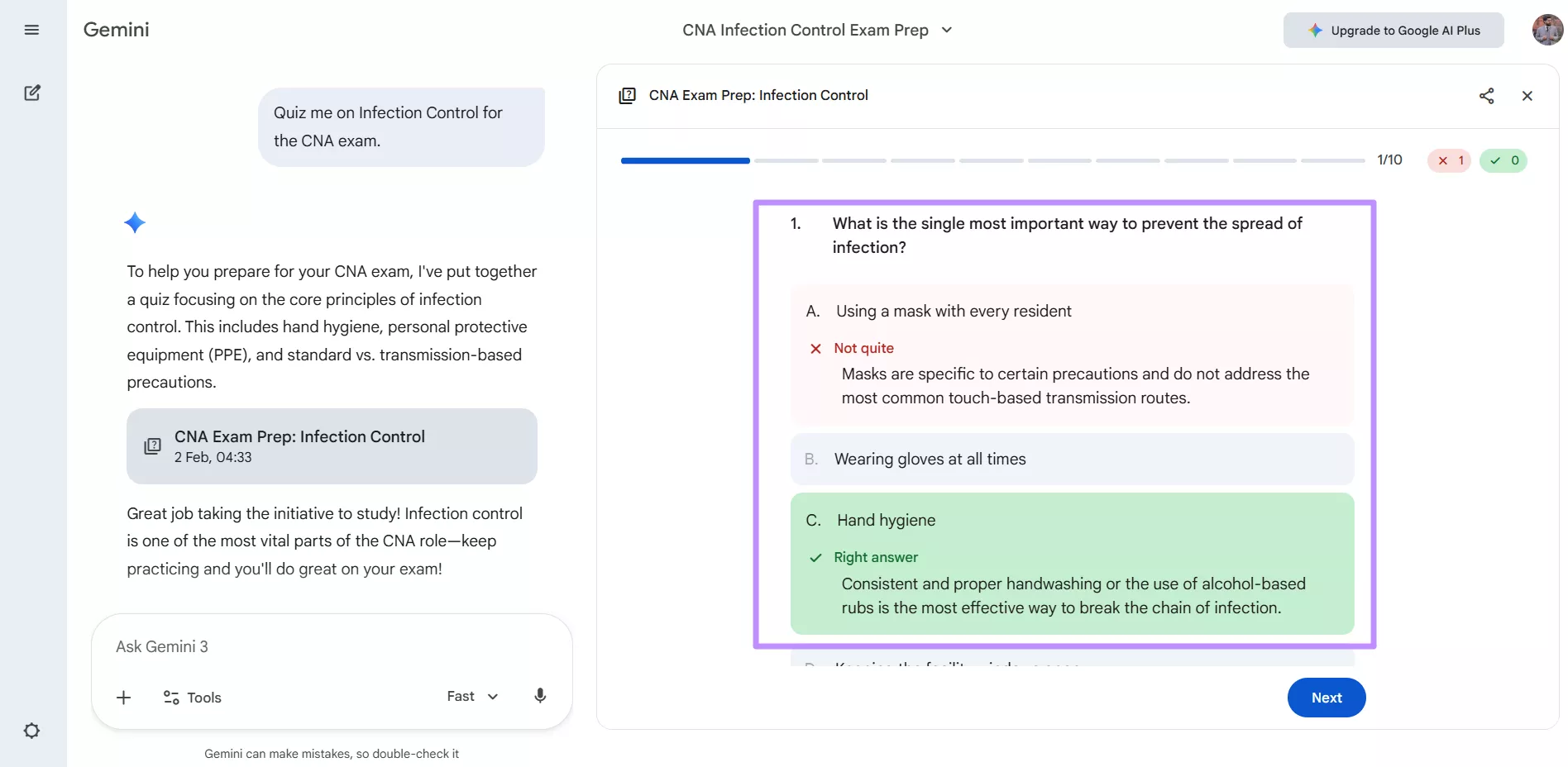
As you have observed, one of Gemini's biggest advantages is instant explanation. When you answer a question incorrectly, Gemini marks it wrong and explains why the answer is incorrect. This immediate feedback helps reinforce correct clinical reasoning and prevents repeated mistakes.
While Gemini handles interactive testing, the AI assistant in UPDF supports generating CNA practice questions in a non-interactive format. More importantly, UPDF acts as an AI-powered editor and organizer, allowing students to store quizzes and organize their CNA skills checklist PDF.
The Organization Phase: Master the Clinical Skills with UPDF
After downloading the Official CNA Skills Checklist PDF, you may get confused due to its detailed content. So, instead of printing it or scrolling endlessly, I recommend you open it in UPDF. In this way, the checklist stops being a static document and becomes an active skills tracker and personal study system.
Install UPDF by clicking the button below. Download the Official CNA Skills Checklist PDF and import it into UPDF by clicking the Open File button to start organizing your clinical exam prep.
Annotate and Track Your Skills Progress
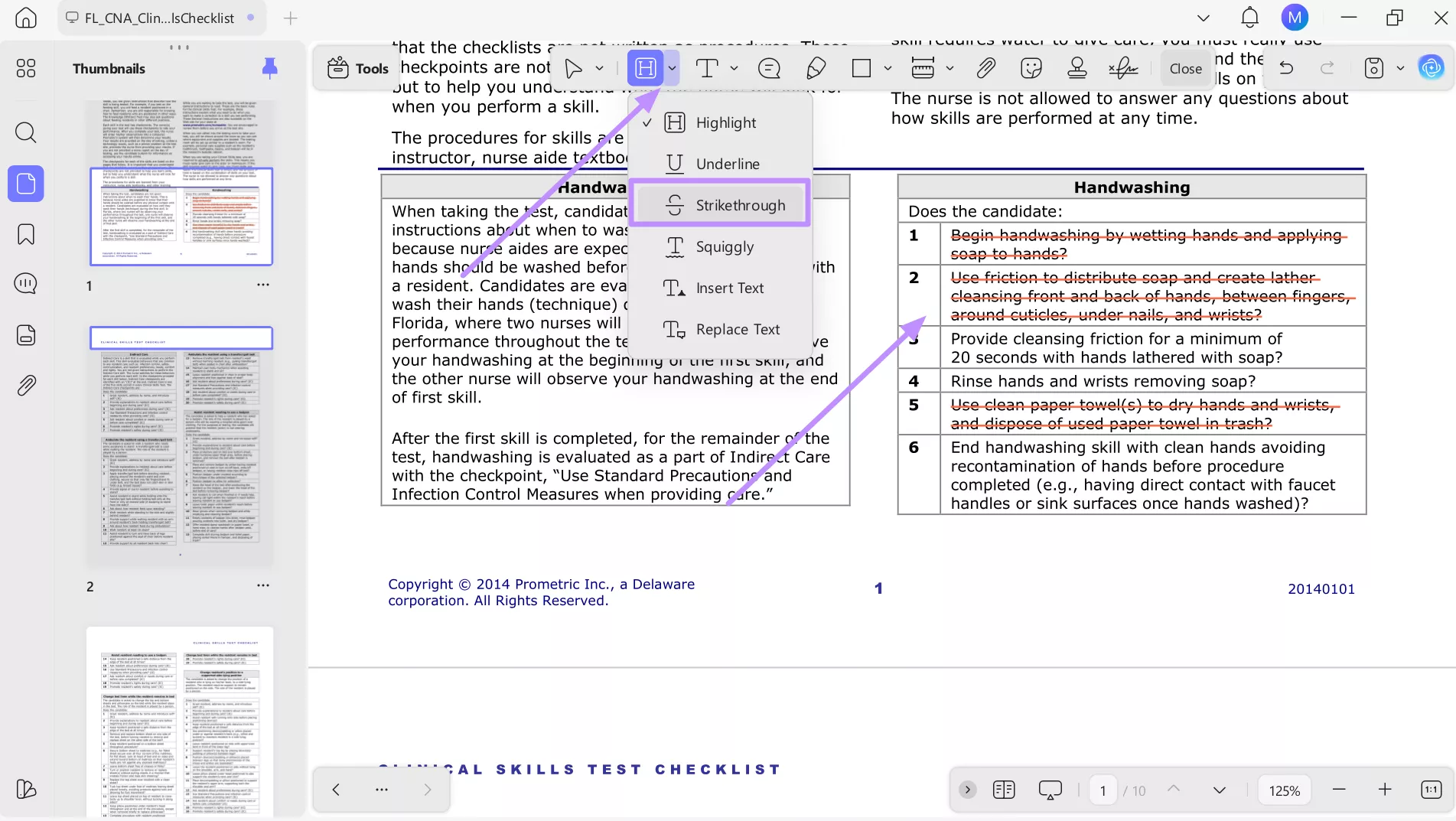
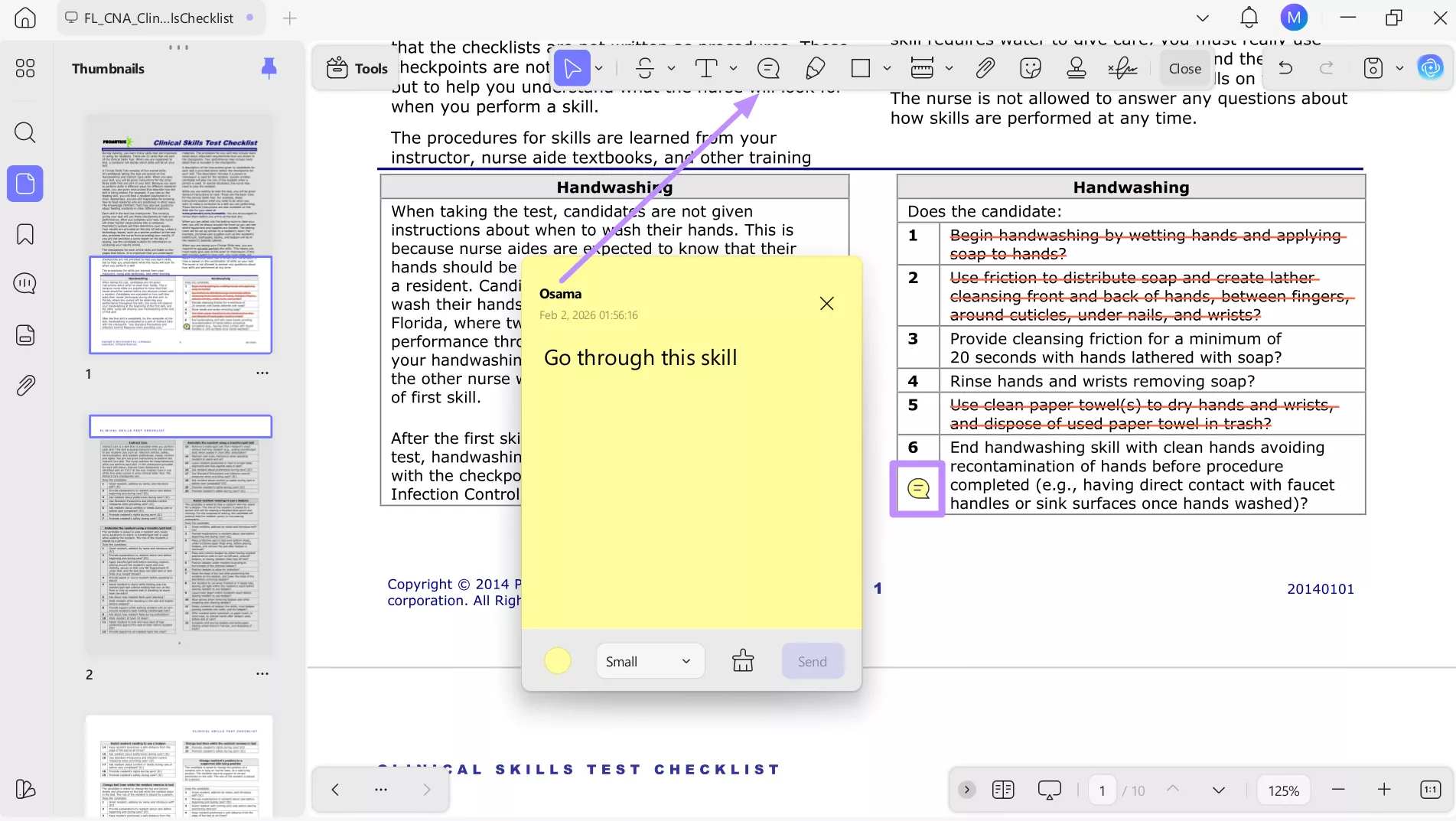
Once your checklist is open in UPDF, the focus shifts from reading to tracking real progress. As you practice skills like handwashing, use the quick strikethrough tool to mark what you've mastered. If a step still feels shaky, add a note to remind you to revisit it later. To use annotation features, follow these steps:
Step 1. Start by tapping the Downward icon in front of the Highlight tool within the top floating toolbar. Then, select Strikethrough and mark all the skills you have learned.
Step 2. Moving forward, pick the Notes tool from the top toolbar and tap in front of the skill you still need to learn. Now, write the instructions and reminder for future revision.
Visual Learning Inside the Checklist
Some CNA skills are hard to understand through text alone. Proper body mechanics, patient positioning, or transfer techniques often make more sense when seen. UPDF allows you to enrich your CNA Skills Checklist PDF with video links and images. Follow these steps to learn how to get visual help using UPDF:
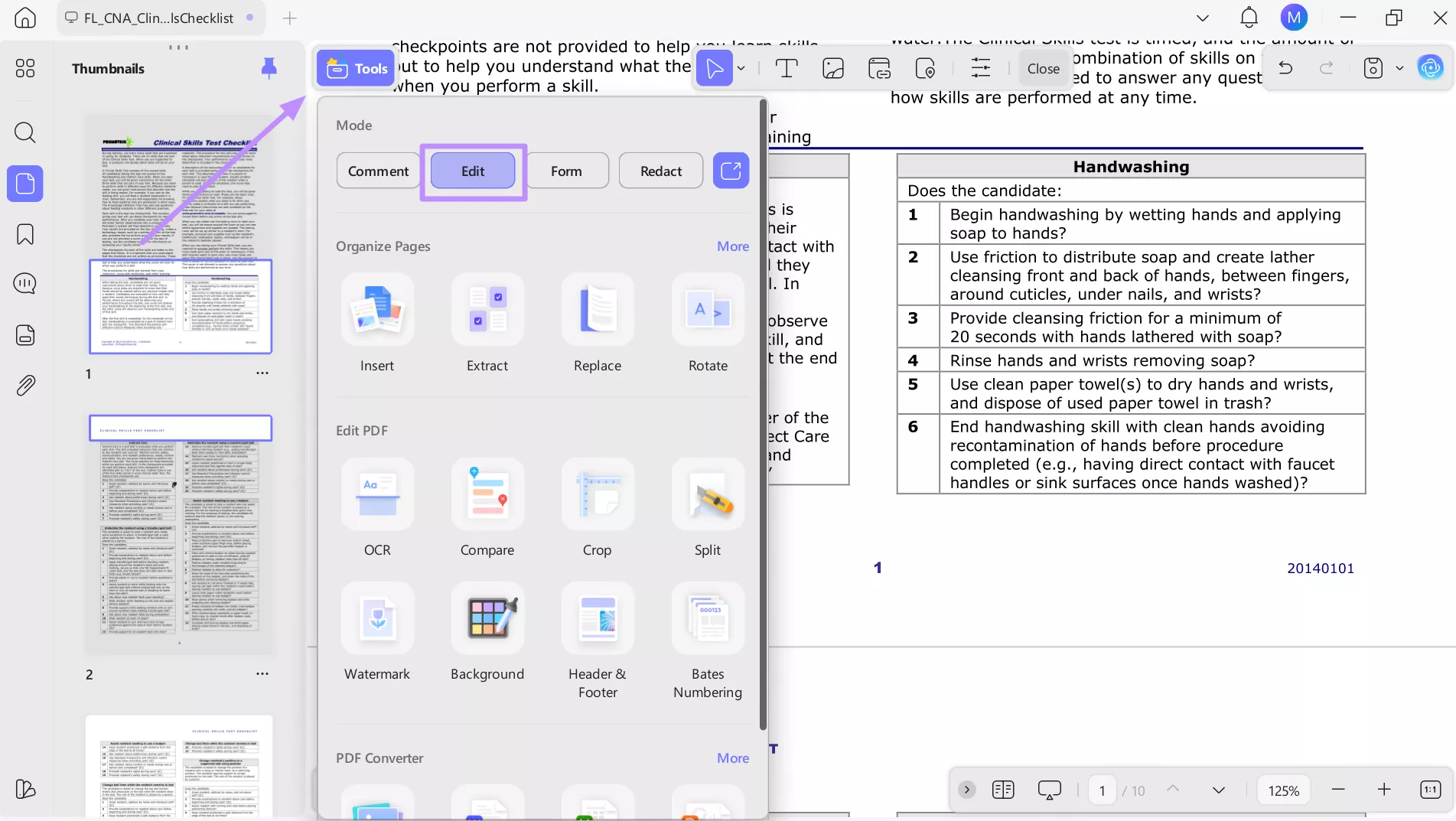
Step 1. Upon importing the PDF checklist, tap on the Tools button on the top left of your screen. Now, hit the Edit tab within the Mode section to proceed.
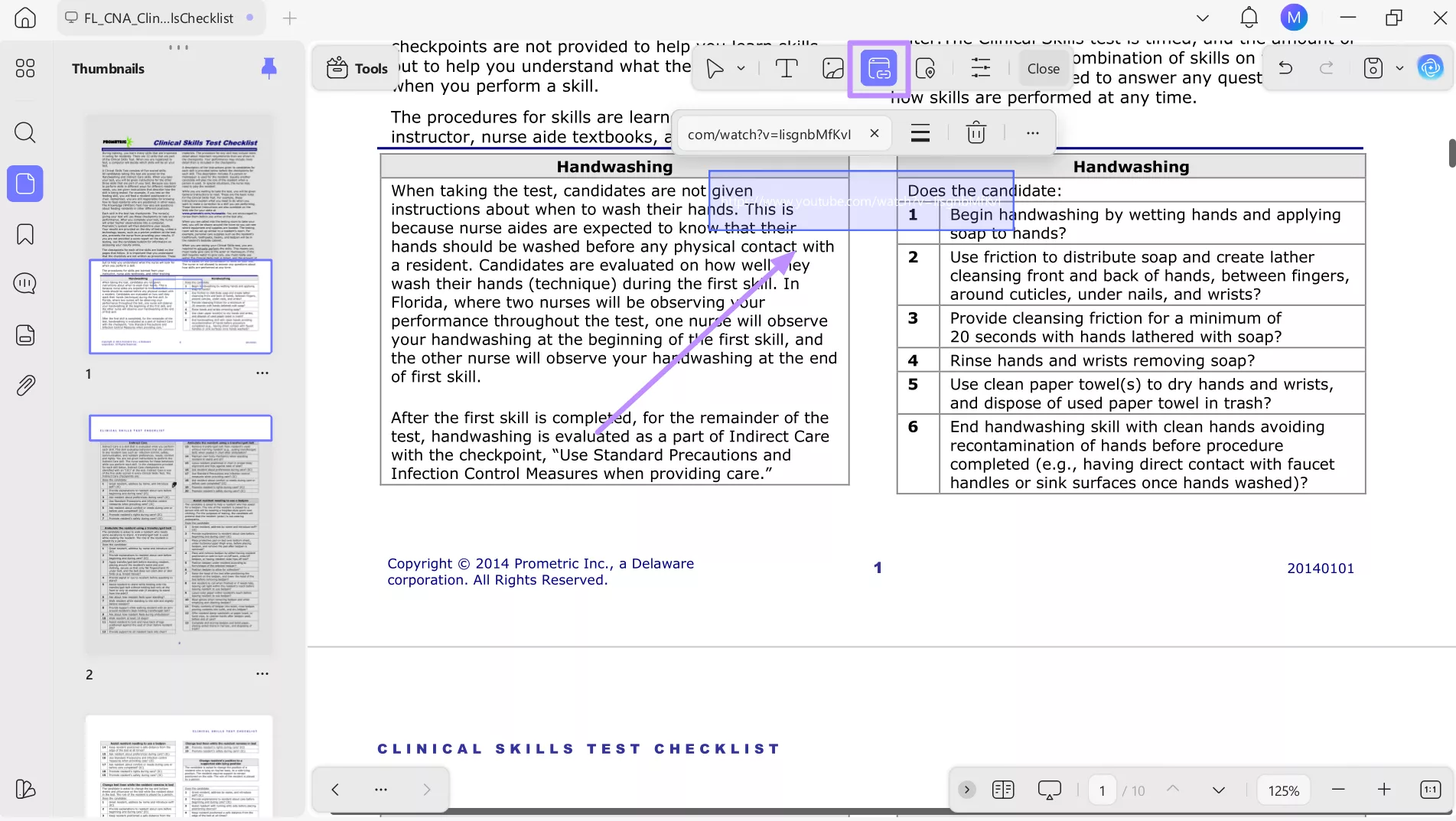
Step 2. Moving forward, press the Insert & Edit Link icon on the floating toolbar. Then, tap beside the point that needs visual help and paste the URL within the designated box.
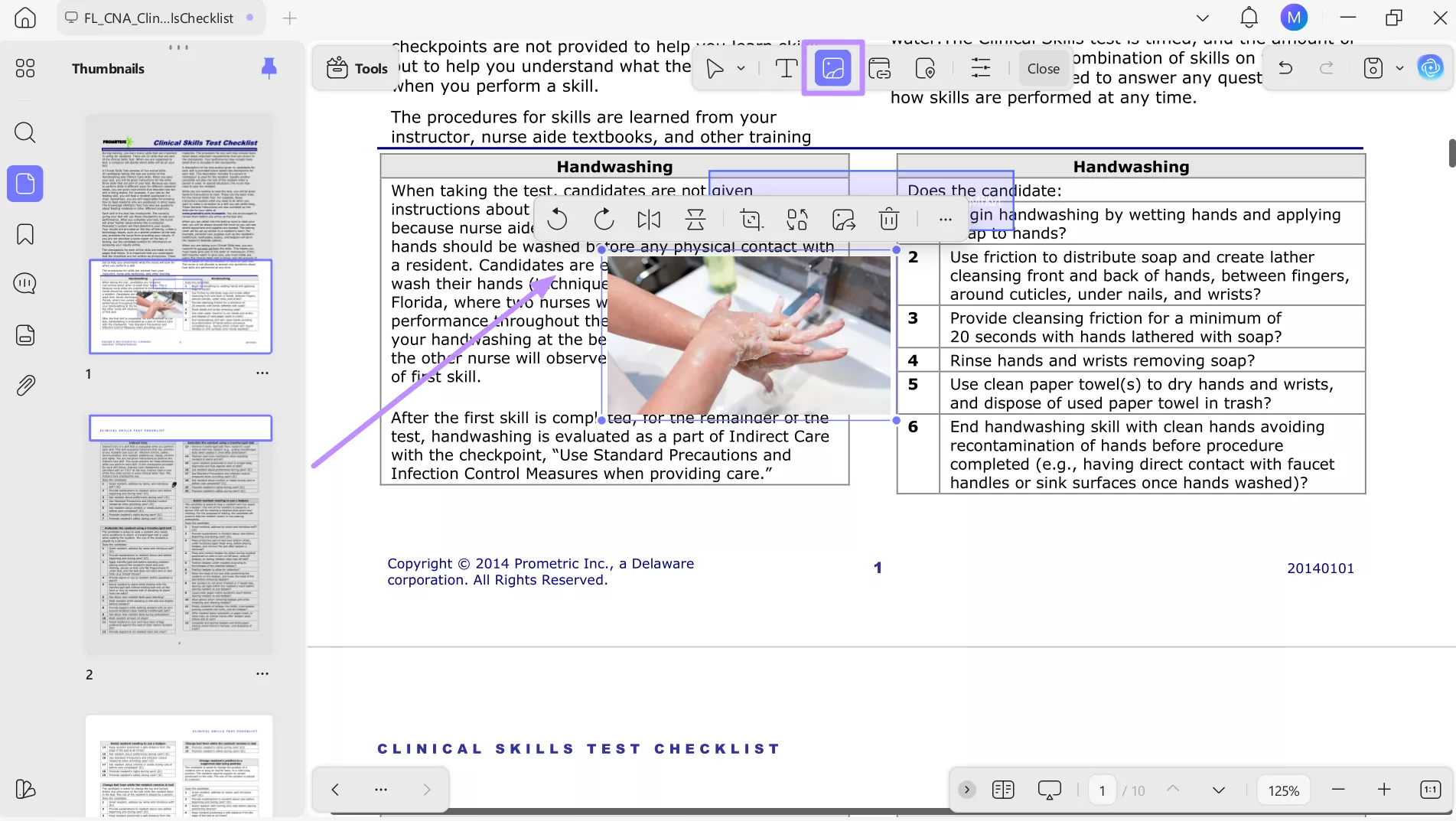
Step 3. You can also add images as a visual aid by tapping the Insert & Edit Image icon. Now, tap on the checklist and insert the image, which you can rotate, replace, or crop as per your need.
UPDF AI Integration
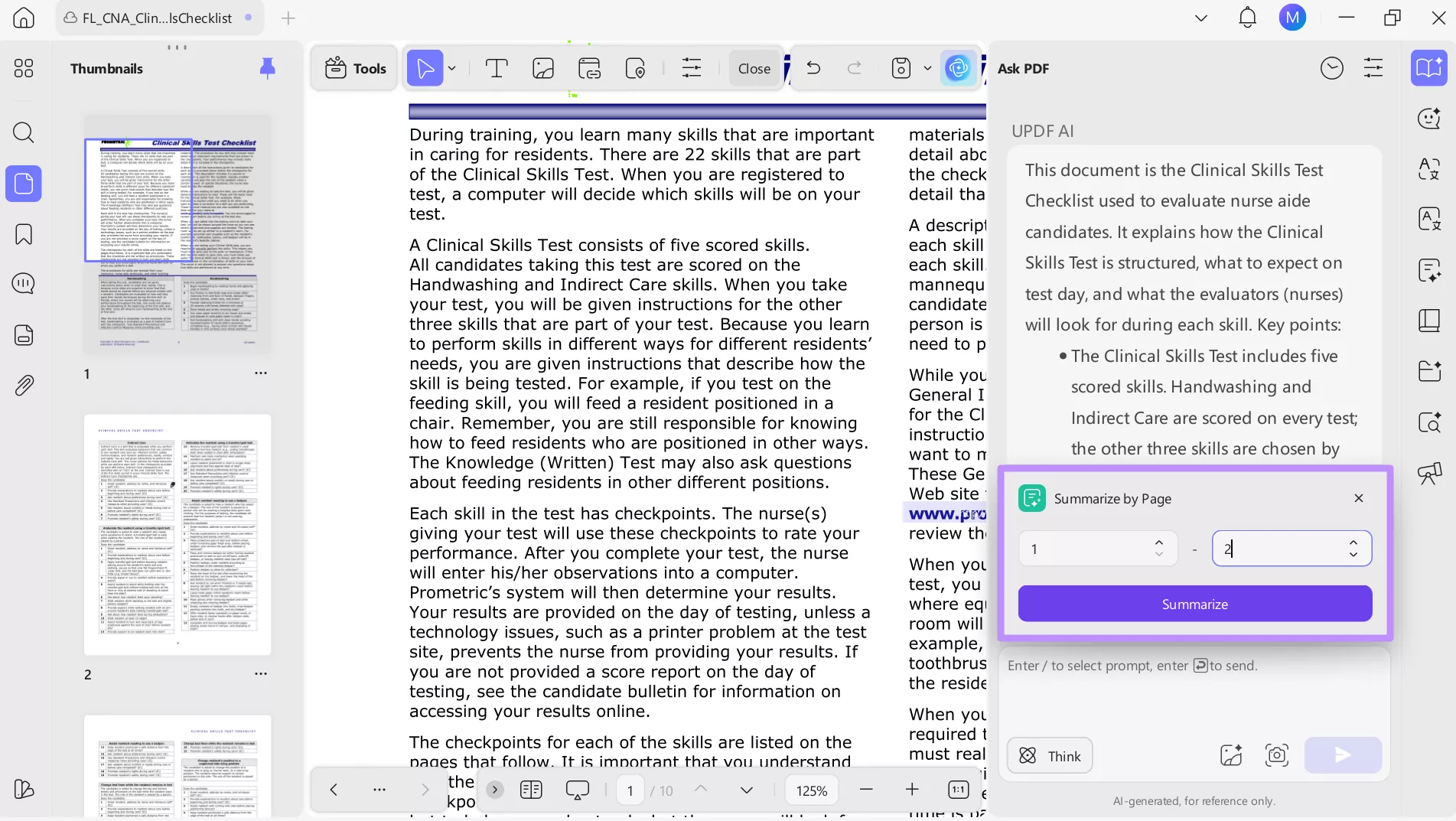
State regulations and candidate handbooks for CNA preparation are often packed with legal-style language. Instead of struggling through long paragraphs, UPDF AI helps break this information down into exam-relevant points. To summarize and break down complex regulations, go through these steps:
Step 1. Start by tapping the UPDF AI icon on the top right of your screen and hitting the Chat with PDF button.
Step 2. Now, UPDF AI will create an automatic summary of the long CNA state regulations in the form of bullets. Tap on the Summarize button to create the customized summaries.
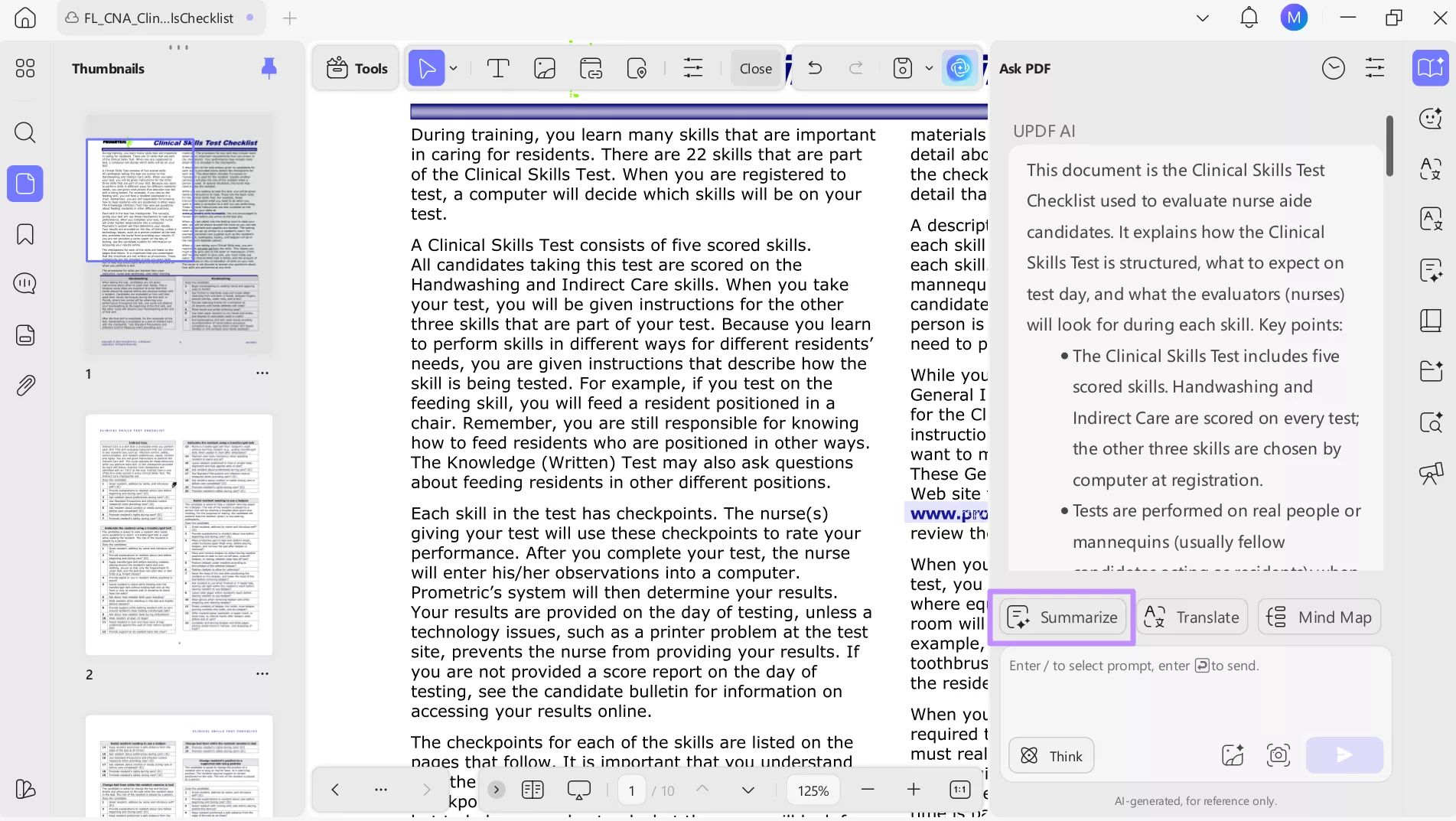
Step 3. Finally, determine the page range for summarization and then tap Summarize to get the desired output.
OCR for Paper Notes
Many CNA students still rely on handwritten classroom notes or instructor handouts. UPDF's OCR feature bridges that gap by letting you convert physical notes into editable text. This means your skills checklist, regulations, and class notes all live in one organized place. Take guidance from these steps to convert handwritten notes into editable files:
Step 1. Upon launching UPDF, tap on the Tools option from the bottom toolbar. From the new screen, press Others and then click the PDF from Image option.
Windows • macOS • iOS • Android 100% secure
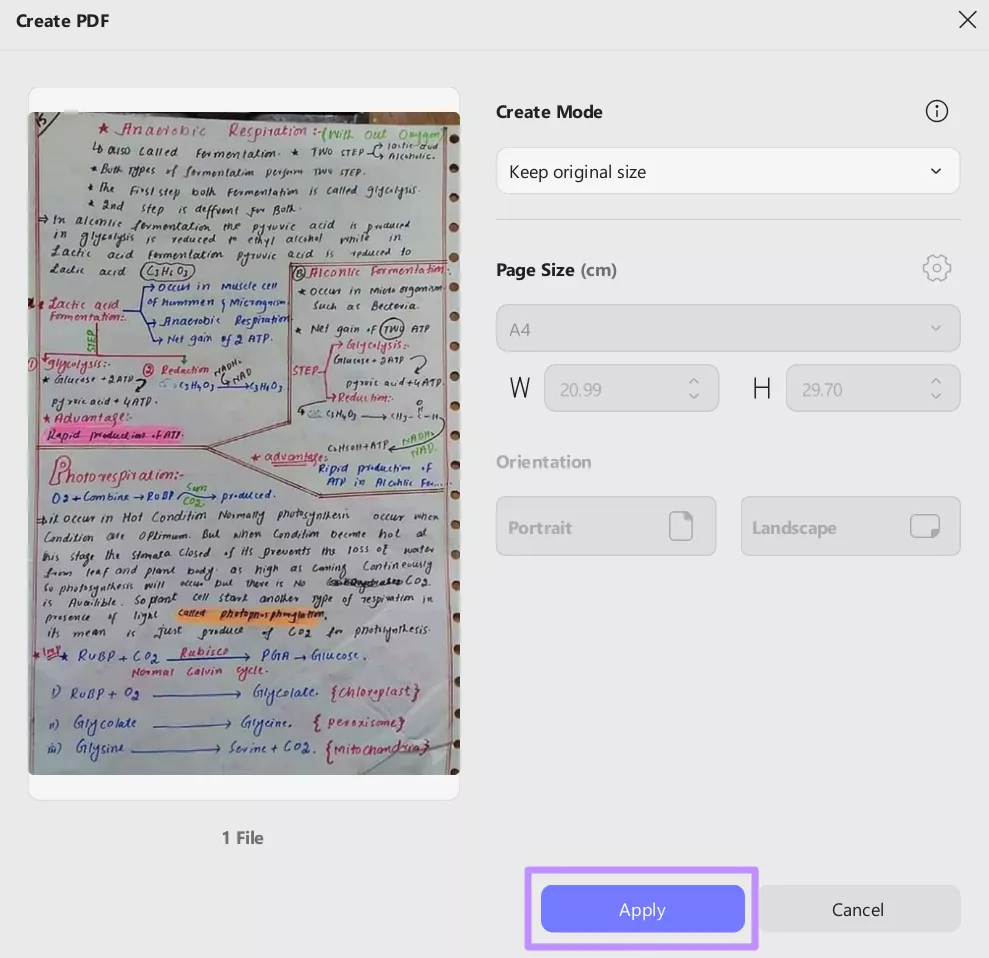
Step 2. Afterwards, hit the Select Files button to import the image of the handwritten notes. Now, adjust the page size and Apply to create a PDF from an image.
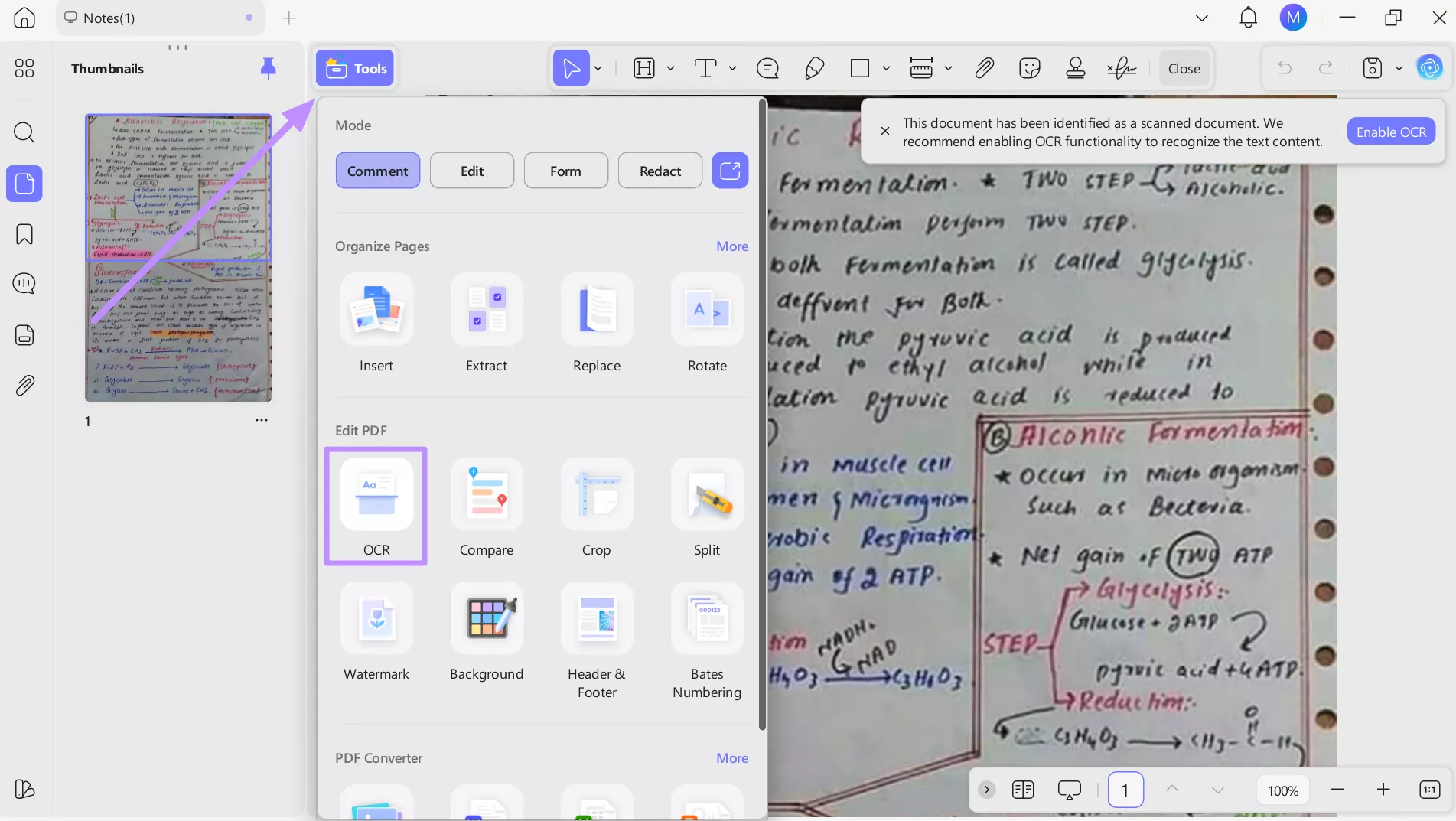
Step 3. Once the PDF is created, hit the Tools button on the top right of your screen and access the OCR feature.
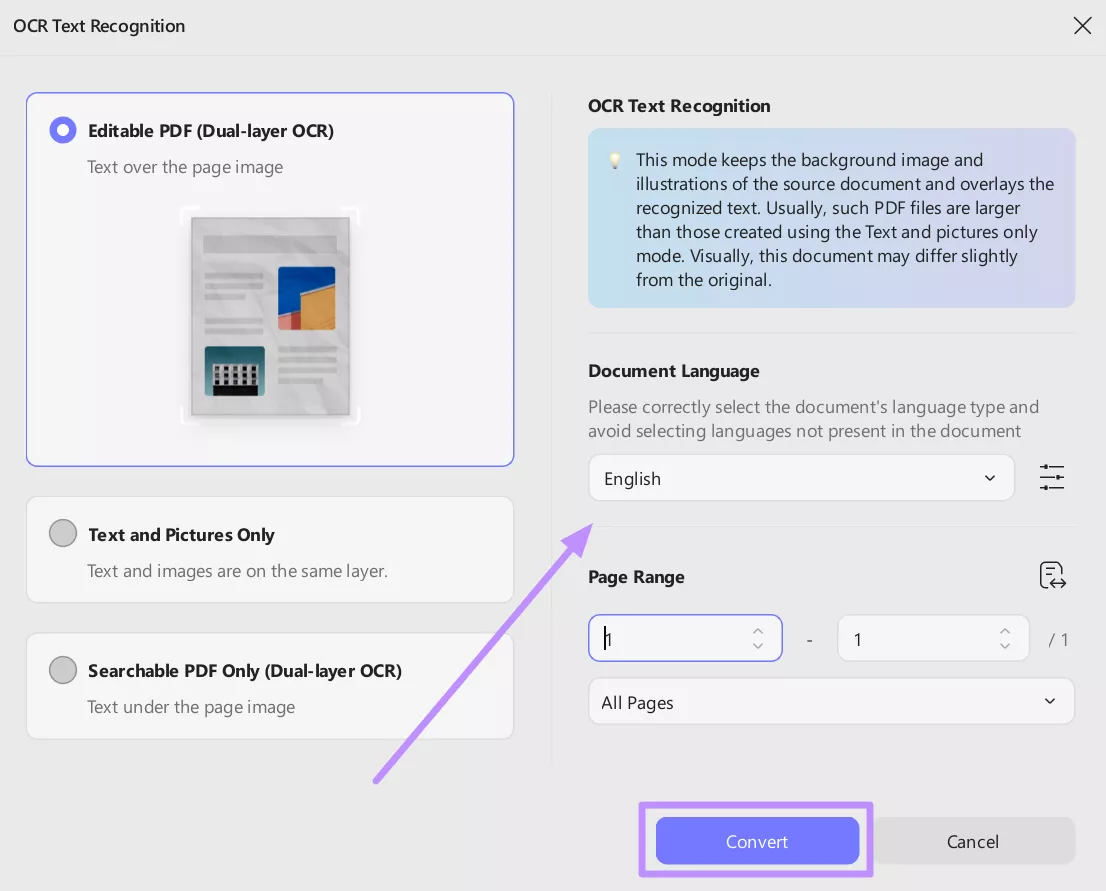
Step 4. Within the new screen, select the document language and page range before hitting the Convert button for OCR conversion.
Building Your Mistake Vault (The Synergy)
CNA practice tests are only powerful if you learn from your mistakes and don't repeat them. By combining Gemini's detailed explanations with UPDF's organization tools, you create a personal mistake vault. Instead of losing wrong answers in chat history, you turn them into a focused review system that highlights exactly how your thinking improves over time.
Follow these detailed steps to create a mistake vault with the help of UPDF:
Step 1. Use Gemini as a Free CNA Practice Test Online by quizzing yourself on weak areas like infection control or patient safety. Answer honestly, just like exam day.
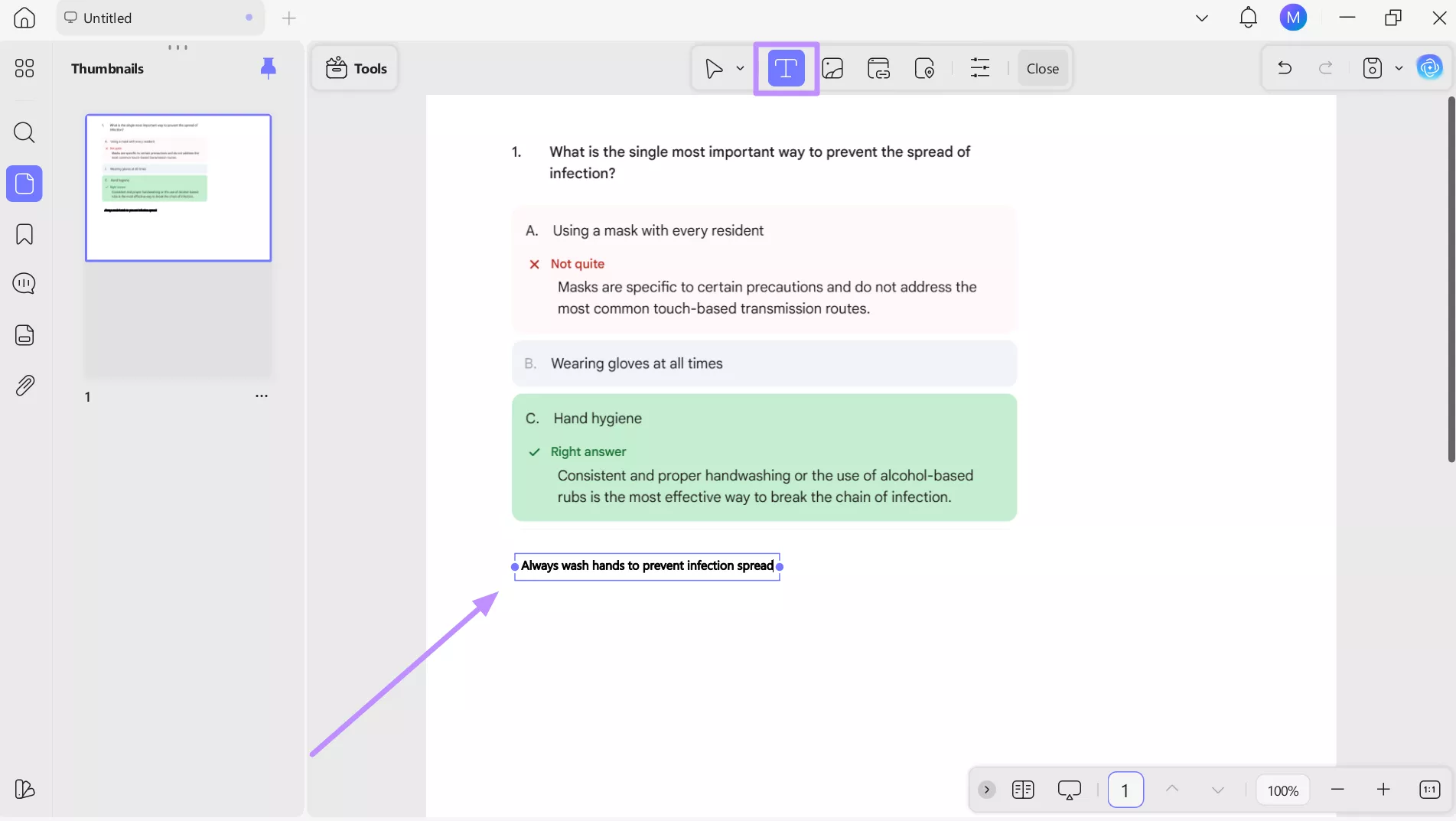
Step 2. When Gemini explains why an answer is wrong, take a screenshot, especially if the reasoning is detailed or easy to forget.
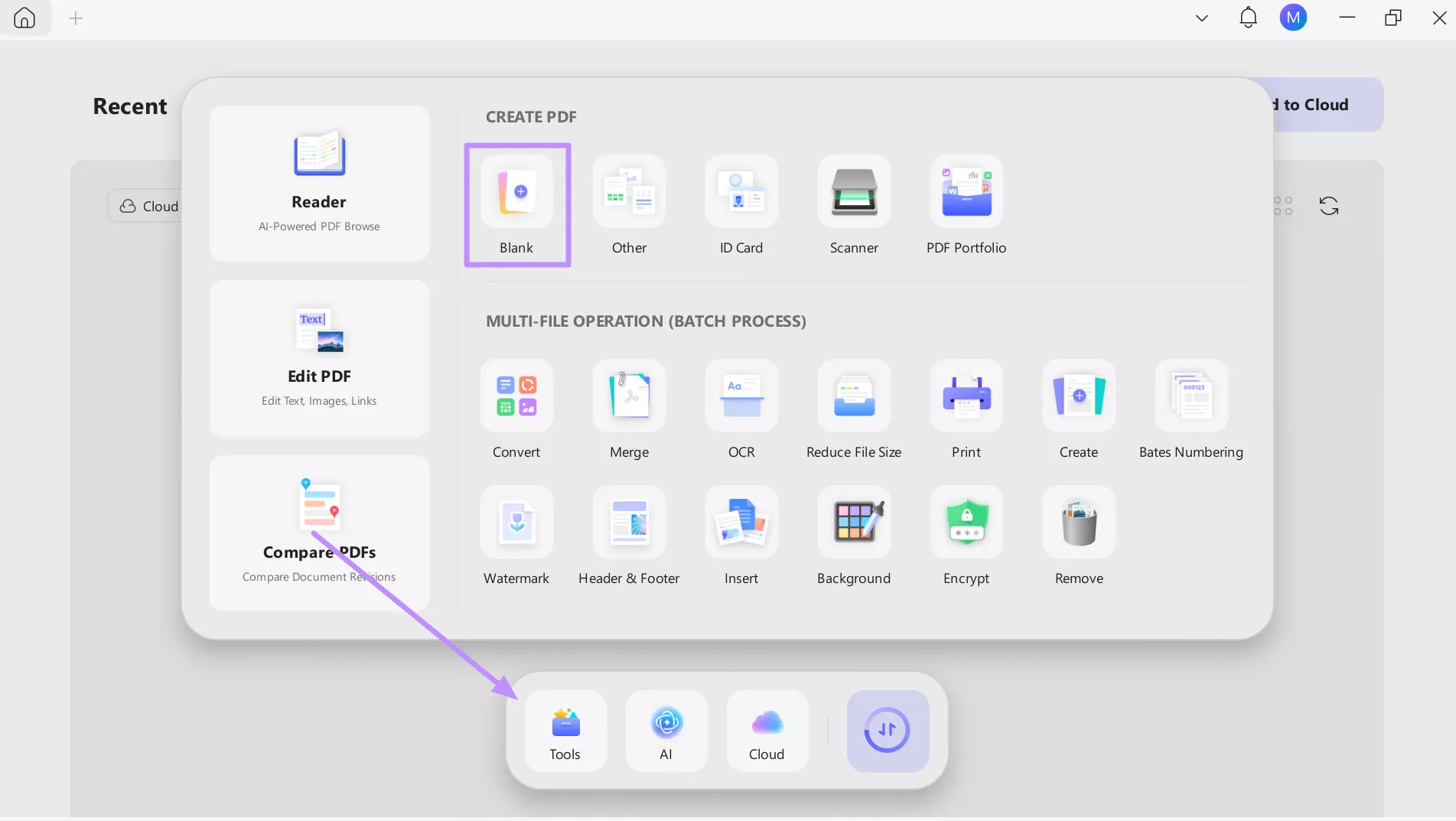
Step 3. Moving forward, launch UPDF and access the Tools window from the main screen. Now, click the Blank option under the Create PDF section to create a new file with your desired dimensions and orientation.
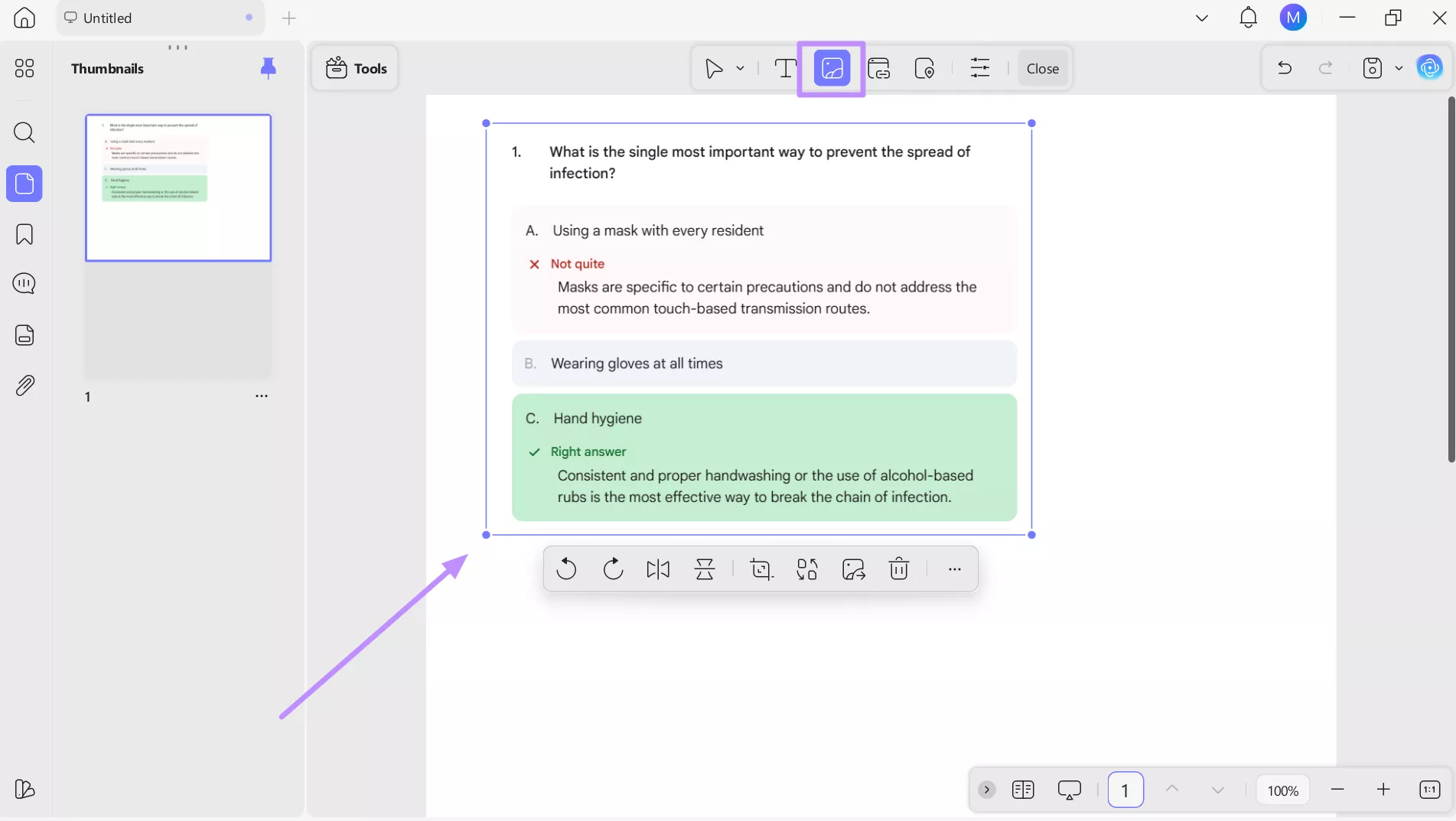
Step 4. Now, access the Edit screen and hit the Insert & Edit Image icon to import the screenshot. Afterwards, simply resize or crop the image to optimize its placement.
Step 5. Finally, hit the Insert & Edit Text icon to add your own mnemonics, reminders, or quick notes next to each explanation. This turns mistakes into powerful recall triggers you can review before the CNA Practice Test 2026.
Administrative Prep: From Student to Professional
At some point, CNA prep stops being just about studying. Applications, background checks, and documents are part of the process, and how you handle them matters. Instead of juggling printed forms and scattered files, UPDF helps you make an easy transition from exam candidate to job-ready CNA.
Filling Forms the Professional Way
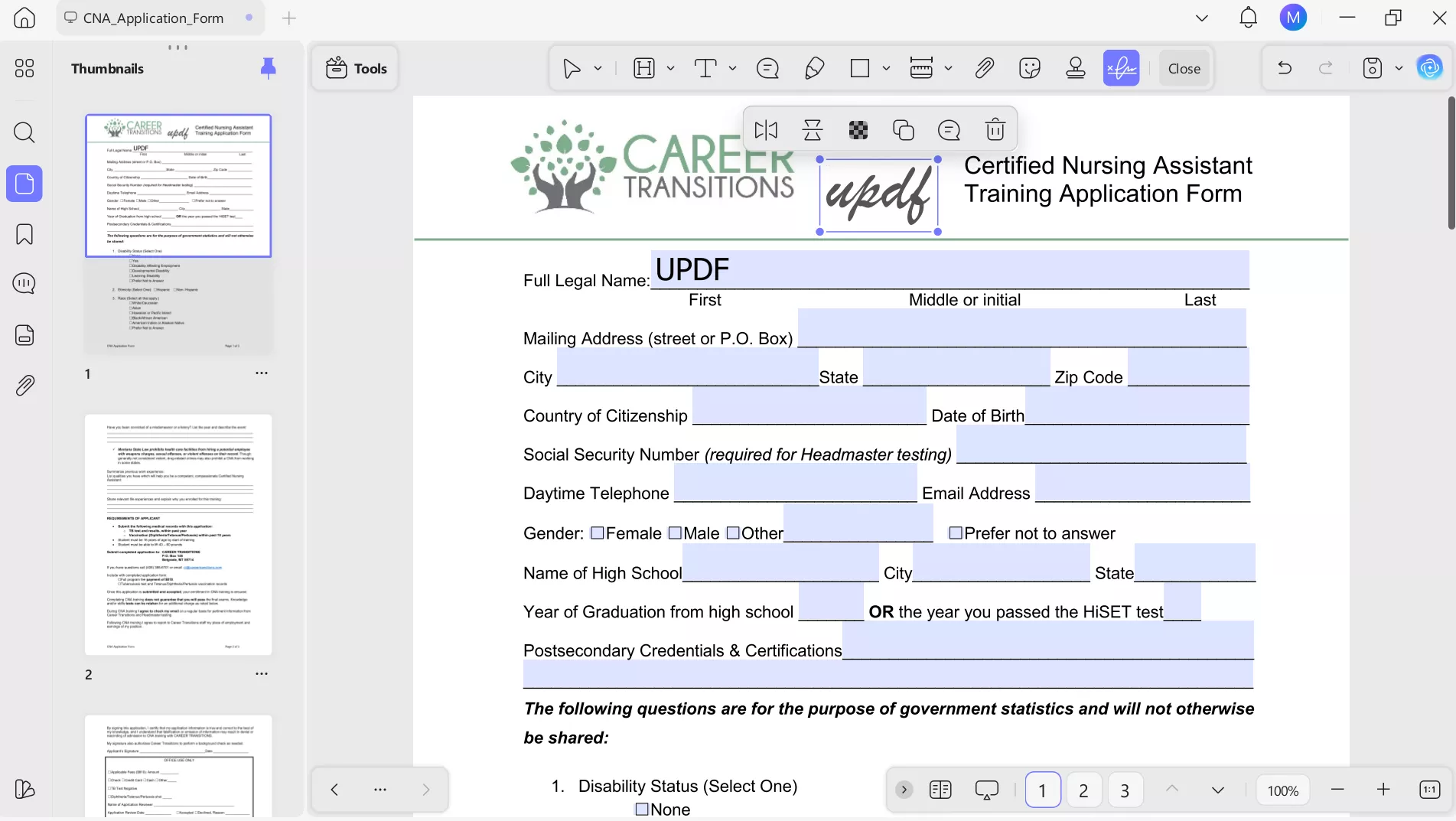
CNA exam applications and background check forms are often your first official step into the profession. With UPDF's Fill & Sign feature, you can complete these documents digitally. You can sign forms, save copies, and submit them knowing everything looks professional, just as certifying bodies like Prometric expect.
Resume-Ready
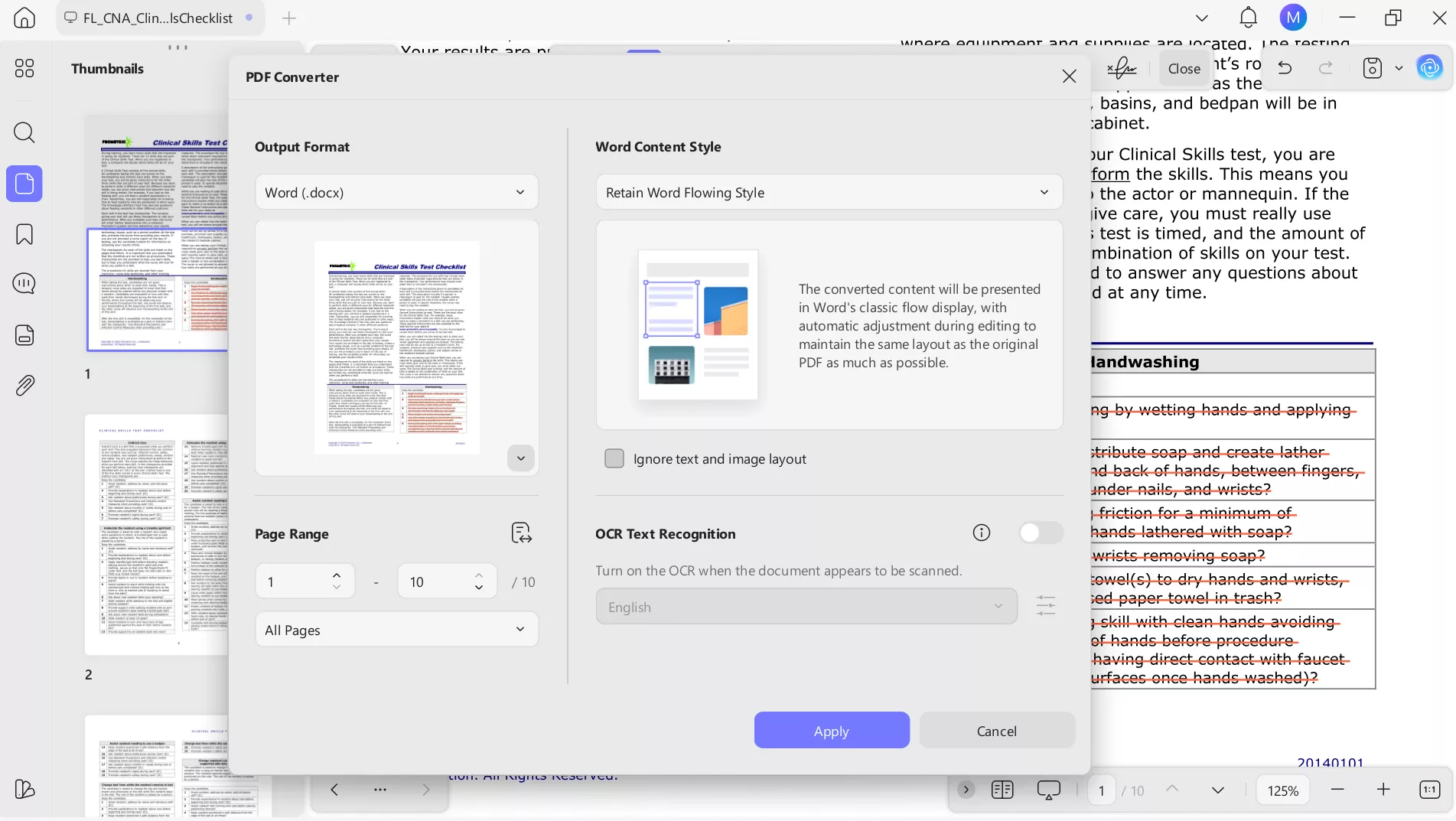
Once the exam is done, your study materials don't lose value, as they become proof of your preparation. UPDF lets you convert annotated PDFs into editable formats, helping you transform skills checklists, certifications, and notes into a simple resume. It's a smart way to showcase your training and readiness when applying for CNA roles.
Conclusion
All in all, preparing for the CNA practice test and exam in 2026 no longer has to feel stressful or disorganized. With the right approach, you can turn studying into a confidence-building process. By using Gemini for interactive testing and UPDF for organizing your materials, you can surely ace this test easily.
UPDF stands out because it's more than a PDF viewer, as it provides AI features to help you reduce mental clutter. Download UPDF now and purchase its premium version to walk into exam day prepared and confident.
Windows • macOS • iOS • Android 100% secure









 Lizzy Lozano