 UPDF
UPDF
 UPDF for Windows
 UPDF for Mac
 UPDF for iPhone/iPad
 UPDF for Android
 Nomostar
 UPDF AI Online
 UPDF Sign
 IvyCraft
 Edit PDF
 Annotate PDF
 Create PDF
 PDF Form
 Edit links
 Convert PDF
 OCR
OCR PDF to Word
 PDF to Image
 PDF to Excel
 Organize PDF
 Merge PDF
 Split PDF
 Crop PDF
 Rotate PDF
 Protect PDF
 Sign PDF
 Redact PDF
 Sanitize PDF
 Remove Security
 Read PDF
 UPDF Cloud
 Compress PDF
 Print PDF
 Batch Process
 About UPDF AI
 UPDF AI Solutions
 AI User Guide
 FAQ about UPDF AI
 Summarize PDF
 Translate PDF
 Chat with PDF
 Chat with AI
 Chat with image
 PDF to Mind Map
 Explain PDF
 PDF AI Tools
 Image AI Tools
 AI Chat Tools
 AI Writing Tools
 AI Study Tools
 AI Working Tools
 Other AI Tools
 AI Bookmark Generation
 AI Bookmark Summary
 AI Watermark Generation
 AI Background Generation
 AI Sticker Generation
 AI Stamp Generation
 AI Editing Suite
 UPDF Copilot
 AI Page Management
 AI Semantic Search
 PDF to Word
 PDF to Excel
 PDF to PowerPoint
 Enterprise Solution
 Enterprise Sign
 Enterprise AI
 Enterprise Plan
 Enterprise User Guide
 Enterprise Webinar
 IT
IT Education
 Construction
 Financial Service
 Healthcare
 Insurance
 Legal
Legal Manufacturing
 Government
 Researchers & PhDs
 Solopreneurs & Freelancers
 Lawyers & Legal Professionals
 Real Estate Agents & Brokers
 Education Solution
 Customer Stories
 User Guide
 UPDF Tricks
 FAQs
FAQs UPDF Reviews
 Download Center
 Blog
Blog Newsroom
 Tech Spec
 Updates
 UPDF vs. Adobe Acrobat
 UPDF vs. Foxit
 UPDF vs. PDF Expert

Quick answer:
It is not the same as the discontinued Creative Cloud Files synchronization service, and it is not a tool that lets several people freely rewrite the same local PDF at once. In a shared review, collaborators mainly work with comments, annotations, review status, and notifications attached to a shared PDF.
If Adobe Collaboration Synchronizer appears in Windows startup or keeps running when you do not use Acrobat's cloud and shared-review features, you can stop it from launching automatically. However, disabling it may affect shared reviews, cloud-related services, recent-file synchronization, and trust-list updates.
Part 1. What Is Adobe Collab Sync (AdobeCollabSync.exe)?
Adobe Collab Sync is the informal name commonly used for Adobe Collaboration Synchronizer, a Windows background process installed with Adobe Acrobat or Acrobat Reader. Its executable name is AdobeCollabSync.exe.
The process connects Acrobat's desktop application with synchronization-dependent Adobe services. According to Adobe's Services Integration documentation, it can exchange data between the local client and a server, receive notifications, and support features such as shared reviews, recent-file lists, and the Adobe Acrobat Trust List.
AdobeCollabSync.exe is therefore a supporting process, not a standalone collaboration application. The user-facing collaboration experience happens through Acrobat's sharing and review tools.
Part 2. What Does Adobe Collaboration Synchronizer Do?
Adobe Collaboration Synchronizer supports several background tasks in Acrobat and Reader:
- Shared-review synchronization: It helps Acrobat send and retrieve comments and review information associated with shared PDFs.
- Notifications: It allows the desktop application to receive updates about review activity and other supported Adobe services.
- Recent-file synchronization: Signed-in users may see cloud-related recent-file information across supported Acrobat experiences.
- Adobe Acrobat Trust List updates: Acrobat can use the synchronizer when retrieving trust information used in certificate-based document workflows.
- Communication with Adobe services: It exchanges synchronization-dependent data between Acrobat on the computer and the relevant server.
Modern Acrobat review workflows usually give collaborators access to one shared PDF so they can add comments, annotations, and replies. They are not the same as several people simultaneously editing every element of separate local PDF copies. Adobe's current guide explains how to share PDFs for review.

Also read: How to add comments to a PDF.
Part 3. Is AdobeCollabSync.exe Safe?
Yes, the genuine AdobeCollabSync.exe installed with Acrobat or Acrobat Reader is a legitimate Adobe component. Its presence in Task Manager does not by itself indicate malware.
If you want to verify the process, open Task Manager, right-click AdobeCollabSync.exe, and select Open file location or Properties. Check that the file is located inside an Adobe Acrobat or Acrobat Reader installation folder and that its digital signature identifies Adobe as the publisher.
Be cautious if a similarly named file is running from a temporary folder, a downloads folder, or another unrelated location, or if it has no valid Adobe signature. In that case, scan the file with Windows Security before allowing it to run.
Adobe documents encryption in transit and at rest for relevant Document Cloud services. That is different from claiming that every shared PDF is end-to-end encrypted. Access still depends on the sharing option selected by the document owner, such as a public link, organization-only access, or invited users only.

Part 4. Why Is Adobe Collab Sync in Windows Startup?
Adobe Collab Sync may appear in Windows startup because Acrobat registers Adobe Collaboration Synchronizer to support synchronization-dependent features without waiting for the user to start a review manually.
Seeing it at startup does not mean that someone is currently editing or monitoring your PDF. It means the supporting process is available for Acrobat services that may need synchronization or notifications.
If you use only local PDFs and never use shared reviews, Adobe cloud files, cross-device recent files, or certificate trust-list updates, you may decide that the startup process is unnecessary. If you rely on any of those features, leave it enabled.
Part 5. How to Disable Adobe Collab Sync on Windows 11/10
The old instruction to pause Creative Cloud Files Syncing does not disable AdobeCollabSync.exe. Creative Cloud Synced Files was a separate service, and Adobe has discontinued that desktop file-syncing service for personal accounts. Use the Windows or Acrobat-specific methods below instead.
Method 1: Disable Adobe Collaboration Synchronizer in Startup Apps
Best for:
- Stopping Adobe Collab Sync from launching automatically when you sign in to Windows.
Not for:
- You expect this setting to prevent Acrobat from starting the process later when a synchronization-dependent feature is used.
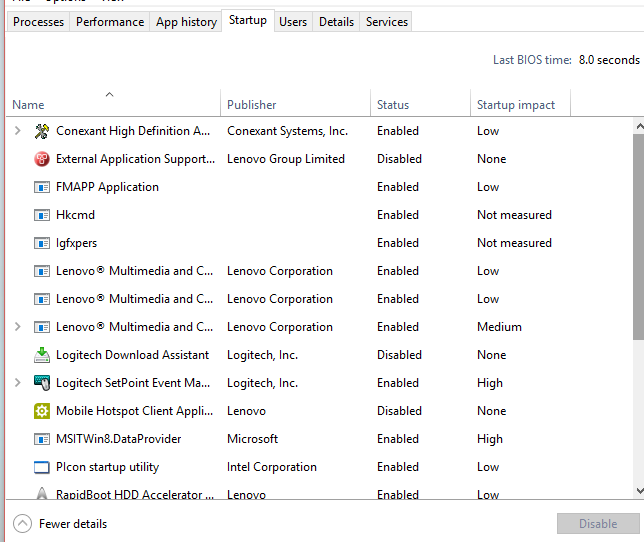
- Right-click the Windows Start button and select Task Manager.
- Select Startup apps.
- Find Adobe Collaboration Synchronizer or an entry associated with AdobeCollabSync.exe.
- Select it and click Disable.
- Restart Windows and check Task Manager again.
This follows Microsoft's current method for configuring startup applications in Windows. It prevents the registered startup item from opening automatically at sign-in. Acrobat may still launch AdobeCollabSync.exe later if you use a feature that requires it.
Method 2: Disable the Acrobat Synchronizer in the Registry
Best for:
- Advanced Windows users who do not use Acrobat shared reviews or other synchronization-dependent services.
Not for:
- You depend on shared reviews, synchronized recent files, Adobe service notifications, or automatic Acrobat Trust List updates.
Before continuing, close Acrobat and back up the relevant registry key. Incorrect registry changes can affect Windows or Acrobat.
- Press Windows + R, enter regedit, and select OK.
- For Acrobat, open:
HKEY_CURRENT_USER\Software\Adobe\Adobe Acrobat\DC\Workflows - For Acrobat Reader, use the corresponding Reader path:
HKEY_CURRENT_USER\Software\Adobe\Acrobat Reader\DC\Workflows - Find or create a DWORD (32-bit) Value named
bNeedSynchronizer. - Set its value to
0to disable the synchronizer. - Close Registry Editor and restart Acrobat or Windows.
To enable the synchronizer again, change bNeedSynchronizer back to 1. Adobe specifically warns that disabling the synchronizer is not recommended because synchronization-dependent features may stop working.
Method 3: End AdobeCollabSync.exe Temporarily
If you only want to test whether the process is related to a current performance or file-locking problem, open Task Manager, select AdobeCollabSync.exe, and click End task.
This does not disable Adobe Collab Sync permanently. Acrobat or Windows may start it again. Avoid deleting or renaming the executable: an Acrobat update may restore it, and changing installed program files can cause repair or update problems.
Part 6. What Stops Working If You Disable Adobe Acrobat Synchronizer?
Disabling Adobe Collaboration Synchronizer does not uninstall Acrobat and does not delete PDFs stored on your local drive. You can still open, read, print, and perform locally available PDF tasks.
However, the following synchronization-dependent features may be affected:
- Shared PDF review updates and notifications
- Some Adobe cloud service integrations
- Cross-device or service-based recent-file information
- Automatic Adobe Acrobat Trust List updates
- Other workflows that rely on communication between Acrobat and an Adobe or shared-review server
If you disable it only for troubleshooting, test the exact Acrobat features you normally use. Re-enable it if shared reviews, cloud information, or certificate trust workflows stop updating.
Part 7. When a Different PDF Editor Makes More Sense
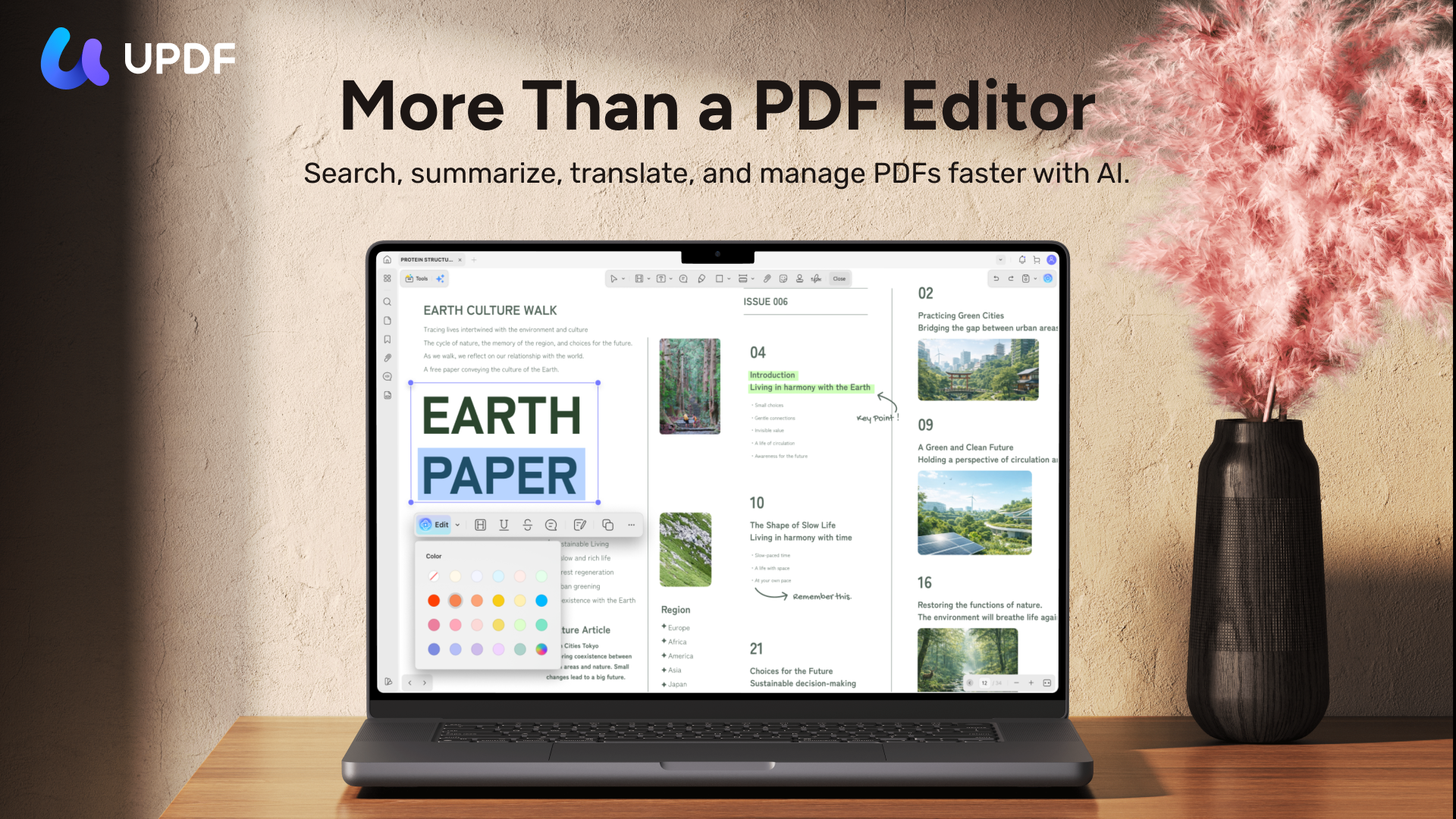
Disabling Adobe Collab Sync solves a background-process issue; it does not replace the PDF tools you still need. If your actual workflow is opening, annotating, editing, converting, OCR-processing, signing, or organizing local PDFs—not running an Acrobat shared review—UPDF provides those PDF tools on Windows and macOS.
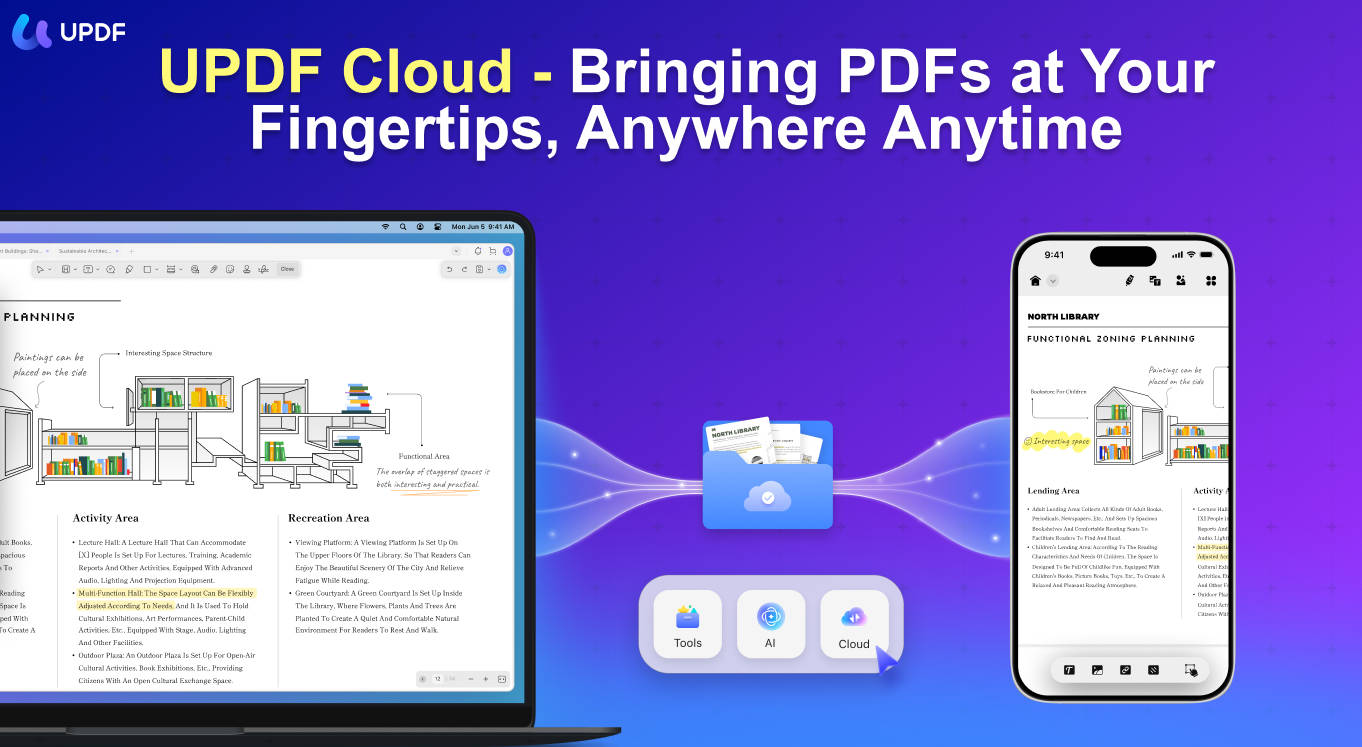
You can keep ordinary files local for offline PDF work. If you want cross-device access, upload only the selected PDFs you choose to UPDF Cloud, then access them on Windows, macOS, iOS, or Android. Files placed in UPDF Cloud are uploaded and synchronized across supported devices.
For a broader product comparison, see UPDF vs. Adobe Acrobat. If Acrobat remains slow after disabling unnecessary startup items, use the separate guide on why Adobe Acrobat is slow.
If you only need to work with local PDFs, download UPDF for free and test the same task on a copy of your file. Installation is free, and Pro removes the trial watermark from exported files.
Windows • macOS • iOS • Android 100% secure
Watch the short overview below to see the current UPDF desktop workspace and its main PDF tools.
FAQs About Adobe Collab Sync
1. Can I end AdobeCollabSync.exe without uninstalling Acrobat?
Yes—but only temporarily. Ending the process in Task Manager does not uninstall Acrobat or delete a PDF. Acrobat may start the process again when it needs a synchronization-dependent feature.
2. Will disabling Adobe Collab Sync delete my PDFs?
No. Local PDFs stay on your drive. Disabling the process may stop shared-review or cloud-related information from updating, but it does not erase ordinary PDF files stored locally.
3. Why did Adobe Collab Sync return after an Acrobat update?
The update may restore its startup registration. Check Windows Startup Apps and the Acrobat synchronization setting again after a major update. Avoid deleting the executable because updates can recreate it.
4. Is Adobe Collab Sync the same as Creative Cloud file syncing?
No. They are separate components. AdobeCollabSync.exe supports Acrobat services and review-related workflows. Creative Cloud Synced Files was a separate desktop folder synchronization service that Adobe discontinued.
5. Does AdobeCollabSync.exe run on macOS?
The .exe process is Windows-specific. Acrobat for macOS can still use Adobe cloud and review services, but macOS does not run the Windows executable named AdobeCollabSync.exe.
Conclusion
Adobe Collab Sync is the background Acrobat component named AdobeCollabSync.exe. It supports shared reviews, service notifications, recent-file information, trust-list updates, and other synchronization-dependent workflows. It is not the same as the discontinued Creative Cloud Files sync service.
If you do not use those Acrobat features, first disable Adobe Collaboration Synchronizer in Windows Startup Apps. Use the registry preference only when you understand which Acrobat services may stop working. Neither method deletes PDFs stored locally.
If your real task is local PDF editing rather than Adobe cloud collaboration, try UPDF on a copy of the file. It can handle reading, annotation, editing, OCR, conversion, signing, and page organization, while UPDF Cloud remains an optional path for PDFs you choose to upload.
Windows • macOS • iOS • Android 100% secure









 Enya Moore
 Enid Brown
 Engelbert White
 Enola Davis