UPDF
UPDF
 UPDF for Windows
 UPDF for Mac
 UPDF for iPhone/iPad
 UPDF for Android
 Nomostar
 UPDF AI Online
 UPDF Sign
 IvyCraft
 Edit PDF
 Annotate PDF
 Create PDF
 PDF Form
 Edit links
 Convert PDF
 OCR
OCR PDF to Word
 PDF to Image
 PDF to Excel
 Organize PDF
 Merge PDF
 Split PDF
 Crop PDF
 Rotate PDF
 Protect PDF
 Sign PDF
 Redact PDF
 Sanitize PDF
 Remove Security
 Read PDF
 UPDF Cloud
 Compress PDF
 Print PDF
 Batch Process
 About UPDF AI
 UPDF AI Solutions
 AI User Guide
 FAQ about UPDF AI
 Summarize PDF
 Translate PDF
 Chat with PDF
 Chat with AI
 Chat with image
 PDF to Mind Map
 Explain PDF
 PDF AI Tools
 Image AI Tools
 AI Chat Tools
 AI Writing Tools
 AI Study Tools
 AI Working Tools
 Other AI Tools
 AI Bookmark Generation
 AI Bookmark Summary
 AI Watermark Generation
 AI Background Generation
 AI Sticker Generation
 AI Stamp Generation
 AI Editing Suite
 UPDF Copilot
 AI Page Management
 AI Semantic Search
 PDF to Word
 PDF to Excel
 PDF to PowerPoint
 Enterprise Solution
 Enterprise Sign
 Enterprise AI
 Enterprise Plan
 Enterprise User Guide
 Enterprise Webinar
 IT
IT Education
 Construction
 Financial Service
 Healthcare
 Insurance
 Legal
Legal Manufacturing
 Government
 Researchers & PhDs
 Solopreneurs & Freelancers
 Lawyers & Legal Professionals
 Real Estate Agents & Brokers
 Education Solution
 Customer Stories
 User Guide
 UPDF Tricks
 FAQs
FAQs UPDF Reviews
 Download Center
 Blog
Blog Newsroom
 Tech Spec
 Updates
 UPDF vs. Adobe Acrobat
 UPDF vs. Foxit
 UPDF vs. PDF Expert

Concert tickets, boarding passes, museum entries — they all arrive as PDFs in your inbox, and pulling them up at the gate by digging through email is a small ordeal. Google Wallet solves that, except for one catch: it doesn't accept PDF files directly.
There's no "Add a PDF" button anywhere in the app — despite what older tutorials claim. Every working method extracts the barcode or QR code from the PDF as an image, then passes it to Wallet. Here are the two methods that actually work on Android.
- Method 1 (fastest): Open the PDF → screenshot the barcode → tap "Add to Google Wallet" on the screenshot preview.
- Method 2 (most reliable): Open Google Wallet → "Add to Wallet" → "Everything else" → scan the barcode with your camera.
Part 3 also shows how UPDF can extract a single ticket page from a long booking PDF and export it as a Wallet-ready image — useful when your airline emails you a 12-page itinerary and you only need page 4.
Windows • macOS • iOS • Android 100% secure
Let’s get started!
Part 1. What You Need Before Adding a PDF to Google Wallet?
Google Wallet doesn't accept PDFs directly. There's no "Add a PDF" button anywhere in the app — every method below works by extracting the barcode or QR code from the PDF and passing that image to Wallet, which then rebuilds the pass internally. That single fact is the reason most online tutorials don't work the first time: they skip the PDF prep step.
What you'll need:
- An Android phone with the latest Google Wallet app installed (iOS users should use Apple Wallet — Google Wallet for iPhone only stores payment cards)
- A PDF ticket or pass that contains a clear, scannable barcode or QR code (passes without one cannot be added)
- Gmail auto-detect — if your ticket arrived as a Gmail attachment, Google often surfaces an "Add to Google Wallet" prompt directly inside the email — no manual upload needed.
Device Requirements:
- Android 8.0 or later with the latest Google Wallet app installed.
- Active Google account signed into the device.
- Google Wallet must be available in your country (it's not supported in every region).
Knowing the prerequisites, let's see how to add your PDF to Google Wallet!
Which method works on your phone?
| Your Device | Screenshot Method | Everything Else (Camera Scan) |
|---|---|---|
| Google Pixel (3+) | ✅ Works | ✅ Works |
| Samsung Galaxy | ⚠️ May not show "Add to Wallet" after screenshot | ✅ Works |
| Other Android | ⚠️ Depends on OS version | ✅ Works |
| iPhone | ❌ Google Wallet for iPhone only stores payment cards | ❌ Use Apple Wallet instead |
⚠️ WARNING: The screenshot method relies on Pixel-specific OS-level integration. If you're not on a Pixel, the "Add to Google Wallet" suggestion may not appear after taking a screenshot. The "Everything else" camera scan method works on all Android devices.
Part 2. 2 Working Methods to Add a PDF Ticket to Google Wallet
This section will show two easy ways to add a PDF to Google Wallet. Whether it’s a ticket, boarding pass, or travel documents, these methods can help. Let’s explore them together!
Method 1: Screenshot the Barcode (Works on Most Android Phones)
This is the most widely supported route. Wallet's OS-level integration detects barcodes inside screenshots and offers a one-tap save button.
Step 1. Open the PDF ticket in any PDF reader on your phone.
Step 2. Scroll and zoom so the QR code or barcode fills most of the screen and isn't cut off at the edges. This is the single most common reason the next step fails.
Step 3. Take a screenshot:
- Pixel and most Android phones: press Power + Volume Down simultaneously.
- Samsung Galaxy: swipe the edge of your palm across the screen, or use Power + Volume Down.
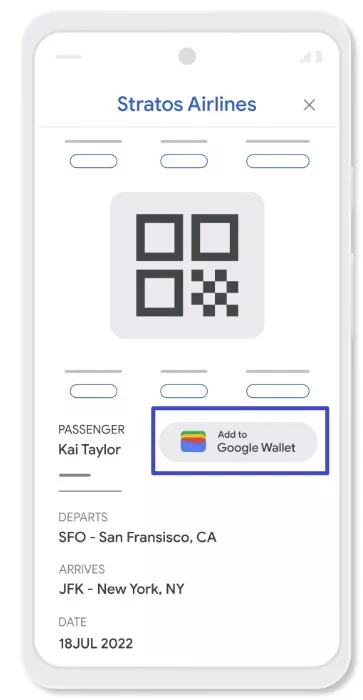
Step 4. When the screenshot preview pops up, you'll see an Add to Google Wallet suggestion below it. Tap it.
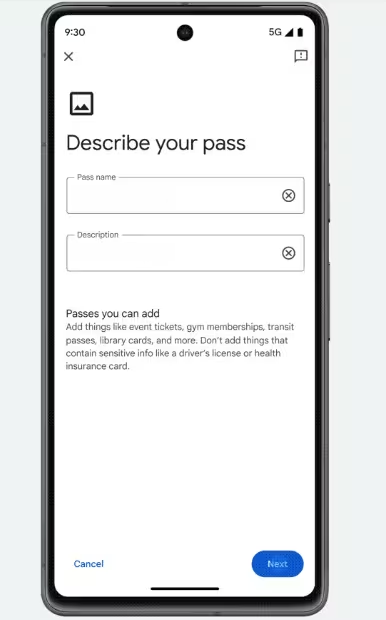
Step 5. Wallet processes the barcode and opens a confirmation screen. Add a name and description (e.g. "United boarding pass — Mar 12"), then tap Save.
Method 2: Use Google Wallet's "Everything Else" Scanner (Works on All Android)
This is the most reliable method because it doesn't depend on Pixel-specific screenshot detection. Google Wallet's "Everything else" feature uses AI to scan any document — including a PDF ticket displayed on your screen or printed on paper — and automatically extracts the event name, date, venue, and barcode.
Step 1. Open the PDF ticket on your phone and display the barcode clearly on screen.
Step 2. Open Google Wallet → tap Add to Wallet (bottom right).
Step 3. Tap Everything else.
Step 4. Point your camera at the barcode on your screen (or at a printed copy). Hold steady until Wallet captures it.
Step 5. Wallet processes the image and asks you to verify the extracted information. Add a name (e.g. "Concert ticket — Mar 12") and tap Save.
💡 TIP: "Everything else" works on foreign-language tickets too — Wallet automatically translates and standardizes the extracted information.
So, that’s how to add a PDF to Google Wallet! While these solutions are practical, they may not work for every device. But don’t worry. Keep reading for a simpler and more reliable way to organize your PDFs in one app!
Part 3. Prep Your PDF in UPDF First — Then Add It to Wallet
Most PDF tickets are single-page files — you screenshot the barcode, add it to Wallet, done. But sometimes the ticket is buried inside a 12-page airline itinerary, or a scanned conference packet where only page 4 has your QR code. In that case, you need to extract the right page first.
UPDF handles this in two clicks:
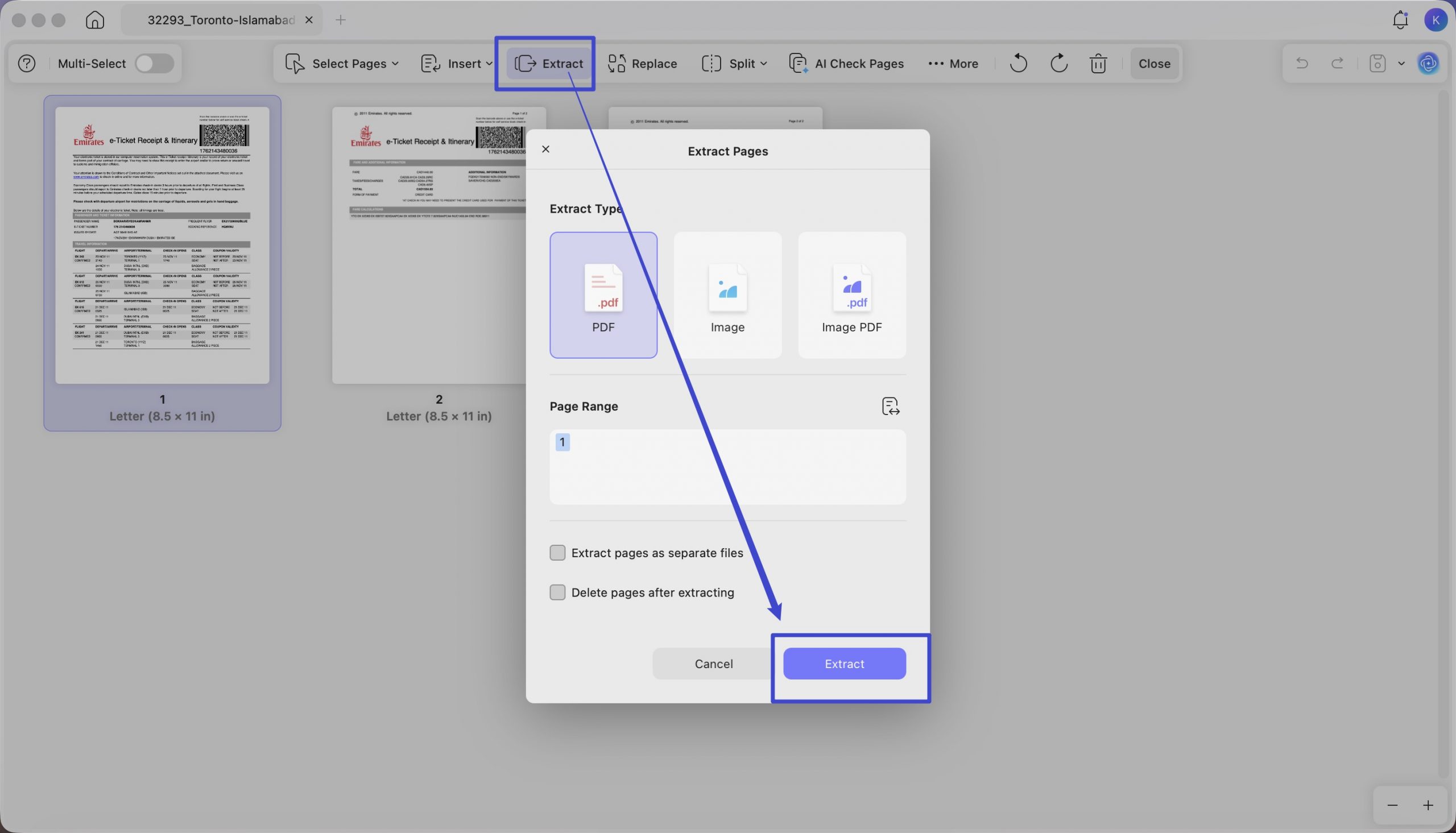
Step 1. Open the long PDF in UPDF → click Organize Pages → select the page with your barcode → extract it as a standalone file.
Step 2. Export that single page as a JPG or PNG — the exact format Google Wallet accepts.
Then follow Method 2 above (Everything else scanner) to add it to Wallet.
💡 TIP: UPDF Cloud syncs your extracted ticket across Windows, Mac, iOS, and Android — useful if you prep the PDF on your computer but add the pass to Wallet on your phone.
Best for: Travelers with multi-page booking confirmations, conference attendees with long PDF packets, or anyone who needs to isolate a single barcode from a long document.
Download UPDF for free and prep your PDF tickets before uploading them to Google Wallet — no subscription required to get started.
Windows • macOS • iOS • Android 100% secure
That’s it! You’re all done syncing your tickets with UPDF! Want to explore more about what you can do with it? Watch the following video or read this review to learn more about its capabilities! And after using up the free space, you can upgrade to pro version to get more space.
FAQ
Q: Why doesn't the "Add to Google Wallet" button appear after I take a screenshot?
A: The screenshot method only works reliably on Google Pixel phones (version 3 and up). On Samsung and other Android devices, the "Add to Google Wallet" suggestion may not appear. Use Method 2 ("Everything else" scanner) instead.
Q: Can I add a PDF directly to Google Wallet?
Q: Does this work on iPhone?
A: No — Google Wallet for iPhone only stores payment cards. iOS users should use Apple Wallet and check if the ticket issuer provides a direct "Add to Apple Wallet" option.
Q: What if the barcode is blurry or the scan fails?
A: Zoom in on the PDF until the barcode fills most of the screen. If scanning from a printed copy, ensure good lighting and avoid shadows. UPDF's PDF-to-Image export preserves original resolution, which helps.
Conclusion
Google Wallet doesn't take PDFs straight from the source — but with the right prep, every method above works reliably. Screenshot capture is the fastest when the barcode is clean and centred, and the Photo upload route handles trickier passes
UPDF earns its place earlier in that workflow. The Extract feature extracts the one page you actually need out of a long booking PDF, the PDF-to-Image converter turns it into a Wallet-ready JPG/PNG, and UPDF Cloud keeps the ticket synced across every device you carry — and easy to download and share with whoever you're travelling with. Together they cover the full pre-Wallet workflow without the email-yourself routine.
Download UPDF for free and prep your PDF tickets for Google Wallet — no subscription required to get started.
Windows • macOS • iOS • Android 100% secure






 Delia Meyer
 Enya Moore