 UPDF
UPDF
 UPDF for Windows
 UPDF for Mac
 UPDF for iPhone/iPad
 UPDF for Android
 Nomostar
 UPDF AI Online
 UPDF Sign
 IvyCraft
 Edit PDF
 Annotate PDF
 Create PDF
 PDF Form
 Edit links
 Convert PDF
 OCR
OCR PDF to Word
 PDF to Image
 PDF to Excel
 Organize PDF
 Merge PDF
 Split PDF
 Crop PDF
 Rotate PDF
 Protect PDF
 Sign PDF
 Redact PDF
 Sanitize PDF
 Remove Security
 Read PDF
 UPDF Cloud
 Compress PDF
 Print PDF
 Batch Process
 About UPDF AI
 UPDF AI Solutions
 AI User Guide
 FAQ about UPDF AI
 Summarize PDF
 Translate PDF
 Chat with PDF
 Chat with AI
 Chat with image
 PDF to Mind Map
 Explain PDF
 PDF AI Tools
 Image AI Tools
 AI Chat Tools
 AI Writing Tools
 AI Study Tools
 AI Working Tools
 Other AI Tools
 AI Bookmark Generation
 AI Bookmark Summary
 AI Watermark Generation
 AI Background Generation
 AI Sticker Generation
 AI Stamp Generation
 AI Editing Suite
 UPDF Copilot
 AI Page Management
 AI Semantic Search
 PDF to Word
 PDF to Excel
 PDF to PowerPoint
 Enterprise Solution
 Enterprise Sign
 Enterprise AI
 Enterprise Plan
 Enterprise User Guide
 Enterprise Webinar
 IT
IT Education
 Construction
 Financial Service
 Healthcare
 Insurance
 Legal
Legal Manufacturing
 Government
 Researchers & PhDs
 Solopreneurs & Freelancers
 Lawyers & Legal Professionals
 Real Estate Agents & Brokers
 Education Solution
 Customer Stories
 User Guide
 UPDF Tricks
 FAQs
FAQs UPDF Reviews
 Download Center
 Blog
Blog Newsroom
 Tech Spec
 Updates
 UPDF vs. Adobe Acrobat
 UPDF vs. Foxit
 UPDF vs. PDF Expert

Windows • macOS • iOS • Android 100% secure
Part 1. Why Searching PDFs on Websites Matters?
I depend on fast ways to search websites for PDF files when projects get complex and time-sensitive. Now, I will explain why different types of work need quick PDF access to stay efficient and focused:
- Research and Academic Work: This involves reading papers, comparing results, and gathering sources in organized, reusable collections. PDFs help with accurate citations, keep study notes consistent, and prevent losing important research materials.
- Business Documentation: Such work covers contracts and whitepapers that guide client relationships and internal planning. These PDFs protect formatting and keep everyone aligned on the same version of each document.
- Educational Resources: This includes lecture slides and study guides used throughout a course and training. Students and learners highlight sections, add comments, and revisit important topics without shuffling multiple files.
- Government Forms and Legal Documents: It contains tax forms and official documents needed for government processes. These PDFs preserve layouts, reduce confusion, and make it easier to submit complete information.
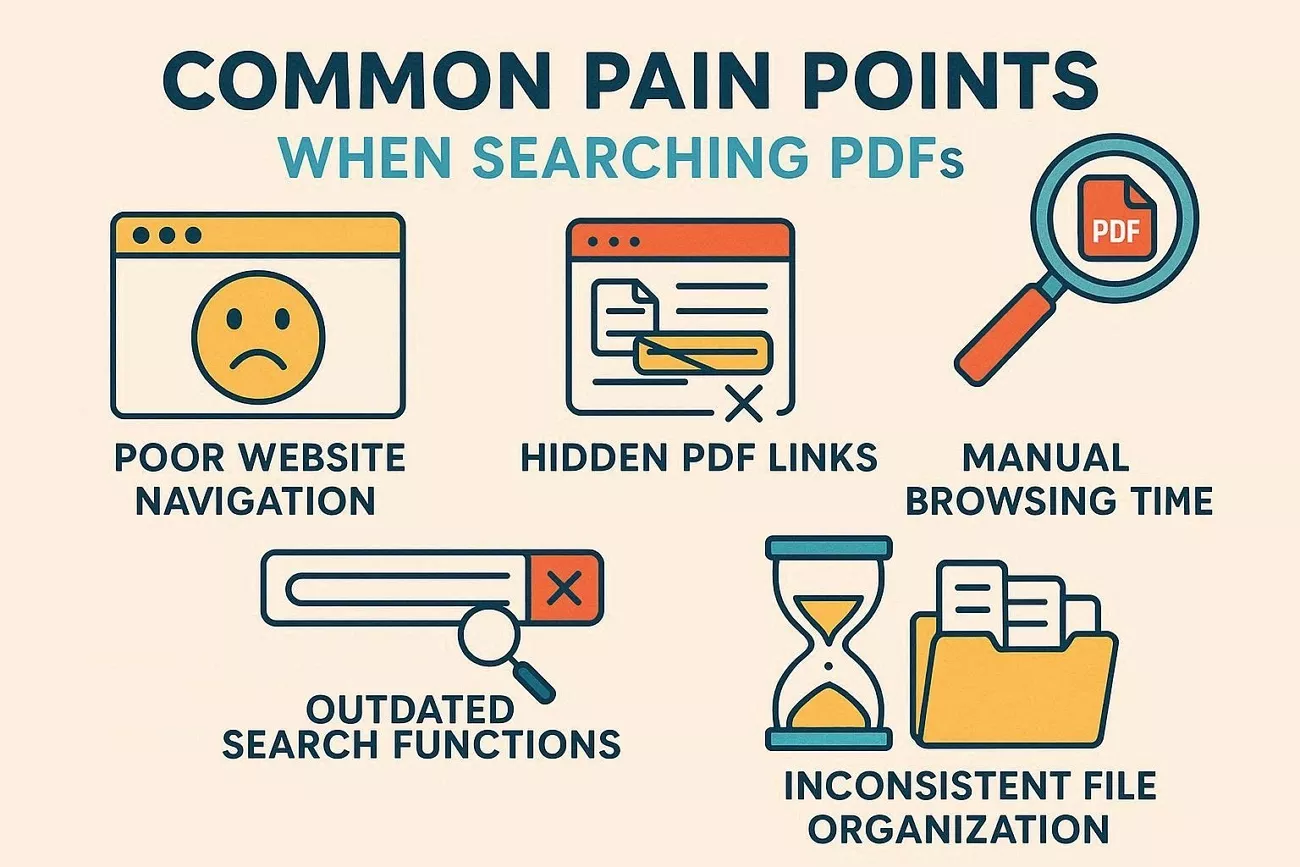
Common Pain Points When Searching PDFs
Having reliable ways to search websites for PDF files, let me share common frustrations many users still face:
- Poor Website Navigation: Confusing menus and deep page structures make reaching important PDF documents unnecessarily difficult and slow.
- Hidden PDF Links: Files are uploaded but not clearly linked, forcing constant guessing and extra clicks to locate them.
- Outdated Search Functions: Built-in site search often ignores PDFs, returning incomplete or irrelevant results for important queries.
- Manual Browsing Time: Scrolling page by page becomes exhausting when trying to uncover a single-needed PDF document.
- Inconsistent File Organization: Random folder names and file structures create chaos, making repeated searches for the same PDFs painful.
Part 2. Methods to Search a Website for PDF Files
When exploring ways to search websites for PDF files, I focused on methods that consistently save time. Each technique fits different comfort levels, from simple search tricks to more advanced, automated approaches. Next, I'll share some clear, step-by-step options so choosing the right method feels straightforward.
Method 1: Google Search Operators
When exploring specific reports on trusted sites, this method helped me skip clutter and reach relevant PDFs. It works well for researchers, students, and professionals who already know the website or topic they trust. Follow the steps below to narrow results and pull up only the documents that truly matter:
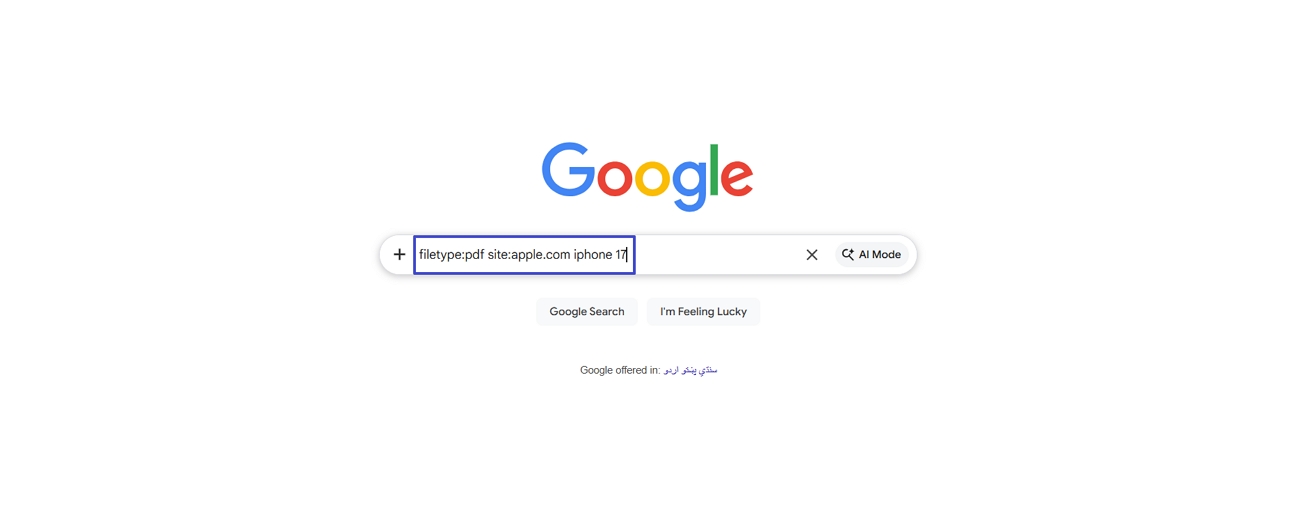
Step 1. Once you enter the Google Search Engine, type in the formula “filetype: pdf site:websitename.com your keywords.” Incorporate the site name and keywords you want to search for in PDFs and press the “Enter” key.
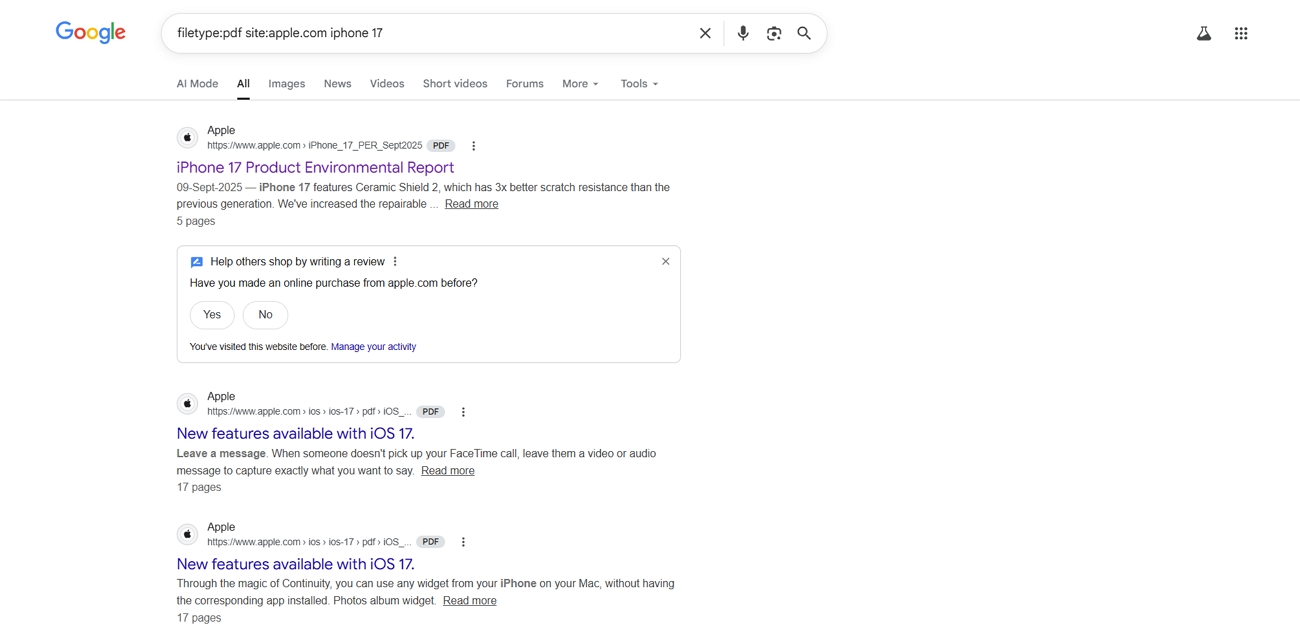
Step 2. You’ll see all relevant PDFs uploaded on that specific site in the search results.
Method 2: Website's Internal Search Function
Using a site’s own search box helps me avoid unrelated results elsewhere. This method works best when I already trust the site and want to explore everything they’ve published in depth. So, go through the steps below to surface relevant documents without repeatedly needing to search websites for PDF files:
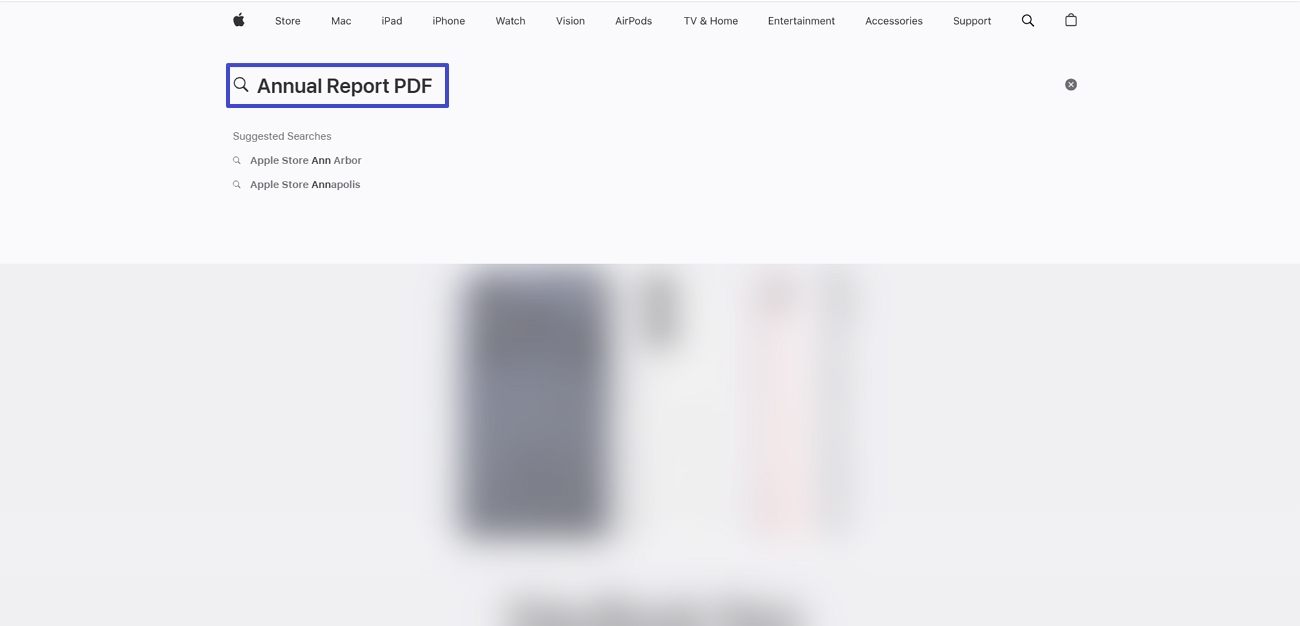
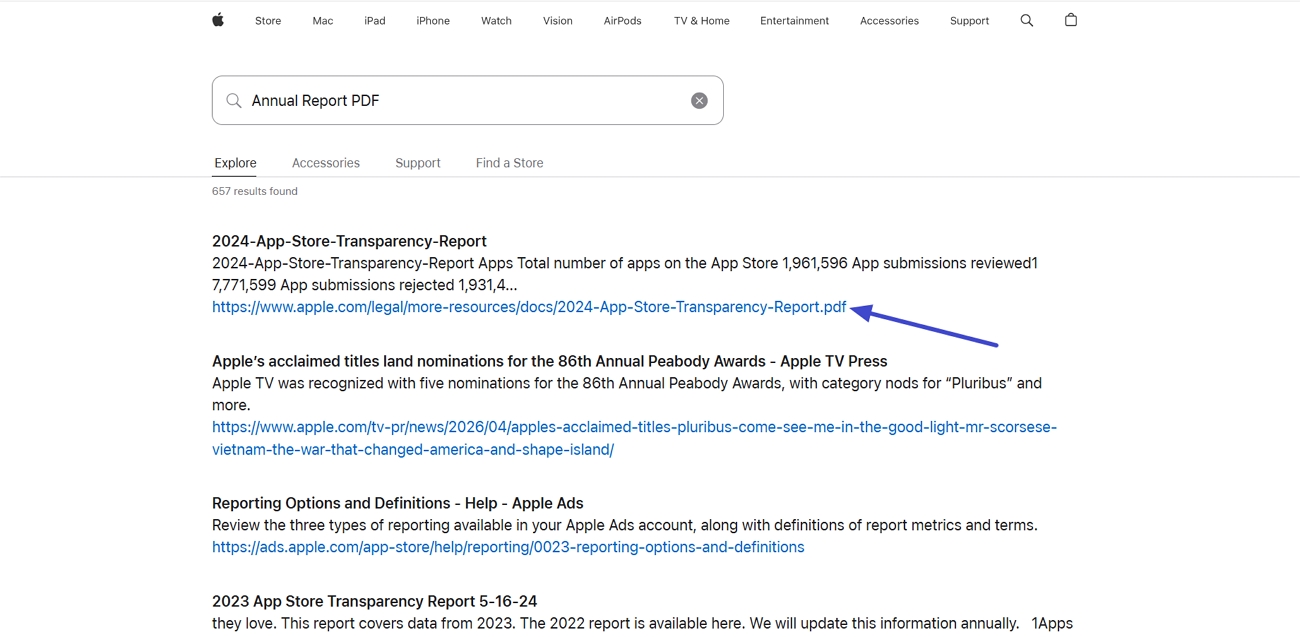
Step 1. First, enter the site you want to explore and locate the search box. Once you find the search box, search for “Your Topic + PDF” and press the “Enter” key.
Step 2. In the search results, locate your PDF and download it directly from your browser.
Method 3: Browser Extensions for PDF Discovery
Browser extensions also helped me collect multiple PDFs from a page without opening each link separately. When working on research-heavy tasks, this method saved hours by finding every downloadable document with just a click. Follow the steps below to see how these tools streamline repetitive downloading and keep bulk collection manageable:
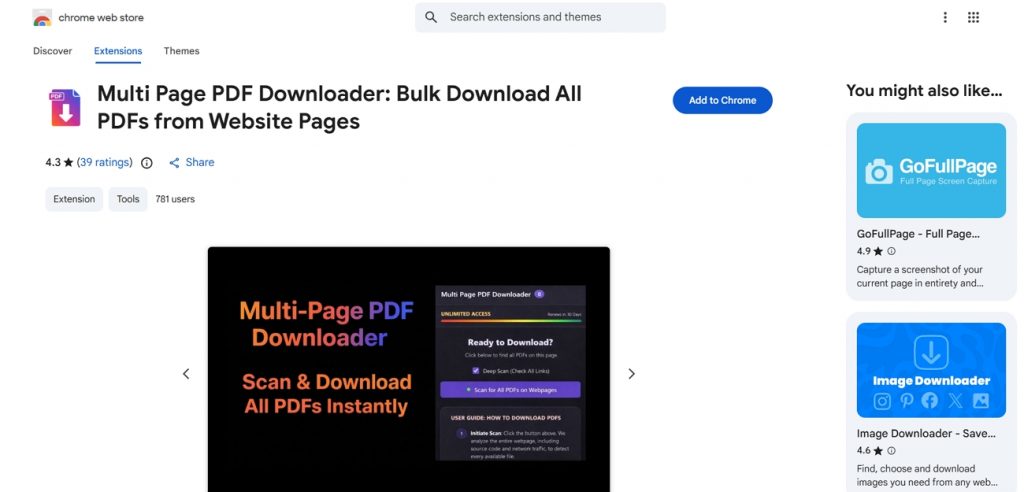
Step 1. First, install your favorite PDF downloader extension from the Chrome Web Store or Firefox Add-ons.
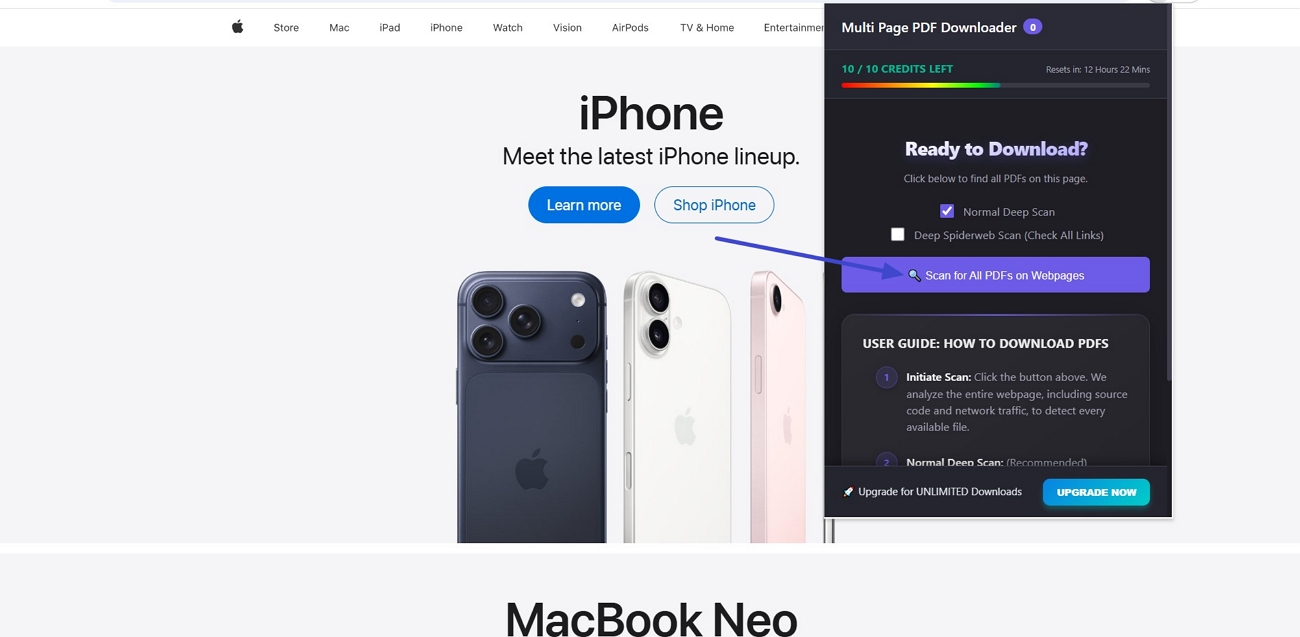
Step 2. Once added, open the site you want to scan and click the “Extensions” icon. Next, choose the downloaded extension and click the “Scan” button.
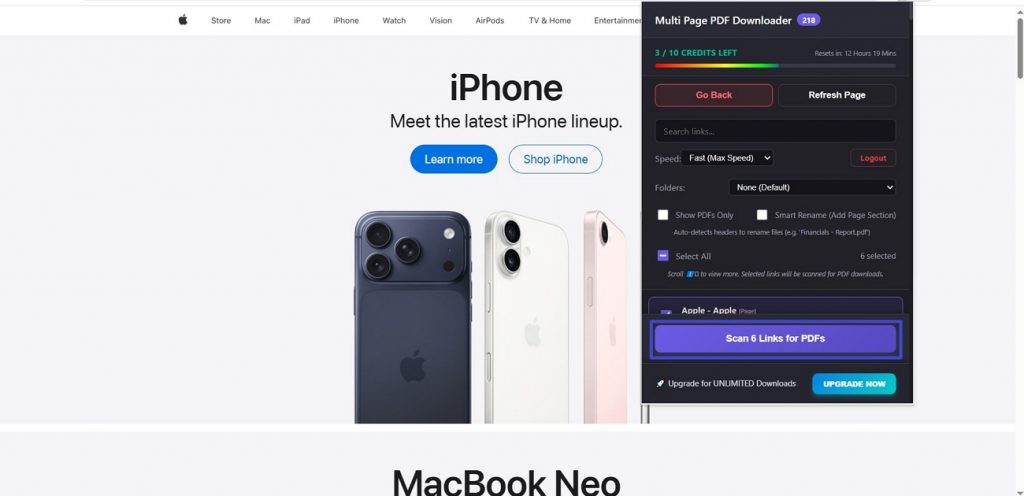
Step 3. Next, choose the links and click the “Scan Links” button. Afterward, all PDFs uploaded to that site will be automatically downloaded.
Method 4: URL Pattern Guessing (Advanced Technique)
Using URL pattern guessing helped me uncover resource pages that were never linked in the main navigation. When needing to search websites for PDF files on messy sites, this approach revealed hidden folders and document hubs. So, follow the steps below to spot concealed directories and quickly surface documents without repeated manual guessing:
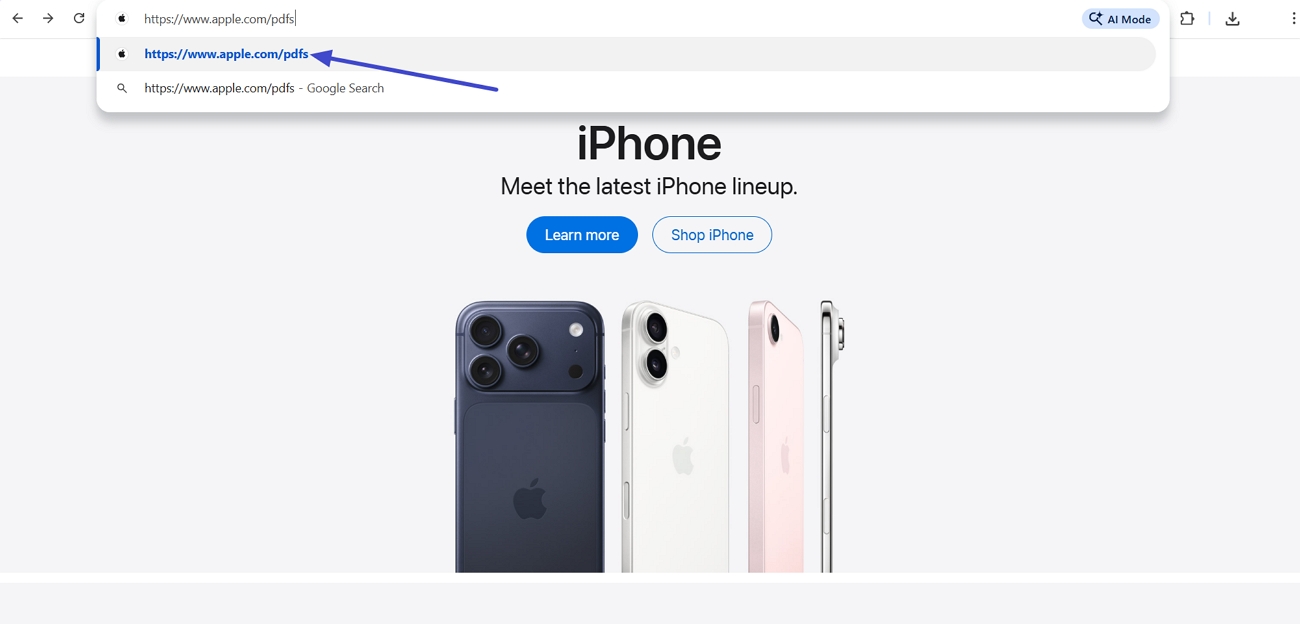
Instructions. Once you enter the main site from which you want to download the PDF file, click the address bar. At the end of the URL, enter “/pdfs” and press the “Enter” key. If the page exists, you may see a listing of files with PDF links. When you find a working directory, scroll through and open any PDF links you need.
Method 5: Web Scraping Tools (For Advanced Users)
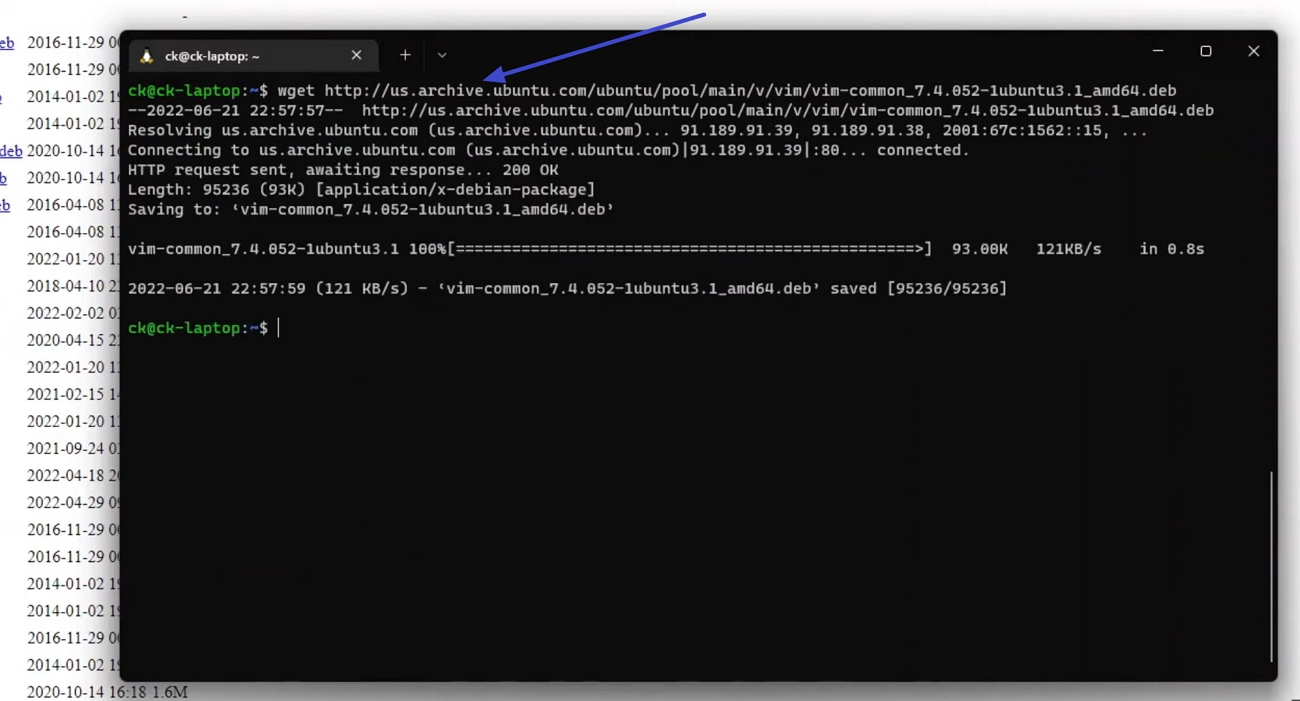
Manually testing likely URL paths helped me uncover resource pages that never appeared in normal navigation or search results. This method worked best when a site stored documents, but regular menus offered no direct access. Adhere to the steps below to test likely paths with Wget, revealing valuable downloadable resources:
Instructions. First, download and install the tool. Next, copy the file link and open Command Prompt on your PC. Afterward, enter the prompt “wget (URL)” and click the “Enter” key. The file will be automatically downloaded to the targeted folder.
Alternative Web Scraping Tools
Now, I will share a few alternatives that helped me search websites for PDF files:
- Screaming Frog SEO Spider: This desktop crawler displays URLs, including PDFs, in a simple interface that beginners can quickly understand.
- Scrapy: A flexible Python framework that lets developers build custom spiders and collect PDF links at a serious scale.
- HTTrack: This website copier mirrors entire sites locally, pulling HTML pages, images, and all accessible PDFs.
Part 3. Top Free Resources to Find PDF Files Online
When looking for reliable PDFs, I prefer to start with trusted free resources rather than random search results. After exploring the ways to search websites for PDF files, look at the different resource categories I use.
Academic Resources
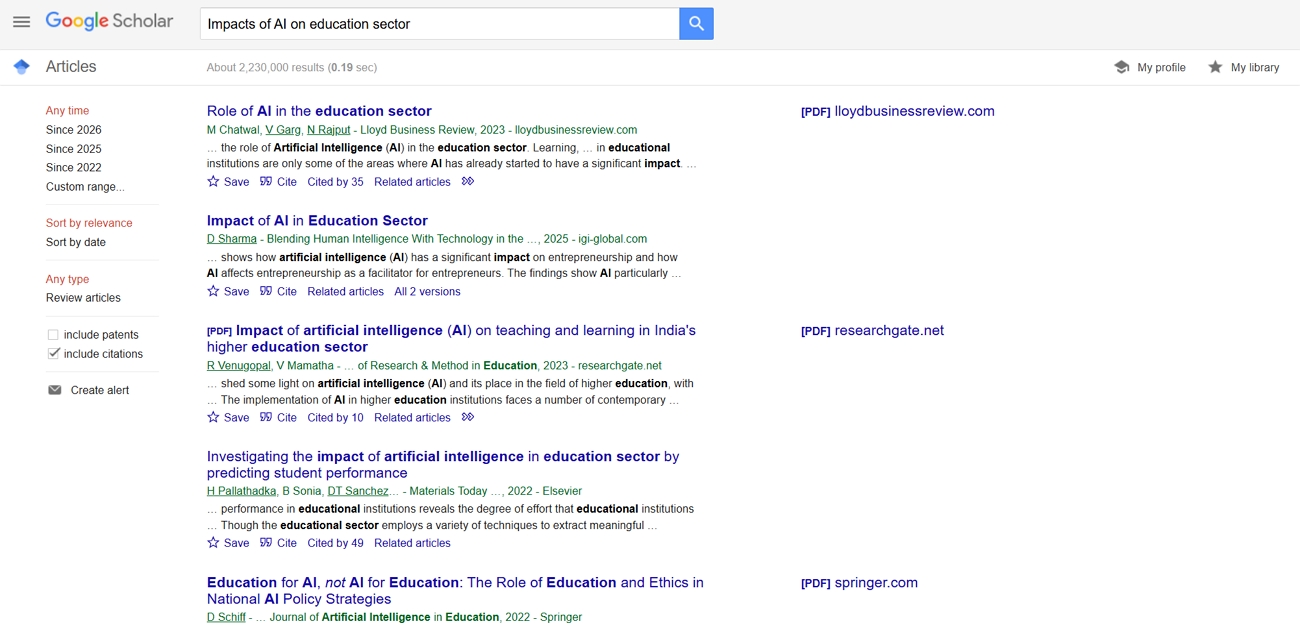
Academic resources help me find trustworthy PDF files for study and research in different subjects and fields. For scholarly articles, Google Scholar is often my first stop to gather research from many sources. University repositories, like MIT OpenCourseWare, provide free access to academic PDFs. While using these platforms, attention goes to the authors to confirm credibility.
Government and Legal
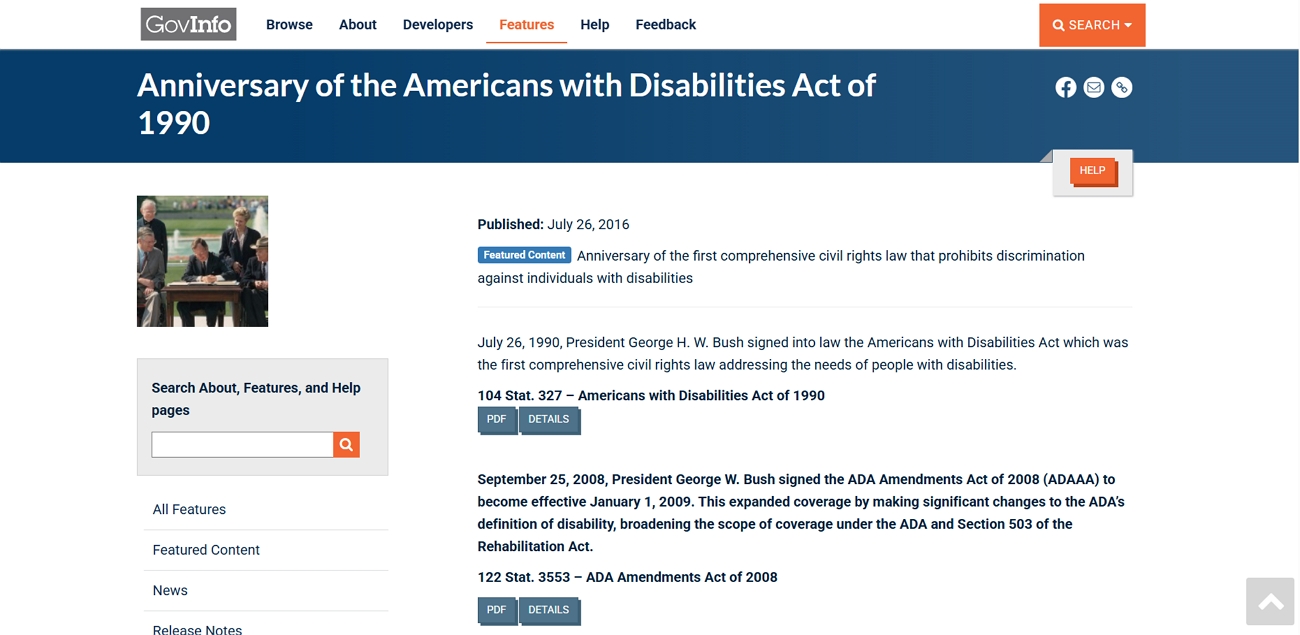
While searching for official information, government and legal websites help me access accurate PDF documents. These platforms provide laws and policy documents that support my research needs. I use GovInfo and USA.gov as official portals to access many legal PDFs. Using these trusted sources lets me feel confident that downloaded documents are current and safe to reference.
Business and Industry
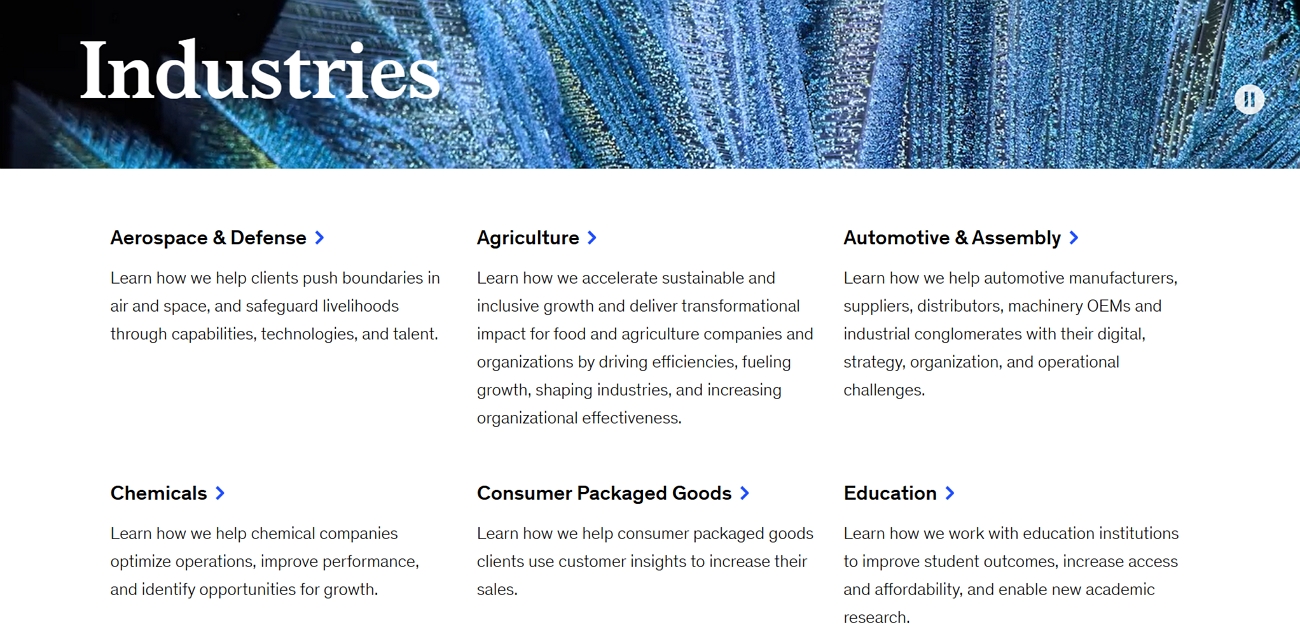
I often turn to business and industry platforms when I need market reports and company documentation in PDF format. These sites help my research into trends and strategies by providing structured information across different sectors. Professional networks and company portals, for example, resources from firms like McKinsey , provide insightful downloadable reports. Using these business PDFs supports my projects and planning by giving practical, real-world examples.
Open Access Libraries
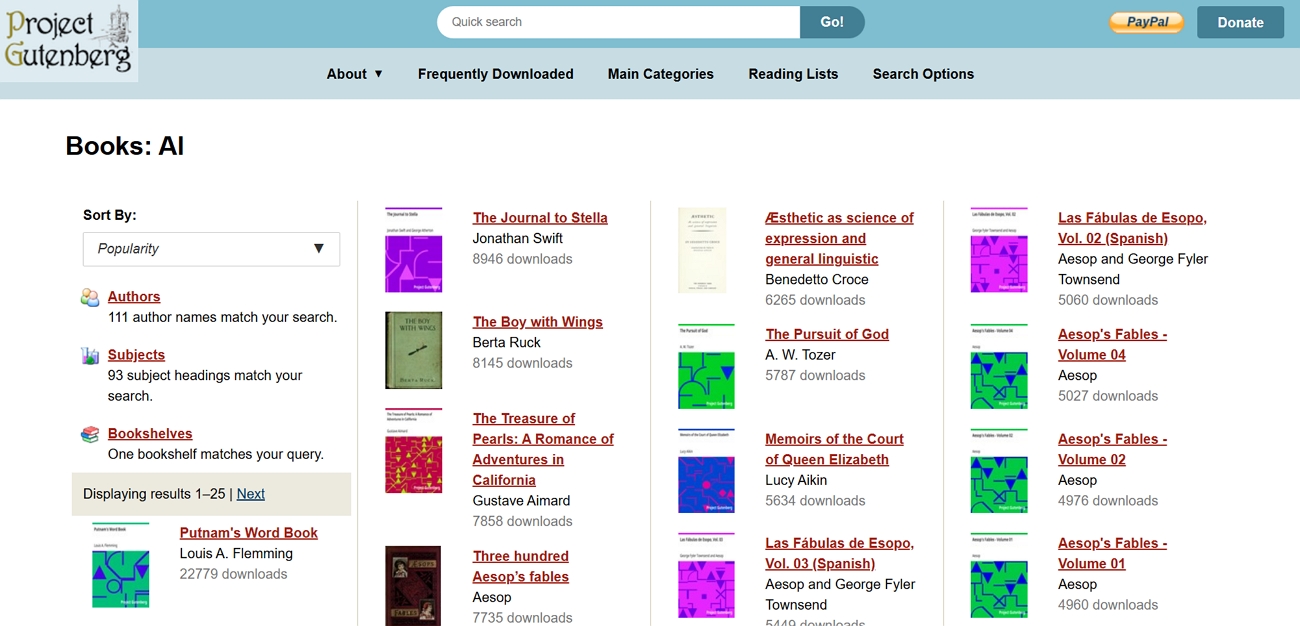
When searching for free reading material, open‑access libraries give me convenient PDF books without paywalls. These platforms host academic texts and educational resources that support my learning and personal reading goals. Project Gutenberg and Internet Archive are the popular options with public domain works in downloadable formats.
Part 4. How UPDF Helps You Manage and Search Found PDFs
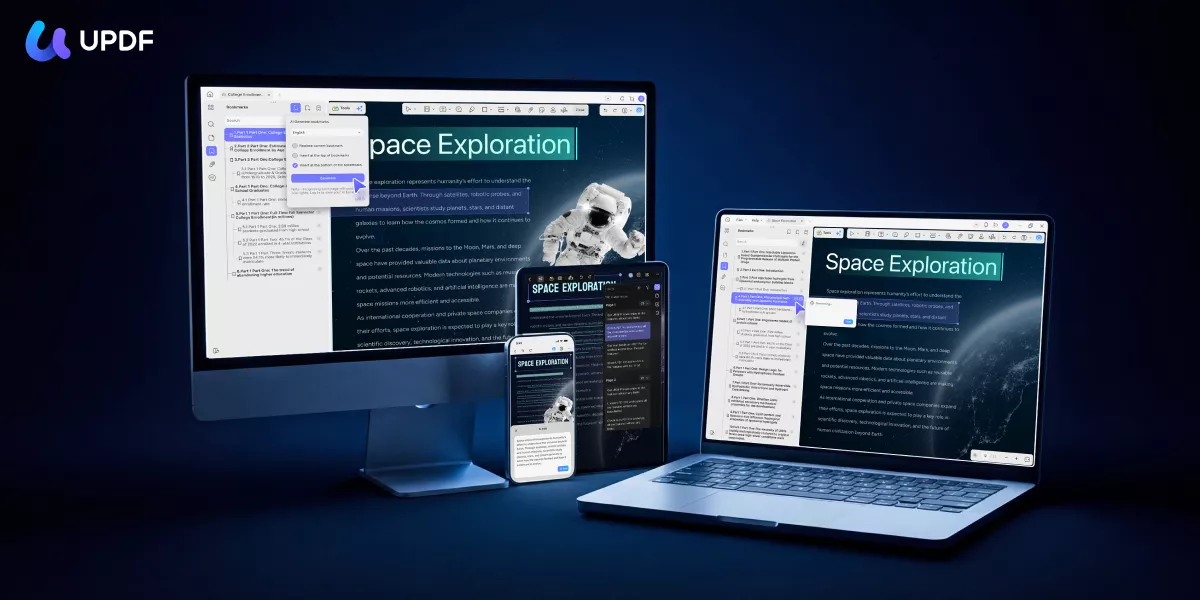
After learning how to search websites for PDF files, managing many downloaded PDFs was time-consuming. This is where UPDF comes in as my main PDF tool, solving these problems in one place. UPDF lets me edit and annotate PDF files easily, so my notes, highlights, and changes stay clear and organized.
It also converts my PDFs into multiple formats, such as Word and PowerPoint, when flexible editing or sharing is needed. On top of that, I use UPDF AI to summarize long documents and pull out key points. UPDF AI can also translate my PDFs into 26 languages, so international content becomes easier to understand.
Windows • macOS • iOS • Android 100% secure
What UPDF 2.5 Offers
Once I updated to UPDF 2.5, I found new AI assistants that help me manage PDFs smarter; let’s explore them below:
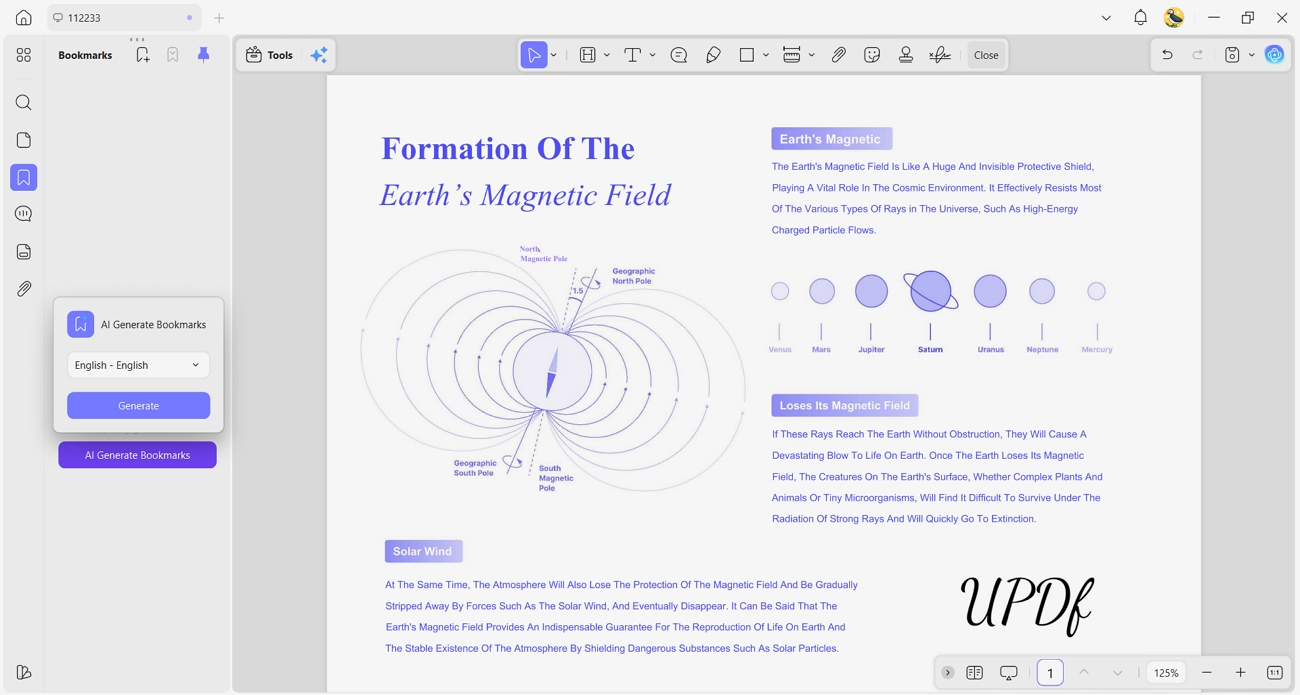
1. AI Bookmark Agent: This agent creates smart bookmarks for long PDFs I find online, helping me jump between key sections.
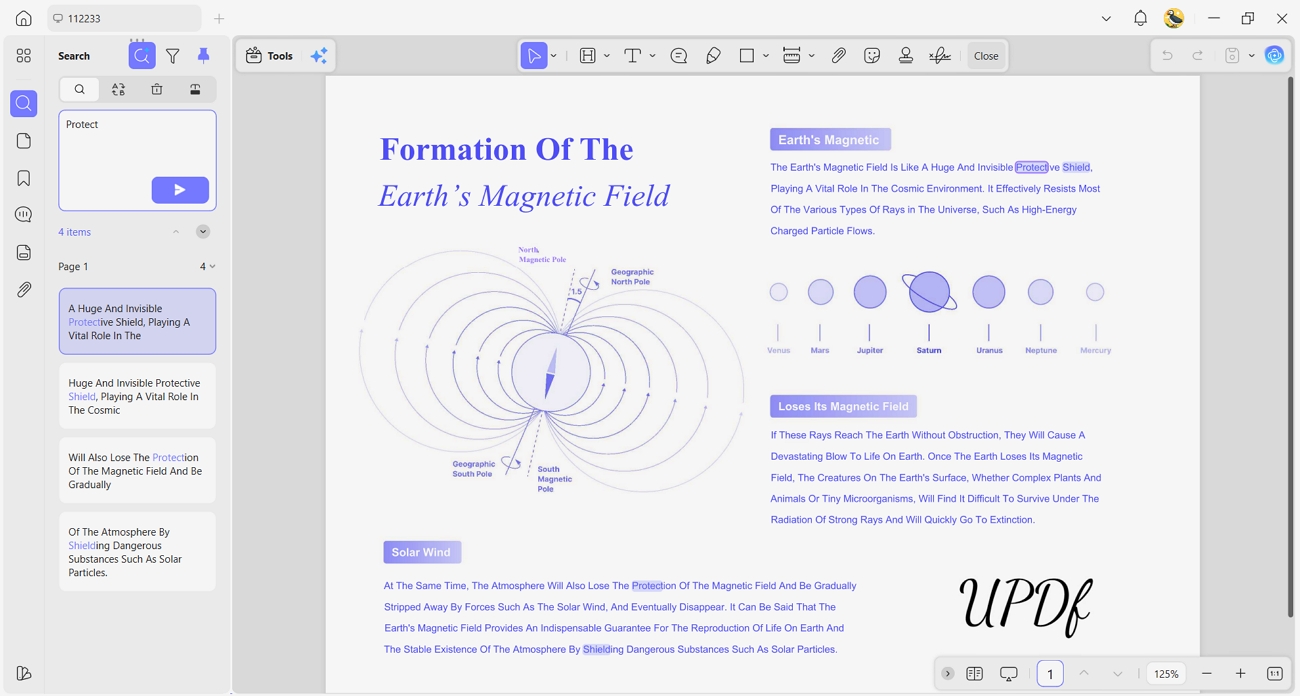
2. Semantic Search Agent: It finds information by meaning instead of exact words, so I can locate relevant parts even from vague queries.
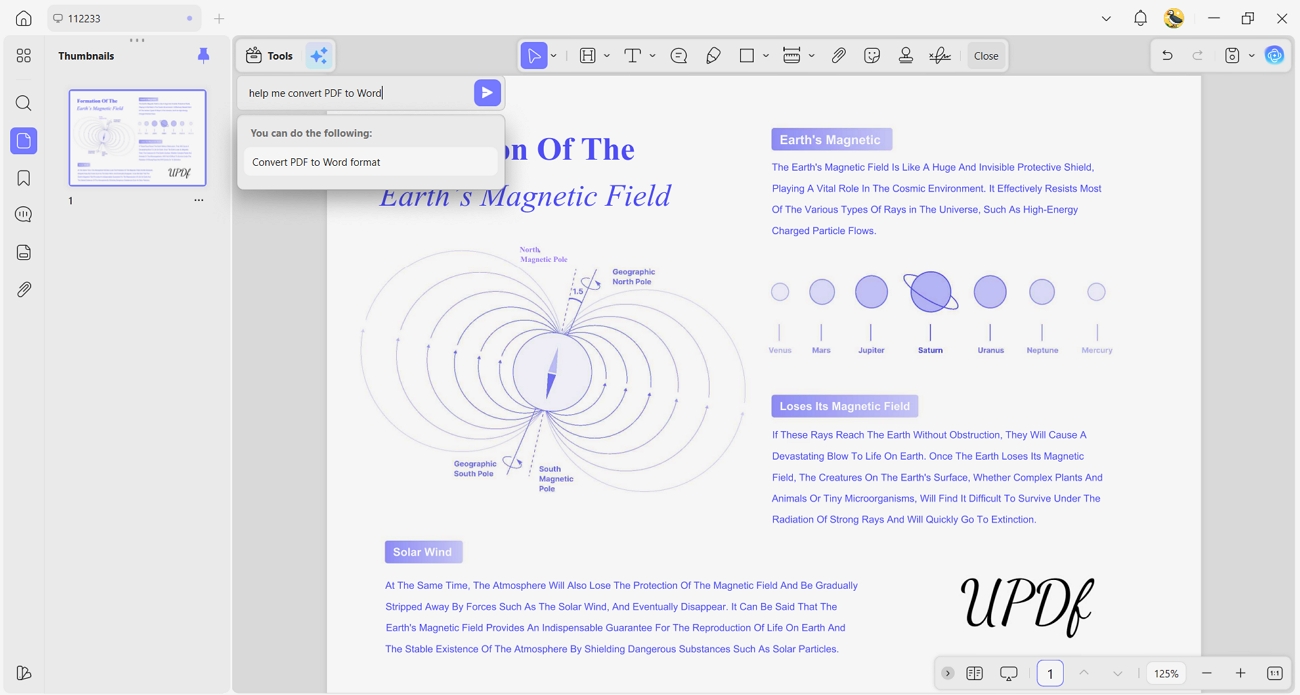
3. UPDF Copilot Agent: This assistant lets me type simple commands, then opens the right PDF features without searching through menus.
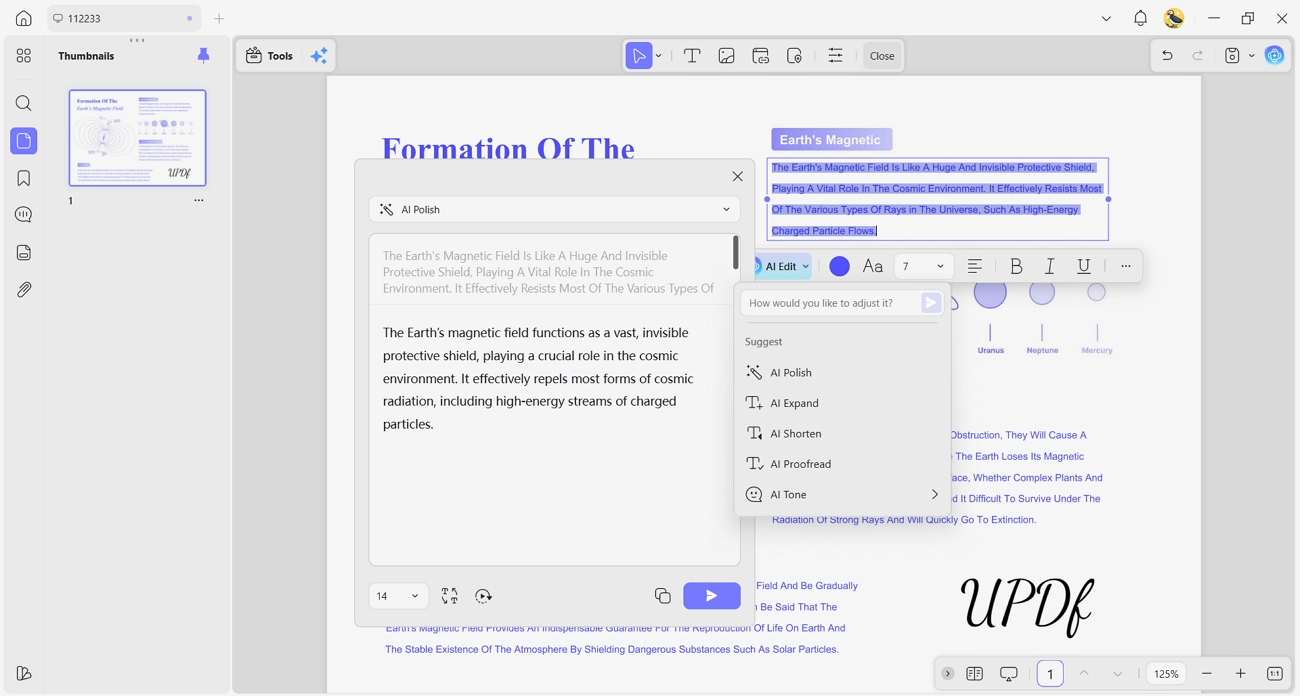
4. AI Editing Agent: It helps me shorten and expand text in downloaded PDFs, keeping my documents clear and polished.
Key Highlights
- With UPDF cloud integration, I save PDFs once on my desktop and easily continue reading them on my phone.
- AI Chat with PDF lets me quickly summarize, translate, and explain long documents, saving time and effort.
- Flexible pricing gives me a free option for testing and a paid plan when I need full features.
Windows • macOS • iOS • Android 100% secure
Part 5. FAQs
Are browser extensions safe for finding PDFs?
Browser extensions are generally safe when downloaded from official stores and developed by trusted publishers online. Always review permissions and avoid extensions requesting unnecessary access to sensitive browsing data.
How can I organize multiple PDFs I find online?
To organize multiple PDFs found online, I import them into UPDF and arrange everything in clear folders. Then I use UPDF to merge, split, and extract pages, turning scattered downloads into structured document collections.
What's the fastest way to search websites for PDF files?
The fastest way to search websites for PDF files is using Google with the filetype and site operators combined. Type your topic, add filetype: PDF, and the site name to instantly surface only relevant documents.
Conclusion
In conclusion, this guide shared practical ways to search websites for PDF files without wasting time or effort. These methods, combined with reliable free resources and smarter automation, helped me turn scattered downloads into a focused, useful library. For managing, organizing, and enhancing every PDF I collect, I recommend using UPDF.
Windows • macOS • iOS • Android 100% secure






 Enya Moore
 Delia Meyer
 Enola Davis
  Enola Miller