 UPDF
UPDF
 UPDF for Windows
 UPDF for Mac
 UPDF for iPhone/iPad
 UPDF for Android
 UPDF AI Online
 UPDF Sign
 Edit PDF
 Annotate PDF
 Create PDF
 PDF Form
 Edit links
 Convert PDF
 OCR
OCR PDF to Word
 PDF to Image
 PDF to Excel
 Organize PDF
 Merge PDF
 Split PDF
 Crop PDF
 Rotate PDF
 Protect PDF
 Sign PDF
 Redact PDF
 Sanitize PDF
 Remove Security
 Read PDF
 UPDF Cloud
 Compress PDF
 Print PDF
 Batch Process
 About UPDF AI
 UPDF AI Solutions
 AI User Guide
 FAQ about UPDF AI
 Summarize PDF
 Translate PDF
 Chat with PDF
 Chat with AI
 Chat with image
 PDF to Mind Map
 Explain PDF
 PDF AI Tools
 Image AI Tools
 AI Chat Tools
 AI Writing Tools
 AI Study Tools
 AI Working Tools
 Other AI Tools
 PDF to Word
 PDF to Excel
 PDF to PowerPoint
 Enterprise Solution
 Enterprise Sign
 Enterprise AI
 Enterprise Plan
 Enterprise User Guide
 Enterprise Webinar
 Banking
 Healthcare
 Insurance
 Legal
Legal Manufacturing
 Government
 Education Solution
 Customer Stories
 User Guide
 UPDF Tricks
 FAQs
FAQs UPDF Reviews
 Download Center
 Blog
Blog Newsroom
 Tech Spec
 Updates
 UPDF vs. Adobe Acrobat
 UPDF vs. Foxit
 UPDF vs. PDF Expert

I asked myself again and again the same question, “Why does my Word document look different in PDF?” At first, I honestly didn't expect any problems. But more than once, I opened the PDF and thought, Yes, it is a genuine problem. The text was shifted to unwanted spaces, pages were unequally divided, and images were also scattered throughout the document. It felt frustrating because I spent a lot of time perfecting the Word layout.
After dealing with this problem repeatedly, I finally understood why it happens and how to fix it properly. In this article, I’ll explain the real reasons behind formatting changes and show how I use UPDF to convert Word documents to PDF without losing layout or design. You will not lose your original layout anymore because UPDF has it handled. Click the button below to get a free download!
Windows • macOS • iOS • Android 100% secure
Part 1. Why Does My Word Document Look Different In PDF?
Well, it is a technical problem, but I have learnt in a simple way. The main reason is that Word is not designed to lock the page layouts; on the other hand, PDF does so.
Word documents are designed to be flexible. They adapt based on fonts, screen resolution, printer settings, and even the device you open them on. When converting to PDF, that flexibility suddenly disappears, and the whole design, including text, seems to become static.
I found a discussion on Adobe’s community forum where users explained the same issue: when converting DOCX to PDF, line breaks, page spacing, and images often shift because Word relies heavily on system fonts and dynamic spacing. PDF, on the other hand, freezes everything exactly as interpreted at conversion time.
So the issue isn’t always the converter or the tool, it’s that Word itself was never meant to guarantee pixel-perfect layouts across formats.
Part 2. How I Make My Word Document Look the Same in PDF
Once I understood the cause, I focused on finding a reliable solution. After testing Word options, different online converters, and third-party tools, I found that UPDF consistently gave me the most accurate results, especially for documents with images, tables, and text boxes. Moreover, I will share some alternative solutions that can help you in different scenarios.
Why I Use UPDF for Word to PDF Conversion
What I personally like about UPDF is that it handles conversion as part of a larger document workflow. It’s not limited to one task, and that shows in the quality of the output. The conversion feature is stable, predictable, and doesn’t distort content the way many quick converters do.
Windows • macOS • iOS • Android 100% secure
How I Convert Word to PDF on PC
Way 1: Convert Directly Using UPDF
- I open UPDF on my computer
- Click “Tools” → from the bottom initial interface of the software
- Then, under Create PDF click Other
- Select PDF from Word from the drop-down menu
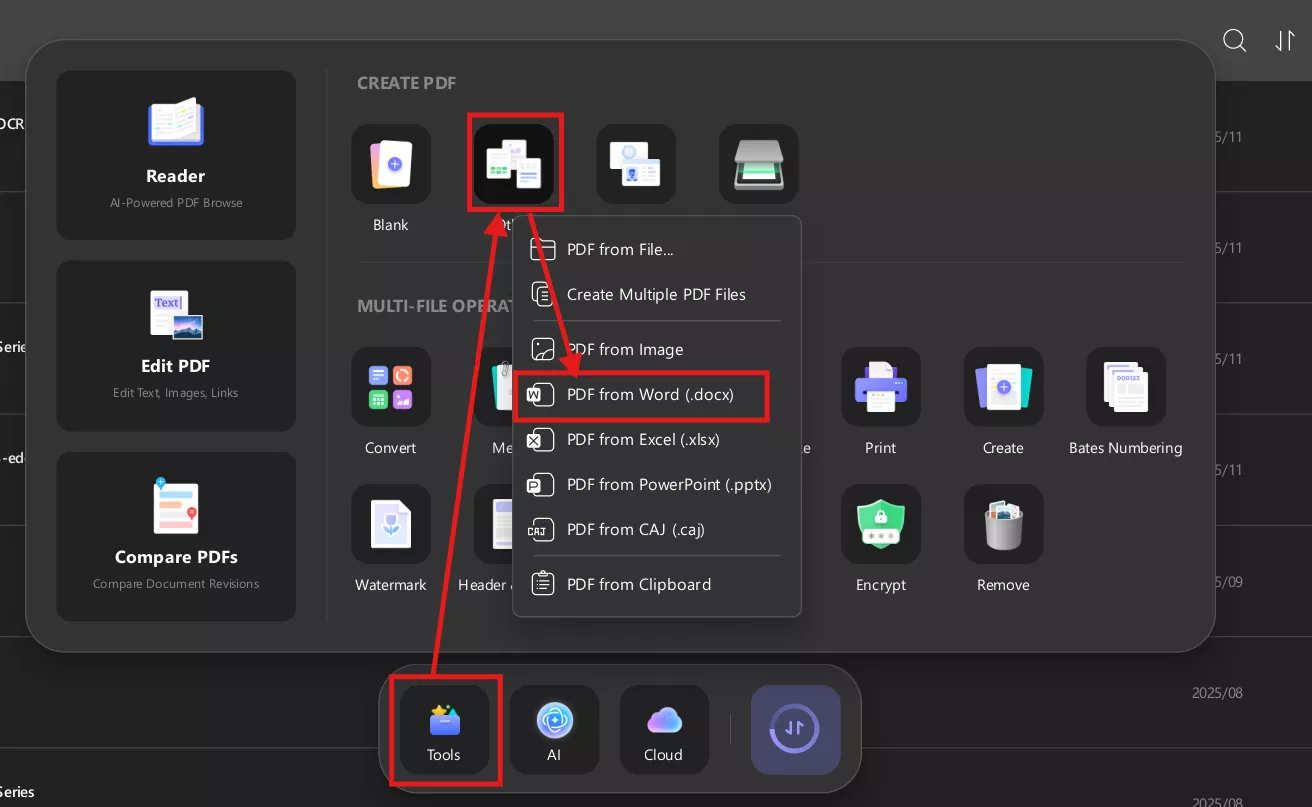
This method works best when my document contains complex formatting like tables, headers, or inline images.
Way 2: Drag and Drop Method
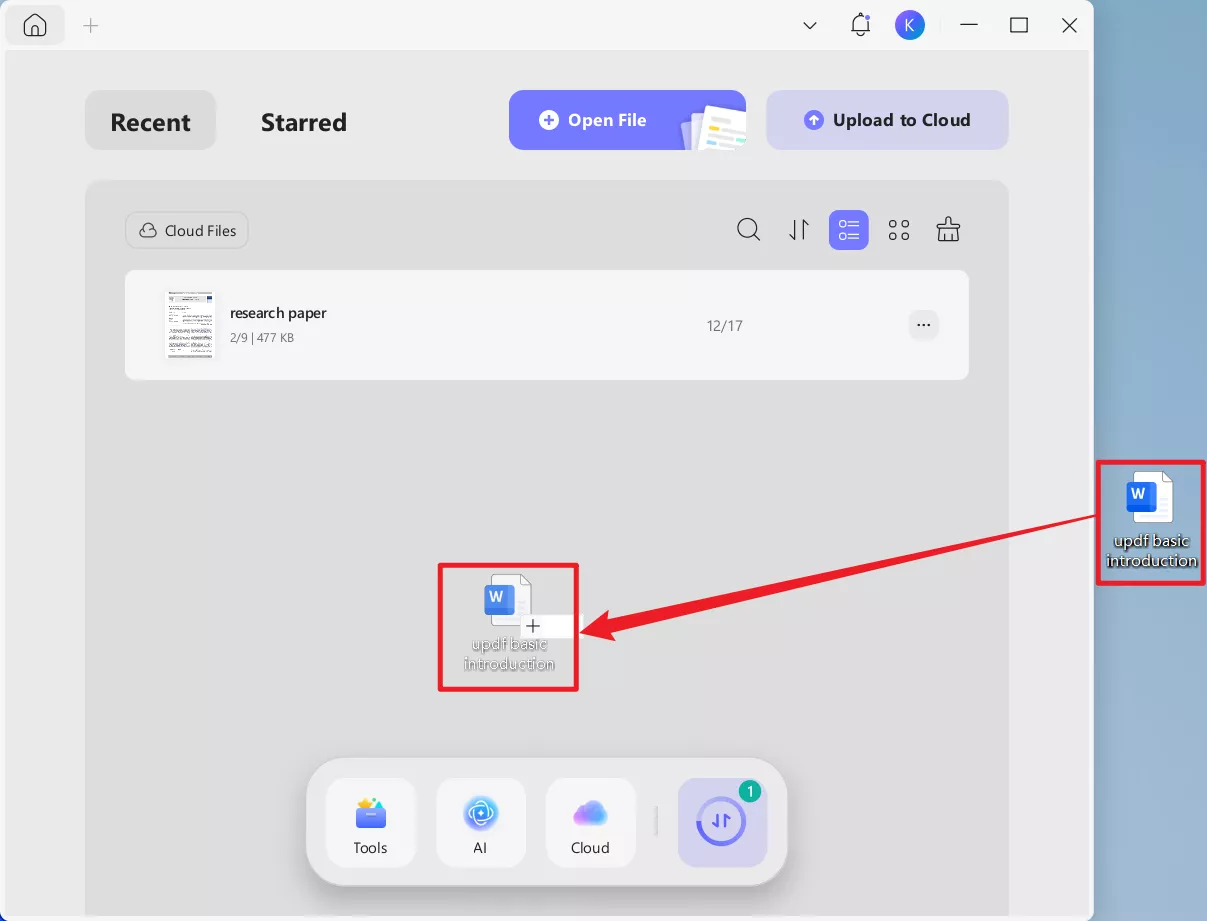
When I’m in a hurry, I simply drag the Word file into UPDF. The software automatically converts it into a PDF while keeping the layout intact. This is especially helpful when handling multiple files.
For Drag and Drop, it is very simple. First, open the UPDF interface, then simply drag your file into UPDF. At first Loading screen will take some seconds, and then automatically Word is converted into a PDF.
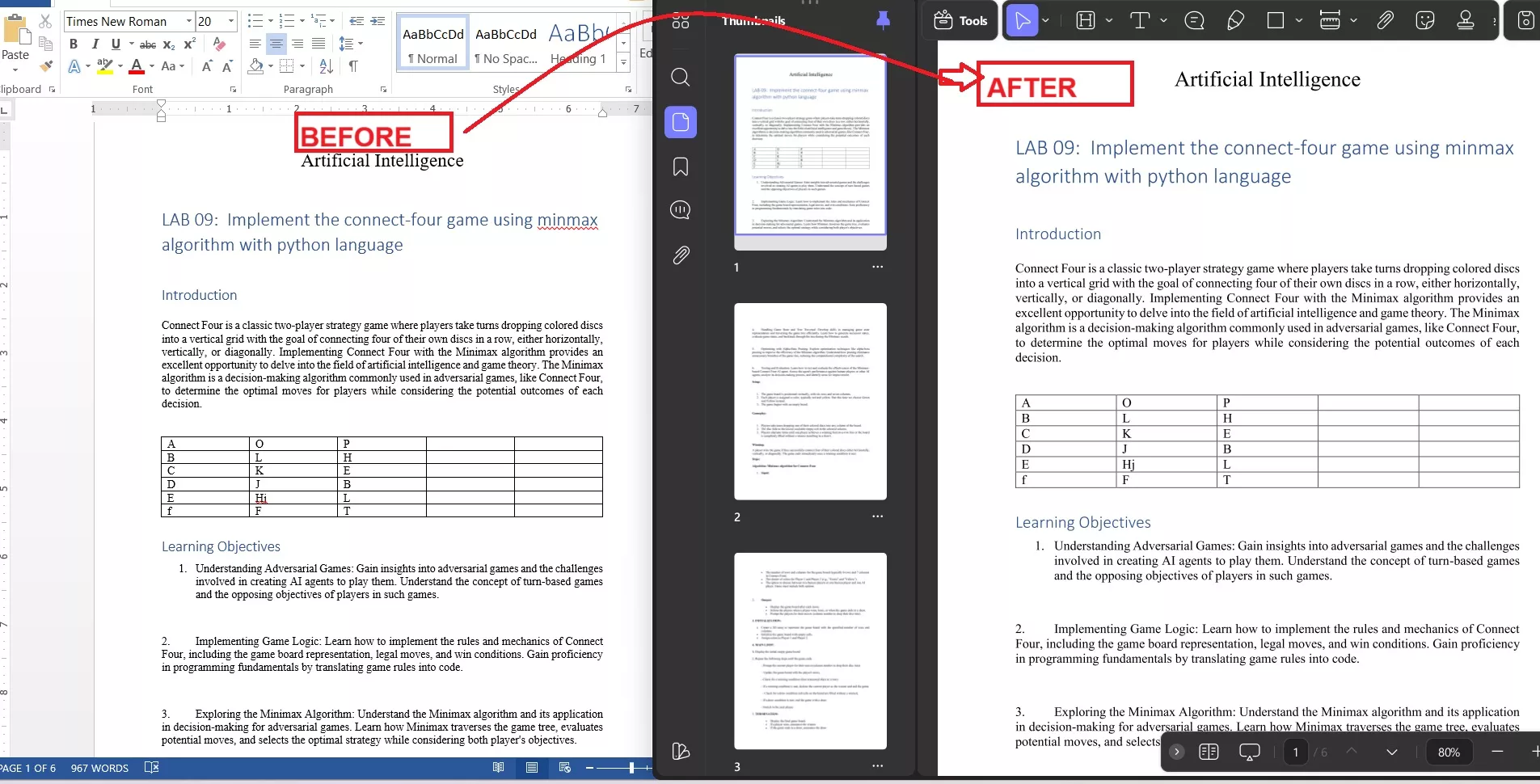
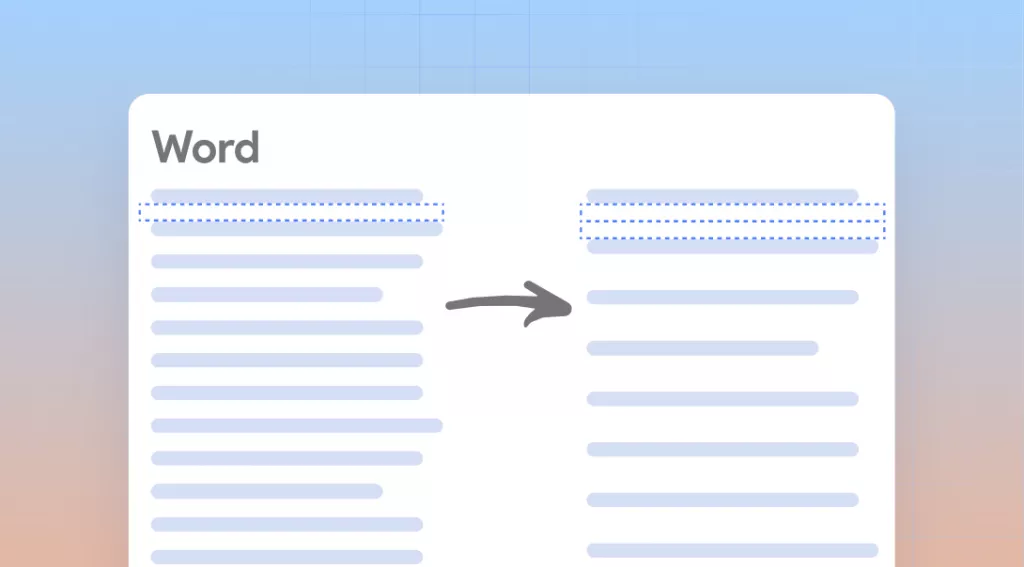
Word vs Converted PDF Comparison
I always compare the original Word file with the converted PDF side by side. With UPDF, headings, spacing, and images stay exactly where I placed them — which is something I couldn’t consistently achieve with other tools.
How I Convert Word to PDF on Mobile
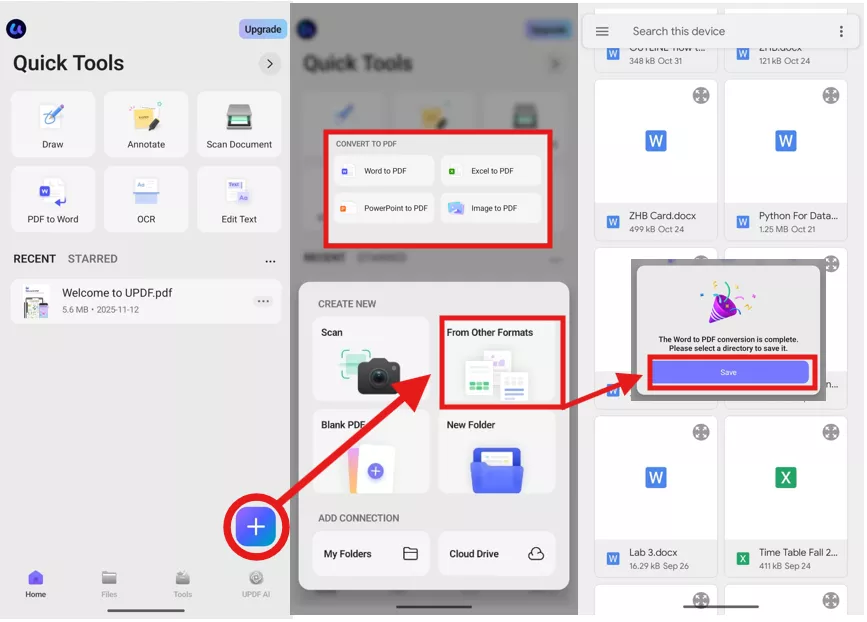
When I’m on my phone, I first import the Word file:
- Open the UPDF mobile app. You can download it from Google Play or App Store.
- Tap “+” → Import File
- Select the Word document
- Wait for the loading screen, then save your file in the desired location.
- UPDF converts it automatically
This is incredibly useful when I receive Word files via email or WhatsApp and need a clean PDF quickly.
Windows • macOS • iOS • Android 100% secure
Other Solutions I’ve Tried (And When They Help)
Microsoft Print to PDF
I’ve also tried using Microsoft Print to PDF, which is built directly into Word and works fine for simple documents. It essentially treats your document like a print job and saves it as a PDF.
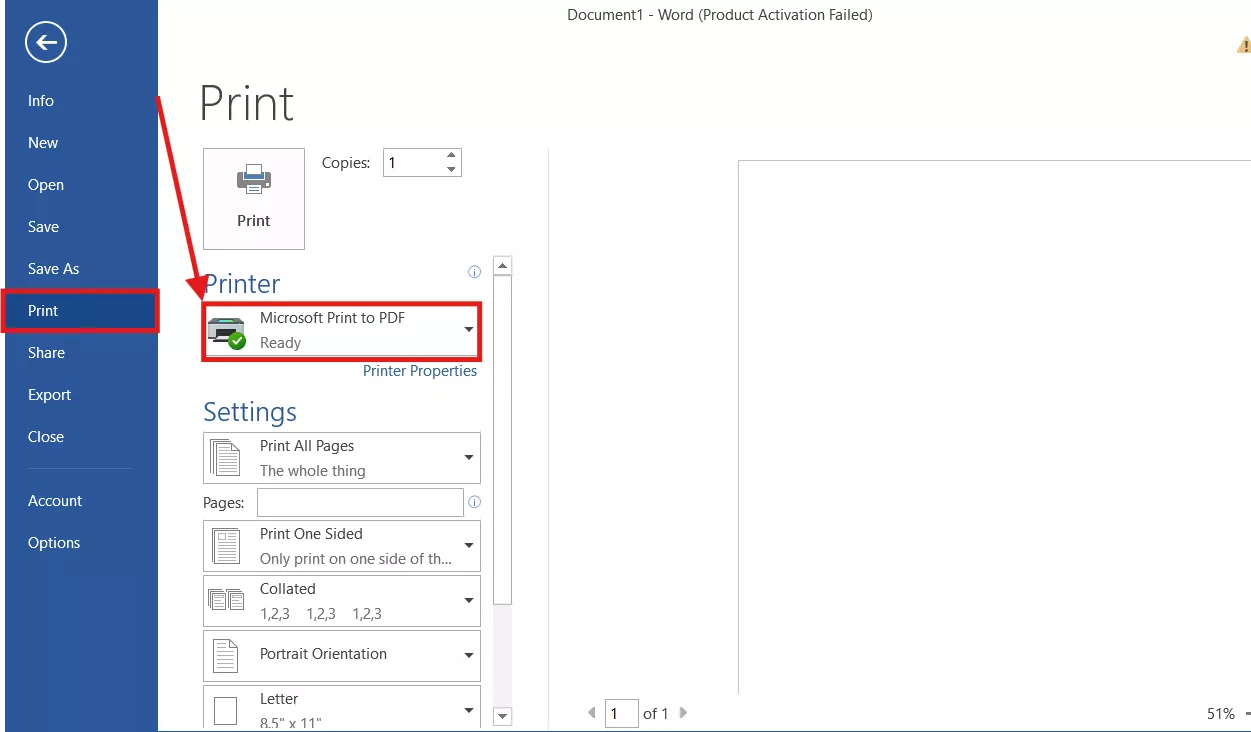
While this method is convenient, I’ve noticed that it can struggle with:
- Text boxes
- Floating images
- Custom margins
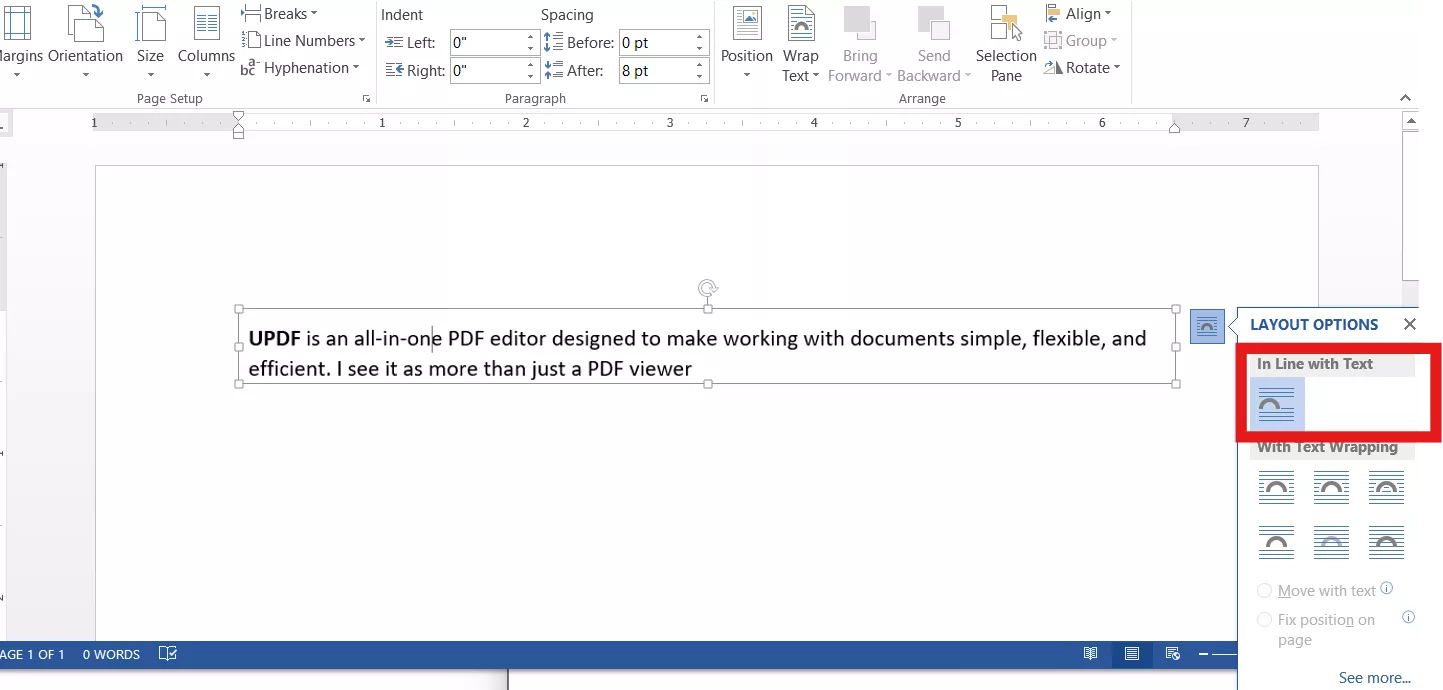
Use “Inline with Text” for Images
One tip I picked up from Reddit helped a lot:
Setting images and text boxes to “Inline with text” instead of floating reduces layout shifts during conversion. All in all, it makes the document more stable.
Restrict Editing Before Conversion
Before saving as PDF, I sometimes:
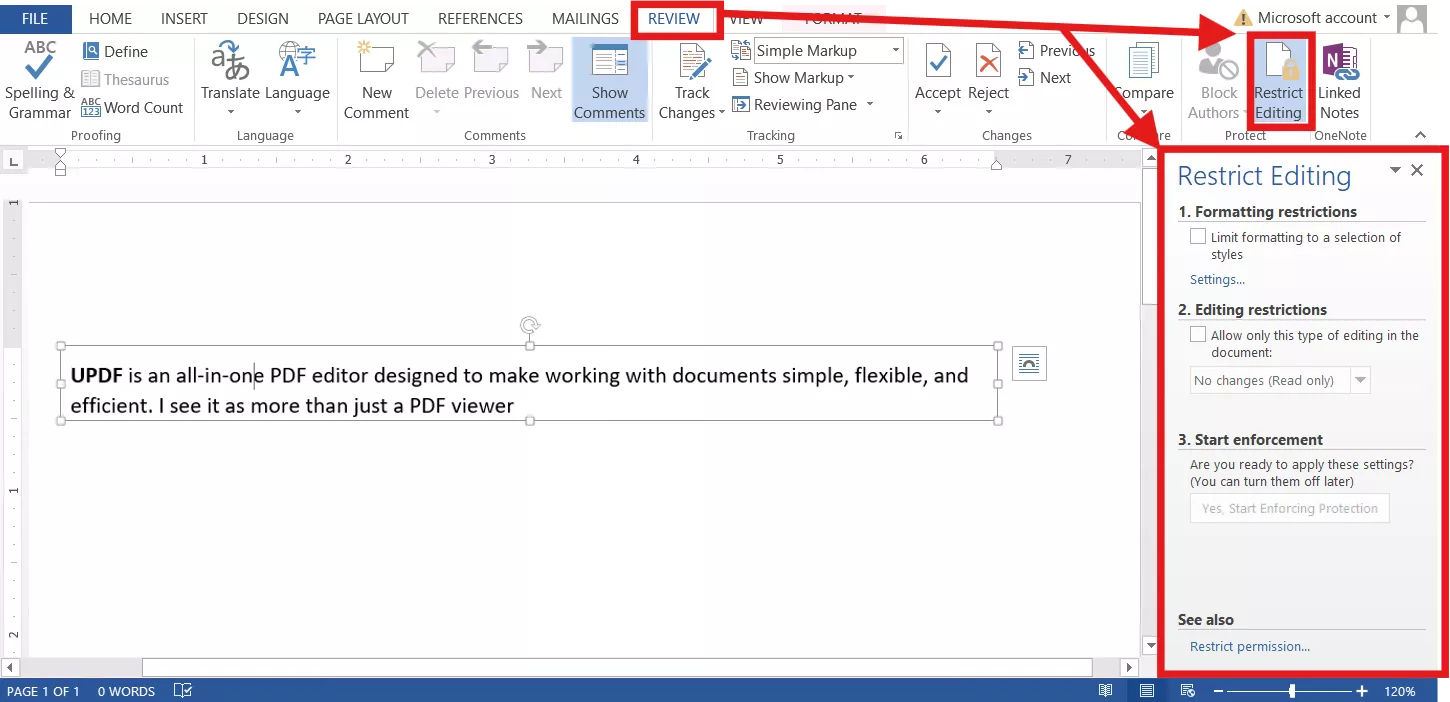
- Go to Review → Restrict Editing
- Lock formatting changes
It is a manual technique, and I have found it useful after I tried it several times myself. It prevents Word from re-adjusting layout elements during export.
Lock Fields Using Keyboard Shortcuts
When my document contains dynamic fields:
- Ctrl + A → Ctrl + F11 locks all fields
- Ctrl + Shift + F11 unlocks them
This prevents last-minute formatting changes before saving as a PDF.
Part 3. FAQ
Q1. Why does my PDF look different on different computers?
PDFs rely on embedded fonts. If fonts aren’t embedded properly, different systems may substitute them, causing layout changes. Using UPDF helps ensure fonts are preserved. I like UPDF more as the font conflict is no more an issue between Word and UPDF itself.
Q2.How do I edit a PDF to Word without losing formatting?
I use UPDF to convert PDF back to Word:
Open UPDF on your Desktop.
Select Tools at the bottom of the screen.
Under PDF Converter, Select Word. The formatting stays surprisingly accurate.
That's why UPDF is all-in-one. Any help you need regarding your document, UPDF has it all in one place. Moreover, each feature is properly categorized so that it can be accessed easily.
Q3. Why is my text not displayed correctly in PDF?
This usually happens due to:
Missing fonts
Text boxes instead of inline text
Encoding issues
Running OCR in UPDF often fixes text recognition problems. Let me tell you that UPDF comes with an amazing OCR feature that can support 38 languages.
Conclusion
After struggling for months with formatting issues, I finally stopped asking “why does my Word document look different in PDF?” and started using the right tool. Word alone isn’t enough for perfect layout preservation—but UPDF is. Either its conversion, editing, exporting, scanning, or UPDF comes with a lot of such free features.
If you want consistent, professional-looking PDFs without trial and error, UPDF is honestly the solution I trust and recommend.
Windows • macOS • iOS • Android 100% secure





 Enola Davis
 Delia Meyer

 Engelbert White