UPDF
UPDF
 UPDF for Windows
 UPDF for Mac
 UPDF for iPhone/iPad
 UPDF for Android
 UPDF AI Online
 UPDF Sign
 Edit PDF
 Annotate PDF
 Create PDF
 PDF Form
 Edit links
 Convert PDF
 OCR
OCR PDF to Word
 PDF to Image
 PDF to Excel
 Organize PDF
 Merge PDF
 Split PDF
 Crop PDF
 Rotate PDF
 Protect PDF
 Sign PDF
 Redact PDF
 Sanitize PDF
 Remove Security
 Read PDF
 UPDF Cloud
 Compress PDF
 Print PDF
 Batch Process
 About UPDF AI
 UPDF AI Solutions
 AI User Guide
 FAQ about UPDF AI
 Summarize PDF
 Translate PDF
 Chat with PDF
 Chat with AI
 Chat with image
 PDF to Mind Map
 Explain PDF
 PDF AI Tools
 Image AI Tools
 AI Chat Tools
 AI Writing Tools
 AI Study Tools
 AI Working Tools
 Other AI Tools
 AI Bookmark Generation
 AI Bookmark Summary
 AI Watermark Generation
 AI Background Generation
 AI Sticker Generation
 AI Stamp Generation
 AI Editing Suite
 UPDF Copilot
 AI Page Management
 AI Semantic Search
 PDF to Word
 PDF to Excel
 PDF to PowerPoint
 Enterprise Solution
 Enterprise Sign
 Enterprise AI
 Enterprise Plan
 Enterprise User Guide
 Enterprise Webinar
 Banking
 Healthcare
 Insurance
 Legal
Legal Manufacturing
 Government
 Education Solution
 Customer Stories
 User Guide
 UPDF Tricks
 FAQs
FAQs UPDF Reviews
 Download Center
 Blog
Blog Newsroom
 Tech Spec
 Updates
 UPDF vs. Adobe Acrobat
 UPDF vs. Foxit
 UPDF vs. PDF Expert

How can I sign a PDF without printing? Do you want to sign a document but don’t have a printer nearby? You’re not alone. Whether it’s a PDF or a Word document, printing, signing, and scanning can be frustrating and time-consuming.
So, how exactly can you sign a document without printing? One of the easiest ways is by using a reliable tool like UPDF. It allows you to sign PDFs with one-click. Beyond signing, you can also convert PDFs to Word, organize your PDF files, and manage documents seamlessly on both PC and mobile devices. Continue reading the article as I will show you how to sign a PDF document without printing using different methods.
Part 1. How To Sign a Word Document Without Printing
There are several effective ways to sign a Word document without printing, including using the Draw tab in MS Word, inserting a signature image or using online tools. Below, I have mentioned step-by-step instructions for each method to help you sign your document quickly and easily.
Way 1: Use the Draw Tab in Microsoft Word
If you don’t know how to sign a document in word without printing, then you should use the Draw Tab feature in MS Word. With this option, you can sign any Word document without printing it. Let’s see how this feature works.
Windows • macOS • iOS • Android 100% secure
1. Before starting the process, make sure the Draw tab is enabled in Word. If not, click on “Files” and look for the “Options” button. Now, click it and select the “Customize Ribbon” option. From there, enable the “Draw” option.
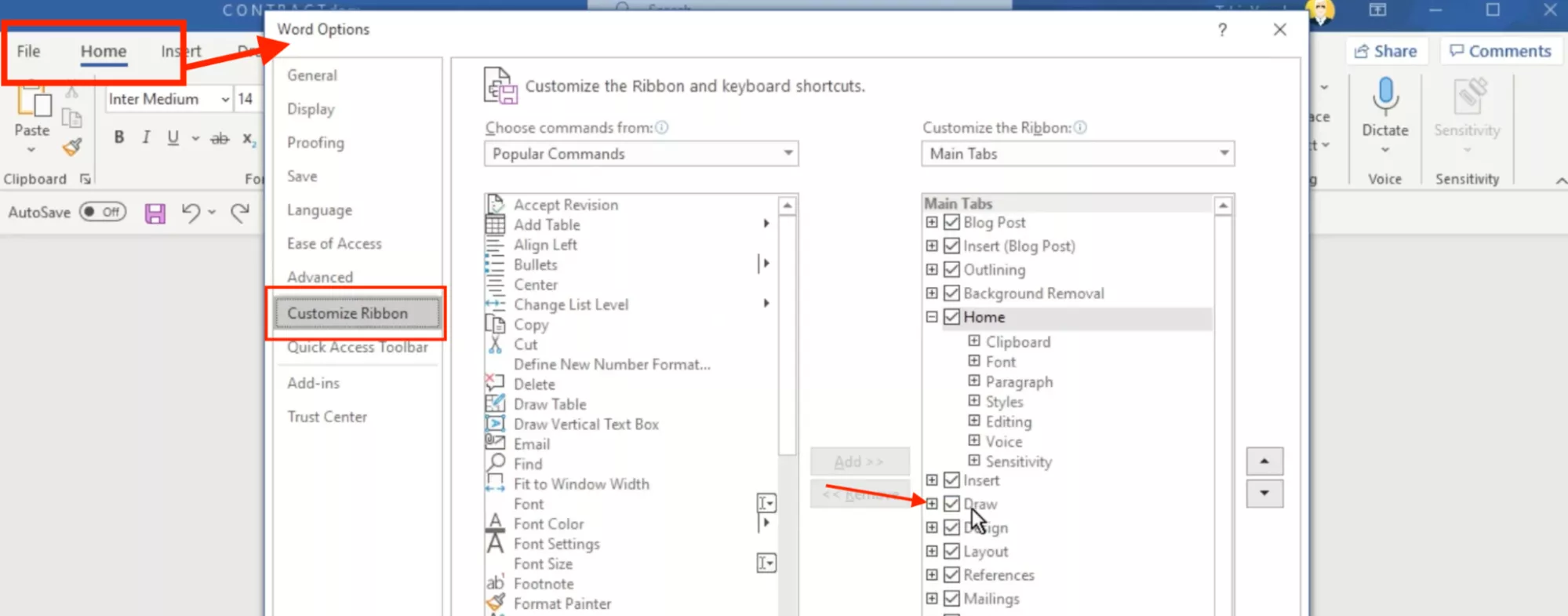
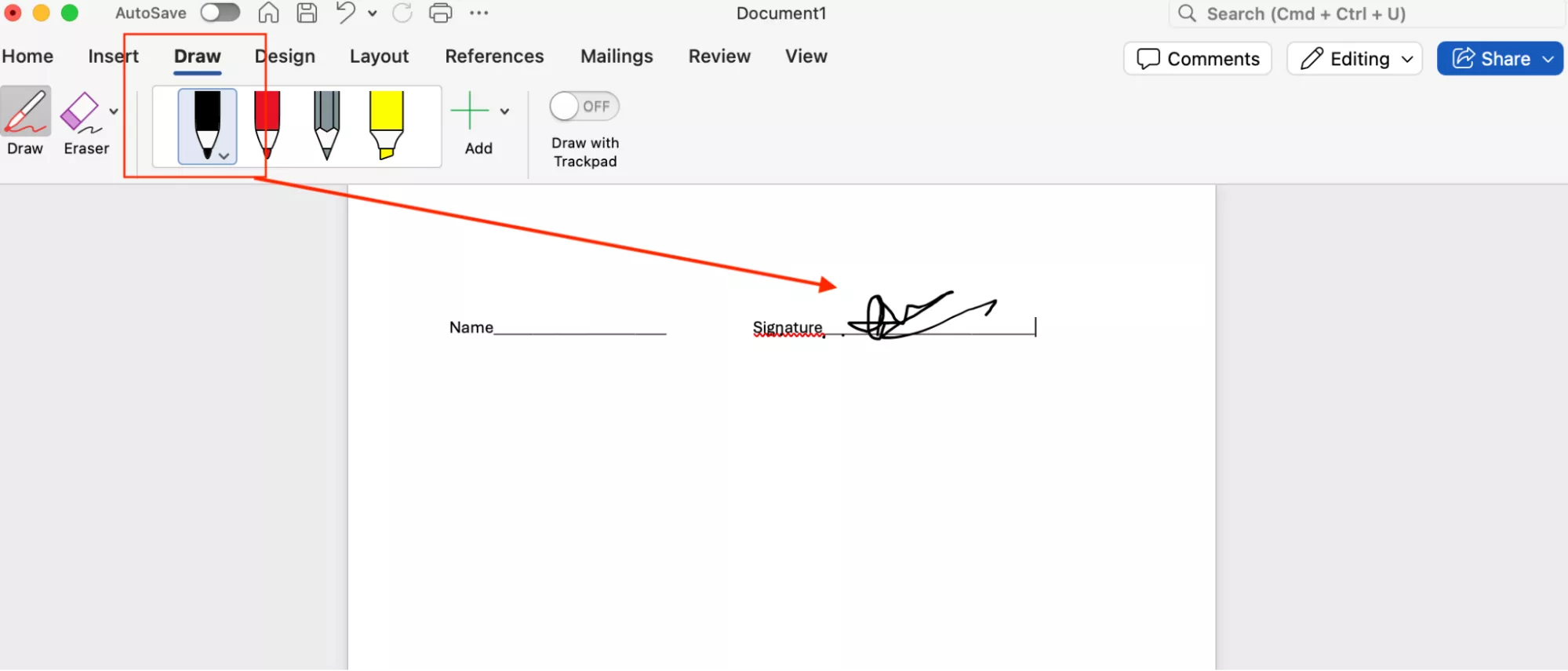
2. Now, go to the menu and click the “Draw” option.
3. Next, choose the pencil that you want to use for signing your document. Once done, use your mouse and add your signature to the document wherever you need it.
Way 2: Insert Signature Image
If you already have a signature picture stored on your device, then you can use it to sign your Word document. Here is how this method works.
1. Open your Word document where you want to add the signature and click “Insert.”
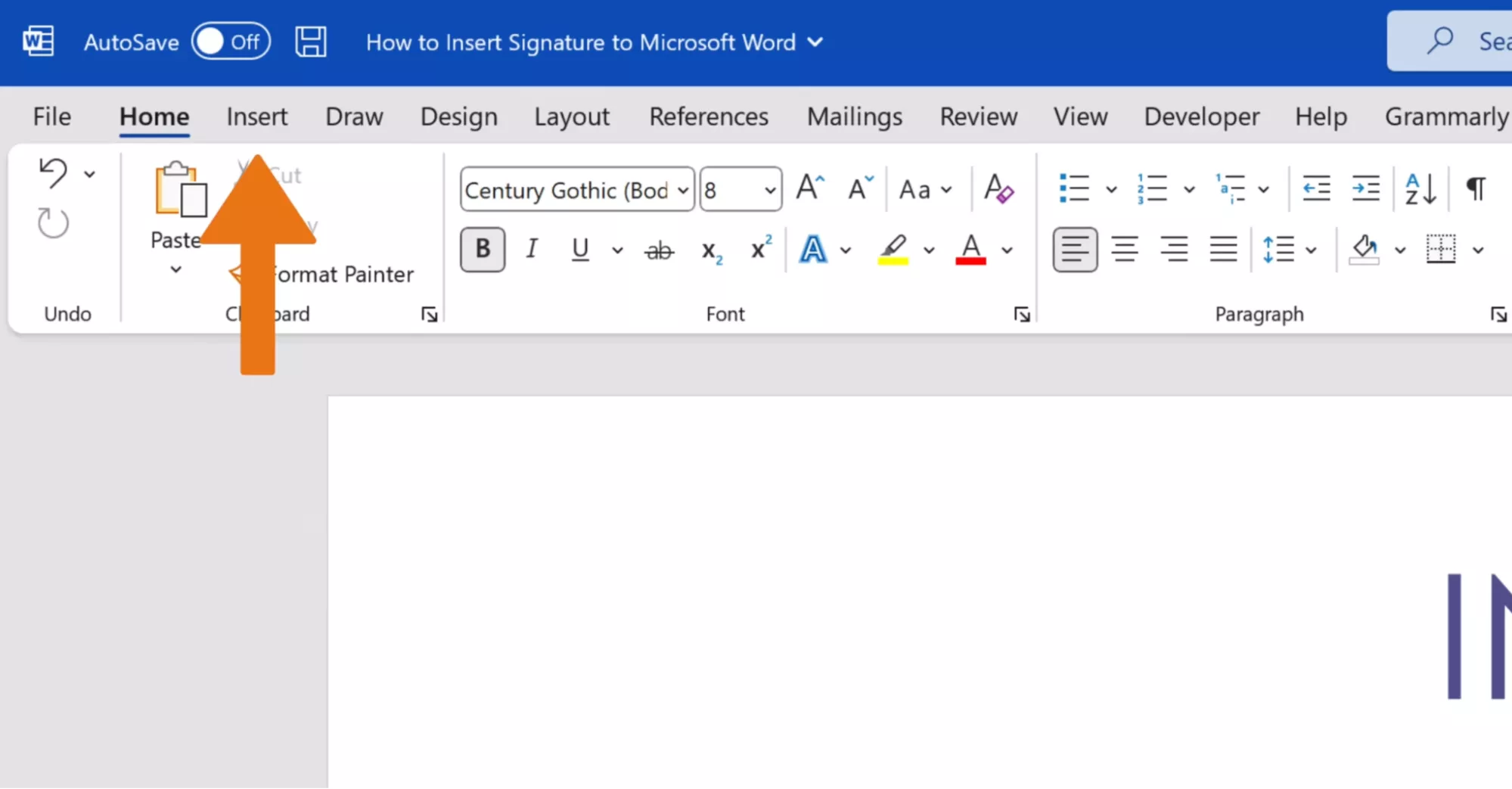
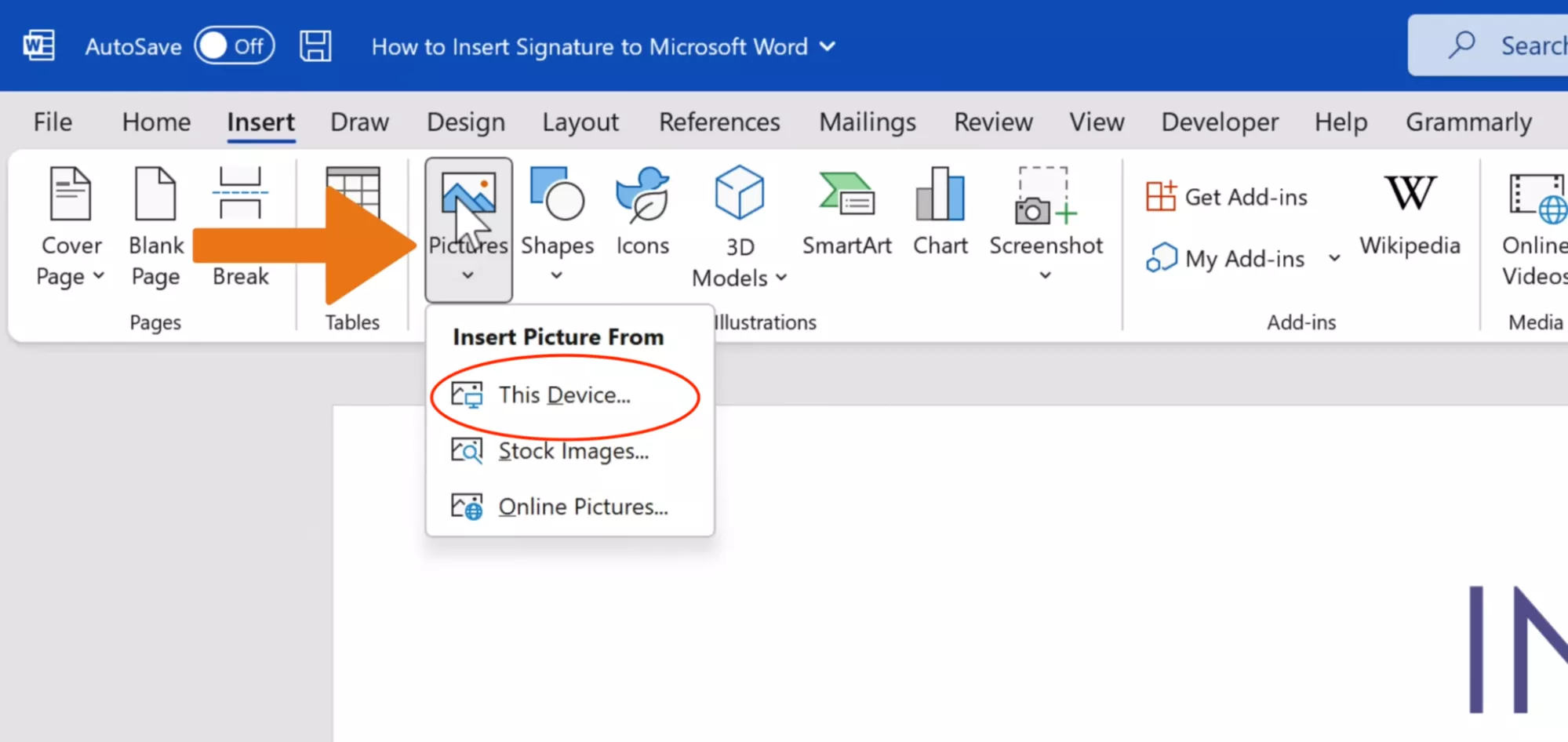
2. Next, choose “Pictures” and click the “This Device” option.
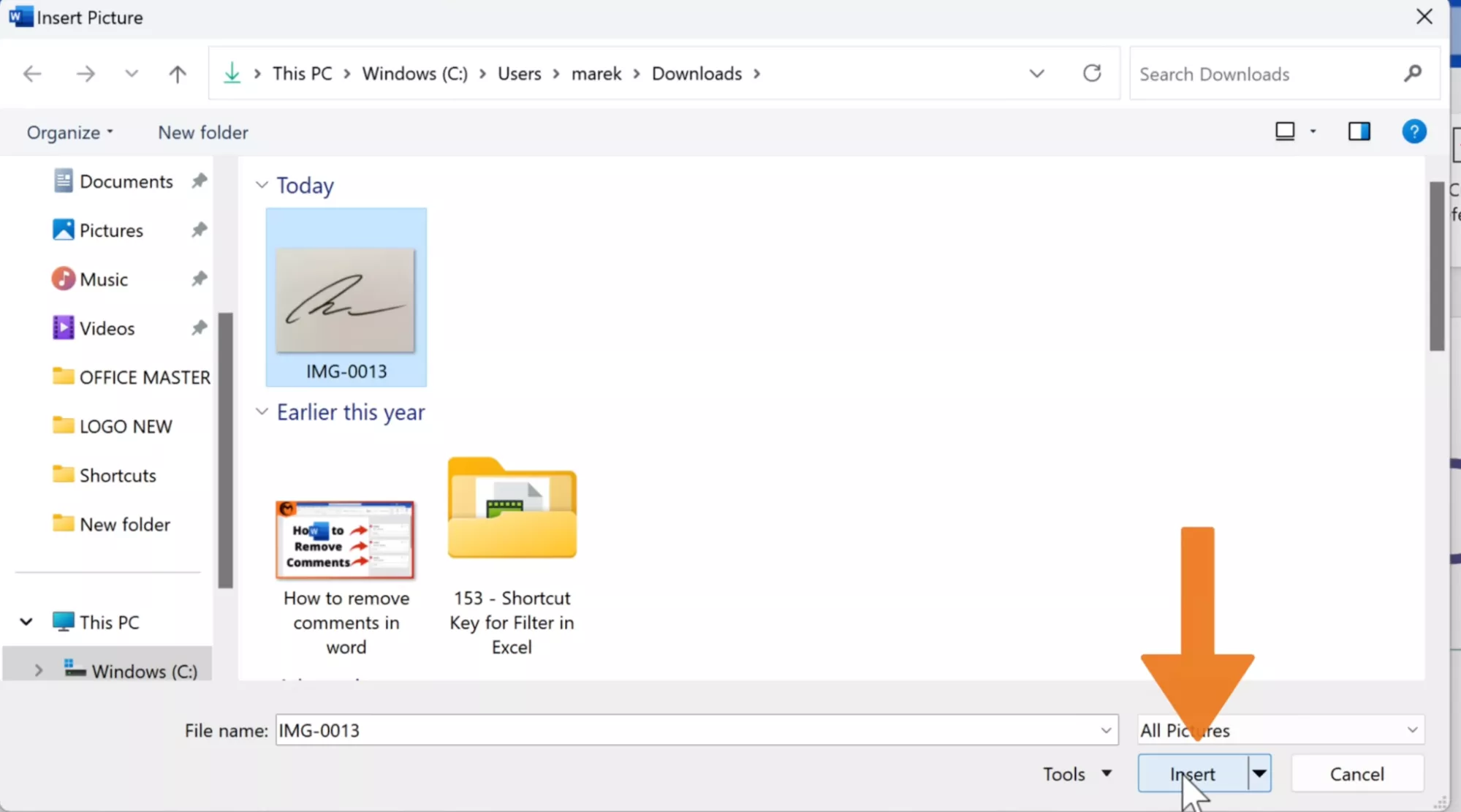
3. Now, search your signature that you want to add and click the “Insert” option.
4. Soon, your signature will be added to your Word file. Now, you can resize the signature according to your requirements.
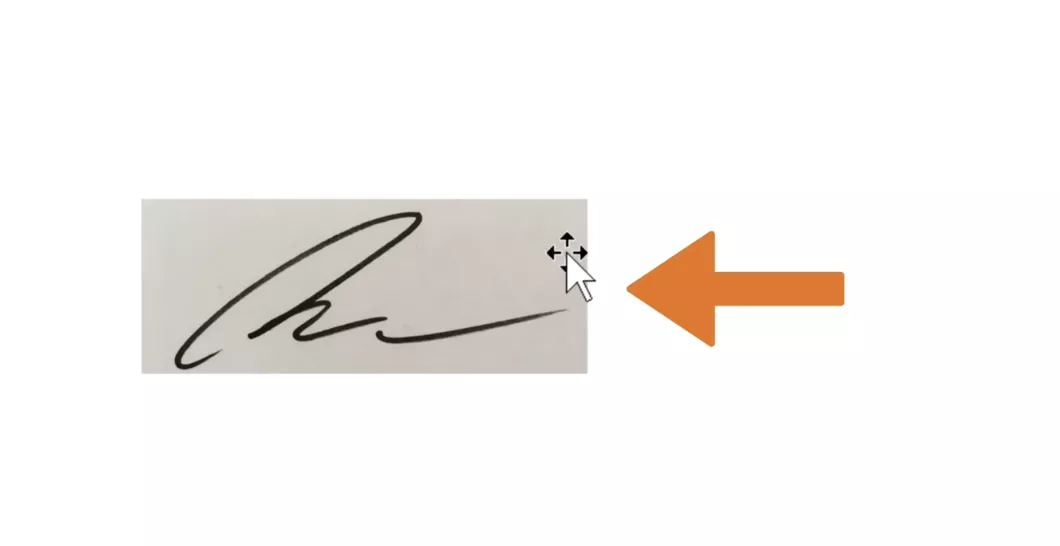
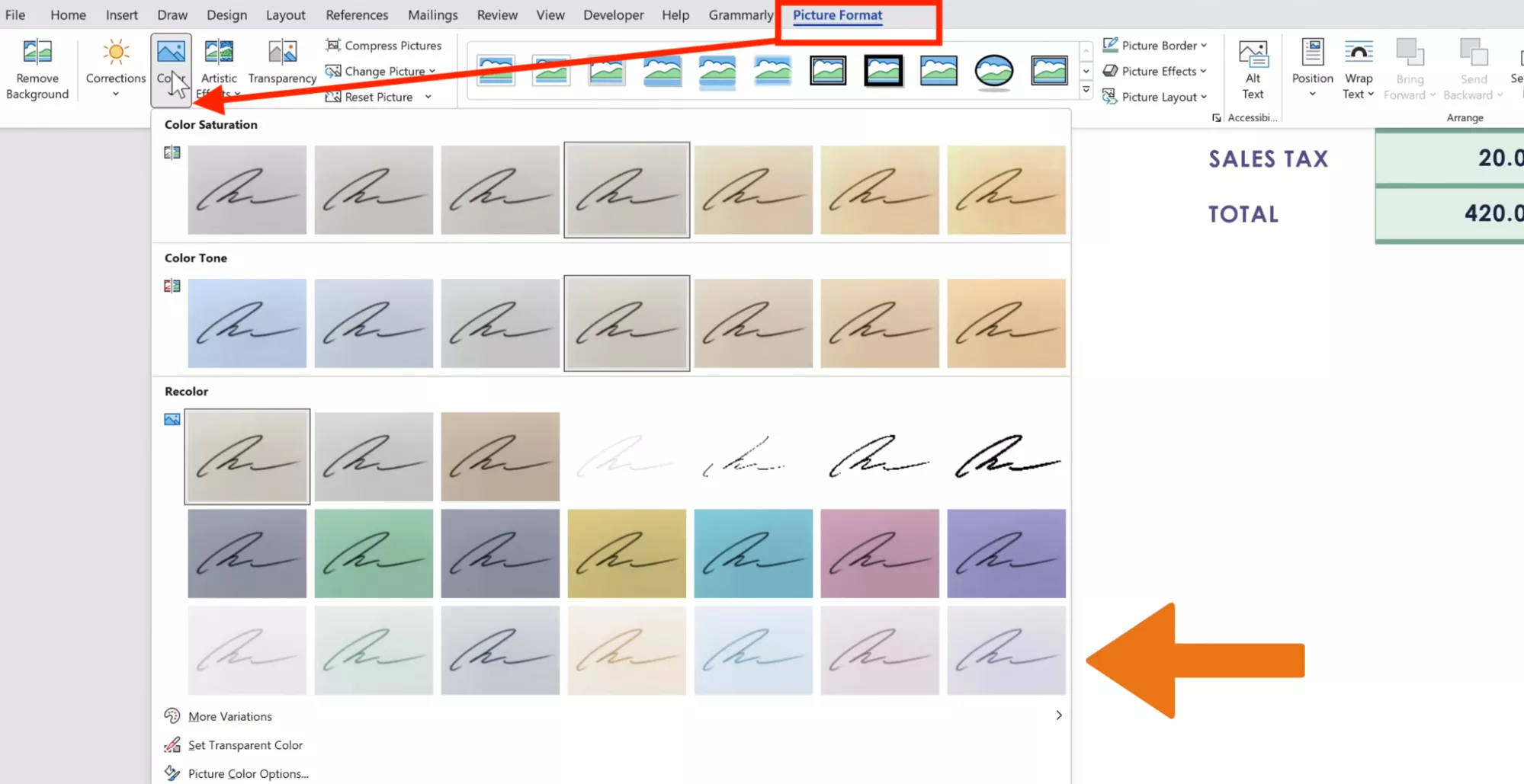
5. Next, remove the grey background around the signature, select the image, and click the “Picture Format” option. Now, choose “Color” and select Black and White 75% signature image.
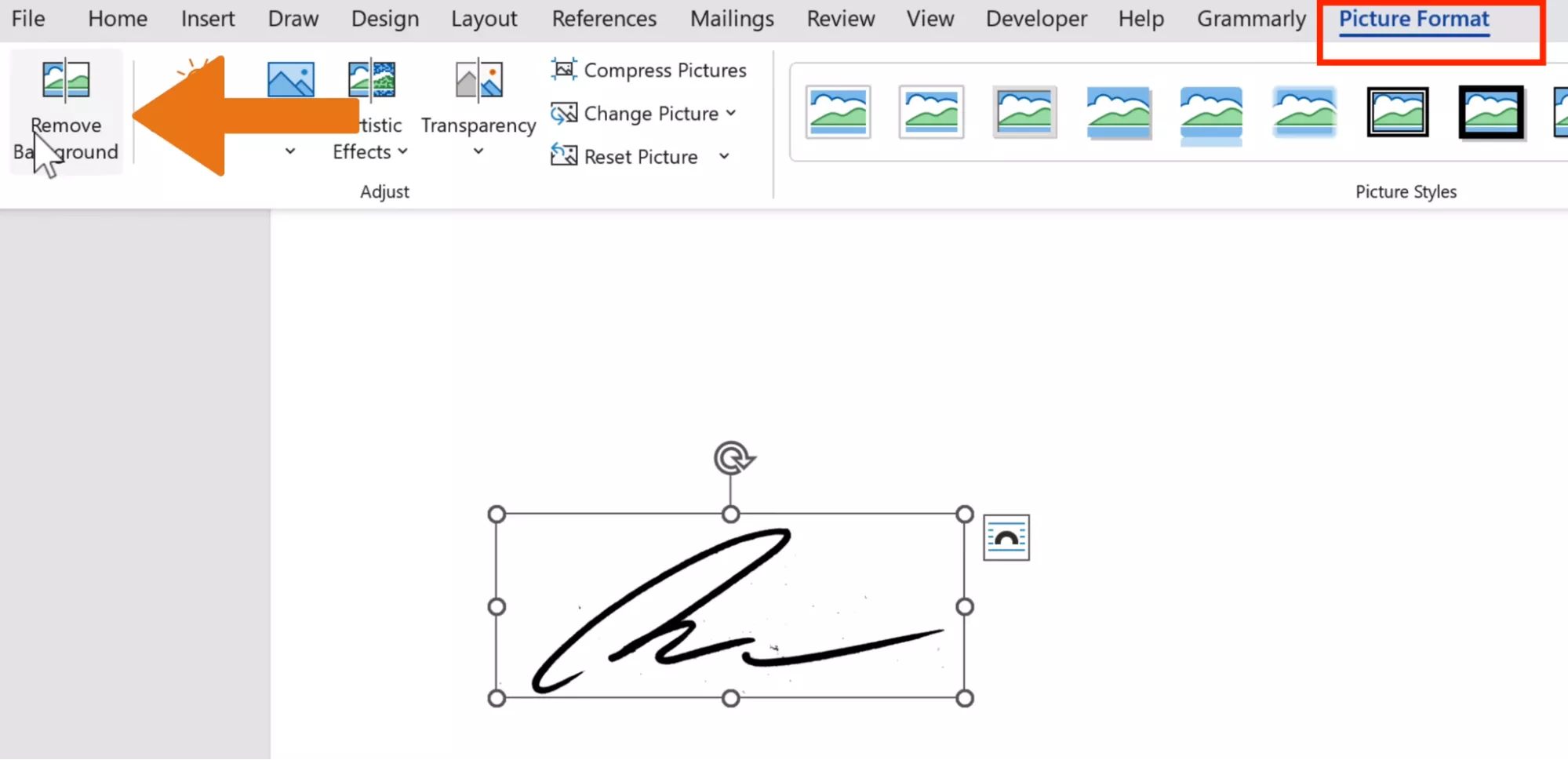
6. Now, you have to remove the white background of the selected image. To do that, again click “Picture Format” and select the “Remove Background” option.
7. In the final step, select your signature image and place it where you want to add your signature.

Similarly, you can also use an online tool to insert a signature image.
1. Go to Google and search for Online Signature Creator.
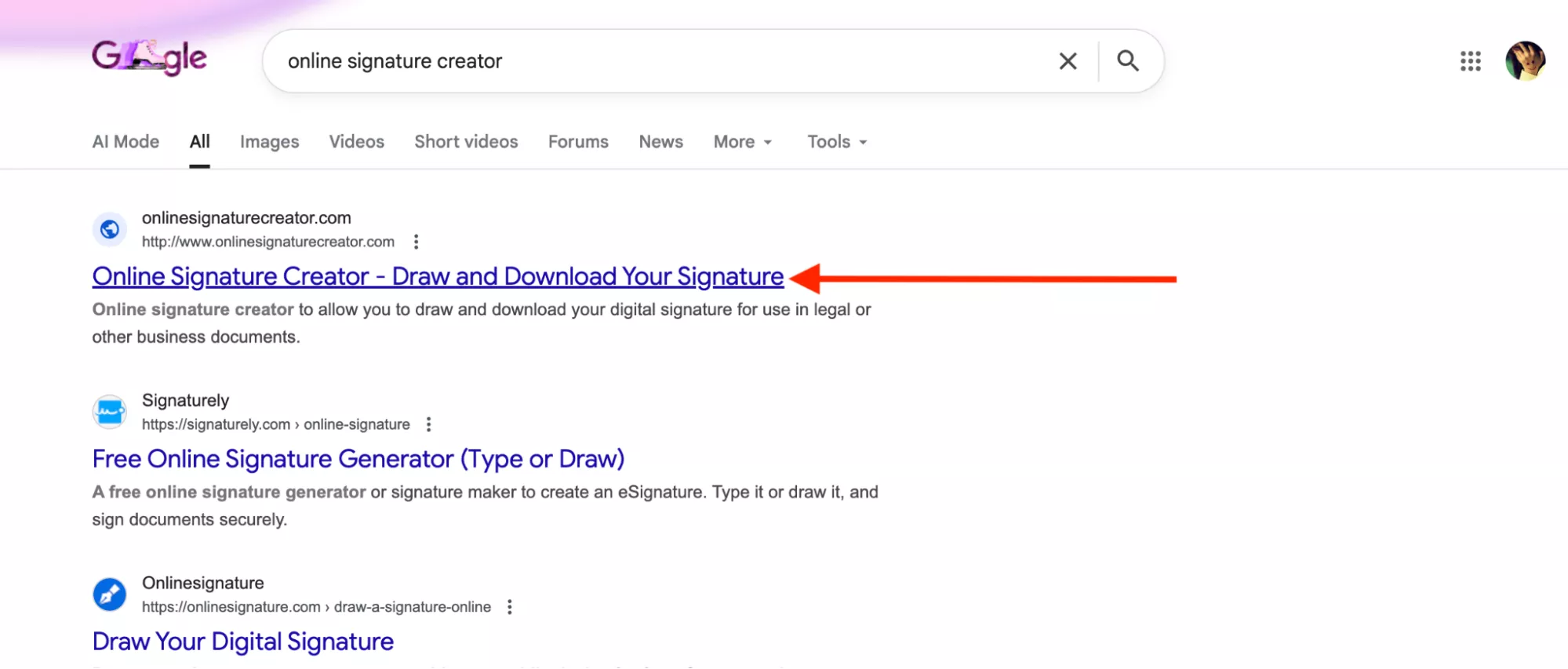
2. Click the link to get the blank canvas where you can add your signature.
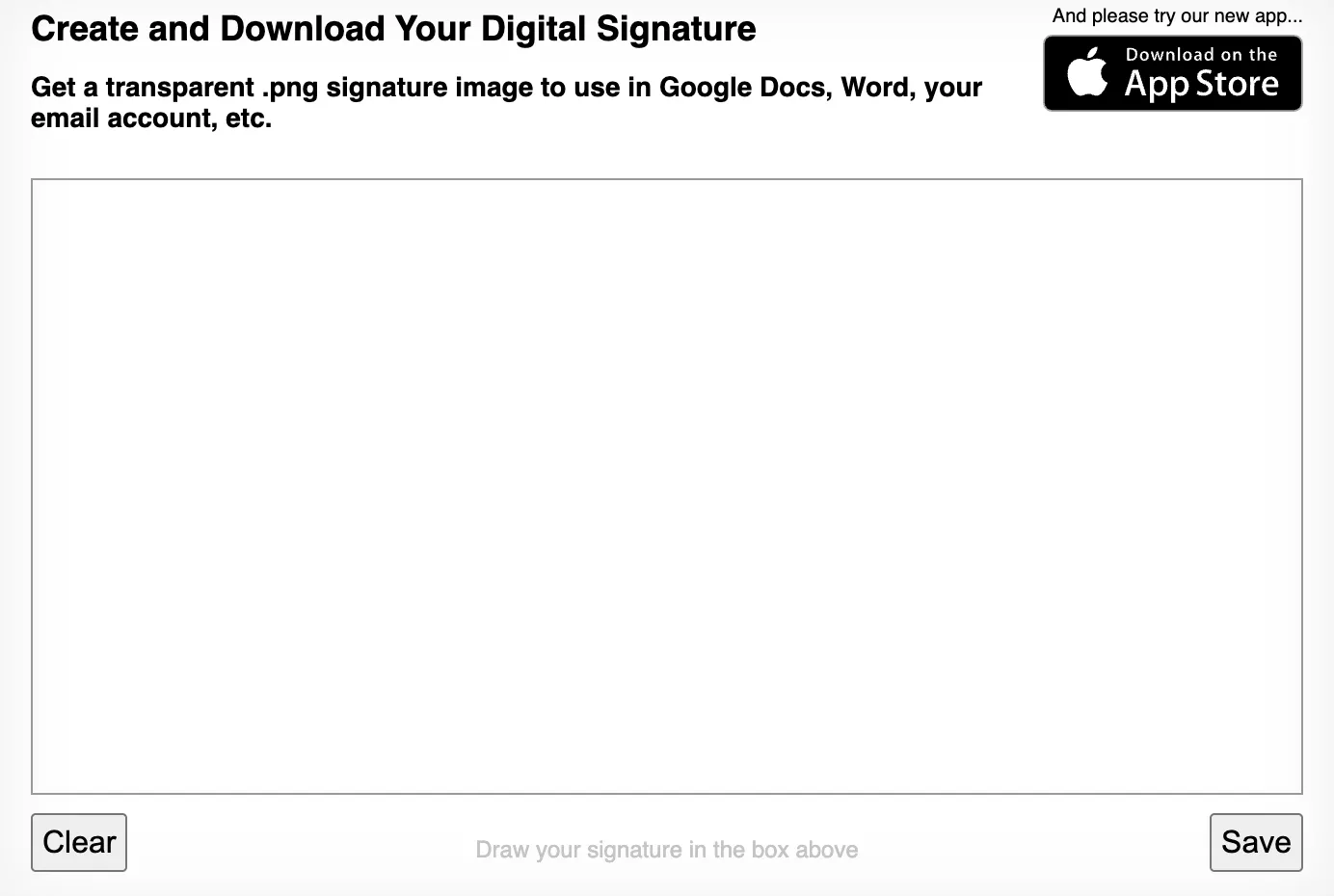
3. Now, create your signature and click the “Save” button to download it.
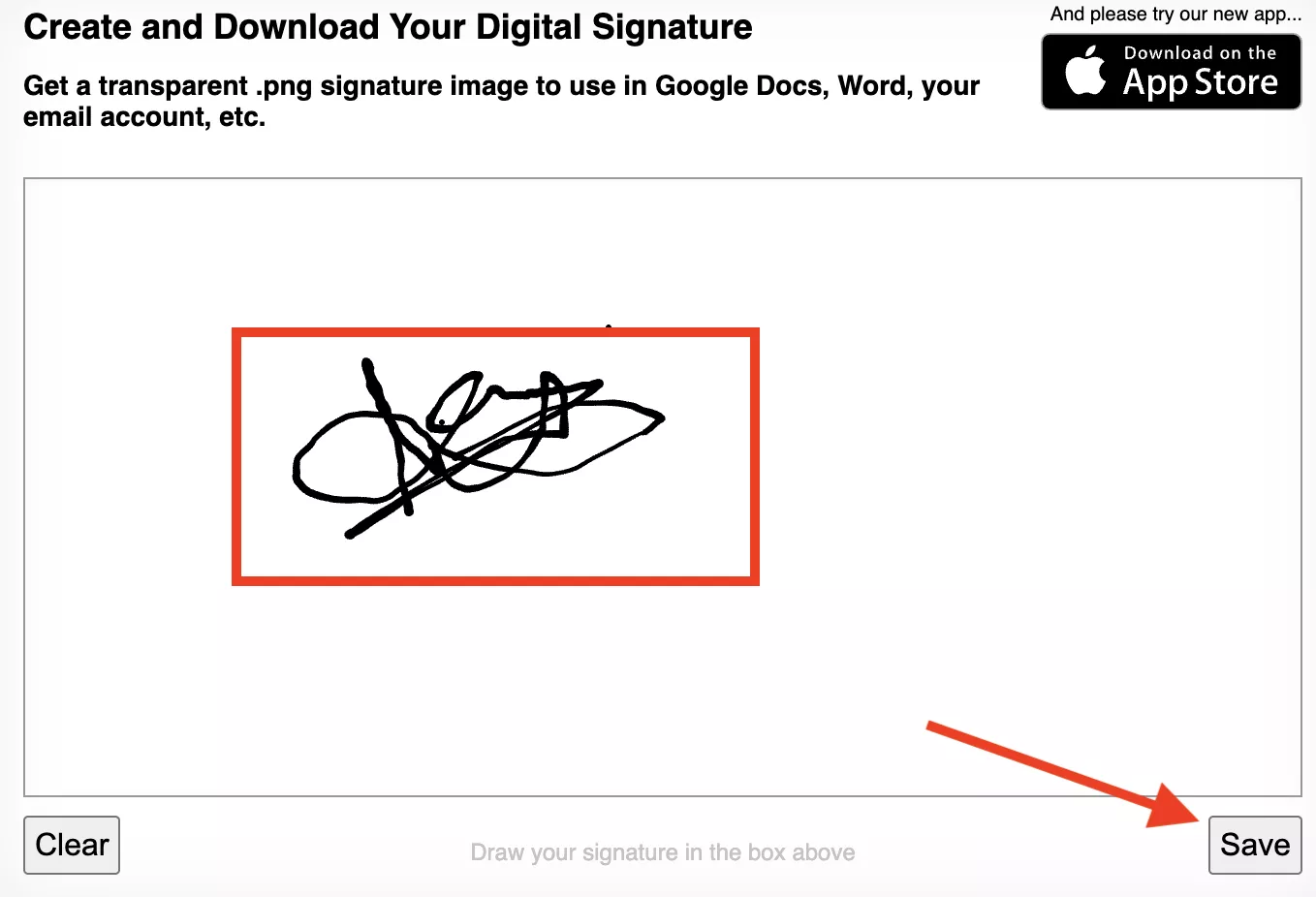
4. After downloading your signature, go to Word and add it in the document wherever you need it.
Part 2. Can a Word document have an Electronic Signature?
Yes, a Word document can include an electronic signature. Let’s see how you can do it.
1. To add an electronic signature, open Word document and choose the area where you want to add the signature.
2. From the top menu, choose the “Insert” option and click “Signature Line.”
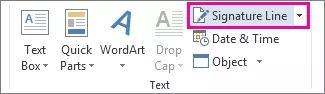
3. After clicking the Signature line option you will see a pop-up box. Now, type your name, draw your signature, or insert an image of your signature.
4. Next, confirm the signing certificate and click “Sign” to add the signature.

Part 3. How To Sign a Pdf Document Without Printing?
If you want to sign a PDF document without printing, then you should definitely try UPDF. It is an easy-to-use PDF editor that works like Adobe Acrobat Pro, but comes at a lower price. It lets you edit, highlight, convert, organize, and sign PDF files all in one place. Under the UPDF free version, all features are available with trial watermarks added.
Apart from editing PDF files, you can use this tool to add electronic or digital signatures to your documents, and even save your signature so you don’t have to draw it every time. What’s more, you can open a Word file as a PDF, sign it, and then change it back to Word without disturbing the layout.
Windows • macOS • iOS • Android 100% secure
On PC
To sign a PDF document file without printing, open UPDF app on your PC and drag and drop the file. You can also click the “Open File” option to upload your PDF file. After uploading the file, you can follow the steps mentioned below to add electronic and digital signatures
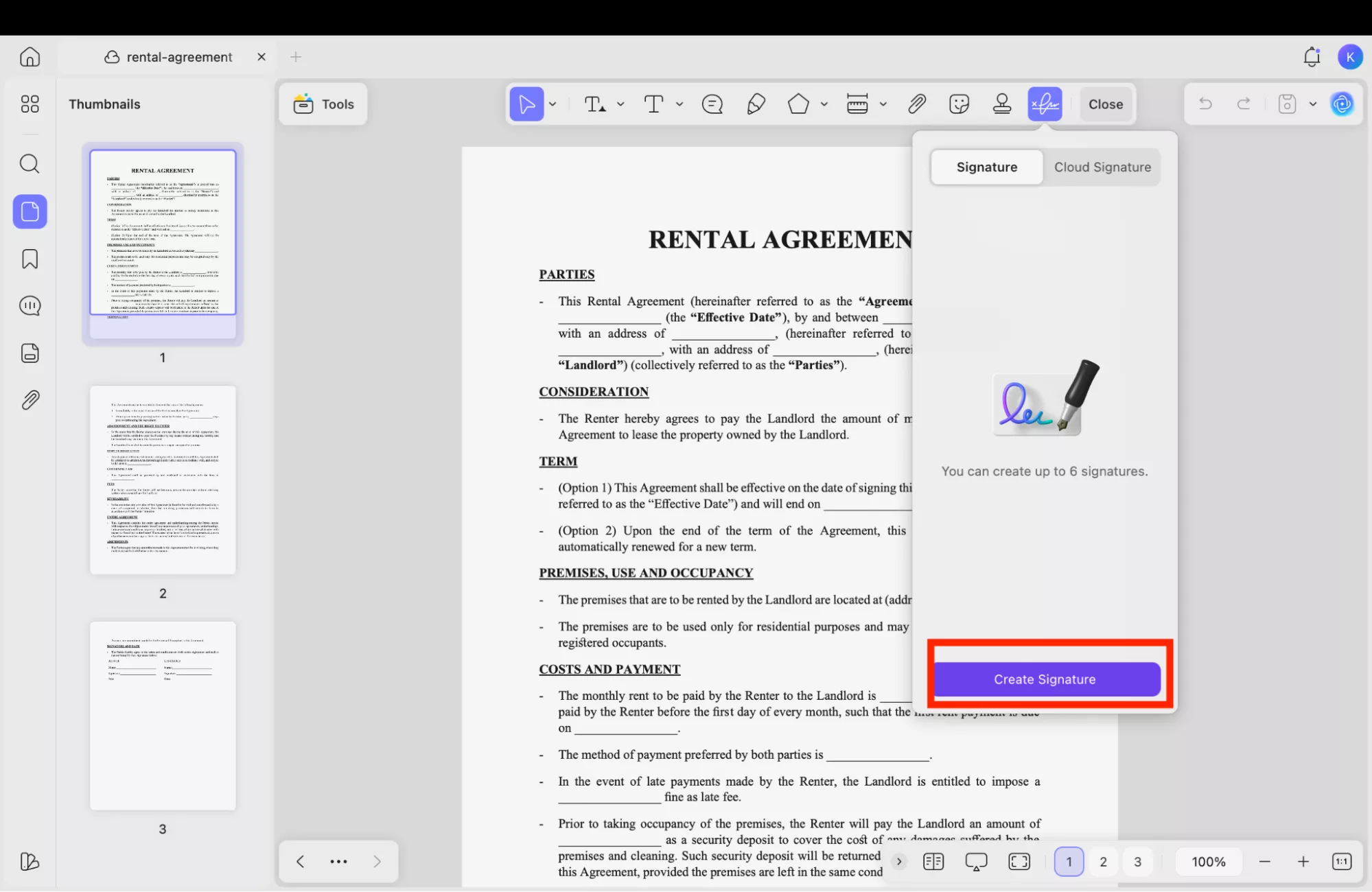
1. After opening your PDF file, click “Tools” and choose the “Comments” option. Now, click the signature option from the menu.
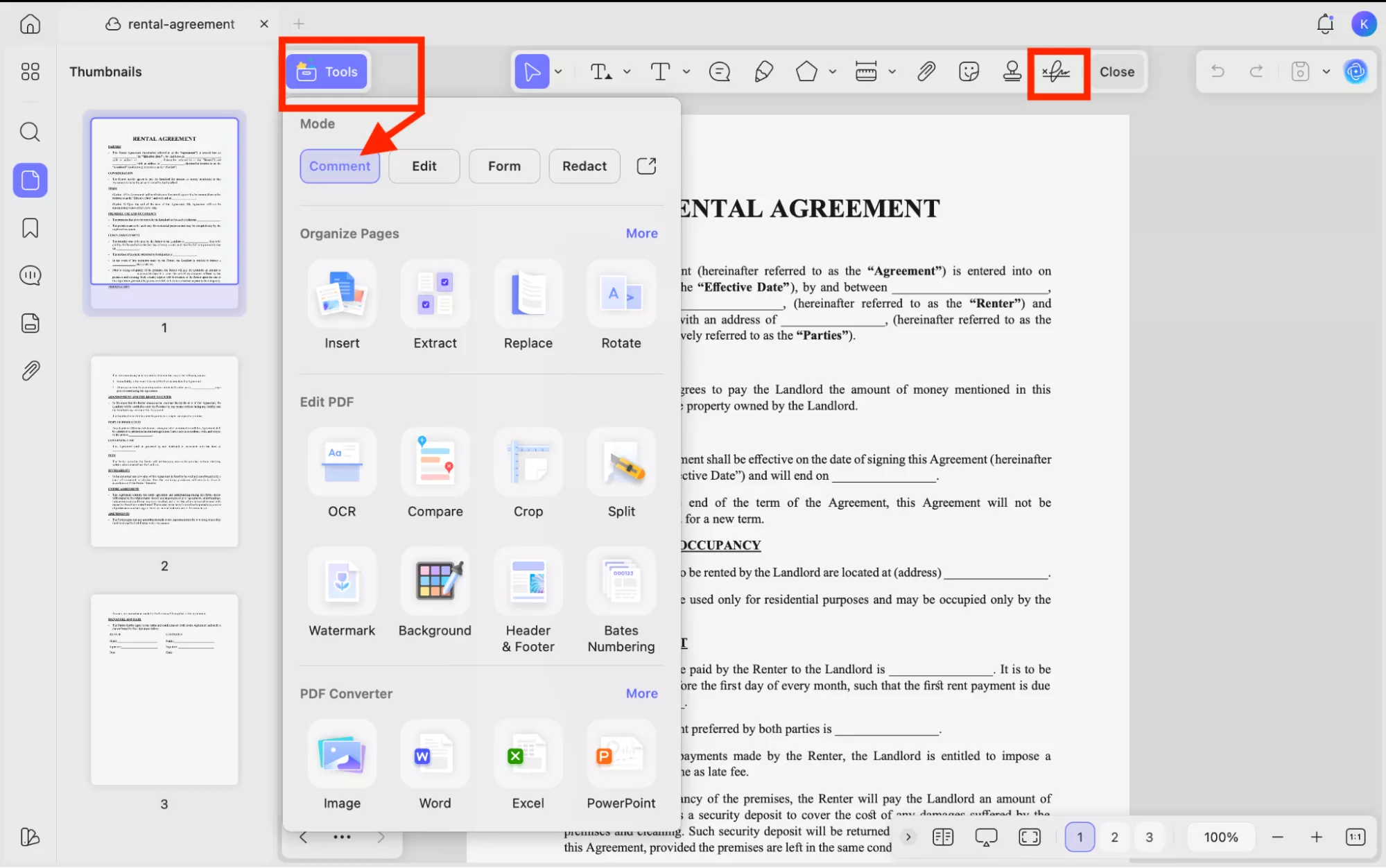
2. Now, click the “Create Signature” option to create a new signature.
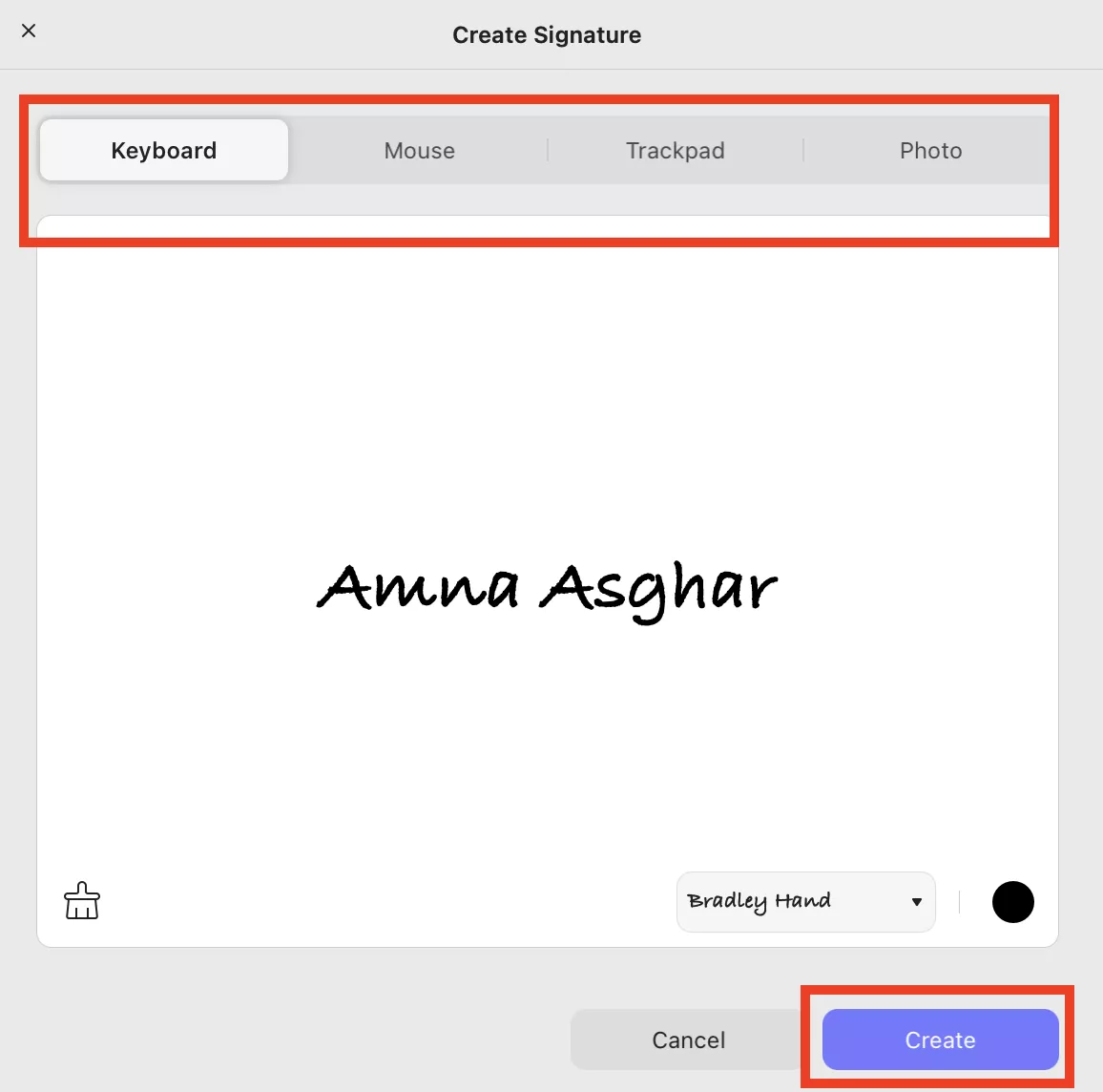
3. On the screen, you will see different methods of creating a signature, such as Keyboard, Mouse, and so on. Add your signature and click the “Create” option.
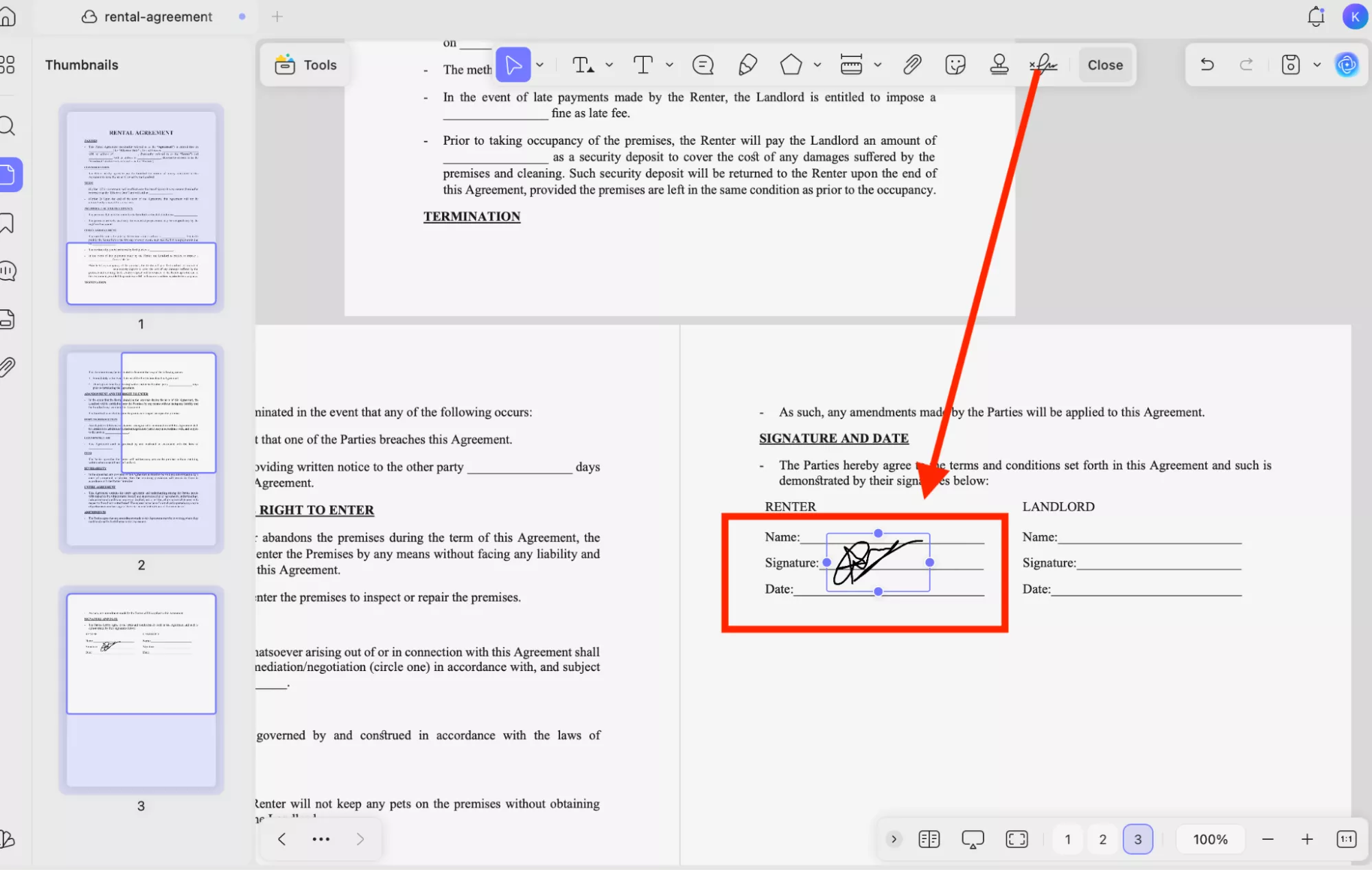
4. After creating your signature, go to the location where you want to insert it.
Tip: You can also add a digital signature by using the “Form” feature.
1. Click “Tools” and choose the “Form” option. Now, click the “ Digital Signature” option from the menu.
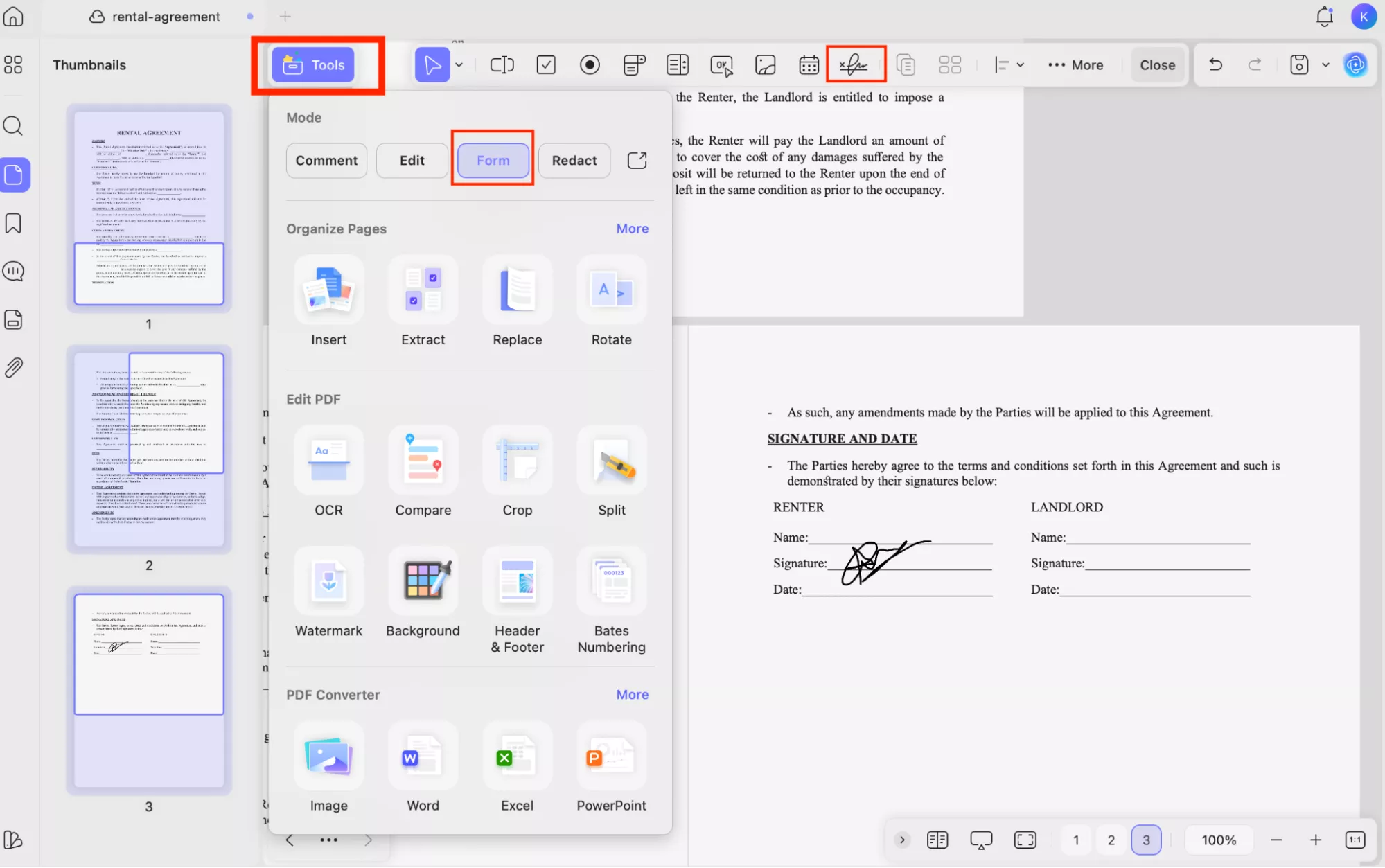
2. Next, click on the area in the document where you want the signature field to appear. You can also resize the signature field.
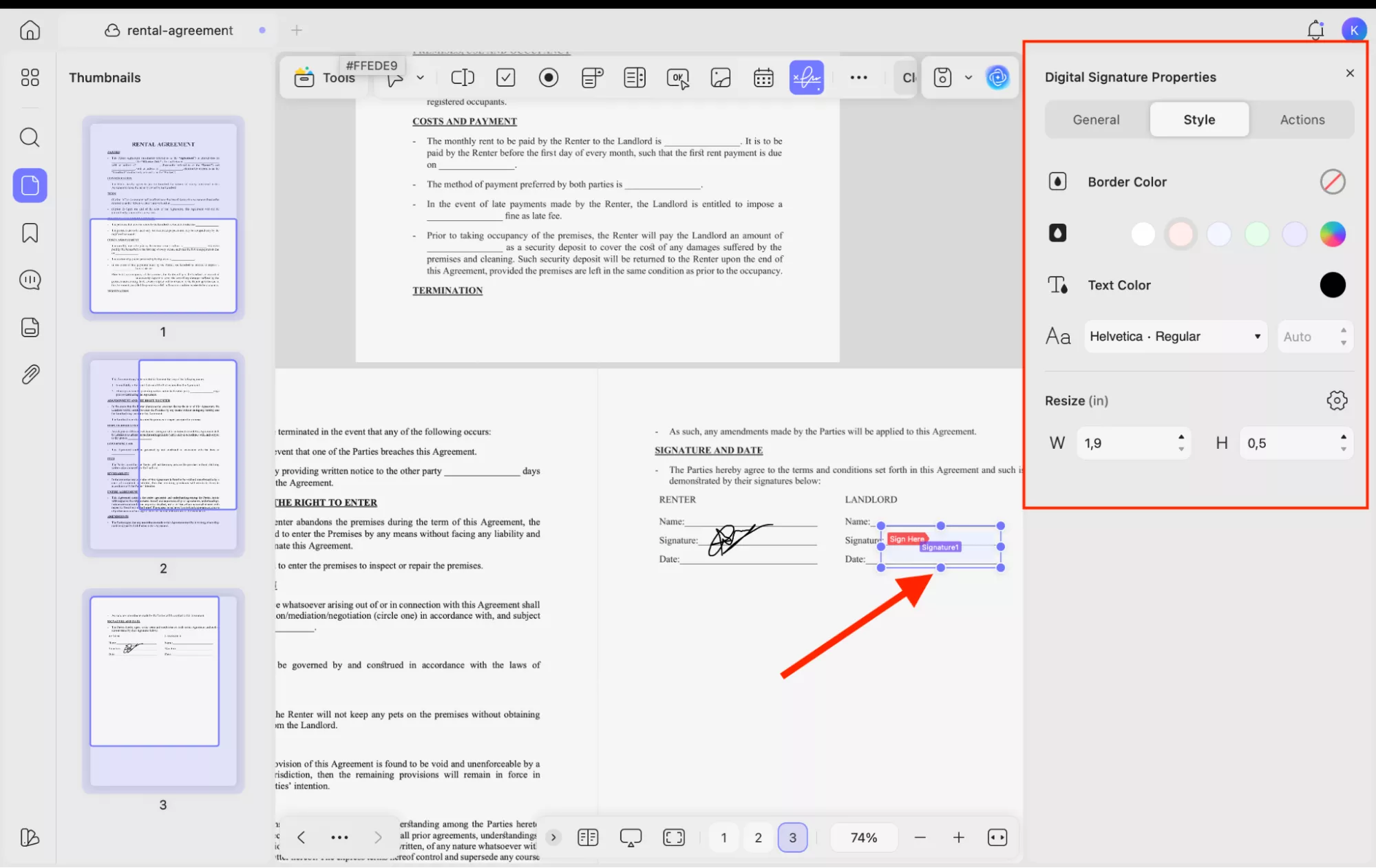
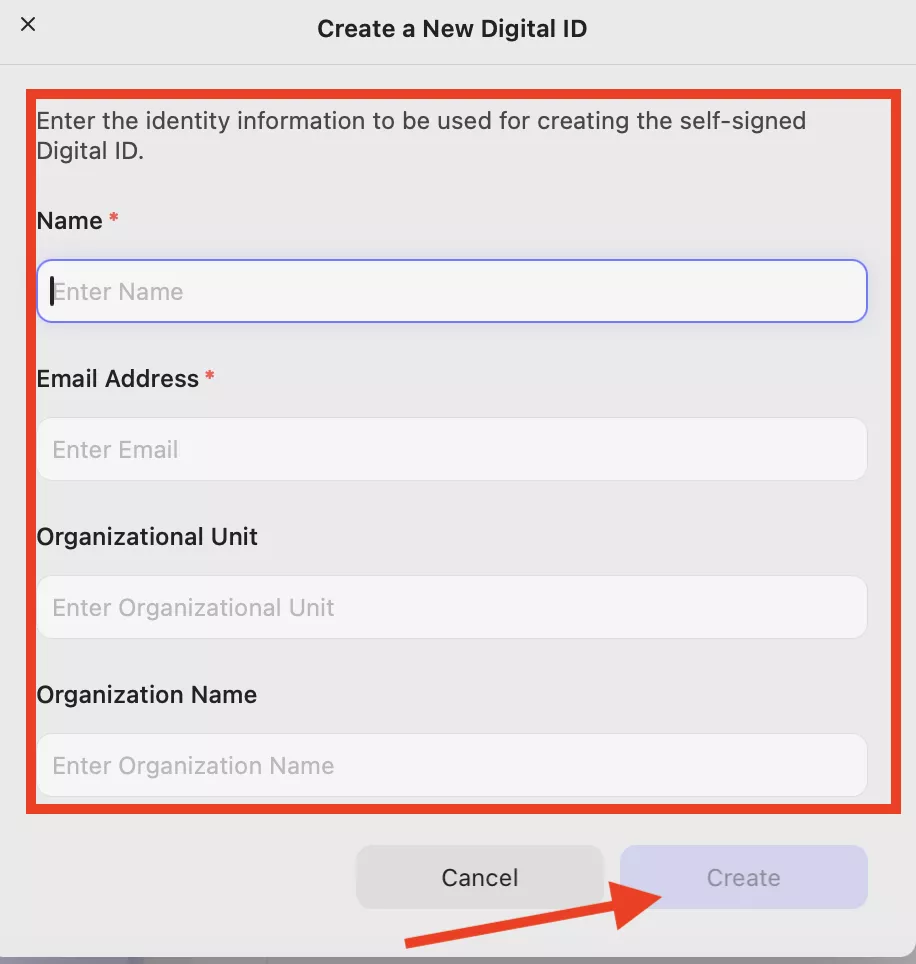
3. Now, click on the signature field you created and follow the prompts to create and apply the signature.
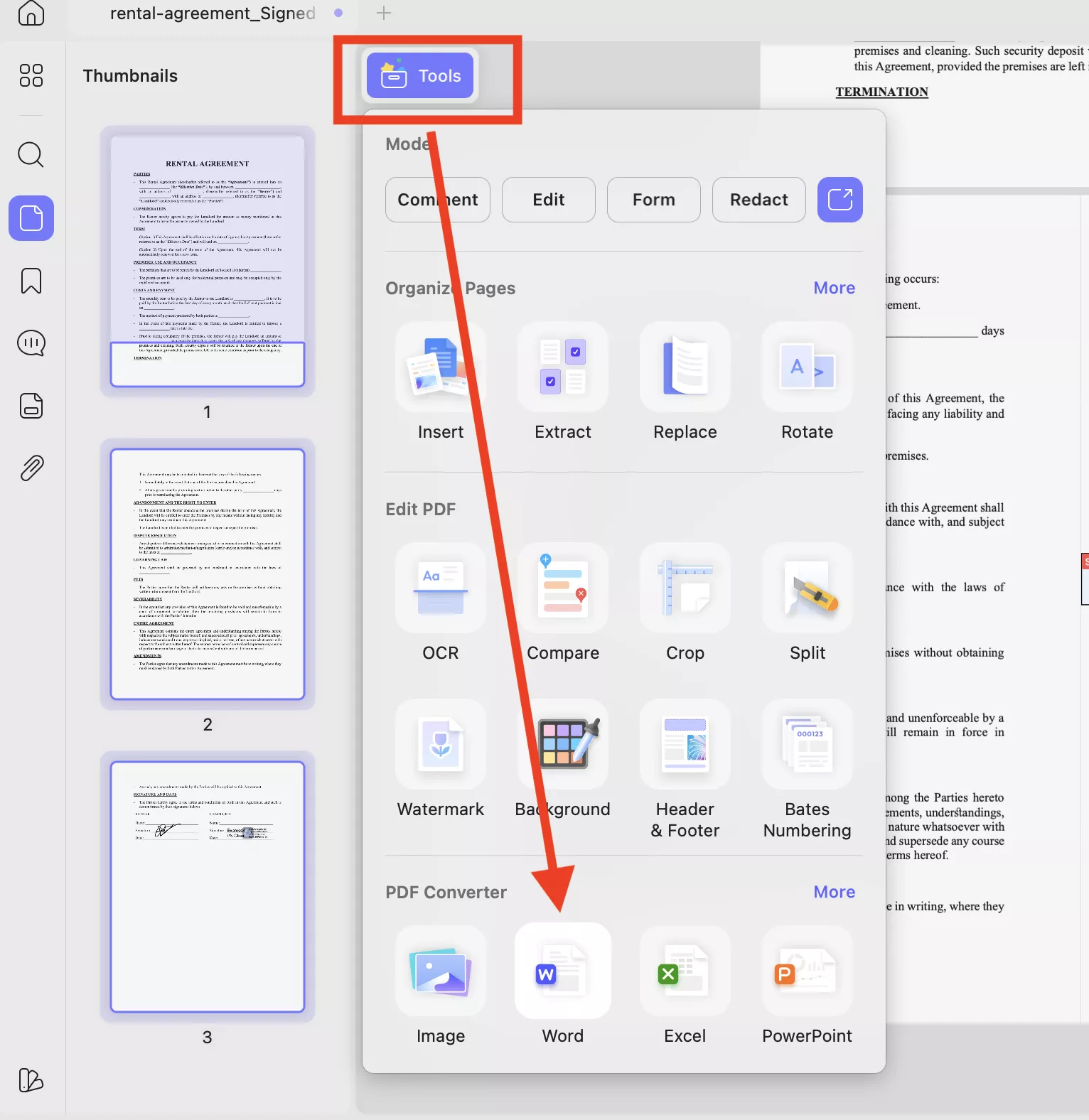
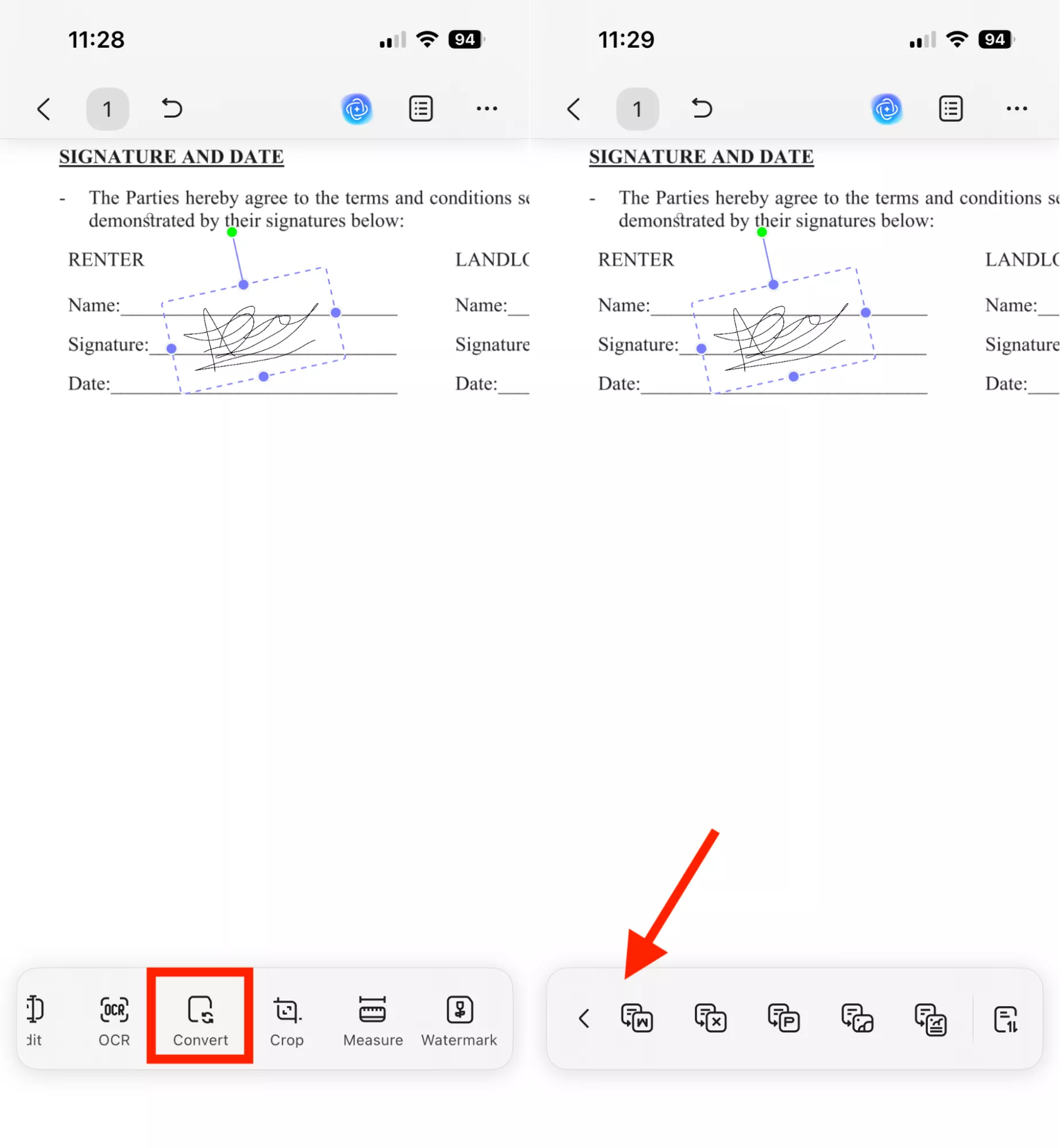
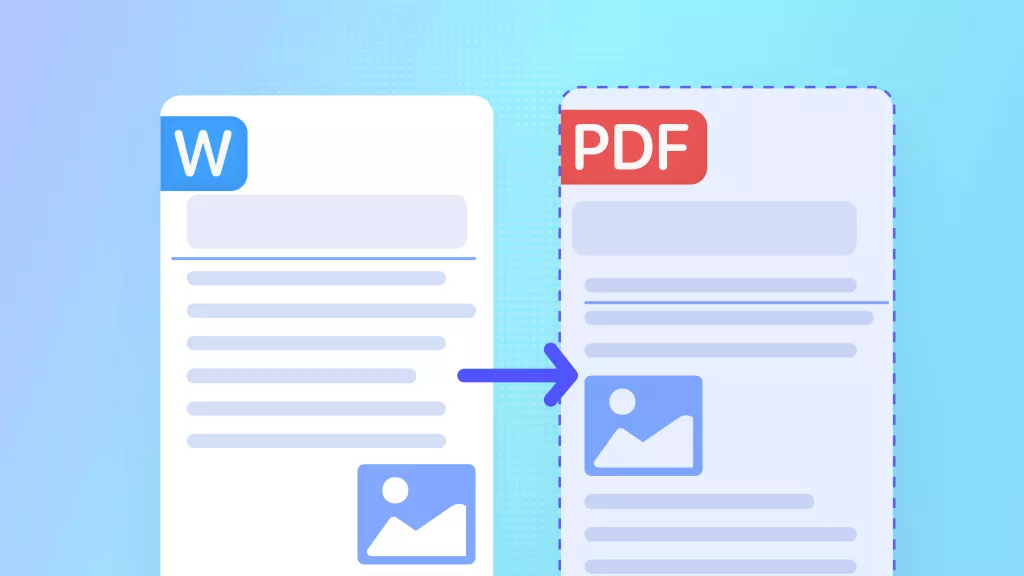
Tip: You can also use UPDF to sign a Word document by converting it to PDF, and then convert it back to Word after signing if needed. To do this, just click “Tools” and choose “Word” to convert your PDF into Word.
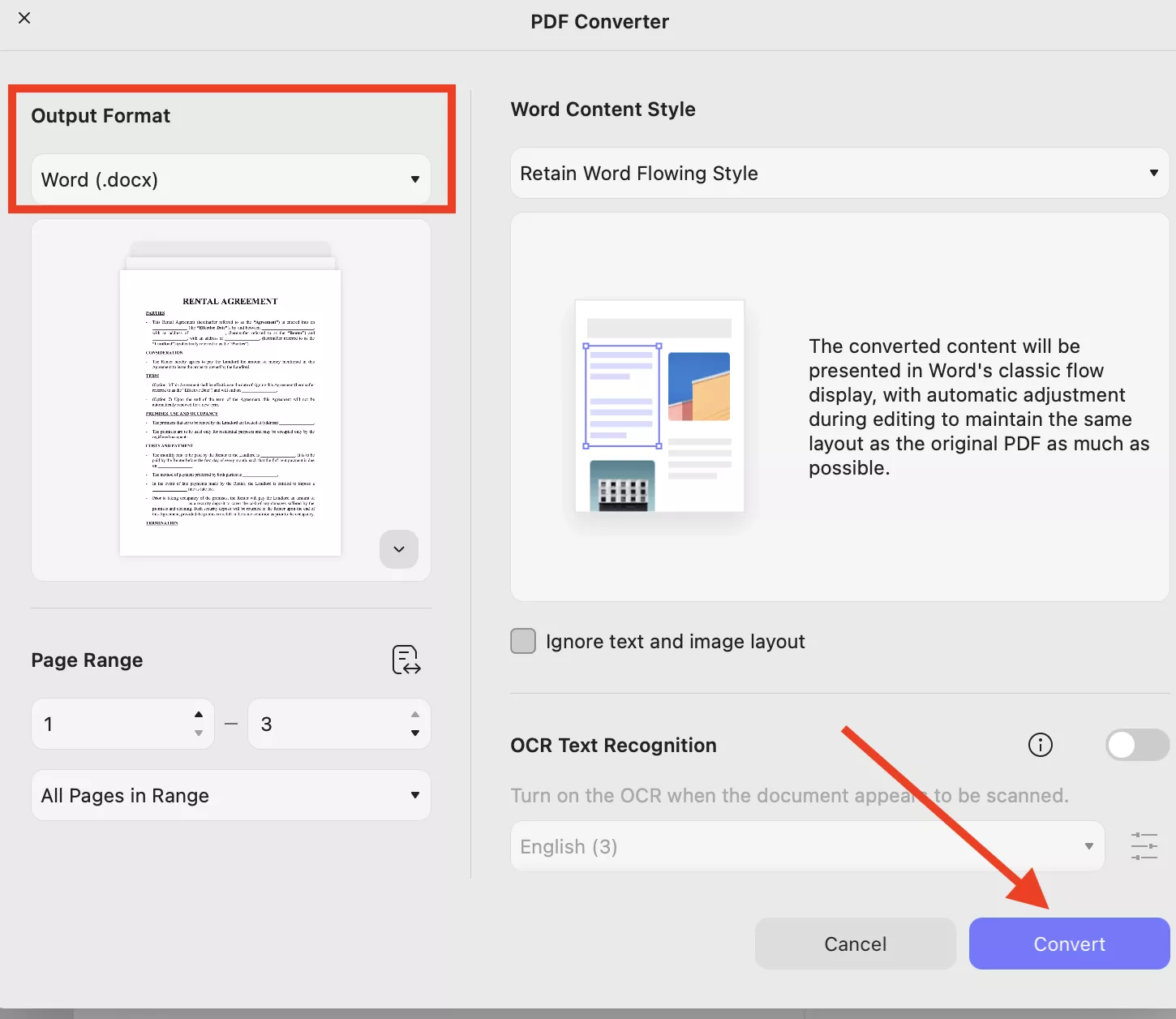
Now, choose Output Format and other settings, such as Page Range and click the “Convert” option.
On Mobile
In addition to signing PDFs on the desktop version, UPDF also allows you to add digital signatures and electronic signatures using its mobile app, so you can easily sign documents anytime, anywhere. Before getting started, download the UPDF mobile app from:
Windows • macOS • iOS • Android 100% secure
After downloading the app, launch it on your mobile phone and follow the steps below to sign your PDF digitally without printing.
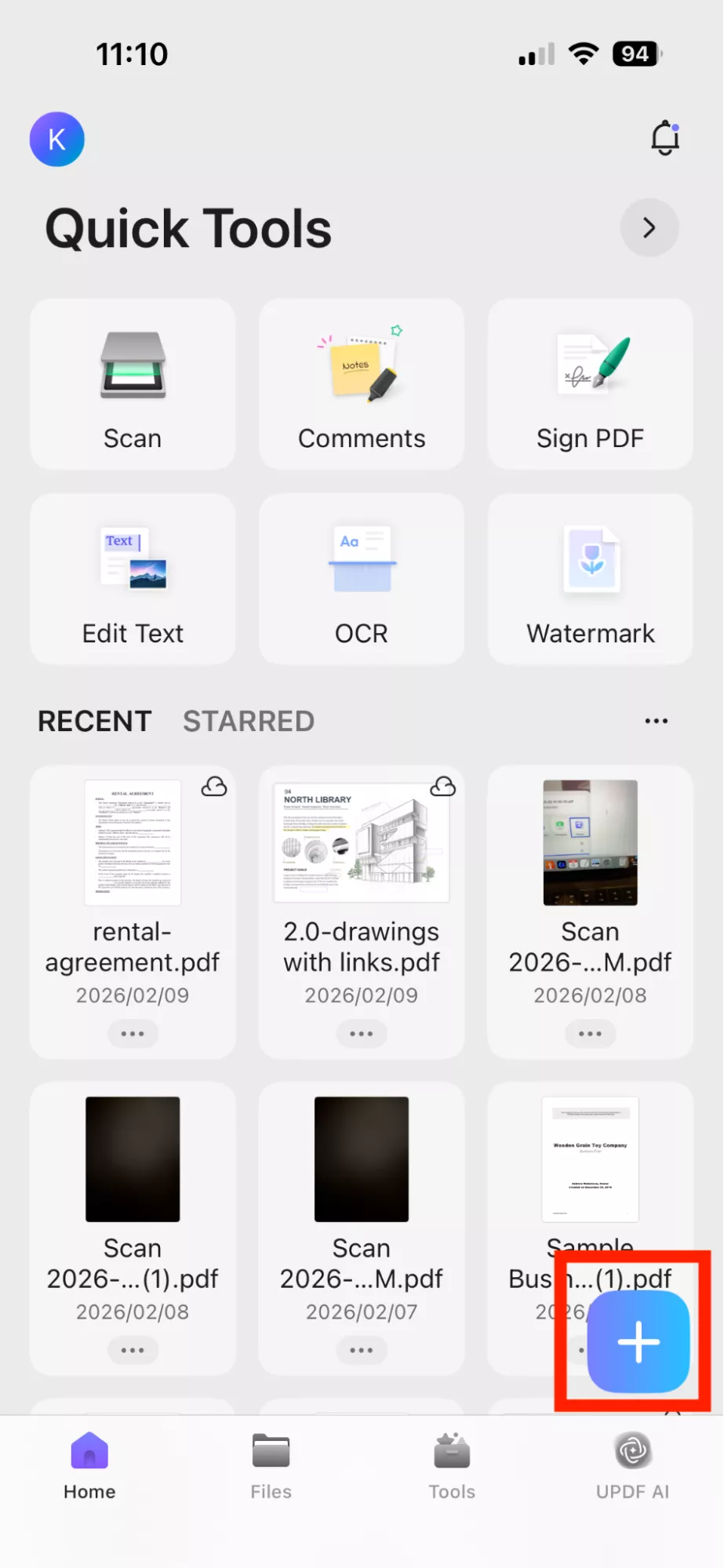
1. Open the UPDF app and upload your PDF file by using the “+” icon.
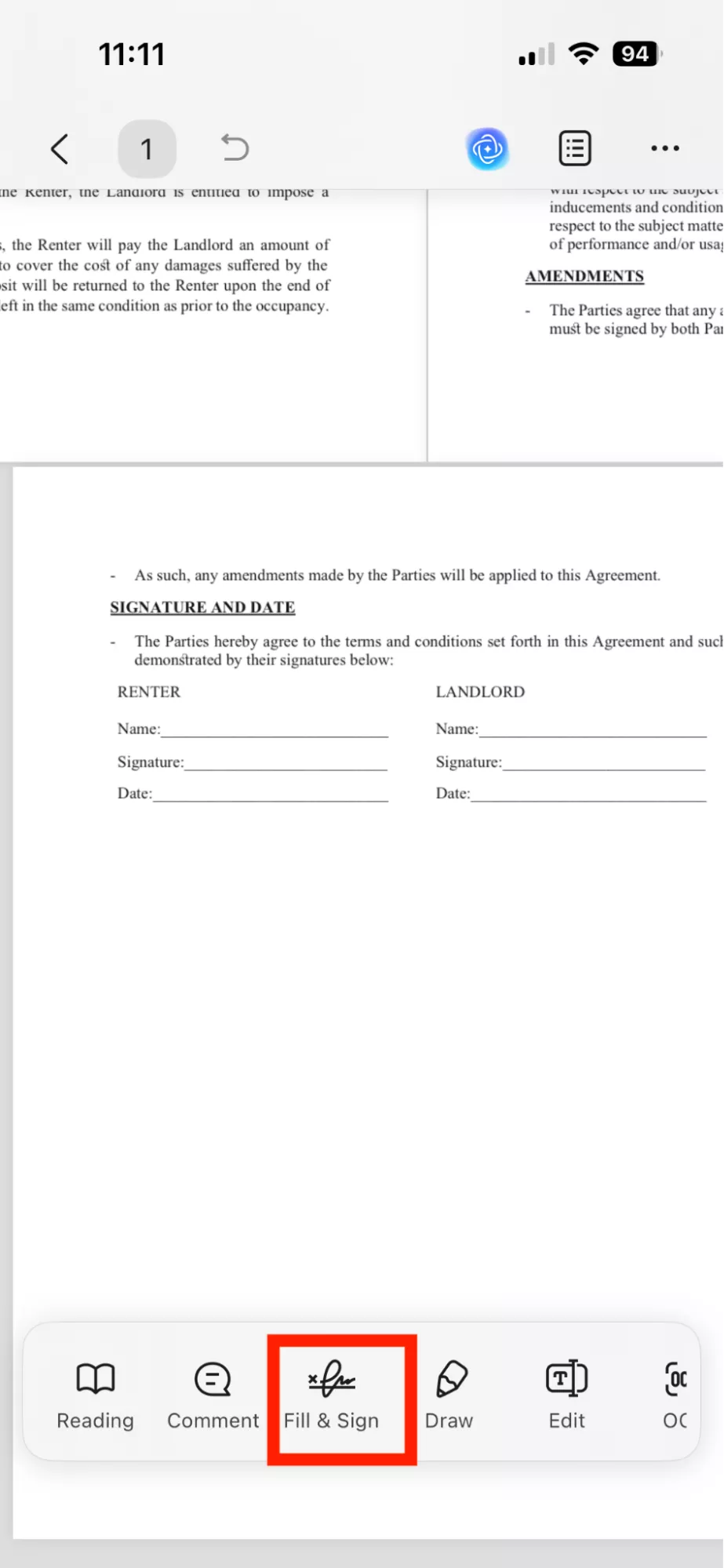
2. Next, open the PDF file and click the “Fill & Sign” option. Again, click the “Signature” option.
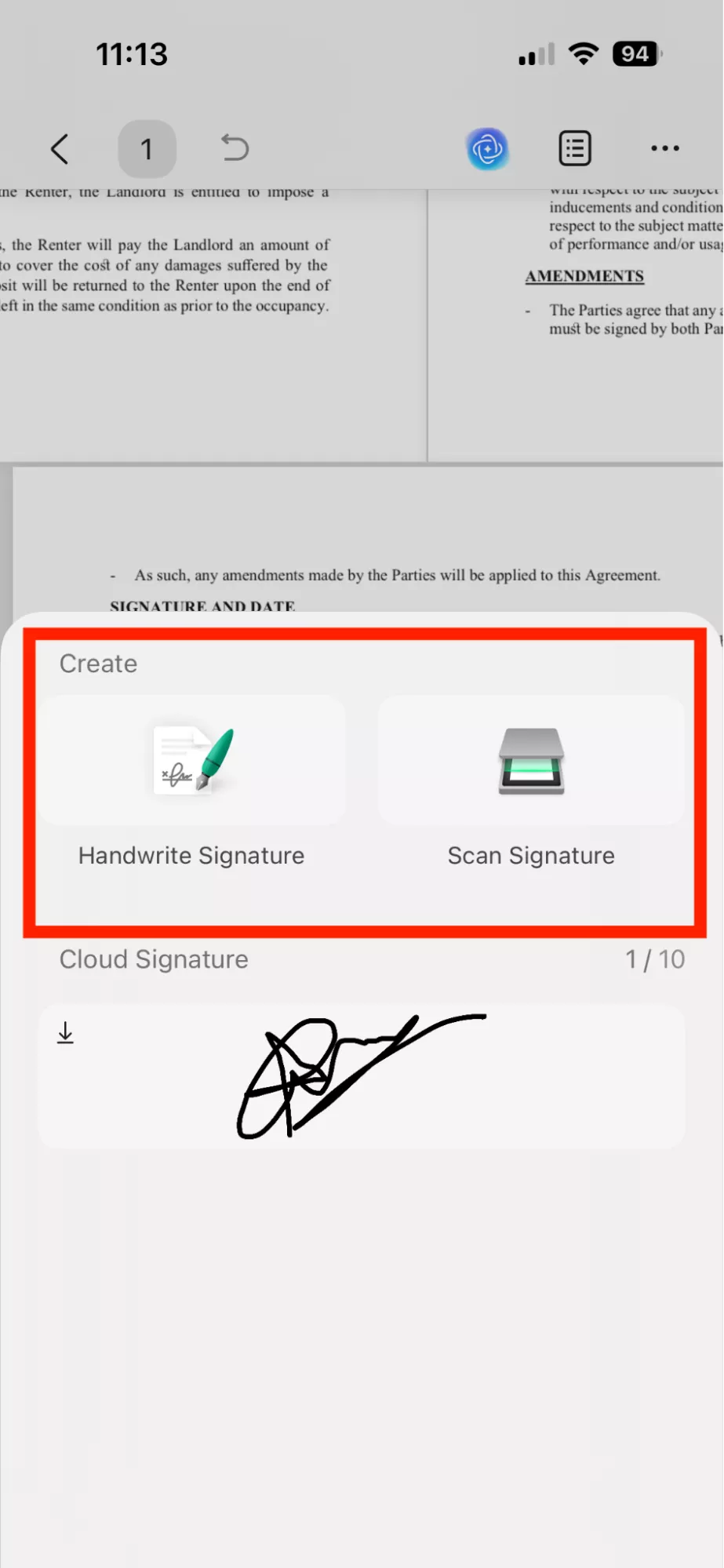
3. Now, either choose “Handwrite Signature” or “Scan Signature” options.
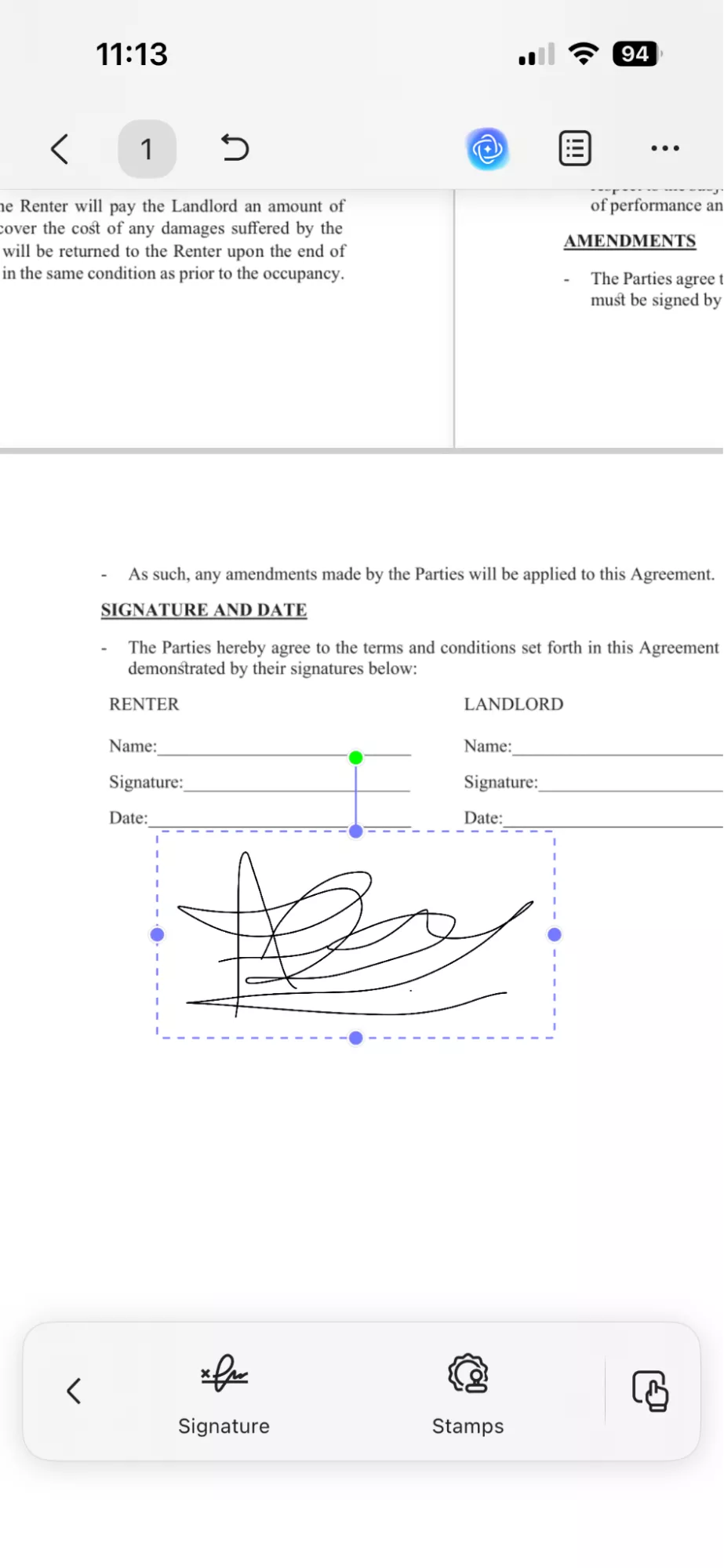
4. After creating your signature, click the “Done” option and place the signature in the desired location and save your PDF.
Tip: After signing the document, you can convert the PDF back to a Word file. Simply click the “Convert” option and choose “Word” to export your document.
UPDF Other Features
Here are some of the other top features available in the UPDF app. Let’s go through them one by one.
- Advanced Editing like Word: Just like Word, UPDF also allows you to edit PDF documents. You can quickly modify text, change fonts, adjust images and more.
- Powerful OCR (Optical Character Recognition): You can use the OCR feature to convert scanned documents and images into searchable and editable text. Moreover, it recognizes PDFs in 38 languages.
- Document Management: You can easily merge, split, extract, delete, rotate pages. Apart from that, you can also add watermarks, headers, footers and much more.
- Security & Signing: This tool also offers strong security features, including password protection and PDF redaction to secure sensitive information. Moreover, you can add electronic and digital signatures to secure your documents.
- Multiple Annotation Tools : UPDF offers a wide array of annotating functions, such as highlighting, underlining, sticky notes, shapes, comments, drawing tools and much more.
- Device Flexibility: No need to pay extra for licensing, as one UPDF license can be used for four different devices, including Windows, Mac, iOS, and Android.
- UPDF AI: With this tool, you can effortlessly summarize, translate, analyze, chat with multiple PDFs files, convert PDFs into visual maps, and more.
Part 4. FAQs
Q1. How Do I Insert a Signature in Docs?
To add a signature in Google Docs, choose “Insert” and click the “Drawing” tool. From there, choose + New and use the Scribble tool to create your signature.
Q2. How to Copy Signature from Image?
To copy a signature from an image, first open the image in an editing program and use a selection tool to carefully trace around the signature. Once selected, copy the area and paste it into a new document or image file, then crop and clean up the background as needed.
Q3. Is my Handwritten Signature also an eSignature?
No, not by itself. However, if you use your handwritten signature and add it to a digital document using different tools like Word, Google Docs, or a PDF editor like UPDF, it becomes an electronic signature.
Conclusion
That’s all, folks! I have mentioned how to sign a PDF document without printing. You can use all the above methods and sign your PDFs quickly and efficiently. Among these methods, I would suggest using UPDF because it is easy to use and offers a wide range of additional features.
Apart from adding signatures, you can also edit PDFs, merge files, convert PDFs to Word, and more. It also supports batch processing, so you can edit and convert multiple PDF files at once.
Windows • macOS • iOS • Android 100% secure






 Enola Davis
 Engelbert White