 UPDF
 UPDF for Windows
 UPDF for Mac
 UPDF for iPhone/iPad
 UPDF for Android
 Nomostar
 UPDF AI Online
 UPDF Sign
 IvyCraft
 Edit PDF
 Annotate PDF
 Create PDF
 PDF Form
 Edit links
 Convert PDF
 OCR
 PDF to Word
 PDF to Image
 PDF to Excel
 Organize PDF
 Merge PDF
 Split PDF
 Crop PDF
 Rotate PDF
 Protect PDF
 Sign PDF
 Redact PDF
 Sanitize PDF
 Remove Security
 Read PDF
 UPDF Cloud
 Compress PDF
 Print PDF
 Batch Process

 About UPDF AI
 UPDF AI Solutions
 AI User Guide
 FAQ about UPDF AI
 Summarize PDF
 Translate PDF
 Chat with PDF
 Chat with AI
 Chat with image
 PDF to Mind Map
 Explain PDF
 PDF AI Tools
 Image AI Tools
 AI Chat Tools
 AI Writing Tools
 AI Study Tools
 AI Working Tools
 Other AI Tools
 AI Bookmark Generation
 AI Bookmark Summary
 AI Watermark Generation
 AI Background Generation
 AI Sticker Generation
 AI Stamp Generation
 AI Editing Suite
 UPDF Copilot
 AI Page Management
 AI Semantic Search
 PDF to Word
 PDF to Excel
 PDF to PowerPoint
 Enterprise Solution
 Enterprise Sign
 Enterprise AI
 Enterprise Plan
 Enterprise User Guide
 Enterprise Webinar
 IT
 Education
 Construction
 Financial Service
 Healthcare
 Insurance
 Legal
 Manufacturing
 Government
 Researchers & PhDs
 Solopreneurs & Freelancers
 Lawyers & Legal Professionals
 Real Estate Agents & Brokers
 Education Solution
 Customer Stories
 User Guide
 UPDF Tricks
 FAQs
 UPDF Reviews
 Download Center
 Blog
 Newsroom
 Tech Spec
 Updates
 UPDF vs. Adobe Acrobat
 UPDF vs. Foxit
 UPDF vs. PDF Expert


Summarize PDF
Before You Begin
Table of Contents
Part 1. Summarize PDFs on Windows and Mac
Method 1. Summarize the Entire PDF
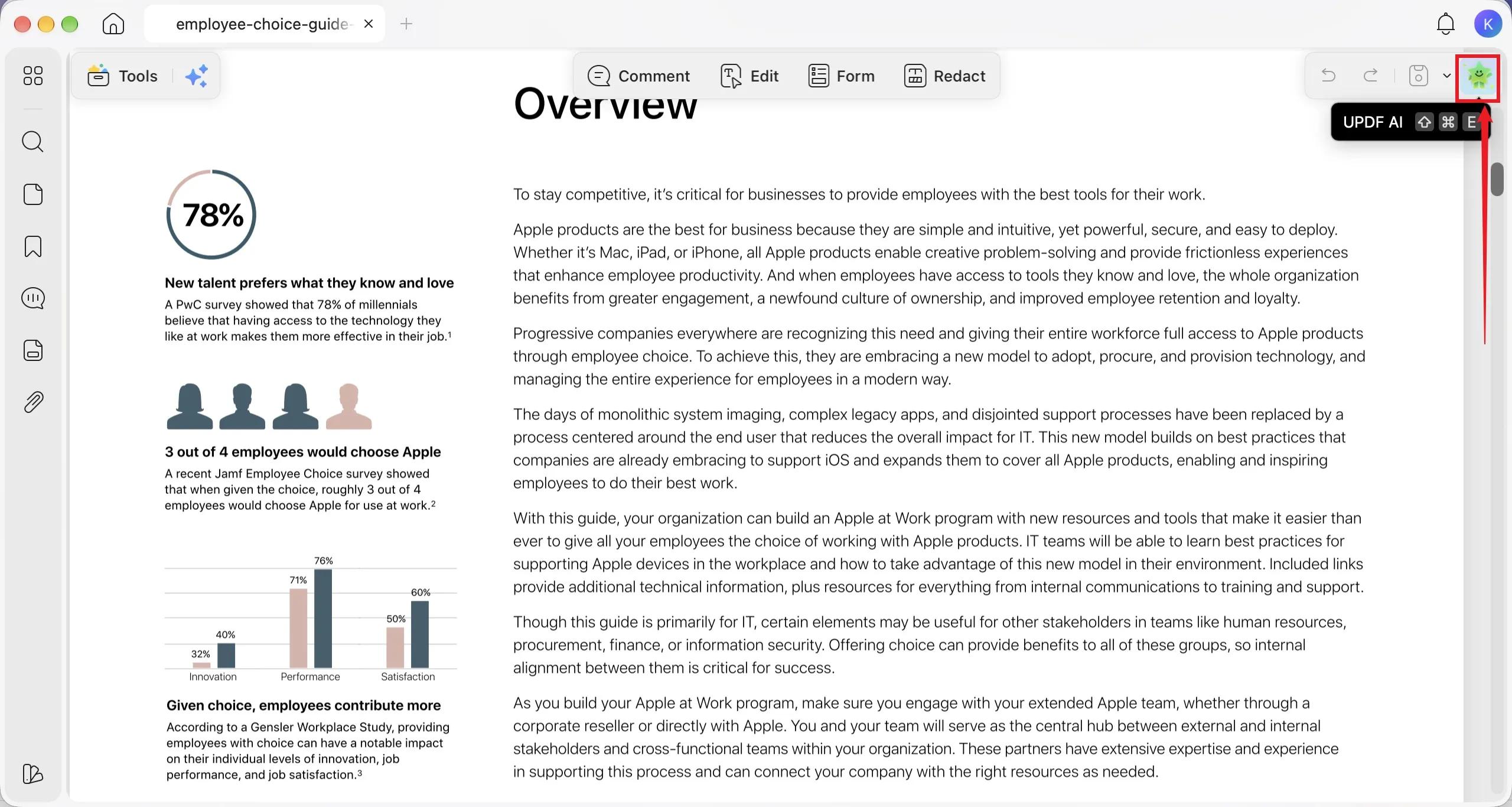
Step 1. Open your PDF in UPDF, then click the “UPDF AI” button in the upper-right corner to open the AI assistant.
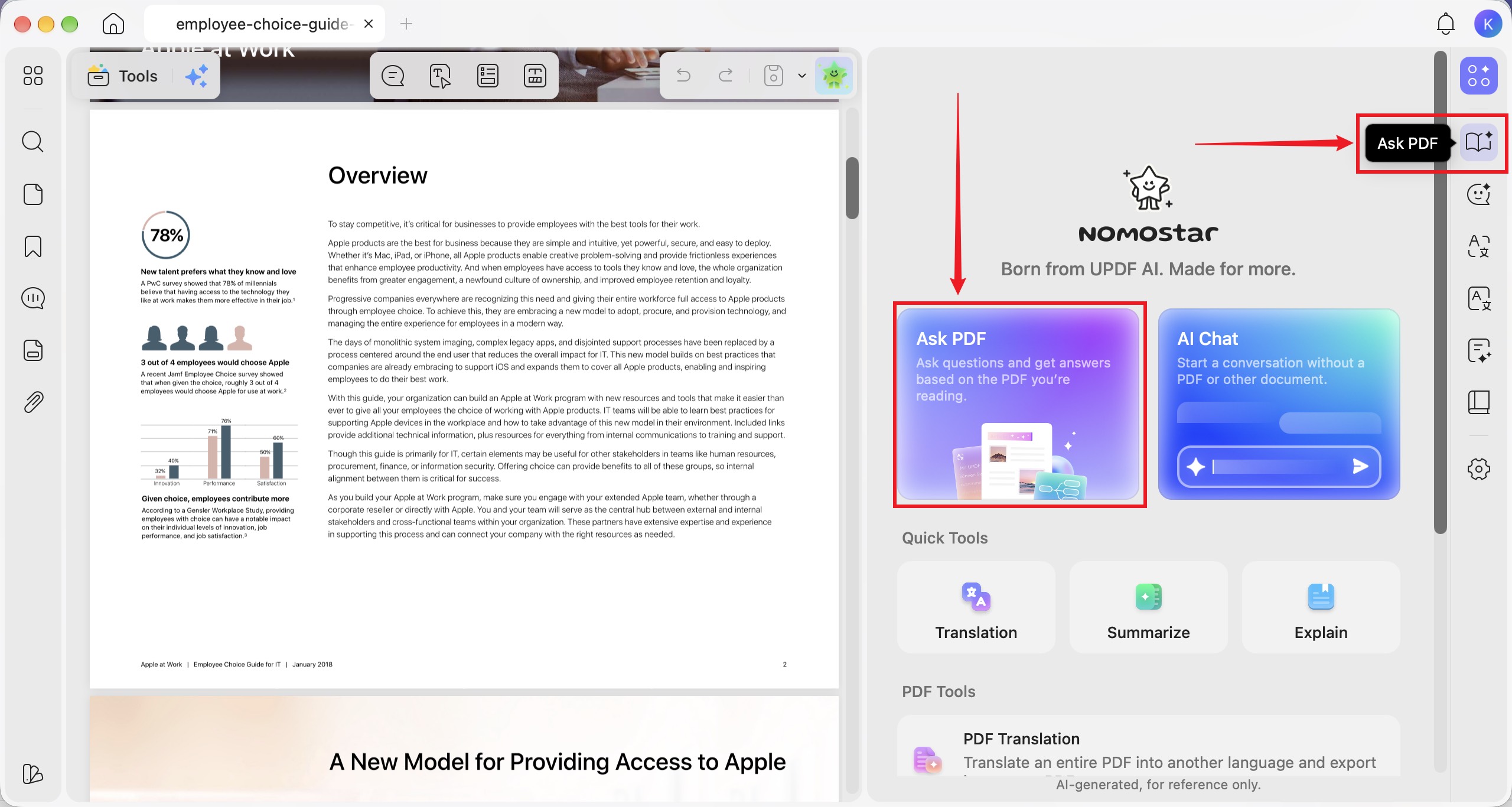
Step 2. Click the “Ask PDF” card or the “Ask PDF” icon on the right sidebar to enter Ask PDF mode.
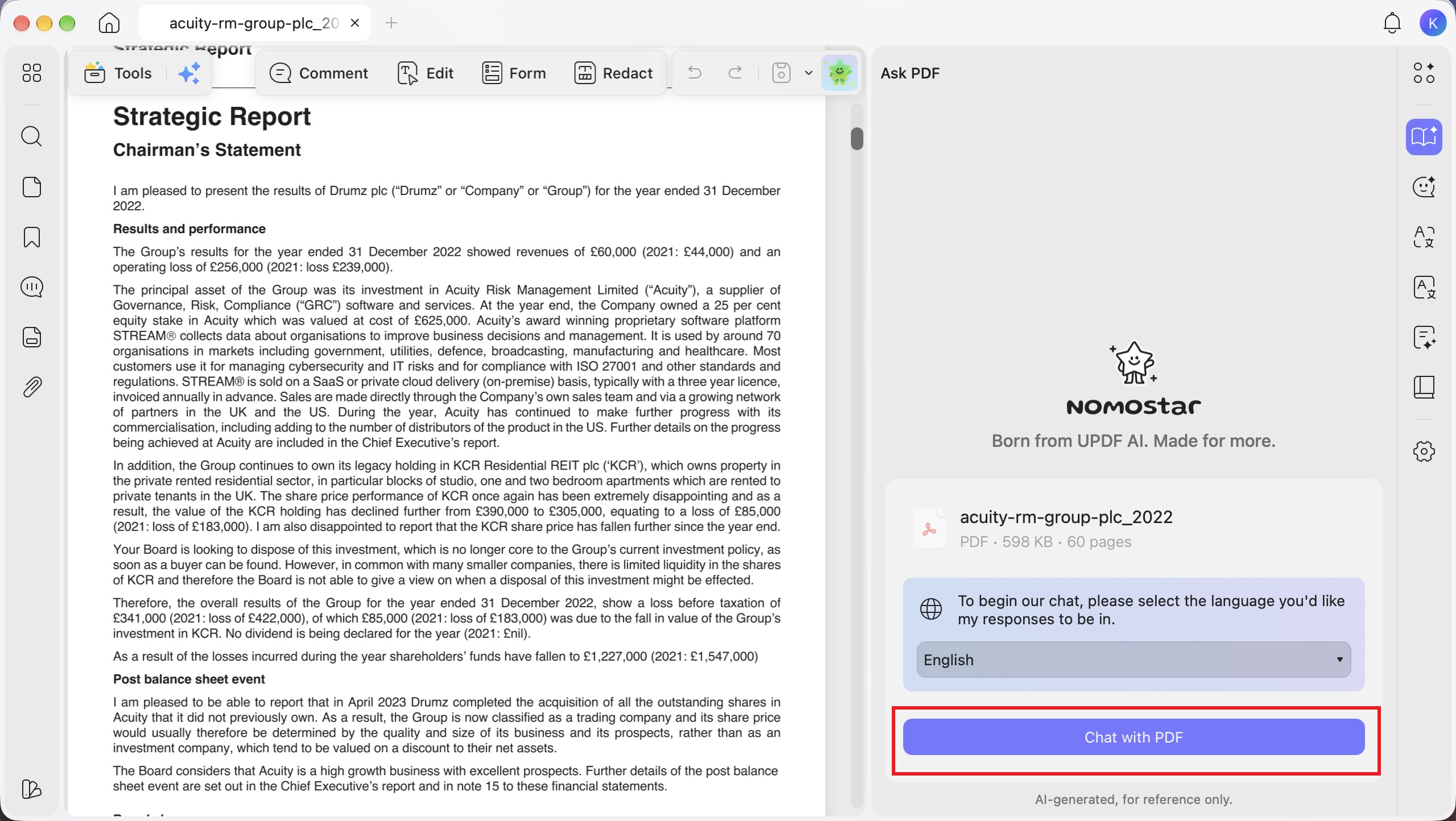
Step 3. Select your preferred response language from the drop-down menu, then click “Chat with PDF” to let AI read and analyze your document.
Step 4. After clicking “Chat with PDF,” UPDF AI automatically generates a summary of the entire PDF in the “Ask PDF” panel.
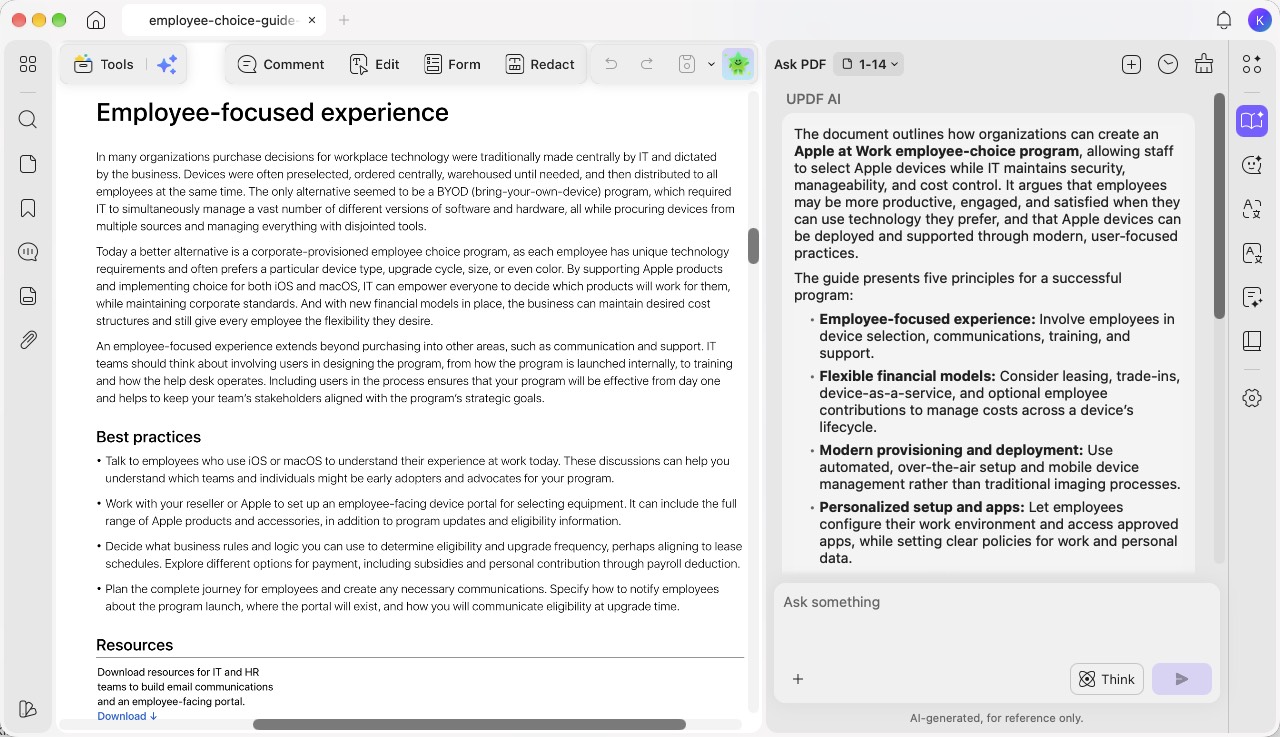
Step 5. Review the summary and use “Copy,” “Export,” or “Delete” as needed. Rate the response with “Helpful” or “Not Helpful,” select a suggested question to explore further, or click “Think” to switch to DeepSeek.
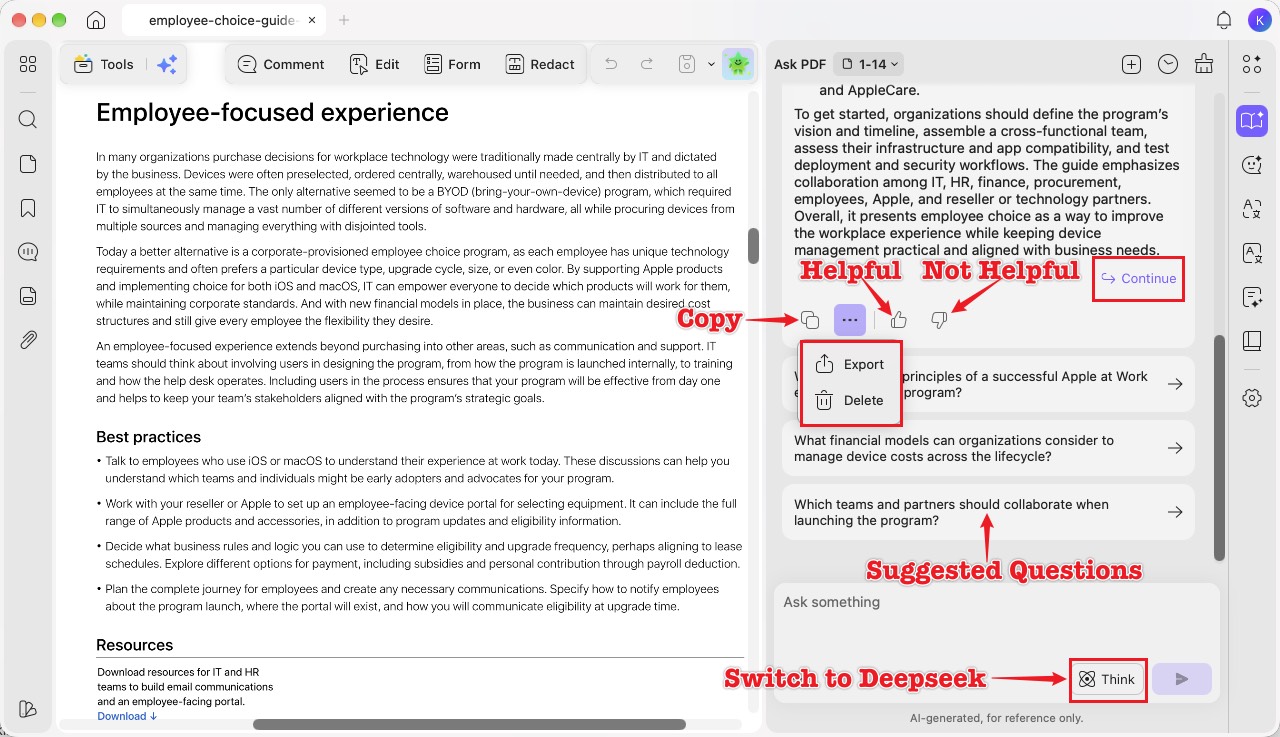
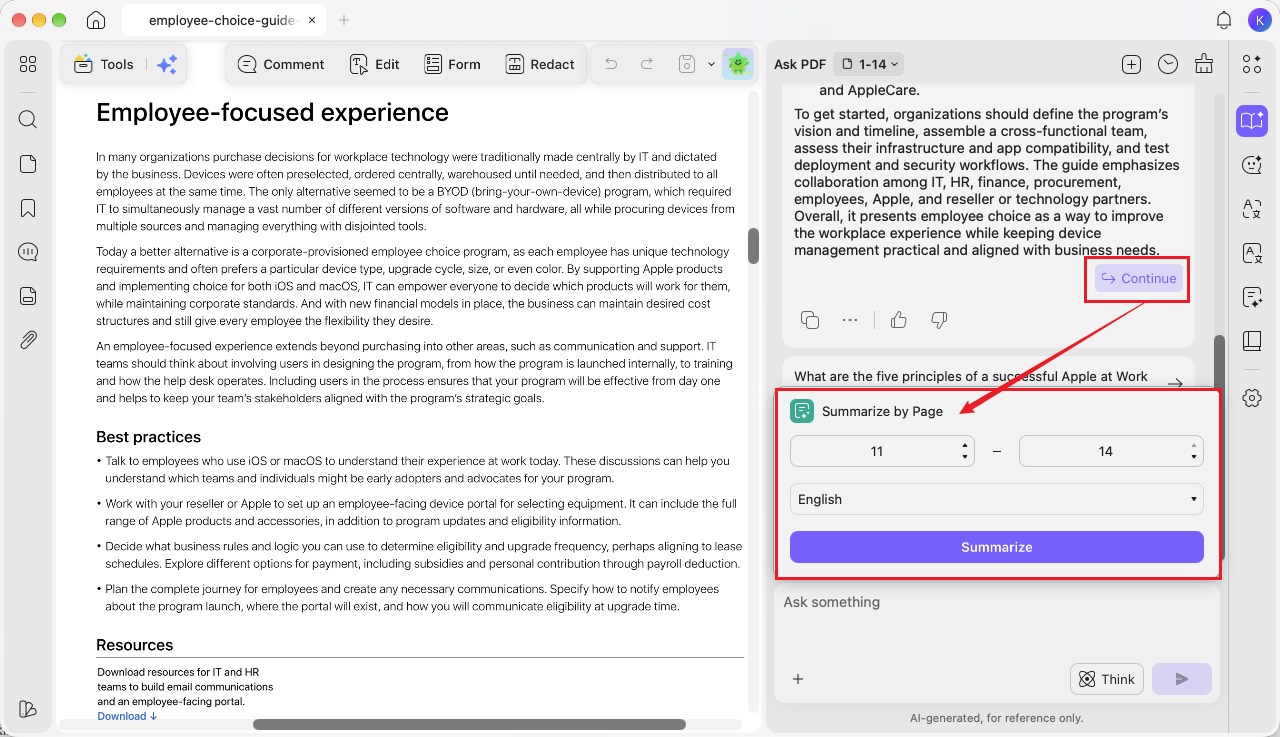
Step 6. For page-based summaries, click “Continue” to open “Summarize by Page.” Set the page range and response language, then click “Summarize.”
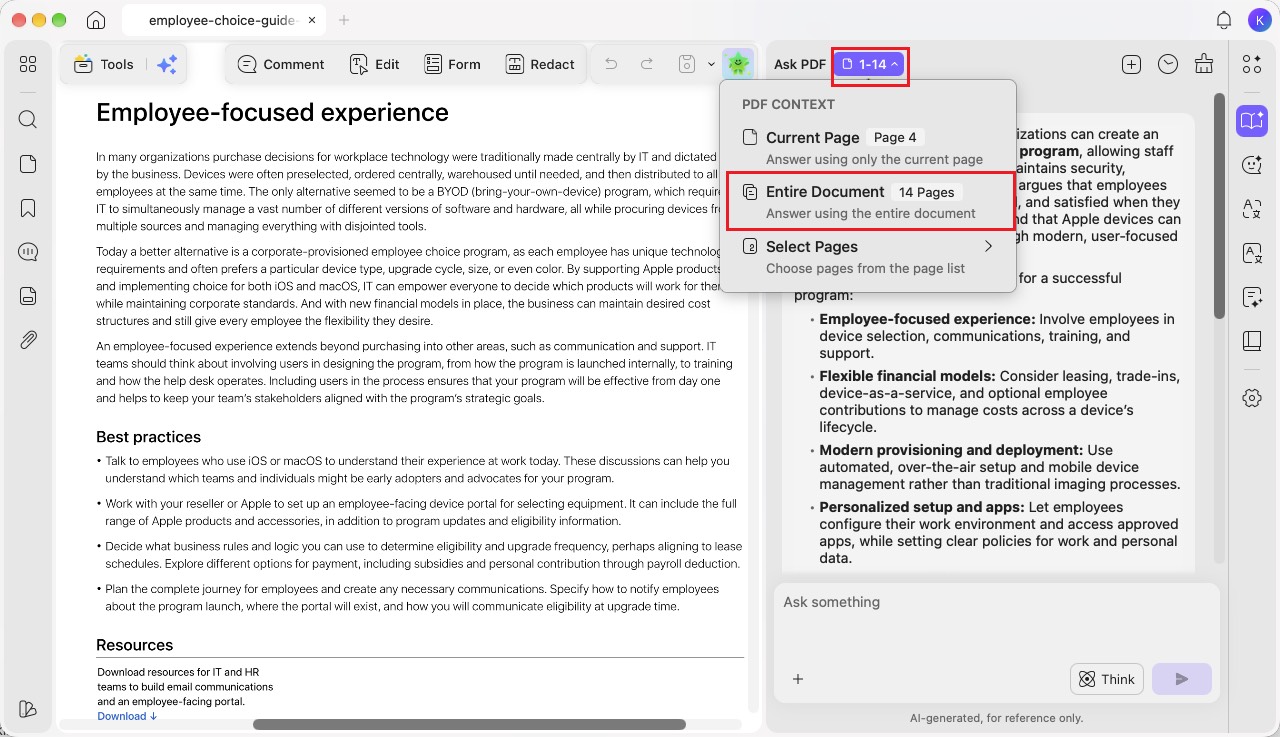
Step 7. You can also click the page-range drop-down next to “Ask PDF” and select “Entire Document.”
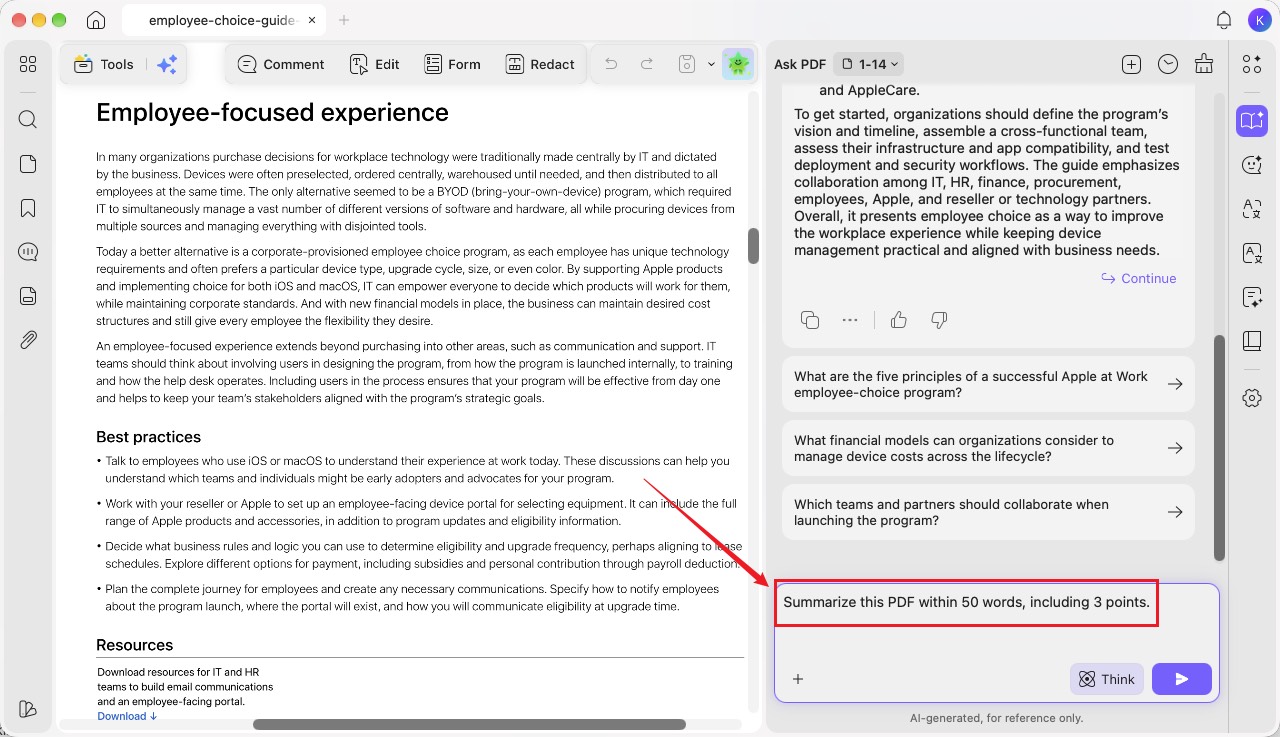
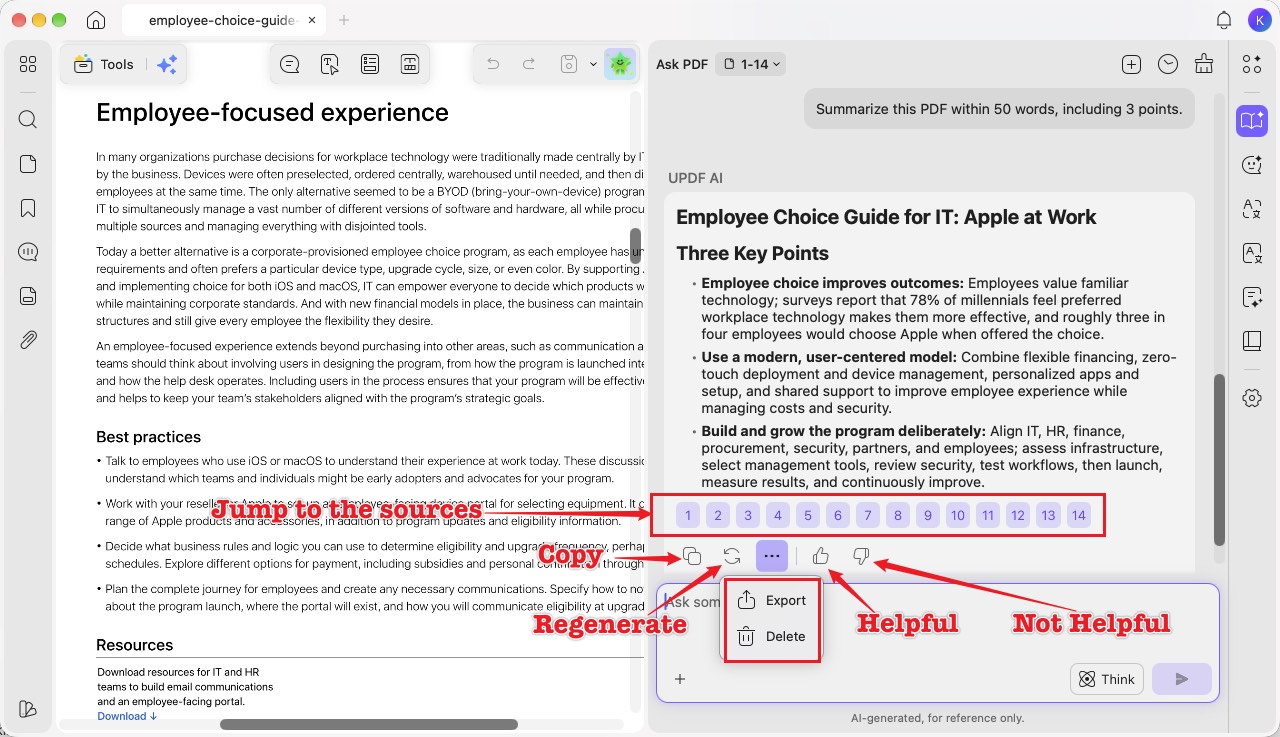
Step 8. Then, enter a specific prompt in the text box, such as “Summarize this PDF within 50 words, including 3 points.” Then click the send arrow.
Step 9. Review the generated summary. Click the numbered source references to jump to the corresponding PDF pages. You can also use “Copy,” “Regenerate,” “Export,” “Delete,” “Helpful,” or “Not Helpful” to manage or rate the response.
Method 2. Select Text and Summarize Directly
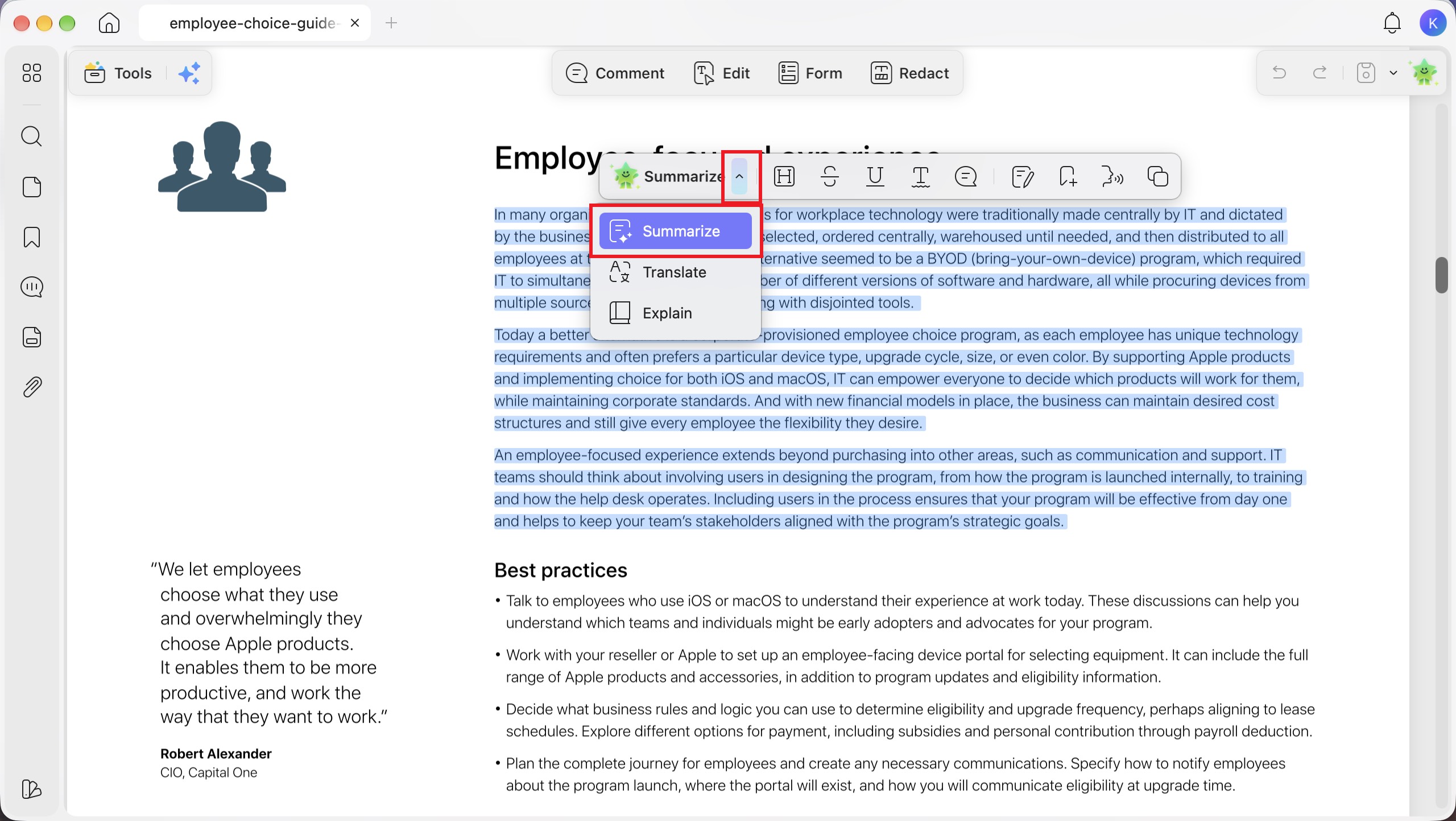
Step 1. Select the text you want to summarize in your PDF. In the floating toolbar, click the arrow next to the AI option and choose “Summarize.”
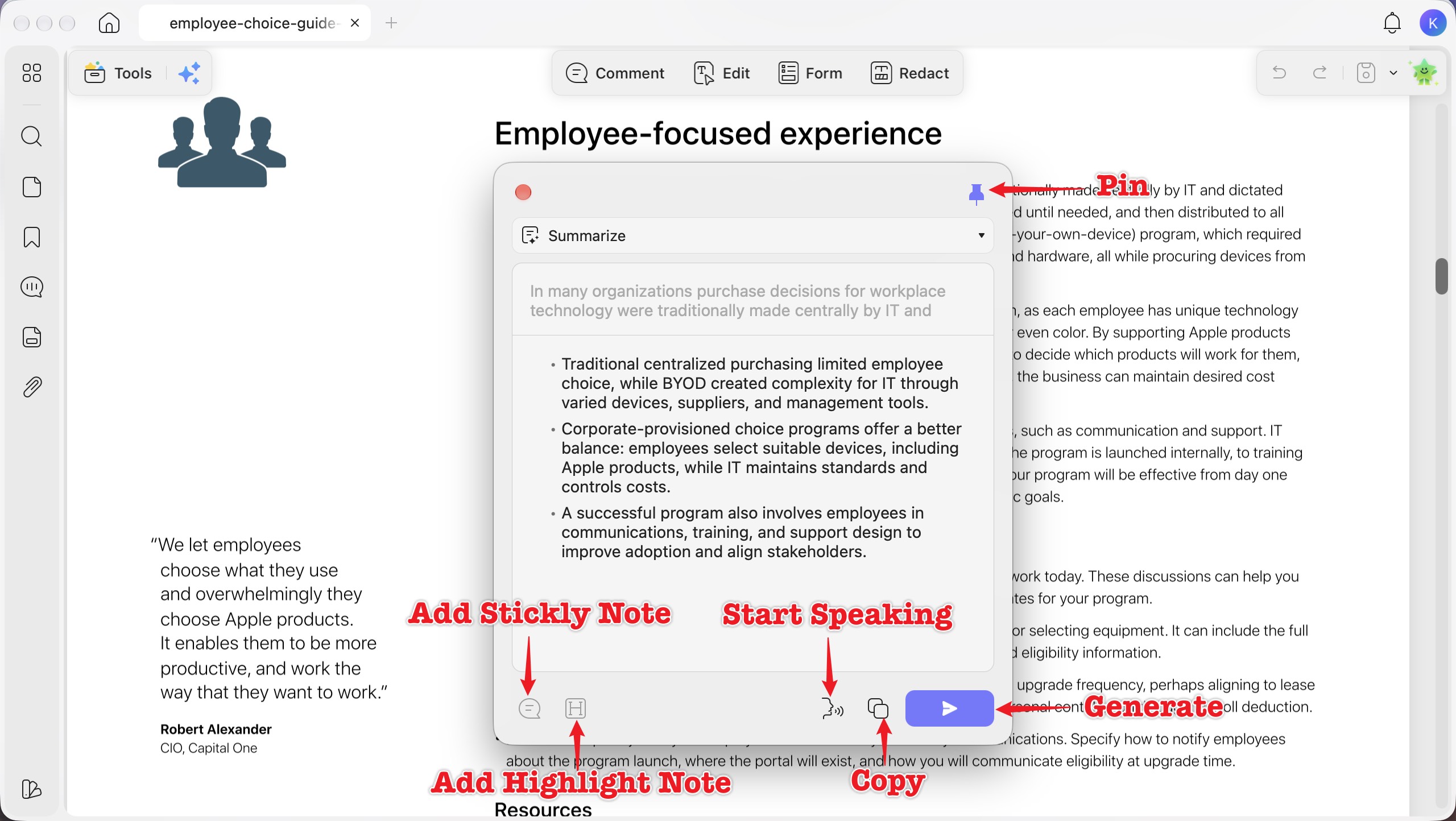
Step 2. Review the summary in the pop-up window. Use “Pin” to keep the window visible, “Add Sticky Note” or “Add Highlight Note” to add the summary to your PDF, “Start Speaking” to hear it read aloud, “Copy” to copy it, or “Generate” to generate a new summary.
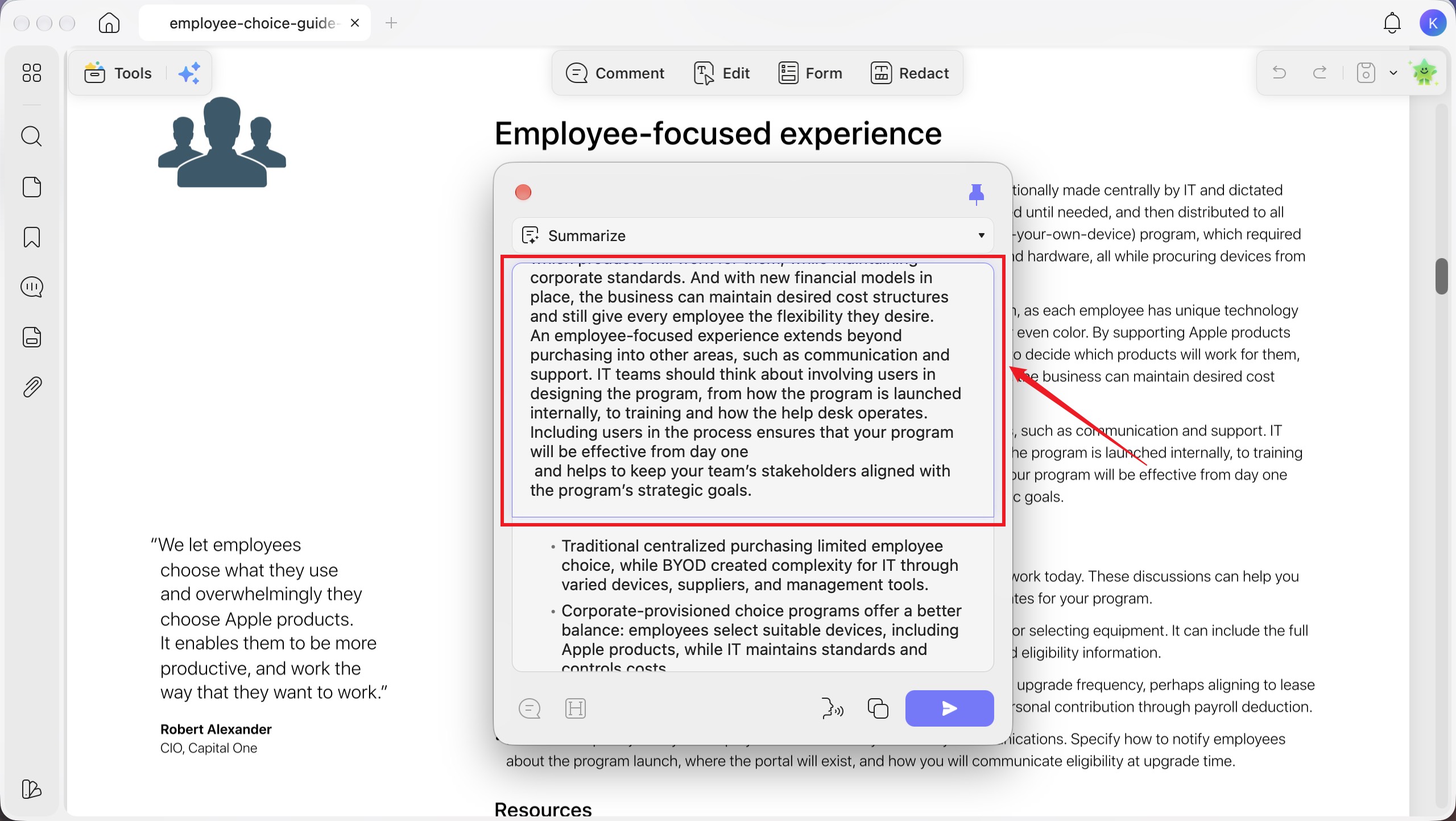
Step 3. To revise the summary, click the original text at the top of the pop-up window and edit it. Then click the “Generate” button to create a new summary.
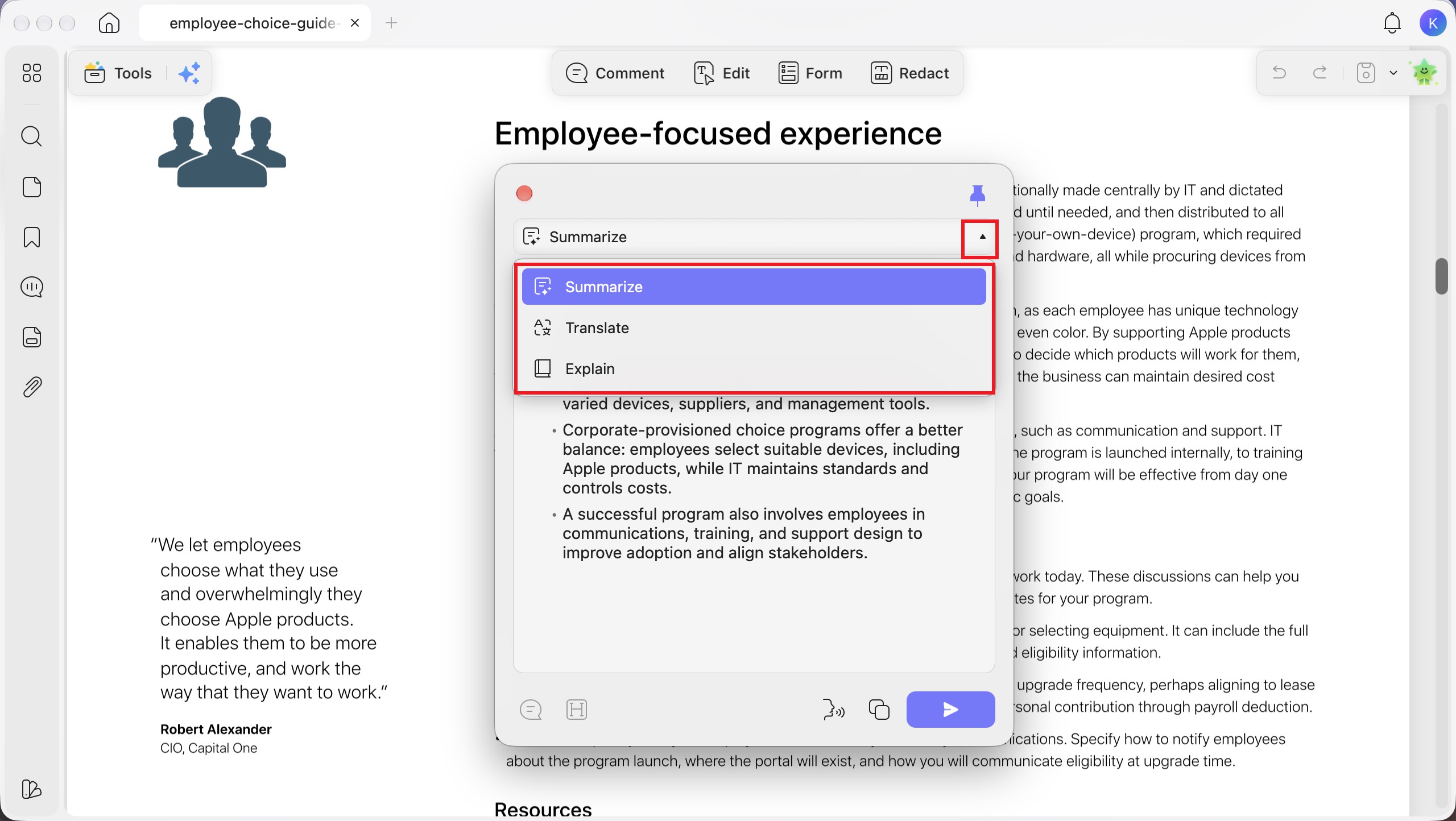
Step 4. To switch modes, click the drop-down arrow next to “Summarize” at the top of the window and choose “Translate” or “Explain.”
Method 3. Summarize Specific Pages
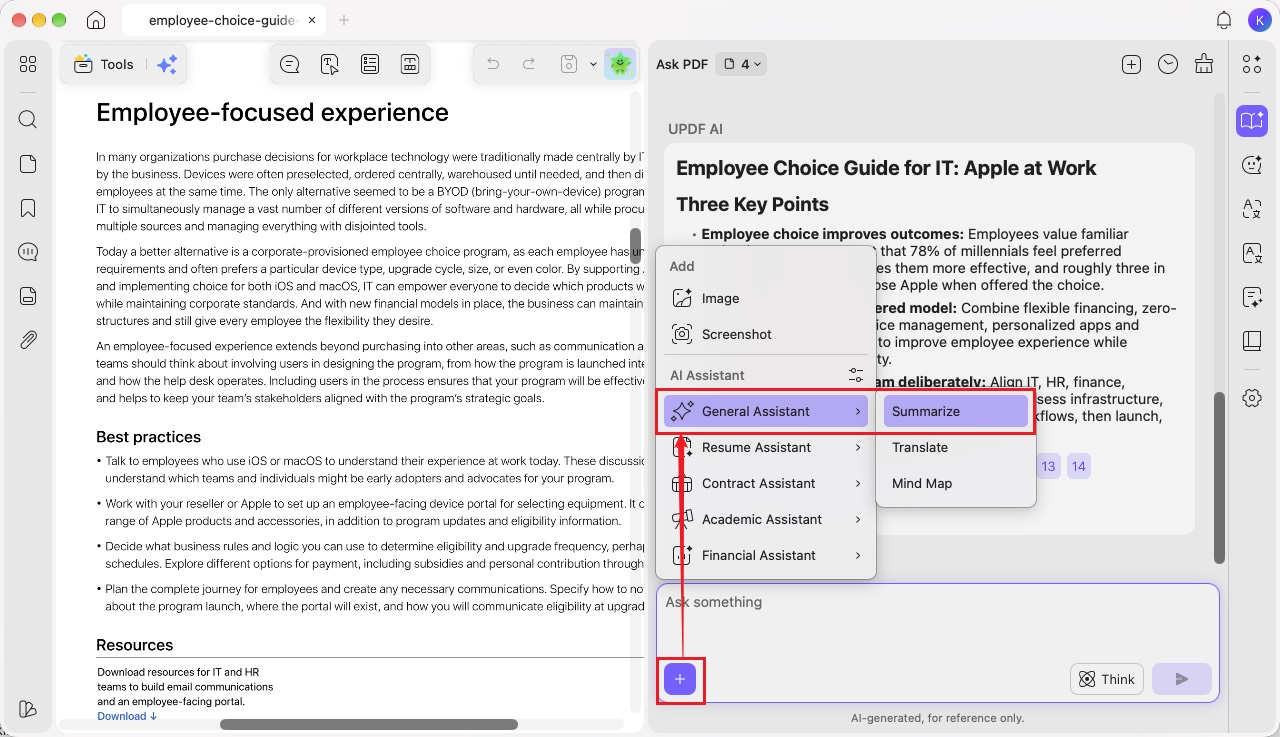
Step 1. In the “Ask PDF” panel, click the “+” button in the chat box, then select “General Assistant” > “Summarize.”
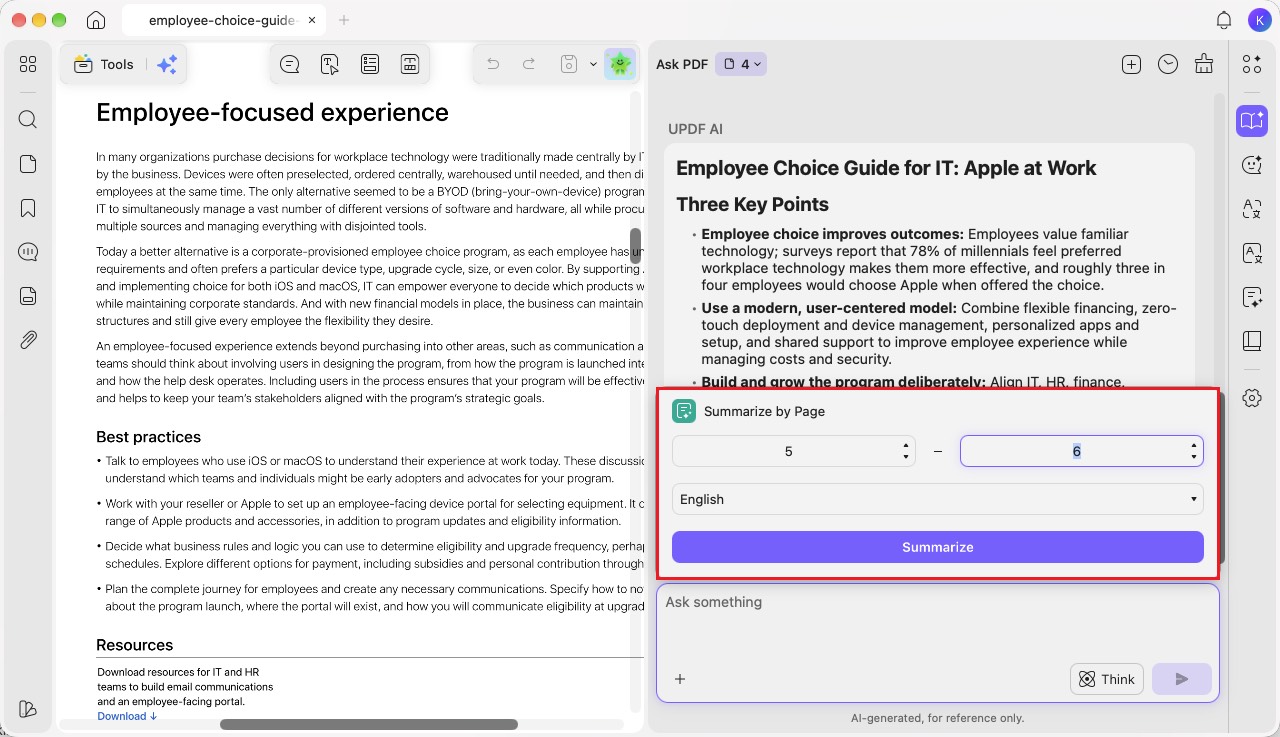
Step 2. In “Summarize by Page,” type or select the starting and ending page numbers. Choose your preferred response language, then click “Summarize.”
Step 3. Alternatively, use the page-context drop-down next to “Ask PDF” to choose “Current Page” or “Select Pages.” Enter a prompt such as “Summarize within 50 words, including 3 points.” in the chat box, then click the send arrow after setting your page selection.
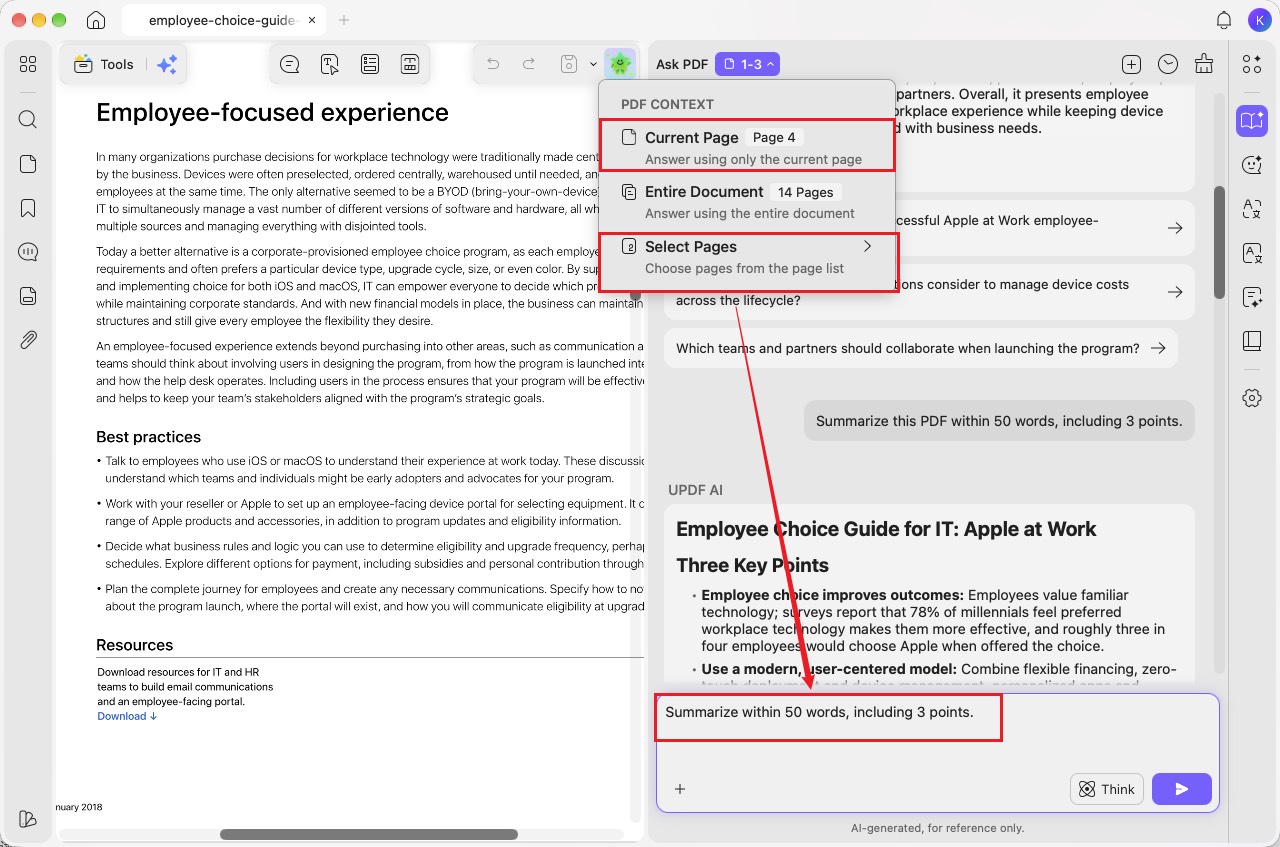
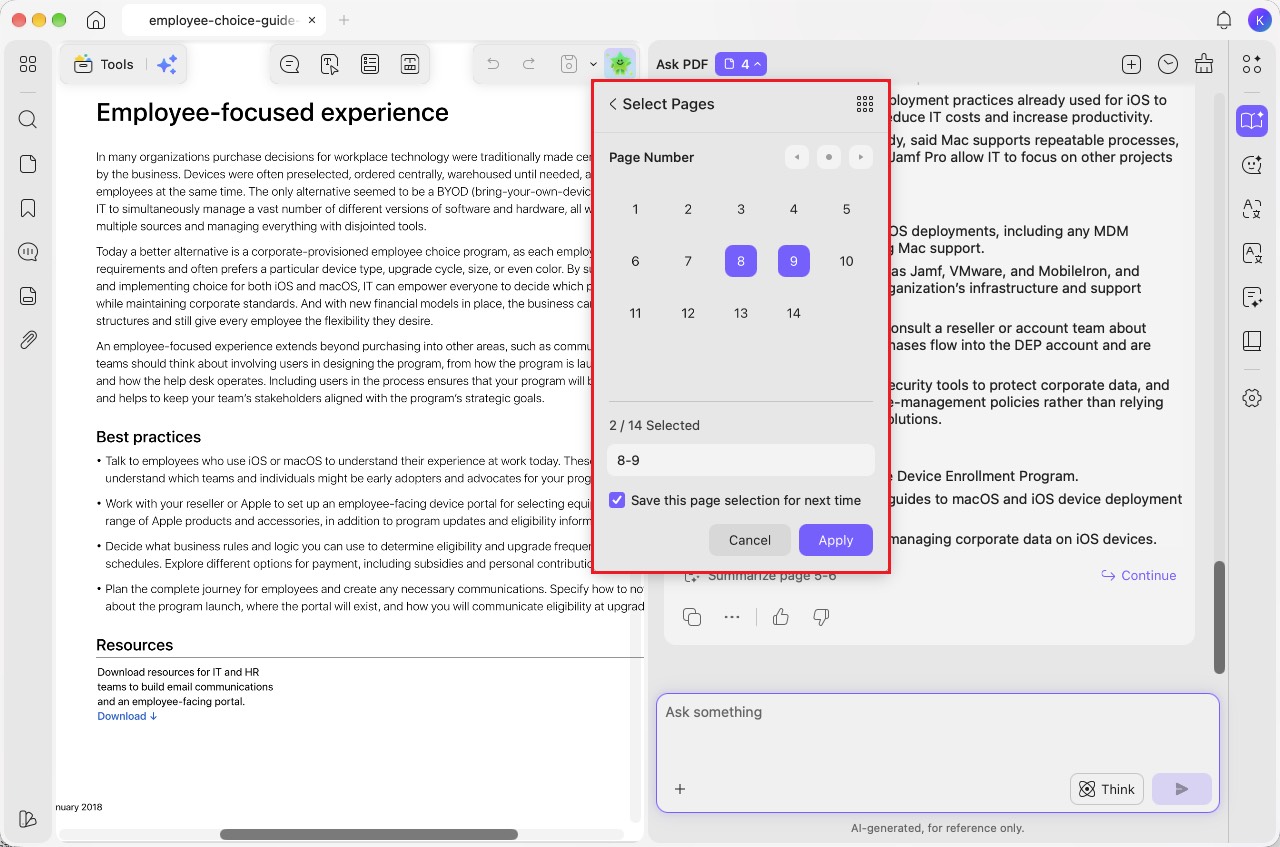
To specify which pages AI should summarize, open the page-context drop-down at the top of the panel and click “Select Pages.”
Step 4. Click the page numbers you want to include, such as 8 and 9, then click “Apply.” You can also check “Save this page selection for next time” to reuse your selection.
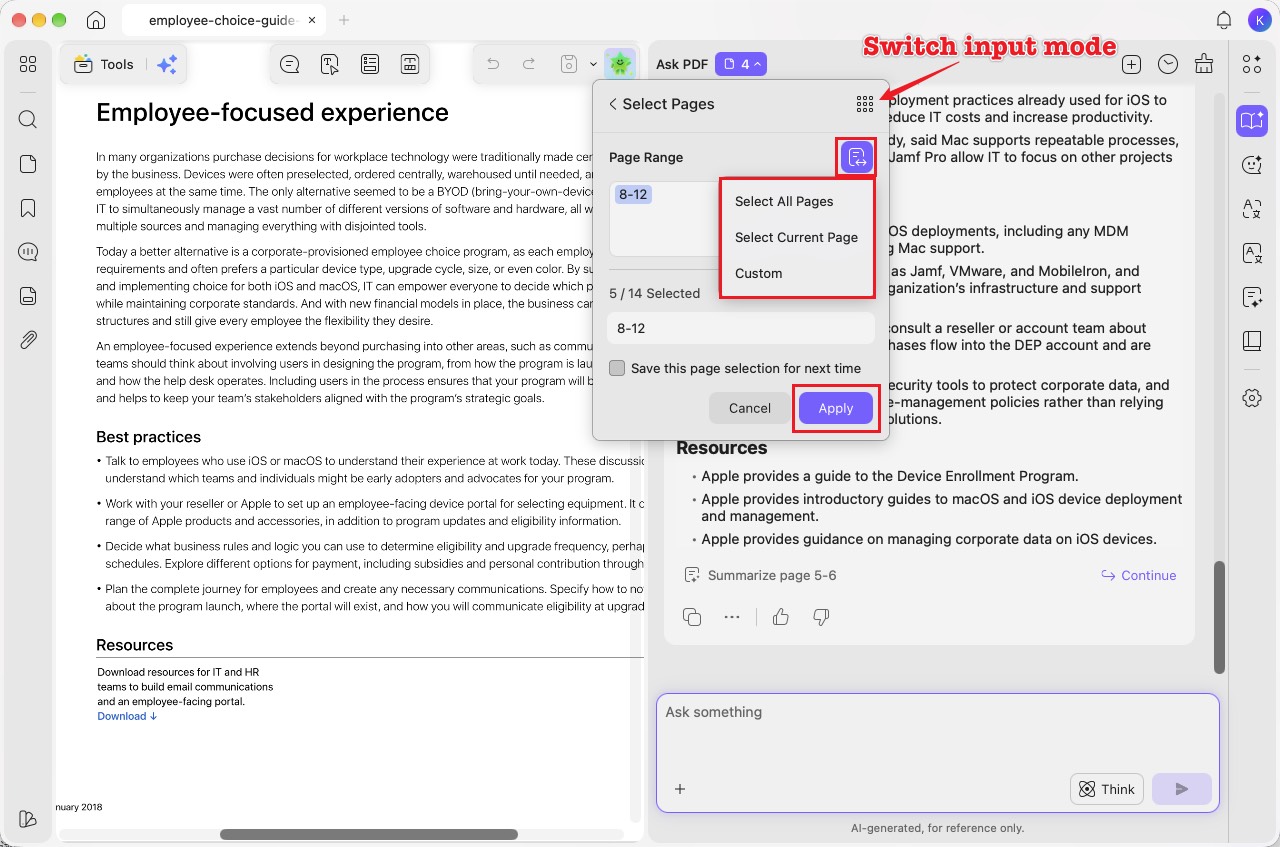
Step 5. To enter a page range manually, click the “Switch input mode” icon in the upper-right corner of the page-selection window. Enter a range such as “8–12,” or use the selection menu to choose “Select All Pages,” “Select Current Page,” or “Custom.” Click “Apply,” then send your summary prompt.
Method 4. Summarize Selective Content from the PDF
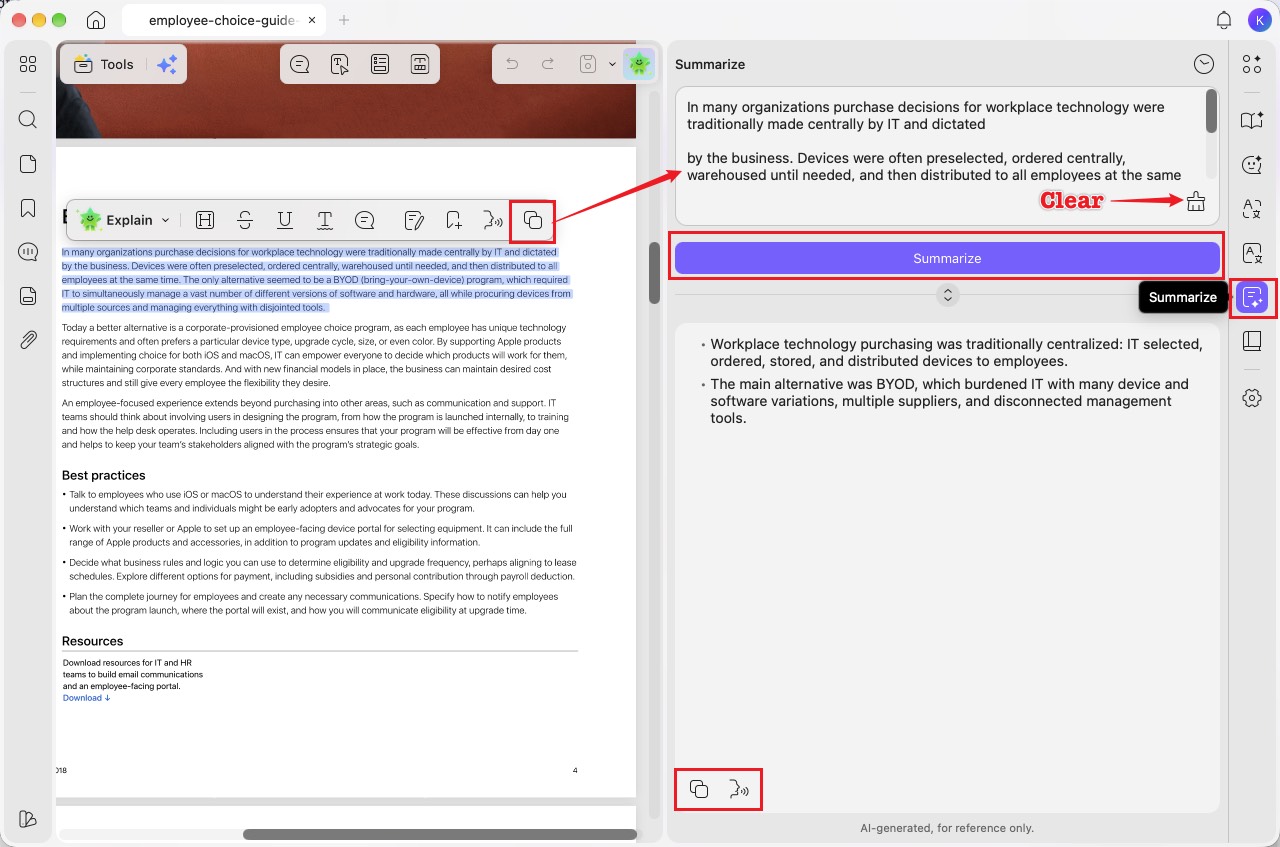
Step 1. Select the text you want summarised in your PDF and click “Copy” in the floating toolbar.
Step 2. Click “Summarize” on the right sidebar, paste the copied text into the input box, then click the “Summarize” button.
Step 3. Review the summarization below and use “Start Speaking” to hear it read aloud or “Copy” to copy it. To remove the input text, click “Clear.”
Method 5. Summarize with AI Chat
Step 1. Right-click and drag over the PDF area you want to select. In the floating toolbar, choose “Copy as Image” or “Copy as Text.”
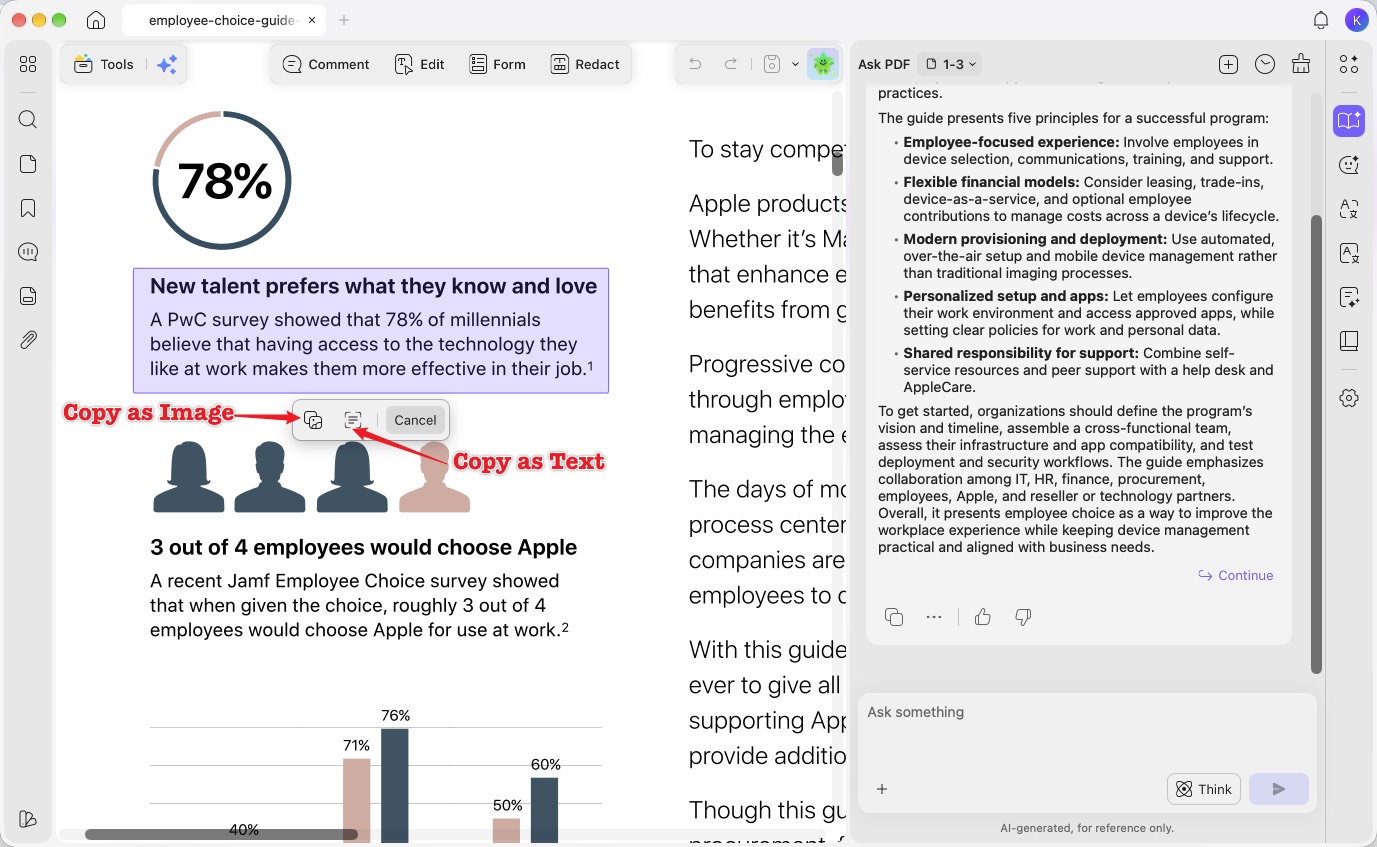
Step 2. Paste the copied image or text into the “Ask PDF”/"AI Chat" chat box. Enter a custom prompt, such as “Summarize this content into three key points.”, then click “Send” to get a response.
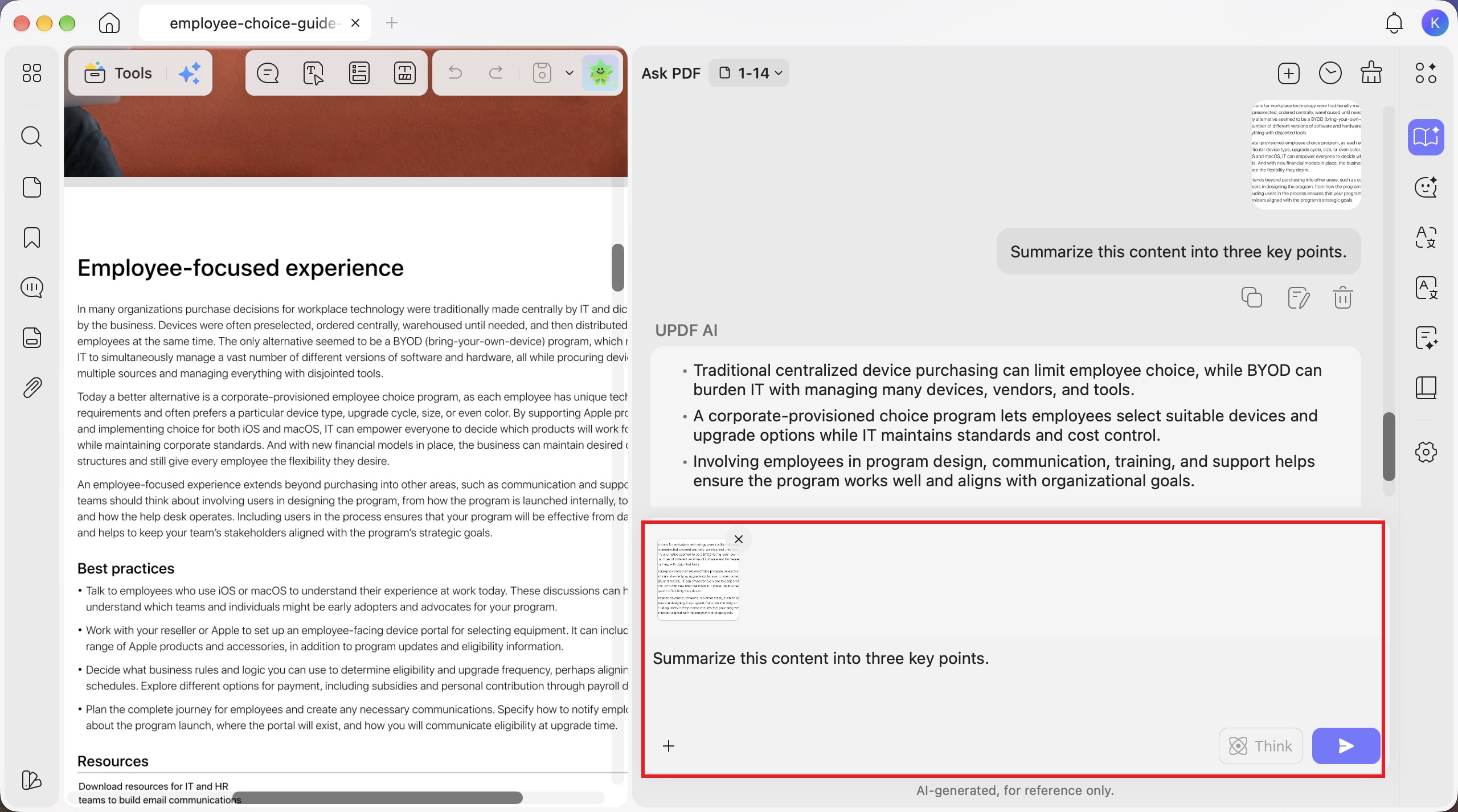
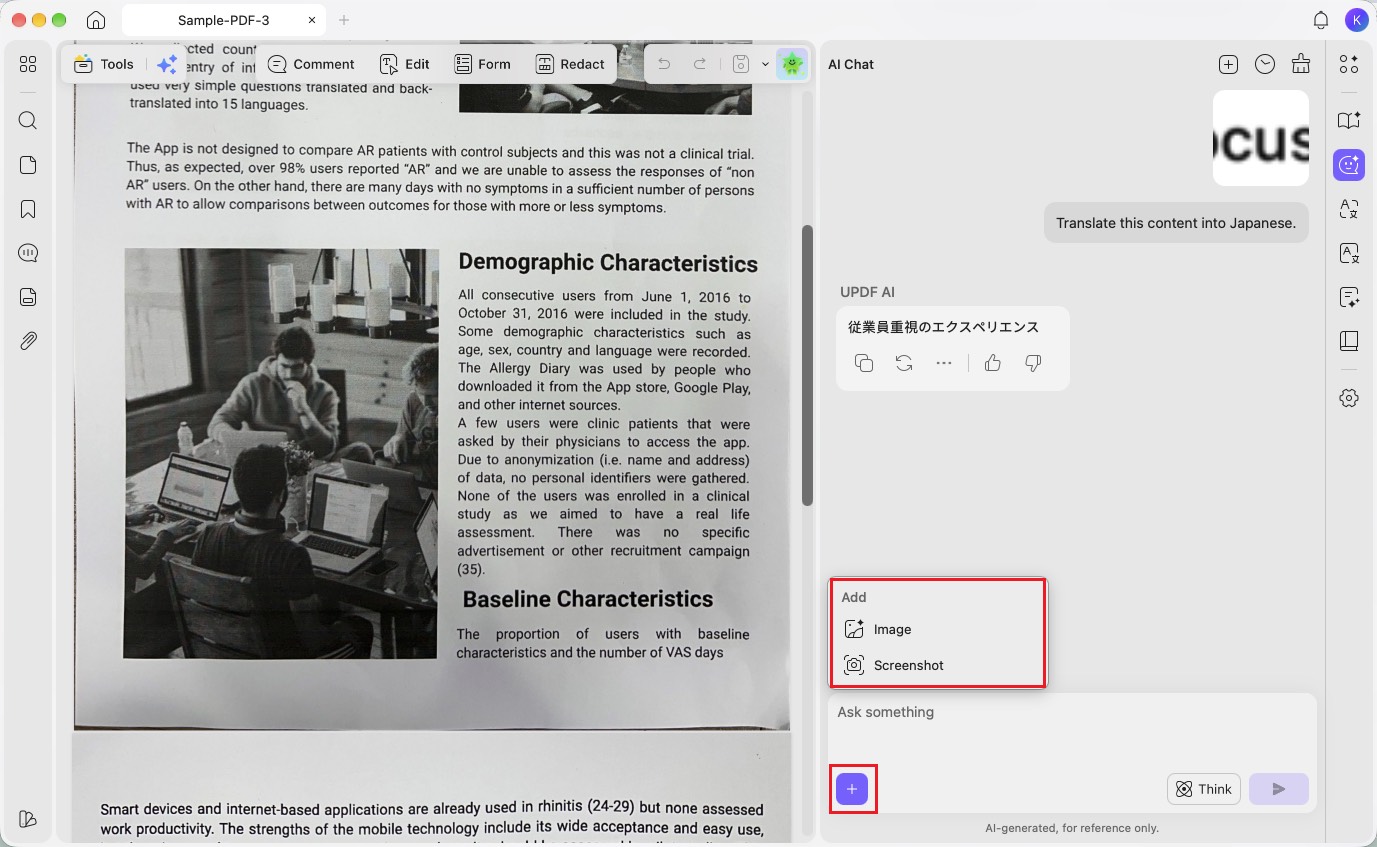
Tip: You can also click the “+” button in the chat box and choose “Image” to upload an image or “Screenshot” to capture the content you want to summarize.
Method 6. Summarize a Scanned PDF
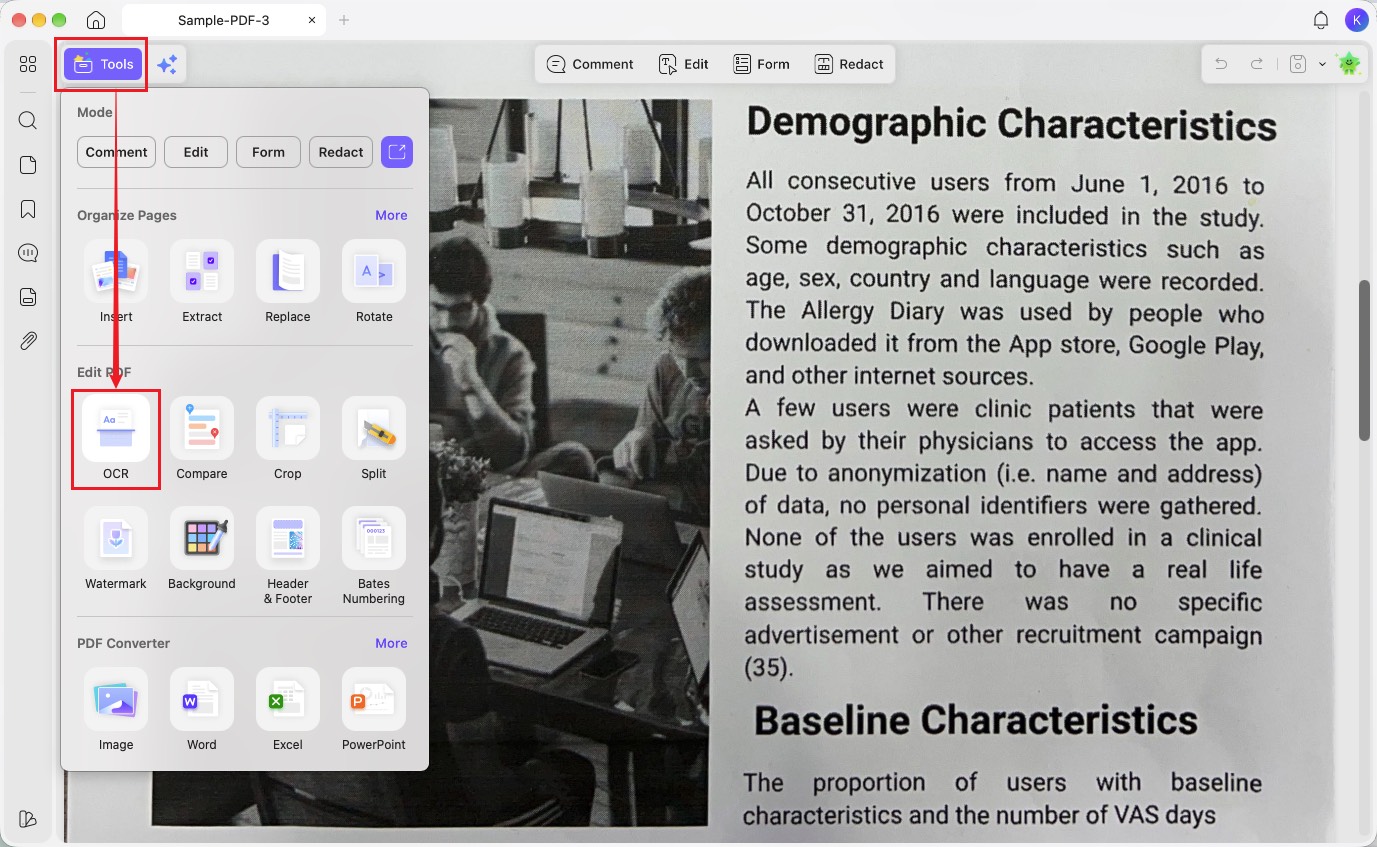
Use UPDF's OCR tool to convert scanned PDFs into editable text before translating them. Follow the steps below to translate your scanned PDFs.
Step 1. Click "Tools" in the top left corner. Choose the "OCR" feature.
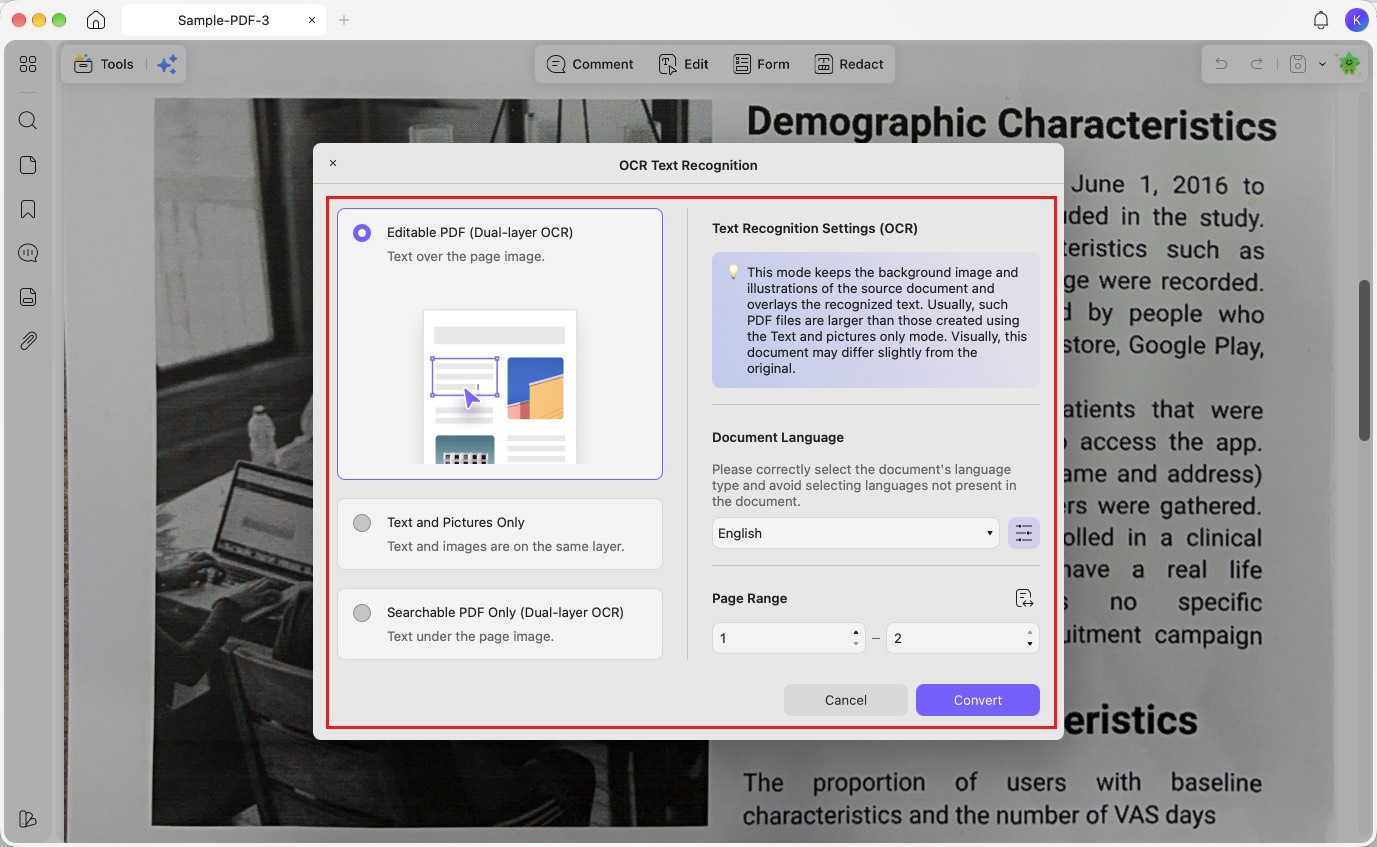
Step 2. Next, select the "Document Type" and "Document Language" of the PDF. Select the "Page Range" and click the "Convert" button. UPDF will perform the OCR and make the document content editable.
Step 3. After performing OCR on the scanned PDF, use any of the methods above to summarize the desired content.
Method 7. Summarize a PDF as a Mind Map
For detailed instructions on how to use UPDF AI to summarize PDFs into mind maps, refer to the user guide: Convert PDFs to Mind Maps.
Method 8. Summarize a PDF by Bookmarks
UPDF AI lets you automatically generate bookmarks for long PDFs and summarize the content of each bookmarked section, making it easier to navigate and understand your document.
For detailed instructions on how to use UPDF AI to generate bookmarks and summarize bookmarked sections, refer to the user guide: AI Generate and Summarize Bookmarks.
Part 2. Summarize PDFs on iOS/Android Smartphones
UPDF's AI is not only capable of providing you with condensed and highly readable content on Windows and Mac. You can utilize the AI feature on your Android and iOS devices, which we'll discuss in the following. Note that not all the given procedures can be performed on both devices.
Summarize The Whole Document
There are different methods of accessing the UPDF AI (Android/iOS) on your devices, which makes it convenient for users. Users can either condense their lengthy PDFs by opening them on the app or accessing the AI to summarize the file.
Step 1. Open PDF and Summarize With UPDF AI
Install the UPDF app on your mobile and access its main interface screen.
Windows • macOS • iOS • Android 100% secure
Open the UPDF app on your phone. Click the "+" button, and import the PDF that you want to summarize. You can either access it from UPDF Cloud or upload a new one to UPDF.
Once the PDF is opened, click the UPDF AI icon on the top bar to access the summarized version.

Besides that, you can directly open the "UPDF AI" feature from the bottom tabs in the main interface. In the newly opened screen, hit the "Ask PDF" button, select and upload the PDF. You will get the summarization in just a few seconds.

Summarize Specific Pages
With this seamless app, users can summarize specific pages of their document. The advanced AI carefully analyzes the information on these pages and provides structured and readable text with proper headings. Now, dive into the following instructions to learn how to choose specific pages in UPDF AI.
Instructions: In the opened UPDF AI screen, tap the "Bulb" icon to open a bottom-up "Guess You Want to" menu. From here, choose the "Summarize by Page" option and open a small dialogue box. Now, select the desired page range and hit the "Go" button to get a summarized version of that specific page(s). Next, you can either copy the summary, regenerate it, or keep summarizing the content.

Summarize By Inputting Prompts
Sometimes, users are looking for more clarity and certain summarized content from UPDF AI. In this case, the AI offers a prompt feature where you can enter any type of prompt. Thus, read through these instructions and learn for yourself how to enter prompts.
Instructions: To add a prompt, tap the "Ask Something" box at the bottom and enter a suitable summarization prompt. Once written, hit the "Send" button on the same box and access the desired summarization of the entered prompt.

Select To Summarize
The selection feature is extremely useful when you are time-bound and want quick summarized content. By selecting any section of your PDF, summarize it within seconds using the AI and copy/paste it for quick revision. We have provided the following easy-to-follow instructions on how to select and summarize text:
Instructions: Open the PDF on this app and select the desired paragraph or line from the file to access a pop-up menu. After that, press the "UPDF AI" option from the menu and choose "Summarize" in the opened bottom-up menu. This will provide you with a summary of the selected text, which you can copy and paste and go through quickly.

Part 3. Summarize PDFs on Web Browsers
There are times when you want an efficient online AI summarization solution instead of downloading any tool.
UPDF AI introduces the perfect online AI solution powered by GPT-5 and Deepseek R1that provides users with the ability to summarize lengthy documents immediately.
Summarize Single PDF By Page
Upon initially uploading your PDF onto the web browser interface, UPDF AI generates an automatic document summary. However, if you need a specific page summarization, you can carry out these steps:
Step 1. Access Chat PDF and Upload PDF File
Initiate the procedure by getting access to the main interface of UPDF AI’s “New Chat” feature. Then select the "Summarize PDF” option and upload the PDF that you want to summarize.

Step 2. Read the Auto-Generated Summary and Click Summarize
Upon uploading the document, the AI tool automatically generates a summary of the overall document. After reading it, you can select the “Summarize” option from the tabs above the text box.

Step 3. Choose Page Range and Hit Summarize
As the “Summarize PDF by Page” dialog box pops up, you must select a PDF file and pick a page range according to the concise information you need. Next, click “Summarize” and let UPDF AI generate the results.

Step 4. Review Summarized Content Generated
Finally, you get the summary of the page you specified. You can either get the AI to “Keep Summarizing,” or you can “Copy” or “Regenerate” the results as per your requirements.

Summarize Multiple PDFs
The online version of UPDF AI also supports summarizing multiple PDFs at once, making it an efficient tool for handling bulk documents. The free version of UPDF AI online allows users to upload up to 5 documents in a collection. In comparison, you can upgrade to the Paid version to upload and summarize up to 100 PDFs simultaneously and make the process much easier for yourself. So, go through the following steps and learn to summarize multiple PDFs:
Step 1. Access New Chat and Upload Multiple Files
To start summarizing multiple PDFs, navigate to “New Chat,” and select “Summarize PDF” from the options. Then click the upload button, hold the "Shift" key, and select the PDF files you want to summarize.

Step 2. Get an Overview of Each File
Once your multiple PDFs are uploaded, hit Enter, and UPDF AI will provide an overview of each file. Moreover, you can hover over each document from the sidebar to get a more general summary of the text.

Note

Step 3. View Two Files Side-by-Side
While viewing one PDF, you can also click the "@" icon in the chat interface and select the file you want to open. Then, you can do a side-by-side comparison of the summaries of two files.

Note

Bonus Tip: Automatic Conversion From Standard to Research-Based Summarization
UPDF AI Online also has the ability to automatically detect the document type that you have uploaded. When you upload a Standard PDF, UPDF AI will generate a more concise summary. Whereas, for Research PDF documents, it generates summaries with key details like title, authors, affiliations, keywords, URL, and structured content.
