UPDF
UPDF
 UPDF for Windows
 UPDF for Mac
 UPDF for iPhone/iPad
 UPDF for Android
 UPDF AI Online
 UPDF Sign
 Edit PDF
 Annotate PDF
 Create PDF
 PDF Form
 Edit links
 Convert PDF
 OCR
OCR PDF to Word
 PDF to Image
 PDF to Excel
 Organize PDF
 Merge PDF
 Split PDF
 Crop PDF
 Rotate PDF
 Protect PDF
 Sign PDF
 Redact PDF
 Sanitize PDF
 Remove Security
 Read PDF
 UPDF Cloud
 Compress PDF
 Print PDF
 Batch Process
 About UPDF AI
 UPDF AI Solutions
 AI User Guide
 FAQ about UPDF AI
 Summarize PDF
 Translate PDF
 Chat with PDF
 Chat with AI
 Chat with image
 PDF to Mind Map
 Explain PDF
 PDF AI Tools
 Image AI Tools
 AI Chat Tools
 AI Writing Tools
 AI Study Tools
 AI Working Tools
 Other AI Tools
 PDF to Word
 PDF to Excel
 PDF to PowerPoint
 Enterprise Solution
 Enterprise Sign
 Enterprise AI
 Enterprise Plan
 Enterprise User Guide
 Enterprise Webinar
 Banking
 Healthcare
 Insurance
 Legal
Legal Manufacturing
 Government
 Education Solution
 Customer Stories
 User Guide
 UPDF Tricks
 FAQs
FAQs UPDF Reviews
 Download Center
 Blog
Blog Newsroom
 Tech Spec
 Updates
 UPDF vs. Adobe Acrobat
 UPDF vs. Foxit
 UPDF vs. PDF Expert

Shodan is a search engine that scans devices connected to the internet. It's not Google. It's not Bing. It's the tool that gives you raw data to find unprotected devices in your network.
But how does Shodan work? And is it really as reliable as it is claimed? In this review of Shodan Search Engine, you will learn how it works, its uses, benefits, limitations, and more.
And if you want to manage Shodan scan reports more easily, UPDF can help you. It lets you update these files and analyze data more effectively. You can skip to Part 4 to learn more about this tool.
Let's get started.
Part 1. How Shodan Works
Shodan search engine uses a multi-step scanning process to gather information from all publicly exposed devices on the Internet. While doing so, it works as a network crawler rather than a web crawler. So, instead of indexing web pages, it searches IP addresses across the public internet and checks for open ports on connected devices and services.
When Shodan finds an open port, it sends a request based on the protocol, such as an HTTP request to a web server or an FTP handshake. It then records the device's response. This response is known as a "banner."
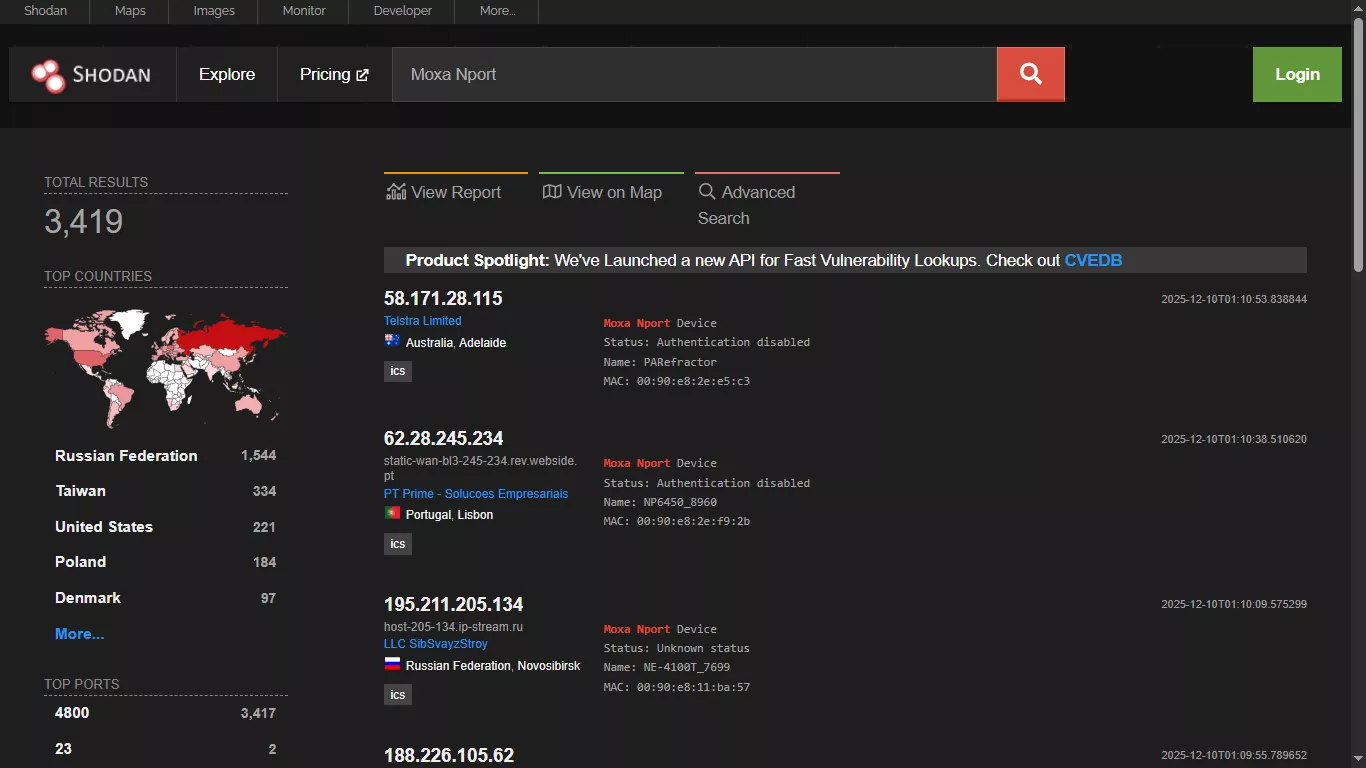
Banner is the basic unit of data Shodan collects. It contains essential metadata, including the service or software name, its version number, protocol type, and sometimes the manufacturer or model of the device.
In addition, Shodan can record contextual details as well. These include the device's IP address, port number, geographic location, and the company that owns the specific network. These details help you understand not only what service is running, but exactly where.
Part 2. Key Uses of Shodan
Based on how Shodan gathers information on devices, it can be a powerful tool for various tasks. Some of its important uses are explained below.
1. Tracking Exposed Devices
Teams can use Shodan to track all devices connected to the internet in their organization. It helps companies confirm that only approved services are exposed online. It also helps them find forgotten assets and identify weak setups before attackers know about them.
2. Finding Outdated Systems
Shodan search engine can highlight devices that are running old firmware or unsafe software versions. Engineers can quickly locate systems with known security risks and update them on a priority basis. This can be significantly useful when working with large or scattered environments where checking all devices can be time-consuming.
3. Measuring Trending Technology
Shodan can help researchers identify how widely certain technologies are in use. All they have to do is search for their specific protocols or software versions. This way, they can analyze trends and see how fast new technologies spread across industries.
4. Finding Configuration Errors
Shodan makes it easy to spot databases and poorly secured IoT devices that are at risk of online threats. As a result, it helps teams find configuration mistakes early. So, they can fix them before they cause any major data leaks.
5. Checking Vendor Security
Shodan can help organizations check the internet-facing systems of their third-party vendors. They can search for exposed services linked to the vendor's IP ranges or products. This will give them information on the supplier's security posture and associated risks.
Part 3. Benefits and Limitations
While you can use Shodan in many ways, it is not without its share of strengths and weaknesses. Here are its benefits and drawbacks you should know.
Key Benefits of Shodan
- Real-Time Visibility: Shodan continuously scans the internet to keep its data updated. So, you get near real-time information on exposed devices worldwide.
- Access to Global Data: Shodan search engine can collect information on devices from all regions of the world. As a result, you can get data on global connected systems all using a search engine.
- Device-Level Searches: Unlike search engines like Google, Shodan crawls and indexes individual devices. Moreover, the ability to filter results helps you focus on specific targets or technologies at a time.
- Easy to Access: Shodan is a fast and simple way to identify unprotected devices using a computer, phone, or tablet. It offers a more accessible way to reduce online attacks and prevent data breaches.
Shodan Limitations and Drawbacks
- Requires Technical Expertise: Shodan is a tool for engineers and developers. You need to know how its search syntax works and how to interpret the technical results to use it effectively.
- Ethical and Legal Issues: While Shodan means good, it can encourage hackers to use device information for illegal goals. So, what's meant to protect may ironically expose the devices to online threats.
- False Positive Reports: Shodan may detect activities on unused IPs due to misconfigured networks, such as static routes. This can trigger unnecessary alerts for issues that don't exist.
Part 4. Handling Shodan Reports and Data
Once you enter a search query on the Shodan search engine, it shows only a small amount of data on its website. For full banner information, you need to download the scan results. The resulting file contains complete details of the raw data in a JSON.gz format.
But when you want to share these files across devices, you must convert them to a PDF format using the command line. This standard file format makes it possible to distribute and view these files across various platforms.
But how do you edit or summarize this raw data in PDF format? You will need a reliable PDF editor to do this. UPDF is one of the best tools for this purpose. It is an AI-driven PDF editor that allows you to fully edit your PDF, organize pages for a better flow, and even convert the file into other formats. With the built-in AI assistant, you can even interpret the raw data and summarize it quickly.

Here's how UPDF can help you make the most of your Shodan reports.
- Edit existing content and add new text, images, or links as needed.
- Annotate with highlights, underline, squiggly lines, stamps, stickers, and more.
- Add comments, sticky notes, and share the PDF directly with your team.
- Organize PDF by rearranging, rotating, cropping, extracting pages, and more.
- Use UPDF AI to summarize data, analyze trends, and explain technical stuff.
- Convert the document to Excel, PowerPoint, Word, image, and more.
If you want to learn more about UPDF, give it a try. You can get started with a free trial without time limits. So, download and get started today!
Windows • macOS • iOS • Android 100% secure
Part 5. Best Practices for Ethical and Safe Use
Shodan search engine is a powerful tool for cybersecurity professionals. But such great power must be handled with greater responsibility. Here are the guidelines to use it ethically.
- Respect Consent: Only access publicly available information. If you need to scan any private networks or devices, make sure to get explicit permission beforehand.
- Use Data for Defense: Focus on identifying security risks in your own systems or devices. Use the information to strengthen security, not for malicious purposes.
- Verify Results: Make sure to validate Shodan results before acting on them. This will help you avoid being misled by false positives.
- Stay Legal: You should fully understand your local laws and international regulations about cybersecurity and data protection. This will help you avoid any legal consequences.
- Responsible Disclosure: If you find any security issues, report them privately to the device owner. Don't publish scan results that might expose sensitive information.
Conclusion
To sum up, the Shodan search engine allows you to monitor network security and identify compromised devices. When used ethically, it helps prevent data breaches and provides insights into new technology trends.
And if you want to use Shodan data reports effectively in PDF format, UPDF can help you make the most of these. You can edit and organize these files better. Or, use UPDF AI to generate quick summaries and analyze data more easily. So, don't miss out. Download and try it now!
Windows • macOS • iOS • Android 100% secure






 Enya Moore