 UPDF
UPDF
 UPDF for Windows
 UPDF for Mac
 UPDF for iPhone/iPad
 UPDF for Android
 UPDF AI Online
 UPDF Sign
 IvyCraft
 Edit PDF
 Annotate PDF
 Create PDF
 PDF Form
 Edit links
 Convert PDF
 OCR
OCR PDF to Word
 PDF to Image
 PDF to Excel
 Organize PDF
 Merge PDF
 Split PDF
 Crop PDF
 Rotate PDF
 Protect PDF
 Sign PDF
 Redact PDF
 Sanitize PDF
 Remove Security
 Read PDF
 UPDF Cloud
 Compress PDF
 Print PDF
 Batch Process
 About UPDF AI
 UPDF AI Solutions
 AI User Guide
 FAQ about UPDF AI
 Summarize PDF
 Translate PDF
 Chat with PDF
 Chat with AI
 Chat with image
 PDF to Mind Map
 Explain PDF
 PDF AI Tools
 Image AI Tools
 AI Chat Tools
 AI Writing Tools
 AI Study Tools
 AI Working Tools
 Other AI Tools
 AI Bookmark Generation
 AI Bookmark Summary
 AI Watermark Generation
 AI Background Generation
 AI Sticker Generation
 AI Stamp Generation
 AI Editing Suite
 UPDF Copilot
 AI Page Management
 AI Semantic Search
 PDF to Word
 PDF to Excel
 PDF to PowerPoint
 Enterprise Solution
 Enterprise Sign
 Enterprise AI
 Enterprise Plan
 Enterprise User Guide
 Enterprise Webinar
 Banking
 Healthcare
 Insurance
 Legal
Legal Manufacturing
 Government
 Education Solution
 Customer Stories
 User Guide
 UPDF Tricks
 FAQs
FAQs UPDF Reviews
 Download Center
 Blog
Blog Newsroom
 Tech Spec
 Updates
 UPDF vs. Adobe Acrobat
 UPDF vs. Foxit
 UPDF vs. PDF Expert

PDF hyperlinks stop working more often than most people expect — and the cause is rarely obvious from the outside. A link that worked perfectly in Word or PowerPoint may open nothing after conversion. A link that works in one PDF reader may fail in another. And a link that looks correct may have a typo in its URL that makes it permanently broken.
This guide covers why are hyperlinks not working in PDF and 5 tested fixes for each of the most common scenarios — covering Windows, Mac, iOS, and Android. Fix 1 shows how to directly edit and repair broken links using UPDF; the remaining fixes cover reader switching, URL validation, network issues, and software updates.
Windows • macOS • iOS • Android 100% secure
Why Are Hyperlinks Not Working in PDF? — Common Causes
Hyperlinks are like pathways in a PDF, connecting different documents together. It can get super frustrating if these links stop working. If you're dealing with this issue, the first thing to do is to know the reason behind the problem.
- Incompatible PDF reader: Some PDF viewers don't support clickable hyperlinks at all. macOS Preview is a well-known example — it displays PDF content correctly but does not activate URL-based links. Adobe Reader on iOS and Android has also had inconsistent link-handling behavior in certain versions. If a link works in one reader but not another, the viewer is likely the cause.
- Links flattened during PDF conversion: When you export a Word, Excel, or PowerPoint document to PDF using the Print to PDF method, the hyperlinks are flattened into the page image and lose their interactivity. To preserve clickable links, always export using File → Save As → PDF (in Microsoft Office) or Export to PDF rather than printing to PDF. In Adobe Acrobat, ensure the "Create links from URLs" option is enabled during the conversion process.
- Incorrect URL protocol or format: Hyperlinks in PDFs must begin with a valid protocol prefix — https:// or http://. Links that start with www. only (without the protocol prefix), contain spaces, or include special characters that aren't URL-encoded will fail silently in most PDF readers. Double-check that every link starts with https:// and contains no spaces or invisible characters.
- Typo in the link destination: A single misplaced character in a URL — a transposed letter, an extra space, or a missing / — renders the link permanently broken. This is one of the most common causes of non-working PDF hyperlinks, especially in documents where links were typed manually rather than pasted from a browser.
- Corrupted PDF file: If a PDF becomes corrupted during download, transfer, or saving, its interactive elements (including hyperlinks) may stop working while the rest of the content appears normal. Try opening the file in a different PDF reader to determine if the issue is reader-specific or file-specific. If all readers fail to activate the links, the file itself likely needs to be re-exported from the source document.
Also Read: PDF to URL: 3 Best Methods With Steps
5 Effective Methods to Fix Hyperlinks Not Working in PDF
The five fixes below are ordered from most direct to most general. Fix 1 (editing the link directly in UPDF) resolves broken or incorrectly formatted links. Fix 2–3 address PDF reader compatibility issues. Fix 4 covers network-related link failures. Fix 5 handles outdated software.
Fix 1. Edit and Update the Broken Link Directly in UPDF
If a hyperlink contains a typo, an outdated URL, or was flattened during conversion, the most direct fix is to edit the link itself — replacing the broken destination with the correct one. This approach resolves the issue permanently rather than working around it.
UPDF is the most capable tool for this task on Windows, Mac, iOS, and Android. Its link editing tools let you view every hyperlink in a PDF, click to edit any link's destination URL or page target, adjust its appearance (visible or invisible border, line style, border color), remove broken links, or insert new ones. Unlike basic PDF readers that only display links, UPDF gives you full control over how each link is configured.
Windows • macOS • iOS • Android 100% secure
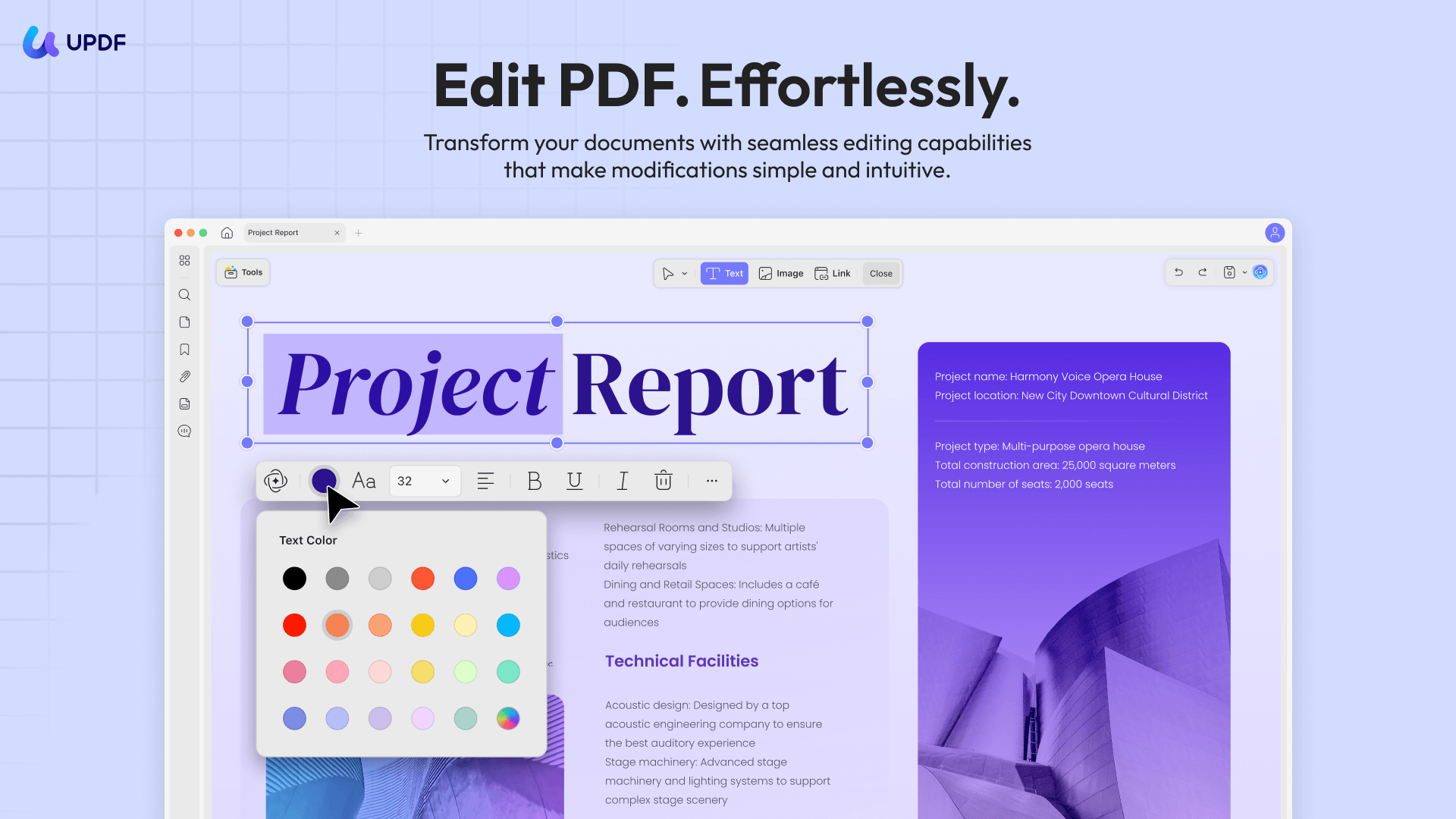
Here's how you can edit and update links with UPDF:
Step 1. Open UPDF and load your PDF via Open File or by dragging the file onto the UPDF window.
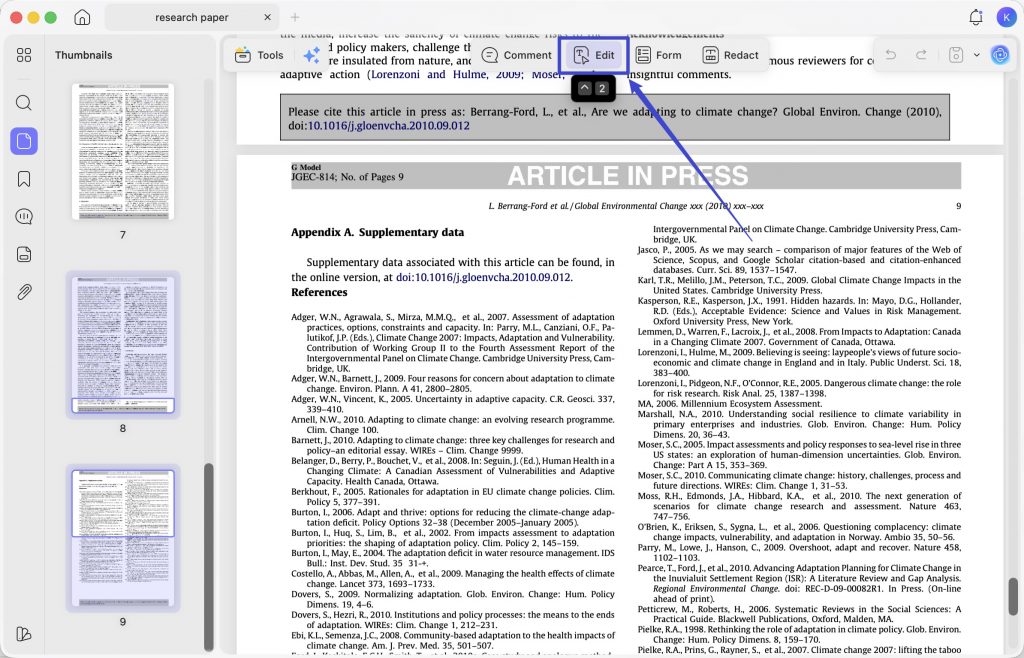
Step 2. Click Edit on the top to enter edit mode. All existing hyperlinks in the document will become highlighted and individually selectable.
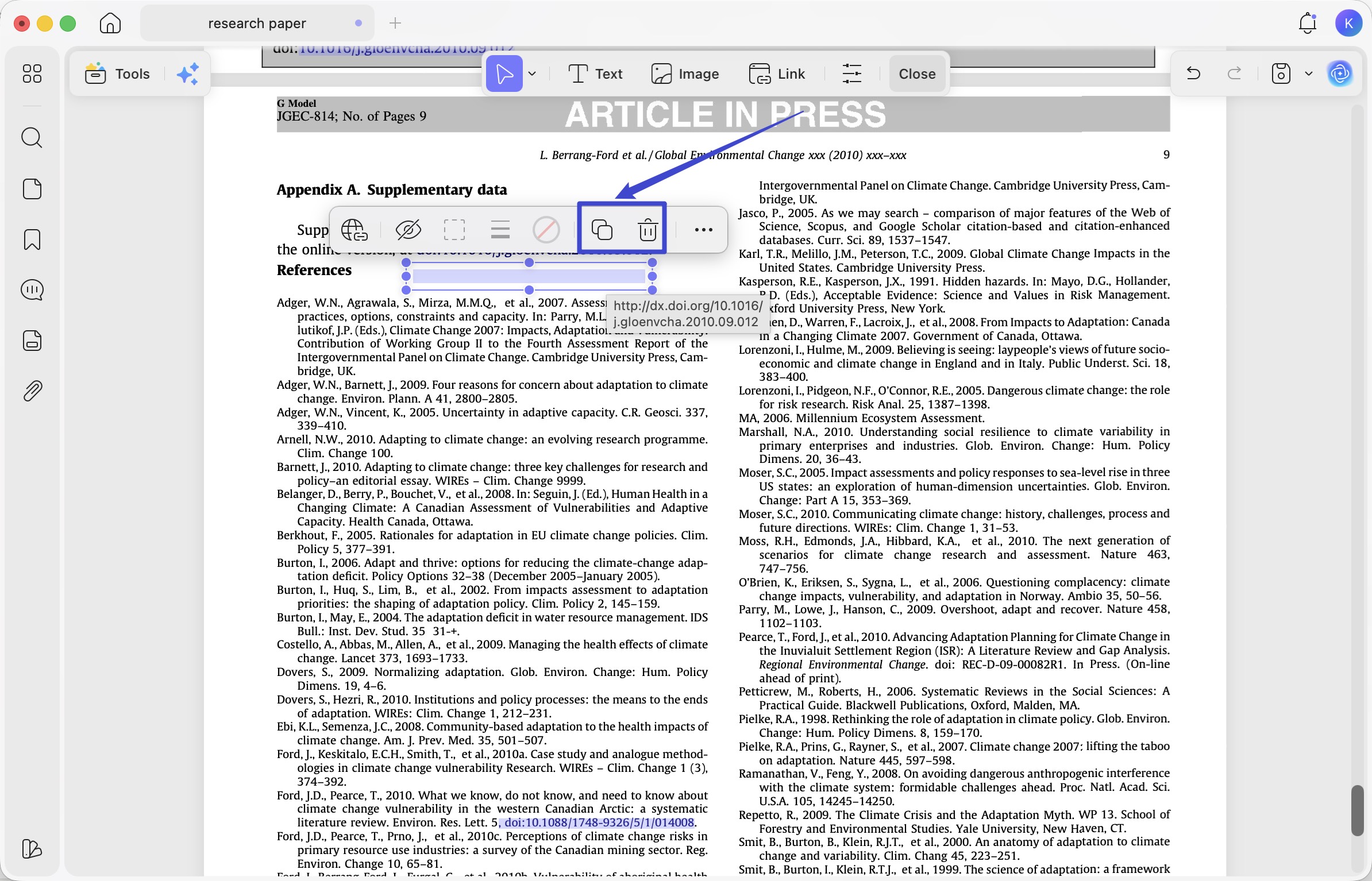
Step 3. You can now click to edit/update the link via double-clicking on the link. Alternatively, click Link on the top to add a new one. After adding the link, you can customize its appearance from the right panel. You can change the link type (choose between visible or invisible rectangle), the line style, the line thickness, and the border color.
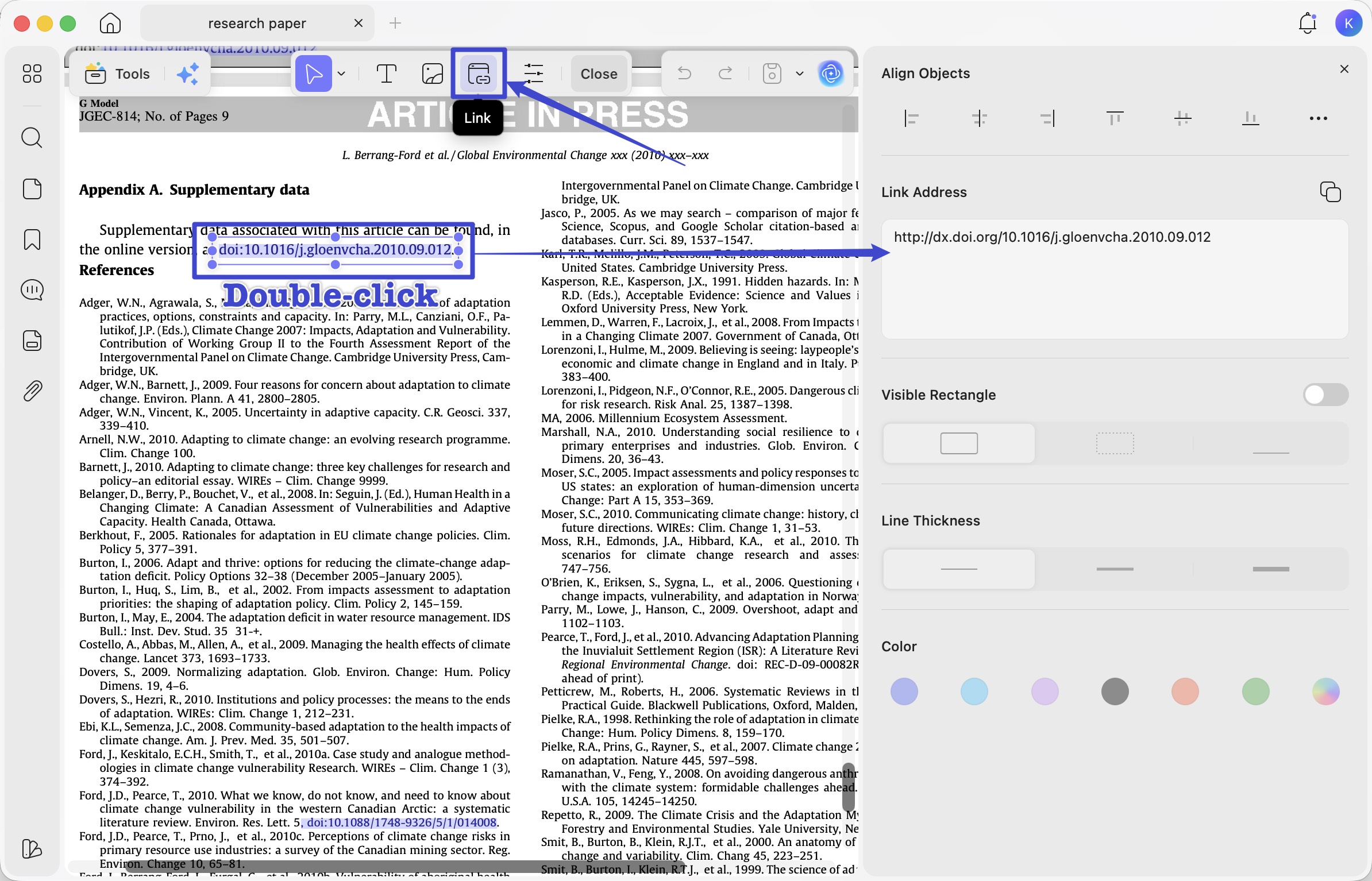
Step 4. At the same time, with a simple click, you can Delete or Copy any link in the floating toolbar, or drag it to precisely adjust its position on the page for optimal layout.
What Else UPDF Offers Beyond Link Editing
Fixing a broken hyperlink is just one of many reasons PDF users switch to UPDF from basic readers. Here's what else is available in the same app:
Core PDF editing:
- Edit text and images directly within PDF files — change font size, color, style, or replace images in place
- Full annotation toolkit: highlights, sticky notes, stamps, shapes, freehand drawing
- OCR in 38 languages to make scanned PDFs text-searchable and editable
- Form creation with all standard field types (text, checkbox, radio button, dropdown, signature)
- PDF conversion to/from Word, Excel, PowerPoint, images, and more
- Password protection, redaction, and digital signatures
- Batch processing for high-volume document operations
AI features — beyond what basic PDF editors offer:
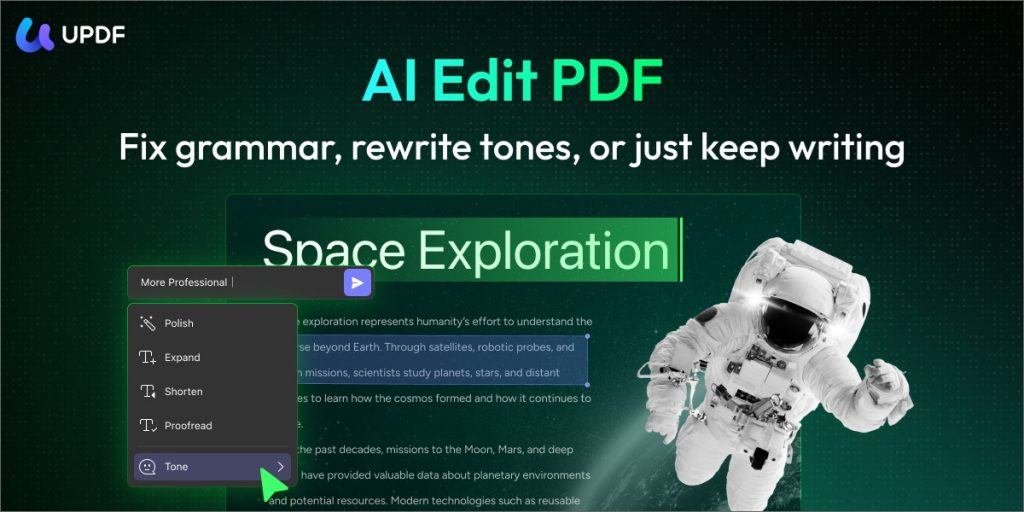
- AI Editing Suite: If fixing a hyperlink also requires updating the surrounding text — correcting an anchor phrase, rewriting a section title that contained the link, or rephrasing a paragraph — the AI Editing Suite lets you rewrite, rephrase, or adjust the tone of any text block directly inside the PDF without exporting to Word.
- Chat with PDF / Summarize: Ask the document direct questions about its content, or get AI-generated summaries of any section — useful when you're troubleshooting a complex document with many hyperlinks and need to quickly understand its structure.
Interested in UPDF? Go to download it via the below button and test it on your own.
Windows • macOS • iOS • Android 100% secure
✨ Boost Your Productivity with UPDF
Fix 2. Open the PDF in a Different PDF Reader
Before assuming the hyperlinks are broken, verify whether the issue is with your PDF reader rather than the PDF itself. Some PDF viewers — notably macOS Preview, some Android reader apps, and older versions of browser-based PDF viewers — do not activate URL hyperlinks by default.
Step 1. Try opening the same PDF in a different reader:
- Windows: Try Microsoft Edge (built-in PDF viewer), Chrome, or UPDF — all support clickable hyperlinks.
- Mac: Try UPDF or Adobe Acrobat Reader — macOS Preview does not support link activation.
Step 2. If the hyperlinks work in the new reader, the original viewer is the cause. You can either switch readers permanently or enable link support in the original app's settings (if the option exists).
Step 3. If the links fail in all readers, the problem is with the PDF file itself — proceed to Fix 1 (Use UPDF) to edit the links directly.
Windows • macOS • iOS • Android 100% secure
Fix 3. Re-Export or Recreate the PDF from the Source Document
If the hyperlinks were broken during the original PDF creation process — particularly if the file was created using Print to PDF — the most reliable fix is to re-export the PDF properly from the source document.
From Microsoft Word, Excel, or PowerPoint:
Step 1. Open the original Word/Excel/PowerPoint file.
Step 2. Verify that all hyperlinks are clickable and correct within the source document first.
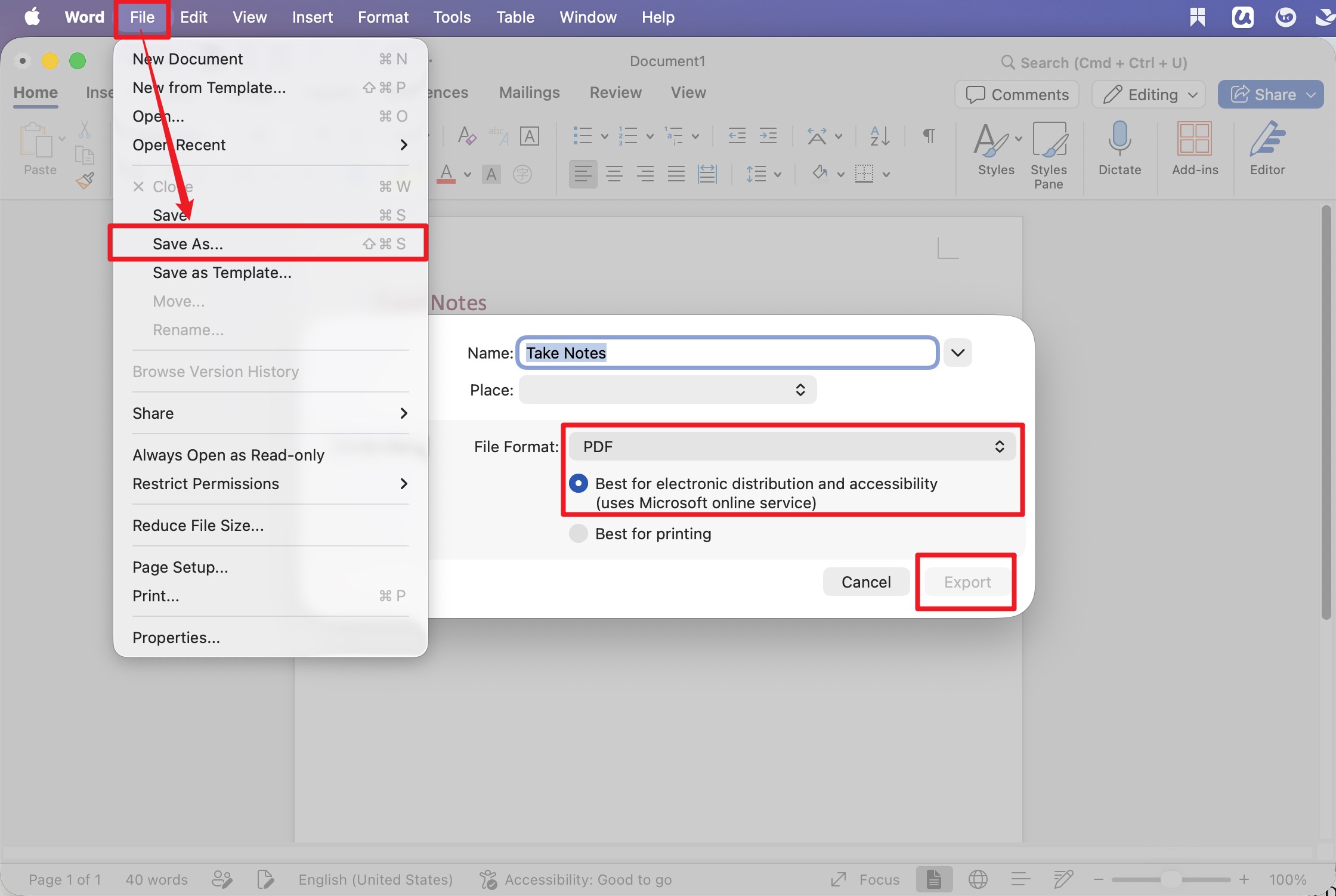
Step 3. Export to PDF using File → Save As → PDF (not Print → Save as PDF). In the Save As dialog, click Options (Windows) or Best for electronic distribution and accessibility (Mac) to ensure hyperlinks and bookmarks are embedded in the export.
Step 4. Open the newly exported PDF and test the links. If they work, the original PDF was created with the wrong method.
If you don't have access to the source document:
Use UPDF's link editing tools (Fix 1) to manually replace each broken link — entering the correct URL directly into UPDF's link editor for each hyperlink.
Fix 4. Check Your Internet Connection (for URL-Based Links)
Important distinction:
If your PDF contains URL-based links that appear to do nothing when clicked, a network issue could be the cause — particularly if the links were working previously.
Checklist:
- Open a browser and attempt to visit the linked URL directly. If the page doesn't load, the destination may be down or the URL may have changed since the PDF was created (broken external links are a common issue in older PDFs).
- Switch from Wi-Fi to a mobile data connection (or vice versa) to rule out a router or ISP issue.
- If your device is connected to a corporate VPN or a network with strict firewall rules, these may be blocking certain outbound URLs. Try disabling the VPN temporarily to test.
- If the destination URL returns a 404 error in the browser, the webpage no longer exists. You will need to update the link in the PDF (Fix 1) to point to the new URL.
Fix 5. Update Your PDF Reader to the Latest Version
Older versions of PDF reader software may not correctly handle modern hyperlink implementations — particularly https:// links, links with query strings, or links in PDFs that use newer PDF specification features. An update often resolves these silently.
On Windows/Mac:
- Step 1. Open your PDF reader → go to Check for Updates. In UPDF: Your Profile →Click the version number → Click Check for Update. In Adobe Reader: Help → Check for Updates.
For Mac Users
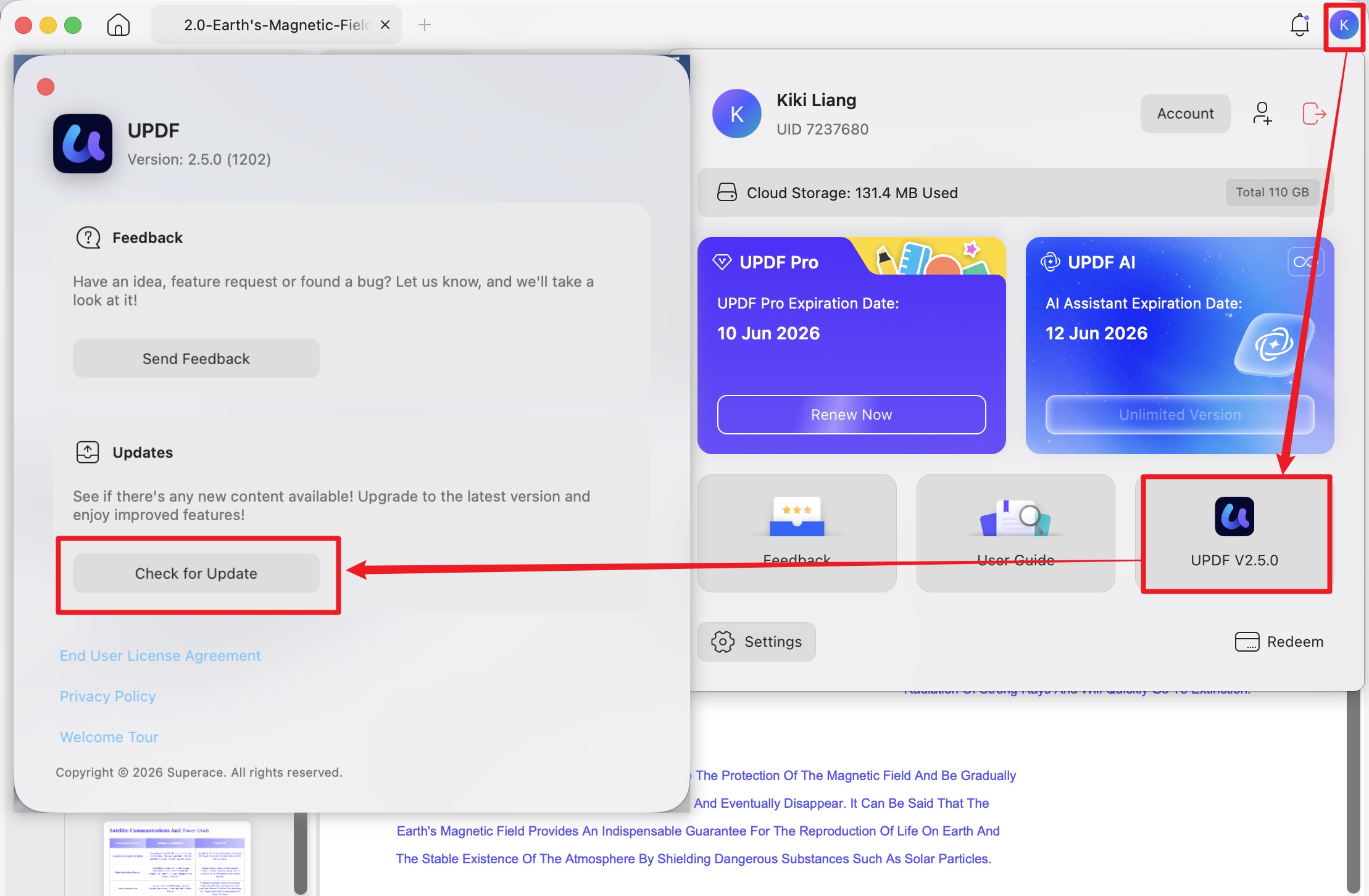
- Step 2. Install and relaunch. Test the hyperlinks again after the update.
On iOS/Android:
Update the PDF reader app through the App Store (iOS) or Google Play Store (Android) like any other app.
FAQs: Hyperlinks Not Working in PDF
Q1. How do I fix PDF links not working on Android?
Start by opening the PDF in UPDF for Android — it has full hyperlink support and can activate most URL-based links that other Android readers ignore. If links still don't work in UPDF, the issue is with the PDF itself rather than the reader: check that each URL is correctly formatted (starts with https://) and verify that the destination website is accessible by opening the URL in Chrome. If the URL is broken or outdated, edit the link directly in UPDF using the Link editing tool.
Q2: How do I fix PDF links not working on iPhone?
The most common cause on iPhone is opening the PDF in Safari's built-in reader or macOS-style Preview mode, which doesn't activate hyperlinks. Open the PDF in UPDF for iOS or Adobe Acrobat Reader instead — both support clickable URL links. If a link still doesn't open, check whether Safari is blocking pop-ups (Settings → Safari → Block Pop-ups) and ensure the destination URL is reachable by testing it in Safari directly.
Q3: How do I fix PDF links not working in Adobe Acrobat Reader?
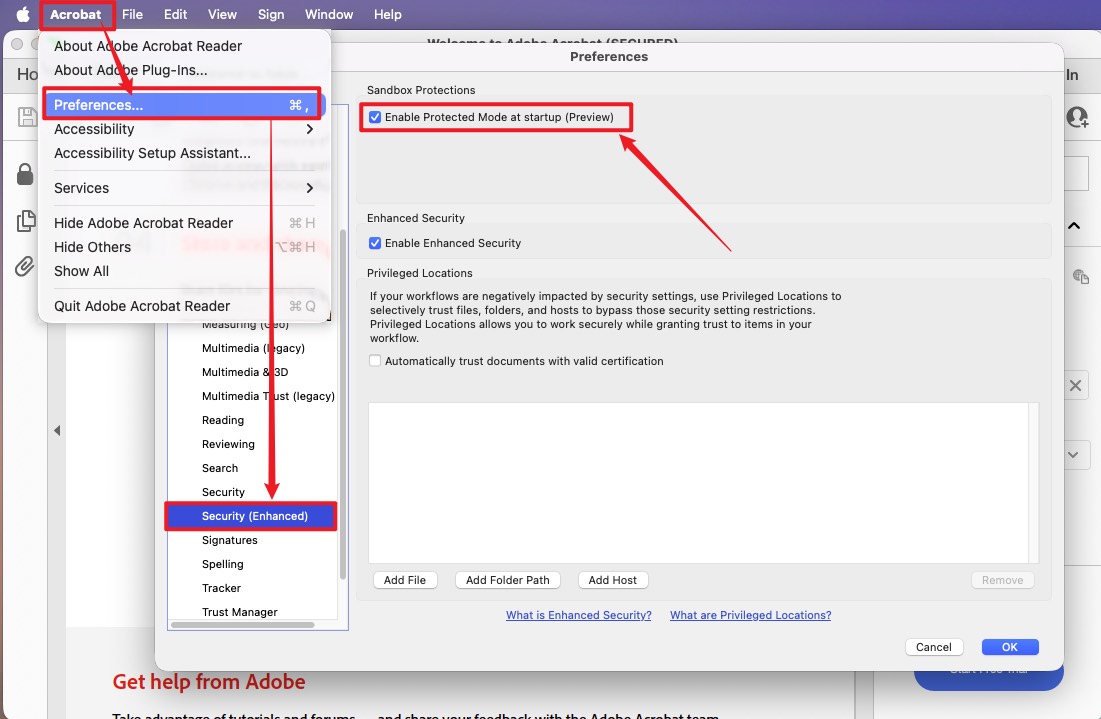
Step 1. Check Adobe Reader's security settings: go to Acrobat → Preferences → Security (Enhanced) and verify that "Enable Protected Mode at startup" is not blocking external URL access. Adobe's Protected Mode can prevent hyperlinks from opening in some configurations.
Step 2. Go to Acrobat → Preferences → Trust Manager and ensure "Allow opening of non-PDF file attachments with external applications" is enabled.
Step 3. Update Adobe Reader via Help → Check for Updates.
Step 4. If the links still don't work, open the PDF in UPDF instead — UPDF does not apply the same level of security restrictions that can block links in Adobe Reader, and its link editor lets you verify and update link destinations directly.
Conclusion
PDF hyperlinks fail for distinct, diagnosable reasons — and the fix depends on identifying the right one. If links were broken during conversion from Word or PowerPoint, re-exporting from the source (Fix 3) is the most reliable solution. If the issue is reader-specific, switching to UPDF (Fix 2) resolves it immediately. If the links contain typos or outdated URLs, Fix 1's link editor in UPDF lets you correct them directly without rebuilding the document.
For ongoing PDF work, UPDF provides the link editing and AI text refinement (AI Editing Suite) to handle not just hyperlinks, but every aspect of PDF document management in one app.
Download UPDF for free and fix your broken PDF hyperlinks today — no subscription required to get started.
Windows • macOS • iOS • Android 100% secure







 Engelbert White
 Enola Miller
 Enrica Taylor

 Enola Davis