 UPDF
UPDF
 UPDF for Windows
 UPDF for Mac
 UPDF for iPhone/iPad
 UPDF for Android
 Nomostar
 UPDF AI Online
 UPDF Sign
 IvyCraft
 Edit PDF
 Annotate PDF
 Create PDF
 PDF Form
 Edit links
 Convert PDF
 OCR
OCR PDF to Word
 PDF to Image
 PDF to Excel
 Organize PDF
 Merge PDF
 Split PDF
 Crop PDF
 Rotate PDF
 Protect PDF
 Sign PDF
 Redact PDF
 Sanitize PDF
 Remove Security
 Read PDF
 UPDF Cloud
 Compress PDF
 Print PDF
 Batch Process
 About UPDF AI
 UPDF AI Solutions
 AI User Guide
 FAQ about UPDF AI
 Summarize PDF
 Translate PDF
 Chat with PDF
 Chat with AI
 Chat with image
 PDF to Mind Map
 Explain PDF
 PDF AI Tools
 Image AI Tools
 AI Chat Tools
 AI Writing Tools
 AI Study Tools
 AI Working Tools
 Other AI Tools
 AI Bookmark Generation
 AI Bookmark Summary
 AI Watermark Generation
 AI Background Generation
 AI Sticker Generation
 AI Stamp Generation
 AI Editing Suite
 UPDF Copilot
 AI Page Management
 AI Semantic Search
 PDF to Word
 PDF to Excel
 PDF to PowerPoint
 Enterprise Solution
 Enterprise Sign
 Enterprise AI
 Enterprise Plan
 Enterprise User Guide
 Enterprise Webinar
 IT
IT Education
 Construction
 Financial Service
 Healthcare
 Insurance
 Legal
Legal Manufacturing
 Government
 Researchers & PhDs
 Solopreneurs & Freelancers
 Lawyers & Legal Professionals
 Real Estate Agents & Brokers
 Education Solution
 Customer Stories
 User Guide
 UPDF Tricks
 FAQs
FAQs UPDF Reviews
 Download Center
 Blog
Blog Newsroom
 Tech Spec
 Updates
 UPDF vs. Adobe Acrobat
 UPDF vs. Foxit
 UPDF vs. PDF Expert

Today, most document work has shifted to online collaboration tools. As a result, browser-based PDF viewers like the Adobe Acrobat Chrome extension have become a convenient tool for handling PDFs without downloading.
But is it really a reliable option for professional documents? This article provides a complete review of the extension, so you can see if it's worth your time.
While the extension handles basic tasks well, it functions more as a gateway to Adobe's paid ecosystem than a standalone editor.
If you want a more professional solution for handling PDFs, UPDF offers a full-featured and cross-platform alternative at a significantly lower cost. You can download and try it for free.
Windows • macOS • iOS • Android 100% secure
Part 1. Comprehensive Review: The Adobe Acrobat Extension for Chrome & Edge
The Adobe Acrobat extension is a browser-based PDF tool that lets you view, annotate, and manage PDF documents without leaving your browser tab. It is available for both Google Chrome and Microsoft Edge, and you can install it from the Chrome Web Store . Because Edge supports Chrome extensions natively, the same installation also works as the Adobe Acrobat extension for Microsoft Edge.
Key Features:
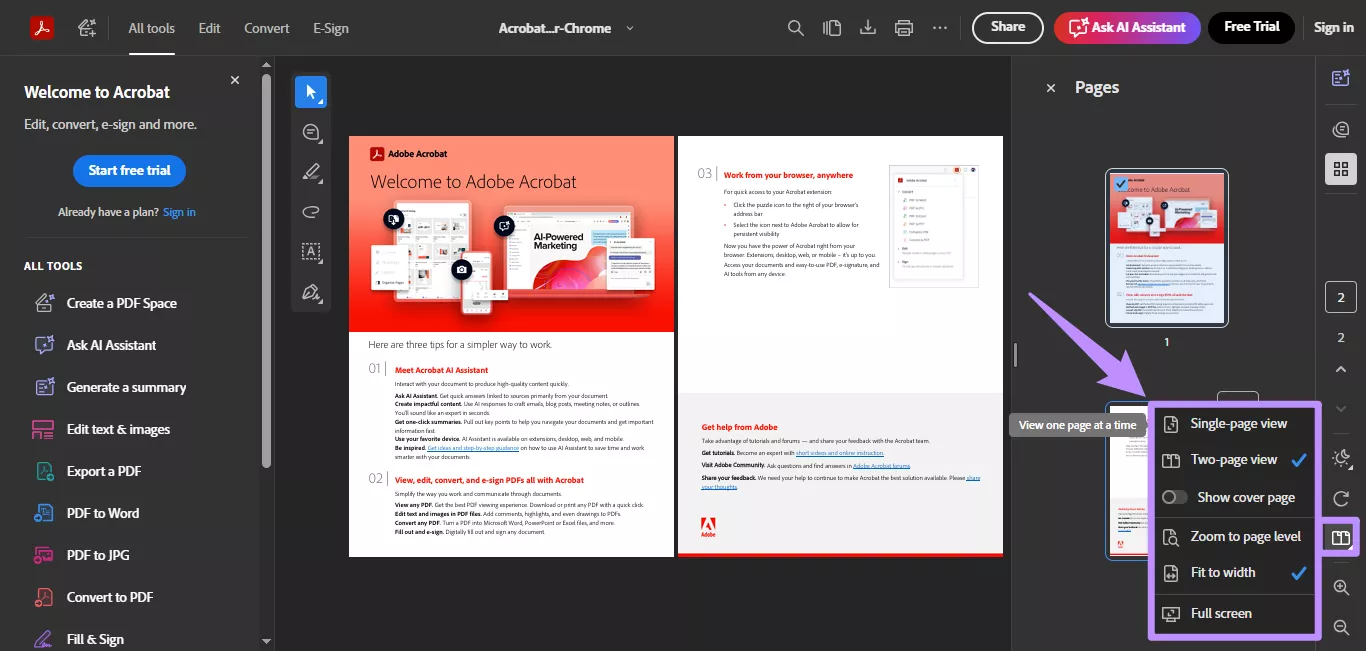
1. View and Read: You can open a PDF in single-page or two-page layout and toggle continuous scrolling on or off. It also supports switching between light and dark modes for comfortable reading.
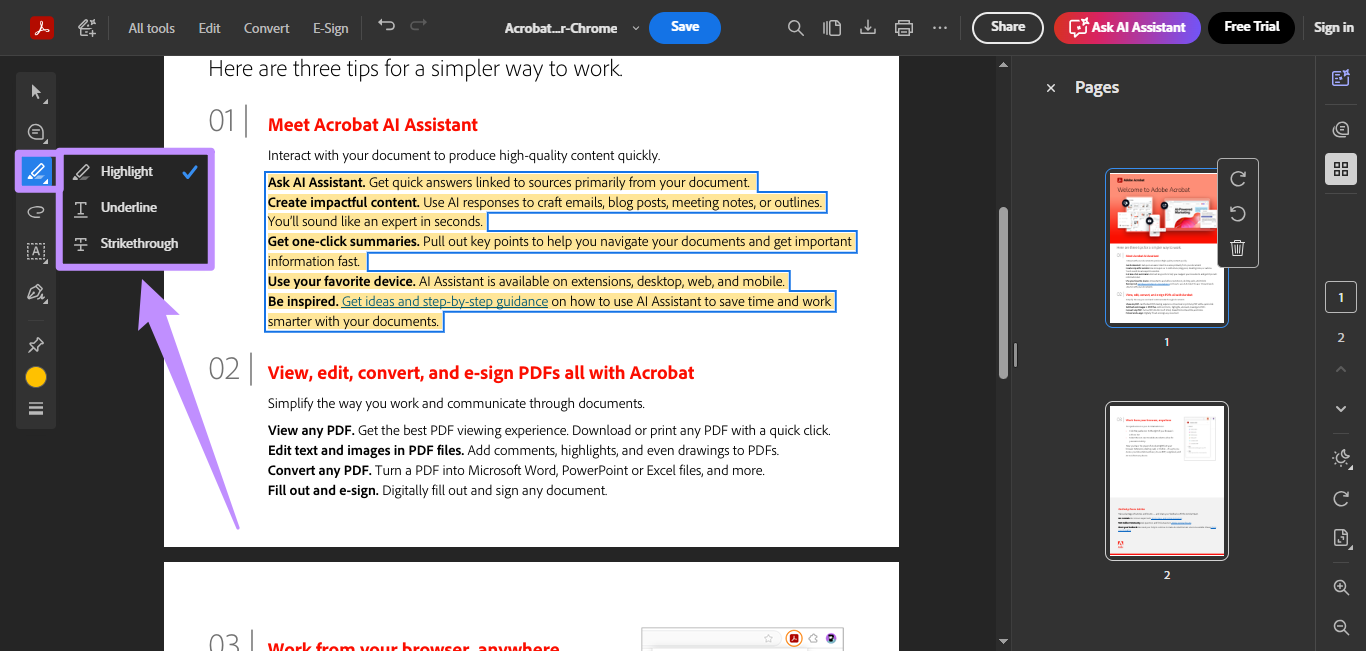
2. Markup and Annotate: The Adobe Acrobat extension for Chrome allows you to highlight, underline, strike through text, and add freehand drawings. You can also adjust their colors for better organization.
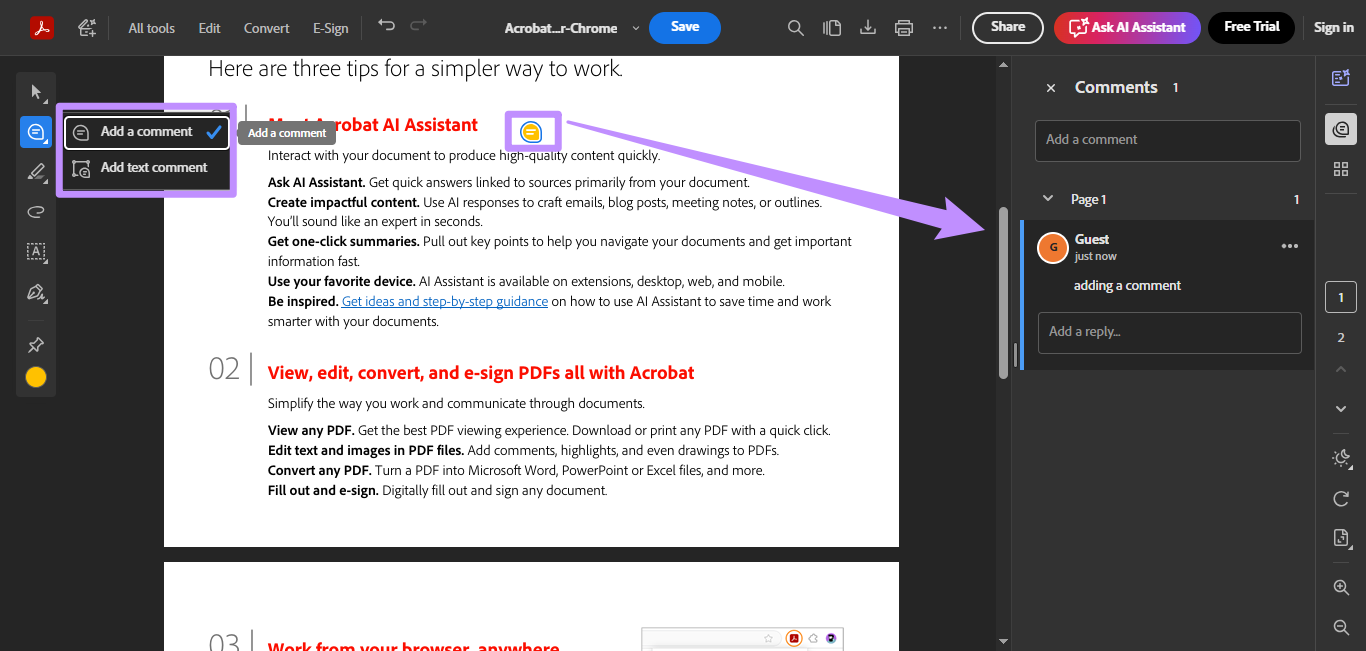
3. Add Comments: Comments can be added using pinned comment icons placed on specific areas of a page. You can also insert comments as text boxes directly within the PDF content.
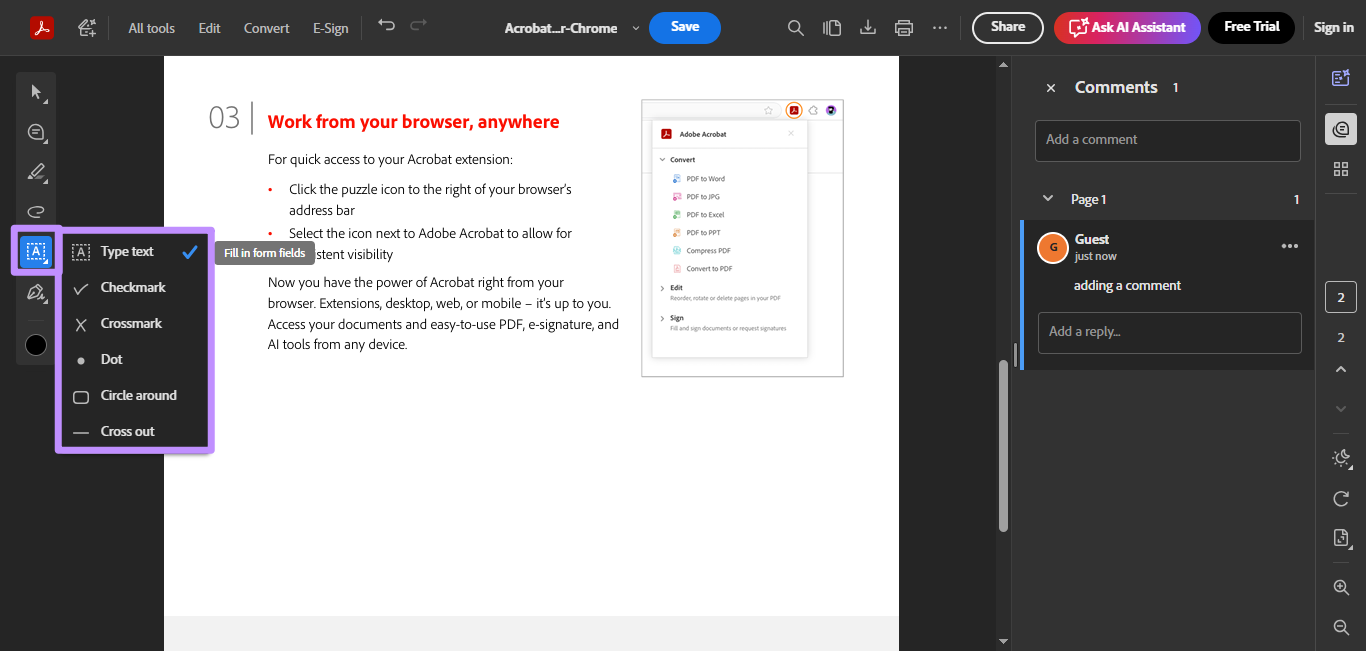
4. Fill Forms: You can only fill out static PDF forms with manual controls. This includes adding text boxes and using selection marks such as checkmarks, crosses, dots, circles, and cross-out symbols.
5. Sign PDFs: You can add handwritten, typed, or image-based signatures and initials.
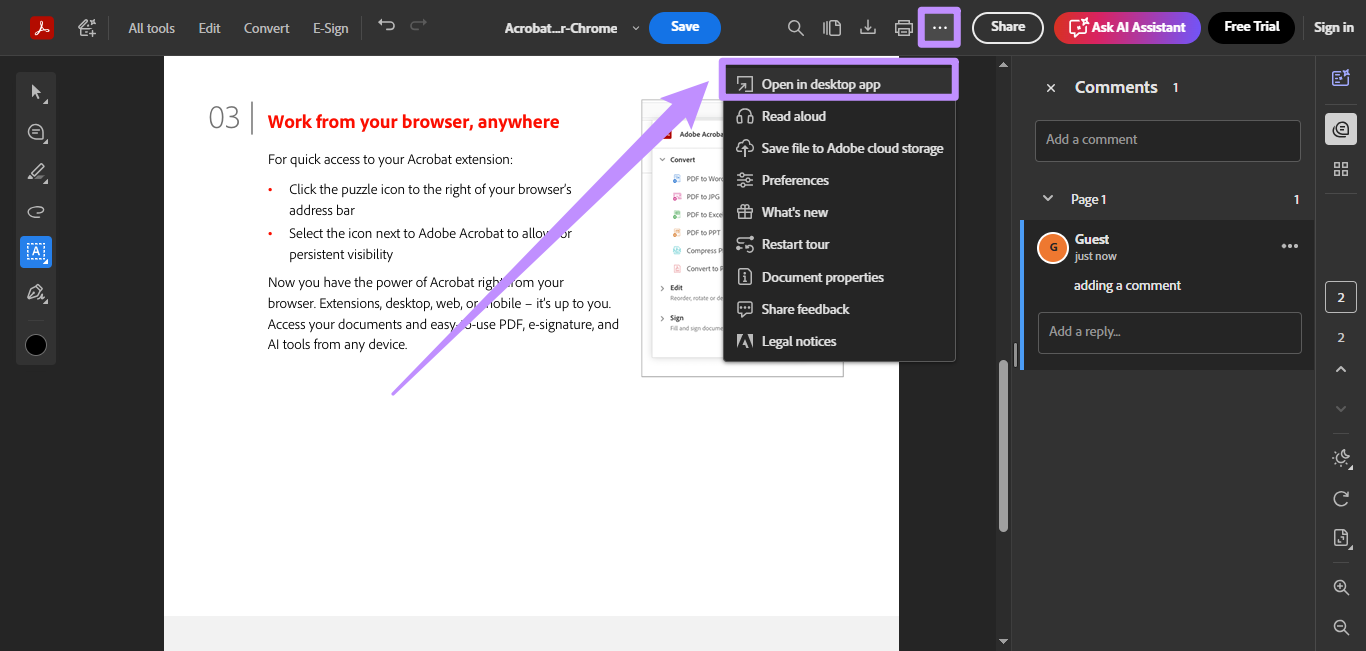
6. Open in Acrobat: A shortcut labeled "Open in desktop app" allows you to transfer the file to Adobe Acrobat's desktop version without opening it manually.
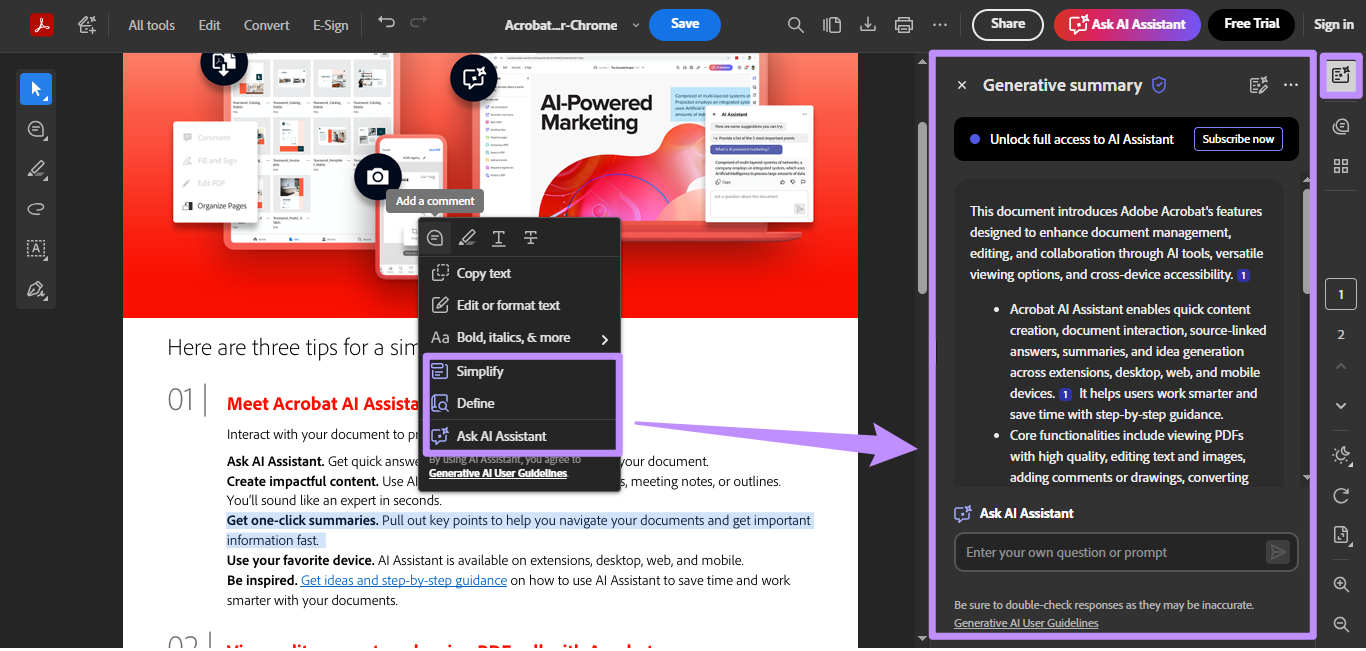
7. AI Assistant: The built-in AI assistant can generate document summaries, explain content, define terms, and answer questions based on the PDF content.
Pricing & Accessibility:
The extension itself is free to install. However, most of the features, such as editing text, converting PDFs to other formats, and organizing pages, are locked behind a paid subscription. To unlock them, you need either an Acrobat Pro plan or a Creative Cloud subscription.
| Plan | Price |
| Acrobat Pro + AI (Annual, billed monthly) | $24.98/month |
| Acrobat Pro + AI (Monthly, no commitment) | $36.98/month |
| Acrobat Pro + AI (Annual, prepaid) | $299.76/year |
Tip
Compared to Acrobat, UPDF is a much more affordable all-in-one PDF editor. Its Pro + AI annual plan costs just $118.99/year—over 60% cheaper than Acrobat. It also offers unlimited AI usage with more advanced features, including bookmark generation, AI backgrounds/stickers/stamps, and semantic search, beyond basic summarization and translation.
Check UPDF’s pricing page to get the best plan for your needs.
Writer's Sentiment:
The Acrobat extension handles everyday online PDFs well enough. Viewing, annotating, and filling out simple forms in the browser is straightforward, and the interface is clean. All PDF tools sit in the left sidebar, while the AI assistant occupies the right panel, which keeps the layout organized
Ratings:
The Adobe Acrobat Chrome extension holds a rating of 4.4 out of 5.0 based on over 61,000 user reviews on the Chrome Web Store, and it currently has more than 337 million active users worldwide.
The Good:
By offering only the essential PDF tools, the Acrobat extension provides a clutter-free environment to handle online documents. All the tools are easy to access and use without needing to dig through extensive menus.
The Bad:
The Adobe Acrobat Chrome Extension lacks many basic features, such as tools to rotate, crop, or delete PDF pages. Also, you cannot fill interactive PDF forms and instead must rely on manual controls to do so. And most of the editing and conversion tools displayed in the toolbar are not actually usable without a paid subscription, which can feel misleading.
Pros & Cons:
| Pros | Cons |
| No account required for basic use | Most editing features require a paid subscription |
| Clean and well-organized interface | Slow browser performance with heavy files |
| Works across Chrome and Microsoft Edge | Lacks many basic PDF tools |
| AI assistant for quick summaries | Cannot fill interactive PDF forms |
| Multiple viewing modes | |
| Transfer PDFs to the Acrobat desktop app |
Part 2. Why Users are Switching to UPDF - An AI PDF Editor for All Platforms
While Acrobat's extension requires you to pay for even basic PDF editing, UPDF gives you complete control over it. You can freely edit all PDF elements, fill forms, organize pages, and export to other file formats as needed. In addition, UPDF is built to seamlessly handle rich PDF documents in a lightweight design. So, while Acrobat's desktop app is resource-heavy, UPDF does not affect your device's performance.
Windows • macOS • iOS • Android 100% secure
Let's look at its key benefits in detail.
1. Full Editing vs. Simple Viewing:
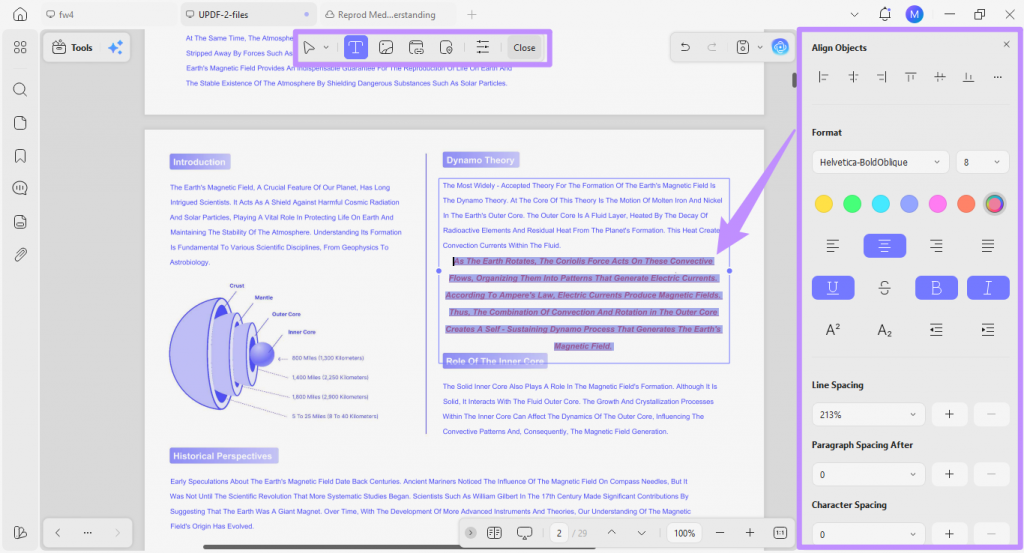
Unlike the Acrobat extension, UPDF allows you to fully edit text, images, and links, organize pages, convert PDFs to Word, Excel, PowerPoint, and images, all without any payment.
The way the tools fit together can matter as much as the individual features. For the next step, you can explore editing PDF content in UPDF in the video below.
While a trial watermark is added, you can test all features without any time limits. Moreover, if you upgrade to UPDF Pro, it is cheaper than Acrobat. It also offers a lifetime license for a high return on investment.
2. Integrated AI Assistant:
Adobe extension offers basic AI features to interact with files and generate summaries. Meanwhile, UPDF offers considerably more AI tools. Powered with GPT-5 and DeepSeek R1, it supports instant summaries, translations, explanations, and chatting with PDFs directly in the app. Moreover, it offers 10 AI agents to speed up your document workflow.
Here are some ways these can help you.
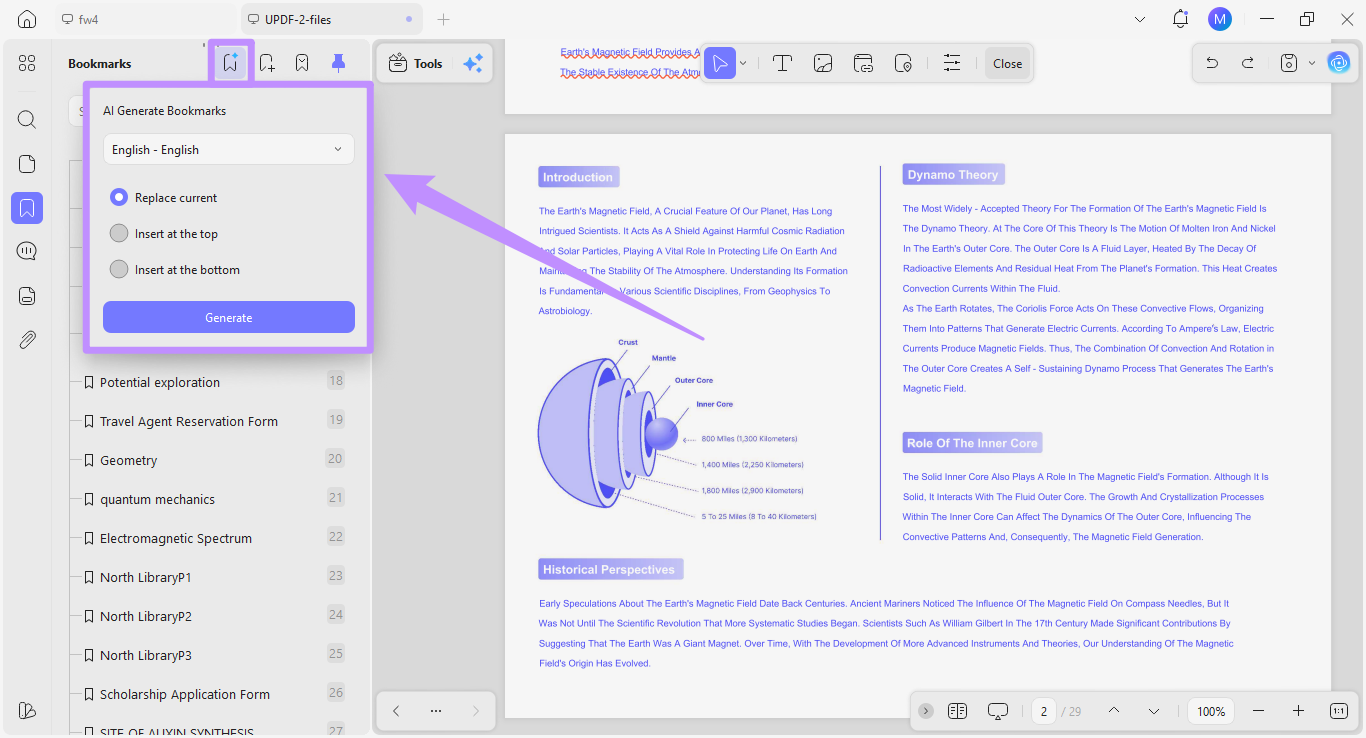
- A researcher can use the AI Bookmark Generator to instantly structure a 200-page report. UPDF allows you to combine or replace existing bookmarks with AI-generated ones.
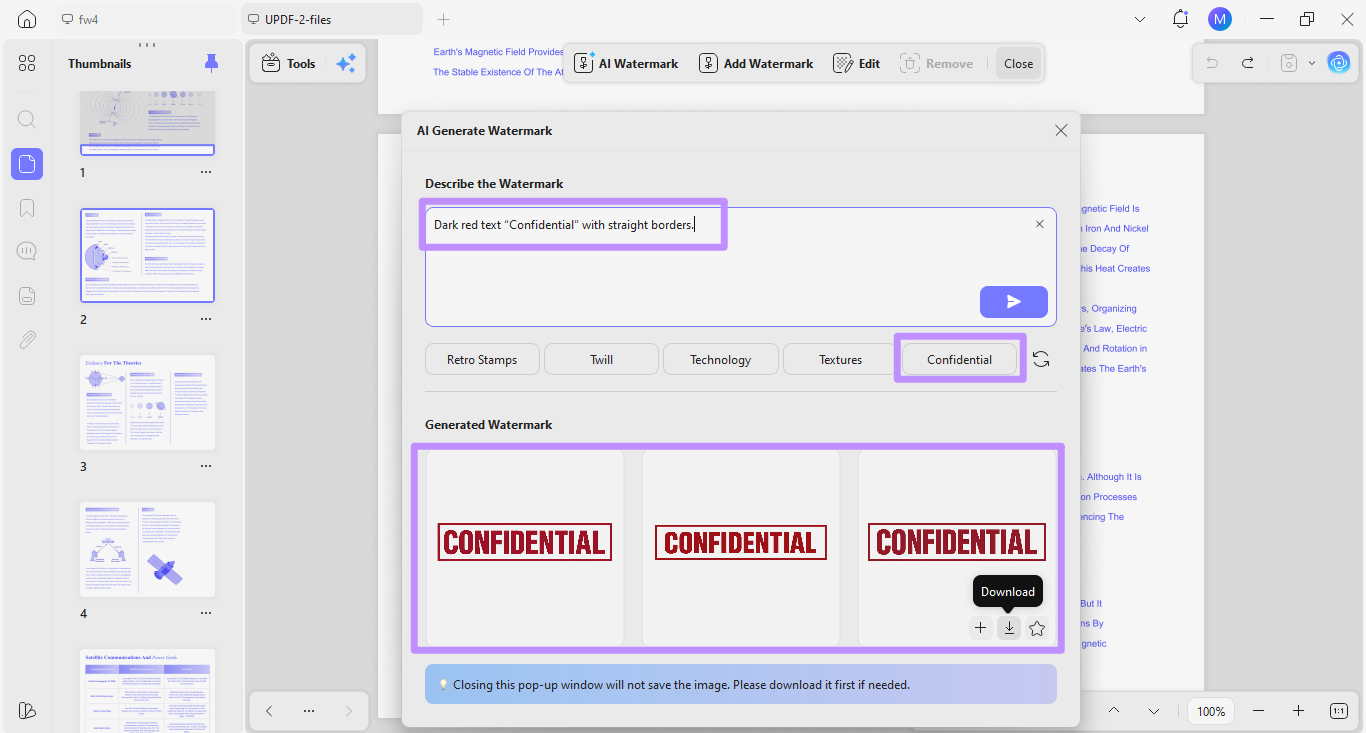
- UPDF also offers an AI Watermark feature to generate personalized watermark designs to specify the status of professional documents. For example, a lawyer can use it to create a "Confidential" watermark without having to design it manually.
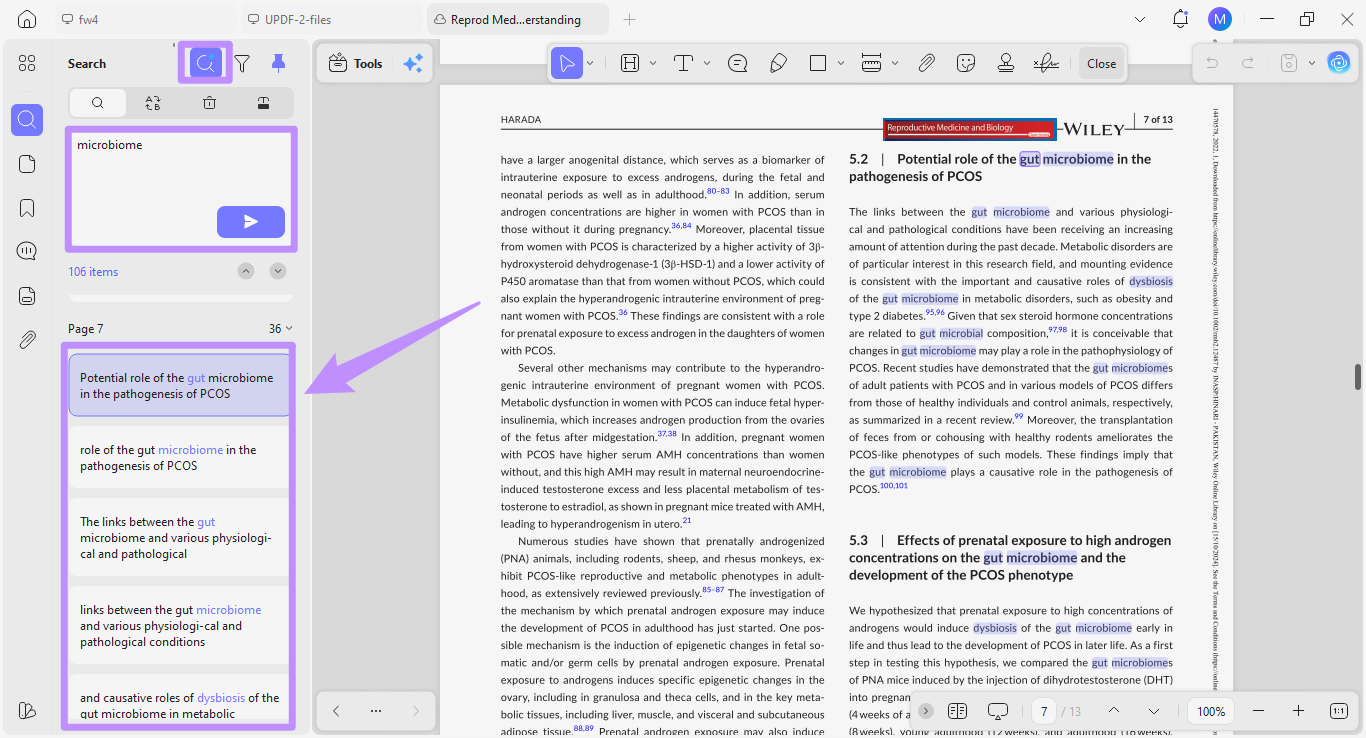
- Similarly, a student working on an academic paper can use AI Semantic Search to find specific terminologies by their contextual synonyms, instead of exact word matches.
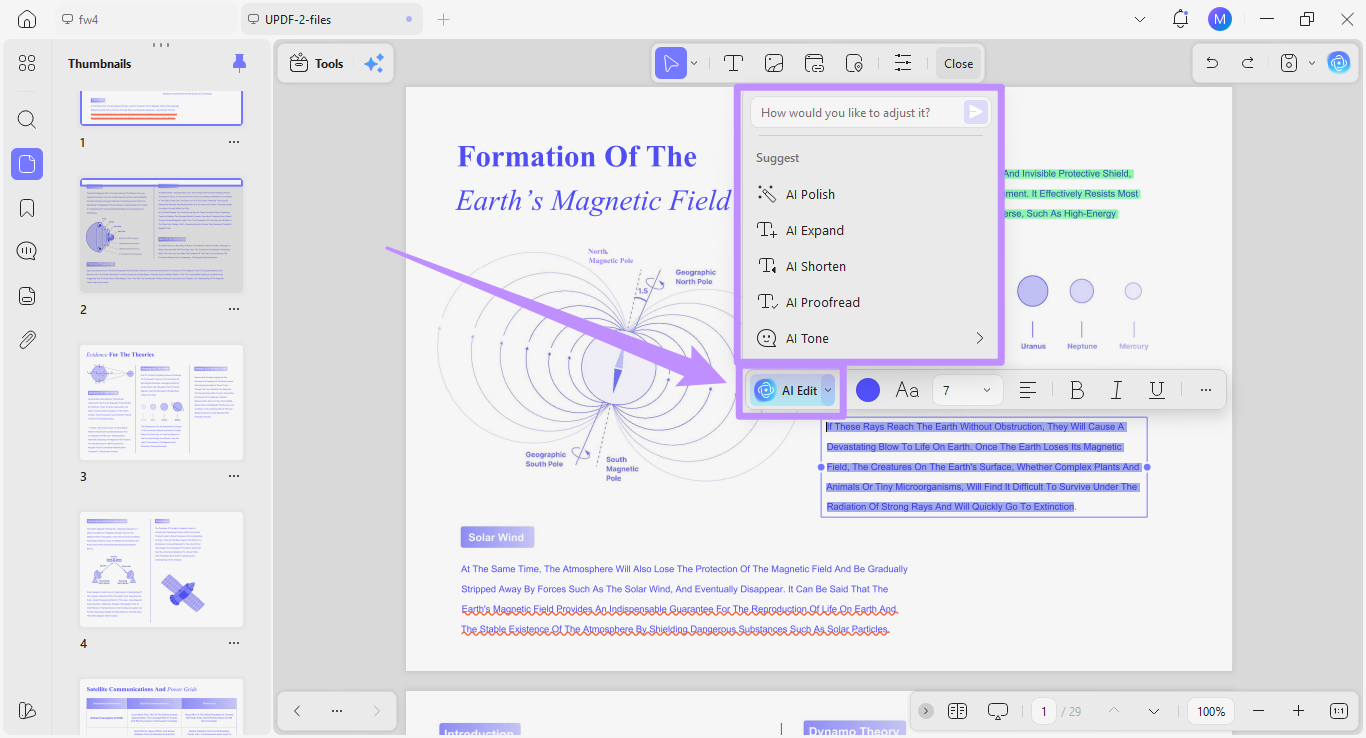
- If you need to edit PDF content in a limited time, you can use the "AI Edit" tool to update the PDF text, adjust its tone, style, and depth. Just write a prompt or select a preset.
3. Cross-Platform Freedom:
While the Acrobat extension is tied to your browser, UPDF is accessible locally on your desktop and mobile. It is available across Windows, Mac, iOS, and Android, and one UPDF license allows you to work across all platforms and up to 4 devices at once.
Writer's Experience:
To test how well both tools actually perform, I opened an 8MB interactive technical manual in each. The Adobe extension struggled to open the file for several seconds. During which my browser became very sluggish and laggy. Meanwhile, UPDF's desktop app opened the same document about 3 times faster. And navigating the PDF remained smooth throughout."
Part 3. FAQs
Q1. Is the Adobe Acrobat extension for Chrome free?
The extension is free to install. However, most features, such as editing text, converting files, and organizing pages, require a paid Adobe Acrobat Pro subscription.
Q2. Why is my Adobe extension not working in Microsoft Edge?
If your Adobe extension is not working in the Edge browser, the extension might be outdated or conflicting with another PDF extension or Edge's built-in PDF viewer. To fix this, enable the extension in your browser settings and disable the built-in PDF viewer.
Q3. Can I edit PDF text directly in the Chrome extension?
No. The extension displays an "Edit PDF" option in the toolbar, but it is locked behind a paid subscription. Free users can only annotate, fill static forms, and sign documents.
Q4. Is Chrome PDF the same as Adobe PDF?
No, they are not the same. Chrome's built-in PDF viewer allows you to open and print PDFs. The Adobe PDF extension is a separate tool you can install in your Chrome browser to annotate, fill forms, sign, and chat with PDF using AI.
Conclusion
The Adobe Acrobat Chrome extension is a convenient tool for viewing, annotating, and signing PDFs in your browser. However, the lack of even basic editing, organization, and export features can really affect your workflow.
If you want these functions without paying for Acrobat's hefty subscription, you can use UPDF instead. It delivers full editing, mature AI tools, and cross-platform support at a fraction of Adobe's price. Download and try it yourself.
Windows • macOS • iOS • Android 100% secure






 Enrica Taylor
 Enola Miller
 Enola Davis
 Enya Moore