 UPDF
UPDF
 UPDF for Windows
 UPDF for Mac
 UPDF for iPhone/iPad
 UPDF for Android
 UPDF AI Online
 UPDF Sign
 Edit PDF
 Annotate PDF
 Create PDF
 PDF Form
 Edit links
 Convert PDF
 OCR
OCR PDF to Word
 PDF to Image
 PDF to Excel
 Organize PDF
 Merge PDF
 Split PDF
 Crop PDF
 Rotate PDF
 Protect PDF
 Sign PDF
 Redact PDF
 Sanitize PDF
 Remove Security
 Read PDF
 UPDF Cloud
 Compress PDF
 Print PDF
 Batch Process
 About UPDF AI
 UPDF AI Solutions
 AI User Guide
 FAQ about UPDF AI
 Summarize PDF
 Translate PDF
 Chat with PDF
 Chat with AI
 Chat with image
 PDF to Mind Map
 Explain PDF
 PDF AI Tools
 Image AI Tools
 AI Chat Tools
 AI Writing Tools
 AI Study Tools
 AI Working Tools
 Other AI Tools
 PDF to Word
 PDF to Excel
 PDF to PowerPoint
 Enterprise Solution
 Enterprise Sign
 Enterprise AI
 Enterprise Plan
 Enterprise User Guide
 Enterprise Webinar
 Banking
 Healthcare
 Insurance
 Legal
Legal Manufacturing
 Government
 Education Solution
 Customer Stories
 User Guide
 UPDF Tricks
 FAQs
FAQs UPDF Reviews
 Download Center
 Blog
Blog Newsroom
 Tech Spec
 Updates
 UPDF vs. Adobe Acrobat
 UPDF vs. Foxit
 UPDF vs. PDF Expert

Many users rely on Adobe's creative suite for their daily tasks. However, some may encounter situations where they would prefer to disable Adobe Cloud storage.
But why would someone want to do this? It could very well be due to compliance concerns. You see, certain organizations have strict data storage regulations. Therefore, disabling cloud storage ensures that the files remain on the local network.
Another reason someone would disable Adobe Cloud storage is unwanted uploads: Sometimes, users might accidentally upload files to the cloud when they don't intend to. Disabling cloud storage can prevent this.
In this guide, we will walk you through the technical steps to regain control over your file storage. We will also introduce UPDF, a lightweight and powerful alternative that gives you total control over where your data lives—offering a seamless local experience with an "opt-in" rather than "forced-in" cloud model.
Windows • macOS • iOS • Android 100% secure
Part 1. Why Disable Adobe Cloud Storage?
Adobe has integrated its cloud services deeper into the Acrobat interface than ever before. For many, this results in several pain points:
- Privacy Concerns: Regulations like GDPR and CCPA often require specific data handling that "automatic cloud syncing" can complicate.
- Workflow Latency: Waiting for a "Save As" window to load cloud directories can slow down a fast-paced workday.
- Forced Upselling: The cloud interface often serves as a billboard for Adobe’s storage subscription upgrades.
If you find yourself constantly clicking "Save to My Computer" every time you want to store a file locally, it’s time to adjust your settings. Or, better yet, consider a solution like UPDF that defaults to your local system and only uses the cloud when you explicitly ask it to.
Part 2. How to Disable Cloud Storage in Adobe Acrobat?
If you are wondering how to disable the cloud storage in Adobe Acrobat, you’ll be surprised to know that it is pretty easy.
Change General Preferences
Here are the steps for it:
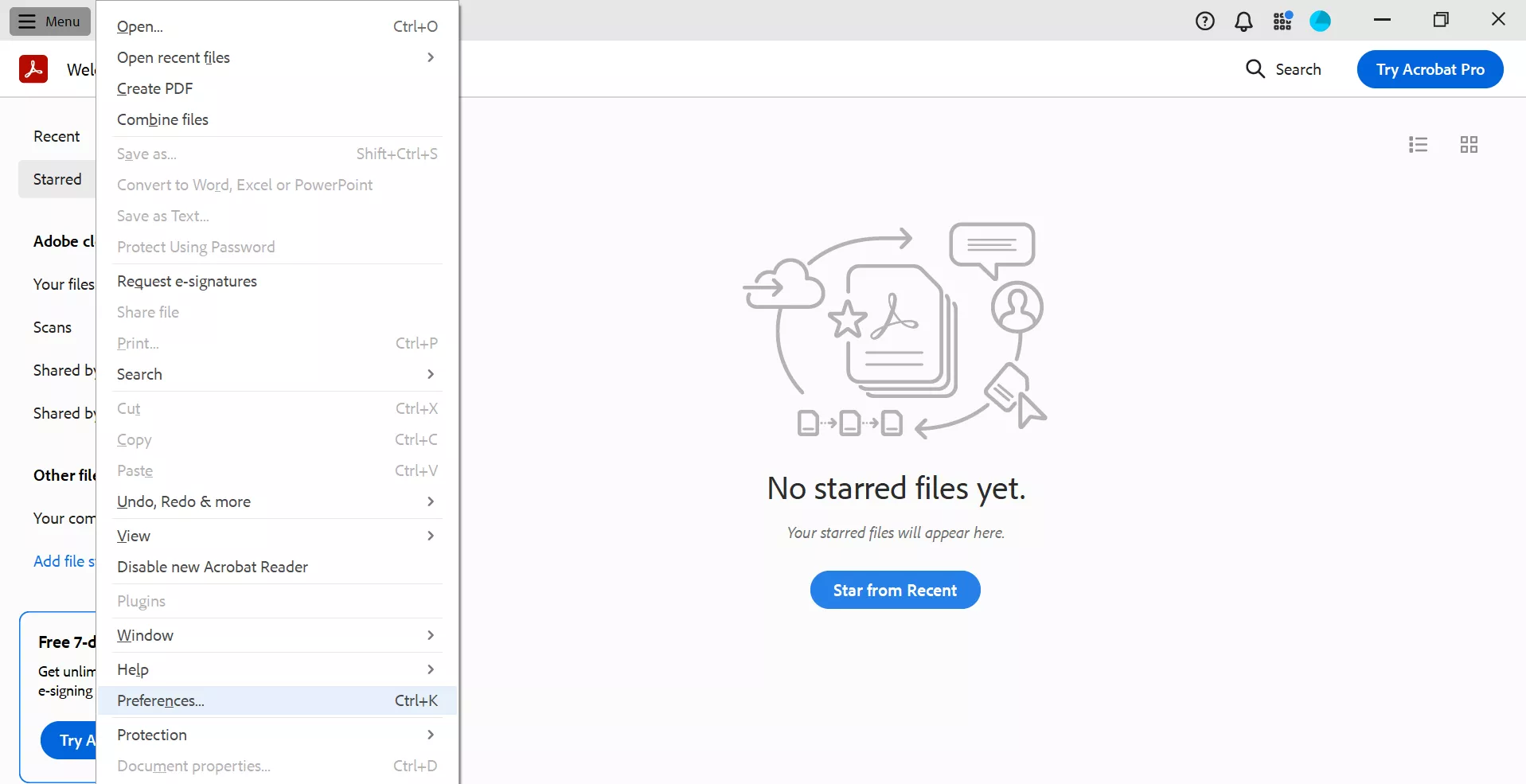
Step 1: Open Adobe Acrobat on your PC, click on the “Menu” option at the top-left corner, and select "Preferences".
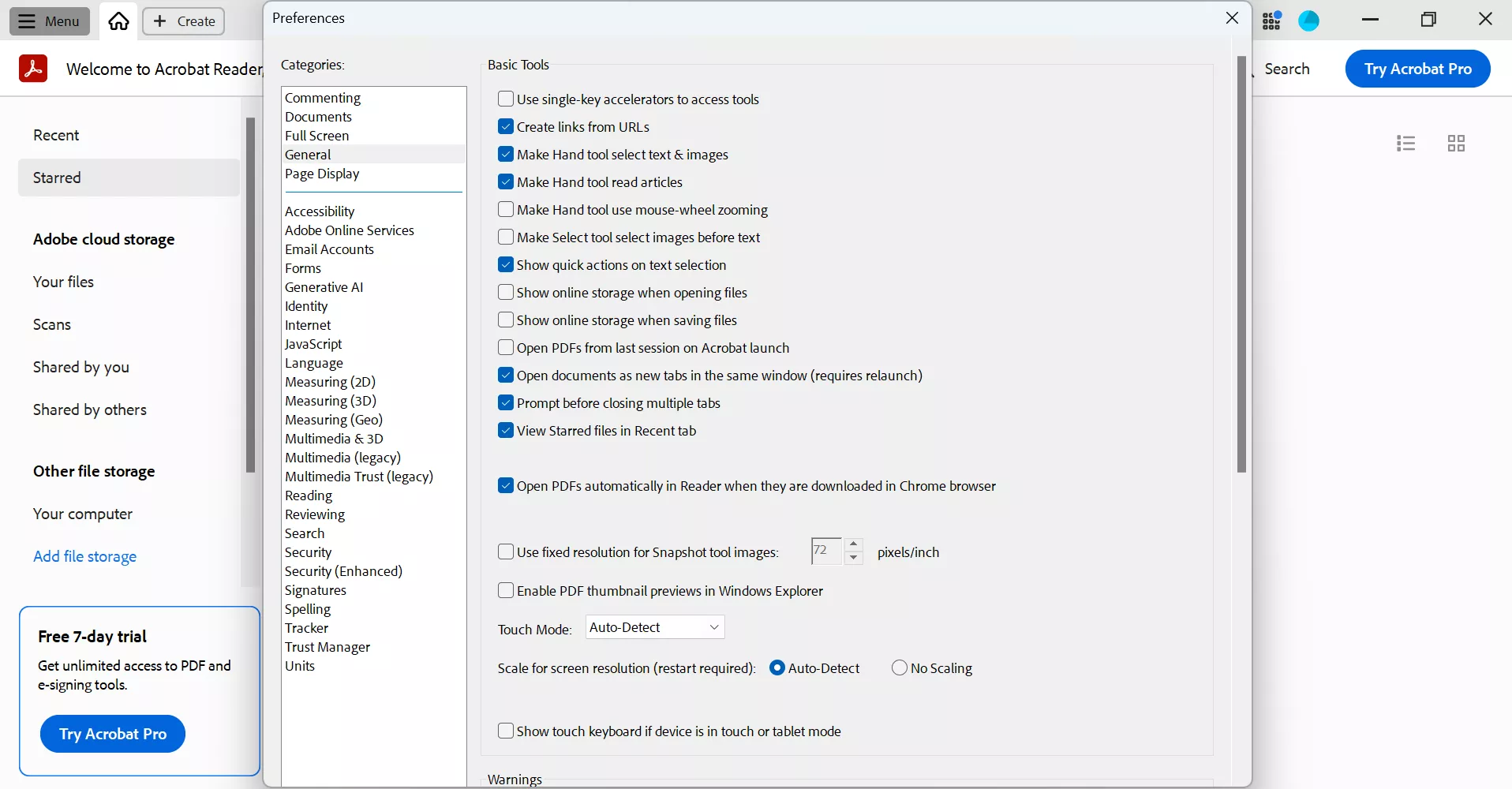
Step 2: Go to “General” and uncheck the following options:
- Show online storage when opening files.
- Show online storage when saving files.
Step 3: Click “OK” to save your preferences.
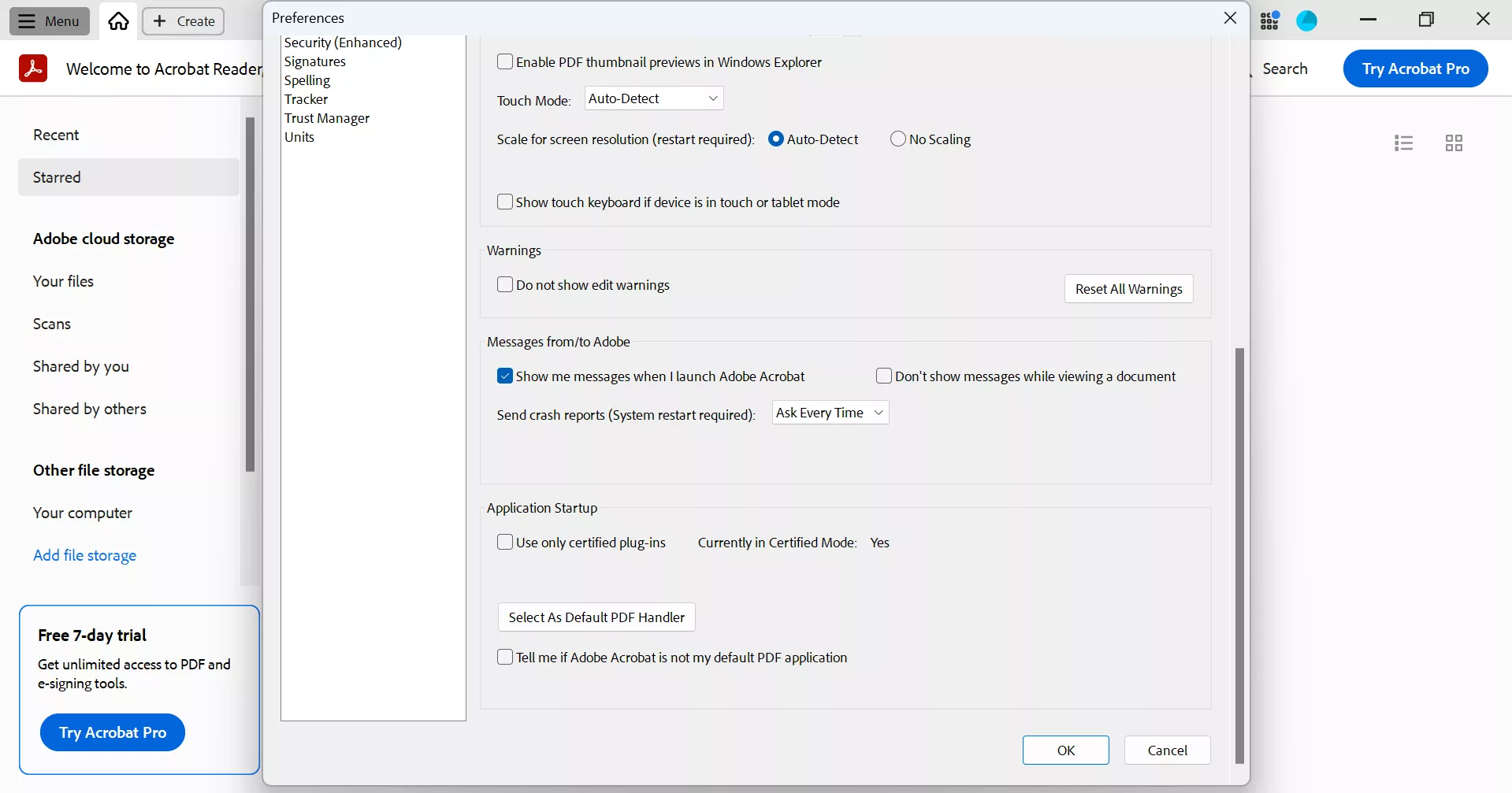
This will disable Adobe Cloud storage, and you won’t see the option when opening or saving files.
Now that you have disabled the cloud storage option, let us walk you through the steps for saving your PDF to the preferred location.
How to Save PDF To Preferred Location?
Follow these steps to save your PDF to its original location on your PC:
Step 1: Once you have edited your PDF document, click on “Menu > Save As”.
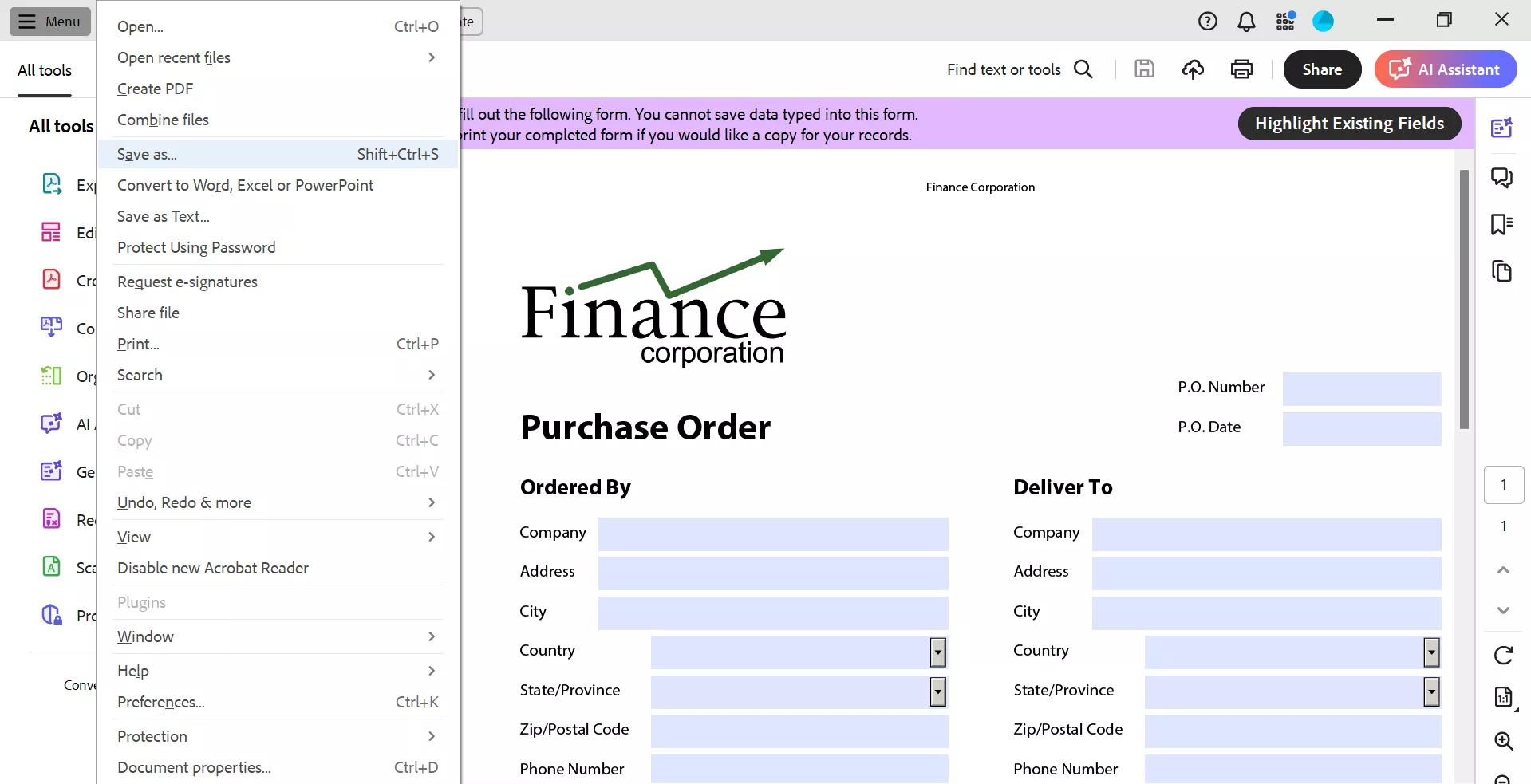
Step 2: You will get the option to save your PDF anywhere on your PC.
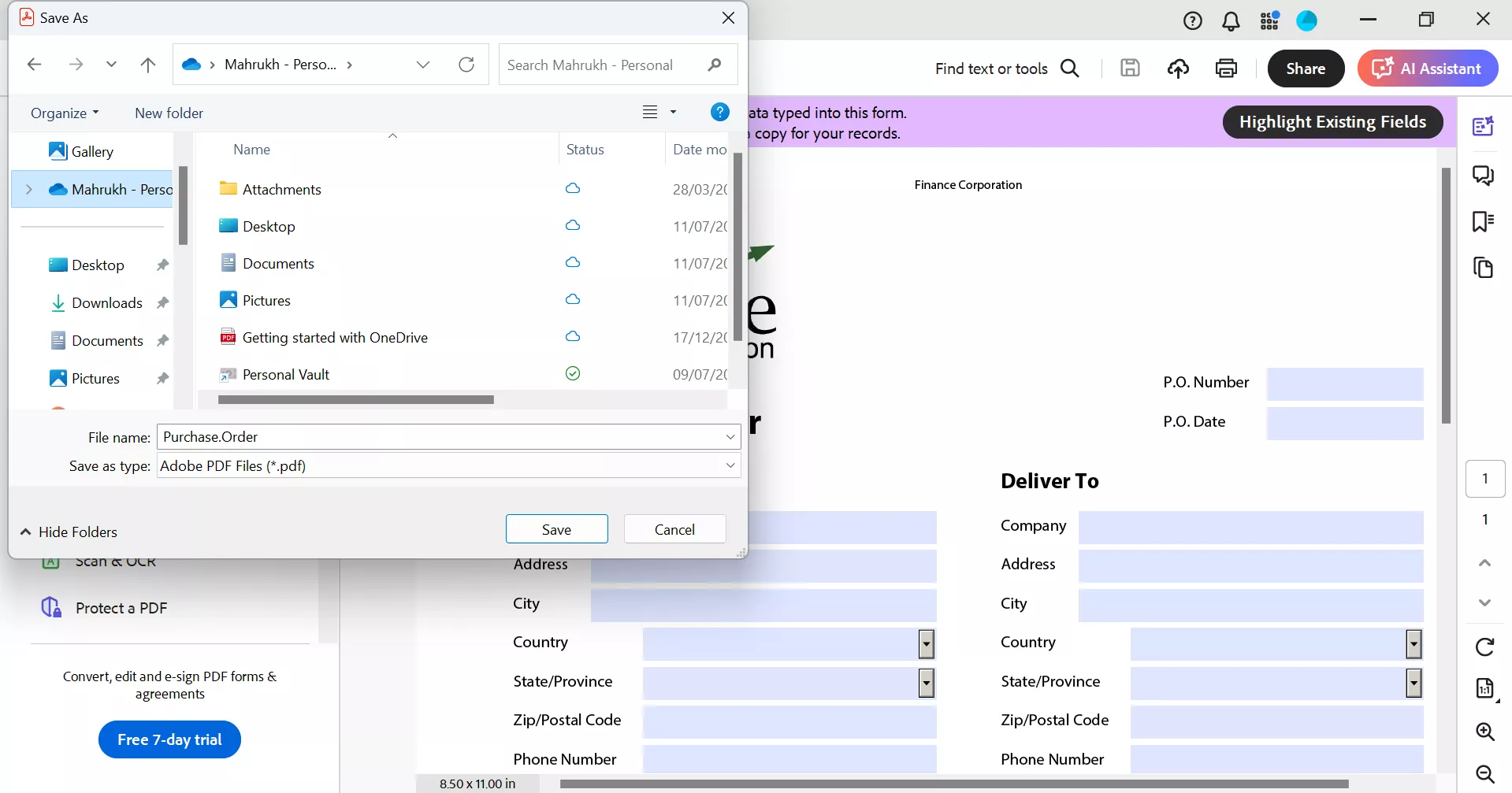
Step 3: Choose your preferred location and click “Save” to save the PDF. We chose to save the PDF in the “Download” folder.
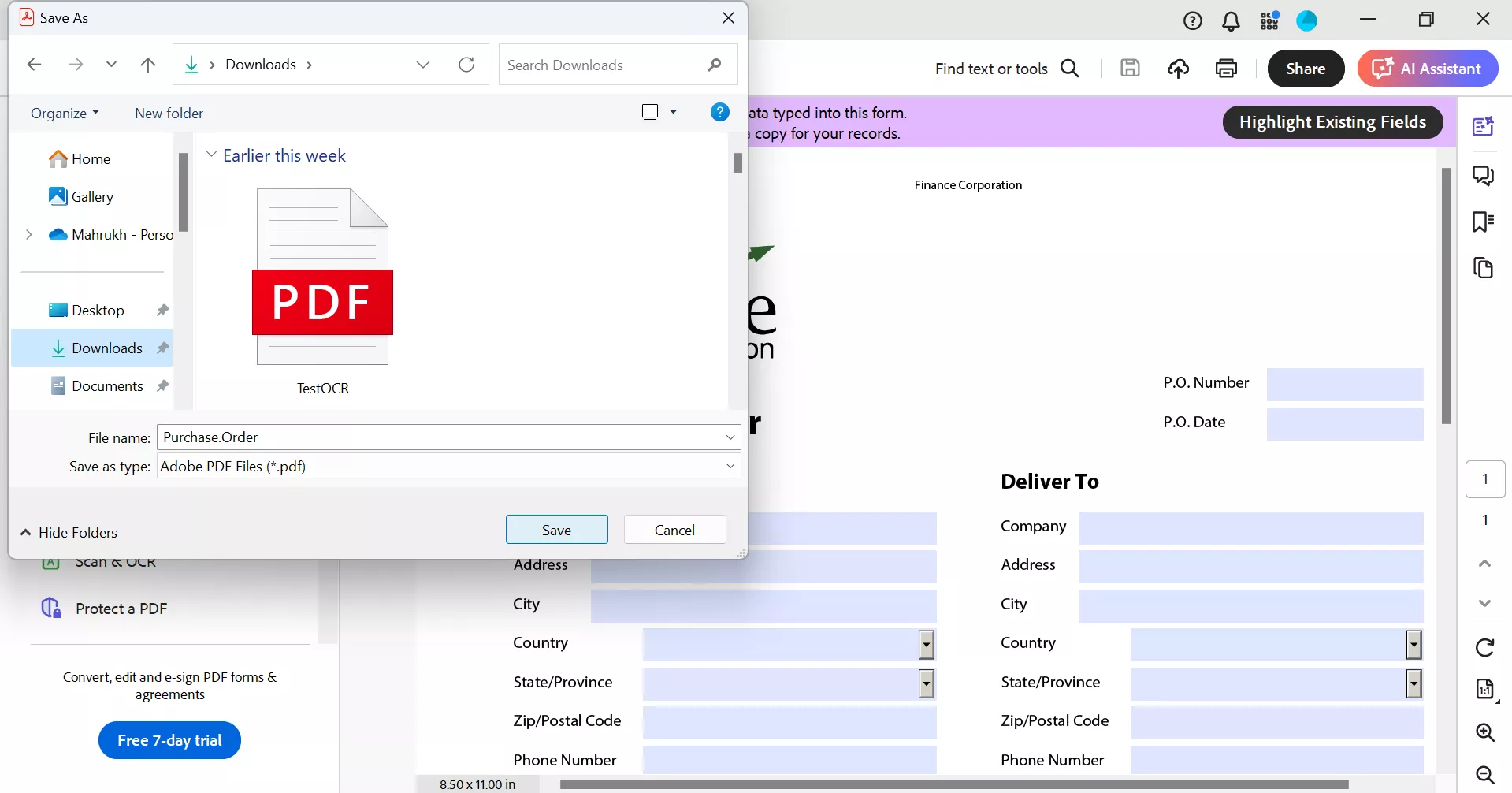
And that’s how to Adobe Acrobat disable cloud storage and save your PDF file in your preferred location with Adobe Acrobat.
Part 3. Why UPDF is the Privacy-First Alternative
While Adobe Acrobat is the go-to software for many PDF users, it can get a bit challenging to learn how to disable cloud storage. If you’re tired of fighting with Adobe’s interface just to save a file locally, UPDF offers a breath of fresh air. It is designed for the modern user who values speed, simplicity, and data sovereignty.
Windows • macOS • iOS • Android 100% secure

About UPDF
Why UPDF is superior for local document management
Here's why UPDF might be a good fit for you:
- Local-First Architecture: UPDF doesn't force you into a cloud ecosystem. Your files stay on your device unless you choose to move them to UPDF Cloud.
- Lightning-Fast Saving: Without the "cloud-handshake" lag that plagues Acrobat, UPDF saves files instantly to your local directories.
- Integrated AI Privacy: Even with its advanced UPDF AI, your data remains secure. You can analyze and summarize documents locally without fearing that your private data is being used to train public models.
- Clean Interface: No "storage full" banners or forced cloud sync prompts. Just a sleek, professional workspace focused on your document.
Windows • macOS • iOS • Android 100% secure
Managing Your Workflow with UPDF Cloud (Optional)
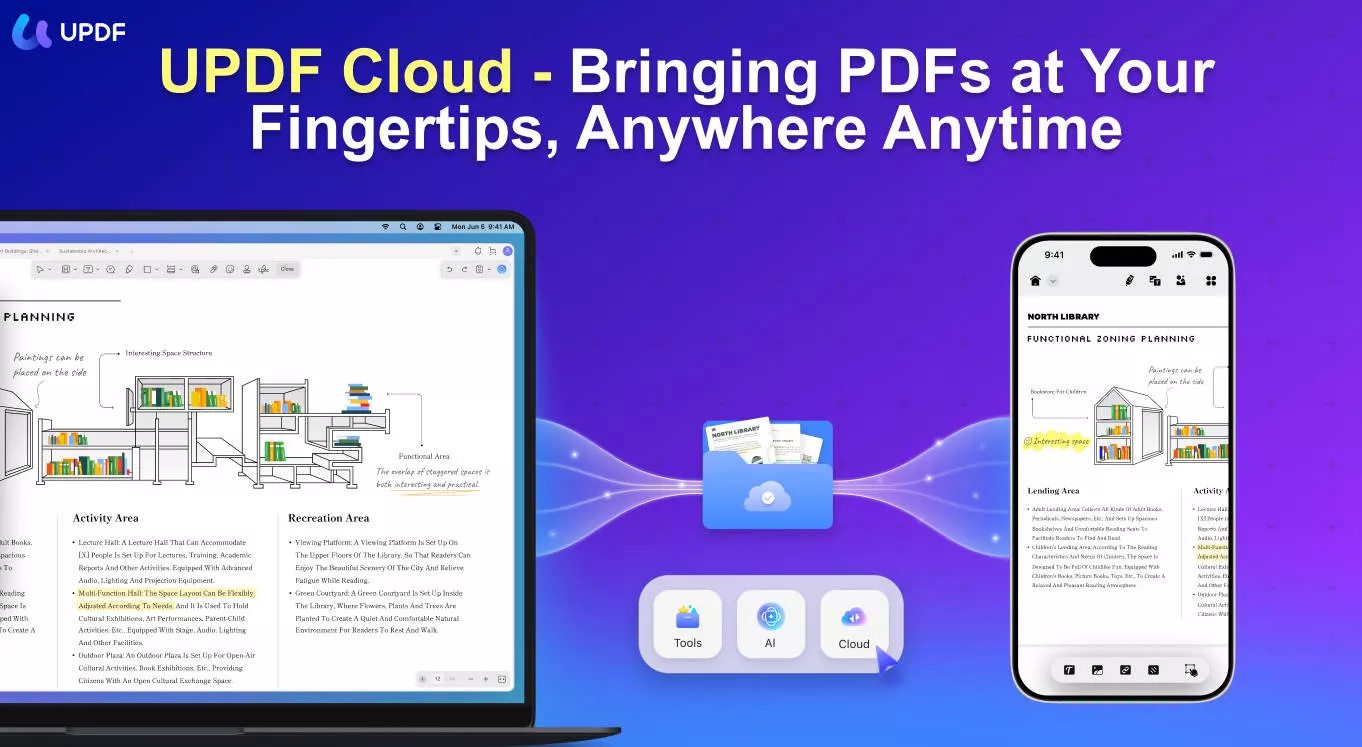
Unlike Adobe, which often makes cloud storage feel mandatory, UPDF Cloud is a powerful optional tool.
- Seamless Syncing: If you want to work across your Windows PC, Mac, and iPhone, UPDF Cloud allows you to do so with one click.
- Superior Organization: UPDF Cloud lets you organize files by project, not just date, making it easier to find what you need when you're away from your desk.
- Cross-Platform Freedom: One UPDF license covers four devices, ensuring your "local-first" or "cloud-optional" workflow follows you wherever you go.
Upload a PDF to UPDF Cloud
Here are the steps to upload a PDF to UPDF Cloud:
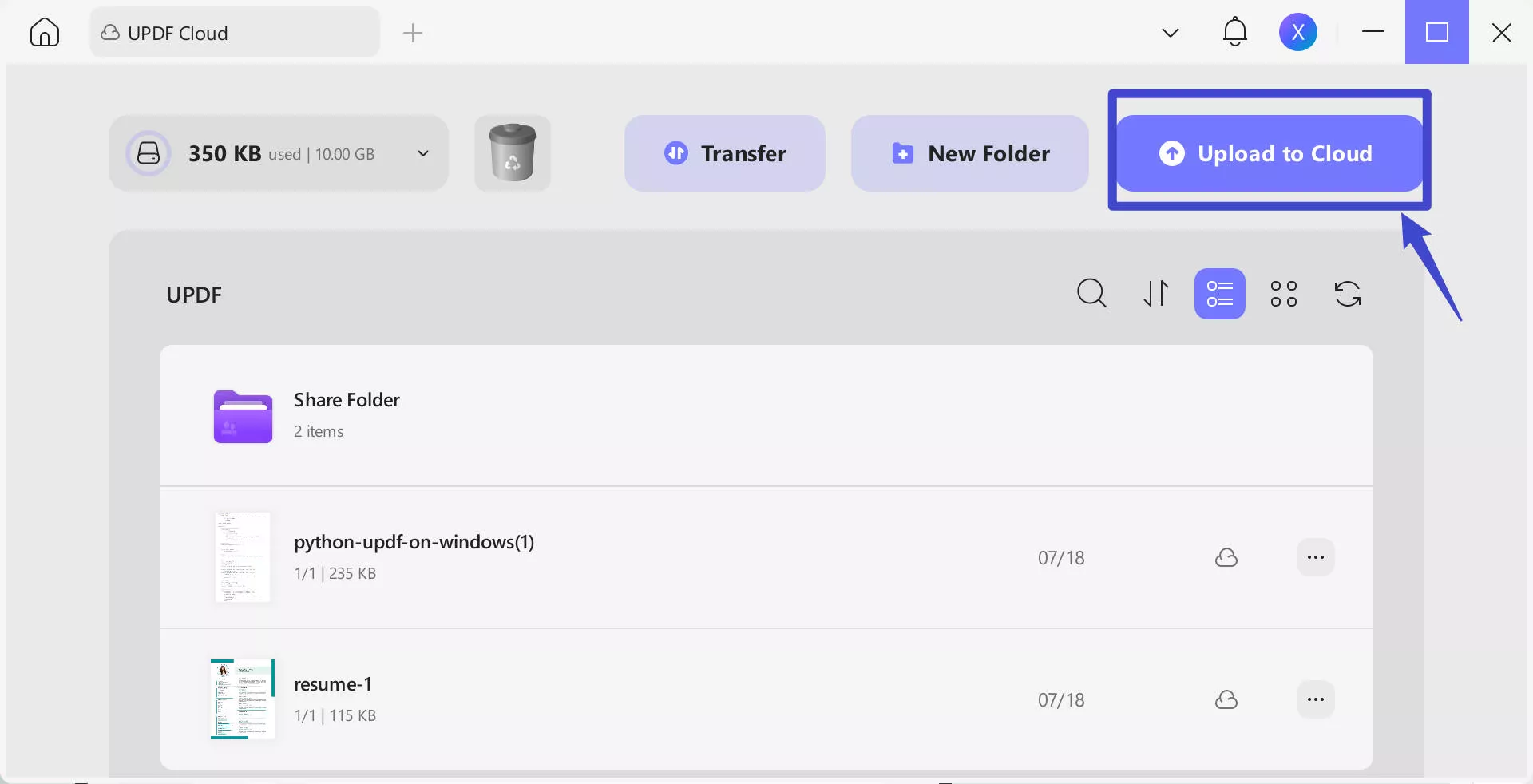
Step 1: Launch UPDF and click on “Cloud” from the options on the interface.
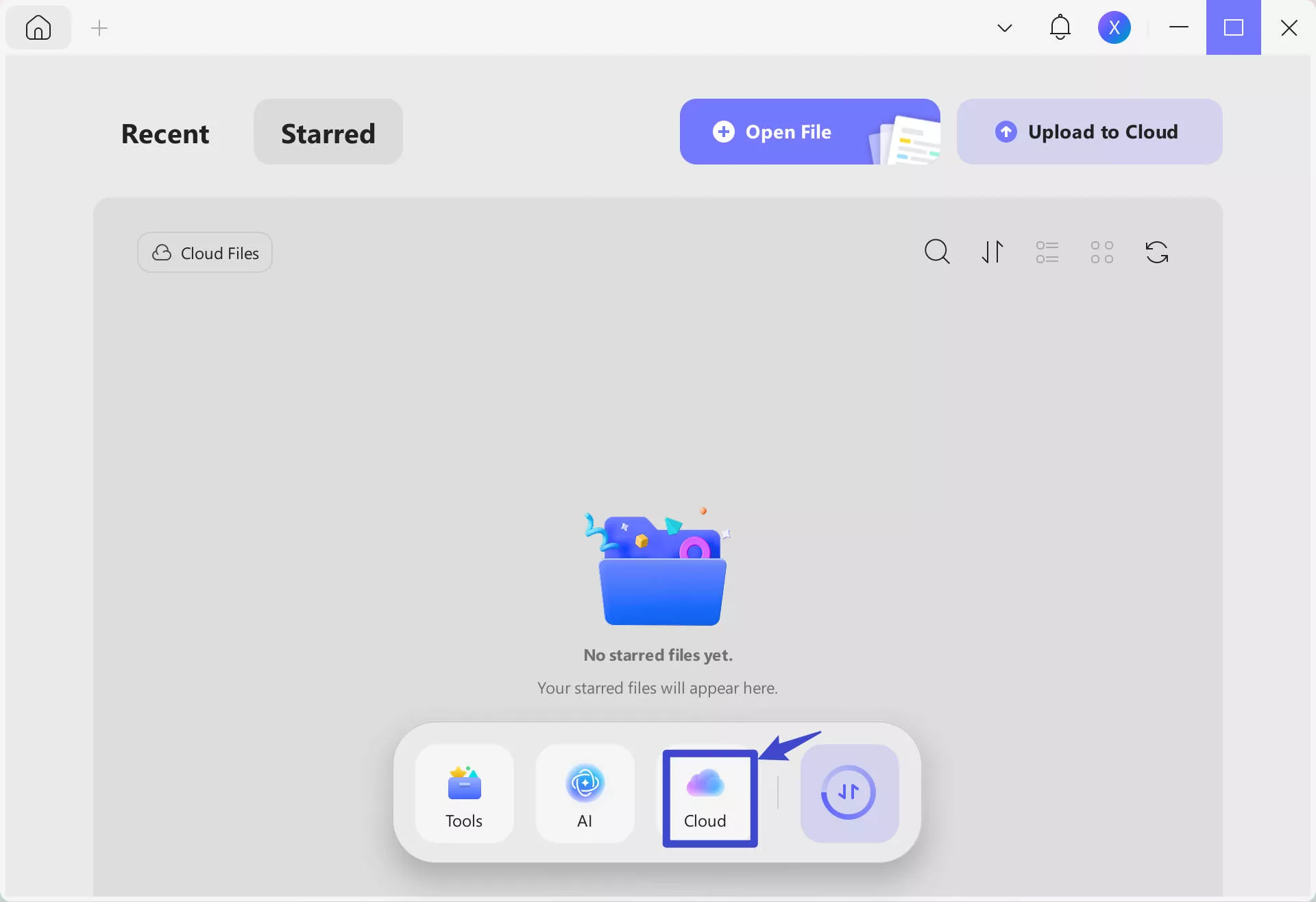
Step 2: Click on “Upload to Cloud” and choose a PDF file from your PC to upload to the cloud.
Organize/Manage PDFs on UPDF Cloud
Here are the steps to organize and manage your PDFs on UPDF Cloud:
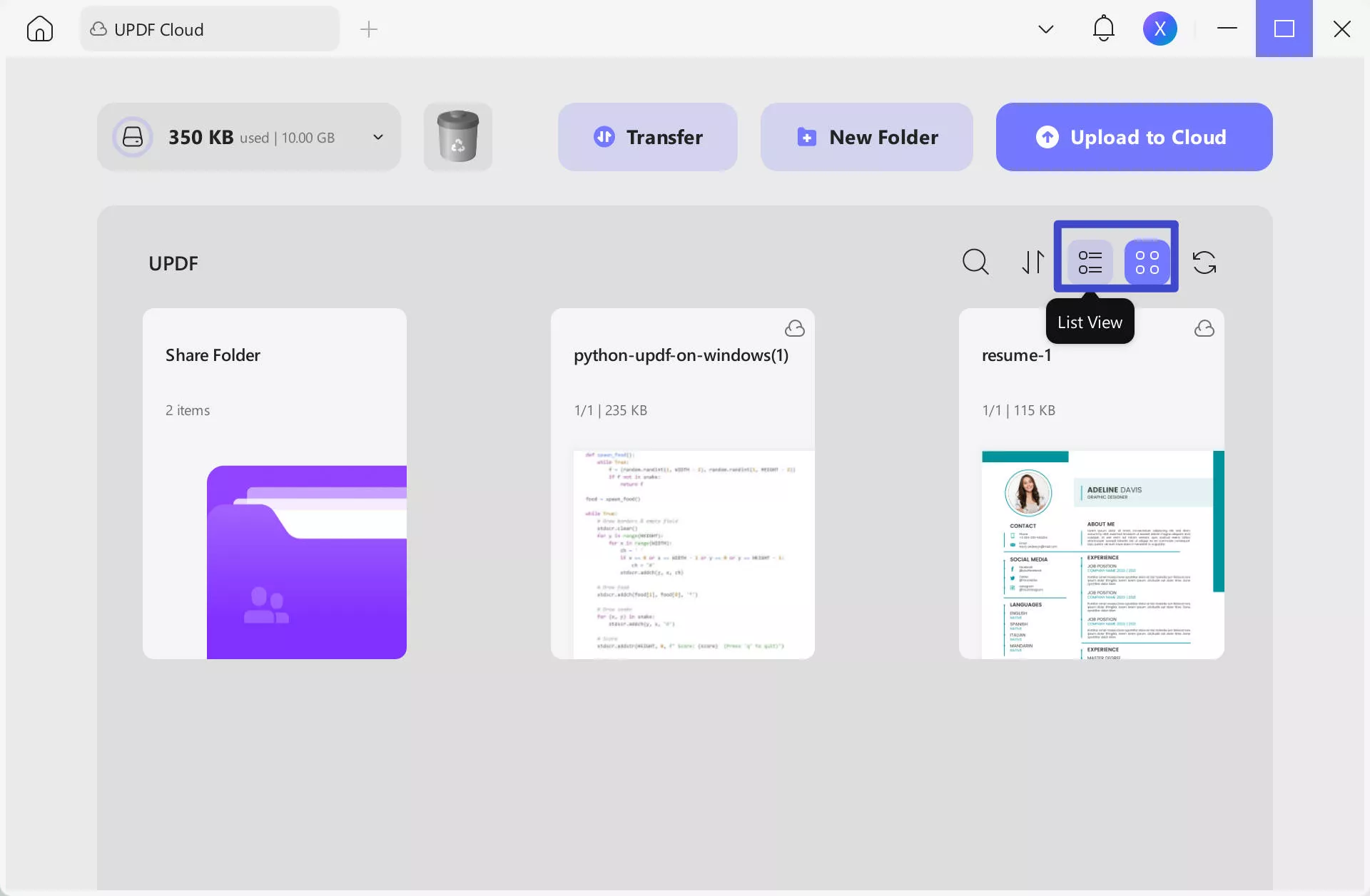
Step 1: Once you have uploaded the desired files to UPDF Cloud, you can click on “List View” or “Thumbnail View” to view them.
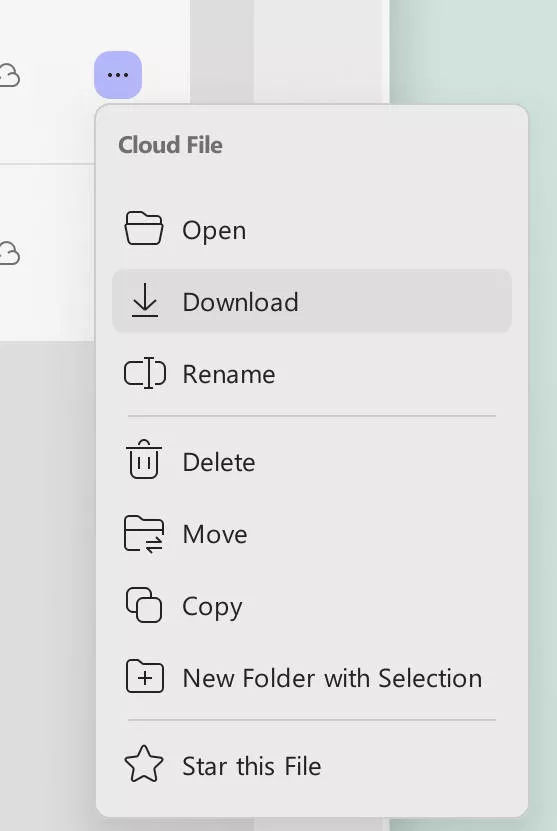
Step 2: Click on the 3 dots next to the PDF file to open it, rename it, move it, copy it, download it, or delete it from the cloud storage.
Edit PDFs on UPDF Cloud
If you want to edit a PDF uploaded to UPDF Cloud, here’s what to do:
Step 1: Launch UPDF, go to UPDF Cloud, click on the 3 dots to access the options of the PDF, and select “Open.”
Step 2: Once the file is open, click on “Edit” in "Tools" from the options on the left.
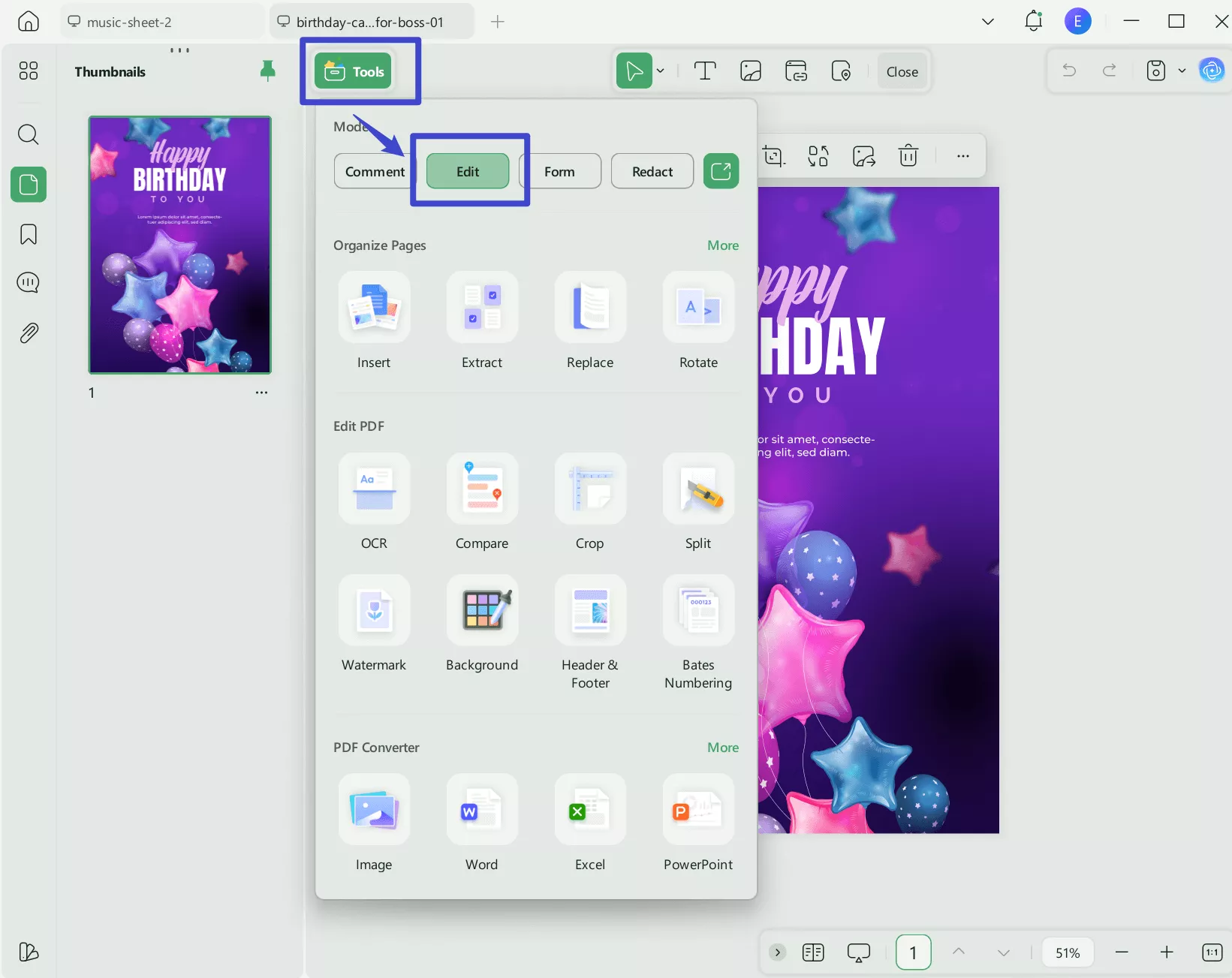
Step 3: Click on the text to edit it and change its font, color, and alignment.
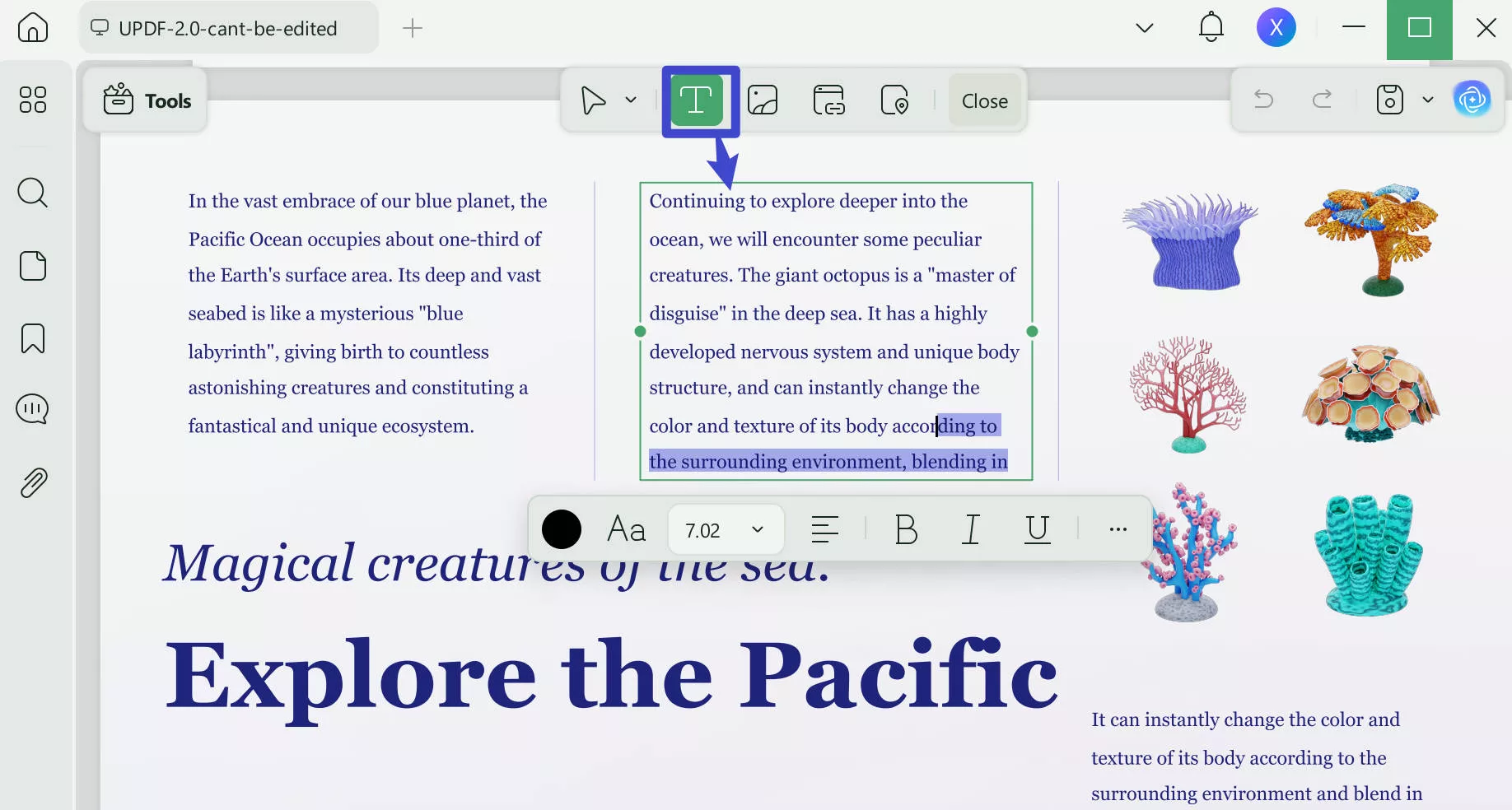
Step 4: Click on “Image” from the top menu to add an image to the PDF.
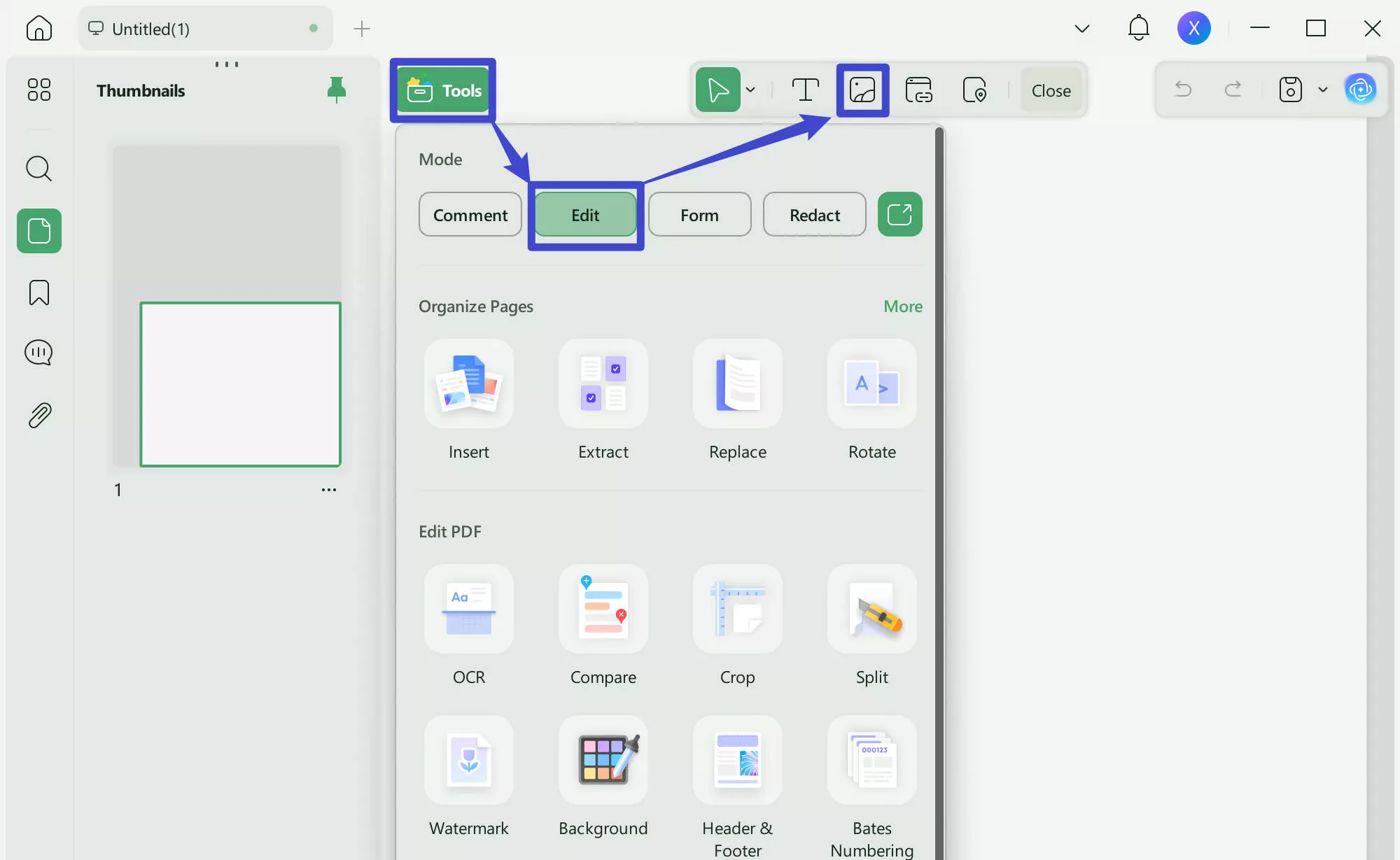
Step 5: After you have edited your PDF, click “Save” to save the changes.
This will save your PDF along with all the changes you made to it, making it accessible on all devices. You simply have to sign in using the same account on any device to access the PDF.
Additional Features of UPDF
UPDF is an all-in-one PDF tool that can be used on all platforms, including Windows, Mac, iOS, and Android devices.
Here are some other features of UPDF:
● UPDF AI
This is the most powerful and advanced AI assistant for working and handling PDFs. It can summarize and condense PDFs, translate languages, answer your questions in real-time, and explain complex information.
● OCR
UPDF OCR technology offers up to 99% accurate results and can detect 38 languages. It can convert scanned PDFs, paper documents, and images to searchable and editable files.
● Annotation Tools
This tool allows you to add a wide variety of annotations to your PDFs, including drawings.
● Convert PDF
With UPDF, you can also convert your PDFs to Word, Excel, PowerPoint, images, and more.
● Batch PDF Processing
This feature saves you time from repetitive tasks by combining unlimited PDF files into a single document, batch converting to any format, and batch printing lots of documents at one time.
For more information on how you can use UPDF to your benefit, check out this video:
So, whether you want to upload a PDF, edit it, or organize it, UPDF is there to make things easier. Download it now!
Windows • macOS • iOS • Android 100% secure
Final Words
This guide is here to help you disable Adobe Cloud storage. It provides detailed steps to do so via Adobe Acrobat. Furthermore, if you want a better alternative to Acrobat, we recommend using UPDF for secure storage and seamless editing capabilities.
Experience a faster, private workflow today. Download UPDF for Free and stop fighting the cloud!
Windows • macOS • iOS • Android 100% secure





 Enola Davis
 Enid Brown

 Enola Miller