 UPDF
 UPDF for Windows
 UPDF for Mac
 UPDF for iPhone/iPad
 UPDF for Android
 Nomostar
 UPDF AI Online
 UPDF Sign
 IvyCraft
 Edit PDF
 Annotate PDF
 Create PDF
 PDF Form
 Edit links
 Convert PDF
 OCR
 PDF to Word
 PDF to Image
 PDF to Excel
 Organize PDF
 Merge PDF
 Split PDF
 Crop PDF
 Rotate PDF
 Protect PDF
 Sign PDF
 Redact PDF
 Sanitize PDF
 Remove Security
 Read PDF
 UPDF Cloud
 Compress PDF
 Print PDF
 Batch Process

 About UPDF AI
 UPDF AI Solutions
 AI User Guide
 FAQ about UPDF AI
 Summarize PDF
 Translate PDF
 Chat with PDF
 Chat with AI
 Chat with image
 PDF to Mind Map
 Explain PDF
 PDF AI Tools
 Image AI Tools
 AI Chat Tools
 AI Writing Tools
 AI Study Tools
 AI Working Tools
 Other AI Tools
 AI Bookmark Generation
 AI Bookmark Summary
 AI Watermark Generation
 AI Background Generation
 AI Sticker Generation
 AI Stamp Generation
 AI Editing Suite
 UPDF Copilot
 AI Page Management
 AI Semantic Search
 PDF to Word
 PDF to Excel
 PDF to PowerPoint
 Enterprise Solution
 Enterprise Sign
 Enterprise AI
 Enterprise Plan
 Enterprise User Guide
 Enterprise Webinar
 IT
 Education
 Construction
 Financial Service
 Healthcare
 Insurance
 Legal
 Manufacturing
 Government
 Researchers & PhDs
 Solopreneurs & Freelancers
 Lawyers & Legal Professionals
 Real Estate Agents & Brokers
 Education Solution
 Customer Stories
 User Guide
 UPDF Tricks
 FAQs
 UPDF Reviews
 Download Center
 Blog
 Newsroom
 Tech Spec
 Updates
 UPDF vs. Adobe Acrobat
 UPDF vs. Foxit
 UPDF vs. PDF Expert


Convert PDF to Mind Map
Table of Contents
Part 1. Convert a PDF to a Mind Map with UPDF AI Online
Step 1. Browse and Upload a File to UPDF AI Chat PDF Interface
To start converting PDFs to a mind map, browse the UPDF AI tool and find yourselves in the “New Chat” section. Here, select "Mind Map" from the options right below the typing box, then upload the PDF.
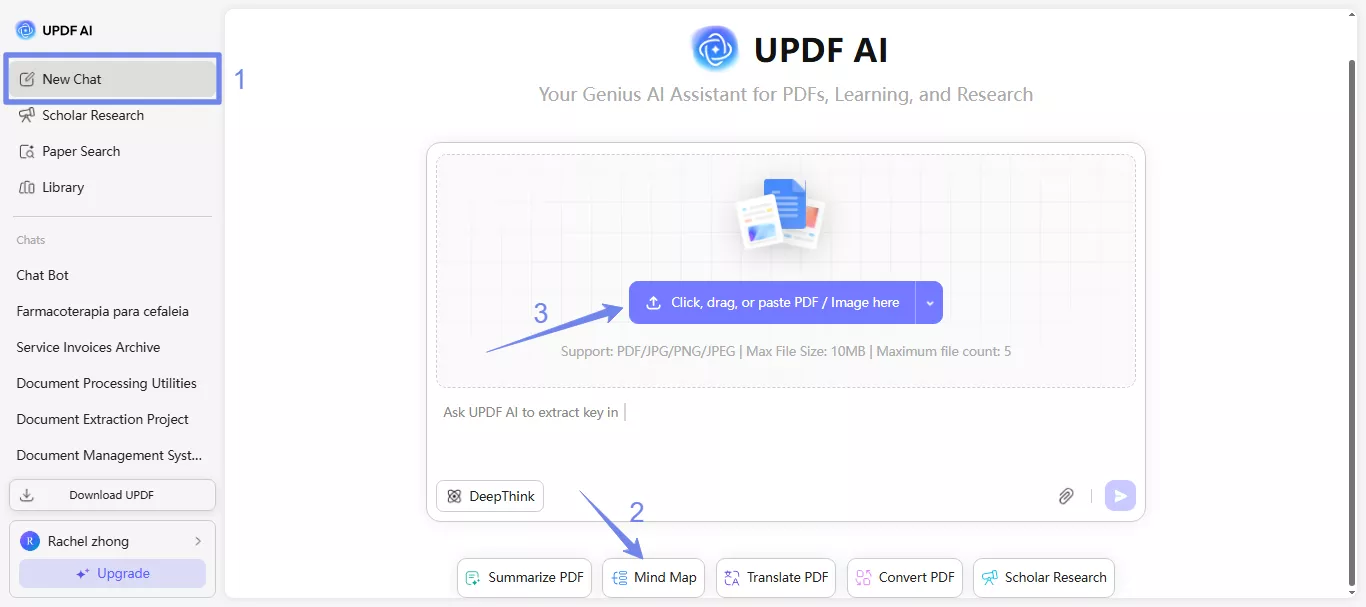
Step 2. Create a Mind Map
Once the PDF is uploaded, UPDF AI will analyze the PDF. Hit enter, and it will start creating a mind map.

Step 3. Review and Download the Mind Map Generated
Next, you can "Zoom in" or "Zoom out" to review its details after it is created. Or use the "Fit Page" button to view the entire mind map. You can also click the "Full Screen" button to view the mind map in full-screen mode. Once you are satisfied with the results, hit the "Download" icon to save the mind map to your device.

If you have opened the full-screen mode and you want to exit it, just click the "Exit Full Screen" button at the bottom.

Part 2. Convert a PDF to a Mind Map on Windows and Mac
UPDF AI is also available on Windows and Mac, allowing you to convert PDFs into mind maps. Follow the steps below to get started.
Step 1. Click the below button to download UPDF. Run UPDF, then, open the PDF with UPDF.
Windows • macOS • iOS • Android 100% secure
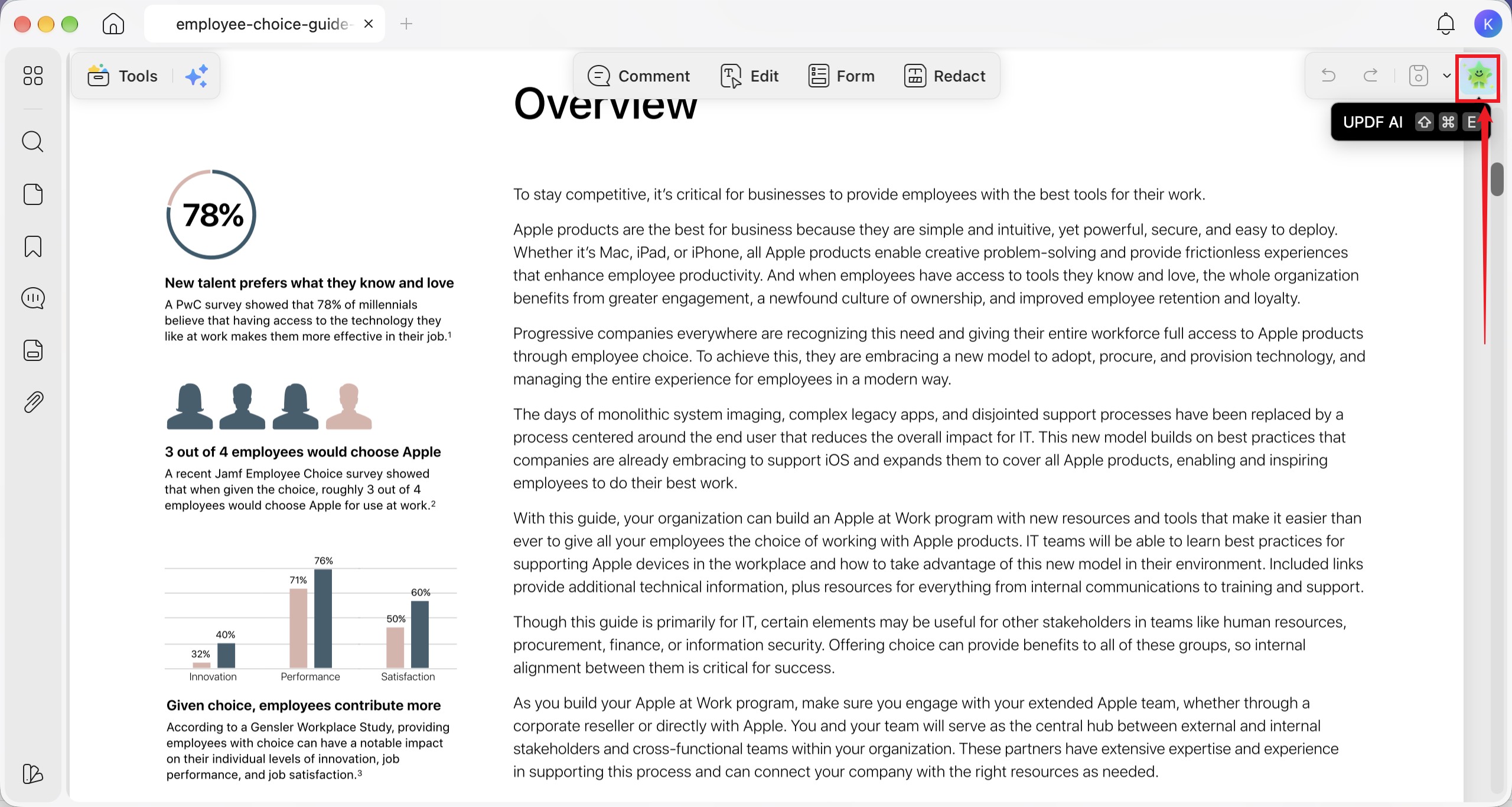
Step 2. Click the “UPDF AI” button in the upper-right corner to open the AI assistant.
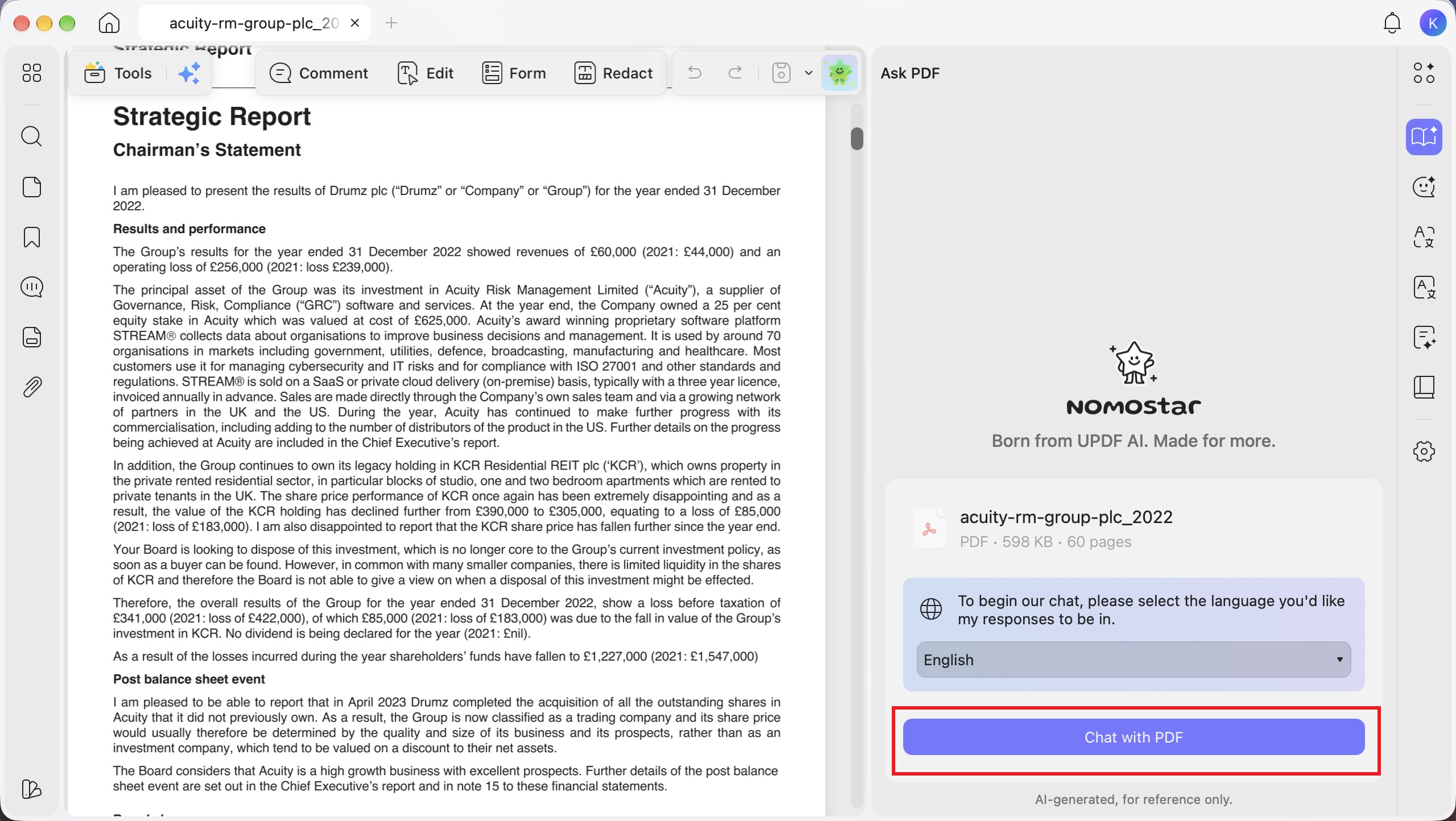
Step 3. Select your preferred response language from the drop-down menu, then click “Chat with PDF” to let AI read and analyze your document.
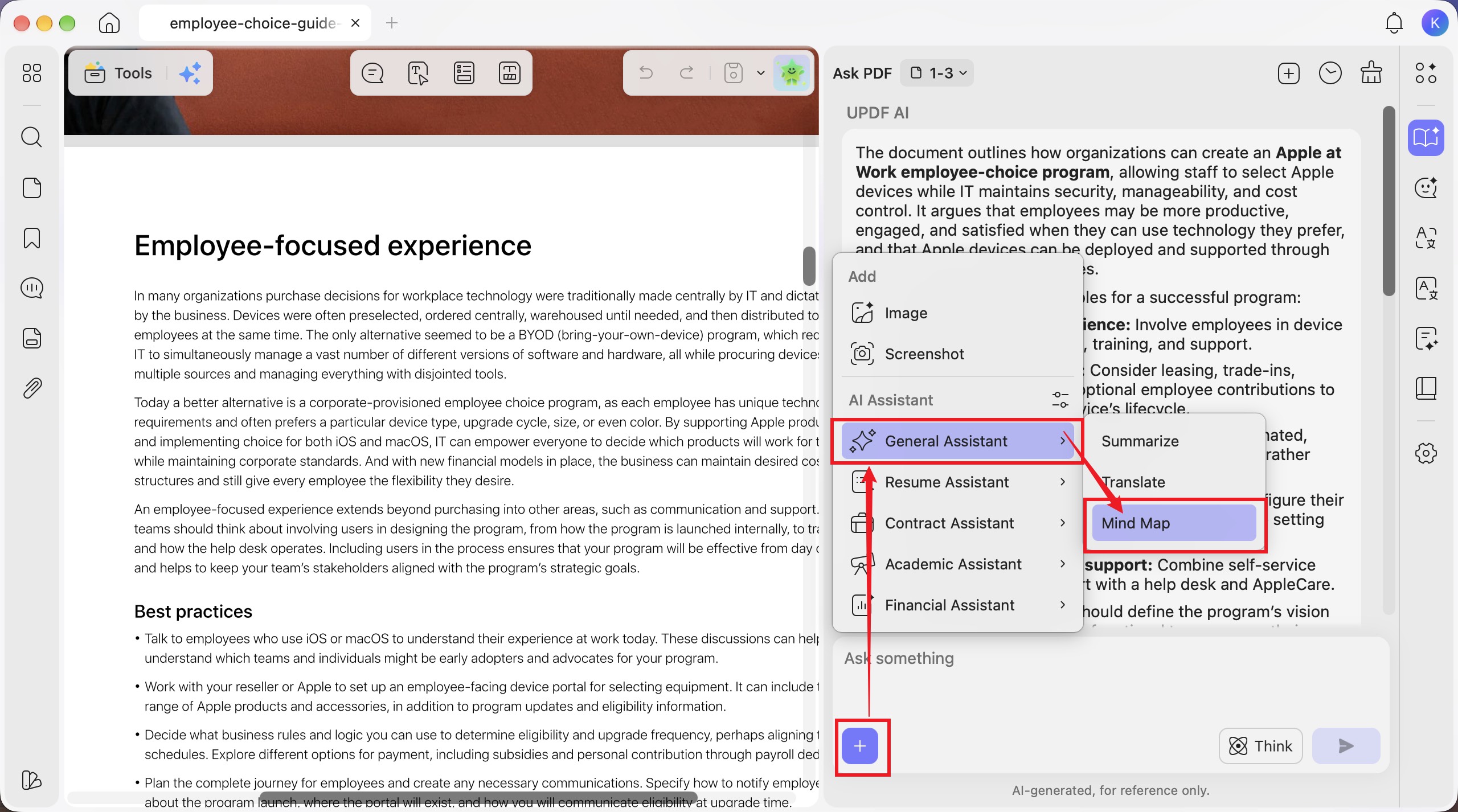
Step 4. In the “Ask PDF” panel, click the “+” button in the chat box, then select “General Assistant” > “Mind Map.”
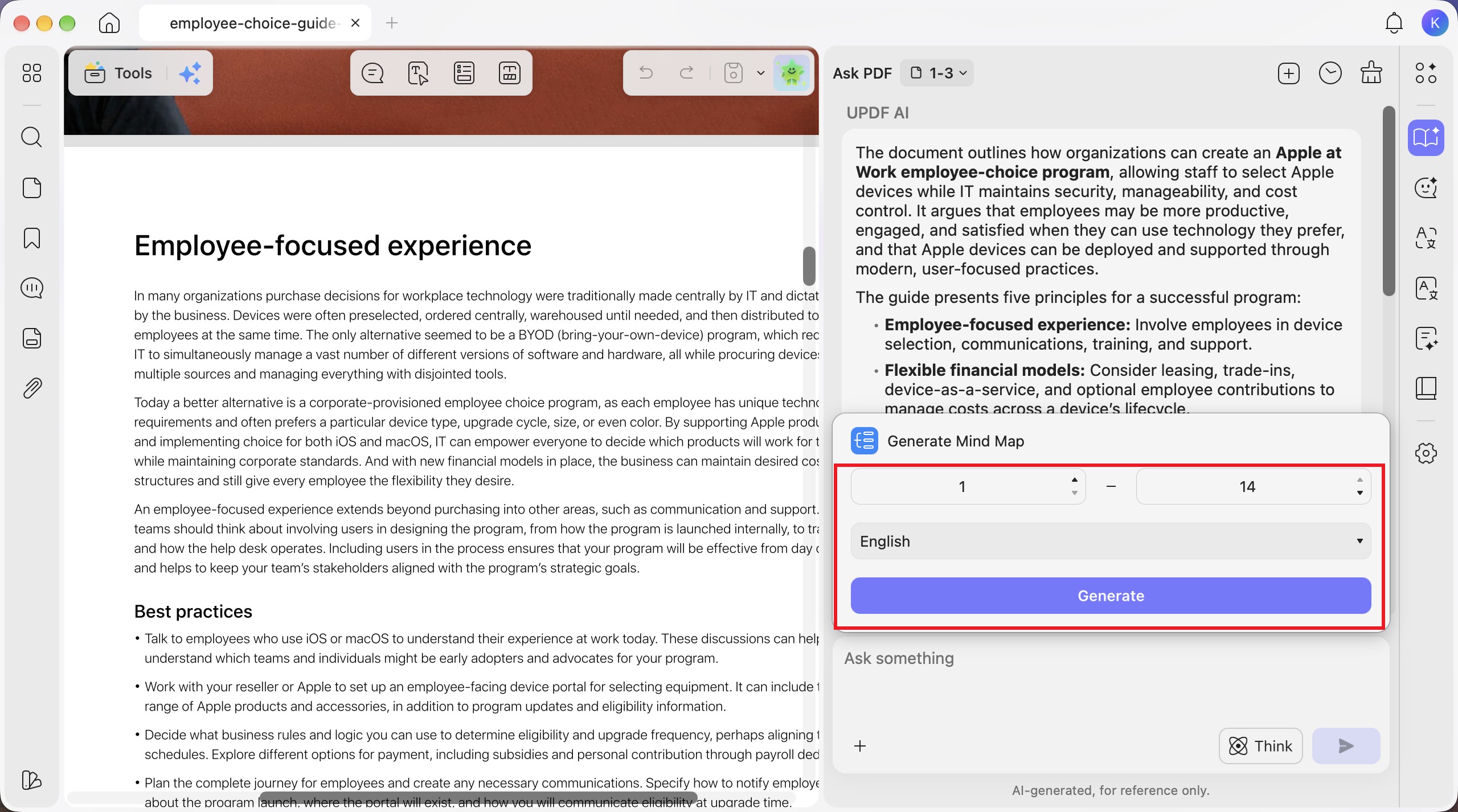
Step 5. In “Generate Mind Map,” enter or select the starting and ending page numbers. Choose your preferred language from the drop-down menu, then click “Generate.”
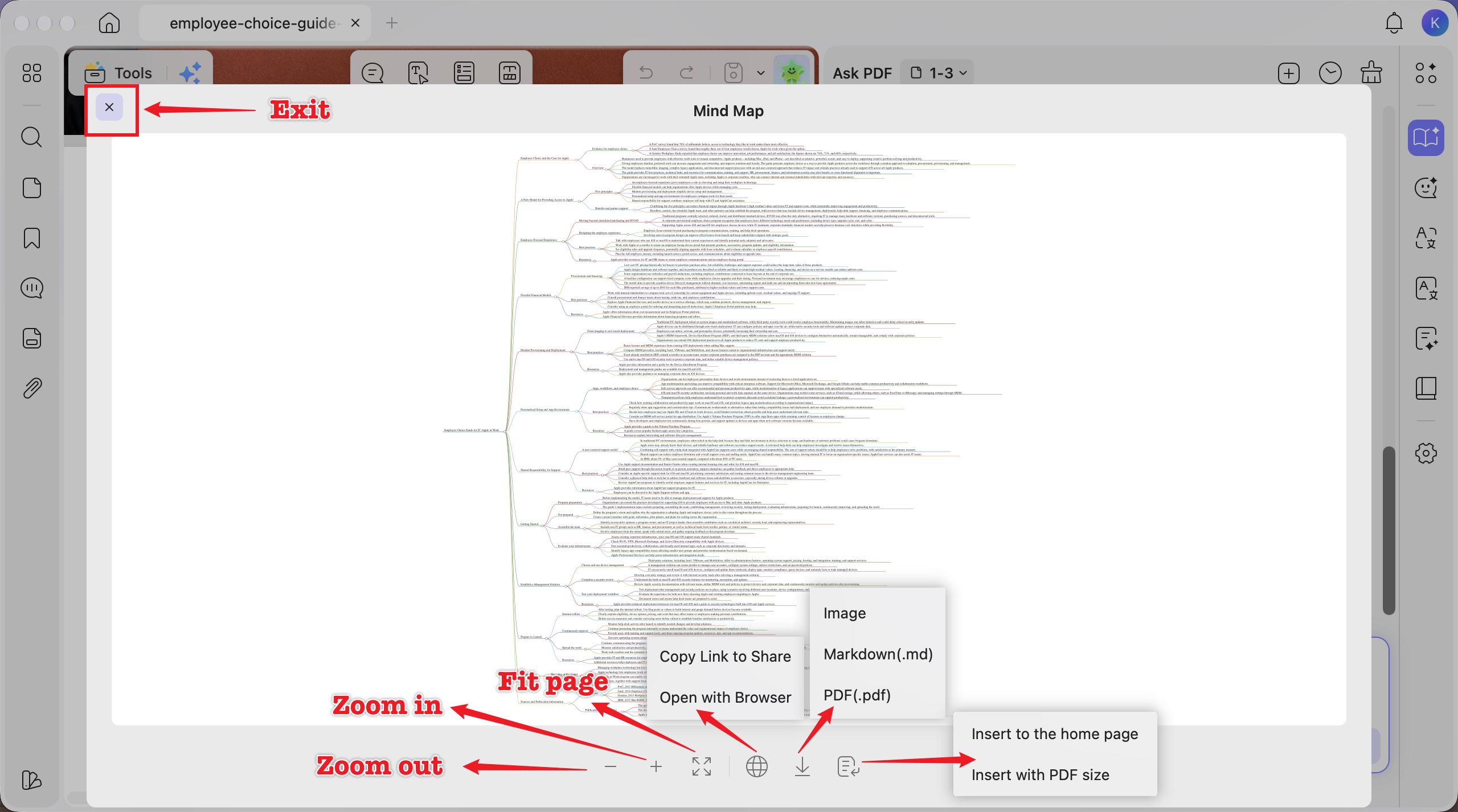
Step 2. The mind map opens in an expanded viewer by default. Use “Zoom in,” “Zoom out,” and “Fit page” to adjust the view. You can choose “Copy Link to Share” or “Open with Browser,” download the mind map as “Image,” “Markdown (.md),” or “PDF (.pdf),” or insert it into your PDF using “Insert to the home page” or “Insert with PDF size.” Click “Exit” to return to the chat.
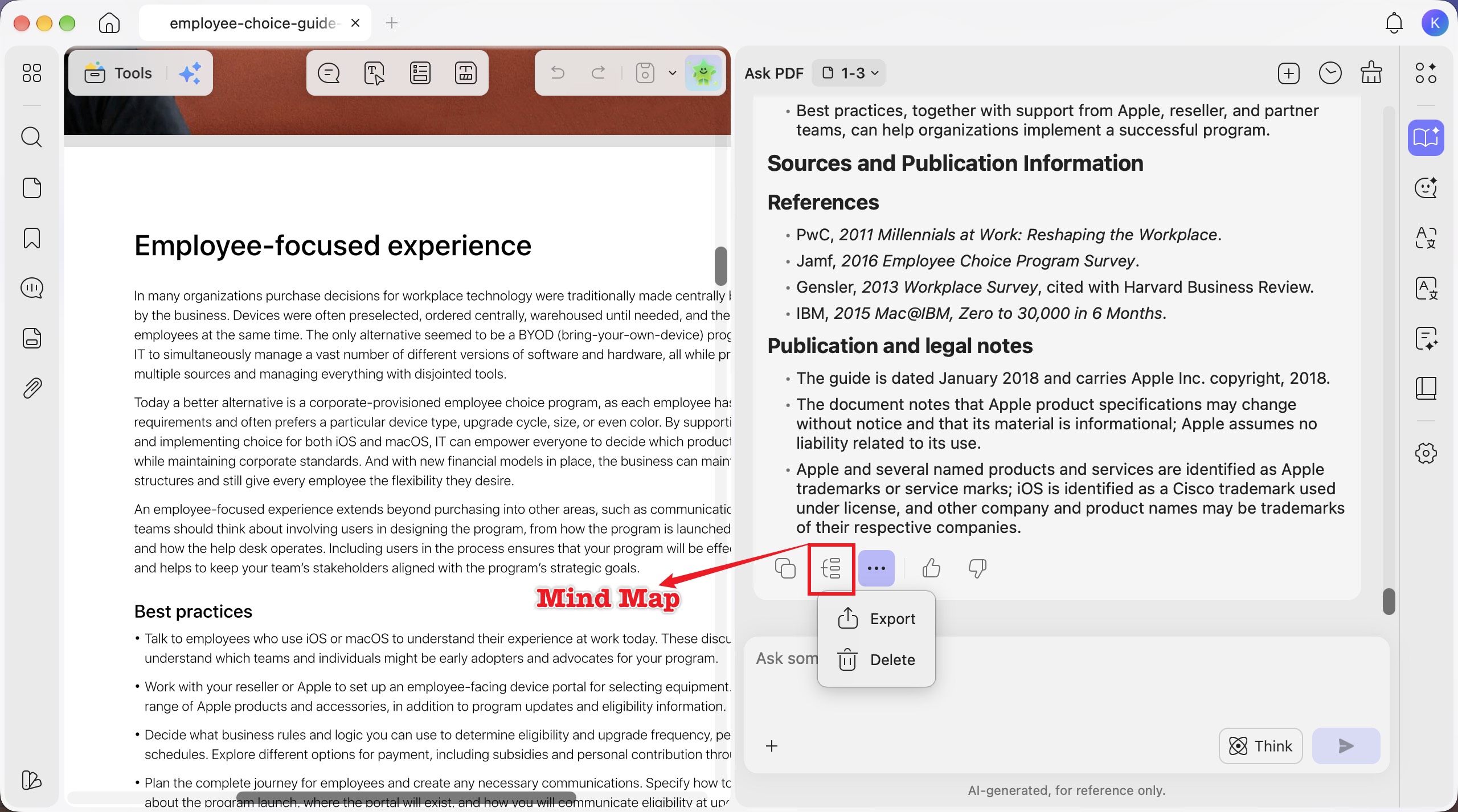
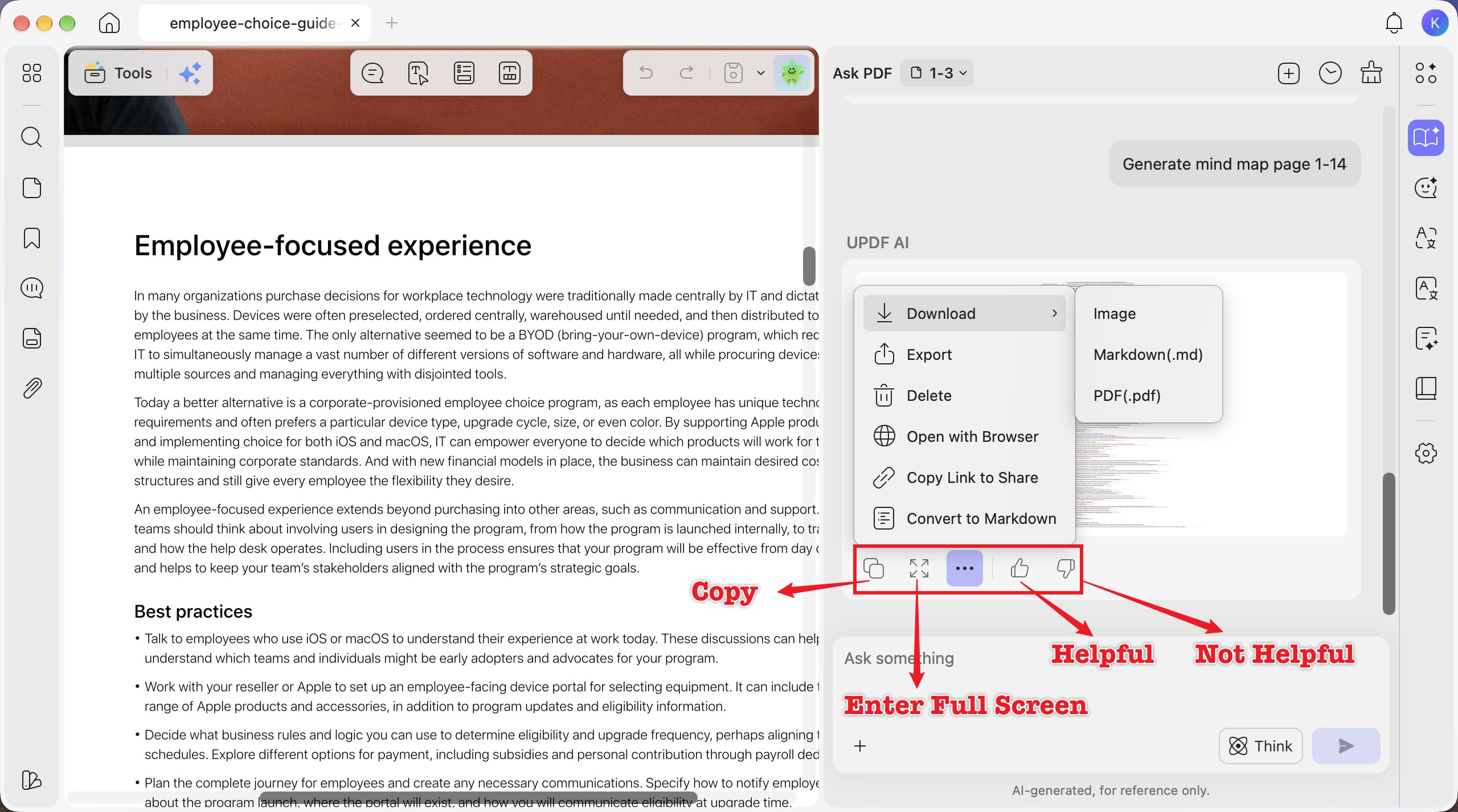
Step 3. In the chat, use “Copy” to copy the mind map, “Enter Full Screen” to expand it, or “Helpful” and “Not Helpful” to rate it. Click the three-dot menu to access “Download” with “Image,” “Markdown (.md),” and “PDF (.pdf)” options, along with “Export,” “Delete,” “Open with Browser,” “Copy Link to Share,” and “Convert to Markdown.”
Step 4. After clicking “Convert to Markdown,” review the mind map content as headings and bullet points in the chat panel.
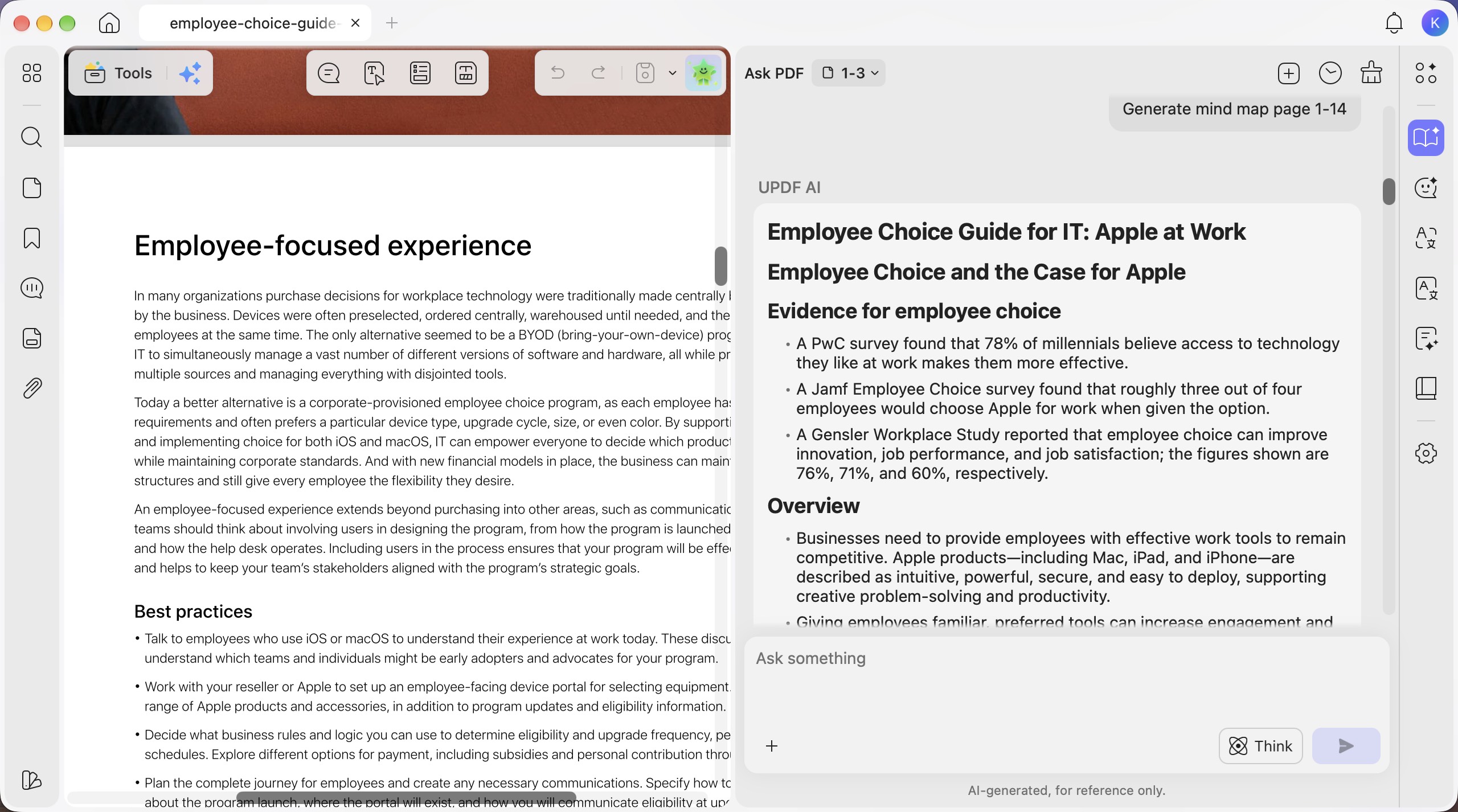
Step 5. Click “Mind Map” below the Markdown response to convert the bullet points back into a mind map. You can also open the three-dot menu to “Export” or “Delete” the response.