 UPDF
UPDF
 UPDF for Windows
 UPDF for Mac
 UPDF for iPhone/iPad
 UPDF for Android
 UPDF AI Online
 UPDF Sign
 Edit PDF
 Annotate PDF
 Create PDF
 PDF Form
 Edit links
 Convert PDF
 OCR
OCR PDF to Word
 PDF to Image
 PDF to Excel
 Organize PDF
 Merge PDF
 Split PDF
 Crop PDF
 Rotate PDF
 Protect PDF
 Sign PDF
 Redact PDF
 Sanitize PDF
 Remove Security
 Read PDF
 UPDF Cloud
 Compress PDF
 Print PDF
 Batch Process
 About UPDF AI
 UPDF AI Solutions
 AI User Guide
 FAQ about UPDF AI
 Summarize PDF
 Translate PDF
 Chat with PDF
 Chat with AI
 Chat with image
 PDF to Mind Map
 Explain PDF
 PDF AI Tools
 Image AI Tools
 AI Chat Tools
 AI Writing Tools
 AI Study Tools
 AI Working Tools
 Other AI Tools
 AI Bookmark Generation
 AI Bookmark Summary
 AI Watermark Generation
 AI Background Generation
 AI Sticker Generation
 AI Stamp Generation
 AI Editing Suite
 UPDF Copilot
 AI Page Management
 AI Semantic Search
 PDF to Word
 PDF to Excel
 PDF to PowerPoint
 Enterprise Solution
 Enterprise Sign
 Enterprise AI
 Enterprise Plan
 Enterprise User Guide
 Enterprise Webinar
 Banking
 Healthcare
 Insurance
 Legal
Legal Manufacturing
 Government
 Education Solution
 Customer Stories
 User Guide
 UPDF Tricks
 FAQs
FAQs UPDF Reviews
 Download Center
 Blog
Blog Newsroom
 Tech Spec
 Updates
 UPDF vs. Adobe Acrobat
 UPDF vs. Foxit
 UPDF vs. PDF Expert

When working with formal documents, a double underline helps you provide context. Unfortunately, Google Docs does not have a built-in double-underline tool. But you can still achieve this effect using the Equation box, drawing tool, borders, or converting the file to Word.
In this article, I will explain step by step how to double underline in Google Docs using these methods. Also, just like double underline, PDF files are integral to professional workflows. As a tool designed for professionals, UPDF helps you manage all elements of your PDF documents with ease. You can download and try it for free!
Windows • macOS • iOS • Android 100% secure
Part 1. How to Double-Underline in Google Docs
While Google Docs does not offer a built-in double-underline tool, there are some practical ways to achieve this effect. Below, I will walk you through these methods step by step.
Way 1: With Equation Box
You can use the Equation tool in Docs to stack underline commands and create a double underline. Here are the steps.
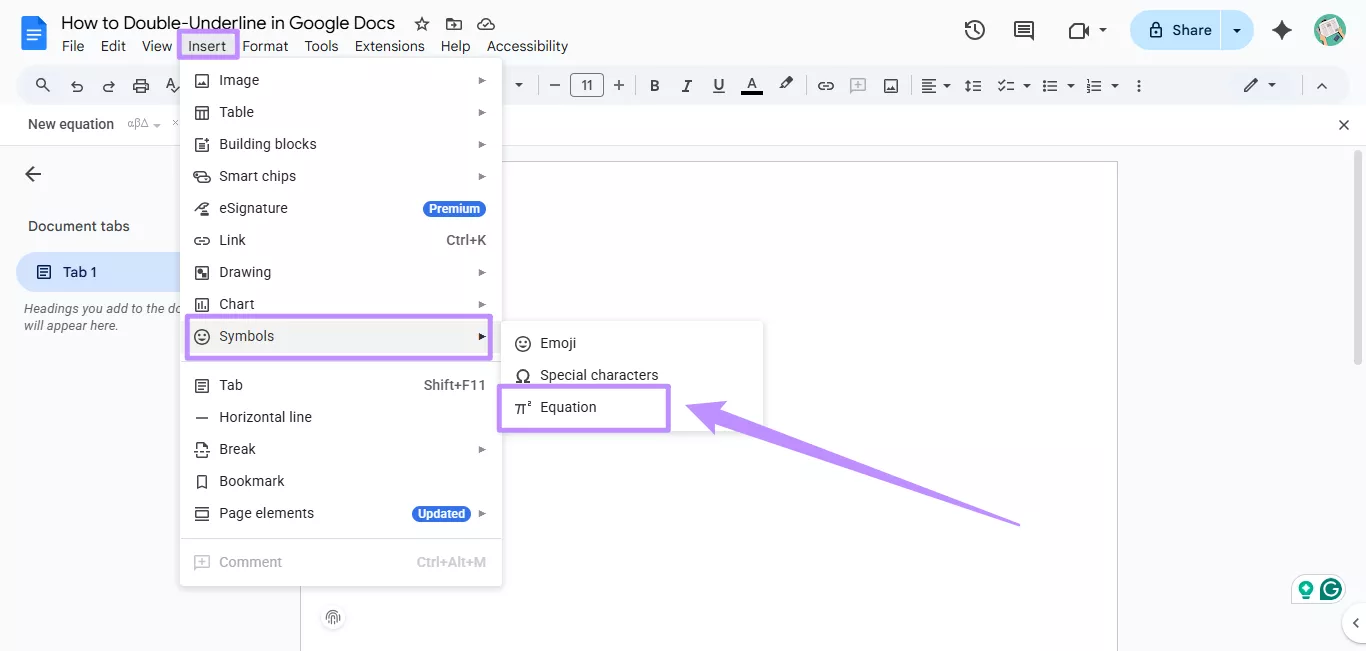
Step 1. Open your Docs file and click “Insert” from the top. Select “Symbols” and choose “Equation.”
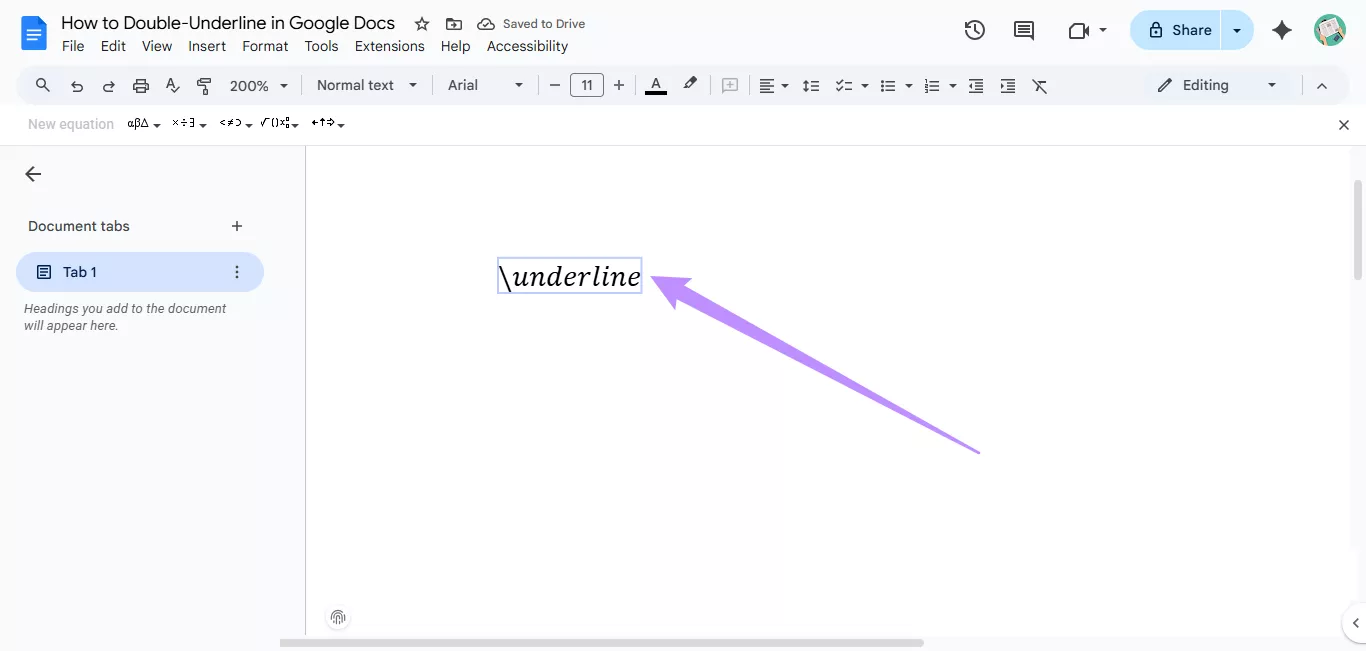
Step 2. In the equation box, type “\underline” and press the Spacebar on your keyboard.
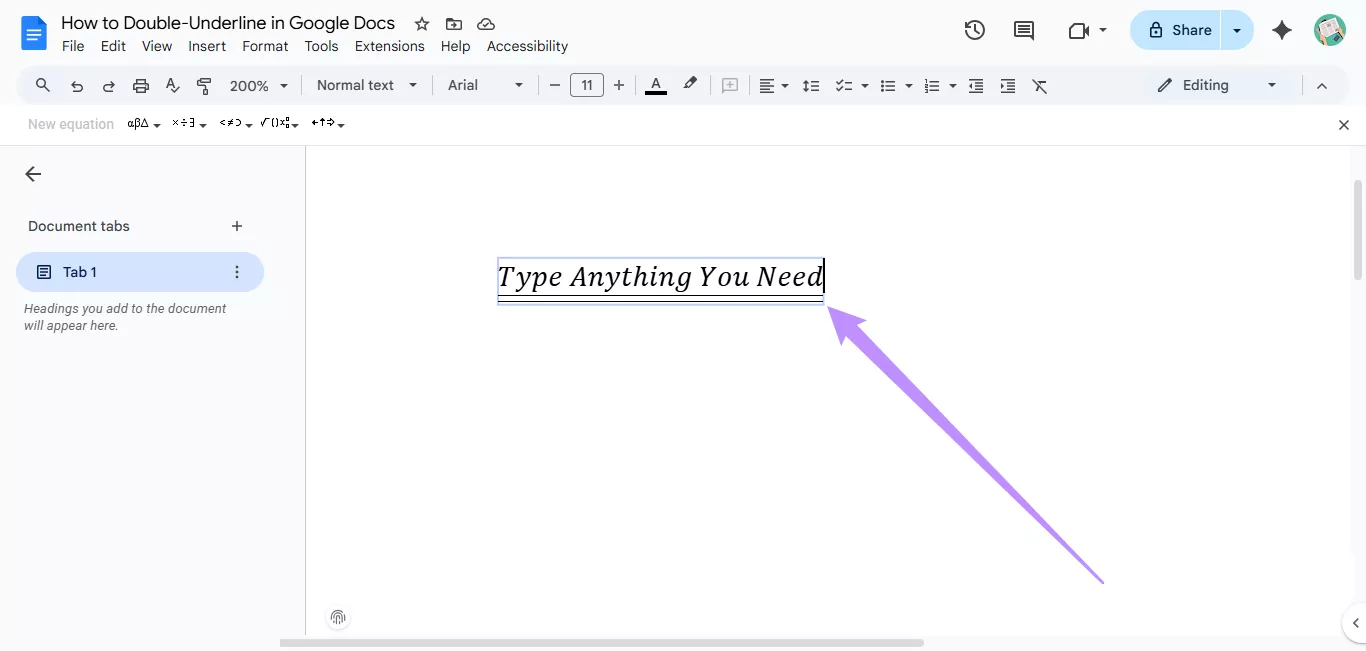
Step 3. Repeat Step 2. Then, type your text, and it will be double-underlined.
Apart from docs, you can underline text directly in a PDF document as well. Check out our guide on how to underline PDF on various platforms.
Way 2: With Drawing Tool
You can draw straight lines with the drawing tool and pair them to create a double-underline effect. Here's how to double underline in Google Docs with the drawing tool.
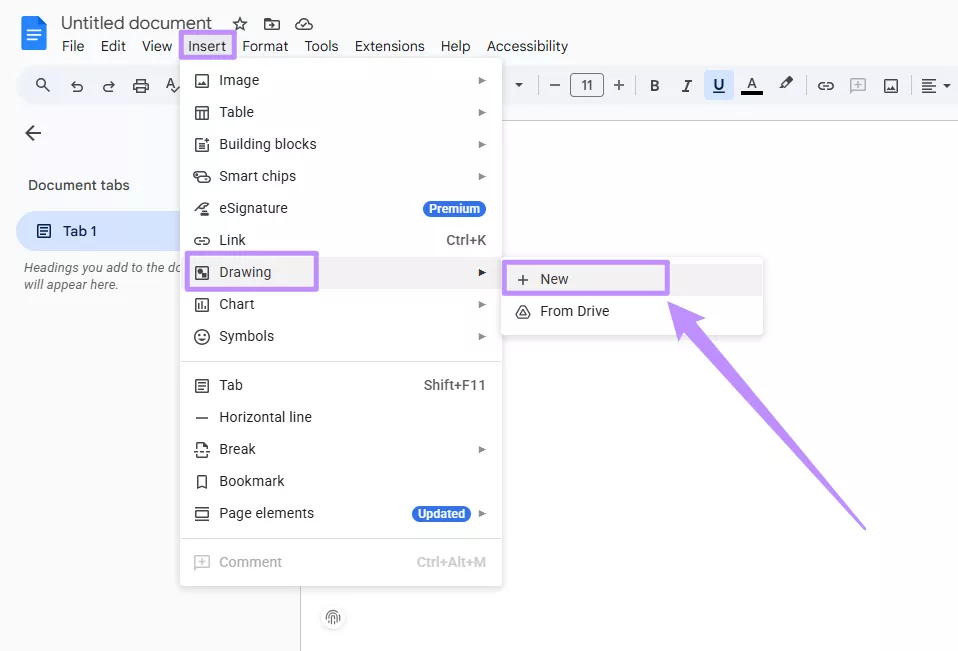
Step 1. Click “Insert” from the top and select “Drawing.” Then, choose “New.”
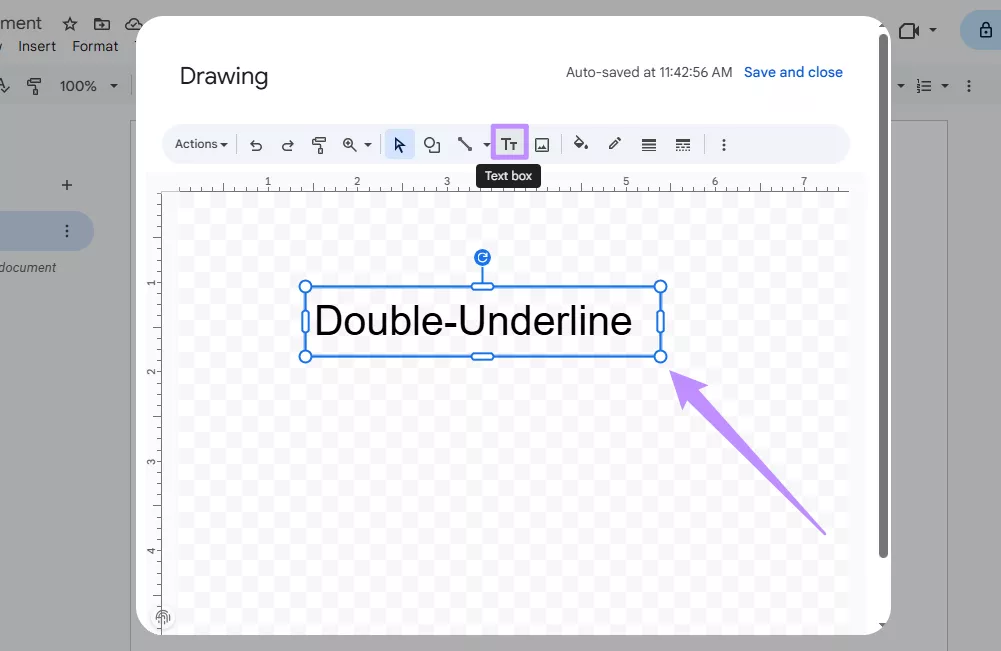
Step 2. Select the “Text box” tool and add a text box in the drawing space. Then, type in your desired text.
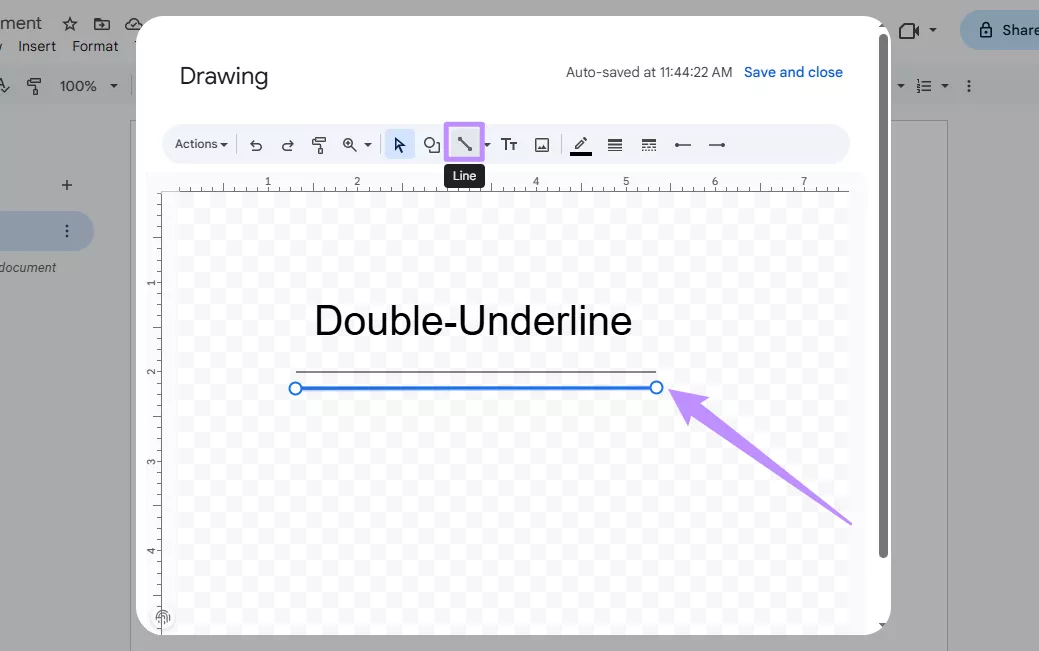
Step 3. Select the “Line” drawing tool and draw a straight line. Repeat this step to add another line right below the first one.
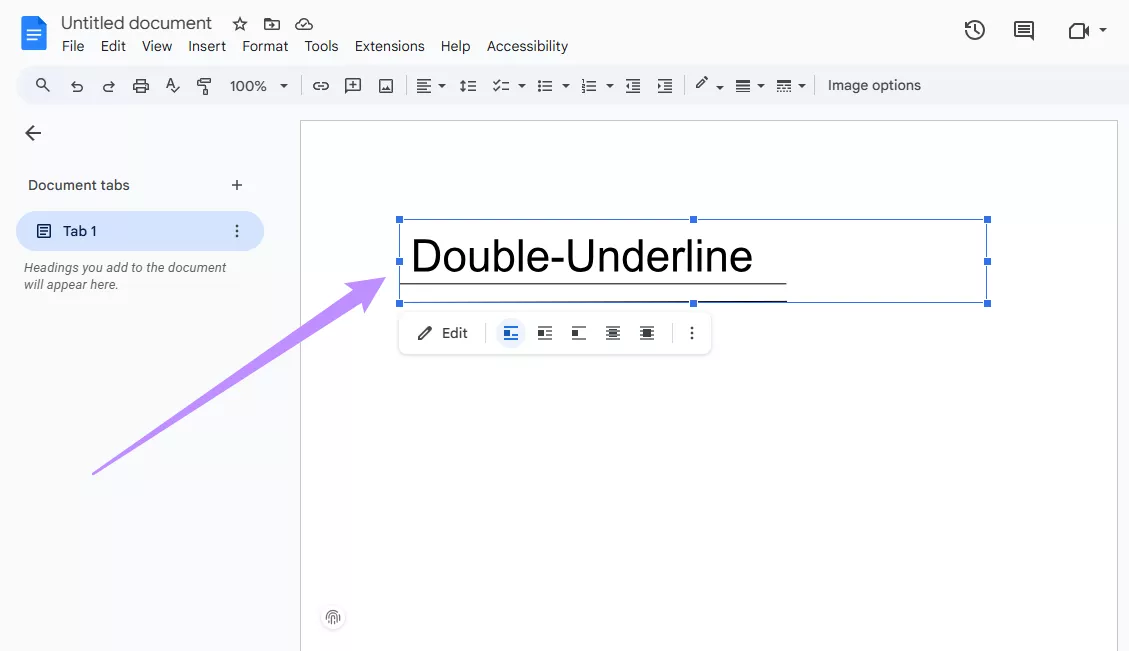
Step 4. Click and drag your cursor over both lines to select them. Position both lines under the text. Then click “Save and close” from the top to add it to the document.
Way 3: Using Borders and Shading
You can combine a standard underline with a paragraph bottom border to create a double underline. Let’s look at the steps.
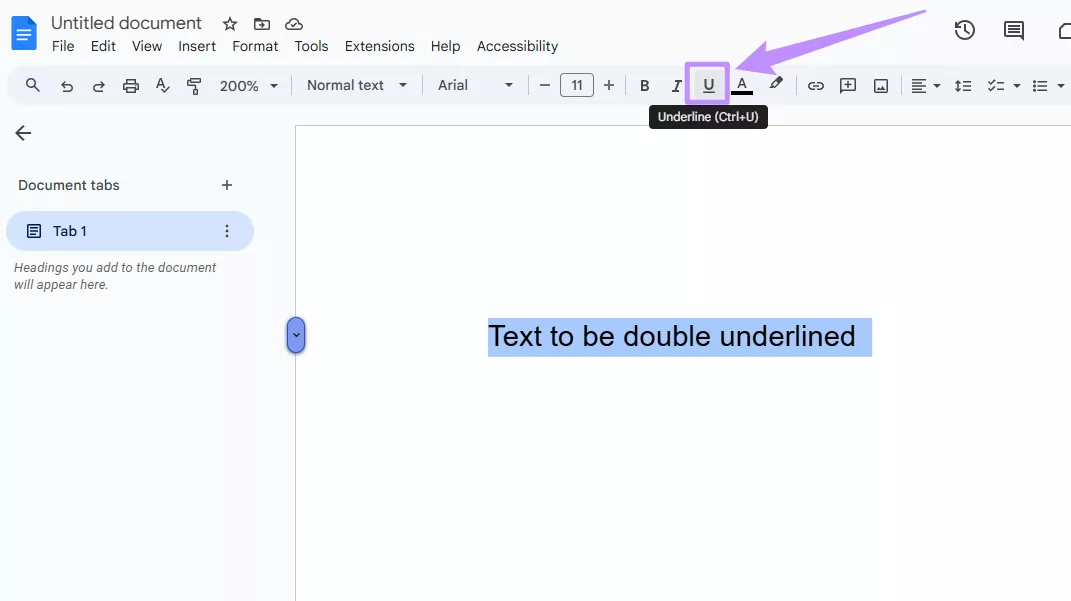
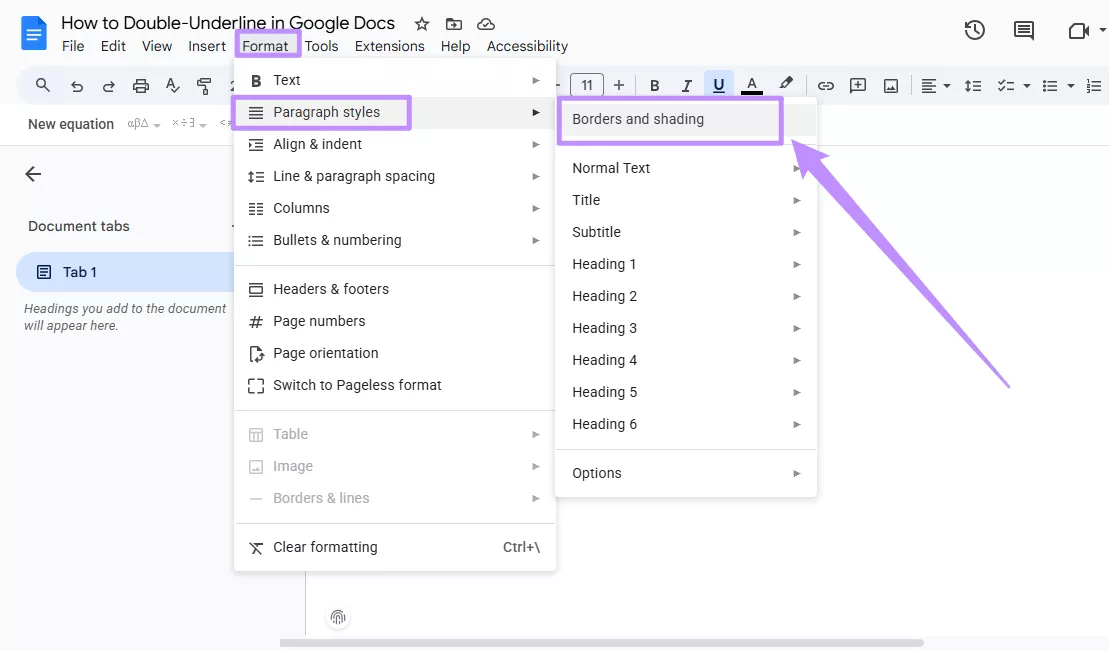
Step 1. Select your text and click “Underline” from the top toolbar.
Step 2. Click “Format” from the top. Select “Paragraph styles” and choose “Borders and shading.”
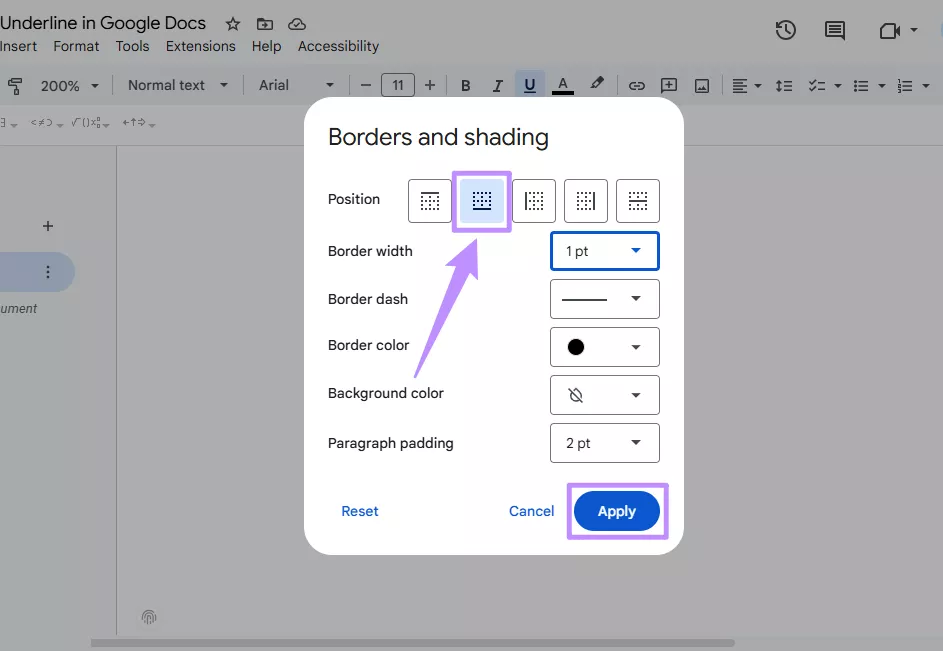
Step 3. From the new window, select “Bottom border” in the Position category. Then, click “Apply.”
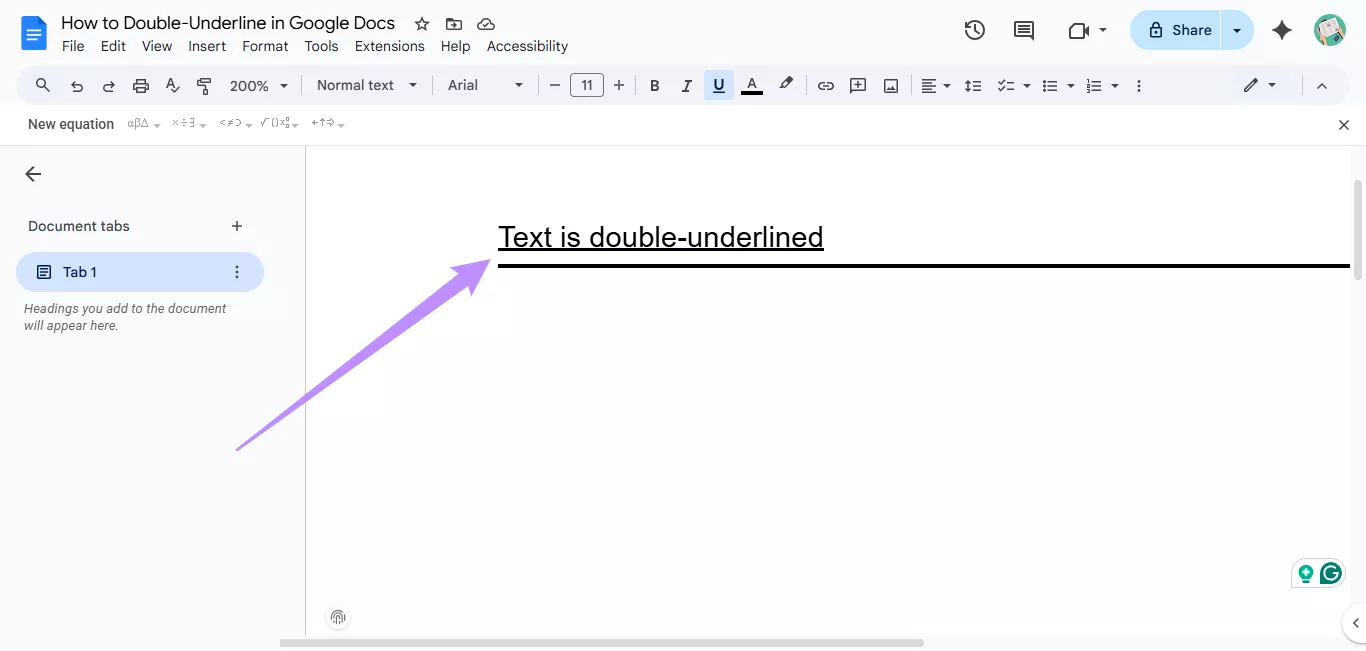
Step 4. A continuous line will appear below your text, making your text appear double-underlined.
Way 4: Download as Word and double line in Word
If the above methods do not work for you, you can use Word's double-underline feature after downloading the file. Here’s how to double underline in Google Docs with this method.
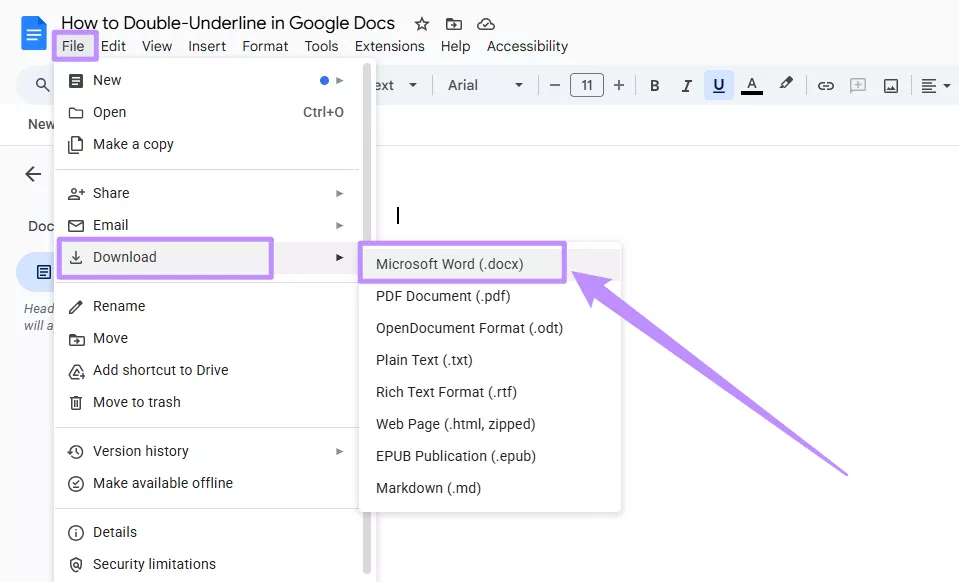
Step 1. Click “File” from the top and select “Download.” Then, choose “Microsoft Word (.docx).”
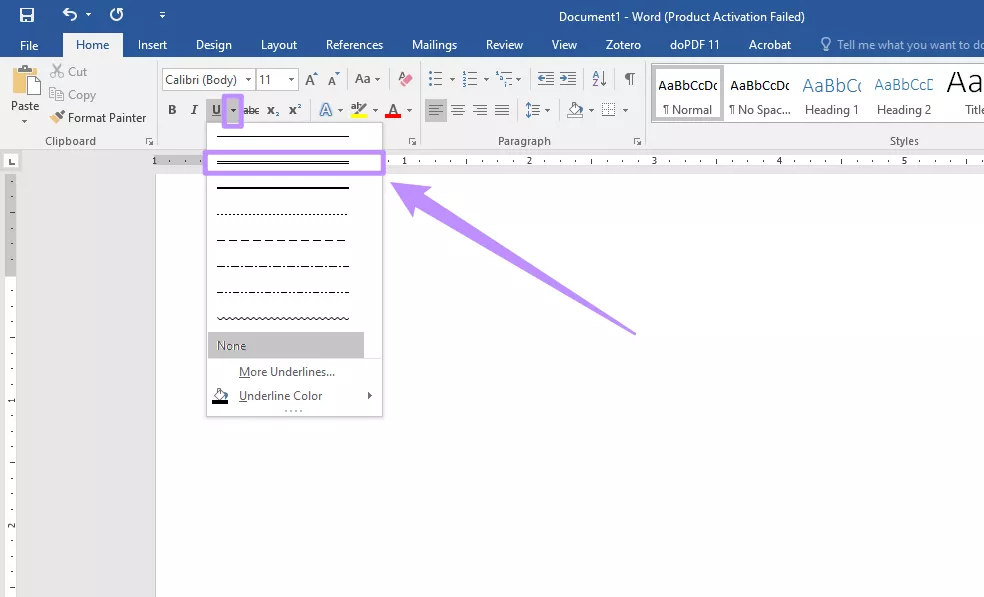
Step 2. Open the downloaded Word file and select your desired text. Then, click the dropdown for the “Underline” tool at the top and select “Double-underline.”
After applying your double underline, you might want to include your document as a PDF back into Google Docs. If so, check out this guide on how to insert a PDF into Google Docs.
Part 2. What is Double Underline Used for?
Double-underline has significant meaning in various professions. It is used to visually convey critical information in formal documents. Let’s review exactly what it is used for.
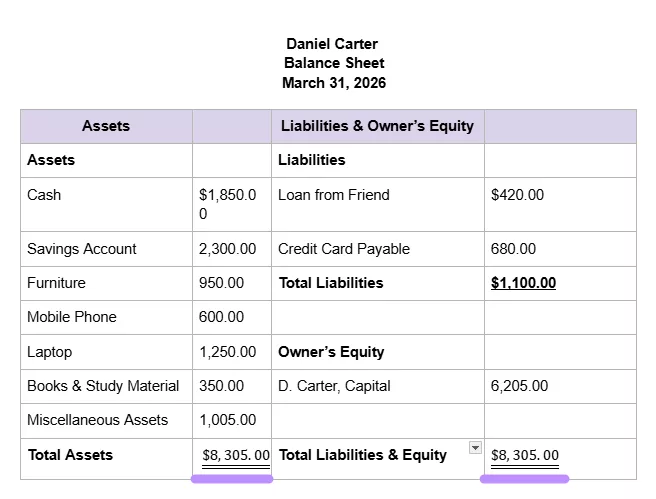
1. Accounting and Financial Statements
In accounting, a double underline is used to mark the grand total or final result in financial documents such as balance sheets and income statements. It acts as a visual cue that all calculations are complete and verified.
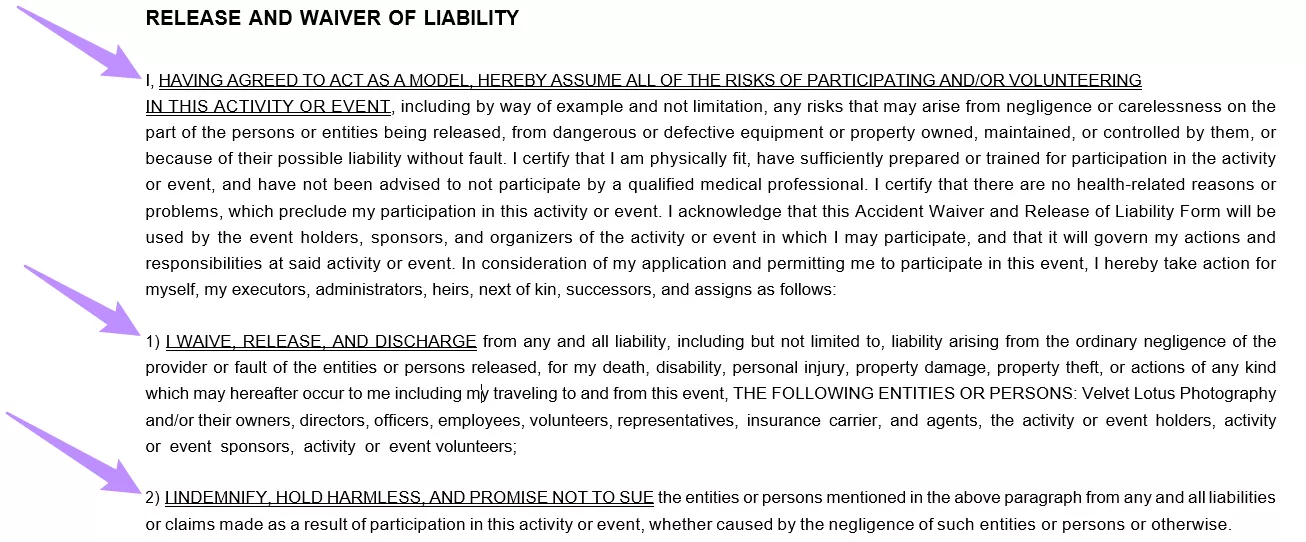
2. Legal and Formal Documents
In legal and formal documents, double underlines are used to convey that the information is legally significant. These can be clauses, deadlines, or monetary amounts that must not be overlooked.
3. Education and Proofreading
In traditional proofreading, a double underline below text means that it should be capitalized. In mathematics and technical subjects, double underlining is used to draw attention to the final answer.

4. Word Processing and Grammar Checking
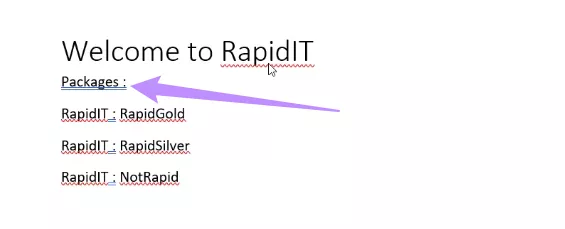
In modern word processors like Microsoft Word, double underlines appear automatically when you check for grammar. A double blue underline indicates grammatical or stylistic issues, such as spacing errors.
Part 3. UPDF: The PDF Tool for Professionals Who Need Double Underlines
As you've seen, double-underlines are commonly used in various professions. In these fields, PDF files are frequently used to store and share official records. Therefore, it is important that these documents are accurately formatted and that you have full control over editing them when necessary.
UPDF is designed to meet these requirements. It is an AI-driven PDF editor with a comprehensive toolkit to help you easily edit, organize, convert, annotate, protect, and OCR PDFs. It is available across Windows, Mac, Android, and iOS, with a built-in cloud storage to help you sync your files across devices.
Moreover, you can access all its features without cost using a free trial. But if you want unlimited access and no watermarks, you can upgrade to the premium version at an affordable price.
Windows • macOS • iOS • Android 100% secure
Key Features of UPDF for Professionals
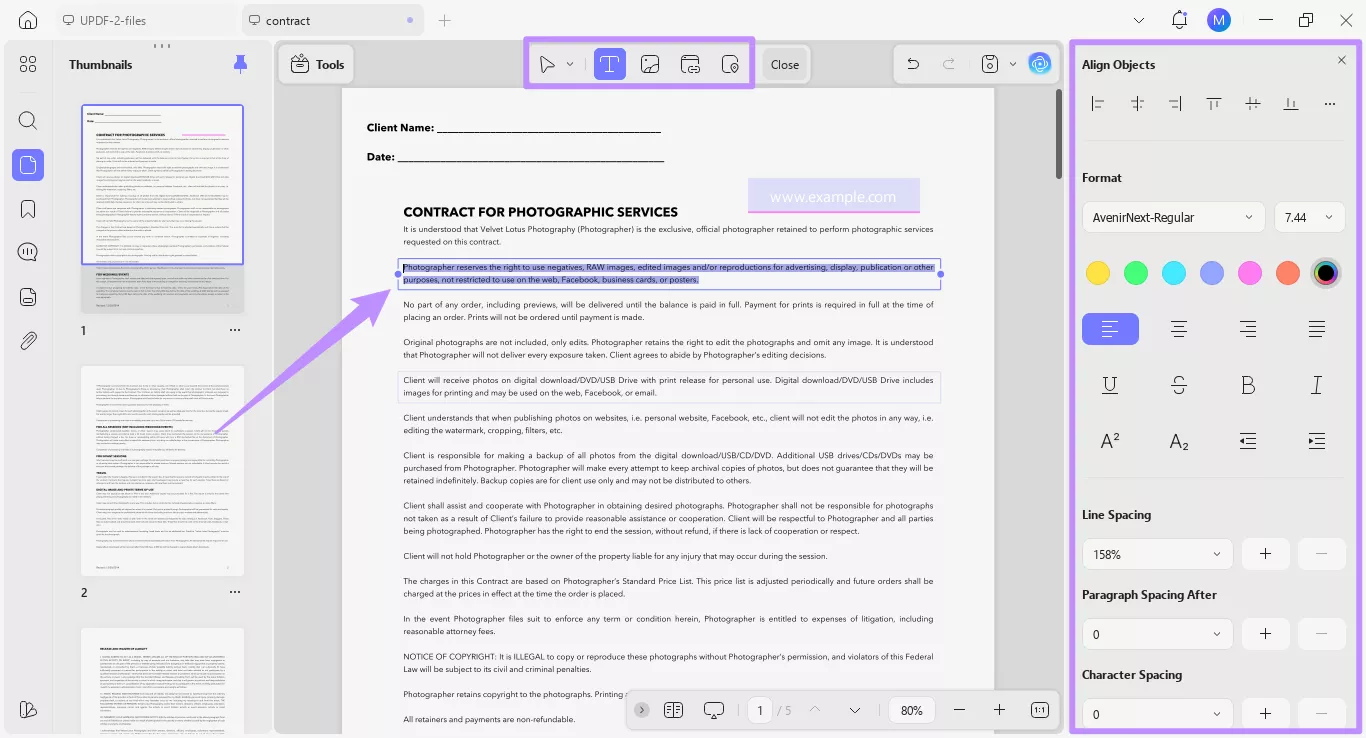
1. Advanced Editing: You can modify your PDF content just like in Word without changing the original formatting. You can edit text, images, links, headers, footers, backgrounds, and more.
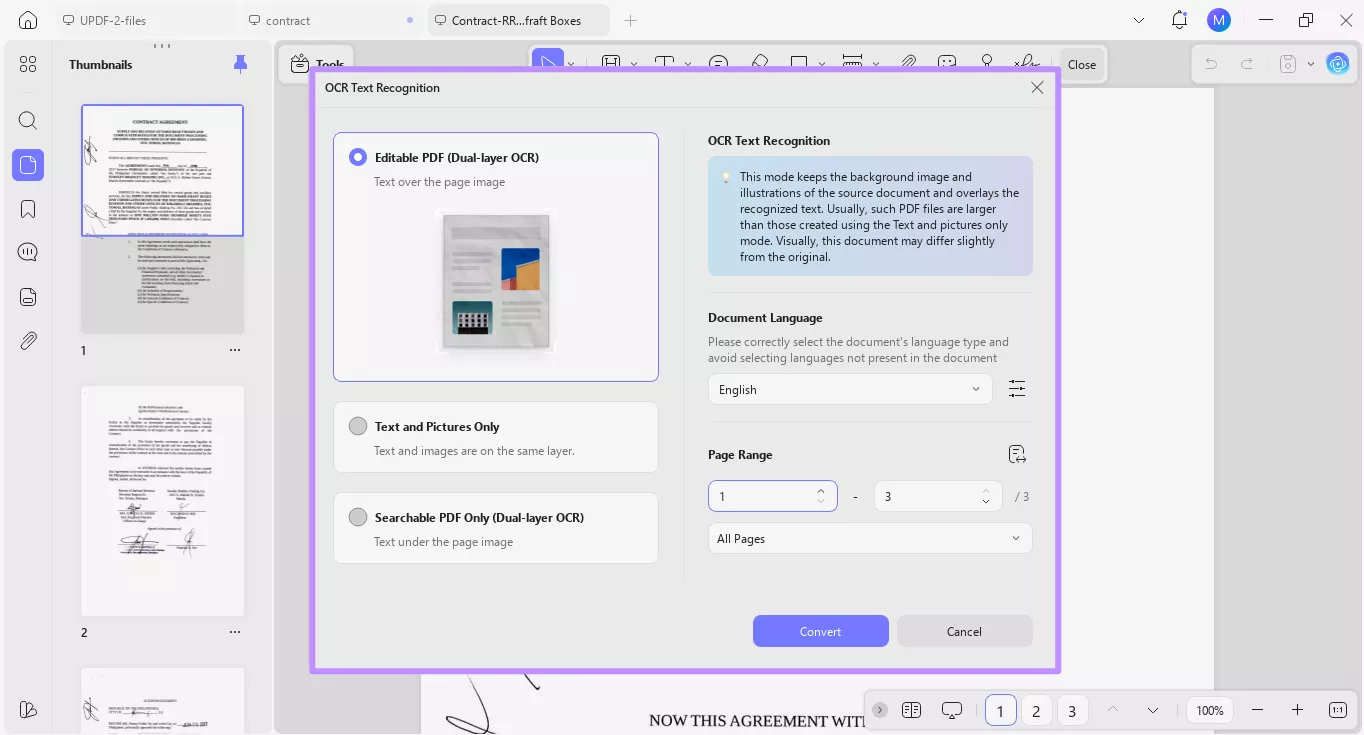
2. Scan to PDF and Powerful OCR: You can scan paper documents with the built-in scanner on both desktop and mobile. You can also convert the scanned file to editable or searchable text with OCR.
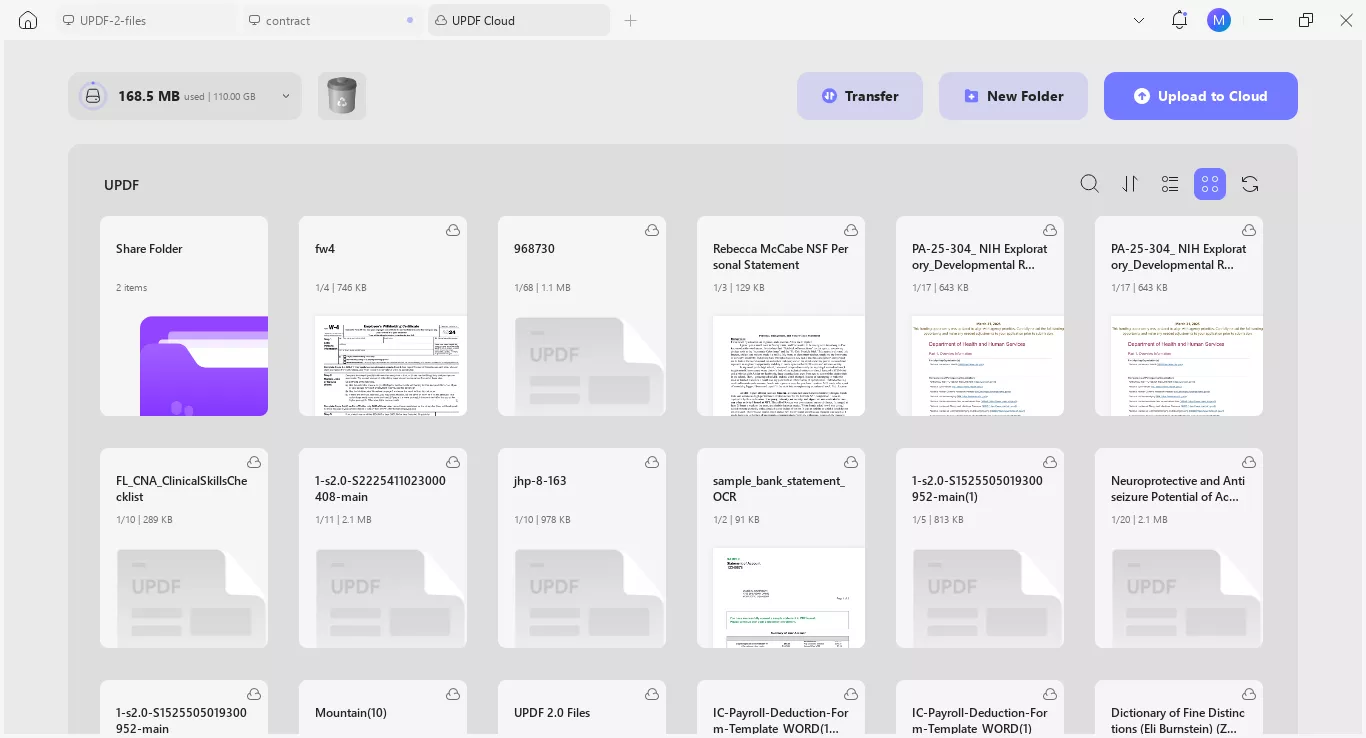
3. Cloud Sync and Device Flexibility: Apart from a built-in cloud storage, UPDF allows you to sync files via Dropbox on Android and iCloud on iOS. Plus, you can use UPDF on all devices with a single license.
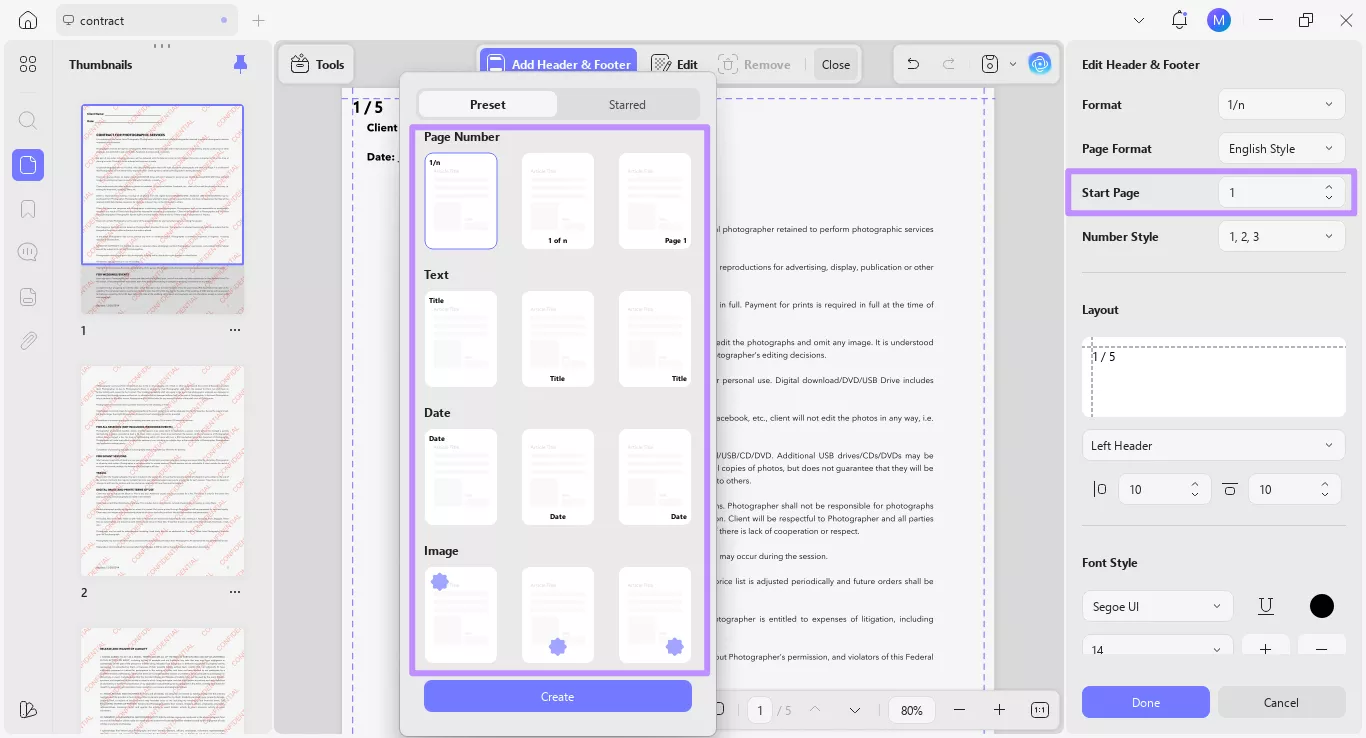
4. Document Management: It lets you merge, split, extract, delete, and rotate pages. You can also add tilted watermarks, manage page order, and apply different headers and footers, such as starting page numbers from a specific section, which is especially important in legal filings.
5. Security and Signing: To protect sensitive information, you can add passwords and permanent redaction before sharing files. You can also add electronic and digital signatures to agreements or contracts.
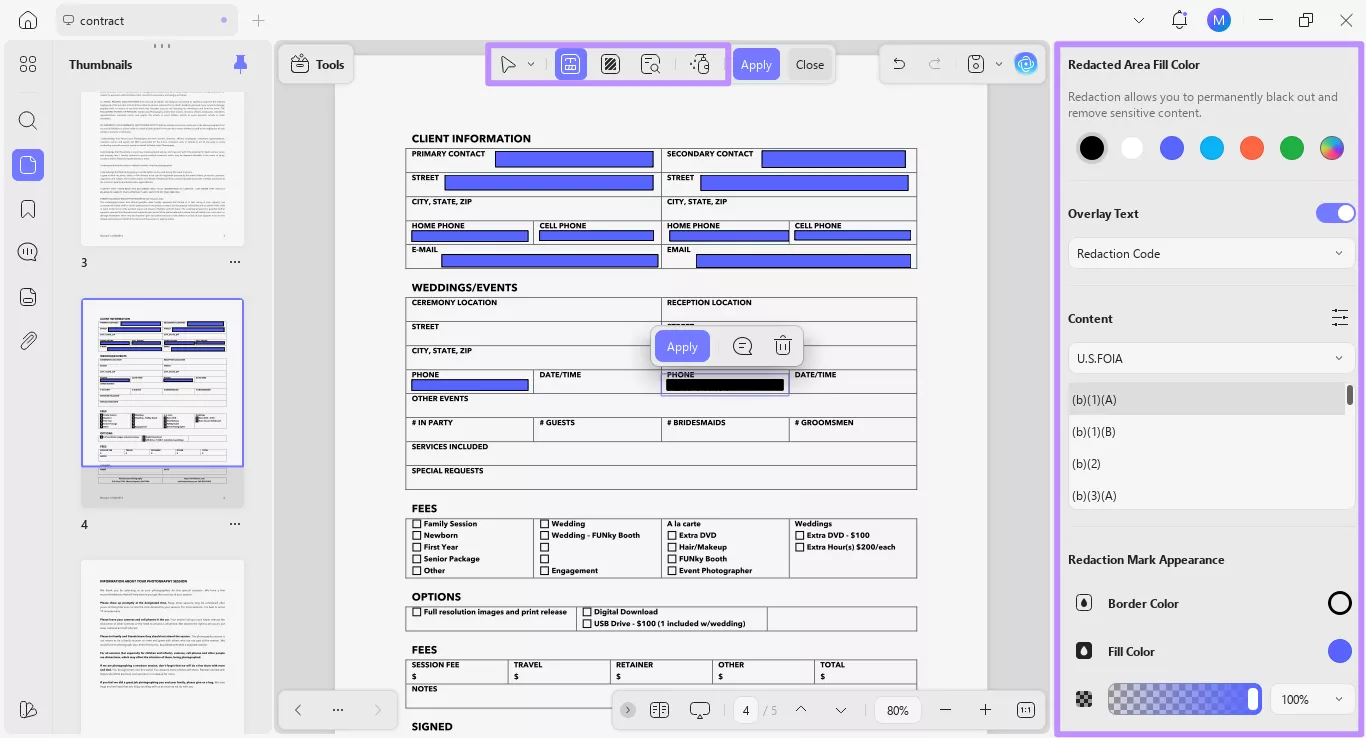
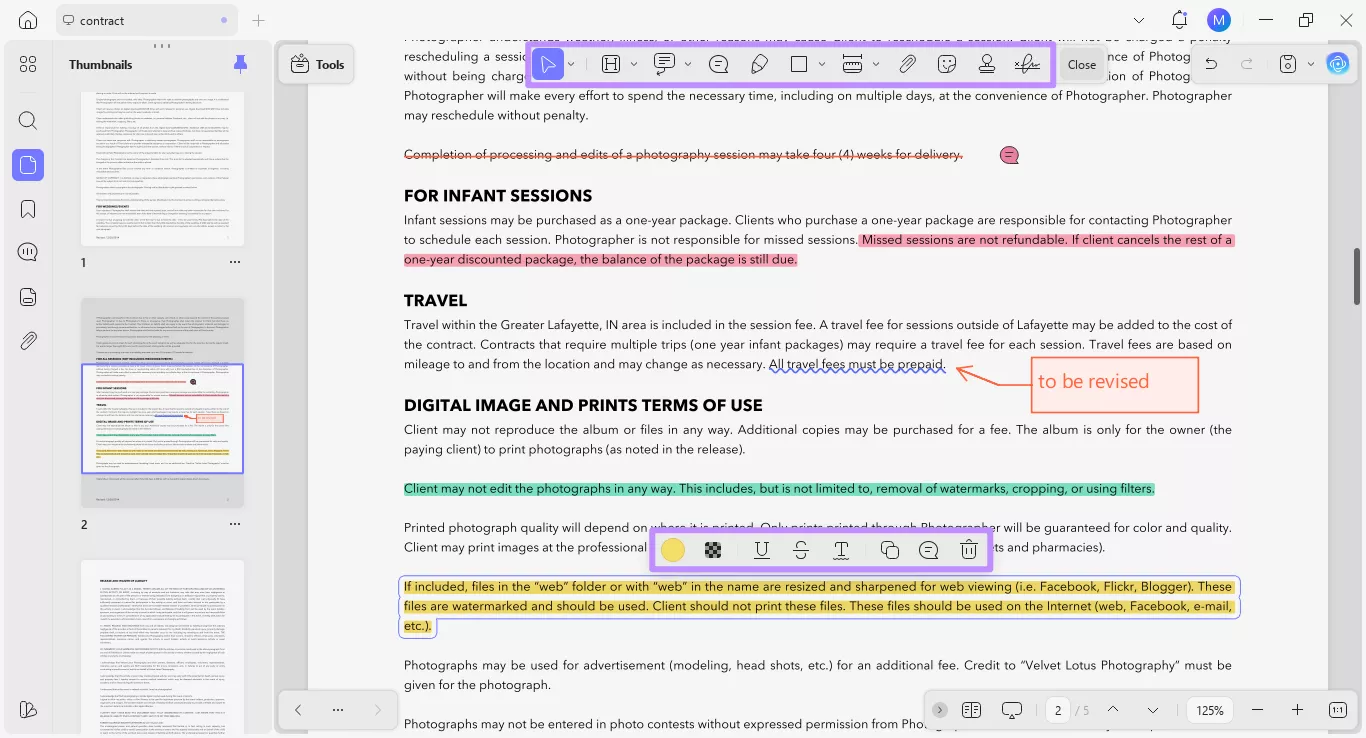
6. Multiple Annotation Tools: UPDF lets you add underlines, highlights, squiggly lines, and strikethroughs, with the option to quickly switch annotation styles. You can add comments for review using text callouts, text boxes, sticky notes, and export them as a text file or as a complete summary.
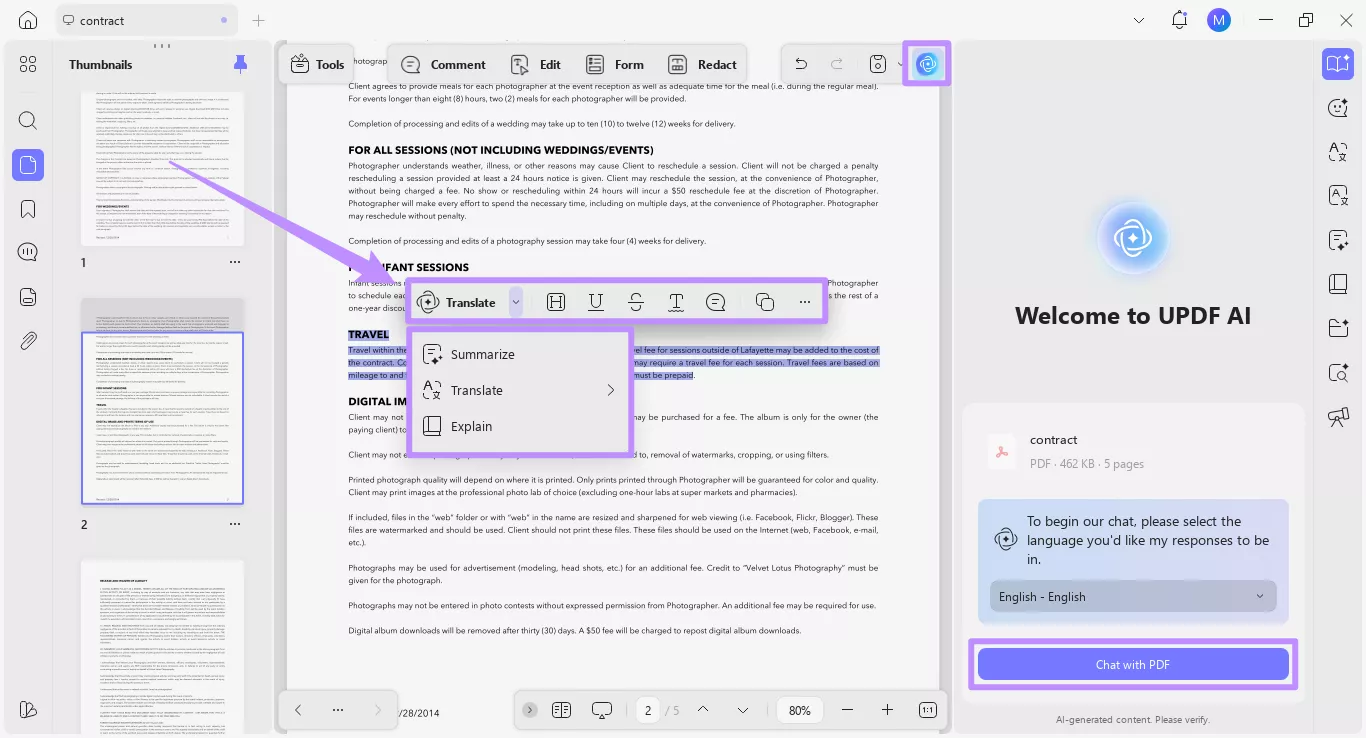
7. UPDF AI: UPDF AI helps explain complex terms, generate or refine content, check accuracy, summarize entire documents, and translate full PDFs. It also supports chatting with images, with many of these features now available on iOS.
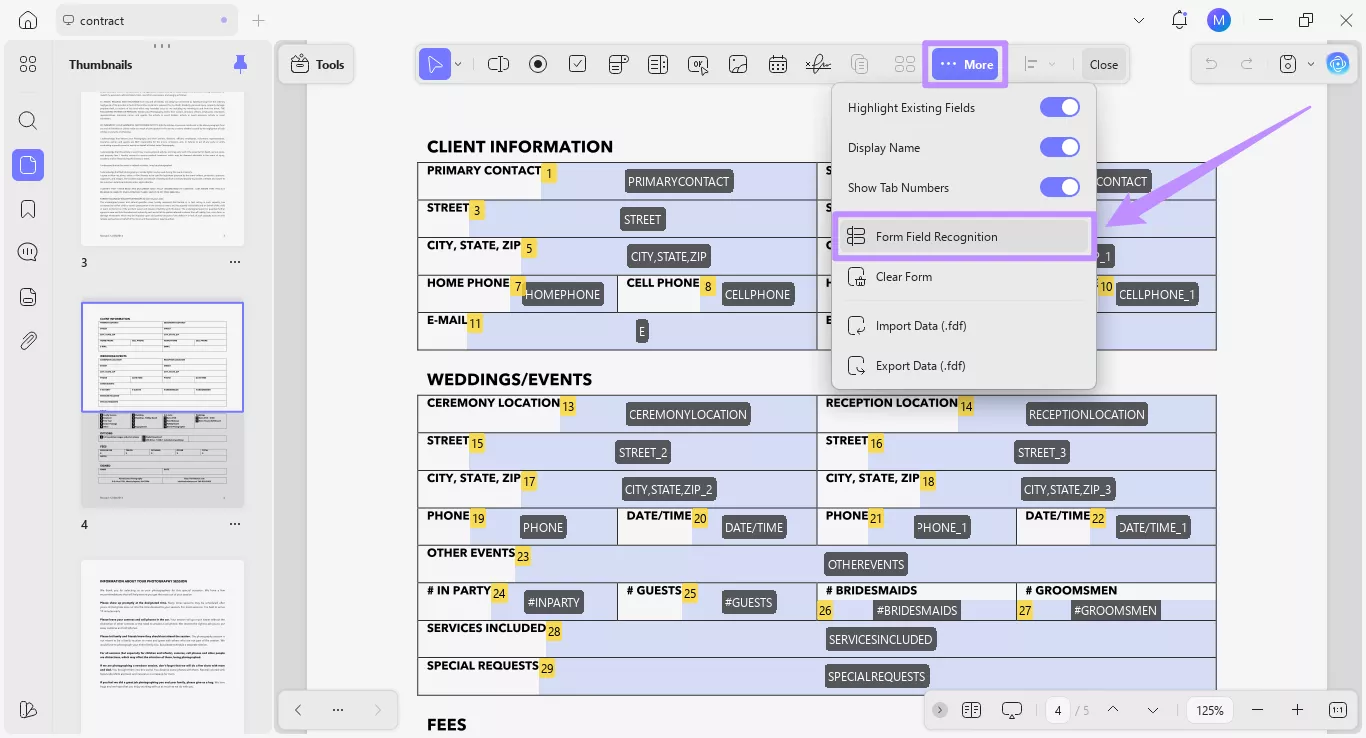
8. Fill Forms/Agreement/Contract: You can fill out interactive forms on both desktop and iOS. On the desktop, UPDF also offers a form field recognition technology that automatically detects and creates fillable fields on static forms.
Windows • macOS • iOS • Android 100% secure
Part 4. FAQs
Q1. How to do a triple underline in Word?
To create a triple underline in Word, type three hashtags and press Enter for an automatic triple horizontal line. Alternatively, go to Home > Borders > Borders and Shading > Custom. Then, select the triple line style and apply it to the bottom of the text.
Q2. How to do a double underline in Sheets?
To add a double underline in Google Sheets, select the cell and click the Borders icon in the toolbar. Then, click on the Border Style option and choose a double line. Then, click the Bottom Border option to apply.
Q3. What is the shortcut key to double underline?
The shortcut key for a double underline in Microsoft Word is Ctrl+Shift+D. Meanwhile, in LibreOffice Writer, the shortcut key is Ctrl+D. In both, you need to first select the desired text and then use the shortcut to apply the double underline.
Conclusion
That’s all about how to double underline in Google Docs. To sum up, you can do this using an equation box, drawing lines, adding a bottom border, or exporting the file in Word. Double-underlines have special meanings in professional documents.
And when it comes to managing professional documents, UPDF offers the perfect solution. With a built-in AI assistant and comprehensive toolset, it helps you work faster and stay productive. Give it a try. Download it now to get started!
Windows • macOS • iOS • Android 100% secure








 Engelbert White
 Enola Davis

 Enola Miller