 UPDF
UPDF
 UPDF for Windows
 UPDF for Mac
 UPDF for iPhone/iPad
 UPDF for Android
 UPDF AI Online
 UPDF Sign
 Edit PDF
 Annotate PDF
 Create PDF
 PDF Form
 Edit links
 Convert PDF
 OCR
OCR PDF to Word
 PDF to Image
 PDF to Excel
 Organize PDF
 Merge PDF
 Split PDF
 Crop PDF
 Rotate PDF
 Protect PDF
 Sign PDF
 Redact PDF
 Sanitize PDF
 Remove Security
 Read PDF
 UPDF Cloud
 Compress PDF
 Print PDF
 Batch Process
 About UPDF AI
 UPDF AI Solutions
 AI User Guide
 FAQ about UPDF AI
 Summarize PDF
 Translate PDF
 Chat with PDF
 Chat with AI
 Chat with image
 PDF to Mind Map
 Explain PDF
 PDF AI Tools
 Image AI Tools
 AI Chat Tools
 AI Writing Tools
 AI Study Tools
 AI Working Tools
 Other AI Tools
 PDF to Word
 PDF to Excel
 PDF to PowerPoint
 Enterprise Solution
 Enterprise Sign
 Enterprise AI
 Enterprise Plan
 Enterprise User Guide
 Enterprise Webinar
 Banking
 Healthcare
 Insurance
 Legal
Legal Manufacturing
 Government
 Education Solution
 Customer Stories
 User Guide
 UPDF Tricks
 FAQs
FAQs UPDF Reviews
 Download Center
 Blog
Blog Newsroom
 Tech Spec
 Updates
 UPDF vs. Adobe Acrobat
 UPDF vs. Foxit
 UPDF vs. PDF Expert

When I tried to manage long YouTube lectures and complex PDFs, I struggled every time to organize and truly remember what I learned. These materials were important for my studies and research, but simply watching and reading did not help me retain the key points. That was when I started looking for smarter tools that could turn scattered information into structured knowledge.
In this article, I’ll share how I use Memo AI to transform videos and PDFs into active learning materials. As a bonus, I’ll also show how I combine it with UPDF to create a complete learning workflow.
Windows • macOS • iOS • Android 100% secure
Part 1. What is Memo AI?
Memo AI is a learning tool that helps you turn long videos, web pages, and PDFs into clear notes. It started as PDF2Anki, a simple way to automatically create flashcards from your study materials using artificial intelligence. Now, in its latest version, it has grown into a full AI workspace for building long‑term knowledge.
This workspace helps you collect ideas, connect them, and review them until they truly stick in your memory. It is designed to support serious learners who deal with lots of complex information every single day.
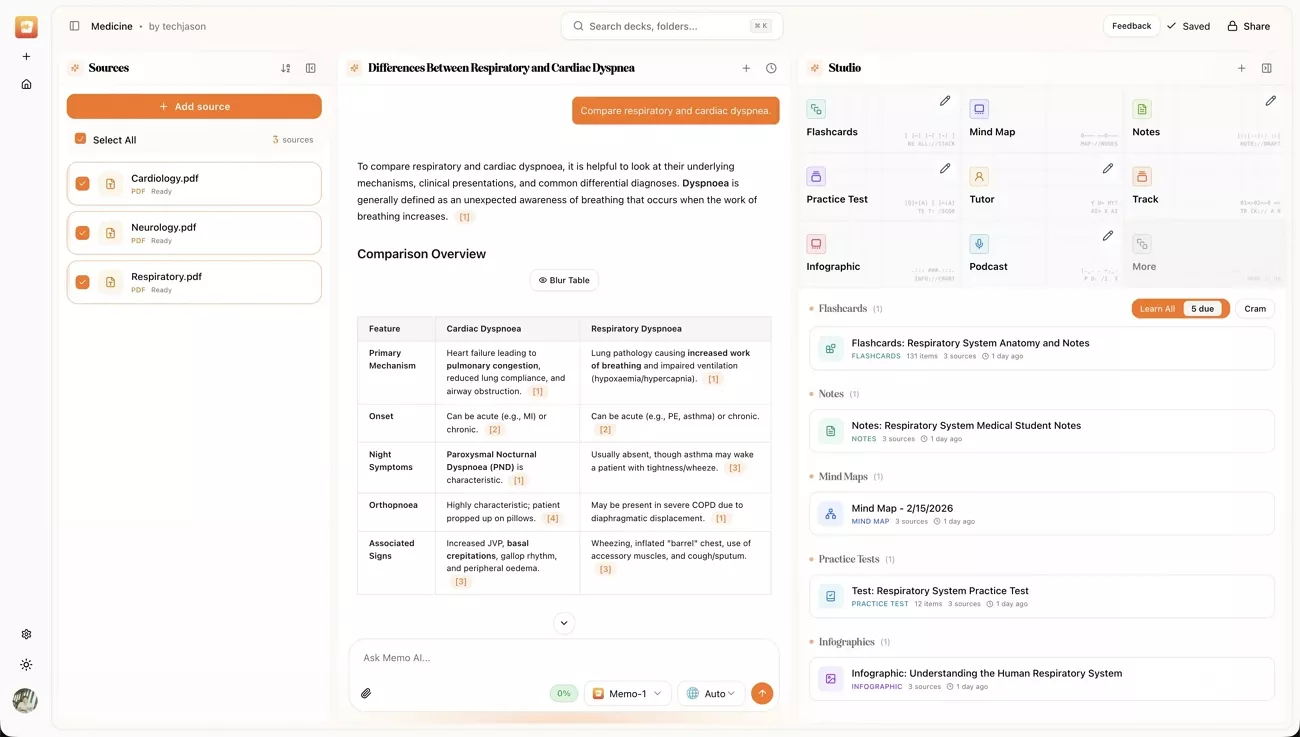
Why Memo AI Matters
I like how Memo AI turns messy content into organized questions, answers, and summaries that feel easy to remember. Next, I will share why this shift from simple flashcards to a broader workspace really changes how we learn:
- Focus Boost: Memo AI cuts down my time rewinding videos or re‑reading PDFs and helps me stay focused.
- Memory Support: It builds questions and prompts for me and makes active recall feel natural.
- Consistency: I now follow a repeatable study routine and no longer restart from scratch with each resource.
- Confidence: The tool tracks my progress and gaps and helps me feel ready before exams.
Who Memo AI Is For
Having introduced what Memo AI does, let’s see who can really benefit from it:
- It helps students turn lectures and textbooks into clear flashcards and simple practice questions.
- Researchers save insights from papers and videos, then review them later using helpful prompts.
- Lifelong learners keep ideas from podcasts and courses organized, so regular review feels easy and natural.
Part 2. What Can Memo AI Do? (Core Features)
Memo AI has changed how I study by giving me one clear flow for handling every new source. Now, I will break down how the Sources, Chat, and Studio stages fit together in daily use.
Stage 1: Sources
In this stage, I bring all my learning materials together, including videos, PDFs, and helpful web pages. Memo AI lets me drop everything into one place, so I do not waste time jumping between apps.
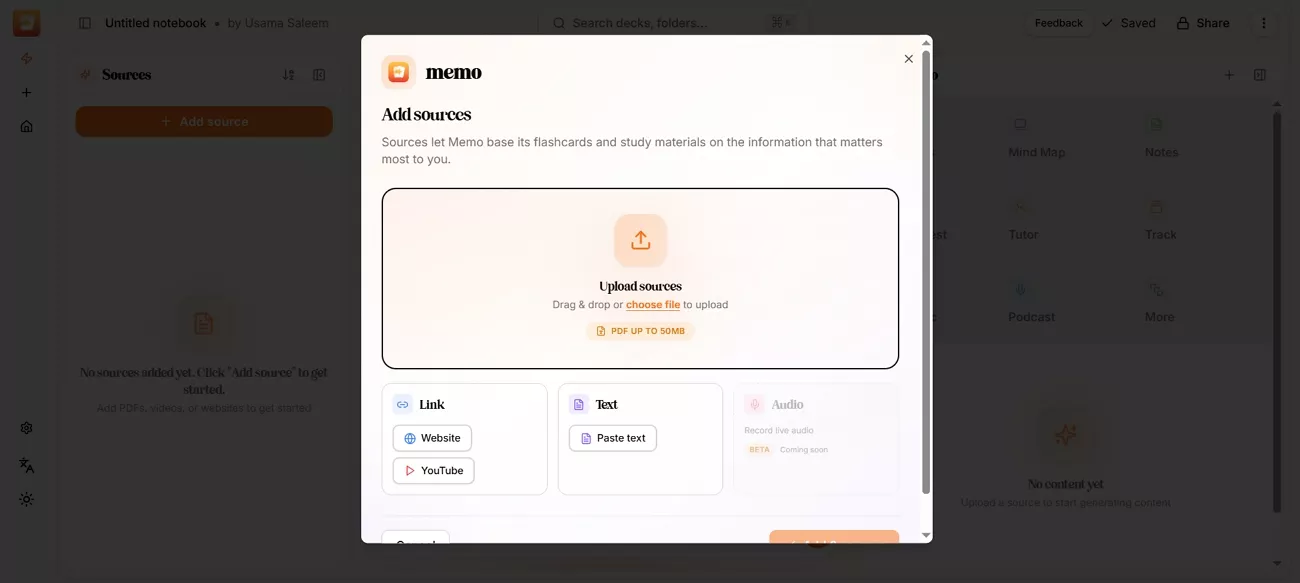
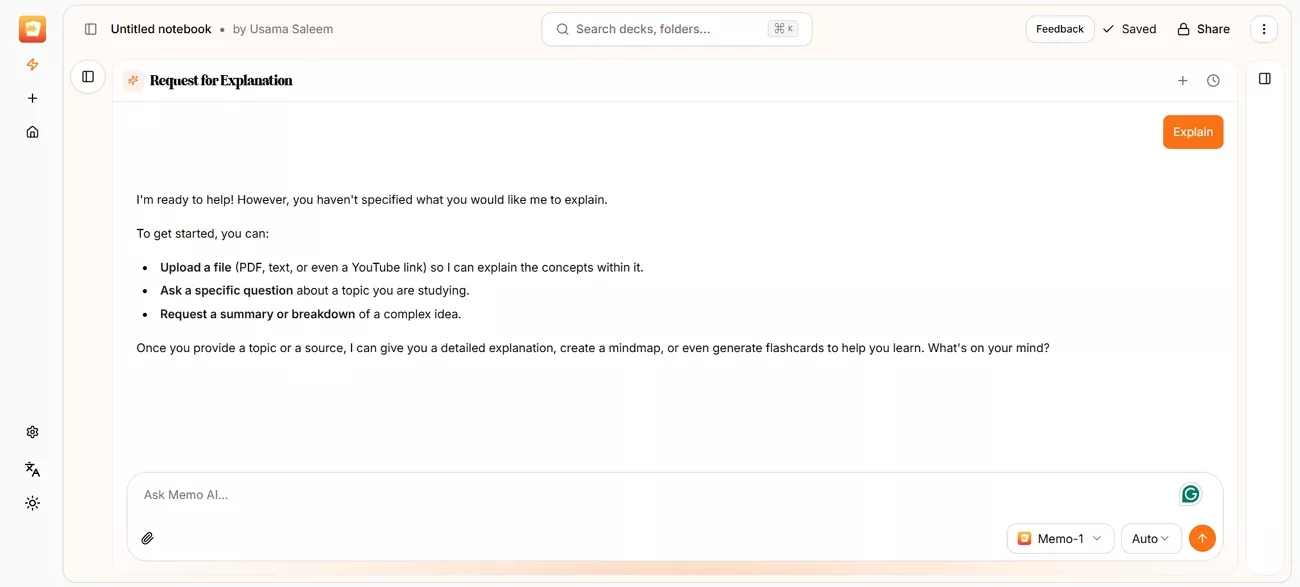
Stage 2: Chat (Multi-document Interaction)
Here, I ask questions that pull answers from videos and PDFs, using advanced models like GPT 5.2, DeepSeek V3.2, and Claude Sonnet 4.6. The chat view helps me compare ideas from different sources and notice patterns I would miss. It also creates simple summaries across documents, so long study sessions feel adapted to the strengths of each underlying AI model.
Stage 3: Studio
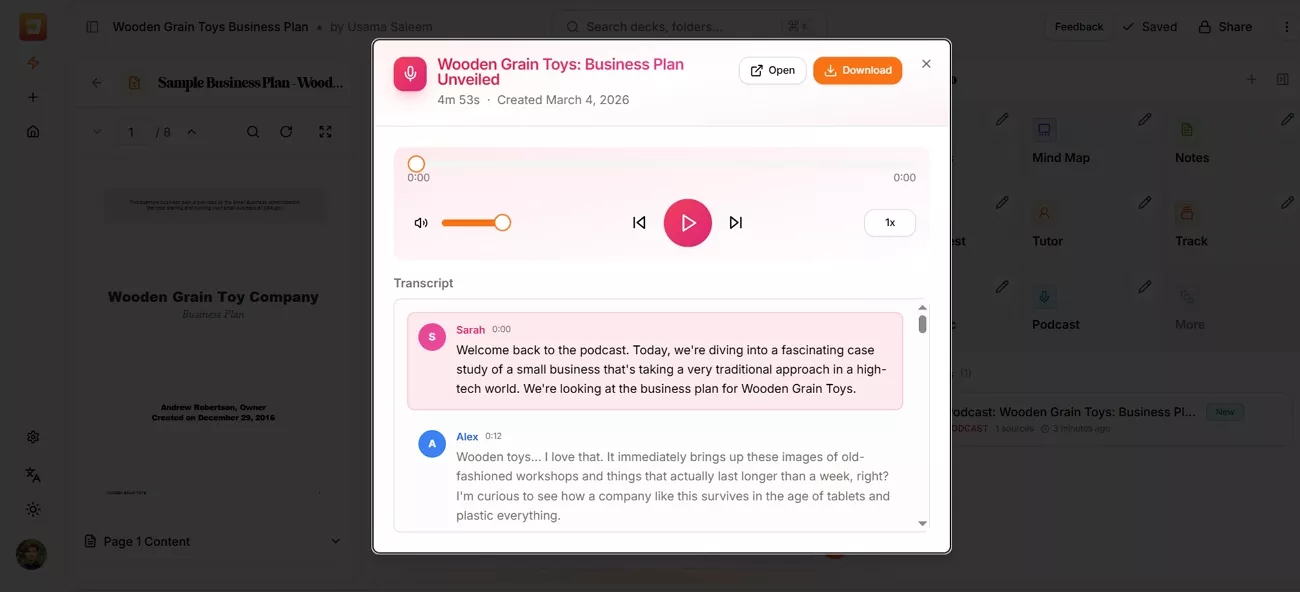
To turn my study sessions into concrete outputs, let me show you what I usually create:
- AI Podcast: Turns key points into an easy audio session I can play during walks or commutes.
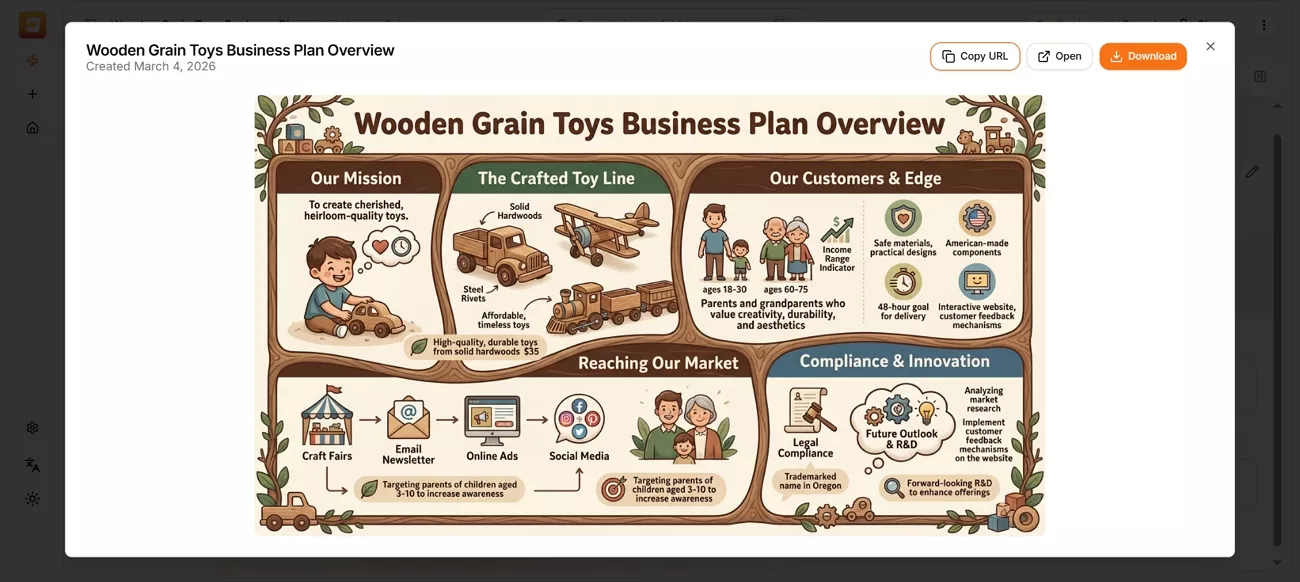
- Infographics: Creates clean visuals that break down complex ideas into simple shapes that my brain remembers quickly.
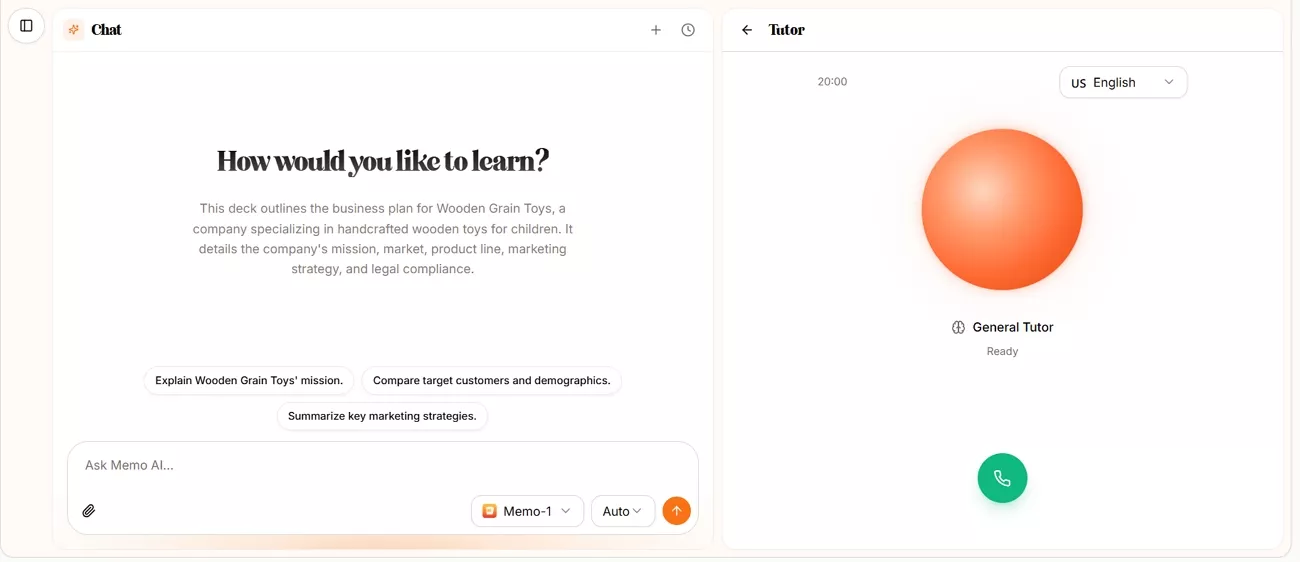
- AI Tutor: Asks direct questions that push me to recall, explain, and fix any gaps in my understanding.
How to Get Started with Memo AI
Once I explored Memo AI, I quickly realized how far it has come from its early PDF2Anki days. To set it up for real study use, follow the steps below, and you will be ready to go:
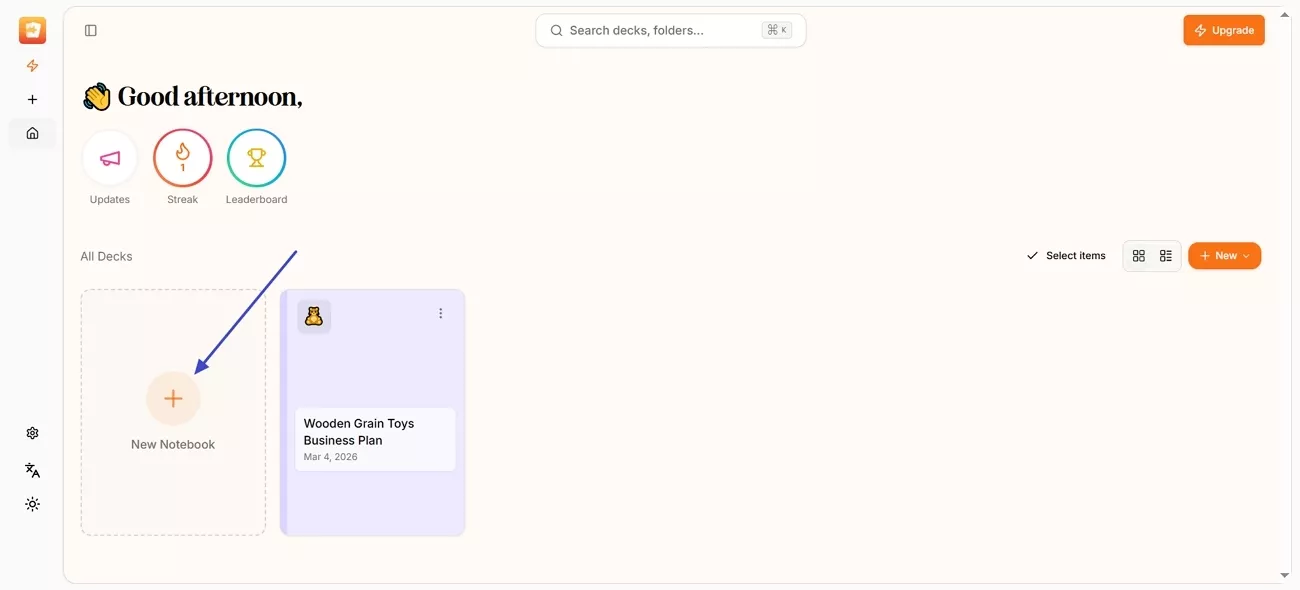
Step 1. Upon accessing the Memo AI web interface or desktop app, register using an Email. Next, press the “New Notebook” option to create a new notebook for work.
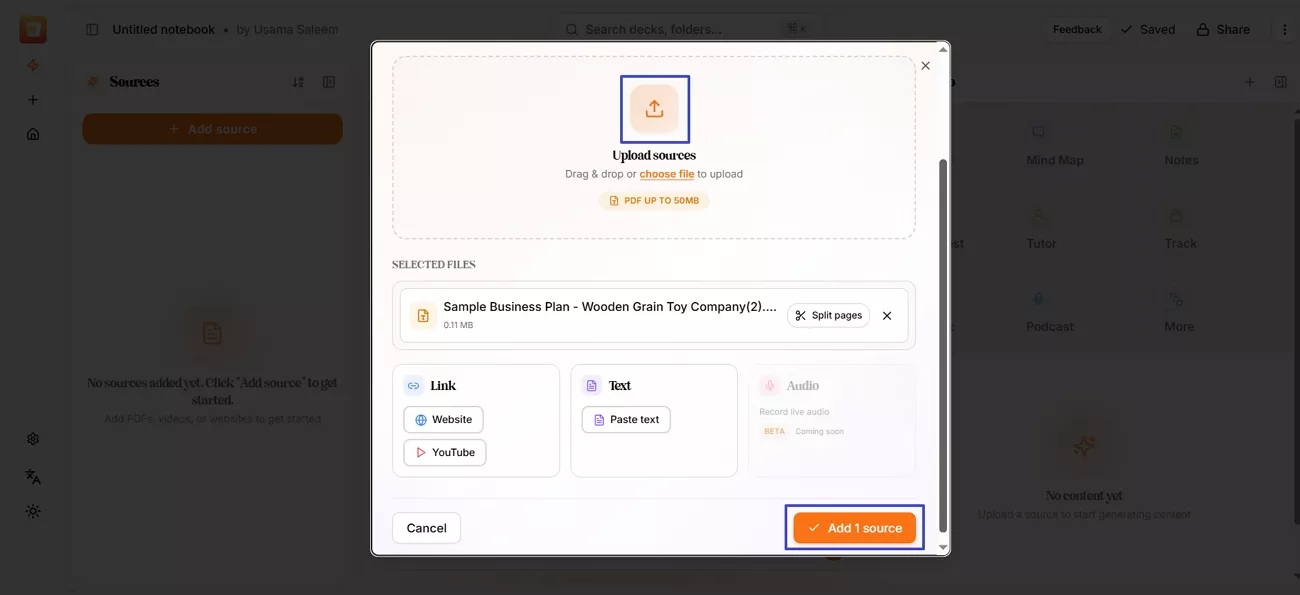
Step 2. Once done, press the “Upload Sources” button and click the “Add x Source” to upload the PDF you want Memo AI to process and analyze.
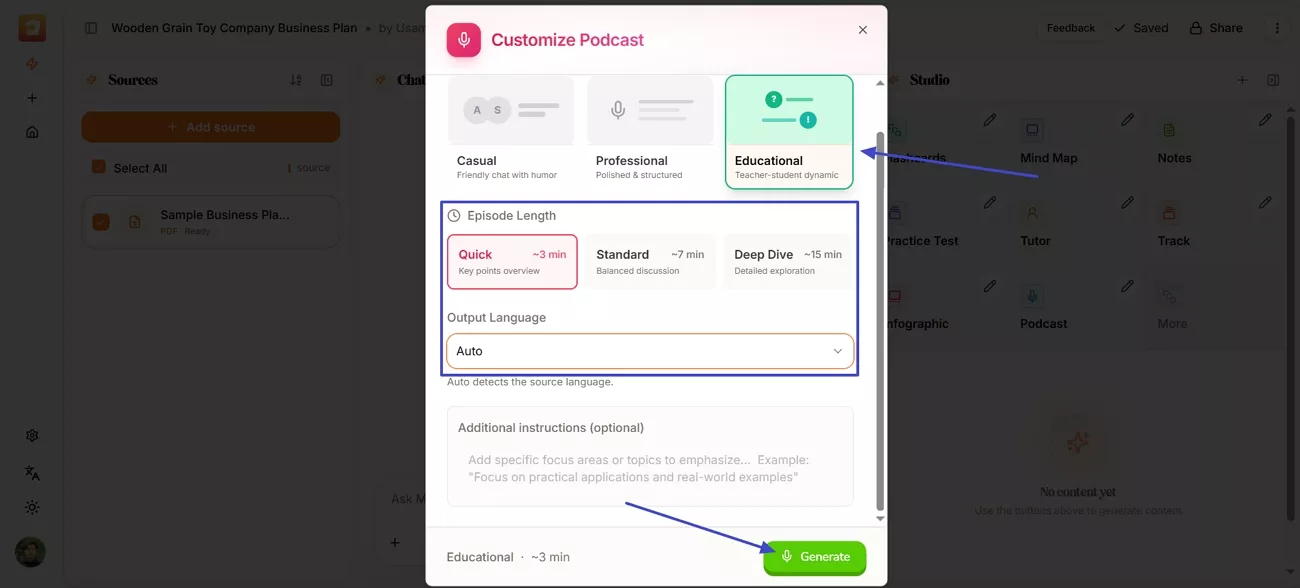
Step 3. To generate a Podcast, press the “Podcast” option in the “Studio” section and select the “Host Style, “Length,” and “Output Language”. Afterwards, press the “Generate” button to generate.
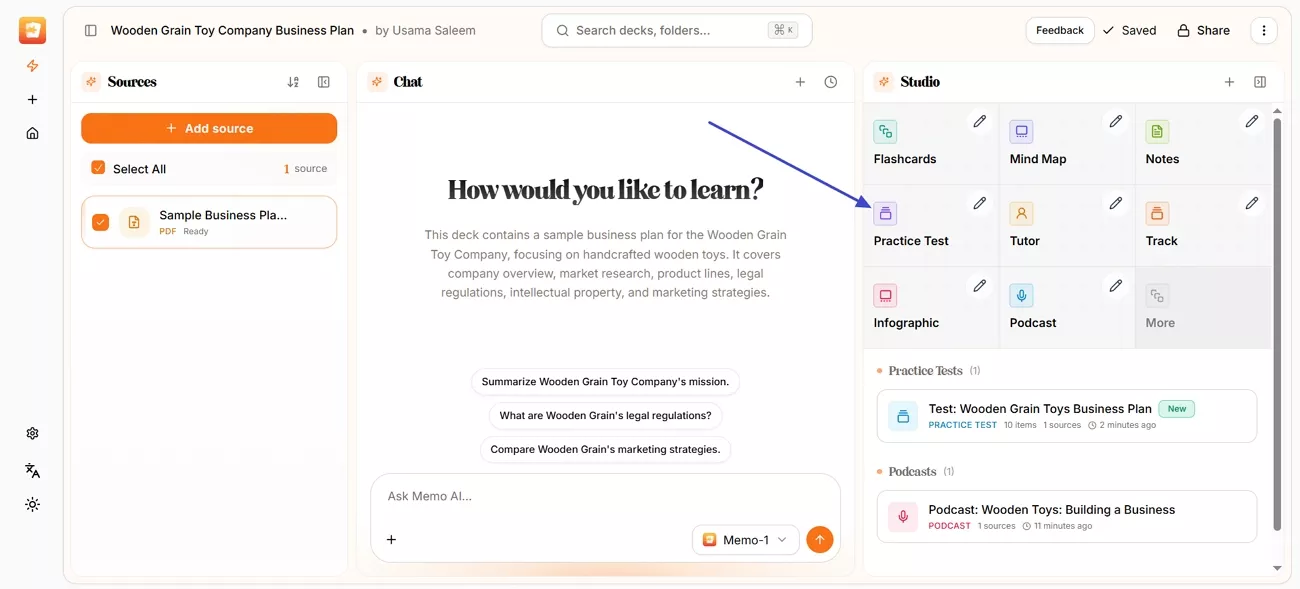
Step 4. Next, press the “Practice Test” button to generate a test for practice.
Part 3. Pricing Plans and Free Tier
To stay consistent with my study routine, I aimed for a tool that could support heavy learning while also being budget-friendly. So, I explored the free and paid plans offered by Memo AI. Next, I will share how the free tier already covers most of my daily needs.
Free Trial
The free plan gives me 100 energy every week, and it resets automatically every Monday. I use that energy to upload PDFs or YouTube links and generate flashcards, notes, and other study aids without paying anything upfront. For my routine, the 50 MB file limit and free Learn mode have been enough to properly test Memo AI.
Paid Plans
To make the paid options easier to compare at a glance, look at the table below:
| Plan | Pricing (USD) | Energy Credits | Weekly/Daily Workflows |
| Pro | $7.17/month billed annually | 3,000/month | For weekly coursework and research |
| Max Plan | $14.17/month billed annually | 9,000/month | For daily, intensive workflows |
Part 4. User Reviews and Actual Results
After using Memo AI for more than a month, I realized it works very differently from older PDF2Anki tools. So, I will share my personal experience and what other users are saying about results and improvements.
My Experience with Memo AI
From my own use, I noticed that Memo AI has some clear strengths and one important limitation.
- Strength: It shines when turning long videos and PDFs into focused questions and summaries I can actually review.
- Strength: The Studio features, like tests and tutor sessions, help me check real understanding instead of just re-reading.
- Struggle: It can feel slow or heavy with very large files when I upload many sources together.
- Struggle: Some AI outputs still need quick manual edits, especially for very technical topics or mixed-language content.
User Feedback and Community Reviews
Next, look at the real user feedback below to see how Memo AI performs in everyday study.
- Slashdot: “Positive: I like the Duolingo track function that helps me design structured curriculum. the flashcard review is the best so far. even better than Anki. Negative: i will love multi source as input material. would love to share deck with my friends or co made deck.” - Peter C.
- Reddit: “It exists and it’s called Memo (formerly pdf2anki). I stopped using it tho cause I find that it makes tol many flashcards and does not “reason”. In another post I commented how I personally use chatgpt o1 to make flashcards.” - SCro_1.
Part 5. Better Together: UPDF is the Perfect Partner for Memo AI
Meanwhile, after seeing what Memo AI can do, I realized I still needed a strong base for my PDFs. So, UPDF stepped in as a dedicated PDF workspace that helps me prepare every document before I hand it over to AI. It lets me quickly rename and preview files, so I always know exactly what I am opening.
Furthermore, once a file is open, I can highlight and edit content without jumping between different tools. Finally, this combination gives me a smooth flow where UPDF handles structure, and Memo AI focuses on understanding.
Windows • macOS • iOS • Android 100% secure
Why UPDF is The Best Companion to Memo AI
Once I started using UPDF alongside Memo AI, I realized some of its features quietly fixed problems Memo alone could not.
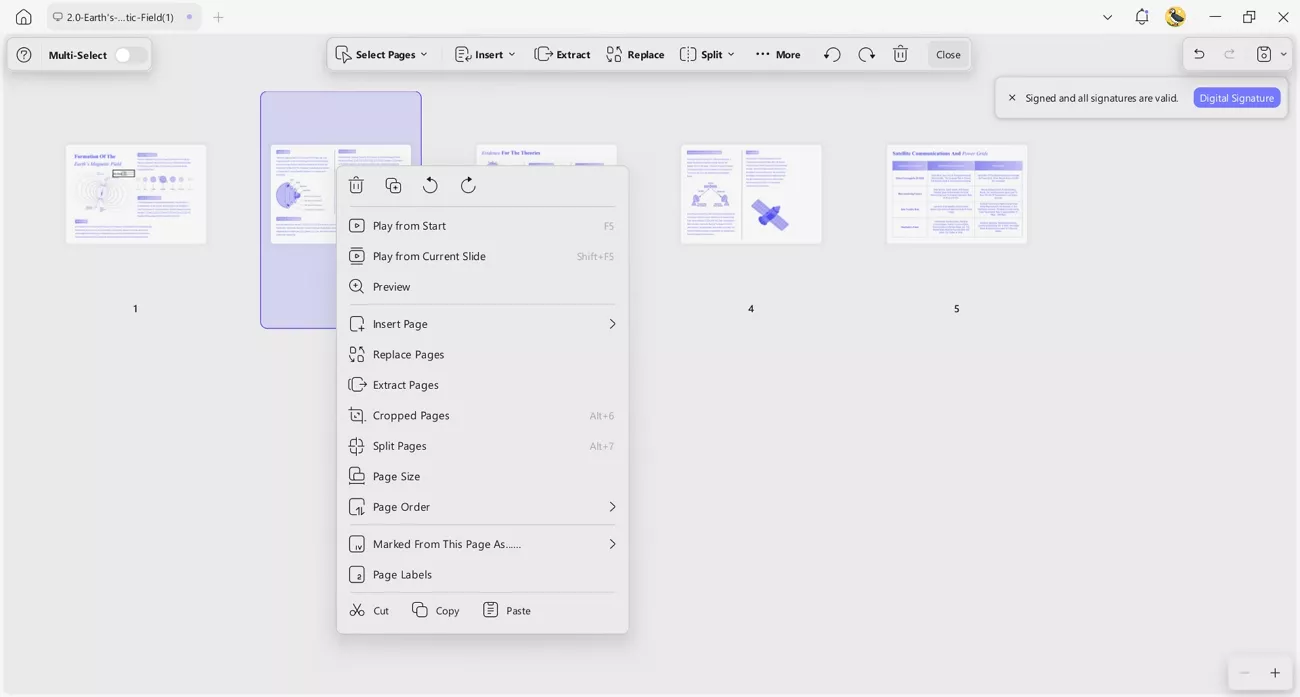
1. Pre-Processing and Organization: Before using Memo AI, I first cleaned a 500+ page PDF with UPDF’s Organize feature. It lets me split, extract, or delete chapters, so I only send focused content.
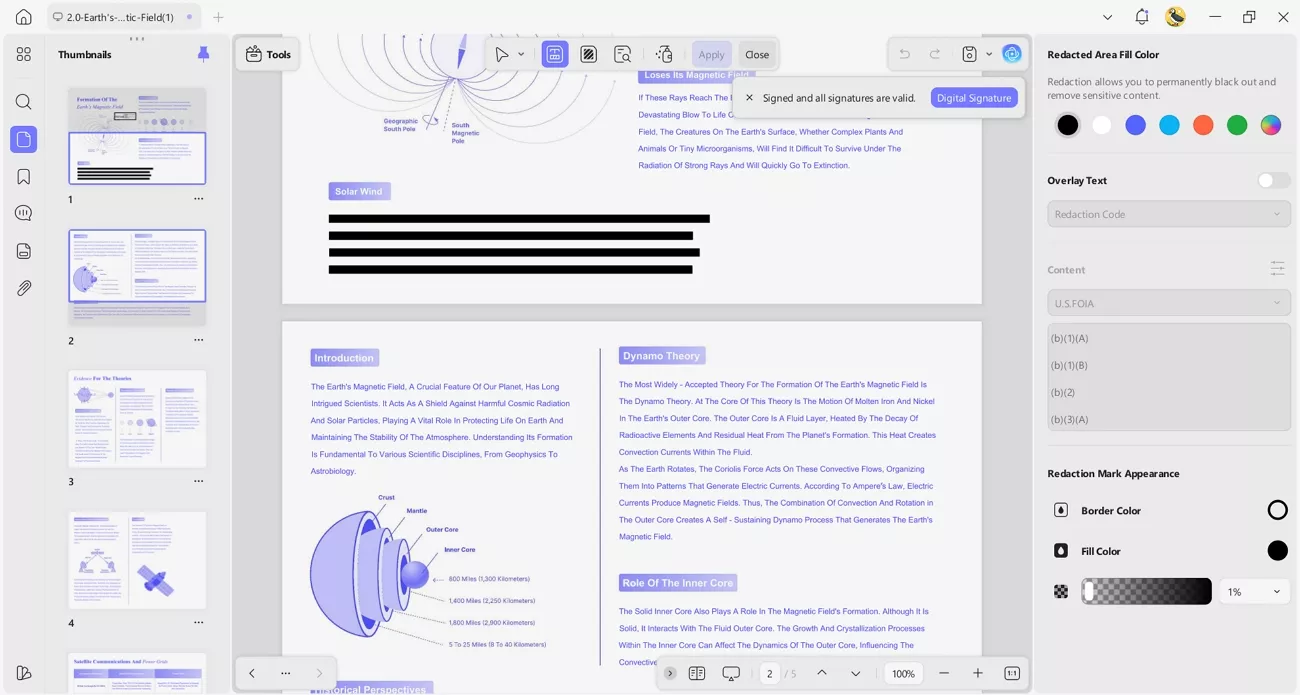
2. Professional Redaction: When a PDF includes private data, I rely on UPDF’s Redaction tools for safety. I remove names or numbers before uploading anything into Memo AI’s cloud workspace.
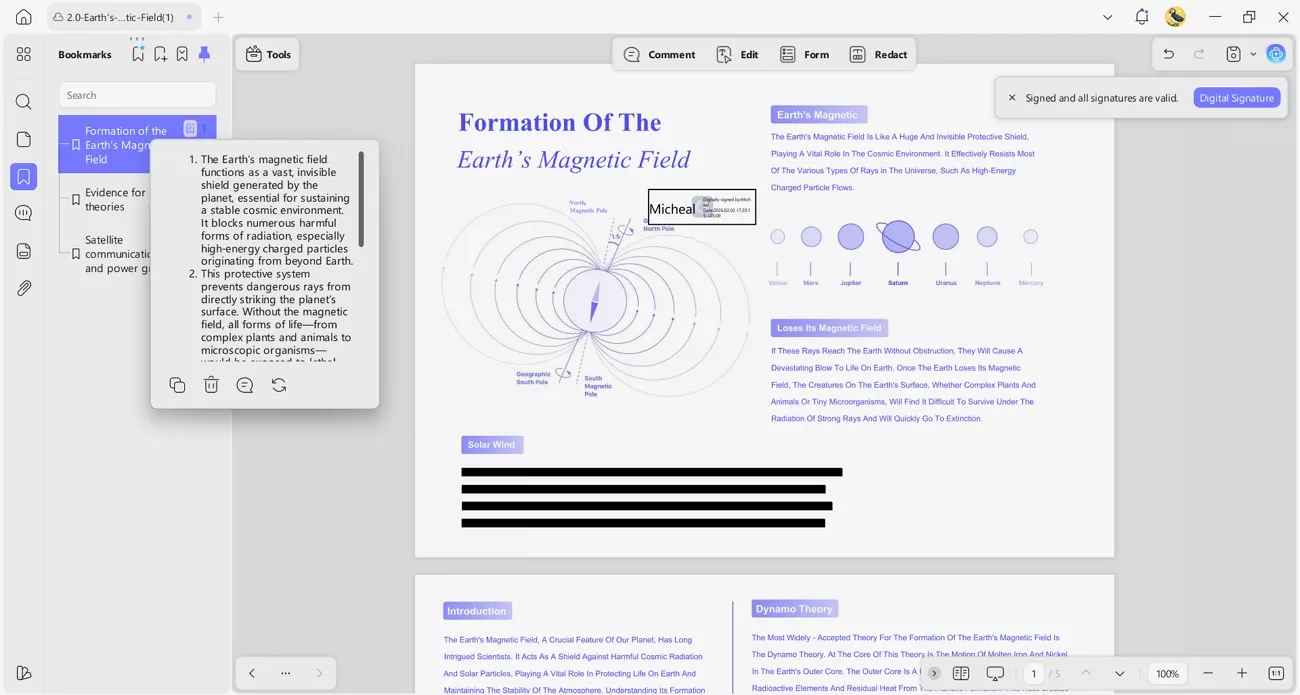
3. AI Bookmarks: Memo AI flashcards feel helpful, but sometimes I still need the full document’s structure. UPDF’s AI Bookmarks and bookmark-based summarization build an instant outline and brief section summaries, so I can jump back anytime.
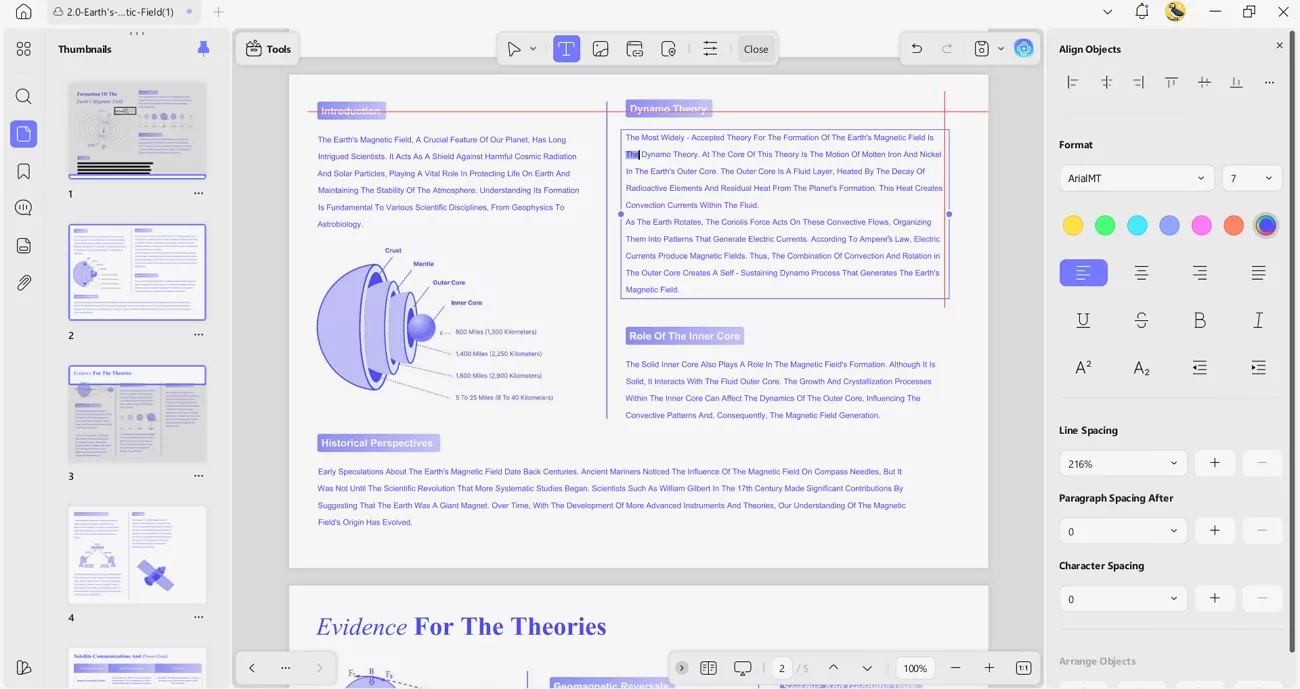
4. Edit the Uneditable: Memo AI reads content but does not fix mistakes inside the PDF itself. UPDF lets me edit text, update data, and correct typos before I start learning.
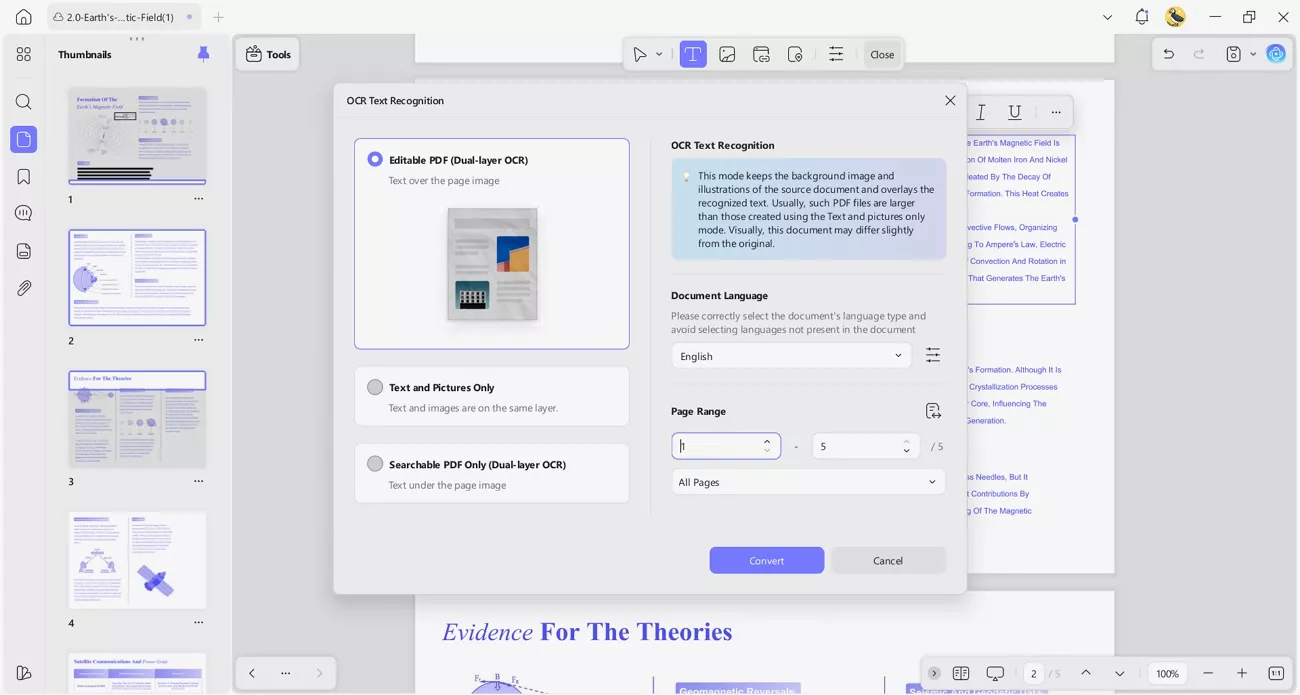
5. High-Precision OCR: Scanned PDFs and messy handwriting often confuse most AI reading tools during processing. UPDF’s accurate OCR turns them into clear text that Memo AI can easily understand.
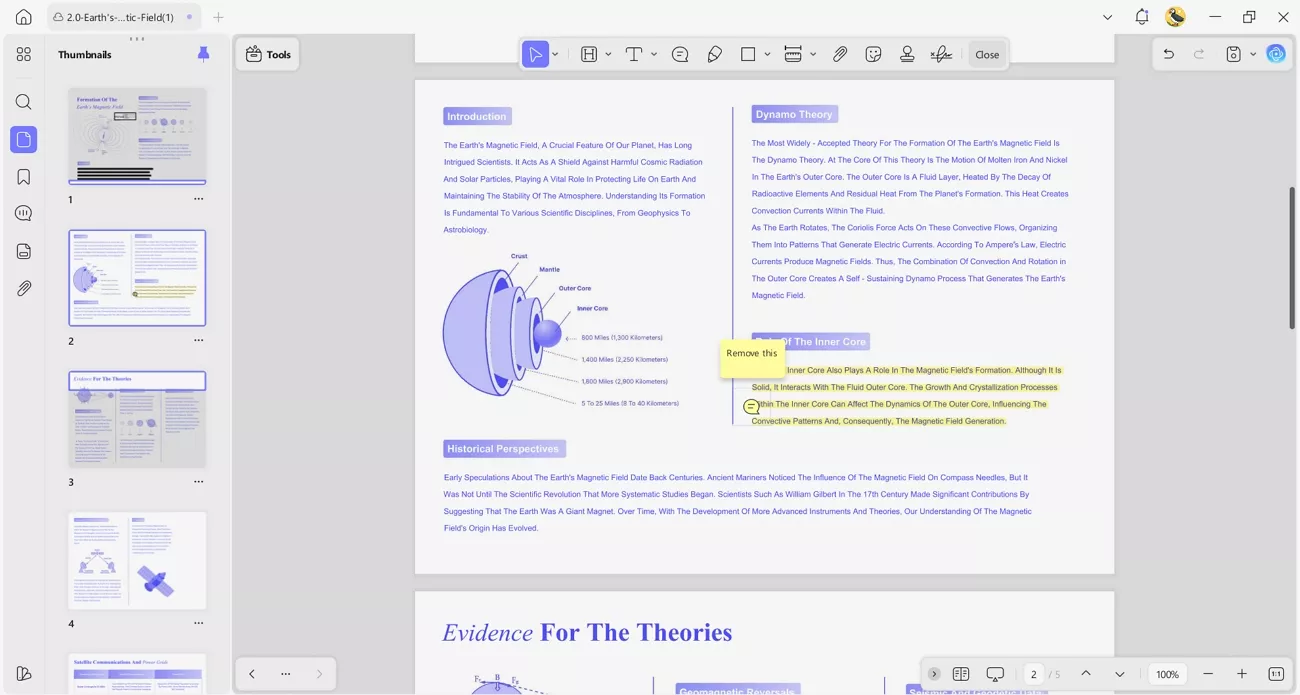
6. Annotate Then Memorize: I like thinking through ideas before turning them into flashcards and tests for review. With UPDF, I highlight, comment, and mark key points, then send everything into Memo AI.
After my testing, UPDF feels cost-effective as a long-term productivity tool because one license works across all my devices, even alongside PDF2Anki-style workflows. Under the UPDF free version, all features are available with trial watermarks added. With UPDF Pro licenses starting from around $49.99 per year, it gives me strong PDF editing features without making my study setup expensive.
Windows • macOS • iOS • Android 100% secure
Conclusion
To conclude, this article showed how Memo AI turns scattered videos and PDFs into focused study materials. I found that pairing it with UPDF made my workflow smoother, from organizing files to building flashcards. If you want sustainable long-term learning, I recommend testing UPDF as a companion to prepare your PDFs correctly.
Windows • macOS • iOS • Android 100% secure










- Sudden-Celery7436