 UPDF
UPDF
 UPDF for Windows
 UPDF for Mac
 UPDF for iPhone/iPad
 UPDF for Android
 Nomostar
 UPDF AI Online
 UPDF Sign
 IvyCraft
 Edit PDF
 Annotate PDF
 Create PDF
 PDF Form
 Edit links
 Convert PDF
 OCR
OCR PDF to Word
 PDF to Image
 PDF to Excel
 Organize PDF
 Merge PDF
 Split PDF
 Crop PDF
 Rotate PDF
 Protect PDF
 Sign PDF
 Redact PDF
 Sanitize PDF
 Remove Security
 Read PDF
 UPDF Cloud
 Compress PDF
 Print PDF
 Batch Process
 About UPDF AI
 UPDF AI Solutions
 AI User Guide
 FAQ about UPDF AI
 Summarize PDF
 Translate PDF
 Chat with PDF
 Chat with AI
 Chat with image
 PDF to Mind Map
 Explain PDF
 PDF AI Tools
 Image AI Tools
 AI Chat Tools
 AI Writing Tools
 AI Study Tools
 AI Working Tools
 Other AI Tools
 AI Bookmark Generation
 AI Bookmark Summary
 AI Watermark Generation
 AI Background Generation
 AI Sticker Generation
 AI Stamp Generation
 AI Editing Suite
 UPDF Copilot
 AI Page Management
 AI Semantic Search
 PDF to Word
 PDF to Excel
 PDF to PowerPoint
 Enterprise Solution
 Enterprise Sign
 Enterprise AI
 Enterprise Plan
 Enterprise User Guide
 Enterprise Webinar
 Banking
 Healthcare
 Insurance
 Legal
Legal Manufacturing
 Government
 Education Solution
 Customer Stories
 User Guide
 UPDF Tricks
 FAQs
FAQs UPDF Reviews
 Download Center
 Blog
Blog Newsroom
 Tech Spec
 Updates
 UPDF vs. Adobe Acrobat
 UPDF vs. Foxit
 UPDF vs. PDF Expert

ChatGPT is a cutting-edge artificial intelligence (AI) tool that allows users to generate, summarize, translate, and explain text with just a few simple prompts. As this tool becomes more widely used in a variety of industries, the importance of preserving and sharing these conversations becomes more significant.
Read on to learn how to save ChatGPT conversations as PDF documents on both Windows and Mac devices using four proven, workable methods.
💡 The "Post-Export" Nightmare
Windows • macOS • iOS • Android 100% secure
Method One: How to Save ChatGPT Conversation as PDF Directly
If you need to save ChatGPT Conversation as PDF, you can use the print option. However, this method only works well when your conversation is not longer than one screen. The print option can only print the conversation that can be seen at the moment.
Follow these steps:
- Open your web browser and visit ChatGPT. Open the conversation that you need to save from the panel on the left side of the screen. Chats are automatically saved and labeled here so that you can identify them easily when you need to.
- If you're on a Windows device, select the key combination 'Ctrl + P' to bring up the print dialog pop-up, or you can right-click anywhere on the page and select 'Print'. If you're using a Mac, instead you'll need to press the key combination 'Command + P' to bring up the print dialog.
- In the pop-up, there's a field titled 'Destination'. From the drop-down list, select 'Save as PDF'. Here's where you can edit other settings that you'd like to change, like the number of pages and the page orientation. When you're ready, click 'Save'.
- Save the PDF document to your device by choosing a file name and location.
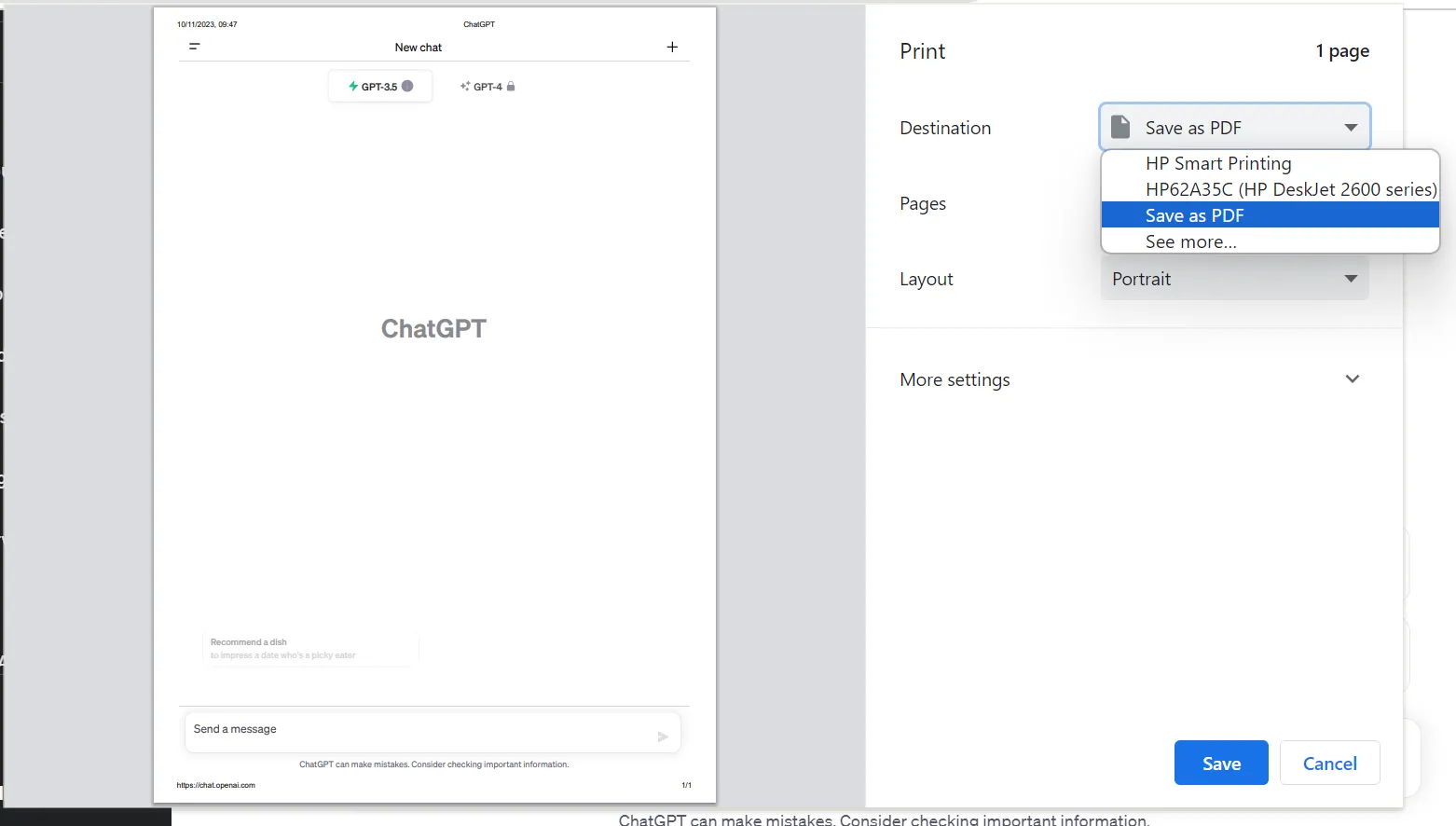
Now that your PDF document has been saved to your device, you can open and use it whenever you need or share it with others.
Method Two: How to Save ChatGPT Conversation as PDF Using the Data Control
If you need to save all your ChatGPT conversation history to PDF, you can follow these steps to export ChatGPT history to PDF:
- Open your browser and visit the ChatGPT website. You might need to enter your login details if you haven't logged in for a while.
- Click on your profile, then select 'Settings'.
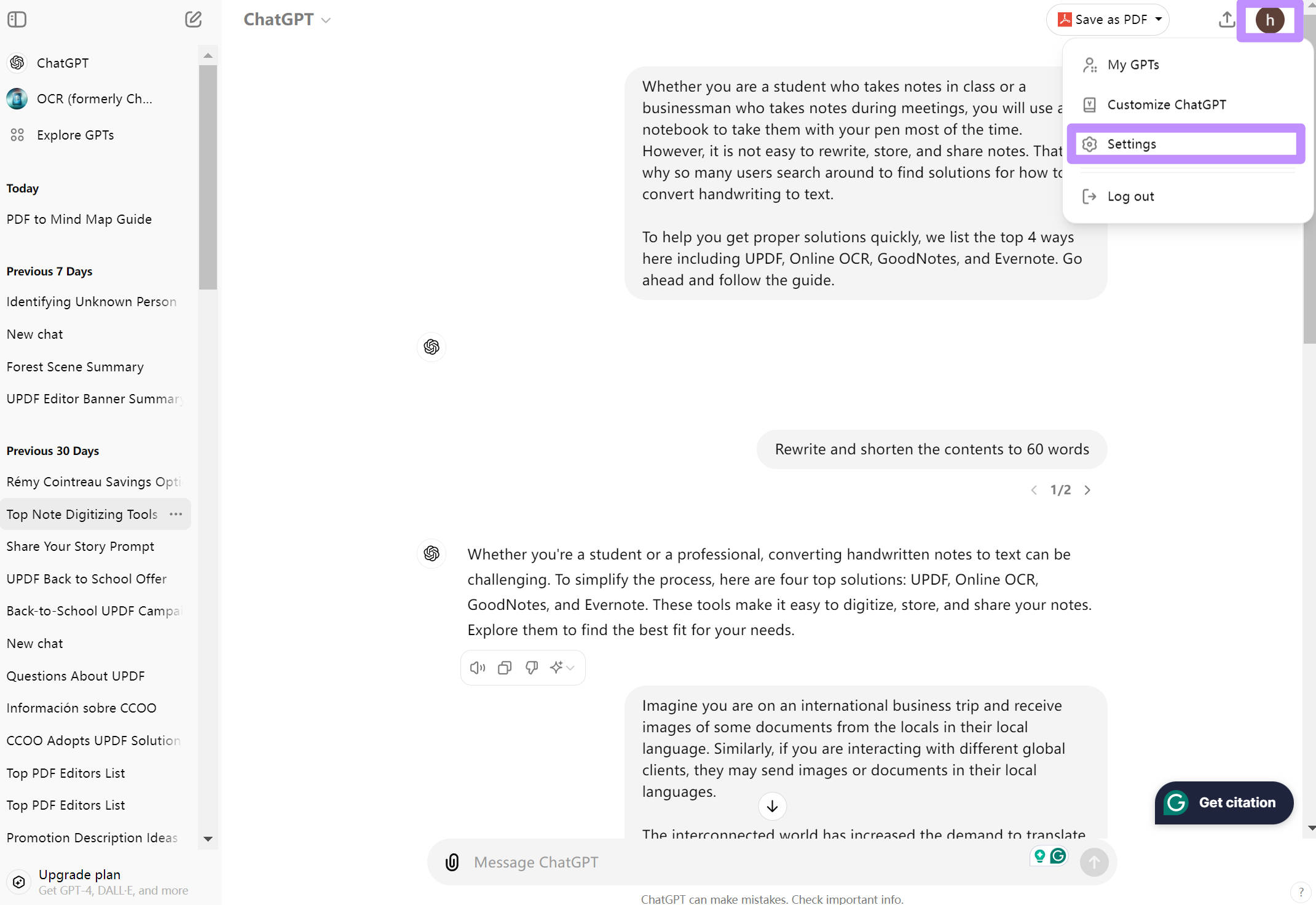
- In the pop-up, choose 'Data Controls' from the options on the left-hand side. Click on the "Export" in the "Export Data" line.
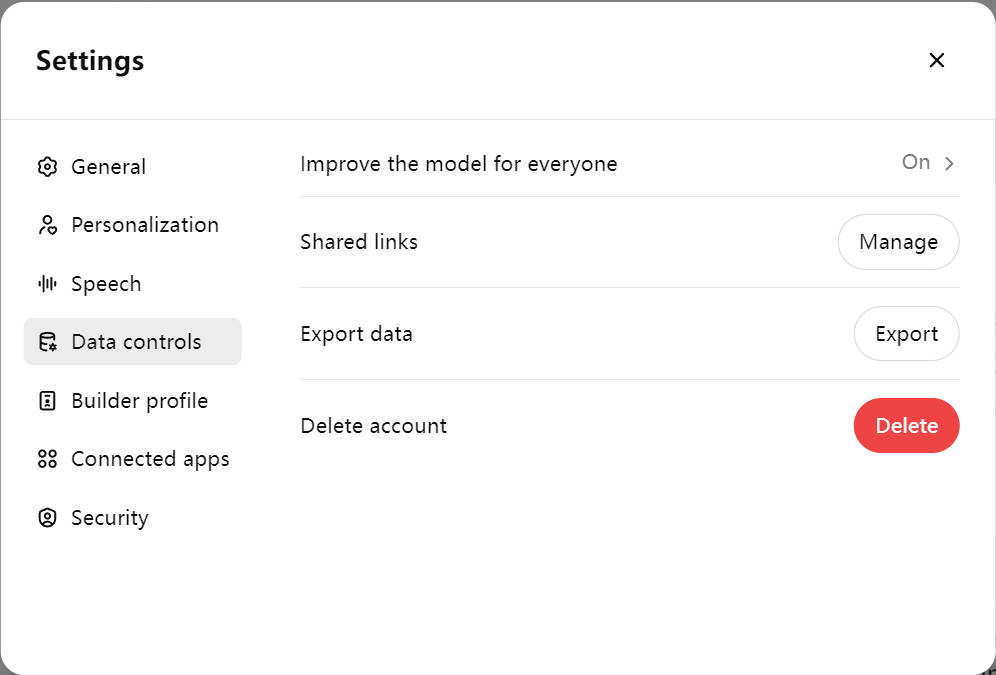
- Read the instructional pop-up that appears, and then select 'Confirm Export' to export your ChatGPT conversation.
- The exported data will be sent to your registered email address on your account. When you receive the email, select 'Download data export' and save the downloadable zip file to your device. This link to download your conversation history will expire 24 hours after you receive it.
- The zip file will contain your exported conversation as a HTML file. Unzip the file.
- Then upload the HTML to an online converter site (such as iLovePDF, Smallpdf, etc.) to turn it into a PDF document easily. Or open the HTML file with browser and print it to PDF.
- Now, you have all your conversation history to PDF.
Method Three: How to Save ChatGPT Conversation as PDF Using Google Extension
The methods introduced above can only be used in some cases. One is for short conversation and the other is for all conversation history. What if you have a long conversation and only need this one Chat history? No worry, you can use the free Google Extension named "Save ChatGPT as PDF".
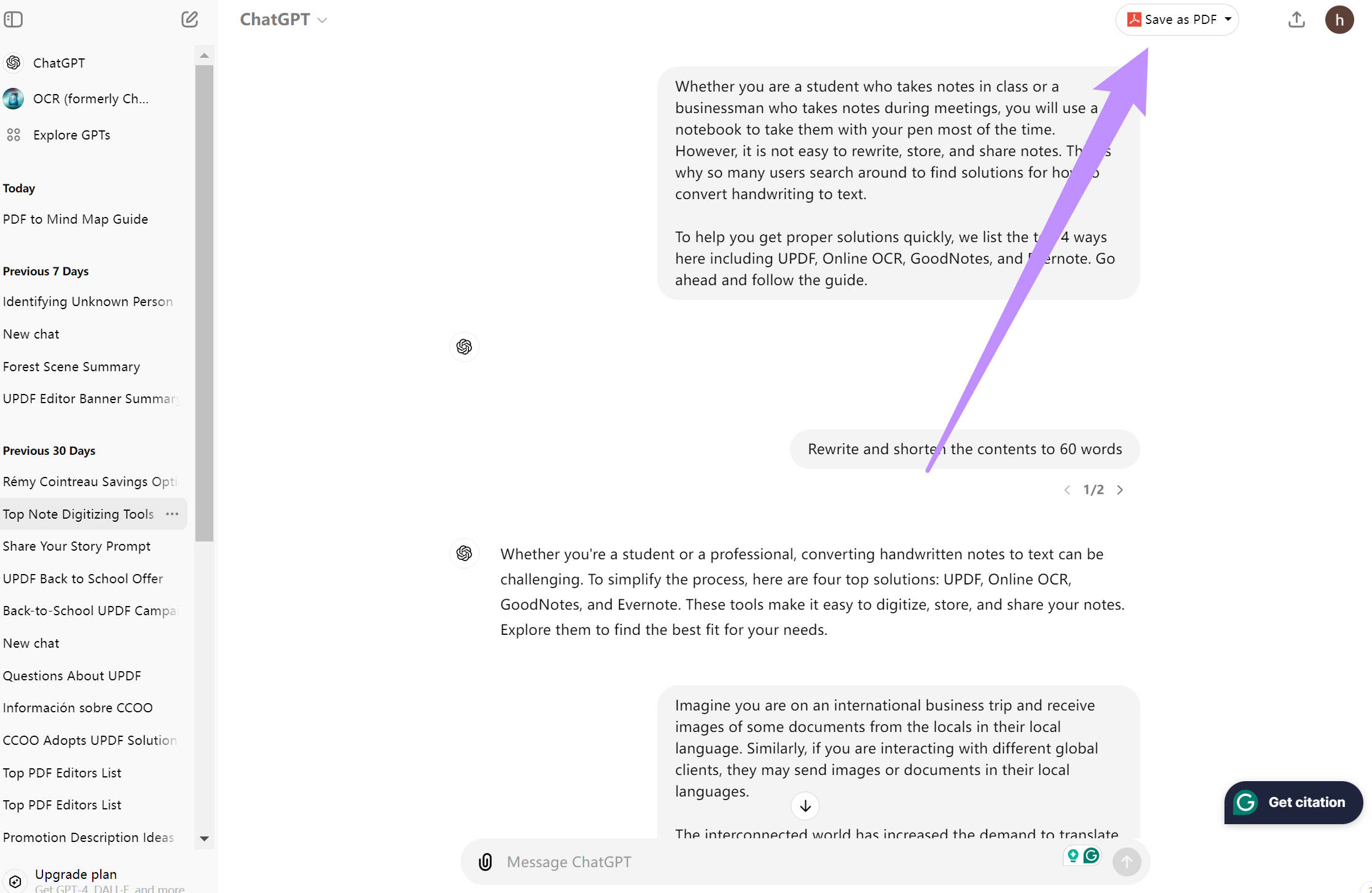
Step 1. Search "Save ChatGPT as PDF" in Chrome Extension Store. Then, click on the "Add to Chrome" > "Add Extension" button.
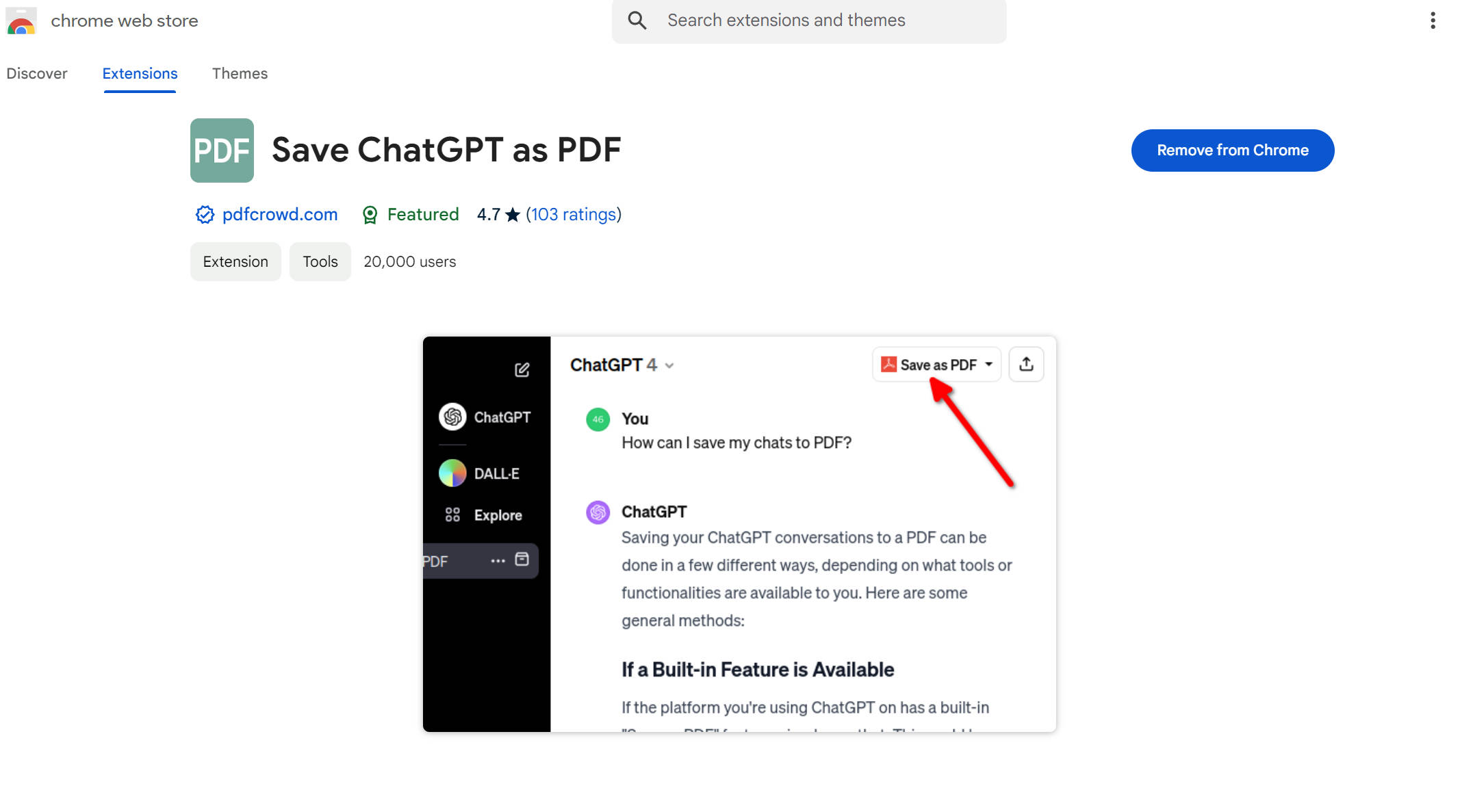
Step 2. Now, open ChatGPT and log in. Select the chat history that you need to export to PDF.
Step 3. Click on the "Save as PDF" icon at the top right corner. Now the conversation will be downloaded as PDF.
Note: if you cannot find "Save as PDF", please refresh the ChatGPT website or close, then, open ChatGPT to check again.
Method Three: How to Save ChatGPT Conversation as PDF By Pasting to Word or Google Docs
You can copy the conversation from ChatGPT and paste it into a document editor such as Microsoft Word or Google Docs. Once pasted, you can adjust the formatting to your preference and then convert Word to PDF.
This method gives you more flexibility when exporting conversations from ChatGPT. You can choose exactly what to keep while leaving out any parts that do not add value, such as “That’s my reply. Would you like me to create a more concise version?”and retain only the key information.
However, this method is more time-consuming compared to the options mentioned earlier. If the conversation is lengthy, it may not be the most efficient solution.
What To Do After You Save ChatGPT Conversation as PDF
Exporting your chat history is only step one. Raw ChatGPT PDFs are notoriously bulky and poorly indexed. To make them professional, organized, and ready for sharing or corporate presentation, you need a dedicated document polisher.
UPDF provides a full-suite desktop and mobile ecosystem across Windows, Mac, iOS, and Android to completely restructure and sanitize your AI-generated files:
Windows • macOS • iOS • Android 100% secure
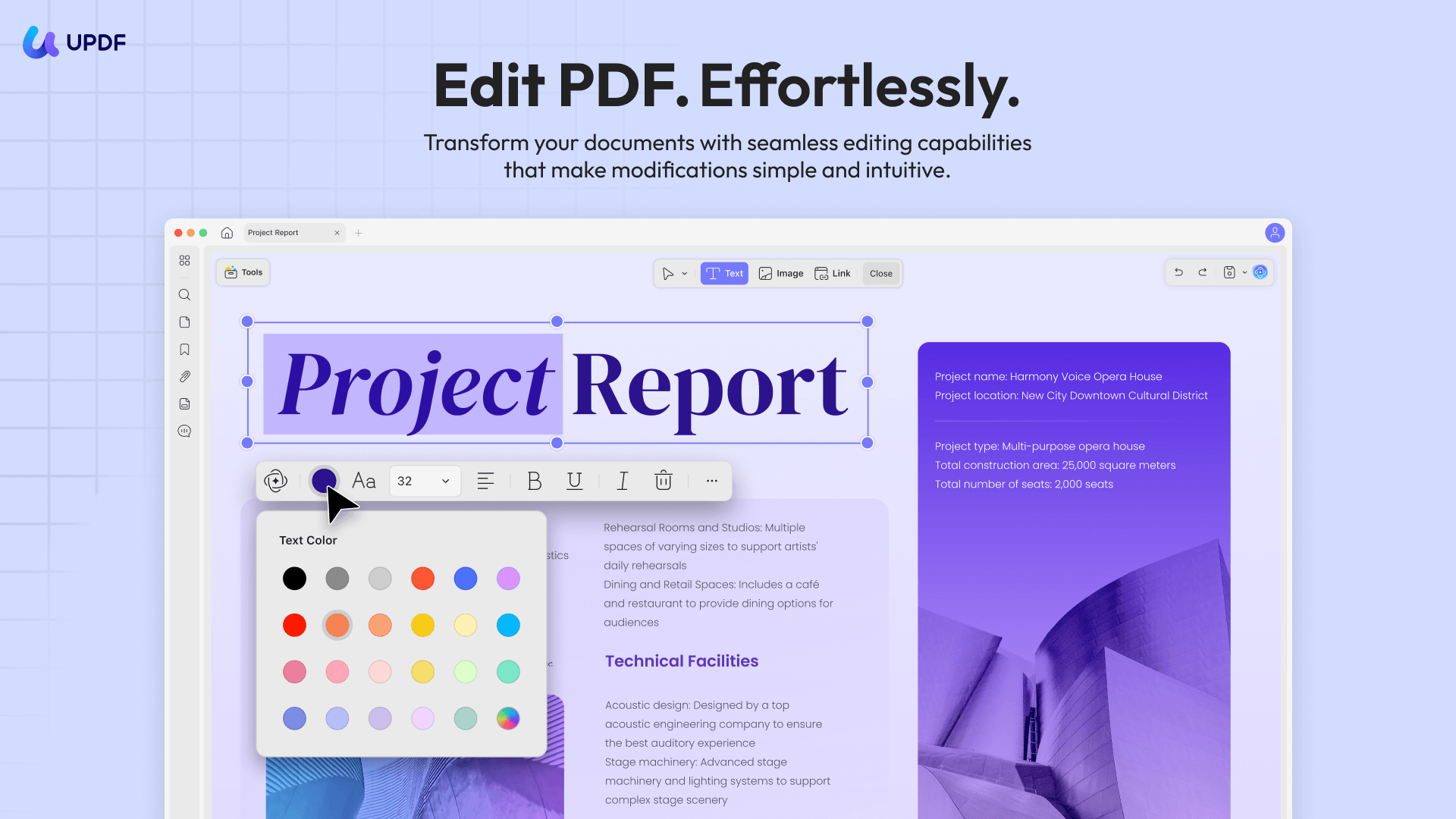
Purge AI Fluff and Edit Text Directly
ChatGPT loves adding filler phrases at the beginning and end of its responses. With UPDF’s In-Line Editor, you don't need to go back to Word. Click on any paragraph within the exported PDF to instantly delete prompt clutter, correct code bugs, add custom headers, or insert corporate branding.
Compress & Flatten for Easy Emailing
Multi-page chat history containing complex charts or long code blocks can result in surprisingly heavy PDF sizes. Use UPDF’s Advanced Compression to shrink massive chat files into lightweight, web-optimized documents without losing text clarity, making them perfect for Slack or email attachments.
Convert Transcripts to Clean Word/Markdown Layouts
Need to merge your ChatGPT research into an ongoing team proposal? UPDF allows you to flawlessly convert your exported PDFs into editable Microsoft Word, Excel, or Text formats while perfectly preserving the original code blocks and formatting.
Generate Clickable Outlines via AI Bookmark Generator
Scrolling through a 50-paragraph dynamic brainstorm session is exhausting. In one click, UPDF's AI Bookmark Generator semantically reads your conversation flow, detects where your prompts change topics, and builds a clean, hierarchical interactive table of contents in your sidebar for rapid navigation.
Anonymize & Redact Sensitive Prompt Data
Did you accidentally share corporate data or personal api keys during your ChatGPT session? Before sending the PDF to clients, use UPDF’s Annotation and Redaction tools to black out sensitive lines, add professional approval stamps, or embed secure watermarks to protect your intellectual property.
Click the button below to Download UPDF for Free and convert raw AI transcripts into polished professional reports!
Windows • macOS • iOS • Android 100% secure
To know more about UPDF, you can read this review article from PDF association.
FAQs on Saving ChatGPT Conversation as PDF
Why do you need to save ChatGPT conversation as PDF?
You need to save your ChatGPT conversation as a PDF document if you intend on sharing it with others or accessing it when you don't have an internet connection available.
Is it free to save ChatGPT conversation as PDF?
Yes, it is free to save your conversations on ChatGPT as a PDF document. Almost all web browsers have the option to print a webpage as a PDF. If you're a Windows user: Ctrl + P → Destination → Save as PDF → Save. If you're a Mac user: Command + P → Destination → Save as PDF → Save. Both methods are free to use.
Why does my exported ChatGPT PDF have broken boxes and missing text layout?
When you use direct browser printing (Ctrl+P) on active modern script pages, the web layout engine often struggles to scale dynamic message blocks, causing text lines to overlap or cut off arbitrarily. To solve this, export your chat cleanly using a dedicated text layout method, then open the file in UPDF to easily realign font sizes, adjust paragraph borders, and ensure your layout is fully seamless.
How do I delete specific prompt mistakes from a saved ChatGPT PDF without re-exporting?
If you noticed a typo or accidentally included an embarrassing prompt statement in your thread, you don't need to generate a brand new conversation. Simply load your saved PDF into UPDF, click the Edit PDF tool, select the unwanted lines or sentences, and hit delete. You can type new content or correct formatting directly on the page as if you were working in a standard text processor.
Is it safe to upload my exported ChatGPT data files to free online converters?
Free online conversion platforms (like HTML-to-PDF web tools) require you to upload your files onto their public servers, creating massive data privacy vulnerabilities if your conversation contains proprietary source code, personal identifying info, or company strategy. Using a local, desktop-secure application like UPDF ensures all text formatting, batch file merging, and compression workflows occur strictly on your local hardware drive under tight data security encryption.
In Summary
In summary, it's easy and quick to save your ChatGPT conversation as a PDF file, either by exporting an HTML file and converting it, by going through your device's printing process, or by using a Chrome extension. Once you've downloaded your PDF, the options are endless. Get your document ready for sharing and presenting with UPDF's handy editing, annotating, summarizing, converting, and compressing features. Download UPDF for free and upgrade to Pro by making use of an exclusive discount here.
Windows • macOS • iOS • Android 100% secure





 Enola Miller
 Enrica Taylor
 Enola Davis
 Enid Brown