 UPDF
UPDF
 UPDF for Windows
 UPDF for Mac
 UPDF for iPhone/iPad
 UPDF for Android
 Nomostar
 UPDF AI Online
 UPDF Sign
 IvyCraft
 Edit PDF
 Annotate PDF
 Create PDF
 PDF Form
 Edit links
 Convert PDF
 OCR
OCR PDF to Word
 PDF to Image
 PDF to Excel
 Organize PDF
 Merge PDF
 Split PDF
 Crop PDF
 Rotate PDF
 Protect PDF
 Sign PDF
 Redact PDF
 Sanitize PDF
 Remove Security
 Read PDF
 UPDF Cloud
 Compress PDF
 Print PDF
 Batch Process
 About UPDF AI
 UPDF AI Solutions
 AI User Guide
 FAQ about UPDF AI
 Summarize PDF
 Translate PDF
 Chat with PDF
 Chat with AI
 Chat with image
 PDF to Mind Map
 Explain PDF
 PDF AI Tools
 Image AI Tools
 AI Chat Tools
 AI Writing Tools
 AI Study Tools
 AI Working Tools
 Other AI Tools
 AI Bookmark Generation
 AI Bookmark Summary
 AI Watermark Generation
 AI Background Generation
 AI Sticker Generation
 AI Stamp Generation
 AI Editing Suite
 UPDF Copilot
 AI Page Management
 AI Semantic Search
 PDF to Word
 PDF to Excel
 PDF to PowerPoint
 Enterprise Solution
 Enterprise Sign
 Enterprise AI
 Enterprise Plan
 Enterprise User Guide
 Enterprise Webinar
 Banking
 Healthcare
 Insurance
 Legal
Legal Manufacturing
 Government
 Researchers & PhDs
 Solopreneurs & Freelancers
 Education Solution
 Customer Stories
 User Guide
 UPDF Tricks
 FAQs
FAQs UPDF Reviews
 Download Center
 Blog
Blog Newsroom
 Tech Spec
 Updates
 UPDF vs. Adobe Acrobat
 UPDF vs. Foxit
 UPDF vs. PDF Expert

Chat with PDF
UPDF's AI assistant is a powerful PDF AI assistant that allows you to chat with PDF documents and extract key information easily. It can help you summarize, translate, explain PDF content, or ask any question about the PDF. The best part is that UPDF's AI feature is accessible both online and in the app.
So, if you are someone who frequently has to read and analyze PDFs, then follow along to learn how to chat with any PDF using the best AI assistant by checking the below text guide.
Part 1. How to Chat with Your PDF Document Online?
UPDF's AI online assistant is a GPT-5 and Deepseek R1 powered assistant that allows you to chat with PDF online by writing simple prompts. With UPDF's AI online assistant, you can:
- Summarize the entire PDF or specific pages or content from the PDF.
- Translate PDF content into any language of your choice.
- Explain complex phrases used in the PDF.
- Ask questions about the PDF, such as how many formulas are used in the document, etc.
- Ask for assistance in anything within or beyond PDF, such as ideating, writing, rewriting, and more.
- Chat with multiple PDFs.
- Generate mind maps from the PDF files for visual understanding.
- Convert PDF content into editable files like Word, PPT and Excel.
In short, UPDF's AI online assistant is a one-stop website where you can chat with any PDF and get the most out of the PDF in minimal time. Give UPDF's AI online assistant a try now!
Feel like UPDF's AI assistant is the ultimate tool you need? Check the below prompt-based examples on how to chat with PDF like ChatGPT for different scenarios:
1. Summarize PDF Content
UPDF AI allows users to summarize the uploaded PDFs content through prompts or highlighting specific page ranges. Here are the steps you can perform for the two ways to summarize PDF text:
Way 1. Summarize PDF Through Prompt
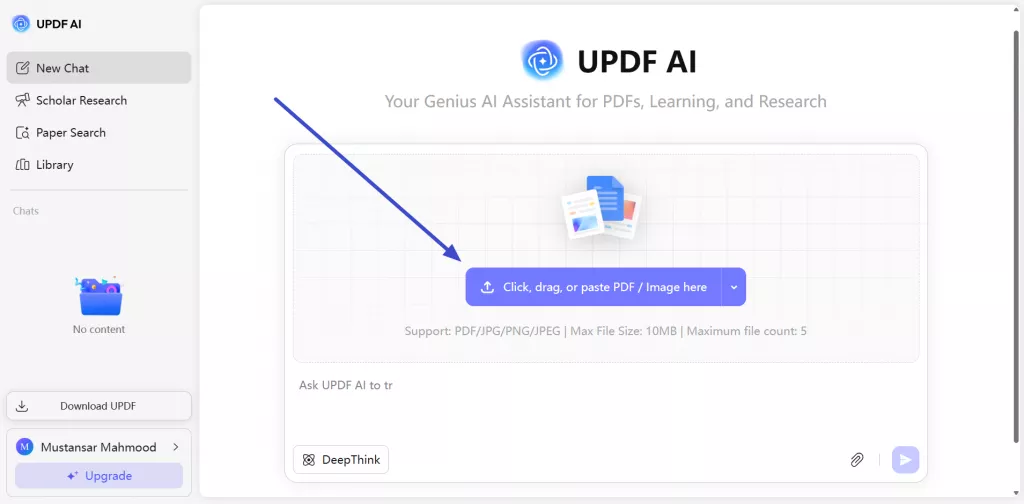
Step 1: Upload or Drag File to UPDF AI Chat PDF
Begin by opening the UPDF AI online tool, then click the “Click, drag, or paste PDF / Image here” button to upload the PDF you want to summarize.
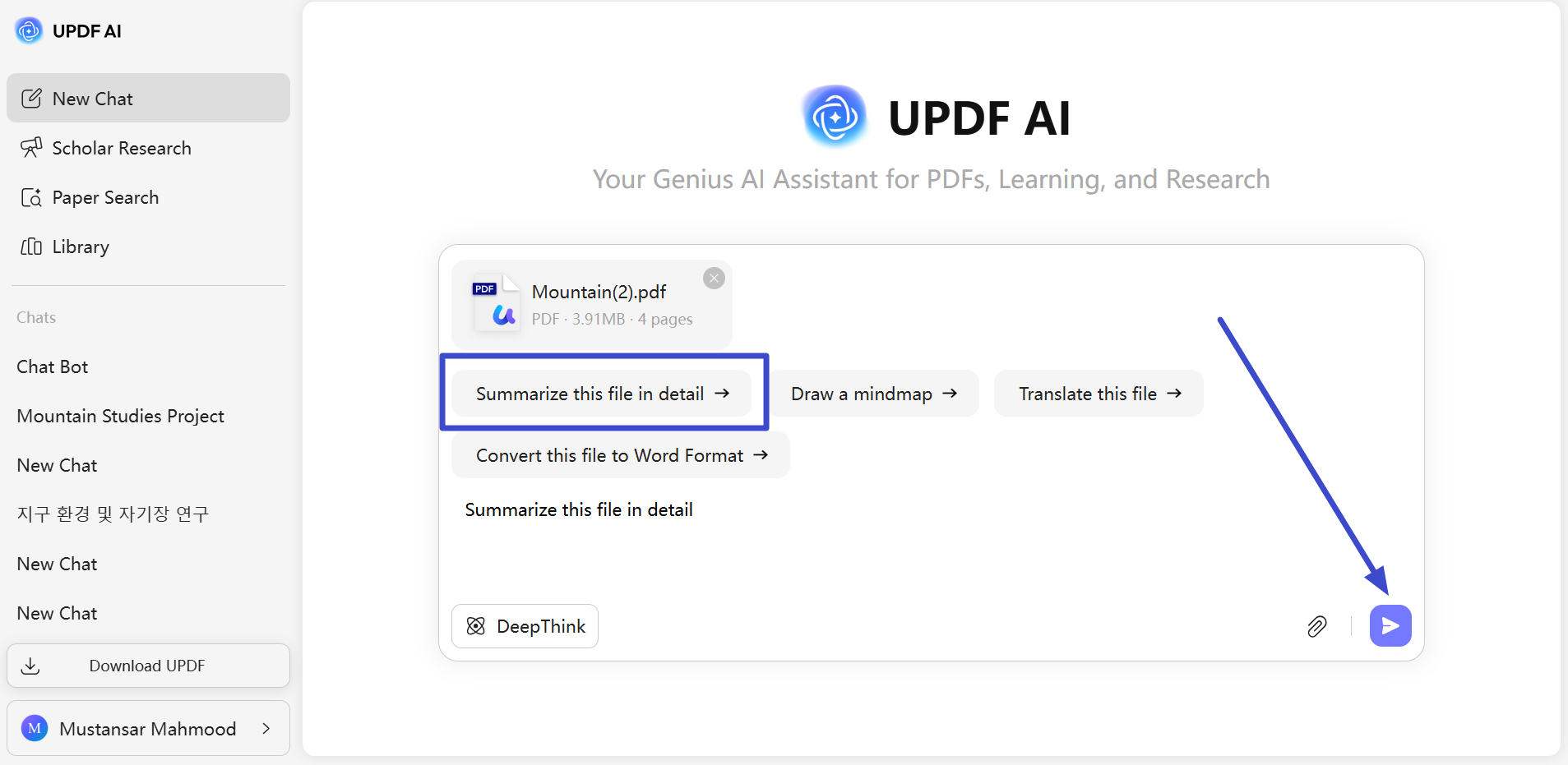
Step 2. Prompt UPDF AI to Summarize
After uploading the PDF to the UPDF Chat PDF interface, enter your prompt in the text box or tap the “Summarize this File in Detail” prompt and click “Send” to proceed.
Way 2. Summarize Through Summarize Option
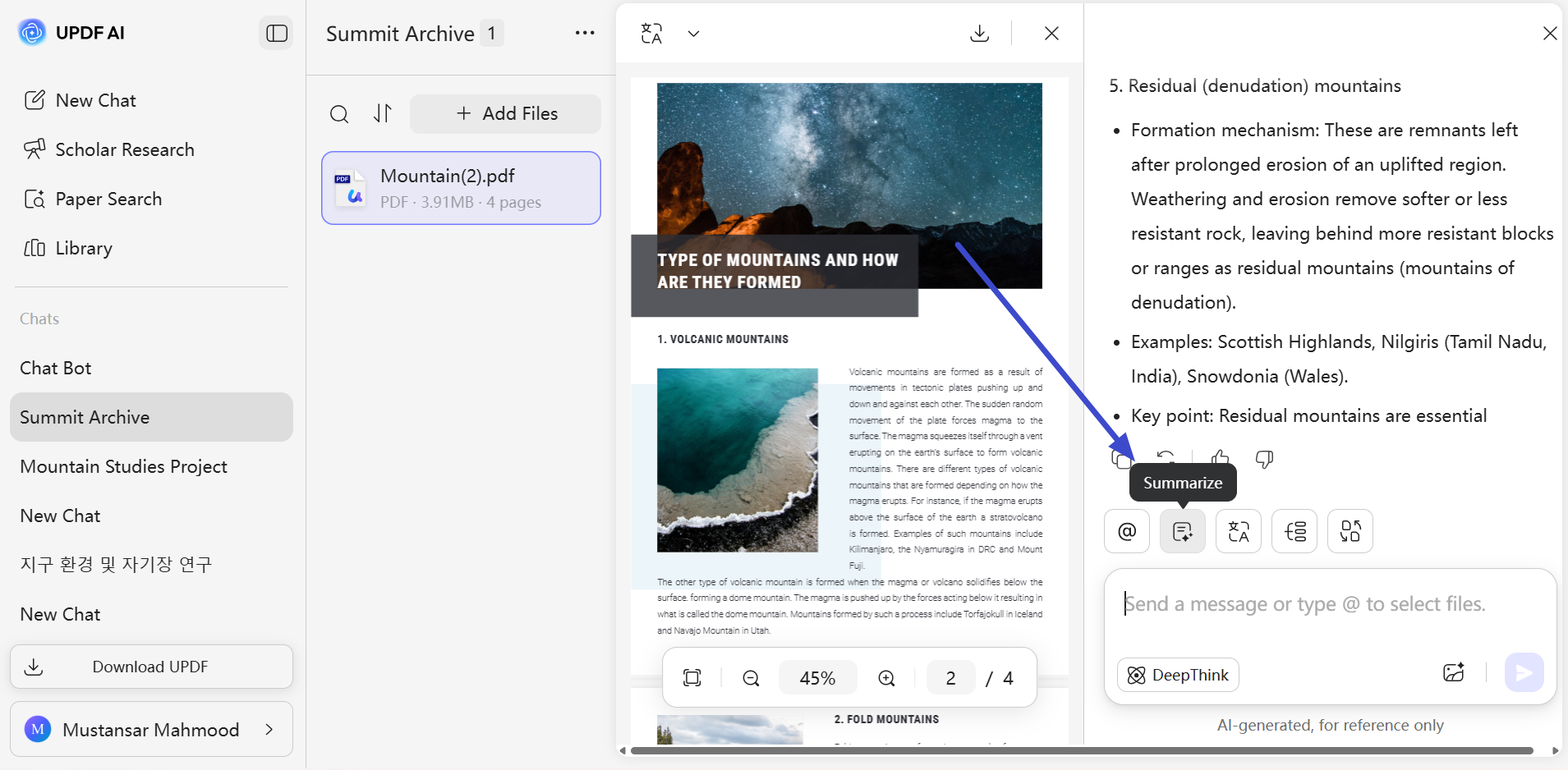
Step 1. Navigate the Summarize Option
If the generated output isn’t suitable and you need a more concise version, simply click the “Summarize” icon.
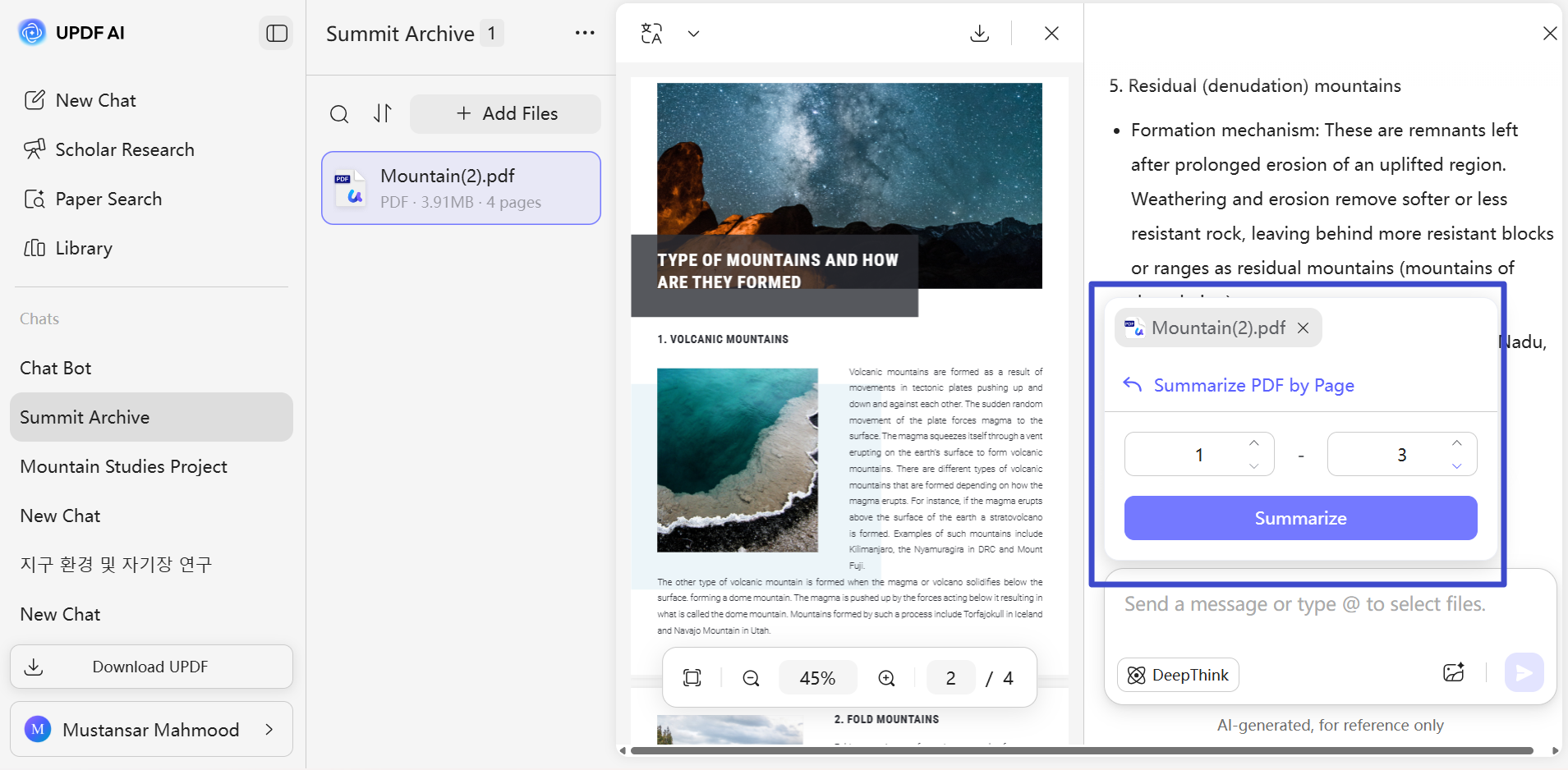
Step 2. Adjust Page Range of Summary Required
Next, choose the page range of the PDF document to specify UPDF AI about from where to where you require a summary of. Finally, you can “Copy” the results to your device or have the AI assistant “Keep Summarizing.”
Bonus Tip
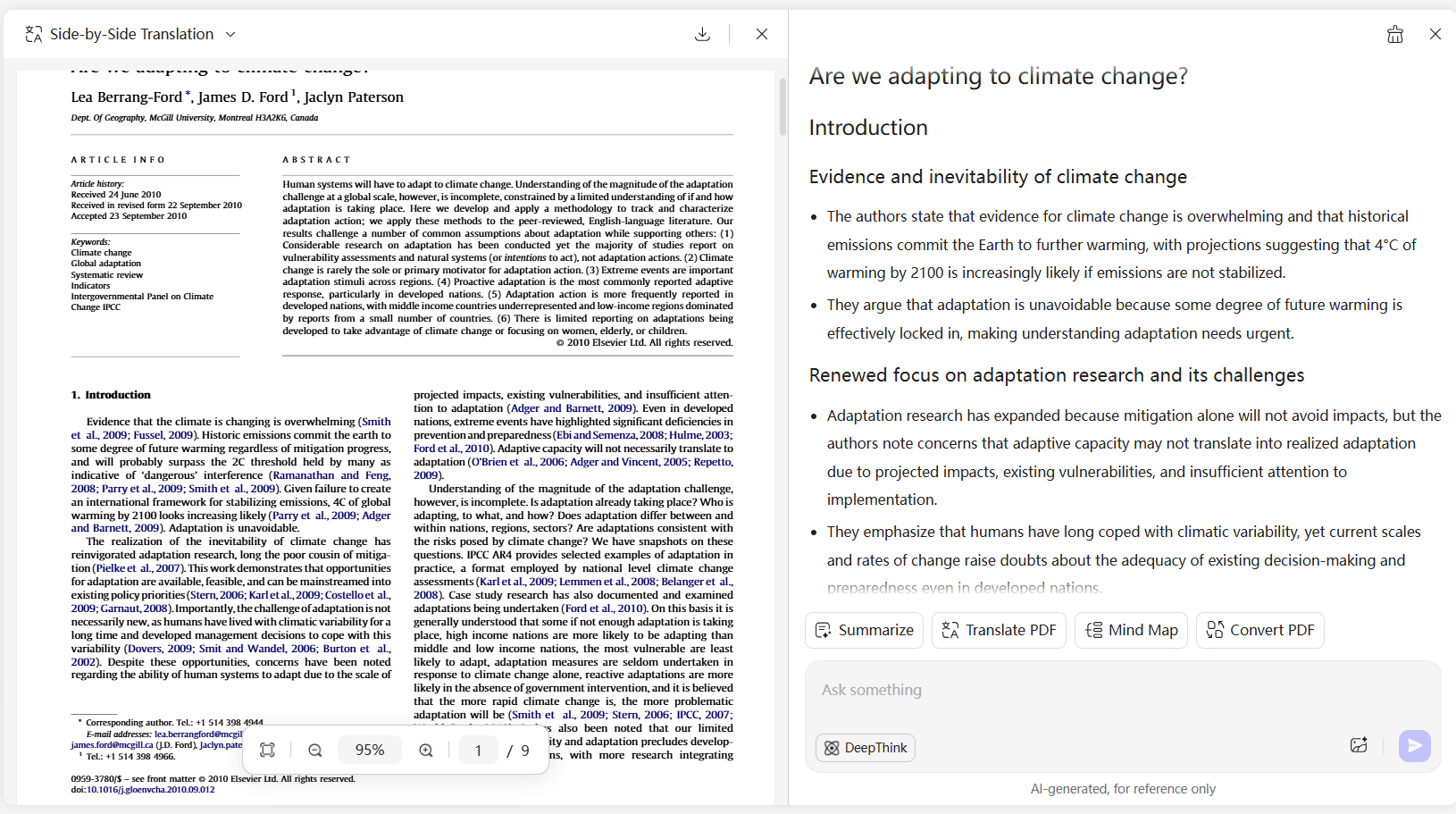
2. Translate PDF Content
Just like summarization, UPDF's AI Online Assistant allows you to translate PDF content into different languages, such as German, Italian, Chinese, Hindi, and more. Here's how to chat with PDF using UPDF's AI online feature to translate content:
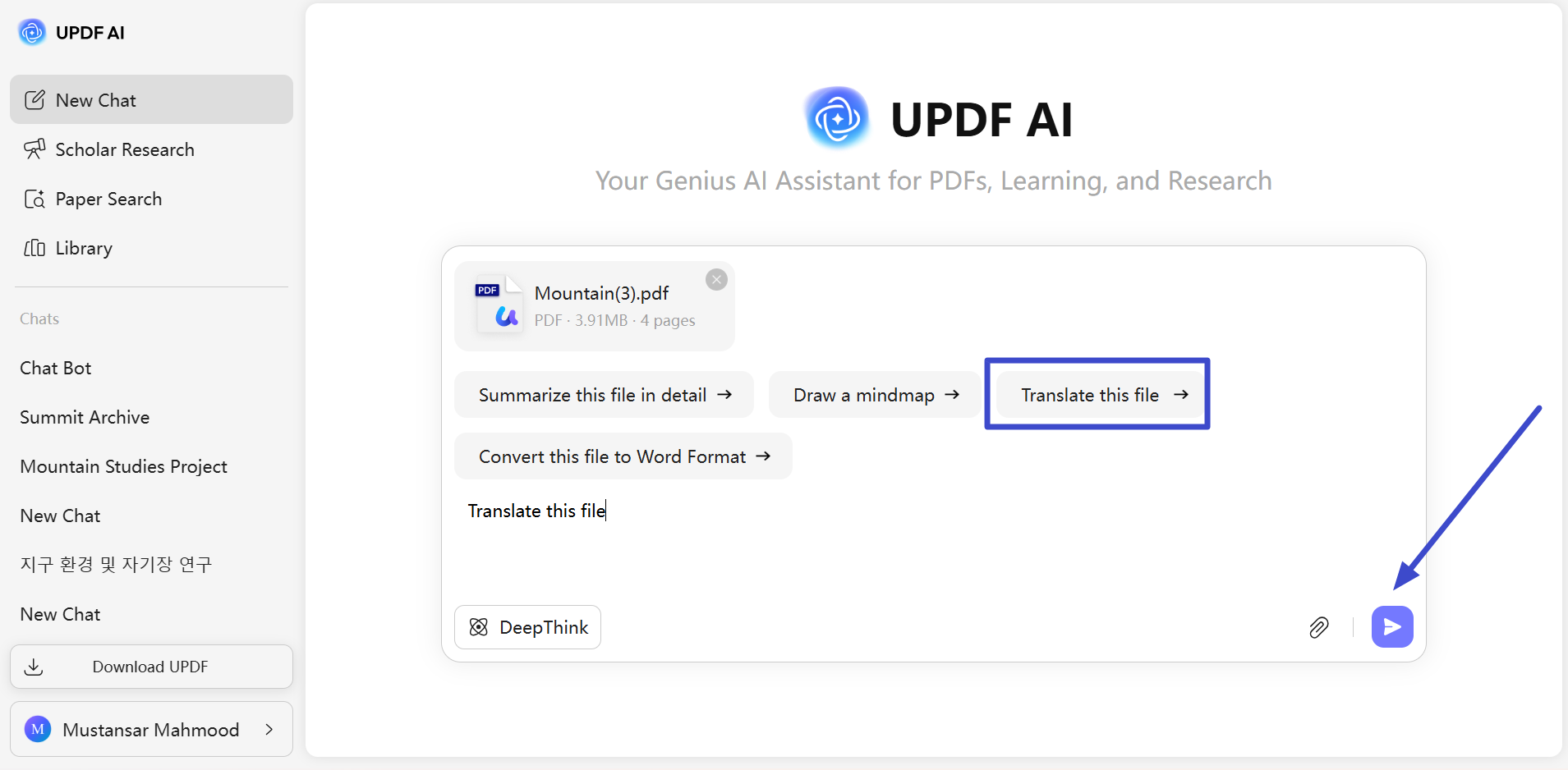
Step 1. Enter the Prompt for Translation
Upon uploading the PDF file, press the “Translate this File” button or write prompt and then hit “Send” to get the translation.
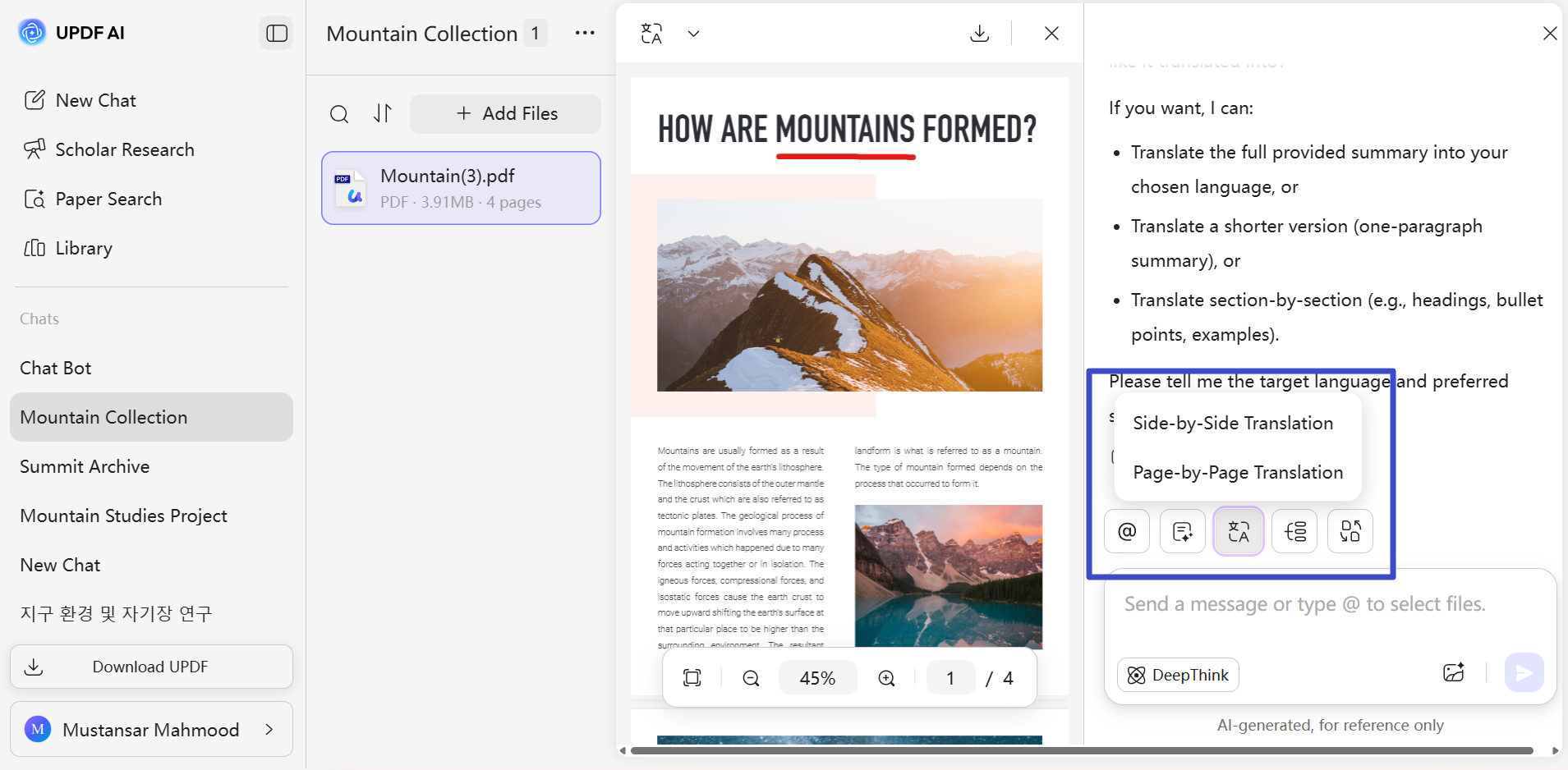
Step 2. Select the Translation Options
After the initial prompt, tap on the “Translate” icon. Afterwards, simply choose from either "Side-by-side Translation" or "Page-by-page Translation".
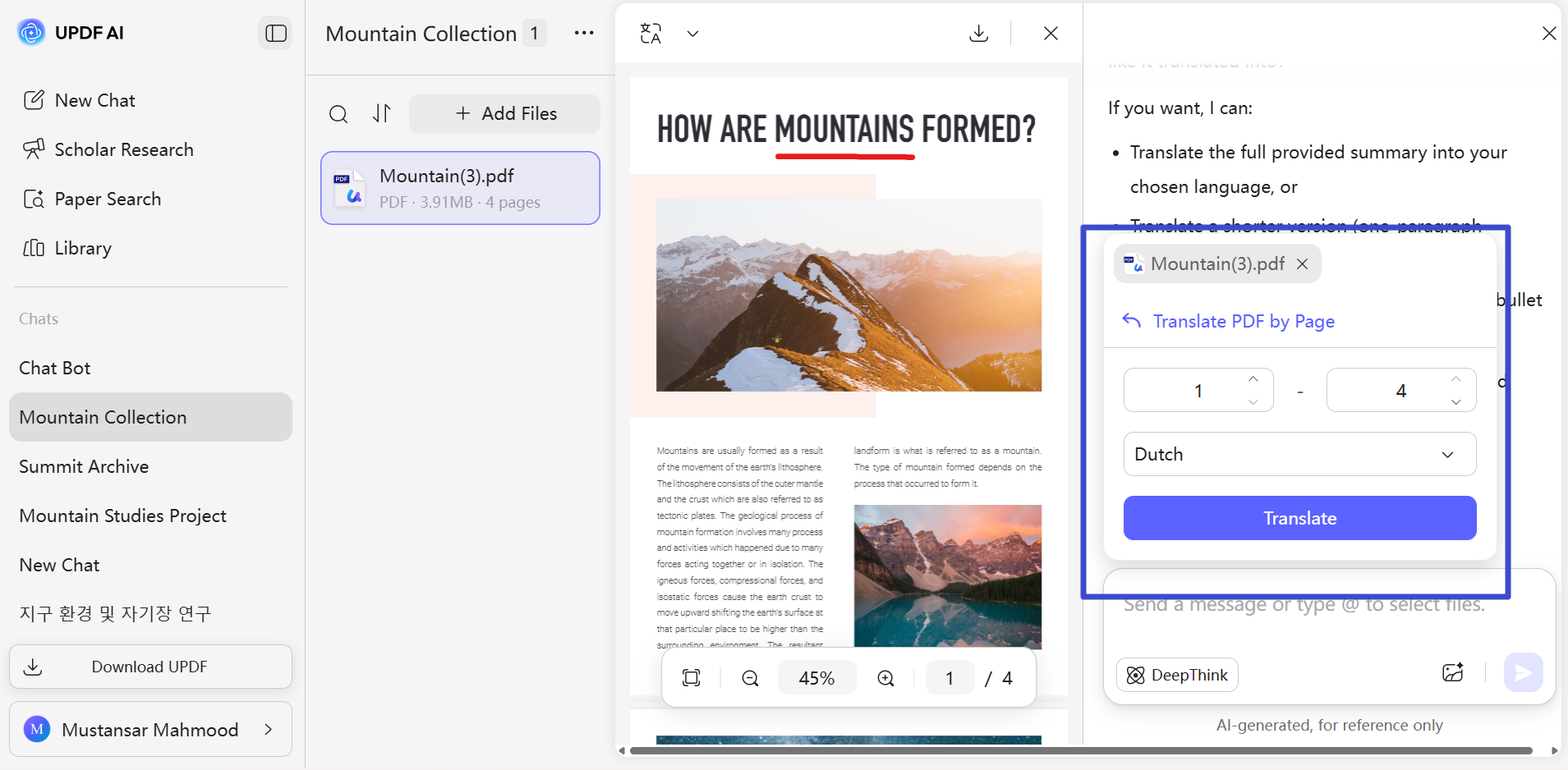
Step 3. Select Language and Page Range
Moving forward, choose your desired language, set the page range, and click “Translate.” Once the translation is generated, you can review it and copy the results to your clipboard for later use.
3. Explain Difficult Phrases Used in the PDF
Suppose that you want to use AI for healthcare purposes. For example, you want to analyze a medical report and chat with PDF free to understand the medical report results.
UPDF's AI online assistant allows you to chat with PDF in a human-like manner and ask it to explain your doubts.
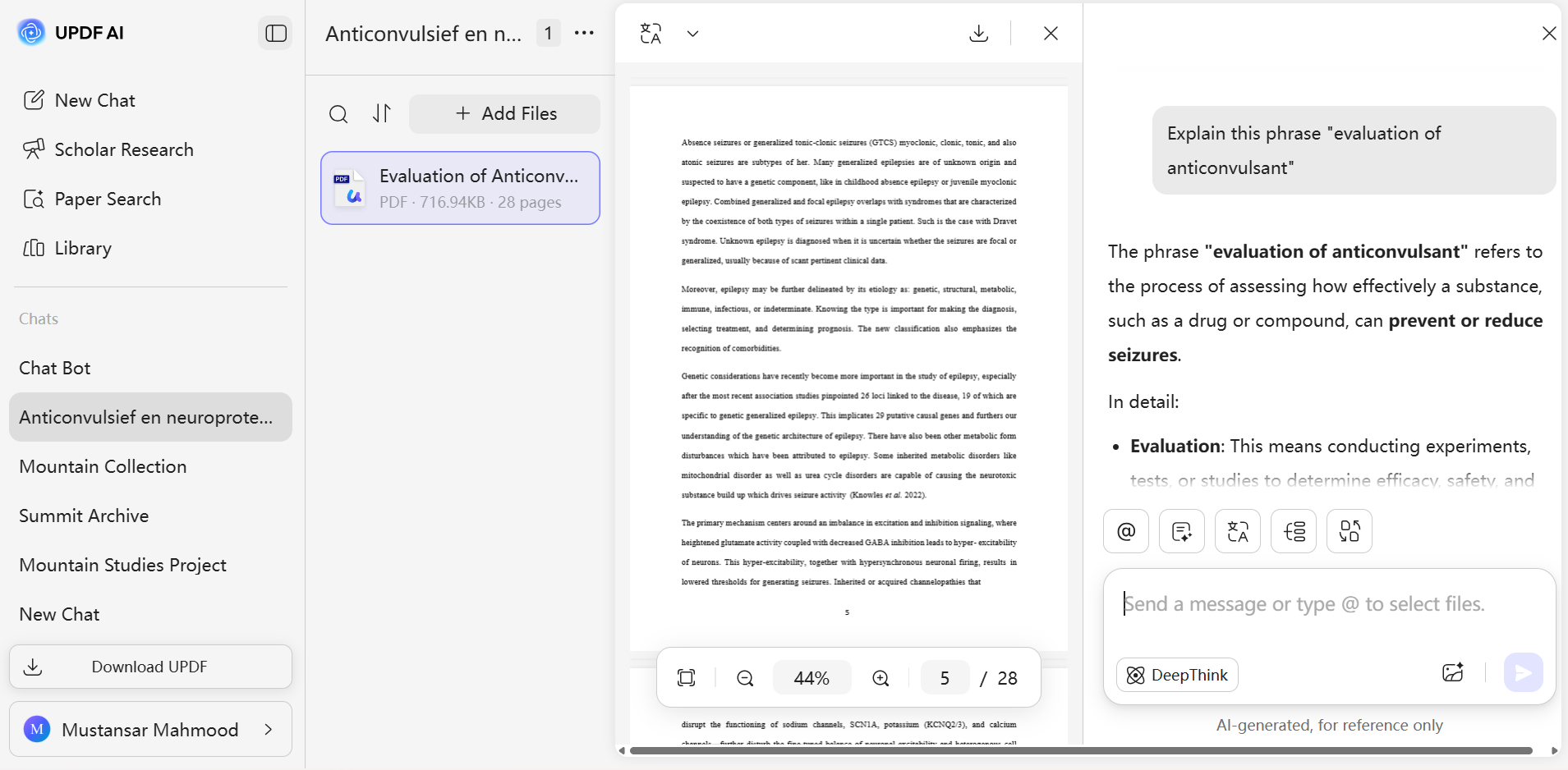
4. Ask Questions About the PDF
To further interact with your PDF documents on UPDF AI online, you can type in questions regarding the uploaded PDF topics to get a better understanding on the context. Upon uploading the PDF, you can simply type any question you want to clarify the doubts about the PDF content.
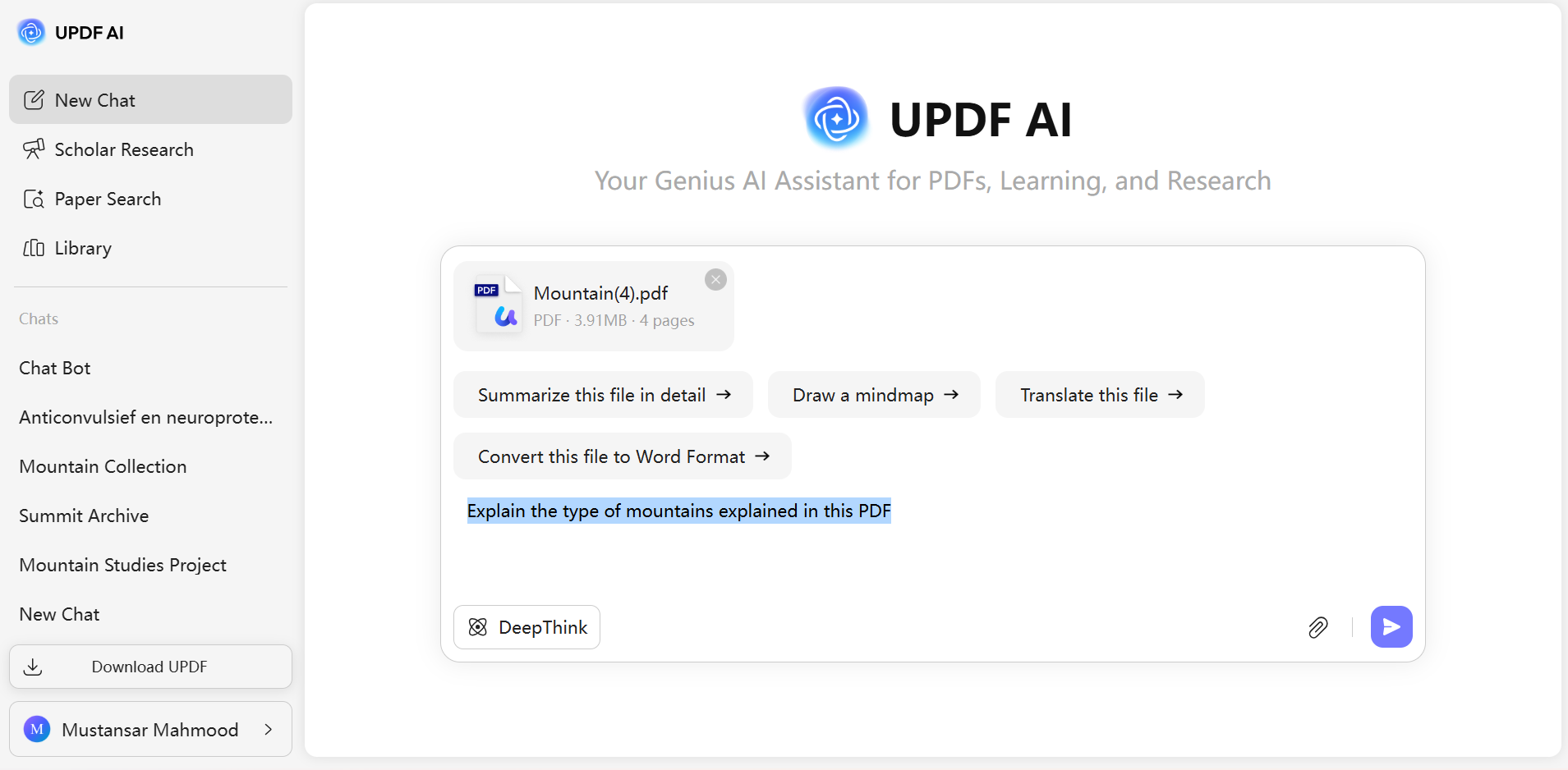
Users get the ability to upload images to the chat and further question the integrated AI assistant about the content.
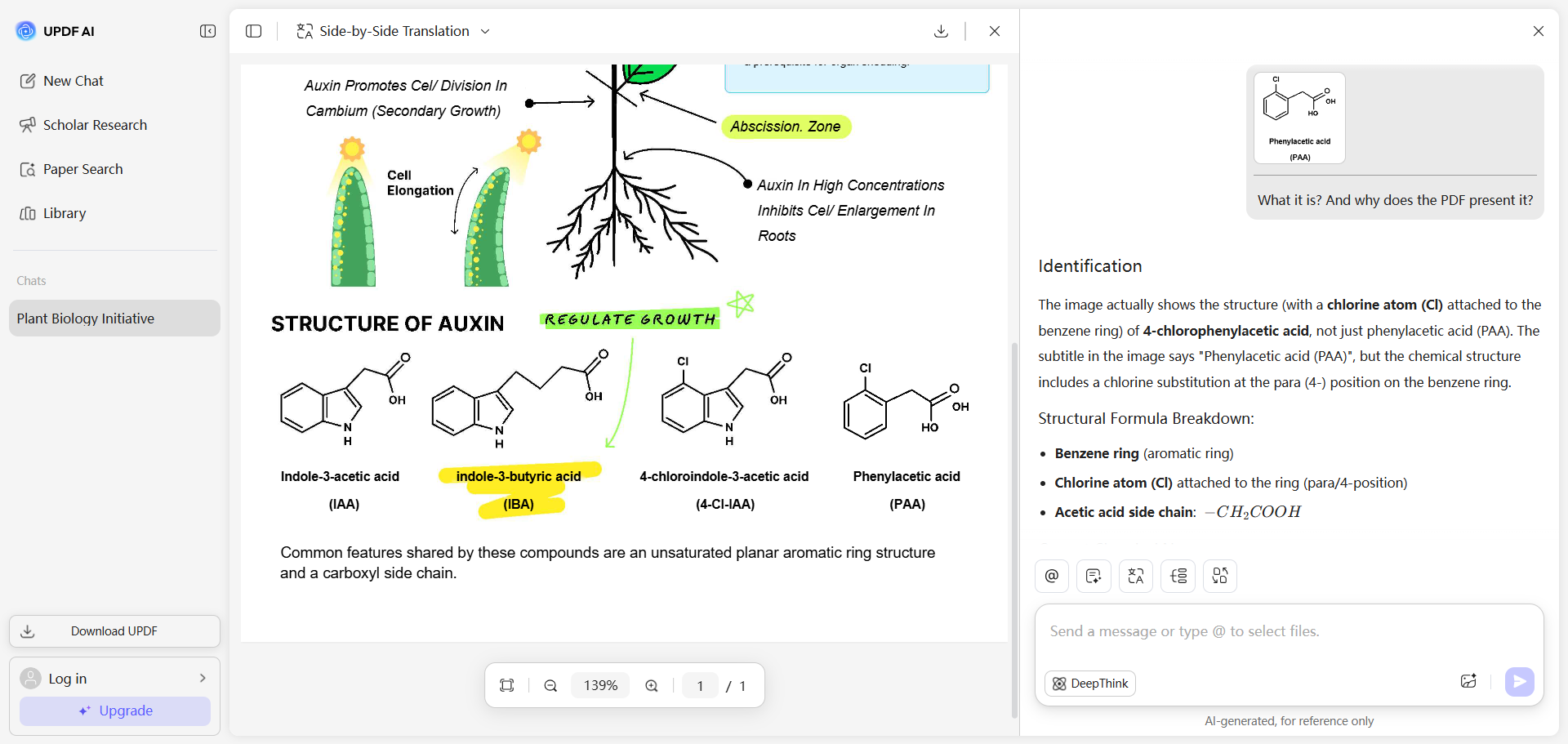
5. Chat with PDF to Rewrite
Beyond chatting with PDF to summarize, translate, or explain content, you can also use UPDF's AI online assistant to help rewrite existing content. You can simply import the PDF and prompt the AI to rewrite the whole thing or some text of the document.
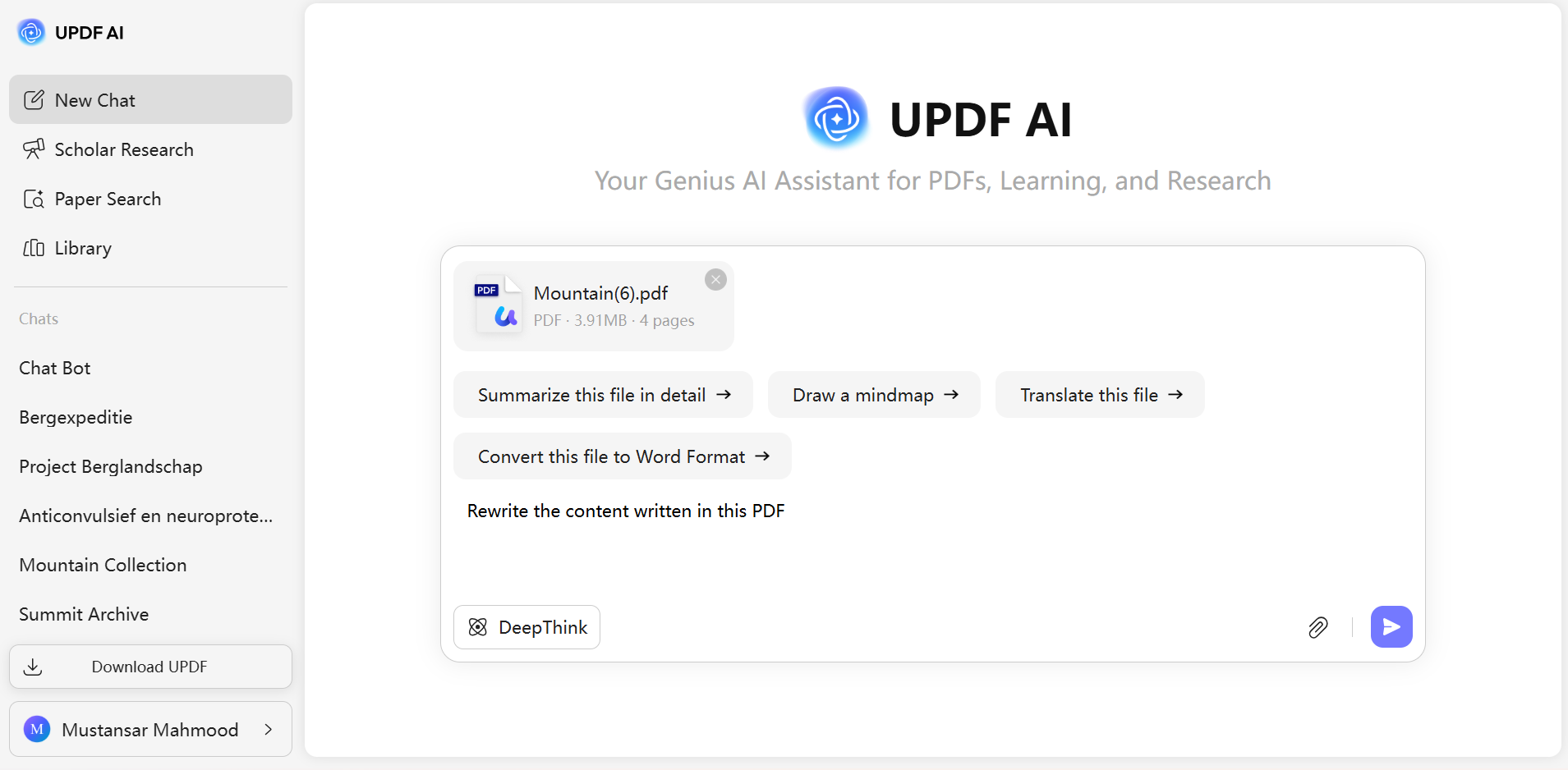
This way, you can simply upload any PDF and then ask an AI assistant to rewrite the content.
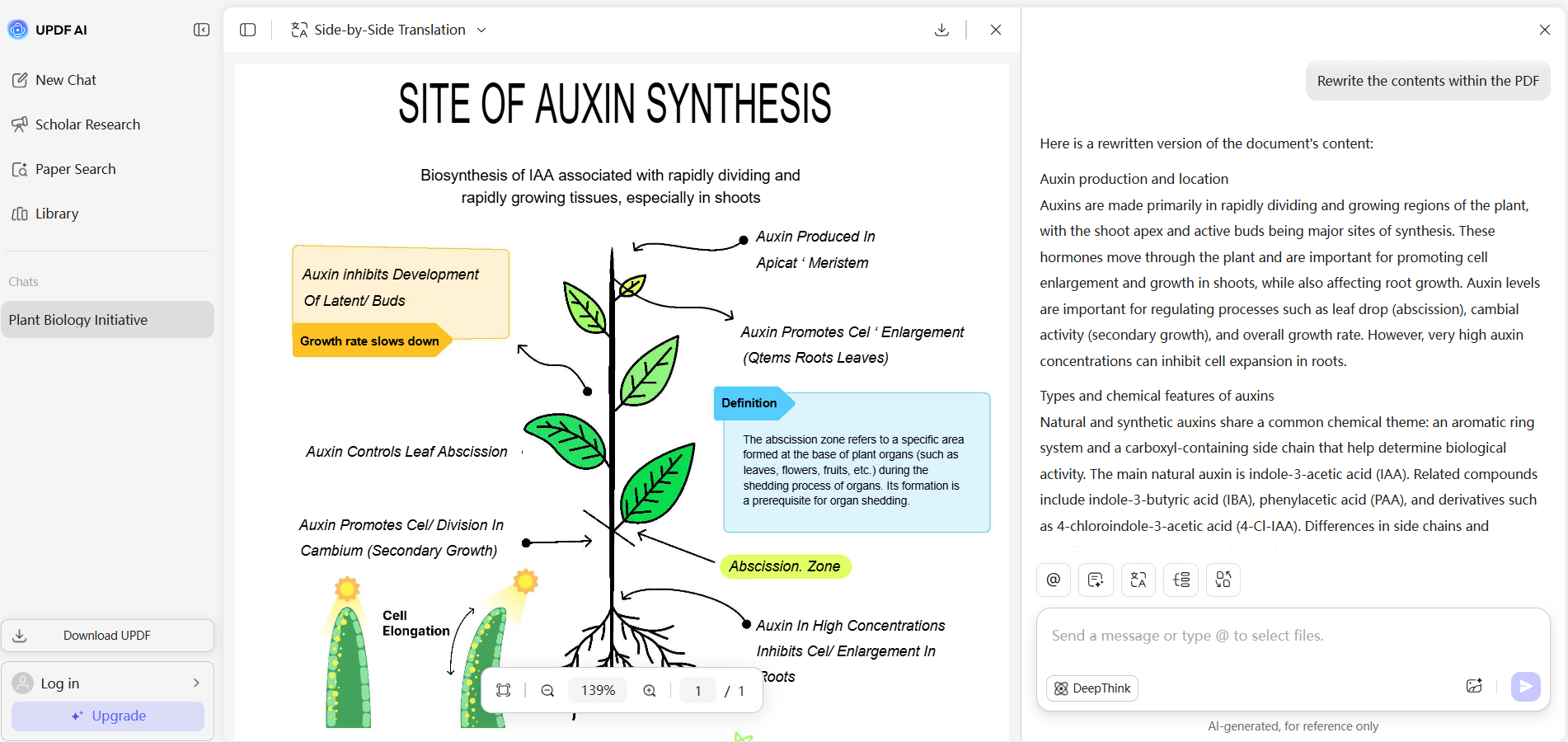
Alternatively, you can also use it to expand your existing writing, such as:
Prompt: Enhance my script for a tutorial video on advanced photo editing techniques. Add compelling examples, refine technical explanations for clarity, and suggest ways to maintain viewer engagement throughout.
6. Chat with Multiple PDFs
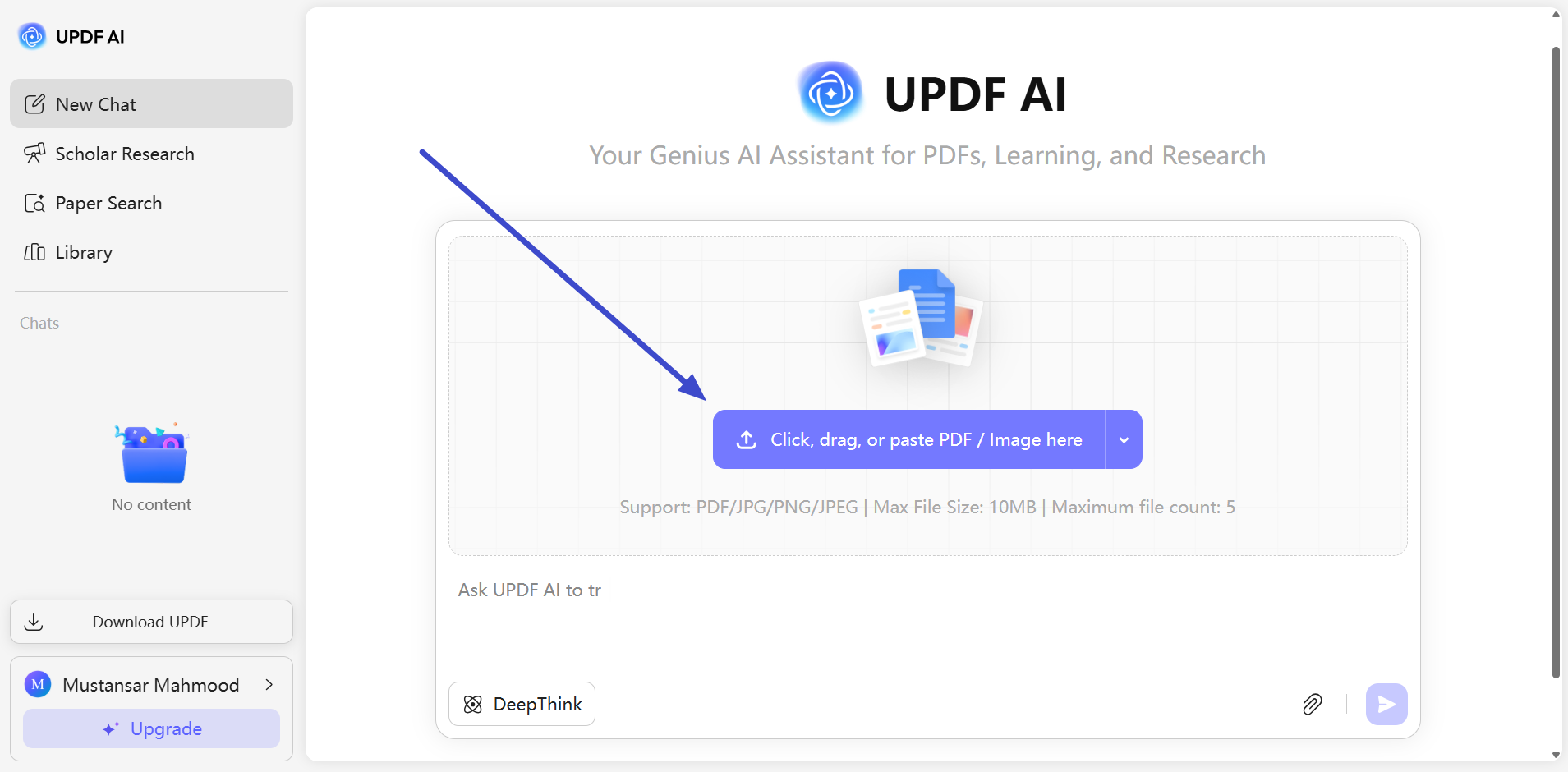
If you want to summarize, translate, or ask any questions related to multiple PDF files, you can use UPDF AI Online for this as well. Simply upload the files and follow these steps to get the job done.
After accessing UPDF AI online, tap on the “Click, drag, or paste PDF/Image here” button to import multiple files at once.
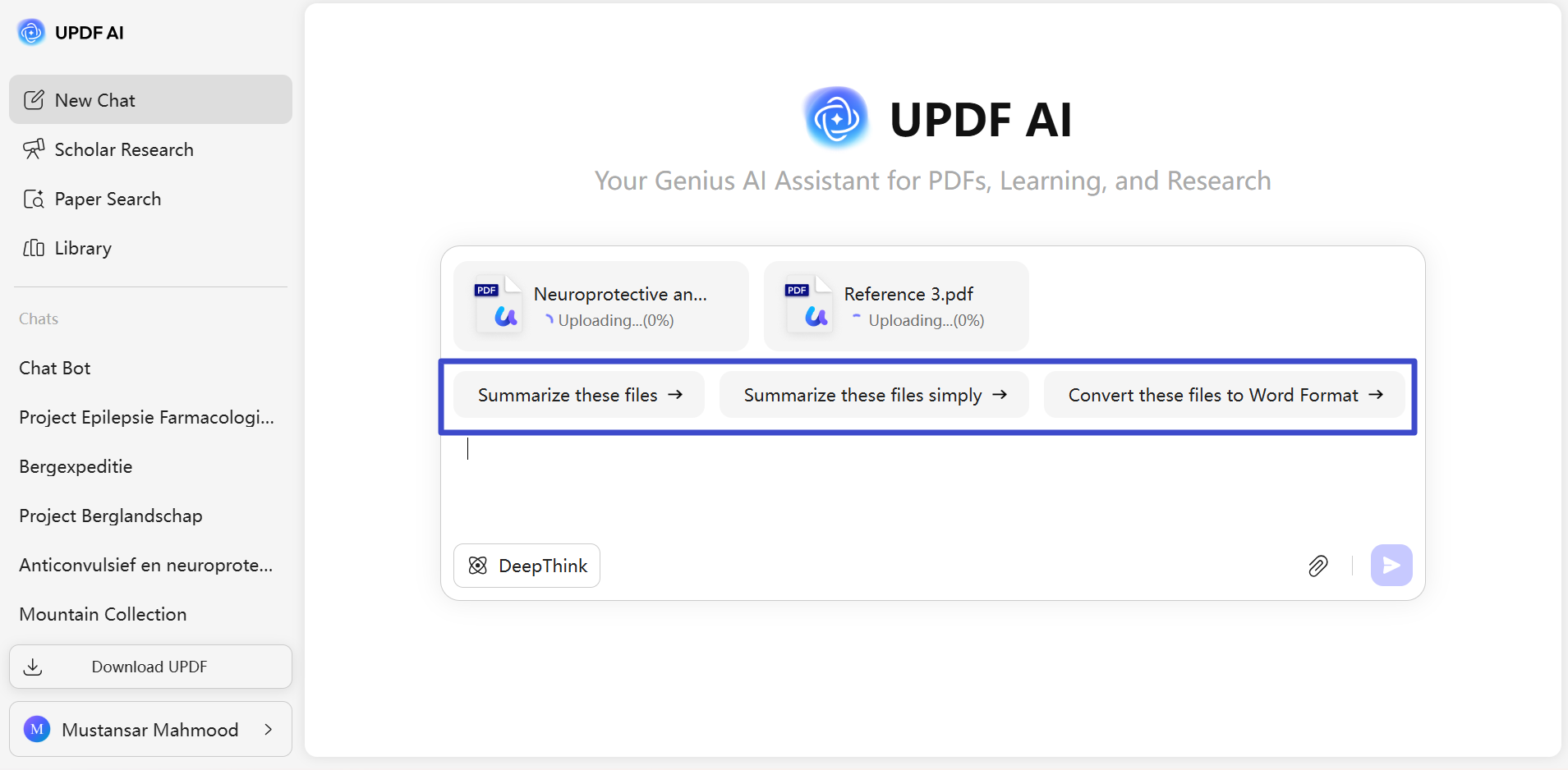
Upon importing the files, write your desired prompt or select any of the default prompts before hitting the “Send” icon.
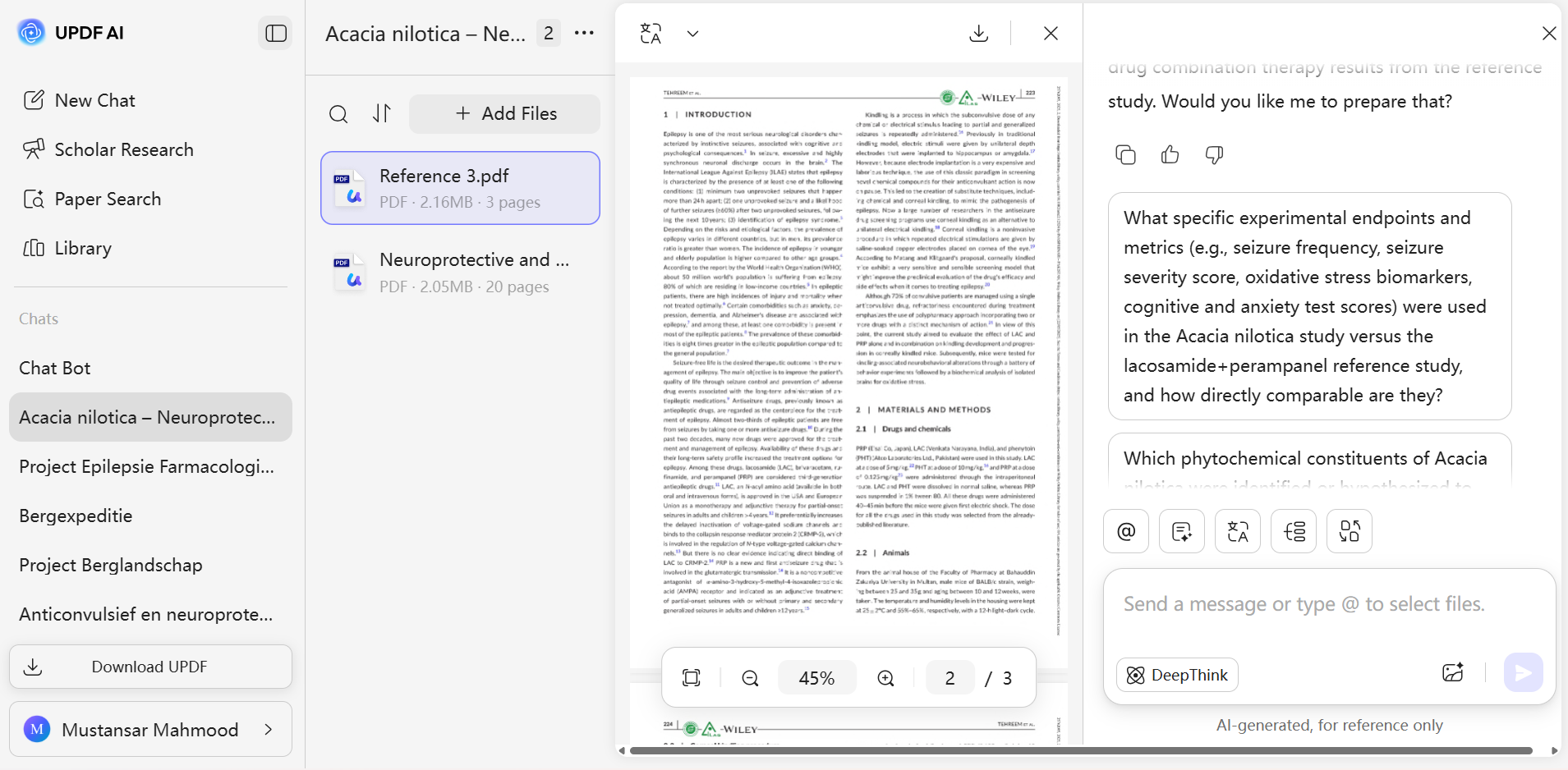
Moving forward, you can easily get the summaries, translation, explanation of all these files at a time. Moreover, you can even chat with every uploaded PDF at once to save time and better productivity.
7. Create Mind Maps from PDF
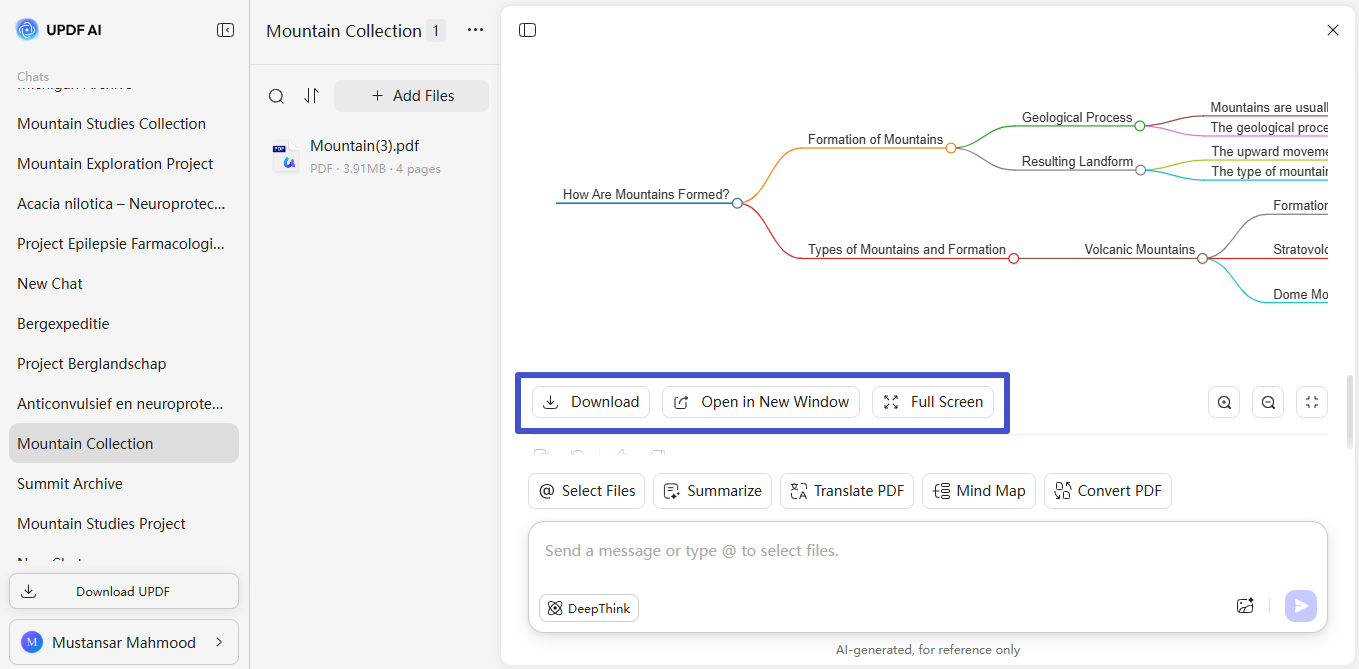
With its PDF to Mind Map feature, you can simply upload a PDF in your browser and generate a mind map in seconds. The online tool breaks down large documents into clear visual branches. While using this tool, you can zoom in and out and even view the mind map in full screen.
To convert PDFs into mind maps, upload the PDF into the UPDF AI tool on your favored browser. Once on the interface, tap the Mind Map icon and select the PDF you want to convert.
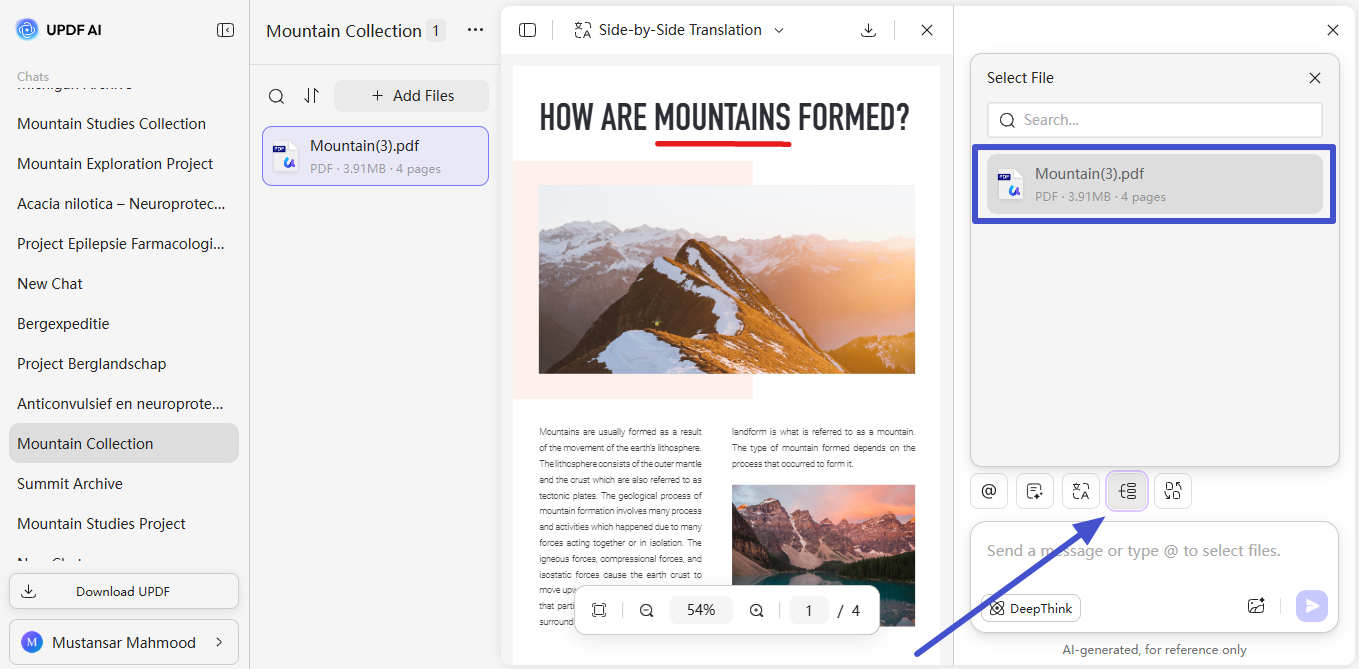
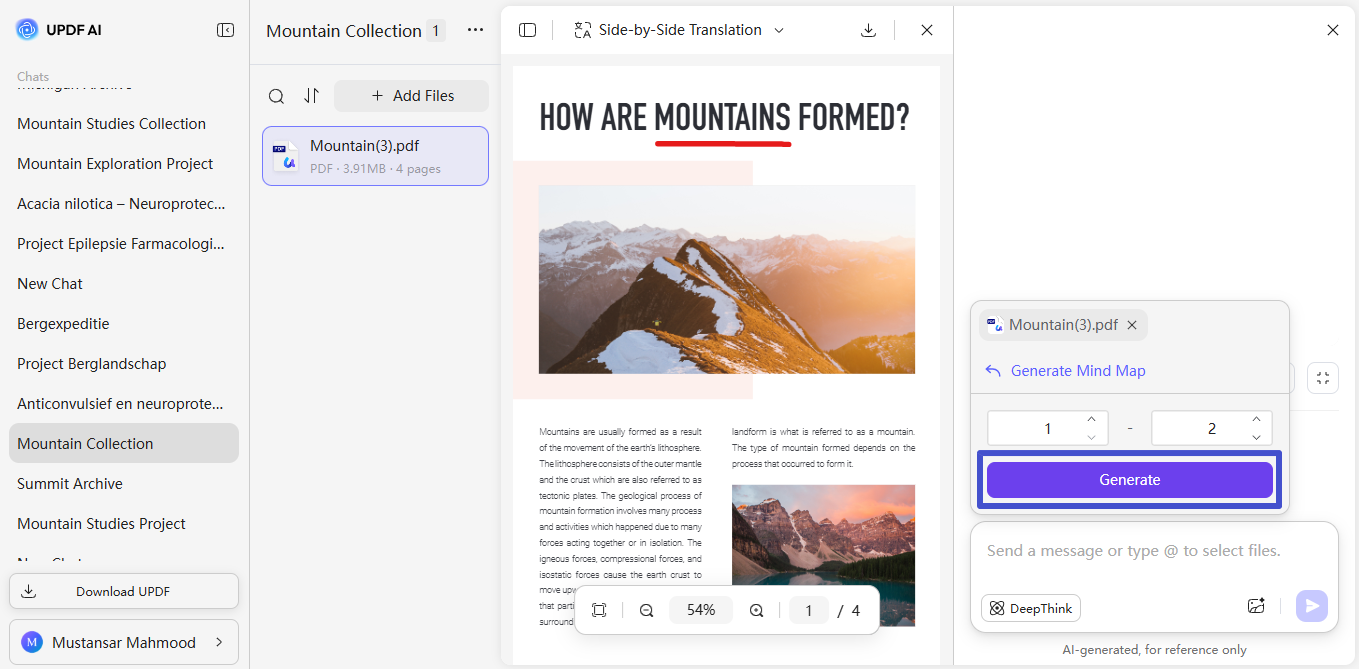
Now, set the page range to determine the content whose mind map you want to create. Afterwards, simply hit the Generate button to get the visual representation of your content.
Once the mind map is created, you can simply download it or can open the image in the new tab. You even get the option to zoom in or out the mind map for a better reading experience.
8. Convert PDF to Word, Excel, and PowerPoint
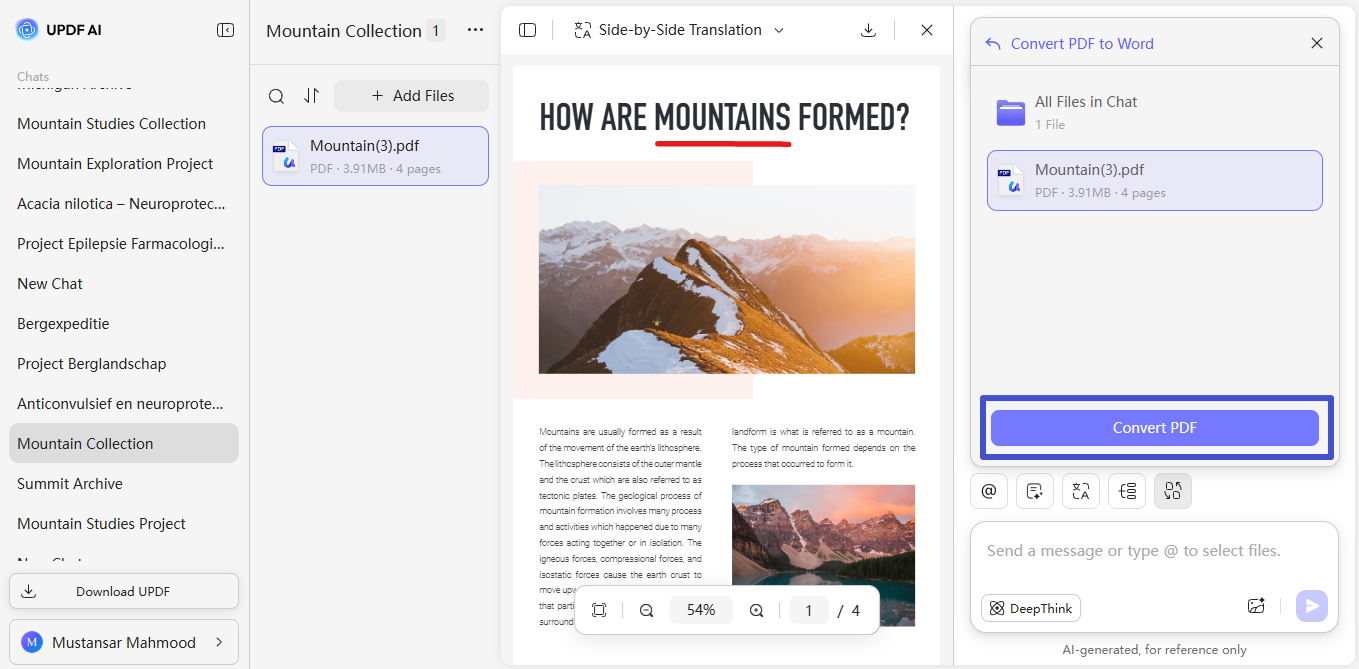
Using the UPDF AI’s PDF converter, users can convert PDFs into fully editable Word, Excel, and PowerPoint documents while maintaining layouts and images. IT even supports batch conversion, OCR for scanned files, and fast processing for large documents.
Simply upload the PDF file in the chat mode and tap the Convert PDF icon to proceed. Now, select the desired conversion option, such as PDF to Word, from the new menu.
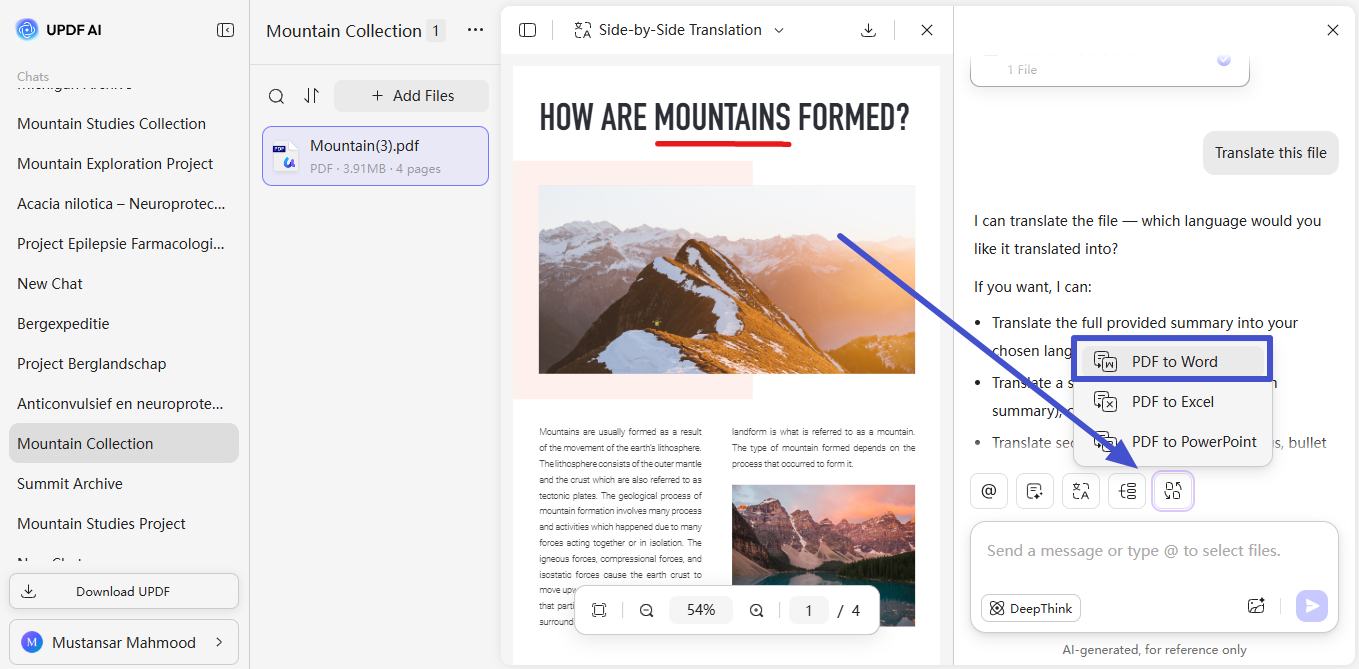
Moving forward, select the uploaded file and hit the Convert PDF button to get the converted document.
That's how UPDF's AI online assistant serves as your virtual assistant when consuming PDFs. To learn more on how to use AI assistants for different activities across industries, check out our AI how-to video page.
Part 2. How to Chat with Your PDF Documents with UPDF APP?
UPDF's AI assistant is also accessible within the UPDF app. UPDF itself is a powerful PDF editor app that allows users to edit, annotate, convert, OCR, protect, and do more with PDFs. It includes AI assistant as a built-in feature so users can get AI assistance and edit PDF at the same time. Interested users can click the button below to try the AI assistant for free.
Windows • macOS • iOS • Android 100% secure
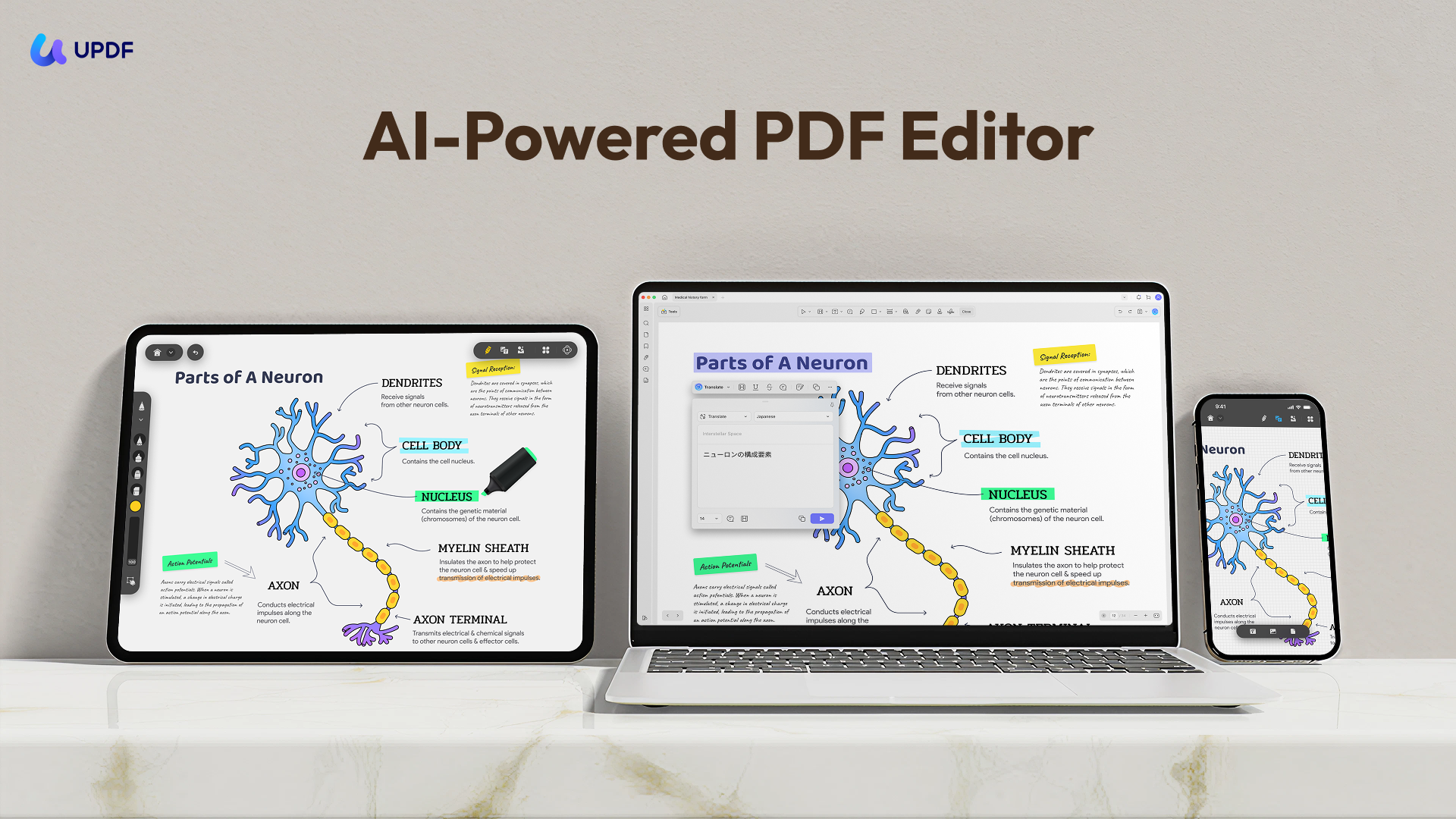
The best part is that the UPDF app is available on all 4 major platforms: Windows, Mac, iOS, and Android. This means that UPDF's AI assistant is accessible on all those devices.
With UPDF's app AI assistant, you can summarize, translate, explain, rewrite, ideate, and do much more with PDFs.
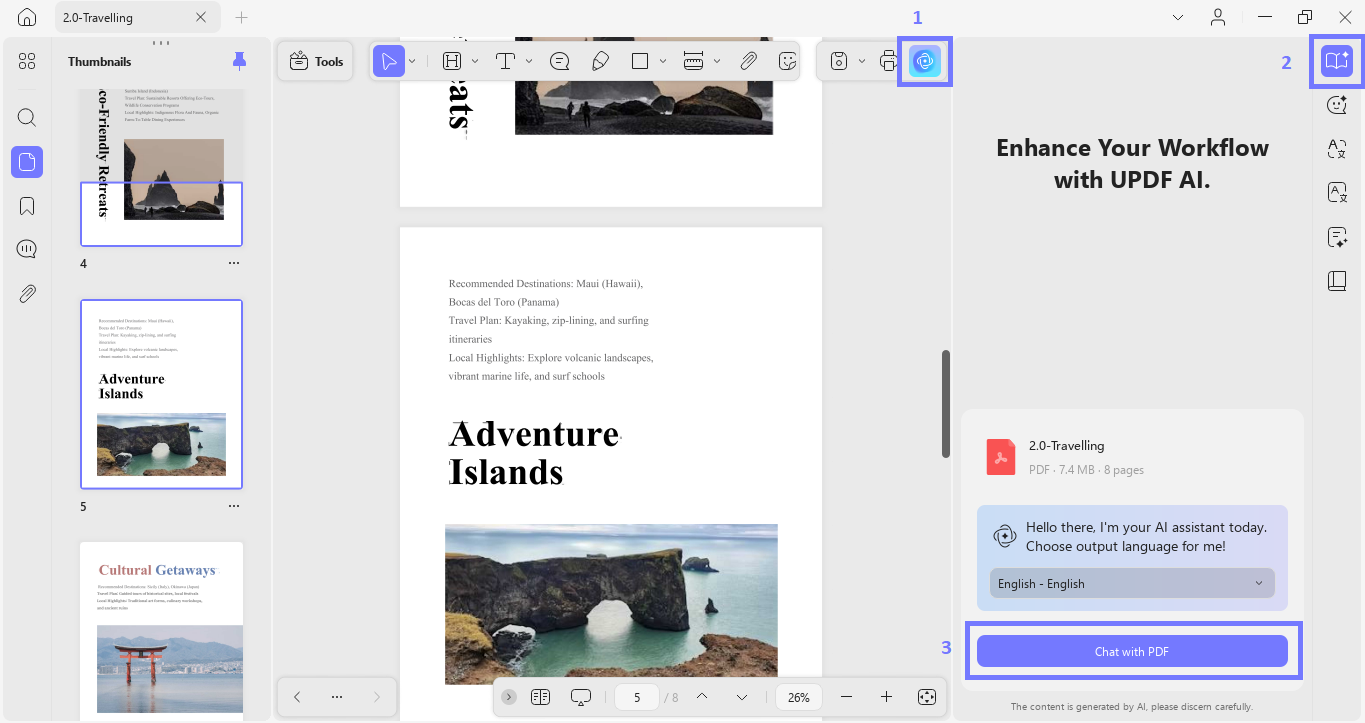
- For Desktop: To access UPDF's AI assistant on the desktop app, follow these simple steps:
- Install the UPDF app on your device.
- Open the PDF with UPDF.
- Click the "AI" icon from the top right side, click "Ask PDF," and then click "Chat with PDF," to let AI read and analyze the PDF.
- For Mobile: Follow these steps to access the UPDF AI feature on the mobile application.
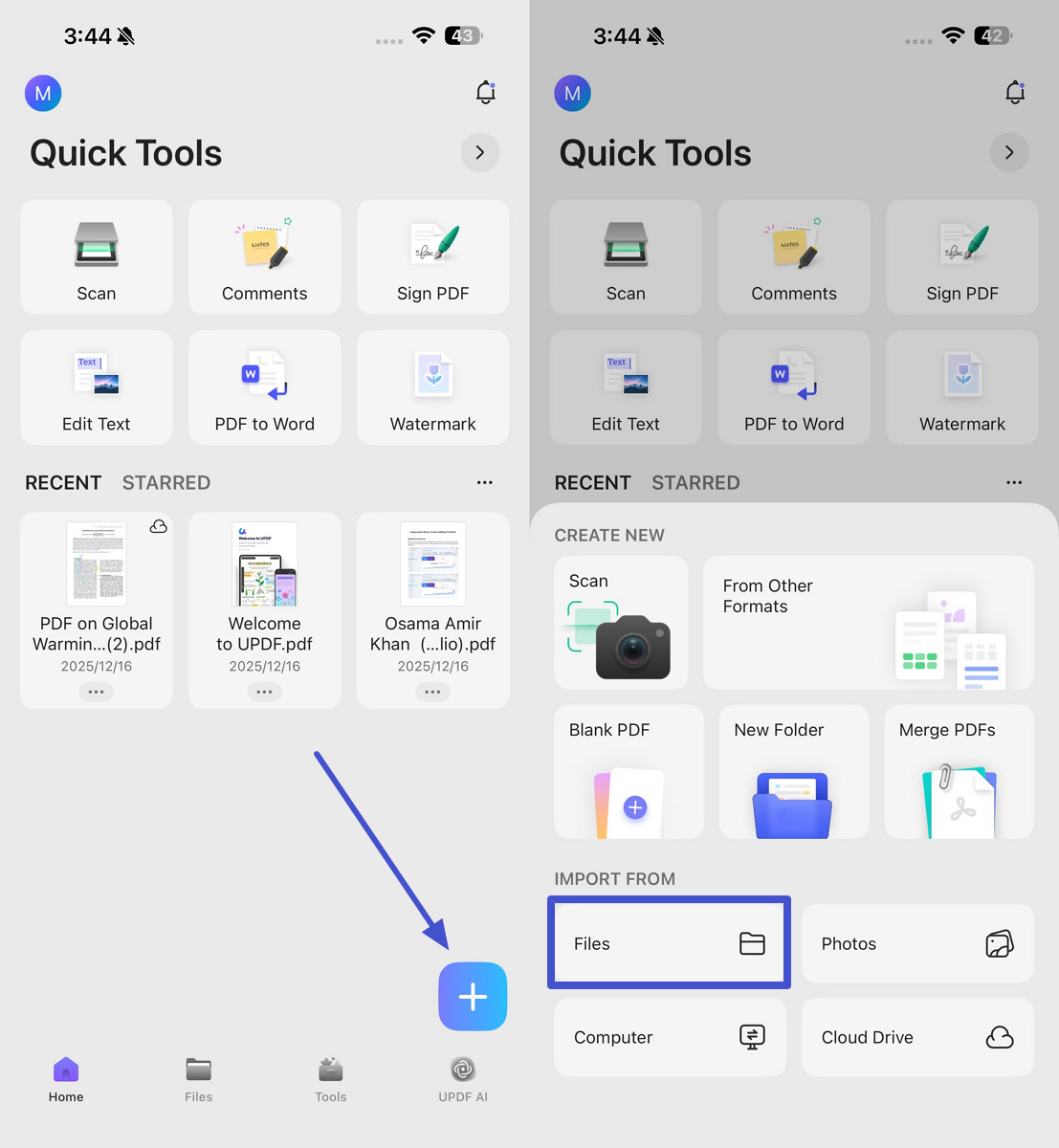
- Start the process by downloading and launching the UPDF app.
- Now, tap the Plus icon on the main screen and pick Files within the Import From section to import your desired PDF.
- Once the PDF opens, hit the UPDF AI icon on the top right of your screen. Within the next screen, hit the Get Started button to let this tool analyze your file before you can start chatting.
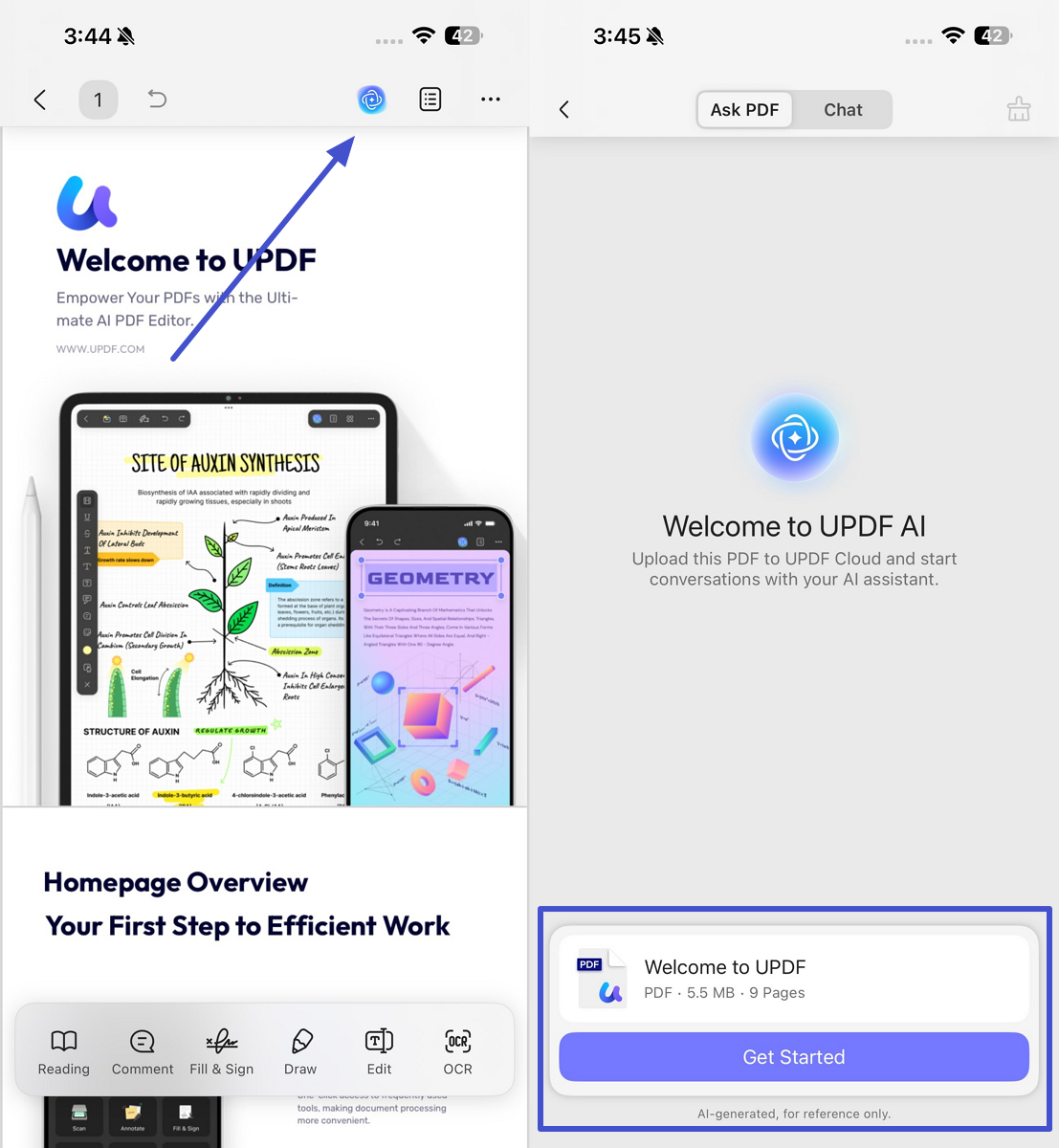
Afterward, below are a few prompt-based examples of how to chat with PDF using UPDF's app AI assistant:
1. How to Chat with PDF to Summarize
UPDF's AI assistant on the app allows you to summarize a PDF in three ways, as follows:
Way 1. Direct Select and Summarize
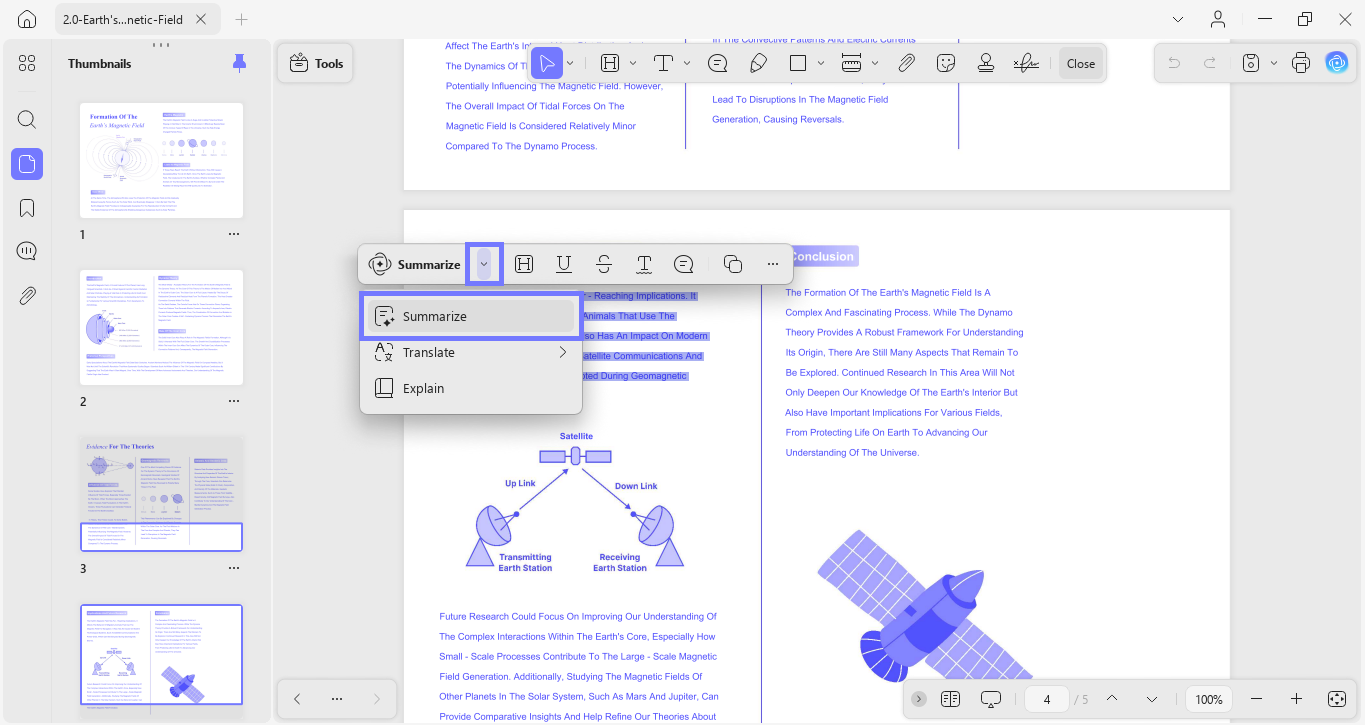
- On Desktop: Select the text from the PDF to summarize, a small pop-up will appear tap the arrow button > Summarize. The summarized text will appear in a new pop-up window.
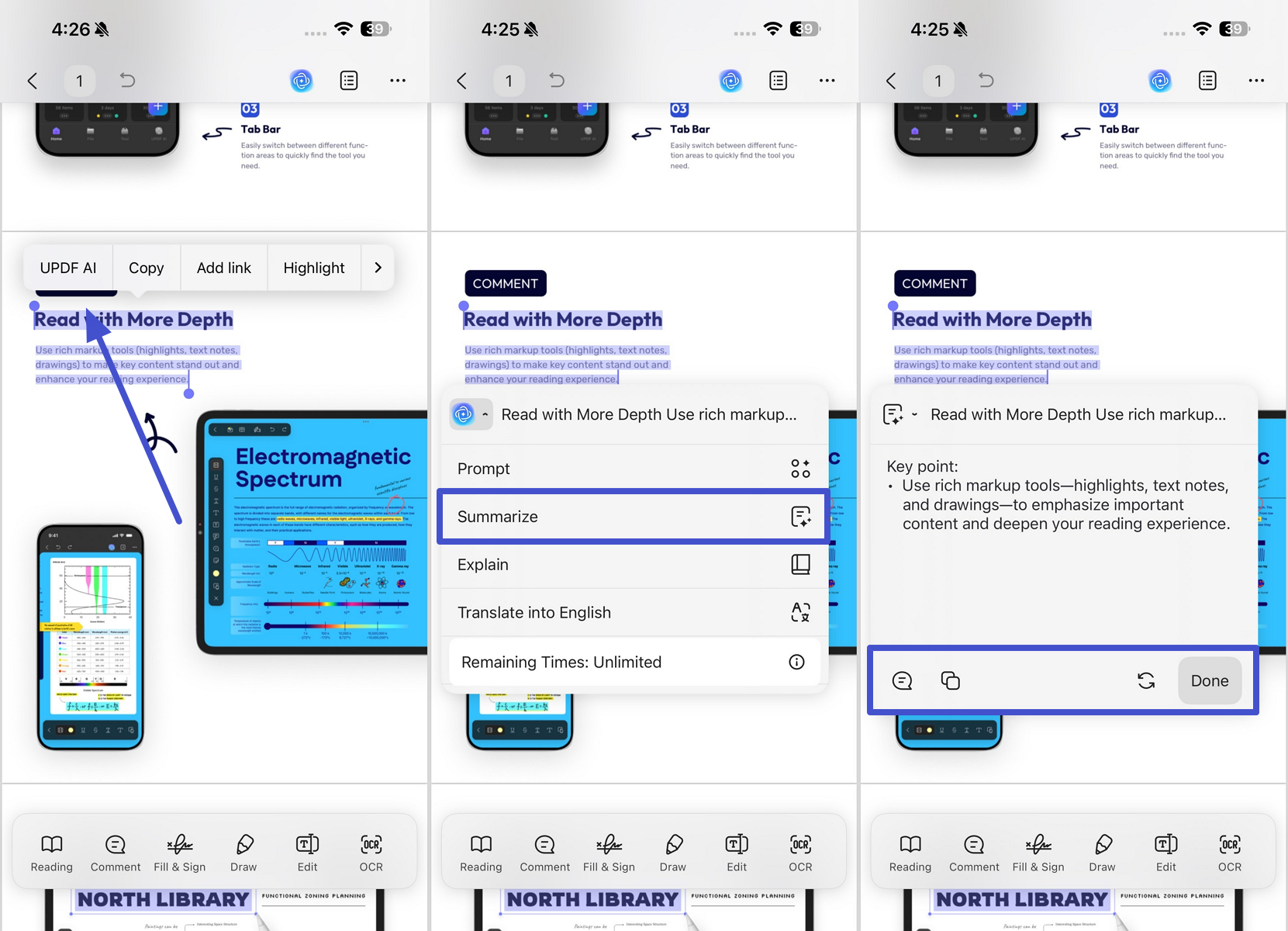
- On Mobile: Start by opening the PDF in the app and highlight the paragraph or line you want to shorten. A pop-up menu will appear on which you need to tap UPDF AI and select Summarize from the menu. The app will instantly generate a concise summary that you can copy, paste, and read quickly for easy understanding.
Way 2. Summarize the Entire PDF from Chatbot
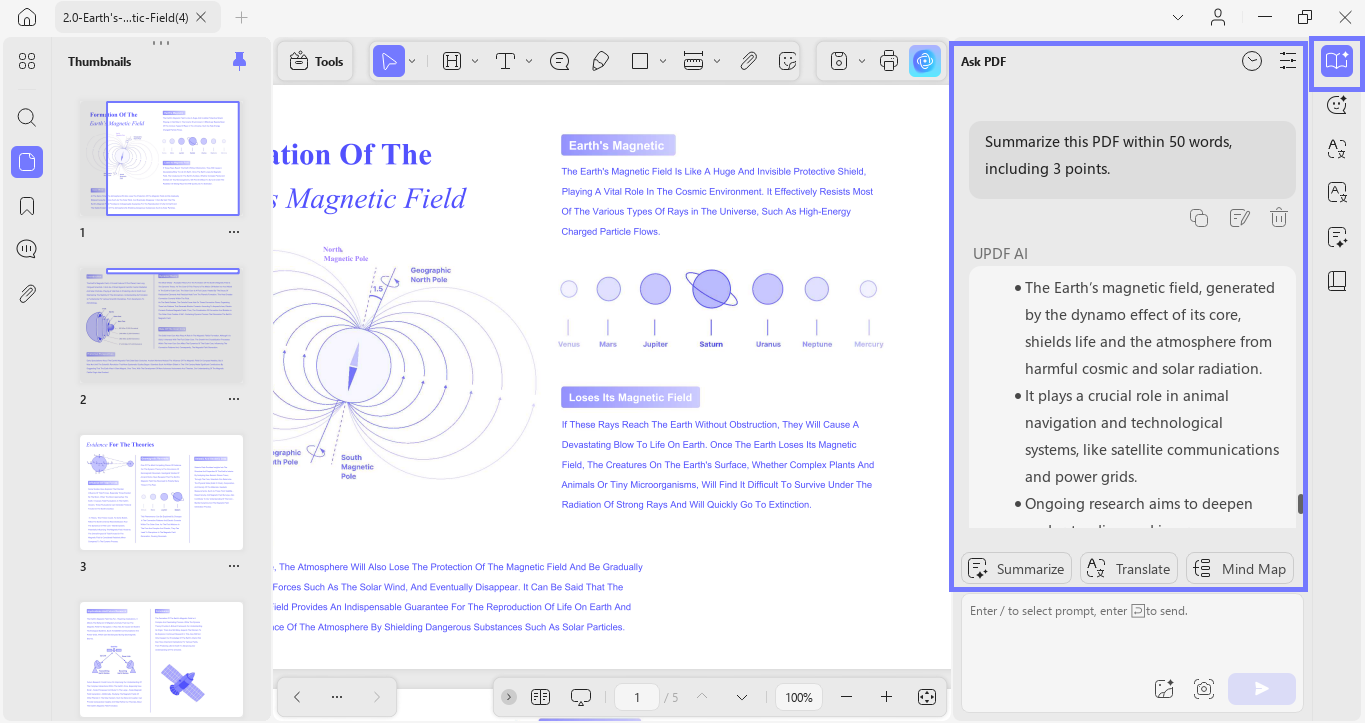
- On Desktop: After accessing UPDF AI, write the following prompt in the textbox, "Summarize this PDF within 50 words, including 3 points."
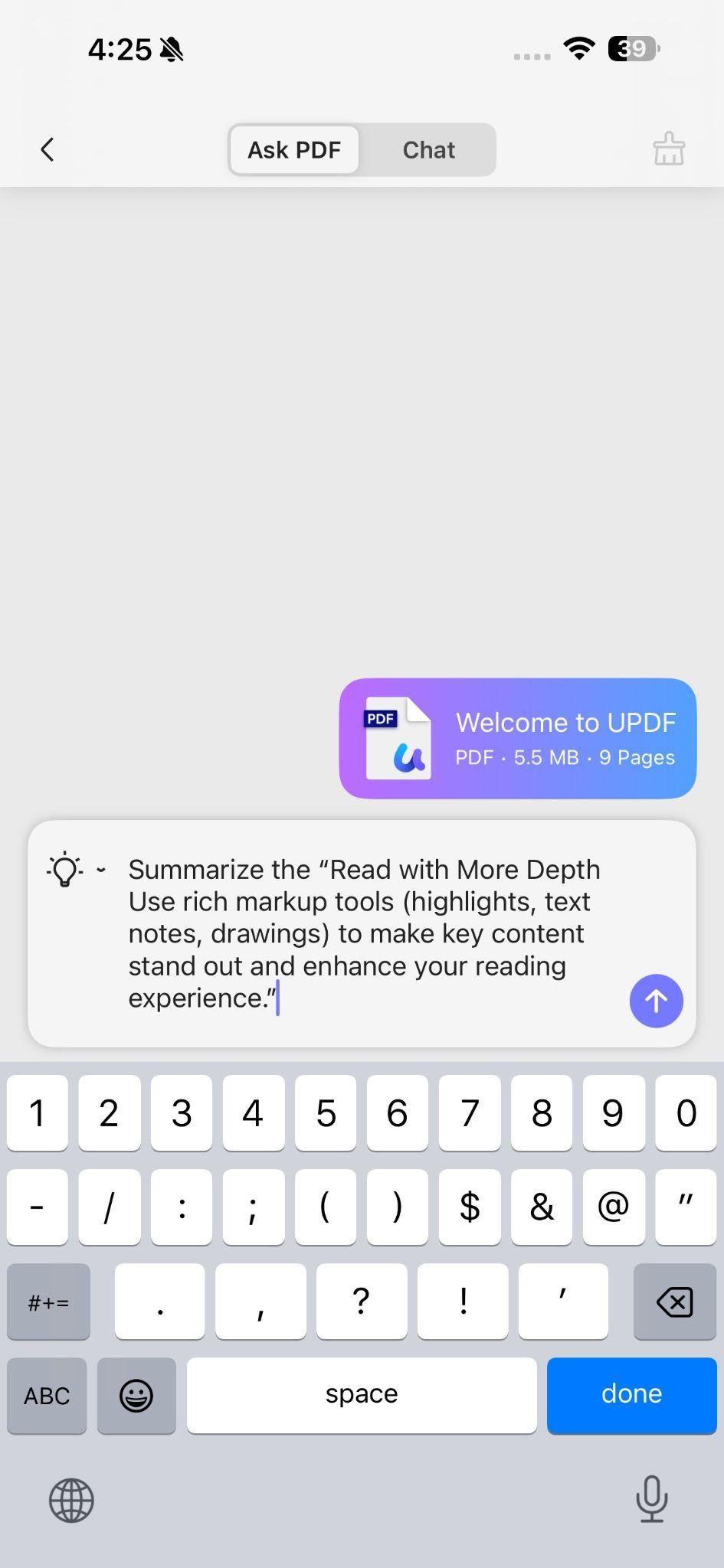
- On Mobile: To add a prompt, tap the text box at the bottom of the screen and type an appropriate summarization prompt. After entering the text, press the Send icon to receive the summarized output based on your prompt.
Way 3. Summarize Specific Pages
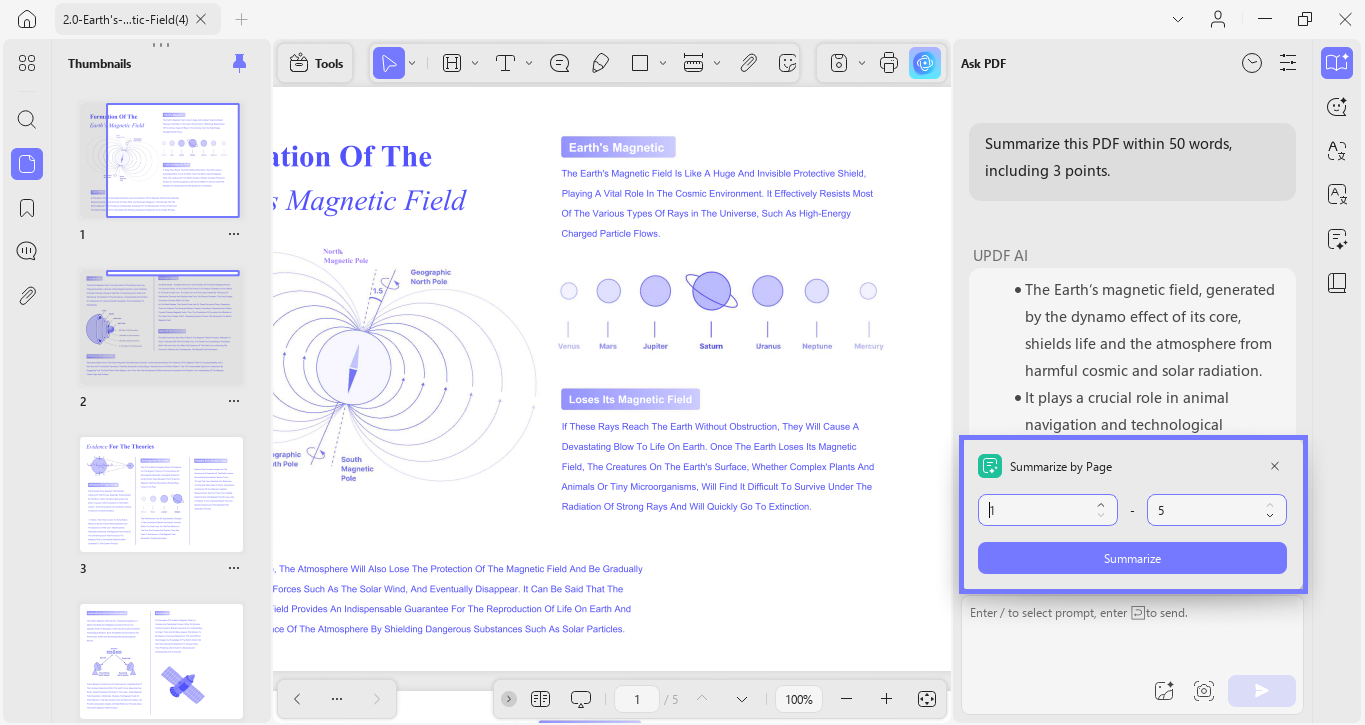
- On Desktop: Similar to the AI online assistant, click the "Quick Prompt" icon located in the chat box and select "Summarize by Page". Select the page range and click "Summarize" and you will get the summary of those pages right away.
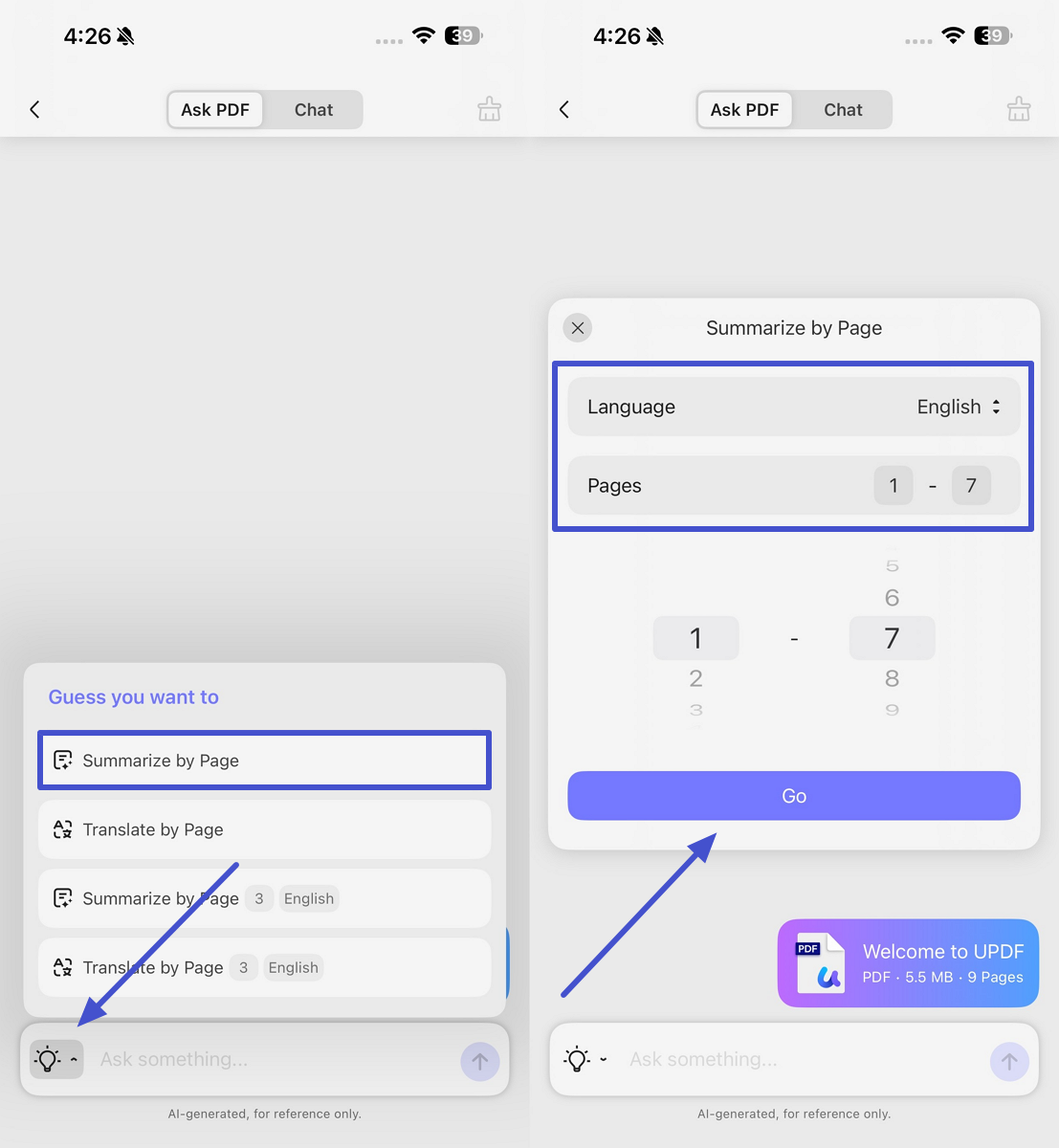
- On Mobile: On the UPDF AI screen, tap the Bulb icon to open the bottom Guess You Want to menu. Then, select Summarize by Page to open a small dialog box. Choose the required page range and tap Go to generate a summary for those pages. You can then copy the result, regenerate it, or continue summarizing further content.
2. How to Chat with PDF to Translate
UPDF's app AI assistant lets you translate the PDF in three ways, as follows:
Way 1. Direct Select and Translate
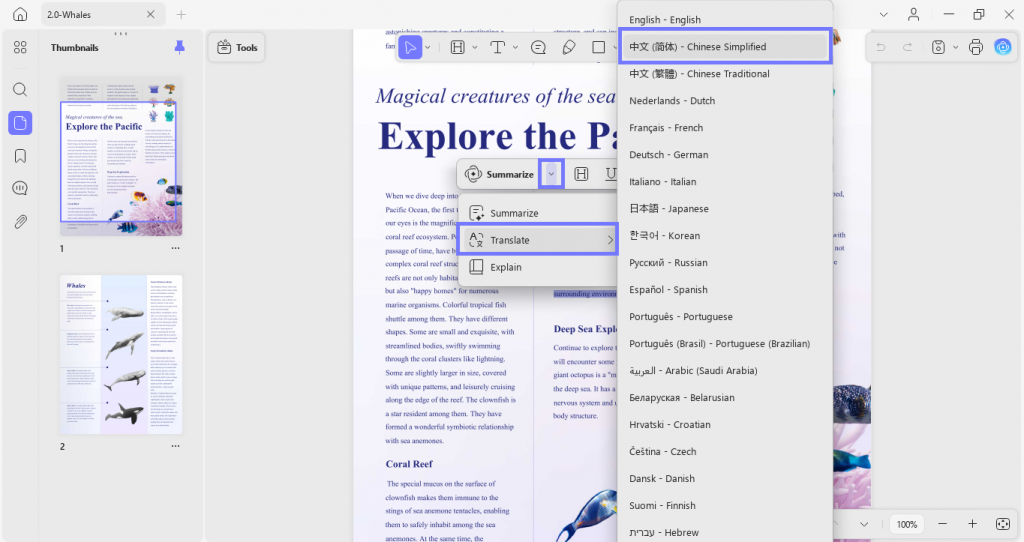
- On Desktop: Select the text from the PDF to translate, right-click the mouse, and tap UPDF AI > Translate > Translation languages. The translated text will appear in a new pop-up window.
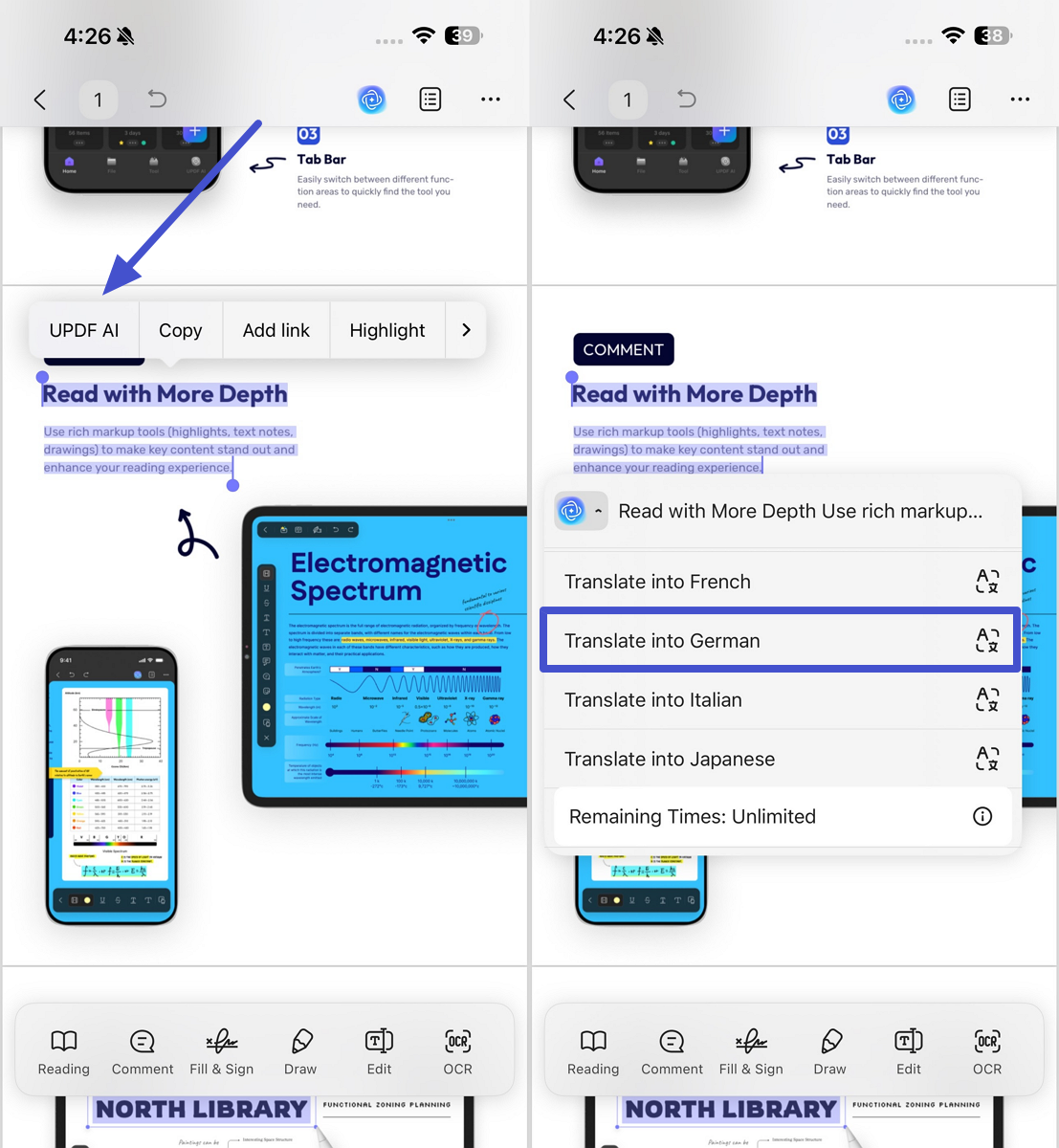
- On Mobile: With the PDF open in the app, highlight the text you want to translate and tap UPDF AI from the pop-up menu. Next, select “Translate into…” and choose your preferred language. Review the translated result and proceed further depending on whether it meets your accuracy requirements.
Way 2. Translate Specific Pages
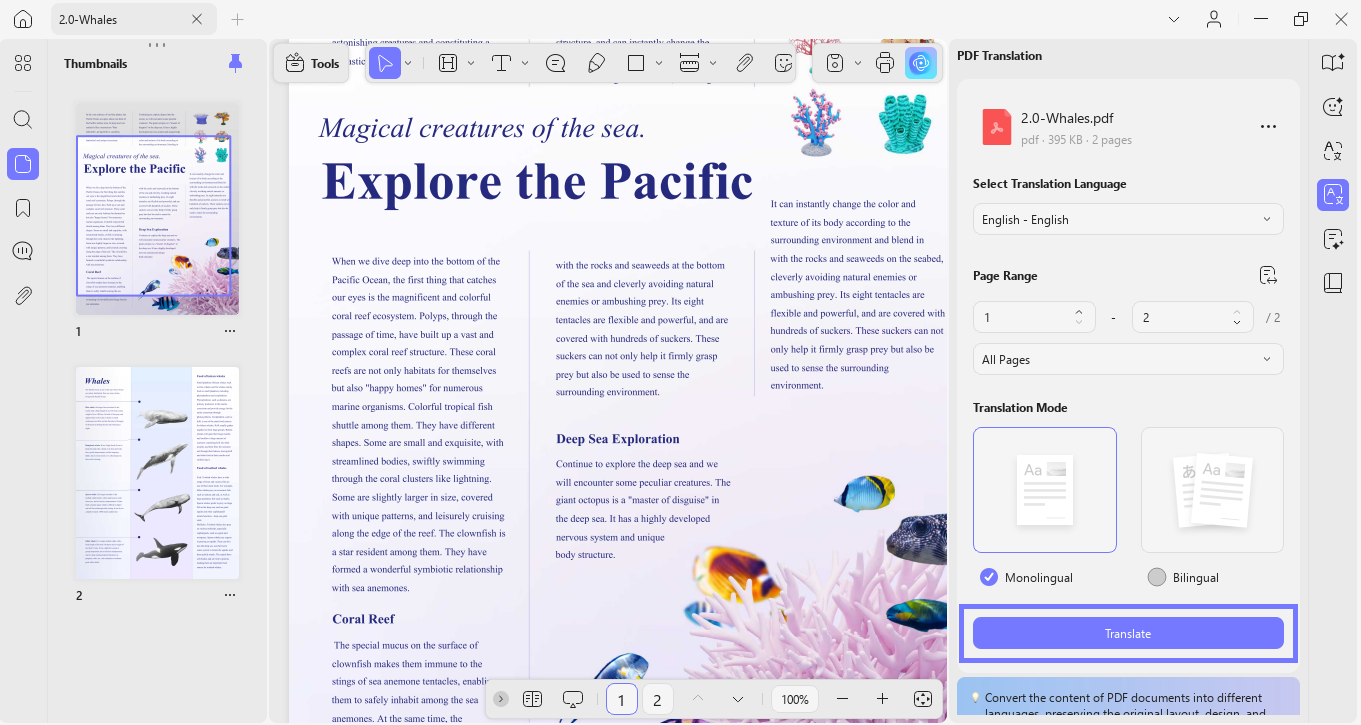
- On Desktop: Open the "AI" feature at the top right corner. Select the "PDF Translation" feature. Then, select the "Language" you want to translate to, "Page Range," and "Translation Mode." Once all are selected, click the "Translate" button.
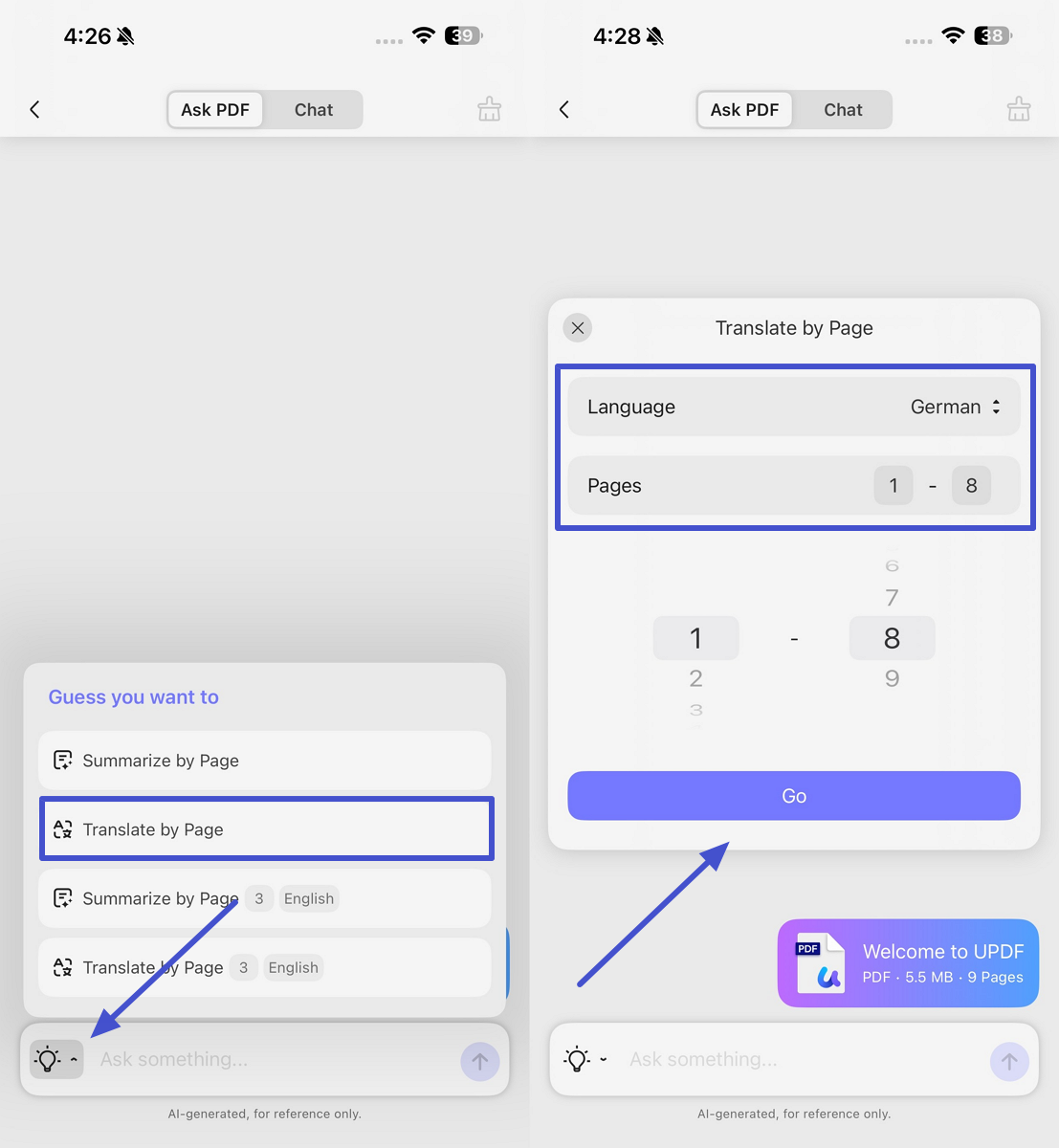
- On Mobile: Upon accessing UPDF AI, tap the Lightbulb icon in the chat box and choose Translate by Page. In the pop-up window, set the target language and page range, then hit the Go button. The translated content will appear in the chat box, where you can review and copy it for later use.
Way 3. Translate Selective Content from the PDF
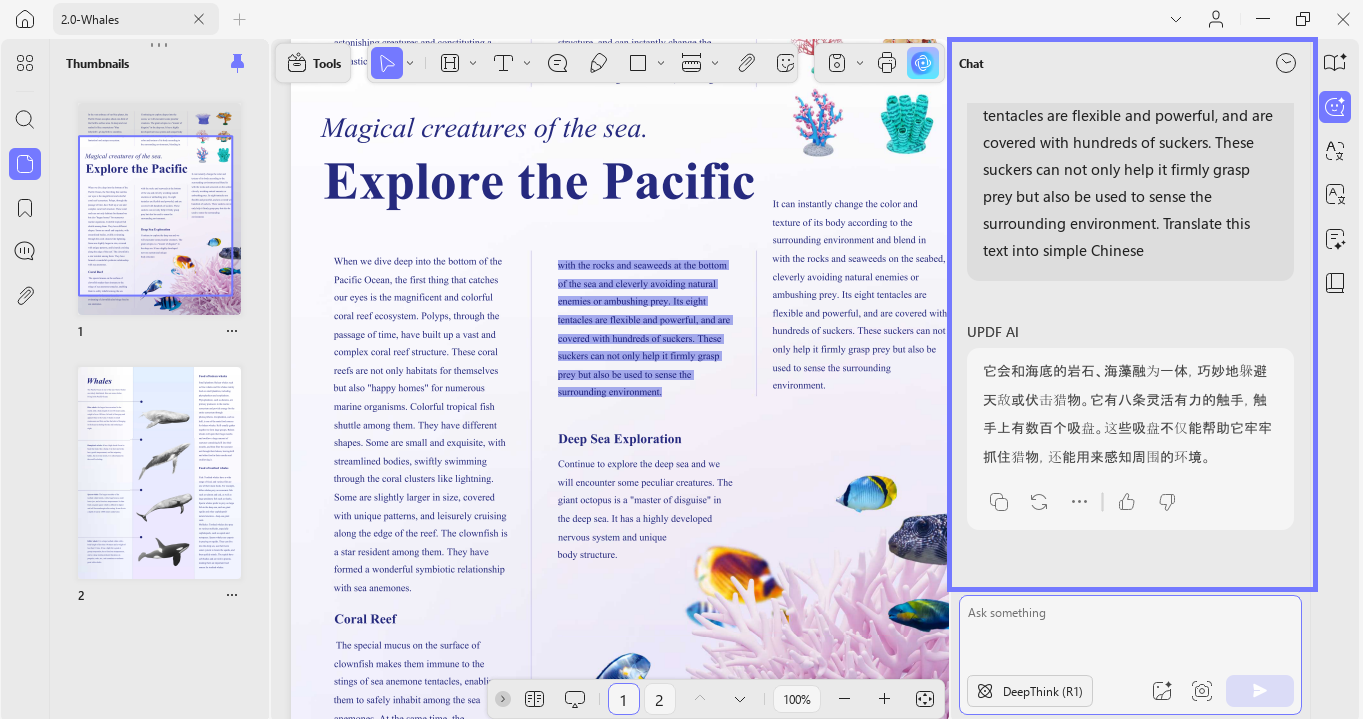
- On Desktop: Select and copy the content from PDF and use the below prompt:
Translate these sentences into [translation language]: [paste content].
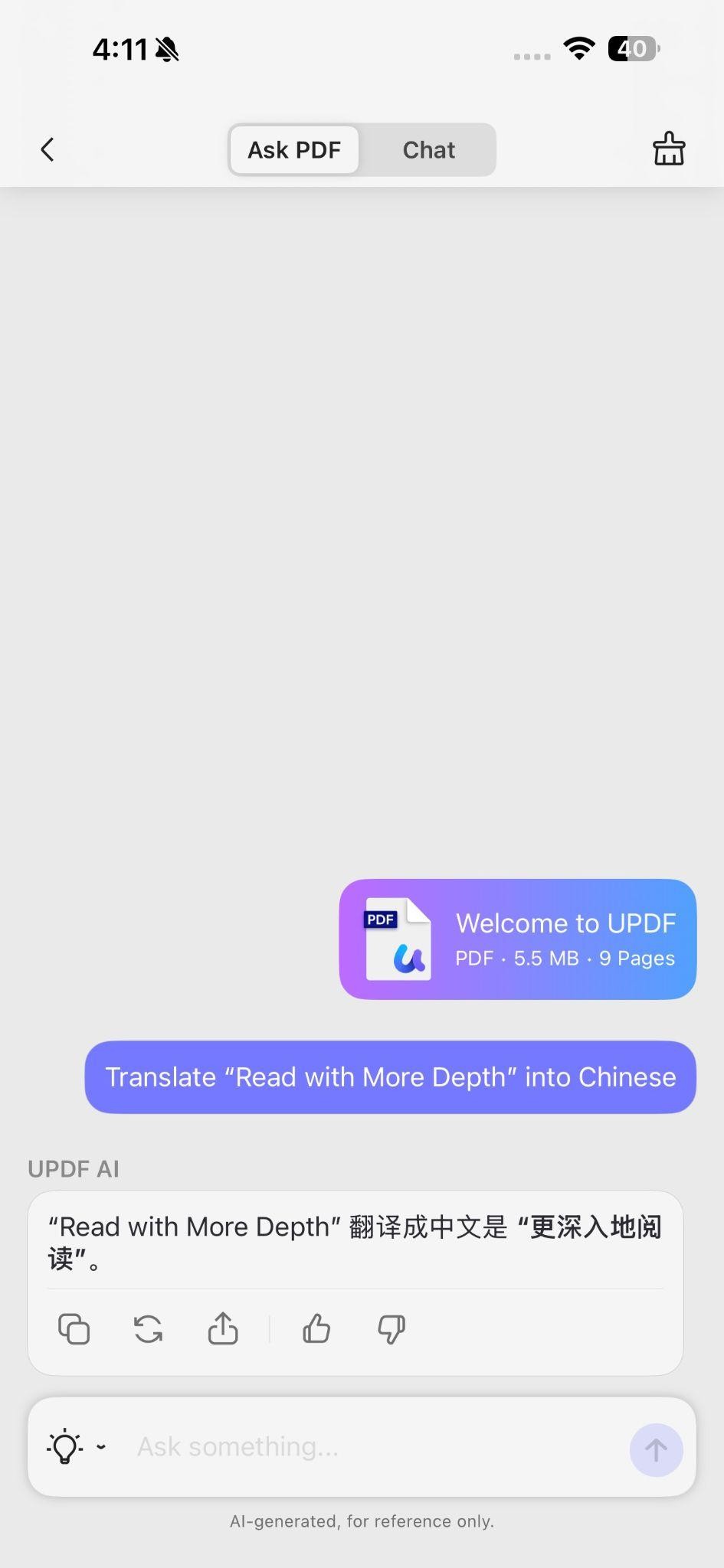
- On Mobile: After uploading PDF, copy the content you want to translate and access UPDF AI. Then, write the prompt, “Translate the <paste content> into <language>” and hit the Send icon.
3. How to Chat with PDF to Explain
If a PDF contains complex phrases you are not aware of, you can use UPDF's AI Assistant to explain those terms.
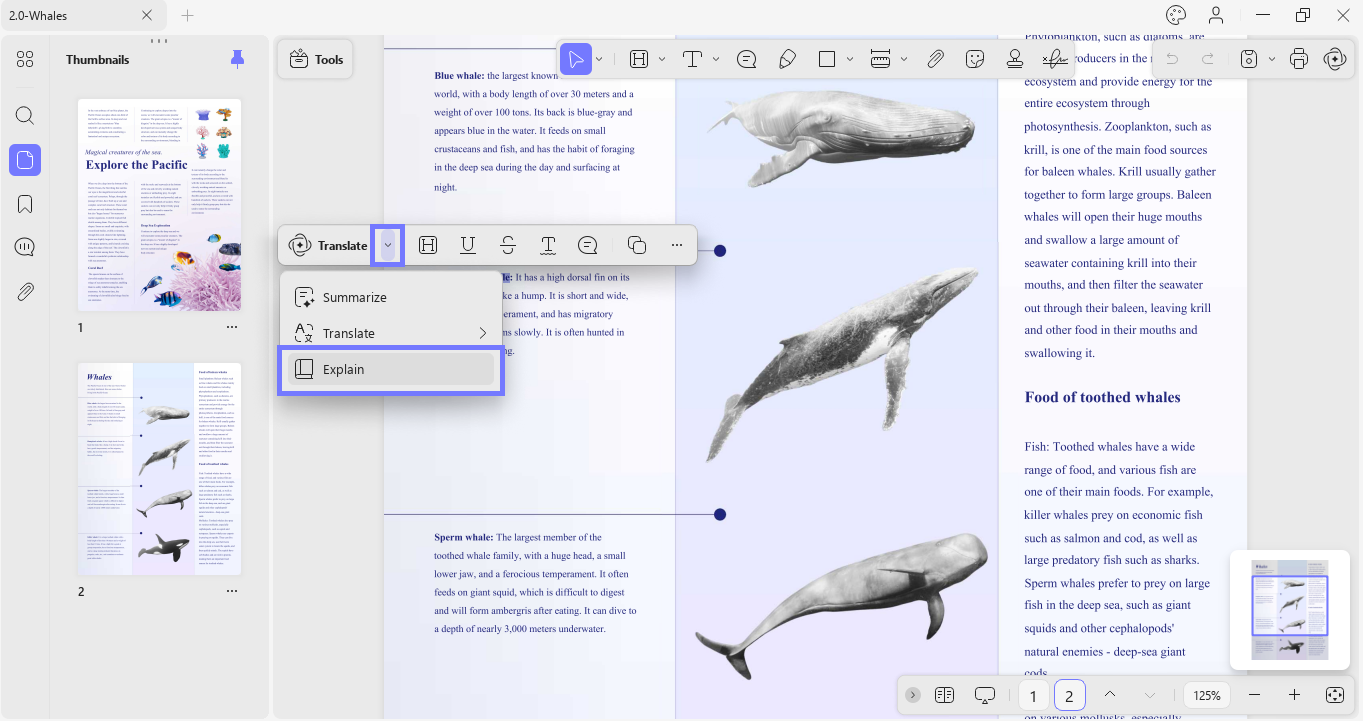
- On Desktop: You can select the text, right-click, and tap UPDF AI > Explain to get the explanation of that term.
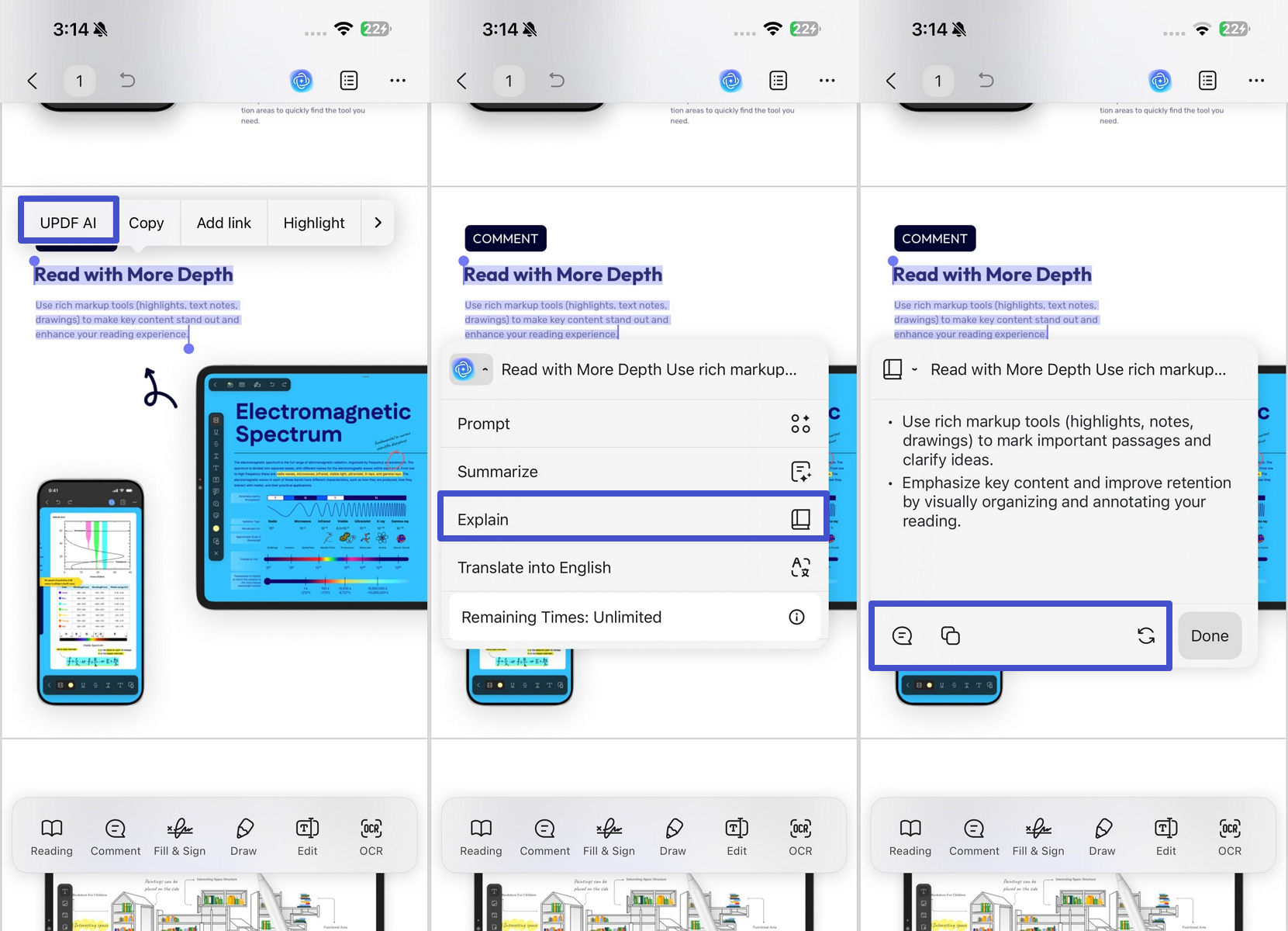
- On Mobile: After importing PDF, highlight the text you want to clarify and select UPDF AI from the floating toolbar. Choose the Explain option, and the tool will generate a detailed explanation. Once ready, tap the Copy or Note icon to add the explanation directly to your PDF.
Alternatively, you can use the chat box to ask questions related to the PDF, such as:
Prompt: Diarrhea is one of the symptoms of COVID-19 mentioned in this research paper. What does diarrhea actually mean? Or any thing you want to ask.
4. How to Chat with PDF to Write/Rewrite
UPDF's app AI assistant can let you enhance the content and quality of your PDFs by providing inputs in writing and rewriting content. Below are a few prompt-based examples from this perspective:
Prompt #1: Provide a conclusion for this research paper.
Prompt #2: Improve the narrative flow of my script for a short film screenplay. Ensure smooth transitions between scenes, deepen character motivations, and suggest dialogue adjustments for emotional impact.
5. How to Chat with PDF to Proofread
Beyond writing or rewriting, you can also use UPDF's AI assistant to proofread the PDF content and fix the grammar and other mistakes in your PDF. Copy the content from the PDF you want to proofread and then use the below prompt:
Prompt: Proofread this paragraph for me: [paste the content].
Bonus
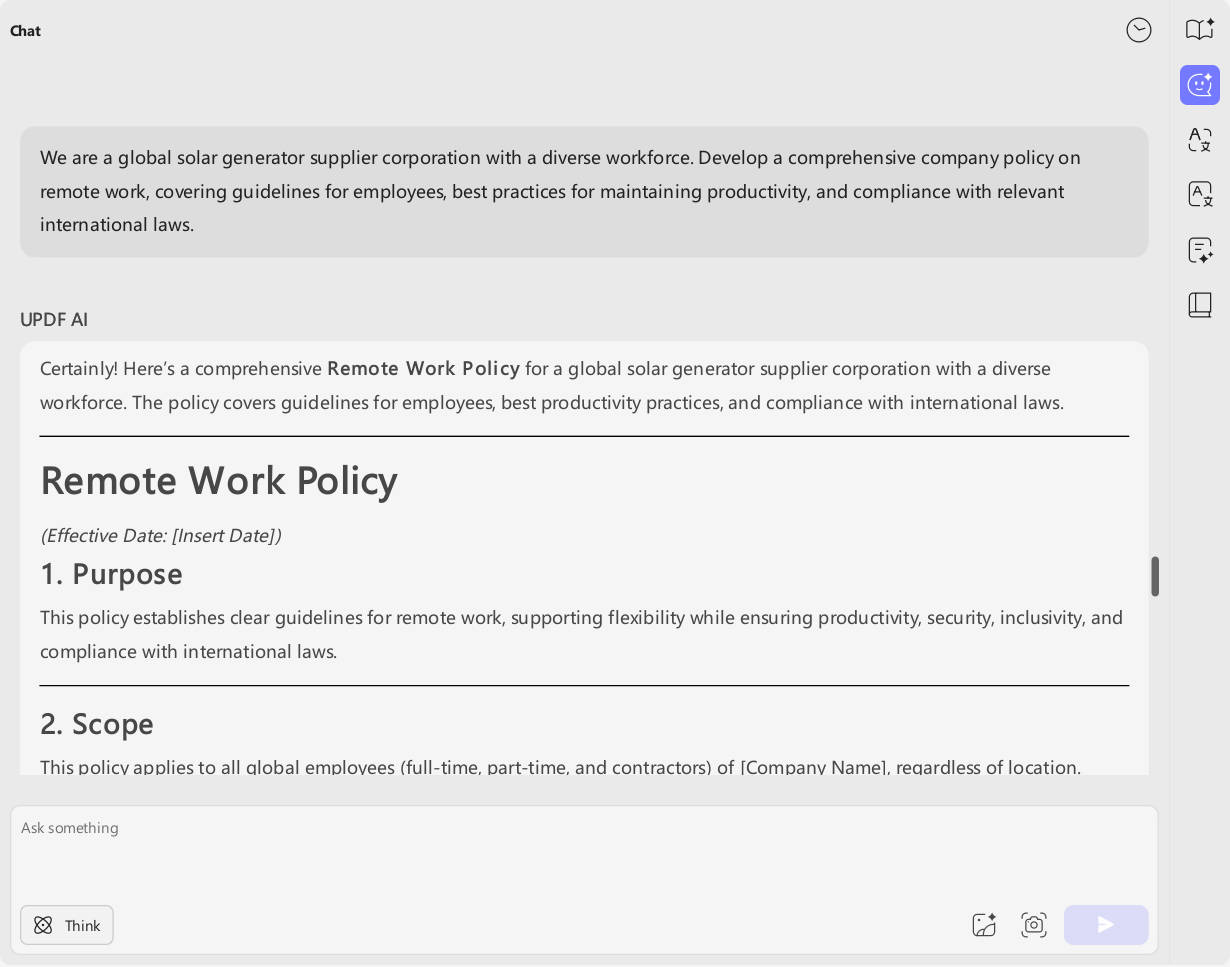
UPDF's AI assistant provides a dedicated "Chat" mode, which you can use to chat about anything beyond the scope of the PDF. This helps you ideate, brainstorm, write, and do much more. Check the prompt below for a better understanding:
Prompt: We are a global solar generator supplier corporation with a diverse workforce. Develop a comprehensive company policy on remote work, covering guidelines for employees, best practices for maintaining productivity, and compliance with relevant international laws.
Impressed with UPDF's AI assistant? So, why think more? Download UPDF and start chatting with your PDFs right away.
Windows • macOS • iOS • Android 100% secure
Part 3. An All-in-One Look at the Capabilities of UPDF's AI Assistant
| UPDF's AI Assistant | Capabilities | Description |
| Summarize PDF | Summarize the entire PDF, selective pages, or specific PDF sections. | |
| Translate PDF | Translate selective PDF pages or content in almost any language. | |
| Explain PDF | Explain complex PDF phrases in clear words. | |
| Rewrite PDF | Rewrite or enhance existing PDF content. | |
| Write PDF | Write new PDF content from scratch or expand the existing content. | |
| Proofread PDF | Proofread entire or selective PDF parts, optimize the wording, and fix grammar/spelling mistakes. | |
| Chat Beyond PDF | Chat mode to ask questions or get assistance beyond the PDF, such as ideating new topics, writing posts/replies, planning activities, etc. |
Conclusion
The modern world demands modern approaches to maximize our day-to-day productivity. Chatting with PDF using an AI assistant is a perfect way to understand and analyze PDFs quickly. That's what we have learned above with the powerful UPDF's AI assistant.
The online and offline versions of UPDF's AI assistant offer an intuitive yet intelligent way to chat with PDF documents. With simple prompts, you can get customized summaries, translations, explanations, or answers to any questions. So, it's time that you modernize the way you read PDFs and get the most out of your time.