UPDF
UPDF
 UPDF for Windows
 UPDF for Mac
 UPDF for iPhone/iPad
 UPDF for Android
 Nomostar
 UPDF AI Online
 UPDF Sign
 IvyCraft
 Edit PDF
 Annotate PDF
 Create PDF
 PDF Form
 Edit links
 Convert PDF
 OCR
OCR PDF to Word
 PDF to Image
 PDF to Excel
 Organize PDF
 Merge PDF
 Split PDF
 Crop PDF
 Rotate PDF
 Protect PDF
 Sign PDF
 Redact PDF
 Sanitize PDF
 Remove Security
 Read PDF
 UPDF Cloud
 Compress PDF
 Print PDF
 Batch Process
 About UPDF AI
 UPDF AI Solutions
 AI User Guide
 FAQ about UPDF AI
 Summarize PDF
 Translate PDF
 Chat with PDF
 Chat with AI
 Chat with image
 PDF to Mind Map
 Explain PDF
 PDF AI Tools
 Image AI Tools
 AI Chat Tools
 AI Writing Tools
 AI Study Tools
 AI Working Tools
 Other AI Tools
 AI Bookmark Generation
 AI Bookmark Summary
 AI Watermark Generation
 AI Background Generation
 AI Sticker Generation
 AI Stamp Generation
 AI Editing Suite
 UPDF Copilot
 AI Page Management
 AI Semantic Search
 PDF to Word
 PDF to Excel
 PDF to PowerPoint
 Enterprise Solution
 Enterprise Sign
 Enterprise AI
 Enterprise Plan
 Enterprise User Guide
 Enterprise Webinar
 Banking
 Healthcare
 Insurance
 Legal
Legal Manufacturing
 Government
 Researchers & PhDs
 Solopreneurs & Freelancers
 Lawyers & Legal Professionals
 Real Estate Agents & Brokers
 Education Solution
 Customer Stories
 User Guide
 UPDF Tricks
 FAQs
FAQs UPDF Reviews
 Download Center
 Blog
Blog Newsroom
 Tech Spec
 Updates
 UPDF vs. Adobe Acrobat
 UPDF vs. Foxit
 UPDF vs. PDF Expert

AI Edit Text in PDF Documents
Editing text in a PDF is rarely straightforward. You may need to rephrase the content to sound more professional or more casual, depending on your target audience. Other times, a paragraph may be too lengthy for a summary slide.
To adjust everything, you'll need to read through the entire document and modify each sentence manually. This can be mentally demanding and time-consuming.
UPDF's AI Edit tool makes things much easier by helping you quickly modify PDF text with AI. It allows you to refine, expand, shorten, and adjust tone using simple prompts. This guide shares detailed steps on using this tool easily in UPDF.
Part 1. How to Edit PDF Text with AI
The AI Edit tool allows you to modify existing PDF text directly within the Edit mode. To use it, you can either manually write detailed instructions or use preset options. The AI analyzes the selected text and generates an updated version in a separate response window, where you can review the output and apply it.
Let’s look at the steps.
Accessing the AI Edit Tool
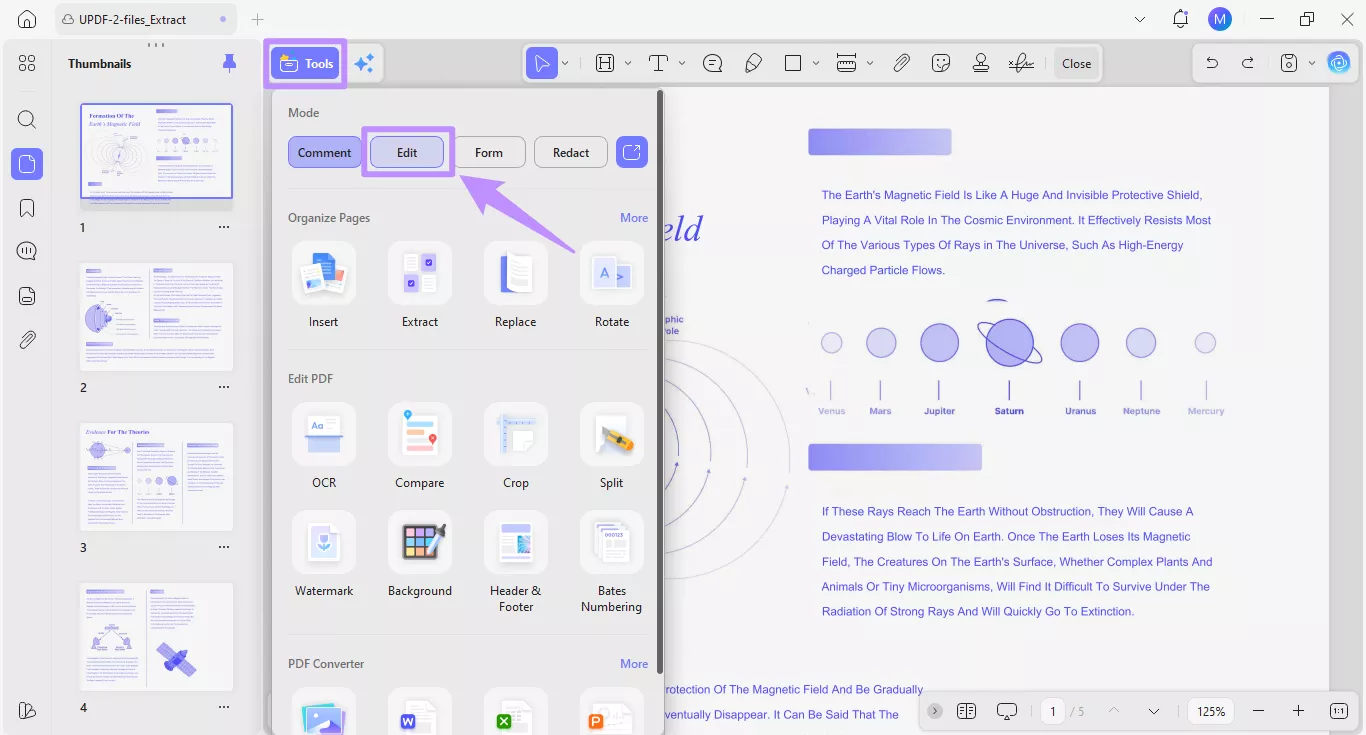
Step 1. Open the PDF you want to edit in UPDF and click the “Tools” option from the top. Then, select the “Edit” mode from the menu.
Step 2. Now click and select the text you want to modify. A floating toolbar will appear above the text. From here, click the “AI Edit” option. This will open a dropdown menu showing a prompt input box and a list of preset suggestions.
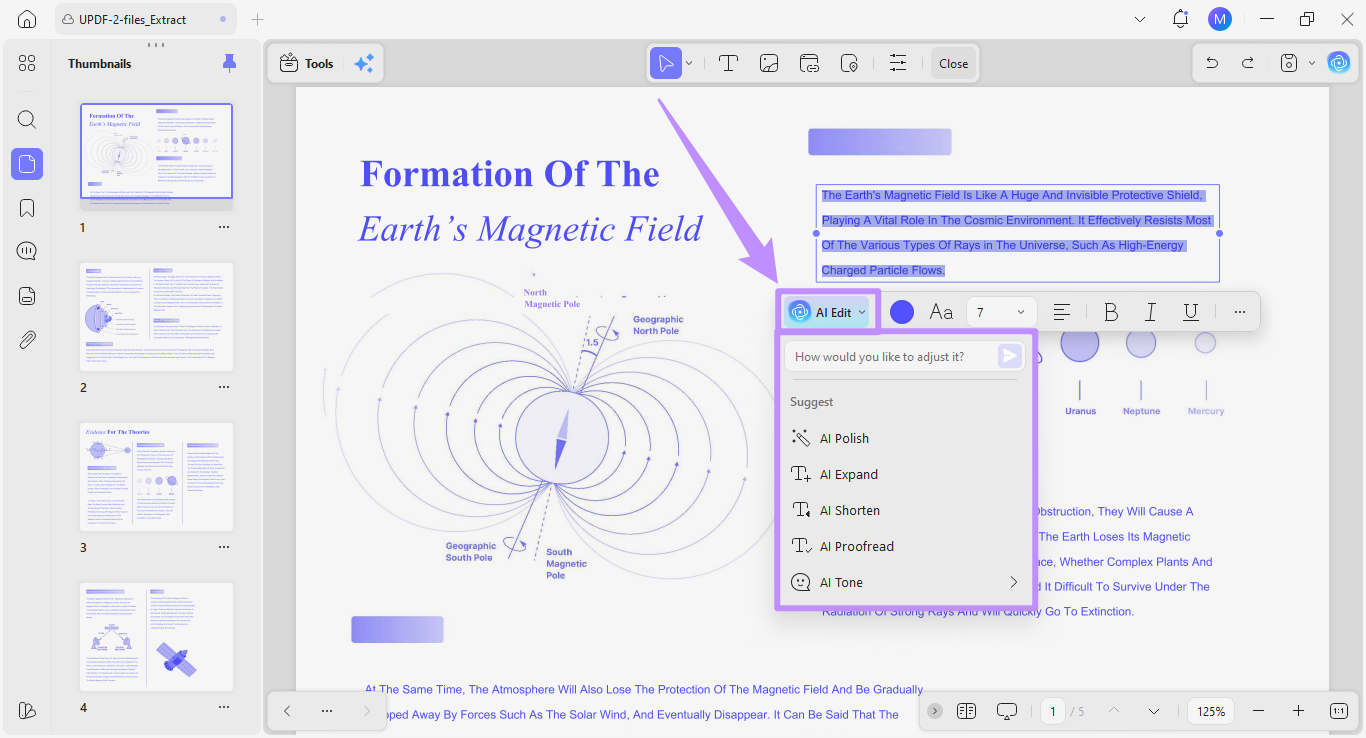
Let’s see how both methods work.
Method 1. Using Preset Options
If you want to work faster, you can use the preset suggestions to quickly revise and improve the PDF text. Once you select a preset, the AI automatically generates the appropriate edits. You won’t have to write detailed instructions yourself.
Let's look at what these presets mean and how they work.
1. AI Polish
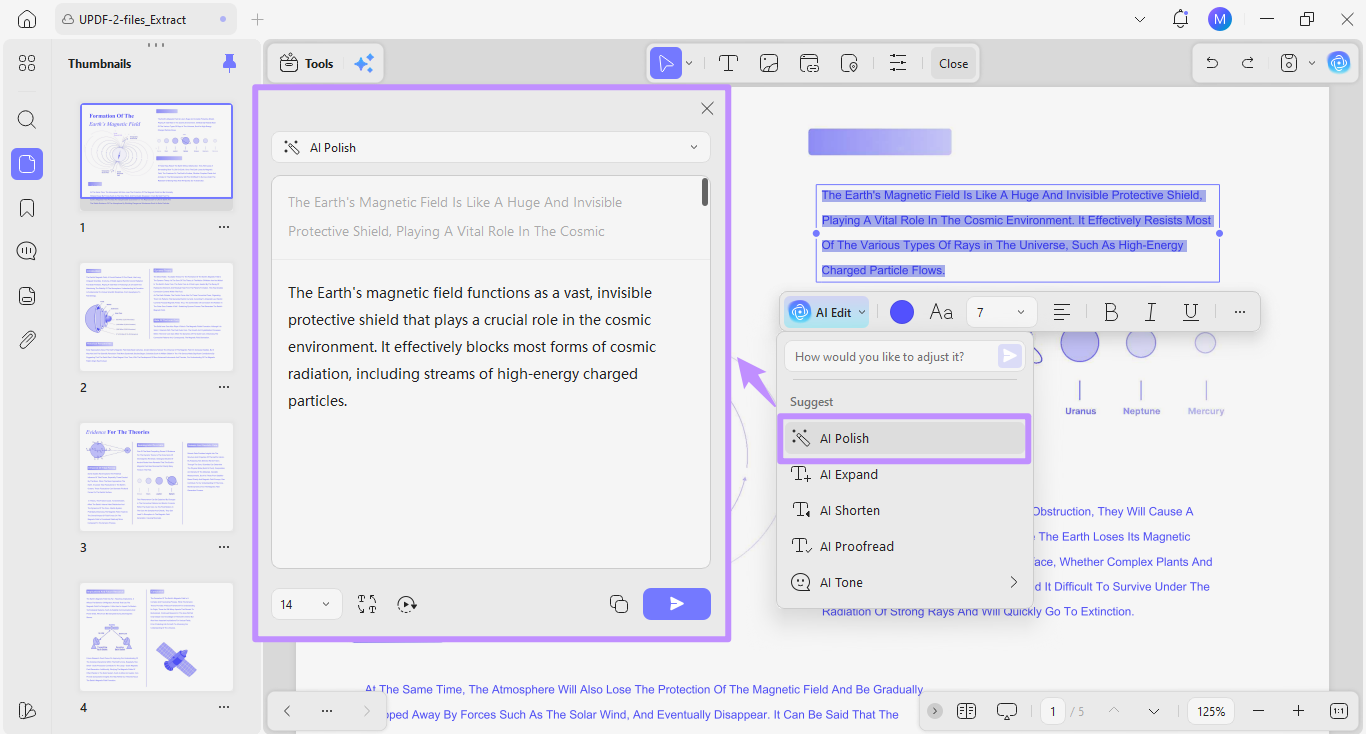
The AI Polish option automatically rewrites sentences to make them clearer, better organized, and easier to read.
- Select “AI Polish” from the list of presets in the AI Edit dropdown menu. The AI will analyze the text and provide a refined version in the response window.
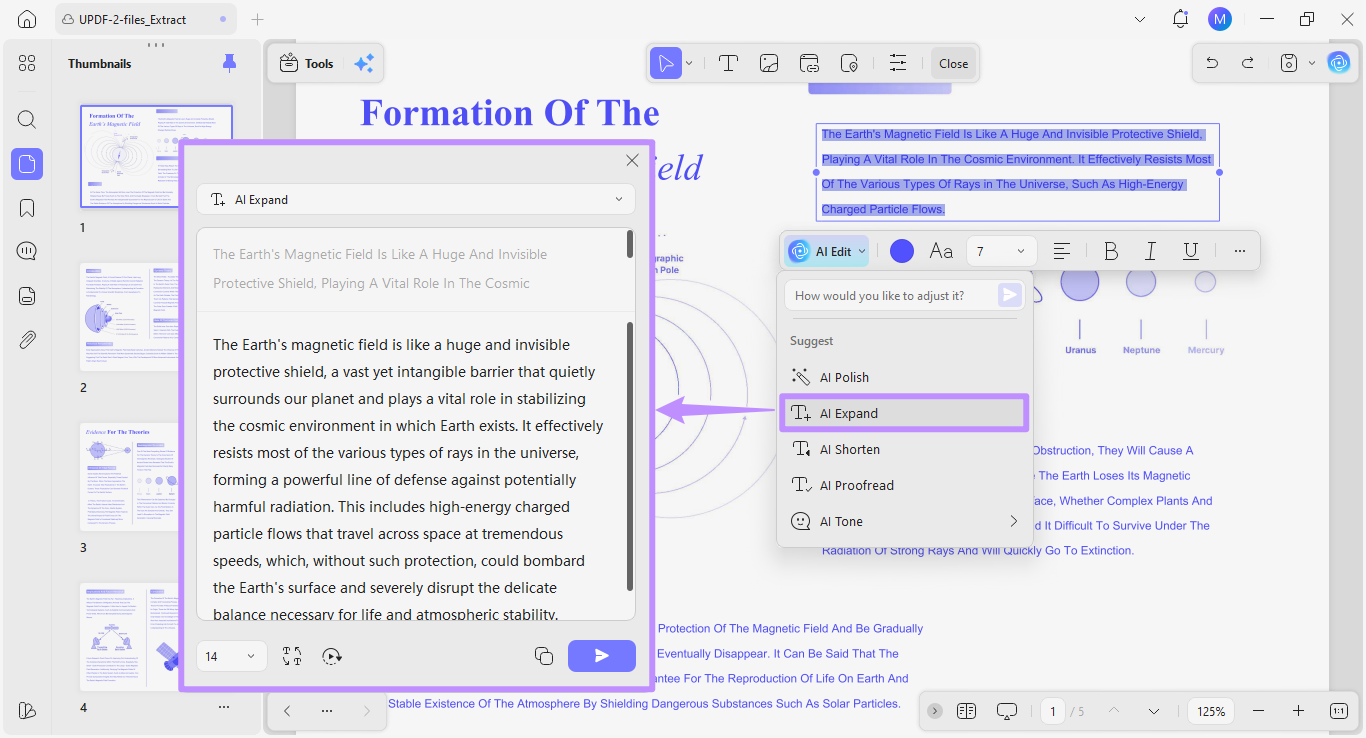
2. AI Expand
The AI Expand option allows you to add more detail and explanation to the selected text. This helps make your PDF content more descriptive and informative.
- Click the “AI Expand” option from the list of presets. The AI will scan the text and generate a longer and more detailed version.
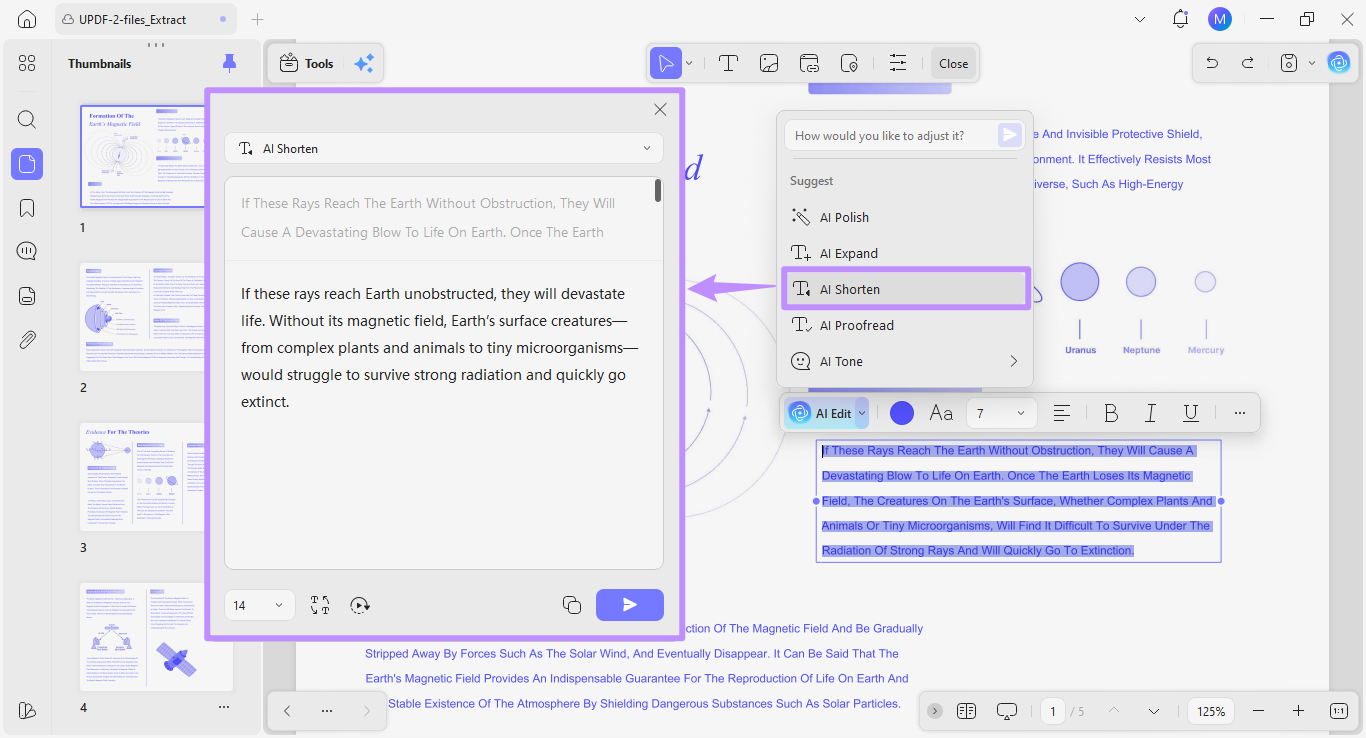
3. AI Shorten
If you find your PDF text to be too descriptive, you can use the "AI Shorten" tool to condense it into a shorter version.
- Select “AI Shorten” from the list of presets. The AI will instantly provide a more concise version while still keeping important information intact.
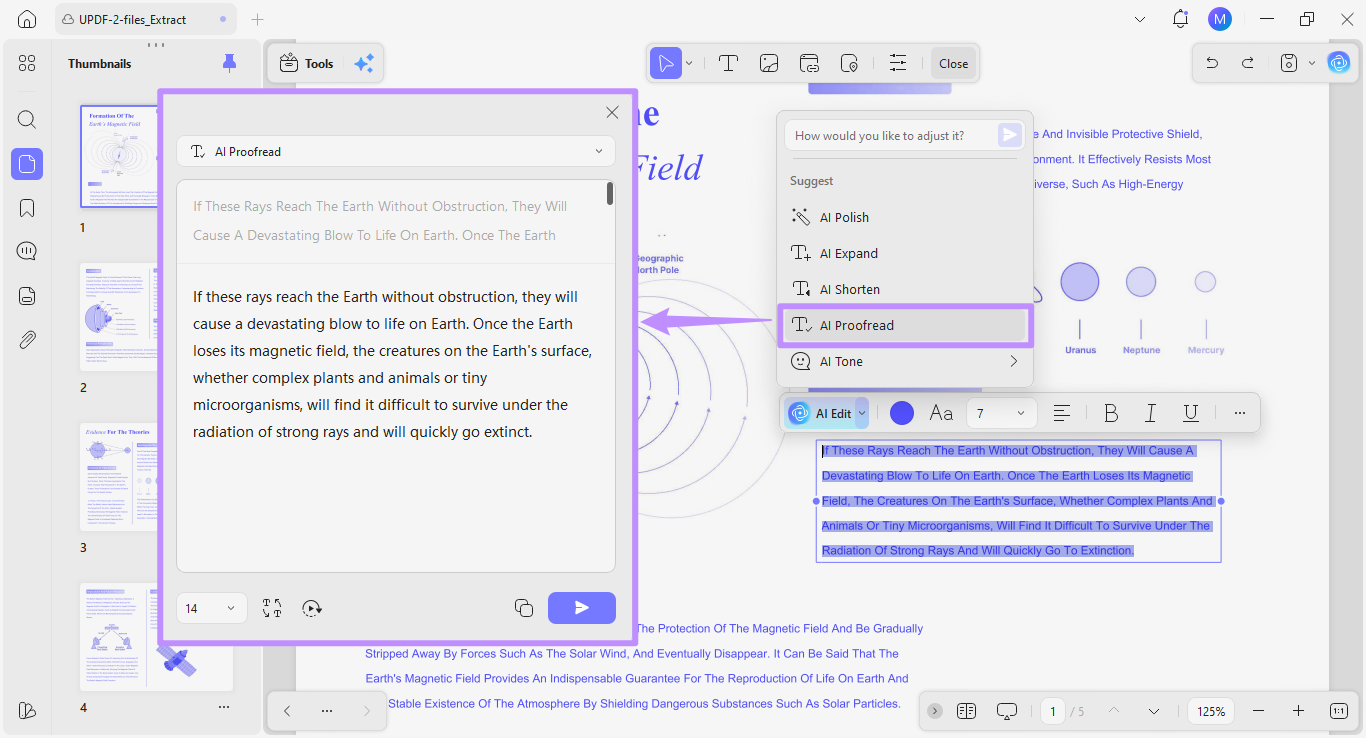
4. AI Proofread
If your PDF text has any grammatical issues, the "AI Proofread" option automatically checks and corrects grammar, spelling, or punctuation errors.
- Select the “AI Proofread” preset option from the list. The AI will scan the text and provide an optimized version.
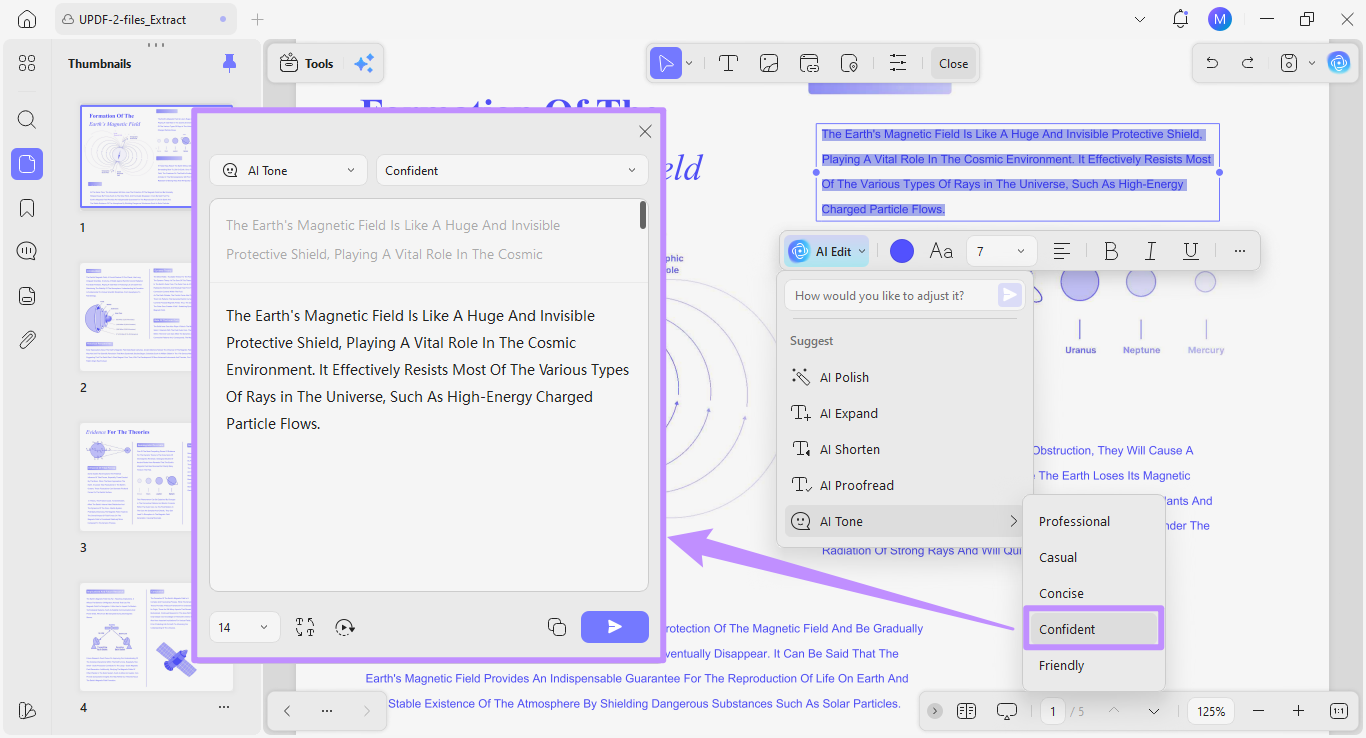
5. AI Tone
If you want to change the writing tone of your PDF text, the AI Tone option allows you to match the text to a specific style.
- Select “AI Tone” from the list of presets. Then, choose your desired tone from the expanded menu. You can select Professional, Casual, Concise, Confident, or Friendly.
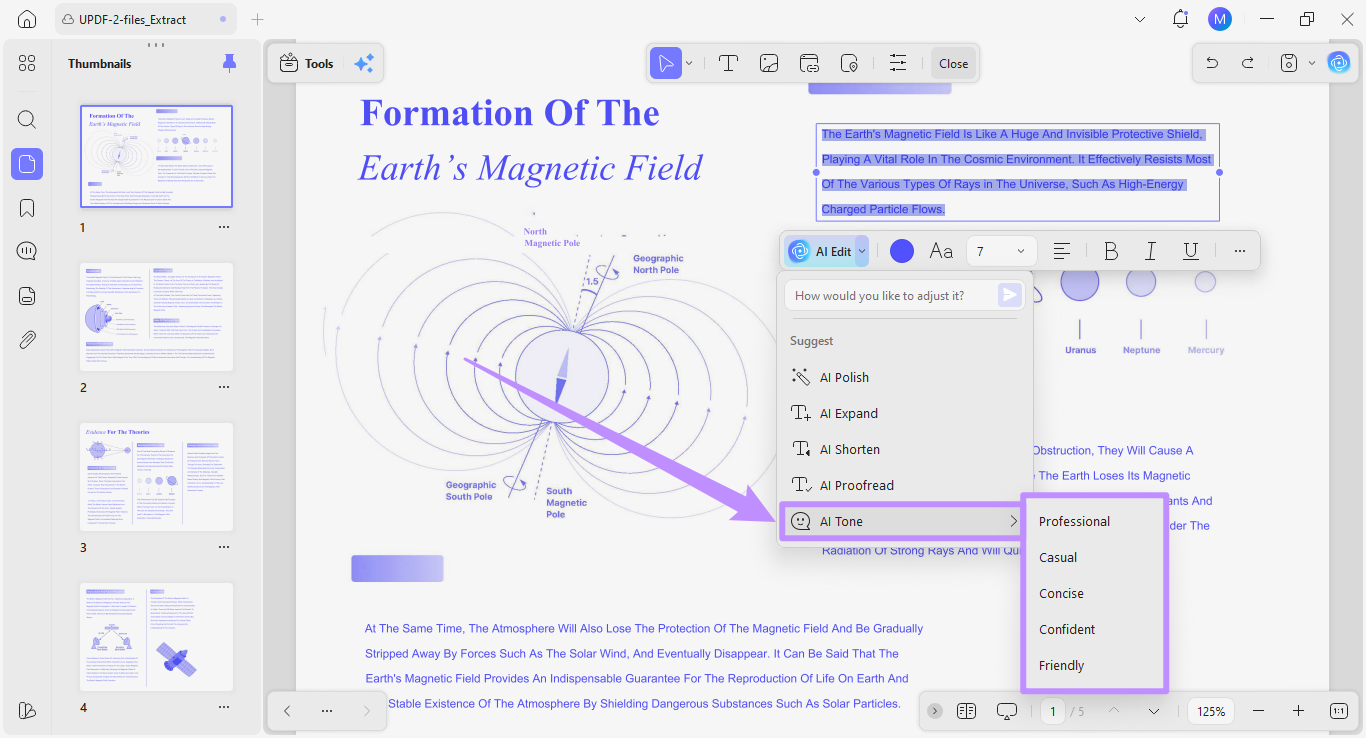
- Once you select a tone, the AI will rewrite the text based on the selected style.
Method 2. Using Custom Prompt
Apart from using presets, you can type your own editing instructions in the prompt field. This gives you more control over the editing without having to brainstorm each step yourself.
Here’s how it works.
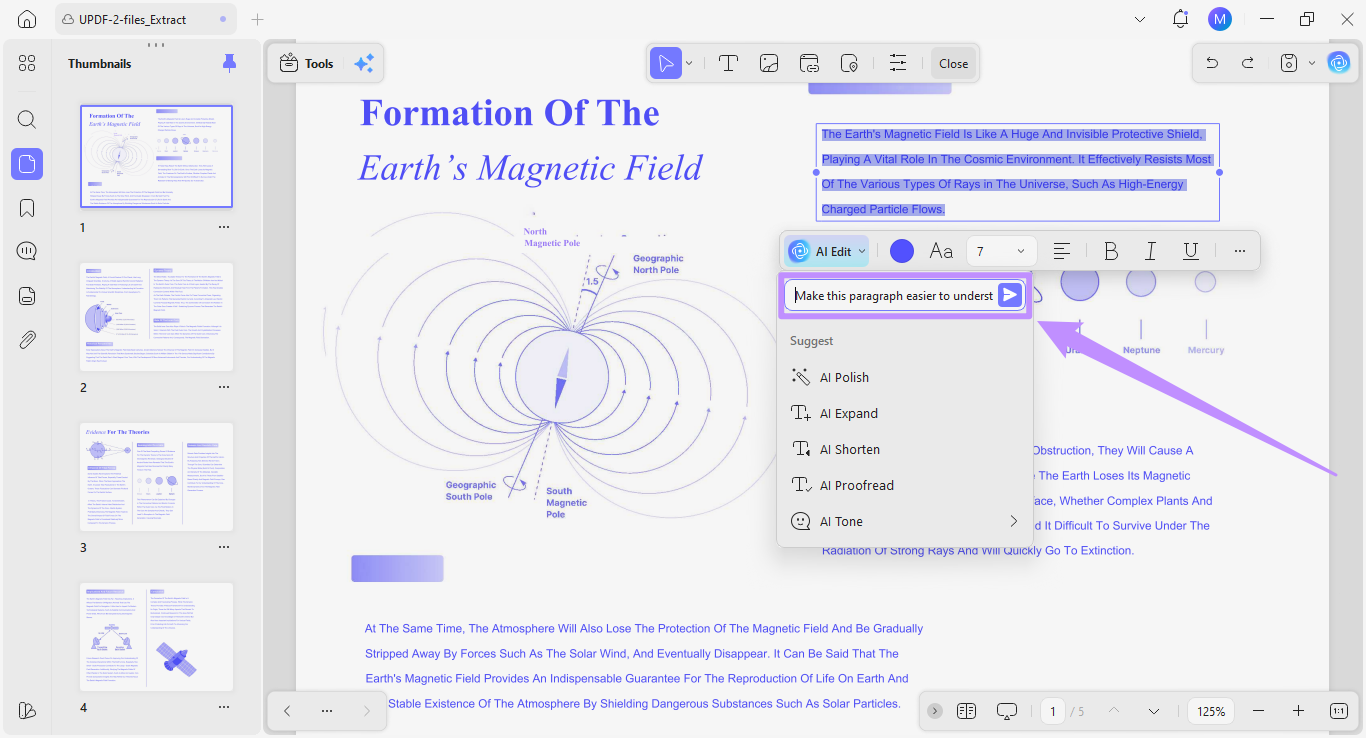
Step 1. Click the text field under the AI Edit dropdown menu and describe how to edit the text in plain language.
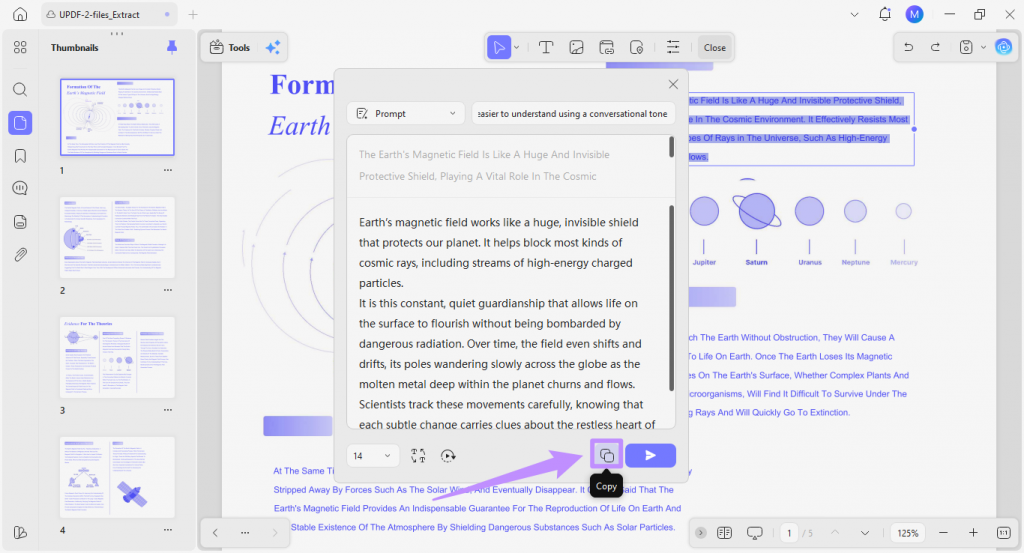
- For example, you can ask AI, “Make this paragraph easier to understand using a conversational tone.” Once you’re done writing, click the “Send” button.
Step 2. The AI will adjust the PDF text according to your instructions. You can view the response in the new text window.
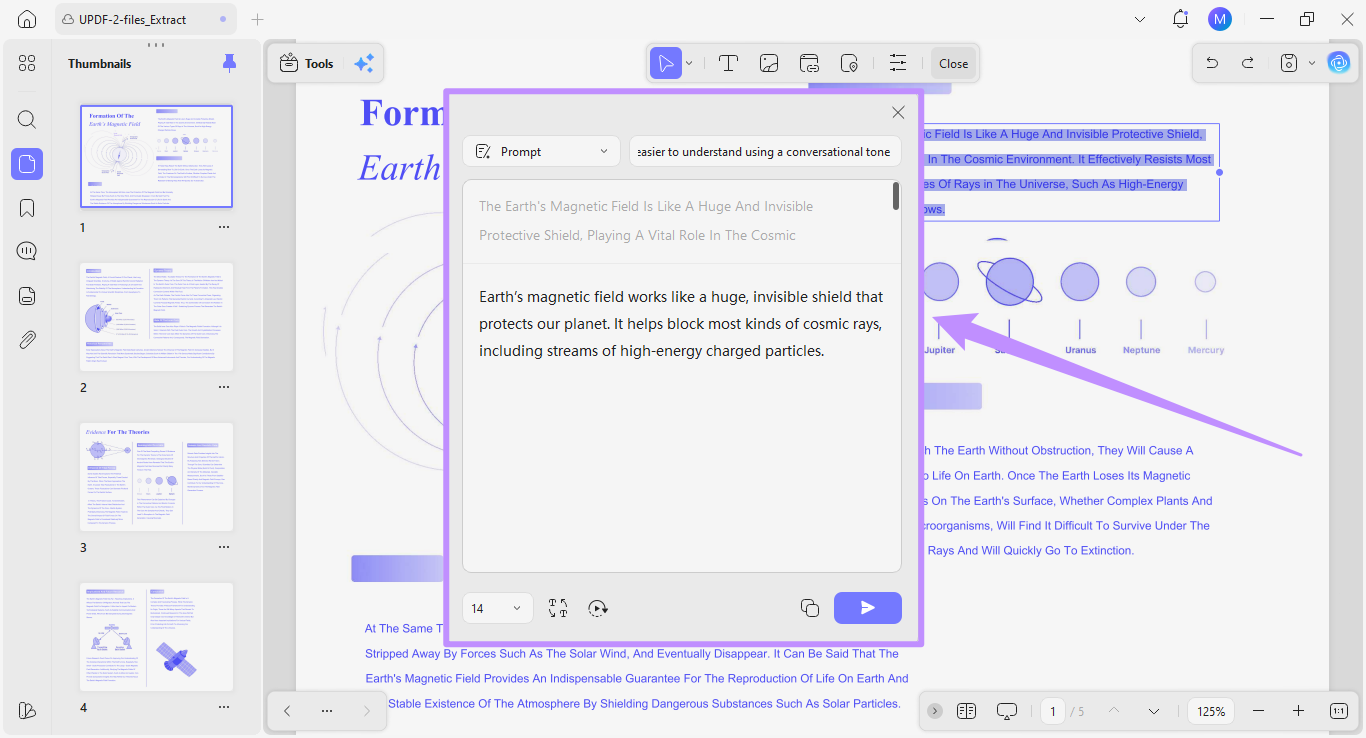
Review and Apply AI-Generated Edits
Regardless of the method you use, UPDF allows you to interact with the AI output using several options. These include:
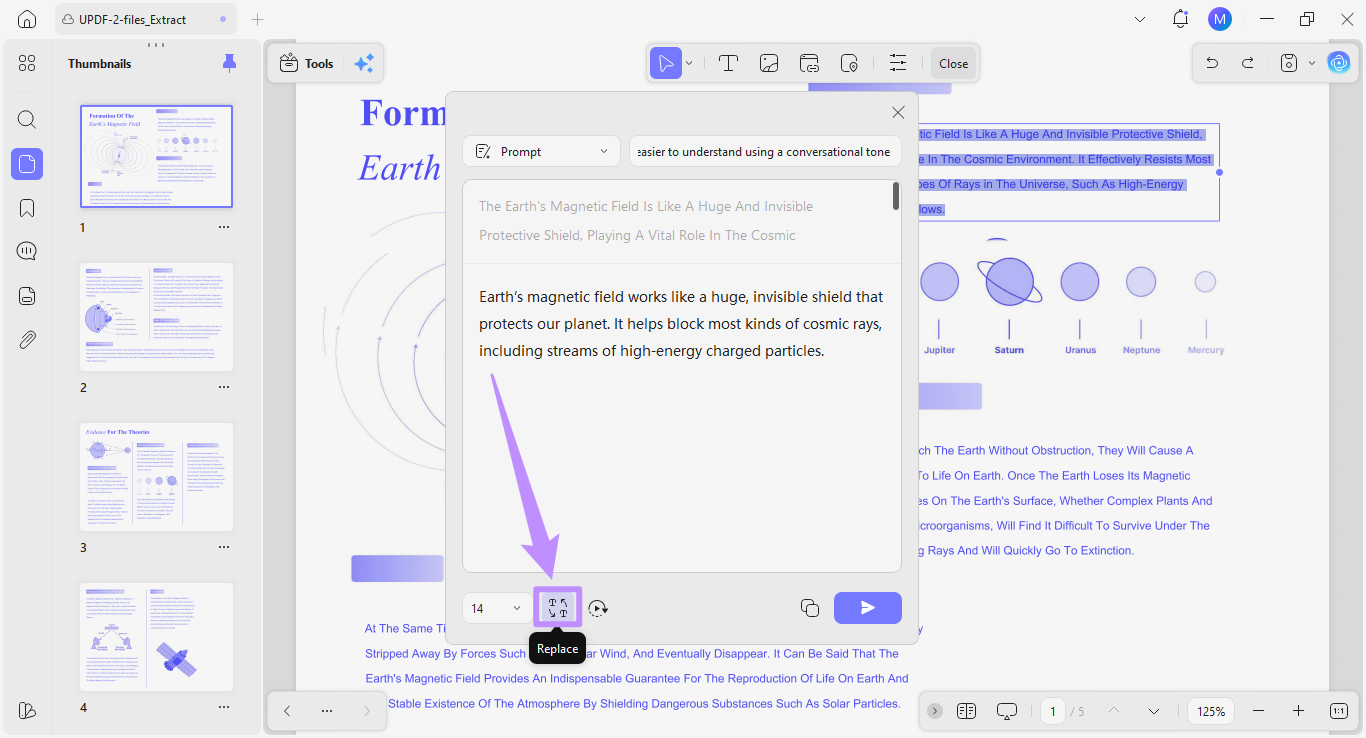
1. Replace: Click on “Replace” at the bottom of the AI response window. This will insert the AI-edited text in place of the original text in the PDF file.
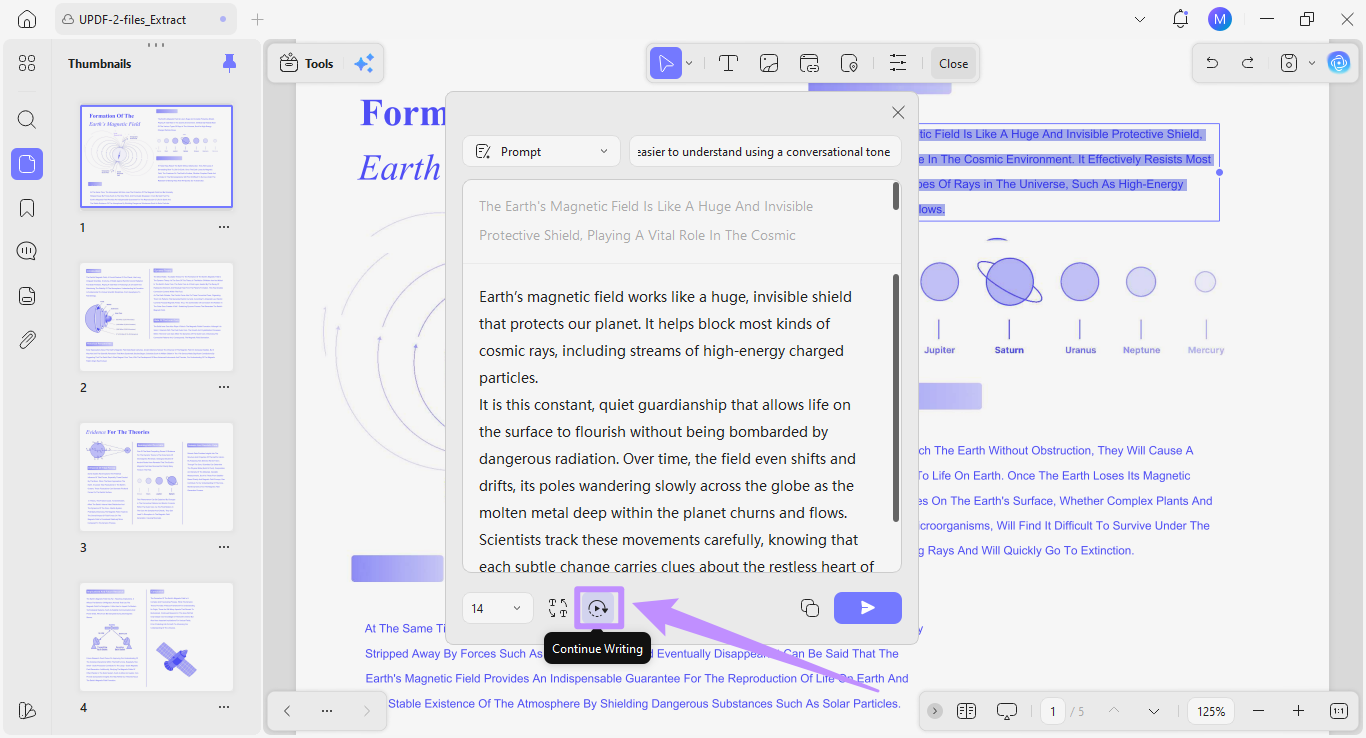
2. Continue Writing: If you want to expand the content further with more details, click the “Continue Writing” option. The AI will continue to add more details beyond the text you selected for editing.
3. Copy: Click the “Copy” icon to copy the AI response to your clipboard and use it in other documents.