UPDF
UPDF
 UPDF for Windows
 UPDF for Mac
 UPDF for iPhone/iPad
 UPDF for Android
 Nomostar
 UPDF AI Online
 UPDF Sign
 IvyCraft
 Edit PDF
 Annotate PDF
 Create PDF
 PDF Form
 Edit links
 Convert PDF
 OCR
OCR PDF to Word
 PDF to Image
 PDF to Excel
 Organize PDF
 Merge PDF
 Split PDF
 Crop PDF
 Rotate PDF
 Protect PDF
 Sign PDF
 Redact PDF
 Sanitize PDF
 Remove Security
 Read PDF
 UPDF Cloud
 Compress PDF
 Print PDF
 Batch Process
 About UPDF AI
 UPDF AI Solutions
 AI User Guide
 FAQ about UPDF AI
 Summarize PDF
 Translate PDF
 Chat with PDF
 Chat with AI
 Chat with image
 PDF to Mind Map
 Explain PDF
 PDF AI Tools
 Image AI Tools
 AI Chat Tools
 AI Writing Tools
 AI Study Tools
 AI Working Tools
 Other AI Tools
 AI Bookmark Generation
 AI Bookmark Summary
 AI Watermark Generation
 AI Background Generation
 AI Sticker Generation
 AI Stamp Generation
 AI Editing Suite
 UPDF Copilot
 AI Page Management
 AI Semantic Search
 PDF to Word
 PDF to Excel
 PDF to PowerPoint
 Enterprise Solution
 Enterprise Sign
 Enterprise AI
 Enterprise Plan
 Enterprise User Guide
 Enterprise Webinar
 Banking
 Healthcare
 Insurance
 Legal
Legal Manufacturing
 Government
 Researchers & PhDs
 Solopreneurs & Freelancers
 Lawyers & Legal Professionals
 Real Estate Agents & Brokers
 Education Solution
 Customer Stories
 User Guide
 UPDF Tricks
 FAQs
FAQs UPDF Reviews
 Download Center
 Blog
Blog Newsroom
 Tech Spec
 Updates
 UPDF vs. Adobe Acrobat
 UPDF vs. Foxit
 UPDF vs. PDF Expert

AI-Generate and Summarize Bookmarks in PDF
If you're working with large and complex documents, adding bookmarks for each chapter can be exhaustive and time-consuming. Instead of manually adding them one by one, UPDF lets you use AI to automatically generate a well-organized bookmark structure in seconds.
Moreover, if your PDF has existing bookmarks that are messy or incomplete, the AI can reorganize the structure and insert missing entries. You can even generate concise summaries for each bookmark chapter.
That said, follow the guide below to learn how to AI-generate and summarize bookmarks in UPDF.
Part 1. AI-Generate Bookmarks
UPDF’s AI-Generate Bookmarks feature automatically detects headings and hierarchy of your document to create parent and child bookmarks. Moreover, you can generate bookmarks in multiple languages, translate existing bookmarks, and customize them.
Here are the steps.
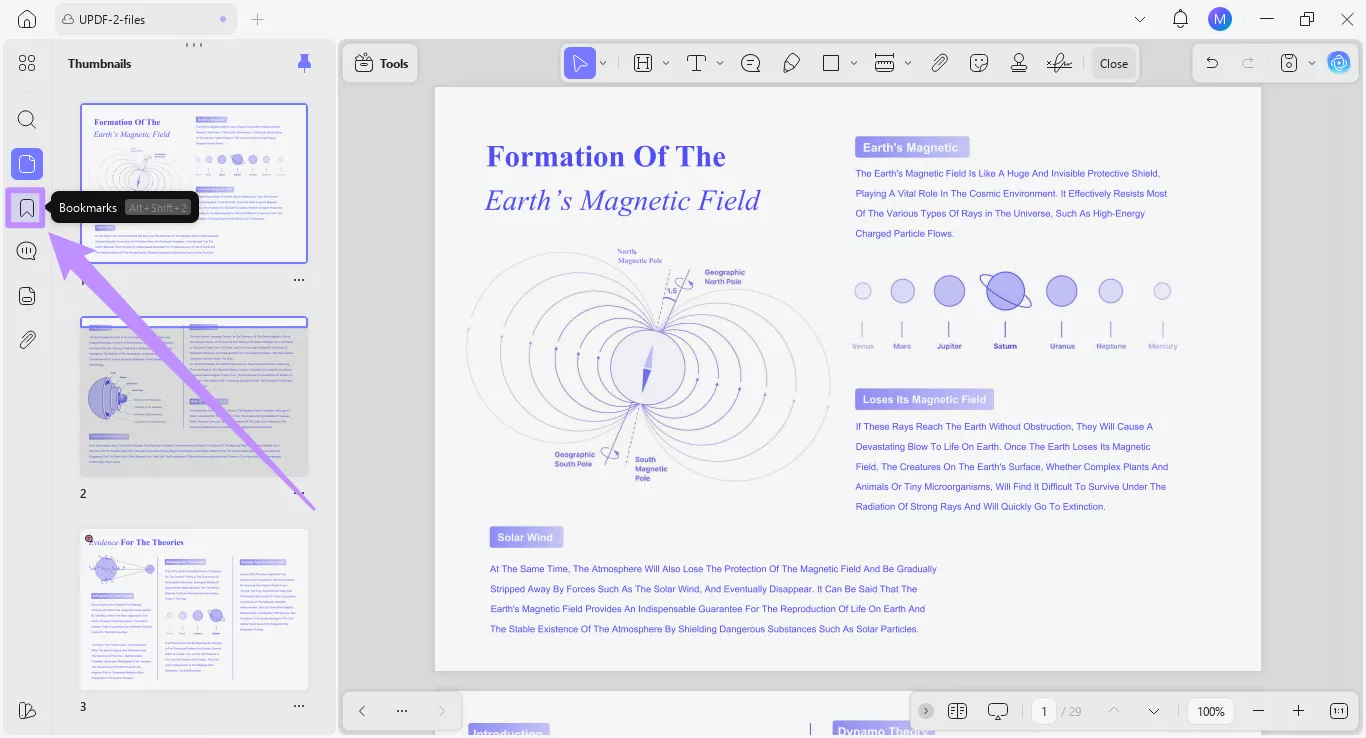
Step 1. Open the Bookmarks Panel
Open your PDF document in UPDF and click the “Bookmarks” icon on the left sidebar.
Step 2. Generate Bookmarks Automatically
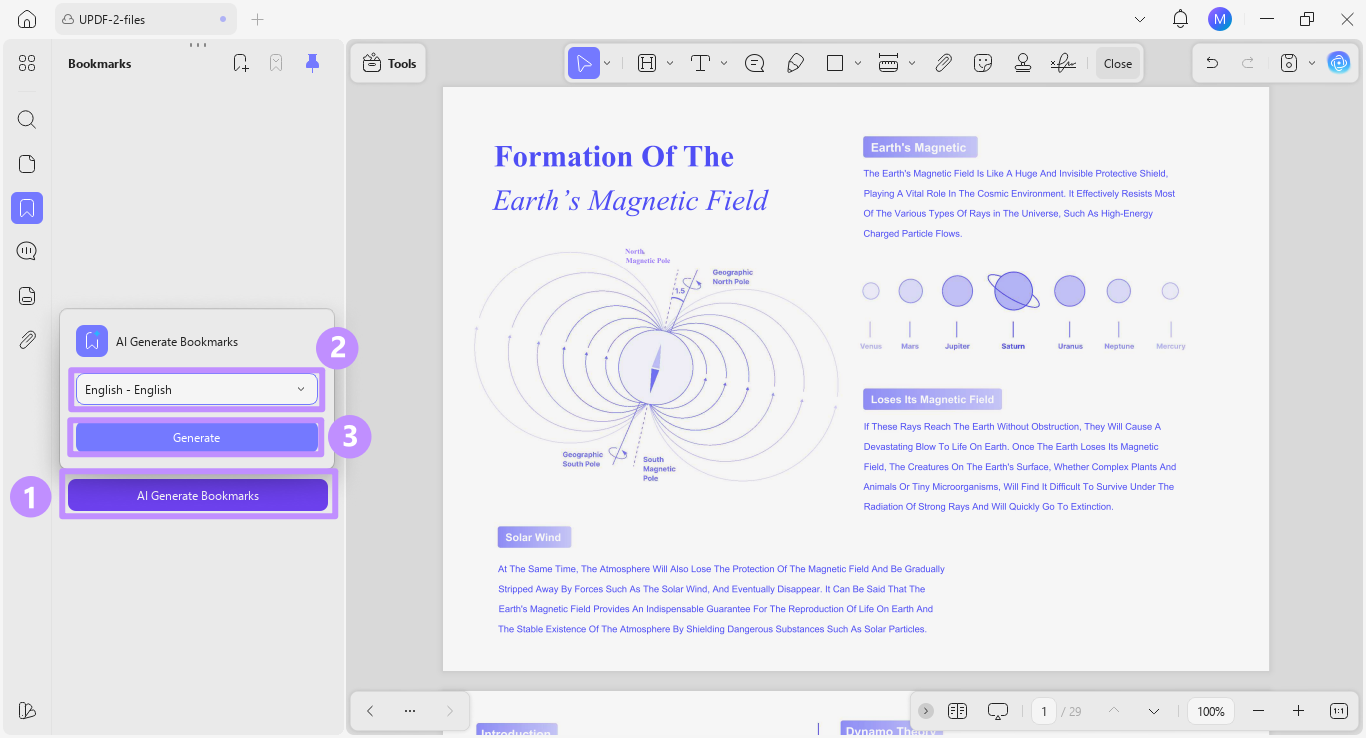
From the Bookmarks panel, click the “AI Generate Bookmarks” button. Then, choose your desired bookmarks language from the dropdown. You can select from 26 different languages as needed. Once you’re done, click “Generate.”
Step 3. Expand or Collapse Sub-Bookmarks
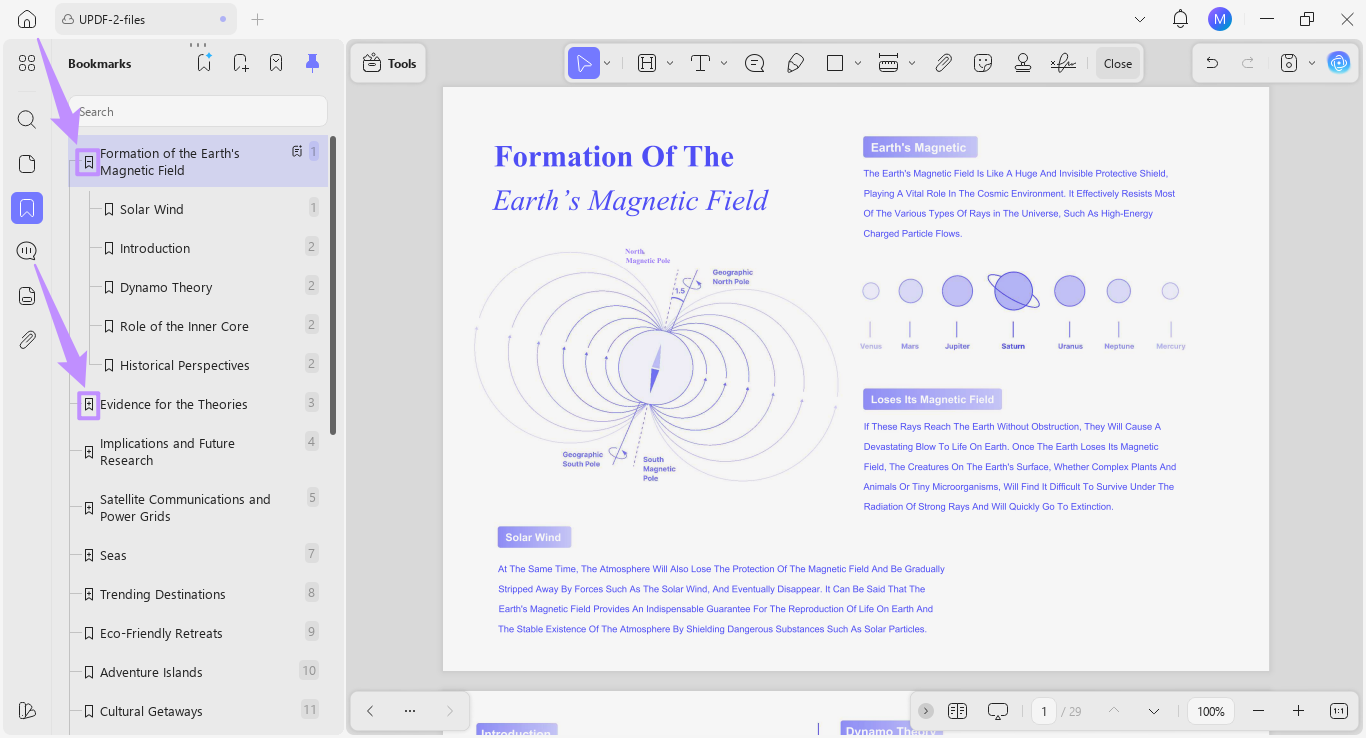
UPDF’s AI will deeply read your entire document. Then, it will automatically create a structured bookmarks list, complete with child (sub-level) bookmarks.
- To view child bookmarks, you can click bookmarks with the “+” icon to expand them.
- Similarly, you can collapse the expanded bookmarks by clicking on the “-” icon.
Step 4. Translate Existing Bookmarks
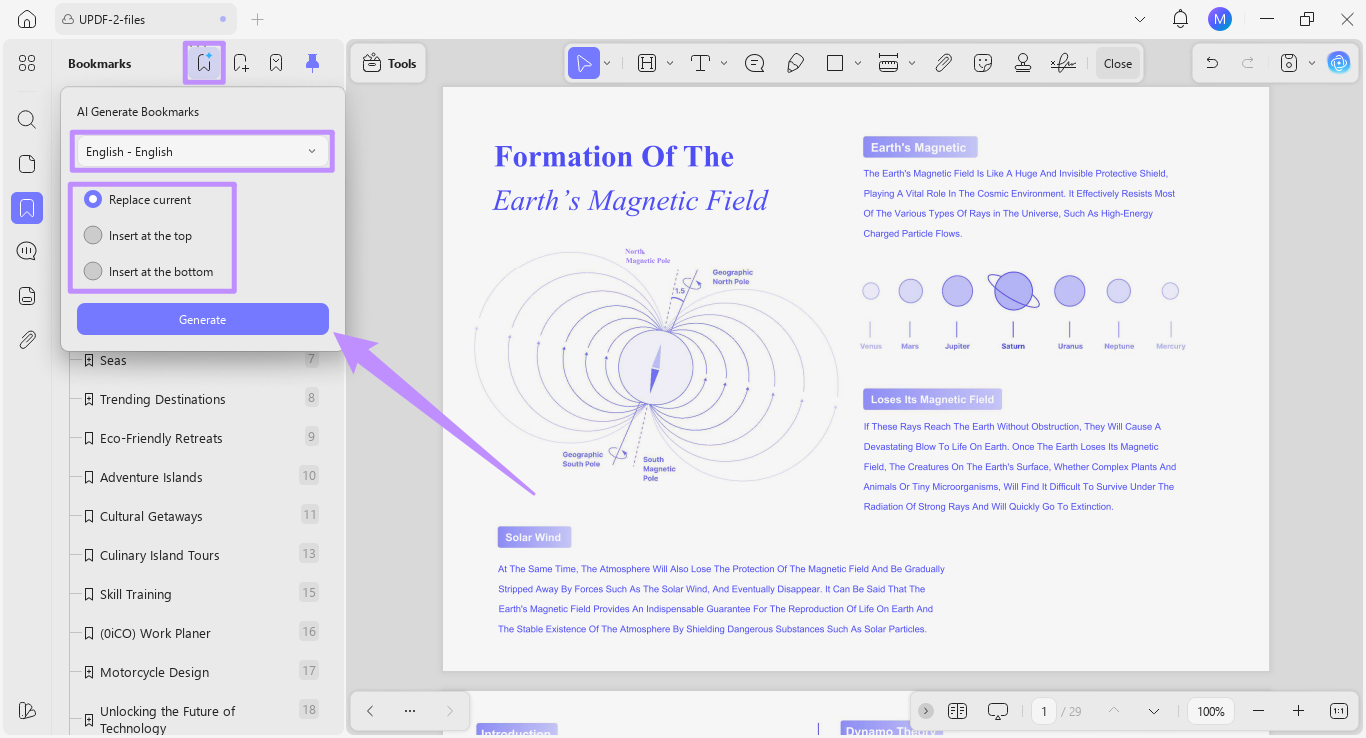
To translate your current bookmarks, click the “AI Generate Bookmarks” icon at the top. Then, select your target language from the dropdown menu and choose how you want the translated bookmarks to appear. You have 3 different options.
- Replace Current: Replaces all existing bookmarks with the translated version.
- Insert at the Top: Adds translated bookmarks above the current bookmarks.
- Insert at the Bottom: Adds translated bookmarks below the current bookmarks.
Once you’re done with the settings, click the “Generate” button.
Step 5. Manually Add New Bookmarks
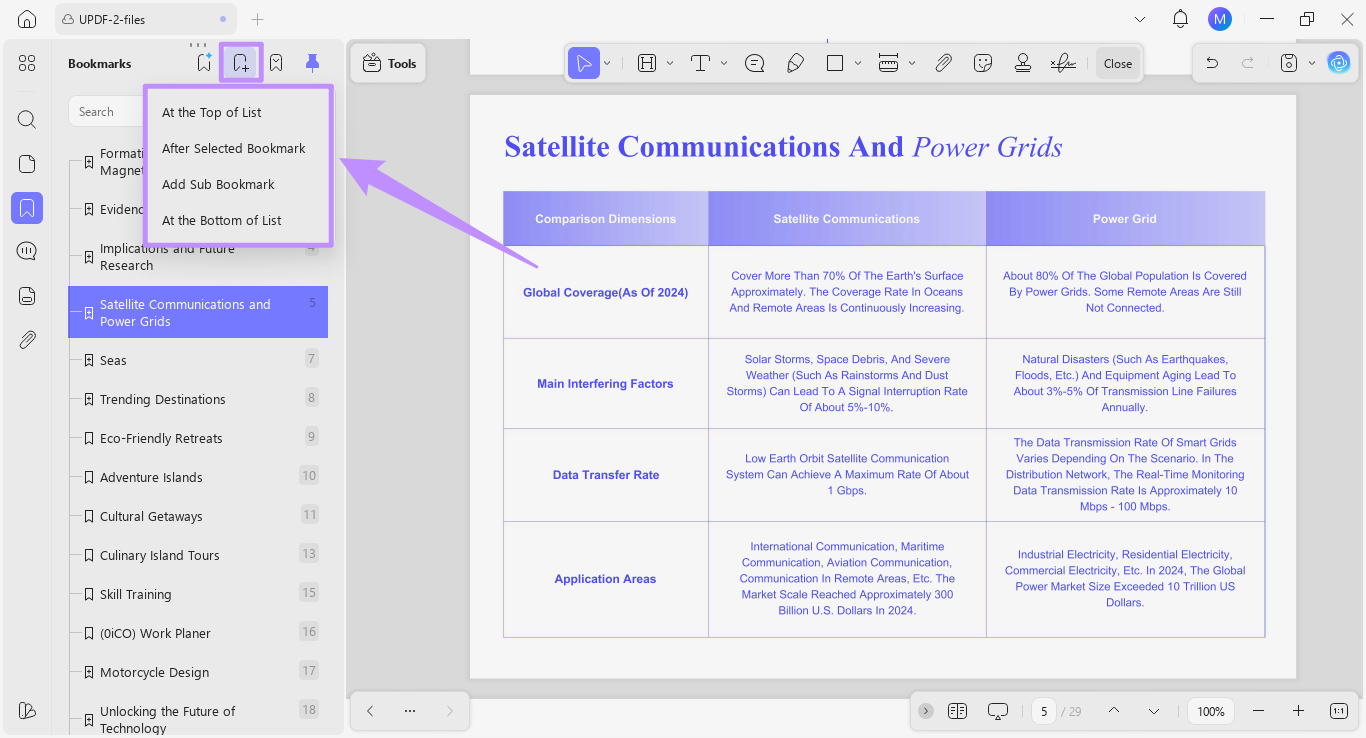
If you want to create a new bookmark, click the “Add Bookmark” icon at the top. Then, choose where to place the new bookmark from the menu.
Note:
Step 6. Manage Bookmark Display
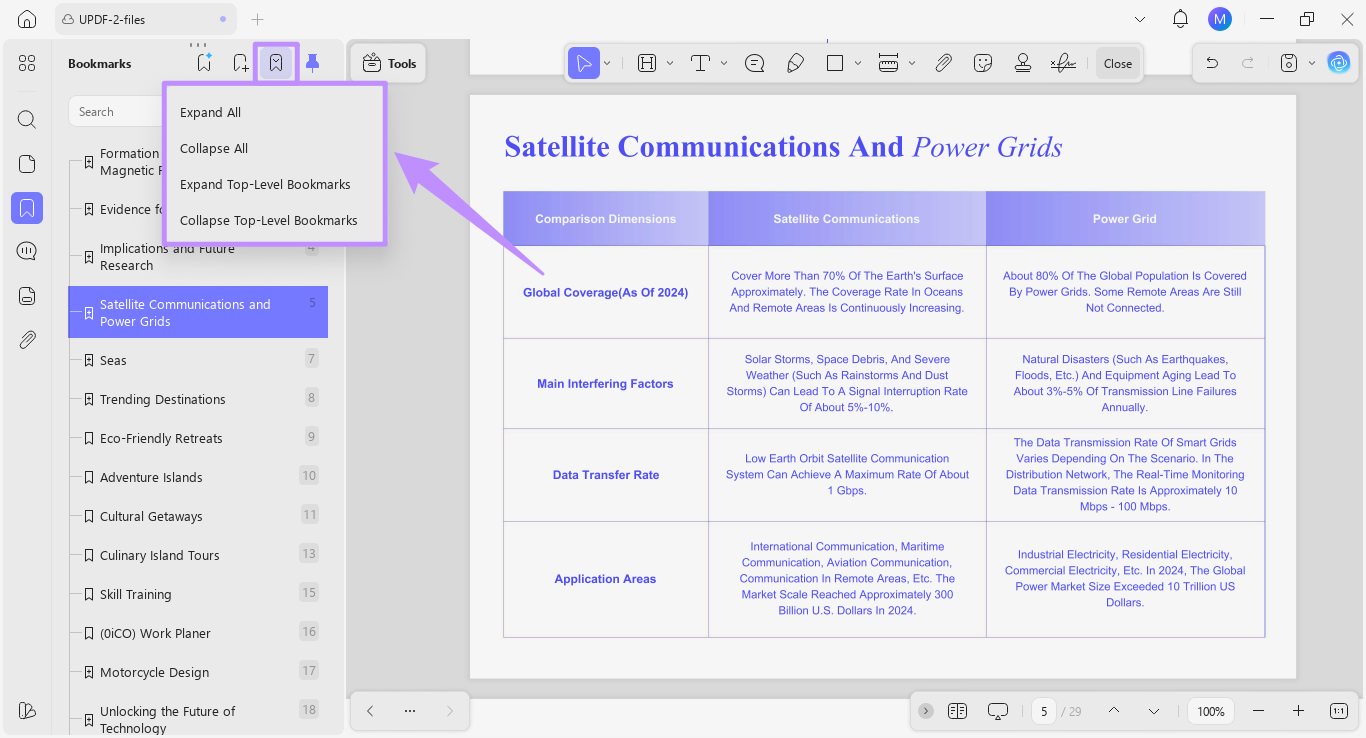
You can also control how your bookmark structure should appear. Click the Bookmark dropdown from the top and choose one of the following options from the menu:
- Expand All: Shows all bookmarks and sub-bookmarks at once.
- Collapse All: Collapses all bookmarks into a simple list view.
- Expand Top-Level Bookmarks: Expands only the parent bookmarks while keeping sub-bookmarks out of your view.
- Collapse Top-Level Bookmarks: Collapses only the main bookmarks for a cleaner view.
Step 7. Pin the Bookmarks Panel
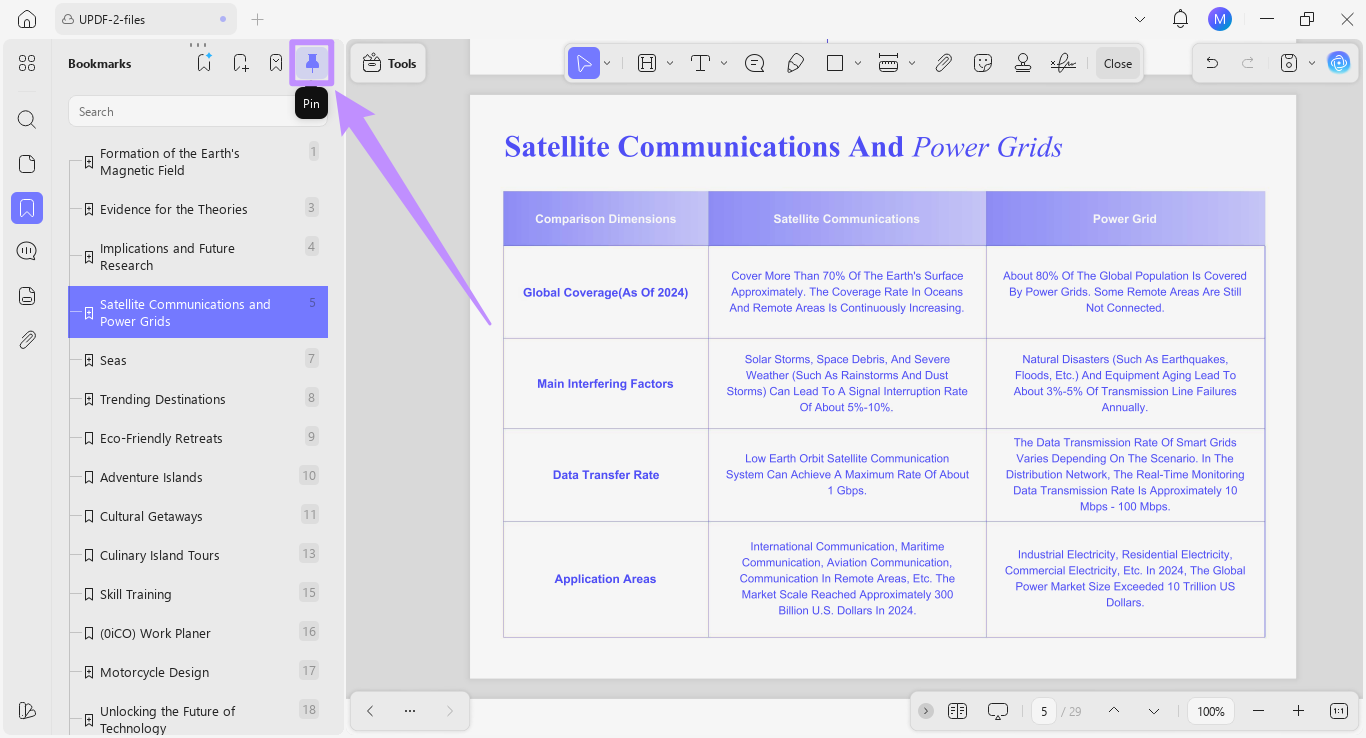
You can also keep the bookmarks panel fixed and visible while you work on the document. To do this, click the “Pin” icon at the top. This way, you can review your document and manage bookmarks at the same time.
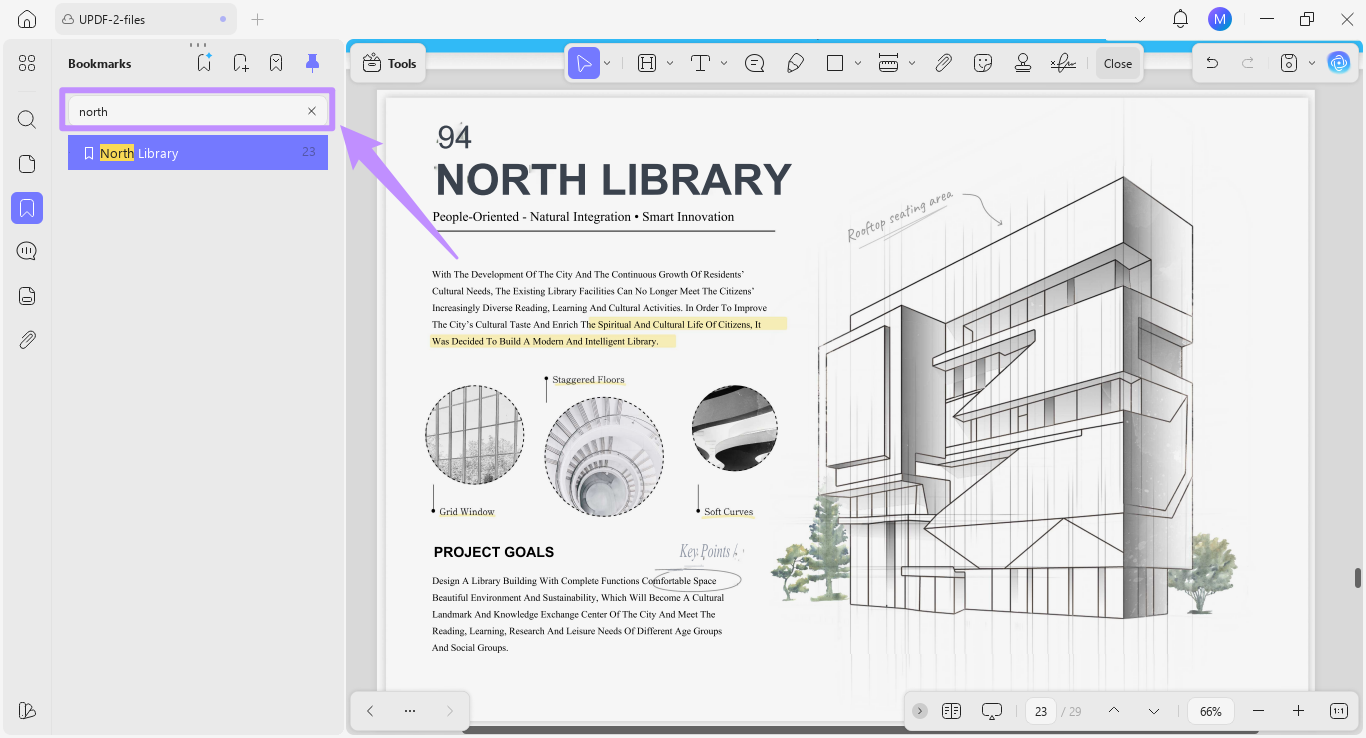
Step 8. Search for a Bookmark
If you want to find a specific bookmark, click the search bar at the top. Then, enter your desired keywords to locate a specific bookmark in the list.
Part 2. AI-Summarize Bookmark
Apart from generating bookmarks, UPDF’s AI can also create a quick summary of any bookmarked chapter. In seconds, it produces three key bullet points and allows you to add the summary as a note to your PDF for easy reference in the future.
Let’s go through the steps.
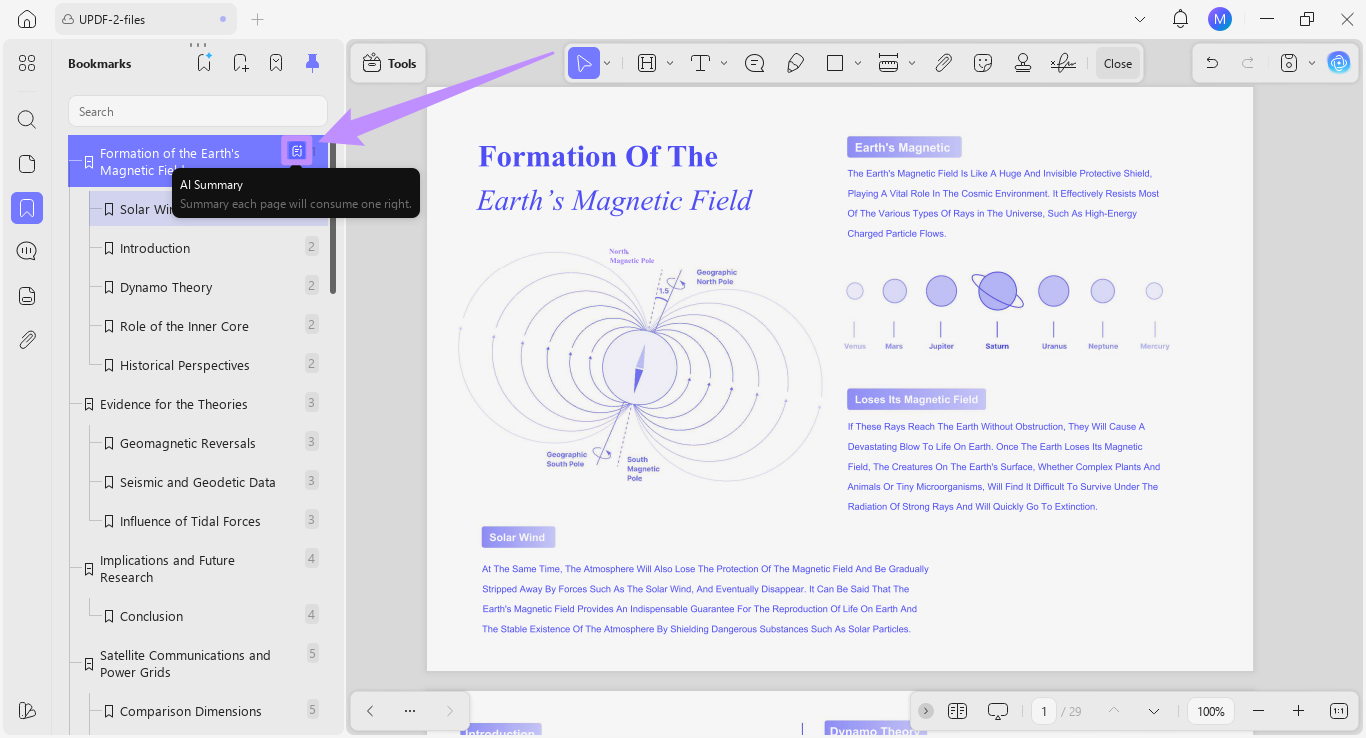
Step 1. Select the AI Summary option
Open the Bookmarks panel and click the bookmark you want to summarize. Then, click the “AI Summary” option on the right of the selected bookmark.
Step 2. Generate and Manage the AI Summary
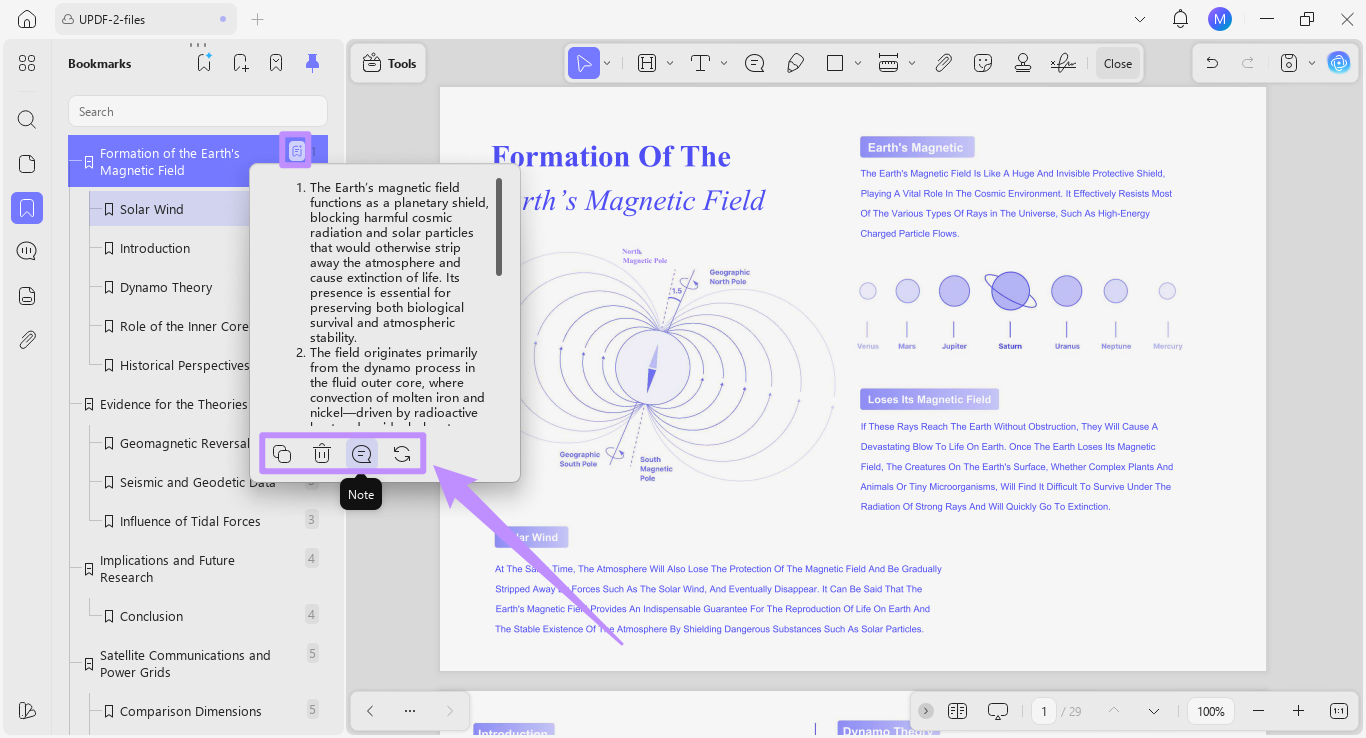
The AI will sum up the main takeaways from the chapter in 3 concise bullet points. Below the AI summary, you can use the following options to interact with it:
- Regenerate: Create a new version of the summary.
- Note: Add the summary as a note to the selected chapter for quick reference later.
- Delete: Remove the AI-generated summary.
- Copy: Copy the summary to your clipboard to paste or share elsewhere.
Step 3. Alternative Access Method
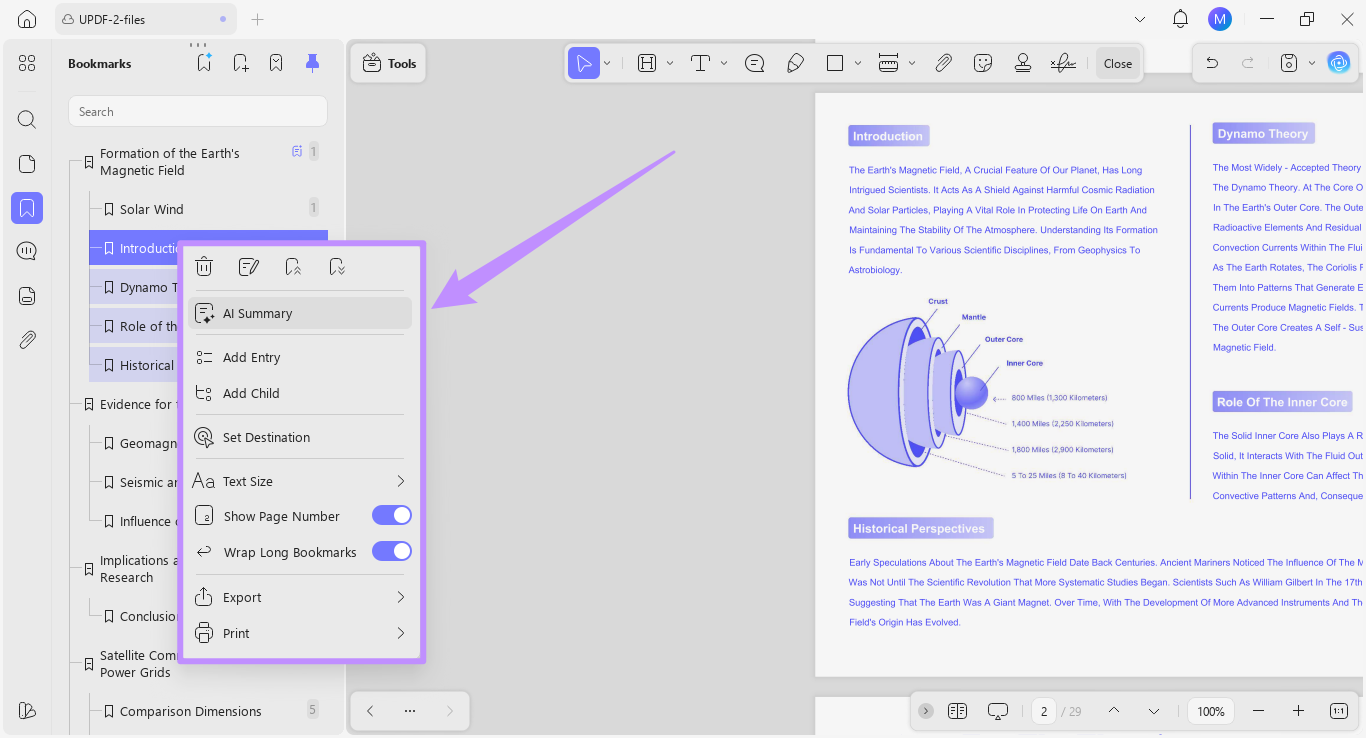
You can also right-click the selected bookmark and choose AI Summary from the context menu. From this same menu, you can further manage your bookmarks with options such as Delete, Rename, Promote, Demote, and other customization options.