 UPDF
 UPDF for Windows
 UPDF for Mac
 UPDF for iPhone/iPad
 UPDF for Android
 Nomostar
 UPDF AI Online
 UPDF Sign
 IvyCraft
 Edit PDF
 Annotate PDF
 Create PDF
 PDF Form
 Edit links
 Convert PDF
 OCR
 PDF to Word
 PDF to Image
 PDF to Excel
 Organize PDF
 Merge PDF
 Split PDF
 Crop PDF
 Rotate PDF
 Protect PDF
 Sign PDF
 Redact PDF
 Sanitize PDF
 Remove Security
 Read PDF
 UPDF Cloud
 Compress PDF
 Print PDF
 Batch Process

 About UPDF AI
 UPDF AI Solutions
 AI User Guide
 FAQ about UPDF AI
 Summarize PDF
 Translate PDF
 Chat with PDF
 Chat with AI
 Chat with image
 PDF to Mind Map
 Explain PDF
 PDF AI Tools
 Image AI Tools
 AI Chat Tools
 AI Writing Tools
 AI Study Tools
 AI Working Tools
 Other AI Tools
 AI Bookmark Generation
 AI Bookmark Summary
 AI Watermark Generation
 AI Background Generation
 AI Sticker Generation
 AI Stamp Generation
 AI Editing Suite
 UPDF Copilot
 AI Page Management
 AI Semantic Search
 PDF to Word
 PDF to Excel
 PDF to PowerPoint
 Enterprise Solution
 Enterprise Sign
 Enterprise AI
 Enterprise Plan
 Enterprise User Guide
 Enterprise Webinar
 IT
 Education
 Construction
 Financial Service
 Healthcare
 Insurance
 Legal
 Manufacturing
 Government
 Researchers & PhDs
 Solopreneurs & Freelancers
 Lawyers & Legal Professionals
 Real Estate Agents & Brokers
 Education Solution
 Customer Stories
 User Guide
 UPDF Tricks
 FAQs
 UPDF Reviews
 Download Center
 Blog
 Newsroom
 Tech Spec
 Updates
 UPDF vs. Adobe Acrobat
 UPDF vs. Foxit
 UPDF vs. PDF Expert


Explain PDFs with UPDF AI
UPDF AI's Explain feature helps you quickly understand complex PDFs, including technical reports, contracts, and research papers. Available on Windows, Mac, Android, iOS, and online, it makes PDF content easier to understand. Follow the steps below to get started.
Table of Contents
Part 1. Explain PDFs with UPDF AI Assistant on Windows and Mac
Method 1. Select to Explain
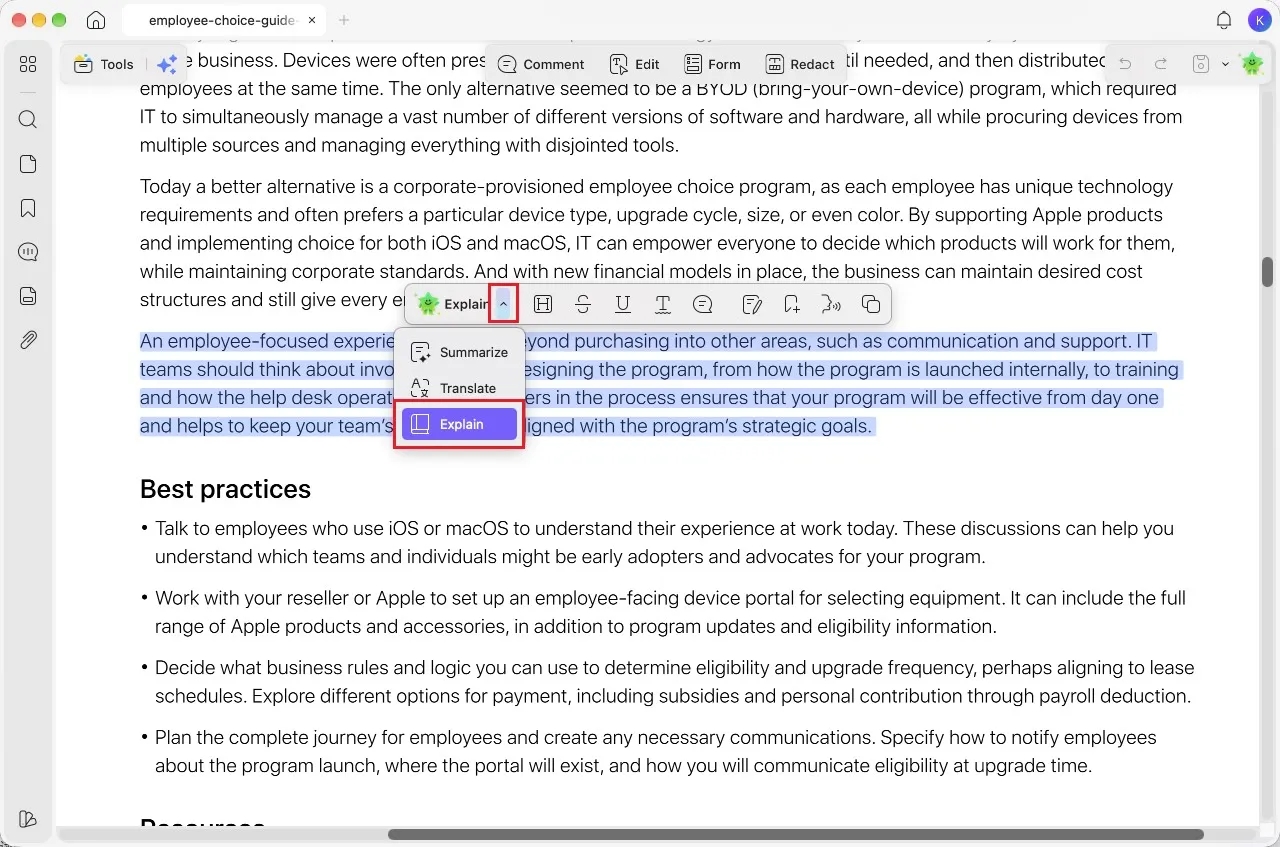
Step 1. Select the text you want explained in your PDF. In the floating toolbar, click the arrow next to the AI option and choose “Explain.”
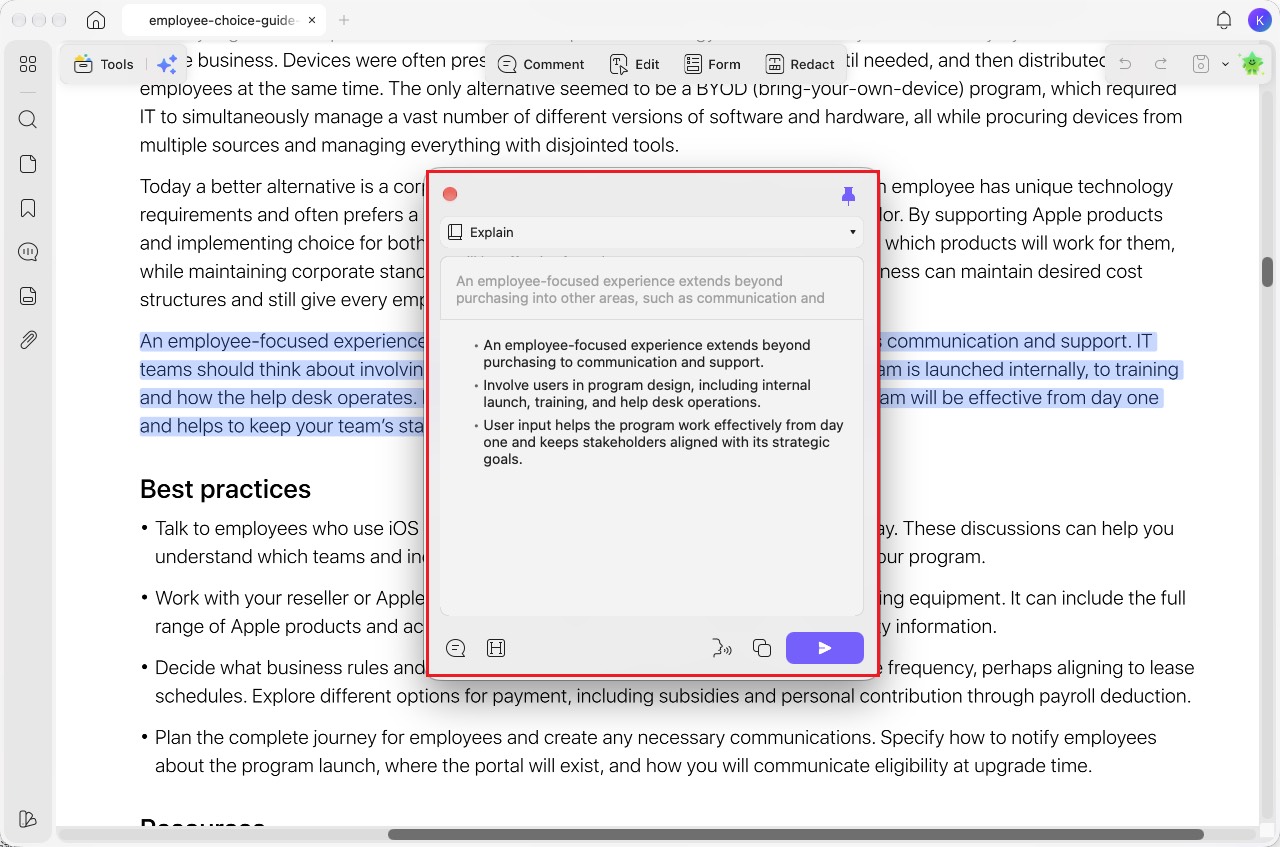
Step 2. Review the explanation in the pop-up window. Use “Pin” to keep the window visible, “Add Sticky Note” or “Add Highlight Note” to add the explanation to your PDF, “Start Speaking” to hear it read aloud, or “Copy” to copy it. To revise the explanation, click the original text at the top, edit it, then click “Generate.” You can also switch to “Summarize” or “Translate” using the drop-down next to “Explain.”
Method 2. Explain Selective Content from the PDF
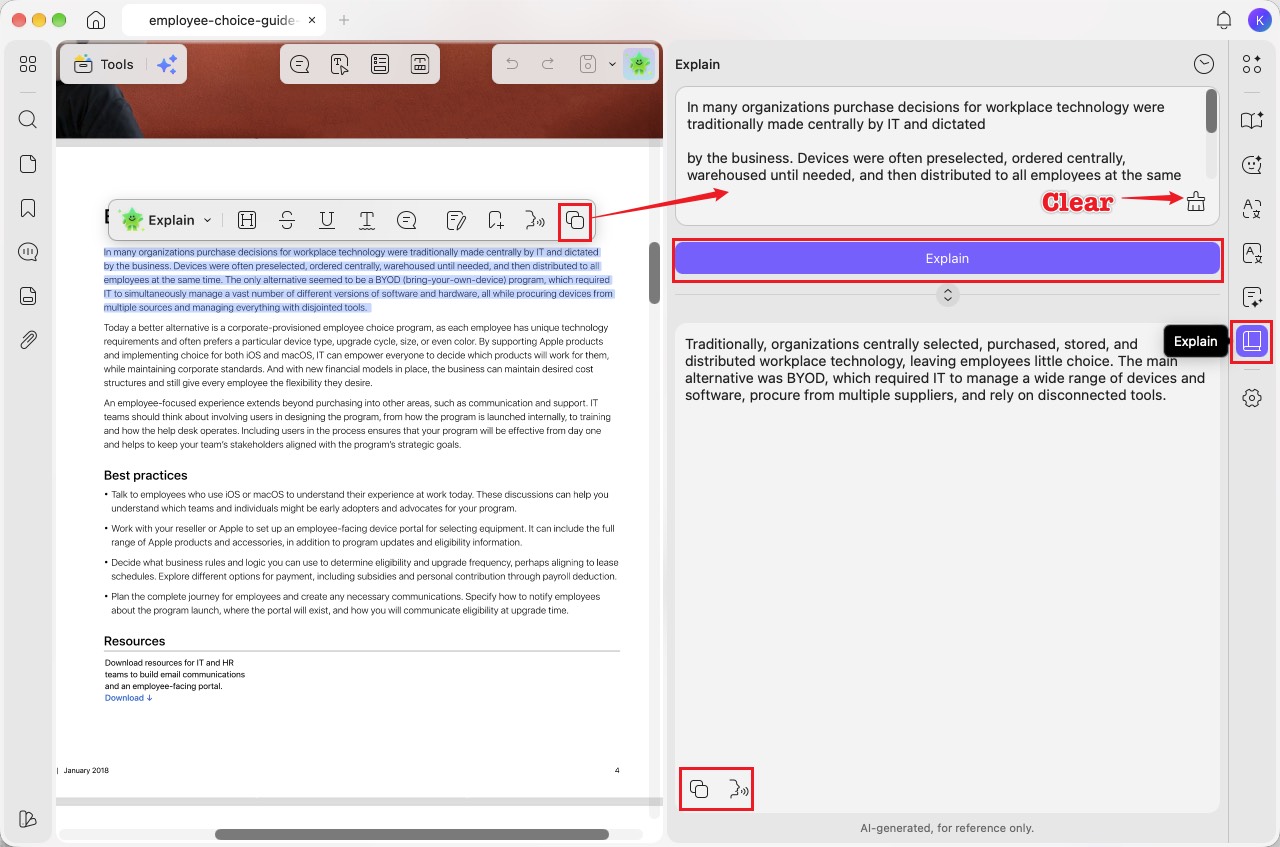
Step 1. Select the text you want explained in your PDF and click “Copy” in the floating toolbar.
Step 2. Click “Explain” on the right sidebar, paste the copied text into the input box, then click the “Explain” button.
Step 3. Review the explanation below and use “Start Speaking” to hear it read aloud or “Copy” to copy it. To remove the input text, click “Clear.”
Method 3. Use the Chat Box to Ask Questions Related to the PDF
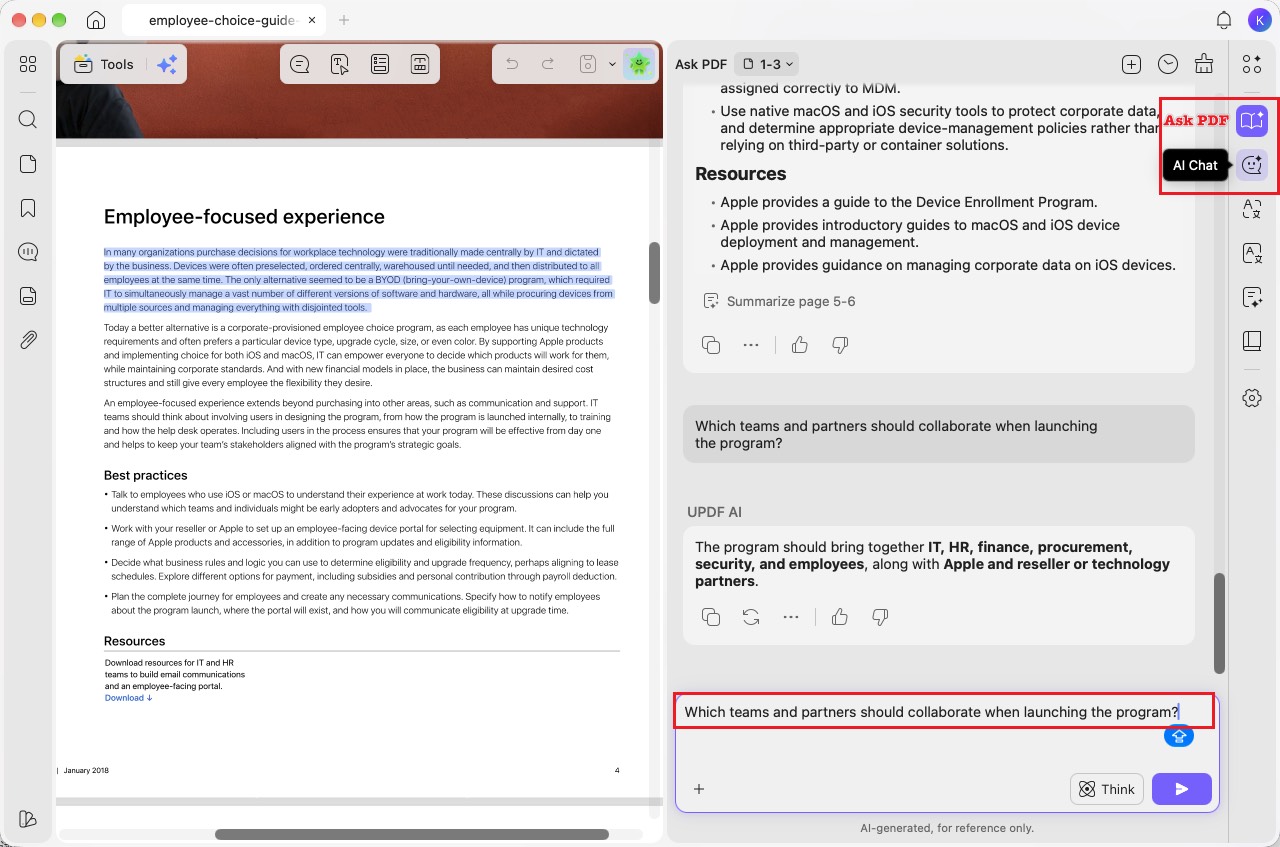
Step 1. Select “Ask PDF” or “AI Chat” on the right sidebar, then enter a question about the PDF in the chat box, such as “Which teams and partners should collaborate when launching the program?” Click the send arrow to receive an explanation.
Method 4. Explain with AI Chat
Step 1. Right-click and drag over the PDF area you want to select. In the floating toolbar, choose “Copy as Image” or “Copy as Text.”
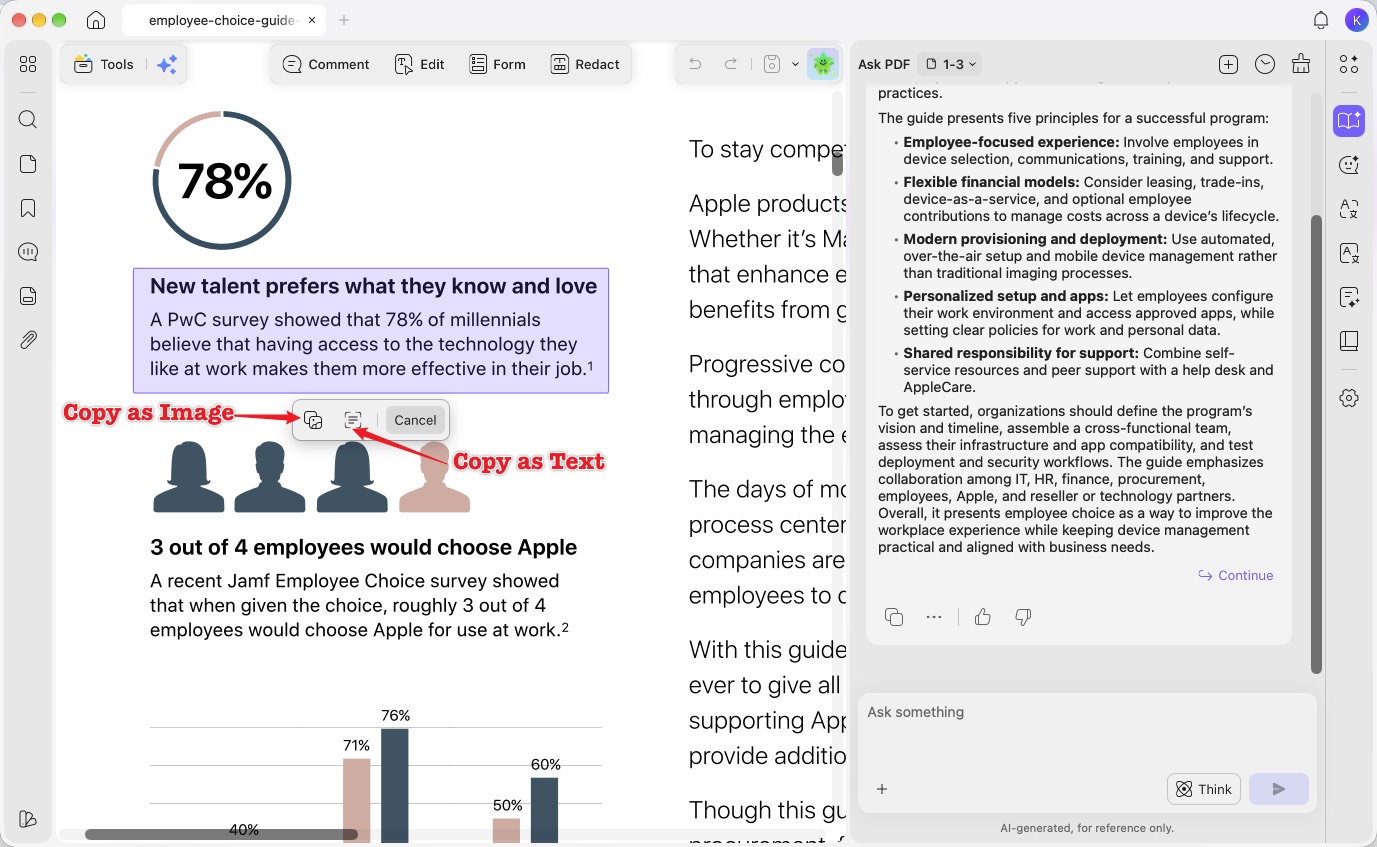
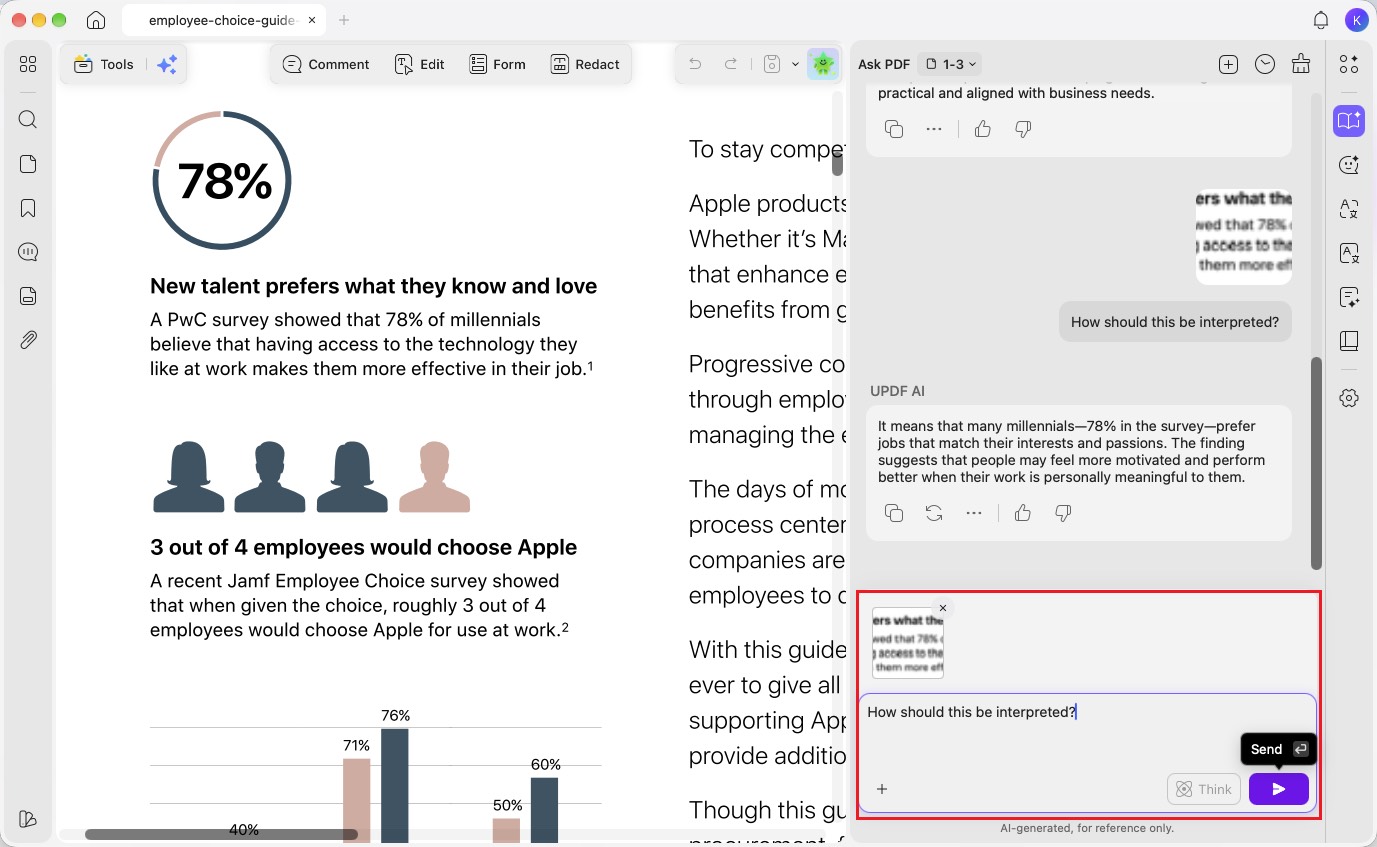
Step 2. Paste the copied image or text into the “Ask PDF”/"AI Chat" chat box. Enter a custom prompt, such as “How should this be interpreted?”, then click “Send” to get a response.
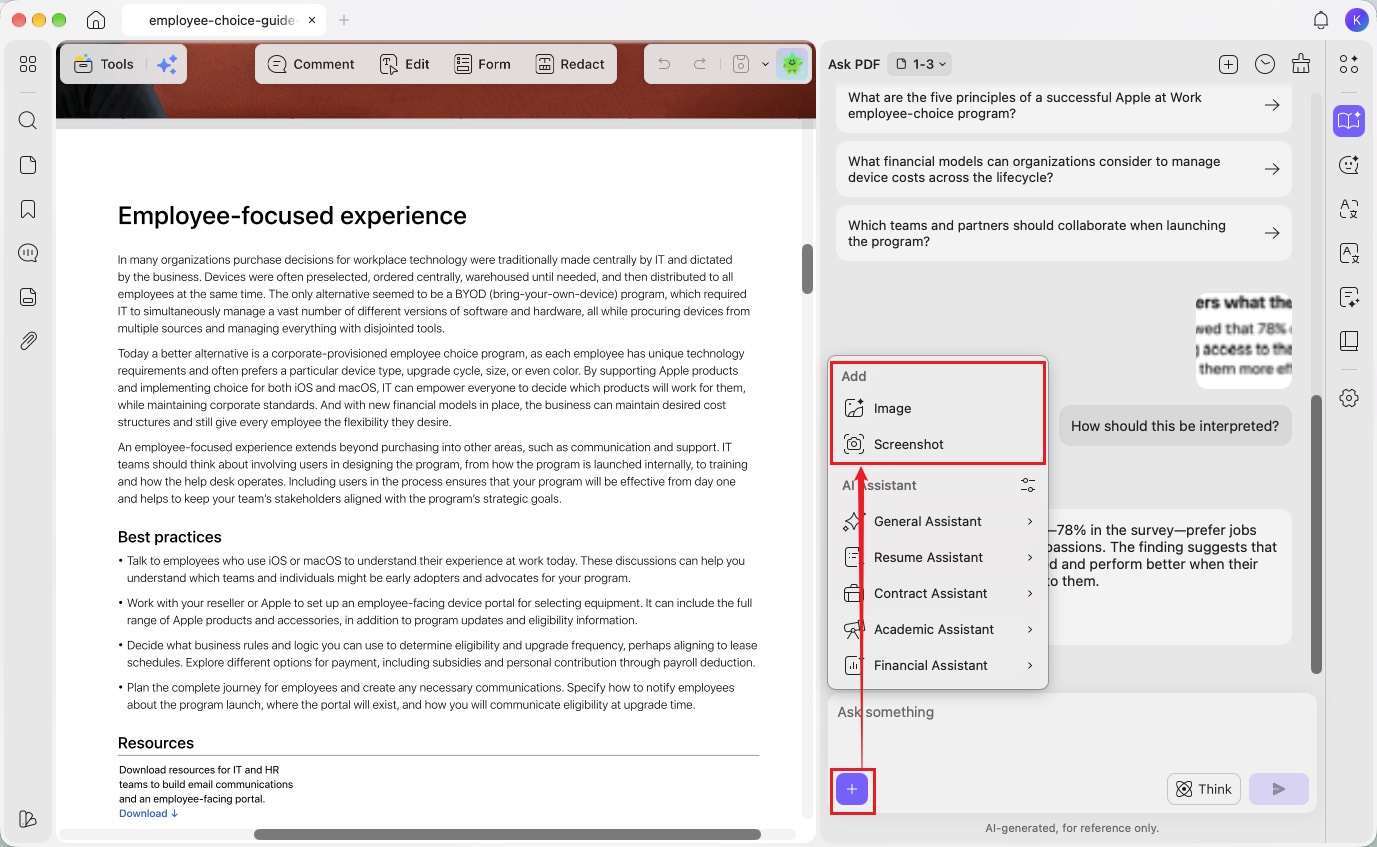
Tip: You can also click the “+” button in the chat box and choose “Image” to upload an image or “Screenshot” to capture the content you want to explain.
Part 2. Explain PDFs with UPDF AI Assistant on iOS/Android Smartphones
In addition to the desktop version, UPDF's AI assistant is also integrated into UPDF iOS and Android apps. The mobile version retains the same powerful features as the desktop version, ensuring seamless document comprehension anytime, anywhere. UPDF app includes an explain feature to let users get clarifications on any complex terms or phrases while reading.
Users simply need to select the content and utilize the UPDF AI explain feature to receive instant insights. After getting an explanation, you get the option to copy and regenerate it as well.
Method 1. Explain While Reading
While going through your UPDF, you can simply select the content and use the AI explain feature to generate quick clarification. This makes it easier for users to understand complex terms without leaving the document. Perform these steps to explain content while reading using the UPDF app:
Step 1. Launch UPDF and Open the Document
To begin, launch the UPDF application on your mobile and tap the Plus icon on the main interface. Now, tap the Files or Cloud Drive option to import your desired file.

Step 2. Select Content and Explain with UPDF AI
Moving forward, select the text you want to explain and tap on the UPDF AI option within the floating toolbar. Now, pick the Explain option to let this tool generate the results. Once it generates the explanation, simply tap the Copy or the Note icon to integrate the explanation into your PDF.

Method 2. Use Copy & Paste For Explanation
For users who prefer a more customized response, this method allows them to copy specific content and paste it into the UPDF AI chat mode for explanation. This approach is useful for obtaining a more detailed or tailored clarification, which is explained as follows:
Step 1. Copy Content and Open AI Chat
To begin, open your PDF and highlight the text you want to understand. From the pop-up menu, choose Copy and then tap on the UPDF AI icon present on the top of your screen. Now, access the Chat mode and then Paste the content within the text box.

Step 2. Prompt UPDF AI to Explain
After pasting the content, prompt AI to explain the text and hit the Send icon. You can even select the Explain built-in prompt to get the job done. Once you get the explanation, Regenerate or Copy the content.

Part 3. Explain PDFs in Web Browser Using UPDF AI Online
For users who wish to access AI-powered explanations without downloading any software, UPDF AI Online provides a seamless solution. When you upload the document to this platform, AI automatically provides a brief explanation, giving you key insights. Along with that, it also provides 3 recommended questions to let you deepen your understanding of the topic.
Other than that, if you can't understand certain content or lines, you can paste them into the chatbot and prompt the AI to generate explanations. You can even prompt AI to give explanations to suit your needs, such as providing a simplified answer, a detailed breakdown, or an example-based explanation. Follow the guide below to get a better understanding of the ways UPDF AI uses GPT-5 to allow you to chat with PDF:
Scenario 1: Explain From a Document
If you are having queries from a PDF document you have in your device, you can easily upload it across the AI platform and get the desired explanation.
Step 1. Access UPDF AI Online and Upload a PDF
Start by launching UPDF AI Online in your browser and tap the “Click, drag, or paste PDF / Image here” button to import your document into the platform.

After doing so, tap on your added document under the "Files" section to open it within the AI interface. Next, hit the "Get Started" button to enable the AI assistant panel on the right side.
Step 2. Type in Explain Prompt and Review Results
After the PDF is uploaded, enter the prompt, “Explain this PDF in detail” in the text field and press Send. UPDF AI will produce the output, which you can then either copy or regenerate as needed.

Step 3. Regenerate the Results or Copy
Review the explanation, and if you find it satisfying, click the "Copy" button to save it to your clipboard.
Scenario 2: Explain with UPDF AI Bot
Besides chatting with your uploaded PDFs, UPDF lets you have a general conversation with the UPDF Chat Bot. This also allows you to copy any text from another platform or document and input it across UPDF AI for detailed explanation. Walk through the steps below to get a better understanding of the process:
Step 1. Locate Chat Bot and Type in the Prompt
From the main UPDF AI interface, go to the “Chat Bot” tab in the left sidebar and select “Explain.” Next, enter your prompt in the text box and click “Send” to generate the output.

Users can even add the screenshots to let UPDF AI explain the content for them. For this, simply tap the Image icon in the text box. Then, prompt AI to explain the content of the image and hit the Send icon.

Step 2. Copy or Regenerate the Results of UPDF AI Chat Bot
After the results are generated, you can review them and hit the “Copy” or “Regenerate” button based on your preferences.
