 UPDF
 UPDF for Windows
 UPDF for Mac
 UPDF for iPhone/iPad
 UPDF for Android
 Nomostar
 UPDF AI Online
 UPDF Sign
 IvyCraft
 Edit PDF
 Annotate PDF
 Create PDF
 PDF Form
 Edit links
 Convert PDF
 OCR
 PDF to Word
 PDF to Image
 PDF to Excel
 Organize PDF
 Merge PDF
 Split PDF
 Crop PDF
 Rotate PDF
 Protect PDF
 Sign PDF
 Redact PDF
 Sanitize PDF
 Remove Security
 Read PDF
 UPDF Cloud
 Compress PDF
 Print PDF
 Batch Process

 About UPDF AI
 UPDF AI Solutions
 AI User Guide
 FAQ about UPDF AI
 Summarize PDF
 Translate PDF
 Chat with PDF
 Chat with AI
 Chat with image
 PDF to Mind Map
 Explain PDF
 PDF AI Tools
 Image AI Tools
 AI Chat Tools
 AI Writing Tools
 AI Study Tools
 AI Working Tools
 Other AI Tools
 AI Bookmark Generation
 AI Bookmark Summary
 AI Watermark Generation
 AI Background Generation
 AI Sticker Generation
 AI Stamp Generation
 AI Editing Suite
 UPDF Copilot
 AI Page Management
 AI Semantic Search
 PDF to Word
 PDF to Excel
 PDF to PowerPoint
 Enterprise Solution
 Enterprise Sign
 Enterprise AI
 Enterprise Plan
 Enterprise User Guide
 Enterprise Webinar
 IT
 Education
 Construction
 Financial Service
 Healthcare
 Insurance
 Legal
 Manufacturing
 Government
 Researchers & PhDs
 Solopreneurs & Freelancers
 Lawyers & Legal Professionals
 Real Estate Agents & Brokers
 Education Solution
 Customer Stories
 User Guide
 UPDF Tricks
 FAQs
 UPDF Reviews
 Download Center
 Blog
 Newsroom
 Tech Spec
 Updates
 UPDF vs. Adobe Acrobat
 UPDF vs. Foxit
 UPDF vs. PDF Expert


Translate PDF
With UPDF AI, you can translate PDF files entirely into your preferred language with one click and get a new document with the original layout and format.
Table of Contents
Part 1. Translate a PDF on Windows/Mac
Method 1. Translate the Entire PDF While Preserving Its Original Layout
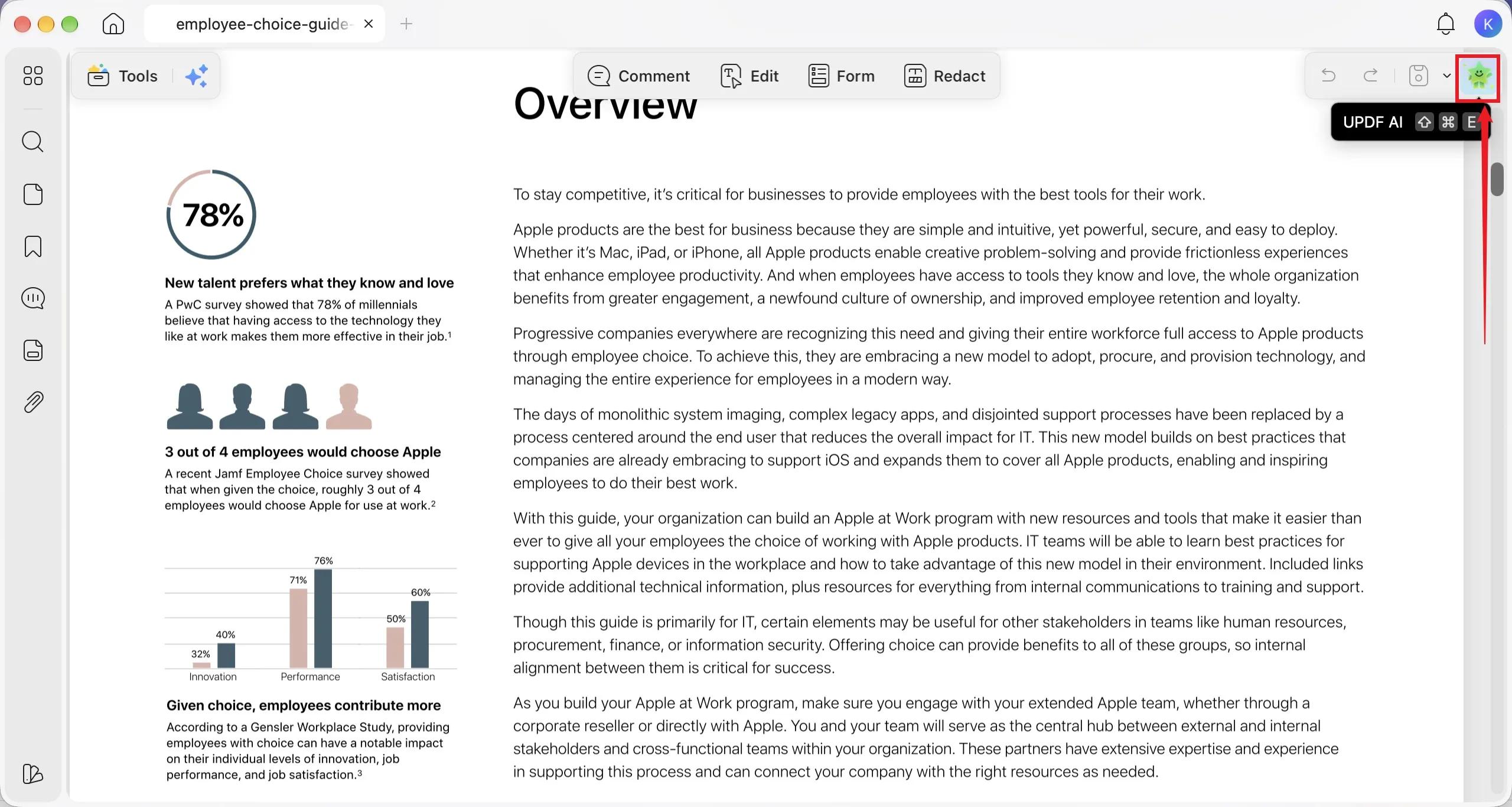
Step 1. Open your PDF in UPDF, then click the “UPDF AI” button in the upper-right corner to open the AI assistant.
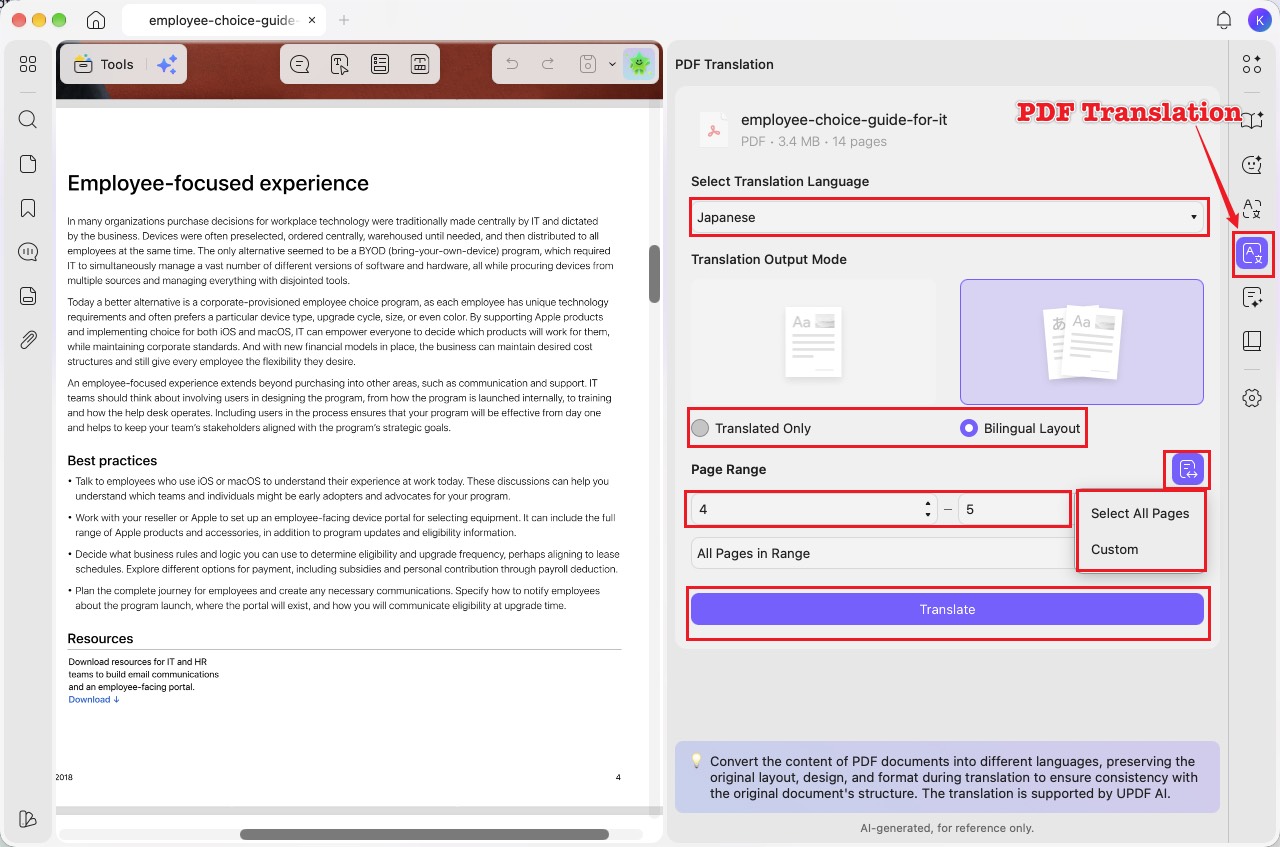
Step 2. Click “PDF Translation” on the right sidebar. Choose your target language under “Select Translation Language,” then select “Translated Only” or “Bilingual Layout” under “Translation Output Mode.” Set the “Page Range” by entering the starting and ending page numbers, or click the page-selection icon and choose “Select All Pages” or “Custom.” Then click “Translate.”
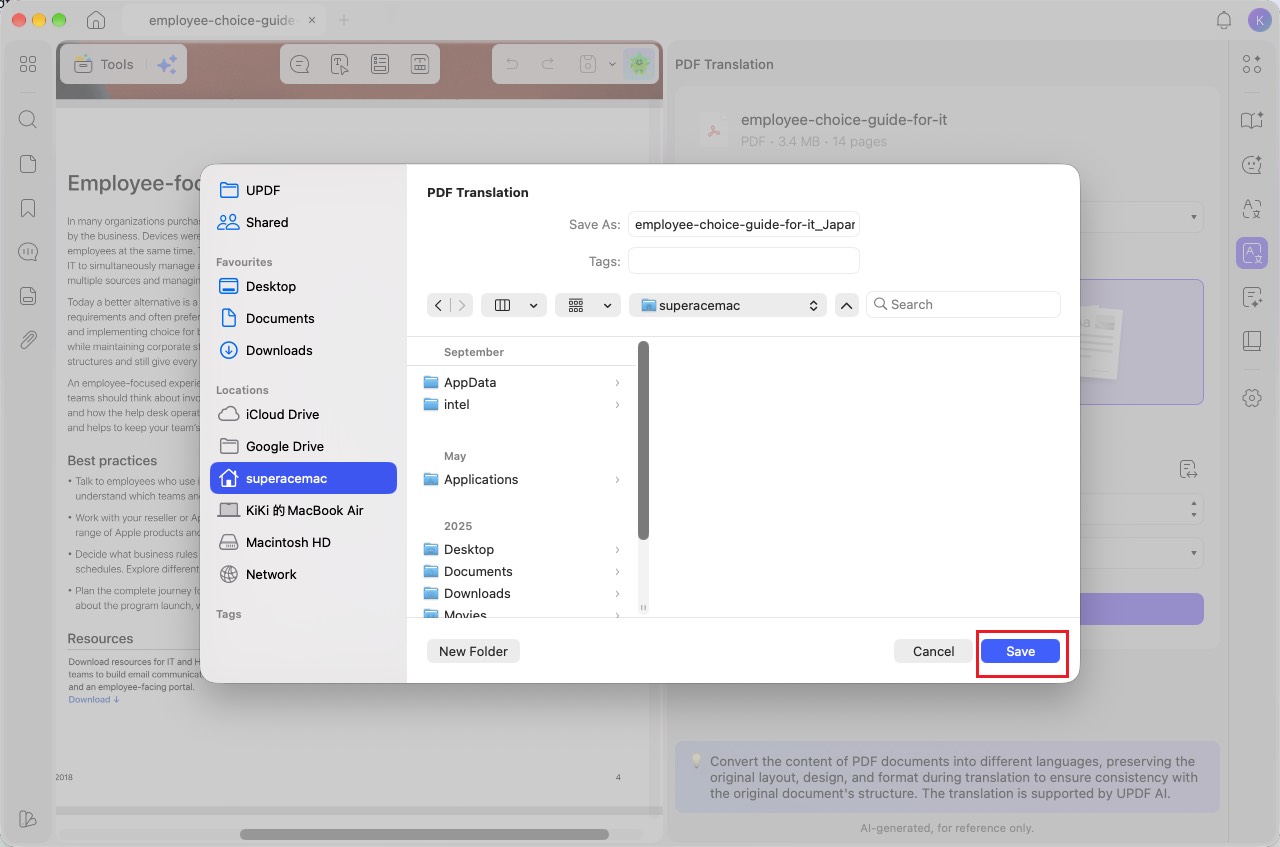
Step 3. In the save dialog, choose a destination folder and edit the file name if needed. Click “Save” to save the translated PDF.
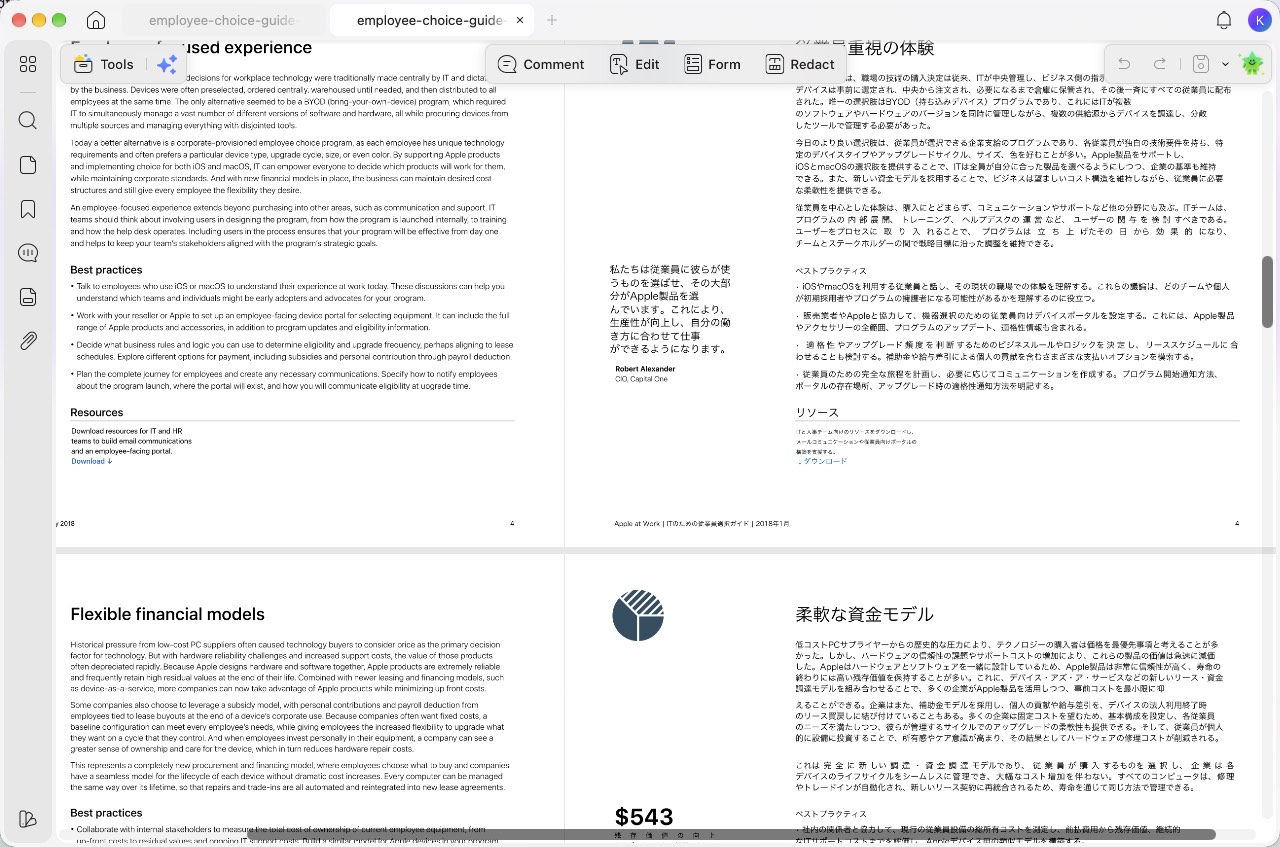
Step 4. UPDF automatically opens the translated PDF for you to review. If you selected “Bilingual Layout,” you can compare the original and translated pages side by side.
Method 2. Translate Specific Pages
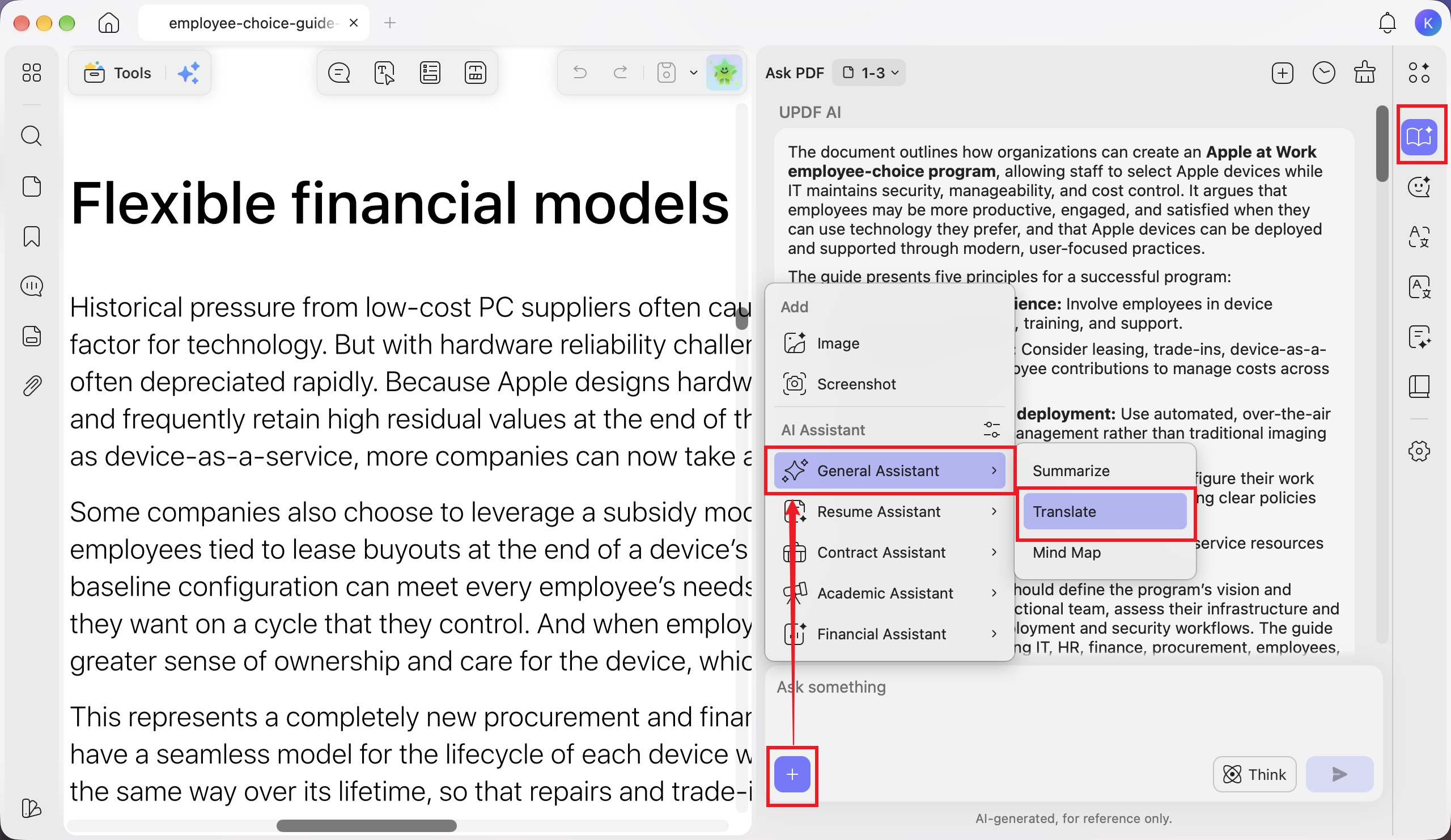
Step 1. In the “Ask PDF” panel, click the “+” button in the chat box, then select “General Assistant” > “Translate.”
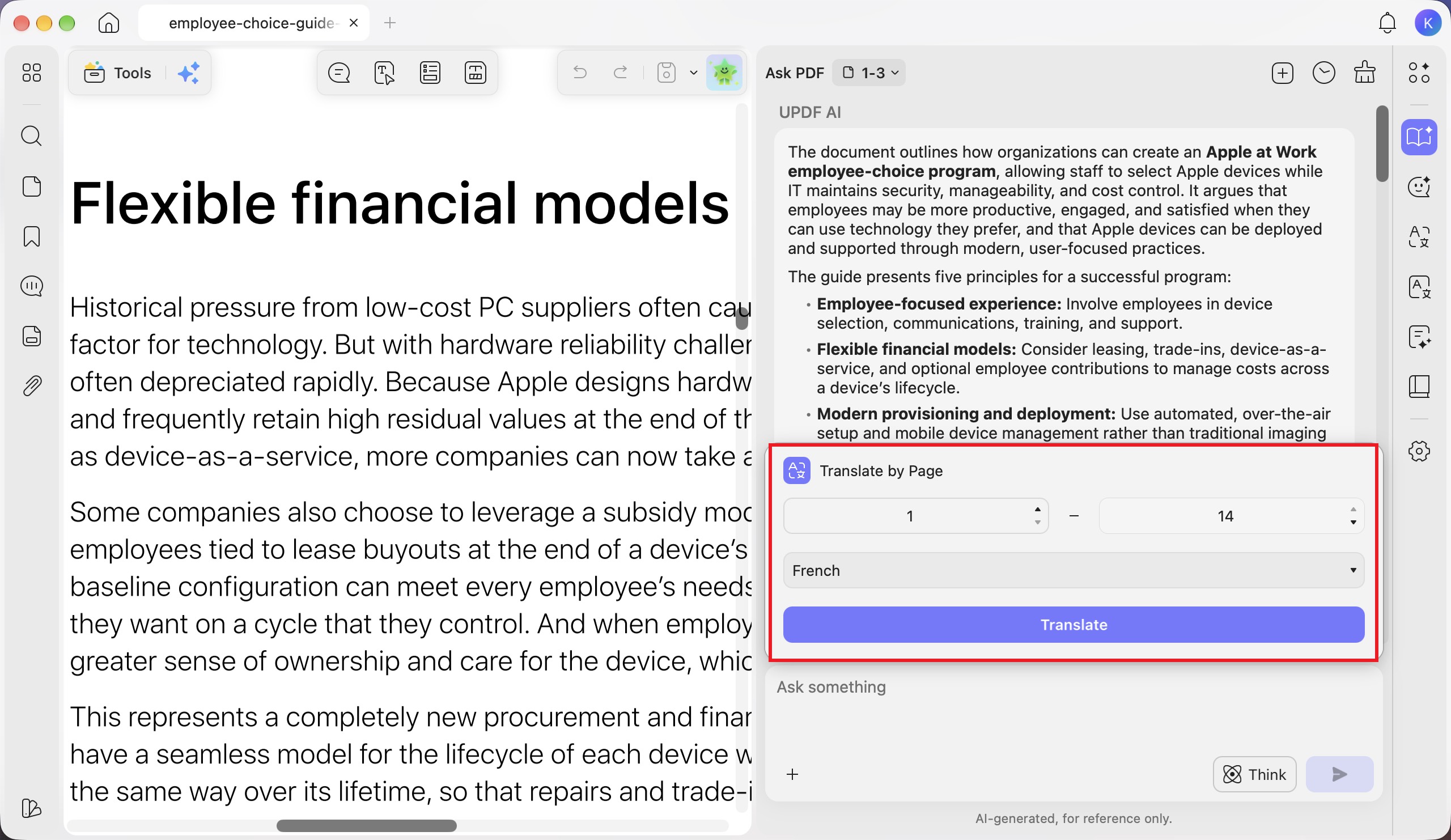
Step 2. In “Translate by Page,” enter or select the starting and ending page numbers. Choose your target language from the language drop-down, then click “Translate.”
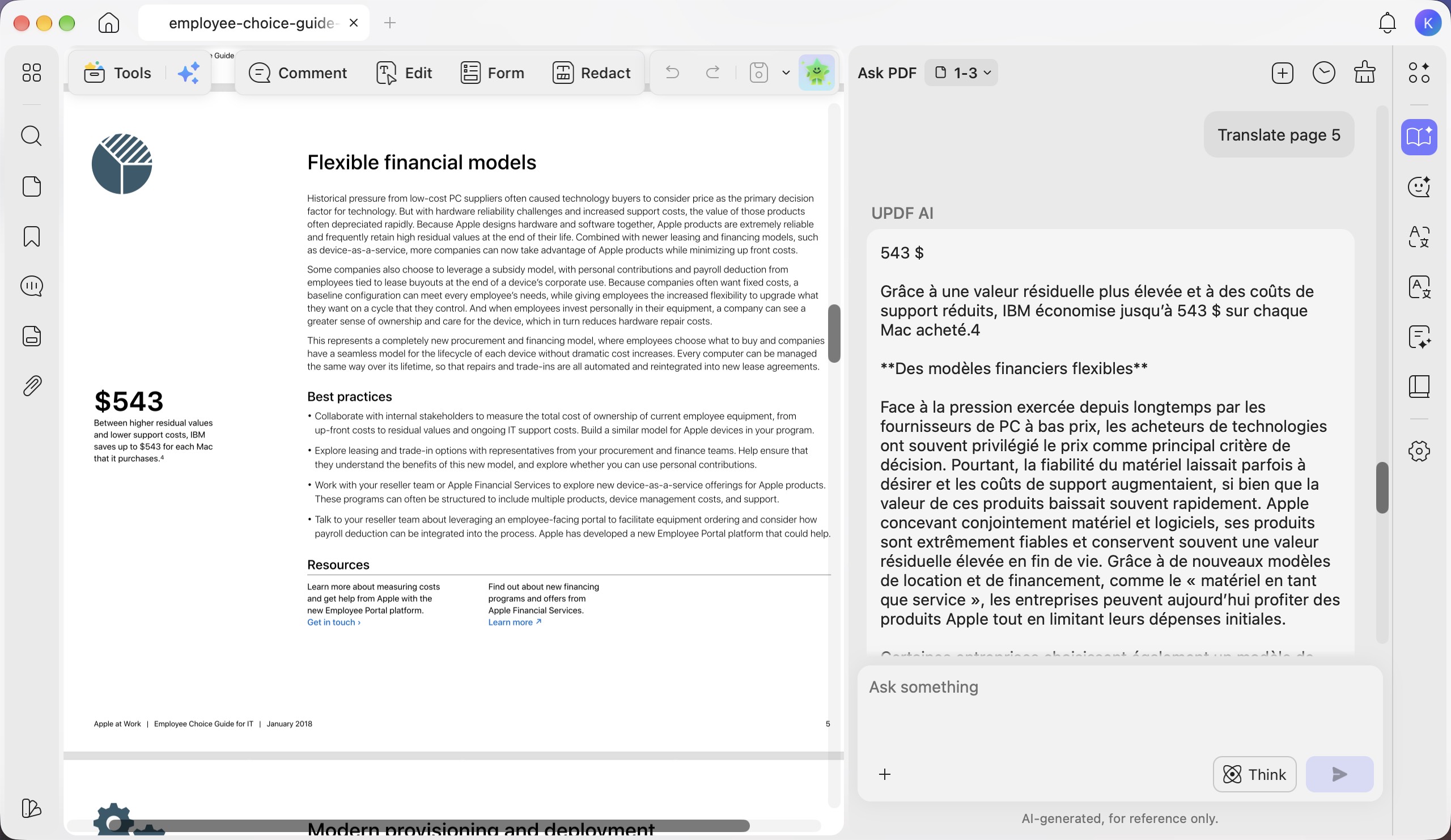
Step 3. Review the translated content alongside the original PDF. Scroll through the response to read the full translation.
Method 3. Select to Translate
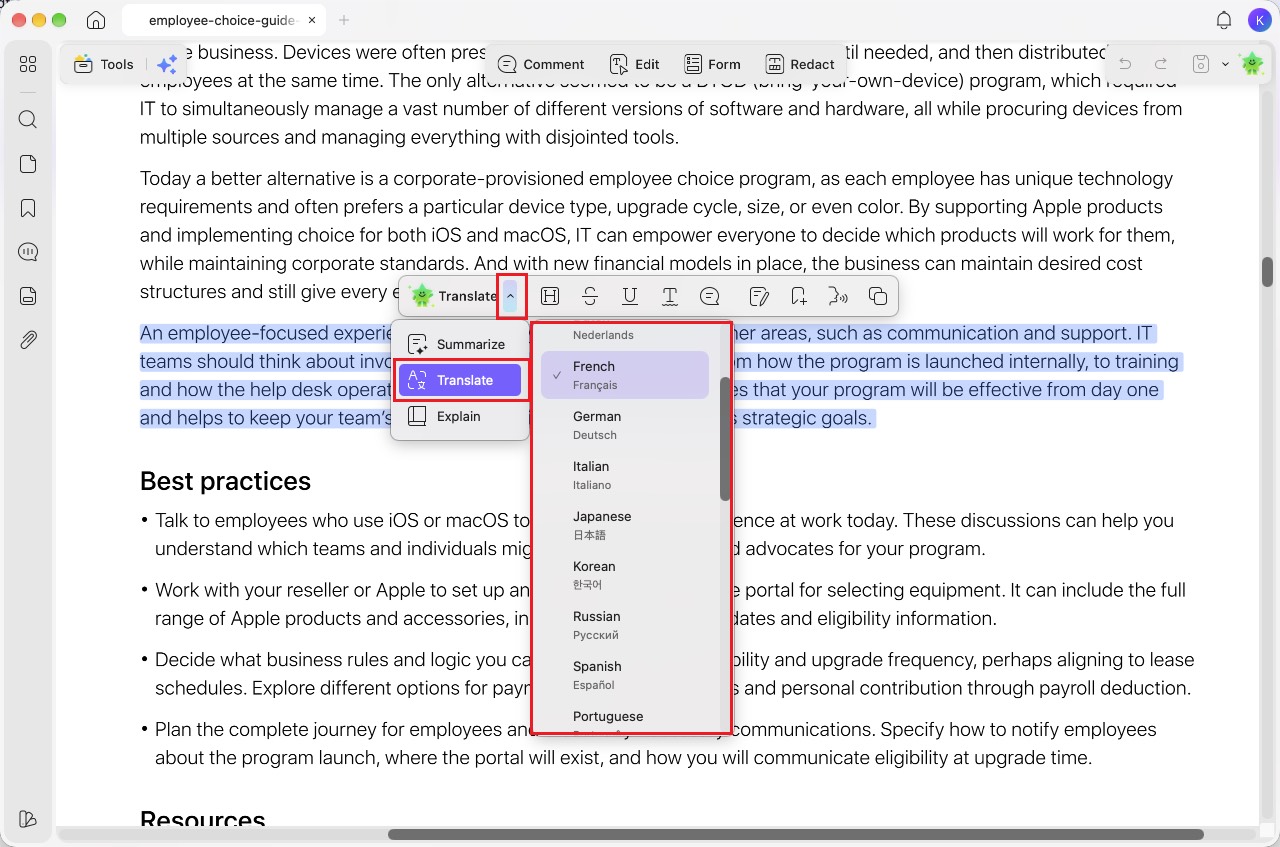
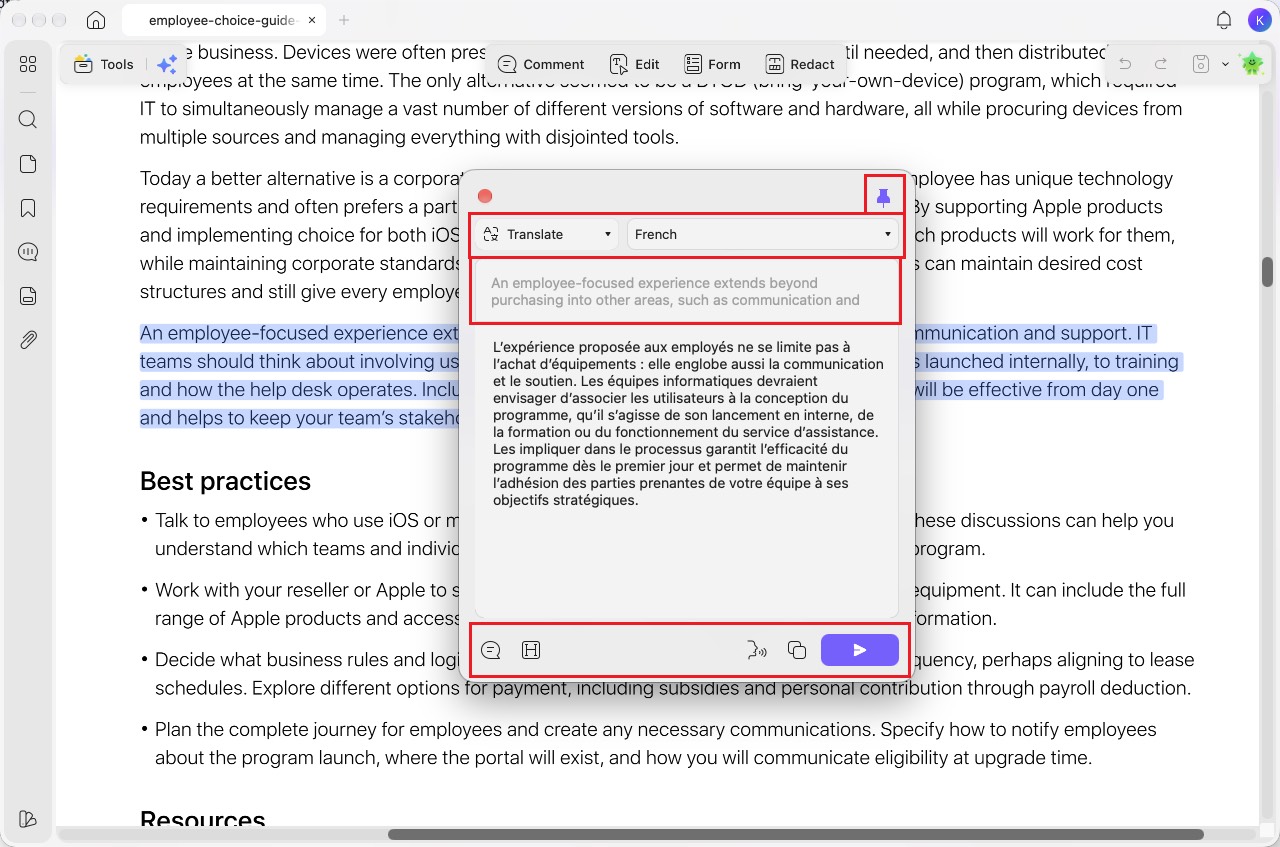
Step 1. Select the text you want to translate in your PDF. In the floating toolbar, click the arrow next to the AI option, choose “Translate,” and select your target language.
Step 2. Review the translation in the pop-up window. Use “Pin” to keep the window visible, “Add Sticky Note” or “Add Highlight Note” to add the translation to your PDF, “Start Speaking” to hear it read aloud, or “Copy” to copy it. To revise the translation, click the original text at the top, edit it, then click “Generate.” You can also change the target language using the language drop-down or switch to “Summarize” or “Explain” using the drop-down next to “Translate.”
Method 4. Translate Selective Content from the PDF
Step 1. Select the text you want to translate and click “Copy” in the floating toolbar. Click “Translate” on the right sidebar and paste the text into the input box. Choose your target language, then click “Translate.” Review the translation below and use “Copy” to copy it or “Start Speaking” to hear it read aloud. To remove the input text, click “Clear.”
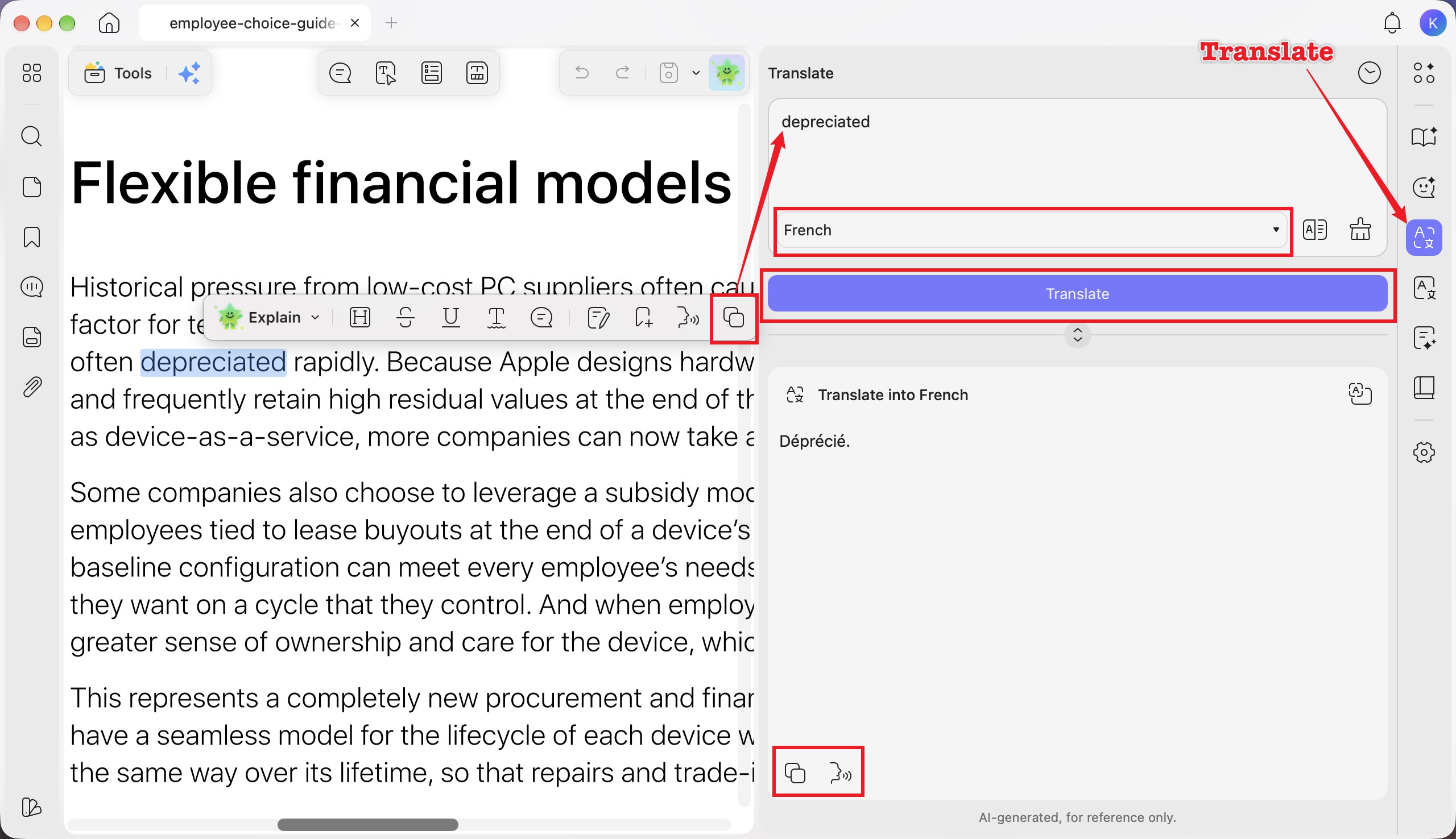
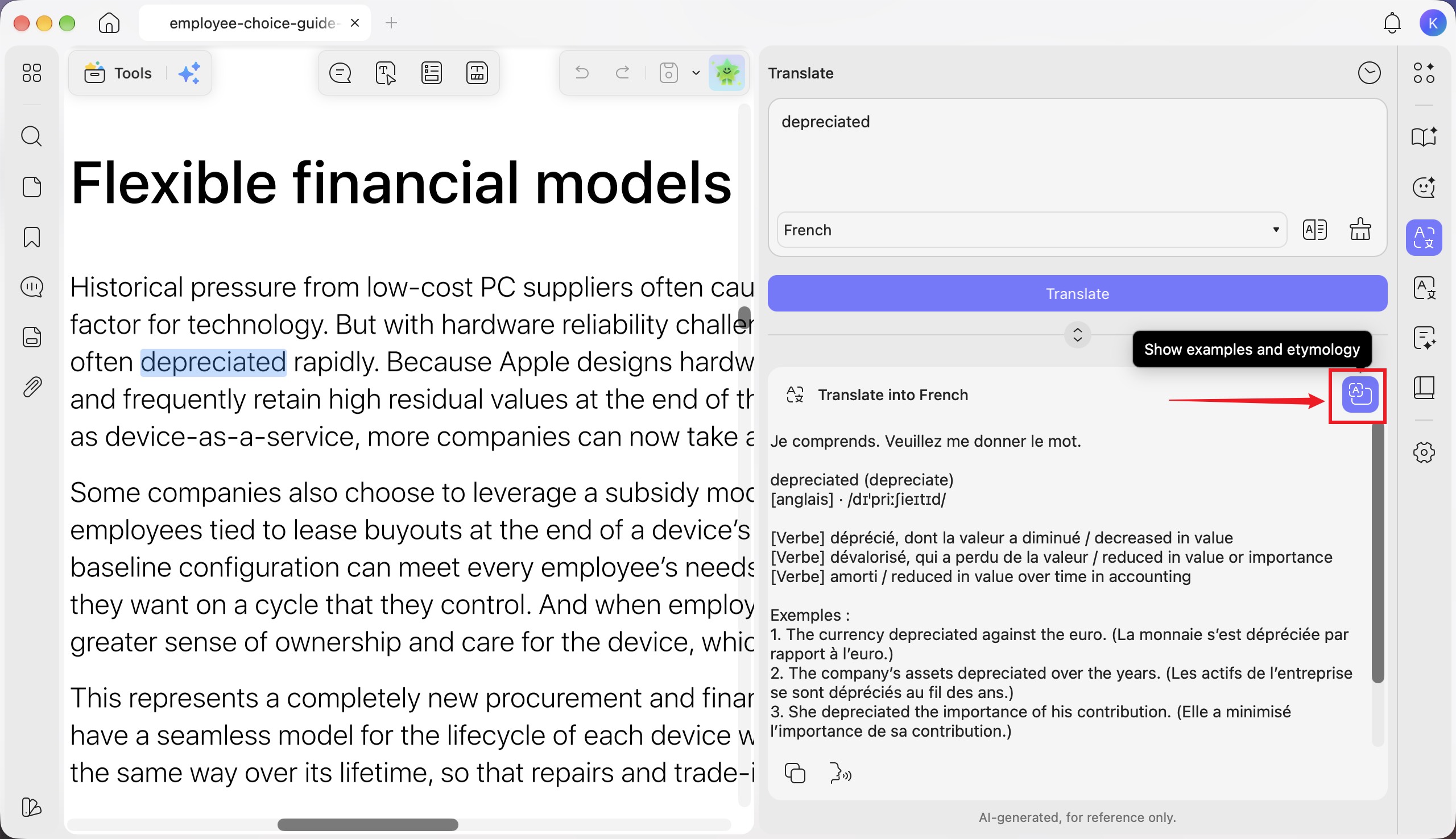
Step 2. To include examples and etymology, enable “Show examples and etymology” in the translation result area, then click the “Translate” button again to generate a new translation with these details.
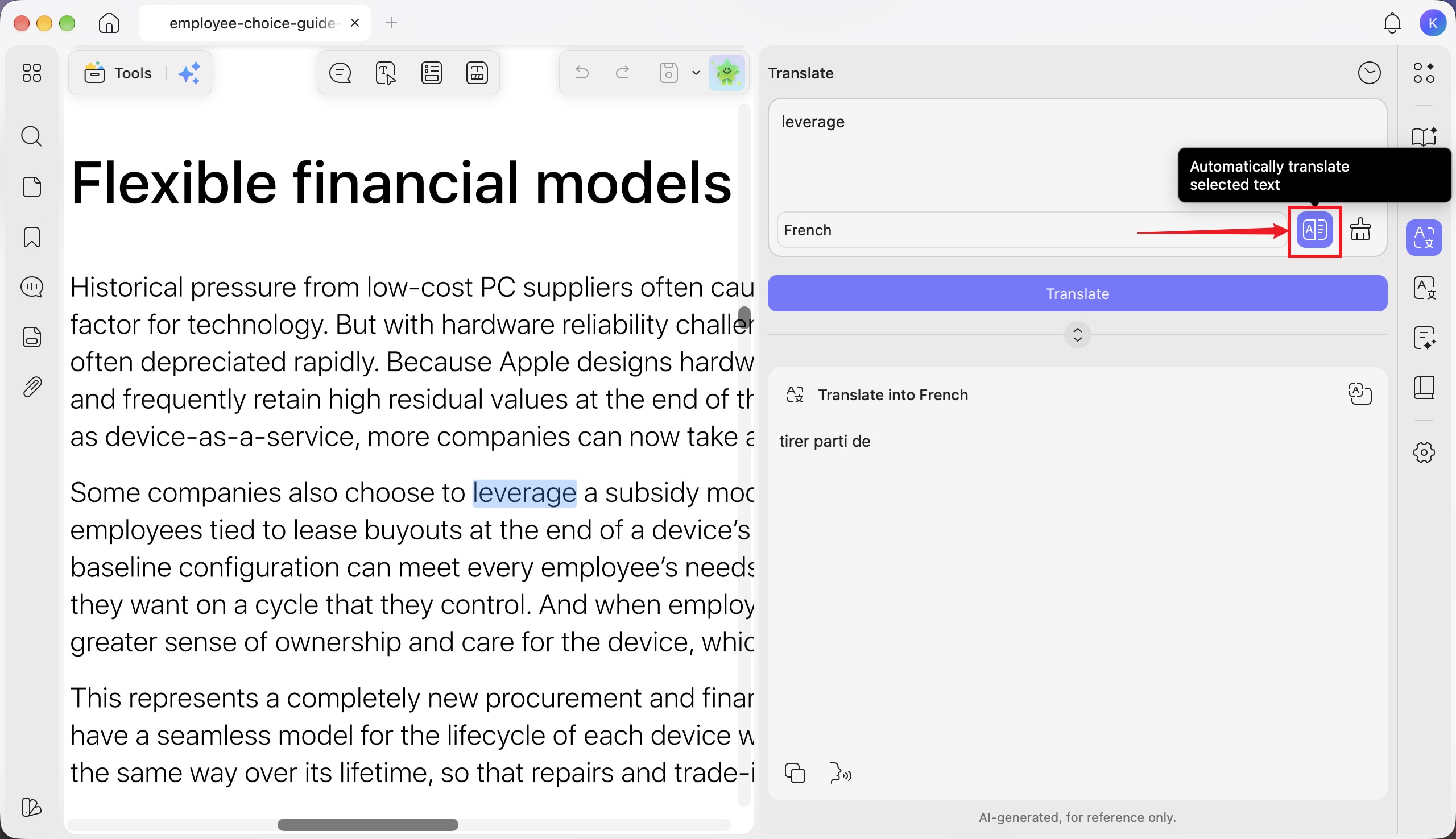
Step 3. Enable “Automatically translate selected text” next to the language drop-down. You can then select text in your PDF to translate it automatically without copying and pasting.
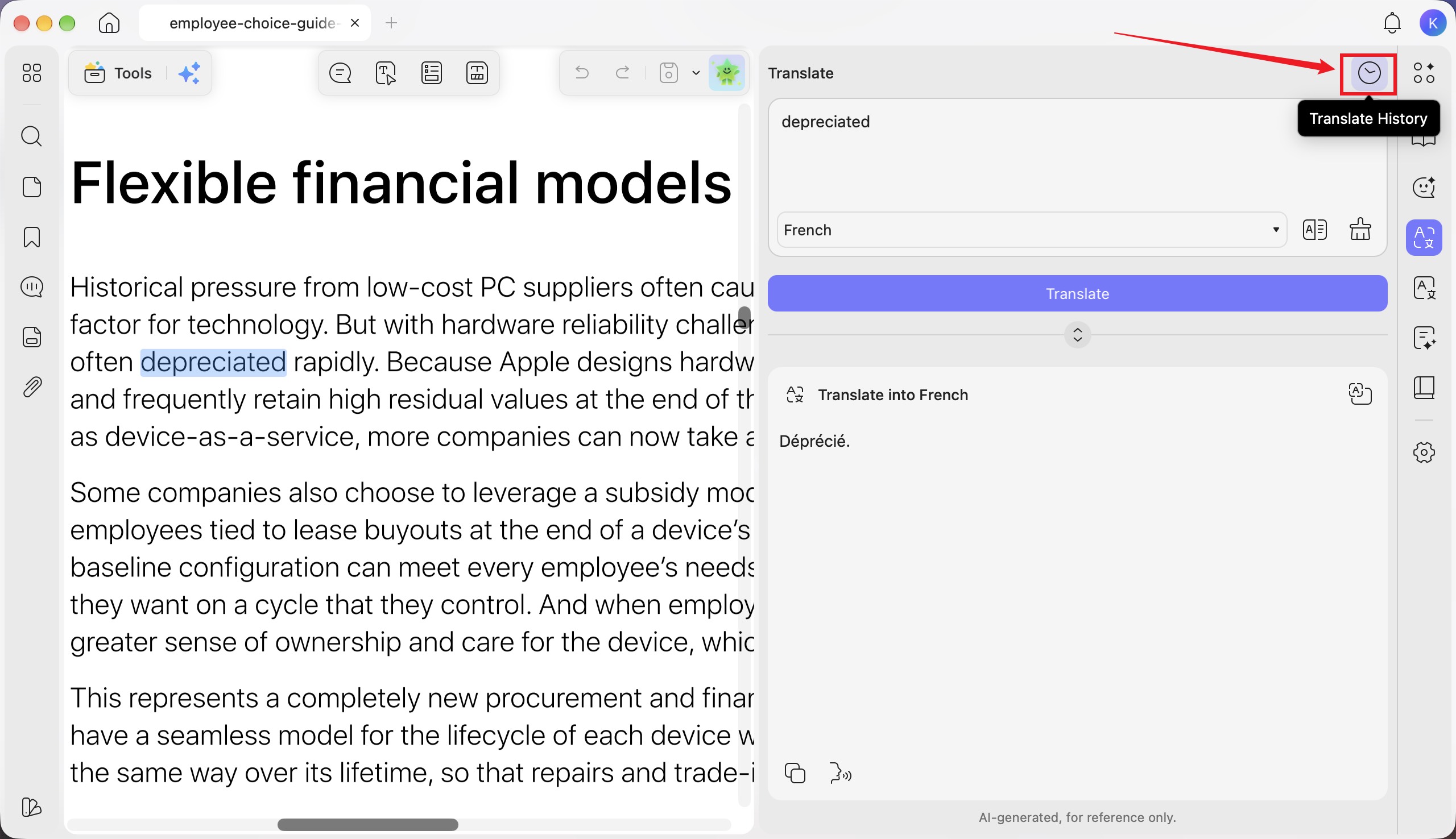
(Optional) Step 4. Click “Translate History” in the upper-right corner of the Translate panel to view your previous translations.
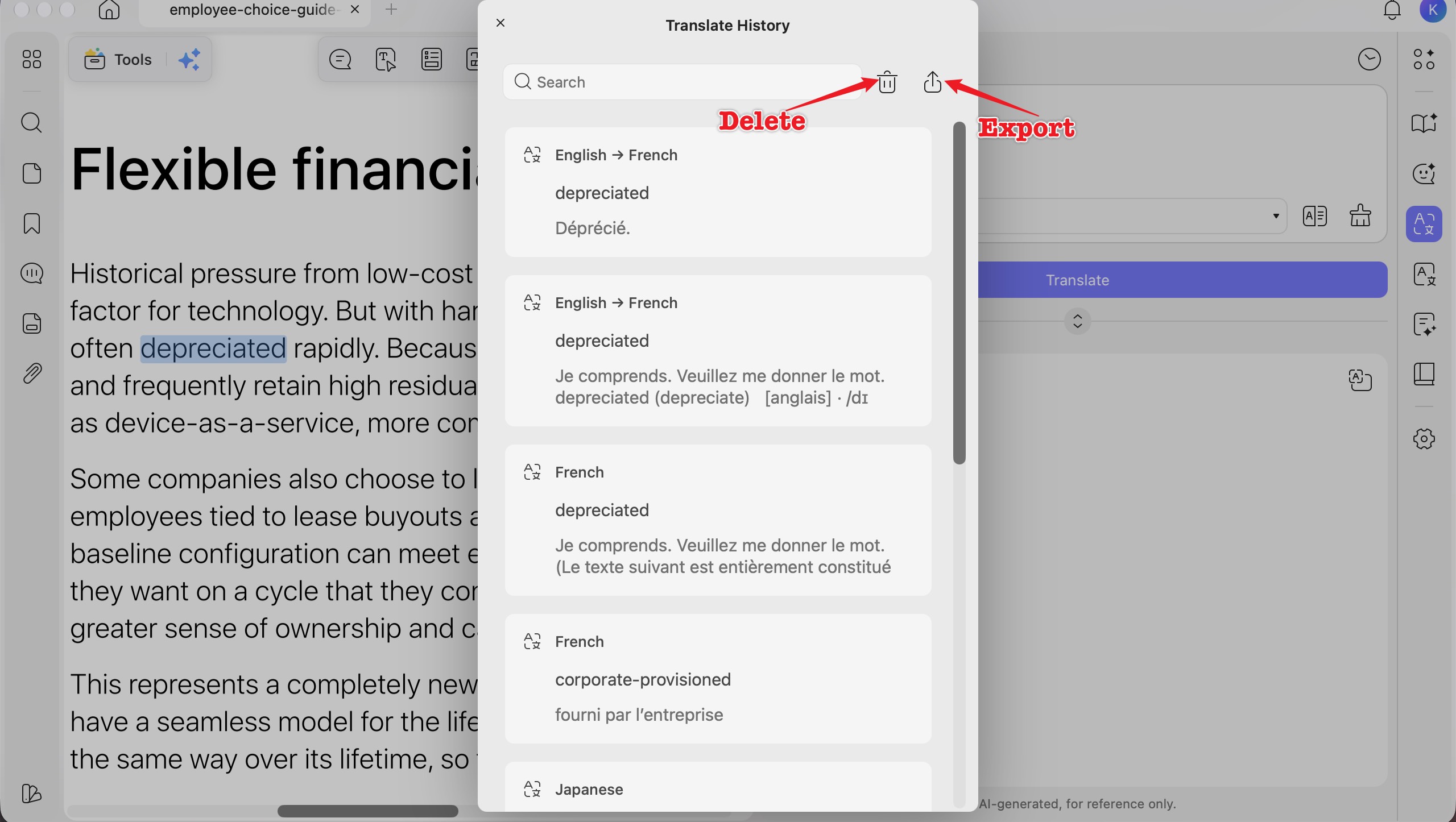
(Optional) Step 5. In the “Translate History” window, use the search box to find previous translations. Click “Delete” to remove entries or “Export” to save them.
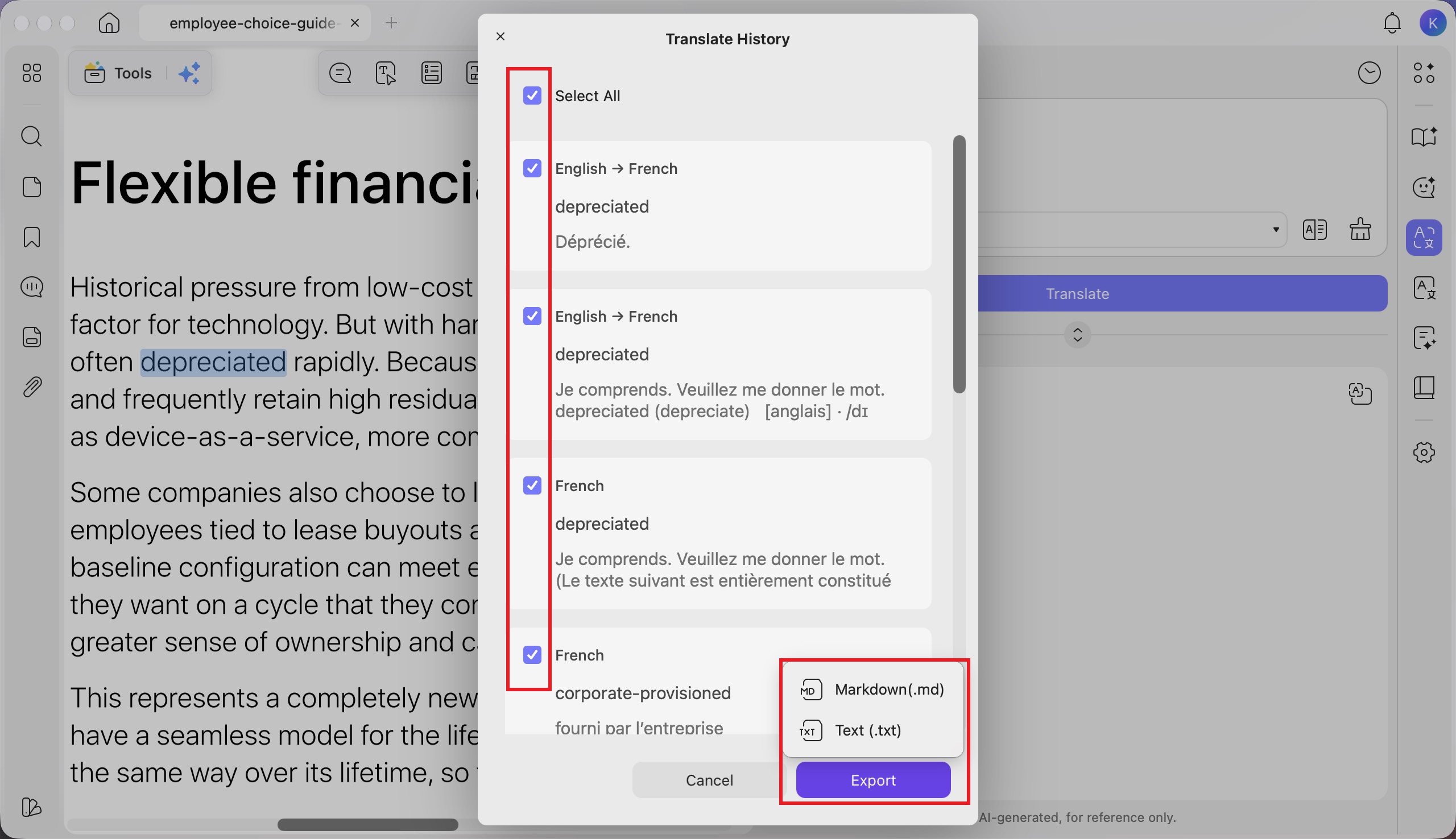
(Optional) Step 6. Select the entries you want to export, or check “Select All.” Click “Export” and choose “Markdown (.md)” or “Text (.txt).”
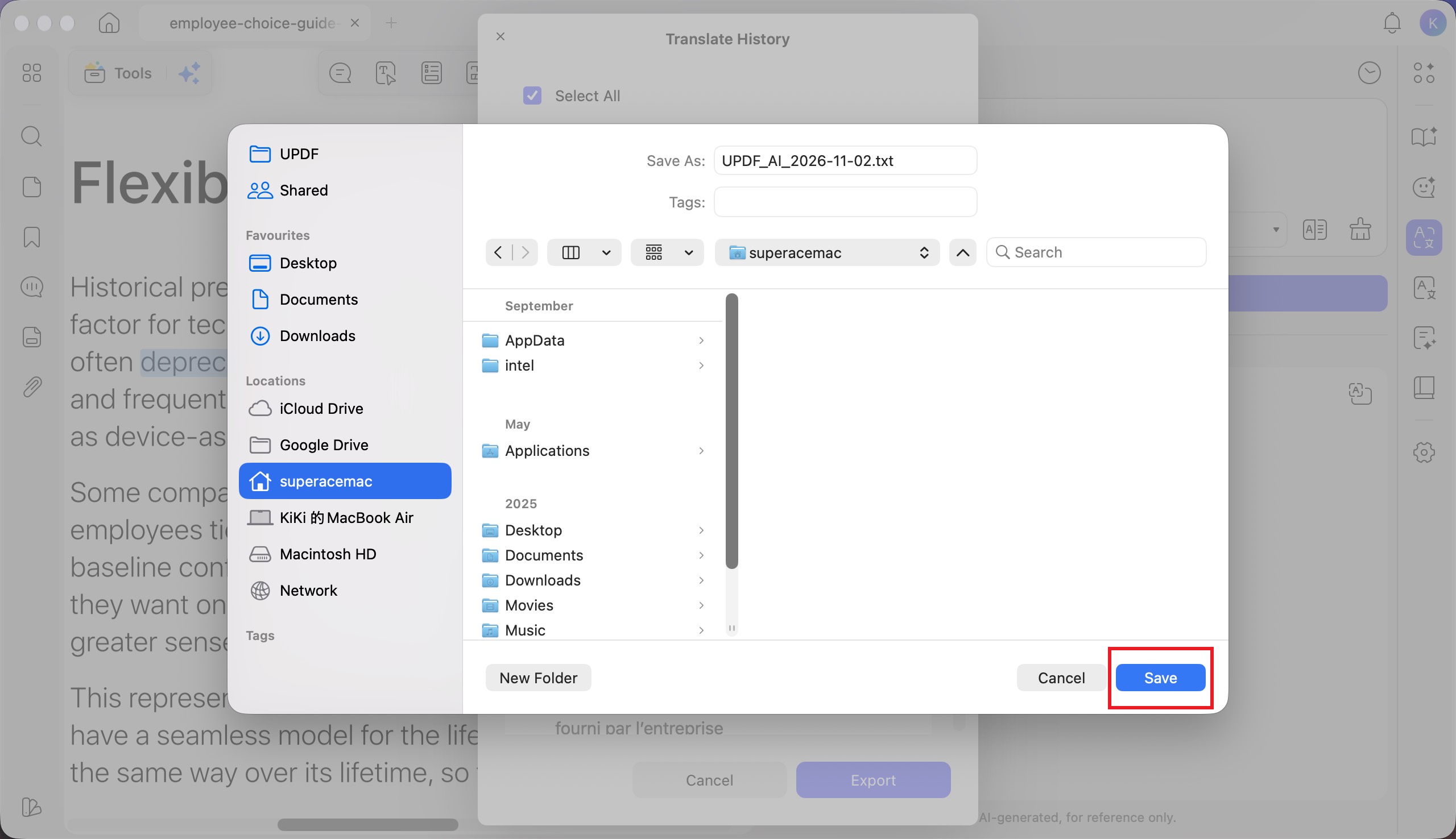
(Optional) Step 7. Choose a destination folder and edit the file name if needed, then click “Save” to save the exported translation history.
Method 5. Translate with AI Chat
Step 1. Right-click and drag over the PDF area you want to select. In the floating toolbar, choose “Copy as Image” or “Copy as Text.”
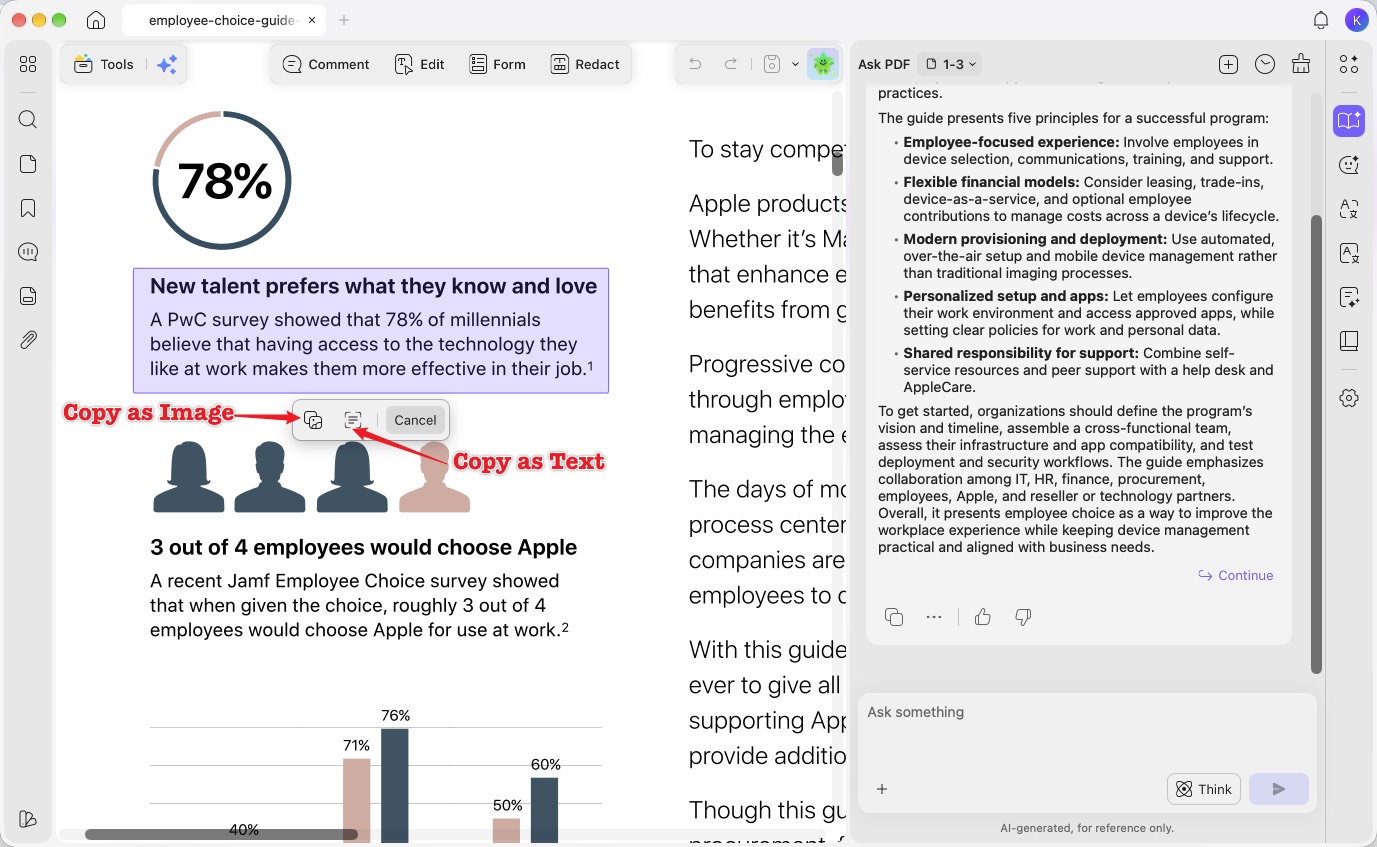
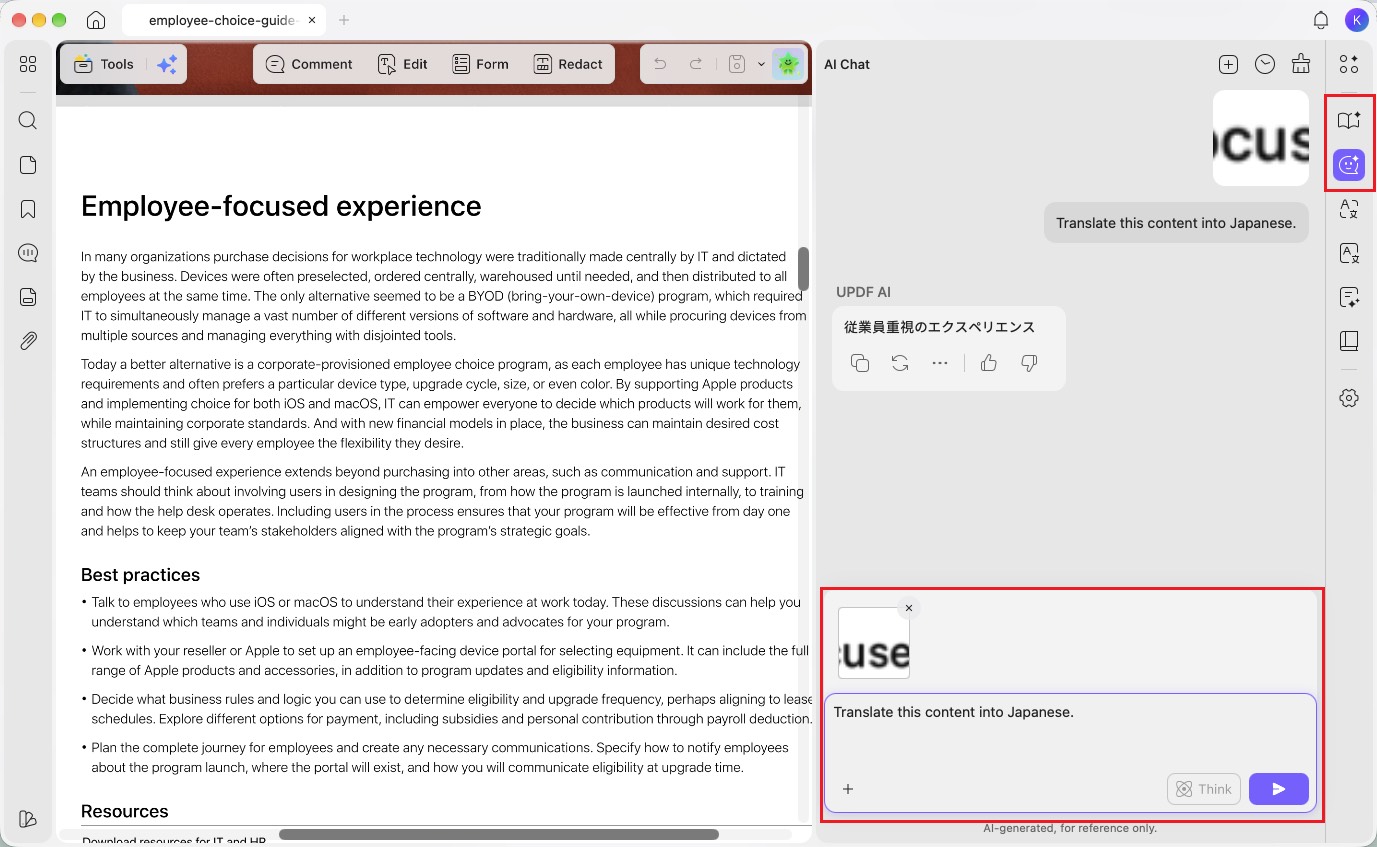
Step 2. Paste the copied image or text into the “Ask PDF”/"AI Chat" chat box. Enter a custom prompt, such as "Translate this content into Japanese." Then click “Send” to receive the translation.
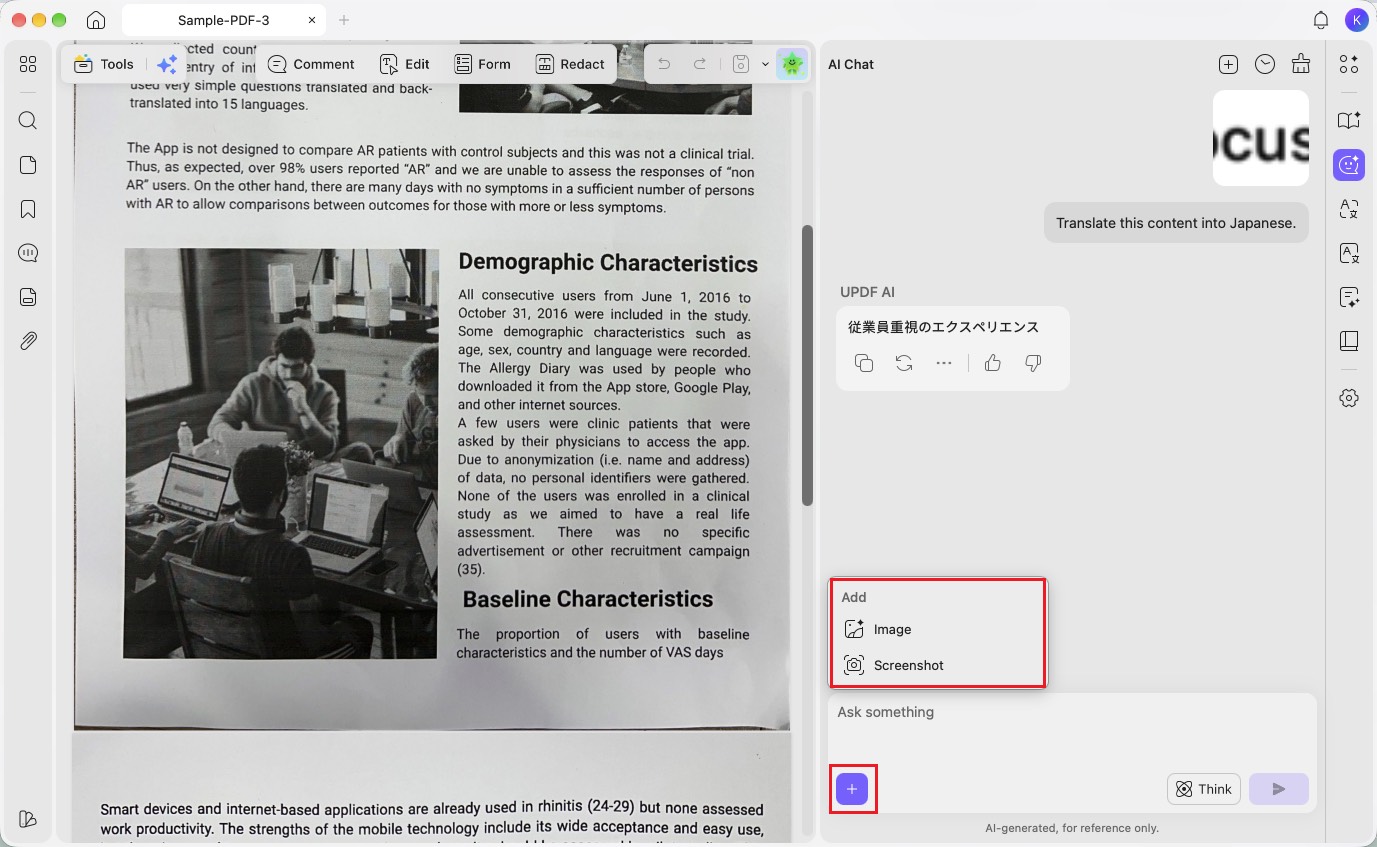
Tip: You can also click the “+” button in the chat box and choose “Image” to upload an image or “Screenshot” to capture the content you want to translate.
Method 6. Translate Scanned PDFs
Use UPDF's OCR tool to convert scanned PDFs into editable text before translating them. Follow the steps below to translate your scanned PDFs.
Step 1. Click "Tools" in the top left corner. Choose the "OCR" feature.
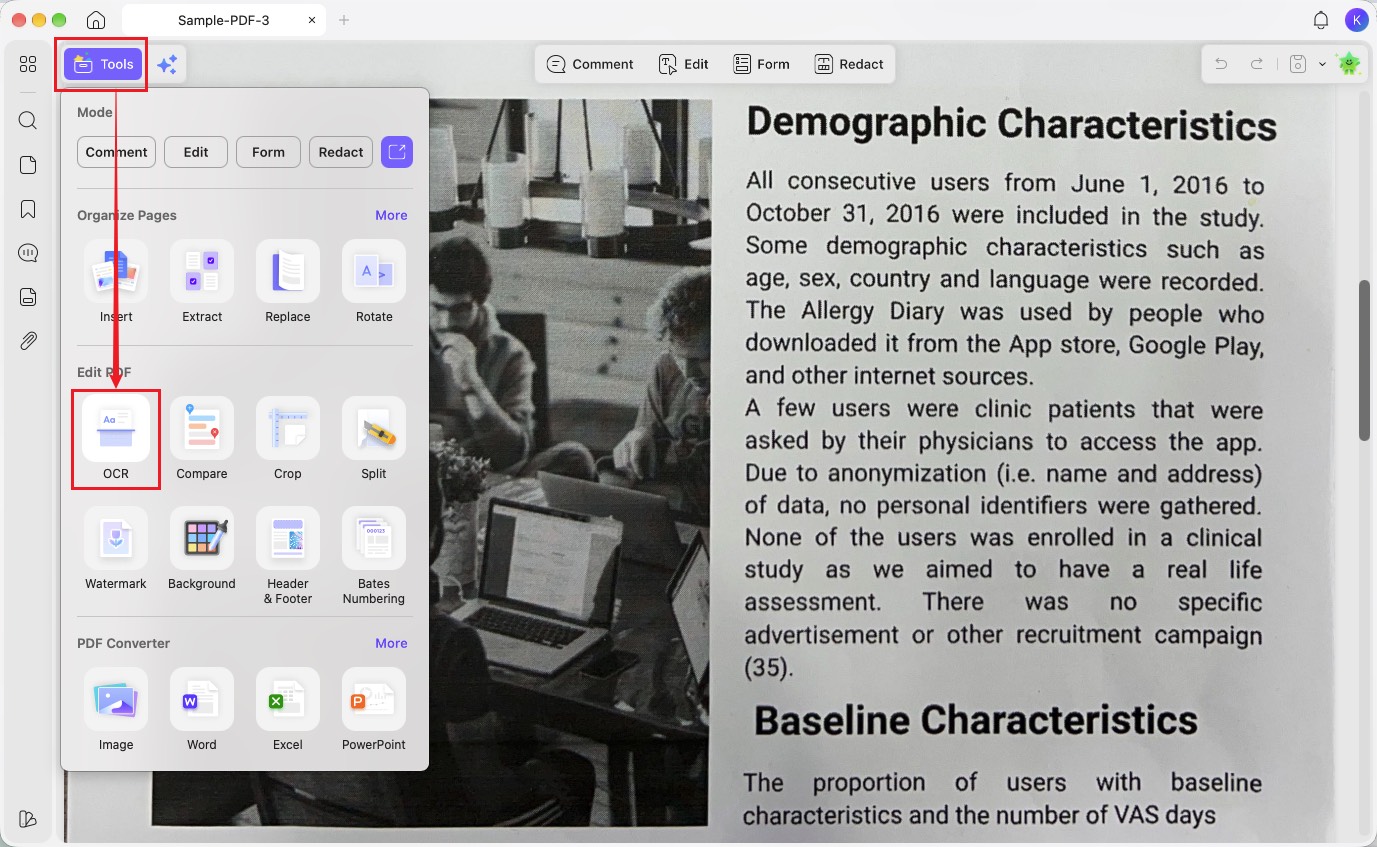
Step 2. Next, select the "Document Type" and "Document Language" of the PDF. Select the "Page Range" and click the "Convert" button. UPDF will perform the OCR and make the document content editable.
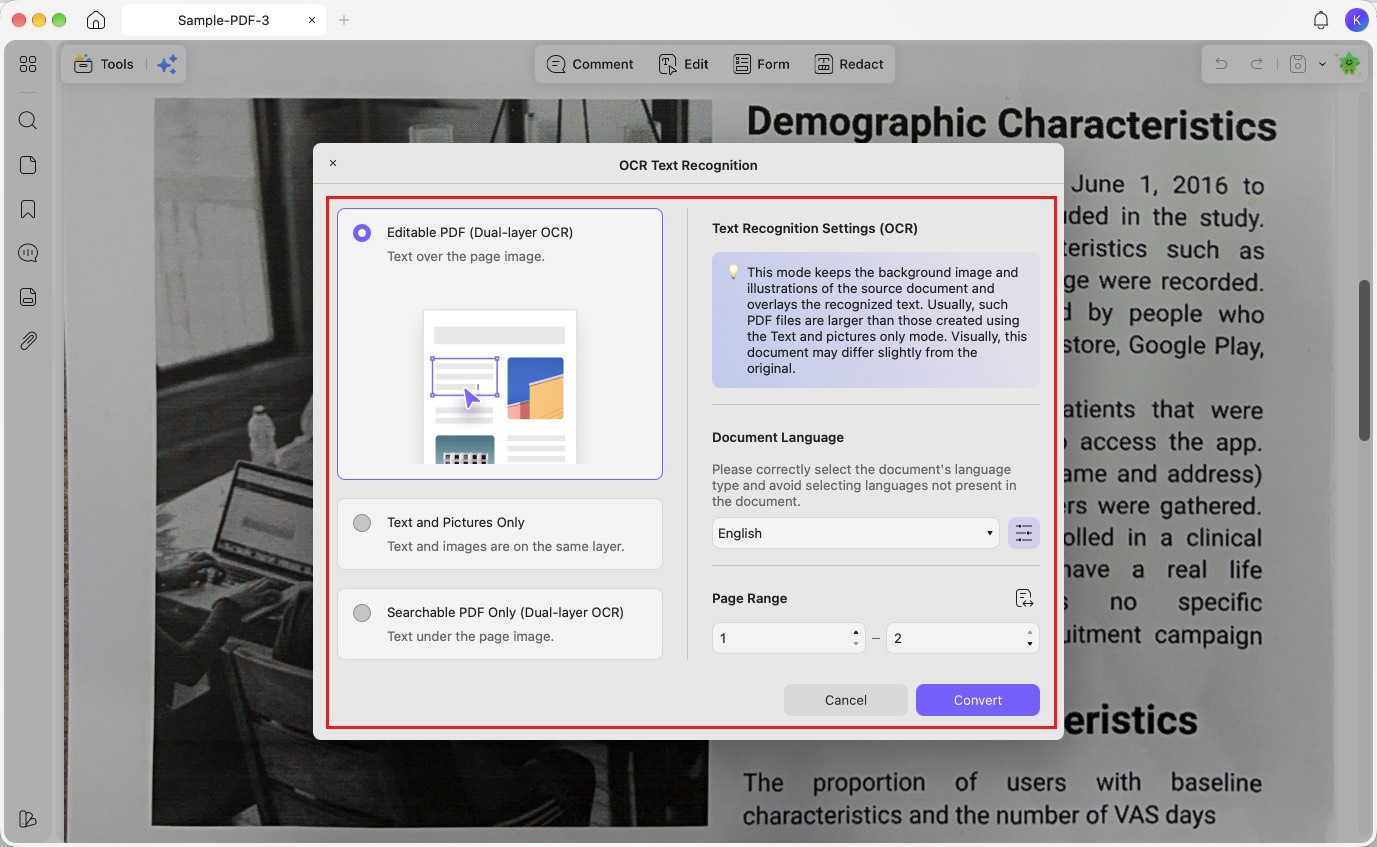
Step 3. After OCR has been performed on the scanned document, utilize any of the above-discussed methods and translate the text to your preferred language.
Part 2. Translate PDFs on iOS/Android Smartphones
UPDF extends its powerful PDF translation capabilities to iOS and Android devices to ensure a seamless translation on the go. With mobile support, you can access key features to translate PDFs directly from your smartphone, providing flexibility to users. Whether you are translating specific text selections or an entire document, using the conversational prompts can ensure your needs are met.
Apart from translation, you can annotate or edit your PDFs for further enhancement of the document. With the help of the integrated AI technology, you get the ability to summarize and chat with the PDF file as well through UPDF AI mode.
Method 1. Select to Translate Method
When you only need to translate specific portions of a PDF, the Select to Translate method is ideal. This feature allows you to focus on particular sections of text to save time and ensure accurate results. Take a look at the steps below to use this feature on your Android/iOS phone:
Step 1. Upload PDF After Installing UPDF Mobile
Once you are done installing the UPDF app, tap on the "+" icon on the "Files" interface. This will allow you to access your files and upload the PDF file you want to translate.
Step 2. Use UPDF AI To Translate the Text
As the PDF is on the application, select the text you want to translate and hit the "UPDF AI" option from the pop-up menu. Then, choose the "Translate into.." option with the desired language according to your criteria. Finally, review the response and make the next move based on your satisfaction with the accuracy of the translation.

Method 2. Translate Specific Page Range or Whole Document
For users who need to translate multiple pages or an entire PDF, this method provides the perfect solution. It offers the flexibility to customize the translation range, making it suitable for detailed reports or lengthy documents. Here are the steps you need to follow to carry out the translation procedure:
Instructions: To translate a specific page, tap on the "UPDF AI" icon on the top middle of the screen. Then, pick the "Translate by Page" option after tapping the "Lightbulb" icon in the chat box. Next, a Translate by Page pop-up appears where you can set the "Language" and "Pages" to hit the "Go" button. Finally, preview the results in the chat box and copy it to your clipboard for further use.

Method 3. Translate Through Chat Box Under the Ask PDF Mode
For an interactive and dynamic translation experience, the Ask PDF mode is your go-to feature. This method supports all languages and allows you to request translations through a chat box. Let's dive into the guide discussed below to see how it works:
Instructions: At the "Ask PDF" interface of the UPDF mobile application, type in the "Prompt" in the "Text box" as per your requirements. The integrated AI technology of UPDF generates the response and translates the text in your preferred language.

Part 3. Translate PDFs in a Web Browser
UPDF AI Online lets you translate documents directly in your browser on any device, with no installation required.
Method 1. Translate the Whole PDF with Layout Keeping
Step 1. Make sure that you click the button above to visit UPDF AI Online, click on the "New Chat," select “Translate,” and then upload your PDF.

Step 2. Click on the "Arrow Down" right next to the "Side by Side Translation" to choose the target language you need. Then, click on the "Side by Side Translation" and UPDF AI will start translating the content.

Step 3. When the translation is done, you can check the translation side by side. If you are satisfied with it, you can click on the "Download" icon, then "Download Translated File" to download the translated work.

Method 2. Translate by Pages
This feature is ideal for users who want to handle translations in a systematic manner. It allows you to work through the document to ensure that the translation remains highly accurate while preserving the format and structure of each page. Translate by pages feature is particularly useful for detailed documents, such as contracts, reports, or manuals, where context and layout are critical.
Step 1. Get Access to UPDF AI Online and Upload File
Start the process by getting access to the UPDF AI online tool and click on "New Chat," select “Translate,” and then upload your PDF.

Step 2. Choose to Translate the PDF
Once you are at the Chat PDF interface, navigate and click on the “Translate PDF” option.

Step 3. Select Language from Translate PDF by Page Dialog Box
Upon choosing “Translate,” you will get two options: "Side-by-Side Translation" and "Page-by-Page Translation." Choose your preferred style. Then select "Page range" and "Language," then click "Translate."

Step 4. Review Translated PDF Content
Lastly, the integrated GPT-5 AI tool of UPDF generates the translated content of the PDF in a matter of seconds, which you can “Copy” for later references.
Method 3. Translate by Sending Prompts in Chat box
Step 1. Upload your PDF to UPDF AI Online. Enter your translation prompt in the text box and click the Send button.
Step 2. Once the translation is generated, click Copy to copy the result or Regenerate to get a new translation.

Method 4. Translate Multiple PDFs
UPDF AI Online lets you upload and translate multiple PDFs in one collection without processing them individually. Free users can add up to 5 PDFs per collection, while paid users can add up to 100. Follow the steps below to get started.
Step 1. Navigate to Chat Project and Upload Multiple Files
To start translating multiple files, you must shift to the “New chat” section and "Upload Multiple Files" to the online interface.

Step 2. Type in Prompt and Review Results
After uploading all your PDFs onto the interface, type your “Prompt” in the text box and review the translation generated by UPDF AI.

Note
Moreover, users can also upload scanned documents to translate them. UPDF AI will automatically analyze the scanned document, enable OCR, and then perform the action.

Step 3. Upload Image to Translate
Just like UPDF on desktop, you can also use the "Image" icon to upload an image and enter a prompt to translate the content.
